
Written guide
Deliverable: learner guide Review state: documented draft; runtime limits are recorded below.
What you will learn
We’ll go from an attendee account to an issued ticket and actual event admission. Registration, the live ticket and staff check-in remain one continuous journey with clear results.
Before you begin
Install the EventOxygen build provided by the organiser. The stock Android package is https://web.appmint.space/apps/event_app/android/latest/event_app.apk. A customised organiser build may connect to another Appmint organisation; installing the stock app does not switch it to your company. Prepare a published event with an available free test ticket and a controlled attendee email.
1. Create or sign into an attendee account
The attendee identity and staff identity serve different purposes. Your ticket holder email is what links the registration back to this attendee account.
Steps
- Open the organiser’s EventOxygen app. Use Sign In for an existing attendee account, or Create Account for a new one.
- On Create Account enter First Name, Last Name and Email. Use the address you intend to enter when booking; another holder address can leave the ticket outside this account’s personal list.
- Enter Password, then repeat it in Confirm Password. Current client validation requires at least six characters; choose a strong unique password. The eye icon reveals the password temporarily to check a typing mistake.
- Read the linked policies under the form before Create Account. This screen presents agreement text; it does not have a separate required checkbox.
- Submit once and wait for the account response. Correct a field error on this screen. Once signed in, look for My Events. No events yet is expected before you register for an event.
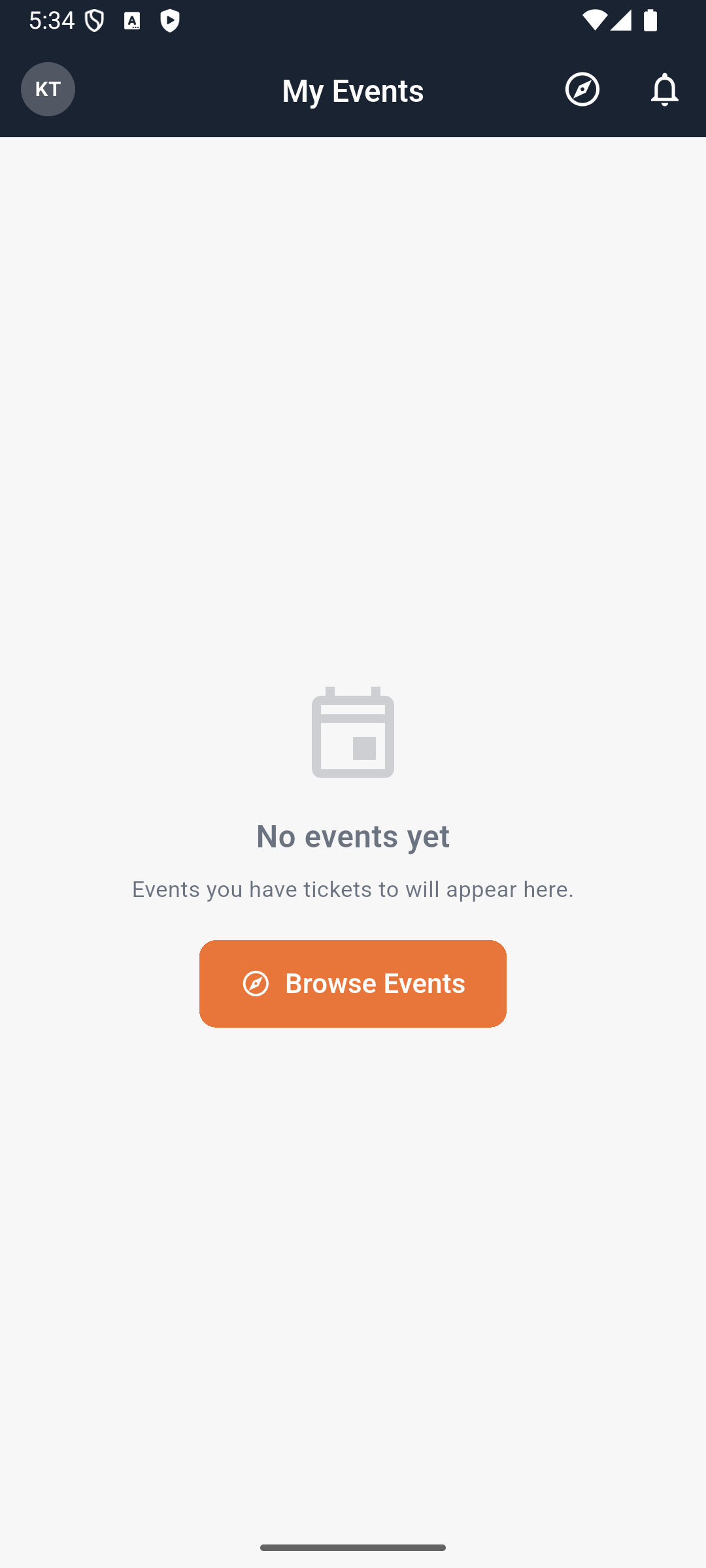
*Retained local account state after signup.
Visible result: The correct attendee session is active; an empty personal event list is not treated as failed signup.
2. Choose the event and ticket
Browse Events shows published events available through this app’s organisation. Check the event before choosing a ticket.
Steps
- Tap Browse Events from the empty personal list and open the event you intend to attend. Check the title, dates and venue before continuing.
- Tap Get Tickets. If this button is absent, the current page has no ticket types to offer; ask the organiser about availability instead of assuming registration completed.
- Enter Email and Name on the Get Tickets screen. Use your attendee account email for your own booking. Email is required; the current form allows Name to be blank, but supplying it helps identify the holder.
- Under Select Tickets, read each ticket’s name, price and included perks. Tap + for the required quantity; − removes an unwanted quantity. A sold-out type has no quantity selector, and the plus button stops at its per-order limit.
- Check every nonzero quantity and the total. Choose a free ticket for this practice journey. The button reads Register for a zero-total booking and Continue to Payment for a paid booking. These are different branches; do not treat reaching the payment sheet as a purchased ticket.
Visible result: The selected event, ticket type, quantity and holder email match the intended registration.
3. Confirm and find the booking
A booking reference identifies the registration. Each ticket identifies an admission right; they are different identifiers.
Steps
Tap Register once for the free practice registration. Wait for Booking Confirmed. Read the reference, holder email, number of tickets and status. Use Done to leave the confirmation. Close and reopen the app. Open the event from My Events and choose My ticket.
Visible result: The same event and issued ticket persist after reopening. PAID with Total: Free means the zero-total booking is settled, not that a card was charged.
4. Open the issued ticket
The event, ticket type and holder establish what this ticket is for. Pinning only changes how conveniently you find it on this phone.
Steps
Open My Events, select the event and tap My ticket. Read the ticket’s event, type, holder and status. Open the ticket’s three-dot menu and choose Pin ticket. Reopen the menu and confirm Unpin is available. Use Unpin to restore the original preference if desired.
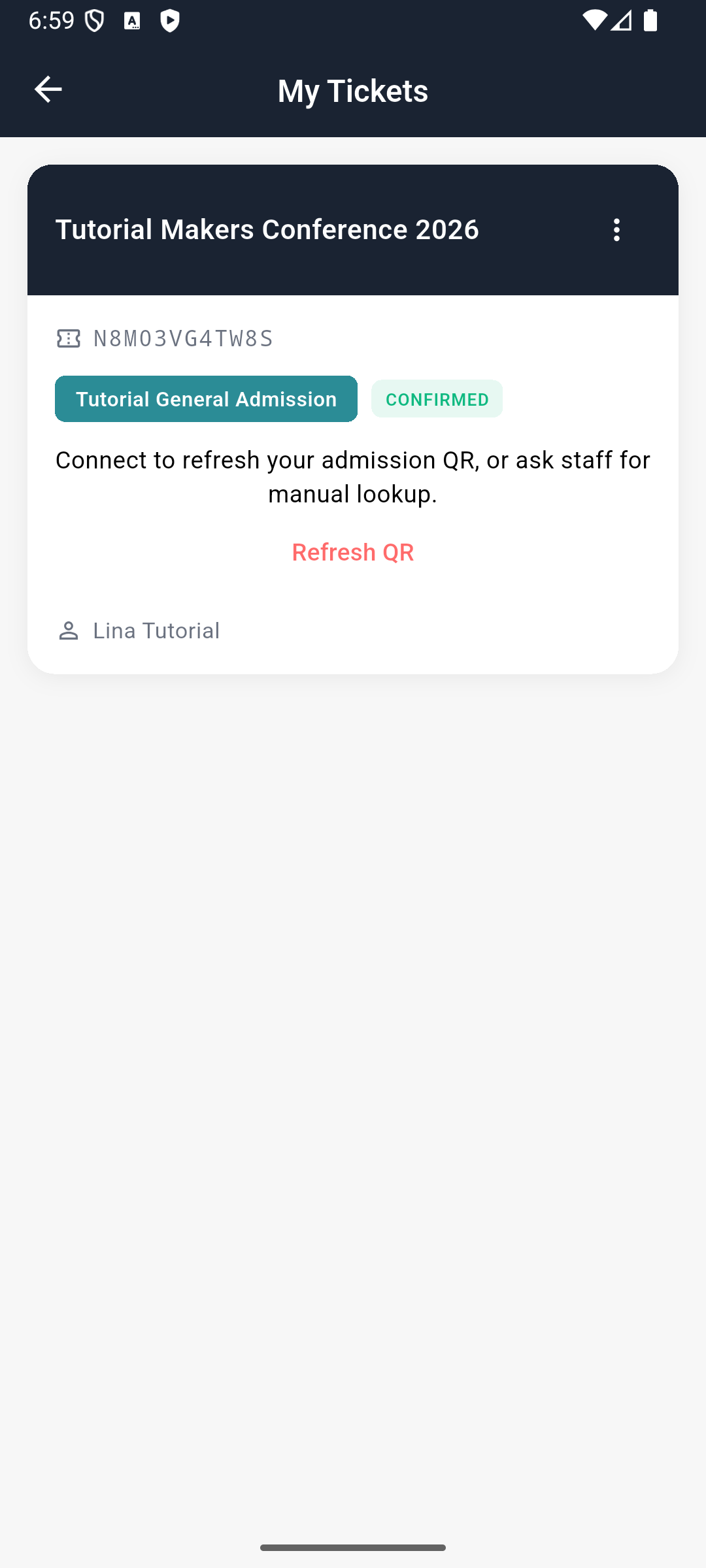
Retained Lina Tutorial ticket. No live QR is exposed. This is a different training attendee from the empty-account example above, not a continuous signup recording.
Visible result: The issued ticket is visible. Pinning neither buys another ticket nor reserves a session.
5. Present live admission QR
Admission uses a current code. The app refreshes the QR while the ticket is open; an old screenshot can no longer establish live admission.
Steps
Keep the ticket open with connectivity available. Present its QR to the controlled staff scanner. If the code is unavailable, reconnect and tap Refresh QR, or ask staff to use the holder-email Manual Lookup route. After staff successfully admits the ticket, reopen it and inspect the updated state.
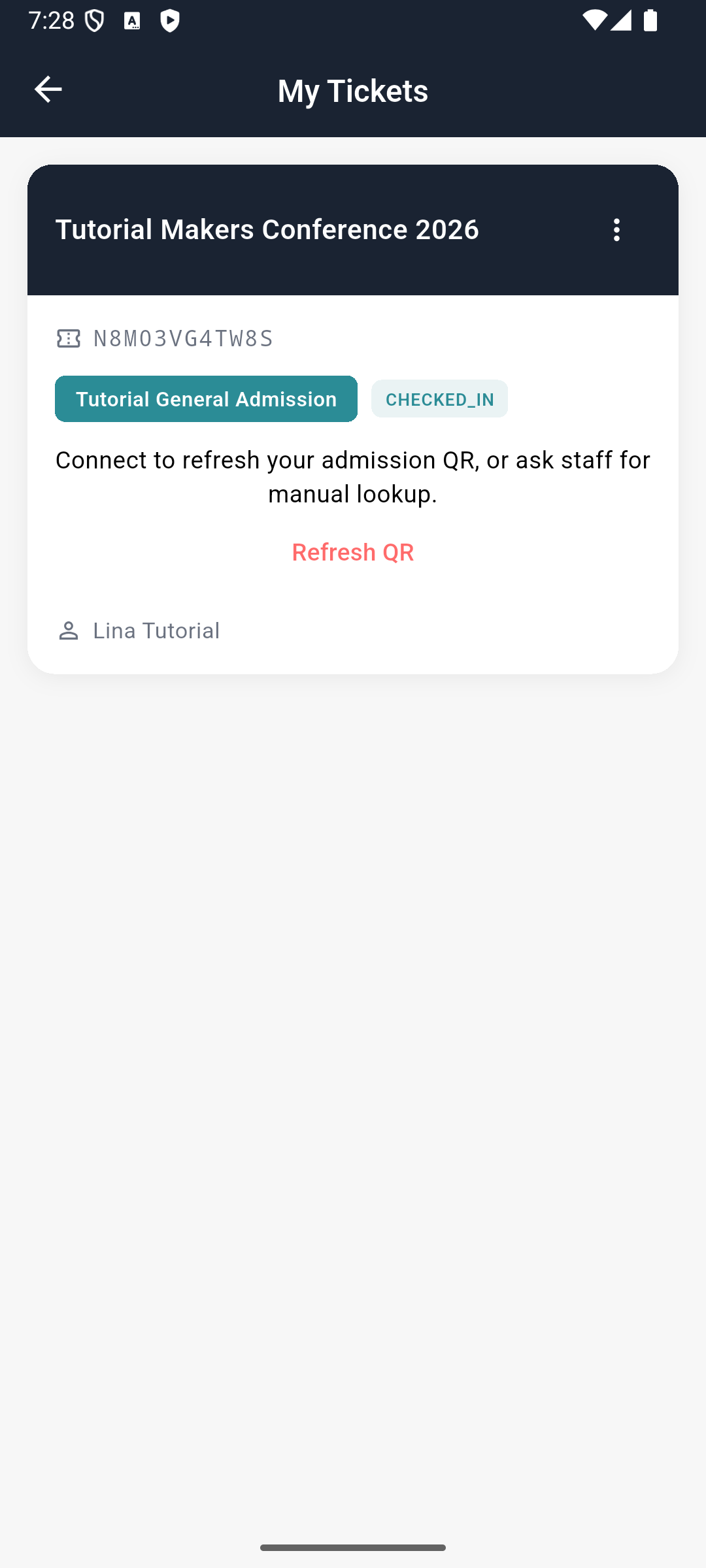
Historical attendee result following staff manual lookup. It does not demonstrate a physical camera scan.
Visible result: A successful staff admission is reflected as CHECKED IN; show the actual result rather than a fabricated badge.
6. Check the event after admission
Your event Home should reflect the same ticket state after reopening.
Steps
Return from My ticket to the event Home and compare the displayed status. Reopen the app and locate the event again without creating another registration.
Visible result: The registration and admission persist under the same attendee.
Advanced features and alternatives
For a paid ticket, Continue to Payment starts the configured Stripe payment flow. Complete the provider’s payment sheet only for an intended purchase, then verify the booking and issued ticket after returning. Cancellation, provider setup failure or a pending booking is not proof of payment. Paid checkout has not been demonstrated in the retained evidence.
The confirmation offers Share Booking, Assign Tickets to Others, and ticket Transfer where available. Sharing opens a platform chooser; it does not itself deliver anything. Assignment changes who holds a ticket and deserves a separate recipient-side check. Keep your own ticket unless you intend to transfer it. See EventOxygen tickets for the ticket controls and staff recovery boundaries.
Troubleshooting and recovery
Refresh QR appears because the live code cannot be refreshed: reconnect or use staff lookup. No tickets yet: compare the registered holder email and event. Already admitted: staff should inspect the existing admission. Assignment says sent but no recipient ticket/email: retain the actual result and investigate; do not make the tutorial claim successful transfer from the toast alone.
Your next check
You now have the route through EventOxygen: Ticket Purchase and Event Admission. Use the chapter for the action you need, check its saved result, and return to the alternatives when your setup calls for them.
Limitations and checks
Prior free registration/manual admission proof exists. New physical QR and any paid gateway branch remain pending.
This learner guide was checked against current source and personally inspected retained native evidence on 5 October 2026. It does not assert a new live device walkthrough or provider transaction. The next recording must compare the installed build with these labels, capture each success and recovery honestly, and amend any changed behaviour before publication.
EventOxygen Event Discovery and Registration — supporting guide
Deliverable: learner guide Review state: documented draft; runtime limits are recorded below.
What you will learn
EventOxygen is the attendee app. We’ll find an event, choose a ticket and register using the same email as the attendee account. Then we’ll reopen the app and find that registration again.
Before you begin
Install the EventOxygen build provided by the organiser. The stock Android package is https://web.appmint.space/apps/event_app/android/latest/event_app.apk. A customised organiser build may connect to another Appmint organisation; installing the stock app does not switch it to your company. Prepare a published event with an available free test ticket and a controlled attendee email.
1. Create or sign into an attendee account
The attendee identity and staff identity serve different purposes. Your ticket holder email is what links the registration back to this attendee account.
Steps
- Open the organiser’s EventOxygen app. Use Sign In for an existing attendee account, or Create Account for a new one.
- On Create Account enter First Name, Last Name and Email. Use the address you intend to enter when booking; another holder address can leave the ticket outside this account’s personal list.
- Enter Password, then repeat it in Confirm Password. Current client validation requires at least six characters; choose a strong unique password. The eye icon reveals the password temporarily to check a typing mistake.
- Read the linked policies under the form before Create Account. This screen presents agreement text; it does not have a separate required checkbox.
- Submit once and wait for the account response. Correct a field error on this screen. Once signed in, look for My Events. No events yet is expected before you register for an event.
*Retained local account state after signup.
Visible result: The correct attendee session is active; an empty personal event list is not treated as failed signup.
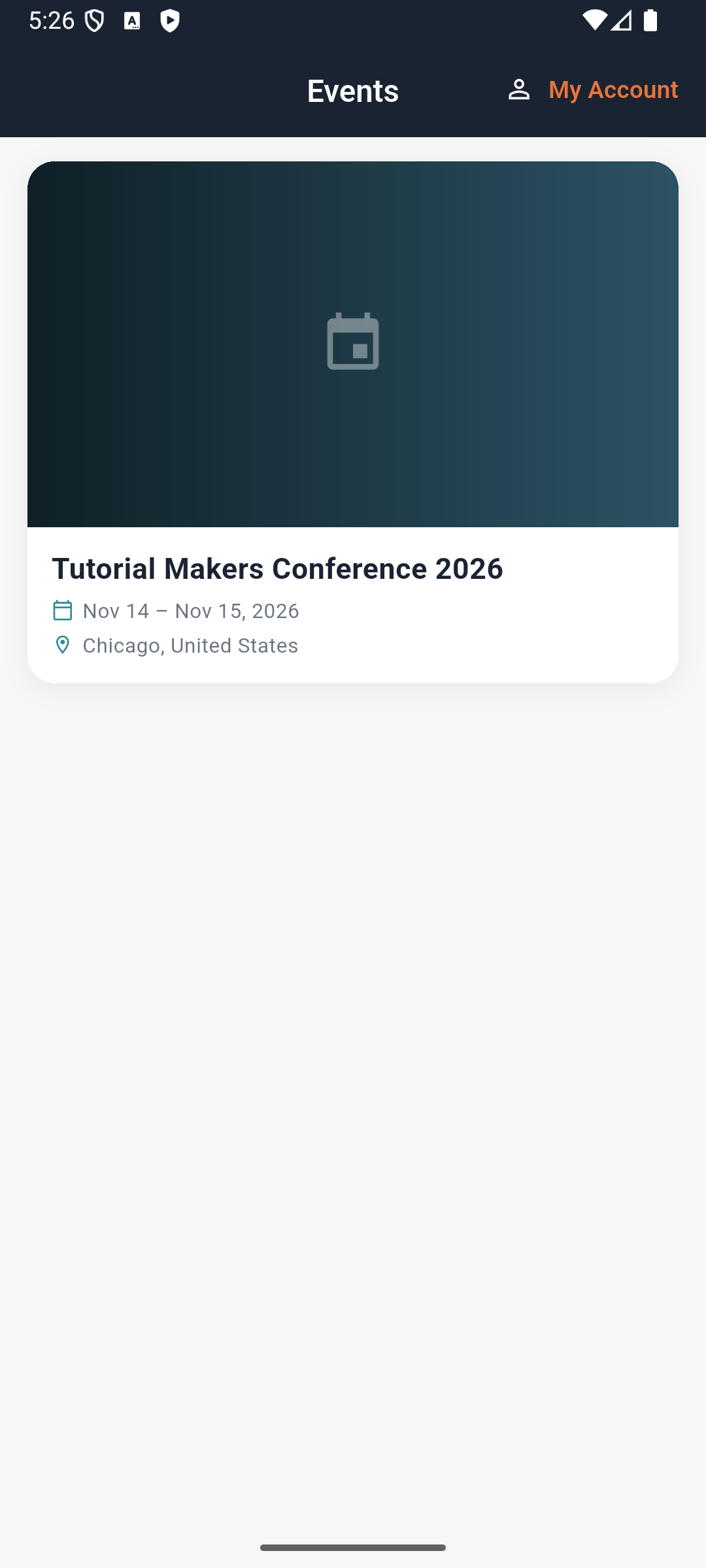
Historical public listing, not a personal booking.
2. Choose the event and ticket
Browse Events shows published events available through this app’s organisation. Check the event before choosing a ticket.
Steps
- Tap Browse Events from the empty personal list and open the event you intend to attend. Check the title, dates and venue before continuing.
- Tap Get Tickets. If this button is absent, the current page has no ticket types to offer; ask the organiser about availability instead of assuming registration completed.
- Enter Email and Name on the Get Tickets screen. Use your attendee account email for your own booking. Email is required; the current form allows Name to be blank, but supplying it helps identify the holder.
- Under Select Tickets, read each ticket’s name, price and included perks. Tap + for the required quantity; − removes an unwanted quantity. A sold-out type has no quantity selector, and the plus button stops at its per-order limit.
- Check every nonzero quantity and the total. Choose a free ticket for this practice journey. The button reads Register for a zero-total booking and Continue to Payment for a paid booking. These are different branches; do not treat reaching the payment sheet as a purchased ticket.
Visible result: The selected event, ticket type, quantity and holder email match the intended registration.

Historical public detail with Get Tickets at the bottom.

Historical pre-submit form, not proof of a completed booking.
3. Confirm and find the booking
A booking reference identifies the registration. Each ticket identifies an admission right; they are different identifiers.
Steps
Tap Register once for the free practice registration. Wait for Booking Confirmed. Read the reference, holder email, number of tickets and status. Use Done to leave the confirmation. Close and reopen the app. Open the event from My Events and choose My ticket.
Visible result: The same event and issued ticket persist after reopening. PAID with Total: Free means the zero-total booking is settled, not that a card was charged.

Historical personal-list result. Open My ticket to inspect the actual issued ticket.
Advanced features and alternatives
Paid ticket purchase needs its own configured gateway rehearsal and recipient receipt; do not claim free-ticket proof establishes payment. Show event detail links People, Schedule, Venue and Tickets where present. Cover organiser-specific builds and the distinction between Browse Events being empty and My Events being empty.
Troubleshooting and recovery
No events yet under Browse Events: ask the organiser to confirm the published event and app/organisation pairing. Recreating an attendee account cannot publish an event. Ticket missing under the attendee account: compare holder email with the signed-in email and the booking confirmation. A failed registration must be checked before submitting again to avoid duplicate bookings.
Your next check
You now have the route through EventOxygen Event Discovery and Registration. Use the chapter for the action you need, check its saved result, and return to the alternatives when your setup calls for them.
Limitations and checks
Existing local Android evidence records fresh attendee signup, free registration and persistence. Current EventOxygen catalogue sources reviewed through existing manuscript; paid purchase and production app event availability are not newly verified.
This learner guide was checked against current source and personally inspected historical native captures on 5 October 2026. It does not assert a new live device walkthrough or provider transaction. The next recording must compare the installed build with these labels, capture each success and recovery honestly, and amend any changed behaviour before publication.
EventOxygen My Events and event Home — supporting guide
Deliverable: learner guide Review state: documented draft; runtime limits are recorded below.
What you will learn
My Events brings back the events you have tickets for. Inside an event, Home leads to your ticket, programme, people and media. We’ll use those two levels of navigation without starting another registration.
Before you begin
Use an attendee with an issued ticket in the organiser’s configured app.
1. Find a registered event
My Events is personal to your attendee account. Browse Events is the discovery list for the app’s organisation.
Steps
- Sign in to your attendee account and find My Events. This is your personal ticket-backed list, not the complete public event catalogue.
- Open the card for the event you registered for. Check its title before opening a ticket, especially when the same organiser runs several events.
- If the list says No events yet, compare the account email with the booking’s holder email first. Use Browse Events to discover an event; opening that list does not register you.
Historical empty account state. Browse Events is the next discovery action, not a claim that the attendee already holds a ticket.
Visible result: The event Home corresponds to the attendee’s actual registration.
2. Navigate event Home
Ticket, programme and networking have distinct destinations. Returning to Home restores the event context between them.
Steps
- On event Home, read the event title, date/time and venue. These identify the event that all the following shortcuts belong to.
- Tap My ticket to inspect your admission ticket, then use Back to return. The ticket status and holder matter more than an event’s overall tickets-sold count.
- Tap Schedule for the event programme. Return to Home before opening People for attendee discovery or Media for event content. A missing programme or empty people list is content availability, not proof your ticket failed.
- Use the bottom navigation to return to Home or open Me for your own profile. The + and Inbox serve other event interactions; they do not register another ticket.
- Open the upper-left menu. Connections, Meetings and Bookmarks lead to saved networking/activity destinations; My Events returns to your personal event list. Select another event there and check its title before proceeding.

Historical Kofi Tutorial event Home. CONFIRMED is a ticket state; it does not mean staff have admitted the attendee.
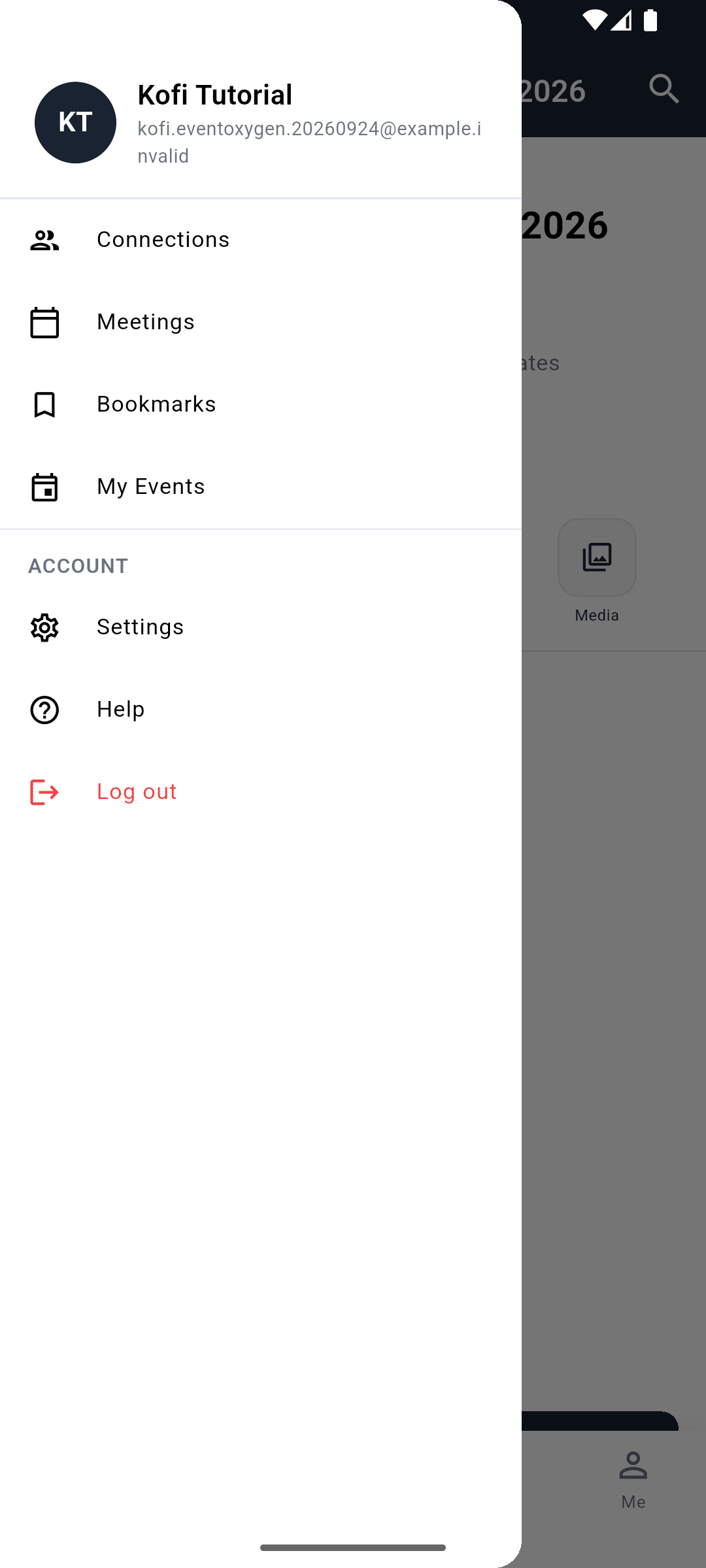
The drawer preserves the attendee context. The example email is a non-deliverable training address. Settings and Help are visible but currently do not open functional destinations.
Check your result: Returning to Home restores the intended event title. Opening My Events lets you choose a different registered event without buying another ticket.
Advanced features and alternatives
Cover relaunch persistence, multiple events and ticket counts. After staff admission reopen My ticket and compare the Home ticket status. An account with no tickets can legitimately show no personal events.
Troubleshooting and recovery
Wrong event data: return to My Events and choose the correct card. Ticket count differs: refresh and compare actual tickets. The event drawer Settings and Help were previously nonfunctional; use the organiser’s verified support route until those actions are implemented.
Your next check
You now have the route through EventOxygen My Events and event Home. Use the chapter for the action you need, check its saved result, and return to the alternatives when your setup calls for them.
Limitations and checks
Existing native evidence records registration and My Events persistence. Current Home navigation requires comparison with the installed organiser build.
This learner guide was checked against current source and personally inspected retained native evidence on 5 October 2026. It does not assert a new live device walkthrough or provider transaction. The next recording must compare the installed build with these labels, capture each success and recovery honestly, and amend any changed behaviour before publication.
EventOxygen Tickets and live admission QR — supporting guide
Deliverable: learner guide Review state: documented draft; runtime limits are recorded below.
What you will learn
Your EventOxygen ticket shows the admission you hold and its current status. We’ll open it, present the live QR and recognise the checked-in result. We’ll also show pinning and assignment as separate controls.
Before you begin
Use an attendee with a confirmed ticket in the organiser’s configured app. Have controlled staff access in Appmint Mobile for the admission test. Do not use the attendee’s profile QR as the ticket code.
1. Open the issued ticket
The event, ticket type and holder establish what this ticket is for. Pinning only changes how conveniently you find it on this phone.
Steps
Open My Events, select the event and tap My ticket. Read the ticket’s event, type, holder and status. Open the ticket’s three-dot menu and choose Pin ticket. Reopen the menu and confirm Unpin is available. Use Unpin to restore the original preference if desired.
Visible result: The issued ticket is visible. Pinning neither buys another ticket nor reserves a session.
2. Present live admission QR
Admission uses a current code. The app refreshes the QR while the ticket is open; an old screenshot can no longer establish live admission.
Steps
- Open the issued ticket in EventOxygen and confirm event, type and holder. Your profile QR is not this ticket’s admission code.
- Keep the ticket open with connectivity available while staff use Appmint Mobile for the selected event. The live QR refreshes; an old screenshot is not a replacement.
- If no QR appears, reconnect and tap Refresh QR. Alternatively, ask staff for Manual Lookup using your holder email or supported ticket identifier.
- Wait for staff’s actual admission result. Reopen your ticket and check its status; simply showing the ticket does not admit it.
Visible result: A successful staff admission is reflected as CHECKED IN; show the actual result rather than a fabricated badge.
Attendee app, retained offline/error state: Confirmed admission entitlement and unavailable live QR are separate. Reconnect/Refresh QR or ask staff for lookup.
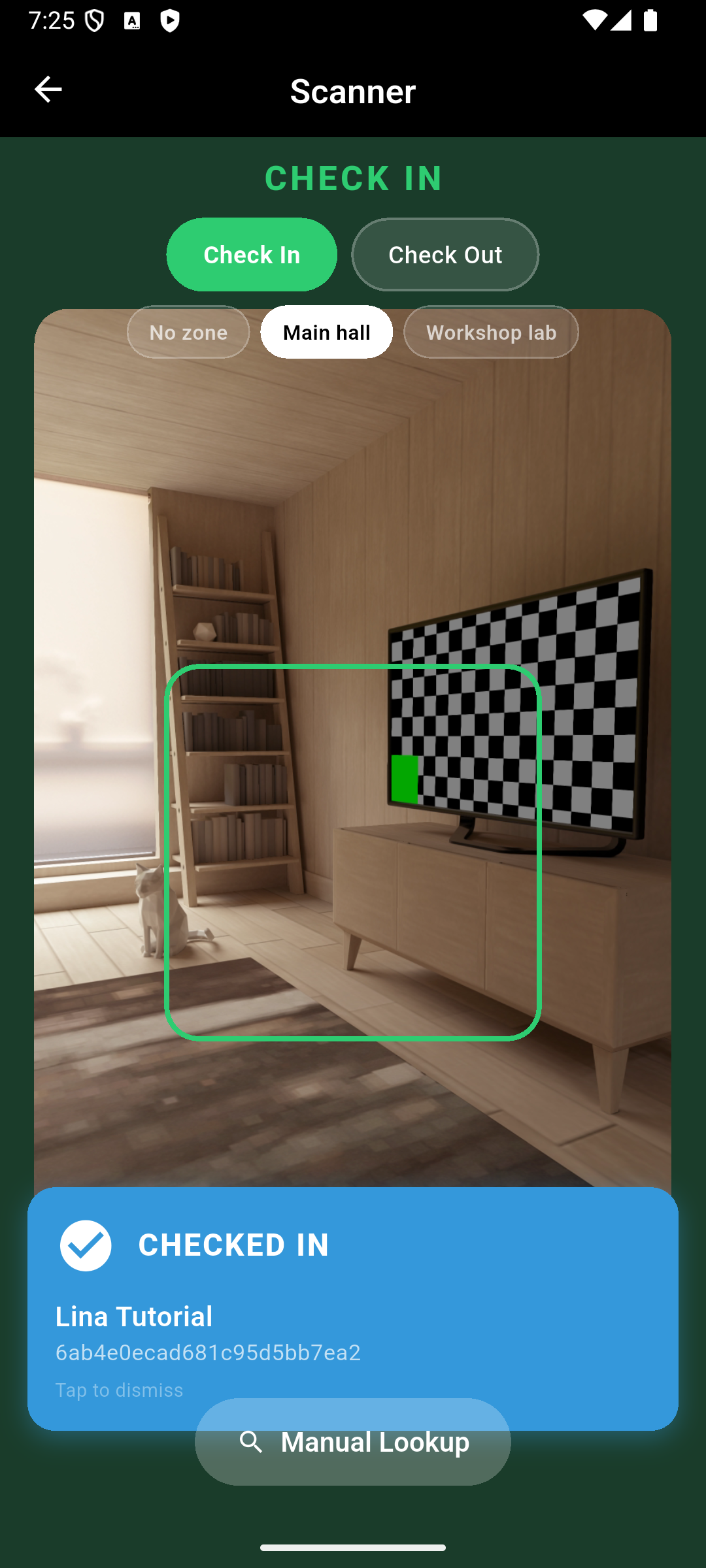
Different app: staff Appmint Mobile reports CHECKED IN for Lina Tutorial with Main hall selected. This retained test used manual lookup; the simulator camera background does not prove a physical QR scan.
*Attendee result: the same training ticket displays CHECKED_IN.
3. Inspect ticket assignment
Assigning a ticket changes its intended holder and can affect the admission code. Only use it when that is the action you want.
Steps
Open the ticket menu and select Assign to someone. Read Assign Ticket. Enter Recipient Email and optional Recipient Name for a controlled partner only. Before submitting, confirm the current build’s assignment behaviour with the organiser. If testing is authorised, submit once and verify the recipient’s ticket and old holder’s state independently.
Visible result: The recipient’s actual ticket is the success check; a success panel is not proof that the email arrived.
Advanced features and alternatives
Cover multiple tickets, Pin ticket/Unpin, View Event, live QR refresh and the separate ticket-assignment form. Ticket assignment and its claimed notification need a fresh test; prior evidence recorded limits. Demonstrate admission failure for an ineligible zone separately from account or network errors.
Troubleshooting and recovery
Refresh QR appears because the live code cannot be refreshed: reconnect or use staff lookup. No tickets yet: compare the registered holder email and event. Already admitted: staff should inspect the existing admission. Assignment says sent but no recipient ticket/email: retain the actual result and investigate; do not make the tutorial claim successful transfer from the toast alone.
Your next check
You now have the route through EventOxygen Tickets and live admission QR. Use the chapter for the action you need, check its saved result, and return to the alternatives when your setup calls for them.
Limitations and checks
ticket_screen.dart and live_ticket_qr.dart inspected. Earlier paired-app proof covers manual staff admission and attendee CHECKED IN. Fresh physical camera decoding, assignment and recipient delivery remain unverified.
This document was authored from the current source and prior evidence on 2 October 2026. It does not assert a new live device walkthrough or provider transaction. The next recording must compare the installed build with these labels, capture each success and recovery honestly, and amend any changed behaviour before publication.
Limitations and checks
The retained pair supports historical manual staff admission and attendee status readback. Current live QR presentation/physical decoding, pin/unpin persistence, assignment recipient ownership, old-holder revocation and any assignment email require their own tests. No admission or assignment was performed in this manuscript pass.
EventOxygen Schedule and session details — supporting guide
Deliverable: learner guide Review state: documented draft; runtime limits are recorded below.
What you will learn
EventOxygen Schedule puts the event programme on your phone. We’ll find a session, read its time and room, save it to your personal schedule and find it again in Saved. Saving a session helps you organise your day; it does not buy admission or reserve a seat.
Before you begin
Use an event with published sessions and an attendee account. The app must be the organiser’s configured build.
1. Find and read a session
Choose the day before choosing the session. The event’s timezone matters when you are planning travel or joining remotely.
Steps
- Open the intended event and tap Home → Schedule. Confirm the event title at the top.
- On the calendar choose the programme day. Markers identify dates with loaded sessions. No sessions on this day applies to the selected day; choose another marked event day before concluding the whole programme is empty.
- Read the entries below the calendar, then tap the session you want. Compare its title, start/end time, description, track and room.
- Interpret the time in the published event timezone. If the screen shows a raw date-time string without a zone, check the organiser’s programme instead of silently substituting phone-local time. Coloured track labels identify tracks; the inspected row is a legend, not an implemented track filter.
Visible result: The intended session, time and room are visible.
2. Save and reopen
Add to My Schedule saves a personal bookmark after the server confirms it.
Steps
Tap Add to My Schedule. Wait for Remove from My Schedule. Leave and reopen the session. Confirm the remove action remains. If Retry schedule appears, retry the read before claiming the state has been saved.
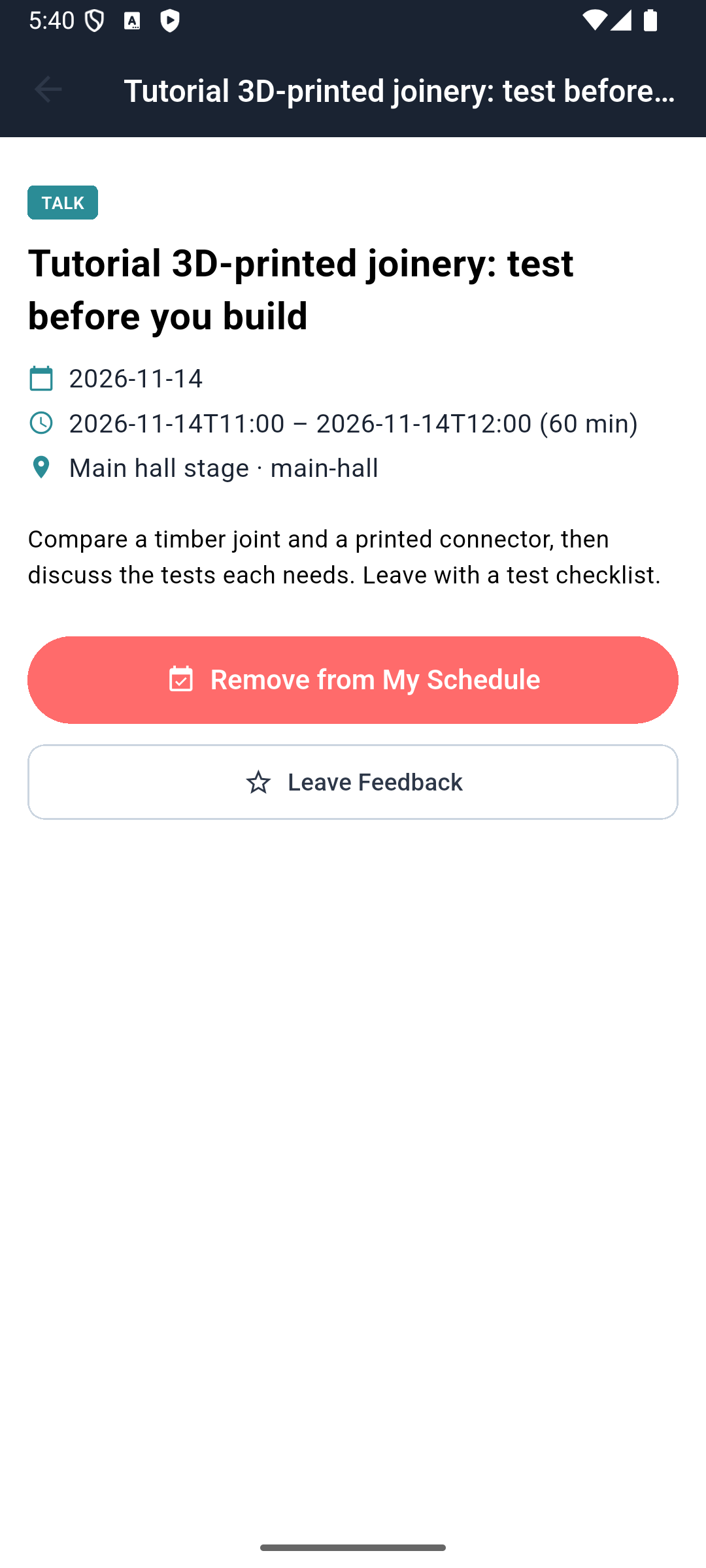
Historical saved state. This capture shows raw date-time formatting; it does not establish correct timezone conversion in every build.
Check your result: Reopening the session still shows Remove from My Schedule, rather than only a transient success message.
3. Use Saved and remove
Saved groups different kinds of bookmarks. The Session category brings your programme choices together.
Steps
- Return to event Home, open the upper-left menu and choose Bookmarks.
- On Saved, select Session and find your session’s title and notes. This list currently has no open-session action: to read the full session again, return to Home → Schedule and select it there.
- Remove an unwanted bookmark with its trash icon, or open the session through Schedule and choose Remove from My Schedule. The Saved trash control acts immediately.
- Reopen the session and confirm Add to My Schedule is available again. Removing your bookmark does not delete the organiser’s session.
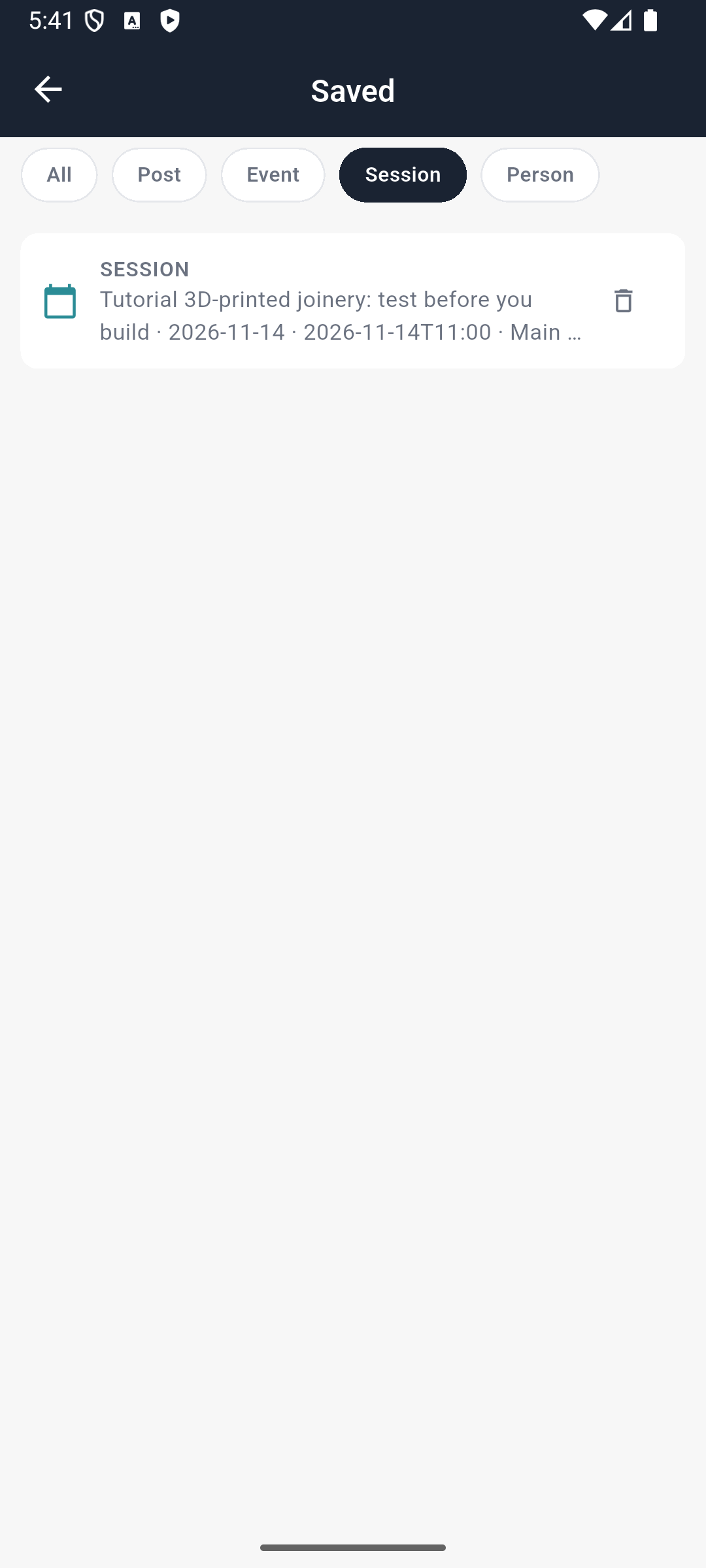
Historical bookmark result. No seat or admission reservation is created by this action.
Visible result: The saved session is identifiable and removal is reflected in the session detail.
Advanced features and alternatives
Repeat the day-selection and save steps for another programme day, then compare your choices with Meetings separately. Saved sessions are not merged automatically into confirmed appointments, and no conflict-resolution control is shown here.
The detail page displays Leave Feedback, but its current callback is empty. It does not open a working feedback form. If a streaming section displays Watch, that callback is also currently empty; the badge is not a demonstrated working player. Do not assume feedback was sent after tapping it. A saved session is not an attendance check-in, meeting invitation or ticket purchase.
Troubleshooting and recovery
No sessions on a selected day: check the event dates and another programme day. A bookmark button that never changes: preserve the request error and use the organiser’s updated app; older builds had an unimplemented action. Time formatting unclear: use the published event timezone and report the UI issue rather than guessing.
Your next check
You now have the route through EventOxygen Schedule and session details. Use the chapter for the action you need, check its saved result, and return to the alternatives when your setup calls for them.
Limitations and checks
The existing local Android manuscript records saved-session persistence and Saved → Session proof after a repair. Current source paths are recorded below; no new native session was executed in this drafting pass.
This learner guide was checked against current source and personally inspected historical native captures on 5 October 2026. It does not assert a new live device walkthrough or provider transaction. The next recording must compare the installed build with these labels, capture each success and recovery honestly, and amend any changed behaviour before publication.
EventOxygen Bookmarks — supporting guide
Deliverable: learner guide Review state: documented draft; runtime limits are recorded below.
What you will learn
Saved in EventOxygen brings bookmarked posts and programme sessions together. We’ll find each type, reopen its original and remove only the bookmark when we no longer need it.
Before you begin
Sign in as the attendee whose saved items you want to organise. To create the examples first, open an event session from Home → Schedule and use Add to My Schedule; in Explore, tap Save beneath a post you want to return to. These are personal shortcuts, not purchases or public reposts.
1. Open saved content by type
The category identifies what the bookmark refers to. It is not evidence that every category has a working save control elsewhere.
Steps
- From event Home open the upper-left menu and choose Bookmarks. The resulting page is titled Saved.
- Use All, Post, Event, Session or Person to filter existing bookmarks. An empty filter does not mean the other types are empty, and the presence of a category does not prove a save action exists everywhere.
- Select Session. Read the session title and saved date/time/location notes. The current list has no session-open button or row action: return to Home → Schedule, find that title and open it there.
- Return to Bookmarks → Post. Read the beginning of the post to identify the intended item, then tap its square-with-arrow Open saved post icon.
- Check the original post’s author and text. If the app says it cannot open the post, it may have been removed or its audience changed; the bookmark does not bypass access.
Historical session bookmark. This row has a remove icon, but no implemented open-session action.
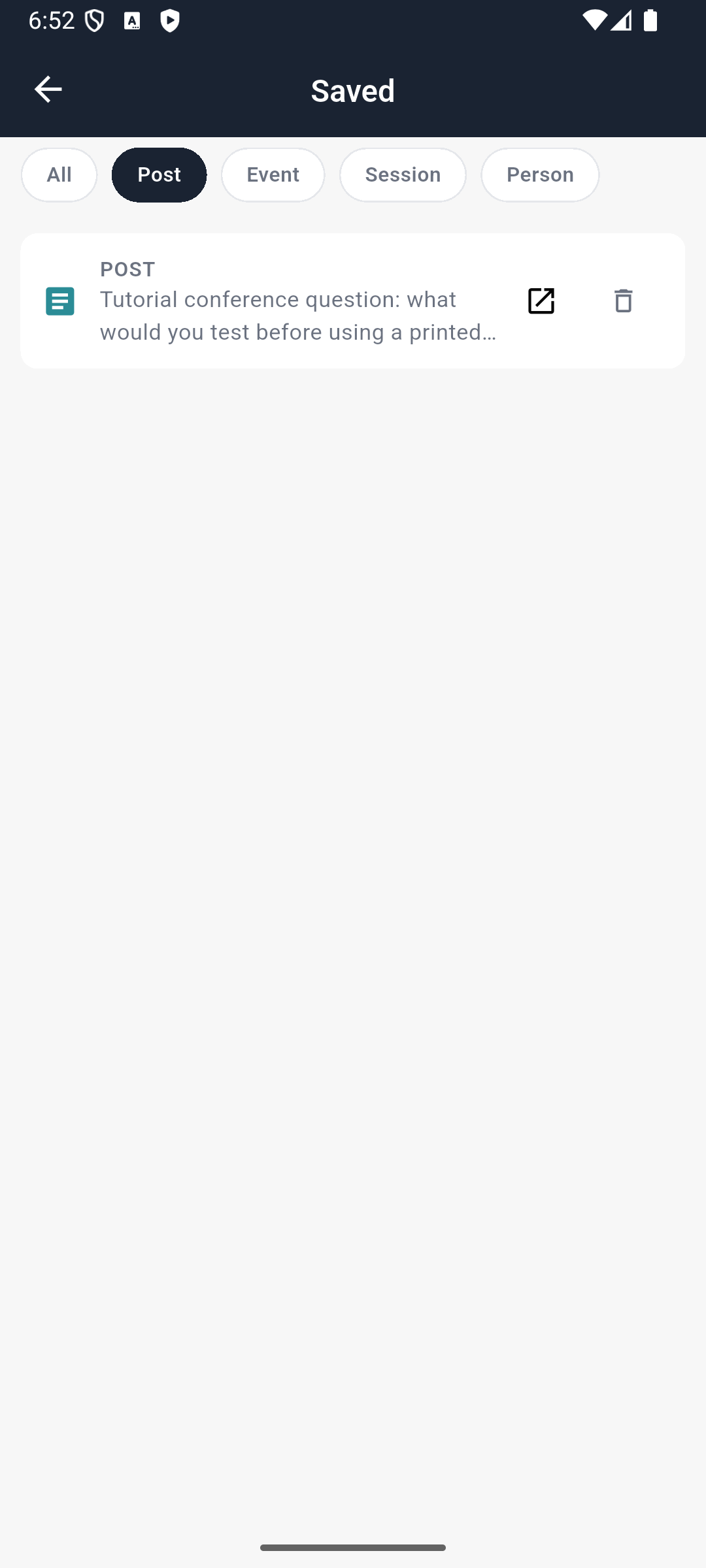
For a post, the square-with-arrow opens the original; the trash icon removes only this personal bookmark.
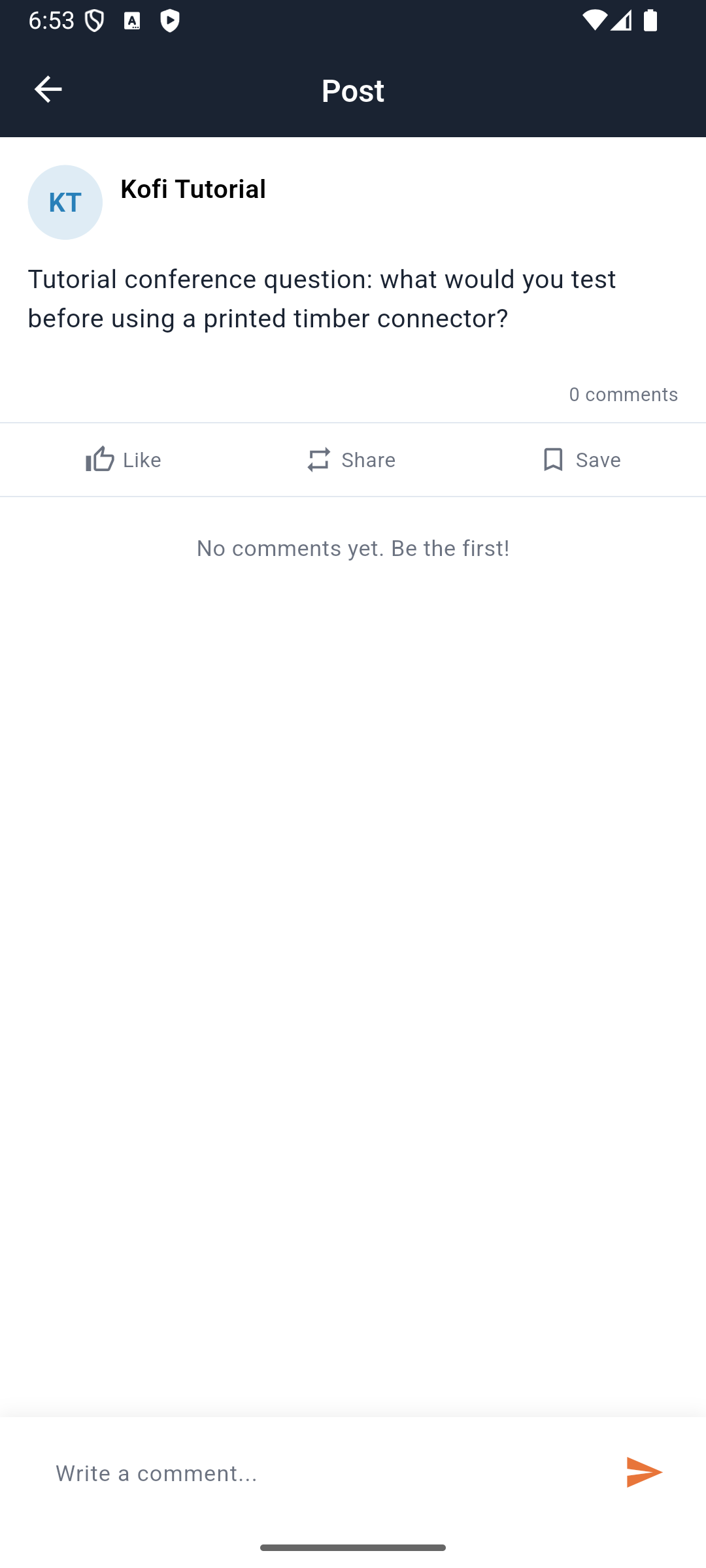
Historical matching post result: compare its text and author, rather than relying on a shortened Saved preview.
Check your result: The saved post opens its original. A session is located through Schedule because Saved currently lacks the corresponding navigation action.
2. Remove and verify
The trash control removes the bookmark. It does not delete the event’s session or another attendee’s post.
Steps
- Identify the personal bookmark you no longer need and tap its trash icon. The inspected control removes immediately; do not expect a confirmation dialog.
- Leave and reopen Saved, select the same filter, and confirm that row is absent.
- Find the original in Schedule or Explore to confirm you only removed your shortcut. For sessions, the detail screen also offers Remove from My Schedule when saved.
- If removal fails or the row remains, refresh before repeating the action. The current remove handler does not provide a dedicated friendly error message; a tap alone is not evidence of successful removal.
Visible result: Only the personal saved state changes.
Advanced features and alternatives
Cover empty categories, save/reopen persistence, deleted originals and changing access. A session bookmark is not a seat reservation or ticket.
Troubleshooting and recovery
Saved blank: check attendee identity and filter. Original cannot open: inspect its existence and audience. Repeated save taps can obscure state; wait for the current request before tapping again.
Your next check
You now have the route through EventOxygen Bookmarks. Use the chapter for the action you need, check its saved result, and return to the alternatives when your setup calls for them.
Limitations and checks
Existing local session/post bookmark persistence was verified.
This learner guide was checked against current source and personally inspected historical native captures on 5 October 2026. It does not assert a new live device walkthrough or provider transaction. The next recording must compare the installed build with these labels, capture each success and recovery honestly, and amend any changed behaviour before publication.