
Written guide
Deliverable: learner guide Review state: documented draft; runtime limits are recorded below.
What you will learn
We’ll find another attendee, make an accepted connection, exchange a message and agree a meeting. Each step has its own acceptance: Pending is not Connected, and Proposed is not Confirmed.
Before you begin
Use two controlled attendee accounts in the same prepared event. Have both participants agree to the exercise.
1. Search and filter
The event directory is based on participant records. A person may have a ticket without appearing in People.
Steps
- Open the intended event and choose Home → People.
- Type the person’s name in Search people. If no result appears, clear the search and select All so an earlier role filter does not hide them.
- Swipe the role chips horizontally to find the type you want, such as Speaker, Sponsor or Exhibitor. Counts describe directory entries, not tickets sold.
- Tap the intended person’s card and compare their name, role and company/profile description before contacting them. A confirmed ticket alone does not ensure a participant directory record exists.

Historical directory state. Lina is already Pending; Nia still offers Connect. These are different relationships, not interchangeable example buttons.
Visible result: The correct participant is selected in the correct event.
2. Request and accept
Pending means a request exists. Connected means the other person accepted it.
Steps
- From event Home → People, open the intended attendee’s profile. Check their name and other identifying details before Connect.
- Open the upper-left event menu → Connections. Look under sent requests for that person. A sent or pending request is not yet an accepted connection.
- The recipient signs in to their own account, ideally on their own phone, and opens the same Connections screen. They find the sender under REQUESTS RECEIVED.
- The recipient taps the green check beside the intended person to accept. The adjacent × declines instead. Do not use Accept all when you intend to accept just one person.
- Reopen Connections on each account and find the named person under CONNECTED. Compare the row as well as the counter; a badge alone cannot establish who was connected.

Historical receiving-account state before accepting the controlled request.

Historical accepted connection. The chat bubble on the right opens a conversation with this person.
Visible result: Both sides identify the accepted connection. A changed email field is not a second signed-in identity.
3. Open the conversation
A profile Message action and a connection’s chat bubble should lead to the intended recipient. Confirm that identity before typing.
Steps
- Open the event menu → Connections and tap the intended person’s chat bubble. Alternatively, open their People profile and choose Message.
- Read the conversation header before typing. It identifies the recipient; changing a message’s wording does not change whom it reaches.
- Enter text in Type a message… and tap the orange send arrow, or submit from the keyboard, once.
- Wait for the send response. If an error appears, check the current thread before retrying so you do not send the same message twice.

Historical sender-side message. Its bubble and check mark alone do not prove the recipient opened it.
Visible result: The sender sees the correct thread and sent text.
4. Verify recipient delivery and reply
An optimistic bubble can appear before remote delivery. The other account is the useful proof.
Steps
On the receiving account open Inbox → Messages. Find the sender, preview and unread count. Open the conversation, read the exact message and reply. Return to the original account and reopen the same thread.

Historical recipient Inbox. Tap the row to read the full message, rather than relying on the truncated preview.
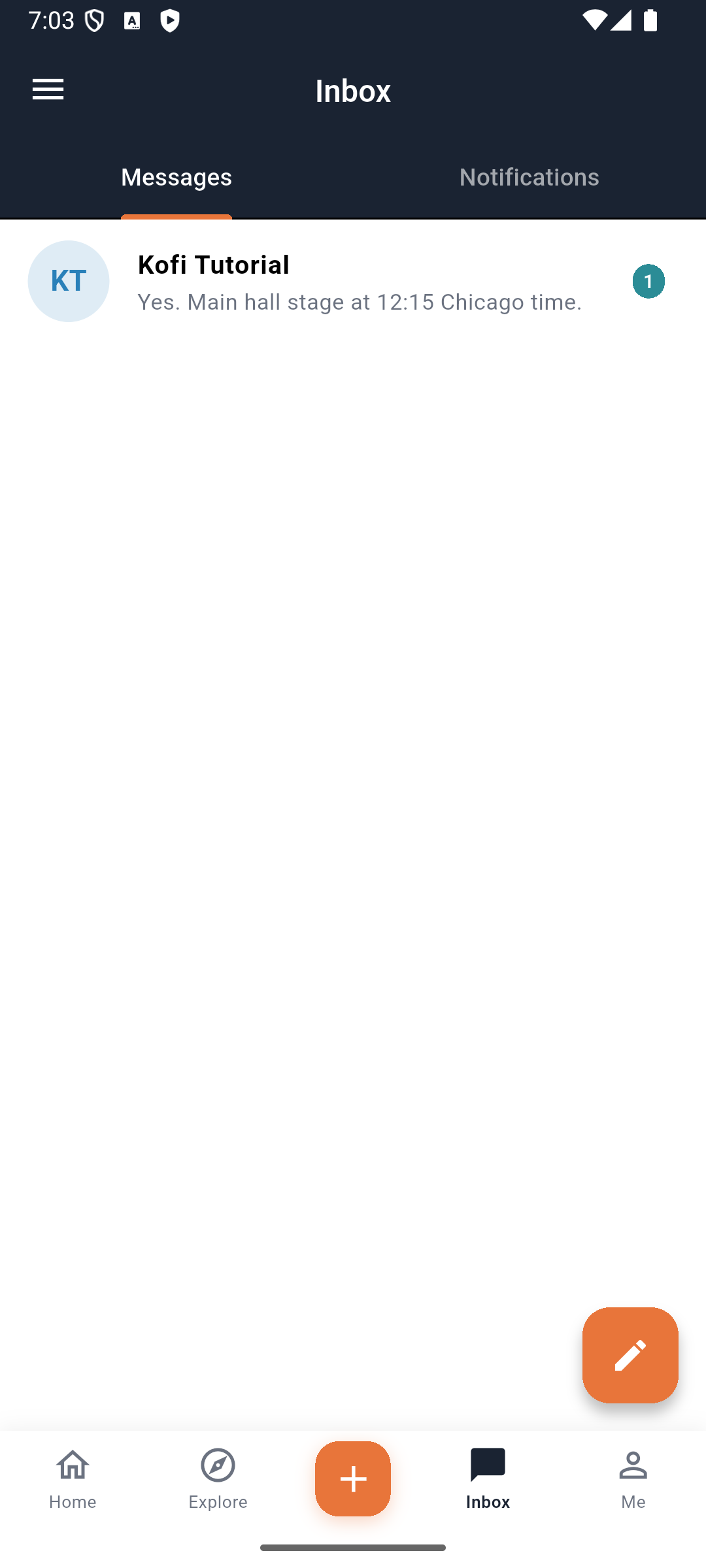
*Historical reply preview.
Check your result: Each account can reopen the intended thread and compare the exact message and reply.
5. Propose the meeting
A proposal is not an accepted appointment. Check Meeting with and the event timezone before entering the time.
Steps
- Open the connected attendee’s profile and tap Meet. Confirm Meeting with names the person you intend to invite.
- Enter Meeting Title, for example a brief description of what you want to discuss.
- Read Date and time in … and note the displayed timezone. Tap the date to choose the actual event day, then tap the time and check AM/PM. Do not accept a default date without reading it.
- Select 15m, 30m, 45m or 60m under Duration.
- Put your meeting point and any useful preparation in Notes (optional). The current form has no separate venue field.
- Review the person, date, time, duration and notes, then tap Send Meeting Request once. Open the event menu → Meetings → All to find its proposed state.
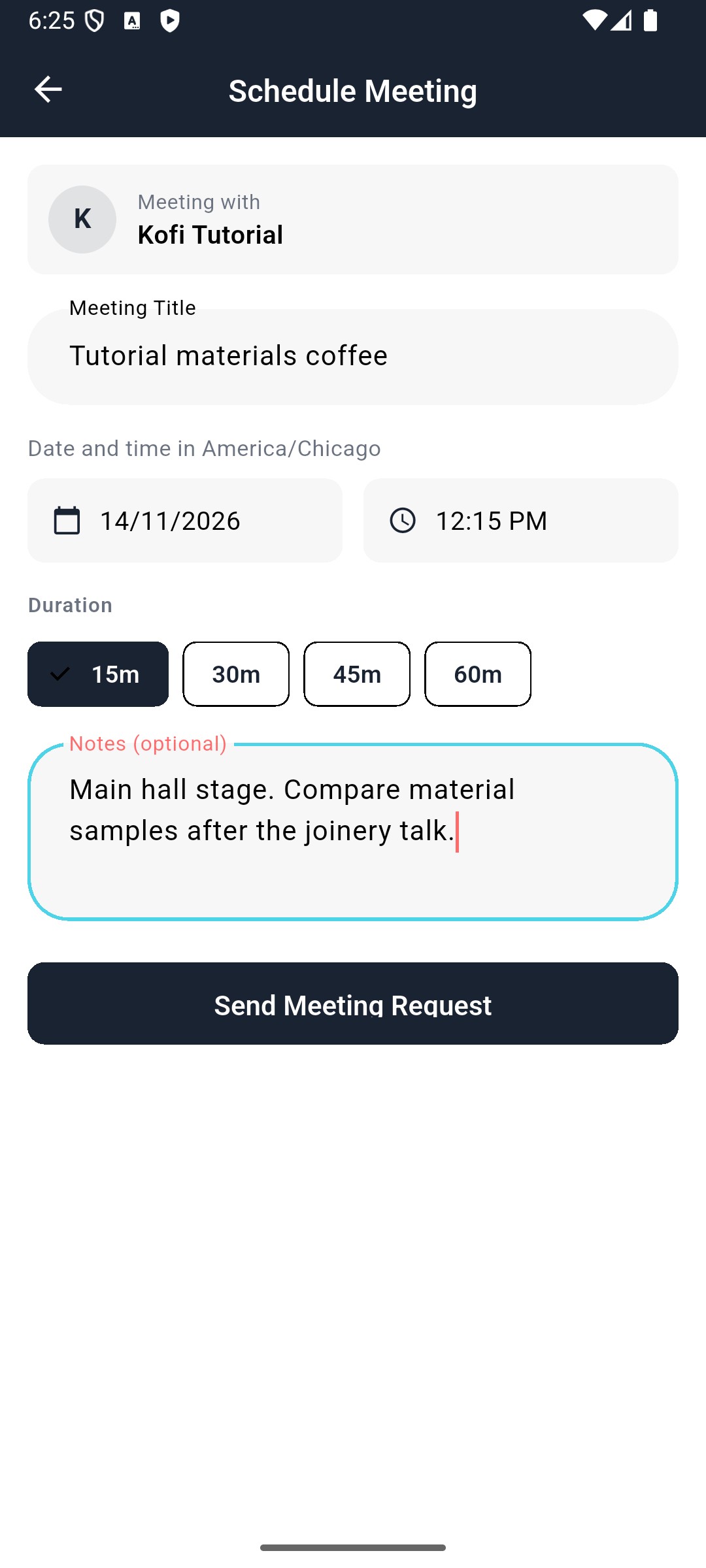
Historical training proposal. Choose your own actual event date and time; the example is not a suggested appointment.
Visible result: The invitation refers to the correct partner, time, timezone and notes.
6. Accept and confirm
Upcoming lists confirmed future meetings. A proposal may appear only under All until the recipient responds.
Steps
Open event menu → Meetings → All and inspect PROPOSED. On the partner’s separate account open the same event and Meetings → All. Read the invitation and tap Accept. Reopen on both sides and inspect CONFIRMED and Upcoming. Use Decline only in a separate prepared example.
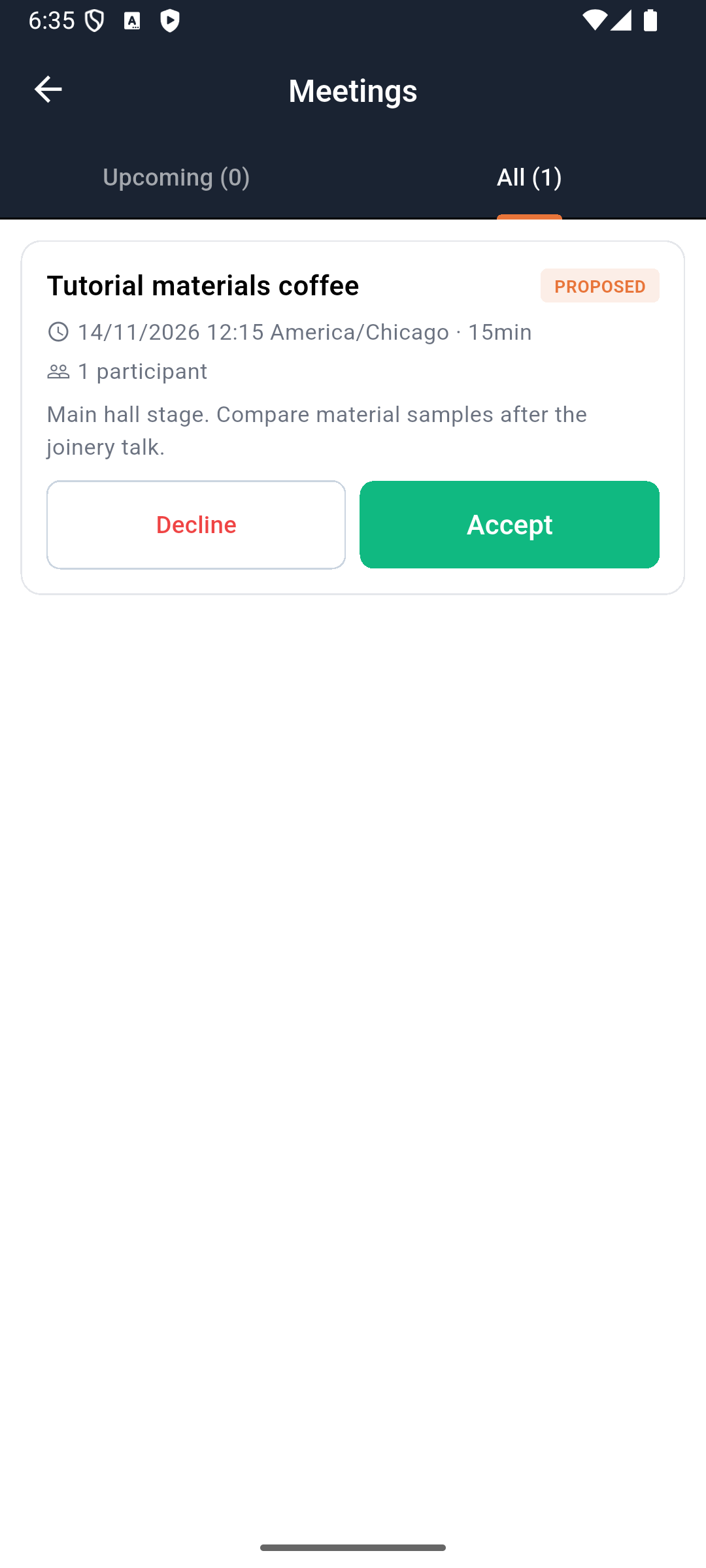
Historical recipient view before accepting; Upcoming is still empty.
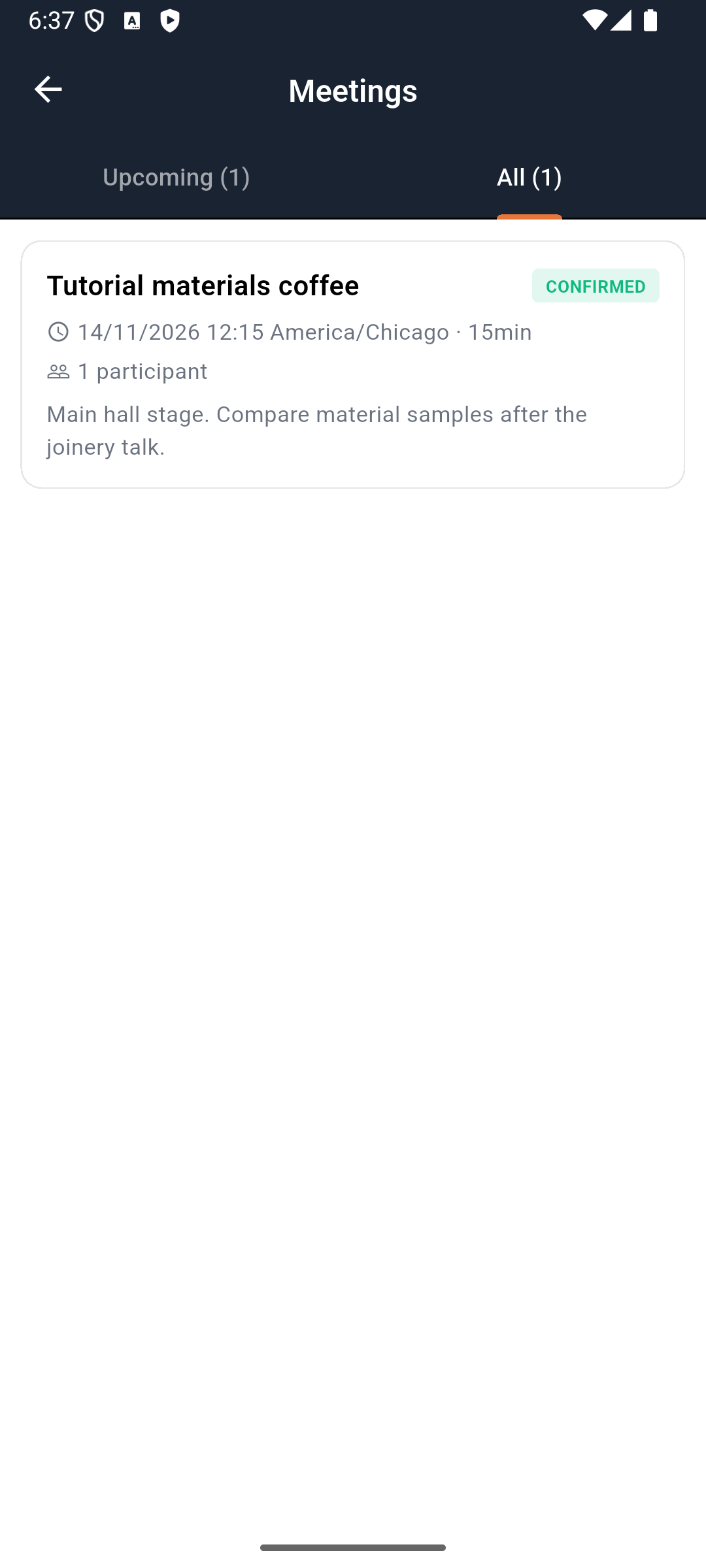
Historical accepted result. Compare title, time, timezone and notes, not just the green badge.
Check your result: Both accounts show the intended meeting with the same date/time and confirmed state.
7. Find the agreed meeting again
The useful result is an appointment both people can retrieve with the same time and place.
Steps
Reopen Meetings → Upcoming on both accounts. Compare the date, named timezone, duration and notes. Return to the Inbox conversation if additional context is needed; do not treat chat text as a replacement acceptance action.
Visible result: Both participants have the same accepted arrangement.
Advanced features and alternatives
For networking QR, open Me → QR icon → My QR Code. Share QR Code opens the system chooser; share only with the intended person. This profile code is not your admission ticket, and opening the chooser does not prove delivery. No usable profile QR is reproduced here.
Decline a connection with the × beside its received request. Decline a proposed meeting using Meetings → All → Decline. The meeting organiser can use Cancel Meeting on a non-cancelled entry. These affect separate records: declining a meeting does not disconnect the person. Fresh decline/cancellation proof is still needed.
A practical finish is to reopen Connections for the person, Inbox for the exchange, and Meetings for the accepted appointment. Compare the identity and time across these destinations; no single green indicator proves the whole relationship.
Troubleshooting and recovery
Upcoming empty after sending: check All first. Wrong AM/PM or tomorrow selected: correct before sending. At least one participant is required on an older build: use the repaired build and verify no meeting was created before retrying. Compare the named event timezone rather than assuming phone-local time.
Your next check
You now have the route through EventOxygen: Attendee Networking and Meetings. Use the chapter for the action you need, check its saved result, and return to the alternatives when your setup calls for them.
Limitations and checks
Prior two-account connection/message/meeting proof exists locally; current organiser build needs replay.
This learner guide was checked against current source and personally inspected historical native captures on 5 October 2026. It does not assert a new live device walkthrough or provider transaction. The next recording must compare the installed build with these labels, capture each success and recovery honestly, and amend any changed behaviour before publication.
EventOxygen People and profiles — supporting guide
Deliverable: learner guide Review state: documented draft; runtime limits are recorded below.
What you will learn
People helps you find participants in an event and open the right profile. We’ll search, filter by role and use a profile’s connection, message and meeting actions.
Before you begin
Prepare an event with confirmed participant records and a controlled second attendee. A ticket by itself does not guarantee a participant directory listing.
1. Search and filter
The event directory is based on participant records. A person may have a ticket without appearing in People.
Steps
- Open the intended event and choose Home → People.
- Type the person’s name in Search people. If no result appears, clear the search and select All so an earlier role filter does not hide them.
- Swipe the role chips horizontally to find the type you want, such as Speaker, Sponsor or Exhibitor. Counts describe directory entries, not tickets sold.
- Tap the intended person’s card and compare their name, role and company/profile description before contacting them. A confirmed ticket alone does not ensure a participant directory record exists.
Historical directory state. Lina is already Pending; Nia still offers Connect. These are different relationships, not interchangeable example buttons.
Visible result: The correct participant is selected in the correct event.
2. Choose a relationship action
Connect requests a relationship; Message starts a conversation; Meet proposes an appointment. None automatically completes the other.
Steps
On the controlled profile inspect Connect, Message and Meet. Send Connect only to the prepared partner and read Pending. Open Message and inspect the recipient before sending. Use Meet after the required accepted connection is present.
Visible result: Each action leads to the corresponding current screen and status.
Advanced features and alternatives
The cards also offer Follow separately from Connect. Follow changes your following relationship; it is not an accepted connection or an invitation to meet. Check the resulting control before assuming it changed. Use the chat bubble to open a direct conversation, then verify the recipient.
People is a directory, not staff administration: it does not create accounts, issue tickets or edit staff permissions. If the person is missing, ask the organiser to check their event participant record; creating another ticket is not a reliable directory repair.
Troubleshooting and recovery
Person missing: check event and confirmed participant record with the organiser. Pending connection: wait for the other account to accept. Wrong recipient: return to People and compare identity before sending.
Your next check
You now have the route through EventOxygen People and profiles. Use the chapter for the action you need, check its saved result, and return to the alternatives when your setup calls for them.
Limitations and checks
Existing local attendee manuscript provides People and connection proof.
This learner guide was checked against current source and personally inspected historical native captures on 5 October 2026. It does not assert a new live device walkthrough or provider transaction. The next recording must compare the installed build with these labels, capture each success and recovery honestly, and amend any changed behaviour before publication.
EventOxygen Connections and profile QR — supporting guide
Deliverable: learner guide Review state: documented draft; runtime limits are recorded below.
What you will learn
Connections lets attendees request and accept a relationship, then find each other again. We’ll complete both sides of a request and distinguish the profile QR from the admission ticket.
Before you begin
Use two controlled attendee accounts in the same prepared event. Have both participants agree to the exercise.
1. Request and accept
Pending means a request exists. Connected means the other person accepted it.
Steps
- From event Home → People, open the intended attendee’s profile. Check their name and other identifying details before Connect.
- Open the upper-left event menu → Connections. Look under sent requests for that person. A sent or pending request is not yet an accepted connection.
- The recipient signs in to their own account, ideally on their own phone, and opens the same Connections screen. They find the sender under REQUESTS RECEIVED.
- The recipient taps the green check beside the intended person to accept. The adjacent × declines instead. Do not use Accept all when you intend to accept just one person.
- Reopen Connections on each account and find the named person under CONNECTED. Compare the row as well as the counter; a badge alone cannot establish who was connected.
Historical receiving-account state before accepting the controlled request.
Historical accepted connection. The chat bubble on the right opens a conversation with this person.
Visible result: Both sides identify the accepted connection. A changed email field is not a second signed-in identity.
2. Share the profile QR
The profile QR is for connecting. Admission uses the event ticket QR.
Steps
Open Me and the top-right QR icon. Read My QR Code and Scan to connect. Tap Share QR Code to open the system image-sharing chooser. Select a controlled destination only when needed, or cancel. Return to Home → My ticket to show the distinct admission code.
Visible result: The two QR purposes are visibly distinct; opening a sharing chooser is not claimed as delivery.
Advanced features and alternatives
Use the chat bubble beside a connected attendee to start a direct conversation. Read the recipient header before typing. A connection does not send a message automatically.
Use × beside a received request if you do not want to connect. Accept all operates on the received requests, so review that list before using it. Pull down on the populated Connections list to refresh after another attendee responds. A declined request, a sent request and an accepted relationship are distinct states.
Troubleshooting and recovery
Counters lag: reopen/refresh and compare the actual row. A request remains Pending: check the receiving account rather than resending. QR share delivered: verify the selected recipient if demonstrating delivery; previous evidence only confirmed the chooser.
Your next check
You now have the route through EventOxygen Connections and profile QR. Use the chapter for the action you need, check its saved result, and return to the alternatives when your setup calls for them.
Limitations and checks
Prior paired-account acceptance and Android QR chooser were locally verified. A profile QR capture contains a usable identity code and is not embedded here. New external share delivery and physical QR connection scanning remain pending.
This learner guide was checked against current source and personally inspected historical native captures on 5 October 2026. It does not assert a new live device walkthrough or provider transaction. The next recording must compare the installed build with these labels, capture each success and recovery honestly, and amend any changed behaviour before publication.
EventOxygen Meetings — supporting guide
Deliverable: learner guide Review state: documented draft; runtime limits are recorded below.
What you will learn
Meetings lets connected attendees propose a time and accept it. We’ll create the proposal in the event’s timezone, accept it as the recipient, and find the confirmed appointment on both accounts.
Before you begin
Prepare two mutually connected attendees, an event timezone and an available future time within the event. Do not reuse historical example dates.
1. Propose the meeting
A proposal is not an accepted appointment. Check Meeting with and the event timezone before entering the time.
Steps
- Open the connected attendee’s profile and tap Meet. Confirm Meeting with names the person you intend to invite.
- Enter Meeting Title, for example a brief description of what you want to discuss.
- Read Date and time in … and note the displayed timezone. Tap the date to choose the actual event day, then tap the time and check AM/PM. Do not accept a default date without reading it.
- Select 15m, 30m, 45m or 60m under Duration.
- Put your meeting point and any useful preparation in Notes (optional). The current form has no separate venue field.
- Review the person, date, time, duration and notes, then tap Send Meeting Request once. Open the event menu → Meetings → All to find its proposed state.
Historical training proposal. Choose your own actual event date and time; the example is not a suggested appointment.
Visible result: The invitation refers to the correct partner, time, timezone and notes.
2. Accept and confirm
Upcoming lists confirmed future meetings. A proposal may appear only under All until the recipient responds.
Steps
Open event menu → Meetings → All and inspect PROPOSED. On the partner’s separate account open the same event and Meetings → All. Read the invitation and tap Accept. Reopen on both sides and inspect CONFIRMED and Upcoming. Use Decline only in a separate prepared example.
Historical recipient view before accepting; Upcoming is still empty.
Historical accepted result. Compare title, time, timezone and notes, not just the green badge.
Check your result: Both accounts show the intended meeting with the same date/time and confirmed state.
Advanced features and alternatives
Use Decline on a received proposal when you cannot attend; reopen All to check the response. A chat reply does not accept or decline the invitation.
The meeting organiser sees Cancel Meeting on a non-cancelled meeting. Use it only when cancelling is intended, then confirm the cancelled state and check the other participant’s view. Current controls do not provide a separate reschedule editor here. If time must change, coordinate with the participant rather than treating an edited chat message as a changed appointment. Decline/cancel fresh runtime evidence remains pending.
Troubleshooting and recovery
Upcoming empty after sending: check All first. Wrong AM/PM or tomorrow selected: correct before sending. At least one participant is required on an older build: use the repaired build and verify no meeting was created before retrying. Compare the named event timezone rather than assuming phone-local time.
Your next check
You now have the route through EventOxygen Meetings. Use the chapter for the action you need, check its saved result, and return to the alternatives when your setup calls for them.
Limitations and checks
Existing native proof covers proposal, recipient accept and timezone display after a repair.
This learner guide was checked against current source and personally inspected historical native captures on 5 October 2026. It does not assert a new live device walkthrough or provider transaction. The next recording must compare the installed build with these labels, capture each success and recovery honestly, and amend any changed behaviour before publication.
EventOxygen Explore, posts and media — supporting guide
Deliverable: learner guide Review state: documented draft; runtime limits are recorded below.
What you will learn
Explore is EventOxygen’s community feed. We’ll publish a controlled post, reopen it and save it. First we’ll establish the audience, because an event heading alone does not guarantee an event-private post.
Before you begin
Use a controlled attendee and an organiser-approved practice audience. Confirm the event page binding; prior local evidence showed a wider organisation feed when event binding was absent. Do not publish private details in the practice post.
1. Establish audience and compose
The feed’s page association controls where a post belongs. If it falls back to the organisation feed, the audience is wider than one event.
Steps
- Open the event and tap Explore in the bottom navigation. Check the author/account you will post as.
- Before using this as a private event discussion, confirm the organiser has configured the event’s community page. The current app searches for an event page linked to the active event; if none is found, it loads the wider organisation feed. There is no audience selector in this composer that proves event-only visibility.
- Tap What’s on your mind?. On Create Post, enter a short question or update appropriate for the confirmed audience. For a controlled practice post, use neutral text without personal attendee information.
- Review the text and author before Post. Photo, Camera, Poll and Link are optional variants; leave them off for the first text-only contribution.
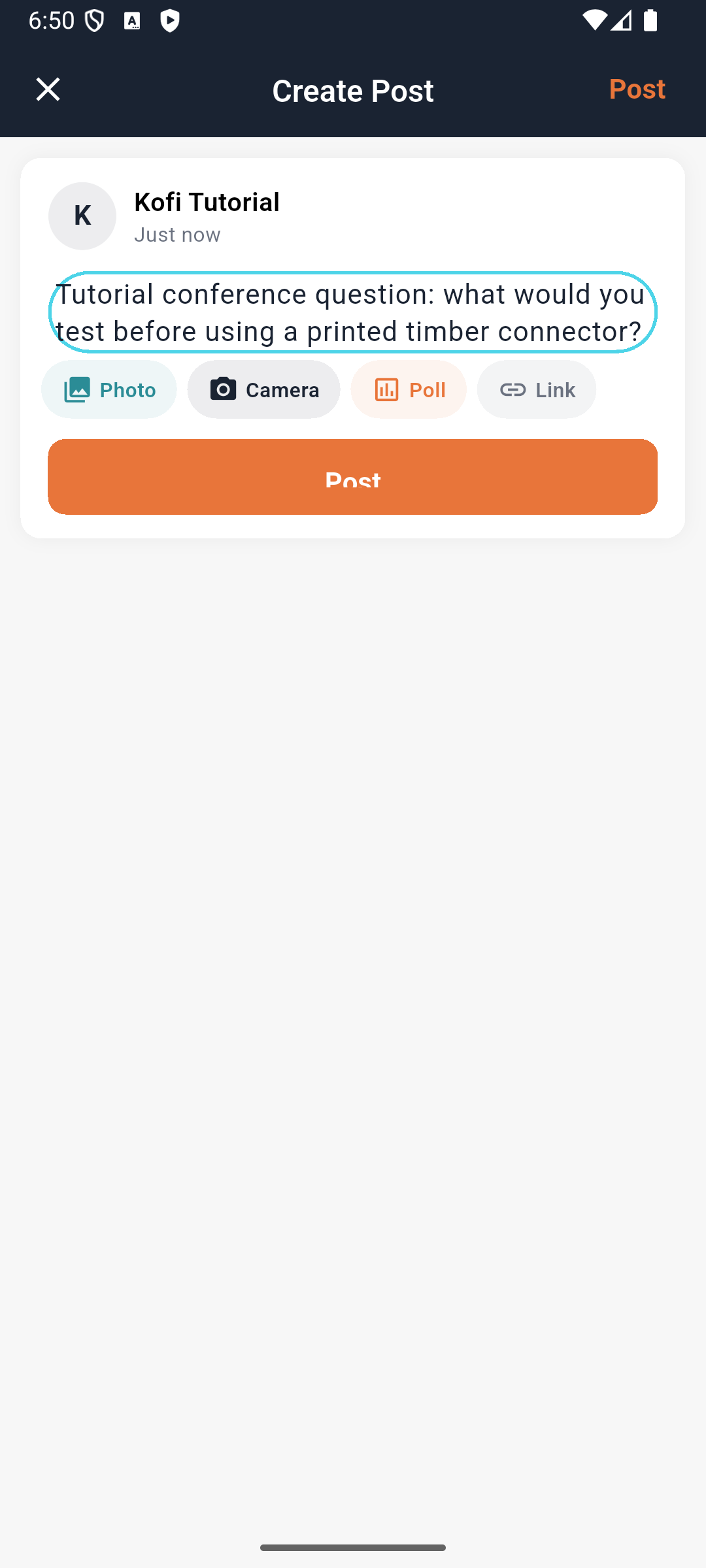
Historical native composer before publication. The highlighted text is still a draft; the author and content should be checked before Post.
Visible result: The intended audience is established without inferring privacy from the event title.
2. Publish and reopen
A post should survive leaving the feed. Seeing text in the composer is not saved publication.
Steps
Tap Post once. Find the post under the current author. Leave Explore and return, then open the same post. Compare its text and author. For a media alternative, use a small permitted image and verify the uploaded media rather than describing every offered format as already tested.
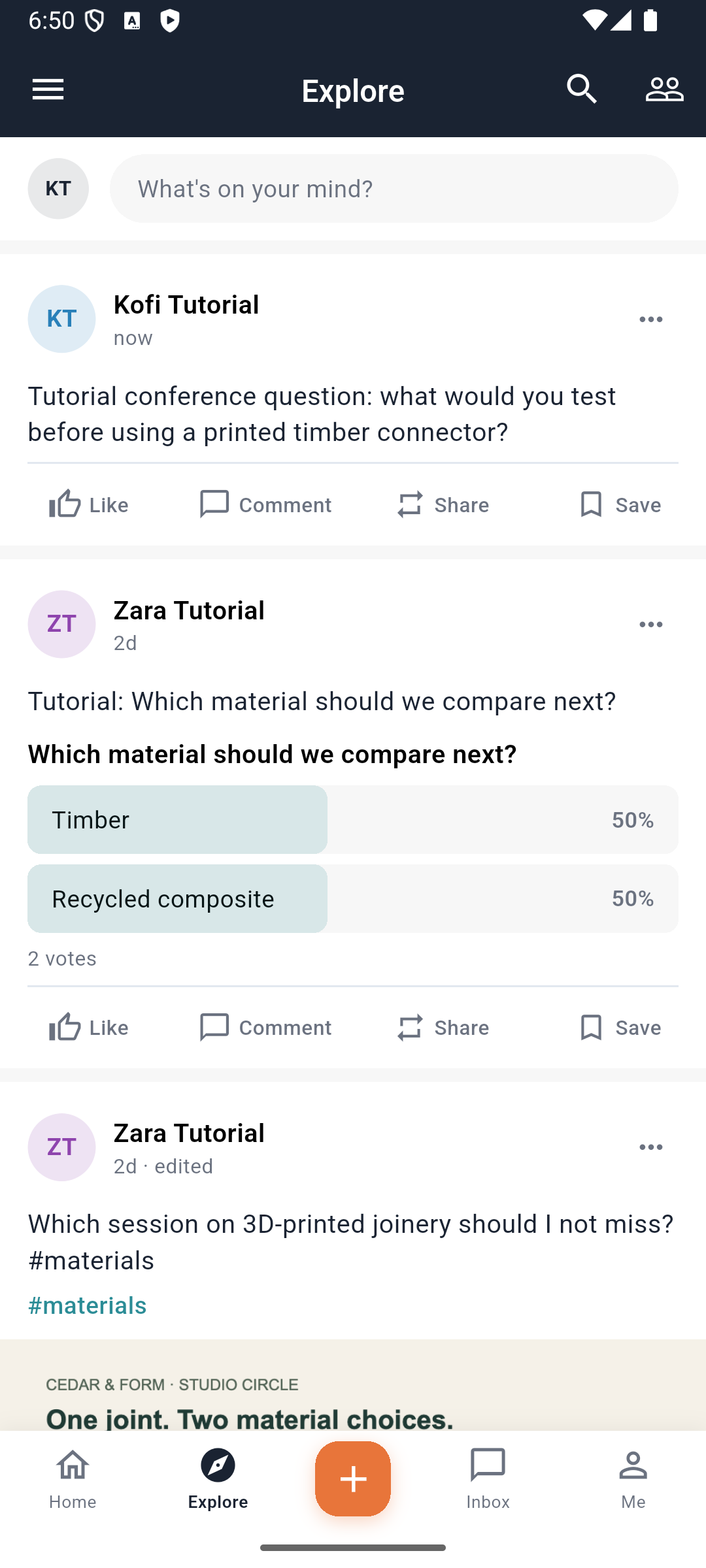
Historical published text in an organisation-wide feed. This image does not establish event-only visibility.
Check your result: The same author and text appear after leaving and reopening Explore. Verify the intended audience separately.
3. Save a useful post
Saving creates your bookmark; it does not duplicate or own the original contribution.
Steps
- In Explore find the exact post and tap Save beneath it once.
- Open the event menu → Bookmarks, then choose Post on the Saved page.
- Find the matching text preview and tap the square-with-arrow icon (Open saved post). Confirm the author and full text before commenting.
- Use the trash icon on Saved only to remove the bookmark, not the original post.
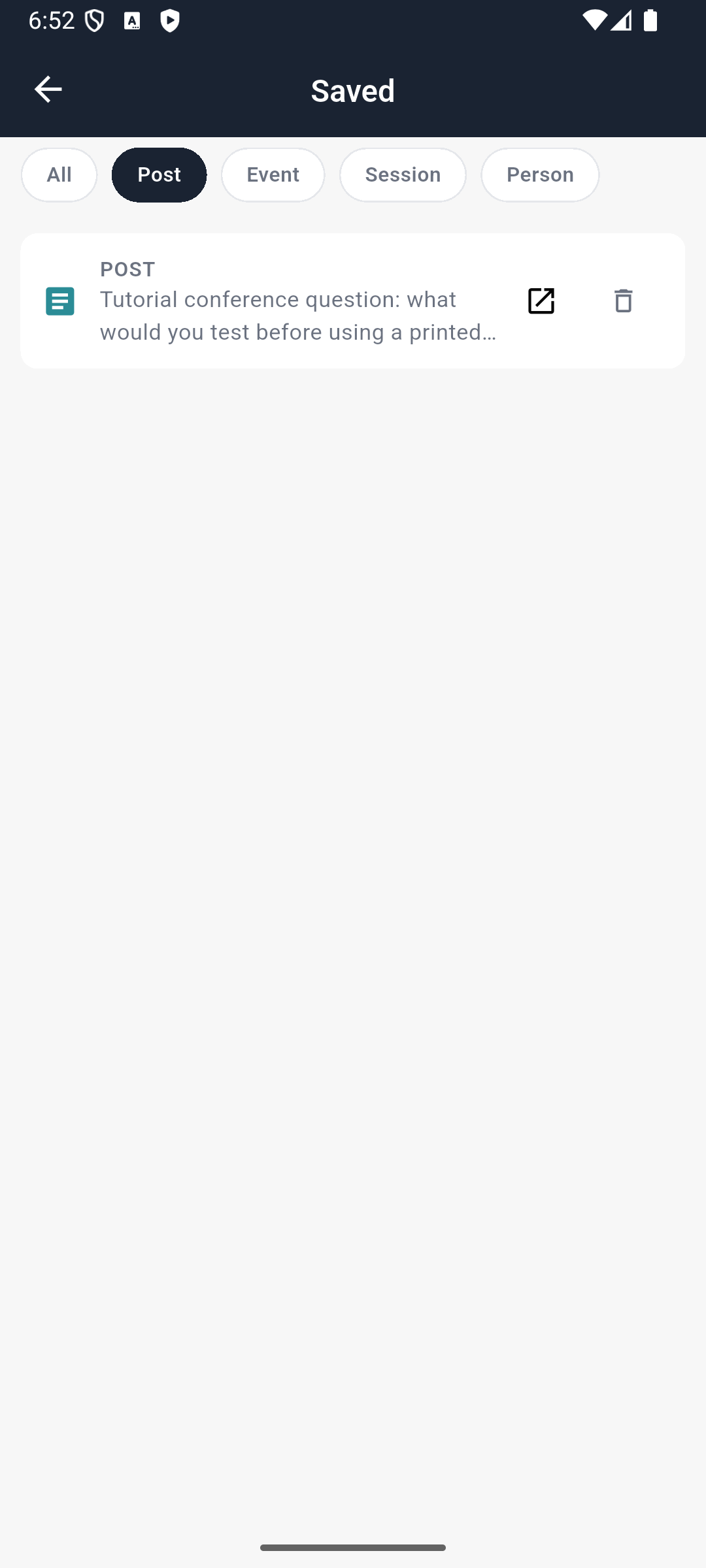
Historical saved entry matching the published text. Opening it and checking its author distinguishes it from a similarly worded post.
Visible result: The bookmark resolves to the intended original post.
Advanced features and alternatives
For Poll, enter Poll question, fill at least two meaningful options, and use Add option for more choices (up to six in the current composer). Decide whether Allow multiple selections should be on, then review before Post. The composer does not itself reject every incomplete poll, so do not rely on validation to make an empty question useful.
For Photo or Camera, choose an image you may publish, inspect the attachment preview, and remove an unintended image before posting. Verify the resulting image after reopening the post. For Link, enter the intended URL in the content; selecting the mode does not itself add a URL or prove a rich preview was generated. These variants still inherit the same audience limitation. Current event-page fallback must be corrected or explicitly disclosed before claiming event-only visibility.
On an existing post, Like changes your reaction and Comment opens the post discussion. Read existing comments, type in Write a comment…, and send only to the intended feed audience. Reopen the post to check the comment persisted. Share opens a separate sharing sheet; inspect its destination rather than assuming it means a private message. Tap a poll option to vote, then check the refreshed result. The current poll action suppresses request errors, so an unchanged result should not be treated as a counted vote.
Home → Media is a separate gallery route. No relevant gallery or Announcements action/result capture is retained in this pass; their availability must be checked in the organiser’s build before claiming complete media coverage.
Troubleshooting and recovery
Wrong audience: stop before posting and correct the page binding. Failed upload: keep the draft and read the error. Saved post inaccessible: the original may have been removed or its audience changed; bookmarking does not override access.
Your next check
You now have the route through EventOxygen Explore, posts and media. Use the chapter for the action you need, check its saved result, and return to the alternatives when your setup calls for them.
Limitations and checks
Prior local post/reopen/bookmark proof exists, along with an event-feed scoping finding.
This learner guide was checked against current source and personally inspected historical native captures on 5 October 2026. It does not assert a new live device walkthrough or provider transaction. The next recording must compare the installed build with these labels, capture each success and recovery honestly, and amend any changed behaviour before publication.
EventOxygen Event Inbox and chat — supporting guide
Deliverable: learner guide Review state: documented draft; runtime limits are recorded below.
What you will learn
EventOxygen Inbox keeps attendee conversations accessible after the first message. We’ll start with a controlled partner, send a message, and check the recipient’s Inbox instead of relying only on the sender’s bubble.
Before you begin
Use two controlled attendee accounts in the same event. A connection can be established first for clarity; some message routes do not require accepted connection, whereas the meeting service does.
1. Open the conversation
A profile Message action and a connection’s chat bubble should lead to the intended recipient. Confirm that identity before typing.
Steps
- Open the event menu → Connections and tap the intended person’s chat bubble. Alternatively, open their People profile and choose Message.
- Read the conversation header before typing. It identifies the recipient; changing a message’s wording does not change whom it reaches.
- Enter text in Type a message… and tap the orange send arrow, or submit from the keyboard, once.
- Wait for the send response. If an error appears, check the current thread before retrying so you do not send the same message twice.
Historical sender-side message. Its bubble and check mark alone do not prove the recipient opened it.
Visible result: The sender sees the correct thread and sent text.
2. Verify recipient delivery and reply
An optimistic bubble can appear before remote delivery. The other account is the useful proof.
Steps
On the receiving account open Inbox → Messages. Find the sender, preview and unread count. Open the conversation, read the exact message and reply. Return to the original account and reopen the same thread.
Historical recipient Inbox. Tap the row to read the full message, rather than relying on the truncated preview.
*Historical reply preview.
Check your result: Each account can reopen the intended thread and compare the exact message and reply.
Advanced features and alternatives
To start another conversation from Inbox → Messages, use the orange pencil button. Search Search connections…, select the intended connection and check the opened recipient header.
The paperclip in a conversation opens media selection. In the current implementation, selecting media with a returned URL immediately sends that URL; there is no separate attachment review-and-send step. Do not select an unintended file expecting another confirmation. Attachment delivery needs its own recipient-side check.
Notifications is a separate Inbox tab. Read its notification list and pull down to refresh. Current notification rows have an empty tap handler, so do not expect tapping one to open the related event item. An empty list after a load problem does not establish there are no notifications.
This is attendee messaging, not employee email hosting or the website live-support queue.
Troubleshooting and recovery
Message missing: check event/account and reopen once before resending. A failed request should retain its real error. Switching people requires real account sign-out/sign-in, not changing a form’s email field.
Your next check
You now have the route through EventOxygen Event Inbox and chat. Use the chapter for the action you need, check its saved result, and return to the alternatives when your setup calls for them.
Limitations and checks
Prior two-account message delivery and unread Inbox proof exist. New native messaging recording remains pending.
This learner guide was checked against current source and personally inspected historical native captures on 5 October 2026. It does not assert a new live device walkthrough or provider transaction. The next recording must compare the installed build with these labels, capture each success and recovery honestly, and amend any changed behaviour before publication.
EventOxygen Me and account profile — supporting guide
Deliverable: learner guide Review state: documented draft; runtime limits are recorded below.
What you will learn
Your EventOxygen profile helps other attendees recognise you. We’ll edit a few useful details, reopen them to confirm the save, and find the profile QR used for networking.
Before you begin
Use your own controlled attendee account. Choose only details suitable for the event audience.
1. Update the profile
Job title, company and bio help the directory explain who you are. The attendee profile is separate from staff administration.
Steps
- From the event’s bottom navigation tap Me, then Edit Profile.
- Check First Name and Last Name so other attendees recognise you. Fill Job Title, Company and Bio with the introduction you want to share. Phone, City and Country are also editable; include only information you are comfortable sharing in this event context.
- Tap Save at the upper right and wait for the response. If saving fails, the form retains your edits and shows an error; correct the issue or retry rather than assuming the profile changed.
- Reopen Me → Edit Profile and compare the saved values. For a stronger persistence check, reopen the app and inspect them again.
The camera badge beside the initials is decorative in the inspected editor: it has no image-picker action. Do not use it as a documented profile-photo upload step.
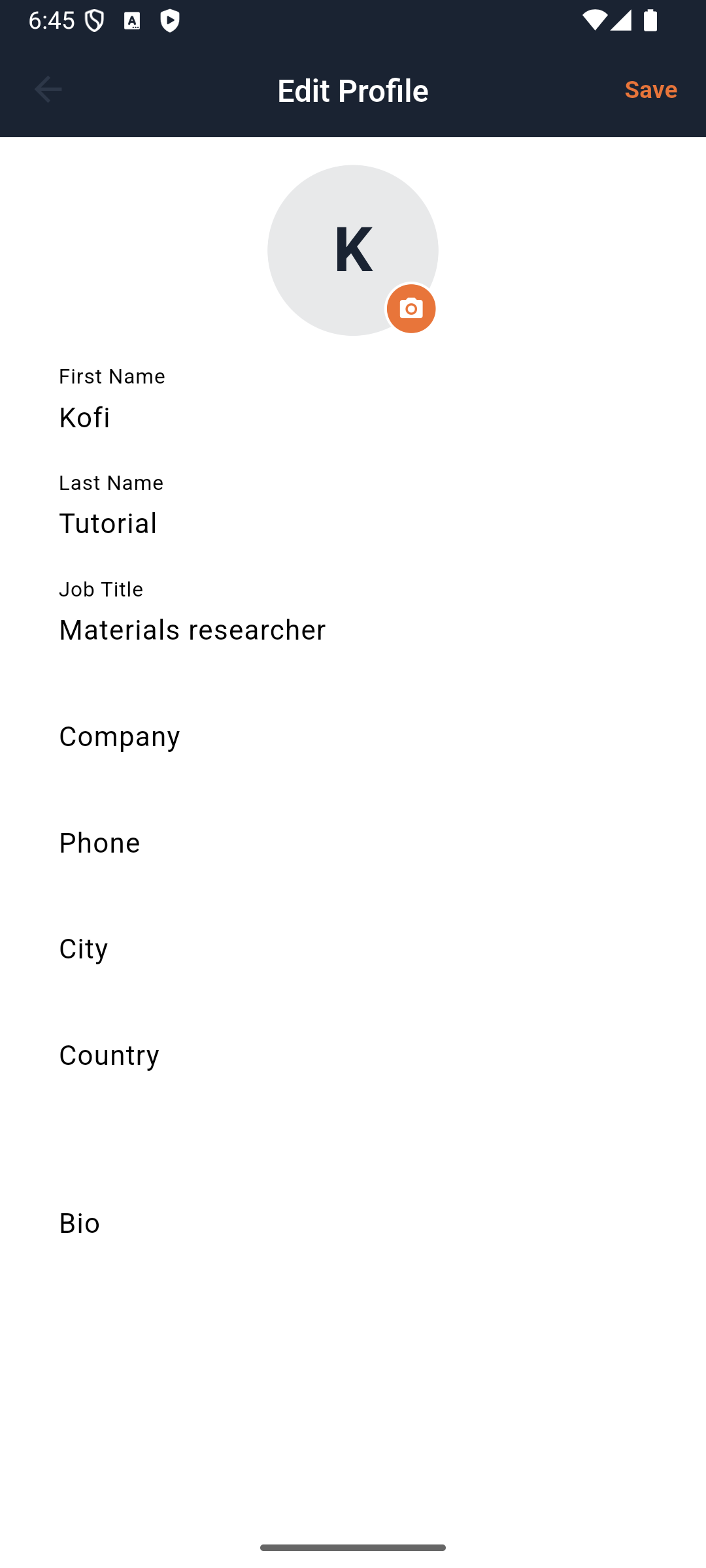
Historical controlled profile edit. The retained independent profile readback also records Materials researcher after a fresh customer sign-in; this is prior local evidence, not a fresh installed-build test.
Visible result: The edited values persist; an error leaves the entered form available for recovery.
2. Open the networking QR
The profile QR represents your attendee identity. It is distinct from your event admission ticket.
Steps
- Return to Me and tap the QR icon at the upper right. Confirm the My QR Code heading and your identity.
- Use this networking code when sharing your attendee identity. For entry at the door, go back to Home → My ticket instead: a profile QR is not an admission ticket.
- Tap Share QR Code if you want to send your networking code. Choose the intended app and recipient in the operating system’s share sheet, or cancel to keep it private. The share sheet opening is not proof of recipient delivery.
A retained share-sheet screenshot contains a usable profile QR, so it is intentionally not reproduced here. A privacy-safe capture of this step remains needed.
Visible result: The learner can locate both profile and admission QR without confusing their purposes.
Advanced features and alternatives
To leave a shared phone, open the upper-left event menu and tap Log out. Confirm the attendee session is no longer available before handing over the device. The current logout path clears the event session after authentication ends.
The menu’s Settings and Help entries currently only close the drawer. They are not routes to profile privacy settings, password changes or a working support form. Use the organiser’s published contact details when you need help; do not wait for an in-app response from an unimplemented entry.
Troubleshooting and recovery
Save fails: keep the form, read the error and retry after correcting it. Wrong attendee: log out and sign in correctly. Sharing chooser opened: that does not mean the image was delivered.
Your next check
You now have the route through EventOxygen Me and account profile. Use the chapter for the action you need, check its saved result, and return to the alternatives when your setup calls for them.
Limitations and checks
Prior native profile save/restart and QR image chooser were verified locally. Current production build and external share delivery require fresh checks.
This learner guide was checked against current source and personally inspected retained native evidence on 5 October 2026. It does not assert a new live device walkthrough or provider transaction. The next recording must compare the installed build with these labels, capture each success and recovery honestly, and amend any changed behaviour before publication.