
Written guide
Verification status: this is a deployment walkthrough draft. Local environment creation/readback and the companion’s health/authenticated ticket read are verified. Hosted workspace access was rejected by the provider’s identity handshake. Build, preview, production promotion, custom DNS/TLS, rollback and hosted cleanup remain unverified. Responses below illustrate the intended contract; they are not evidence that those hosted outcomes were completed.
Download the Ticket board source from GitHub. Its README explains local setup, the staff-token boundary, pagination and the precise hosted-deployment limitation.
You will ship: a small Node service, the Ticket board, that lists your organization's open support tickets — built, checked on a preview address, put live, given your own domain, updated to a second release and rolled back.
1. Why this course
You have a piece of code — a staff dashboard, a small service, a custom front end — that needs to run somewhere and read your business data. Normally that means renting a server, setting up builds, wiring preview and production hosts, buying certificates and cleaning up afterwards. AppEngine and Vibe Studio already do that. AppEngine keeps a record of your environment, gives it a preview address and a live address, checks your plan allows it, stores your custom domains and tears everything down when you delete it. Vibe Studio holds your code, builds it and puts the build you choose live. You write the app; you don't run the servers.
2. What's built in
Built-in data types
A data type (also called a datatype or collection) is a kind of record AppEngine already knows, with its fields defined in the SDK. A record is one saved item of that type. This course uses three:
| Data type | What it is | Fields you will see |
|---|---|---|
dev_environment | One hosted code project | name, title, description, framework, templateRepo, productionUrl, previewUrl, domains, previewDomains, config |
site | A website built with Appmint's page builder | Used here only as a starting point you can convert from |
ticket | A support ticket — the data our app shows | name (ticket ID), title, status (new, open, pending, inprogress, blocked, done, canceled), priority (low, medium, high, urgent) |
Choose a site when Appmint's page builder fits what you want to show. Choose a dev_environment when you need your own code — a framework, a server, custom components. Both read the same AppEngine data.
Built-in actions
These routes run the hosting rules for you. Every call carries two headers: orgid (your organization ID — the tenant your data belongs to) and Authorization: Bearer <token> (a staff token — the signed-in proof of who you are).
| You call | AppEngine does for you |
|---|---|
GET site/limits | shows how many dev environments your plan allows and how many you use |
POST dev-env/create | checks your plan limit, tidies the name into a web-safe form, creates the dev_environment record, works out its live and preview addresses, and emails your organization's address a link that opens it in Vibe Studio |
POST dev-env/convert/:siteName | does the same, starting from an existing site's name, title and description |
GET dev-env/get/:envName | returns the environment record |
POST dev-env/send-session-invitation | emails a teammate a link that opens this environment in Vibe Studio, signed in as them |
POST dev-env/attach-domain/:envName | checks the domain is well formed and that your plan allows custom domains, then adds it to the environment's domains |
POST dev-env/detach-domain/:envName | removes a domain from domains |
DELETE dev-env/:envName | removes the hosted live and preview apps with their builds, deletes any API key made for the environment and the record, and emails a confirmation |
In Vibe Studio, the Manage project drawer adds the build-and-release actions: Build (makes a new build and serves it on the preview address), Go live / Update live (puts a chosen build on the live address) and Promote (puts any earlier build back on the live address).
The rule
- Use the built-in action. Create, attach and delete environments through
dev-env/..., not by writingdev_environmentrecords yourself — a raw write skips the plan check, the address generation, the notice email and the clean-up. - Use the built-in data type for the thing your app works with. Our app reads
ticketrecords; if you need an extra ticket field, add it to the built-inticketcollection rather than inventing amy_ticketscollection (see Data and records). - Create your own collection only for something AppEngine doesn't have.
What a create looks like
Request:
curl -sS -X POST "$API/dev-env/create" \
  -H "orgid: $ORG" -H "Authorization: Bearer $STAFF_TOKEN" \
  -H 'Content-Type: application/json' \
  -d '{"name":"ticket-board","title":"Ticket board","description":"Open support tickets for the team","framework":"node"}'
Response (record metadata shortened):
{
  "devEnvironment": {
    "sk": "<record id>",
    "datatype": "dev_environment",
    "data": {
      "name": "ticket-board",
      "title": "Ticket board",
      "description": "Open support tickets for the team",
      "productionUrl": "ticket-board-<orgid>-appmint.spinforge.dev",
      "previewUrl": "preview-ticket-board-<orgid>-appmint.spinforge.dev",
      "framework": "node",
      "templateRepo": "",
      "domains": [],
      "config": { "status": "draft", "orgId": "<orgid>", "name": "ticket-board" }
    }
  },
  "name": "ticket-board",
  "orgId": "<orgid>",
  "productionUrl": "ticket-board-<orgid>-appmint.spinforge.dev",
  "devUrl": "ticket-board-<orgid>-appmint.spinforge.dev",
  "previewUrl": "preview-ticket-board-<orgid>-appmint.spinforge.dev"
}
productionUrl is the live address your users will visit. previewUrl is the preview address, where each new build appears first so you can check it before anyone else sees it. devUrl repeats the live address. config.status is draft because nothing has been built yet.
3. Before you start
Use a staff account and organization recognized by the AppEngine instance configured for your managed-hosting integration. The hosting provider validates that identity with AppEngine; a token from an unrelated local installation is not interchangeable. A valid environment record in the local database does not establish hosted access. Start with the default preview/live addresses; bring a domain you control when reaching the custom-domain chapter.
You need:
API(your AppEngine address),ORG(your organization ID) and a staff token saved asSTAFF_TOKEN. API foundations shows how to get all three.- A staff role that is ContentAdmin or ConfigAdmin and has content Create, Update and Delete permission — create, convert and delete check both. Set this up in Roles and permissions.
- A few
ticketrecords with statusopen, so the app has something to show. Create them in Appmint Studio or through the CRM APIs.
Check your plan has room for another environment:
curl -sS "$API/site/limits" -H "orgid: $ORG" -H "Authorization: Bearer $STAFF_TOKEN"{
"plan": "professional",
"planName": "Professional",
"items": [
{ "key": "devEnvironments", "label": "Dev environments", "used": 1, "limit": 3,
"usedText": "1", "limitText": "3", "percent": 33, "state": "ok" }
]
}The items list also covers storage, sites and other limits; look for devEnvironments. When state is full, create is refused until you delete an environment or change plan.
4. Create the environment
Do this once, by either route — both make the same record.
In Studio Manager: open Sites, choose the Dev Environments filter, then Create Dev Environment. Enter Environment Name ticket-board, a Title and a Description. The row that appears has Open Vibe Studio, Dev Environment Settings (its Access URLs show the live and preview addresses) and Preview Environment. Site management walks through this screen.
Through the API: send the POST dev-env/create request from section 2. framework: "node" records that this project is a running Node service rather than static files.
The environment name becomes part of both addresses, so pick something short. AppEngine lower-cases it and replaces unsafe characters.
Starting from an existing site instead? POST dev-env/convert/:siteName with {"framework":"node","templateRepo":""} creates an environment named after that site, using its title and description. Your site's pages stay where they are; the new environment is an empty code project.
5. Read it back and invite a teammate
Read the record whenever you want the current addresses and domains:
curl -sS "$API/dev-env/get/ticket-board" -H "orgid: $ORG" -H "Authorization: Bearer $STAFF_TOKEN"The response is the dev_environment record itself — the same sk, datatype and data you saw inside devEnvironment above. The sk is the record's unique ID; data holds its fields.
To bring a colleague into the project, send them a Vibe Studio link. They must already be a user in your organization:
curl -sS -X POST "$API/dev-env/send-session-invitation" \
  -H "orgid: $ORG" -H "Authorization: Bearer $STAFF_TOKEN" \
  -H 'Content-Type: application/json' \
  -d '{"devEnvironment":"ticket-board","toEmail":"[email protected]"}'
{ "status": "success", "message": "Invitation sent to [email protected]" }The link in that email signs Sam in, so treat it like a password and send it only to the person it names.
6. Put the app in the workspace
Open the environment in Vibe Studio (from the emailed link or the Open Vibe Studio button). Vibe Studio is the code editor and build tool for dev environments. If you are creating the project from inside Vibe Studio, choose App, not Design — see Vibe Studio.
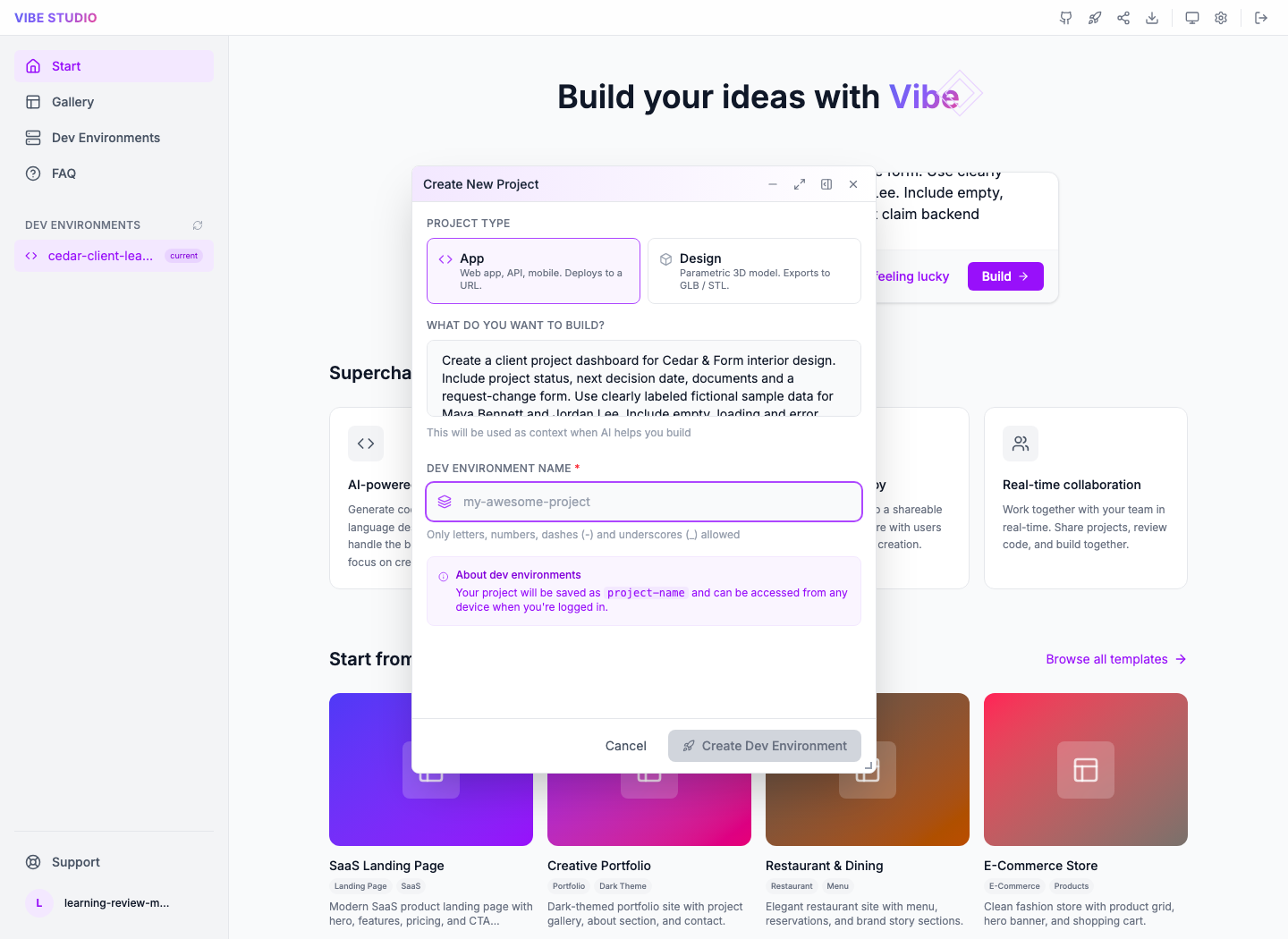
Add two files at the project root:
package.json— names the project and setsnpm starttonode server.mjs.server.mjs— the Ticket board.
Open server.mjs and set the two values at the top:
const APPENGINE_ORIGIN = process.env.APPENGINE_ORIGIN || 'https://YOUR-APPENGINE-ORIGIN';
const APPENGINE_ORG = process.env.APPENGINE_ORG || 'YOUR_ORG_ID';
Use your AppEngine address as the hosted app will reach it over the internet — localhost only works on your own machine. Neither value is a secret, so they are safe in source.
Here is what the server does. It serves a page with a token box. When you press Load open tickets, it sends your token to AppEngine's generic Repository find route for the built-in ticket type:
/repository/find/ticketAppEngine answers with {"data":[ …ticket records… ], "total": 4, …}, and the server turns each record's data.name, data.title, data.priority and data.status into a table row. The token is used for that one request and never stored, so the hosted service holds no credentials. For a sign-in screen that keeps people logged in, use the patterns in Authentication and organization isolation.
The server listens on the PORT the host gives it (3000 by default) and answers GET /health with its release name — handy for checking which build is running.
Try it locally first. Copy both files into an empty folder and run:
APPENGINE_ORIGIN="$API" APPENGINE_ORG="$ORG" npm startOpen http://localhost:3000, paste your staff token and press Load open tickets. You should see the same open tickets Studio Manager lists. A wrong token shows "AppEngine refused the request"; a wrong address shows "AppEngine could not be reached". Once it works here, any problem after deployment is about hosting, not your code.
7. Build and check the preview
In Vibe Studio, open Manage project from the header. Check the project and organization shown at the top, then choose Build.
A build packages your workspace into a runnable app. Because the project's framework is node, it is built as a running service and served on the preview address. Open the Builds tab and expand the newest build to follow its step log until it succeeds.
Open the preview address (also available from Preview Environment in Studio Manager). Check three things:
- The heading reads Ticket board · release 1.
https://<preview address>/healthreturns{"status":"ok","release":"Ticket board · release 1"}.- Pasting your token lists the same open tickets you saw locally.
Note the build's ID from the Builds tab — you will want it for the rollback in section 10.
8. Go live
Open the Go live tab. Under Choose the build, pick the build you just checked, then press Go live. Promote means exactly this: taking a build that already exists and serving it on the live address. Nothing is rebuilt, so what goes live is byte-for-byte what you tested on preview.
Open the live address (productionUrl) and repeat the three checks from section 7. Once the project is live, the header button reads Update live and the Go live tab's button reads Update live deployment.
9. Add your own domain
Give the Ticket board an address like tickets.yourcompany.com.
Record the domain on the environment:
curl -sS -X POST "$API/dev-env/attach-domain/ticket-board" \
  -H "orgid: $ORG" -H "Authorization: Bearer $STAFF_TOKEN" \
  -H 'Content-Type: application/json' \
  -d '{"domainName":"tickets.yourcompany.com"}'
The response is the updated record, with "domains": ["tickets.yourcompany.com"]. The body field is domainName. AppEngine lower-cases it, refuses a malformed name with 400 Invalid custom domain, and refuses with 403 if your plan doesn't include custom domains. Studio Manager's Attach Domain button on the environment row does the same thing.
Then tell the hosting about it. In Vibe Studio's Manage project → AppMint tab, check the domain is in Live domains (add it there if you skipped the API call) and press Save changes. Vibe Studio saves the record and registers the domain with the hosting, confirming "Saved — domains registered with hosting". Preview domains works the same way for the preview address and is kept separate so a preview never takes over a live domain.
Finally, point the domain at the hosting. After attaching in Studio Manager, the DNS Configuration panel lists the records to add at your domain registrar. DNS can take a while to spread; when it has, https://tickets.yourcompany.com/health returns the release name.
To remove a domain, send the same body to POST dev-env/detach-domain/ticket-board, then save Live domains without it in Vibe Studio.
10. Ship release 2 — and roll back
Change the release line in server.mjs:
const RELEASE = 'Ticket board · release 2';Save, then Build. The new build appears on the preview address while the live address keeps serving release 1 — that is the point of preview. Check the preview, then in the Go live tab choose the new build and press Update live deployment. The live /health now says release 2.
Suppose release 2 misbehaves. Open the Builds tab, find the release 1 build you noted in section 7 and press Promote. The live address serves release 1 again, without a rebuild.
A rollback changes which build is running; your workspace files still say release 2. Fix or revert the code in the workspace before your next Build, or the next build will bring release 2 back.
11. When something fails
| What you see | What it means | What to do |
|---|---|---|
403 … plan allows maximum N development environment(s) on create | Plan limit reached | Delete an environment you no longer need, or change plan; GET site/limits shows the numbers |
403 on attach-domain mentioning custom domains | Your plan doesn't include custom domains | Change plan |
400 Invalid custom domain | The domain name is malformed | Send a bare host name such as tickets.yourcompany.com — no https://, no path |
404 Dev environment not found | Wrong environment name or wrong orgid | Check the name in Studio Manager's Dev Environments list and the organization in your headers |
403 on create or delete | Your role lacks ContentAdmin/ConfigAdmin or content permission | Fix the role, then sign in again so your token carries it |
| A build fails in the Builds tab | Your code or package.json | Read the failing step's log; run the app locally to reproduce |
| The page loads but says "AppEngine refused the request" | Token expired, wrong APPENGINE_ORG, or your role can't read tickets | Paste a fresh token; check the org ID in server.mjs |
| The page says "AppEngine could not be reached" | APPENGINE_ORIGIN isn't reachable from the hosted app | Use AppEngine's public address, then Build and go live again |
| Your domain shows nothing | DNS isn't pointing at the hosting yet, or the domain wasn't saved in Live domains | Check the registrar records against DNS Configuration and press Save changes in the AppMint tab |
12. Clean up
When the Ticket board is no longer needed, read the record once more to be sure of the name, then delete it:
curl -sS -X DELETE "$API/dev-env/ticket-board" -H "orgid: $ORG" -H "Authorization: Bearer $STAFF_TOKEN"{ "message": "Dev environment ticket-board deleted successfully" }AppEngine removes the hosted live and preview apps (with their builds and the domains attached to them), deletes any API key made for the environment and the record itself, and emails your organization a confirmation. Your ticket records and other business data stay exactly as they were. Afterwards GET dev-env/get/ticket-board returns 404, and the slot shows as free in GET site/limits.
13. Finding more, and where to go next
Every route in this course is listed in AppEngine's API reference at /documentation on your AppEngine address. Search for dev-env to see the full Development Environment group with its request bodies; API reference explains how to read it.
- To show your data on a site built with Appmint's page builder instead of your own code, see Sites and rendering.
- To add fields to
ticketor store data AppEngine doesn't have, see Data and records. - To give the Ticket board a proper sign-in, see Authentication and organization isolation.