
Earlier tutorial: this recording shows a previous interface. Use the written guide below for current instructions.
Earlier tutorials and recordings (1)
These recordings may show an earlier interface or an older cut. Follow the current written instructions below.
Written guide
What you will learn
This Appmint Vibe Studio course builds a small customer request app, connects its data and tests who may read it. We will move from an exact brief to a verified deployed task while keeping generated placeholders separate from real AppEngine records.
1. Define the task and create the project
A useful brief describes a person, an input and a result. It also says which records must persist and who may see them.
Steps
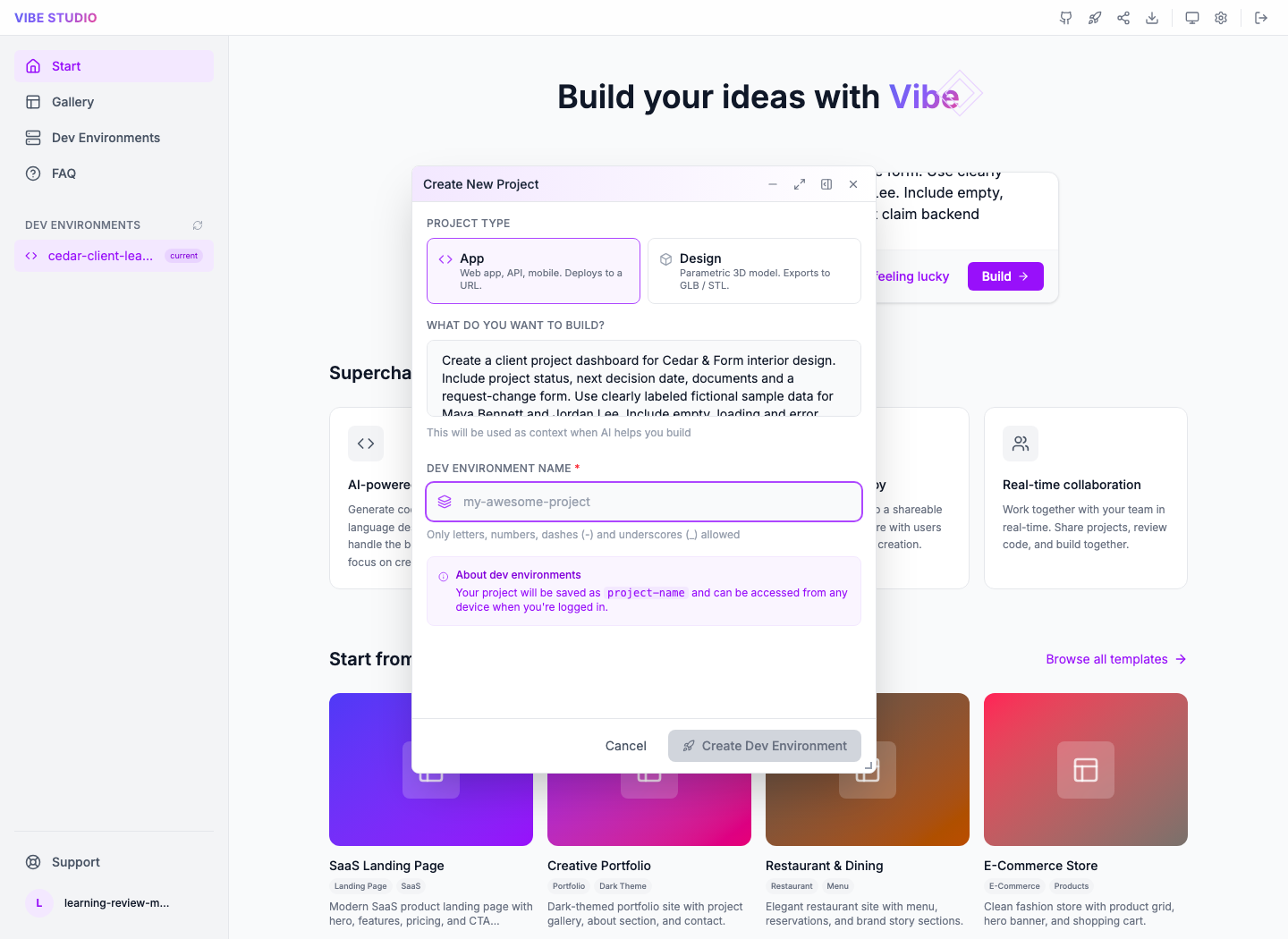
Historical project form: App is selected and the required environment name is empty. The sample description belongs to an earlier dashboard exercise; replace it with your request-app brief. This does not show provisioning success.
Sign in at https://vibe-studio.appmint.io/login using the same controlled Appmint organization credentials used in Studio Manager. Create an app project. In What do you want to build? enter a brief for a customer request form with title and description, a confirmation showing its reference, and a list of that customer’s own requests. Explicitly require persistent AppEngine data and reject local-only/mock storage. Select App, not Design (the latter is for 3D models). Enter Dev Environment Name using letters, numbers, dashes or underscores, for example customer-requests-practice. Choose Create Dev Environment once. If that name is already in use, choose another name or deliberately reopen the existing environment; do not assume a duplicate is a new app. Wait for its actual workspace or retain the provisioning error.
Check the result: The intended app project opens with a concrete task to verify.
2. Review the first screen before connecting data
An AI-generated interface can be visually complete before its data flow exists. Test its inputs and feedback first.
Steps
Open Preview. Enter the controlled request title and description and use the generated submit action. Inspect validation, waiting state, confirmation and the resulting list. Review the corresponding source files to determine whether storage is mocked. Ask for one focused correction at a time, naming the control and expected behavior. Compare Mobile, Tablet and Desktop sizes. Preserve the actual generated labels in the final capture rather than prescribing buttons that may not exist.
Check the result: The interface behavior is understood, including any remaining mock persistence.
3. Connect the real collection and identity
The backend contract must exist before generated code can use it. Collection permissions and authenticated identity decide who owns the result.
Steps
Use the Appmint Database course to create and reopen the intended collection in Studio Manager before asking generated code to use it: define the fields required by the brief and its intended ownership/access rules. Save and inspect the resulting schema and permissions. Return to Vibe Studio with the exact collection and supported AppEngine operation details, excluding private server credentials from browser source. Provide the exact endpoint, payload, response envelope and server-enforced owner filter from your implemented contract. Ask for the generated data operation to use the authenticated customer identity. A prompt alone cannot create or verify that authorization boundary; if no customer-scoped endpoint exists for this collection, that backend implementation is a prerequisite, not a hidden completed step. Inspect its request and response handling in source. Submit one controlled request and verify the stored record in Studio Manager, then refresh the customer view and read it back.
Check the result: The task creates a real record with the intended customer identity.
4. Prove the customer boundary and failure experience
The first successful request is only half the test. Another customer must not retrieve it, and a failed request should not look successful.
Steps
Sign out of the generated app and sign in as controlled customer B. Inspect the list and try the first request’s direct address or supported read operation. Verify refusal/absence according to the contract. Repeat an invalid submission and inspect the displayed error and unchanged record count. If the app silently fails or exposes another customer’s request, correct the server permission and client handling before styling further. Do not fix a security boundary by hiding a list item only in the browser.
Check the result: Access and error handling are verified independently from the happy path.
5. Save, deploy and test the live result
A saved source file, a preview and a public deployment are three separate states.
Steps
Open the relevant source file, save the controlled change with Save or Cmd-S and reopen it. Refresh Preview. Choose Launch and inspect Project, Owner and Live URLs in the deployment drawer. Choose the intended hosting provider/domain, then Deploy now for the authorized controlled project. Watch Progress and retain any failure before Redeploy. Open the returned live URL and repeat create/read/access tests. A domain-alias update is separate from DNS propagation. Do not use Import Project from ZIP as a recovery method: its current workspace handler only logs and is unfinished. Keep a verified source backup through an actually working export path.
Check the result: The live app performs the checked task; deployment failure or unavailable export remains explicit.
Troubleshooting and recovery
A successful configuration save does not prove the customer workflow. Reopen the exact record, inspect the actual consumer and preserve any error. Check stored state before repeating a create, purchase, message or refund. Keep organization, site, customer and record identifiers aligned across screens. Correct the failing dependency and repeat that verification without disguising an unsupported action.
Your next check
Follow the record through both sides of the workflow. When the intended person can complete the task and the saved result agrees, the setup has evidence behind it.
Limitations and checks
Vibe Studio project/workspace/deploy source plus catalogue collection-editor references used. No generation, deployment or live data action performed. Generated labels are inherently output-specific; capture them only after generation. ZIP import is incomplete; file upload reads text and is not a verified binary-import path. Collection-level details remain dependent on the actual selected schema and server contract.
Appmint Vibe Studio: AI-assisted App Development — supporting guide
Overview
Appmint Vibe Studio combines an AI conversation, project files and a live preview. We will build a small app, inspect the files behind it, refine one behavior and distinguish a saved project from a deployed site.
1. Sign in and create the right project kind
Start in production Vibe Studio
Use Vibe Studio with your Appmint organization credentials. This course's retained Vibe images are from the production interface; Studio Manager running locally is not a substitute for Vibe Studio.
- On Start, write your initial brief in the build prompt and choose Build to open Create New Project.
- Select App for a web application. Design is the separate parametric 3D model path; do not select it for a website or dashboard.
- In What do you want to build?, describe the interface, the input and the result. For example: “Create a client project dashboard with project status, next decision date and a request-change form. Clearly label fictional sample data. Include loading, empty and error states. Do not describe sample records as a connected backend.”
- Enter Dev Environment Name using the permitted letters, numbers, dashes and underscores. Choose an available name meaningful to you. The screenshot’s placeholder is not a required name.
- Choose Create Dev Environment once. Wait for the environment to open; if it fails, keep the error and check Dev Environments for an existing record before creating another.
Historical production capture: App is selected and the brief is entered, but Dev Environment Name is blank. Create Dev Environment is disabled; this is not a completed creation.
Why this matters
Vibe Studio uses the Appmint organization credentials. An app project and a design project route to different workspaces, so choose the kind that matches the deliverable.
Follow these steps
Open production https://vibe-studio.appmint.io/login and sign in with the controlled organization account. Create a project and choose the app kind for this walkthrough. In What do you want to build? describe the intended screen, its inputs and its observable result; enter Dev Environment Name. Create once and wait for the project to open. If Could not open this project appears retain the actual message rather than starting duplicate environments. For a design alternative the dialog uses Design brief and a Generator choice and opens a different workspace.
Check the result: The intended project and kind open; provisioning failure remains visible if present.
2. Generate, inspect and refine one behavior

Historical production capture: the dashboard explicitly labels all records fictional. Connected at the top describes the development environment, not a verified customer database.
Read the workspace before changing it
The project name at the top keeps the environment in view. AI Assistant opens the conversation; Preview / Code switches between output and implementation. The device buttons change the preview size. The preview address identifies the file or app being viewed. A usable preview is useful progress, but it does not establish deployment or persistence.
For the sample dashboard, change the sample client, inspect the corresponding status and exercise its empty/error views. Then ask for one focused refinement, such as making the next decision date more prominent without changing the data. Compare the result with the previous state and test the control again. For your own brief, use its actual input/action/result instead of copying these sample client names. If the form only shows a local confirmation, continue to the data chapter before promising that a request reaches your team.
Why this matters
The preview shows behavior; files show its implementation. A generated form that looks convincing may still have no real data connection.
Follow these steps
Ask the assistant for the small specified app and wait for its actual result. Open Preview and exercise the exact input/action/output in the brief. Inspect the corresponding files in the file tree. Select the relevant preview element where supported and send a focused change that names the element and desired behavior. Verify that one change in Preview before adding more. Compare Mobile, Tablet and Desktop sizes, then refresh Preview.
Check the result: The generated app performs the requested task and retains the verified refinement.
3. Manage files and save deliberately
Why this matters
Editing a file and deploying a project are separate operations. The file toolbar provides creation and saving; uploads must be checked for what the implementation actually reads.
Follow these steps
Open a source file, make one controlled wording edit and choose Save or Cmd-S. Reopen it to confirm persistence and refresh Preview. Use Create New File with its intended folder, then Create New Folder for organization. For Upload Files choose a text source file and confirm the resulting file path/content. The inspected handler reads file.text(), so do not present it as a verified binary-asset importer. Import Project from ZIP currently has a TODO handler that only logs the chosen ZIP; do not teach it as a working restore/import route.
Check the result: The actual source is stored and preview reflects it; the unsupported ZIP branch is identified.
4. Connect data and prove the user boundary
Why this matters
A visual app becomes useful when its data operation succeeds for the intended person. Server secrets must not be embedded in a browser bundle.
Follow these steps
Specify the AppEngine-backed operation and identity needed in the assistant brief. Inspect the generated request and authentication handling in source. Use a controlled record and customer/staff identity appropriate to that route. Create or retrieve one item, refresh and read it back. Repeat without the intended access and verify refusal. Keep generated mock/local-only data clearly identified until replaced with a real service.
Check the result: Persistence and access are demonstrated independently of the visual design.
5. Deploy, inspect domains and understand output options

Historical production capture: Launch shows SpinForge, project identity, custom-domain controls and Deploy now. The progress stages are not completed; no successful public deployment is established by this picture.
Before deployment, check Project against the environment you edited and confirm Owner / Org. A URL already displayed under Live URLs is not proof the latest changes are served there. After a successful deployment, open that address in a separate browser view and repeat the feature check. Custom-domain attachment and hosting alias synchronization are separate from external DNS configuration. Keep using the provided working address until the custom hostname has been verified; do not promise that typing a hostname into Launch updates its registrar automatically.
Why this matters
Launch starts a deployment job. The final public URL and its working behavior are the proof, not a running progress indicator.
Follow these steps
Choose Launch. In the deployment drawer confirm Project, Owner and Live URLs. Inspect the selected hosting provider and attached domains. For an authorized controlled deployment choose Deploy now and watch Progress; on success open the returned URL and repeat the task from Preview. On Deploy failed retain the error and inspect build/job information before Redeploy. If changing domain aliases use the domain-list synchronization control deliberately; it updates hosting aliases without redeploying, but DNS still needs its own verification. Share and Download are separate header actions; inspect their actual output and verify any downloaded artifact before describing it as a complete source backup.
Check the result: The deployed app performs the same verified task; failed deployment or missing export is not hidden.
Troubleshooting and recovery
Read the actual error and inspect persisted state before retrying a create or other write. Keep the selected organization, record and operation visible. A saved configuration, permission, provider connection and working consumer are separate checks; verify the one the lesson claims. Reopen after saving and compare a controlled alternate/failure path where the chapter calls for it.
Next steps
You can now follow the module’s setup and check its result. Use the relevant chapter for an alternative, and verify the actual consumer before treating configuration as complete.
Limitations and checks
Current StudioRouter, StudioWorkspace, CreateProjectDialog, Header, DeployDrawer and deploy service inspected. ZIP import is source-confirmed incomplete. No production signup, AI generation, deployment or domain change performed. Authentication, provider operations, output formats and generated app boundaries still require live verification.