
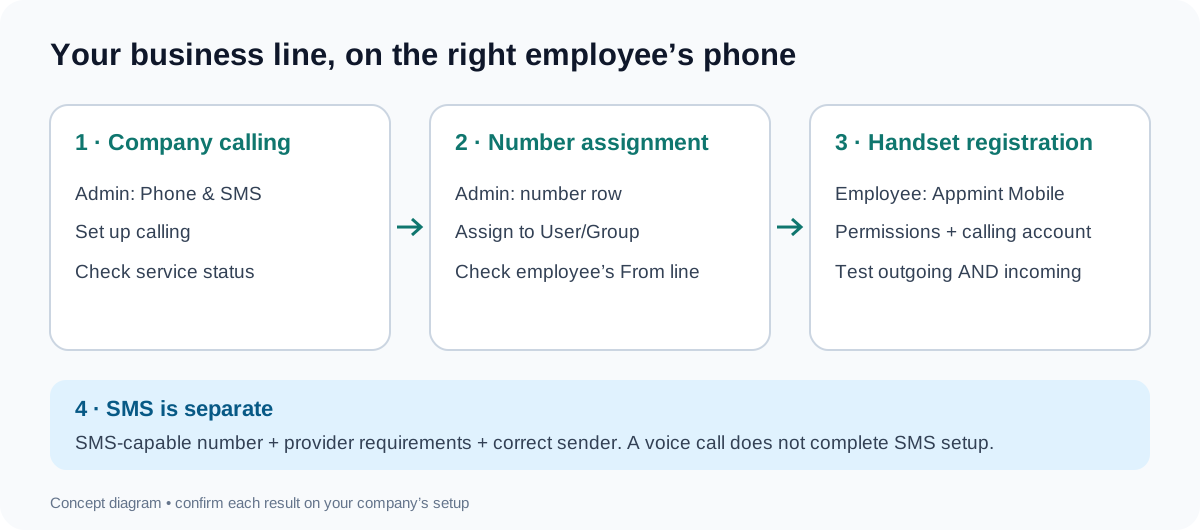
Company calling, number assignment and handset registration solve different problems. Work through them in that order.
Who this is for: an owner setting up the company line and a colleague using it in Appmint Mobile. Time: allow 45–60 minutes for the first configured-line rehearsal, after staff access and the company’s provider-owned line are ready. Shared-line, SMS, background/locked-handset and offboarding tests are separate exercises; provider review has its own timing. Level: beginner setup, followed by shared-line, SMS and offboarding practice. Products: Studio Manager and Appmint Mobile. Checked: setup and native phone captures from 18 September 2026; prerequisite evidence and local assignment reads reviewed 24 September. The phone captures show an unconfigured account, not a working business line.
Capture status: the setup forms, Android permission prompts, native phone tabs and no-number state were opened. No service terms were accepted, number provisioned, assignment saved, call placed or SMS sent during this review. Provider-dependent sections below are an implementation-checked rehearsal, with the exact result you must verify in your company. They are not a claim that the pictured training account can make calls.
What you will have at the end
You will know how to prepare company calling, distinguish adding a number from assigning it, register the employee’s handset and test the line in both directions. You will also know how to go offline, remove a colleague’s access without releasing the company number, and turn a conversation into useful CRM context.
The practical finish is this: the employee sees the intended number under From, an agreed test phone receives a call from that number, and the business line rings on the employee’s phone. A green status indicator on its own is not that finish.
Appmint, Appmint Mobile and the softphone are free.
What you need
- Appmint Mobile installed and a working staff sign-in. Complete Set up Appmint Mobile and take your CRM with you first, including its current download/build notes.
- An owner or administrator who can open CRM → Phone & SMS in Studio Manager.
- An active colleague account for the person receiving the line. Use Roles, groups and permissions; a group named Sales or an unsent invitation does not establish that the colleague can sign in. That course now verifies invitation acceptance and separate restricted staff sessions; check the actual colleague’s access before continuing. Its LeadEditor example grants lead work, not proof of phone-provider registration or access to Phone Management.
- A business number the company actually controls in the configured provider account, or an administrator ready to obtain one through the number setup flow.
- A second phone controlled by someone taking part in your test. Agree the test before calling.
- A training lead for the CRM exercise: Maya Bennett, Referral, value4800. The mobile welcome course verifies a Notes save and Studio readback with score50 preserved after the local repair. Keep this practice on training data.
Do not enter the example555 numbers from older topic drafts as usable lines. Replace every test destination with a number you control. Adding an employee’s personal mobile number to the company’s number list does not forward calls to their handset.
Before starting the line setup
Complete these checks in order. Keep the owner and employee signed in separately.
- Employee identity: complete the invitation, then have the colleague sign in to Studio under their own email. Check the company and their actual allowed CRM screen. The roles course records this with Nora Ellis and separately with Maya Ito; an owner’s Home screen is not the employee check.
- Mobile identity: complete the mobile welcome course with that colleague’s account. Compare the company and displayed name before opening Phone. The existing Android proof uses the review owner; it does not establish Maya’s handset registration.
- Company line: the administrator must have a number already controlled by the company in its configured provider account. If none exists, stop the calling exercise at the setup screen. You can still learn the interface and complete the independent CRM Notes exercise.
- Test partner: agree which controlled second phone will receive and make the test calls. Record the line, devices and app versions used so the subsequent results can be compared.
The 24 September local read returned zero company phone records and zero owner-assigned lines. No placeholder line was created to make the screens appear ready. Successful company setup, employee assignment and calls remain the acceptance work described below.
The story
Cedar & Form wants customers to call the business, even when the team is visiting clients. Maya Ito is the salesperson; Maya Bennett is a customer with an interior-design enquiry. The customer should dial the business line. The employee answers through Appmint Mobile on her own phone.
Jordan, the owner, does the company setup. Maya signs in, checks the line assigned to her and practices one call each way before taking customer calls. Afterwards she records the customer’s preference on the lead, rather than relying on the call log to explain what was agreed.
The captured native handset belongs to Jordan’s local training account. Maya’s assignment and calls still require the separately prepared colleague account and controlled test numbers.
The route
Admin: enable company calling → add the owned number → assign the user or group.
Employee: sign in → grant permissions → check From → test outgoing and incoming → record the customer context.
Part 1 — Administrator: prepare the company line
1. Open the number-management screen
In Studio Manager expand CRM, then select Phone & SMS. The page title is Phone Management. Stay on Numbers for setup; Call Logs and Messages are separate tabs.
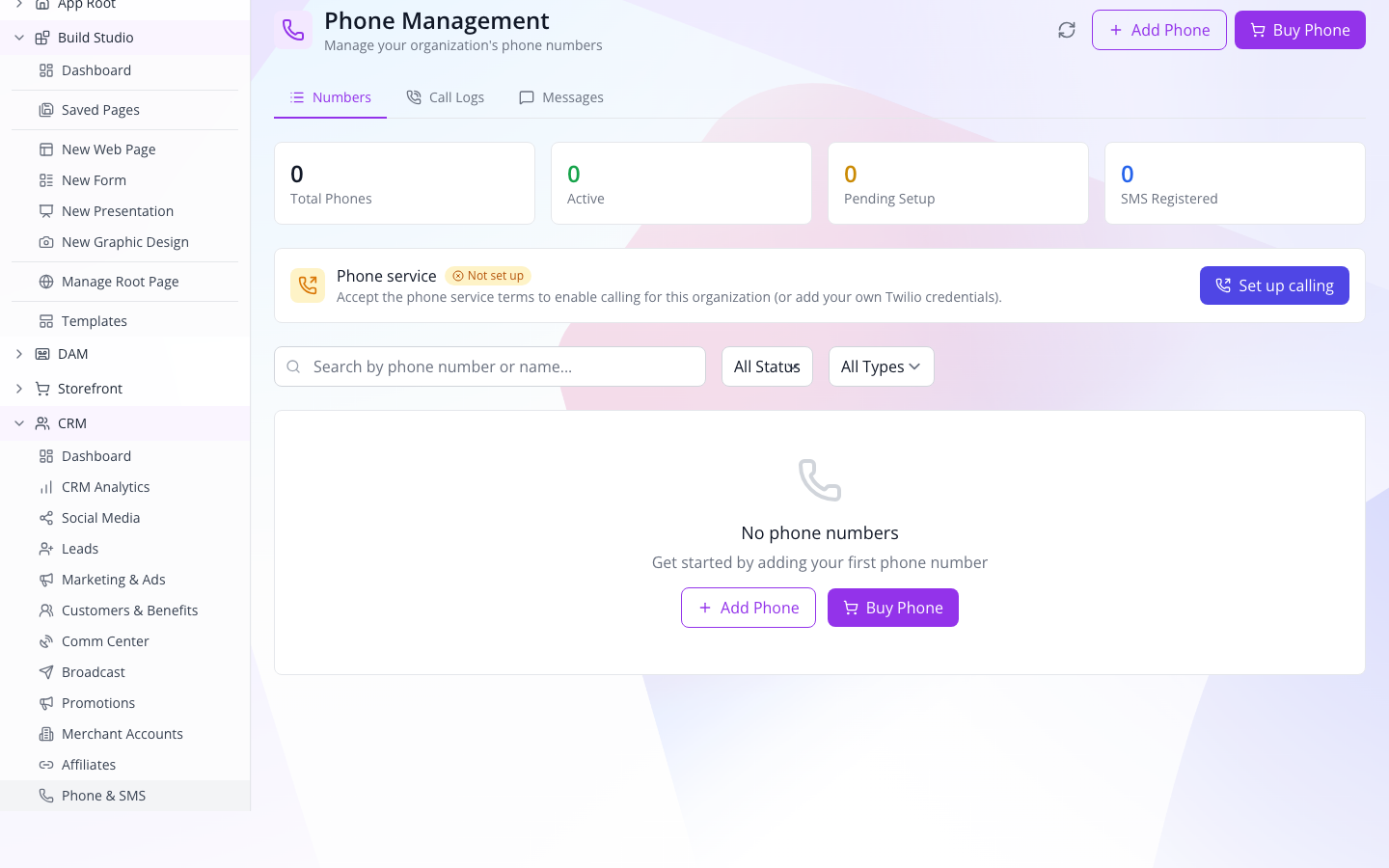
Read the screen in three parts:
| Area | What it answers |
|---|---|
| Total Phones, Active, Pending Setup, SMS Registered | Which number records and setup states exist? |
| Phone service or Outbound calling status | Is the company’s calling service ready? |
| Numbers table and each row’s actions | Which line is this, and who may use it? |
In the training organisation, all four counters were zero and Phone service showed Not set up. That explains why installing the mobile app alone was not enough.
2. Review Set up calling
If the service is not set up, select Set up calling. Read Accept phone service terms & turn on calling. This action provisions the organisation’s provider account and prepares outbound calling; it is not a handset permission dialog.
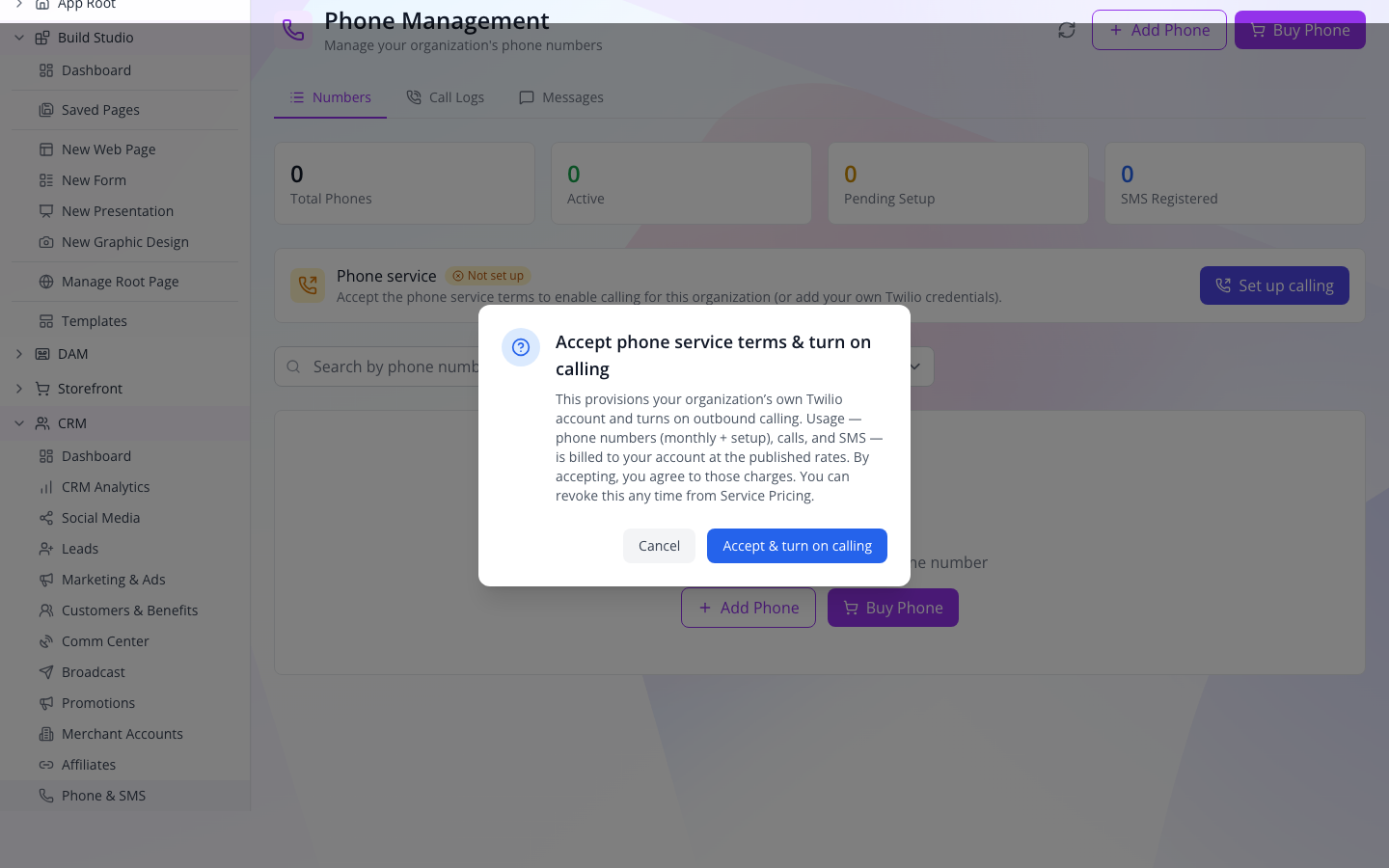
The company’s authorised administrator decides whether to proceed with Accept & turn on calling. After completing the company’s setup, return to Numbers and check for On. Reload the page and check again. If the action returns an error, keep the error text and address company readiness before trying handset calls repeatedly.
If the company already uses its own provider configuration, verify that configuration and the same readiness status. The objective is a ready service, not blindly repeating account provisioning.
Important distinction: this course opened the dialog and cancelled it. The screenshot does not show an enabled service. Your completion check is the persisted On status after your administrator completes the setup.
3. Add a number the company owns
Select Add Phone. In Add Existing Phone, enter the existing provider-owned number in Phone Number, using international form beginning with + and its country code. In Friendly Name, use a label such as Maya direct so colleagues recognise its purpose.
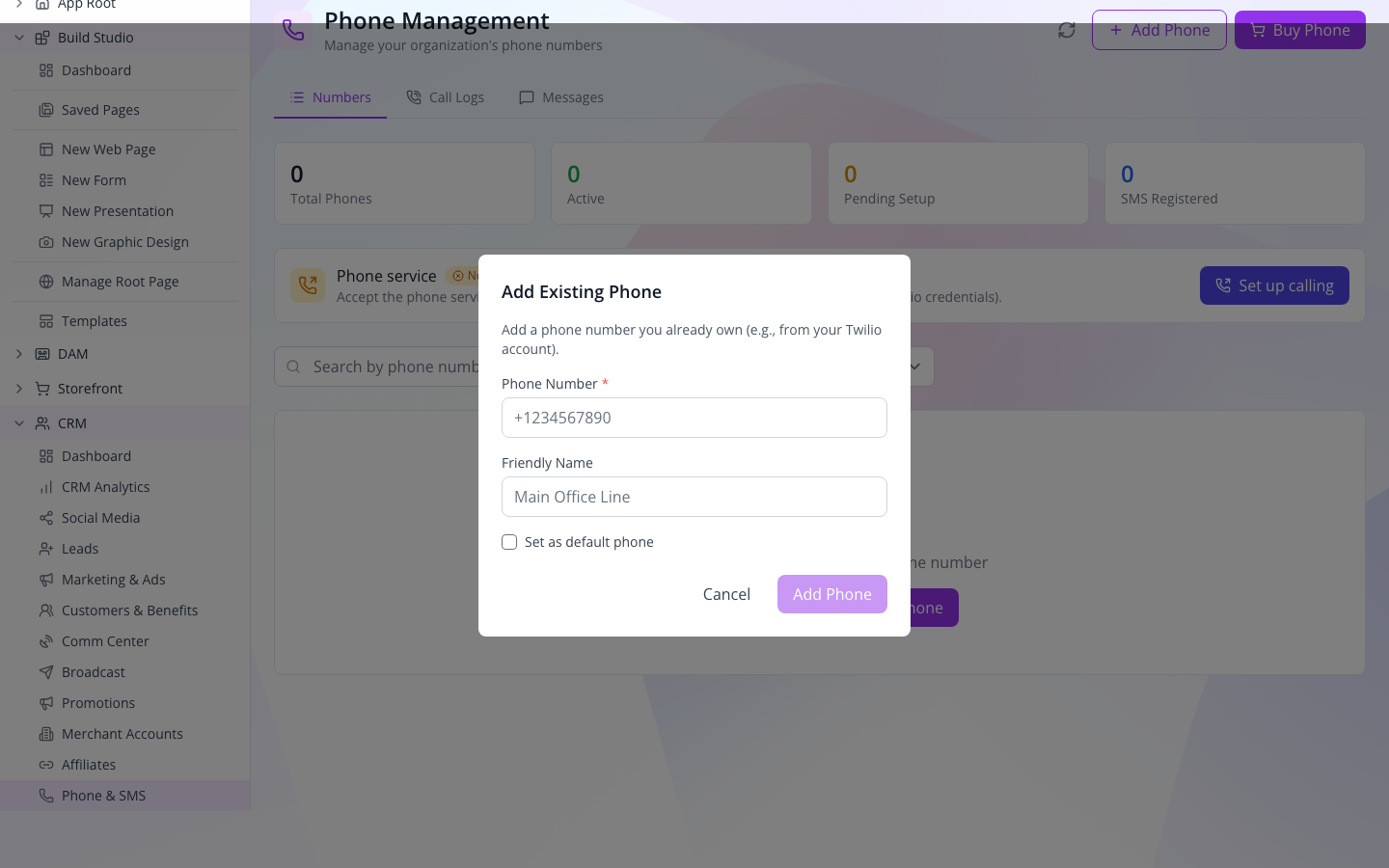
Leave Set as default phone off for an employee’s direct line unless it is also intended to become the company default. Select Add Phone when the details identify the company’s actual number. Back on Numbers, verify both the number and label, then reload to confirm the row remains.
If the company has no provider-owned number, the screen offers Buy Phone to obtain a number. That is a separate provider action; use the company’s normal authorisation and selection process. Do not invent a number or use a personal handset number to get past the empty state.
A phone record is not a ringing handset. Adding the number makes it manageable by the company. The employee still needs an assignment, and the mobile app still needs registration and permissions.
4. Assign the line to the colleague
On the intended number’s row, open its action menu and choose Assign to User/Group. The drawer has Users and Groups tabs, a search box and a Save Assignments button.
For an individual line:
- Stay on Users.
- Search for the colleague and compare the email, not just the display name.
- Select Maya Ito only when it is her real active staff account.
- Check the selected count. For this direct-line exercise, leave Groups unselected.
- Select Save Assignments.
- Look for Assignment updated, then reload Numbers and reopen the assignment drawer. Maya must still be selected.
These drawer labels are verified in the current implementation. A saved assignment and its readback have not yet been captured on the training account because it has no provider-owned number.
Do not substitute a similarly named customer. The assignment is to a staff user or staff group. Maya Bennett’s customer record is not the salesperson’s phone identity.
5. Hand over a clear result
Tell the employee the line’s friendly name and full number. Ask them to open Phone in Appmint Mobile and confirm that number under From. This checks the result from the employee’s perspective; an administrator seeing a row is only half of the handoff.
Try it: describe what each completed step achieved: company service, owned number, employee assignment. Check yourself: which step makes the number appear in the colleague’s From list? The assignment, subject to the employee’s signed-in account and current registration.
Part 2 — Employee: prepare the handset
1. Sign in as yourself
Open Appmint Mobile and use your own staff login for the company. The current build starts with Email Address → Continue with Password. Follow the mobile welcome course if you have an older Site Name screen or a verification challenge.
The app attempts to register the handset for voice after sign-in. That background attempt does not assign a number or prove that calls can be placed.
2. Open Phone and understand the screen
Tap the round phone control in the centre of the bottom navigation. The screen contains Keypad, Recent and Contacts, a registration/status indicator, the power control and the assigned-line area.

The training account shows No phone assigned to your account, followed by instructions to ask an administrator to assign a number to the user or team group. If your screen matches this, go back to the administrator’s assignment check. Typing a destination into the keypad cannot create the missing From line.
When an assignment is ready, check the full number shown under From. With more than one assigned line, use the selector to choose the intended one. Friendly labels may help, but compare the number as well.
3. Android: allow the permissions the app requests
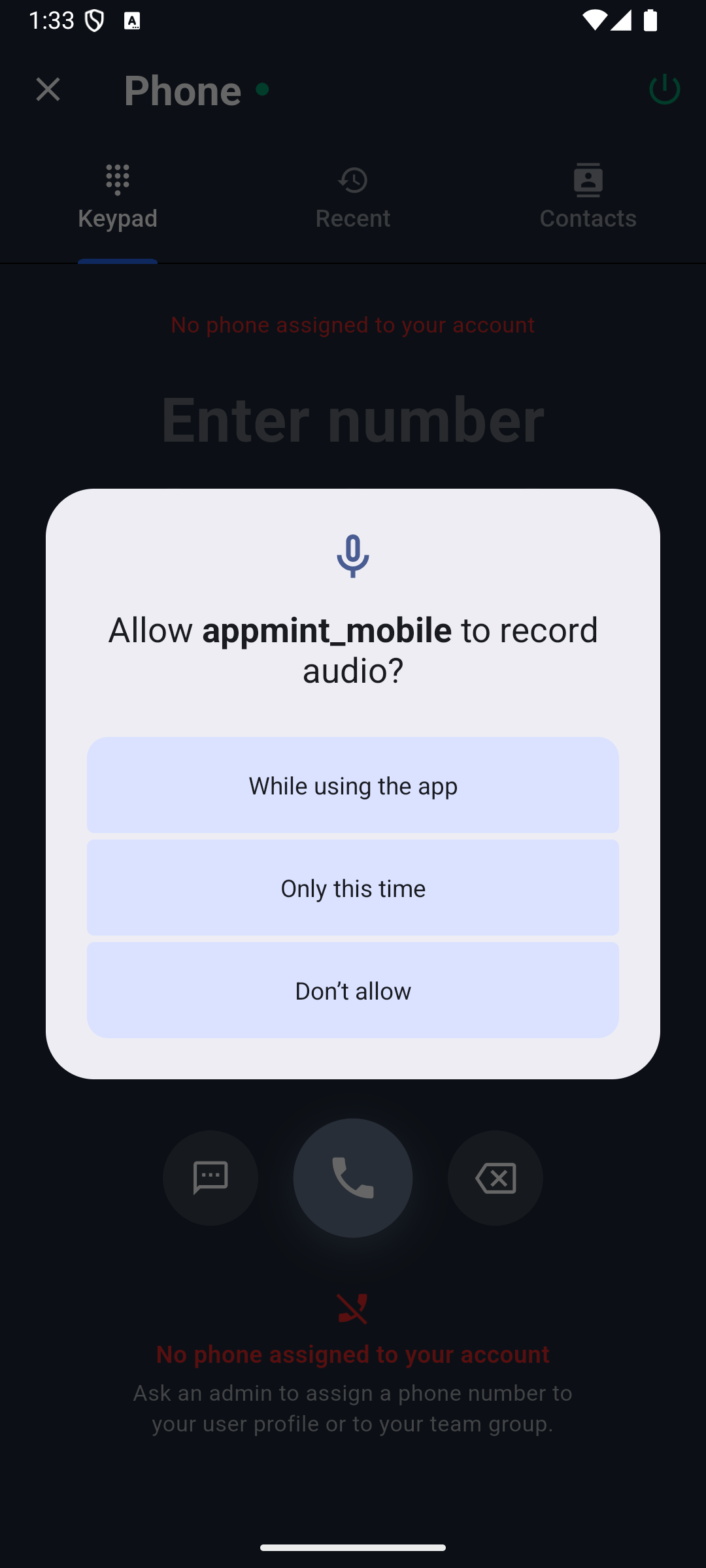
On the tested Android version, opening Phone requested microphone access first. Select While using the app to allow the app to use the microphone during calls.
The next visible prompt asked whether Appmint Mobile could make and manage phone calls. Select Allow for the company-calling workflow.
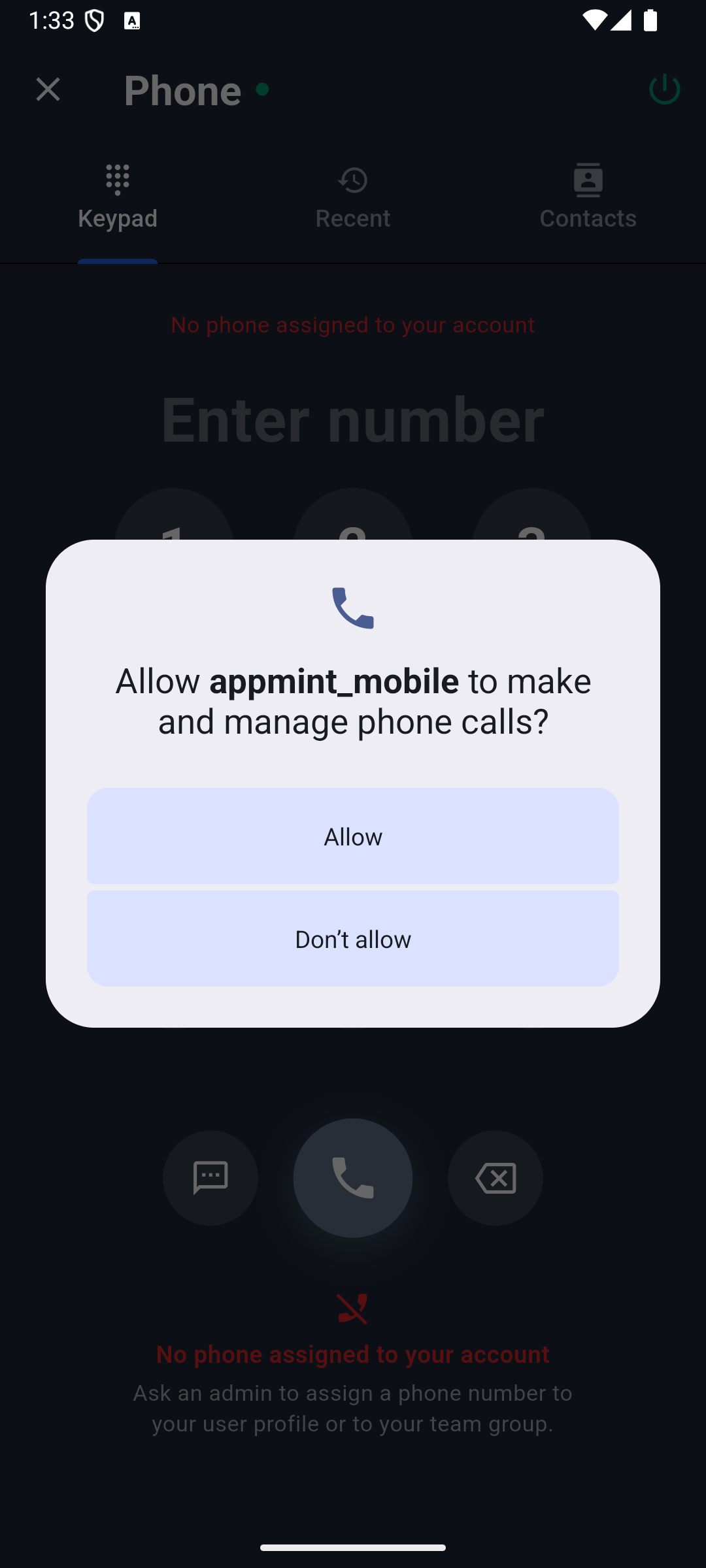
Android versions can group permissions differently. The app also checks phone-number, phone-state, call-management and notification capabilities. Follow the permission named on your screen rather than expecting five separate dialogs in a fixed order.
If the Phone screen reports Phone account not registered with Android. Reopen the Phone screen to retry, return to Home and reopen Phone. If it offers Open Calling Accounts, tap that button, enable Appmint Mobile in Android’s calling-account settings, then return to the app.
If you previously denied a required permission, open Android’s app settings for Appmint Mobile and enable the specific permission named in the error. Reopen Phone and check again. Microphone permission fixes microphone access; it does not fix an unassigned business number.
Capture boundary: microphone and phone prompts were exercised. Android calling-account enablement and ringing still need a real configured-line test. Do not interpret the permission screenshots as that test.
4. iPhone: prepare the native calling path
Use an iPhone for the iOS calling test. Grant microphone access when the app requests it. Test receiving a call with Appmint Mobile open, in the background and with the iPhone locked; incoming calls should use the native calling interface when the deployment’s voice/push setup is working.
Those iPhone states are not shown in this manuscript yet. Do not use an Android screenshot as a substitute for what your iPhone displays.
The inspected mobile implementation deliberately skips the native voice binding on iPad. A backend registration indicator on an iPad therefore does not establish an iPhone-style incoming-call experience. Use an iPhone for this course’s iOS voice workflow.
Try it: read the line, permission and company-service states before dialling. Check yourself: the microphone is allowed but the app says No phone assigned. Is the microphone setting the next thing to change? No—ask the administrator to verify the user/group assignment.
Part 3 — Test the line in both directions
Do this with two participating people and controlled phone numbers. The following is the acceptance exercise for a configured company, not a description of a call already made in the training captures.
1. Make one outbound call
On Keypad, check From once more. Enter the second test phone’s full international number. Press the call control and have the other person answer.
Confirm three things aloud:
- The receiving phone shows the expected business caller ID.
- Both people can hear each other.
- The app reaches a connected state rather than remaining at dialling.
Use the in-call mute and speaker controls to check audio behaviour, then end the call. Open Recent and compare the destination and time with the call you just made. Do not identify success from an animated timer alone; the other person must actually receive audio.
2. Receive a call to the business line
From the second phone, call the business number assigned to the employee. Answer in Appmint Mobile and check two-way audio.
Repeat the test with Appmint Mobile in the background, then with the handset locked. Record which states ring and which do not. If foreground works but the locked phone does not ring, investigate native account/push/background setup rather than assigning another number at random.
3. Review the call record
On the handset, open Recent. Use the time, direction and other party to identify your test. In Studio Manager, Phone & SMS → Call Logs is the corresponding administrator surface.
Record ownership: an earlier unconfigured organisation displayed unrelated provider rows; those captures were excluded. The local account-isolation repair now refuses the missing tenant account before provider access, with 19 passing regressions. A controlled real call-to-log comparison is still required here. If you see records you do not recognise, stop using them for customer follow-up and report the organisation, tab and observation time. Do not use another company’s rows as training evidence.
4. Record what matters on the customer lead
A call log can establish that a call happened. It does not explain that Maya prefers linen or who will send samples.
Open Home → CRM → Leads → Maya Bennett. The current route is Edit Lead. In a training copy, preserve existing Notes and add a concise outcome, such as:
Maya prefers linen samples. Jordan to prepare the sample pack before the consultation.
Tap Save, reopen the lead, then read the same Notes in Studio Manager. The mobile welcome course contains the actual native and desktop readback. The repaired local build preserved score50, source and value during that native save and fresh desktop readback. Verify the same fields in your practice record; this CRM result does not depend on a completed phone call.
Do not look for the older topic’s Add Activity button on the current lead editor. Notes, activities and call logs are separate records or surfaces.
Try it: a colleague should be able to tell what to do next by reading the note. Check yourself: does a call-log row automatically create a follow-up task? No. Assign the task through the company’s working task workflow and verify it was saved.
Part 4 — Shared lines, SMS and end-of-shift control
Share one line with a team
An administrator opens Assign to User/Group on the main line, selects Groups, chooses the intended team and presses Save Assignments. Reload and reopen to check the selection. Then have an actual group member reopen Phone and check From.
Use a group whose membership and effective access have been tested. The permissions course now verifies repaired custom roles, saved group membership and separate staff-session access. A Sales card by itself is still not proof that this colleague receives a particular phone number. Confirm the user-side result before directing customers to the line.
If the same number is assigned directly and through a group, removing the direct assignment can leave group access intact. Review both when removing someone.
Prepare SMS separately
Voice capability, an assigned line and SMS readiness are separate. On the number row, Register for SMS opens SMS Registration (A2P 10DLC) in the inspected implementation. For an eligible number, the form groups the information into:
| Form section | What to prepare |
|---|---|
| Business information | The legal business name, type, industry, relevant tax identifier, contact email and working business website. |
| Business address | Street, city, region, postal code and two-letter country code. |
| Authorized representative | A real responsible person’s name, email, phone, position and business title. |
| Campaign | The actual messaging use case, description, opt-in/message flow and two representative sample messages. |
| Keywords & auto-replies | The organisation’s opt-in, opt-out and help words and replies. |
If a business brand is already registered, the form can reuse it and omit some initial business fields. Enter facts about the company and the process it actually operates. For example, describe a booking-form opt-in only if that opt-in really exists; sample text in the form is not evidence that your website collects it.
The final action is Submit A2P Registration. A submitted request is not the same as provider approval. Check the returned status before scheduling customer texts. Different number types and provider arrangements may require a different verification path; follow the requirements shown for your configured number rather than treating this form as universal.
The number configuration distinguishes System number (calls) from the SMS default. Choosing the main voice line does not automatically make it an approved text sender. Set the intended SMS sender only after checking its capability and readiness, then test with an agreed recipient before relying on reminders.
No registration or SMS delivery was exercised in this review. Keep that test separate from a successful voice call.
Go offline at the end of the shift
In Phone, the power icon’s accessible label is Go offline (stop receiving calls) while online. Tap it to choose offline. The control changes to Go online.
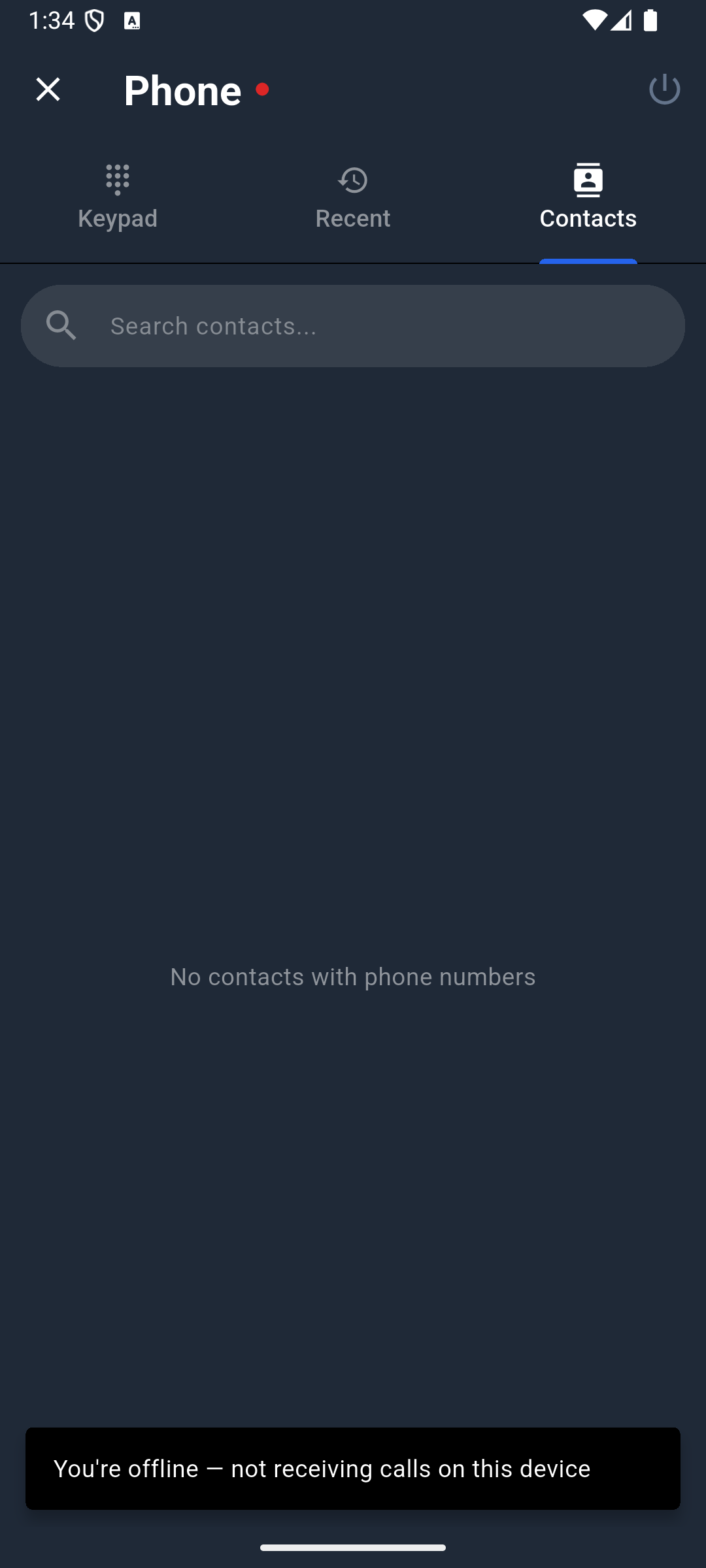
This is an explicit availability choice. The tested Android build preserved that choice after the app was fully closed and restarted. Reopen Phone after restarting and check the control before assuming the shift has resumed. Tap Go online when you are ready to register again.
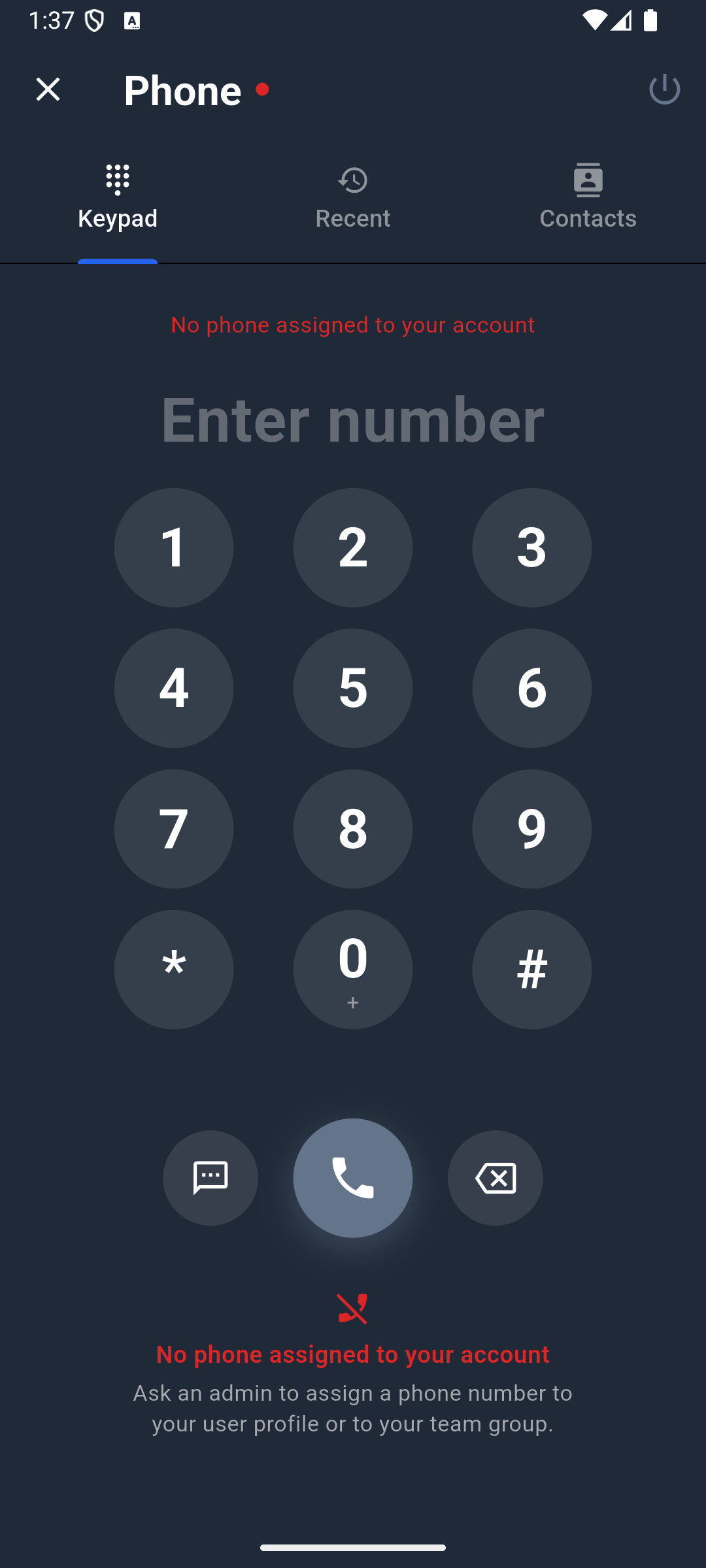
Choosing offline does not remove the employee’s assignment. It is a handset availability control, not an administrator’s offboarding action.
Remove a colleague from the line without losing the number
The administrator reopens the number’s Assign to User/Group drawer, clears the colleague’s direct selection and saves. If access also comes through a group, remove the relevant group access or membership as appropriate. Reload and reopen the assignment drawer to confirm both routes are removed. Older configurations can also grant a line through the employee record’s phones list or a group record’s sharedPhones list. The number’s assignment drawer does not clear those separate entries. If the line remains available after the visible assignments are removed, have your organization administrator check those records and remove only the departing employee’s intended access; preserve the routes used by other staff. Then perform the following checks; do not close the exercise merely because Save succeeded.
- While the removed colleague’s existing handset session is still present, refresh or reopen Phone. Confirm the removed number is absent from From.
- From the agreed test phone, call the company line. Confirm the removed handset no longer receives the call, including its background/locked state. An existing voice registration must not keep ringing after the intended removal.
- Have a retained authorised colleague check that the same company line remains available and still receives its test call. Removing one person must not release the number or disable everyone.
- Complete the company’s account offboarding and sign out on the removed handset. On a shared device, also use Forget this account so a remembered tile does not restore its saved session. Check a fresh sign-in according to the intended account policy.
These phone-specific revocation checks have not yet been exercised with a configured line. General account Lock/Unlock tests do not prove provider-token revocation or termination of an ongoing call. If the removed handset still sees or receives the line, record that failed result and keep the offboarding task open.
Release Number is different: it returns the number to the carrier. Do not use it merely because one employee has left. The company may still need that line for other staff and customers.
Delete account in the mobile app is also different from Logout. Use normal sign-out to leave a shared handset; permanent account deletion is not a routine shift-ending action.
Try it: list every path by which one employee receives the main line—direct assignment and each relevant group. Check yourself: is removing only the direct assignment enough if Sales still grants the line? No.
If something goes wrong
| Symptom | Check in this order |
|---|---|
| No phone assigned | Staff account and company → number row → direct/group assignment → reopen Phone. |
| Assignment saved but line absent | Reopen the assignment drawer after reload; verify the colleague’s actual group membership; refresh the handset registration. |
| Calls fail immediately | Company calling status → assigned From line → handset registration and permissions → exact returned error. |
| Microphone denied | Enable microphone for Appmint Mobile in device settings, then reopen Phone. |
| Android calling-account warning | Reopen Phone; use Open Calling Accounts if offered; enable Appmint Mobile. |
| App-open calls work but locked-phone calls do not | Native incoming-call/push/background configuration; repeat the controlled test in each state. |
| Phone does not ring after restarting | Check whether the power control says Go online; explicit offline mode may still be active. |
| iPad shows registered but does not behave like an iPhone | The inspected implementation skips native voice binding on iPad; test on iPhone. |
| Voice works but SMS fails | Number’s SMS capability → registration/approval status → correct SMS default → recipient format. |
| Desktop logs show unrelated records | Stop relying on those rows; report the scoping issue with company and screen details, without sharing other people’s messages. |
| CRM score or metadata changes after a note save | The local Notes-only update is repaired. Compare your practice record’s before/after fields, retain the app version and report any reproduced loss before editing live records. |
For help, Support → Documentation and Support → Submit Ticket are in Studio Manager’s toolbar. Use the separate Report a Bug action for reproducible defects. Include the handset model, app build, whether the app was foreground/background/locked, the selected line and the exact error. Keep credentials and unrelated customer records out of attachments.
What happened behind the scenes
Number assignment, registration and call routing
The phone-management assignment drawer writes assignedUsers and assignedGroups on the phone record. The handset asks for its available numbers through /phone/user-phones; server resolution includes direct assignments, group assignments and supported back-references. That resolved list supplies the From selector. A remembered phone number in a text field is not equivalent to a server-authorised caller ID.
Mobile sign-in attempts a voice-device registration. The current service has a stable device identity, periodic heartbeat, explicit unregister and a persisted offline preference. Native voice binding and incoming push are additional parts of the handset path; backend registration alone does not prove that the locked handset can receive calls. The implementation deliberately skips the iPad native binding.
The lead edit is independent of telephony. It updates the lead’s Notes through the generic repository path. Call logs do not automatically become those notes.
Source checked: websitemint/packages/ui/src/components/phone/phone-management.tsx, phone/a2p-registration-form.tsx, common/assign-to-drawer.tsx; appengine/src/phone/phone.controller.ts, phone.service.ts; appmint_go/appmint_mobile/lib/screens/phone/phone_screen.dart, lib/services/softphone_service.dart, lib/providers/auth_provider.dart, lib/providers/communications_provider.dart, lib/screens/leads/lead_form_screen.dart.
Where next
- Run customer conversations for the desk-side inbox and support workflow.
- Roles, groups and permissions for the access behind shared lines.
- Automate a business handoff for the next operational action.
- Companion-video guide.
Evidence —18 September2026: Production organisation learnmu4zs1td, Studio0.6.1: opened Phone Management, service terms and Add Existing Phone; cancelled both forms. No company service or number was provisioned. Call Logs/Messages unexpectedly displayed older provider records despite zero training numbers; raw row screenshots and text were removed from public course assets. Native current-source local Android release, organisation learnmu4qn1ha, Jordan: opened Phone; allowed microphone and phone permissions; observed no assigned number; inspected Recent/Contacts; selected offline and verified its persistence after restart. No physical-handset or iPhone call, assignment save, SMS registration/delivery, provider approval or call-log isolation success is claimed. The provider-dependent steps are source-checked and await the controlled end-to-end test in the production guide. See screen evidence.