
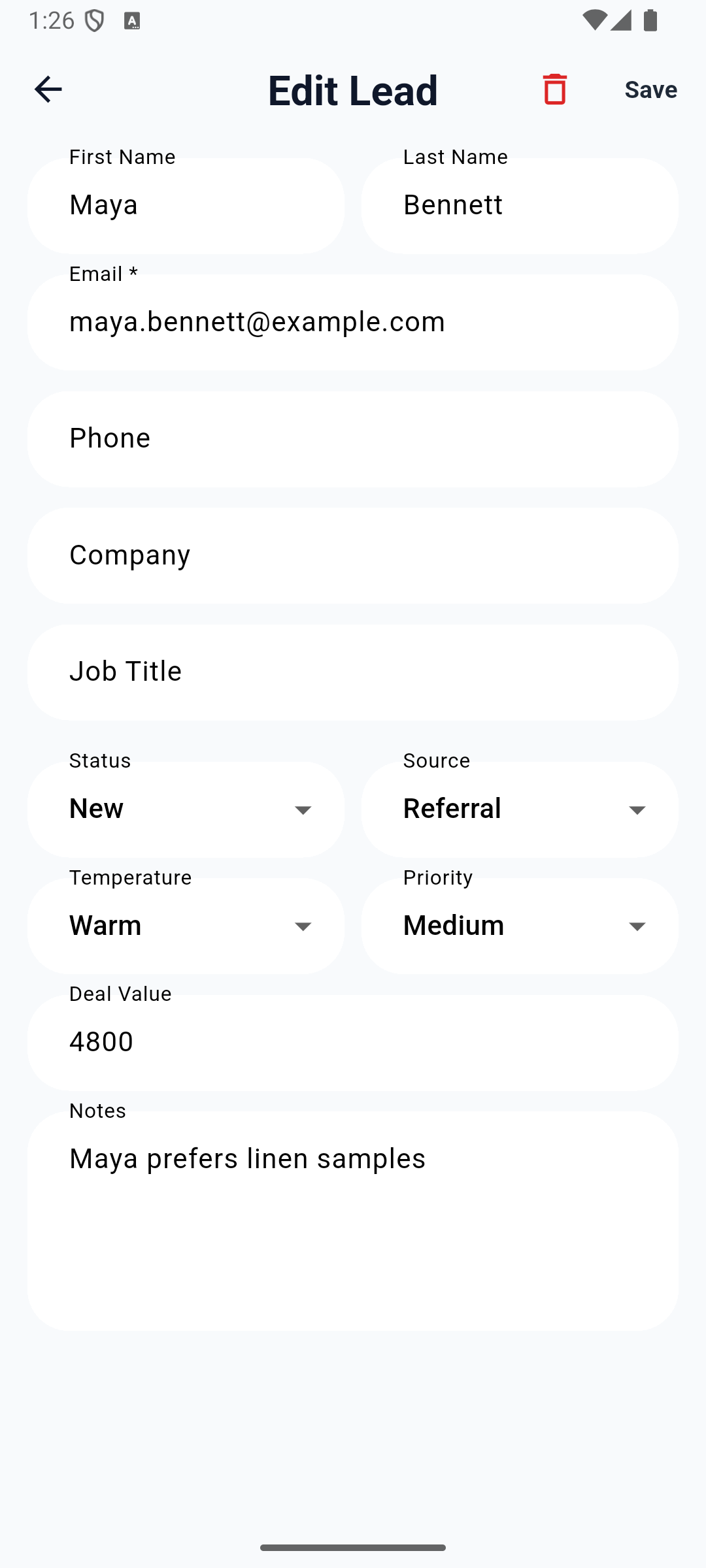
Maya’s preference is now in her lead record. You will open the same record in Studio Manager and read the note back there.
Who this is for: business owners and colleagues taking their first Appmint workflow onto a phone. Time: 30–40 minutes once the app is installed. Level: beginner, with shared-device and developer notes afterwards. Product: Appmint Mobile; Studio Manager for the desktop comparison. Checked: installation evidence dated 18 September 2026; local Android password sign-in and Notes save/reopen rechecked 24 September 2026. The installation/login-entry capture below shows the publicly distributed Android package 1.0.2+9 on a fresh Android 36 emulator. Later signed-in captures show a newer build compiled from the reviewed source and connected to the local training system. They are labelled separately; neither set is an iPhone walkthrough.
Build note: the current app signs you in with your email first. An older Android release asks for Site Name. Follow the instructions matching your screen. Use the Android download link in the installation section; the public package and local training build have different login screens.
What you will have at the end
You will know where each part of the mobile app fits, personalise Home for your role, open an existing CRM lead and compare its details with Studio Manager. In a training record, you will save a customer preference and check it on both screens. You will also learn where the current task and Calendar limitations interrupt a follow-up, so you can keep the work moving without losing it.
This course uses Jordan Morgan, working for Cedar & Form, and Maya Bennett, a prospective client with a $4,800 interior-design enquiry. Jordan is the signed-in colleague; Maya is the customer. They are different people and different record types.
Appmint and Appmint Mobile are free. A business phone number is not required for the CRM exercise.
What you need
- Your own Appmint staff sign-in. Owners can use the account created in Welcome to Appmint. Colleagues need an accepted invitation and appropriate access; use Roles, groups and permissions. An invitation prepared in a drawer is not an active colleague account.
- Appmint Mobile on an Android phone or iPhone. Use the installation routes below. Keep an internet connection available for fetching and saving records.
- A browser signed in to Studio Manager for the same company.
- A training lead, not a valuable live prospect, for the edit exercise. Turn an enquiry into a project explains lead creation. Use Maya Bennett,
[email protected], source Referral, value4800. If it already exists, reuse it rather than create a duplicate.
Practise on a training lead first. An older build overwrote fields outside the editor. The local repair now patches only changed fields and has eight passing regression checks. The 24 September native check also preserved the visible name, email, source, status, temperature, priority and value when saving Notes. A fresh Studio comparison confirmed the note, source, value and score50. The phone editor does not display every field, so still check any additional metadata important to your process.
The story
Jordan has just finished a consultation. Maya prefers linen to velvet. That sounds easy to remember—until Jordan visits three more clients that afternoon. A useful CRM habit is to record the preference while it is fresh, with enough context for someone else to act on it.
The goal is not to create another address book on the phone. Appmint Mobile opens records belonging to the same organisation as Studio Manager. Jordan saves a preference once, then the colleague at the desk can read it.
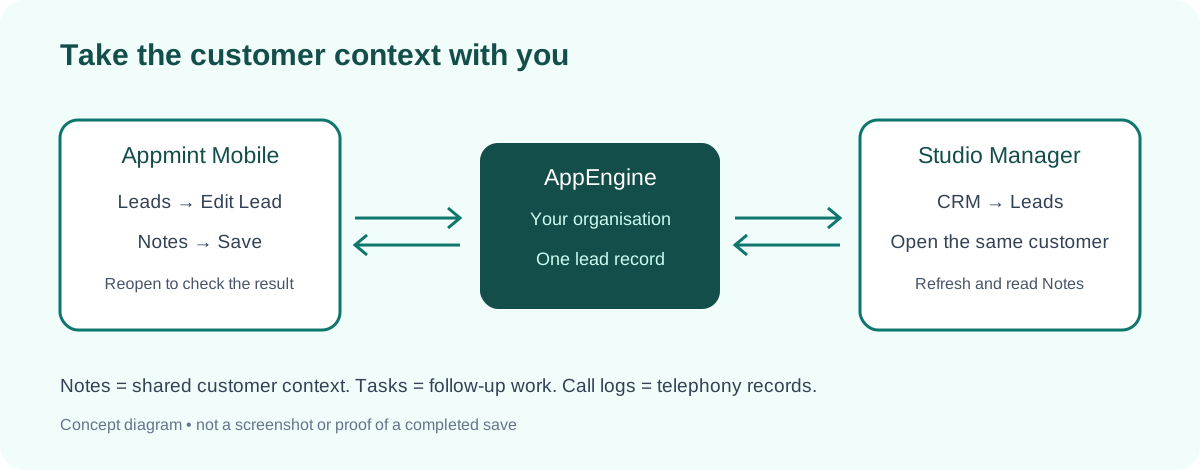
Concept diagram. A Notes field holds shared context; a task tracks work to do; a call log records a phone call. They are not interchangeable.
The route
Install and sign in → make Home useful → open a lead → save a training note → check it at the desk.
Part 1 — Install the app and sign in
1. Open the official download entry
On your phone, open appmint.io and scroll to GET APPMINT MOBILE. This is the staff app for CRM, business operations and event administration. EventOxygen, further down the page, is a different app for the attendee experience.
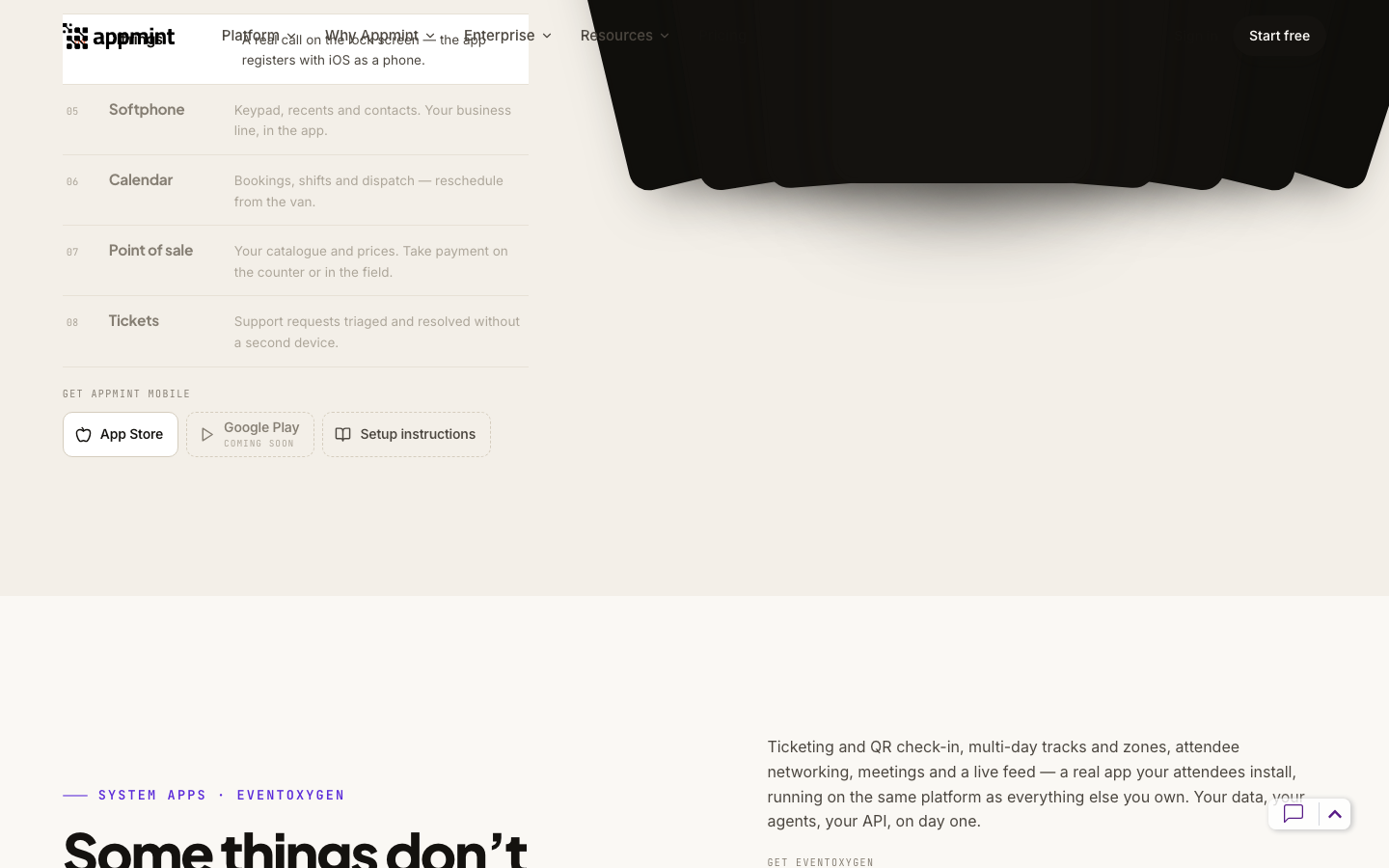
Use the Appmint Mobile section’s App Store or Setup instructions entry. Do not accidentally install EventOxygen for this course.
On iPhone: tap App Store, which opens the Appmint Mobile listing. Review the compatibility information shown for your device, select Get or the download icon, and complete Apple’s installation confirmation. Open Appmint Mobile from the Home screen afterwards. This course does not require creating a new company from the app.
On Android: tap Download Appmint Mobile APK. This is the staff app, not the EventOxygen attendee app. The canonical download and release metadata were checked on 18 September 2026; the published metadata identifies Appmint Mobile version 1.0.2+9. The product-page download button may still be awaiting release, so use this direct link if it is not visible.
When the official APK downloads successfully, open it from your browser’s Downloads list. Android may ask whether that browser can install apps. Allow that source for this installation, return to the package and select Install, then Open. You can turn that browser’s install permission off again afterwards. If Android reports incompatibility, check the device requirements supplied with that release; the current source targets Android 8.0/API26 or later.
The official package was downloaded, its size/hash checked against the release metadata, installed on a fresh Android 36 emulator and opened successfully. The package requires Android 8.0/API26 or later. Installation evidence records exactly what was tested. Signed-in screenshots later in this course use the separately compiled training build.
2. Match the sign-in entry to your installed release
Open Appmint Mobile and stay on Login. On the public Android package 1.0.2+9, first enter your company's organisation ID in Site Name, to the left of .appmint.app. Enter only the ID, not https://, the suffix, the company's display name or a page address. Use the organisation ID supplied by your company administrator; do not copy a training organisation from a screenshot.
Then enter the email used for your staff account in Email Address and tap Continue with Password. Send Magic Code and POS Quick Sign-In are separate methods, not additional password-sign-in steps.
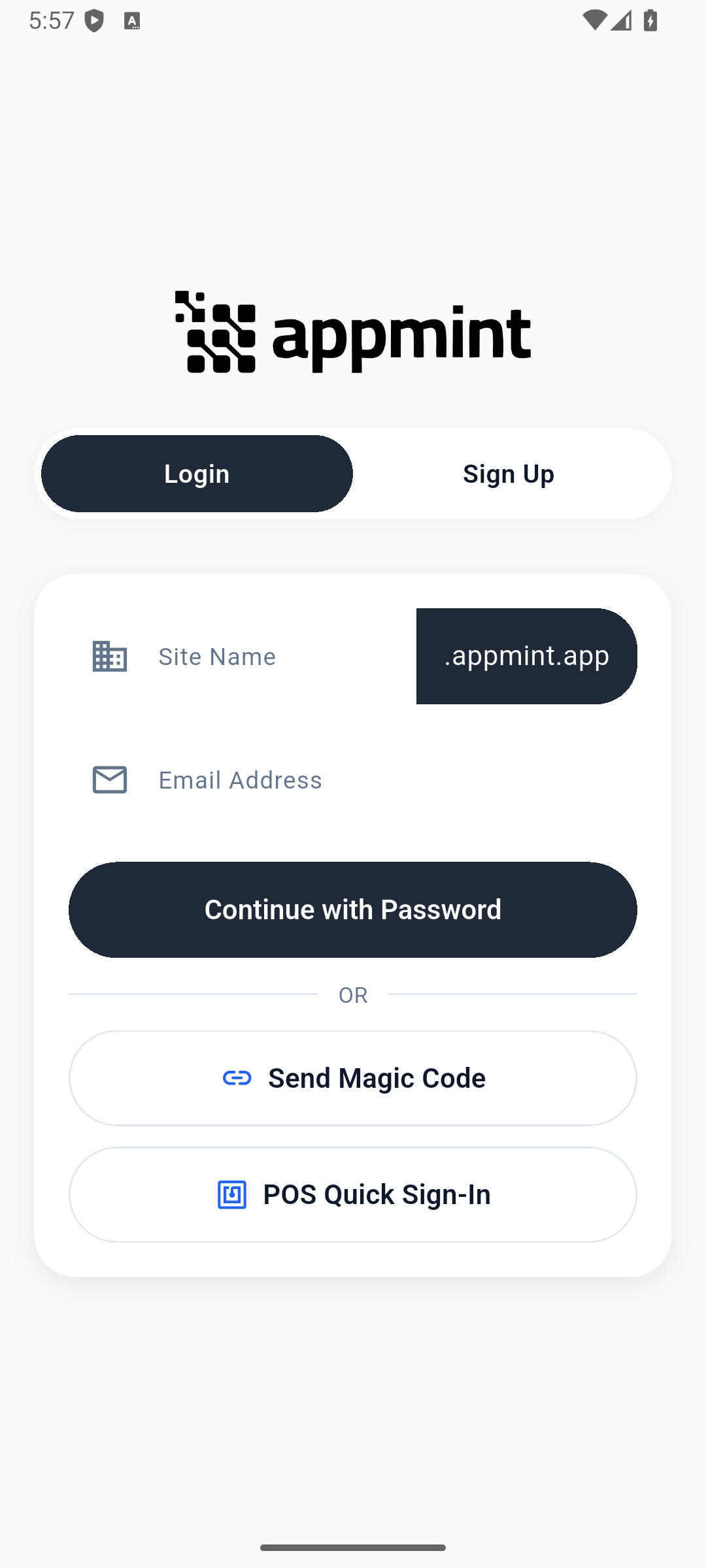
This is a fresh installation of the actual downloadable package. No account was submitted during this installation check.
Newer email-first build: if your screen has Email Address but no Site Name, enter your staff email, then tap Continue with Password. This checks which organisations that staff account belongs to; if it offers an Organization choice, select the company you intend to work for. The following image and signed-in exercise use that separate training build, not the public 1.0.2+9 binary.
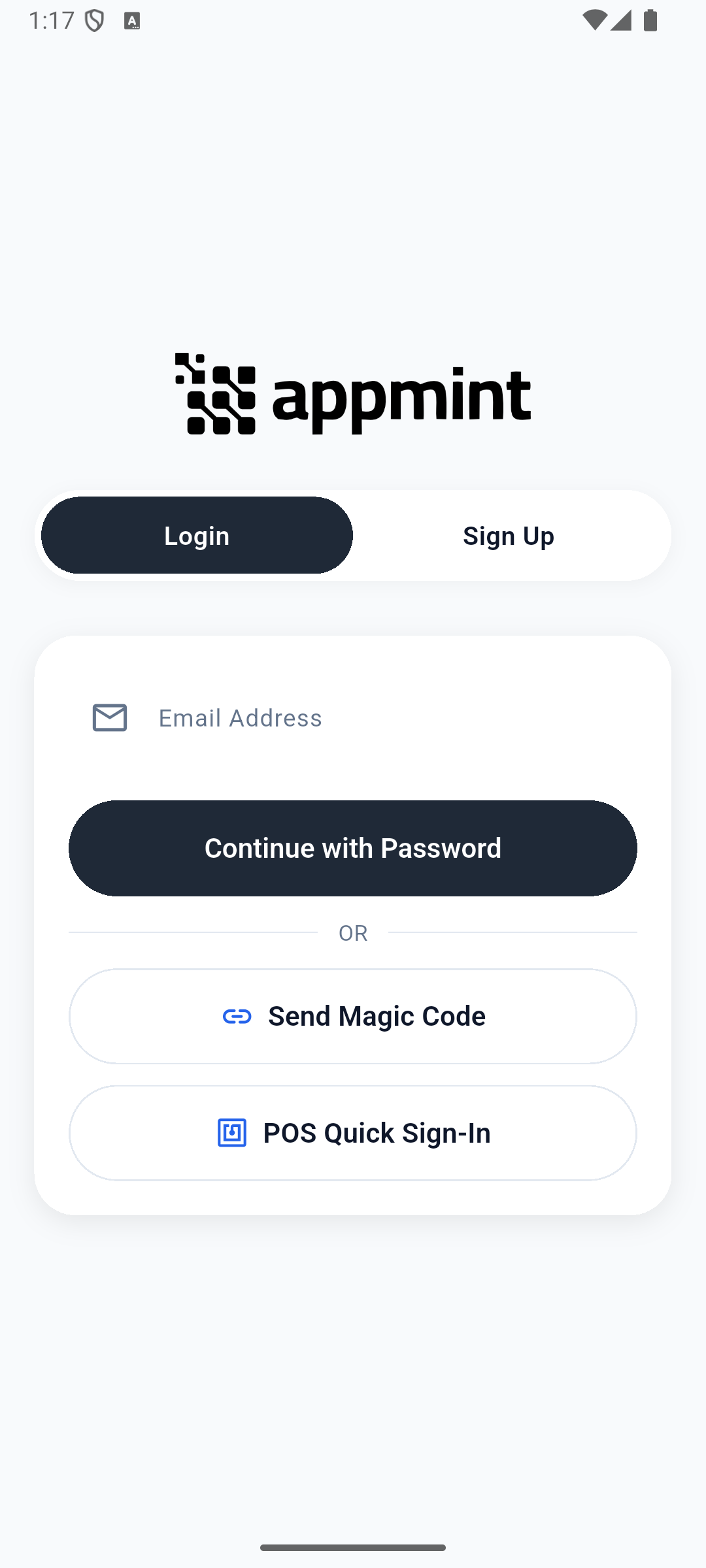
No account found? Check the email against your accepted invitation. A customer account for a website's client portal is not a staff account. Ask the company owner to check the invitation and user entry instead of creating another company through Sign Up.
The other buttons start different workflows: Send Magic Code opens a six-digit code dialog; POS Quick Sign-In is a separate entry for POS access. Neither is needed for this password walkthrough. If a development build shows Fast Login (Dev), leave it alone and practise the normal staff sign-in.
3. Enter your password
Enter the password for that staff account and tap Sign In. Back returns to the email step if you need to correct it.
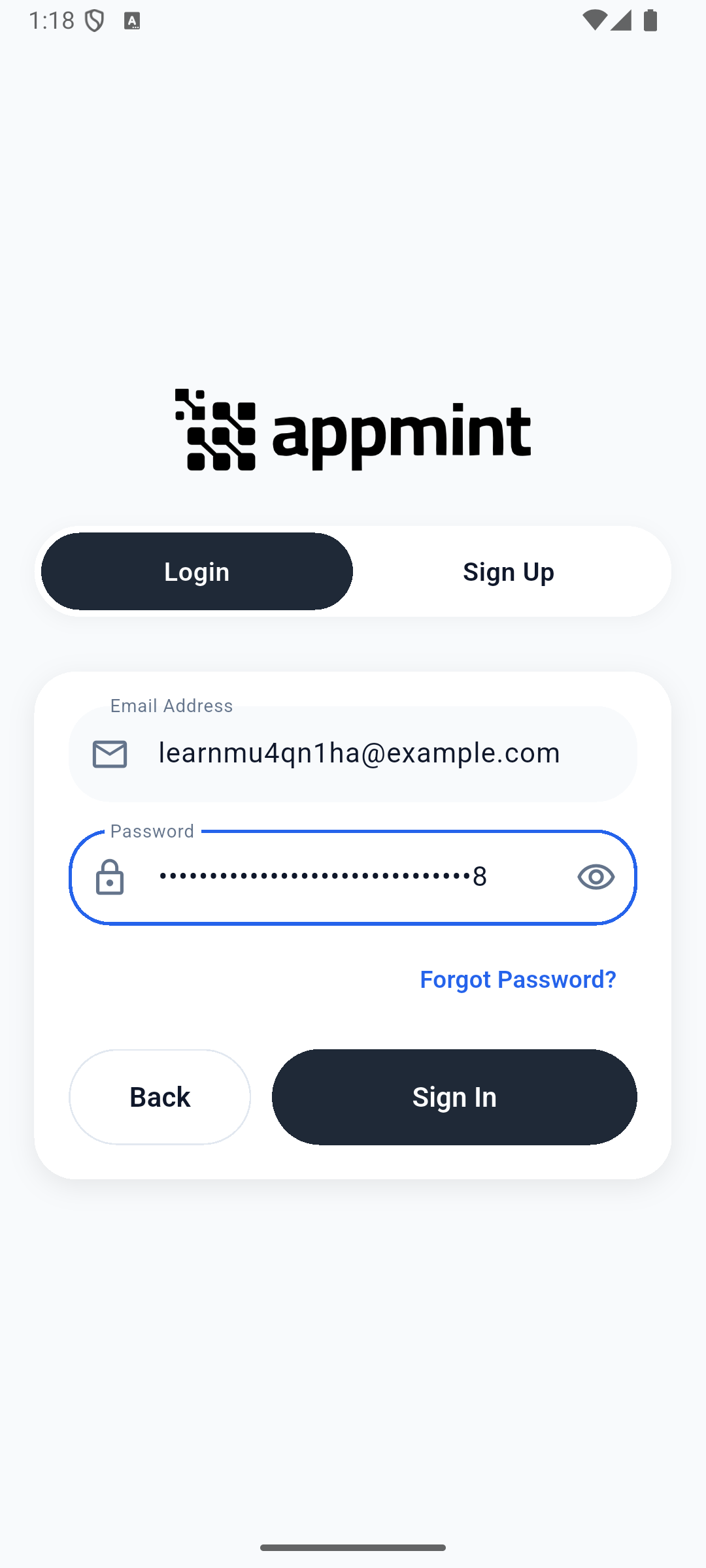
The password remains concealed. There is no reason to expose it while following or recording this lesson.
If the app presents Verification required, read the method named in the dialog. For authenticator app, open the authenticator entry for this Appmint account, enter its current six-digit code, then tap Verify. The code changes regularly; if it expires before submission, use the next one. Cancel leaves the challenge without completing sign-in. Do not treat the challenge as failed account creation.

Local check: enabled an authenticator through the staff profile’s Security tab, signed in fresh on Android, entered a real time-based code and reached Ada’s Home. The secret and codes are intentionally absent from this capture.
You should arrive at Home with your name in the header. In the capture it is Jordan Morgan. Your company’s data and your own name will differ.
4. Recover a forgotten password
- Enter your staff email and tap Continue with Password. Select your organisation if offered.
- Tap Forgot Password? once. Wait for the request result, then check that account’s inbox. A request confirmation alone does not prove delivery.
- Open the reset link in the newest email. The corrected app directs staff recovery to Studio’s Reset Password page. Check that the page names your email.
- Enter a new password in New Password, repeat it in Confirm Password, and select Reset Password. Wait for Your password has been reset successfully.
- Return to Appmint Mobile, enter that new password, and select Sign In. If your account requires verification, complete its challenge too. Confirm your name on Home before opening business records.
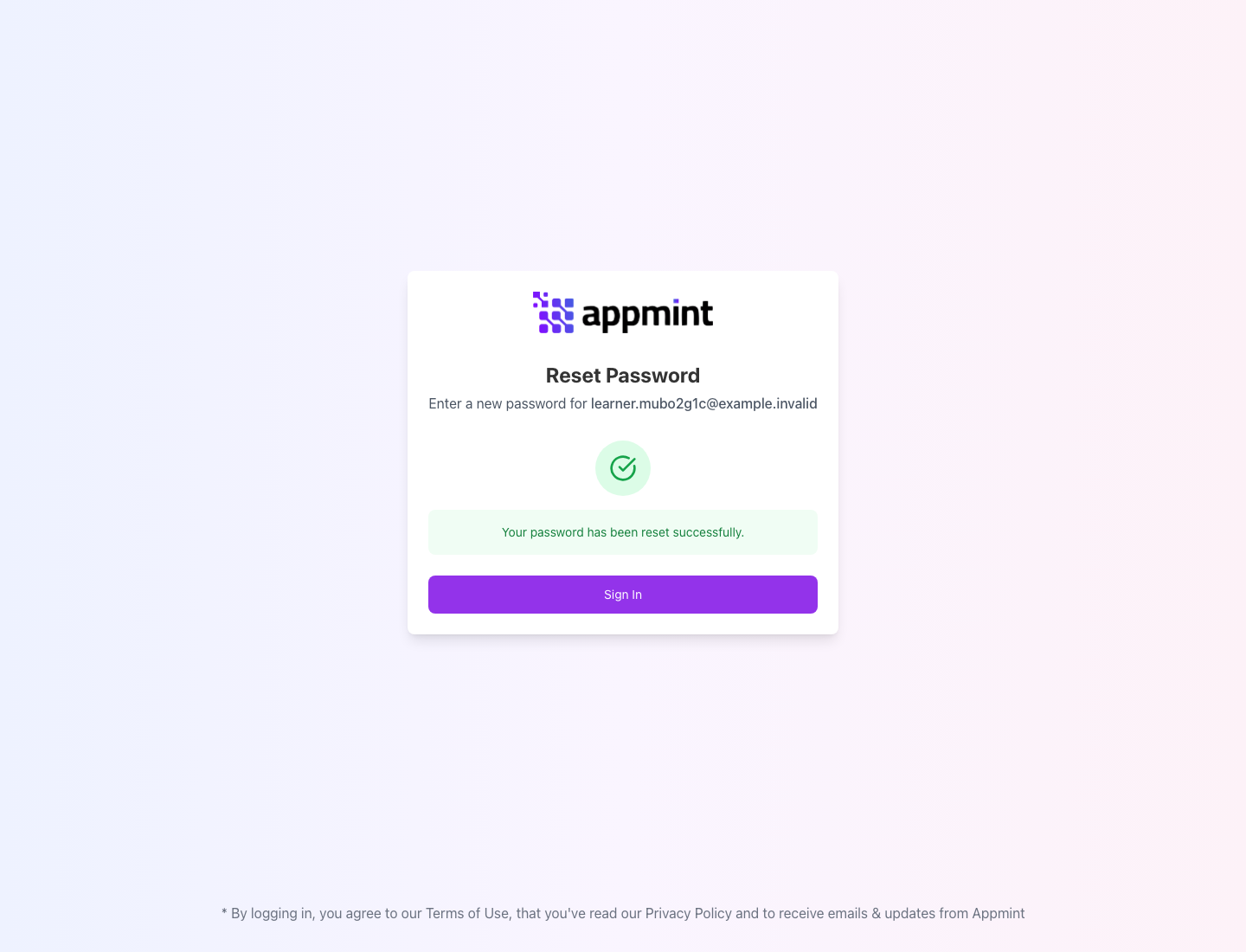
Local acceptance on 24 September: the phone requested the email, a controlled local mail receiver captured it, the real reset form accepted a new password, and the phone signed in with it. The local link targeted the local Studio preview; the app’s default destination is Studio Appmint. No reset token or password appears in this screenshot.
If the request fails, check the email and organisation before retrying. If the link has expired, request a new one and use the newest email; do not repeatedly submit the expired form. Keep the email private because it contains account-recovery access. Recovery repair and verification.
Try it: identify your name on Home before opening a customer record. Check yourself: should Maya Bennett’s customer email be used for Jordan’s staff login? No. Jordan signs in as a colleague, then opens Maya’s CRM record.
Part 2 — Make Home useful for your job
1. Read the navigation before changing it
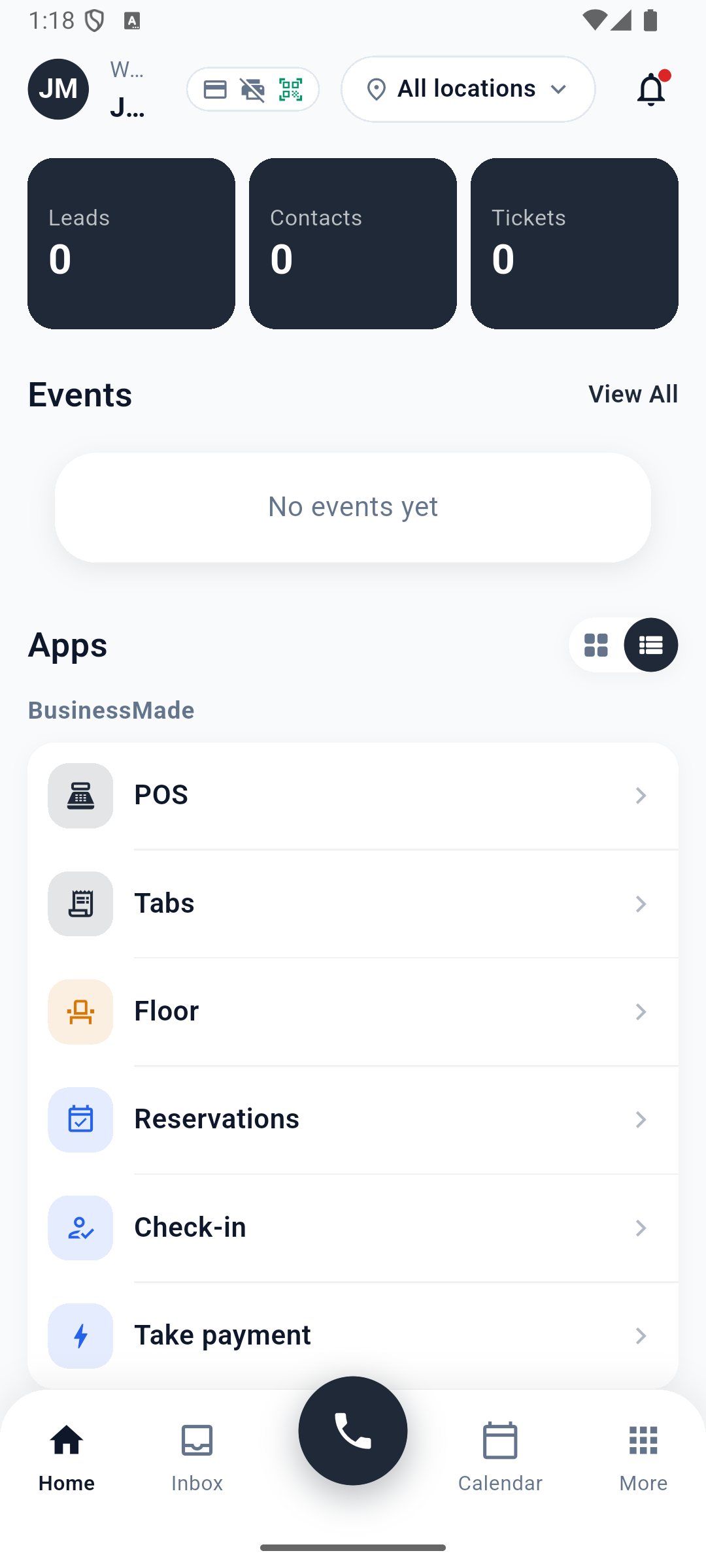
Home has several distinct areas:
| Area | What to use it for |
|---|---|
| Your name and device entry | Recognise the signed-in colleague; reach device management. |
| Location selector | Choose the venue for location-specific BusinessMade work. It is not an organisation switcher. |
| Leads, Contacts and Tickets cards | A quick summary of CRM records. Tickets here means support tickets. |
| Events panel | Reach event work; it may remain visible when you hide the Event app group. |
| Apps | Open a working screen such as Leads, POS or Devices. |
| Bottom navigation | Home, Inbox, the centre phone button, Calendar, More. |
The Apps area groups features by purpose:
- BusinessMade: POS, Tabs, Floor, Reservations, Check-in and Take payment.
- CRM: Pipelines, Tasks, Contacts, Leads, Support, Live Chat and SMS.
- Event: Events, Scan, Info, Stats, Badge, Tickets, Schedule, People, Manage and Book.
- System: Devices.
A list and a grid are two presentations of these entries. The captured phone uses the list presentation; follow the labels rather than expecting a particular tile position.
2. Find Home apps & groups
Tap More in the bottom bar. Scroll past Quick Actions, Hardware and Quick Login until you see the Settings heading. Tap Home apps & groups.
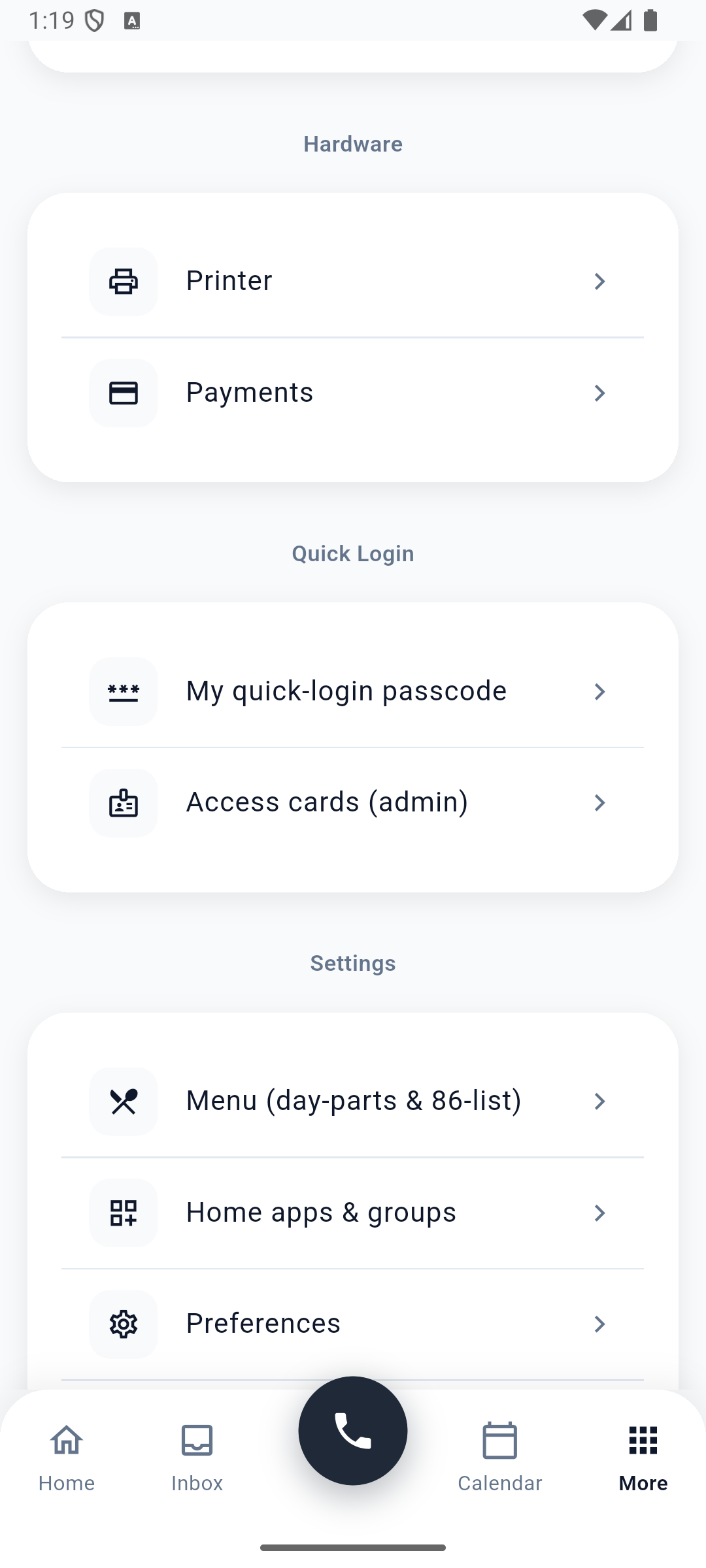
Settings is a heading in More. You do not first open a separate Settings page.
3. Hide the groups unrelated to this role
For Jordan’s CRM exercise, turn off the switch beside BusinessMade. Scroll down and turn off Event. Leave CRM and System on. The group label changes between Shown and Hidden.
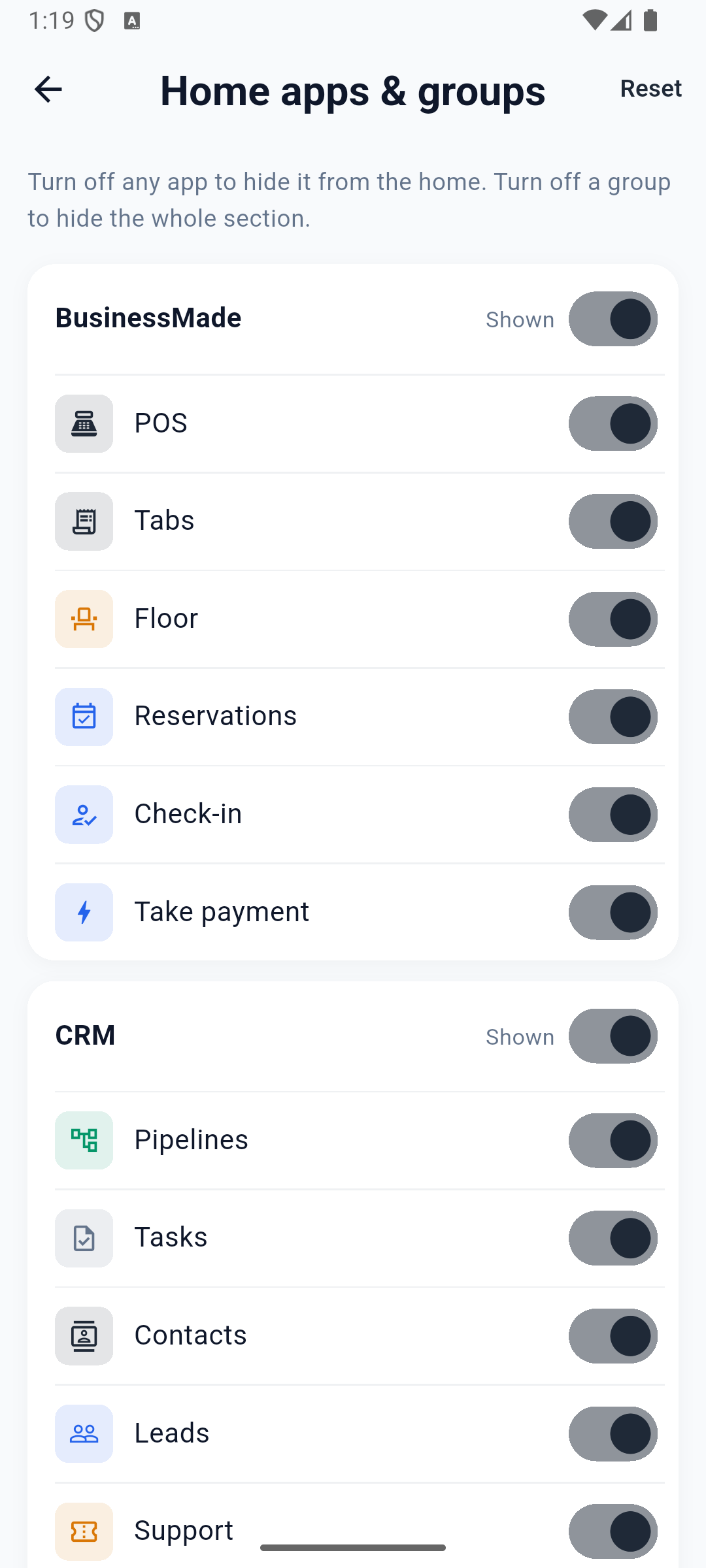
The switch beside the group name hides the entire group. The switches below it control individual apps.
Use the back arrow, then Home. Scroll to Apps: CRM and System remain. The separate Events panel can still appear above Apps; hiding a group does not remove every event-related element from Home.
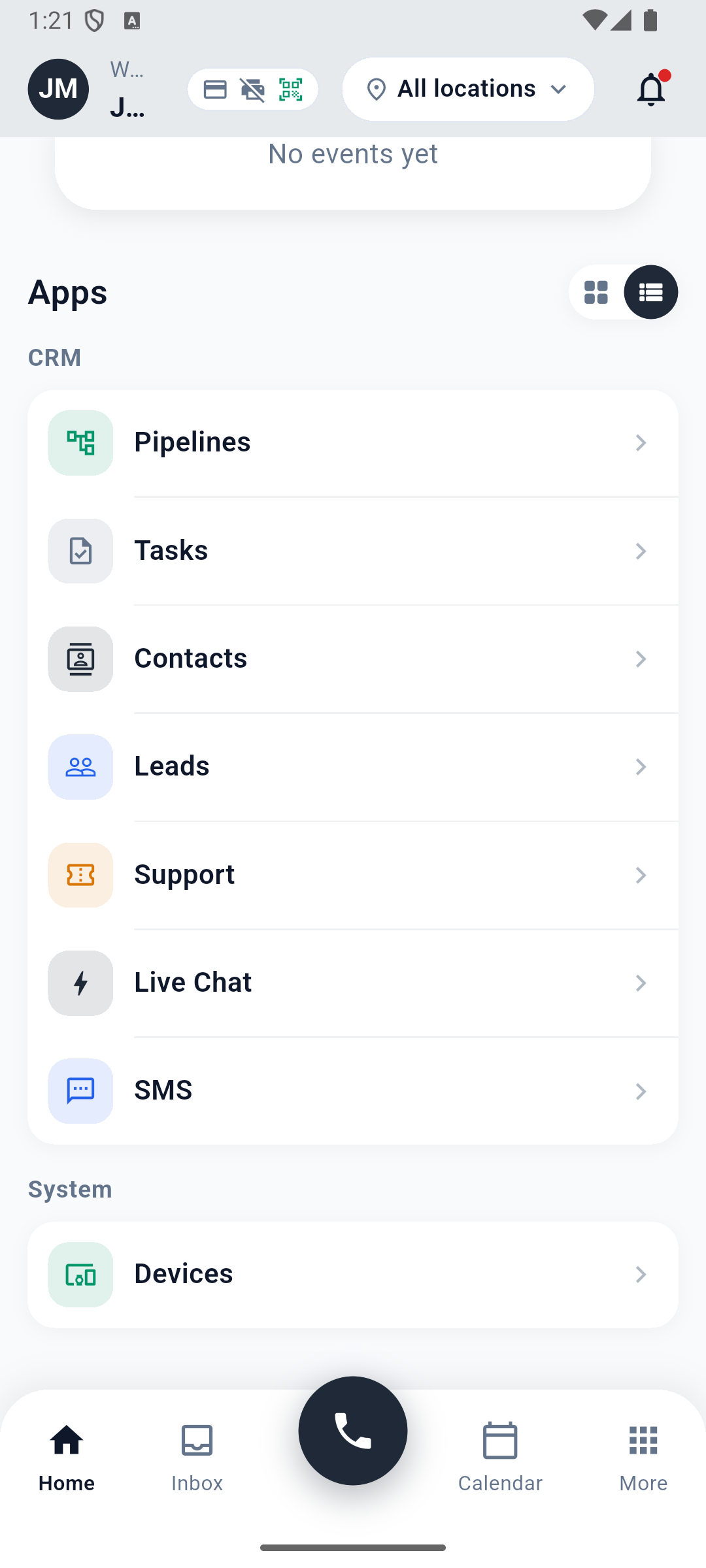
This is layout, not permission management. Hiding Leads does not remove access to lead data. Use company access controls for that. These preferences are stored on the device; do not describe them as a company-wide layout or a guaranteed personal profile that follows you to every handset.
4. Reopen the app and check the result
Close Appmint Mobile fully and open it again. Allow startup to finish. On the tested build, Jordan remained signed in and the CRM-focused layout returned.
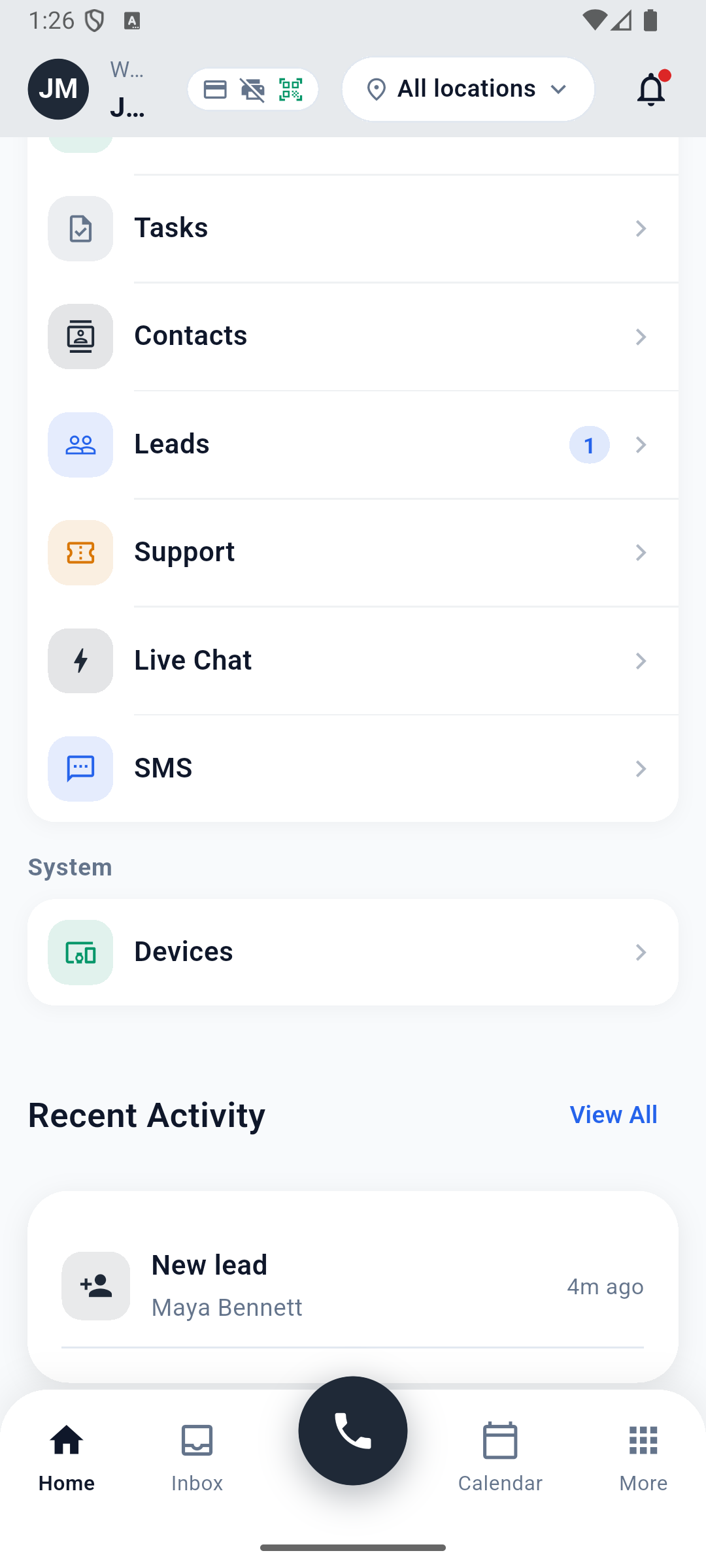
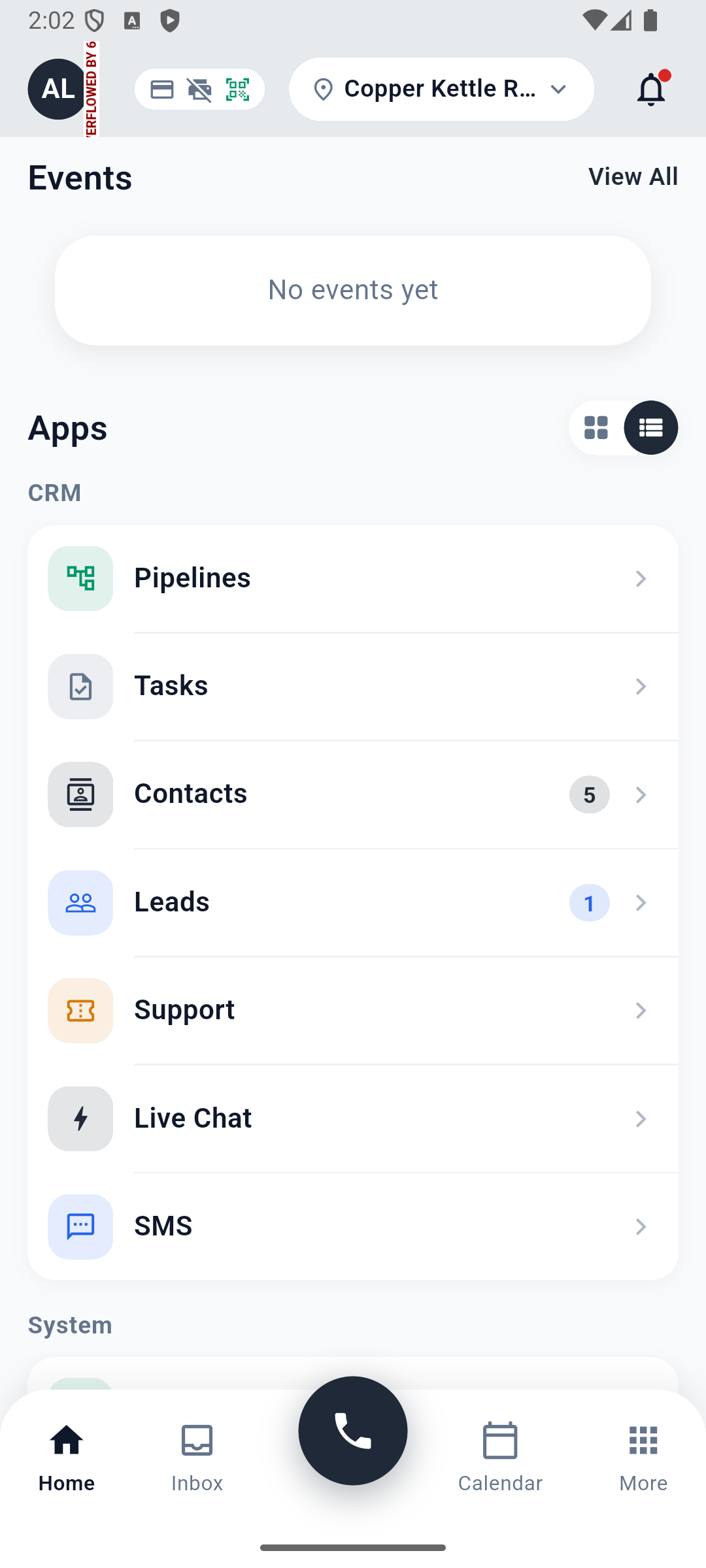
24 September recheck: hiding BusinessMade and Event retained the CRM-focused launcher after restarting. This changes the phone layout, not company permissions.
To restore the default launcher, return to More → Home apps & groups and tap Reset. Logging out is different from closing the app: logout clears settings from storage in the inspected implementation, so check the layout again after signing back in.
Try it: hide just SMS, return to Home and confirm the entry is gone. Restore it afterwards. Check yourself: does hiding SMS disable texting for the company? No; it changes this device’s launcher.
Part 3 — Find the lead and save a useful preference
1. Open Leads, not Contacts
On Home, scroll down to Apps → CRM, then tap the Leads app row. The Leads number near the top is a summary; tapping its label did not open the list in the 24 September check. Keep All selected while finding the training record. The filter chips include New, Contacted, Qualified, Converted and Lost; those refer to the lead’s status.
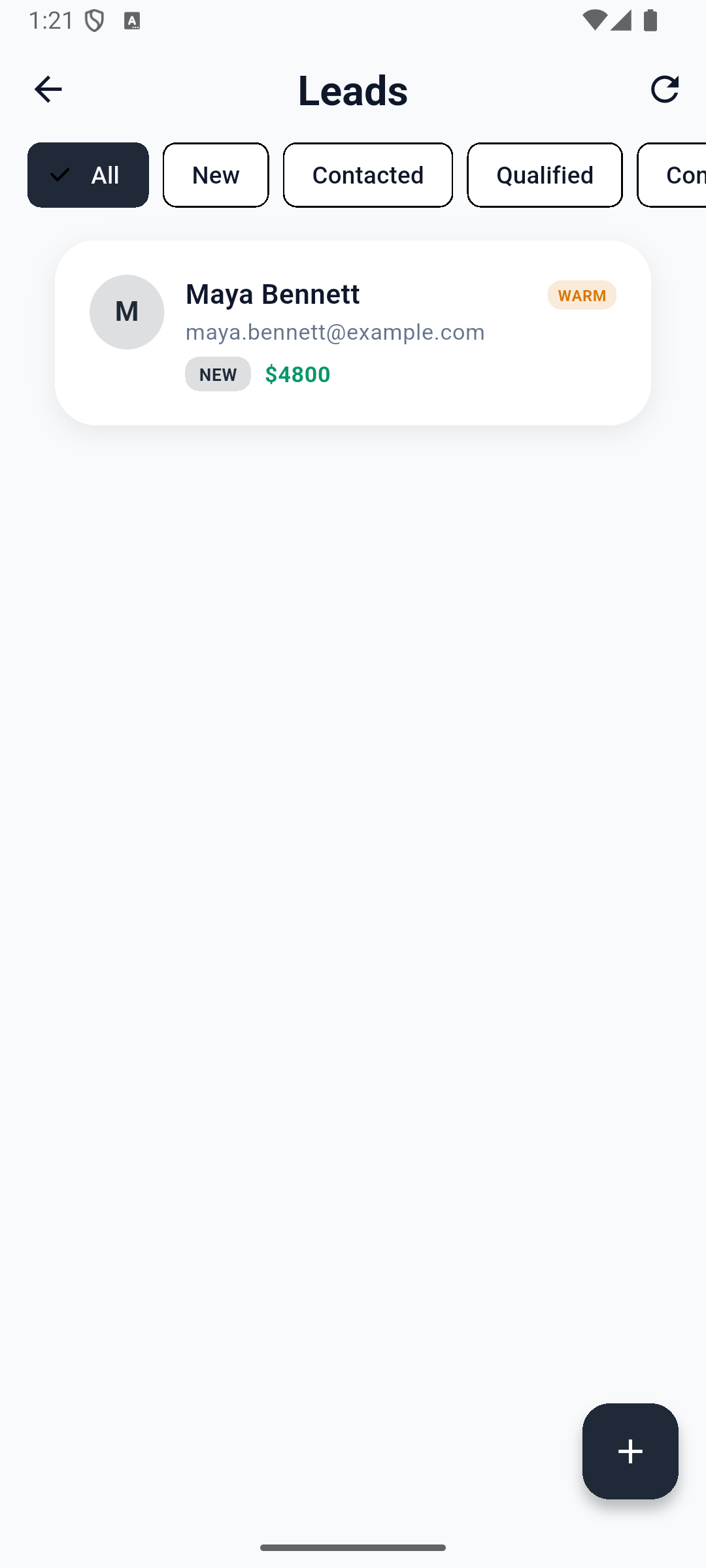
Find Maya Bennett and compare the email and value with Studio Manager. The example is [email protected], $4800, NEW. A matching name alone is not enough when two customers share a name.
Status is not a pipeline stage. The phone’s status filters do not reproduce the whole desktop pipeline board. If a lead is missing under Contacted, return to All before deciding it has disappeared.
2. Open the existing record
Tap Maya’s row. The current screen is Edit Lead, with Save in the top-right corner. It is an editor, not an activity timeline.
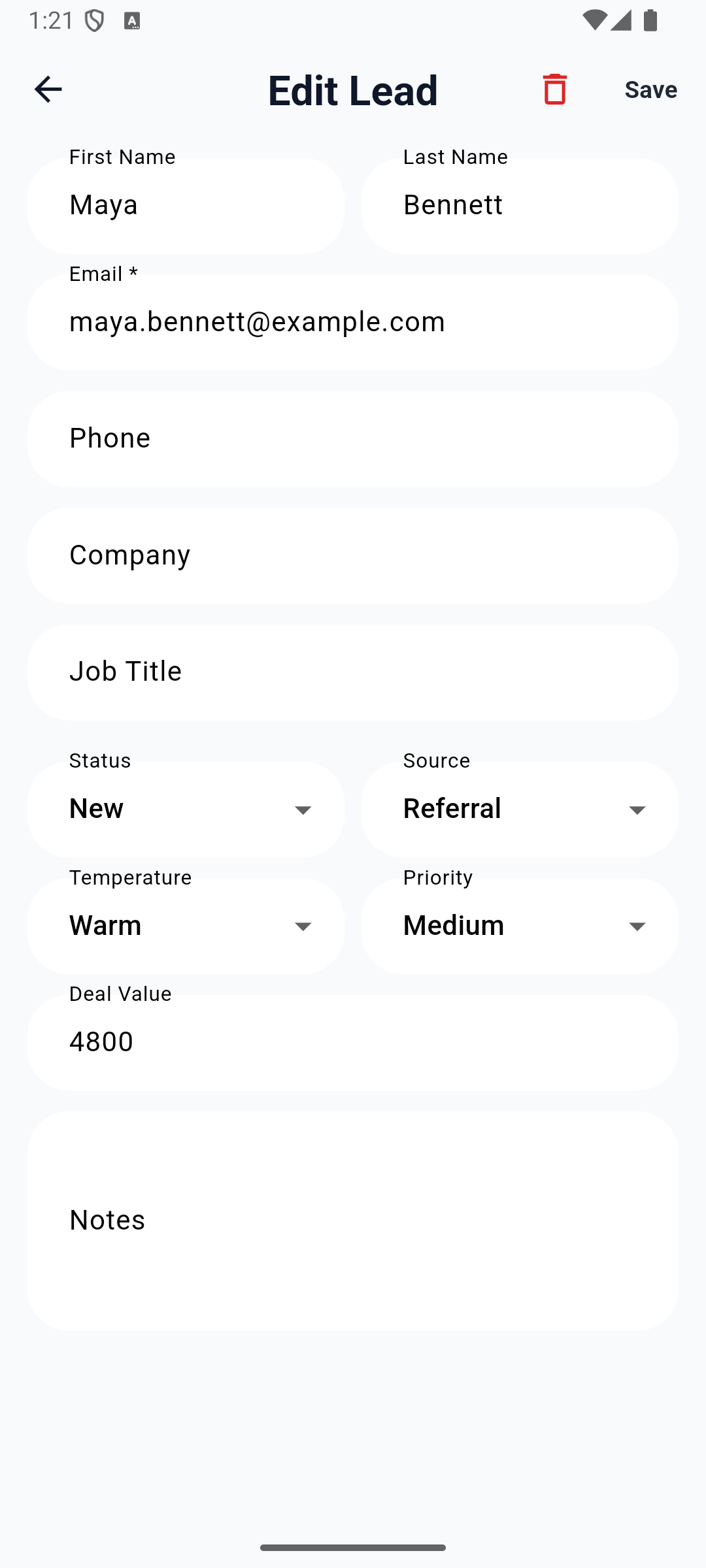
Read the existing details before typing. The form includes:
| Fields | How to use them in this exercise |
|---|---|
| First Name, Last Name, Email | Confirm you opened the correct person. Leave them unchanged. |
| Phone, Company, Job Title | Context for the prospect. Do not fill unknown facts with guesses. |
| Status and Source | Keep New and Referral. Source describes where the enquiry came from. |
| Temperature and Priority | Keep Warm and Medium for this practice. |
| Deal Value | Keep 4800; a preference update does not change the deal estimate. |
| Notes | Add the customer context you want a colleague to read. |
There is no Add Activity action on this route in the current build. Older instructions referring to it should not send you looking for a missing button.
3. Write the preference in Notes
Scroll to Notes if necessary. For a blank training record, enter:
Maya prefers linen samples
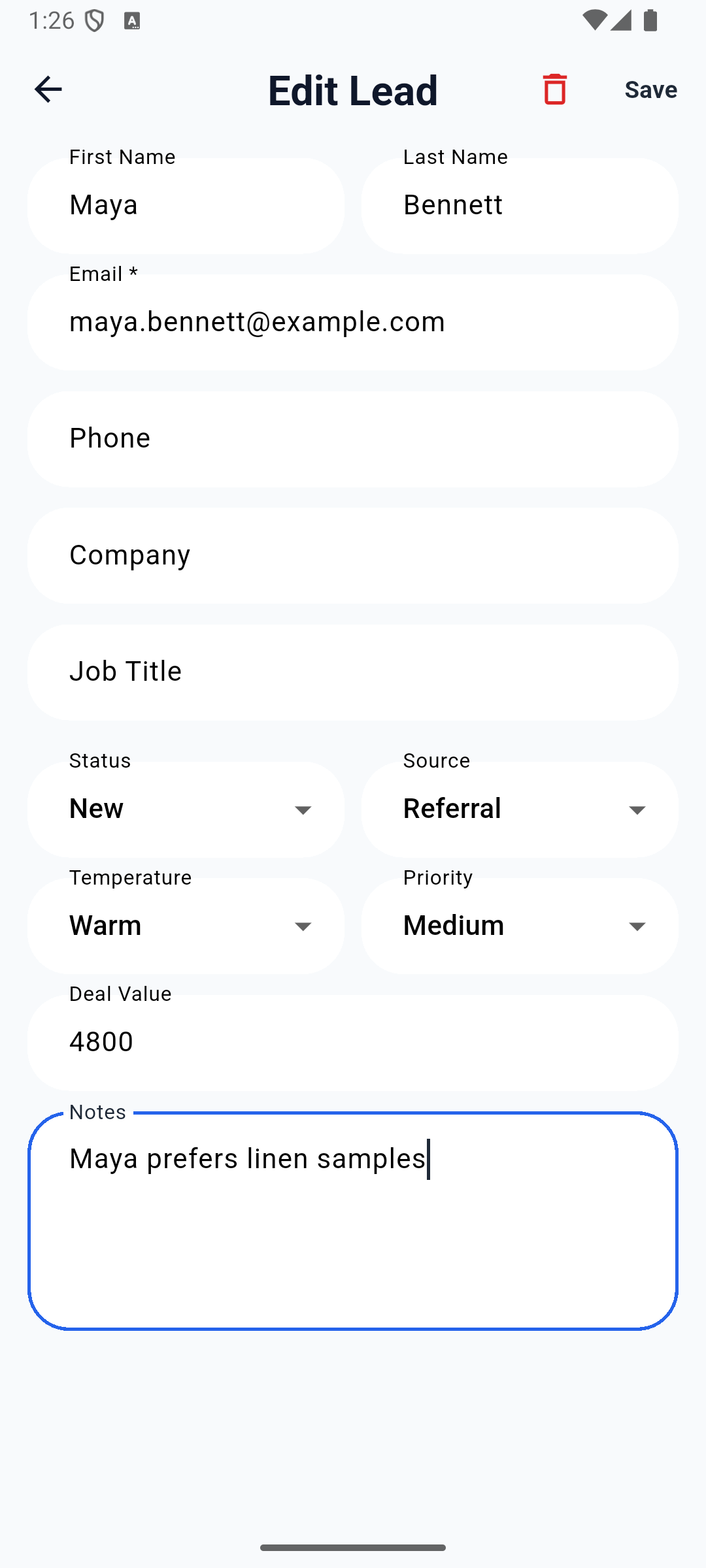
For a real conversation, add a useful next action and date, for example “Maya prefers linen samples. Jordan to prepare the sample pack before Monday’s consultation.” If Notes already contains information, preserve it and append the new context. This field is an editable text block, not a series of automatically dated activity entries.
Read the text on screen before saving. During this review, an emulator input attempt produced an empty field; reopening the app resolved it. An empty field followed by Save is not a saved note.
4. Save and reopen
Tap Save. When the Leads list returns, open Maya again. Confirm that Notes contains the exact text and that the visible name, email, source and value are still correct.
Check other fields at the desk too. The earlier captured build replaced hidden fields during a Notes save, changing score50 to the display fallback0. The local editor now updates only changed fields; eight Flutter regression checks verify preservation of score, custom fields and concurrent untouched edits. The screenshots below remain historical. In your practice record, compare the saved note and unchanged score after reload; if another field changes, stop and record the before/after result. Local repair evidence.
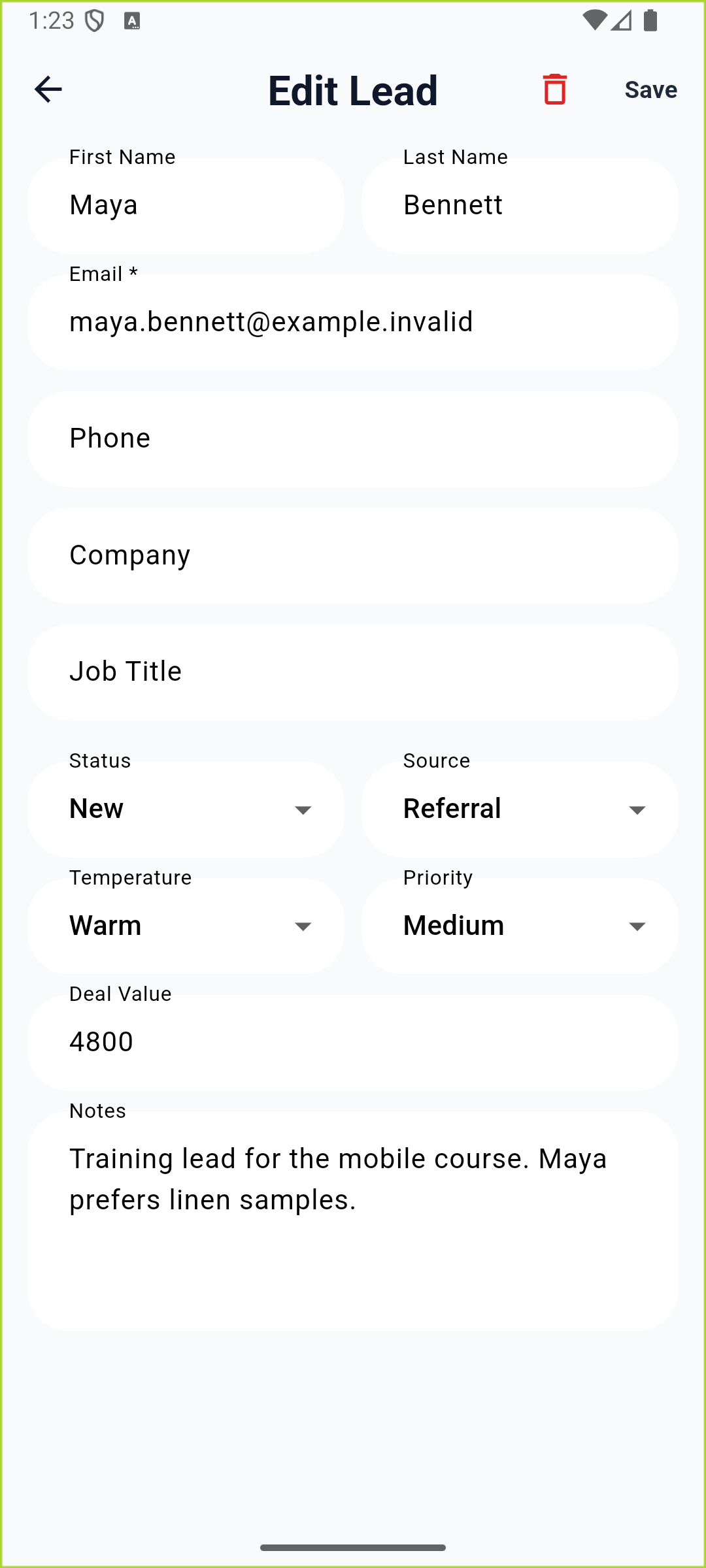
24 September local recheck: Ada Learner opened the existing Maya training record, preserved “Training lead for the mobile course.” and appended the preference. The record uses [email protected]; this is a separate training organisation from Jordan’s earlier captures. Reopening retained Notes and the visible fields. This image verifies the phone result, not a new desktop comparison.
5. Read it back in Studio Manager
At the desk, reload Studio Manager. Open CRM → Leads, choose the in-page Lead Manager tab, then open Maya Bennett. In Overview, find Notes.

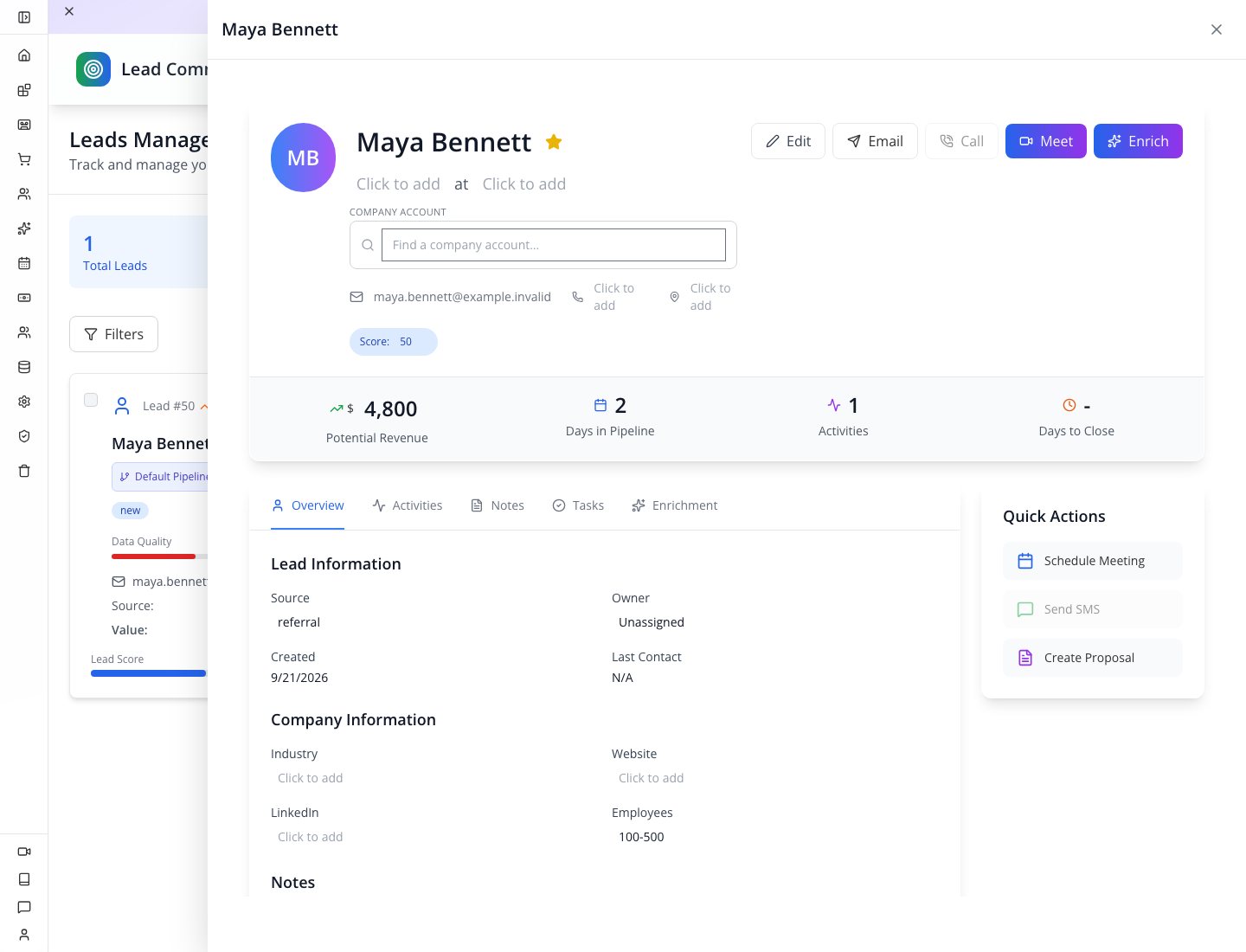
24 September: the same Ada Learner organisation and .invalid Maya record as the new phone captures. Overview shows the appended note, value4800, source Referral and score50. This confirms the phone-to-desktop handoff for this training record.
You should see Maya prefers linen samples, matching the phone. The screenshot also shows 0 Activities: saving Notes did not create an activity record.
Try it: explain Maya’s preference to a colleague using only the record, not your memory. Check yourself: where should they look—Activities or Overview → Notes? Notes. That is the field edited in this exercise.
Part 4 — Keep the follow-up moving
A preference explains the customer; a task says who should do what next. For Maya, the next action is Send linen samples to Maya Bennett. Do not mistake the saved note for a scheduled reminder.
Open Home → CRM → Tasks, then tap +. Enter Send linen samples to Maya Bennett in Title and Send the two samples discussed in the consultation in Note. Choose the appropriate Status and due date, then tap Save once. Return to the task list and reopen the saved task to check its title, note, status and date. A note on a lead alone does not establish a scheduled follow-up.
To set the date, tap Set due date, choose the day in the calendar, then tap OK. The form should display the selected date before you save. Our training attempt used New and 25 September 2026; choose a date appropriate to your own follow-up.
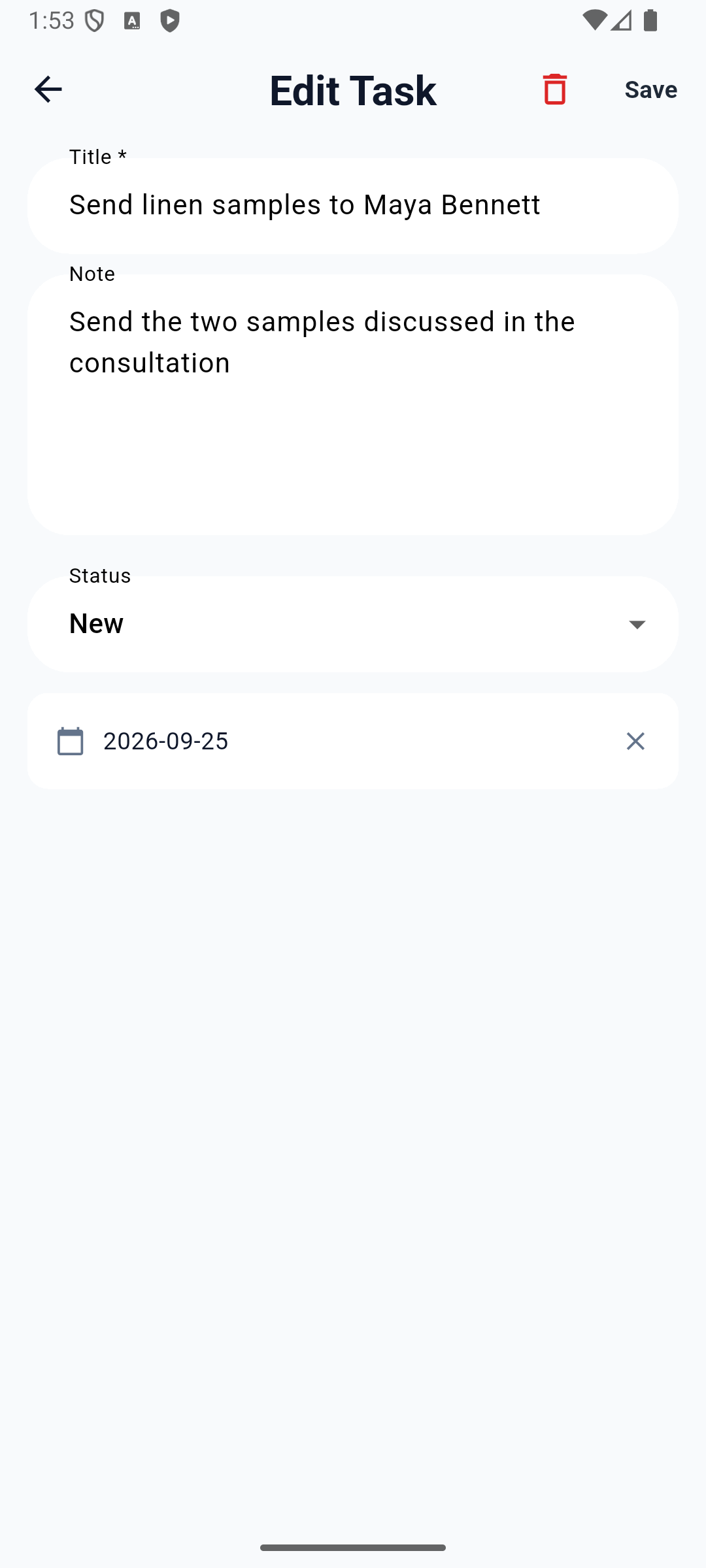
24 September local acceptance: the saved title, note, New status and 2026-09-25 date survived reopening and a full app restart. The earlier /repository/create error was a backend route-registration defect and is now fixed locally. Repair and verification.
The list summarises the date as Due today, Due tomorrow or an overdue label. Reopen the record to check its exact date. In the corrected local build, the 25 September task shows Due tomorrow on 24 September.
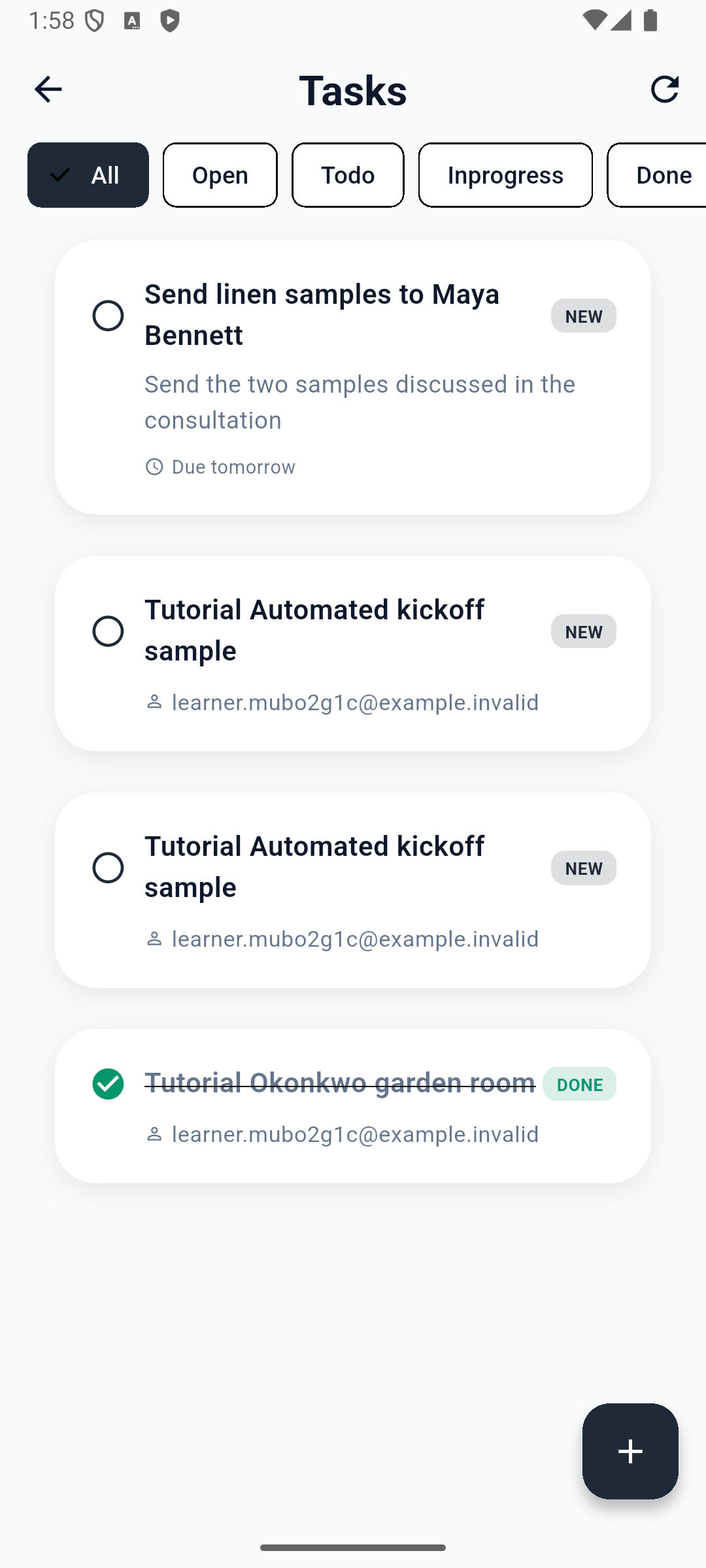
If the save fails, keep the form open, read the error and correct the cause before retrying. A success message alone is not your final check: reopen the record.
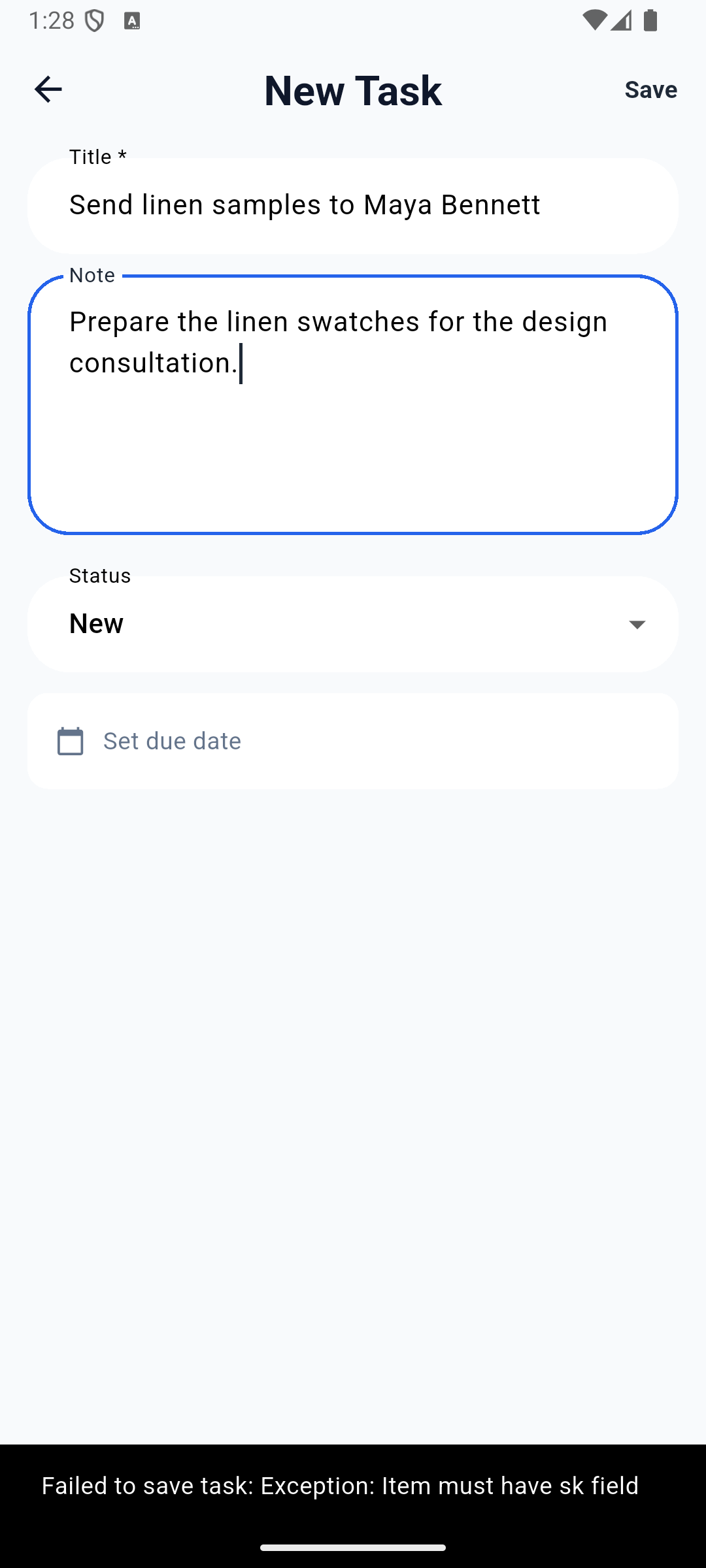
This capture predates the 19 September repair. The old build rejected new tasks with “Item must have sk field.” The corrected local application uses the create endpoint and its server-generated identifier. Four local Flutter regressions cover creation/readback, existing-task updates, failed-save recovery and empty-title validation. Repair and test evidence. Native creation and after-restart readback passed on 24 September after the backend route repair.

The bottom Calendar currently renders a static sample month in the tested build. It does not load the CRM task list. Check due dates in the task record and your team’s working calendar rather than relying on that tab for reminders.
Try it: turn “send samples” into a task title another colleague can recognise without opening it: Send linen samples to Maya Bennett. Check yourself: does a note saved on the lead establish an owner, reminder or due date? No. Arrange those explicitly in the task workflow.
Part 5 — Choose the next mobile workflow
Use the company phone line
The centre phone button opens calling. A CRM login does not itself give you a business number. Follow Employee phones and mobile CRM for company calling setup, number assignment, handset registration, incoming-call checks and SMS.
Run a BusinessMade shift
Show the BusinessMade group again. The location selector matters for venue-specific POS, Tabs and Floor work. Use Run a busy service, Multiple locations and Device Hub for that workflow. Pairing a printer, configuring a kitchen route and opening a POS tab are different tasks; a visible Devices entry does not complete them.
For shared counters, More has My quick-login passcode and Access cards (admin) under Quick Login. The employee must be linked correctly and the company must permit quick sign-in. Read Staff self-service before treating an employee ID as a sign-in credential. Cards must be registered; typing a staff number alone is not card authentication.
Work at an event
Show Event to reach management, tickets and scanning. Staff use Appmint Mobile’s event tools; attendees use EventOxygen. Continue with Run an event and Attend with EventOxygen. A camera permission is only the start of scanning: the event, ticket and entry rules still need checking.
Part 6 — Finish the day and sign out
Tap More, scroll to the bottom and select Logout. Closing the app preserves a session; Logout deliberately ends the current one.
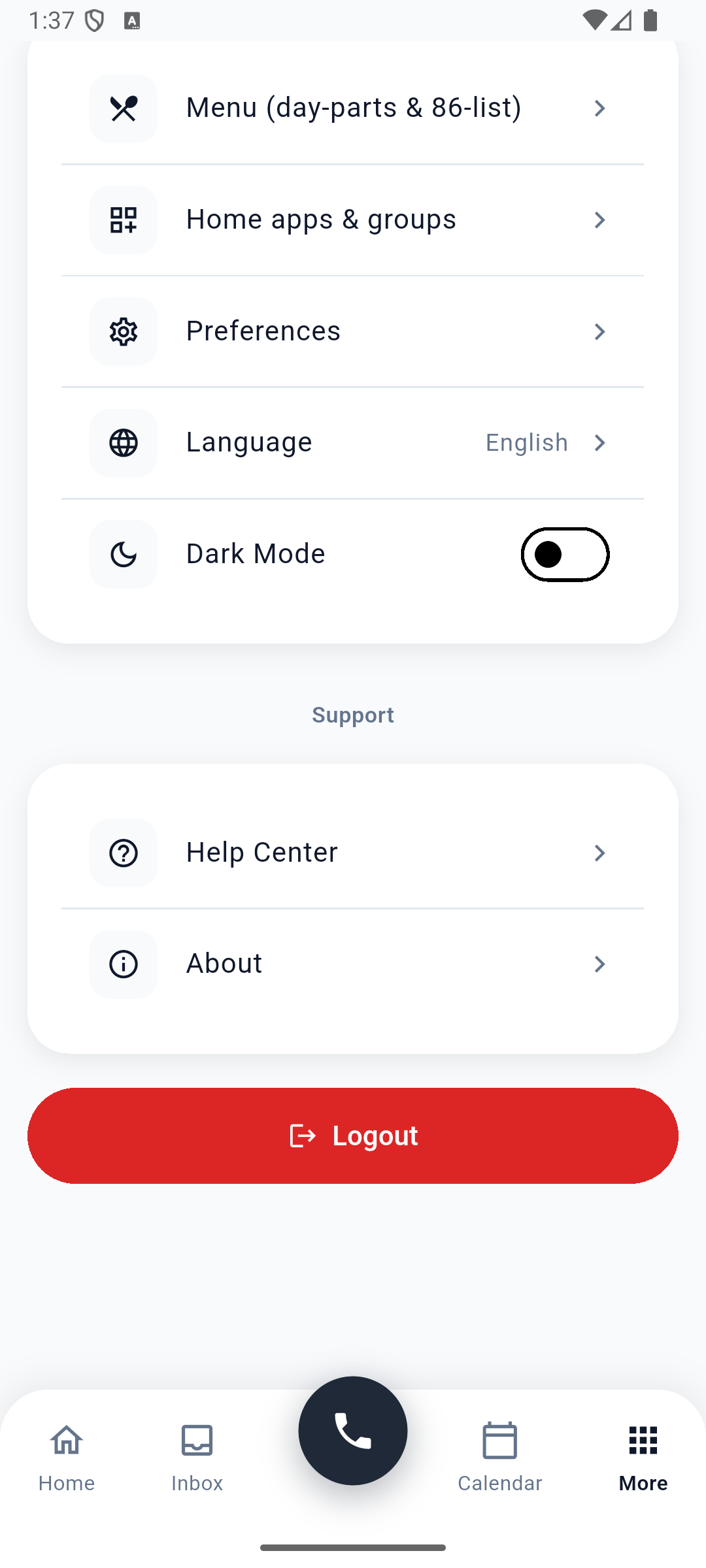
The tested app returned to Login with a Tap to sign in area and Jordan’s remembered-account tile. A remembered tile can sign you back in without asking for the password while its saved session remains valid. This was verified in the current local build. For a shared handset, tap Forget this account after Logout and confirm the tile disappears before handing over the device. Forgetting the tile removes that saved account from this device; it does not delete your company account.
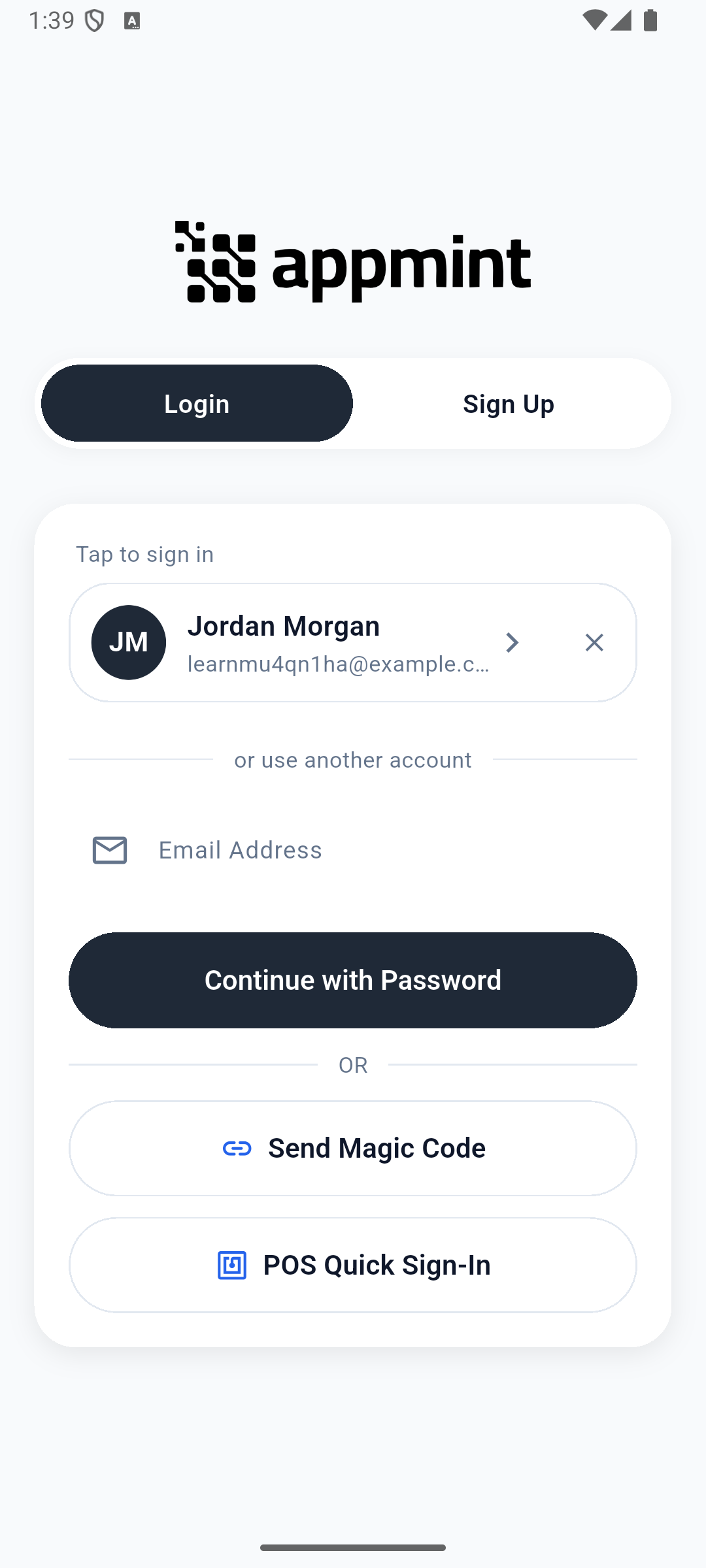
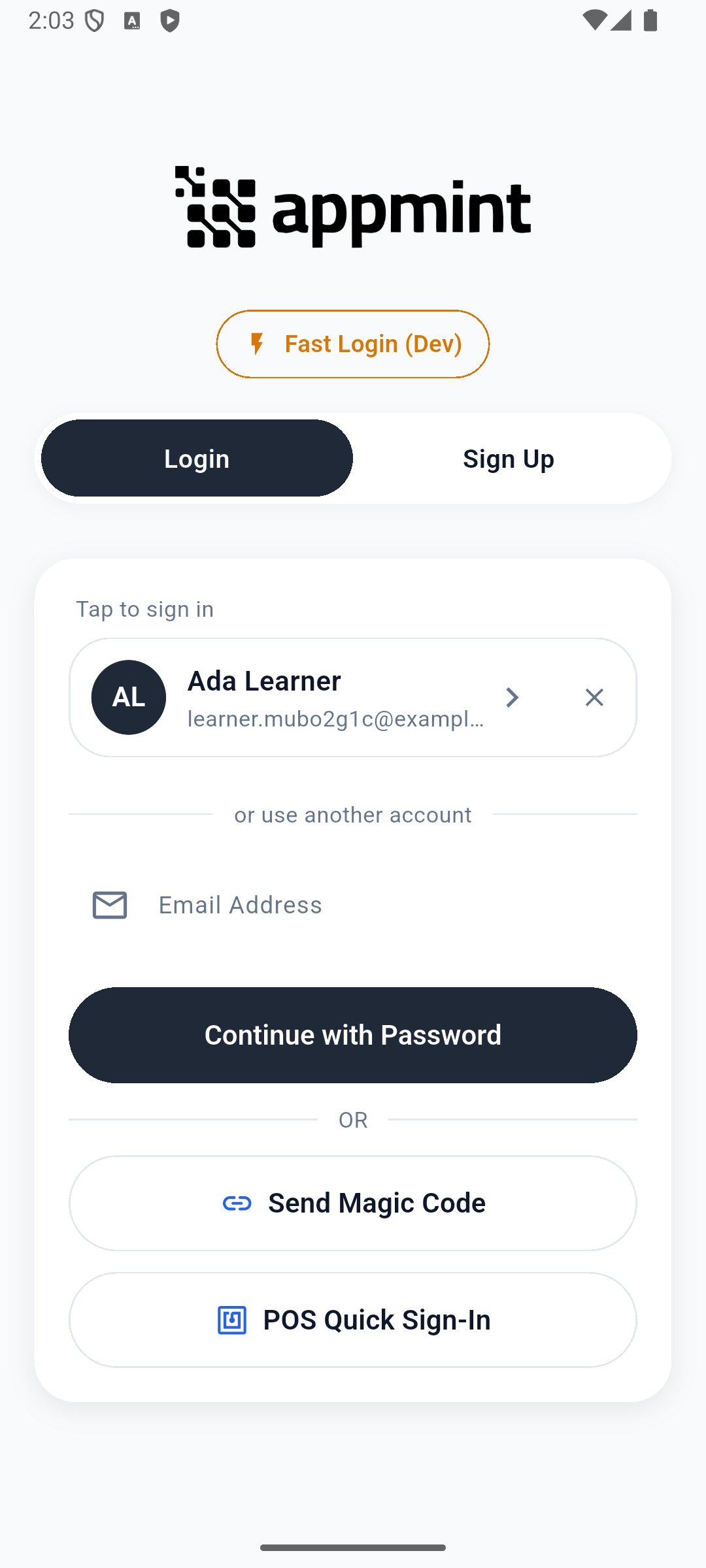
24 September: Logout returned Ada to Login. The follow-up check confirmed the saved tile can reopen Home. Use Forget this account on a shared device as described above.
Check your Home layout and calling availability when you next sign in. Logout clears local settings in the inspected implementation; do not assume it behaves like an ordinary restart. The current local check verified both the tile’s return to Home and Forget this account removing it. A fresh email/password sign-in then exercised the authenticator challenge.
Try it: decide which action suits your situation: close the app briefly between visits, or sign out before handing a shared device to someone else. Check yourself: does the saved account tile mean the last customer’s page is still open? No—the app has returned to Login.
If something goes wrong
| What you see | What to check and do next |
|---|---|
| Android download returns 403 | This is a download-host response. Check that you used the Android link above, whose path contains android/latest/, not the obsolete android-latest/. If that exact current link fails, report the URL and response to Appmint support. Changing Android install permissions cannot repair a server download error. |
| No account found for the email | Check spelling, staff-account status and whether the invitation was accepted. Do not create a new company to join an existing one. |
| Old build asks for Site Name | Enter the organisation ID supplied by the company, not the page slug or display name. |
| Wrong company’s records | Sign out and sign in with your company’s account; choose the correct organisation if the current app offers a choice. |
| Missing Home app | Check both its group switch and its individual switch in Home apps & groups. Then check access with the administrator if opening it fails. |
| Lead missing | Select All, refresh the list, and compare the email and organisation with the desktop record. |
| Notes empty after typing | Confirm the text actually appears before Save. Reopen the app if text entry is stuck. Do not overwrite existing notes with an empty field. |
| Score or other metadata changes after Save | Stop mobile edits on live leads; keep the before/after record details and use Studio Manager while the issue is investigated. |
| New task does not save | Preserve the task text, use the company’s working task route and verify the resulting record. A failed form is not a saved task. |
| Calendar shows a sample month | Use the actual task and reservation screens; the inspected Calendar tab is a placeholder. |
| Phone has no assigned number | Follow the employee phone course. Creating a CRM account does not assign a business line. |
For help, use Support → Documentation or Support → Submit Ticket in Studio Manager. For a defect, Report a Bug is a separate toolbar action. Include the mobile build, device type, screen, steps and the result you expected. Never include a password or access token in a screenshot.
What happened behind the scenes
How the mobile and desktop records meet
The current mobile login uses an email directory lookup before password authentication. Its authenticated API requests carry the organisation and staff session. Leads uses the organisation’s generic lead records, which is why a record created in Studio Manager can appear on the phone.
The active Leads route opens LeadFormScreen. For existing records it patches only changed fields under their data paths, preserving untouched metadata. It does not call an activity-creation endpoint. The local handoff check confirmed Notes and score50 in Studio after the phone edit.
Home visibility uses local home_hidden_groups and home_hidden_items settings. Those keys contain no user identifier. Logout clears local settings except specific remembered-account values; a layout surviving an ordinary restart does not establish that it will survive logout or travel to another phone.
Source checked under /Users/imzee/projects/appmint_go/appmint_mobile/: lib/screens/auth/login_screen.dart, lib/services/api_service.dart, lib/providers/auth_provider.dart, lib/config/home_apps.dart, lib/screens/dashboard/dashboard_screen.dart, lib/screens/more/more_screen.dart, lib/screens/settings/home_layout_screen.dart, lib/providers/app_visibility_provider.dart, lib/services/storage_service.dart, lib/screens/leads/leads_screen.dart, lib/screens/leads/lead_form_screen.dart, lib/providers/data_provider.dart, lib/services/repository_service.dart, lib/screens/tasks/task_form_screen.dart, lib/screens/calendar/calendar_screen.dart.
Where next
- Give employees their business line in Appmint Mobile.
- Run customer conversations from the desk.
- Roles, groups and permissions.
- Companion-video production guide.
Evidence — 18 September 2026: Native Android current-source release compiled in an isolated copy; local API and Studio Manager0.6.2; local tutorial organisation learnmu4qn1ha, Jordan Morgan. A local Maya Bennett training copy was created through Studio Manager for this exercise, distinct from the production record used in the enquiry course. Verified: email/password sign-in, Home/More navigation, hiding groups, session/layout persistence after full restart, logout and remembered-account display, fetching the desktop lead, saving Notes, reopening on Android and reading the same note in Studio after reload. Observed score50→0 on mobile save. The earlier obsolete APK URL returned403. A later fresh check of the canonical /android/latest/ package 1.0.2+9 verified download, hash, installation and first launch; it did not submit an account. The earlier sign-in attempt involved a truncated organisation entry and does not establish an authentication defect. Not verified: iPhone installation/native UI, public Android account sign-in, challenged sign-in, magic code, quick sign-in/card login, calls, SMS, per-user access restrictions. Real screenshots and screen text are in capture evidence. Production guide records the remaining capture work; no finished companion video is claimed.
Local completion — 24 September 2026: Ada Learner’s rehearsal verified native password sign-in, authenticator challenge with a real code, Home layout/restart, lead Notes save/restart/desktop score50 readback, task creation/restart/date display, Logout, remembered-session entry and Forget this account, and email reset followed by new-password sign-in. The original 18 September screenshots above remain historical where labelled. iPhone, public release, phone/SMS and finished-video production are outside this local welcome-course acceptance. Full continuation evidence.