

A signed agreement is exciting. The handoff after it should be predictable: create the project, put the kickoff in somebody's queue, and keep the work visible until it is finished.
This course first builds the part you can use immediately: a project record automatically starts a three-stage workflow. Then you inspect a separate automation that creates a project, follow its execution into the same board, and discover what happens when that action runs twice.
For: owners and operators who already understand the handoff they want to automate. Product: Appmint Studio Manager and, in the developer branch, AppEngine. Allow: 45–60 minutes for the workflow; another 30–45 minutes for the automation laboratory. Level: confident beginner for the board; developer for the JSON configuration exercise. Build practiced: Studio Manager 0.6.2, locally rechecked 21 September 2026.
What you will have at the end
- Tutorial Project kickoff, attached to your
cf_projectcollection. - Three stages: Brief received → Kickoff scheduled → Done.
- Owner responsibility, a two-day SLA on the middle stage, and an explicit terminal status.
- A task created automatically when you save a new project, with an auditable history of its movement.
- A completed task archived from the board but retained in All tasks.
- A manually controlled automation test, its actual backend result, and two separate records demonstrating why retries need a duplicate-prevention design.
The signed-agreement event and team-notification extension is an integration checkpoint at the end. This practice verifies project creation, responsibility and execution results. It does not claim that a real signing provider or customer notification has been connected.
What you need
Finish Build an operations dashboard. You need its Design Projects collection, identifier cf_project, with Enable Workflow on. Use the owner account of your training organization.
The starter path uses the real Owner role. It does not require a fictional Design Team or a second employee. For a team deployment, create the actual people and groups through Roles and permissions before assigning work to them.
No external emails, SMS messages, team alerts or customer invitations are part of this practice. The task belongs to your training account. Appmint and its apps are free.
The story: one handoff, two different tools
Jordan at Cedar & Form needs a consistent kickoff process. A project moves through intake, scheduling and completion. Later, a signed agreement may create that project automatically.
| Tool | Job | Example |
|---|---|---|
| Workflow Center | Track work through stages and identify who decides next. | A new project waits in Brief received. |
| Smart Automation | Run configured actions. | Create a project record from an incoming business event. |
| Approvals | Show decisions waiting on the current person. | The Owner sees the kickoff task in Waiting on you. |
| Schedule Management | Inspect scheduled work and its execution views. | Time-based work appears separately from an immediate manual run. |
Both Workflow Center and Smart Automation use the word “workflow.” In this lesson, definition means the staged process in Workflow Center; automation means the action sequence in Smart Automation.
flowchart LR
  A[Save a project record] --> B[Brief received]
  B --> C[Kickoff scheduled: 2-day SLA]
  C --> D[Done: explicit done status]
  D --> E[Archive: retained in All tasks]
  F[Manual automation: Create Record] --> A
The stage field on a Design Projects record is your design phase: Brief, Concept, Detail, Build or Complete. The workflow stage is the handoff's position. Finishing kickoff does not automatically mark the whole design project Complete.
Part 1 — Define a process people can actually follow
1. Open Workflow Center
In the left sidebar choose AI, IVR, Automation → Workflow. The page heading is Workflow Center. Its view selector includes Dashboard, Definitions, Analytics, and Templates.
Your organization may already have approval and business-process definitions. In this training organization, Publishing approval was off and Access request approval was on; the Cafe setup also supplied operational workflows. Leave existing processes unchanged.
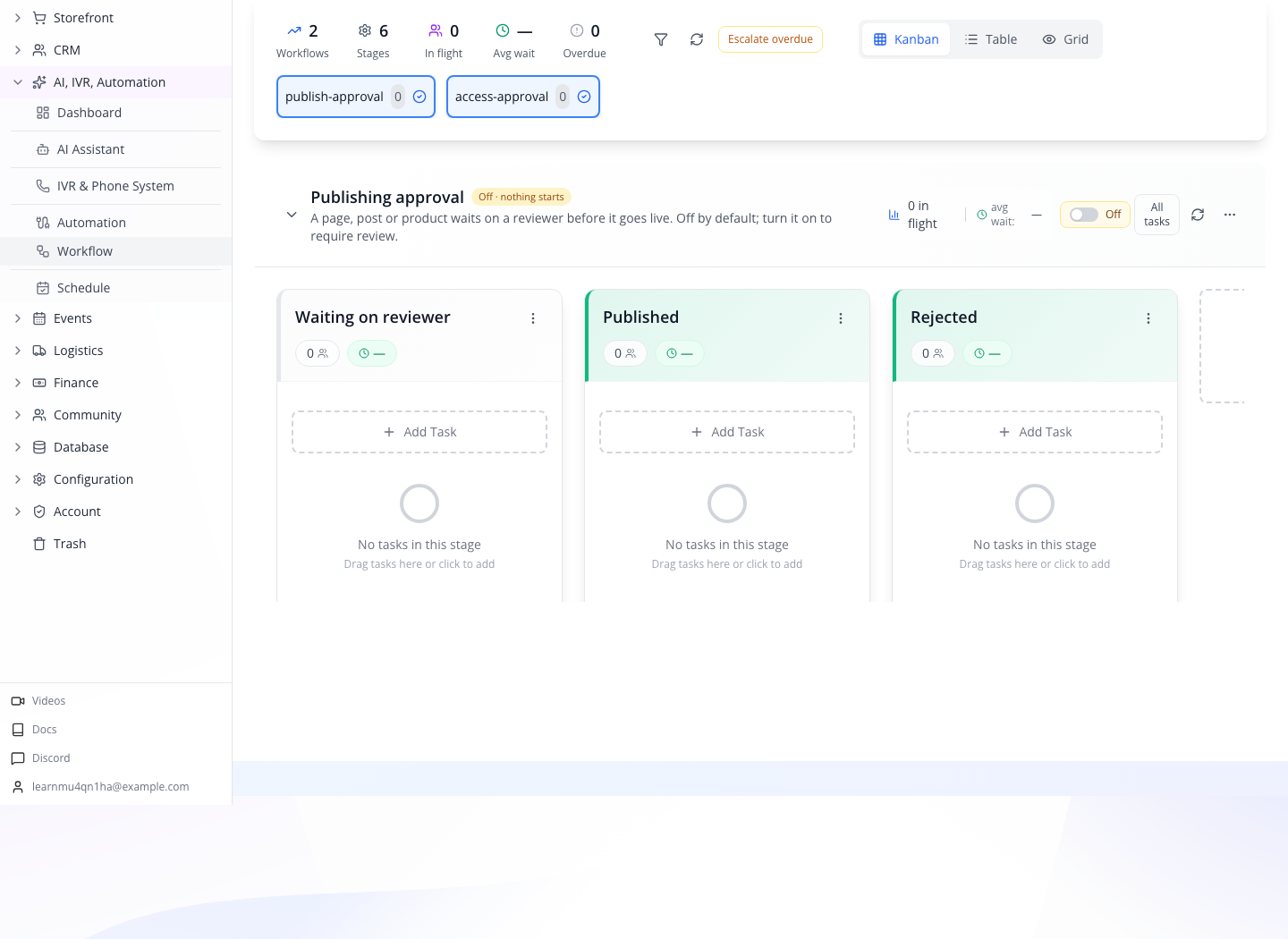
Select Definitions, then New Workflow. A drawer opens with Modern and JSON views and a Save button.
2. Start with your own definition
The drawer offers several built-in shapes under Seed from a template: reservation check-in, prep, pickup, application processing, service appointments and renewals. These create or reopen actual definitions in your organization; they are not just pictures to preview.
For this project exercise, leave the templates unselected and use the blank form. Enter:
| Field | Value |
|---|---|
| Name (slug) | tutorial-project-kickoff |
| Title | Tutorial Project kickoff |
| Description | From a design project record to an owned kickoff decision. |
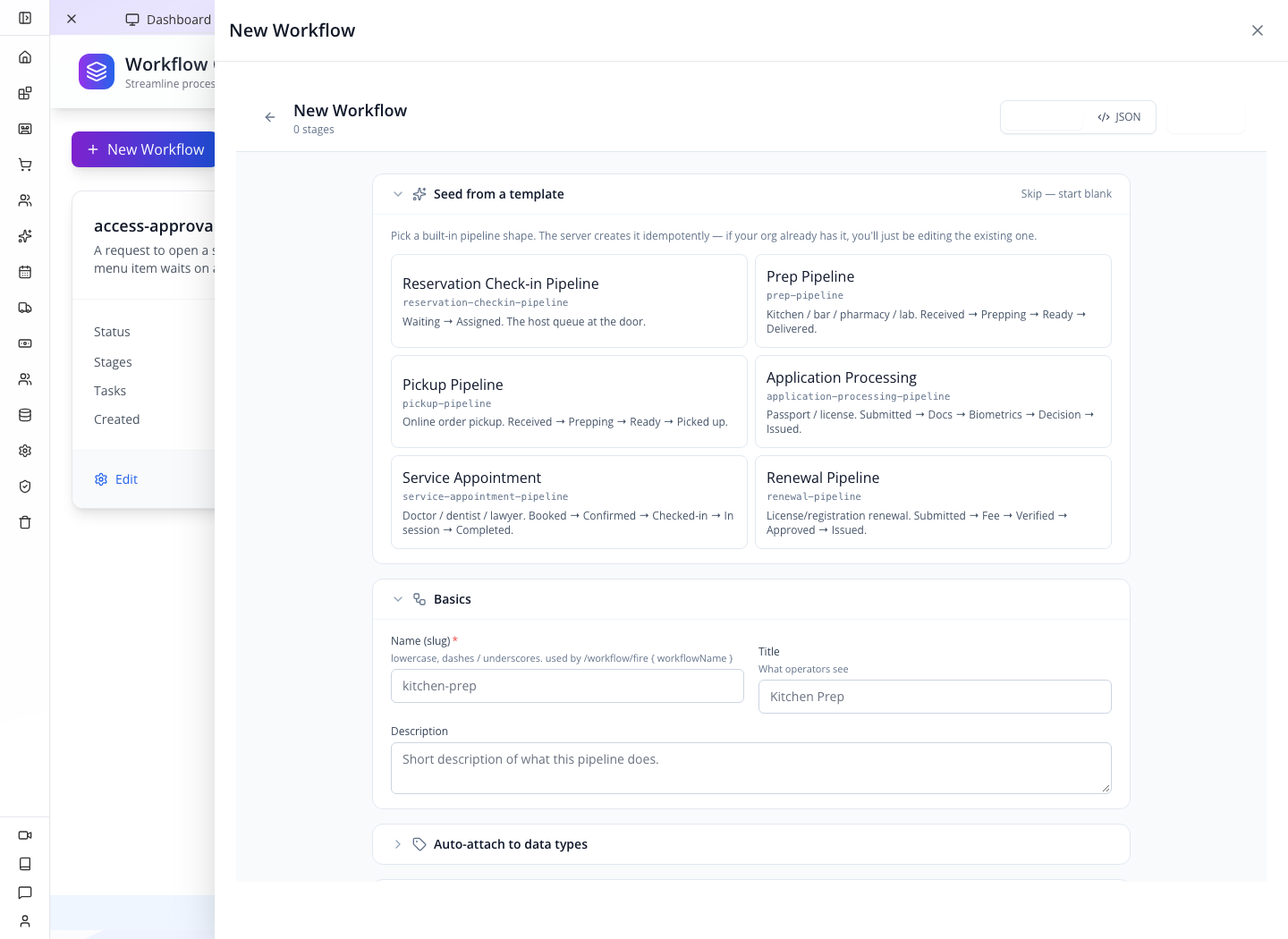
The slug is the stable machine name; the title is what operators see on the board. Keep the slug lowercase with dashes or underscores. If your earlier practice already created it, edit that definition rather than starting a duplicate.
3. Attach it to the project collection
Expand Auto-attach to data types. In Collections, search cf_project and select Design Projects. A selected collection chip should appear. Click the Name field or another area outside the collection picker to close its options before changing the switches below.
Check Enabled and Start on create are on. Their purposes differ:
- Enabled permits this workflow to start.
- Start on create gives each newly created record in the selected collection a task.
- The collection's Enable Workflow setting permits its records to participate.
You need all three decisions to agree. This is not a retroactive instruction to start work for every old project in the database.
Leave Auto-archive done tasks after at the displayed 7 days for this exercise. That is a cleanup policy for completed task visibility, not a seven-day deadline for the project.
4. Add Brief received
Select Add first stage. Enter Stage name Brief received; leave its type at Start. Use the chevron titled Expand stage to see its settings.
Scroll within the expanded stage settings to Who decides, below Assign to. Keep By → People holding a role. Enter Owner in Roles (comma separated). Keep Decision → First to decide decides. Enter Owner in If nobody is found, fall back to roles.
Leave notification templates and Stage inputs empty. Leave SLA Escalation Tiers empty for this first stage.
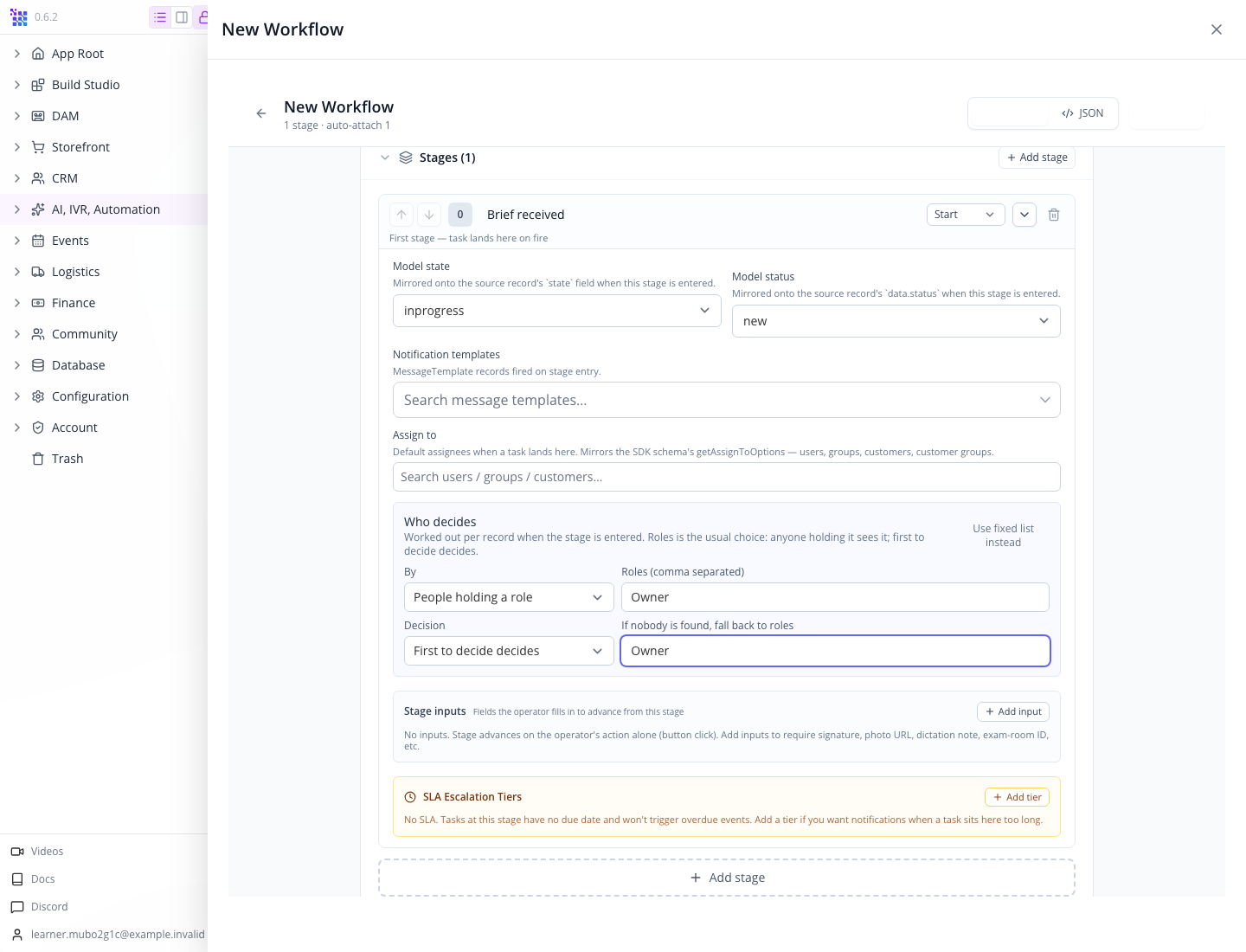
Before saving, return to the definition controls and verify Enabled and Start on create are both on, then check the saved definition again after reopening.
Assign to and Who decides are not interchangeable labels. The former provides fixed default assignees; the latter resolves responsibility when the record enters the stage. The role-based setting worked with the real Owner account in this walkthrough. If you switch to a group later, check that the group actually contains the people who should receive the work.
With First to decide decides, one eligible decision completes the decision step. Everyone must approve expresses a different business rule; choose it only when you intend to wait for all required people.
5. Add Kickoff scheduled and its two-day SLA
Collapse the first stage and select Add stage. Name the new stage Kickoff scheduled; keep its type Intermediate. Expand it and repeat the Owner role and fallback settings.
Under SLA Escalation Tiers, select Add tier. Set:
| Control | Value |
|---|---|
| After | 2 |
| Unit | days |
| …OR ANYONE HOLDING A ROLE | Owner |
Leave escalation templates empty. The board later displays 48h left when the task enters this stage. The timer belongs to entry into this stage; it is not the project's nextDecisionDate.
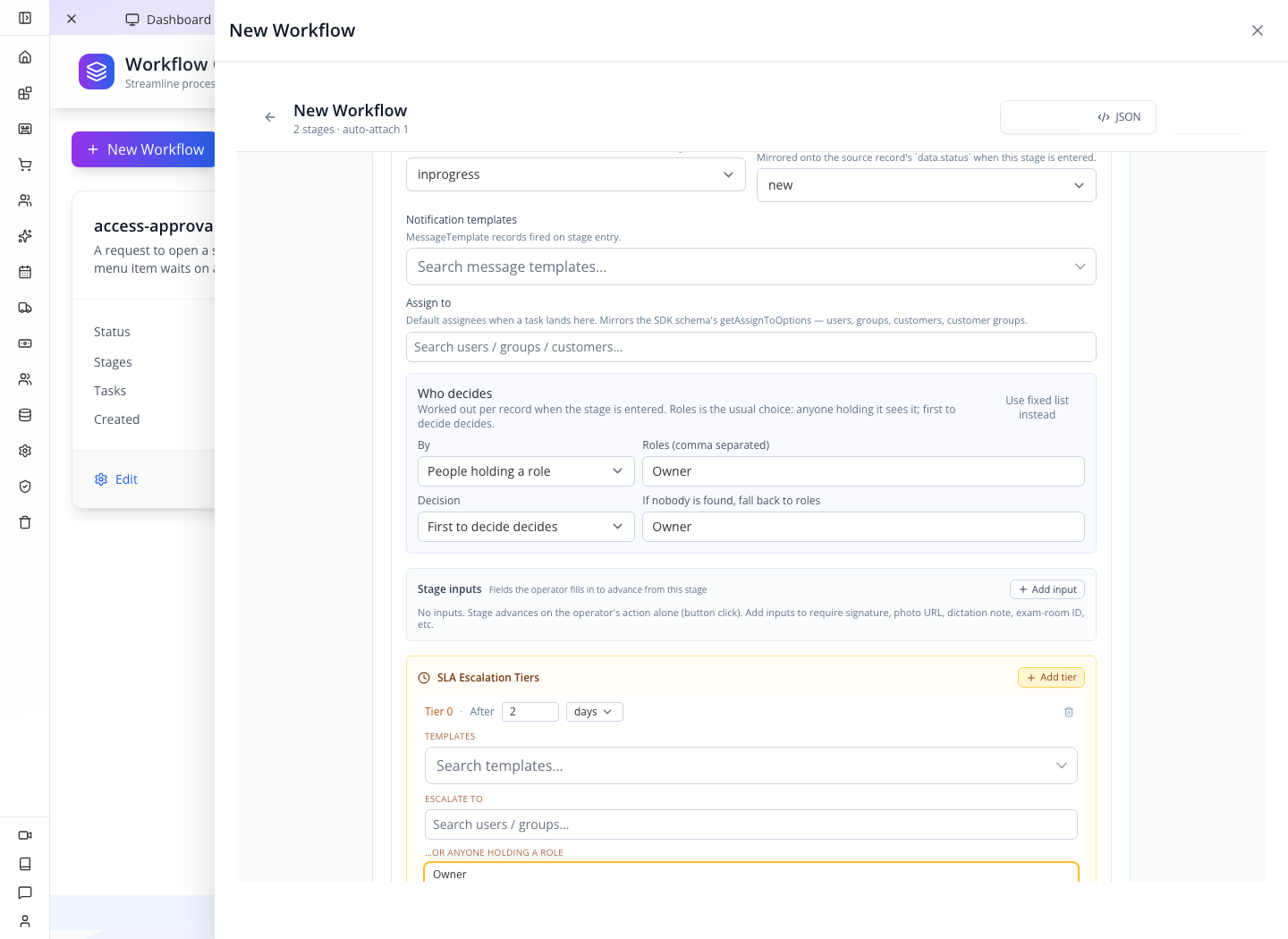
A configured escalation is not evidence that a notification was delivered. This exercise verifies the displayed deadline, not a two-day elapsed escalation run.
6. Add Done and set its completion values
Add the third stage and name it Done. Change its type to End. Expand it and set:
- Model state:
completed. - Model status:
done.
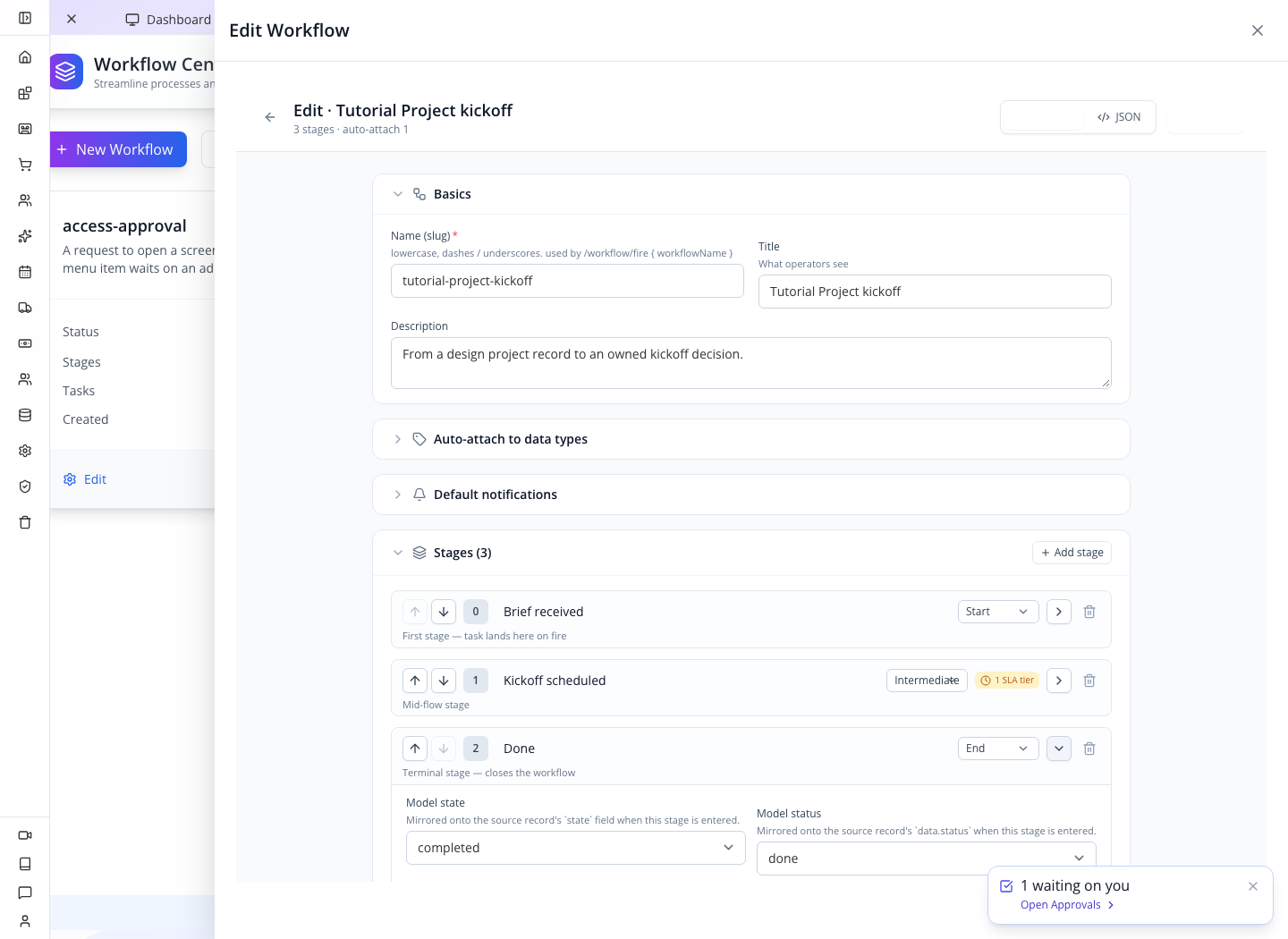
Do not skip these settings. In the first test, changing only the stage type to End left its default Model status at
new. The task moved into Done and acquired a closed timestamp, but still showednewand an Advance button. After correcting the mapping, a new task showeddoneand Archive instead.
The state/status settings also affect the source record's workflow-related fields. They do not change the custom Design Projects stage field to Complete.
7. Save and reopen the definition
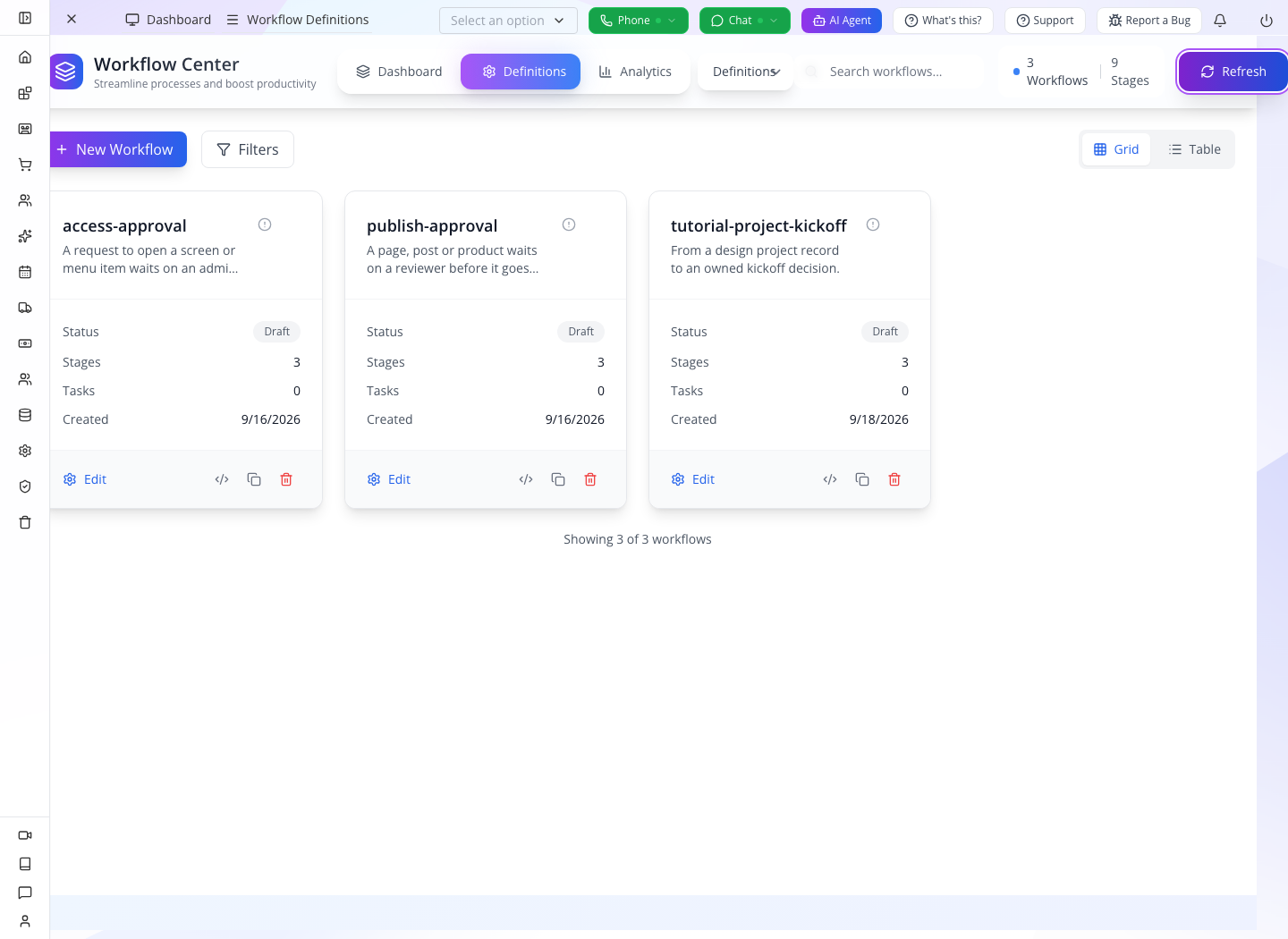
Select Save. In Workflow Center select Refresh. Definitions should list tutorial-project-kickoff with three stages. The definition card can show Draft while the board's workflow switch is On; check Enabled, not the card's generic status badge, when troubleshooting automatic starts.
Check yourself: should you enable Start on create for a process that begins only when someone requests approval? No. That setting starts on every new record of its attached collection. An intentional request needs its own start action.
Part 2 — Prove the handoff with one project
1. Create the source record
Open Database → Data Explorer. Search collections for Design, choose Design Projects, and select Add Record.
Enter Project Tutorial Okonkwo garden room, choose your own account in Owner, select Stage → Brief, and enter Next decision date 2026-10-02. Leave Client and Budget empty in this training record. Save.
Return to AI, IVR, Automation → Workflow. Use the Workflow Center view selector to choose Dashboard, then Refresh if needed.
The Tutorial Project kickoff board should contain Tutorial Okonkwo garden room under Brief received, with your account waiting to act.
The organization may also show a waiting on you notice and Open Approvals link. That is another entry into the same responsibility, not another copy of the project.
2. Advance into the SLA stage
On the task card choose Advance. Expect Moved to Kickoff scheduled and the card under the middle stage. It should display approximately 48h left.
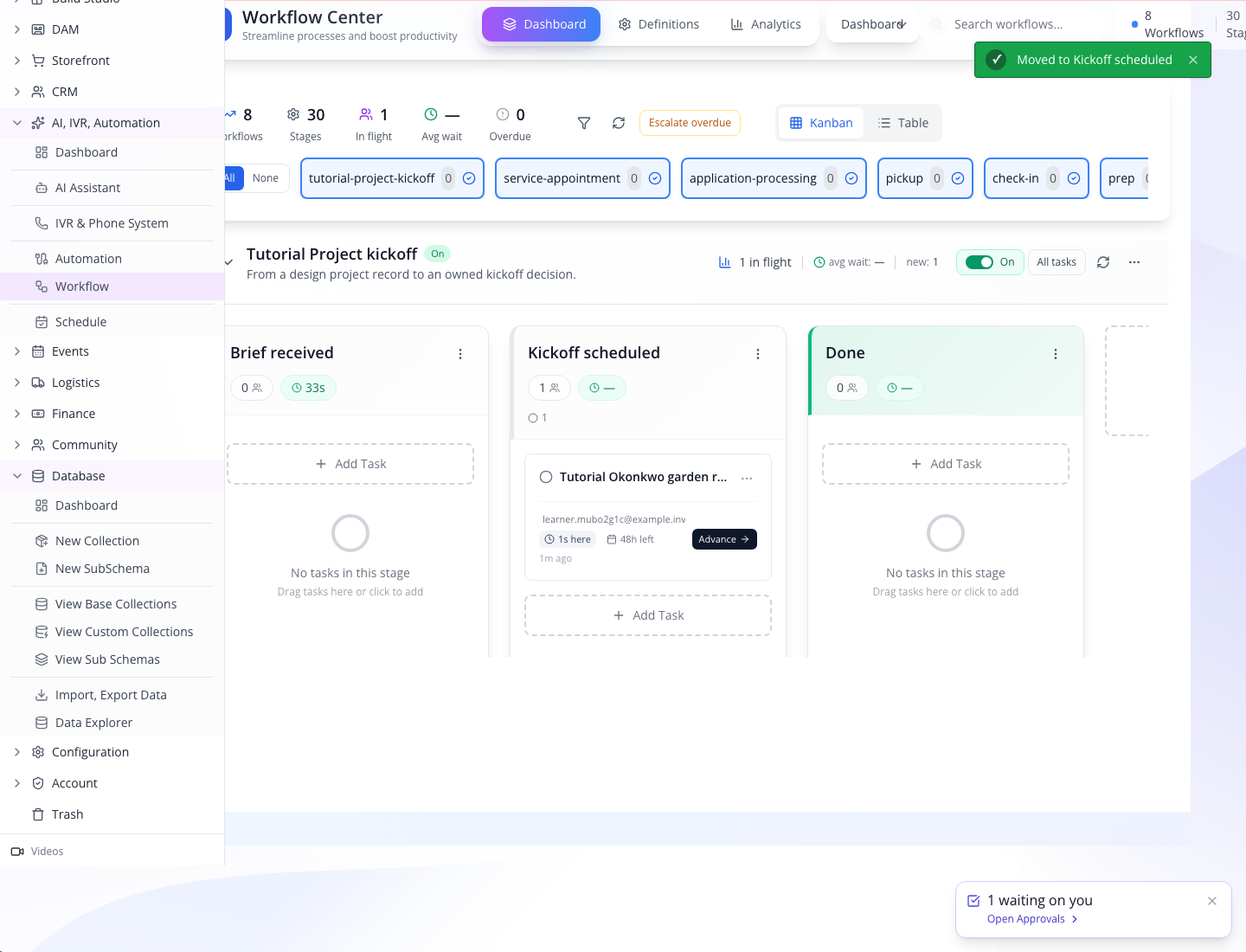
In real work, advance after the brief has actually been received and kickoff scheduling is the next responsibility. Moving a card is a business decision; the button does not itself book a calendar appointment.
3. Finish and inspect the task
Choose Advance again. With the completion mappings from Part 1, the card reaches Done, shows done, and offers Archive.
Click the task title to inspect its details. The panel identifies the workflow, current stage, waiting person, opened/closed times, and stage history. Use this history to explain where work moved and when.
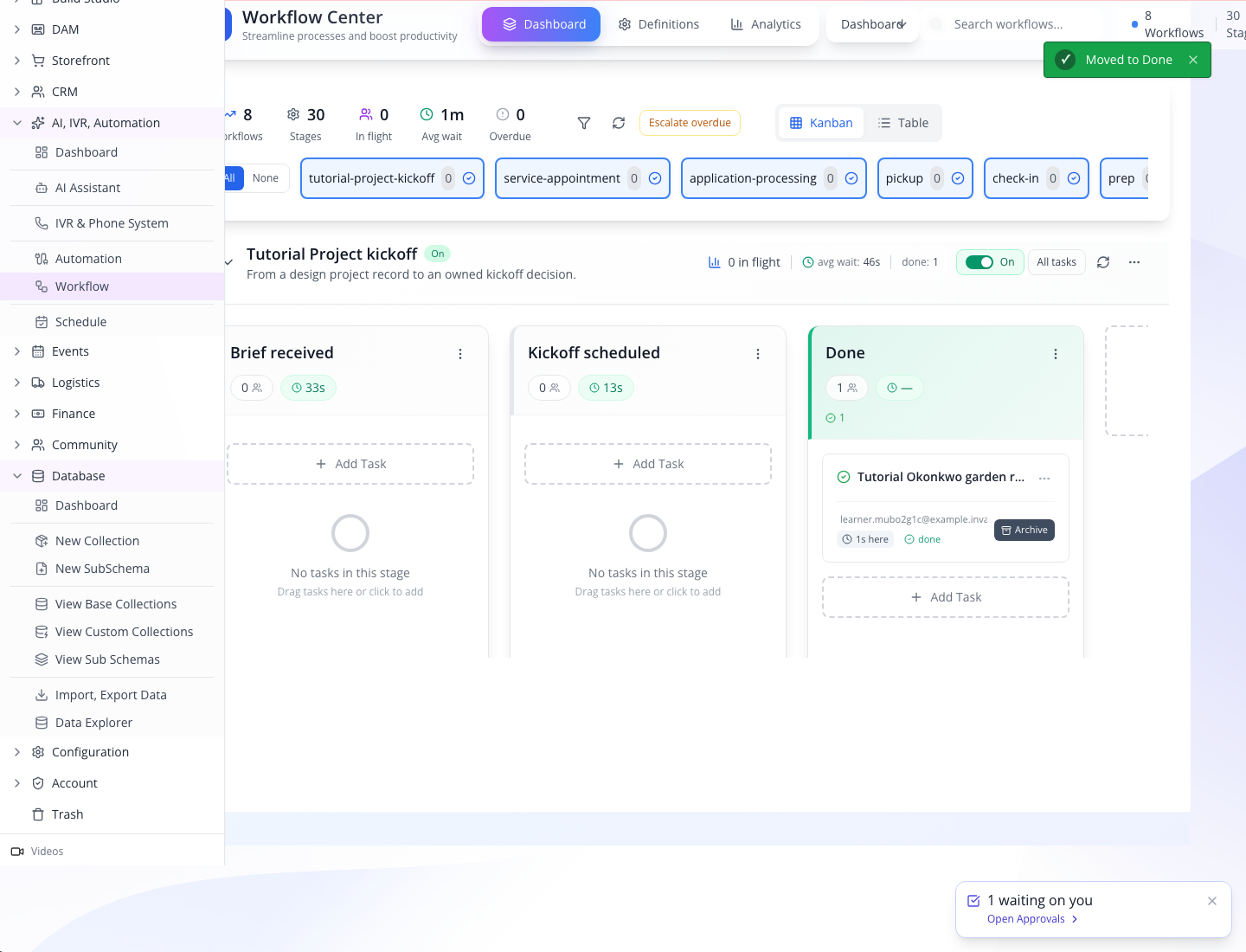
In the local verification, the board changed to 0 in flight, done:1 and 100% complete after the task reached Done. Check the actual task status and history as well as the summary. If a view is stale, Refresh; do not advance a completed task again just to change a counter.
4. Archive completed work without deleting its evidence
Select Archive on the completed garden-room task. It leaves the board. Select All tasks beside the workflow's On/Off switch.
The retained row should show Done, done, and an archived marker. This is how a clean board can coexist with a useful operational history.
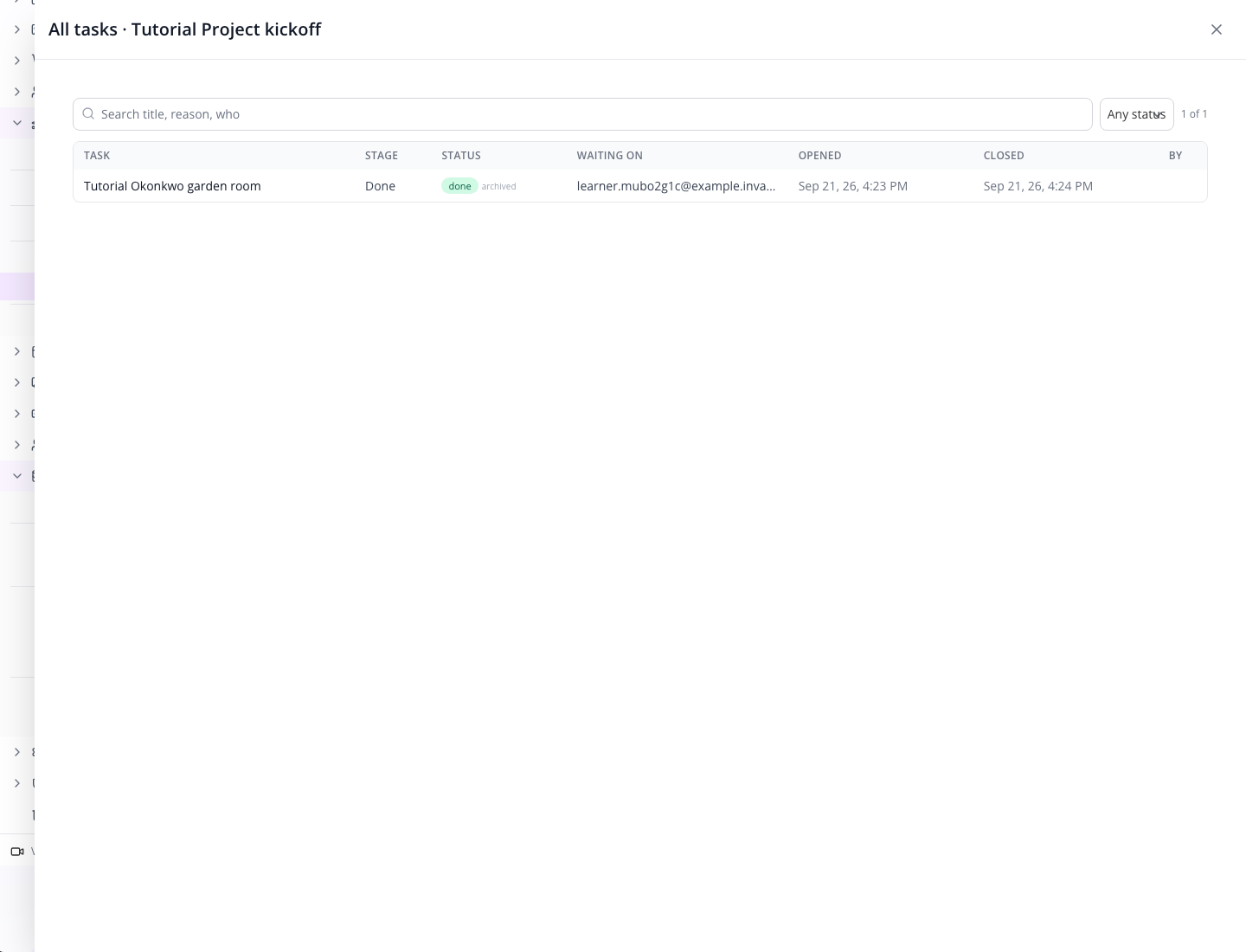
Do not delete the workflow definition as a substitute for finishing its tasks. A definition is the process the tasks refer to; removing it can leave existing work without a usable next transition.
If you already tested the wrong Done mapping
Editing the definition does not rewrite the statuses of tasks that already reached its old terminal stage. On the disposable training task, the practiced recovery was:
- Correct Done → Model state completed / Model status done and save.
- Drag that task from Done back to Kickoff scheduled.
- Choose Advance again.
- Check that it now says
doneand offers Archive.
Re-entering stages can repeat stage-entry effects. Use this recovery only on a training task with no notification templates or other side effects; review real task consequences before doing it in business operations.
Part 3 — Inspect the automation builder before turning anything on
1. Open Smart Automation
Choose AI, IVR, Automation → Automation. The screen is Smart Automation, with Dashboard, Workflows, Workflow Builder, Runs & Logs, and Templates.
Choose New Workflow. On this build it opens the builder directly. Enter Tutorial Signed agreement to kickoff in Workflow Name and tutorial-agreement-kickoff in Slug.
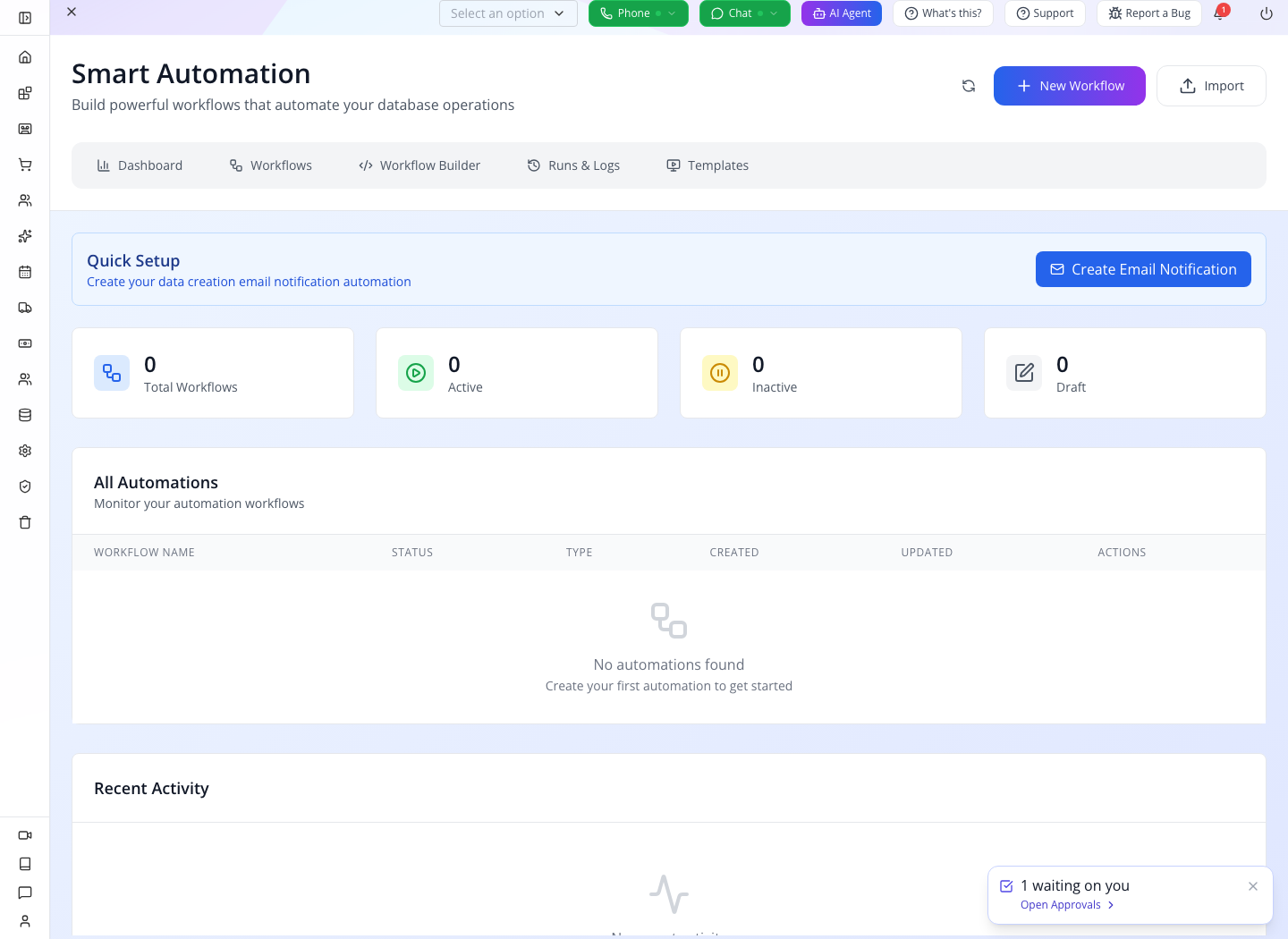
2. Inspect the actual trigger configuration
Select Add Trigger. It inserts a row; open that row's Select trigger… control and choose Record Updated. Select the row's Configure gear.
The configuration exposes Datatype and Watch Fields. For this inspection, select Design Projects from Datatype and enter stage in Watch Fields. Select the collection result; typing a name without selecting it does not establish the collection.
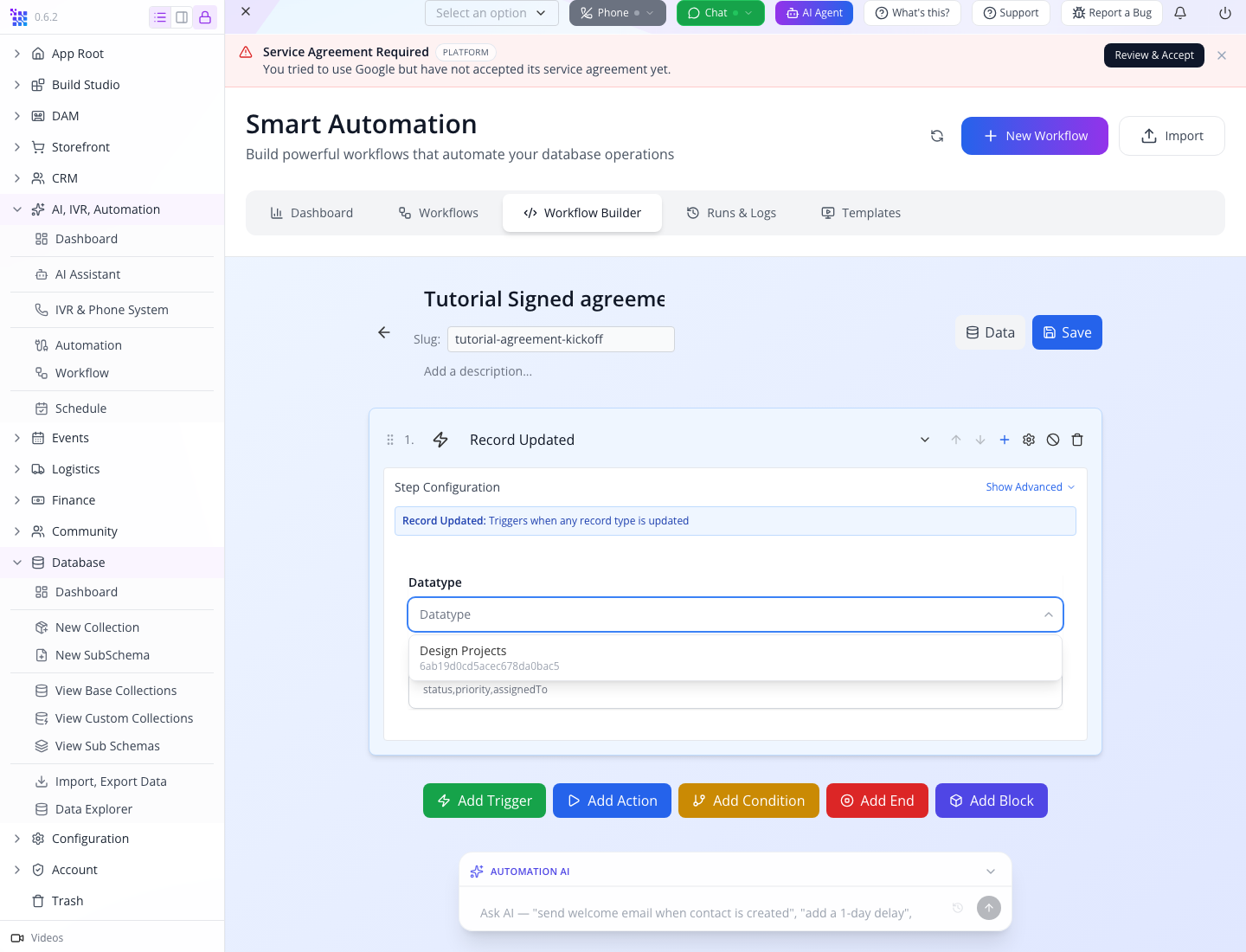
stage is the field key in the project schema. It restricts this trigger to updates that change that field. It does not mean “the agreement was signed” or “the stage is Done”: watching a field and testing its new value are different conditions. This draft is a configuration exercise; do not start it.
Select Save, open Workflows, select the draft's Edit automation pencil, and reopen Configure. Confirm Datatype displays cf_project and Watch Fields displays stage. The friendly collection title and its saved datatype are two names for the same collection.
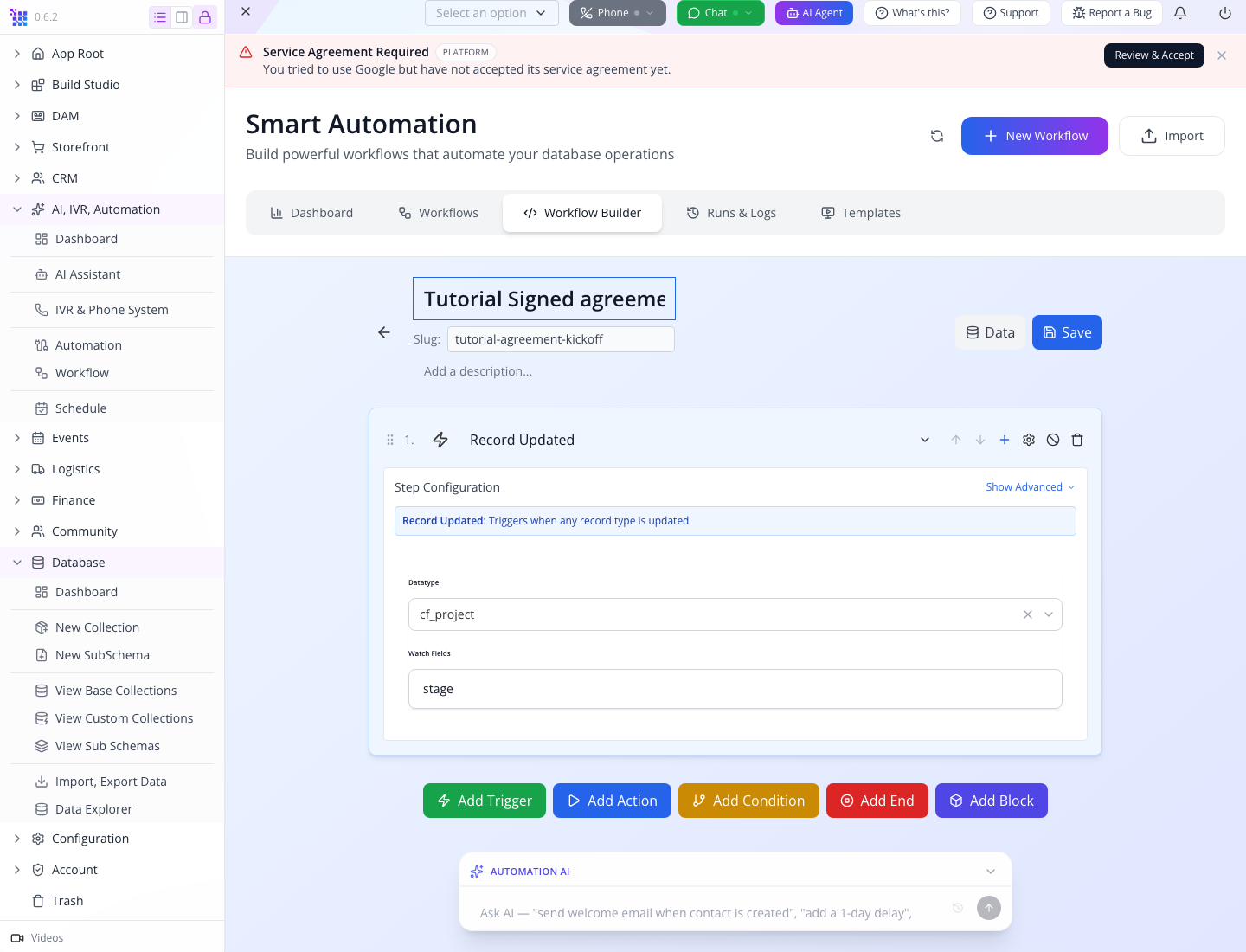
Data in the toolbar opens a collection-field reference panel; it is not a raw editor for the automation definition. The next section replaces this unstarted trigger draft with a manual-only training action, keeping its record identity. There will be no automatic record trigger or customer message in that test.
Part 4 — Developer laboratory: test the action and inspect its real result
1. Convert the draft into a manual-only test
Download manual-kickoff.data.json. Read it before applying it: it contains one create_data action and no trigger, email, SMS or alert action. Each explicit execution creates one training project.
Open Database → Data Explorer, search collections for Automation, and choose the Automation collection, not AutomationExecution or AutomationLog. Find your draft and select its row's Edit Raw JSON action.
The editor contains the entire record, including _id, pk, sk, datatype, data and metadata. Preserve your record's identity fields. Replace only the value of data with the downloaded object's contents. Set the outer name to Tutorial Manual kickoff test as well. Do not replace your whole record with somebody else's IDs.
The downloaded data defines:
{
  "id": "create-project",
  "type": "action",
  "name": "create_data",
  "label": "Create Record",
  "enabled": true,
  "order": 1,
  "config": {
    "datatype": "cf_project",
    "data": {
      "title": "Tutorial Automated kickoff sample",
      "stage": "Brief",
      "nextDecisionDate": "2026-10-06T00:00:00.000Z"
    }
  }
}
This is a step, inside the downloaded automation's steps array. The automation's status remains draft until you deliberately start the test.
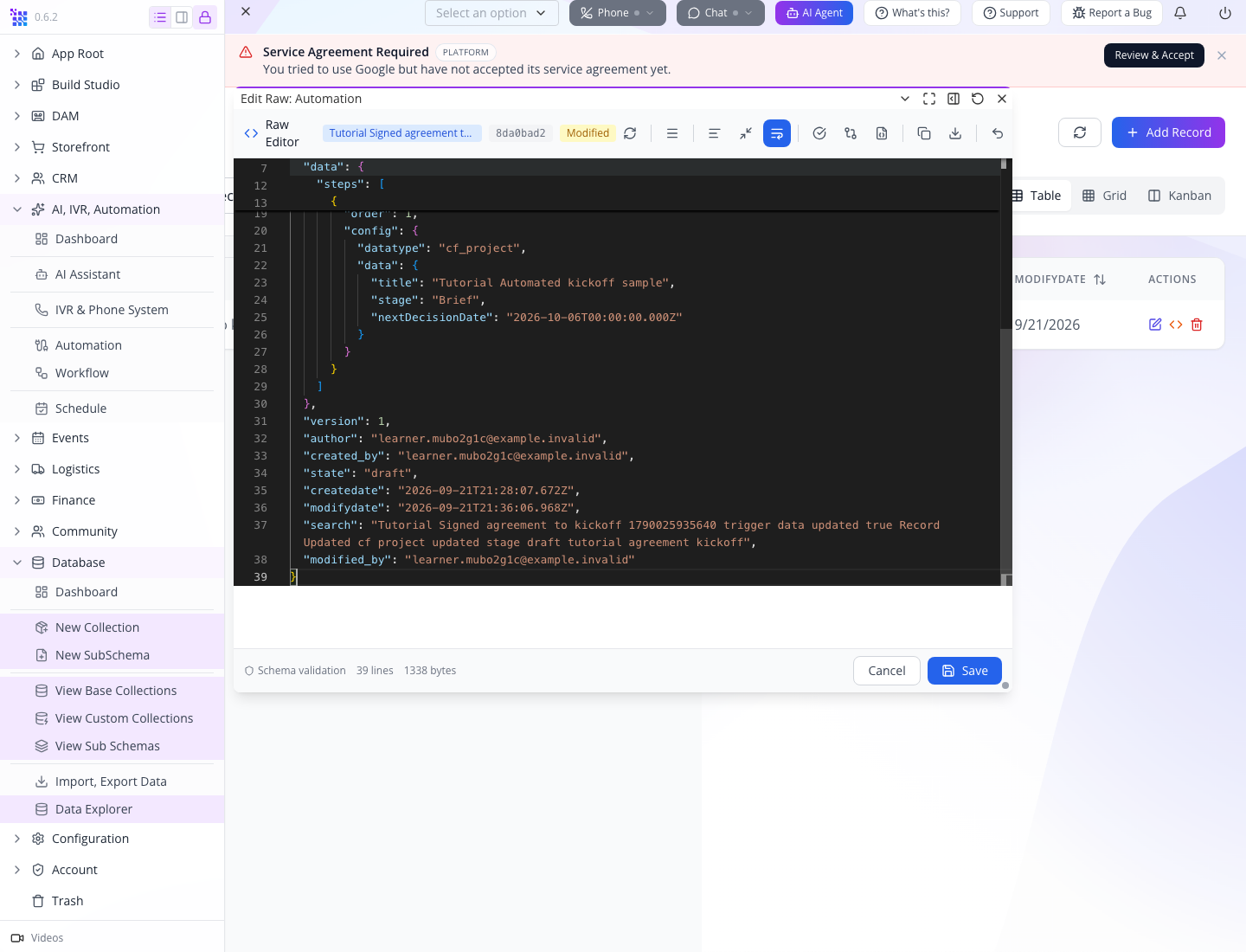
The raw editor requires order ≥ 1. It rejected both a missing order and zero in this walkthrough. This is why copying a visual builder's incomplete step object is not enough.
The action handler expects an object at config.data. Preserve the tested object structure in the file. The repaired visual builder converts its Data Fields JSON editor into this object when saving; raw JSON must already use the backend structure shown here.
Select Save. Reopen Smart Automation and select Workflows. You should find Tutorial Manual kickoff test, status draft, with one create_data step.
2. Start, execute once, then stop
In Workflows, find Tutorial Manual kickoff test and confirm it has exactly one create_data step. Hover the card's controls to distinguish Start automation, Execute automation once, Stop automation, and Edit automation.
- Select Start automation. Wait for the card to show
active. - Select Execute automation once exactly once. Wait for the result notice. This action creates a record; it is not a preview.
- Select Stop automation. Confirm the card returns to
inactive.
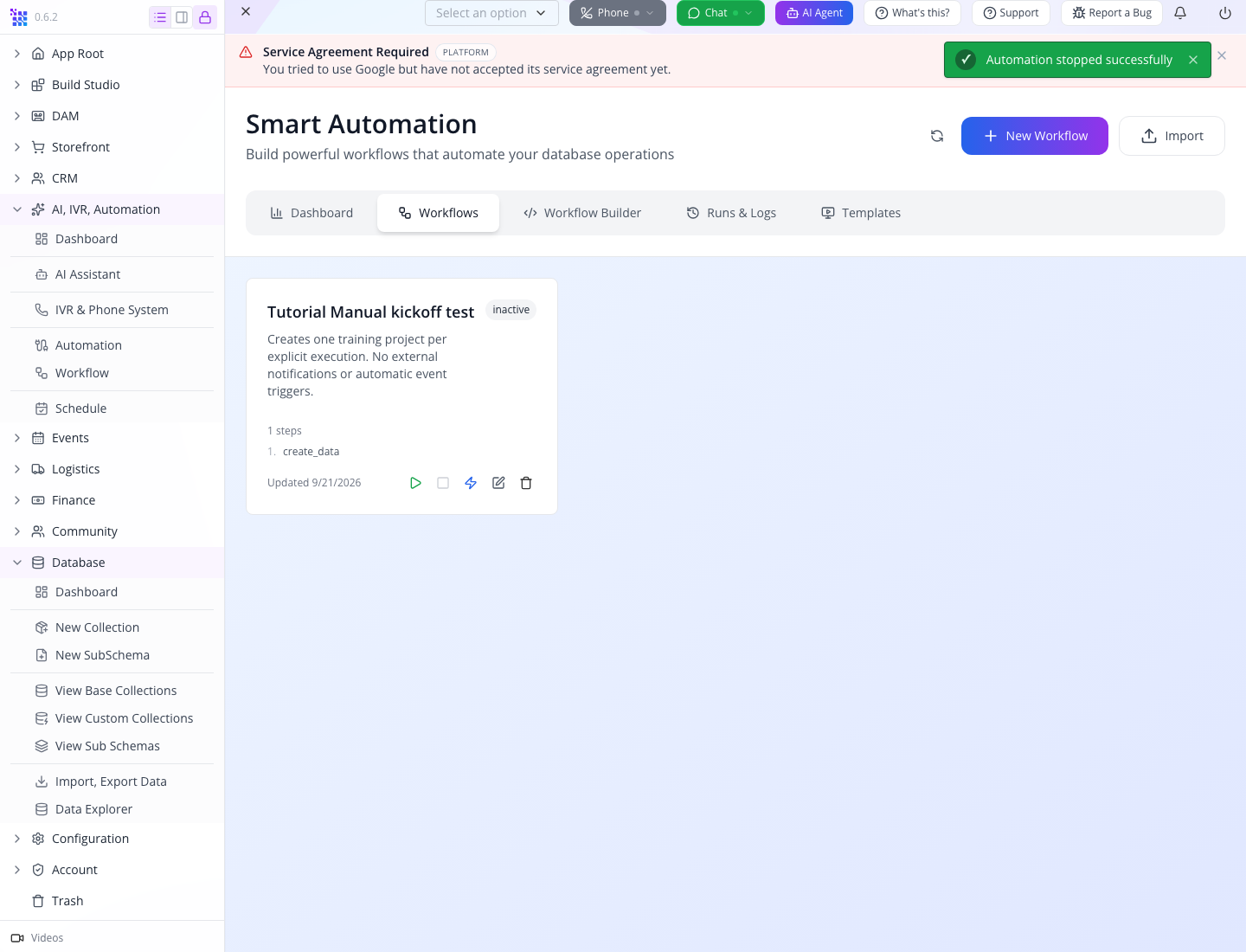
Starting enables execution; it does not create the sample project by itself. This definition has no trigger, so the explicit Execute action is what creates the record. Stopping afterward does not undo that record.
If a request times out, inspect Runs & Logs and Design Projects before pressing Execute again. A missing browser response does not prove that the server did nothing.
3. Read the action's result
Open Runs & Logs → Execution Runs. Select your most recent completed run. The list may identify the automation by its record ID; use the execution time to distinguish the two practice runs later.
In Execution Details, confirm status completed. Under Execution Steps, find Step create-project, also completed. Expand Action result. Check these fields:
| Field | What it tells you |
|---|---|
created: true | The action reports creating a record. |
datatype: cf_project | It wrote to your Design Projects collection. |
recordId | The identity of the newly created project. |
record.data.title | The title should be Tutorial Automated kickoff sample. |
record.data.stage | The initial design phase should be Brief. |
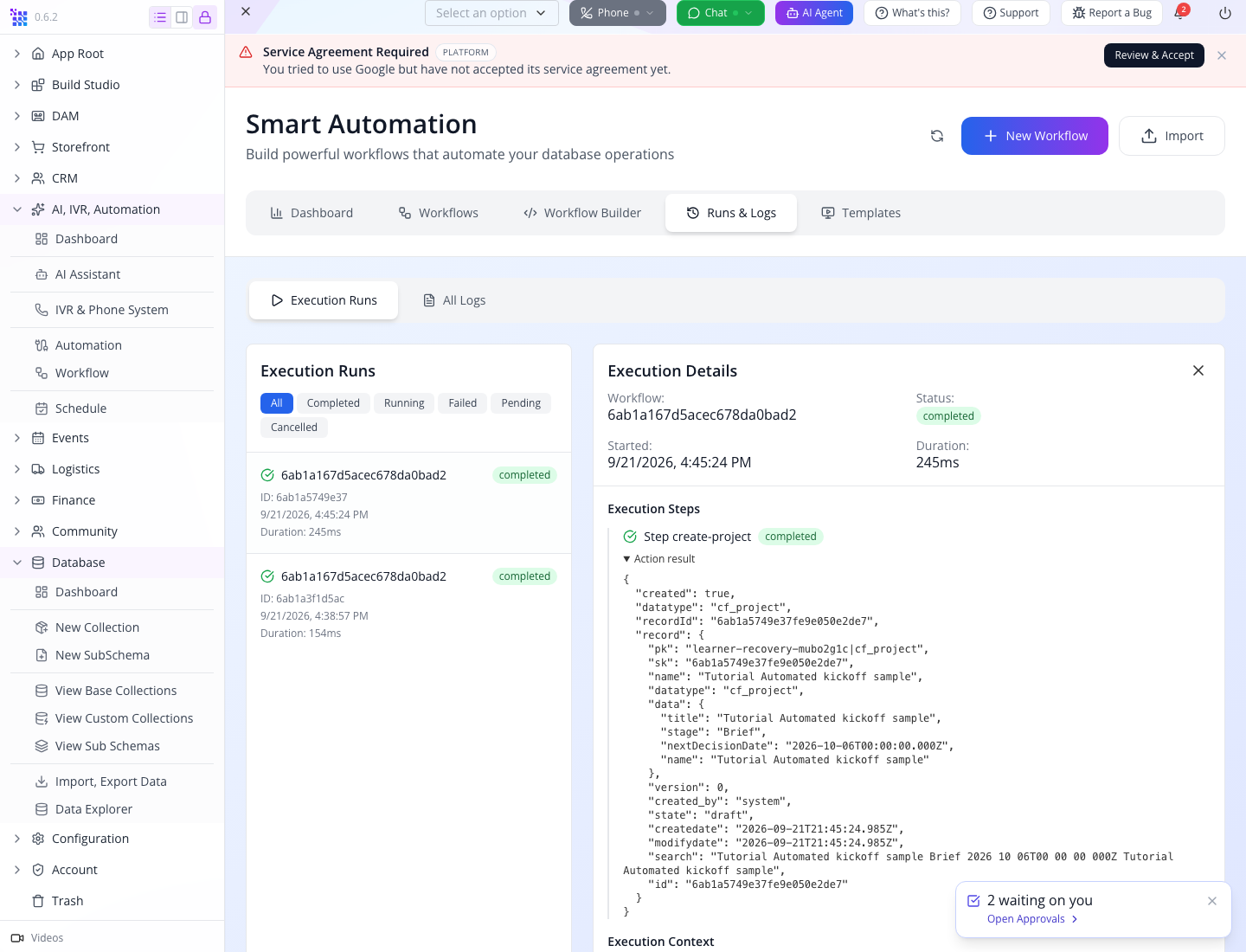
The result shown here comes from the second practice execution after a local application repair. Historical runs written before that repair can lack step results. Do not infer missing details from the workflow's configuration: configuration describes the requested action, while the result describes what happened.
For developers, the same operation is POST /automation/<id>/execute, with the organization's authenticated AppEngine client. It is optional here: the Studio button was tested successfully. Setting up the client and protecting its credentials is covered in Build a connected client. Do not send a second API execution simply to inspect the first UI run.
4. Follow the result into your business records
Choose Database → Data Explorer. Search collections for Design Projects and select it. Find Tutorial Automated kickoff sample. Use its row's Edit Raw JSON action to compare the saved sk with the result's recordId; close without changing it. This matters when multiple records share a title.
Return to AI, IVR, Automation → Workflow. Under Tutorial Project kickoff → Brief received, find the new task. The automation created a project; the collection's enabled workflow then created the handoff task.
The project's Owner field is empty in the supplied manual test. The workflow task is assigned to the training owner through the Owner role rule. Record ownership and task responsibility are separate settings; one does not silently fill the other.
5. Repeat once to understand duplicate creation
Return to Smart Automation → Workflows. Repeat Start automation → Execute automation once → Stop automation once. Confirm inactive again. Open the newest completed run and compare its recordId with the first result: they are different.
Open Data Explorer → Design Projects. There should now be two records titled Tutorial Automated kickoff sample, in addition to your original garden-room project. Check the two raw record IDs if you need to distinguish them.
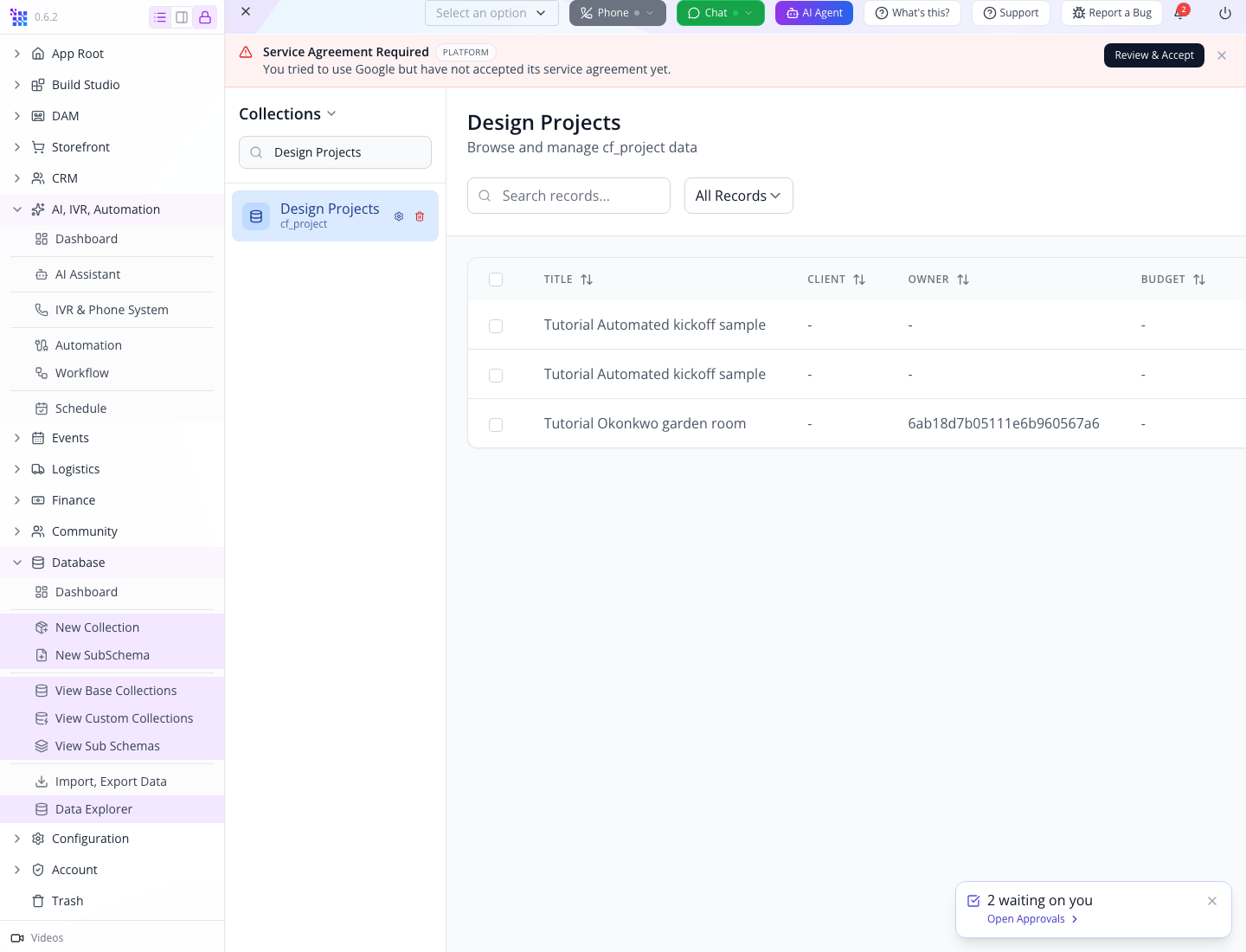
Open Workflow Center again: Brief received now has two corresponding tasks, each assigned to your training owner.
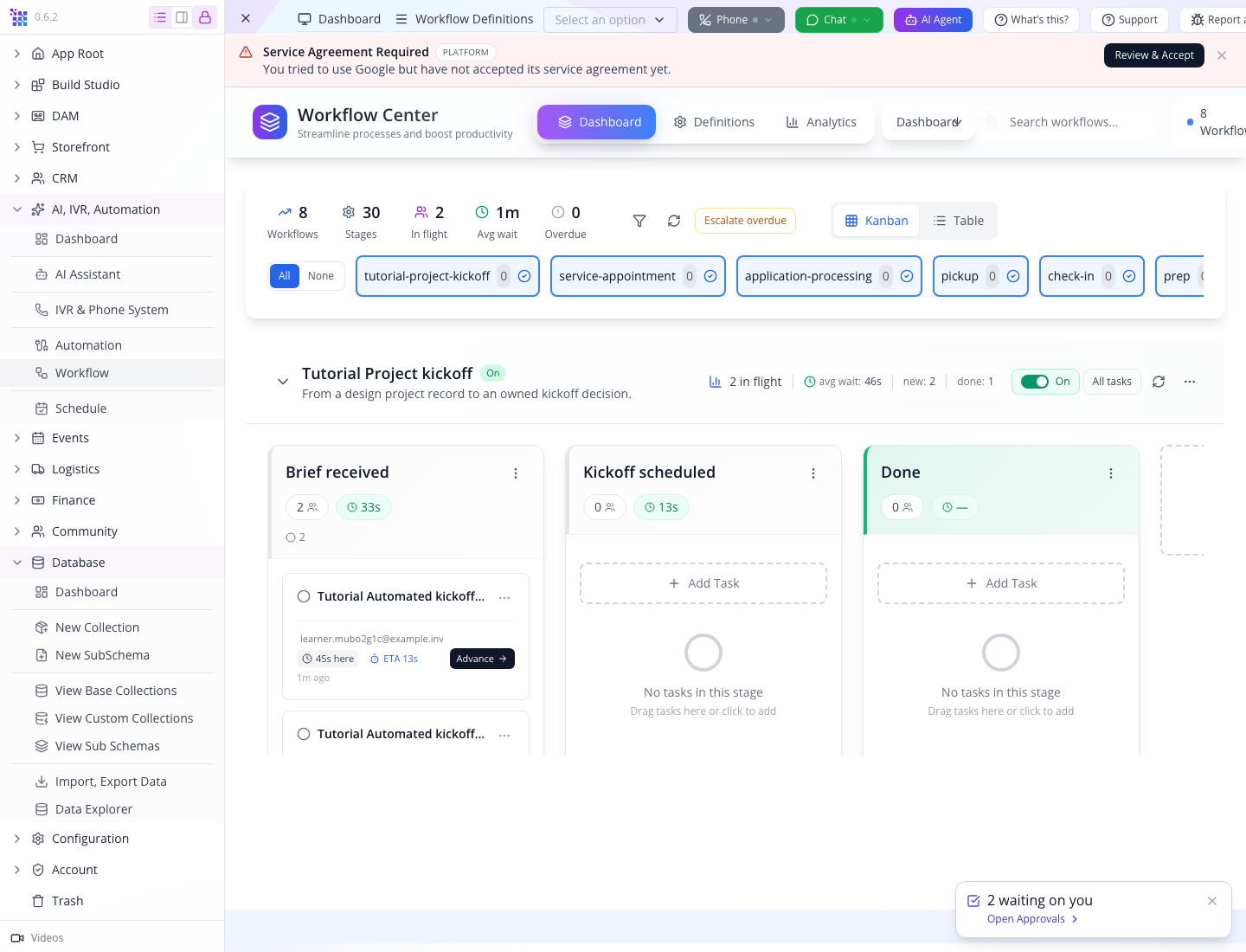
The local execution evidence contains the two actual response IDs and the saved run details. These are examples, not IDs to reuse in your organization.
A repeated title does not make creation idempotent. Each explicit execution created another project and task. Keep the clearly named training records for comparison, and leave the automation stopped.
Check yourself: does “status equals signed” prevent every duplicate? No. Two updates can both carry that status, and two concurrent runs can both pass a condition before either creates a record. A production integration needs a stable source-agreement identifier and duplicate prevention enforced where the project is created.
Part 5 — Connect the production business event deliberately
The intended extension remains valuable: a signed agreement creates one project and its kickoff task. Complete the manual workflow and action tests first, then validate these specific integration points on your organization's signing flow:
| Decision | What to establish |
|---|---|
| Trigger scope | The actual signed-document datatype, emitted event and transition that means signing completed. |
| Event payload | Where the record, signer/customer identity and title appear in the execution context. |
| Condition | The verified signed-state field and whether this is the first transition into that state. |
| Project mapping | A real title, actual customer/user identifiers, and an initial design stage. |
| Duplicate protection | A stable agreement ID associated with the created project and an enforced once-only creation rule. |
| Notification | The real recipient(s), channel and template, tested separately before enabling messages. |
| Failure recovery | How an operator finds a failed run, identifies any already-created project and retries without duplicating it. |
Do not copy {{document.title}} or a person's typed name into a lookup merely because it looks plausible. Those paths and identities must match the actual event data. A successful manual creation with fixed values does not establish the signing event's payload.
The template catalogue and AI bar can help draft a sequence. Read the resulting configuration and run its safe training case before enabling it. A generated action name is not evidence that its handler exists or that its configuration matches the backend contract.
Part 6 — Approvals, schedules and operational checks
Find work waiting on you
Open App Root → Approvals, or select Open Approvals in the waiting notice. The page has Waiting on you, My requests, Notices, and Decided.
The two manual-test tasks appear under Waiting on you. Open one to inspect Reassign, Escalate, Decline, and Approve. Reassign is disabled while Hand to someone else (email) is empty. Leave the decision unchanged in this lesson: this visit establishes where the owner finds waiting work. Close Approvals with the panel's × control before returning to the sidebar.
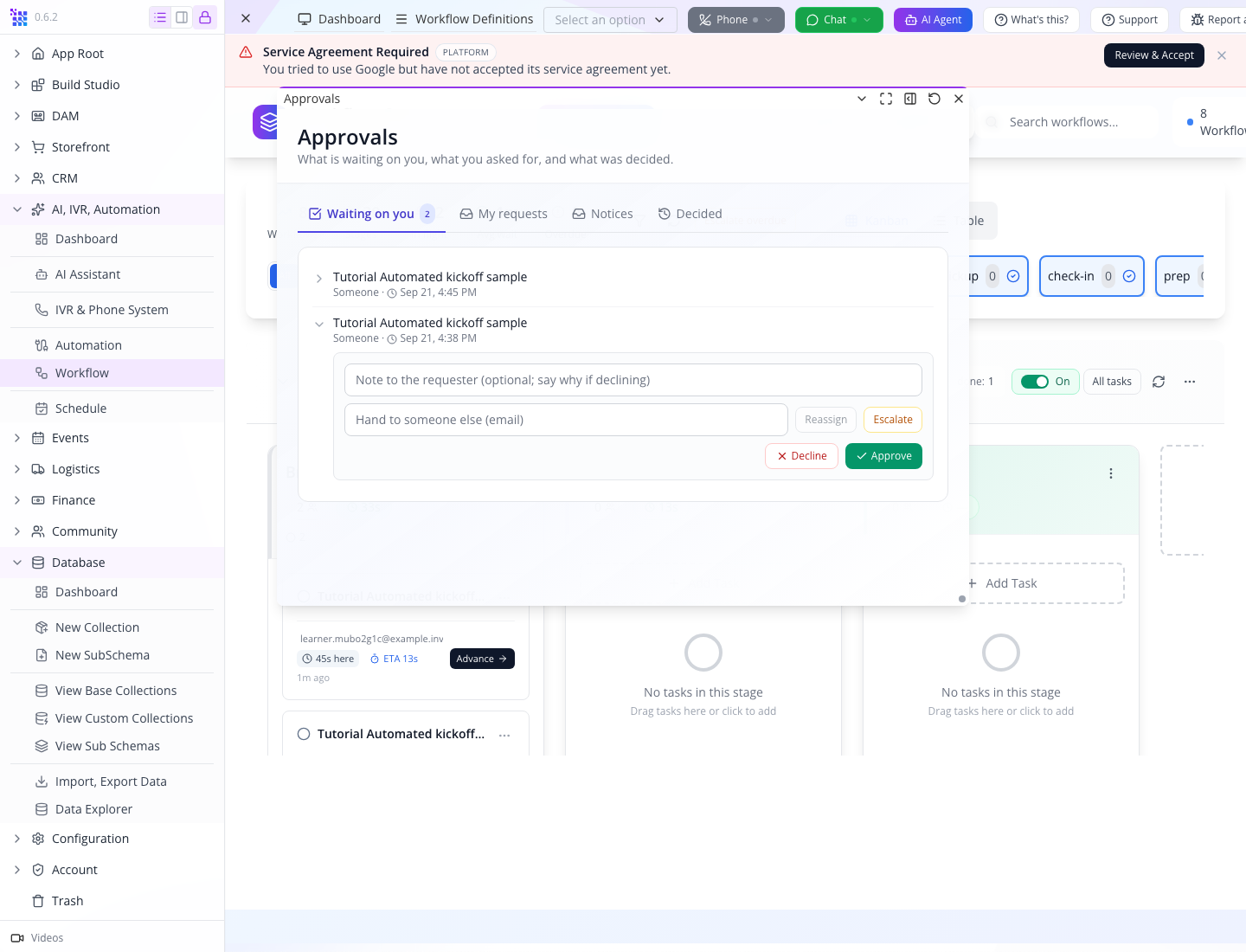
For actual access requests, continue with the permissions course. The seeded access-approval definition and this custom kickoff task have different business consequences, even when both appear in the tray.
Locate scheduled work
Choose AI, IVR, Automation → Schedule. The tested screen is Schedule Management, with Overview, Upcoming, Runs, and Logs, plus Database and Redis Queue counts.
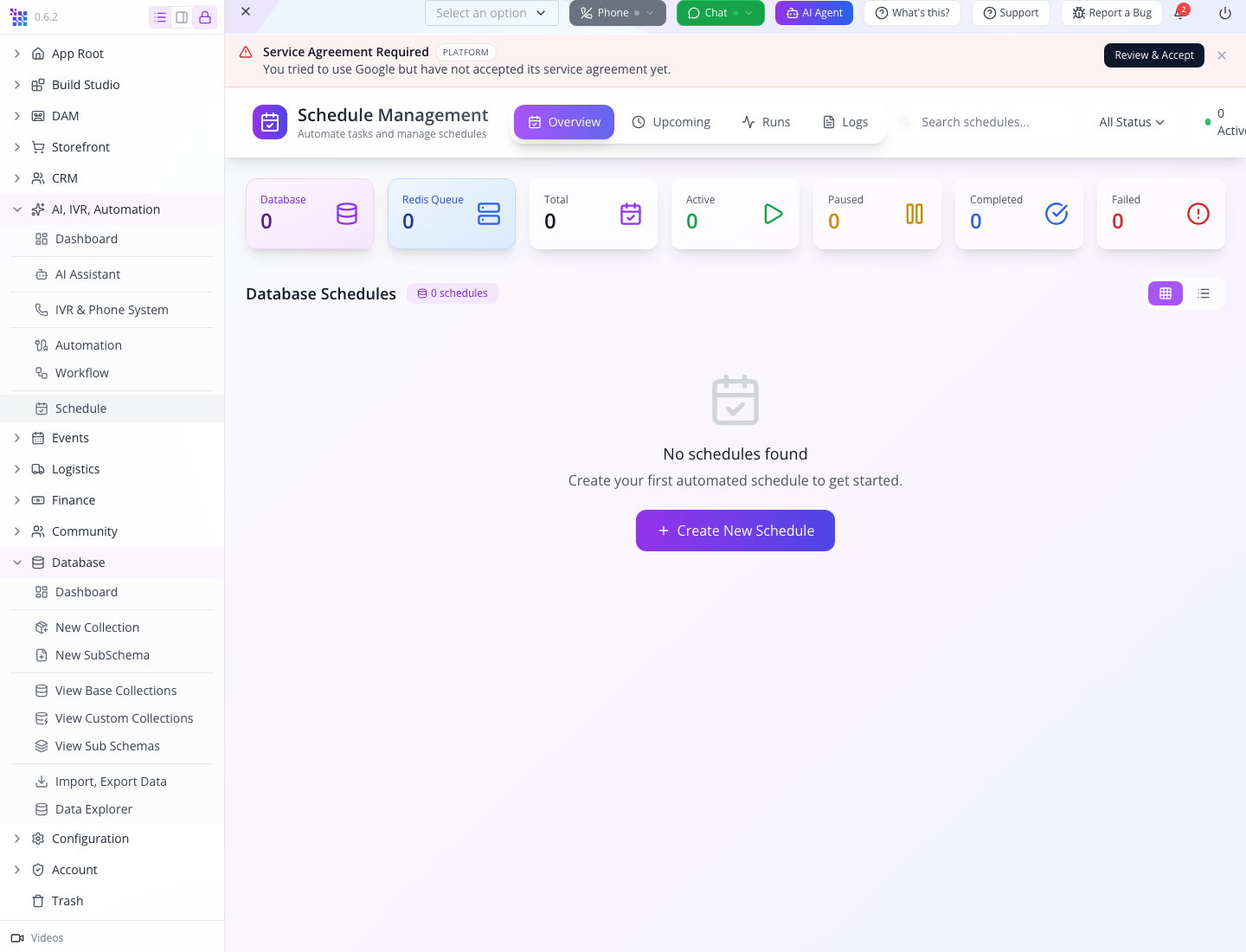
No schedule was created in this lesson. A manual run is not a recurring schedule. Before scheduling a business handoff, use Reliable background jobs to verify time zones, stored schedule identity, cancellation and retry behavior. Do not infer that stopping an automation removes every independently queued job.
Distinguish the three kinds of stopping
- Workflow Enabled off: prevents new starts; it does not delete existing tasks.
- Stop automation: changes the automation's execution state; inspect any in-progress or already-produced effects separately.
- Archive completed task: removes a finished task from the board while retaining its outcome in All tasks.
Those controls solve different problems. Deleting records to make counters look tidy is not a recovery strategy.
If something goes wrong
| Symptom | Check and response |
|---|---|
| No task after creating a project | Confirm collection Enable Workflow, attached collection, definition Enabled, and Start on create. Existing records are not the new-record test. |
| Task is unassigned | Check the actual role/group membership and the stage's Who decides settings. |
| No deadline in Brief received | Expected: that stage has no SLA. The two-day tier belongs to Kickoff scheduled. |
| Card is in Done but status remains new | Configure End, Model state completed and Model status done. Existing task values are not automatically rewritten. |
| Counts disagree with cards | Refresh and inspect the task status and archive state. Archived done tasks remain historical work but are no longer in flight. |
| Trigger collection picker is empty | Confirm the prerequisite collection exists and that you can view it in Data Explorer. Clear the lookup search and reopen it. Keep an unscoped trigger inactive and report a persistent lookup error. |
| Raw automation save rejects order | Give each step a one-based order value, starting at 1. |
| Execute fails or times out | Inspect Runs & Logs and actual project records before retrying. Report the error with its execution ID if available. |
| Completed run has no step detail | Older runs may lack stored results. Compare any retained response with the actual record; report a new run that lacks results. Do not repeat creation merely to obtain a screenshot. |
| Two projects exist for one source | Repeated creation is not deduplicated. Identify source IDs and actual side effects before retrying again. |
| A stopped test still has a task | Stopping the automation does not undo records and tasks it already created. |
What happened behind the scenes
Source checks for developers
websitemint/packages/ui/src/components/workflow/workflow-form.tsx: modern definition fields, role assignment, stages, SLA tiers, model state/status, and seed templates.appengine/src/workflow/workflow.service.ts: creates tasks and mirrors the entered stage'smodelStatusonto task status; entering a terminal stage stamps completion. A terminal type withmodelStatus: newcan therefore produce a closed timestamp with a new status.appengine/src/workflow/workflow-escalation.job.ts: escalation and completed-task archival processing. The two-day elapsed escalation was not exercised.websitemint/packages/ui/src/components/automation/automation-schemas.tsxandautomation-config.ts: collection lookup, backend datatype/operation/field filters, and conversion of the Fields editor into the Create Record action's data object.websitemint/packages/ui/src/utils/request/api-endpoints.tsandautomation-store.ts: the execution request appends the automation ID and/executeto the automation base path; failed results are reported as errors.appengine/src/automation/controllers/automation.controller.ts:POST :automationId/execute, active-status check, supplied variables and execution result.appengine/src/automation/services/automation-runner.service.ts: skips trigger steps during manual execution and records the execution; the UI's Execute action does not ask the operator to pick a signed document.appengine/src/automation/actions/create-data.action.ts: requiresdatatypeand an objectdata; creates a new record and returns its ID. Repeating that action creates a distinct record.websitemint/packages/ui/src/components/automation/app.tsx: Import accepts an oldername/trigger/actionsshape. The active runner usessteps. No successful round-trip import of this manual automation is claimed.
Where next
Use Connect a custom business API for supplier or external-system actions. Use Reliable background jobs before putting retries or recurring work into service. The AI assistant course explores assisted actions and their authorization boundaries.
Walkthrough evidence and production boundary
Rechecked on local Studio 0.6.2 and AppEngine, 21 September 2026. The definition and six-field prerequisite collection were created through the interface. A project started a role-assigned task, entered its 48-hour SLA stage, finished with done status, and was archived and found in All tasks. The fresh board showed zero in flight and 100% complete before the manual automation tests added two new tasks.
The repaired trigger picker saved cf_project/updated/stage correctly. Its unstarted draft was converted to the supplied manual-only action while retaining its record identity. Two UI start/execute/stop sequences created two distinct projects and two tasks. The first run exposed missing stored action results; the application repair was verified on the second run, which retains the completed step and its created record ID. Invalid JSON was also rejected visibly while retaining the editor; the original valid configuration was restored and saved. The automation remains inactive.
Approvals and Schedule Management views were inspected without making a new approval decision or creating a schedule. A live signing event, customer notification, concurrent deduplication, recurring execution and elapsed two-day escalation are not claimed. See the local completion report and production guide.