
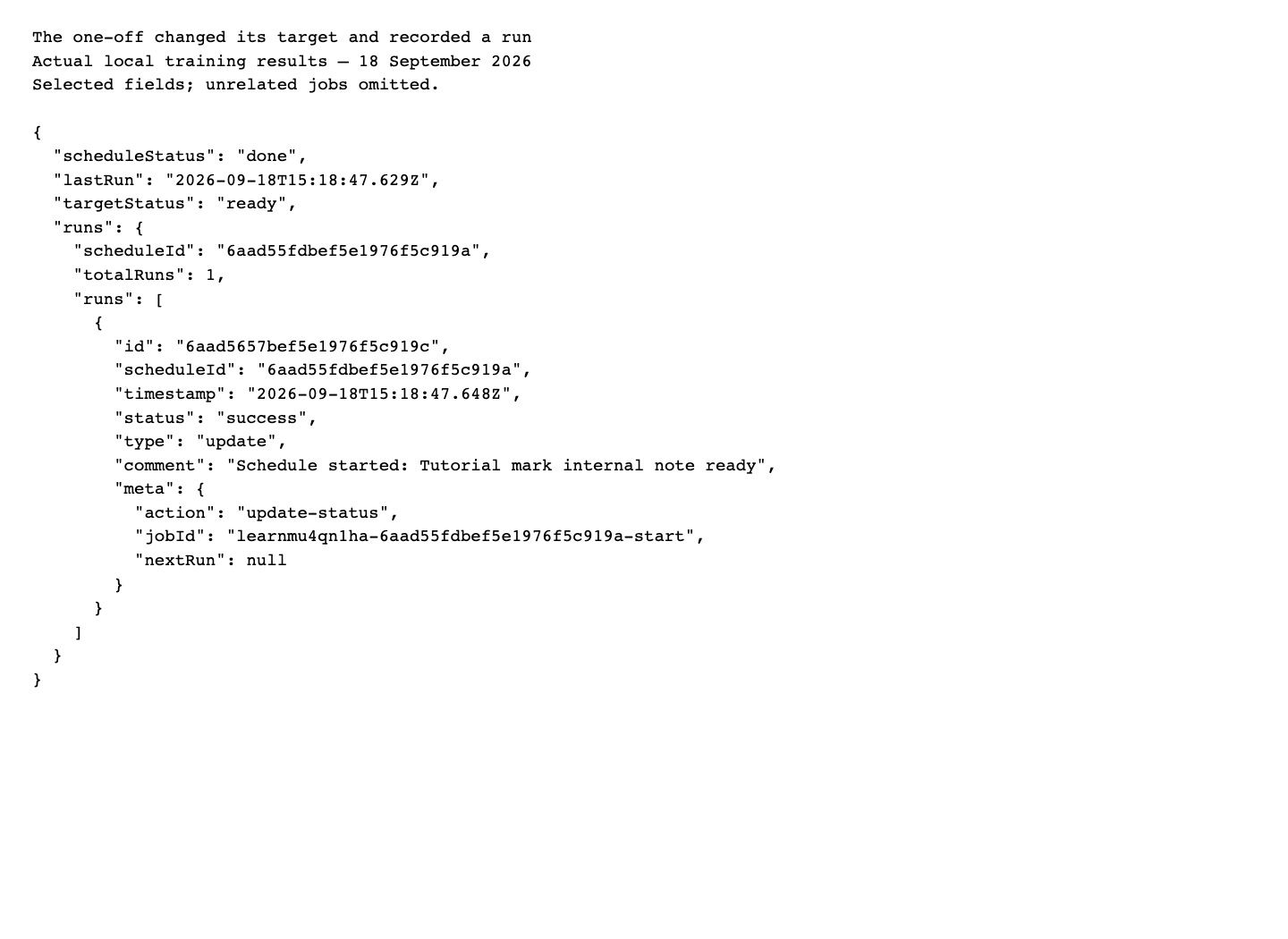
 The schedule became
 done, the target note became ready, and one run recorded success. These are three separate observations.
Who: developers and operators maintaining background work. Time: 60 minutes, including due-time checks. Level: developer; platform operations afterwards. Product: AppEngine schedules, Bull queues and Studio Schedule Management. Checked: 24 September 2026, local training organization. Example: an internal training note that changes status; no messages, payments or external services.
What you will have at the end
You will create a one-off schedule, find its delayed queue job, wait for a useful action and inspect the saved result. You will then diagnose a malformed target, repair the same schedule and inspect its successful run. Finally, you will understand the current pause and deletion behavior instead of trusting a label or toast.
The distinction matters: a database schedule is a plan; a queue job is work waiting or executing; a run record is an activity report; the target record tells you what changed.
What you need
- Your organization ID and a staff bearer from Connect a client to AppEngine.
- An AppEngine environment with MongoDB and its Redis-compatible queue service available. Use an isolated training organization.
- Studio access to AI, IVR, Automation → Schedule.
- curl or a small server-side script. Set
API,ORGandSTAFF_TOKENprivately. The checked production origin ishttps://appengine.appmint.io; this rehearsal used the operator's local server.
Use fresh future times. Copying a due time from these September captures will not schedule a new future action. The helper below calculates a time from your current clock.
The story and route
Before scheduling appointment reminders or social posts, the developer wants to prove the mechanics with an internal record. The target starts waiting. A job changes it to ready. A deliberately incomplete target then shows how a job can fail while the overview still calls its schedule active.
Saved schedule → delayed queue job → due-time worker → target update
       │                 │                 │                │
 record read        org-schedules      queue details      target read
                                           └── activity → schedule-runs
Part 1 — Run one harmless action
1. Open the Schedule module
Select AI, IVR, Automation → Schedule. The screen title is Schedule Management. Its tabs are Overview, Upcoming, Runs and Logs, with New Schedule, Refresh and status filters.
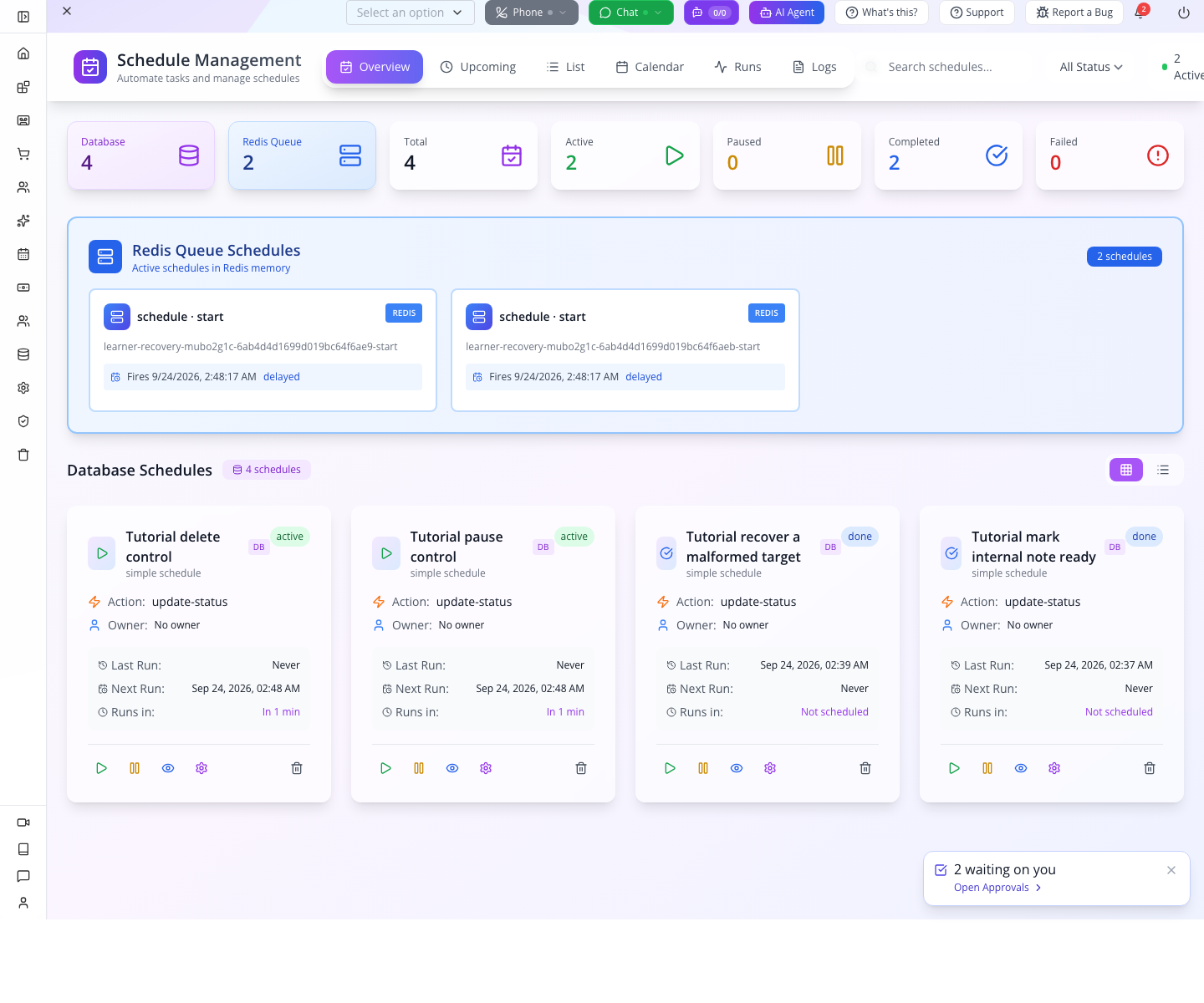
The overview separates Database schedules and Redis Queue entries. A completed one-off job can disappear from Redis while its database record remains. Completed counts database status done; Paused counts stop. A future one-off job shows its start date and countdown. These summaries help you navigate; the target read below proves the intended business change.
2. Create the target record
Create a note used only by this tutorial:
curl -sS -X PUT "$API/repository/create" \
  -H "orgid: $ORG" -H "Authorization: Bearer $STAFF_TOKEN" \
  -H 'Content-Type: application/json' --data '{
    "datatype":"note", "isNew":true,
    "data":{
      "name":"Tutorial schedule status target",
      "title":"Tutorial schedule status target",
      "content":"Harmless training record; no external actions.",
      "status":"waiting"
    }
  }'
Save its sk as TARGET_ID. The returned data.status should be waiting. This is an internal repository record, not a customer message or a note already used by another workflow.
3. Calculate the due time and save the schedule
For example, print an ISO time two minutes ahead:
node -e 'console.log(new Date(Date.now()+120000).toISOString())'Put that value and the target ID in schedule.json:
{
  "datatype":"schedule",
  "isNew":true,
  "data":{
    "name":"tutorial-once-status",
    "title":"Tutorial mark internal note ready",
    "type":"simple",
    "status":"active",
    "target":[{"datatype":"note","id":"<target-sk>"}],
    "start":{
      "date":"<future-ISO-time>",
      "action":"update-status",
      "actionArgs":"ready"
    }
  }
}
curl -sS -X PUT "$API/repository/create" \
-H "orgid: $ORG" -H "Authorization: Bearer $STAFF_TOKEN" \
-H 'Content-Type: application/json' --data-binary @schedule.jsonSave the schedule's returned sk as SCHEDULE_ID. The target needs both datatype and id; the action needs its intended value in actionArgs.
type: "simple" creates a one-off start job when a future start.date exists. An end job is created only when a valid later end.date is supplied. This example created one, not two, queue jobs.
4. Confirm it reached the queue
curl -sS "$API/queue-manager/org-schedules" \
  -H "orgid: $ORG" -H "Authorization: Bearer $STAFF_TOKEN"
Find queues[].schedules[] where data.sk equals your schedule ID. The rehearsal showed:
| Field | Observed value or pattern |
|---|---|
| Queue | schedule-queue |
| Job name | start |
| Job ID | <org>-<schedule-sk>-start |
| State | delayed |
scheduledFor | The requested future ISO time |
opts.attempts | 3 |
opts.removeOnComplete | true |
A successful schedule save does not establish that a job was queued. If the date is already past, the queue helper rejects it internally; inspect the queue rather than waiting for a time that has passed.
5. Check the result after the due time
Use separate reads:
curl -sS "$API/repository/get/schedule/$SCHEDULE_ID" \
  -H "orgid: $ORG" -H "Authorization: Bearer $STAFF_TOKEN"
curl -sS "$API/repository/get/note/$TARGET_ID" \
  -H "orgid: $ORG" -H "Authorization: Bearer $STAFF_TOKEN"
curl -sS "$API/queue-manager/schedule-runs/$SCHEDULE_ID" \
  -H "orgid: $ORG" -H "Authorization: Bearer $STAFF_TOKEN"
The schedule became done with lastRun. The target became ready. The run endpoint returned totalRuns: 1, with status success, type update, and a comment beginning Schedule started.
Use the returned status vocabulary. The observed run status was
success, notcompleted. Filtering history for a status that was never written can hide the run you need.
6. Compare the UI without losing the API evidence
In Studio, open Runs. Your successful activity appears as completed with its execution time and schedule ID. Select View Logs on that row to read the recorded action. Match the ID rather than relying on similar names.

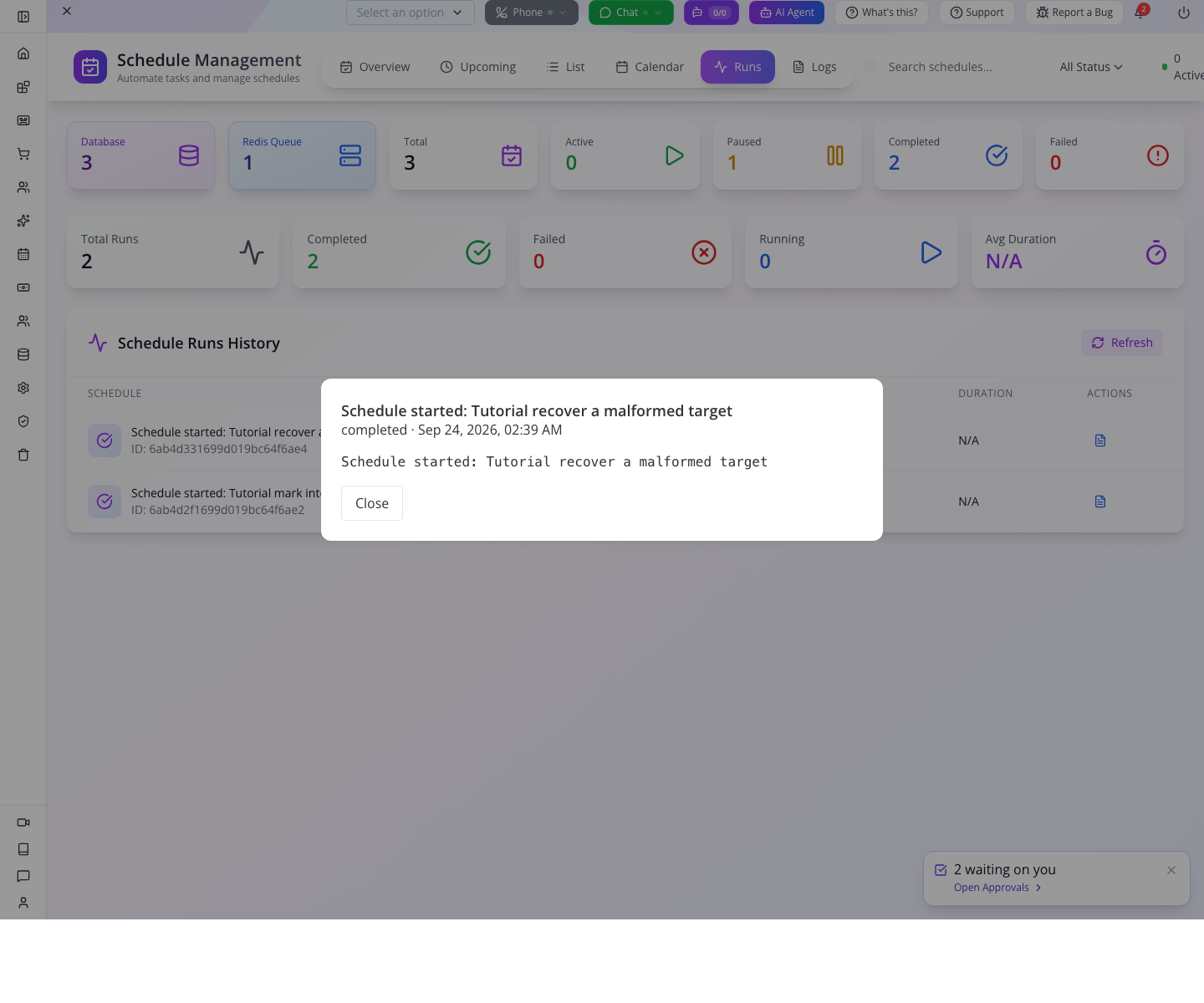
The API calls a successful activity success; Studio displays it as completed. Use status=success when filtering the API. The schedule-statistics endpoint also returned 200 in this rehearsal. If a summary fails to load, read the target and ID-specific history before retrying an action that may already have succeeded.
Part 2 — Fail one job, then repair the same schedule
1. Introduce a controlled input error
Use another schedule named tutorial-recover-status, with title Tutorial recover a malformed target, a future date and action update-status with actionArgs: "reviewed".
For this isolated failure exercise only, omit the target's datatype:
"target": [{ "id": "<your-training-note-sk>" }]The create request returned 200; validation did not reject the incomplete target. When due, the worker failed with:
Cannot read properties of undefined (reading 'datatype')The queue retained the failed job with attemptsMade: 3. No external destination was involved.
2. Read the failure at the layer that recorded it
The database schedule still said active, and schedule-runs/<id> returned zero runs. The failure happened before the worker wrote its successful activity. Therefore neither an active record nor empty activity history established a healthy job.
An authorized operator can inspect GET /queue-manager/details/schedule-queue and find the exact job ID inside failedJobs. This endpoint can include jobs from other organizations; restrict any saved diagnostic output to the job being investigated and apply proper access controls to the operational endpoint.

Do not use GET /queue-manager/queue/schedule-queue as a status endpoint; that returned 404. The similarly named POST route enqueues work and is a different operation.
3. Read the latest raw schedule and correct it
Retrieve GET /repository/get/schedule/<failed-schedule-sk>. Keep its current pk, sk, datatype, version and business fields. Add datatype: "note" to the target, calculate a new future start time, and retain actionArgs: "reviewed".
Submit the complete current record through:
curl -sS -X POST "$API/repository/update/$FAILED_SCHEDULE_ID" \
  -H "orgid: $ORG" -H "Authorization: Bearer $STAFF_TOKEN" \
  -H 'Content-Type: application/json' --data-binary @corrected-schedule.json
The rehearsal returned 201 and incremented the version to 1. Updating schedules invokes removal/recreation of their keyed queued work. Do not submit an old enriched list object or drop fields you intend to preserve.
4. Confirm the corrected run
After its new due time, the same schedule read done; its run history contained one success activity for the corrected action. The earlier failed queue attempt had been captured before repair, because replacing the keyed job changes what remains in the queue.
Read the recovery target immediately using the same repository GET from Part 1. Its data.status must now be reviewed. The fresh rehearsal captured this exact value, the same schedule ID marked done, and its successful activity together. Use separate targets for later exercises so another action cannot overwrite this evidence. Actual repair readback.
Try it: compare the original malformed target with the corrected target. Only the second supplies the record type the worker needs.
Check yourself: should you increase retries for a missing datatype? No. The same invalid input fails repeatedly until corrected.
Part 3 — Understand pause and cancellation before relying on them
Use two new notes and two new schedules so this check cannot overwrite your successful recovery. Repeat Part 1.2 for each note, naming them Pause safety target and Delete safety target, both initially waiting. Repeat Part 1.3 with distinct schedule names Pause practice and Delete practice, their respective note IDs, actionArgs: "should-not-run", and start times at least five minutes ahead. Save all four IDs. Confirm both delayed jobs in org-schedules before continuing.
1. Pause one future schedule
- Open Overview, select Refresh, and find Pause practice in Database Schedules.
- Select its pause icon, labelled Pause Schedule. Wait for the save to finish, then refresh.
- Read that schedule through
GET /repository/get/schedule/<its-sk>. Its status should bestop; Studio's Paused counter should increase. - Read
org-schedulesagain. Its keyed start job should be absent. - After the original due time, read Pause safety target. It must still be
waiting, with no successful execution activity for this schedule.
The rehearsal passed all five checks. The worker checks the saved status again before acting, covering work picked up around the time a pause is saved. Pause cannot undo an external action that already began.
Resume carefully: the play icon saves active. It does not replace an expired start date or mean “run immediately.” Before resuming an overdue one-off schedule, use Schedule Settings to give it a new future start time, then confirm the new delayed job. In Schedule Settings, check Target records, set Run at under When, and select Save Schedule; preserve the action and its target status. The local rehearsal verified this save, play, requeue and due-time execution. Do not change the date of a customer's live job while practising.
2. Delete the other future schedule
- Find Delete practice, select Delete Schedule (trash icon), and confirm Delete in the dialog. Cancelling the dialog keeps the record.
- Read the schedule by ID. A 404 confirms that the record is gone.
- Read
org-schedules. Its keyed delayed job should also be absent after the delete request finishes. - After its original due time, read Delete safety target. It must remain
waiting.
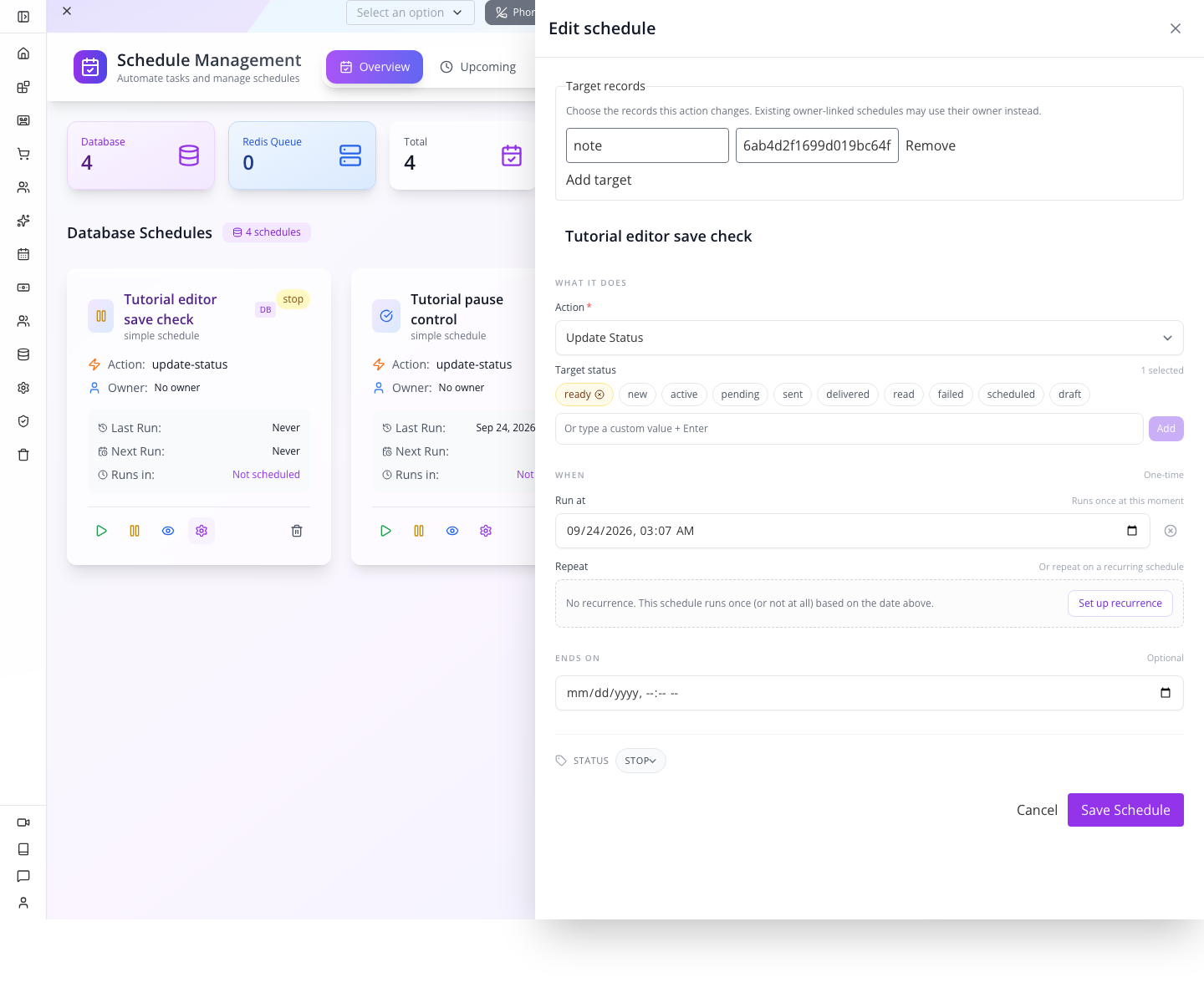
These are separate checks: a success toast alone proves neither cancellation nor an unchanged target. Deletion now notifies the scheduler to remove its own jobs; the worker also skips a missing record. This is cancellation of future work, not a rollback of work already in progress.
3. Separate retries from business duplication
Our schedule helper enqueued three attempts. Notification jobs use different options: the checked notification enqueue path uses two attempts with exponential backoff starting at five seconds and a 60-second timeout. Generic datatype work and other processors differ again. Read the options on the actual job rather than copying a universal retry number.
An idempotent status assignment can tolerate repetition more easily than charging a payment or placing an order. A provider timeout may occur after the provider accepted a request. For real external actions, use the provider's idempotency facility and a persisted business operation ID; a queue's deduplicated job ID alone does not prove exactly-once delivery.
Try it: compare the paused and deleted records. Pause retains a schedule with stop; deletion removes it. Both must leave their practice targets unchanged after the due time.
Check yourself: can a done schedule prove an email reached an inbox? No. It may only establish that work was handed off. Delivery needs the messaging/provider evidence.
Part 4 — Operator branches
The organization-scoped org-schedules and ID-specific schedule-runs endpoints are useful for business troubleshooting. Global queue details, monitoring and sync state have a broader scope. Their visibility and role checks are not identical to the Studio menu.
System Operations → Queue Manager belongs to platform operations. Its APIs include queue listing/stats, queue actions, one-off scheduling and queue pause/resume. The inspected controller protects several mutations with RootAdmin/ConfigAdmin roles, while some read routes and the cluster sync-tick removal route lack equivalent role guards. Treat that as an access-control issue to address, not as an invitation to operate a shared cluster from an ordinary tutorial account.
Repeatable cron jobs live in Redis. Restarting a process is not a reliable way to erase them. The checked schedule update handler's cron branch also needs a full integration test of expression propagation before you promise recurrence from a database field alone. This course executed one-off jobs only.
For social publishing, billing, escalation and messaging, pair this queue course with the relevant business workflow. Verify the action's actual target and side effects before creating a schedule. The run, start and stop action branches inspected in the worker contain pending implementations; a label alone is not an executable custom job framework.
If something goes wrong
| Symptom | First check | Next action |
|---|---|---|
| Saved record but no delayed job | Future date, queue connection, type | Correct the input and inspect org-schedules. |
| Overview says active after failure | Exact job ID in failedJobs | Read failedReason and attemptsMade. |
| Missing datatype error | Target object | Supply both datatype and id; reschedule with a new future time. |
| Empty Runs tab | ID-specific history endpoint | Read schedule-runs and the target directly. |
| schedule-stats returns 500 | Other read endpoints | Keep the error; use history and target checks. |
| Run filter hides success | Saved activity status | This run used success, not completed. |
| Paused schedule executes | Saved status and due-time ordering | Confirm stop, worker version, and whether execution began before the pause. |
| Deleted record still has a delayed job | Exact job ID and completed delete request | Refresh the queue read; retain evidence and report a cancellation failure if it persists. |
| Retry performs the action twice | External action's idempotency | Reconcile by business operation ID before resending. |
| UI count disagrees with record | Status vocabulary and data source | Compare database, queue and activity separately. |
What happened behind the scenes
Code and evidence
appengine/src/sync/commands/schedule-updated-handler.ts loads the schedule and manages keyed Bull jobs. sync/queue-consumer/schedule.consumer.ts resolves targets, performs actions, updates status and records activities. sync/queue.manager.service.ts implements delays, retries, queue details and history. repositories/repository.crud.service.ts owns database writes and schedule commands. sync/queue.manager.controller.ts defines route methods and guards.
Fresh local acceptance: complete report, including corrected recovery target, real pause, immediate cancellation and resume. The older assets below document the original rehearsal and its pre-fix failures.
Historical evidence: target, schedule request, queued job, successful result, malformed target, failed job, repair, pause/recovery readback, deletion immediately afterwards, deleted job after due time, capture ledger.
Where next
Operate and extend AppEngine explains how to follow a failure from request to source and operational state. Business automation covers the staff workflow around the action.
Evidence: a successful internal-note action, three-attempt malformed-target failure, corrected same-record run with target reviewed, and real UI pause/deletion checks were exercised locally on isolated training records. No real notification, payment, social post, global queue mutation, cron execution or cluster sync change was performed. Video production guide.