
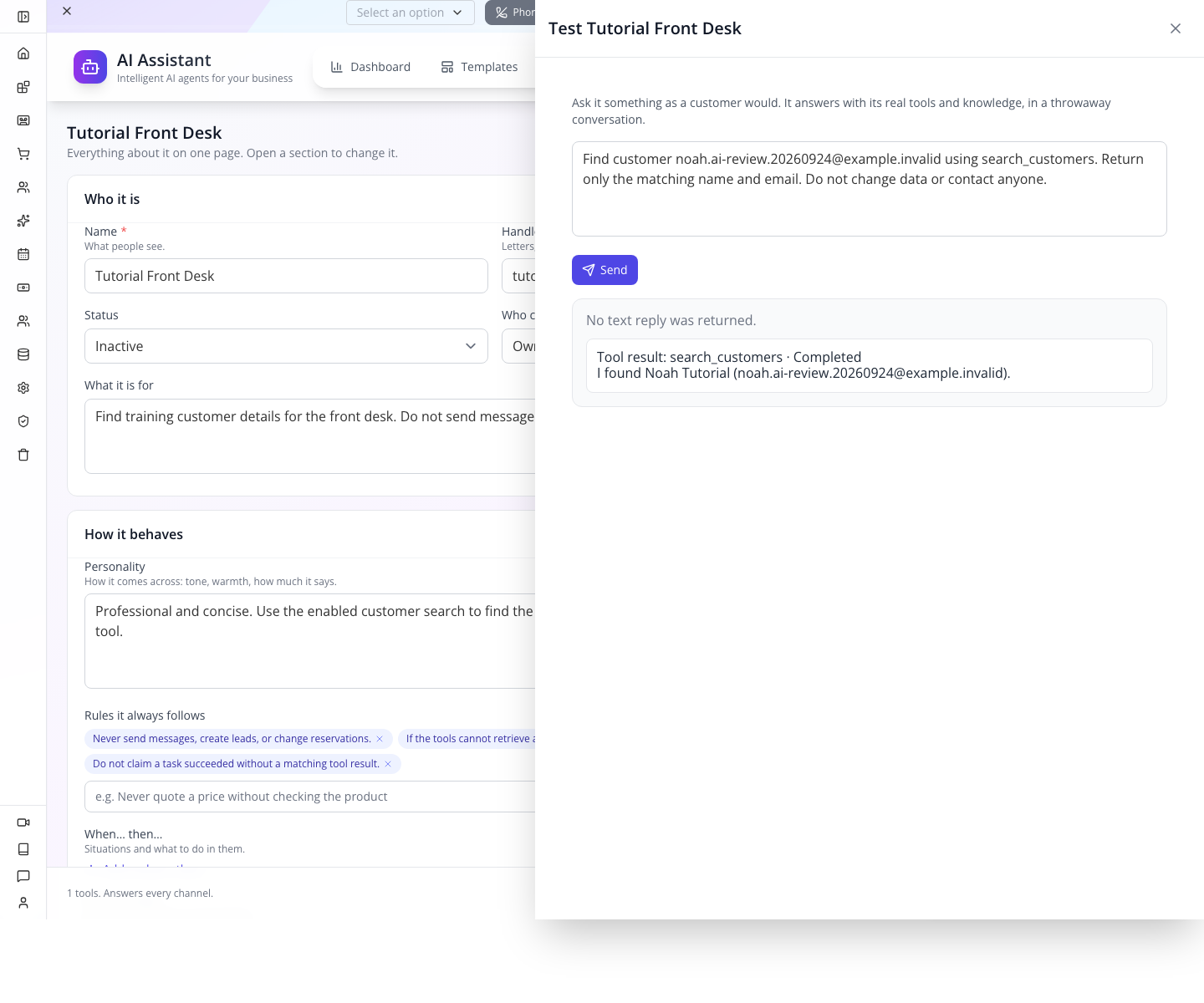
 One requested email, one matching customer. Check the executed tool result before acting on it.
Who: business administrators configuring an assistant, and developers connecting an external AI client. Time: 60 minutes. Level: guided setup, then developer integration. Product: Studio Manager AI Assistant and AppEngine MCP. Checked: 24 September 2026 against the local application. Example: a fictional front desk and Noah Tutorial for customer search; the MCP chapter explains the separate booking lookup and labels its historical reference.
What you will have at the end
You will configure a narrowly focused assistant, understand tools versus instructions, and read its saved configuration. You will also make a real MCP lookup of a booking and distinguish a business-tool result from model-generated prose.
The current Studio test successfully retrieved the exact requested customer through the configured model and search tool. The Test panel displays the tool result separately because this execution returned no follow-up prose. MCP booking retrieval was verified independently. The course also shows how to recognize an apparent success that lacks a matching tool result.
What you need
- Studio access to AI, IVR, Automation → AI Assistant.
- Your organization ID and a staff session for developer requests. Connect a client to AppEngine covers normal sign-in, headers and response handling.
- A fictional customer you created and whose email you can check in CRM. For the MCP chapter, also have a booking you control and its saved reference. Use your own records; the screenshots' names and references identify the author's training fixtures.
- An AI provider and compatible model configured by your operator for the Studio execution branch. MCP's direct service lookup does not require a model to generate an answer.
Use https://appengine.appmint.io as the checked production API origin, or your operator's local/staging origin. The business-data rehearsal here used local training accounts; production health availability does not establish that every production tool matches the local build.
The story and route
The front desk needs facts, not confident guesses. A staff member asks who a customer is and when a known consultation is booked. The first assistant can search customers. A developer's MCP connection can retrieve a booking by reference. Changing that booking remains a separate, deliberate staff action.
Studio test:      saved instructions + selected tools → model → executed tool result
External client:  discover MCP service → inspect signature → authenticated tool call
Both paths:       compare returned facts with the saved business record
Tools perform actions. A behavior rule tells the model how to behave; removing a tool removes that capability from this assistant's configured tool set. A capability is an instruction playbook. A channel or trigger decides when the assistant runs. These controls solve different problems.
Part 1 — Build an assistant with one useful tool
1. Open the current assistant editor
In Studio, select AI, IVR, Automation → AI Assistant, then New Assistant. The module also has Dashboard, Templates, Assistants, Available Tools, Phone & Voice, and Activity Logs.
The current editor is one page with expandable sections: Who it is, How it behaves, What it can do, When it works, What it knows, Where it stops, and Memory and voice. Select a section heading to open or close it. There is no Next/Review wizard on this build; you save with Create at the bottom.
2. Identify it and keep it inactive
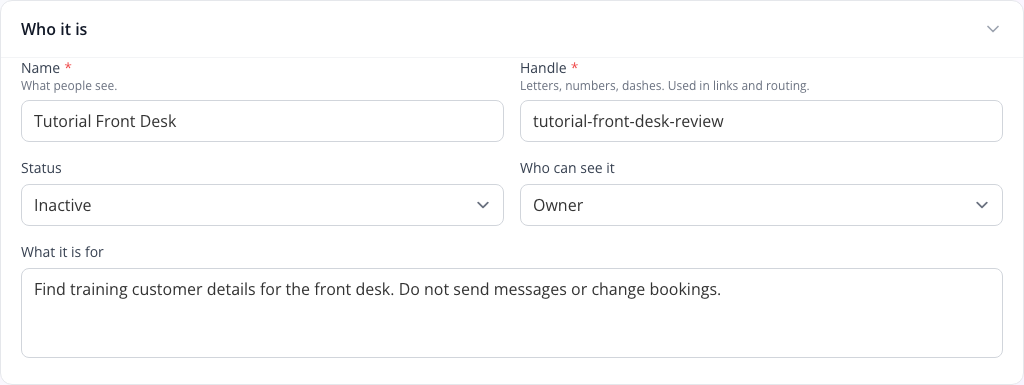
In Who it is, enter:
| Field | Training value | Purpose |
|---|---|---|
| Name | Tutorial Front Desk | The readable name staff see |
| Handle | tutorial-front-desk-review | Its unique identifier in your organization; use another unused handle if this one exists |
| Status | Inactive | Prevent execution while configuring it; the new form initially offers Active |
| Who can see it | Owner | Keep this practice configuration in your own view |
| What it is for | Find training customer details for the front desk. Do not send messages or change bookings. | Define the small job this lesson will test |
Typing Name generates a handle until you edit Handle yourself. Confirm both before saving: a different display name does not fix a duplicate handle.
3. Give it a clear manner and boundaries
Open How it behaves. In Personality, enter:
Professional and concise. Use the enabled customer search to find the exact training customer. State only facts returned by the tool.
Under Rules it always follows, type each rule and press Enter or select Add. Each must appear as a separate saved chip:
Never send messages, create leads, or change reservations.If the tools cannot retrieve a booking, say so and ask staff to check the reservation reference.Do not claim a task succeeded without a matching tool result.
Leave When… then… and First message empty for this exercise. A behavior rule guides the assistant's response; it does not remove a tool or replace the server's permissions.
4. Allow customer search only
In What it can do → Tools, select Only the ones I pick. On the checked build this initially selects the available tools. Clear every checkbox except Search customers. Check the final summary: it must say 1 tools, and reopening must show only customer search checked.
Every tool grants the available tool set. None — it only talks grants none and hides the checklist. Neither matches this exercise. If you select None, return to Only the ones I pick and review the entire checklist again; do not assume it remembers a one-tool choice.
Customer search looks up CRM customers by email, name, phone or username. It does not by itself retrieve an existing reservation. Keep all messaging, booking-changing, ticket-changing and phone actions unchecked. Leave What it is good at playbooks unselected for this narrow test.
5. Separate channels, triggers and knowledge
In When it works, leave What starts it empty: do not add an event trigger. Read the channel/account hints carefully. No selected channels means every channel, and no accounts means all accounts. An empty channel list is not an off switch; Inactive is the execution stop used while preparing this lesson.
Leave What it knows empty. This exercise obtains facts from the customer's actual record, so uploading an unrelated document adds nothing. For a later policy assistant, use Add a source and provide an approved document, collection, URL or text appropriate to that task; review any upload's visibility before saving.
Where it stops and Memory and voice contain further behavior and retention settings. Keep the inherited values here. Choosing a voice does not assign an employee phone or establish telephone routing. The employee-phone course covers that separate setup.
6. Save, reload and prove the scope persisted
- Recheck Inactive, the unique Handle, and the single checked Search customers tool.
- Select Create. If validation fails, correct the displayed field and keep the draft open; do not repeatedly create another assistant.
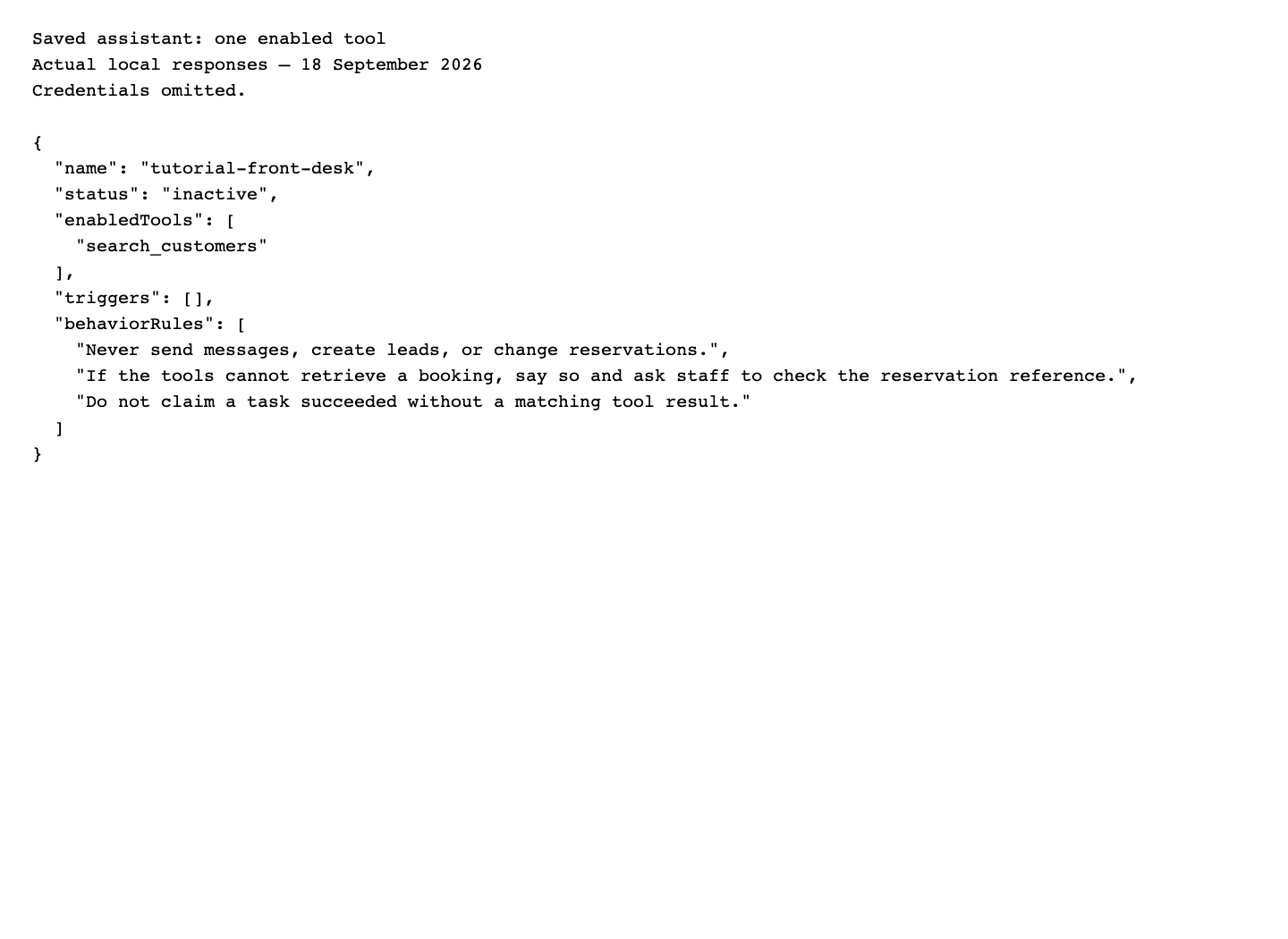
- Reload Studio, select Assistants, and find Tutorial Front Desk.
- Its card should show inactive and Tools: 1 enabled.
- Select View. This opens the editor. Confirm your identity fields, three rule chips and one selected tool. Existing assistants use Save, and also expose Test it.
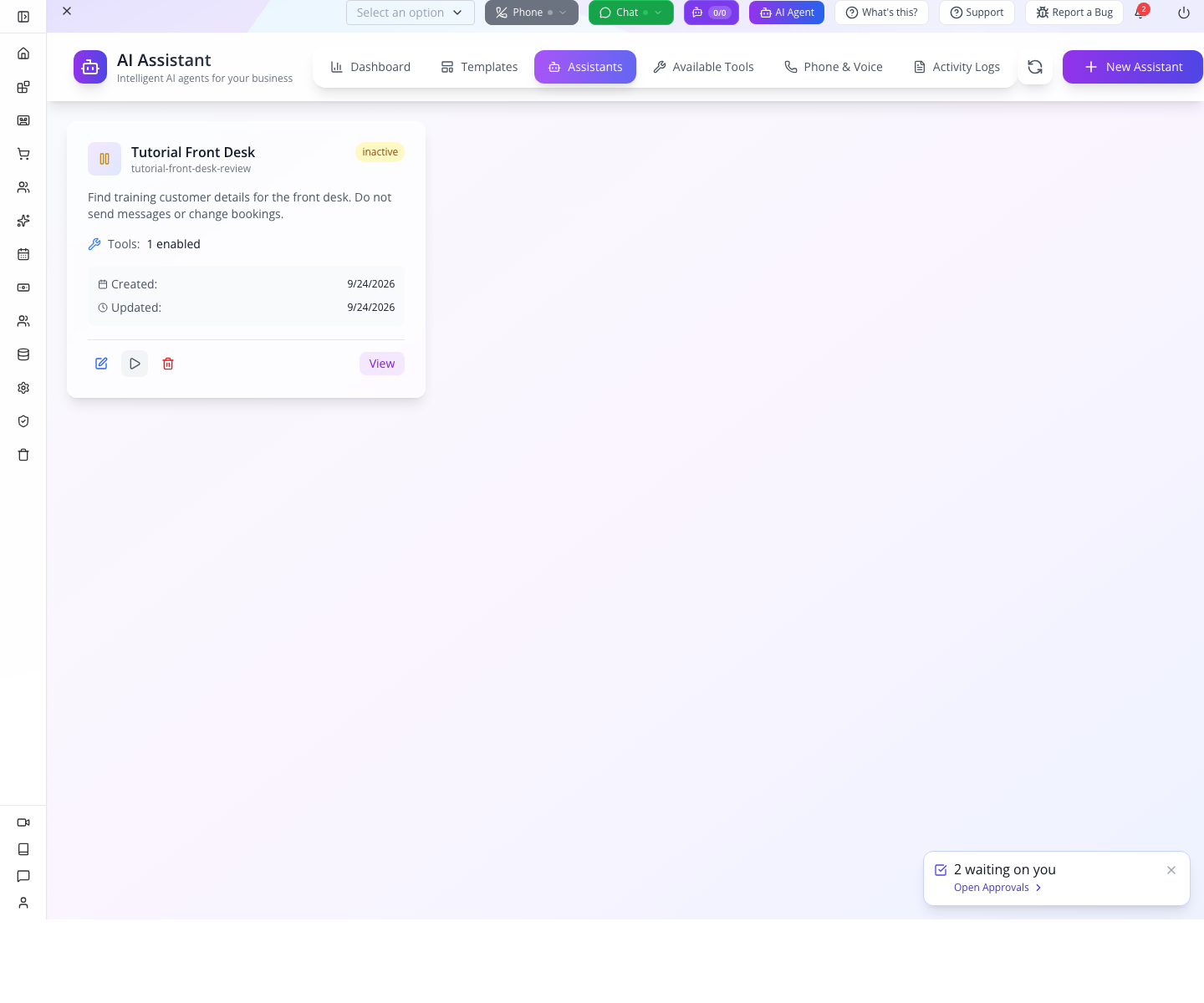
The local API readback independently confirmed the saved handle, three rules, search_customers only, status: "inactive" and triggers: []. Saved settings.
Try it: identify a tool that could contact someone or change a booking, then show that it is unchecked. Keep the assistant inactive until the controlled test below.
Check yourself: does writing “Never cancel bookings” remove cancellation capability? No. Check the actual enabled tools and server authorization as well.
Part 2 — Execute a controlled test and diagnose the result
1. Read the saved assistant through its supported endpoint
With a staff bearer. Both POST /profile/user/signin (the connected-client lesson) and POST /user/signin (the MCP handshake instructions) are supported aliases; both returned a token with the same controlled account in the local 24 September check.
curl -sS "$API/crm/ai-assistant" \
  -H "orgid: $ORG" -H "Authorization: Bearer $STAFF_TOKEN"
The response contains data and count. Find the record by data.name, save its sk as ASSISTANT_ID, then read GET /crm/ai-assistant/$ASSISTANT_ID.
2. Understand the inactive test result
The test endpoint takes task, not message. Set CUSTOMER_EMAIL to the email of the training customer you created; set BOOKING_REF to your own training booking reference. Keep these values in your local shell. Build the JSON with an encoder so punctuation cannot break the request:
export CUSTOMER_EMAIL='replace-with-your-training-customer-email'
export BOOKING_REF='replace-with-your-training-booking-reference'
node -e 'process.stdout.write(JSON.stringify({task:`Find customer ${process.env.CUSTOMER_EMAIL} using search_customers. Return only the matching name and email.`}))' > assistant-test.json
curl -sS -X POST "$API/crm/ai-assistant/$ASSISTANT_ID/test" \
-H "orgid: $ORG" -H "Authorization: Bearer $STAFF_TOKEN" \
-H 'Content-Type: application/json' \
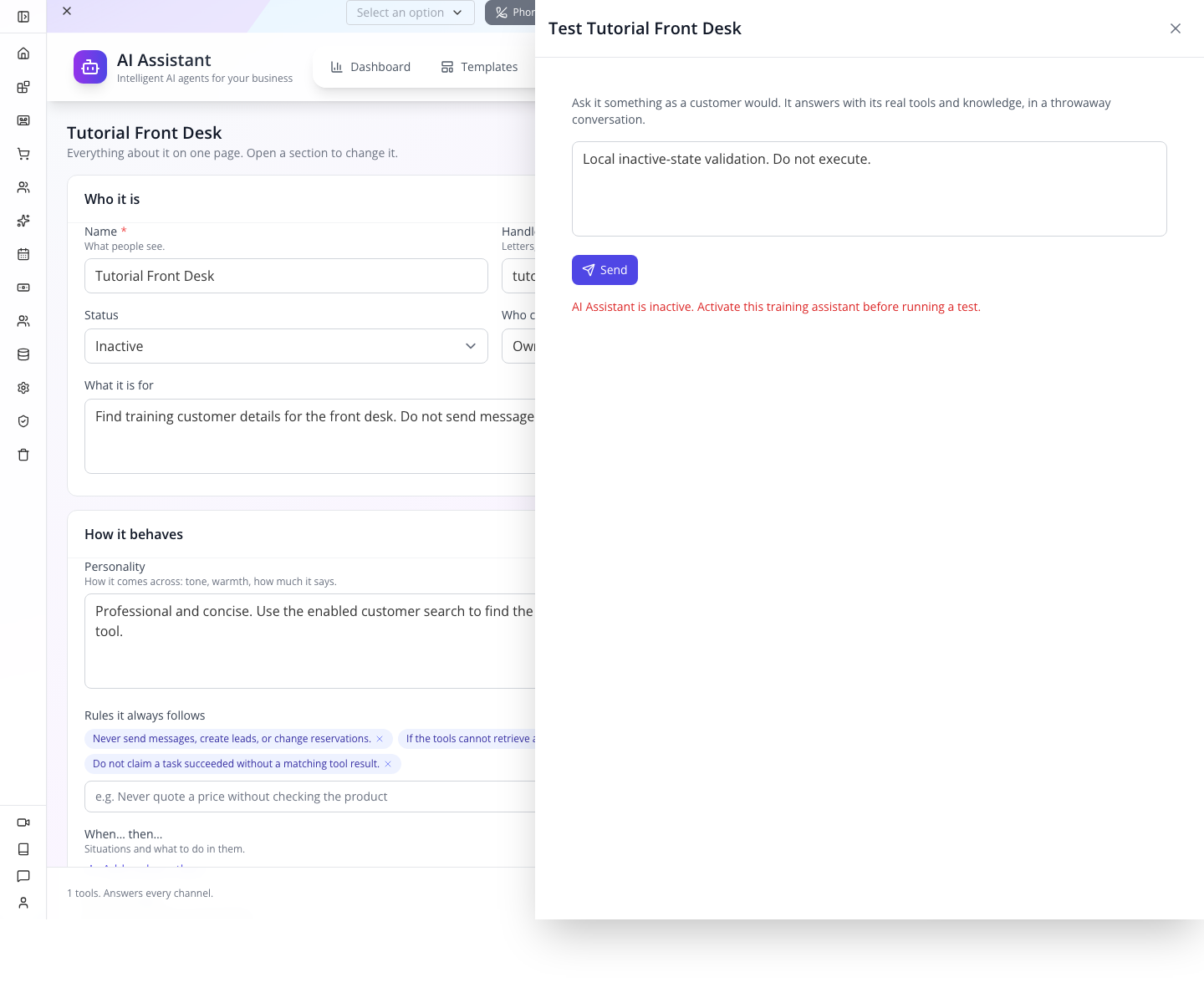
--data-binary @assistant-test.jsonYou can also run this check from the saved editor: select Test it, enter the task, and select Send. While inactive, the corrected local API returns400 and the panel explains: “AI Assistant is inactive. Activate this training assistant before running a test.” This is a configuration guard before tool/model execution, not a provider outage. The earlier generic500 was fixed and retested.
3. Activate only for an isolated test
The rehearsal temporarily set status: "active" with no automatic triggers, confirmed that customer search was the only enabled tool, and issued the test. The update endpoint is:
curl -sS -X PUT "$API/crm/ai-assistant/$ASSISTANT_ID" \
  -H "orgid: $ORG" -H "Authorization: Bearer $STAFF_TOKEN" \
  -H 'Content-Type: application/json' \
  --data '{"status":"active","triggers":[]}'
Use a controlled training assistant for this exercise. Do not change a live assistant's triggers just to run a tutorial.
Now run the same task from the saved editor:
- Open AI Assistant → Assistants → View for your training assistant.
- Select Test it. In the task box, replace the example email with the email of your own training customer. Keep the instruction to use
search_customersand not change data or contact anyone. - Select Send once and wait for the result.
- Read Tool result: search_customers · Completed. For an exact email lookup, expect the one matching customer's name and email. Compare both with the customer you created. An unrelated list is not a successful lookup.
- Distinguish the tool result from model prose. This endpoint can execute a tool without generating a second text answer. No text reply was returned alongside a completed tool result means the lookup ran; it does not mean the tool failed. No tools ran in this test means there is no executed-tool evidence, even if the text sounds confident.
The 24 September local rehearsal used deepseek-v4-pro and returned exactly the requested training customer. The raw result contained one successful search_customers entry and one matching customer. No booking or customer was changed, and no message was sent. The screenshot captures the result drawer over an editor opened while inactive; that background field is not the activation readback. The test temporarily activated the saved record, and a separate readback confirmed it was inactive afterward.
Gotcha: text that looks like a tool call is not a tool result. An earlier attempt printed <tool_calls> without executing anything. Another returned customers who merely shared the email domain. Both application defects were repaired and the exact-email result above was rechecked. If either symptom appears, preserve the task and result for support; do not use those records as a confirmed match.
4. Restore inactive, then check the boundary
Close the Test drawer. Set Status → Inactive, select Save, then reopen the assistant and confirm it is inactive with only the intended tool selected and no automatic triggers. Developers can perform the same restoration with PUT /crm/ai-assistant/$ASSISTANT_ID:
{ "status": "inactive", "triggers": [] }Read the saved record again; a closed drawer alone does not deactivate an assistant.
For the separate refusal exercise, use a fictional booking and ask to move it while only customer search is enabled. Inspect both the tool trace and the unchanged booking afterward. The current successful rehearsal proves customer lookup only; a live model refusal and unchanged-booking readback remain to be verified. Do not treat the instruction “never change reservations” as a substitute for disabling mutating tools.
5. Check the saved activity, not just the assistant's answer
- Return to AI Assistant → Activity Logs.
- Select Refresh after the test finishes. Look for the activity description, time, type and status that match your test. A failed execution should remain identifiable as a failure.
- If loading fails, read the displayed error and retry with Refresh after resolving it. A request failure is different from a successful request returning no records.
- For a developer cross-check, request
GET /crm/ai-assistant/$ASSISTANT_ID/activitieswith the same staff authentication and organization. Compare the returned record'sdata.comment,data.type,data.statusandcreatedatewith the screen. The organization-wide screen usesGET /crm/ai-assistant/activities. - If an action was requested, also inspect the actual business record. An activity description or model answer alone does not prove a booking changed or a message arrived.
Look for a separate ai_tool_call · success entry for the search, alongside the execution's start and completion. The current local API contains that tool entry and its one-customer result. An ai_execute · success row alone only establishes that the execution returned; the earlier no-tool attempt also produced one.

Keep credentials and customer-sensitive content out of screenshots shared outside your team.
Try it: compare a failed test's HTTP response with the matching activity comment and time. If there is no corresponding record, record that gap rather than inventing an activity.
Check yourself: can a successful saved configuration establish a successful conversation? No. You still need an execution result and, when an action is involved, a business-record readback.
Part 3 — Retrieve a booking through MCP
This is a separate developer path. MCP exposes registered service methods to an external client; it does not use the saved CRM assistant's 27-tool list.
1. Initialize and discover tools
All requests below are JSON-RPC over POST /mcp. Start without business credentials for discovery:
curl -sS "$API/mcp" -H 'Content-Type: application/json' --data '{
  "jsonrpc":"2.0","id":1,"method":"initialize",
  "params":{"protocolVersion":"2025-03-26"}
}'
The checked response identifies Appmint AppEngine and supports tools. Then send:
{ "jsonrpc":"2.0", "id":2, "method":"tools/list" }The three tools are list_services, describe_service and call_service. Use tools/call to invoke the first:
{
  "jsonrpc":"2.0", "id":3, "method":"tools/call",
  "params": { "name":"list_services", "arguments":{} }
}
Discovery succeeded without signing in. Business-data execution needs authenticated context.
2. Describe the actual registered service
ReservationsService was not registered on this build. Its description returned AI-callable service not found: ReservationsService. Use the discovered RepositoryCrudService:
{
  "jsonrpc":"2.0", "id":4, "method":"tools/call",
  "params": {
    "name":"describe_service",
    "arguments":{"service":"RepositoryCrudService"}
  }
}
Read the signature of findOneAnyId: orgId, datatype, dataId, options. Its first parameter is exactly orgId, so this registry injects the organization from authenticated context. Omit that parameter from the positional args you send.
Organization argument: omit the first organization parameter from
argswhether the discovered signature spells itorgIdororgid. The server inserts the authenticated organization. The local repair verified bothfindOneAnyIdandfindagainst the same saved booking. Do not pass another organization's ID as an argument.
For a filtered lookup, the registered find(orgid, datatype, query, options) method takes args: ["reservation", {"sk": "YOUR_SAVED_BOOKING_SK"}, {"enrich": false, "pageSize": 1}]. Replace the placeholder with the sk returned for your booking; a display reference is not necessarily its sk. The example below uses findOneAnyId so you can start with your booking reference.
3. Make the authenticated lookup
Use the BOOKING_REF you set for your own training booking above. This generator inserts that reference into the positional arguments; it does not query the author's historical booking.
node -e 'process.stdout.write(JSON.stringify({jsonrpc:"2.0",id:5,method:"tools/call",params:{name:"call_service",arguments:{service:"RepositoryCrudService",method:"findOneAnyId",args:["reservation",process.env.BOOKING_REF,{}]}}}))' > booking-lookup.json
curl -sS "$API/mcp" \
  -H "orgid: $ORG" -H "Authorization: Bearer $STAFF_TOKEN" \
  -H 'Content-Type: application/json' --data-binary @booking-lookup.json
You should see: HTTP 200, result.isError: false, and JSON serialized inside result.content[0].text. Parse that text as JSON to inspect the record. The fresh local read returned our own Noah Tutorial booking, Design consultation, 5 October 2026 at 10:00 America/Chicago, reference ZK0EFBML, and status new. Your own reference and customer should replace these example values. Fresh MCP results.

A factual answer could say: “Noah's consultation ZK0EFBML starts at 10:00 on 5 October, Chicago time. Its current status is new.” Do not paraphrase new as “confirmed.” This example answer is derived from the tool response; it is not a captured model-generated reply.
4. Exercise refusal paths
Repeat the call without Authorization: the tool result has isError: true and an authentication-required message. Sending a token without orgid produced the same authentication-required message in this build because no user context was resolved. Requesting tutorialNotExposed as the method produced the not-@AiCallable error.
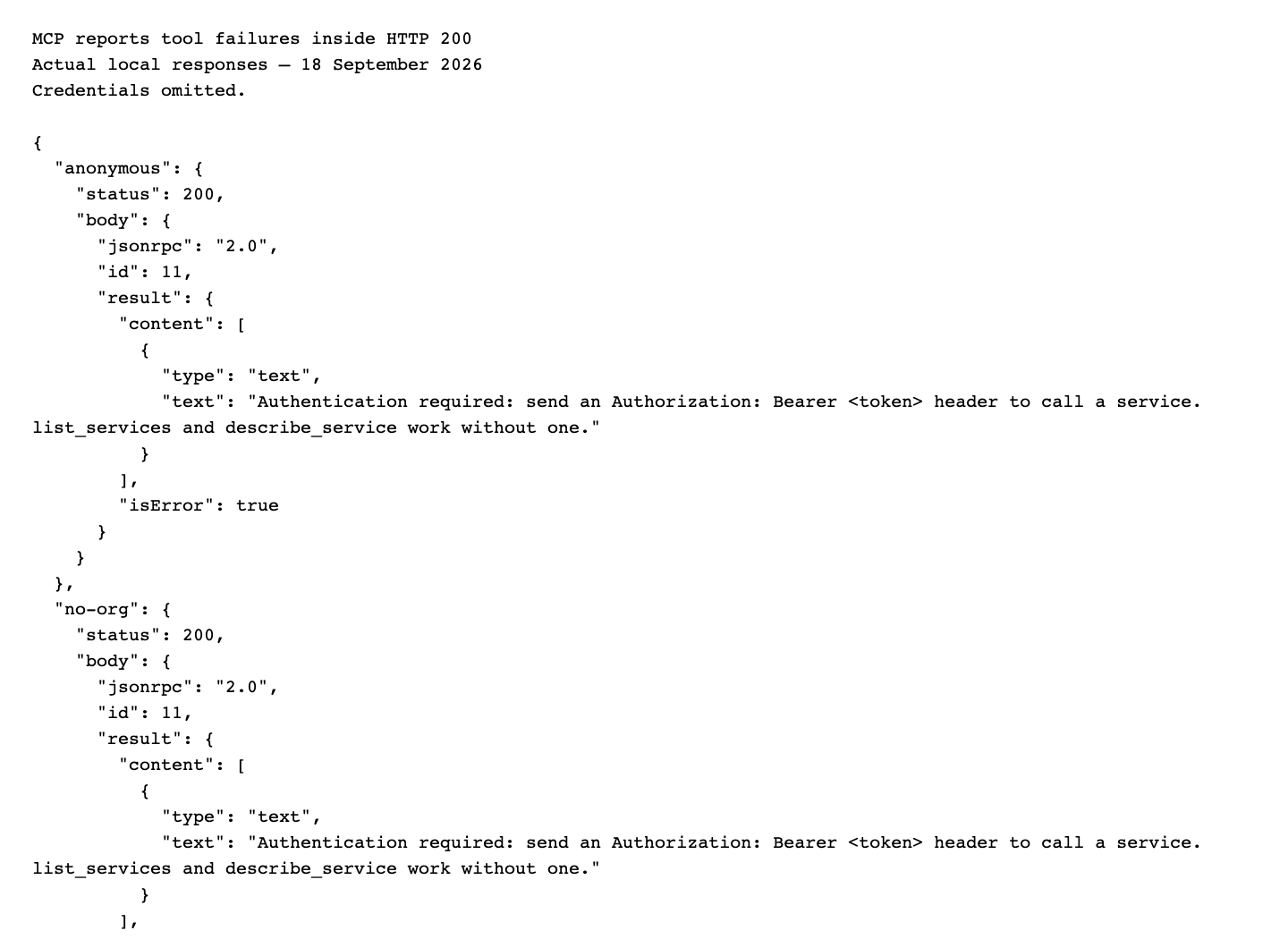
Check both the HTTP layer and result.isError. A transport 200 does not mean the service action succeeded.
Try it: use your own training booking reference and compare the MCP record with the staff board.
Check yourself: the client says “done” but the MCP result has isError: true. Treat it as failed and show the tool error; do not trust the client's summary over the response.
Part 4 — Extend without handing over every action
A general MCP connection is not automatically read-only because you ask it read-only questions. The inspected call_service gate checks content read permission before invoking exposed methods; the registry includes mutating methods too. Apply a server-side service/method allowlist for a narrowly scoped assistant and verify the underlying method's authorization. Prompt rules alone are not that boundary.
For a human-reviewed change, keep lookup and mutation separate. Present the exact booking, current time/status and proposed new values to staff. Staff should use the established booking workflow or an explicitly authorized mutation after review. The workflow course covers the platform's approval concepts; automatic wiring from this assistant into an approval was not exercised here and should not be implied.
To expose a custom service, inspect @AiService and @AiCallable, register the provider in the Nest module, and verify the deployed signature with describe_service. The current organization-injection behavior depends on the exact parameter name. Treat a signature change as an integration change, not merely a refactor.
For voice, separate the paths: browser assistant voice uses the AI voice gateway, telephone media uses the voice stream integration, and IVR routing chooses how a number handles calls. Selecting ballad on the personality screen does not provision these. Follow the employee phones course for assignment and mobile calling.
Appmint and its apps are free. Provider configuration and usage records help diagnose which service processed an AI request; they should not become invented paid-plan prerequisites in this tutorial.
Extending to support tickets: identify the caller before the ticket
Keep ticket tools disabled in the customer-search exercise above. When building a separate support assistant, choose the intended caller first:
| Caller | Lookup | Update boundary |
|---|---|---|
| Signed-in customer | Their own ticket number; the server keeps their persisted account filter | The assistant’s Update Ticket tool is staff-only |
| Signed-in staff | Ticket number, optionally narrowed by the customer’s email | Current ticket read and update grants are required |
| Voice/channel identity without authenticated context | An email or caller number does not establish ticket ownership | No private ticket access or update |
An email field narrows a search; it does not authenticate anyone. Do not ask a customer for another person's email to get around a refusal. A custom integration must supply the authenticated principal through the server's trusted request context, never through model arguments or input.data.
Before enabling a support assistant, test with two fictional customers: the first can read their own request and cannot read the second's. Then test a permitted staff account and an account without the required grants. For a staff update, compare the tool result with the saved ticket status. A notification request is separate from confirmed email delivery.
The local tool/service regressions cover these boundaries and the repaired staff lookup by number. A further 12-check rehearsal used persisted fictional records: the customer read their own ticket, cross-customer access was refused, staff updated ticket AIPROOF24 by number, and the actual authenticated HTTP read returned its saved resolution. That update used the compiled tools with a scoped persistence adapter and suppressed notification sink. It proves persisted tool behavior, not a full model conversation or message delivery. Evidence and limits.
If something goes wrong
| Symptom | First check | Action |
|---|---|---|
| New assistant has many tools | Tools count | None, then enable only the intended tool. |
| Cannot find Next or Review | Current one-page editor | Expand the section headings; review settings, then use Create or Save at the bottom. |
| Reload hides the card | Module tab | Select Assistants after Dashboard loads. |
| View opens a form | Current UI behavior | This is the editor; saved records expose Test it. |
| No channels are selected | Empty channel selection means every channel | Keep Inactive while configuring; check channels separately from event triggers. |
| Test says the assistant is inactive | Saved status | Expected guard: the corrected build returns 400. Activate only when ready for the controlled test, then restore inactive. |
| Provider rejects model | Exact provider error | Align provider and model in platform configuration. |
| No text reply, but a tool completed | The separate Tool result card | Read its actual outcome; this test can return tool results without follow-up prose. |
| Tool-like text but no tool result | run.toolResults | Do not treat text as an executed lookup; report the missing execution. |
| Exact email returns unrelated customers | Matching email and returned count | Preserve the task/result and report the lookup problem. |
| Activity Logs empty | Assistant activities API | Refresh, read any loading error, and correlate the ID-specific records. |
| ReservationsService missing | list_services | Use a registered service; this course demonstrates findOneAnyId. |
Organization or Site Not Found: reservation on an older build | Deployed registry version and described signature | The local fix injects both orgId and orgid; keep organization omitted and report a build that still shifts the arguments. |
| HTTP 200 but no data | result.isError | Read the tool error instead of treating transport success as action success. |
| Model reports a change | Tool trace and saved record | Verify the actual mutation; prose alone is insufficient. |
What happened behind the scenes
Code and rehearsal evidence
Studio: websitemint/packages/ui/src/components/crm/ai-assistant/ai-assistant-editor.tsx defines the current one-page editor, tool defaults and channel/trigger conversion. app.tsx owns the module tabs. AppEngine: crm/ai-assistant/ai-assistant.controller.ts takes task for tests; ai-assistant.service.ts checks active status, executes and records activities. ai/agents/crm-assistant-role.ts builds the enabled tool handlers. ai/agents/base-agent.ts selects the default model through configuration; this rehearsal did not change shared provider settings.
MCP: mcp/mcp.controller.ts, mcp/mcp.service.ts and ai/ai-service-registry.service.ts implement discovery, permission checking and exact-name organization injection. Read the current deployed description rather than using an old method list.
Evidence: saved assistant, inactive test, lookup test error, change-request test error, final inactive state, API activities, MCP description, successful booking lookup, capture ledger.
Where next
- Reliable background jobs — follow queued work to an actual result.
- Operate and extend AppEngine — trace failures and maintain integration boundaries.
Historical 18 September evidence: complete inactive assistant creation and reload, one-tool readback, inactive rejection, two active/no-trigger tests, restoration to inactive, activities API/UI comparison, anonymous MCP discovery, signature inspection, authenticated booking read and three failure paths were exercised. No successful LLM answer, messaging, booking mutation, Claude Desktop session, voice call, automatic approval flow or production deployment is claimed. Video production guide.
24 September continuation: the current one-page editor, inactive-state guard, local booking/MCP reads, ticket authorization regressions and activity-feed repairs were checked separately. The approved DeepSeek run executed customer search and returned exactly one matching customer in the real Test drawer. No follow-up model prose was generated; the tool outcome is displayed separately. Restoration to inactive and the saved tool activity were verified. Current review evidence.
Management access, 24 September: the repaired management endpoints require signed-in staff. Live checks confirmed staff-owner access and refusal for the training customer, site app and anonymous caller. The execution guard also rejects inactive assistants and customer/site-app invocation of owner/team/organization assistants before model work. Existing global access and trusted internal triggers remain supported. Nineteen isolated regressions verified these boundaries; this is separate from the live model/tool acceptance in the current review.