
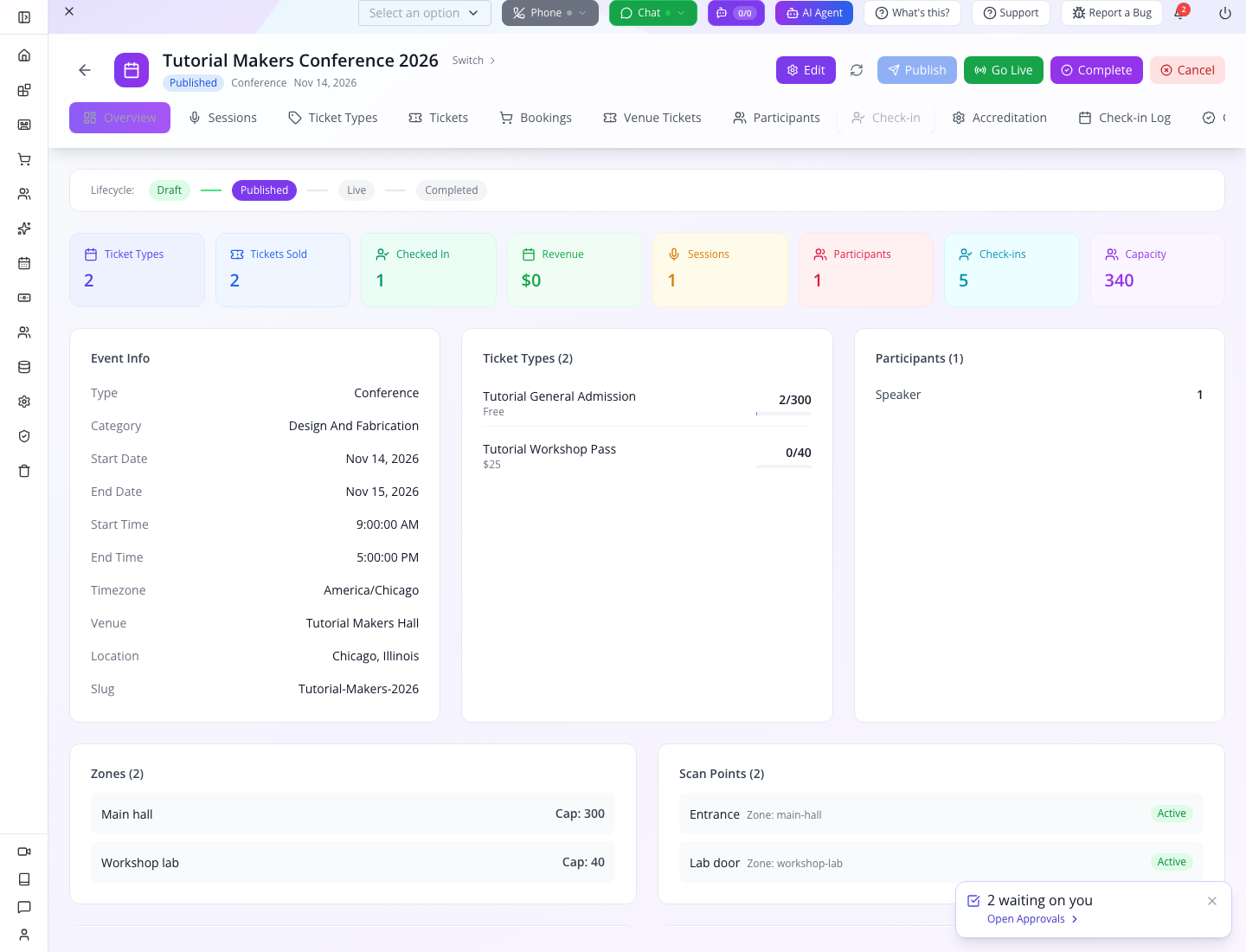
One event, two ticket types, a scheduled talk and an admission rehearsal. Movement attempts include refusals and repeated guests; they are not a count of unique people.
Who this is for: event organizers, registration teams and developers building an attendee experience. Time: 60–90 minutes, plus the developer setup where indicated. Level: beginner operations, then PRO integration. Products: Appmint Studio Manager, Appmint Mobile and AppEngine; EventOxygen is the attendee companion. Build checked: local Studio, AppEngine and Android source builds, 24 September 2026. Physical camera scanning, iOS and printing remain separate device rehearsals.
What you will have at the end
You will define a two-day conference, distinguish its main hall from its workshop area, create a free admission type and a priced workshop type, schedule a talk, and understand what a speaker record does. You will then use a staff phone to admit a fictional guest, refuse the wrong zone, record an exit, test re-entry and fulfill another guest’s ticket at registration.
The result is a rehearsed operating procedure you can adapt to your event company. Appmint and its apps are free. The $25 in this exercise is the example price charged to an attendee for a workshop, not an Appmint subscription.
Your route: create and publish the event in Studio, configure the ticket types and programme, then rehearse admission on Appmint Mobile. Part 6 provides the supported API setup for zones, checkpoints and an attributed registration desk. Event creation and publication were repaired and verified locally; the earlier failure screenshots are historical evidence. Do this rehearsal before inviting guests or taking money.
What you need
- Your organization from Welcome to Appmint, with access to Events in Studio.
- Appmint Mobile installed and signed in on the staff phone. That lesson includes the iPhone and Android download routes. Appmint Mobile is the staff app; EventOxygen is the attendee app.
- A connection that works at the entrance and registration desk. The practiced scanner sends each admission request to the server; it has no offline admission queue.
- Fictional attendees for rehearsal. We use Zara Tutorial,
[email protected], and Kofi Tutorial,[email protected]. These deliberately non-deliverable addresses are for training only. Use guests’ actual addresses for a real event. - A developer with authorized server-side API access for Part 6 on the checked build. Never put an owner token into an attendee app.
The story
Cedar & Form is organizing Tutorial Makers Conference 2026: talks in a main hall and a smaller practical workshop. Zara has General Admission. She may enter the main hall but has not purchased access to the workshop lab. Kofi has also registered and needs his ticket handed over at the registration desk. Nia is presenting a talk; listing her as a speaker does not give her an admission ticket.
We use 14–15 November 2026, America/Chicago, at Tutorial Makers Hall in Chicago. If those dates have passed when you take the course, choose future dates and change the event, days, session and sale window together.
The route
flowchart LR
    E[Event: dates + venue + zones] --> T[Ticket types: price + access]
    T --> B[Booking: transaction]
    B --> K[Ticket: one holder and admission right]
    K --> D[Door: in / out / refused]
    K --> A[Registration: fulfill ticket]
    E --> S[Programme: session + speaker]
Keep these concepts separate:
| Item | What it answers | Example |
|---|---|---|
| Event | What is happening, where and when? | Tutorial Makers Conference 2026 |
| Ticket type | What may someone buy or register for? | General Admission, capacity 300 |
| Booking | Which purchase or registration produced the tickets? | One free registration with a booking reference |
| Ticket | Who holds an individual admission right? | Zara’s confirmed admission ticket |
| Zone | Which physical area is this? | main-hall or workshop-lab |
| Scan point | Which configured checkpoint applies additional rules? | entrance or lab-door; a client must actually send it |
| Participant | Who has a programme role? | Nia, speaker |
| Session | What happens within the programme? | Joinery talk, 11:00–12:00 |
Part 1 — Define the event and its operating areas
1. Open event management
In Studio, choose Events in the sidebar. Use the in-page tabs Dashboard, Events, Sessions, Ticket Types, Tickets, Bookings, Badges, Participants, Check-ins and Credentials. A sidebar child can land on the dashboard; the in-page strip is the reliable way to reach the list you need.
Choose Create Event on the dashboard. If this opens the Events list, choose Create Event there to open the form.
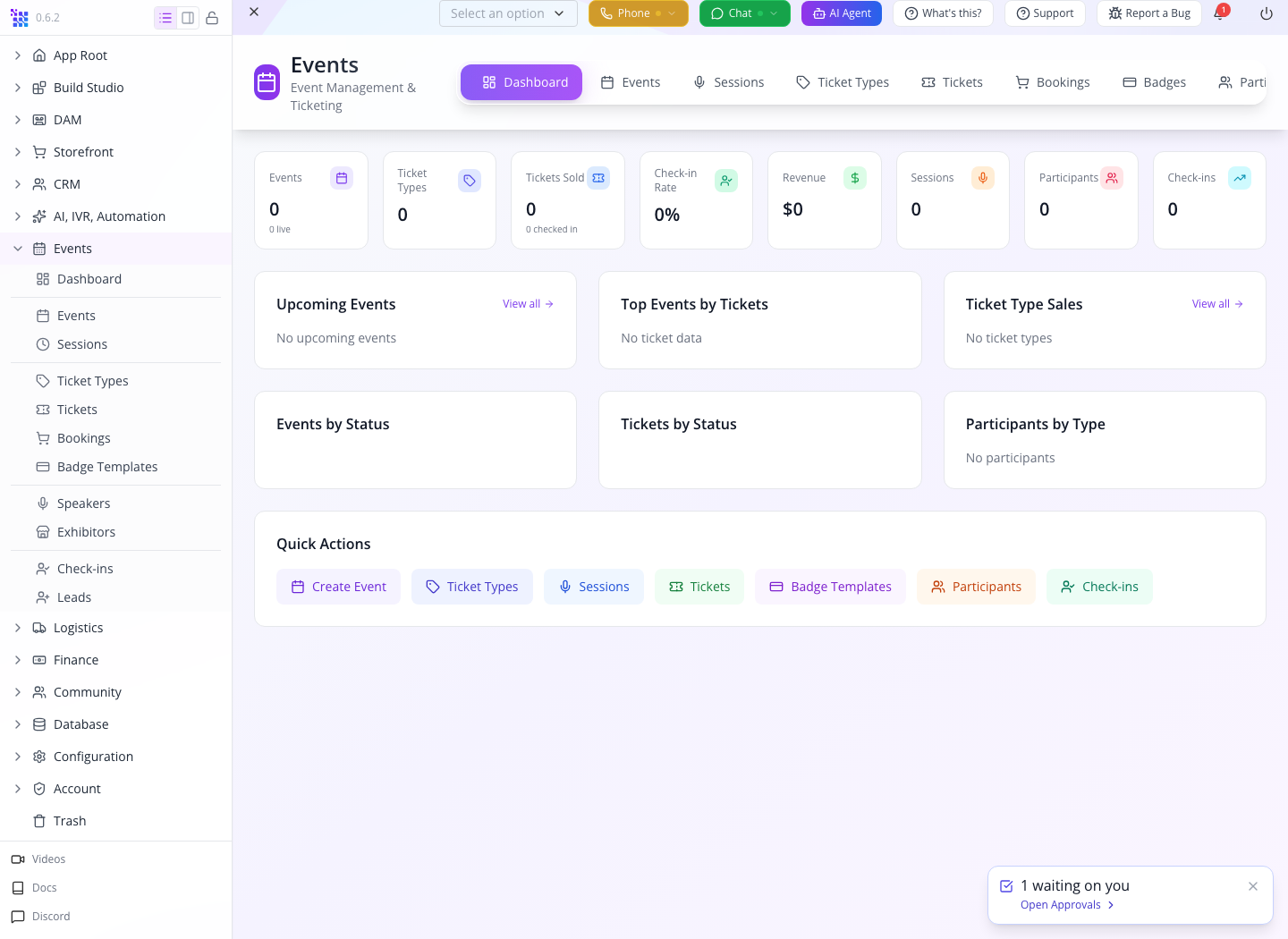
You should see: the event form. The dashboard is a summary; the form creates the actual event record.
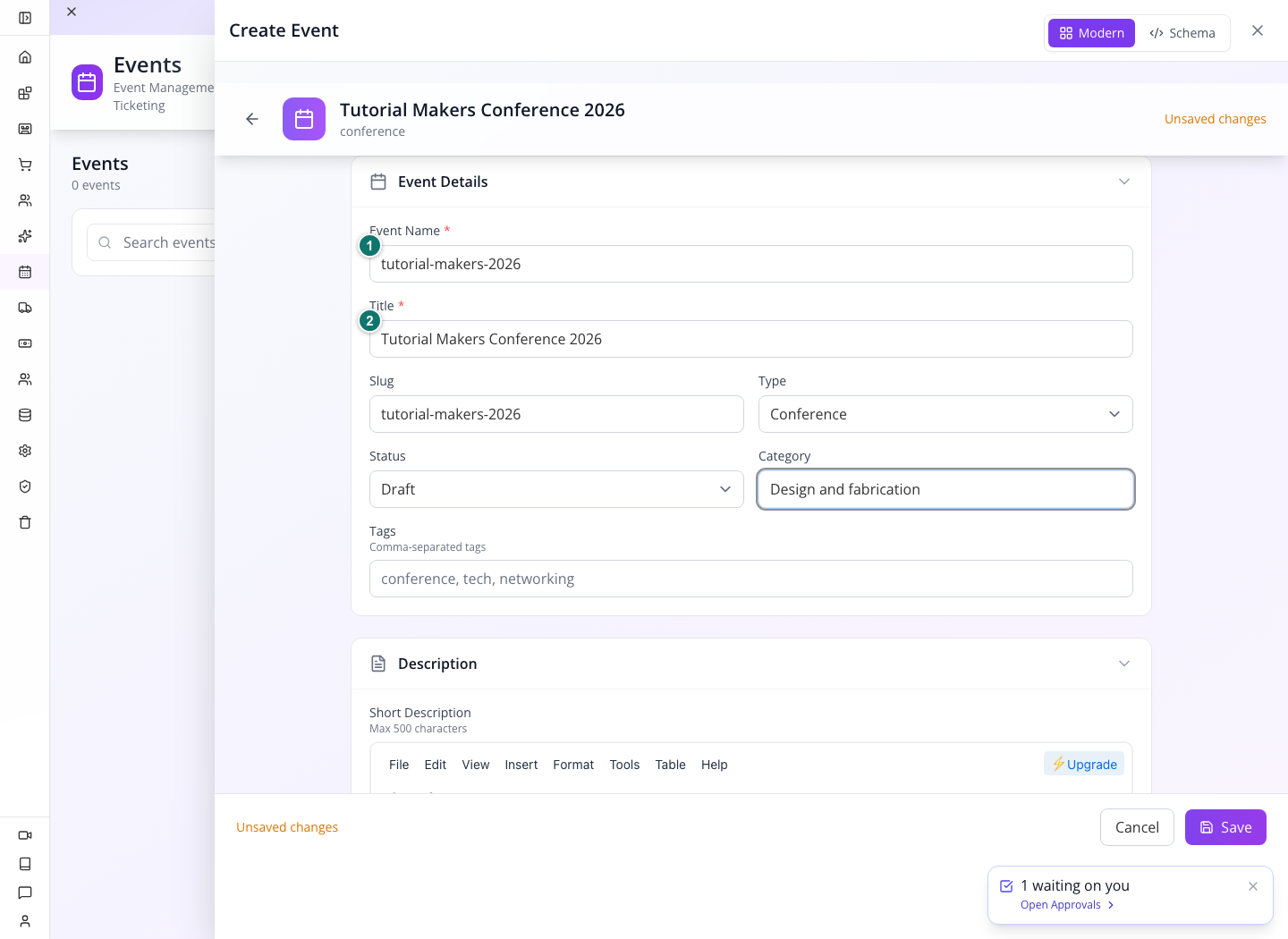
2. Give the event an identity people can recognize
In Event Details, fill the following fields:
| Field | Value | Purpose |
|---|---|---|
| Event Name | tutorial-makers-2026 | A stable internal name for this exercise. |
| Title | Tutorial Makers Conference 2026 | The readable name guests and staff recognize. |
| Slug | tutorial-makers-2026 | A URL-friendly identifier for a connected attendee experience. |
| Type | Conference | Describes the event format. |
| Status | Draft | Keeps planning distinguishable from a published event. |
| Category | Design and fabrication | Describes its subject. |
A slug does not create a public registration website by itself. Your site or attendee app must render the event and connect its registration flow.
3. Set the dates, timezone and location together
Expand Date & Time. Set Start Date to 2026-11-14, End Date to 2026-11-15, and Timezone to America/Chicago. For this conference, opening is 09:00 and closing is 17:00. The form’s Start Time and End Time controls include a date as well as a time; select the corresponding start and end dates.
Under Venue & Location, use Tutorial Makers Hall, city Chicago, region/state Illinois, country United States. Review generated Days separately: each day should have the hours you intend. New days use the configured event hours; existing custom day hours are preserved when dates change. Check every day rather than assuming a two-day event has the same closing schedule on both days.
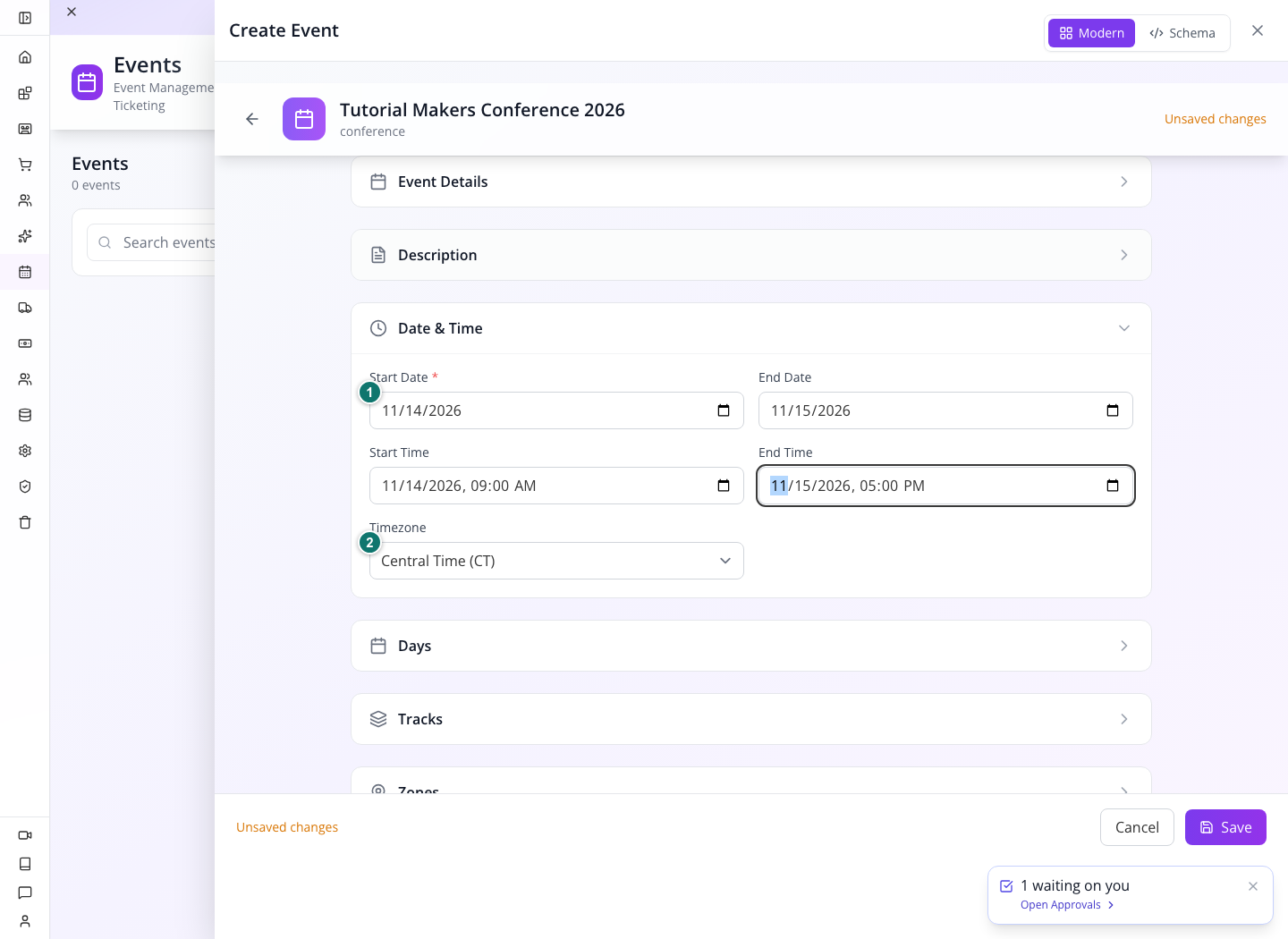
Check the calendar day: Studio and the phone should both show November 14–15. The corrected date display retains the chosen calendar day, and calendar invitations use America/Chicago when converting the event times. Keep the selected dates and full date/time values; no clock-normalization workaround is required.
4. Add the two zones
Expand Zones and add two entries:
| ID | Name | Capacity |
|---|---|---|
main-hall | Main hall | 300 |
workshop-lab | Workshop lab | 40 |
Use IDs consistently. A ticket type’s zone-access field stores main-hall, not the display name Main hall.
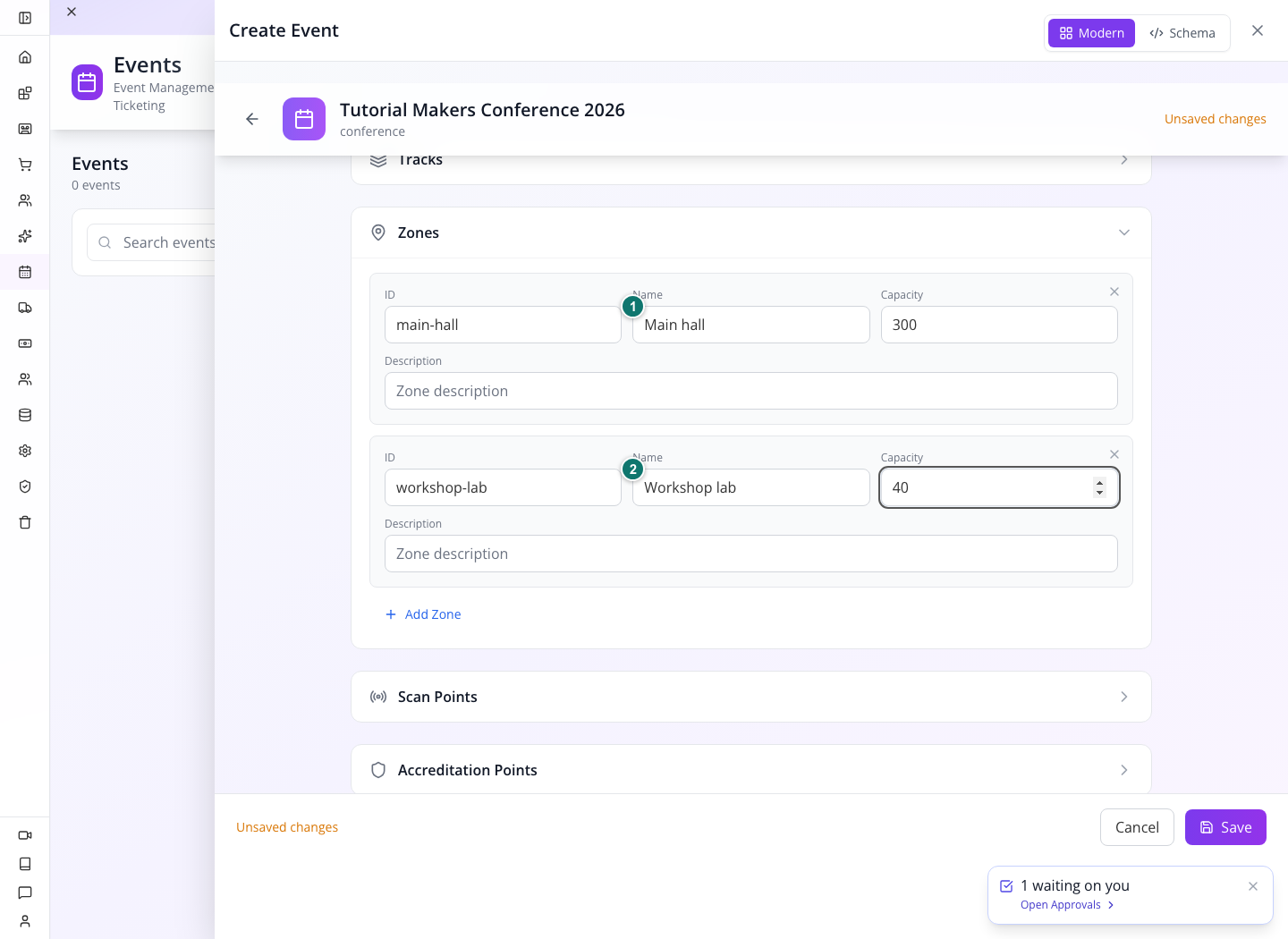
You should see: both zones in the form. Their capacities describe the areas; do not treat the existence of a capacity field as a complete crowd-control procedure. Ticket limits, actual movement and physical venue requirements still need checking.
5. Describe the checkpoints and registration desk
Under Scan Points, add Entrance, ID entrance, zone main-hall, scan type entrance, match field ticket_code, active. Add Lab door, ID lab-door, zone workshop-lab, scan type eligibility, also active.
Accepted Ticket Types is a comma-separated field for ticket-type record IDs. After creating the types in Part 2, configure Entrance for both types and Lab door for Workshop Pass. It is not a selector where typing the title automatically resolves its ID.
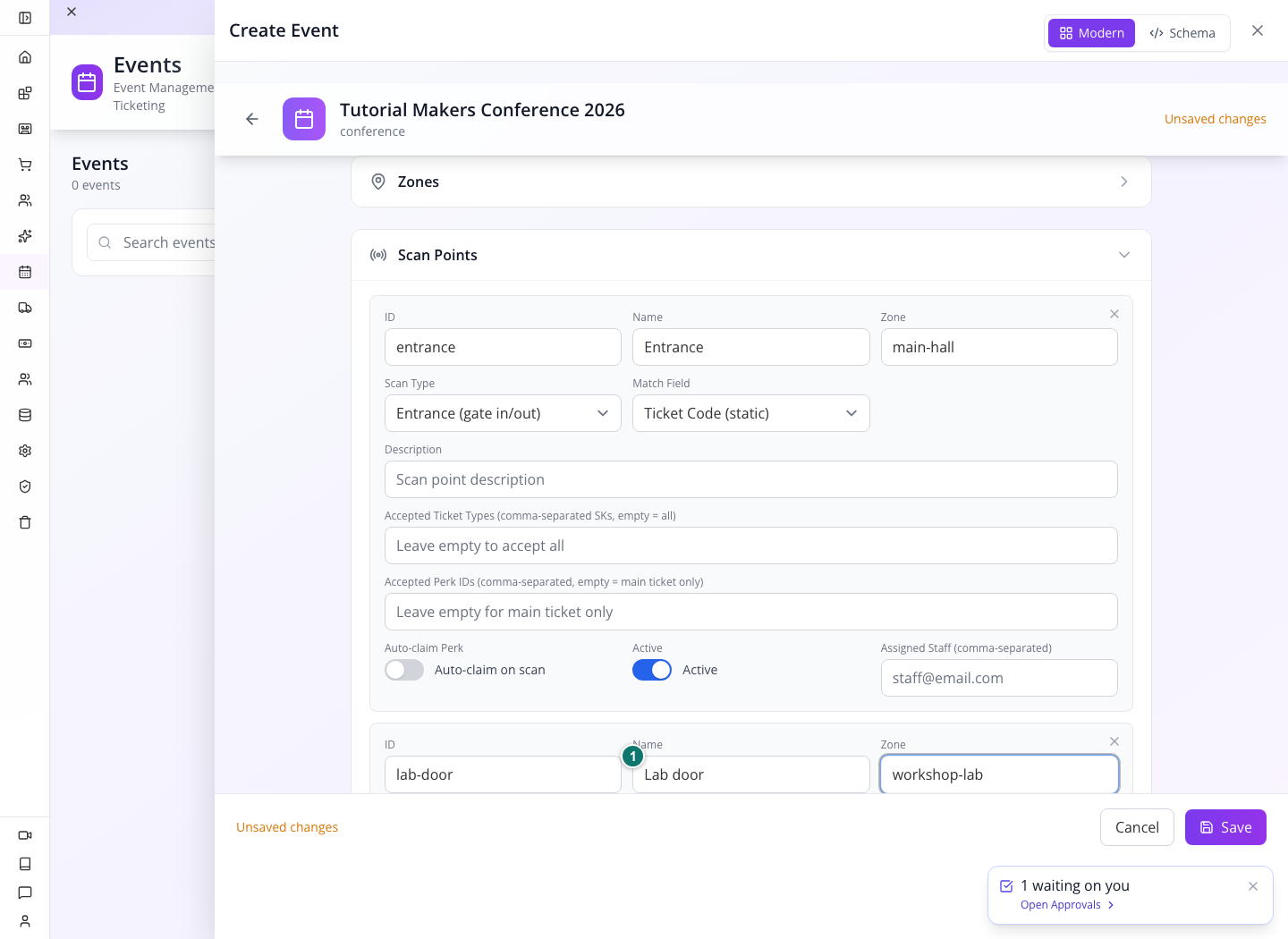
Phone behavior matters: the practiced Appmint Mobile scanner offered zone chips, not these scan-point names. Its request included the zone but omitted the checkpoint. Consequently our door rehearsal verifies zone access, not scan-point filtering. A custom scanner must send the checkpoint if your operating procedure depends on its accepted types or automatic perk claims.
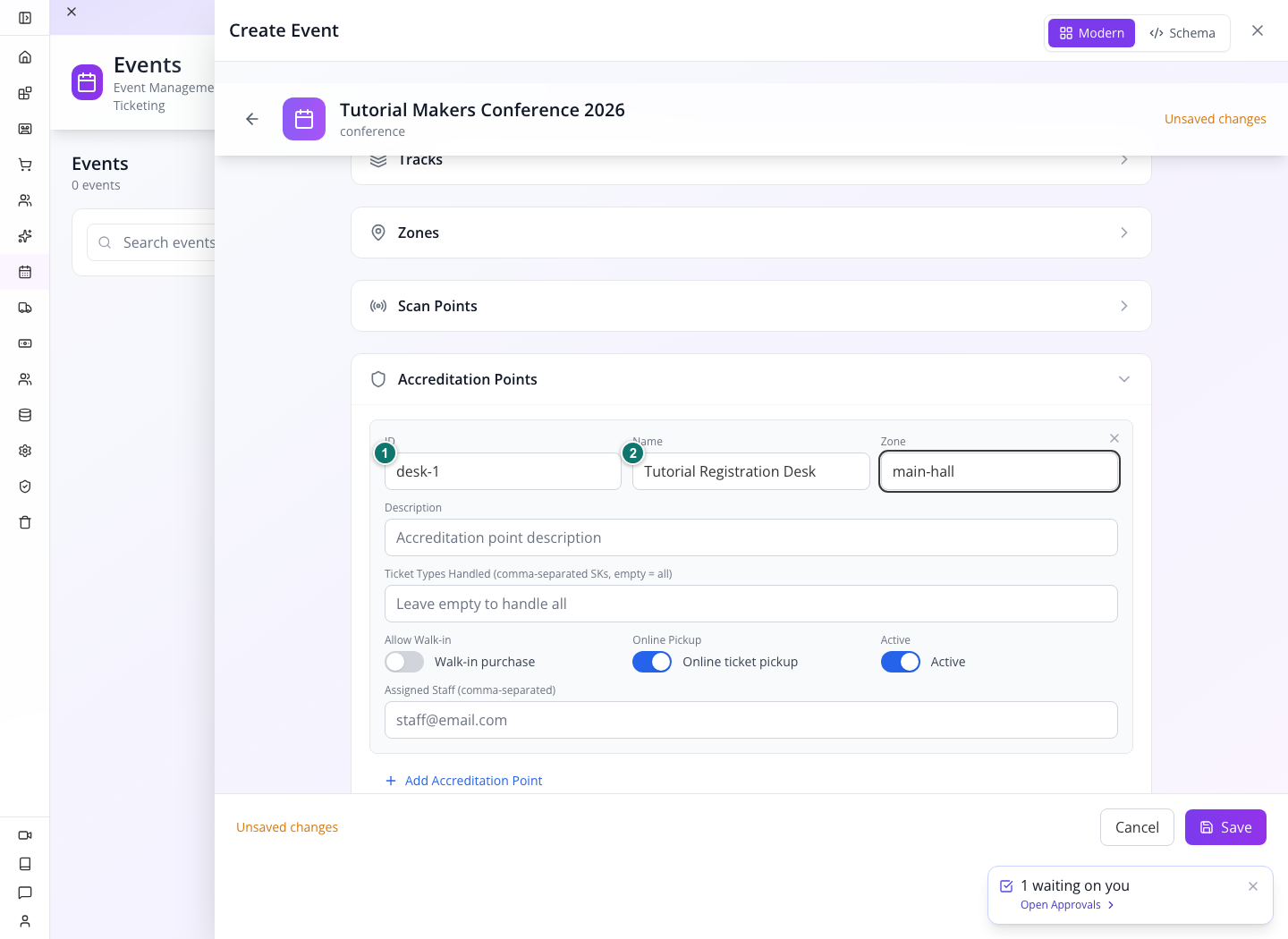
Under Accreditation Points, add ID desk-1, name Tutorial Registration Desk, zone main-hall, active, with online pickup allowed. This is the desk that hands over an existing registration. Walk-in sales are a separate branch; leave them out of the first rehearsal.
6. Save and check the event record
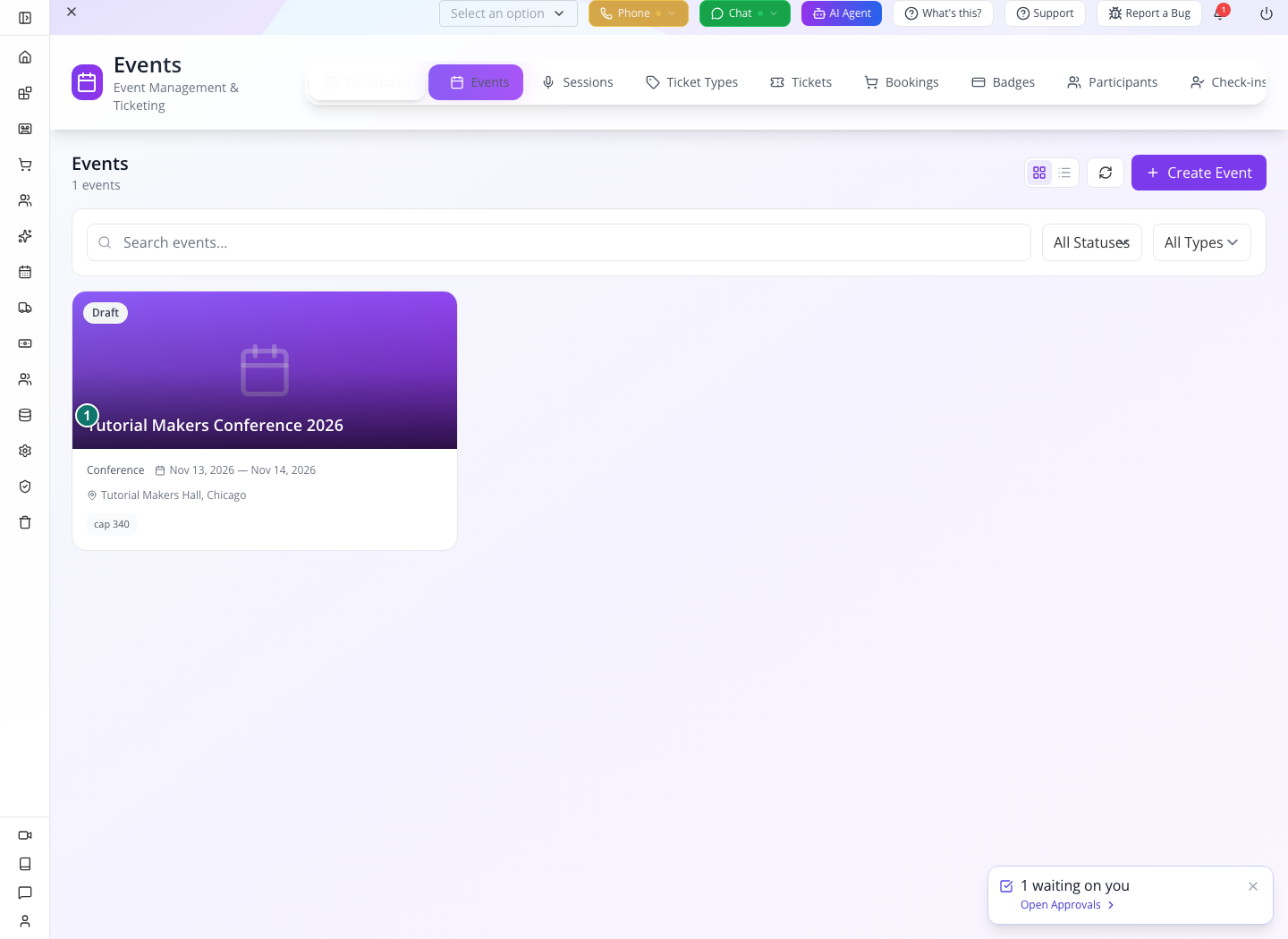
Choose Save. The corrected form sends the event through the dedicated event service and closes after a successful save. If a request fails, inspect the event list for your exact title/slug before retrying; do not create duplicates to recover from a display problem.
After creation, return to Events and open the event by title. You should see its details, zones and status. Reload and find the same event again before adding dependent records.
Try it: explain to a colleague why main-hall appears in an access rule while Main hall appears on the phone.
Check yourself: does an event slug create a registration page? No. It identifies the event for a site or app that supplies that experience.
Part 2 — Create tickets with meaningful limits
1. Create General Admission
Open Ticket Types → Add Ticket Type. In the event selector, search Makers, then select the actual Tutorial Makers Conference 2026 result. Typing a search term without selecting the result does not attach the record.
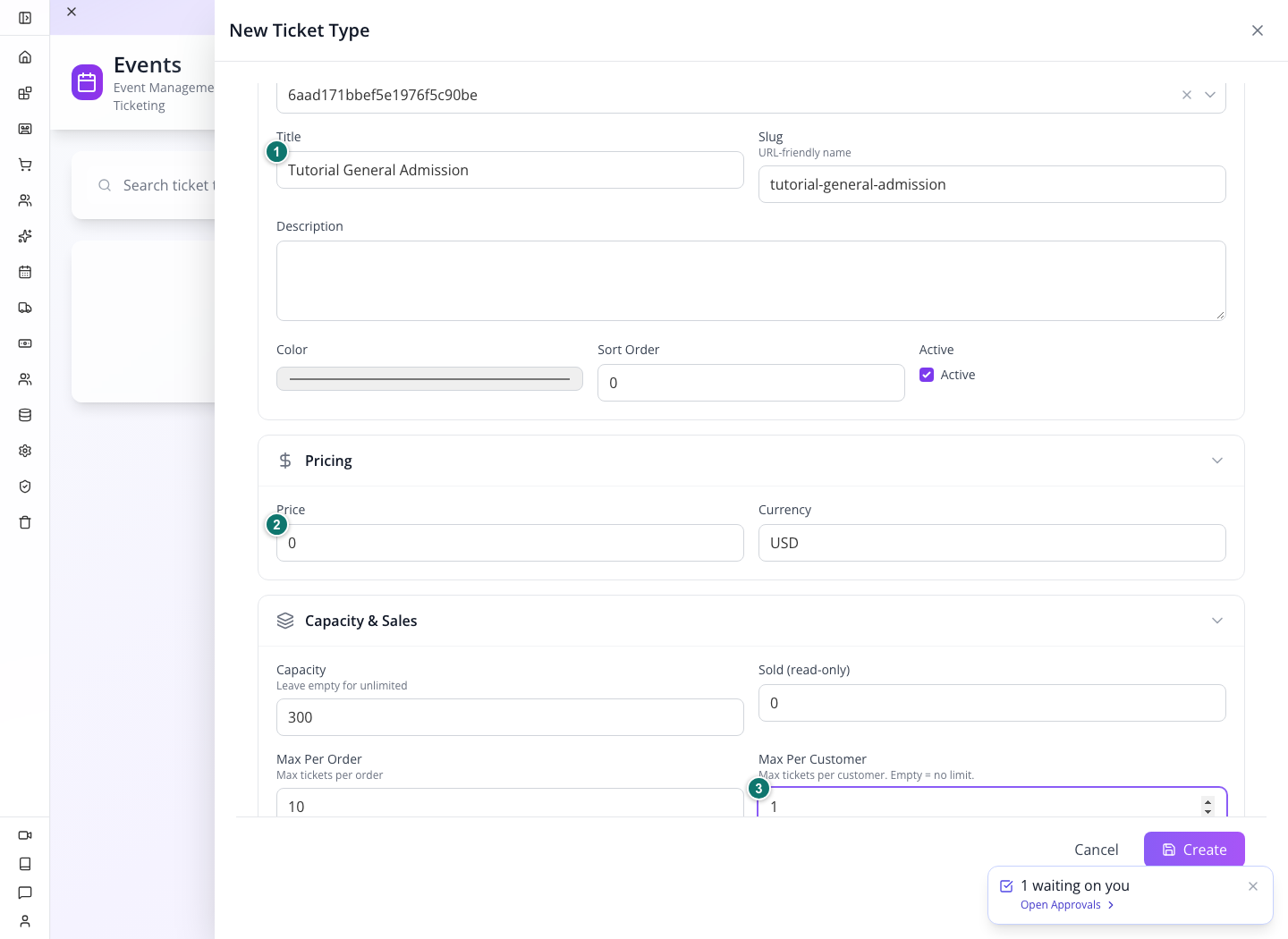
Set Title to Tutorial General Admission, Slug to tutorial-general-admission, and leave Active checked. Set Price to 0, Currency to USD, Capacity to 300, and Max Per Customer to 1.
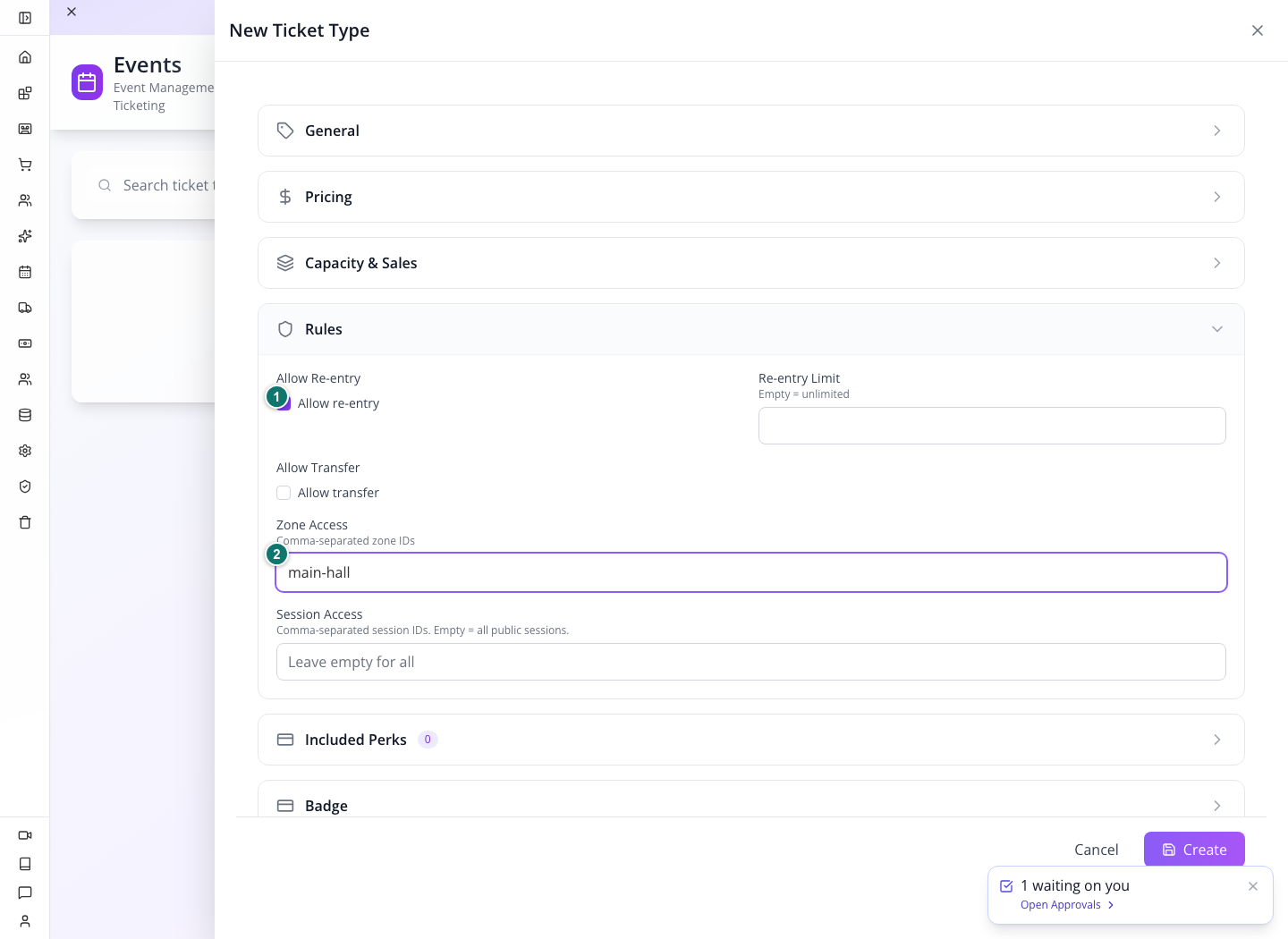
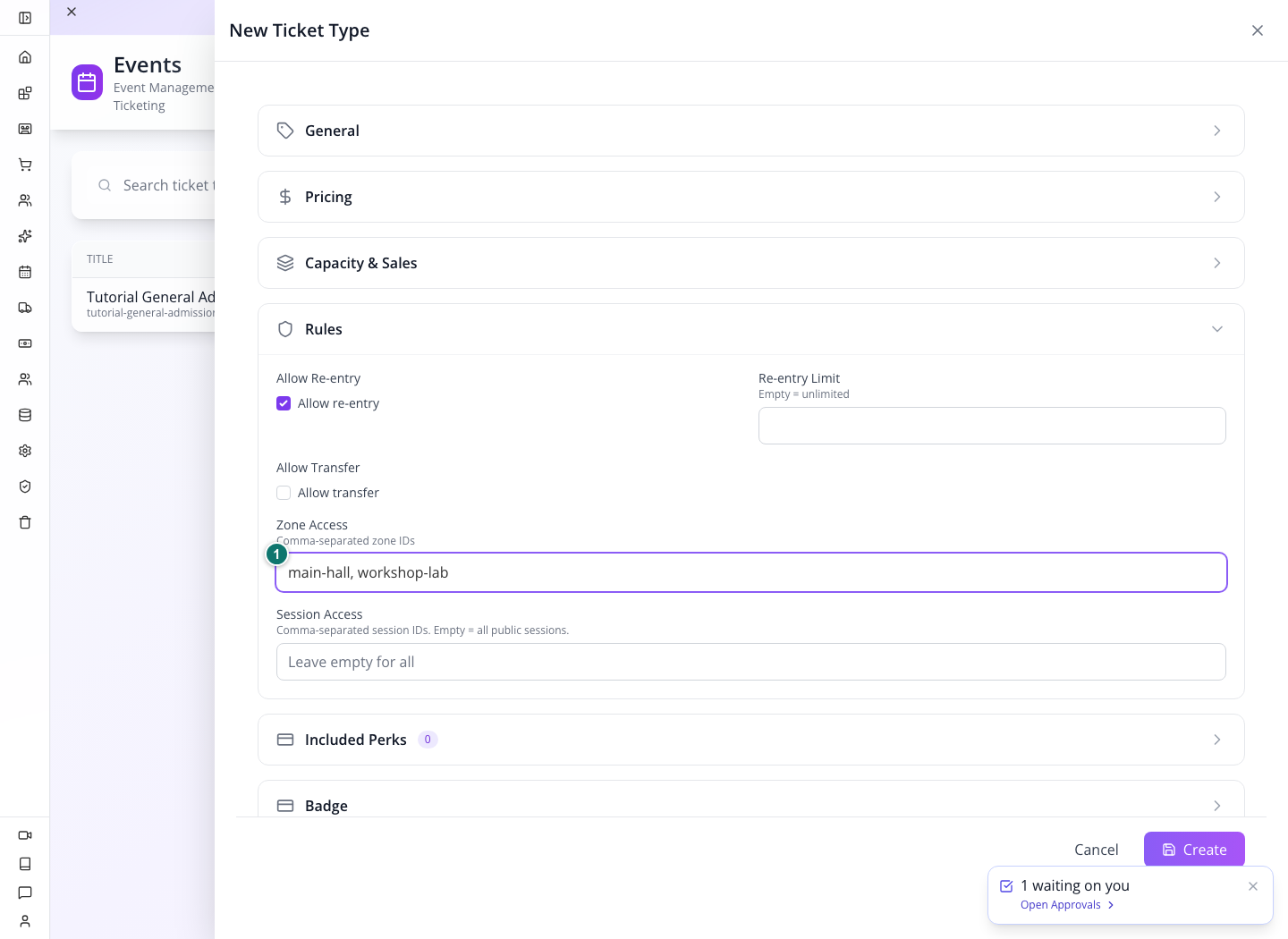
Expand Rules. Check Allow re-entry and set Zone Access to main-hall. Leave the re-entry limit empty for this rehearsal. Leave transfers off; the transfer branch needs a separate test before use.
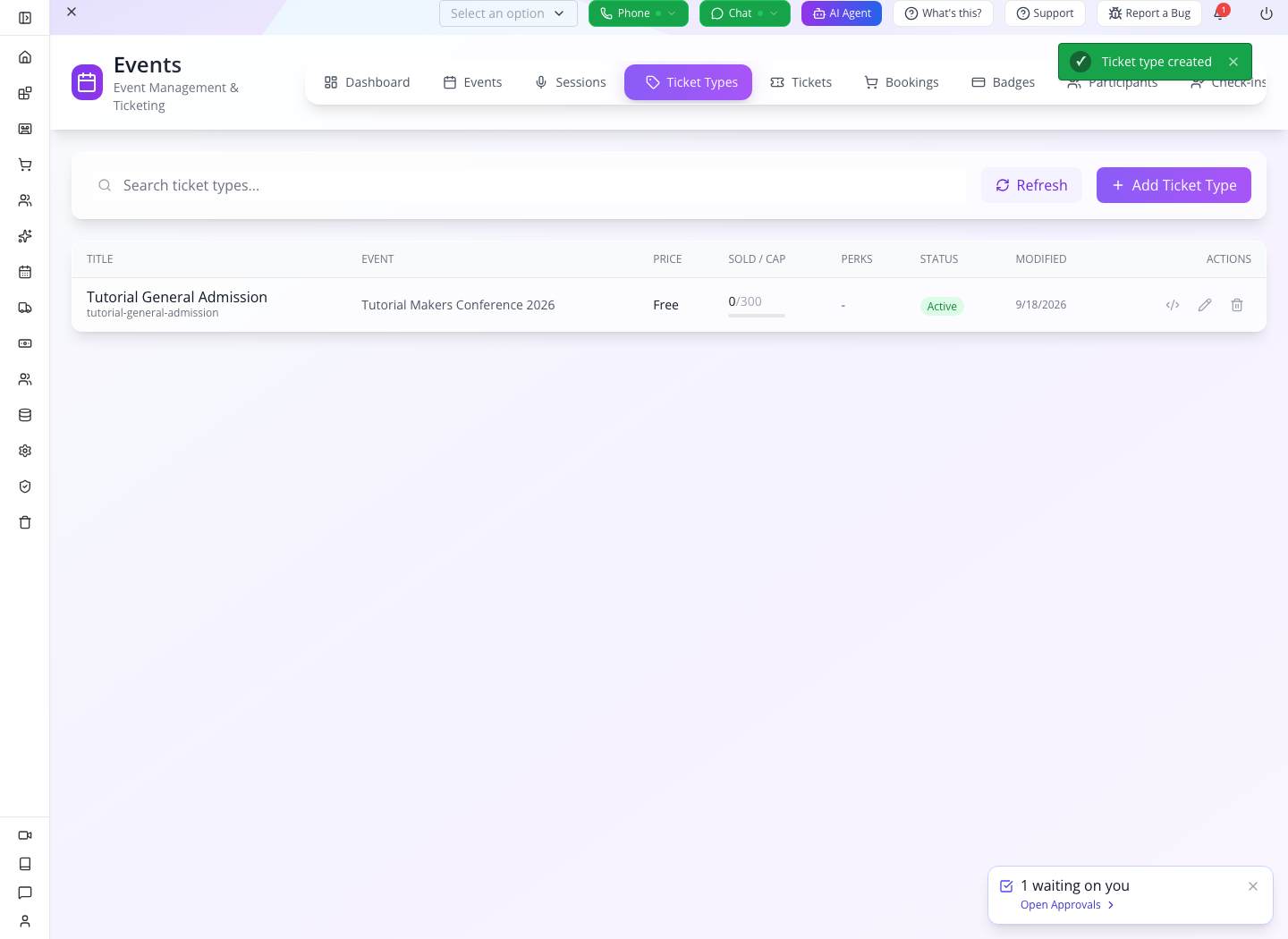
Choose Create and find the new type in the list. Reload and confirm its title, free price, active status and capacity.
Set the customer limit deliberately. Free ticket types default to one per customer in the purchase service. An empty limit is not a reliable way to promise unlimited free tickets. Our exercise stores
1explicitly so the rule is clear.
2. Create Workshop Pass
Choose Add Ticket Type again and select the same event. Enter:
| Field | Value |
|---|---|
| Title / Slug | Tutorial Workshop Pass / tutorial-workshop-pass |
| Active | Checked |
| Price / Currency | 25 / USD |
| Capacity | 40 |
| Max Per Order | 2 |
| Sale Closes | 2026-11-13 23:59 |
| Allow re-entry | Checked |
| Zone Access | main-hall,workshop-lab |
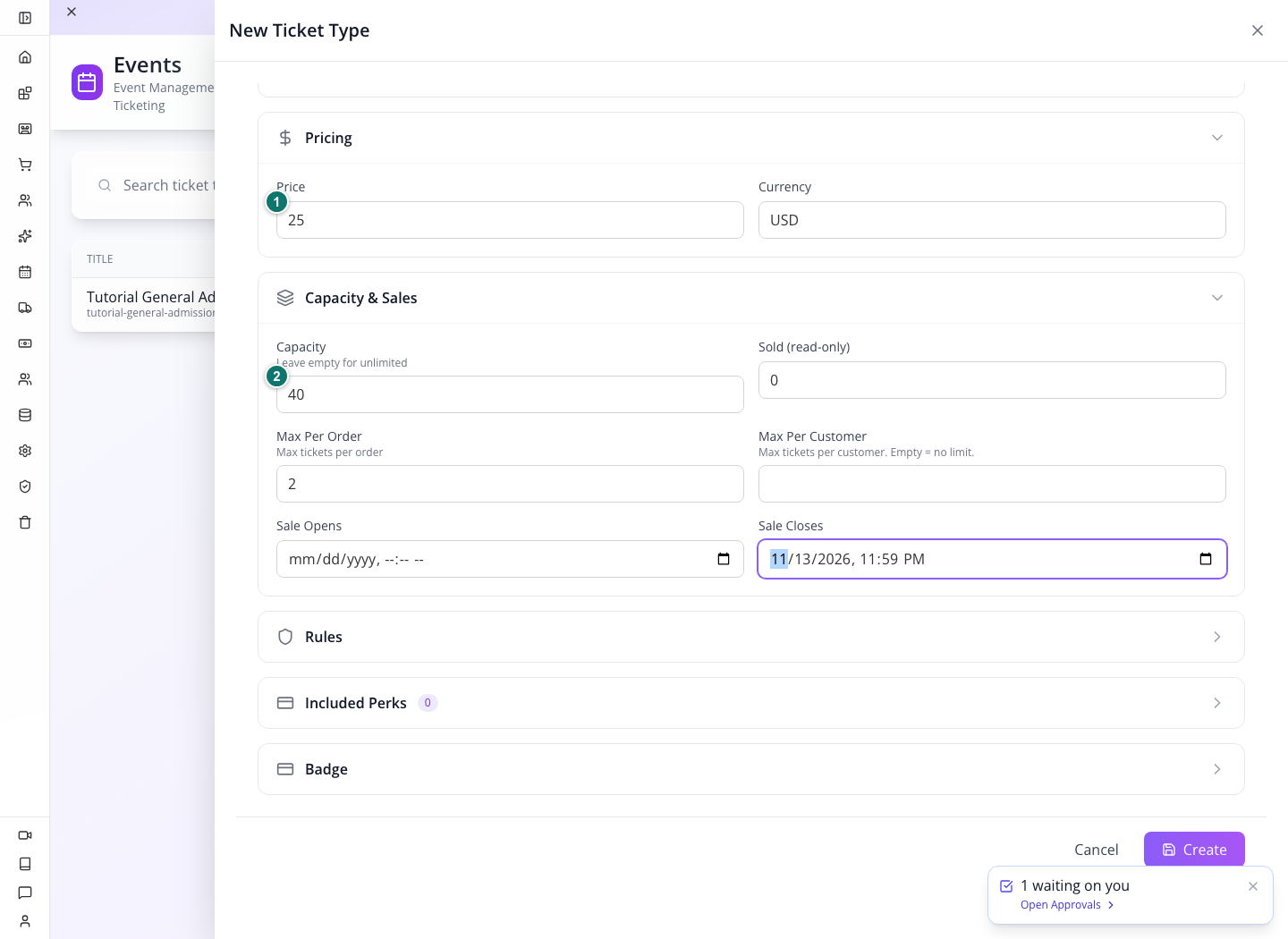
The workshop pass includes access to the main hall as well as the workshop. This is an access decision, not just a higher price.
Choose Create, reload and compare the two rows.
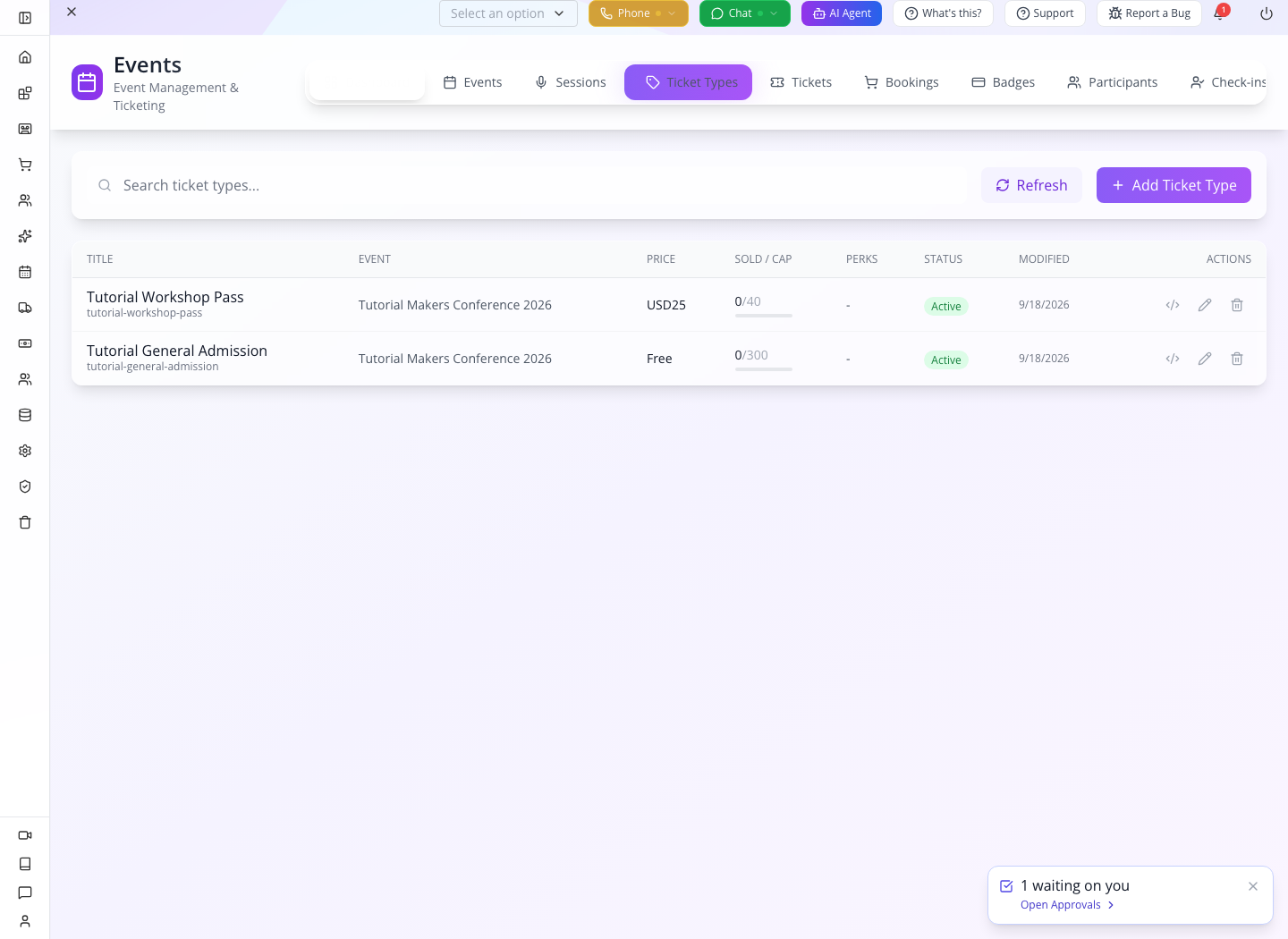
You should see: one free type and one $25 type, with capacities 300 and 40. This course creates the priced type but does not take a paid transaction.
3. Move from planning to publication
Open the event and choose Publish. Studio confirms Event published. Reopen the event and confirm Published before sharing registration. The local repair was verified on 24 September: publication persisted successfully. Older screenshots below record the original failure, not an instruction to bypass publication.
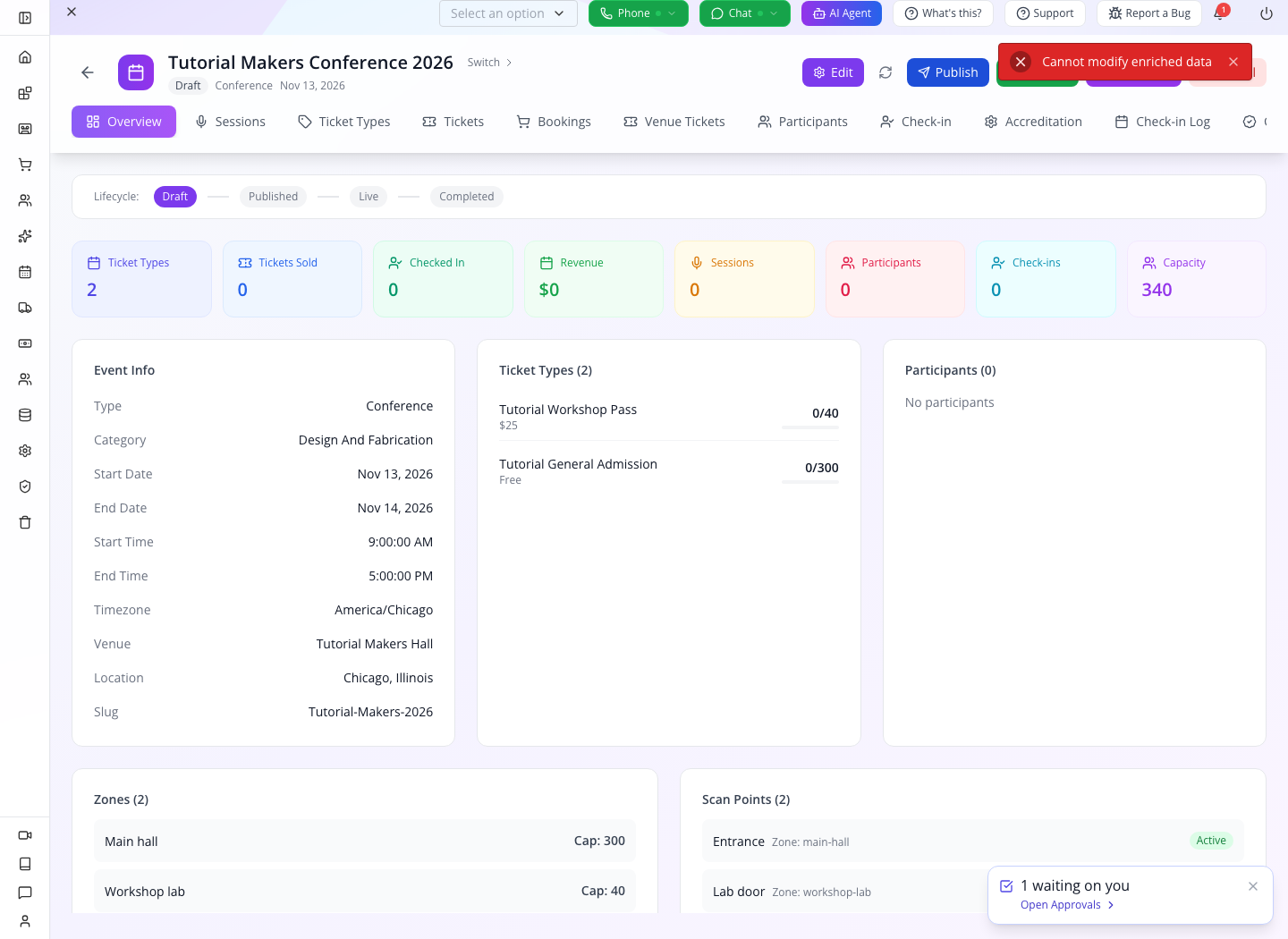
Publication is not a sales lock. The current purchase service does not use event publication as its admission to checkout. Likewise, do not assume that a visible inactive label is an effective stop-sale control without testing the purchase endpoint in your build. Keep a rehearsal’s registration entry private and test launch and stop-sale behavior before distributing it.
4. Register both rehearsal guests and inspect their records
Complete the event and checkpoint setup in Part 6.1–2 before registration, including ticket-type ID assignment. Studio’s full date/time fields are accepted by the corrected calendar generator; clock normalization is no longer required. Then run Part 6.3 once for Zara and once for Kofi, keeping each returned booking ID and ticket ID. Neither guest needs an existing customer account for this public registration route. An attendee app supplies the interface for this transaction; the EventOxygen course covers that interface.
In Studio, open Bookings and Tickets and search each holder email. Each free registration should have a paid booking with total 0 and one confirmed ticket for this event and General Admission. Before Part 4, Zara must have no admission history; before Part 5, Kofi must have no fulfillment timestamp. Inspect the saved records, not just the dashboard counters.
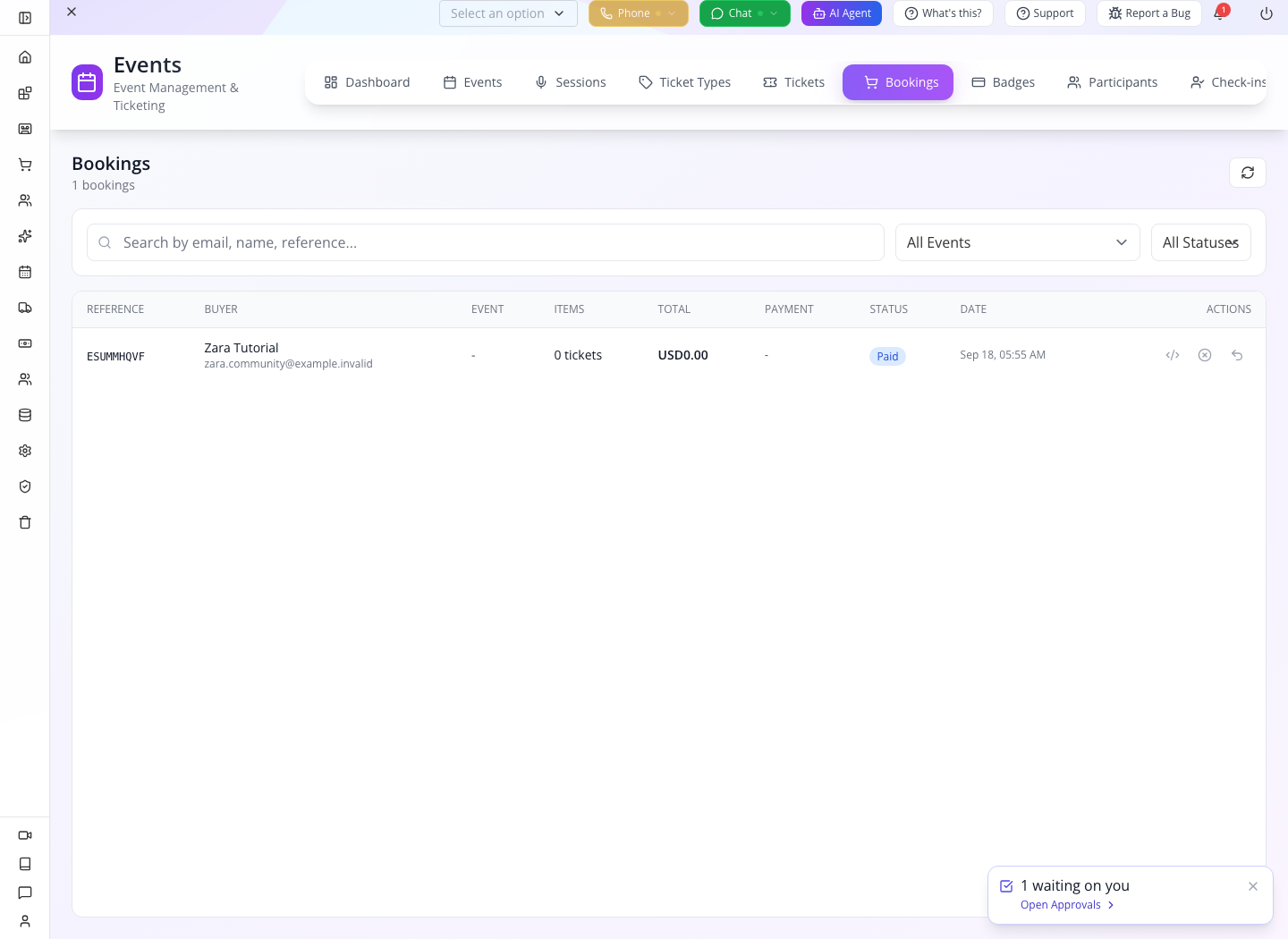
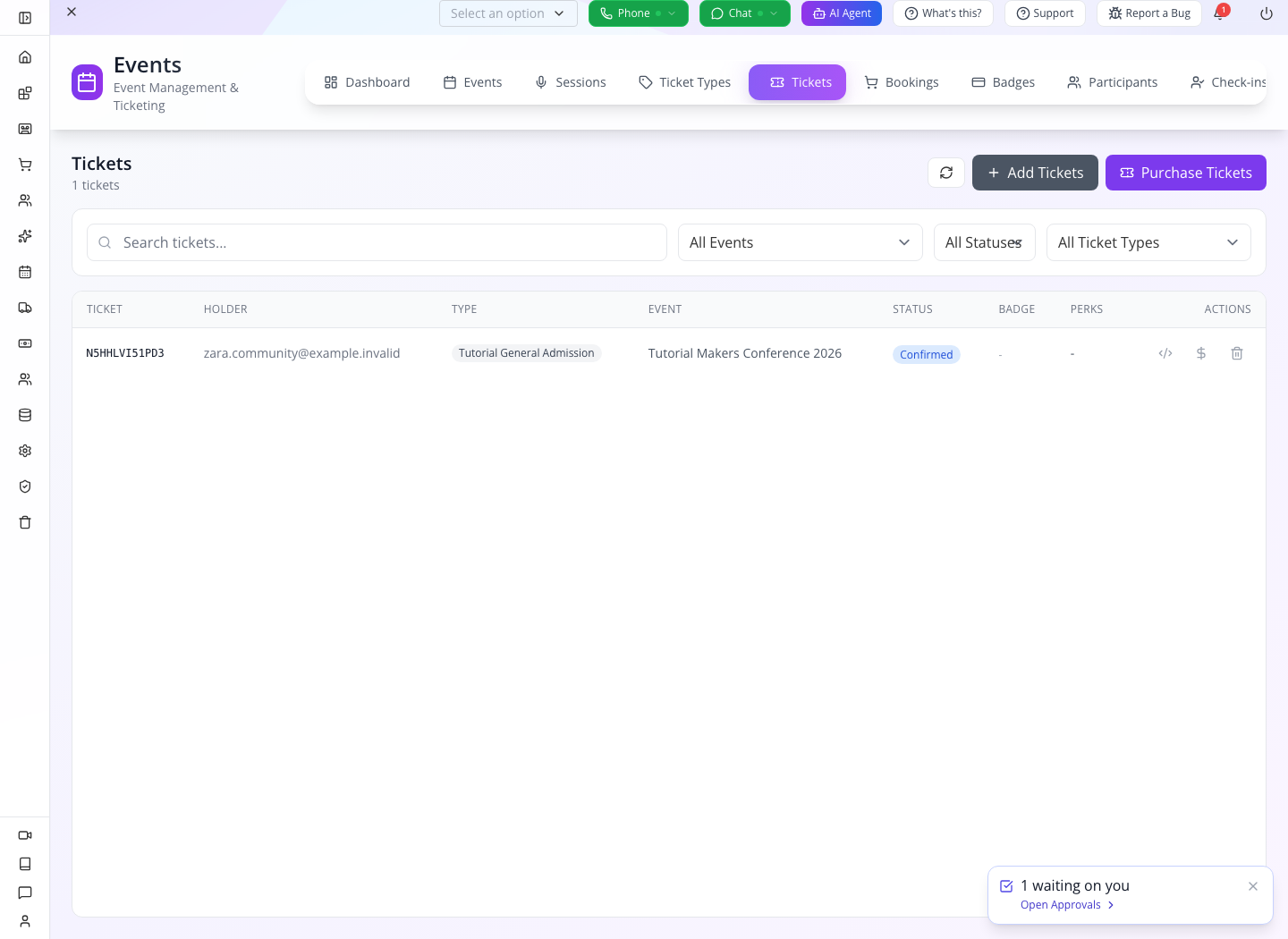
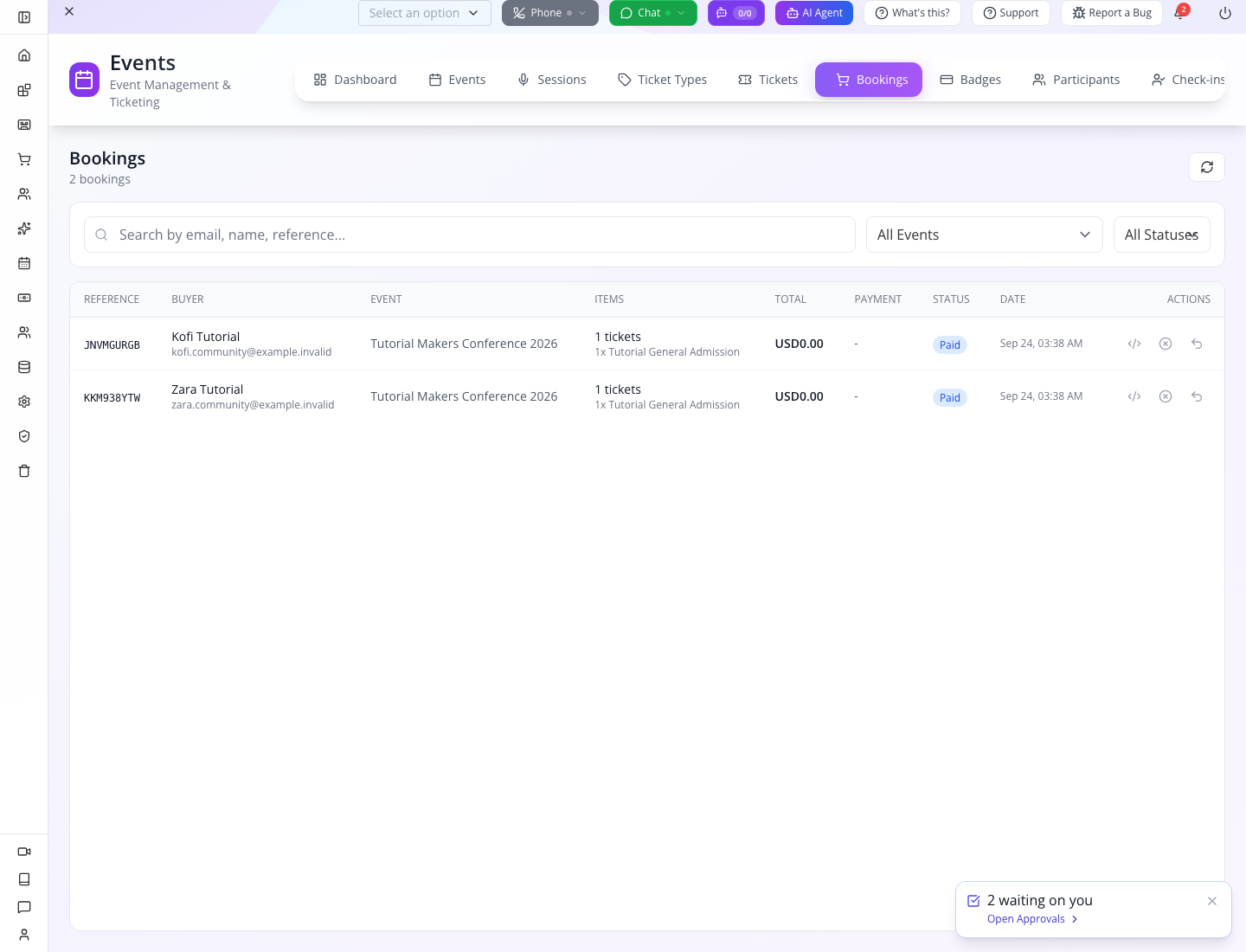
Read both records: the corrected booking list shows the event, one General Admission ticket, Paid and USD0.00 for each guest. Tickets shows the separate admission state. Do not register again merely to change a summary counter.
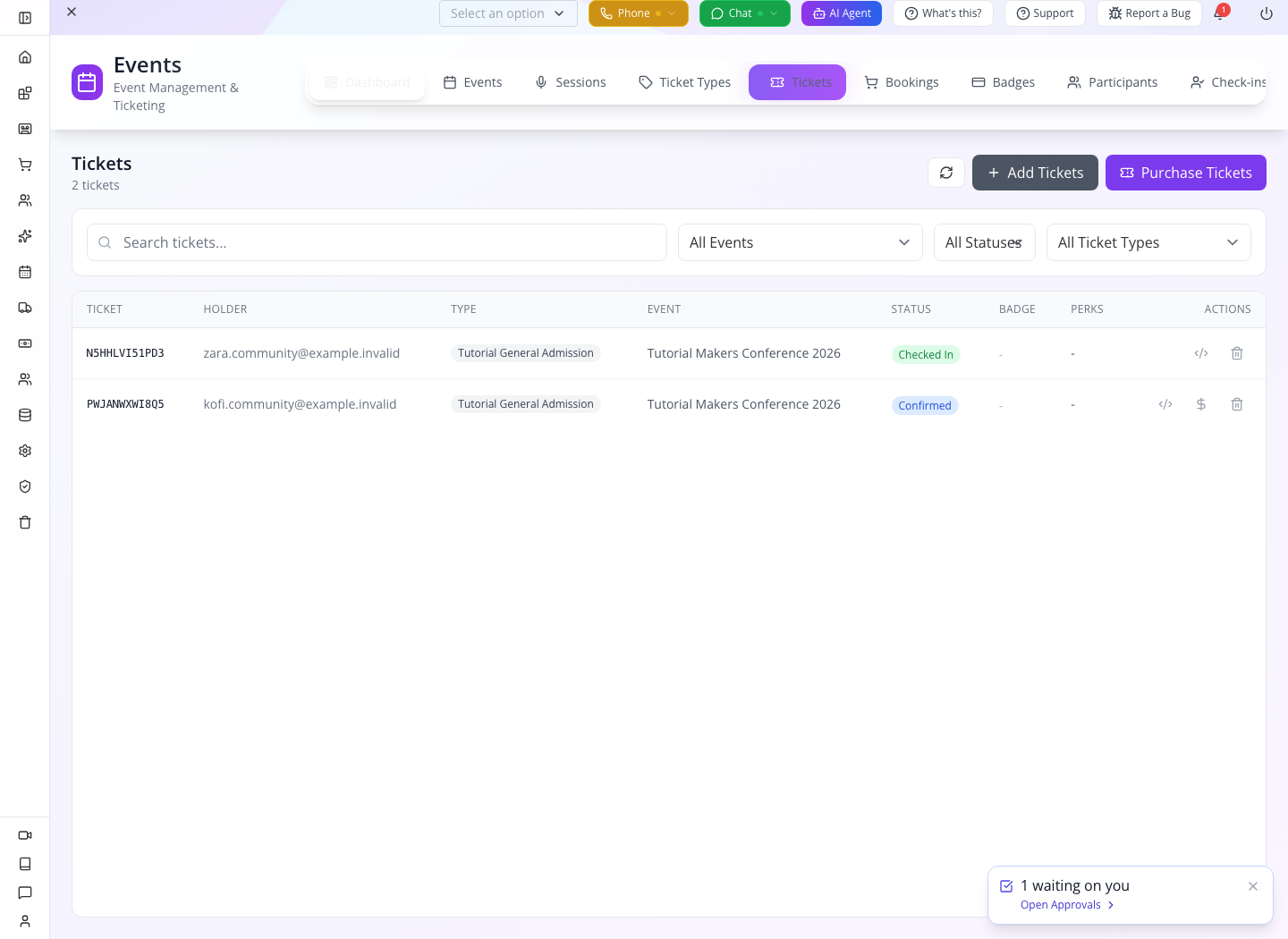
This later frame establishes that both tickets existed in the author’s run. It is not the fresh baseline required above: Zara had already entered.
The original rehearsal exposed a calendar error after a booking and ticket had already been saved. That application defect is now fixed locally: fresh Zara and Kofi registrations both returned success with paid-zero bookings, confirmed tickets and empty admission histories while retaining Studio’s full date/time fields. After any unexpected request error, inspect the saved records before retrying; an HTTP error does not guarantee that nothing was saved.
Repeating the lab: inspect the existing tickets, check-in log and fulfillment fields first. Resume from the actual state, or create a new training event with a unique name/slug and new dependent types/tickets for another first-admission rehearsal. Do not delete movement history, bypass the one-ticket limit or register a guest again to reset the exercise.
Try it: point to the Workshop Pass price, its capacity and its zone rule. Which one decides whether General Admission may enter the lab? The zone-access rule.
Check yourself: is a paid-zero booking the same thing as a checked-in guest? No. Registration creates the ticket; the entrance records admission later.
Part 3 — Put the programme and speaker in place
1. Add the speaker’s role
Open Participants → Add Participant. Select the event, then the existing customer who will speak. Choose Type: Speaker, role Tutorial joinery presenter, and Status: Confirmed once you have their agreement. A useful short bio describes what attendees will learn from this person.
Our example uses a separate fictional customer, Nia Tutorial, [email protected]. Create or locate her with Part 6.4 first; the community course does not create Nia. In Customer, enter her exact email and choose the matching result. The repaired selector displays her email even when the customer has no combined name field. Fill the role and status, expand Bio & Profile, add the short bio and choose Save. Reopen Participants: Nia Tutorial, her email, Speaker and Confirmed should appear together.
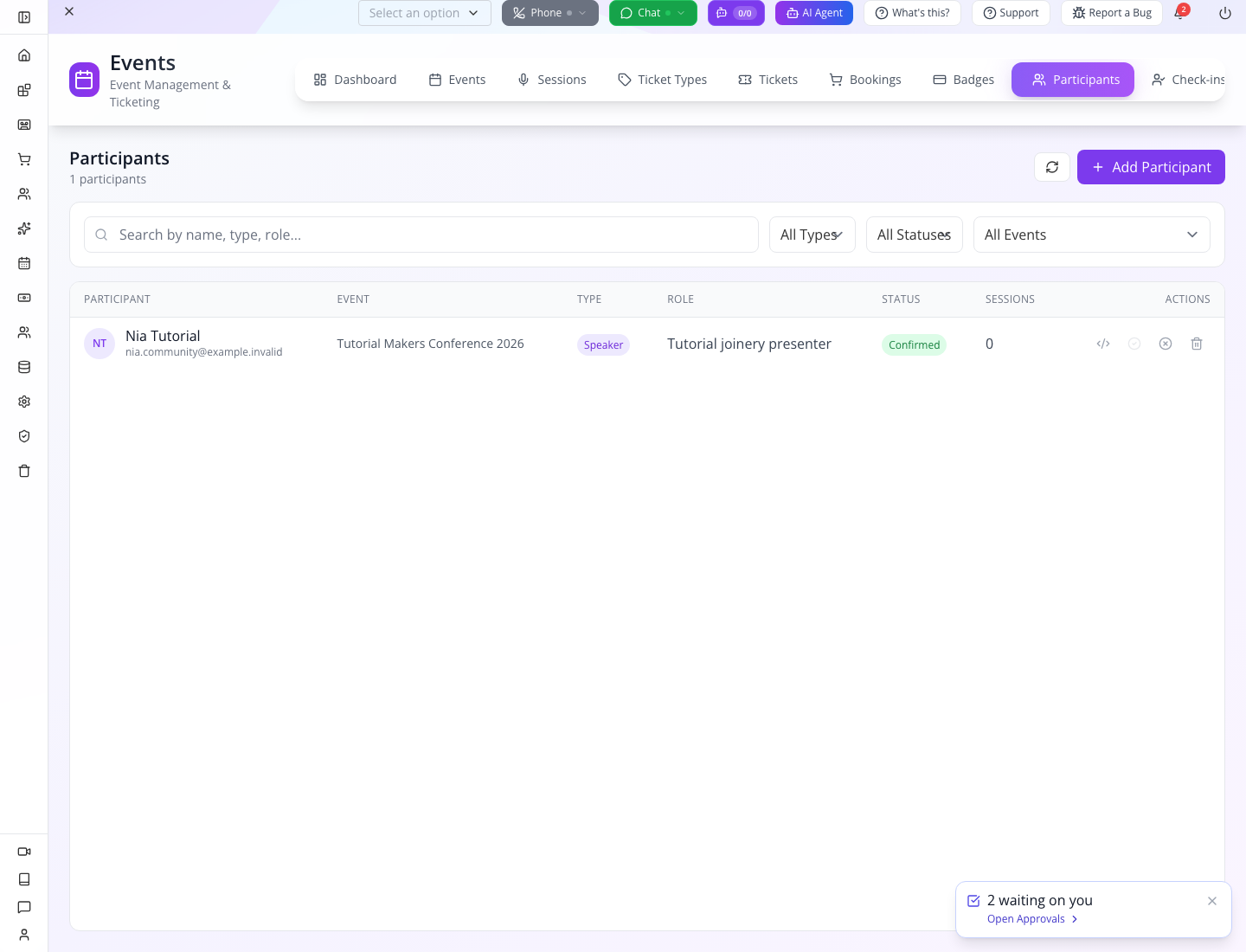
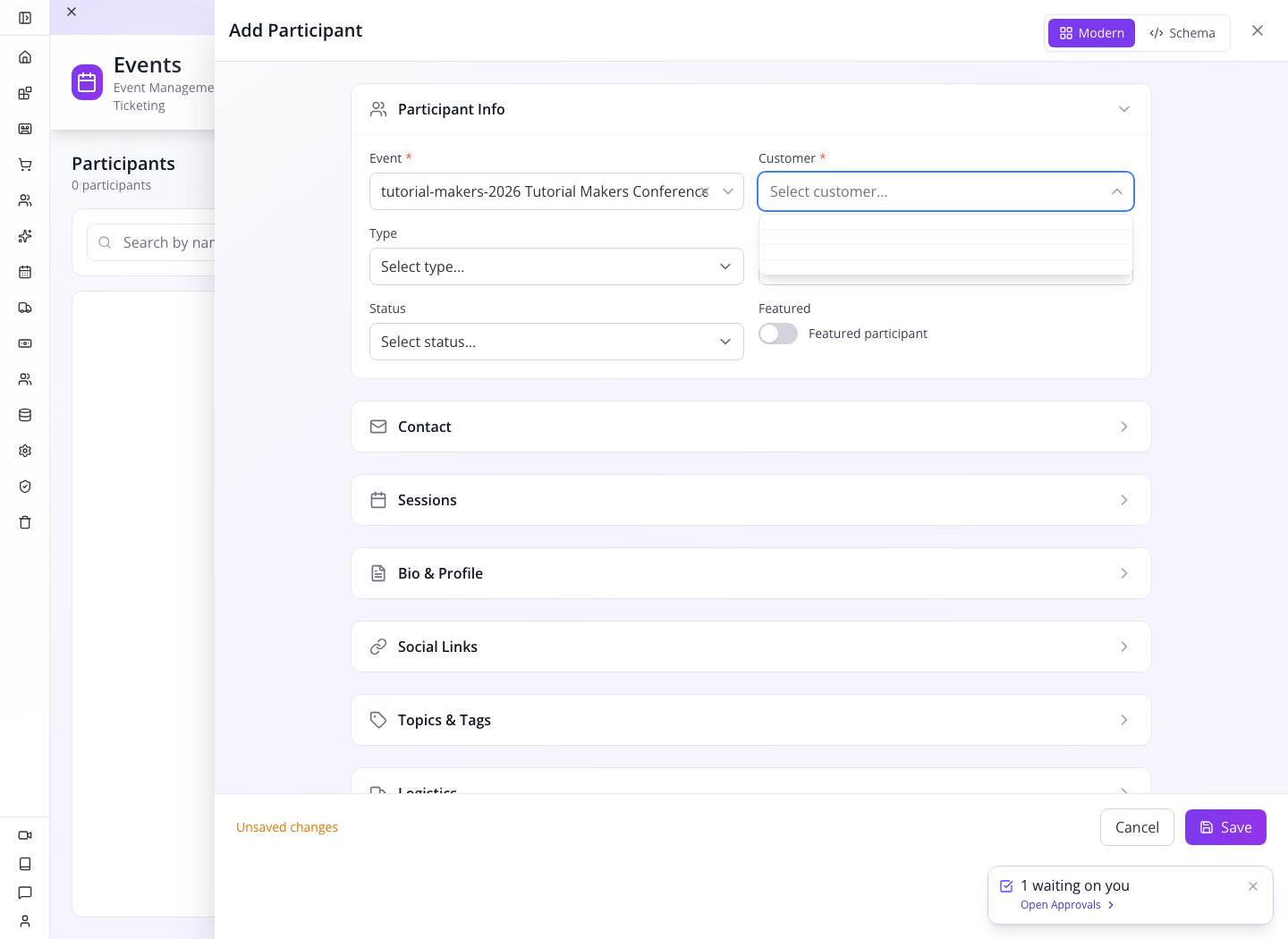
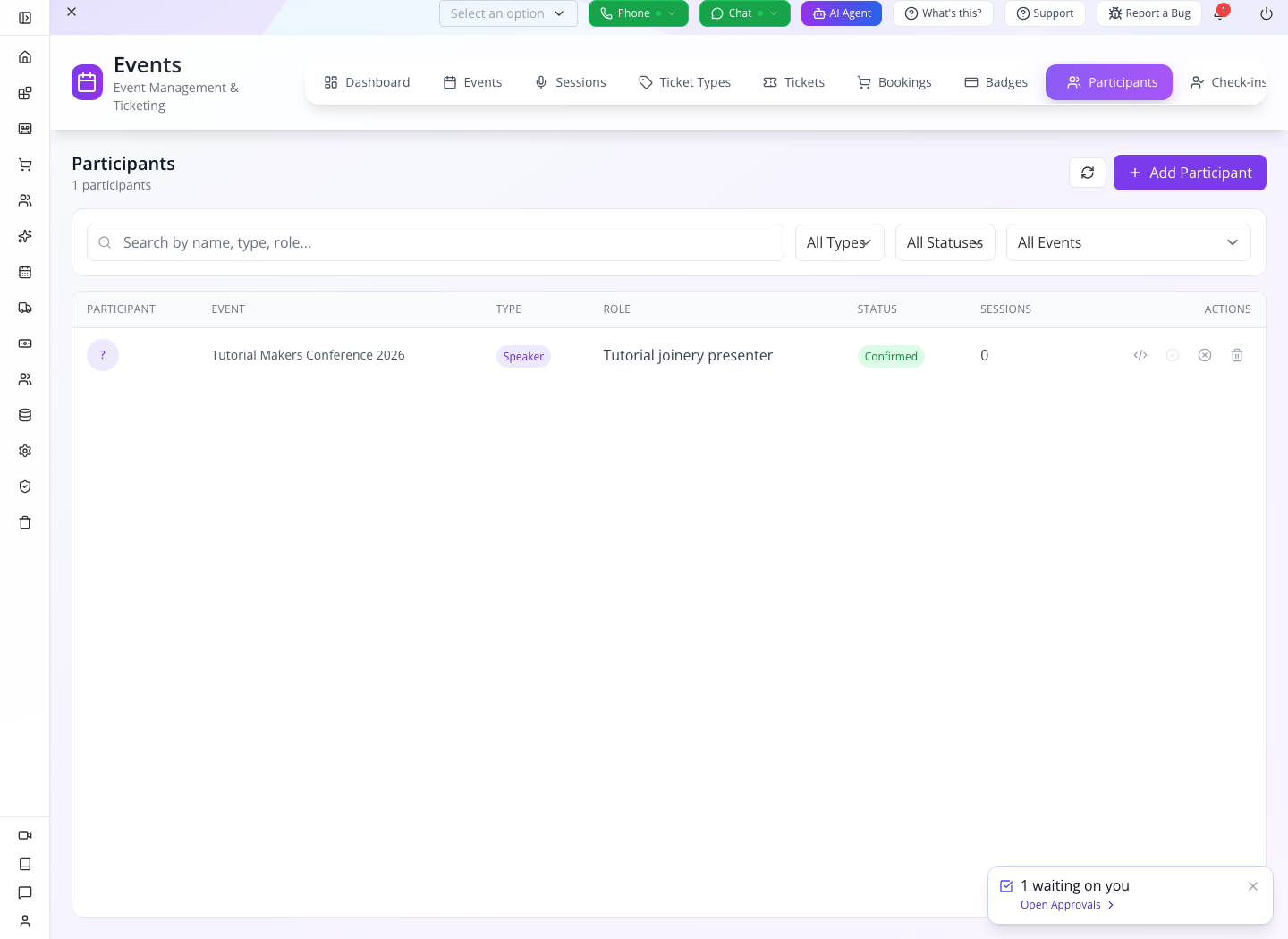
You should see: one speaker participant attached to the event. This request does not itself send an invitation or issue a ticket. Arrange those separately.
2. Create a session people can plan around
Open Sessions → Add Session. Select the event and enter:
| Field | Value |
|---|---|
| Title | Tutorial 3D-printed joinery: test before you build |
| Type / Status | Talk / Scheduled |
| Short Description | Compare a timber joint and a printed connector, then discuss the tests each needs. |
| Day | 2026-11-14 |
| Start Time / End Time | 2026-11-14 11:00 / 2026-11-14 12:00 |
| Duration | 60 minutes |
| Zone / Room | main-hall / Main hall stage |
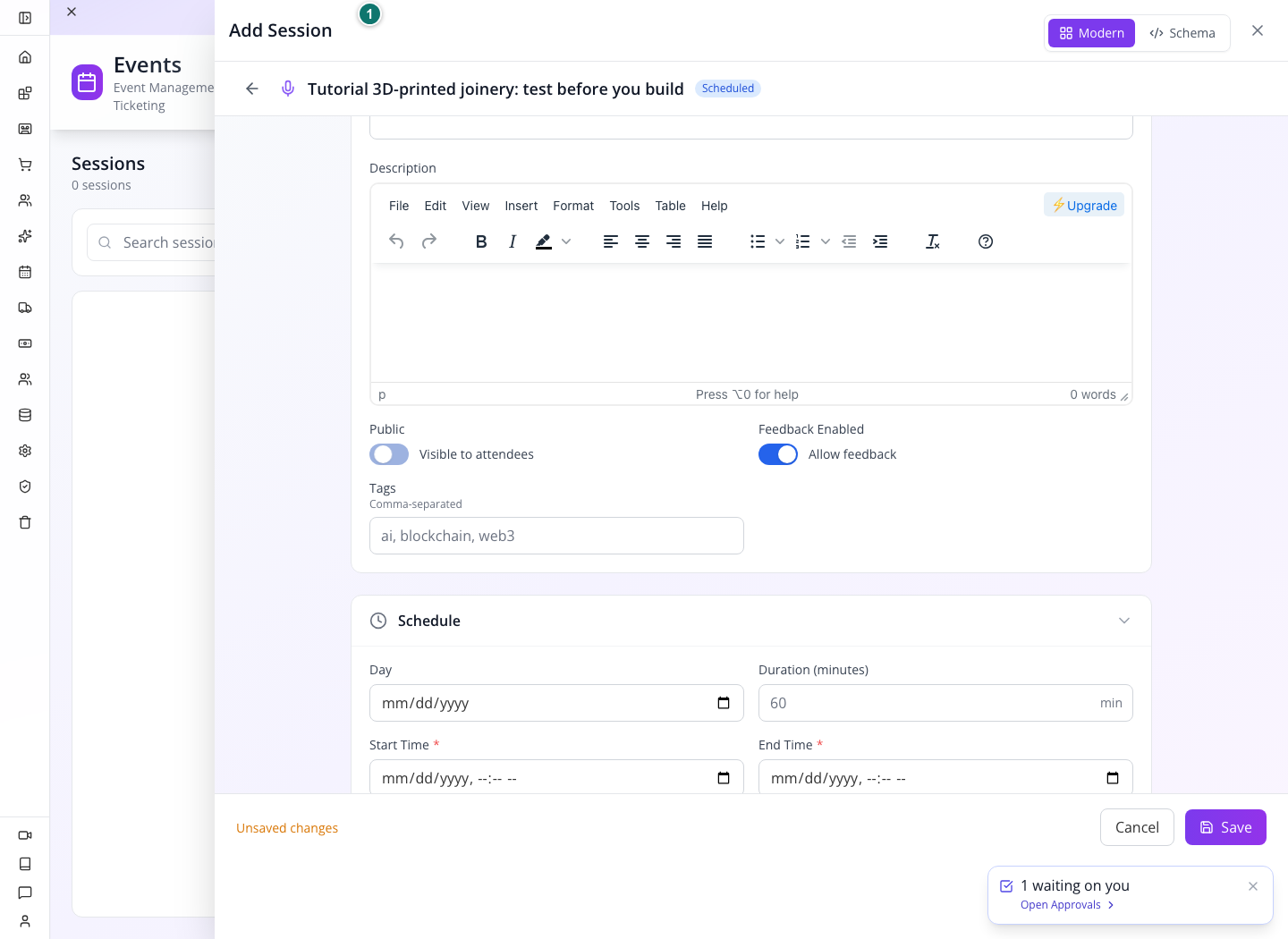
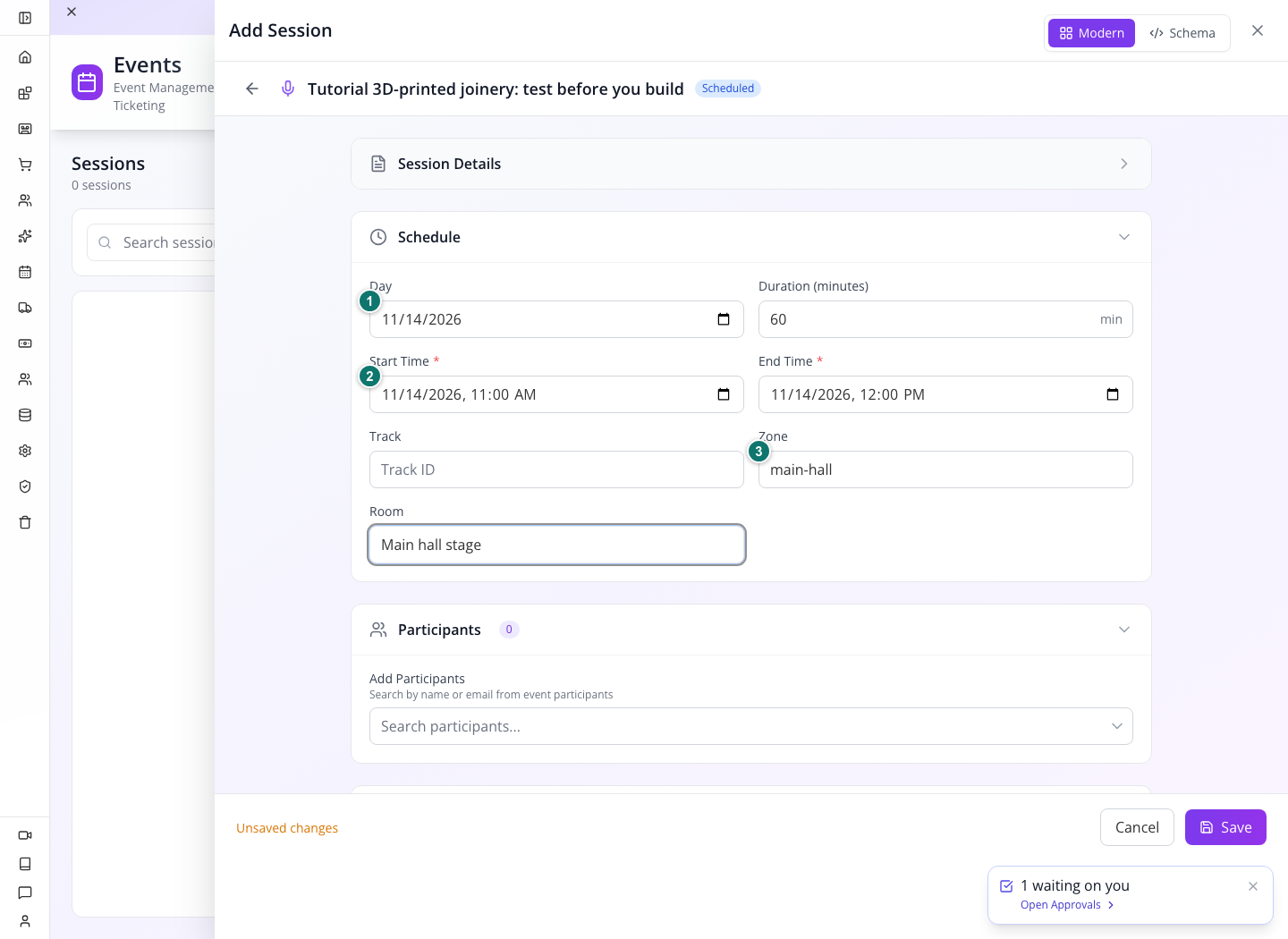
Keep Visible to attendees enabled for this public talk. Under Participants → Add Participants, search joinery and select speaker Tutorial joinery presenter, the role you assigned Nia. The selected participant appears below the search field. The current model stores this link in participants; a separate historical speakers field is not the current UI contract. Save and reopen the session to confirm that public visibility and the participant link remain. The local save repair persists the enabled Public control even if you did not toggle it first.
Choose Save. Reload Sessions and locate the talk by title. Confirm 11:00–12:00, the room and Scheduled. Reopen the session to confirm its participant and Public setting.
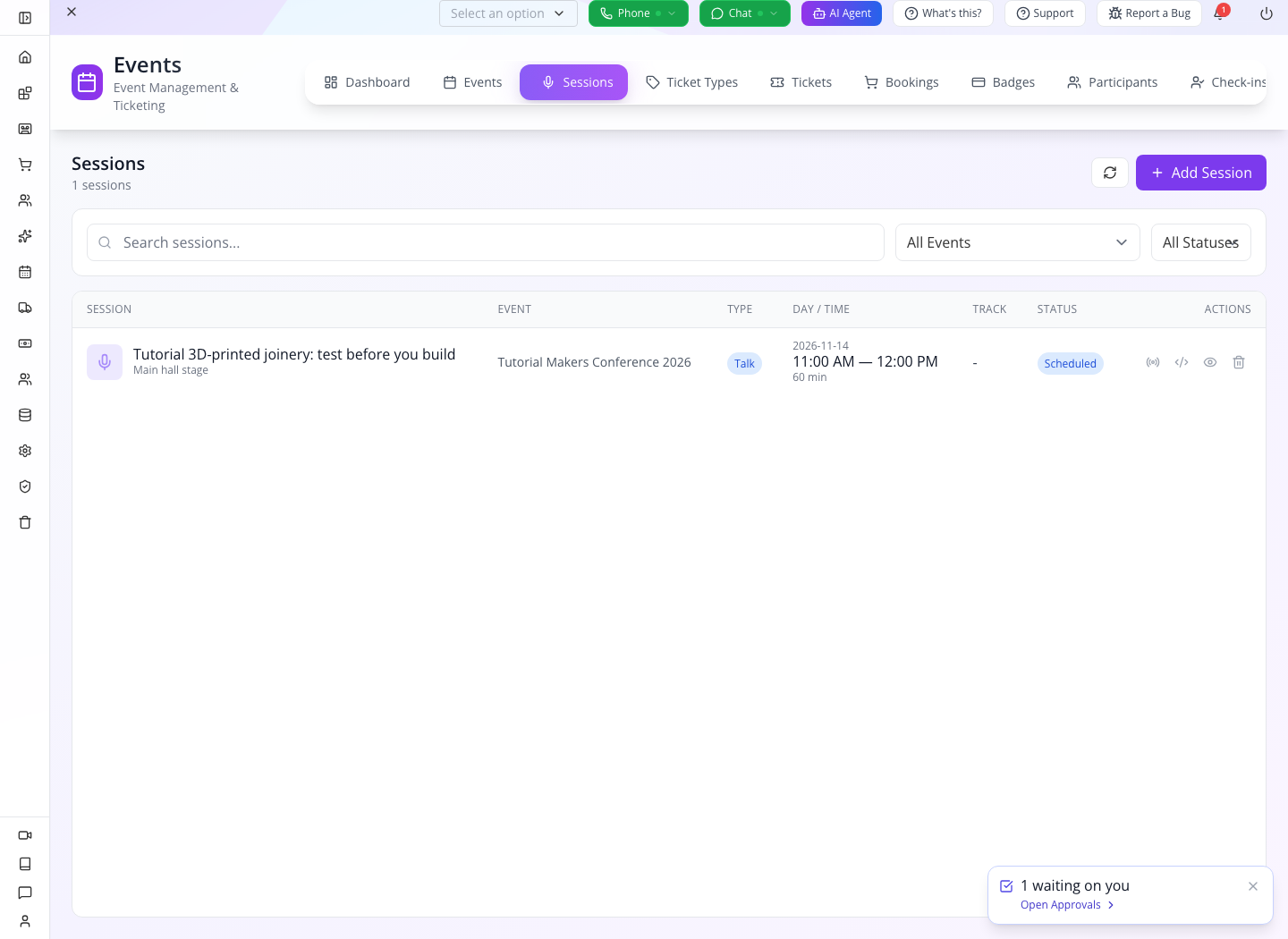
Try it: write a session description that helps someone choose between two talks. State the subject and practical outcome instead of repeating the title.
Check yourself: Nia appears in Participants. Can she enter with that record alone? No. Check her admission ticket separately.
Part 4 — Rehearse the entrance on Appmint Mobile
1. Open the same event on the staff phone
From Home, open Events or its View All entry, then select Tutorial Makers Conference 2026. The event shell has Overview, Scanner, Tickets, Schedule, People and More tabs; move along the strip to reach later tabs.
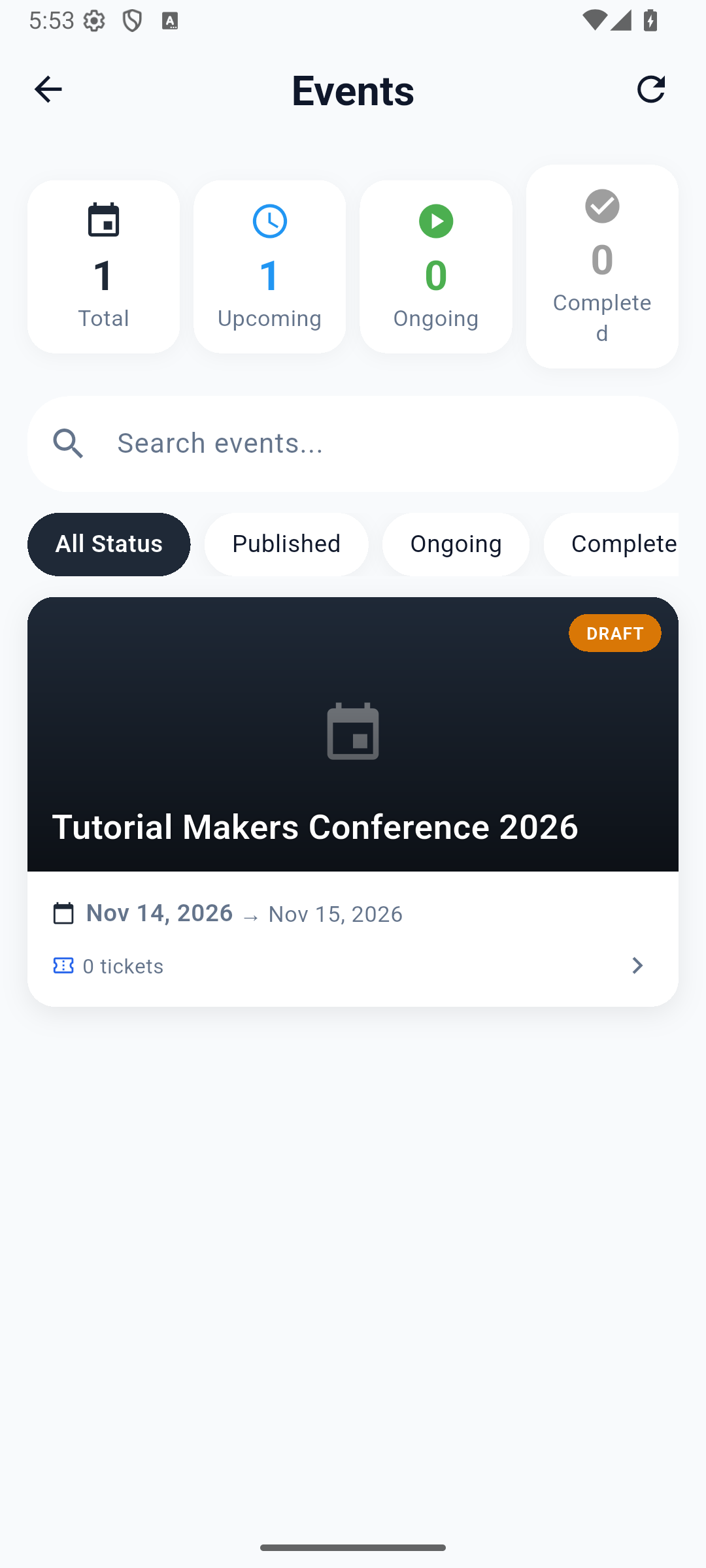
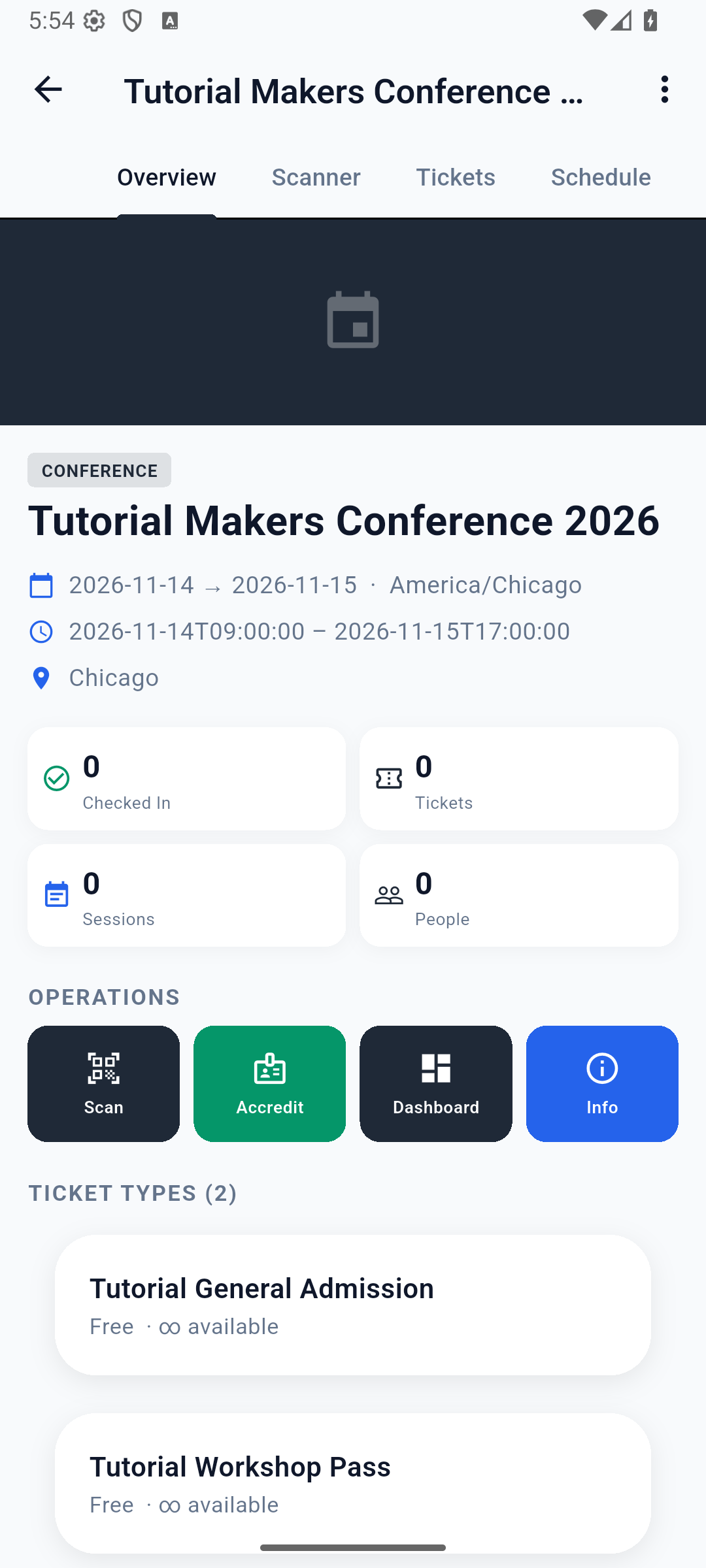
These two images predate publication and registrations. Reopen your event and verify its current saved state; do not use these earlier counts as the Part 4 baseline.
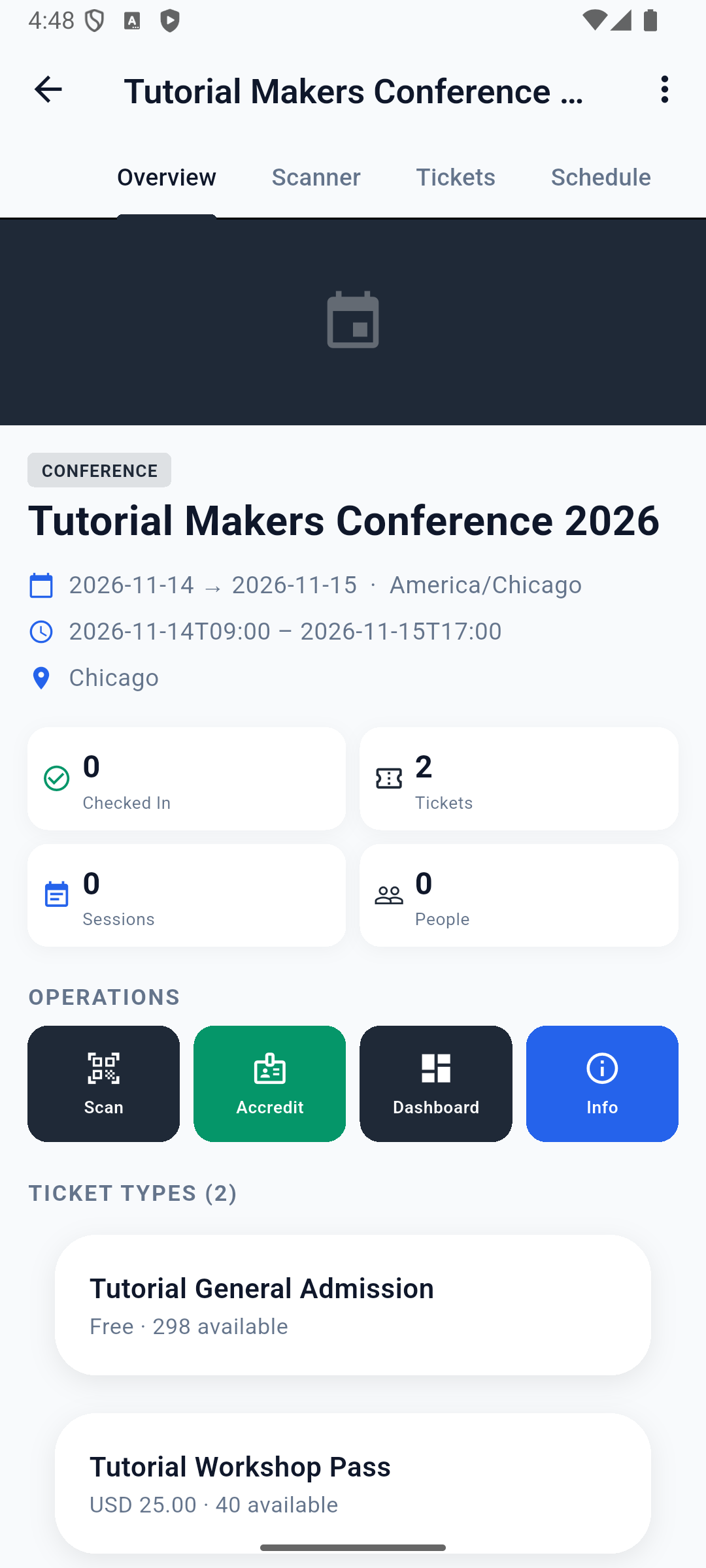
The corrected native overview displays Free · 298 available for General Admission after the two registrations, and USD 25.00 · 40 available for Workshop Pass. These are separate inventory pools; a guest with General Admission does not acquire workshop access.
2. Set the mode and zone before admitting anyone
Open Scanner. Allow camera access when the operating system requests it. Choose Check In, then the Main hall zone chip. No zone sends no zone restriction; it is unsuitable for testing the workshop boundary.
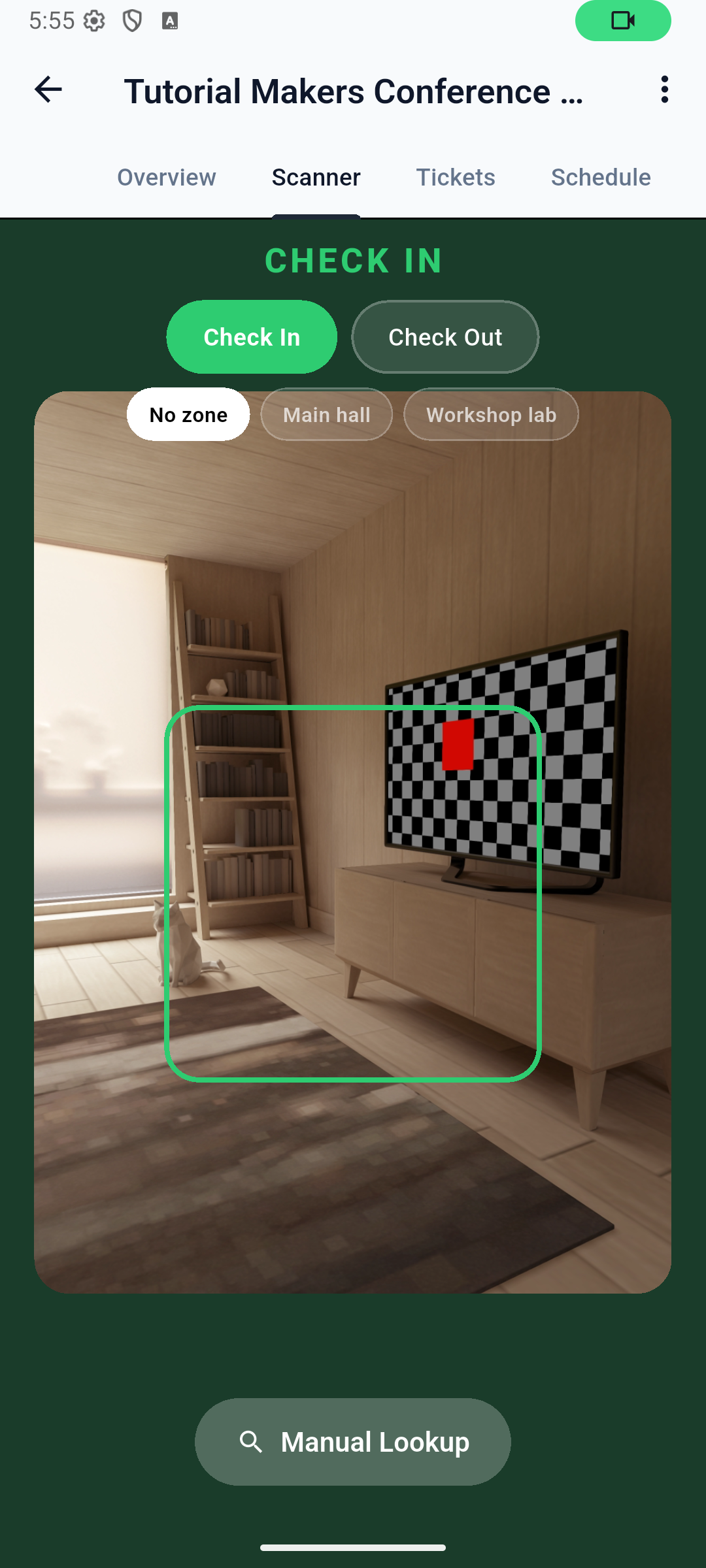
The camera is for a guest’s ticket QR. Manual Lookup is the fallback when a screen is damaged, the camera cannot focus or you need to find a ticket by email. Both paths still need a server response.
3. Admit Zara through Manual Lookup
Choose Manual Lookup. In Ticket code or holder email, enter [email protected]. Choose Check in. If the address has several tickets, select the intended ticket rather than assuming the first result is correct.
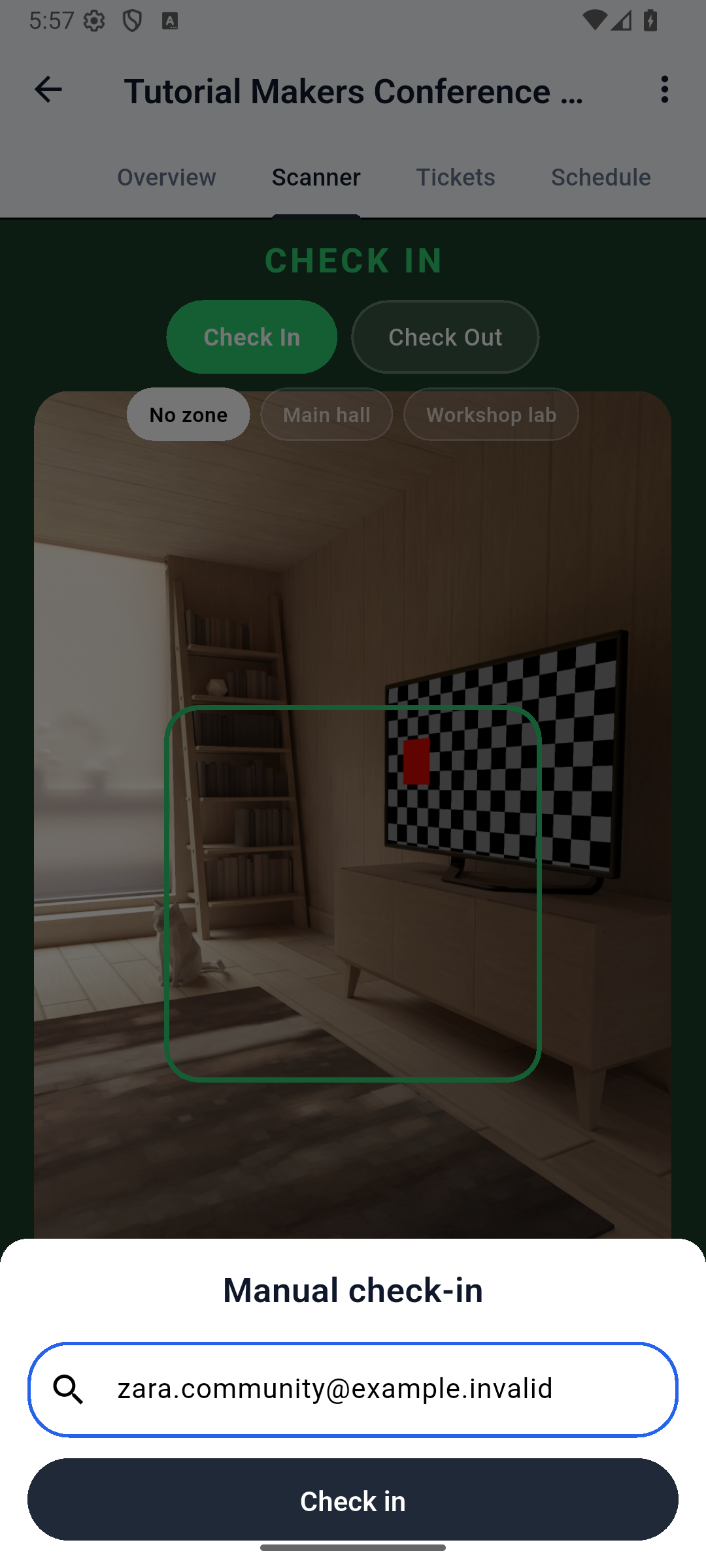
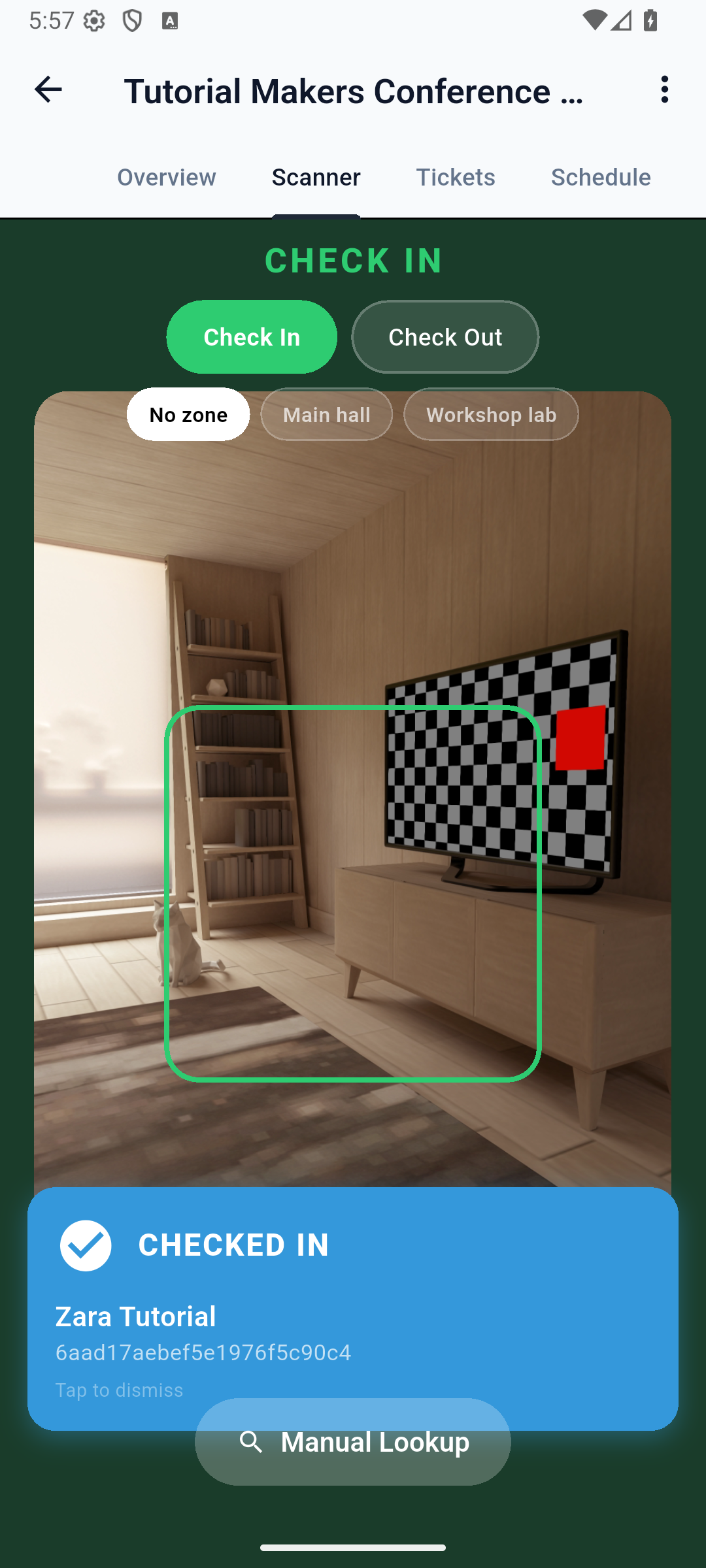
The older frames above show an unzoned rehearsal. The fresh local walkthrough selected Main hall before Zara’s first admission:
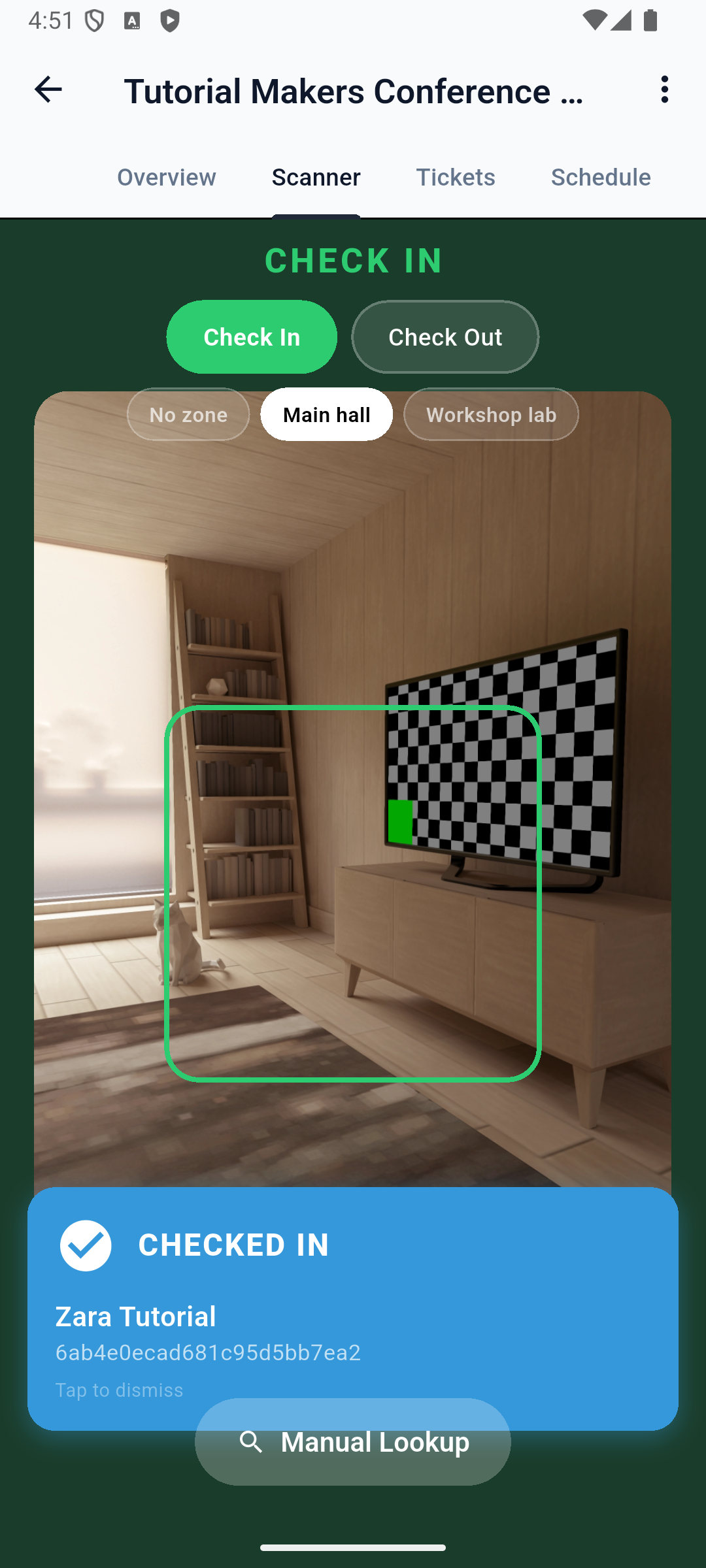
You should see: CHECKED IN. In this build the success card is blue. A decoded QR or found email is only a lookup; the admission decision is the result card.
In Studio, open Tickets and find Zara’s checked_in status. Open Check-ins, or the event’s Check-in Log, and inspect the movement. Reload to confirm it was saved.
4. Learn what a repeated attempt actually does
With Allow re-entry enabled, repeat the lookup at Main hall. In our rehearsal the server returned CHECKED IN again even without an intervening check-out. A successful scan count can therefore include the same person more than once.
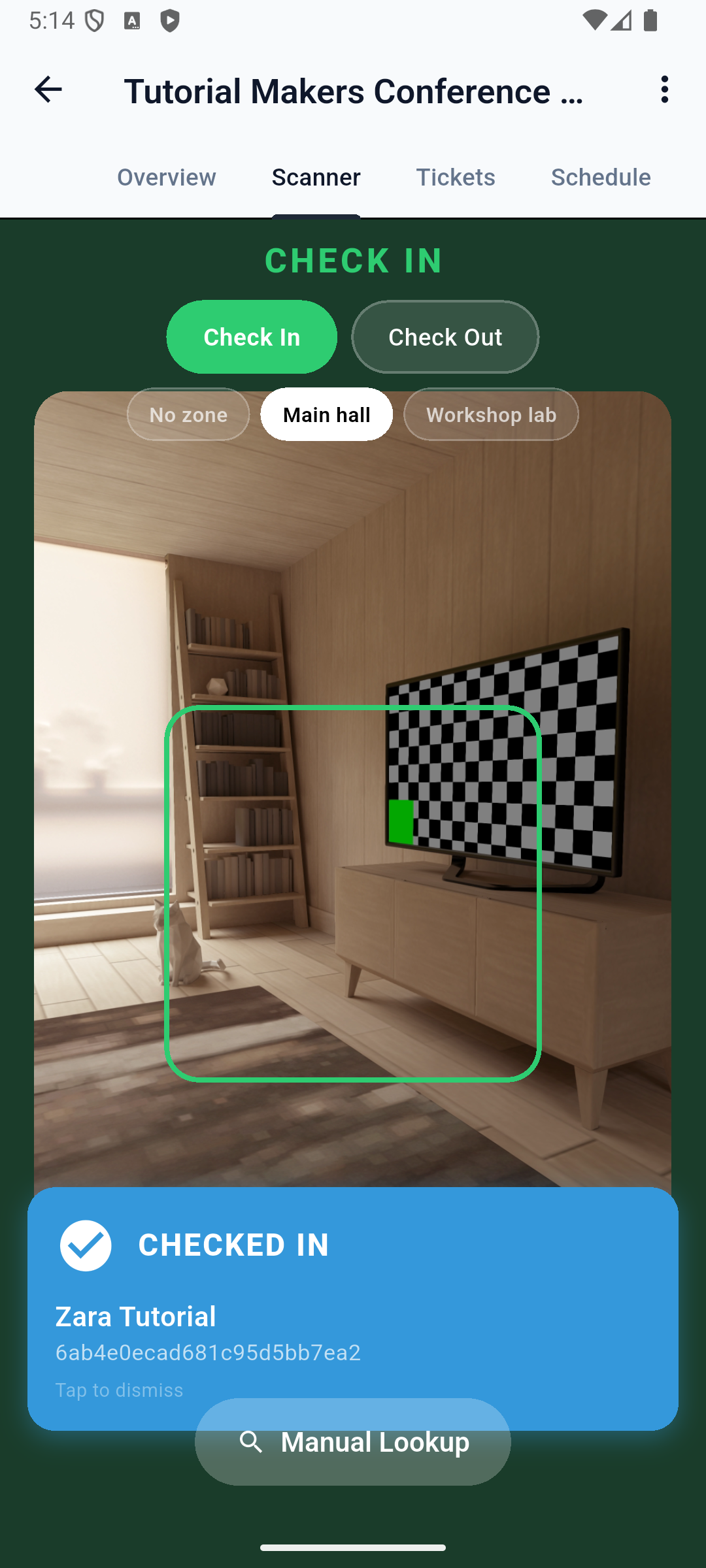
Do not train door staff to promise that every repeat will be refused. The ticket type’s re-entry configuration changes that outcome.
5. Test the workshop boundary
Select Workshop lab and look up Zara again in Check In mode. Her General Admission type allows only main-hall.
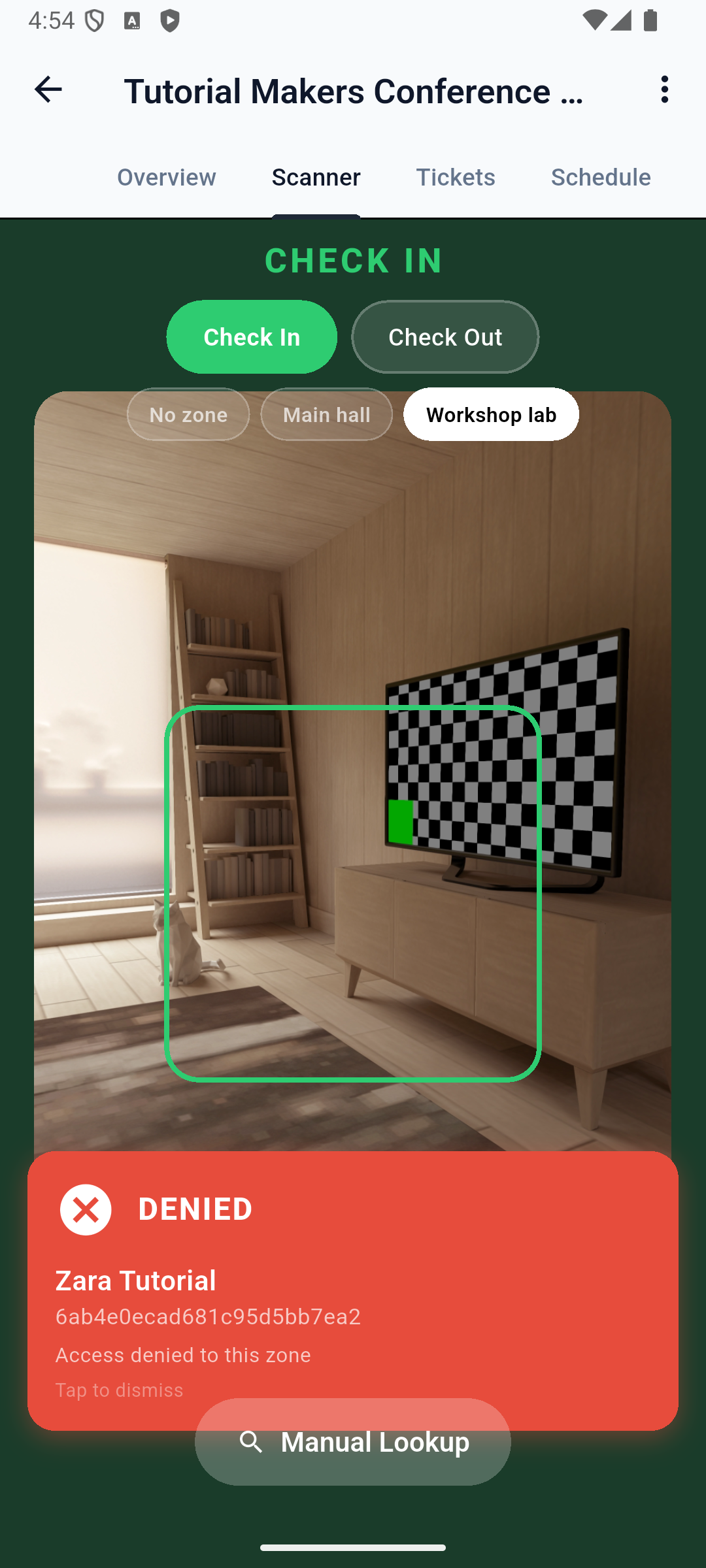
You should see: DENIED — Access denied to this zone. Keep the guest outside the restricted area while the desk checks their entitlement. Repeatedly scanning the same ticket will not add workshop access.
6. Record an exit and return
Select Main hall, change mode to Check Out, and use Manual Lookup for Zara. Expect CHECKED OUT. Then change back to Check In and look her up again. With re-entry enabled, expect CHECKED IN.
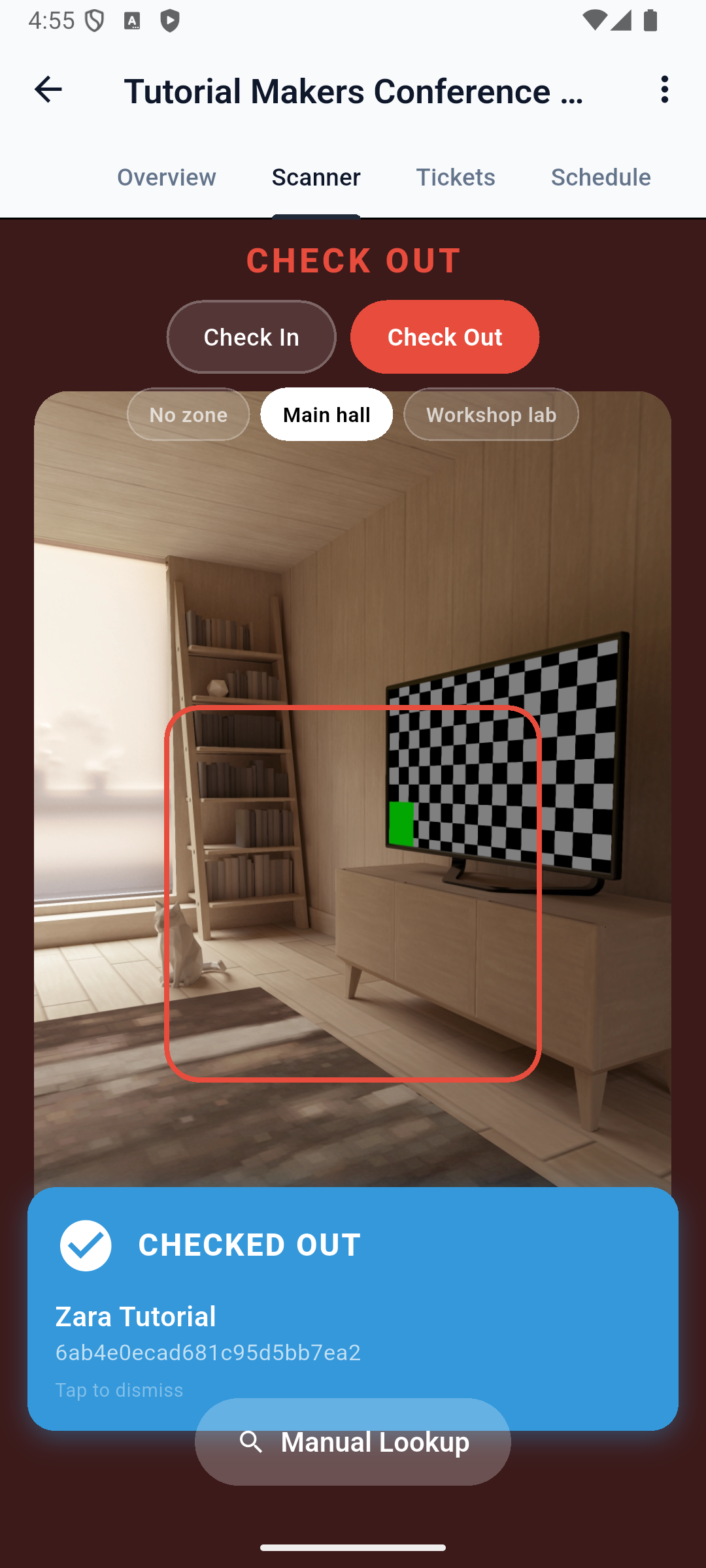
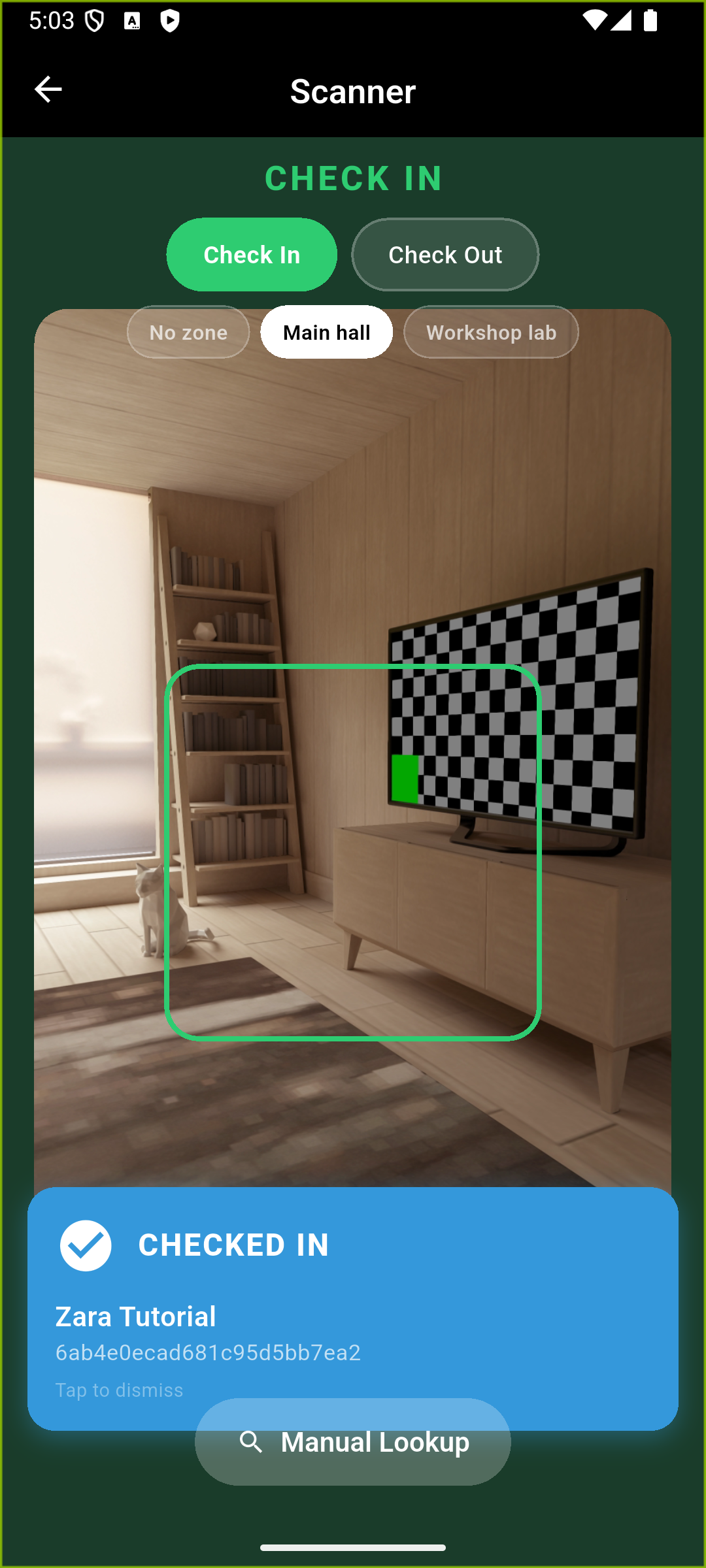
The ticket’s lifecycle status can remain checked_in; the movement log distinguishes the last entry from the exit. Use the log when answering “did this person leave?”
7. Test the refusal rule, then restore the exercise setting
In Studio, open General Admission’s edit form, expand Rules, clear Allow re-entry, and choose Save Changes. On the phone, attempt another check-in for Zara.
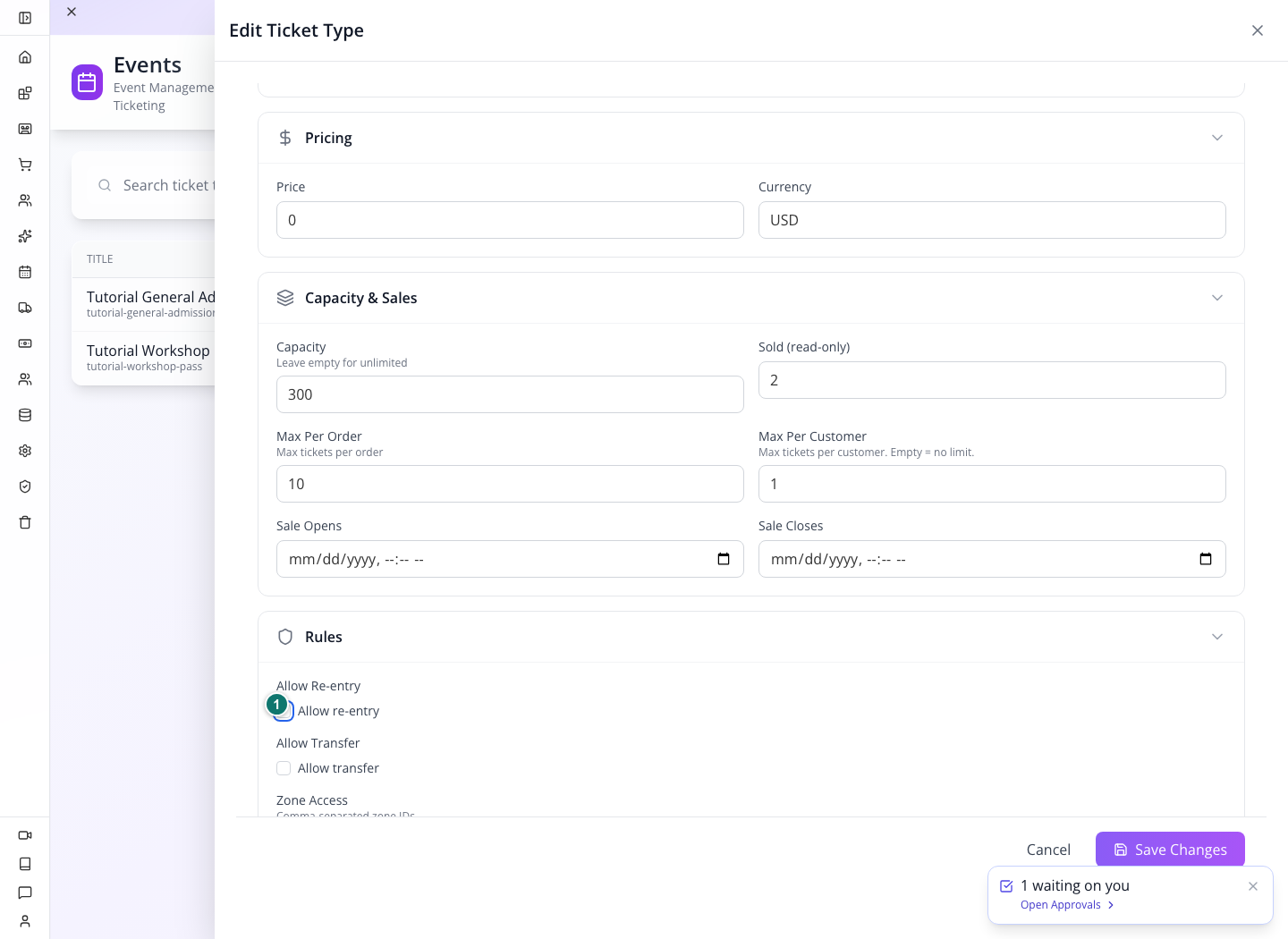
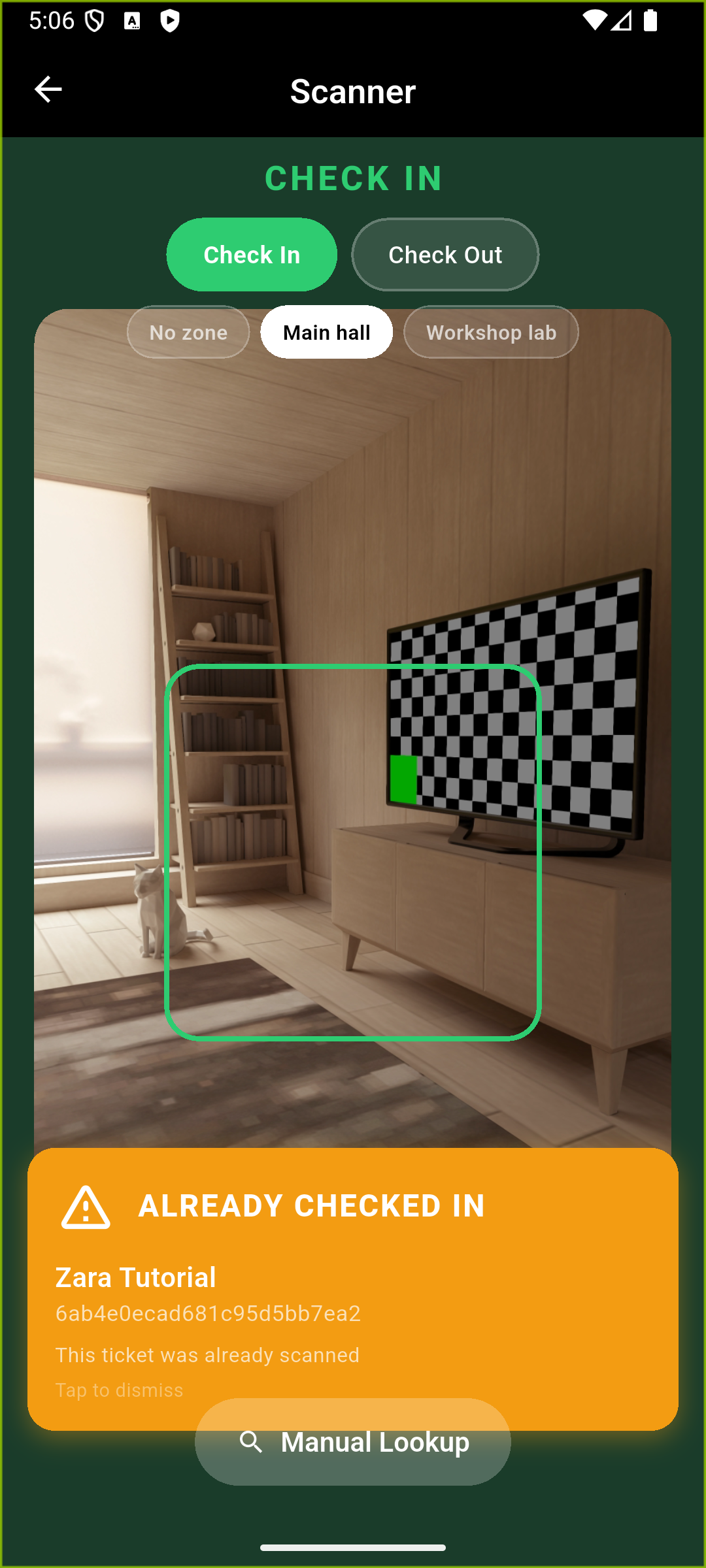
You should see: ALREADY CHECKED IN — This ticket was already scanned. Return to the ticket type, check Allow re-entry, save, and reopen it to confirm the exercise setting is restored.
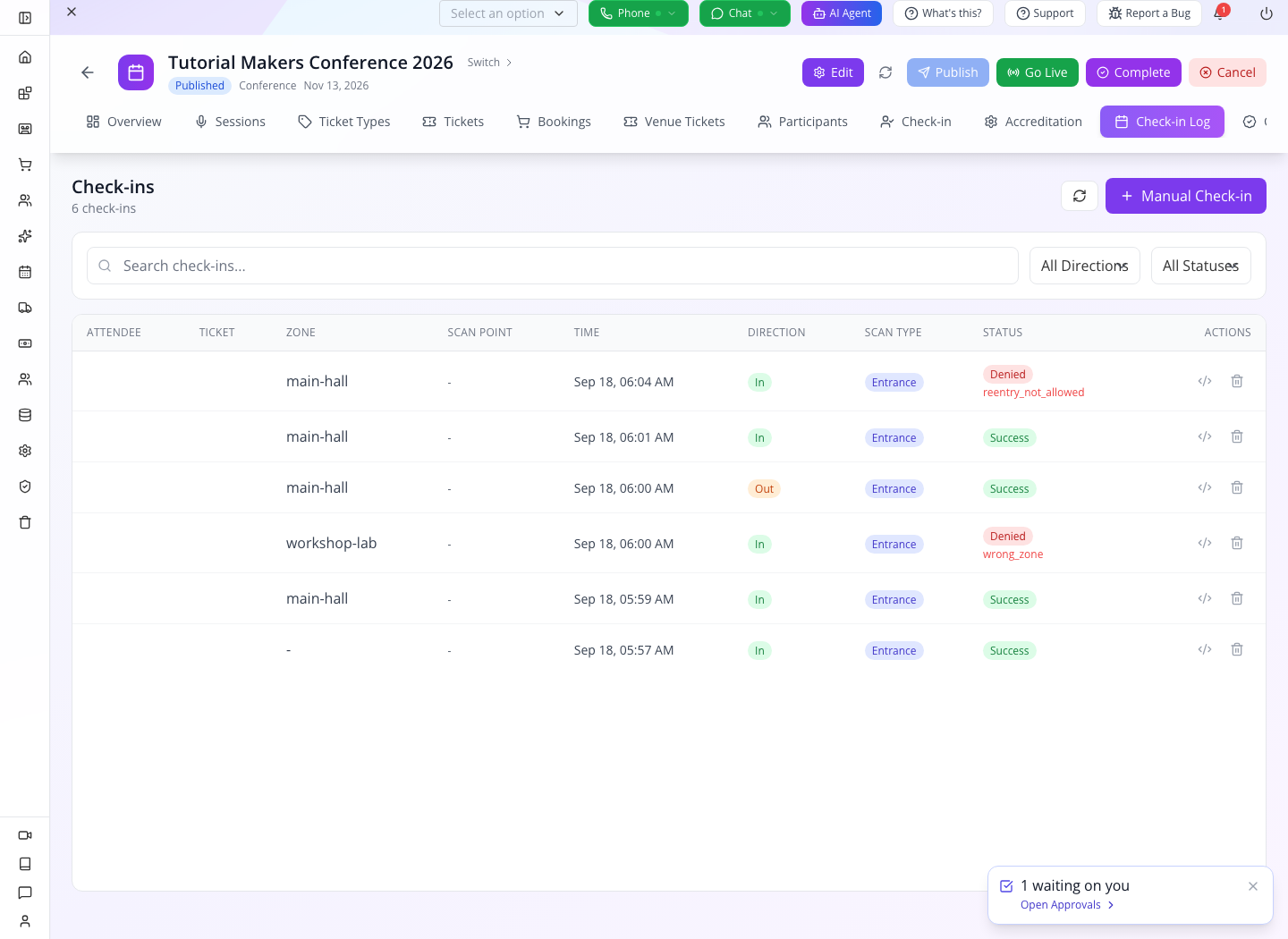
Failed attempts can also be logged. Count successful admissions separately from denied attempts and from unique people.
Try it: have a colleague name the mode, zone and expected result before you press the action. This catches an entrance phone left in Check Out mode.
Check yourself: why select the correct event as well as the zone? The corrected staff scan request includes the active event ID. The API refuses a ticket from another event before changing its admission state. This mismatch was verified for both entry and exit; a matching zone name alone does not authorize admission.
Part 5 — Handle pickup at the registration desk
1. Find Kofi’s existing ticket on the phone
From the event Overview, choose Accredit, or use More → Accreditation Desk. In Desk / Point ID, enter desk-1, the configured registration desk. In Email, booking ID, or code, enter [email protected], then use the search button. Confirm the holder name and ticket type before handing anything over.
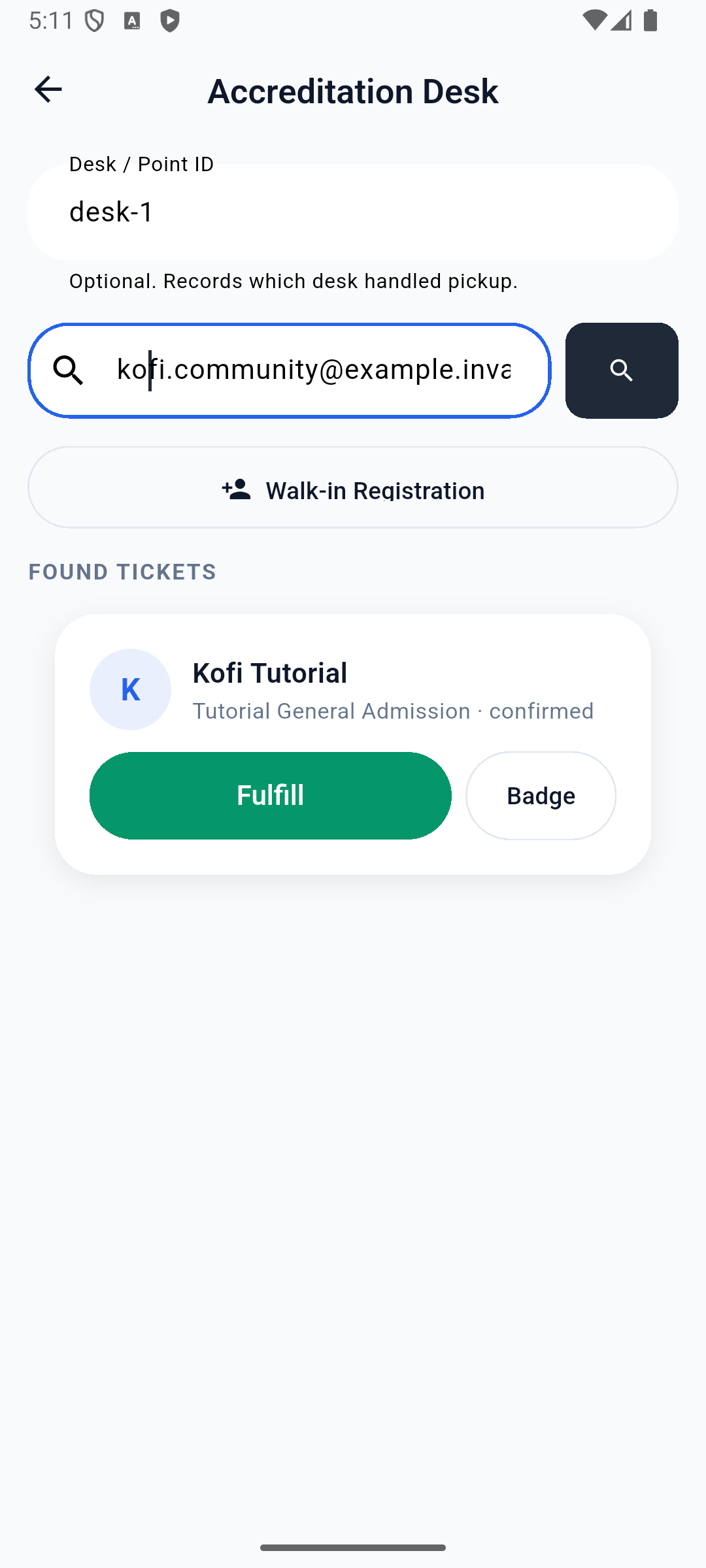
You should see: FOUND TICKETS, Kofi Tutorial, Tutorial General Admission · confirmed, and the Fulfill and Badge actions.
2. Fulfill the ticket
Choose Fulfill once. The app displays Ticket fulfilled and refreshes the result.
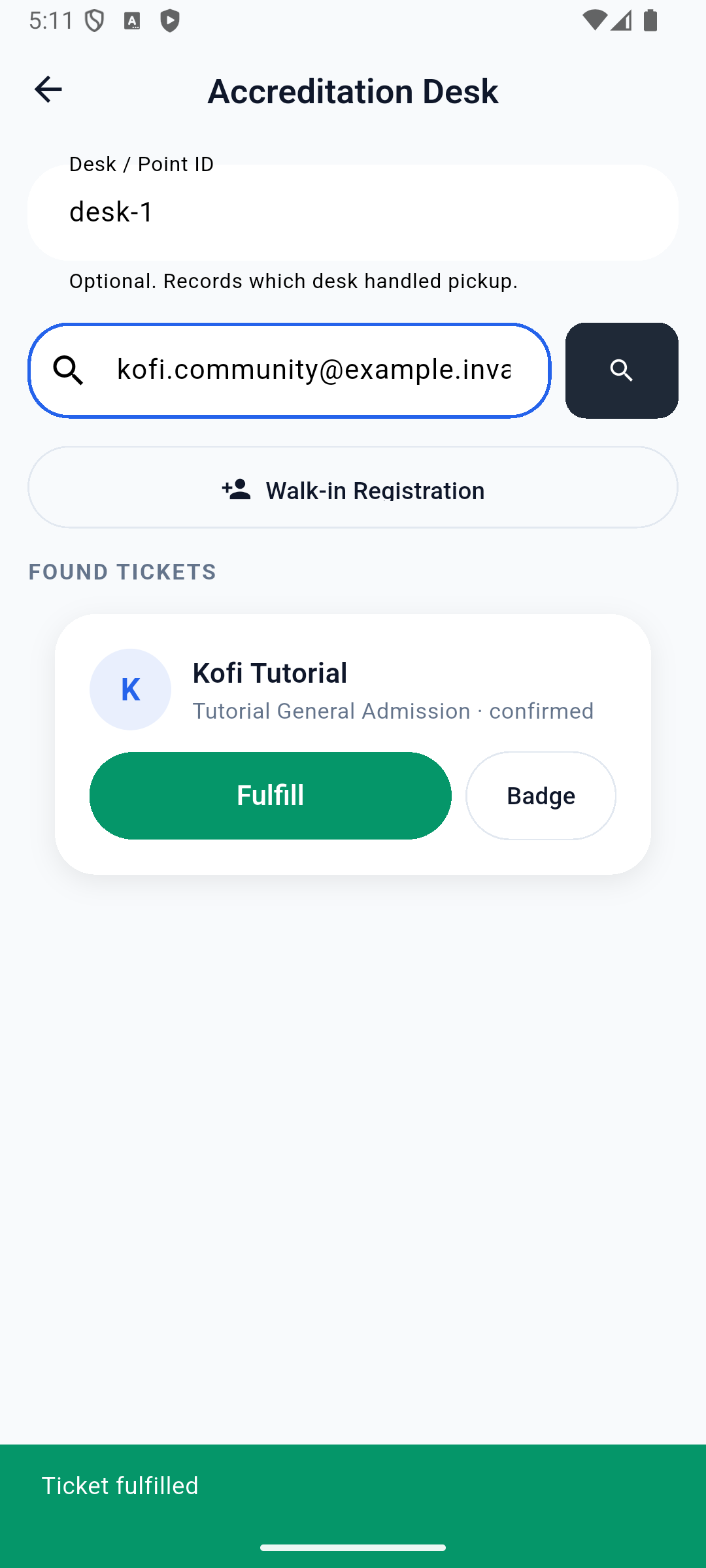
The saved ticket now has a fulfillment timestamp and the staff identity. Because Kofi’s free registration already issued a confirmed ticket, its status stays confirmed. Fulfillment is the pickup operation; it is not an entrance check-in.
Desk attribution: the current phone form sends Desk / Point ID with fulfillment. The local readback confirmed desk-1, the signed-in staff identity and a fulfillment timestamp. Leave the field empty only when you deliberately do not need desk attribution. A made-up or inactive desk ID is not a substitute for configuring the point in the event.
3. Find the same registration in Studio
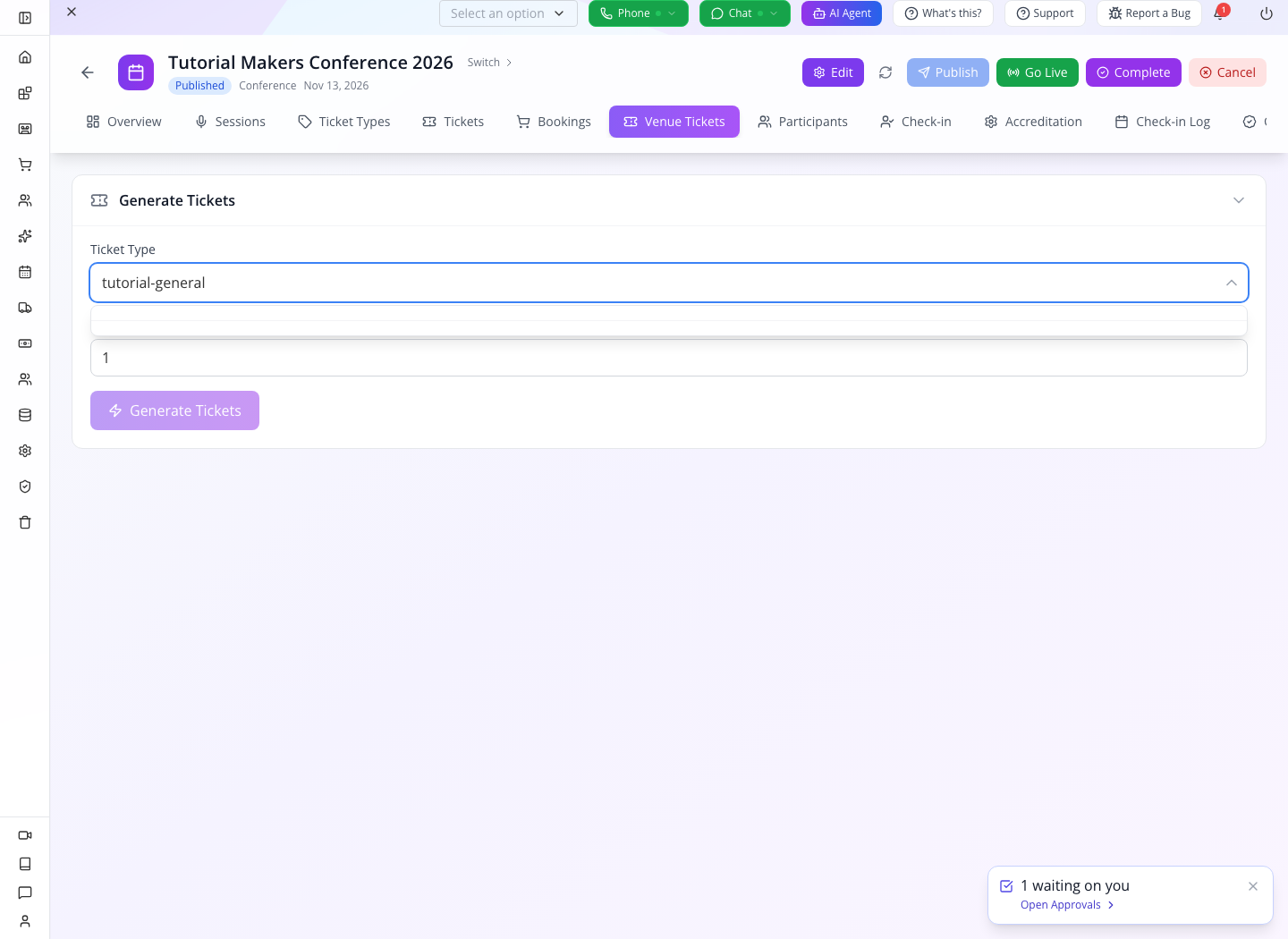
Open the event → Accreditation. Set Desk / Point ID to desk-1, keep Search By: Email, enter Kofi’s email and choose Search. Confirm his name and ticket type. The repaired web desk reads the returned ticket list and finds the same record as the phone. Do not choose Fulfill again after pickup merely to repeat the demonstration; inspect the saved fulfillment fields instead.
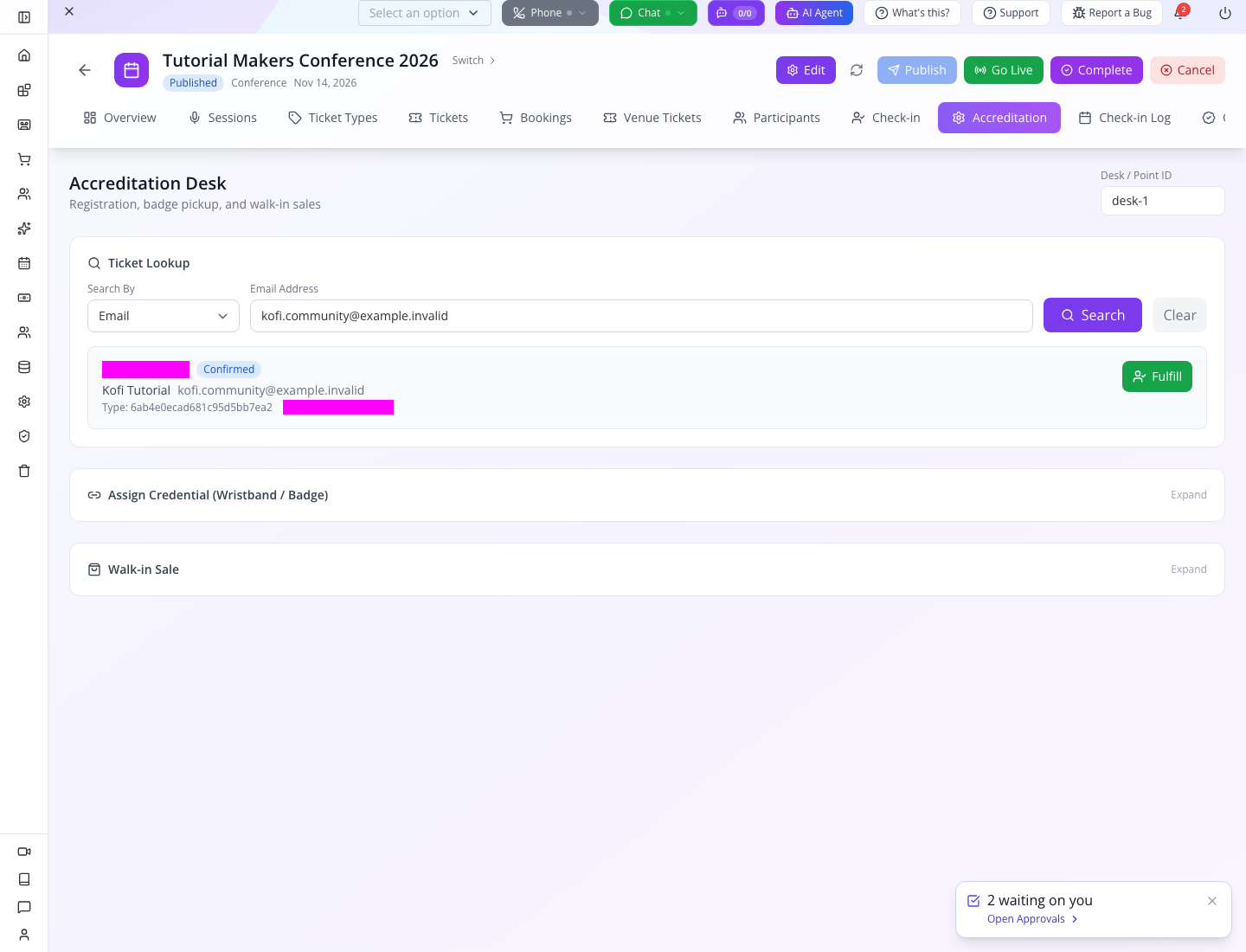
Venue Tickets → Generate Tickets is for preparing ticket stock. Its ticket-type picker returned no results in this build, so no batch was generated. Leave that branch out of the operating procedure until a one-ticket rehearsal succeeds. A default quantity of 100 is not a sensible first test.
The Badge action is separate again. The native implementation displays badge data and says phone printing is unavailable. A badge template, a ticket, a fulfilled pickup and a physical printout are four different things; complete a real printer test before promising onsite badge production.
Try it: explain the difference between confirmed, fulfilled and checked_in using Kofi and Zara’s records.
Check yourself: should Kofi register again because the Studio desk shows no result? No. Check the native lookup and saved ticket first.
Part 6 — PRO: the supported API path used in this rehearsal
This lab is for an authorized developer working server-side. API_BASE below means your configured AppEngine API origin, without a trailing slash; ORG_ID is your organization ID. Obtain STAFF_TOKEN by the normal authorized sign-in flow. Keep it in memory or your secure development environment. These snippets contain no working credentials and must not be copied into a public page or mobile bundle.
Use an isolated training organization with notification delivery routed to a test sink. Signup and ticket purchase can enqueue messages, including a copy to the organization owner; non-deliverable attendee addresses alone do not prevent that copy. Do not run this fixture against an existing customer organization.
Run these steps in order: create the draft event; create both ticket types in Part 2; resolve their IDs and finish the two-stage event update; register both guests; prepare Nia and the session. Use one private JavaScript session for the snippets so the variables remain available.
| Variable | Source of the value |
|---|---|
eventId | created.sk from event creation below |
generalAdmissionId, workshopPassId | sk of the exact matching rows from the event’s ticket-type list |
zaraBookingId, kofiBookingId | Each successful purchase response’s booking.sk |
zaraTicketId, kofiTicketId | Each successful purchase response’s sole tickets[0].sk |
niaCustomerId | Exact-email customer lookup row’s sk, or signup response’s customer.sk |
participantId | Created or previously matched speaker participant’s sk |
sessionId | Exact-title session lookup row’s sk, or session creation response’s sk |
1. Create the event through the event service
Use POST /crm/events/create with staff authorization and the BaseModel envelope. The required isNew: true matters; omitting it returned Not a new metrics... in the rehearsal. Assign this JSON to eventRequest. It provides an API alternative to the Studio form with the same location, zones, checkpoints and desk. Skip creation if you already saved the event in Part 1; use the exact lookup below to recover its ID. Change all dates together if necessary.
{
  "isNew": true,
  "datatype": "event",
  "data": {
    "name": "tutorial-makers-2026",
    "title": "Tutorial Makers Conference 2026",
    "slug": "tutorial-makers-2026",
    "type": "conference",
    "status": "draft",
    "category": "Design and fabrication",
    "startDate": "2026-11-14",
    "endDate": "2026-11-15",
    "startTime": "2026-11-14T09:00:00",
    "endTime": "2026-11-15T17:00:00",
    "timezone": "America/Chicago",
    "venue": "Tutorial Makers Hall",
    "address": {"city": "Chicago", "region": "Illinois", "country": "United States"},
    "days": [
      {"date": "2026-11-14", "label": "Day 1", "startTime": "09:00", "endTime": "17:00"},
      {"date": "2026-11-15", "label": "Day 2", "startTime": "09:00", "endTime": "17:00"}
    ],
    "zones": [
      {"id": "main-hall", "name": "Main hall", "capacity": 300},
      {"id": "workshop-lab", "name": "Workshop lab", "capacity": 40}
    ],
    "scanPoints": [
      {"id": "entrance", "name": "Entrance", "zone": "main-hall", "scanType": "entrance", "matchField": "ticket_code", "acceptedTicketTypes": [], "isActive": true},
      {"id": "lab-door", "name": "Lab door", "zone": "workshop-lab", "scanType": "eligibility", "matchField": "ticket_code", "acceptedTicketTypes": [], "isActive": true}
    ],
    "accreditationPoints": [
      {"id": "desk-1", "name": "Tutorial Registration Desk", "zone": "main-hall", "isActive": true, "allowWalkIn": false, "allowOnlinePickup": true}
    ]
  }
}
const headers = {
'content-type': 'application/json', orgid: ORG_ID,
authorization: `Bearer ${STAFF_TOKEN}`
};
async function request(path, options = {}) {
const response = await fetch(`${API_BASE}${path}`, { ...options, headers });
const result = await response.json();
if (!response.ok) throw new Error(`Request failed (${response.status}); inspect privately`);
return result;
}
function exactlyOne(rows, predicate, label) {
const matches = rows.filter(predicate);
if (matches.length !== 1) throw new Error(`Expected exactly one ${label}; inspect before continuing`);
return matches[0];
}
async function findRows(datatype, query) {
const result = await request(`/repository/find/${datatype}`, {
method: 'POST', body: JSON.stringify({ query, options: { pageSize: 100 } })
});
return result.data;
}
const existingEvents = await findRows('event', { 'data.slug': eventRequest.data.slug });
if (existingEvents.length) throw new Error('This event already exists; inspect it or choose a new rehearsal slug');
const created = await request('/crm/events/create', {
method: 'POST', body: JSON.stringify(eventRequest)
});
const eventId = created.sk;
if (!eventId) throw new Error('Missing created event ID');If creation errors, perform the same slug lookup before retrying: a response failure may follow persistence. For an intentional continuation, verify that the single matching record is your training event and assign its sk to eventId in a new private session; skip creation. Never substitute a historical evidence ID.
The captured creation request preserves the original payload for diagnosis. It is historical evidence, not the recommended fixture. Do not add its attendees: []: the practiced native model expected a number or null and failed to parse that array. The new fixture also explicitly disables walk-in sales. Empty accepted-type arrays are temporary; finish the next step before opening a checkpoint.
2. Resolve ticket types, configure checkpoints and verify publication
Create the two types in Part 2 first. Resolve their record IDs from this event’s list; titles/slugs themselves are not ticket IDs:
const types = (await request(`/events/${eventId}/ticket-types`)).data;
const generalAdmission = exactlyOne(types,
  t => t.data.event === eventId && t.data.slug === 'tutorial-general-admission', 'General Admission type');
const workshopPass = exactlyOne(types,
  t => t.data.event === eventId && t.data.slug === 'tutorial-workshop-pass', 'Workshop Pass type');
const generalAdmissionId = generalAdmission.sk;
const workshopPassId = workshopPass.sk;
The dedicated update accepts a full current raw record. Fetch it immediately before each update; an enriched display record or stale version is unsuitable. Keep the start/end times entered in Studio. Configure the days, zones and desk together before registration, because later edits to a published event may notify ticket holders.
const configured = await request(`/repository/get/event/${eventId}`);
configured.data.days = structuredClone(eventRequest.data.days);
configured.data.address = structuredClone(eventRequest.data.address);
configured.data.zones = structuredClone(eventRequest.data.zones);
configured.data.scanPoints = structuredClone(eventRequest.data.scanPoints);
configured.data.scanPoints[0].acceptedTicketTypes = [generalAdmissionId, workshopPassId];
configured.data.scanPoints[1].acceptedTicketTypes = [workshopPassId];
configured.data.accreditationPoints = structuredClone(eventRequest.data.accreditationPoints);
configured.data.status = 'published';
await request('/crm/events/update', {
  method: 'POST', body: JSON.stringify(configured)
});
const readyEvent = await request(`/repository/get/event/${eventId}`);
for (const key of ['days', 'address', 'zones', 'scanPoints', 'accreditationPoints']) {
  if (JSON.stringify(readyEvent.data[key]) !== JSON.stringify(configured.data[key])) {
    throw new Error(`Event ${key} did not persist; stop before registration`);
  }
}
if (readyEvent.data.status !== 'published') {
  throw new Error('Event is not ready');
}
Reload Studio and check both days end at 17:00, both checkpoint lists contain the intended record IDs, and desk-1 is active with online pickup on and walk-in off. On Inconsistent state mutation, re-read the current raw record and reapply only your intended changes. Do not reuse a stale object. The corrected lifecycle handler preserves existing day hours; a second clock-normalization update is unnecessary.
3. Register Zara and Kofi separately
Use the actual General Admission record ID. The public purchase endpoint needs the organization header, not the staff bearer token. Preflight both holder emails against this event before creating anything:
async function registerGuest(email, name) {
  const existing = await findRows('event_ticket', {
    'data.event': eventId, 'data.holderEmail': email
  });
  if (existing.length) throw new Error('Guest already has a ticket; inspect history before any retry');
  const response = await fetch(`${API_BASE}/client/events/tickets/purchase`, {
    method: 'POST',
    headers: { 'content-type': 'application/json', orgid: ORG_ID },
    body: JSON.stringify({
      eventId, email, name,
      items: [{ ticketTypeId: generalAdmissionId, quantity: 1 }]
    })
  });
  const result = await response.json();
  if (!response.ok) throw new Error(`Registration failed (${response.status}); inspect saved booking/tickets before retrying`);
  if (result.booking?.data.status !== 'paid' || result.booking.data.total !== 0 || result.tickets?.length !== 1) {
    throw new Error('Unexpected booking/ticket result; inspect privately');
  }
  const ticket = result.tickets[0];
  if (ticket.data.event !== eventId || ticket.data.ticketType !== generalAdmissionId ||
      ticket.data.holderEmail !== email || ticket.data.status !== 'confirmed') {
    throw new Error('Unexpected ticket identity or status');
  }
  return { bookingId: result.booking.sk, ticketId: ticket.sk };
}
const { bookingId: zaraBookingId, ticketId: zaraTicketId } =
  await registerGuest('[email protected]', 'Zara Tutorial');
const { bookingId: kofiBookingId, ticketId: kofiTicketId } =
  await registerGuest('[email protected]', 'Kofi Tutorial');
Keep these four IDs privately. Read GET /repository/get/event_ticket/:ticketId for each returned ticket and verify the Part 2.4 baseline before using the phone: correct event/type/email, confirmed, empty data.checkIns, and no data.fulfilledAt. Do not log QR secrets or the full ticket response. After any failure, inspect both Bookings and Tickets before a retry. To resume an already completed registration, recover its ticket’s sk and data.purchase.bookingId from the scoped lookup instead of calling purchase again. A successful request alone is not an attendee registration website.
4. Prepare Nia, add her speaker role and connect the session
Nia is an additional fixture, not a customer created by the community course. First look up her exact training email with the staff helper:
const niaEmail = '[email protected]';
const niaRows = await findRows('customer', { 'data.email': niaEmail });
if (niaRows.length > 1) throw new Error('Ambiguous Nia customer; inspect before continuing');
let niaCustomerId = niaRows[0]?.sk;
Only if no record exists, use the community course’s customer-signup route in this isolated organization. Set NIA_TRAINING_PASSWORD to a fresh private password in your development environment; never publish it or the returned tokens. This step may enqueue a welcome message:
if (!niaCustomerId) {
  const response = await fetch(`${API_BASE}/profile/customer/signup`, {
    method: 'POST',
    headers: { 'content-type': 'application/json', orgid: ORG_ID },
    body: JSON.stringify({
      firstName: 'Nia', lastName: 'Tutorial', email: niaEmail,
      password: NIA_TRAINING_PASSWORD
    })
  });
  const signup = await response.json();
  if (!response.ok || !signup.customer?.sk) throw new Error('Signup incomplete; look up Nia before retrying');
  niaCustomerId = signup.customer.sk;
}
const verifiedNia = exactlyOne(await findRows('customer', { 'data.email': niaEmail }),
  c => c.sk === niaCustomerId && c.data.email === niaEmail, 'Nia customer');
Resolve or create her speaker participant without duplicating a prior run:
const speakers = (await request(`/events/${eventId}/participants`)).data
  .filter(p => p.data.event === eventId && p.data.customer === niaCustomerId && p.data.type === 'speaker');
if (speakers.length > 1) throw new Error('Duplicate speaker records; inspect before continuing');
const participant = speakers[0] || await request(`/events/${eventId}/participants`, {
  method: 'POST',
  body: JSON.stringify({
    customer: niaCustomerId, type: 'speaker', status: 'confirmed',
    role: 'Tutorial joinery presenter',
    shortBio: 'Design researcher comparing timber joints and printed connectors.'
  })
});
const participantId = participant.sk;
if (participant.data.status !== 'confirmed') throw new Error('Confirm the speaker agreement before continuing');
If you already saved the talk in Part 3, use its exact-title match. Otherwise create it with the same fields. Do not take the first unrelated session in a list:
const sessionTitle = 'Tutorial 3D-printed joinery: test before you build';
const matches = (await request(`/events/${eventId}/sessions`)).data
  .filter(s => s.data.event === eventId && s.data.title === sessionTitle);
if (matches.length > 1) throw new Error('Duplicate sessions; inspect before continuing');
const session = matches[0] || await request(`/events/${eventId}/sessions`, {
  method: 'POST',
  body: JSON.stringify({
    title: sessionTitle, type: 'talk', status: 'scheduled',
    shortDescription: 'Compare a timber joint and a printed connector, then discuss the tests each needs.',
    day: '2026-11-14', startTime: '2026-11-14T11:00:00', endTime: '2026-11-14T12:00:00',
    duration: 60, zone: 'main-hall', room: 'Main hall stage', isPublic: true
  })
});
const sessionId = session.sk;
await request(`/events/sessions/${sessionId}`, {
  method: 'PUT', body: JSON.stringify({ isPublic: true, participants: [participantId] })
});
const linked = exactlyOne((await request(`/events/${eventId}/sessions`)).data,
  s => s.sk === sessionId, 'saved session');
if (linked.data.isPublic !== true || !linked.data.participants?.includes(participantId)) {
  throw new Error('Speaker/public state did not persist');
}
Read the participants list again and verify the participant still references niaCustomerId and this event. Neither participant creation nor this session update sends an invitation. Signup is separate and can send a welcome message. This fixture gives Nia a programme role, not an admission ticket.
5. Supply a desk ID when fulfillment needs attribution
The supported request shape is:
{
  "eventId": "YOUR_EVENT_ID",
  "ticketId": "YOUR_TICKET_RECORD_ID",
  "accreditationPointId": "desk-1"
}
Send it to POST /events/tickets/fulfill with staff authorization. Use an active point that permits online pickup. The phone now supplies this point from its Desk / Point ID field; the live pickup persisted desk-1. Fulfillment rotates ticket code material, so refresh a displayed ticket after pickup rather than relying on an old image.
Try it: read the session and ticket records after your operations colleague uses the UI. Can you identify the scheduled session, the fulfilled ticket and the admitted guest without exposing a ticket secret?
Check yourself: should a mobile developer embed STAFF_TOKEN to make the attendee endpoints work? No. Use the attendee/customer authentication flow taught in the connected-client course.
Part 7 — Extend the business without confusing promises with completed workflows
Paid tickets and refunds
A priced ticket type is ready for a payment integration rehearsal, not automatically for taking real money. The current confirmation service trusts a client payment reference; establish server-side payment verification before launch. Test interruption, duplicate confirmation and reconciliation with the payment provider.
Ticket Refund is bookkeeping in the checked implementation; it does not call a payment provider to move money. A real refund needs the provider refund and the corresponding Appmint record to agree. Cancel booking deletes its tickets in the checked service. Keep an audit trail and do not use cancellation as a substitute for refunding money.
Perks, transfers and credentials
Perks can represent a toolkit or other entitlement. Configuration includes quantities and automatic claims at a scan point, but the practiced mobile scanner omitted that point. Do not train staff to promise a kit was claimed simply because zone entry succeeded. Rehearse claim, fulfillment and duplicate refusal separately.
Transfers change the holder and code material. The older admin form and service use mismatched fields; use a verified attendee transfer path and test the old and new holder views before offering transfers. A badge or wristband credential also needs assignment, lookup and physical-use tests of its own.
Your attendee app and event community
EventOxygen covers the guest’s side: registration, tickets, the programme and community. The stock production app is bound to the eventos organization. It will not start showing your organization merely because you created an Appmint account. A build configured for your organization is required for your own event business.
The source is present in appmint_go/event_app; organization and API configuration live in its environment settings. A public source-distribution URL and license were not established in this rehearsal, so use the source provided by the project owner and confirm the applicable license before redistributing a customized build. Branding, authentication configuration, signing and store distribution are part of that project. Do not copy a committed application credential into a new organization's app.
Creating the event also created a community page. In this rehearsal, automatically adding existing community members as ticket holders failed with a duplicate membership-name error. Verify actual page membership before promising ticket buyers automatic community access. The community course explains joining, posting and moderation.
Try it: pick one extension—paid tickets, perks, transfers, credentials or a branded attendee app—and write its full rehearsal: setup, successful action, failure case, saved result and recovery.
Check yourself: is opening a template or seeing an action button enough to advertise the service? Complete its end-to-end rehearsal first.
If something goes wrong
| Symptom | First check | Next action |
|---|---|---|
| Event Save fails | Search the event list for the exact title/slug | Inspect persistence before retrying; retain the error for support. The corrected form uses the dedicated event service. |
| Publish fails | Reopen the event and inspect its status | Do not assume publication succeeded; report the action and error. The local enriched-record defect is fixed. |
| Inconsistent state mutation | A different action saved a newer version | Read the record again; apply only the intended changes. |
| Card is one day earlier than the form | Stored date and native list | Keep the intended dates; report the display mismatch. |
| Registration errors after saving a booking | Ticket list and calendar-generation error | Inspect both bookings and tickets before retrying. The corrected calendar accepts the form values. |
Native list says a list is not a subtype of int? | attendees field in a custom API payload | Correct the field type; the empty training array was cleared to null. |
| Workshop looks free on native Overview | Studio ticket type and saved price | Compare the saved price/capacity and refresh the app. The repaired overview reads the actual ticket-type fields. |
| General Admission enters twice | Allow re-entry | Choose the intended policy; use the movement log, not scan count, for attendance. |
| Lab entry denied | Selected zone and type’s Zone Access | Confirm the guest owns workshop access; do not change a rule just to clear a queue. |
| Check-out says not currently checked in | Last movement | Confirm there is an entry before recording an exit. |
| Web desk finds nothing | Native lookup and saved ticket | Confirm the selected event and exact holder email; avoid duplicate registration. The corrected web desk consumes the returned ticket list. |
| Fulfilled ticket has no desk | Request omitted the point ID | Enter the configured Desk / Point ID before fulfillment when desk reporting is required. |
| Speaker/session pickers show no results | Existing customer/participant records | Search the exact customer email or the participant role, select a result, then reopen the saved record. |
| Venue-ticket type cannot be selected | Picker results | Do not generate a large batch; retest one ticket after the picker is repaired. |
| Event community missing its ticket holders | Actual page membership | Inspect membership creation; this rehearsal hit a duplicate-name error. |
| Badge data appears but nothing prints | Printing implementation and printer connection | Run a separate real print test; the phone currently reports printing unavailable. |
What happened behind the scenes
Implementation and evidence for developers and editors
Source paths are relative to /Users/imzee/projects:
websitemint/packages/ui/src/components/events/: event form, ticket-type list, session form, event detail, accreditation desk and venue-ticket controls. The desktop desk consumes the actualticketsresult; event saving uses the dedicated CRM endpoints.appengine/src/crm/events.service.ts: dedicated event creation/update and the required CRM service caller context.appengine/src/events/event.service.ts: lifecycle, enrichment, generated days, calendar content and event community creation.appengine/src/events/event-ticket.service.ts: ticket issuance, free limits, fulfillment, QR rotation, perks, refund/cancellation behavior.appengine/src/events/events-client.service.ts: public purchase/confirmation; payment-reference trust requires attention before real checkout.appengine/src/events/event-checkin.service.ts: re-entry, zone/checkpoint rules, movement and refusal logging.appengine/src/events/event-session.service.ts,event-participant.service.ts,events.controller.ts: programme records and supported routes.appmint_go/appmint_mobile/lib/screens/events/scanner_screen.dart: zone selection, manual lookup and scan request; no active-event/checkpoint field in the practiced request path.appmint_go/appmint_mobile/lib/screens/events/accreditation_screen.dart: ticket lookup, fulfillment without point ID, badge-data dialog.appmint_go/event_app/lib/config/environment.dart: attendee application organization and environment binding. Do not reproduce credential values.
Capture ledger, final session, speaker, fulfilled ticket, secret fields removed, restored re-entry rule, successful free registration, redacted.
Where next
- Attend and connect in EventOxygen — the guest-facing companion.
- Build and moderate a member community — make the conversations useful after the event.
- Manage roles and groups — organize staff access.
Evidence: the fresh local walkthrough on 24 September 2026 created and edited the event in Studio, published it, created both ticket types, registered Zara/Kofi, created Nia and the public session, and verified the saved links. Appmint Mobile performed Main hall entry, workshop refusal, checkout, return, no-reentry refusal and an enabled repeat. Kofi's pickup persisted the staff identity, timestamp and desk-1 while retaining confirmed status. Wrong-event entry/exit were refused without mutation. Studio booking, customer selector, registration lookup, denied-result display and scan counters were corrected and exercised. See the local repair and verification report. Older screenshots are historical training captures; the fresh captures linked above show the repaired behavior. No paid transaction, provider refund, physical QR camera decode, physical print or iOS run is claimed. The camera background is the emulator scene; admission used Manual Lookup. Companion-video guide.