
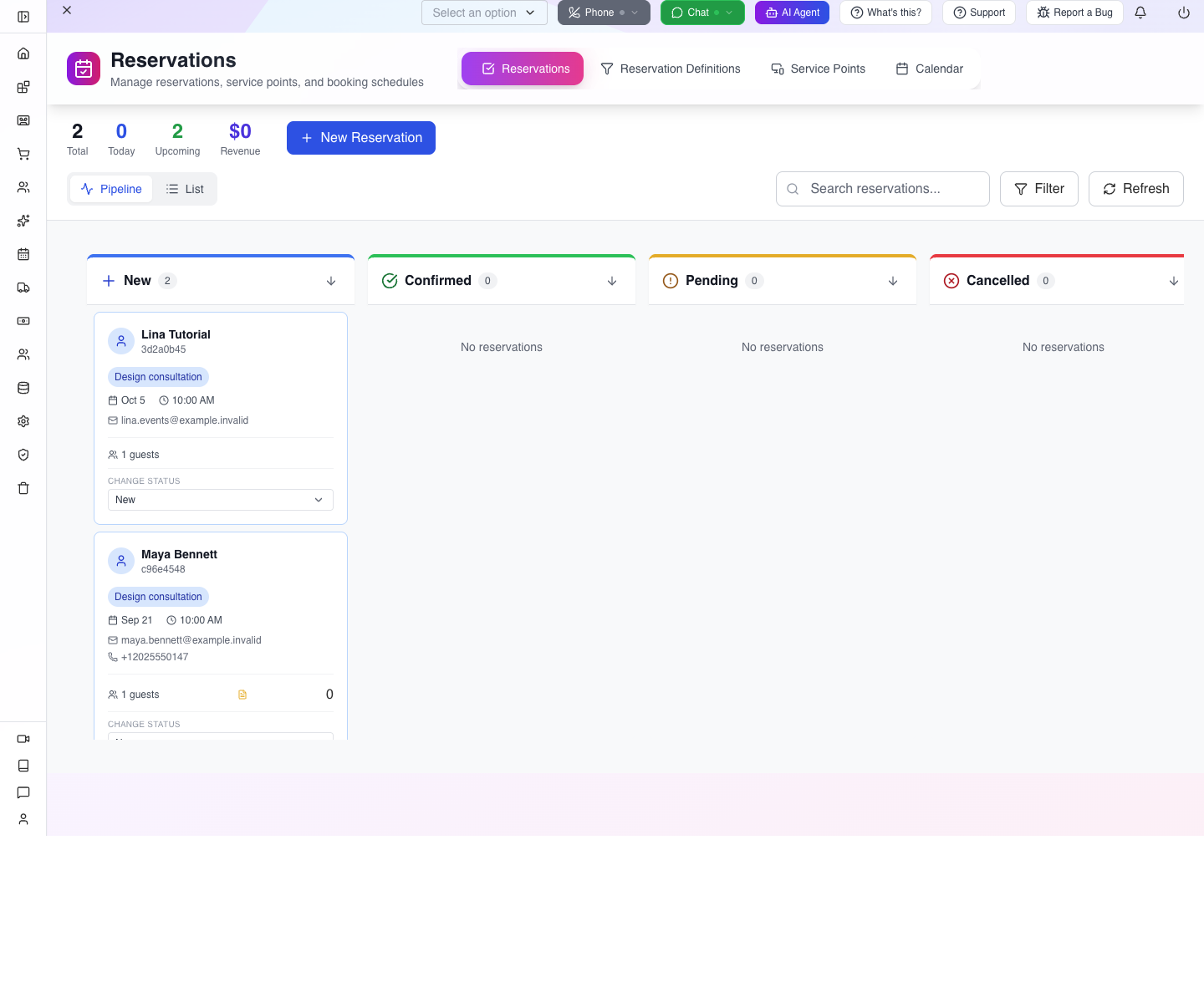
Maya Bennett wants help redesigning her kitchen. She has an approximate budget, a preferred start month and a referral from a previous client. This course gives that conversation a place to live, books the consultation and shows how to handle an enquiry that arrives as a booking first.
For: business owners and staff who answer enquiries. Allow: 60–90 minutes. Level: beginner, with an import and handoff section for experienced users. Product: Appmint Studio Manager → CRM → Leads and Reservations. Build: local Studio 0.6.2 and AppEngine 0.132.0, checked 19 September 2026. Example company: Cedar & Form; use your own company account. Historical production captures are identified in the evidence note.
What you will have at the end
- A sales pipeline called Cedar & Form — Design Enquiries.
- Maya's $4,800 enquiry with saved context, and a second enquiry from Daniel Reyes.
- A reusable 30-minute consultation service with weekday availability in the business timezone.
- Two saved bookings, with Maya's confirmation status recorded separately from her sales progress.
- A practical routine for importing a booking, checking duplicates and completing the resulting lead.
This course ends with a useful sales-and-booking system. It does not create a project automatically. Project kickoff is a separate handoff in the workflow course.
What you need
Complete Appmint signup and first setup. A website and business phone number are not prerequisites for practising the CRM screens. If you already built the Cedar & Form website, this is where you organise the enquiries it generates.
For this first rehearsal, use an isolated practice organisation with no existing lead pipeline, so Create Your First Pipeline is available. Do not clear an existing business pipeline to reproduce the empty screenshot.
Before reservation work: saving a booking or changing its status can attempt automatic notifications, even for a zero-price practice service. Use an operator-provided practice setup that captures email locally and has no SMS-capable sending number. Establish that boundary before pressing Confirm Reservation; an absent organisation-specific provider can still allow a shared-provider fallback. A fictional email or phone number alone does not disable delivery. This local rehearsal used its own organisation’s verified loopback SMTP catcher. If those controls are unavailable, obtain an isolated practice setup before saving bookings.
Use fictional details while learning:
| Prospect | Phone | Illustrative opportunity | |
|---|---|---|---|
| Maya Bennett | [email protected] | +12025550147 | Kitchen design, $4,800, referral |
| Daniel Reyes | [email protected] | +12025550148 | Whole-home design, $12,500, website enquiry |
Choose a future weekday for your own bookings. The screenshots use Monday, 21 September 2026; copying a past date will not reproduce the available slots.
The story
Jordan needs to answer three different questions: “What opportunity are we following?”, “When are we meeting?”, and “What does the next colleague need to know?” A lead answers the first question, a reservation answers the second, and notes or activity answer the third. They are related business facts, stored in different records.
The deal value is a possible design engagement, not an invoice or payment. The consultation in this exercise costs zero so we can practise scheduling without a payment step.
The route
flowchart LR
    A[Referral: Maya] --> B[Lead and saved context]
    B --> C[Book consultation]
    D[Booking first: Daniel] --> E[Search for existing lead]
    E --> F[Import and review]
    C --> G[Confirm appointment]
    F --> H[Track sales progress]
    G --> H
Part 1 — Give the enquiry a place to live
1. Open Leads and understand its views
Expand CRM in the left sidebar, then choose Leads. The Lead Command Center has Pipeline, Analytics, Lead Manager and Research & Enrich views. Start with Pipeline.
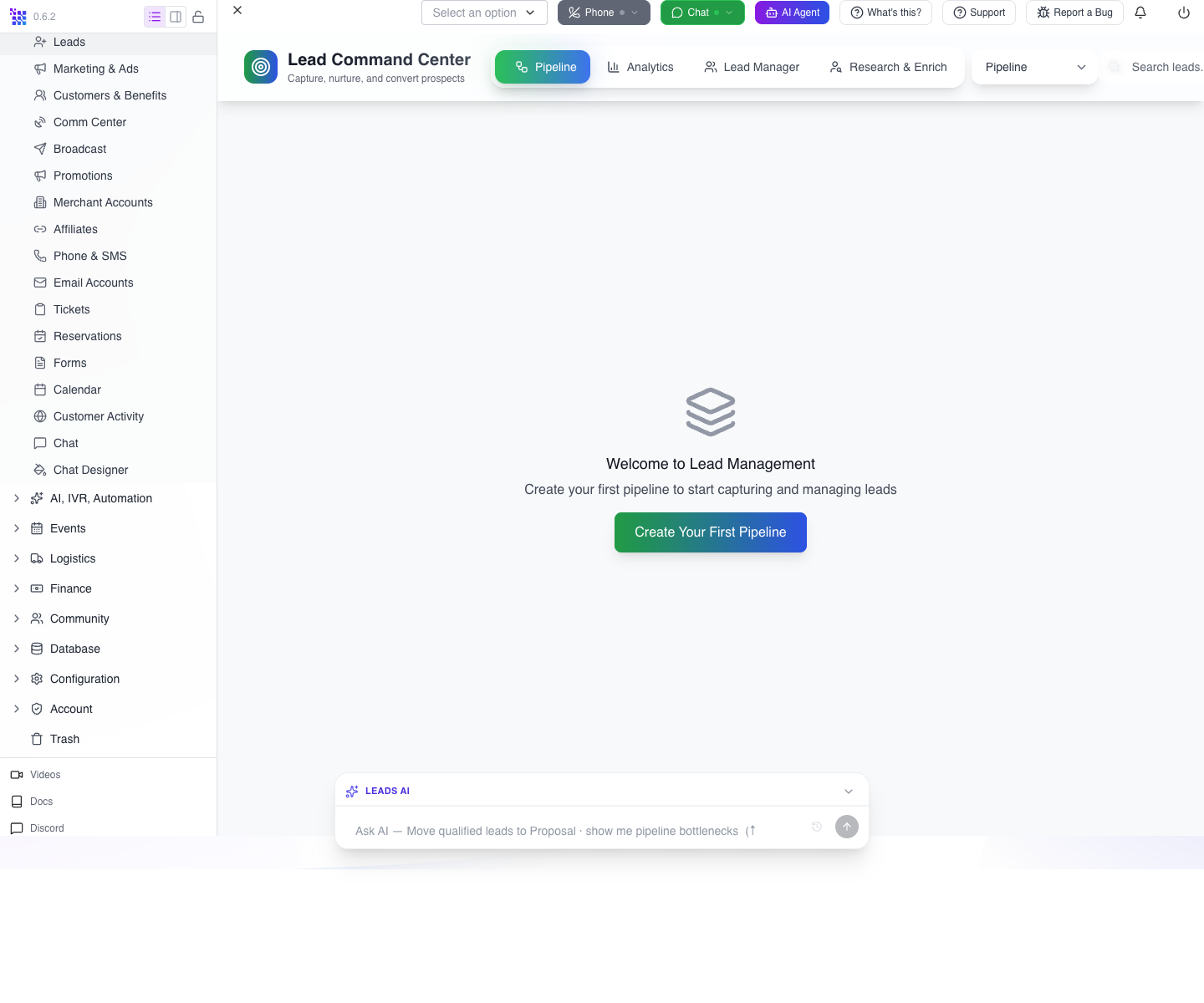
Use Pipeline to see progress across stages. Use Lead Manager to find and inspect individual records, especially when a board filter hides a lead. The header count and the currently visible board are not necessarily showing the same subset.
2. Create the business pipeline
Press Create Your First Pipeline, then Create New Pipeline in the management drawer. Fill:
| Field | Value |
|---|---|
| Pipeline Name | Cedar & Form — Design Enquiries |
| Description | Consultation requests for residential design |
| Workflow Template | Default Sales Pipeline |
| Pipeline Color | Choose a colour you will recognise |
Press Create Pipeline, then close the Pipelines drawer using its X.
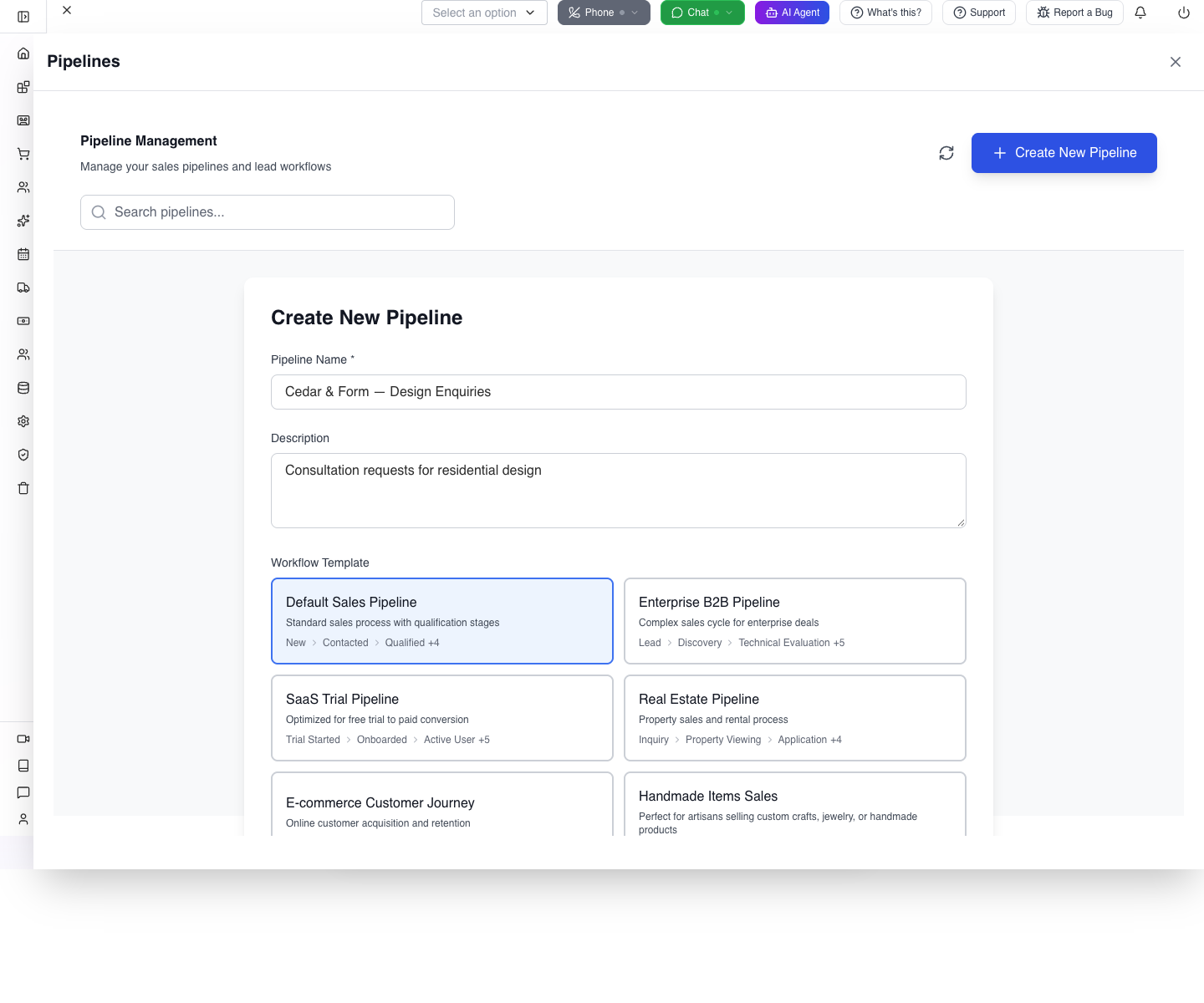
The template supplies New, Contacted, Qualified, Proposal, Won, Lost and Follow Up Later. These names describe the opportunity's progress. Proposal is a stage; selecting it does not generate a proposal document.
In Show Pipelines, enable Cedar & Form — Design Enquiries. You can hide Unassigned Leads to focus on the new business pipeline. Read the pipeline heading above the columns.
3. Enter Maya's enquiry
Choose Add Lead. In Add New Lead, enter Maya's first name, last name, email and phone. Set Lead Source to Referral and Deal Value to 4800. Choose your business Pipeline and its New stage where those controls are offered. Press Create Lead once.
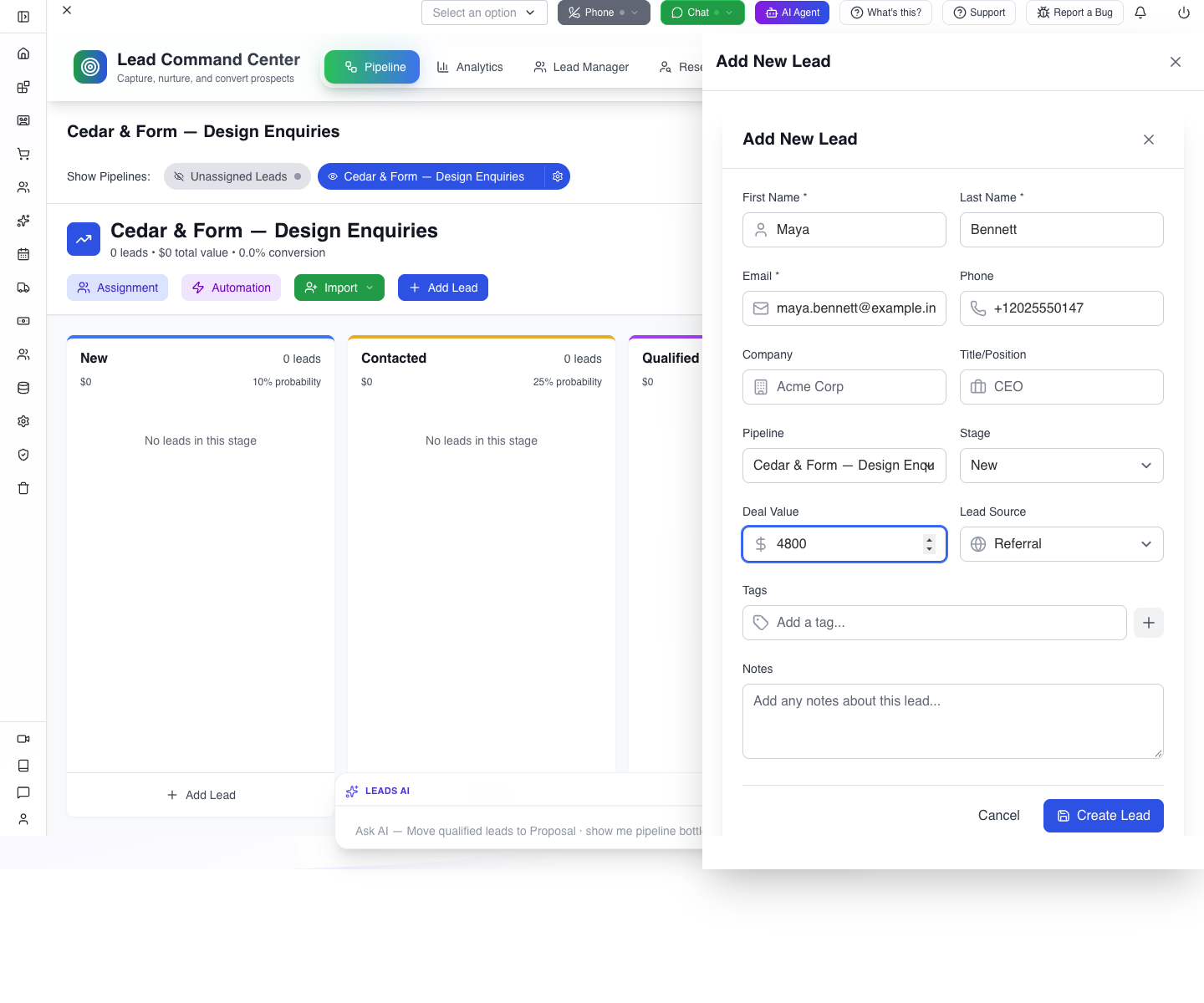
The first name, last name and email are required in this form. Company can remain empty for a homeowner; do not invent a company just to fill every box.
Watch for: choose the intended Pipeline and Stage explicitly, then verify the saved record after reloading. Older builds discarded some create-form fields; the local mapping fix preserves the selected pipeline, stage, title and notes. The Edit exercise below also shows how to complete an existing enquiry.
4. Find the saved record before creating another one
If the board remains empty, check Show Pipelines first. If it still shows no Maya card, choose Lead Manager and search for [email protected].
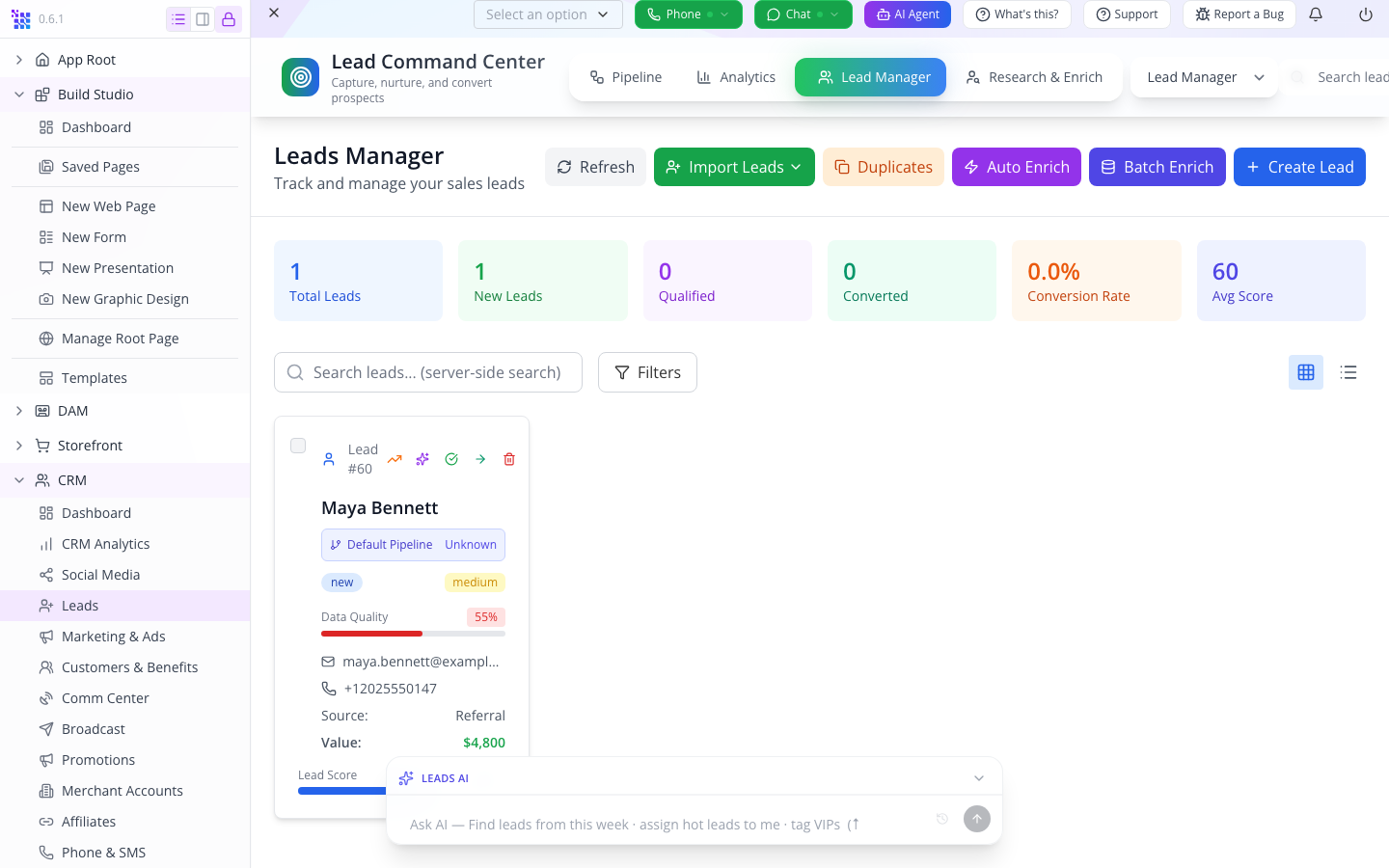
An older build saved Maya with Default Pipeline and Unknown stage despite the form selection. That defect was reproduced and repaired locally. If you encounter an existing record in that state, use Edit below; do not create another lead.
Open Maya's card, press Edit, explicitly choose Cedar & Form — Design Enquiries in Pipeline, then New in Stage. Choosing the pipeline first loads its stage choices. Do this even if the pipeline field already appears to display the name.
5. Save useful context through Edit
In that same Edit Lead form, add:
| Field | Value |
|---|---|
| Title/Position | Homeowner |
| Notes | Prefers evenings for calls. Referred by the Okonkwo project. Kitchen design budget $4,800; November start. |
Press Update Lead, wait for the save to finish, then reload. Return to Pipeline, enable your business pipeline under Show Pipelines, and find Maya in New. Reopen her lead, choose Edit, and read Notes: confirm the $4,800 kitchen budget, November start, referral and evening-call preference all remain. If anything is missing, correct it, save once, reload and check again before continuing.
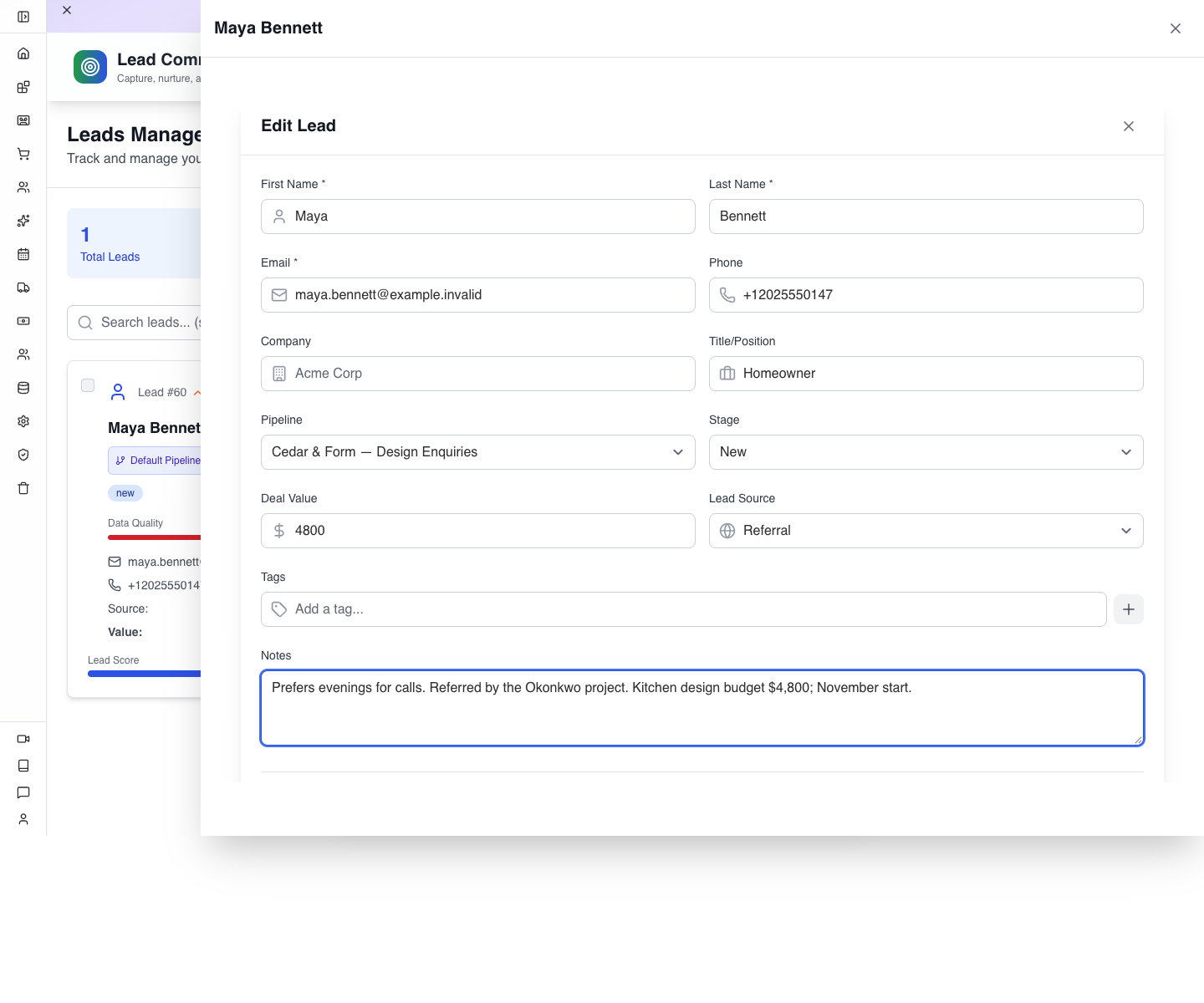
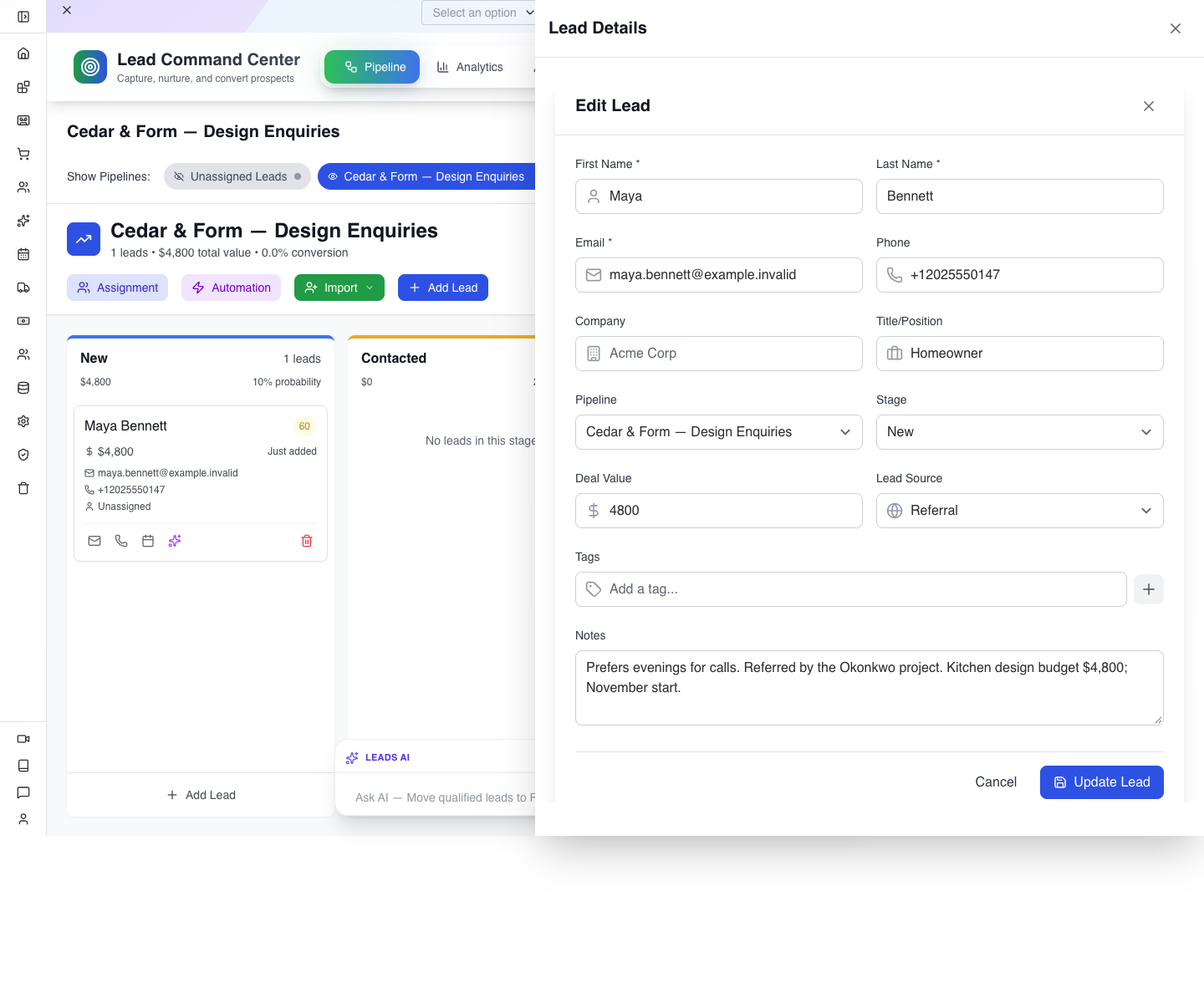
The notes and Homeowner title both survive the reload on the repaired local build. Reopen Edit to check both fields before continuing.
There is no owner selector in this Edit Lead form. An Unassigned label on the card means you have not established an owner through the assignment tools; entering the lead does not assign it to you automatically.
6. Record the conversation as an activity
From the Pipeline board, open Maya's card. This drawer has Overview, Activity, History, Notes and Enrichment tabs. Choose Activity, leave its type as Note, and enter:
Referred by the Okonkwo project. Kitchen redesign, design-phase budget about $4,800, wants to start in November.
Press Add Activity. Allow the save to finish, close the drawer and reopen Maya's card. Return to Activity and read the entry.
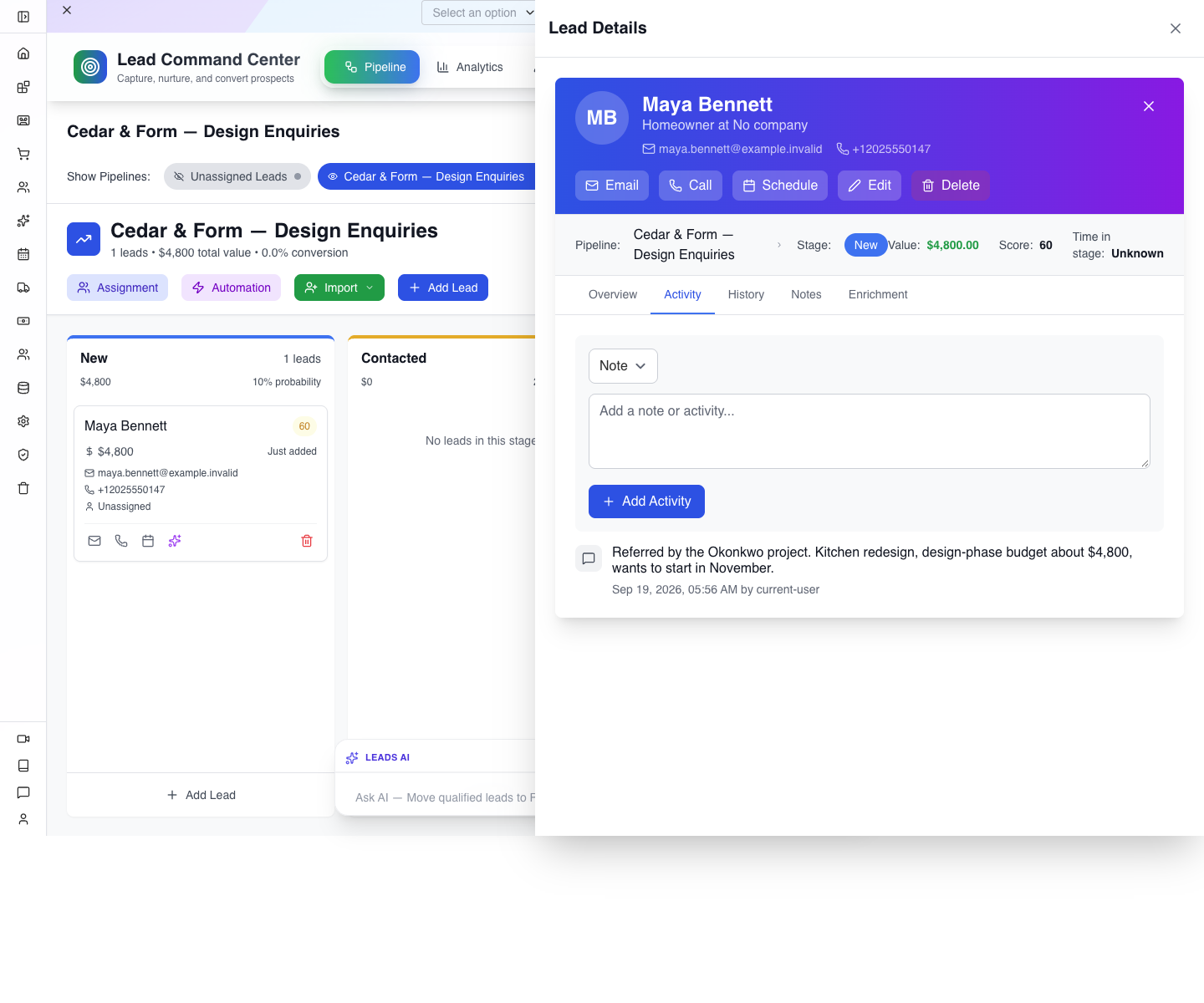
Watch for: the open drawer can keep an older snapshot after a save. Closing and reopening after the write completes refreshes it. If you reopen immediately and see nothing, wait and reopen again before adding a duplicate activity.
The Lead Manager card opens a different detail view. For this activity exercise, return to the Pipeline card and use its singular Activity tab. The pipeline drawer's Email, Call and Schedule shortcuts did not provide a usable action in the reviewed build; use the Reservations screen below to schedule.
Try it: add one concise next-action note, such as “At the consultation, confirm room measurements and desired start date.” Reopen the card and find it.
Check yourself: is the $4,800 now revenue? Answer: it is the opportunity value. No invoice, payment or completed sale has been created.
Part 2 — Make the consultation bookable
1. Open Reservations and see its prerequisite
Choose CRM → Reservations. Its top tabs are Reservations, Reservation Definitions, Service Points and Calendar. Press New Reservation.
When no definition exists, the first wizard step says No services available — Please create a reservation definition first. If an earlier course already created a service, it appears here instead. Close the drawer; create the distinct definition below without deleting existing services.
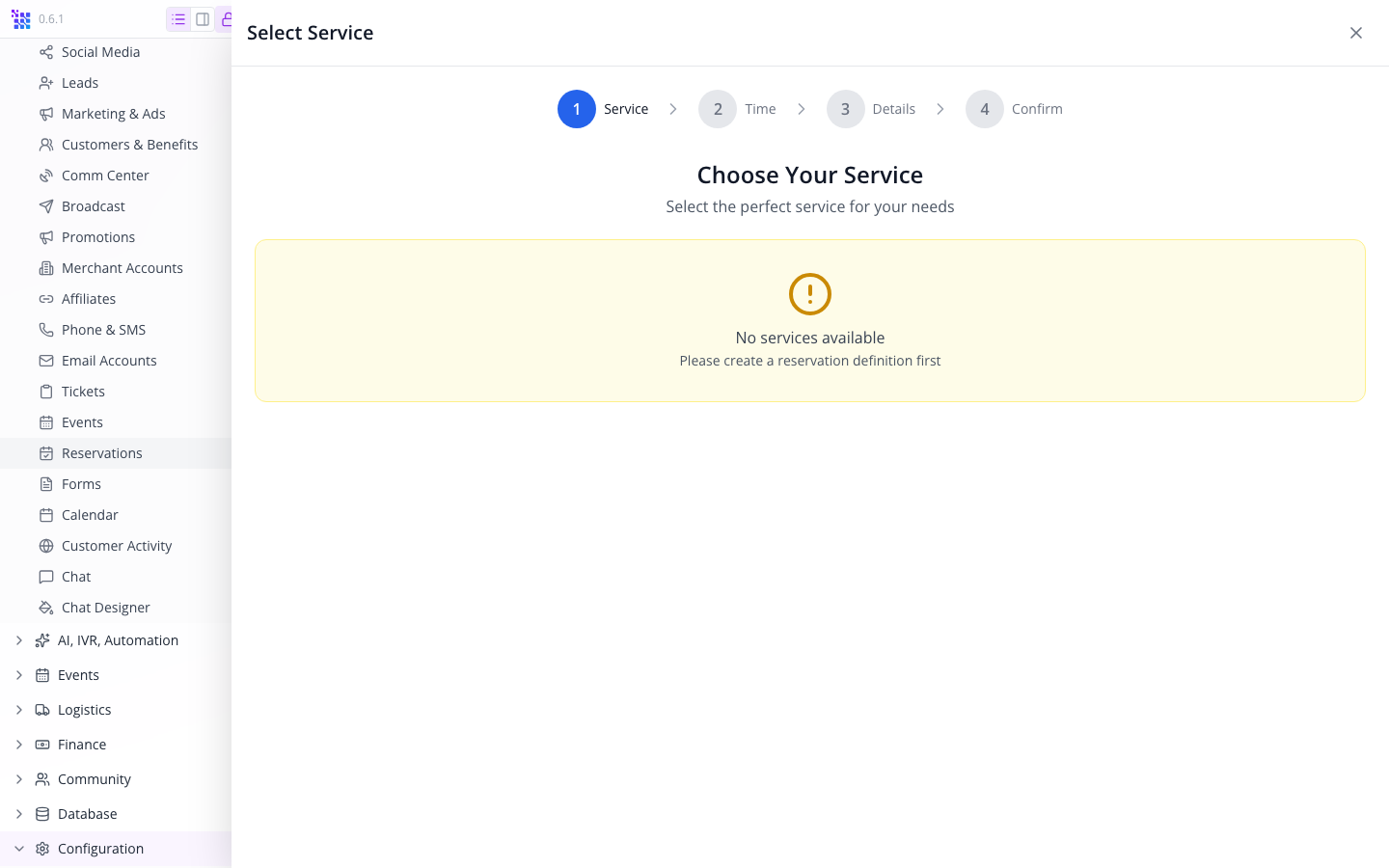
A definition describes what can be booked and when. A reservation is one customer's booking against that definition. Creating the definition once saves you re-entering hours and duration for every customer.
2. Create the definition's identity
Open Reservation Definitions → New Definition. Set:
| Field | Value | Meaning |
|---|---|---|
| Name | design-consultation-review | Stable identifier for this definition |
| Type | Service | A scheduled service |
| Status | Active | Makes the definition available for booking |
| Title | Design consultation — 30 minutes | Readable label for the definition |
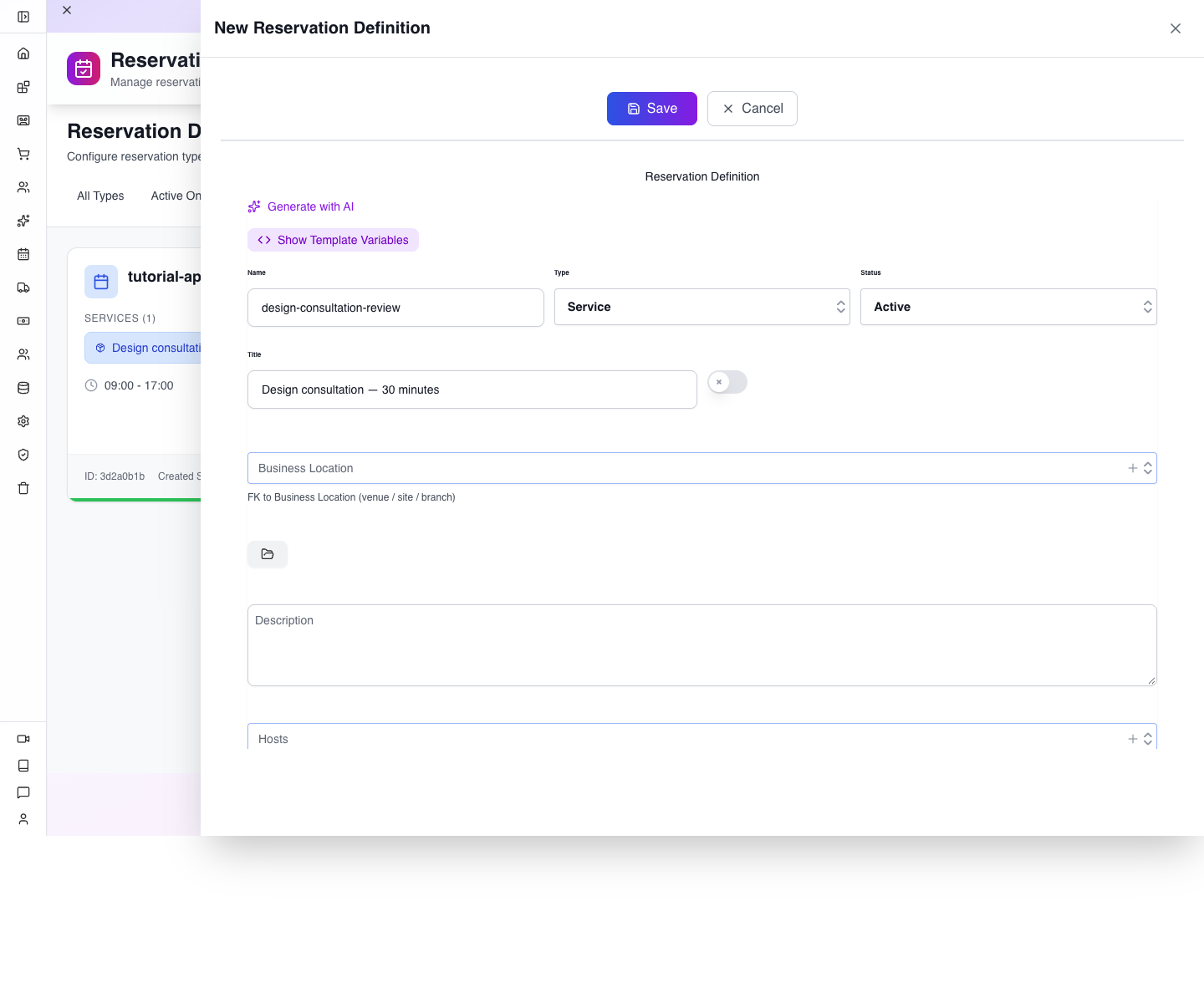
Leave Business Location and Hosts unset for this first exercise. Those are relationships to configured business records, not places to type arbitrary names. We use Venue later for an explanatory meeting-location label.
3. Add the actual service
Expand Services, then use its Add item plus control. Enter:
| Service field | Value |
|---|---|
| Name | Design consultation |
| Duration | 30 |
| Price | 0 |
| Break After | 0 |
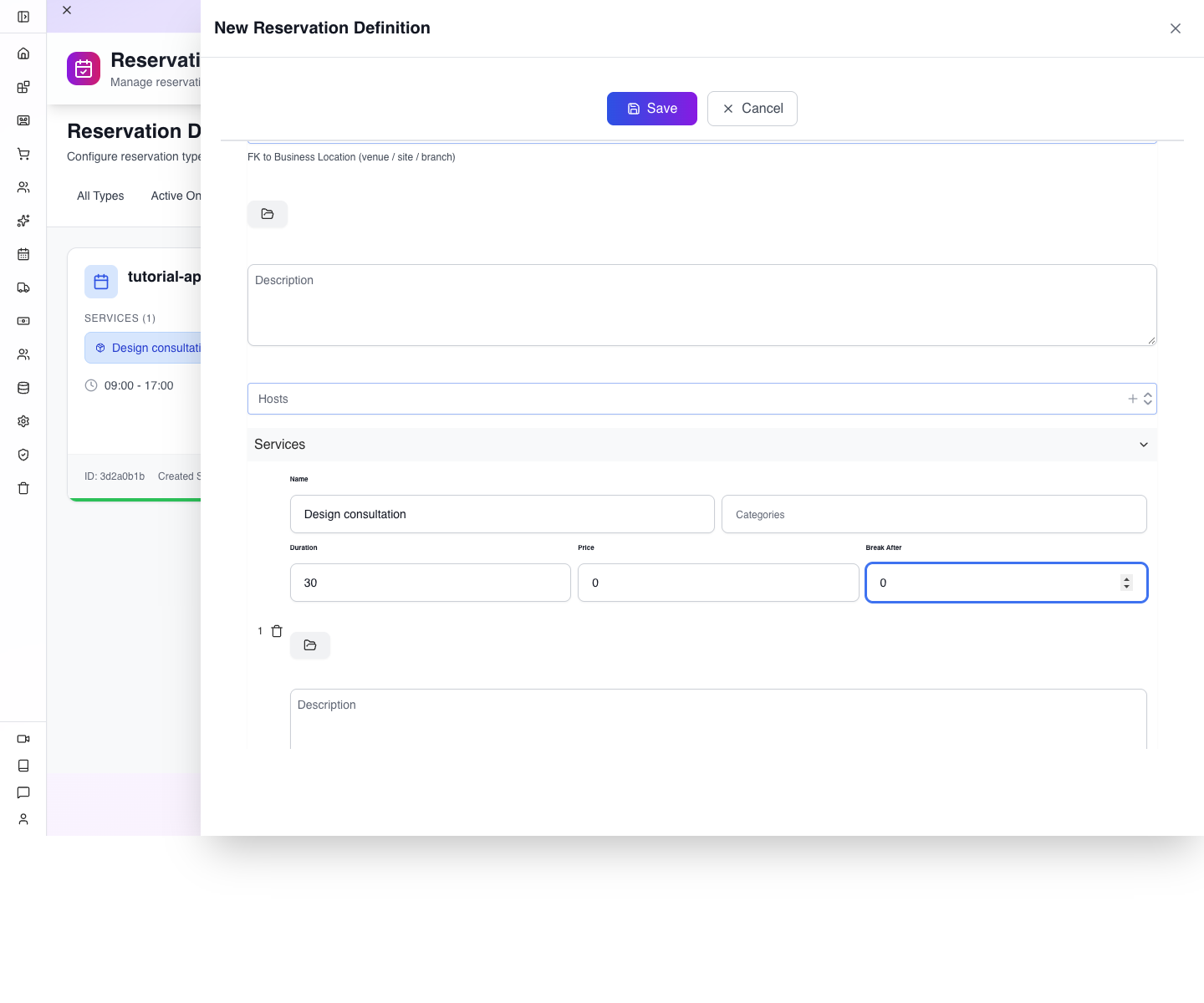
Duration controls the appointment length. Break After reserves turnaround time after an appointment; for this simple practice it is zero. The definition's name and the service's name have different jobs. Select the saved service in the booking wizard instead of retyping a near-match.
4. Set days, hours and capacity
Open Work Days and check that Monday through Friday are selected. The compact field can show one day and a count of 5; expand it to see the full selection.
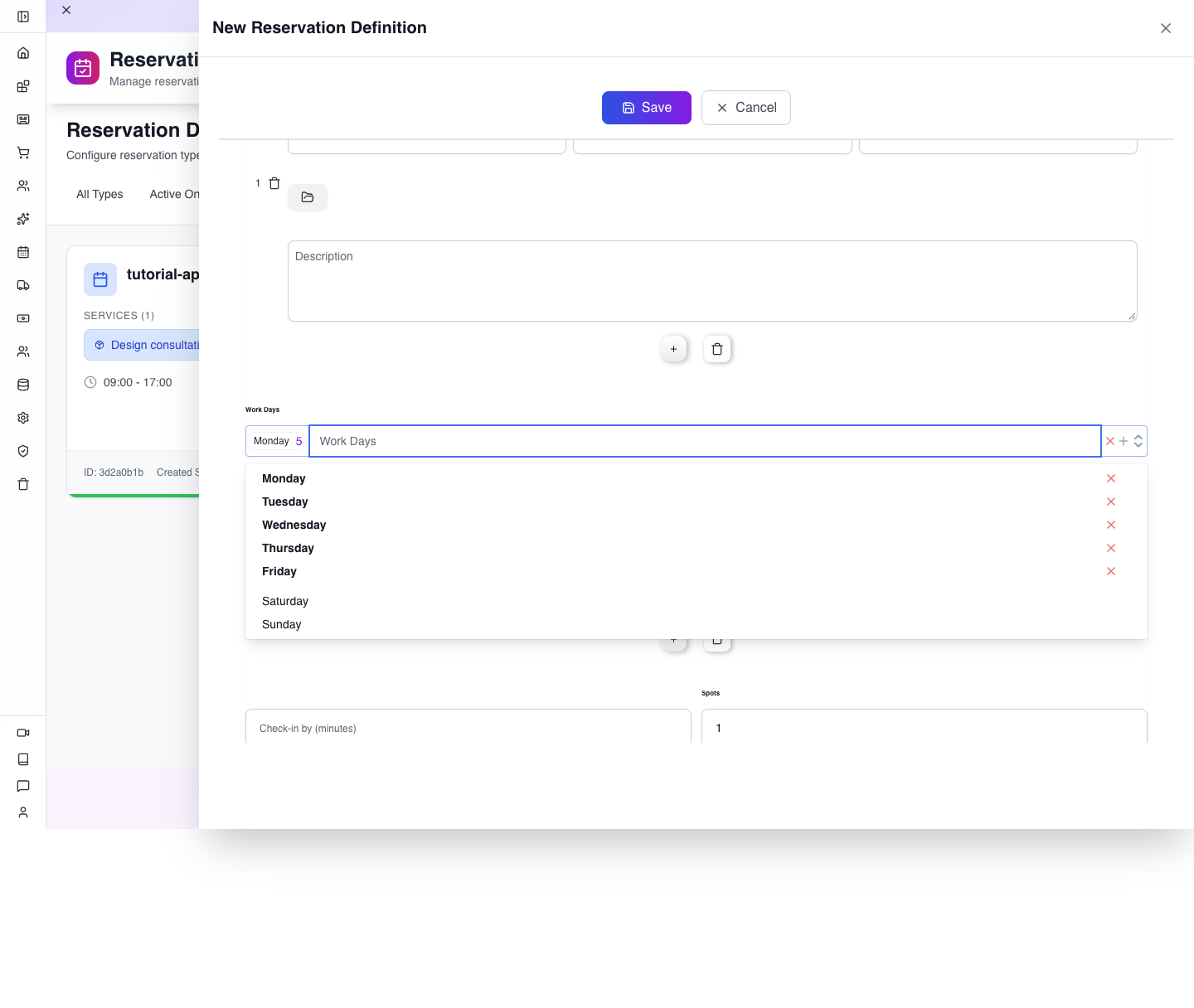
Under Office Hours, set or confirm Timezone as America/Chicago, Start Time as 09:00 and End Time as 17:00. In the top-level Spots field, enter 1. In Venue, enter Cedar & Form consultation.
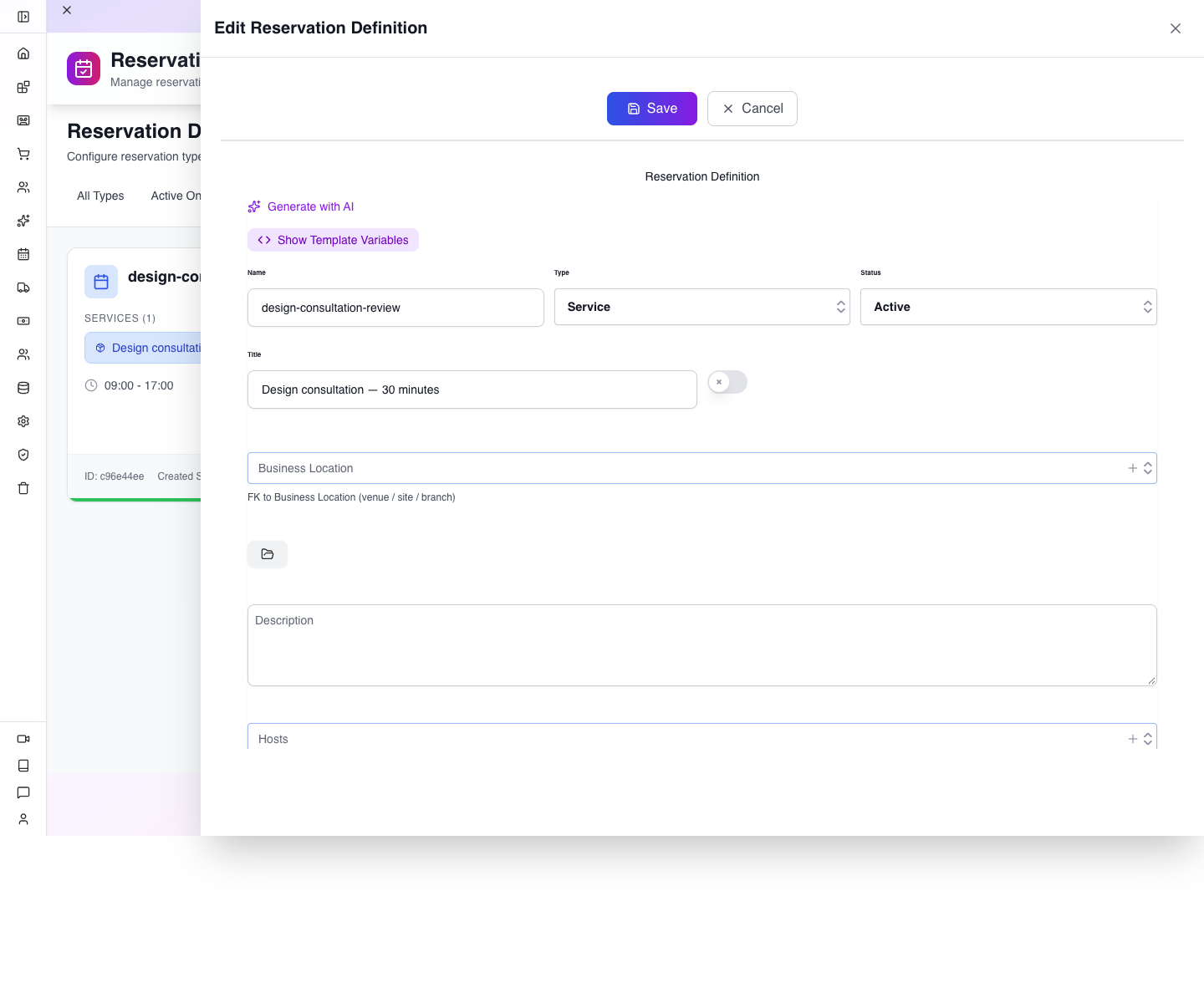
Timezone should describe the business's schedule, even when the person entering it is travelling. The selected timezone appears as a chip; empty search text inside the picker does not mean no timezone is selected. Spots belongs to the definition, outside Office Hours. With one spot, a booked appointment should remove that time from the next visitor's choices.
5. Save and read it back
Press Save and wait for completion. Reload the screen, open Reservation Definitions and find design-consultation-review. Its card should show the saved service and hours.
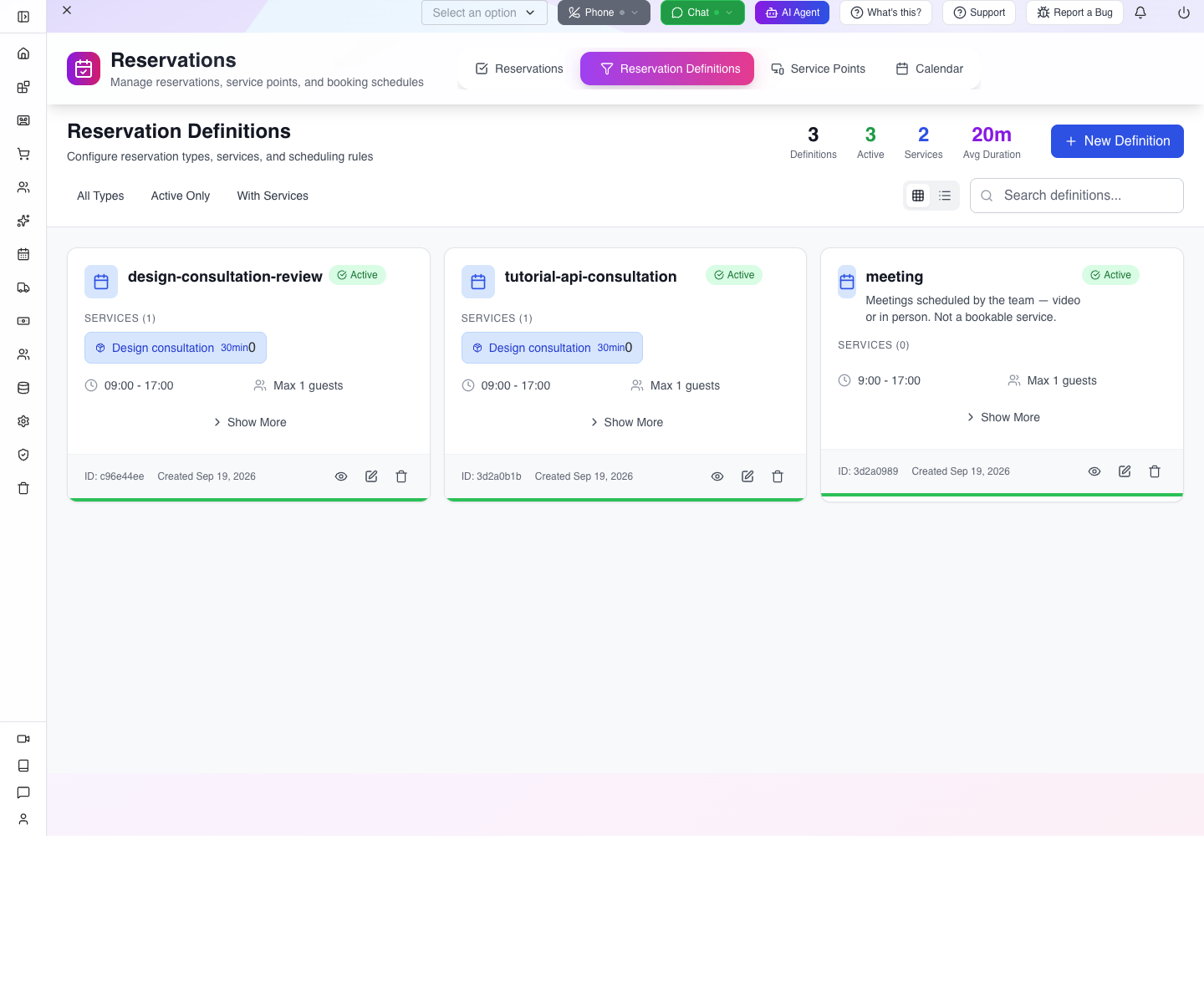
Watch for: the definition list can remain stale after a save. Reload before pressing Save again or creating a replacement. The saved definition is what matters, not an immediately unchanged list count.
Try it: open the saved definition with its pencil Edit control and check the hours, timezone and capacity. Cancel without changing them.
Check yourself: changing Party Size on a customer's reservation is the same as increasing definition Spots. Answer: no. They describe different things: that customer's party and the definition's slot capacity.
Part 3 — Book, confirm and check availability
1. Choose the service and a future date
Return to the Reservations tab, press New Reservation, and select Design consultation. Choose a future working day. The captured booking uses 21 September 2026.
Select the slot starting 10:00 AM and ending 10:30 AM, with America/Chicago beside it.
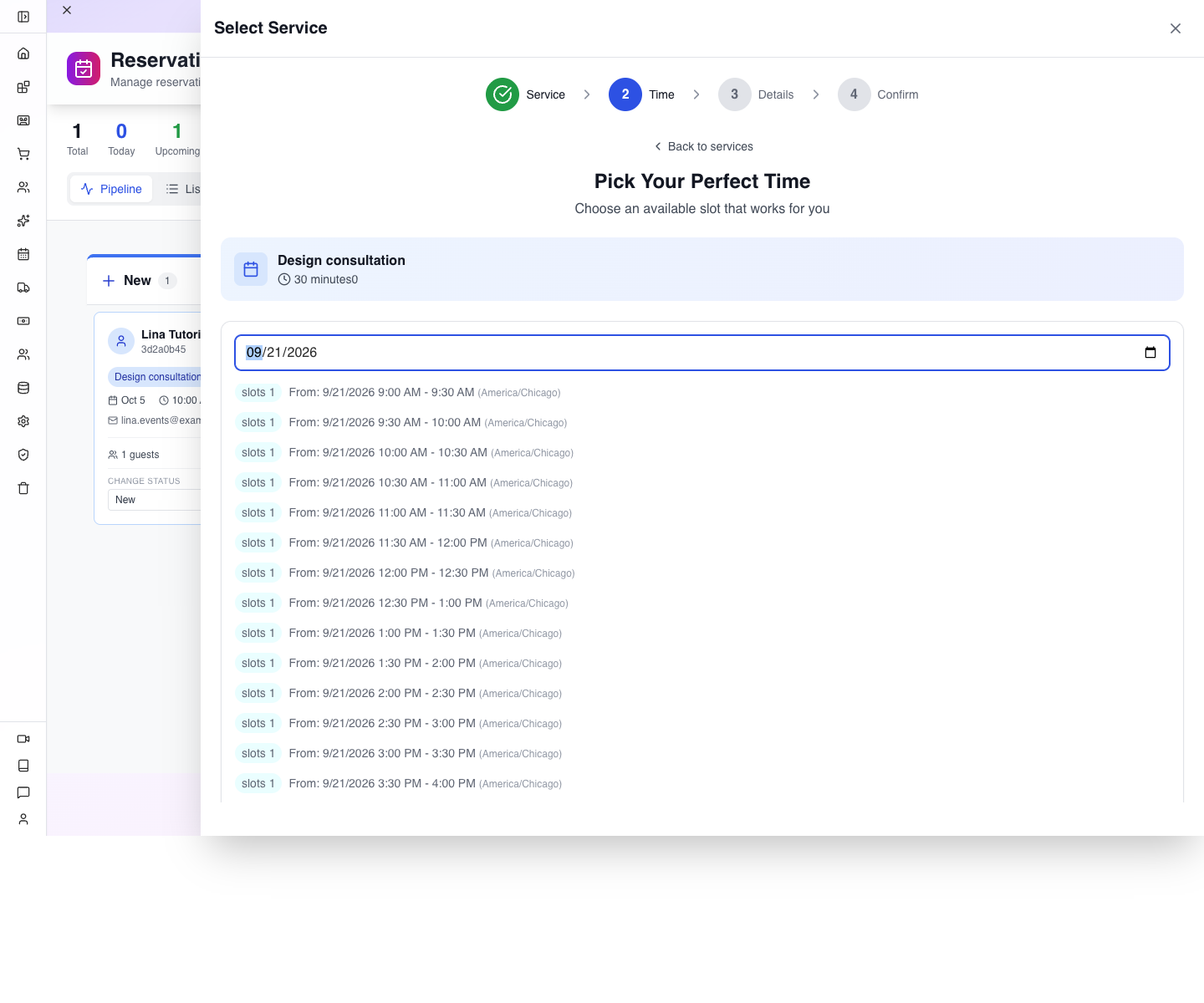
A closed weekend or a past date can produce no slots even when the service is correctly configured. Read the day and timezone before changing the definition.
2. Enter the customer details
On Details, enter Maya's full name, email, phone and Party Size 1. In Special Requests, enter:
Fictional training booking. Kitchen redesign; design-phase budget $4,800. Existing sales lead: Maya Bennett.
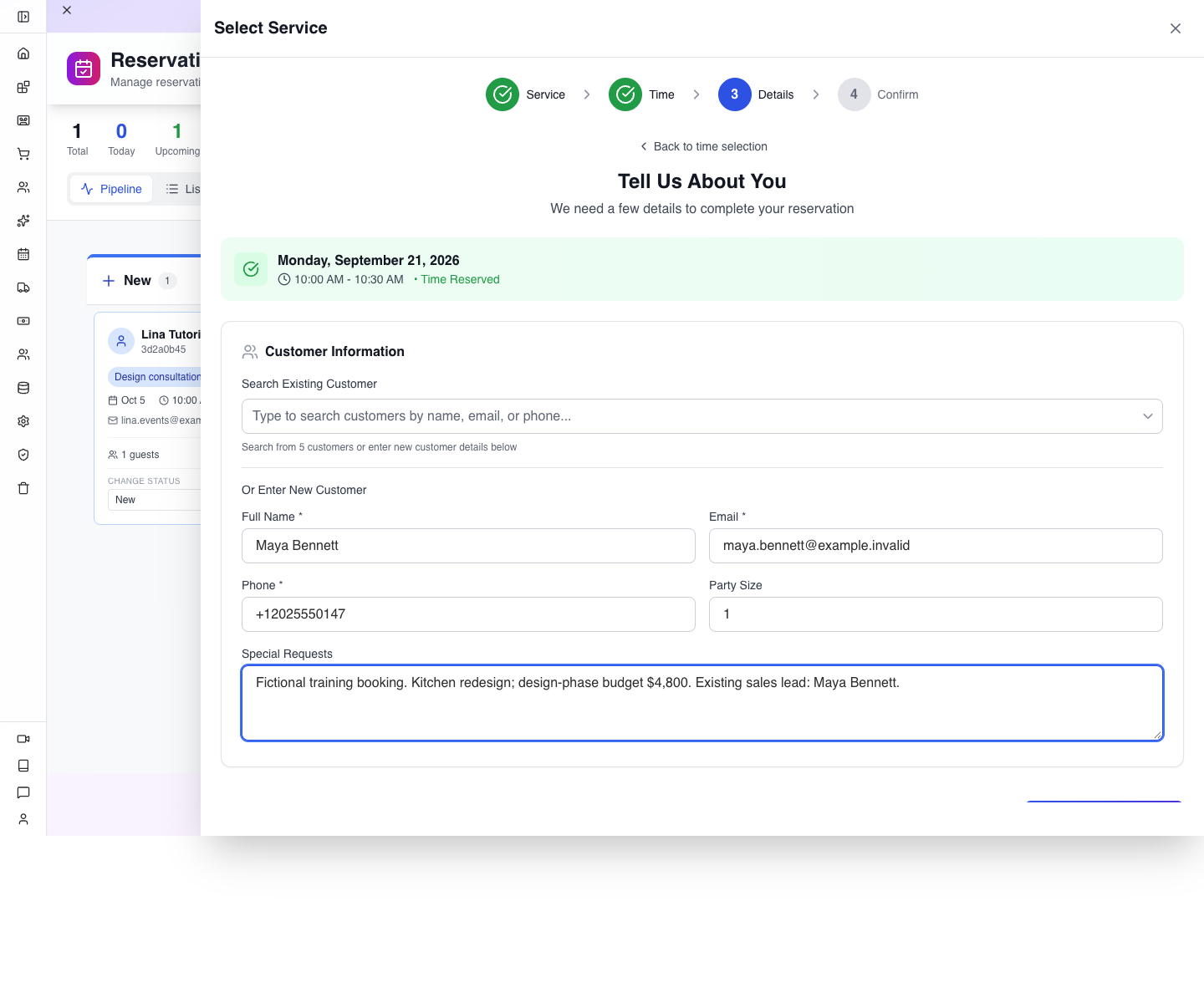
If Search Existing Customer finds the person, select them and still inspect the resulting fields. A saved lead and a customer are different records; the booking flow can create or find the customer by email. Reuse the same email to keep the person's identity consistent.
3. Review before saving
Press Review Booking. Read the service, date, start and end time, customer contact details, party size and special notes. Correct mistakes by returning to the relevant step.
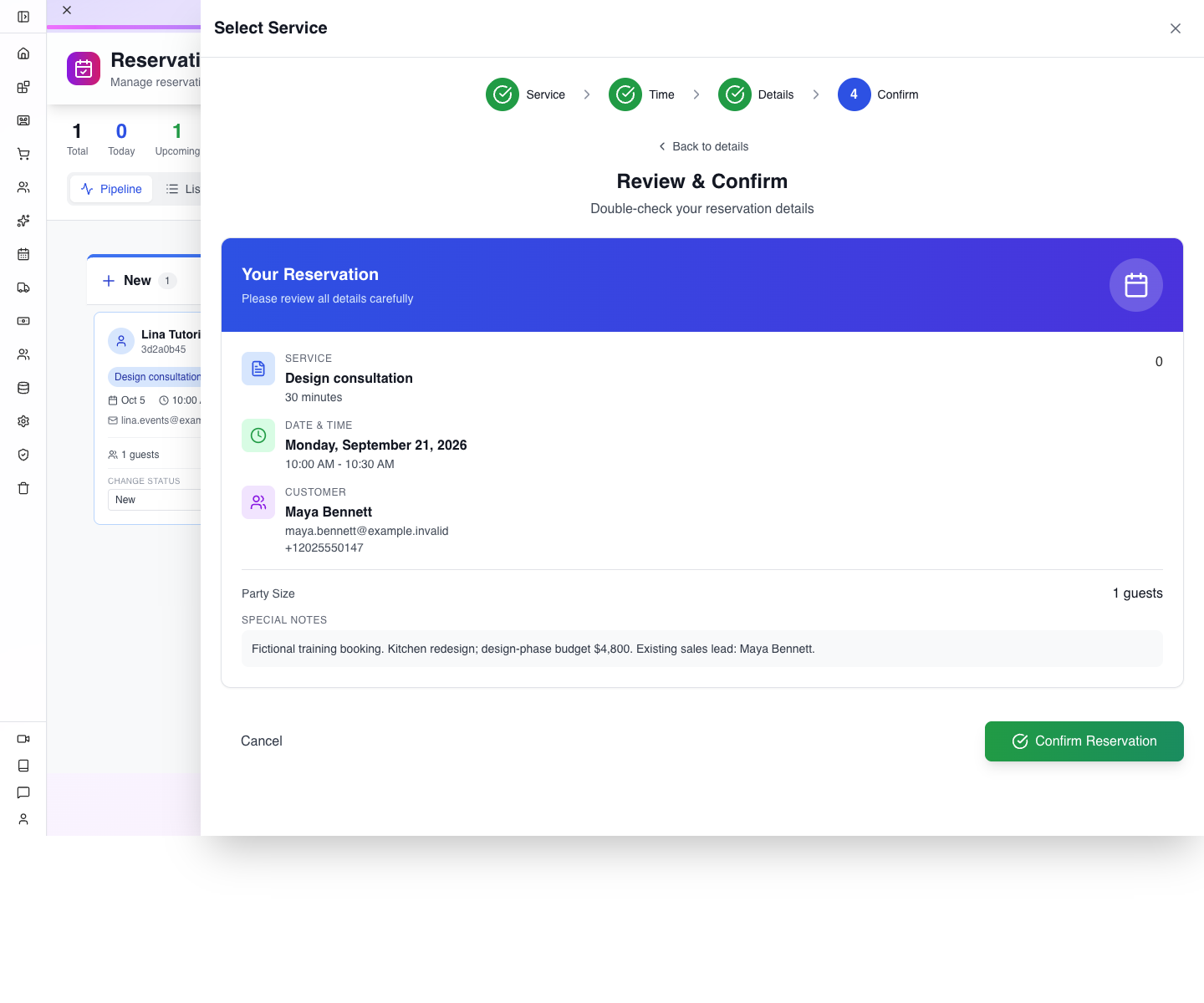
Check the notification-isolated practice prerequisite above before committing this booking. Press Confirm Reservation once, and wait while it says Confirming…. After completion, reload the Reservations screen and find Maya's card. The fresh local reference is c96e4548; your new booking will receive its own reference.
Watch for: Confirm Reservation saves the booking; it did not set the business status to Confirmed in this build. Read the board column rather than inferring status from the button's wording.
4. Record the customer's confirmation
Suppose Maya has now confirmed the appointment. On her reservation card, use CHANGE STATUS → Confirmed. Wait for the update, reload and find her under Confirmed.
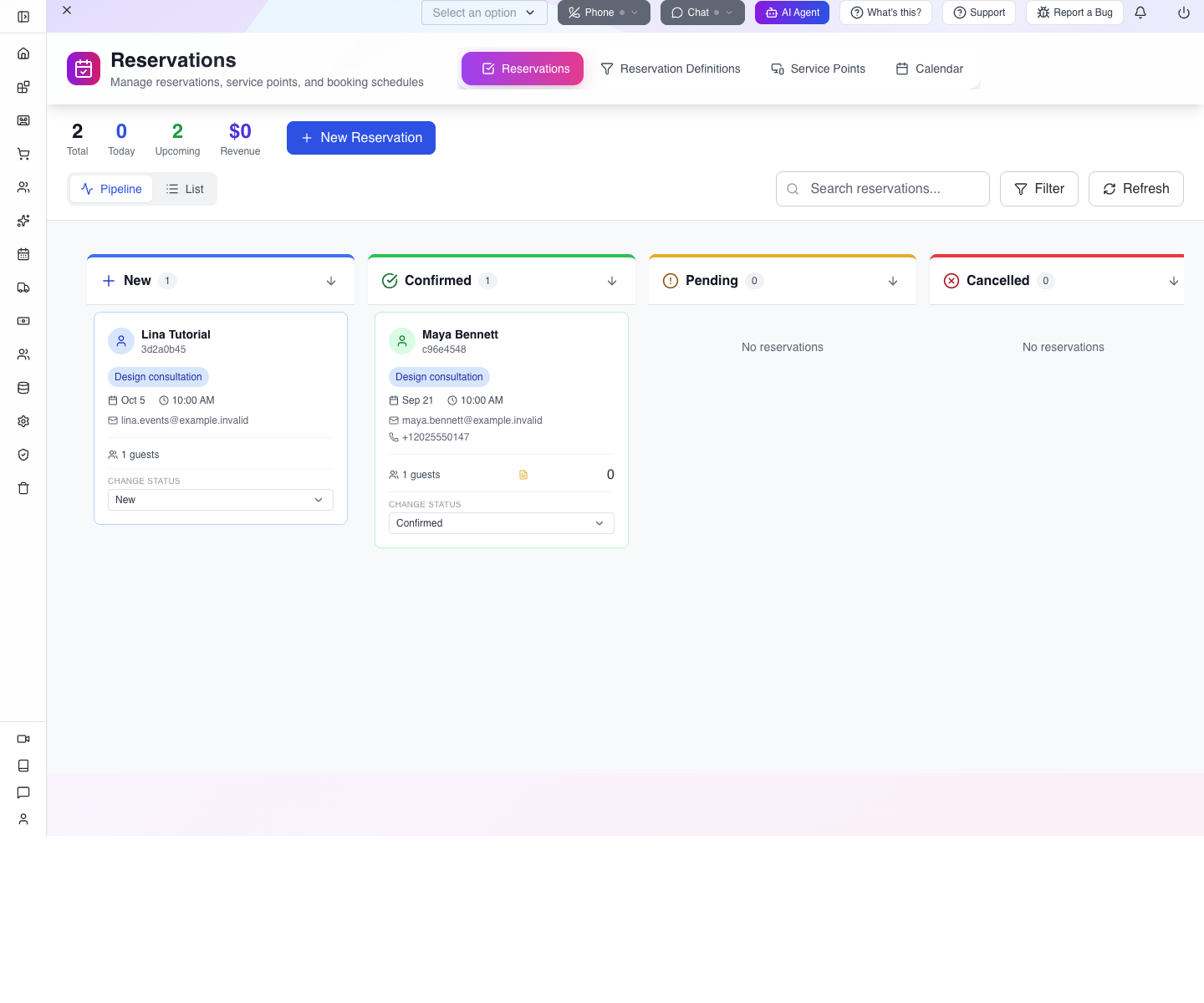
This changes the booking's status. It does not move her sales lead to Contacted or Won. Keep those decisions separate.
A Text messages are not going out notice appeared in this training company because it had no SMS-capable number assigned. The booking still saved. Check the saved reservation before retrying, and do not assume a confirmation message was delivered. Phone/SMS configuration belongs in the employee phones and mobile CRM course.
5. Check capacity with Daniel's booking
Start another New Reservation, select the same service and date, and look for 10:00. In the walkthrough it was no longer offered after Maya's booking. Select 11:00–11:30 AM instead.

Enter Daniel's details from the example table. Add the note Fictional training booking. Whole-home consultation; enquiry arrived as a booking before a lead existed. Review and confirm, wait for completion, then reload.
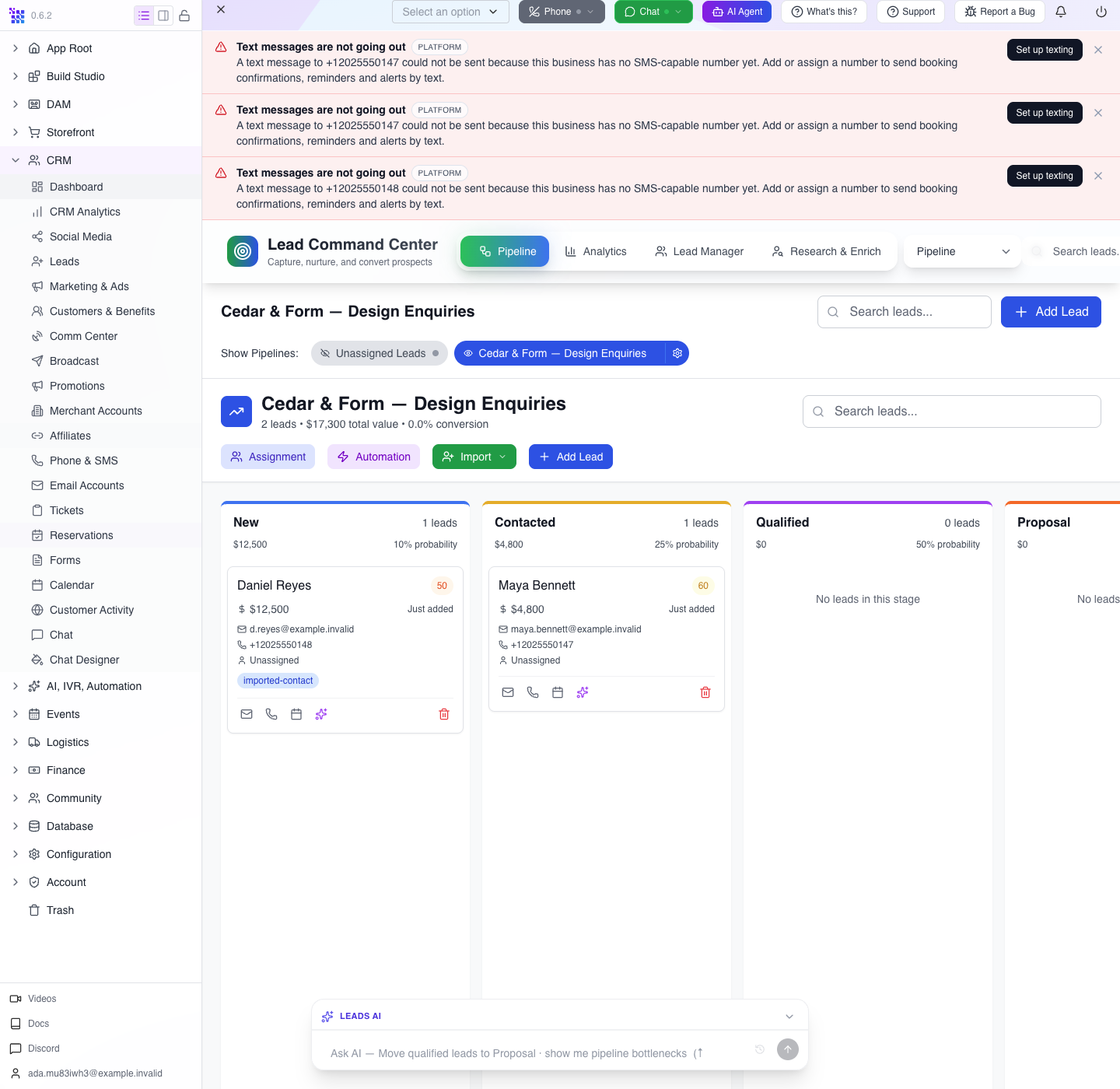
Try it: find both bookings by name and check their times. Read the references and verify that Daniel's booking did not replace Maya's.
Check yourself: an SMS warning appeared. Should you create the booking again? Answer: first check the Reservations board and reference. A notification failure can coexist with a successfully saved appointment.
Part 4 — Bring booking-first enquiries into sales
1. Search for Daniel before importing
Return to CRM → Leads → Lead Manager. Search for [email protected], allowing time for the search to complete. Daniel's booking exists, but on the first run the lead search should be empty. If his email already has a lead, do not import it again: open and complete that existing record. Use a different fictional identity only when deliberately starting a separate rehearsal.
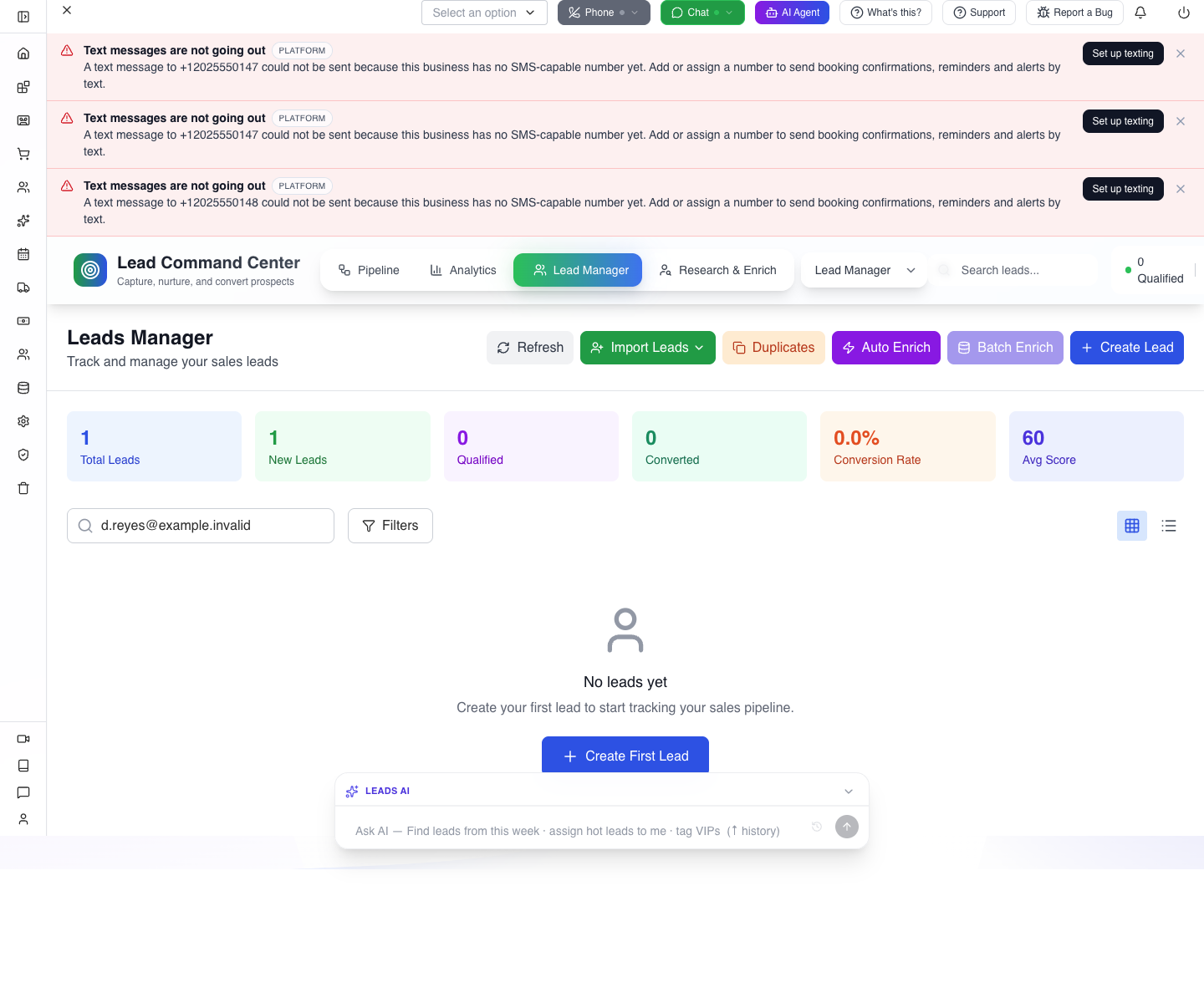
Clear the search afterwards. A leftover search can make other saved leads appear to disappear and can change the visible count.
2. Select only the booking that needs a lead
Choose Import Leads → From Reservations. Wait for the reservations to load, then search Daniel. Match the email and your chosen booking date/time, not just the name. Select his row and press Import (1).
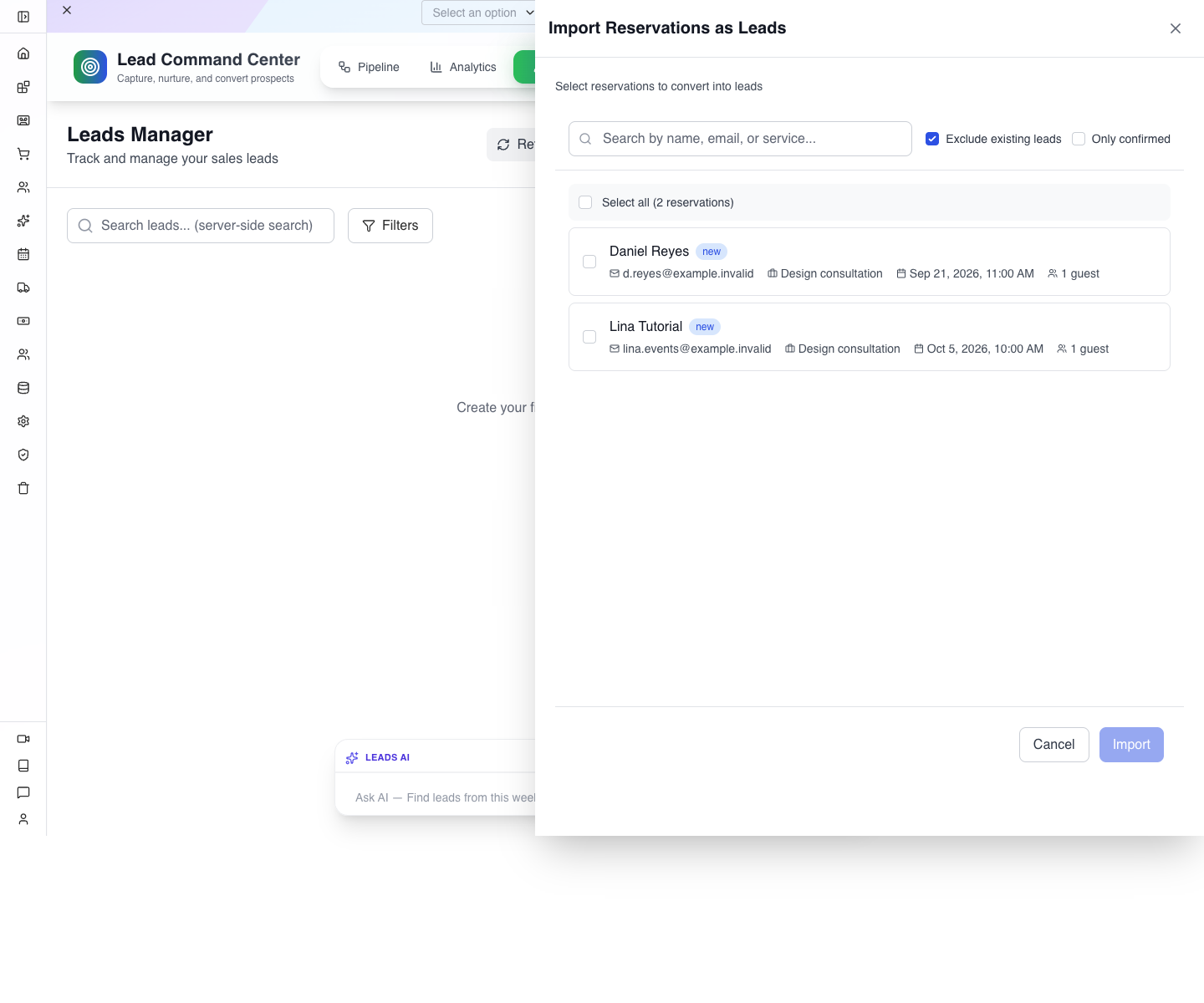
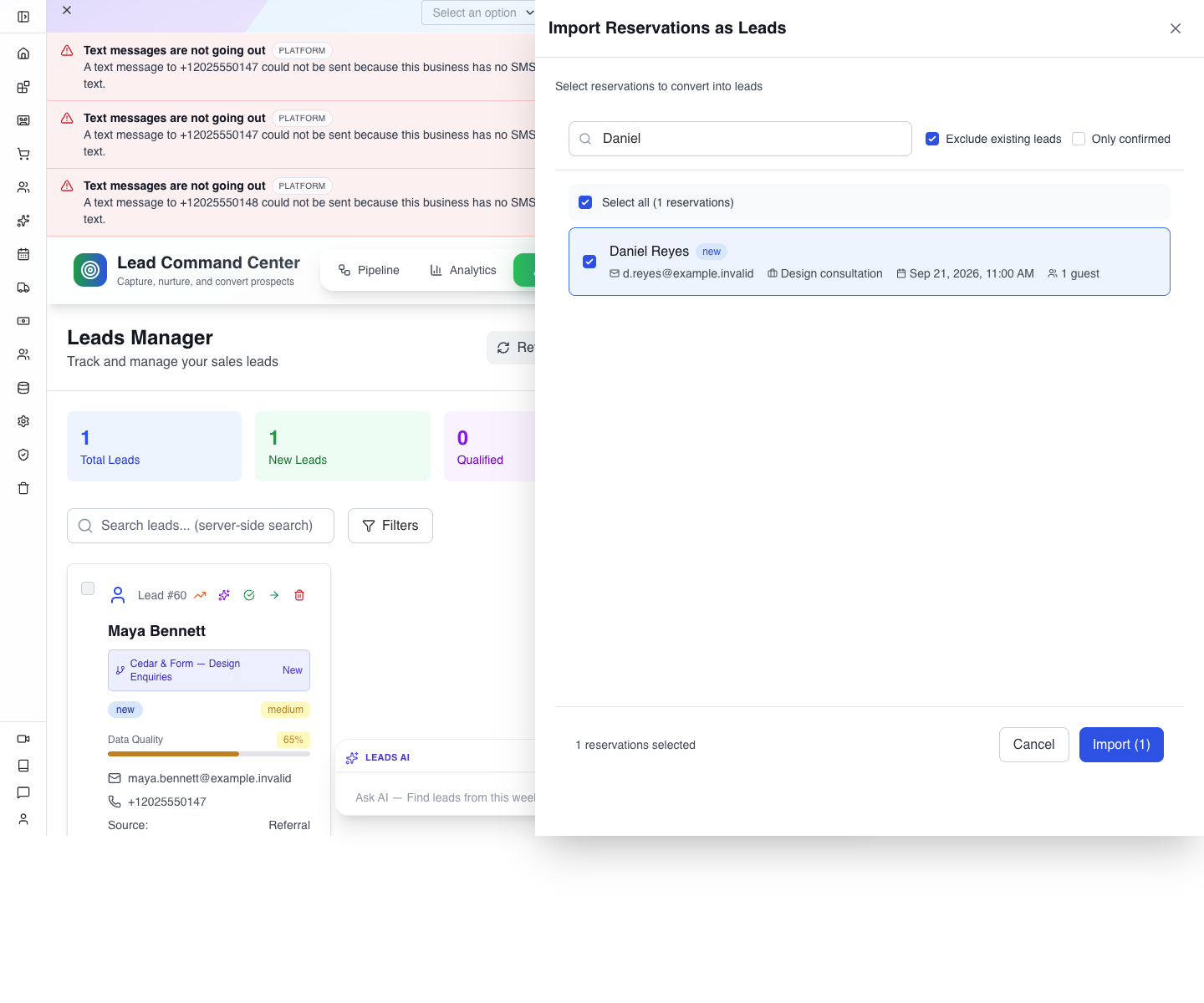
Leave Maya out: you already created her lead. Exclude existing leads now checks saved lead emails and omits Maya on the repaired local build. Still search by email before importing. Only confirmed can hide a new booking such as Daniel’s; leave it off for this exercise. If verification cannot load, the dialog shows an error and Retry rather than inviting an unchecked import.
3. Inspect what the import actually created
After import completes, reload and return to Lead Manager. Open Daniel's record.
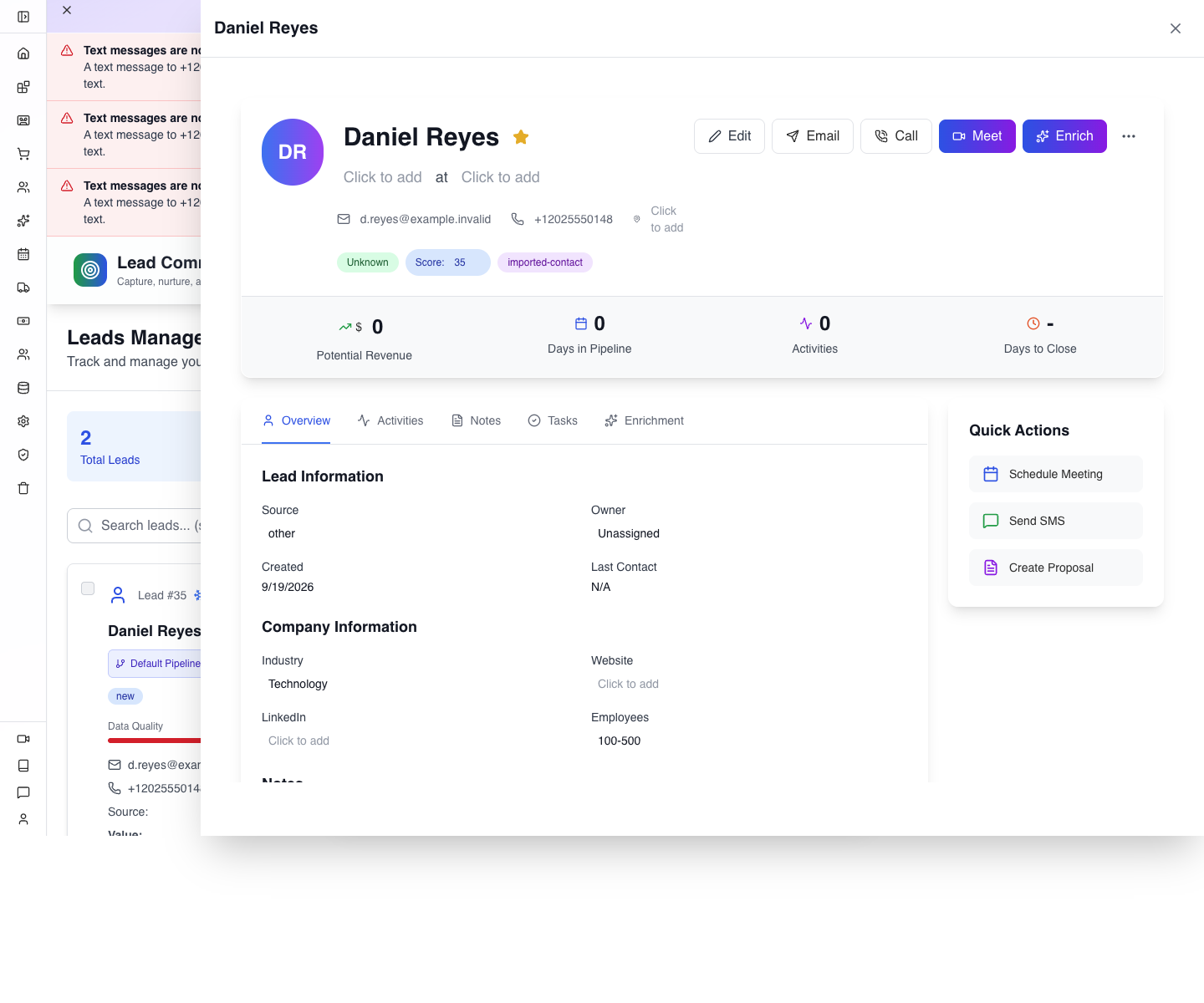
After the fresh local import, Daniel had Default Pipeline, Unknown stage, Other source, value $0 and an imported-contact tag. The repaired import also preserves the booking note, date/time and party size. Import brings the person and booking context across; you still need to complete the opportunity.
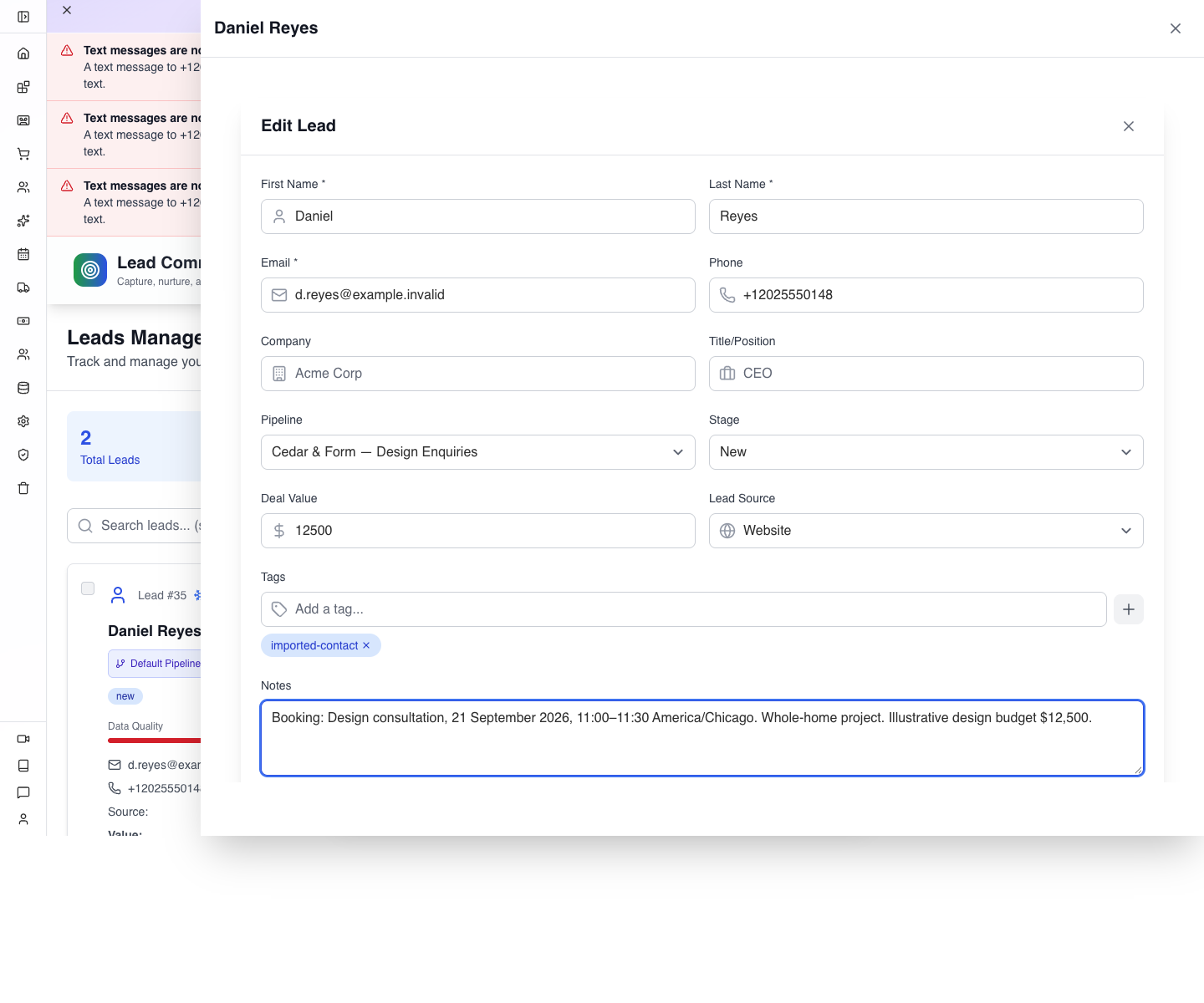
Press Edit. Explicitly select the business Pipeline, then New. Set Lead Source to Website, Deal Value to 12500, and Notes to:
Booking: Design consultation, 21 September 2026, 11:00–11:30 America/Chicago. Whole-home project. Illustrative design budget $12,500.
Use your actual chosen date and time. Press Update Lead, wait, reload and reopen the business pipeline. Open Daniel’s lead again and inspect Notes: the consultation date/time and timezone, whole-home context and $12,500 budget should still match what you entered. Correct and recheck a missing value before moving his sales stage.
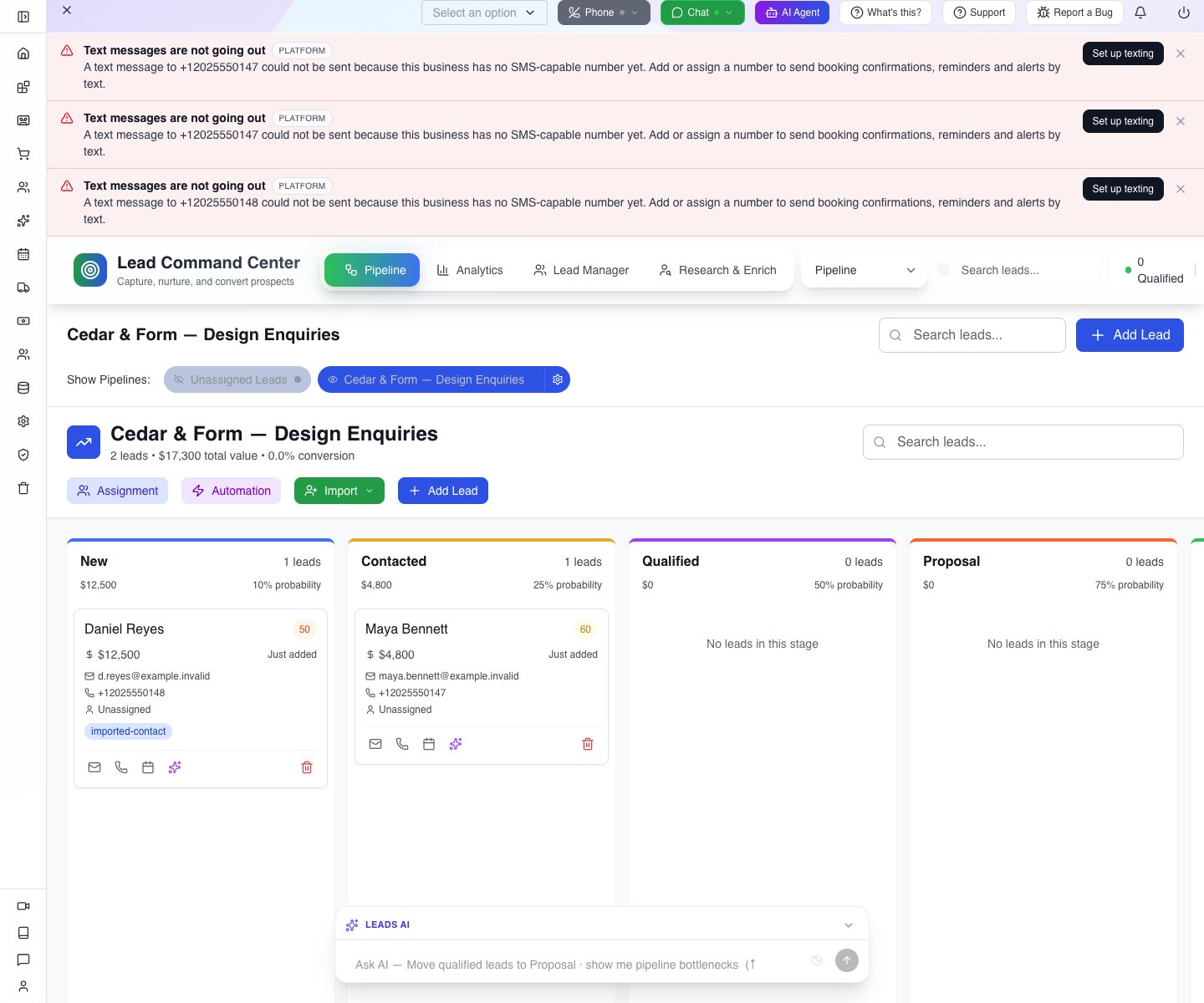
4. Move an opportunity when something changes
When you have contacted Maya, move her card from New to Contacted. Keep the card's name visible while dragging, and verify the destination afterwards. If the board is crowded, open the card's Edit form and change Stage explicitly instead.
Reload and check Maya's card and stage. The final rehearsal state is Maya in Contacted, Daniel in New.
The drawer's History tab showed a Stage History heading but no entries on this build, including after Maya's persisted move. Record the reason and next action in Activity rather than relying on that display as your only working record.
Try it: write a useful next action for Daniel: what you need to ask at 11:00, and what decision that answer will support. Save and reopen it.
Check yourself: Daniel now has a lead. Has a project been created? Answer: no. You have a booking, customer identity and sales opportunity; project kickoff requires a separate action or configured workflow.
Part 5 — Extend the workflow deliberately
Use Qualified when you have established fit, scope and a plausible budget. Use Proposal when you are preparing or discussing an offer. Move to Won or Lost when the business outcome is known. Check both the card's stage and any status-based metrics; a column move and a converted-status action are different operations in this product.
The Convert action in Lead Manager is not an automatic customer/project/order generator. Do not use it as a substitute for creating the records your business needs. The automation course covers an explicit agreement-to-kickoff handoff.
For agreements, the communications tools include signed-document workflows. Prepare the actual document and intended signer, then follow that workflow's preview and delivery checks. This rehearsal did not send an agreement, reminder or cancellation. A stage named Proposal alone sends nothing.
For public acquisition, connect the website, live-chat inbox and campaign workflow. Always decide which record should result: form submission, ticket, reservation or lead. Test each handoff with a fictional customer before relying on it for new enquiries.
Research & Enrich, AI Prospector and LinkedIn provide additional prospecting entry points. Review sourced details before treating them as a customer's stated requirements. This course establishes the manual workflow so you can recognise missing or incorrect data in an automated one.
If something goes wrong
| Symptom | Check first | Next action |
|---|---|---|
| Total count shows a lead, but board is empty | Pipeline visibility and actual assignment | Show the pipeline; find the record in Lead Manager and explicitly edit Pipeline/Stage |
| Stage selector contains no stages | Pipeline state has not been selected | Choose the intended Pipeline, then its Stage |
| Notes missing on an older build | Reopen the saved record | Edit → Notes → Update Lead; reload; the local create-field mapping has been repaired |
| Activity seems missing immediately after saving | Write still pending or drawer stale | Wait, close and reopen before adding it again |
| Title missing on an older build | Check the stored title through Edit | The local title-field mapping is repaired; reload the updated build and inspect the saved record |
| No services offered | No active definition with a service | Create and reload the definition before booking |
| Definition list looks unchanged after Save | Stale list | Reload before creating a duplicate |
| No slots | Closed day, past date, timezone or capacity | Check the definition and select a future working day |
| Confirm button saved into New | Creation and confirmation status are separate | Use CHANGE STATUS when the customer confirms |
| SMS failure notice | No configured sending number or delivery problem | Keep the saved booking; configure and test messaging separately |
| Existing-lead verification cannot load | The dialog’s load error | Retry, search by email and select only the needed booking |
| Imported lead is Default/Unknown with no budget | Import does not complete sales context | Edit pipeline, stage, source, value and notes |
| History is blank after a move | History display did not show an entry | Verify the saved stage and add a working activity note |
What happened behind the scenes
Source and rehearsal evidence
The fresh local learner rehearsal on19September2026 used Studio0.6.2 and AppEngine0.132.0, controlled organisation ck-local-mu83iwh3. Required Parts1–4 and all Try it exercises were completed through the actual UI, with API responses and full reload/readbacks. Final state: one Cedar & Form pipeline; Maya4800Referral/Contacted with Homeowner title, full notes and two activities; Daniel12500Website/New with booking context and one next-action activity; total17300. Maya bookingc96e4548 is Confirmed at10:00, Danielc96e4581 is New at11:00 on21September2026. Maya’s occupied slot was absent from the subsequent wizard. Existing Lina booking from the connected-client course was preserved.
The local review reproduced and repaired create-form/pipeline identity/title mappings, reservation-import exclusion, and dropped import notes. A separate fresh pipeline/lead verified creation of a deliberately selected pipeline and Contacted stage with title/notes intact after reload; those two temporary regression records were then removed. Seven focused source regressions pass. Daniel was imported exactly once after an empty email search. Actual import verification failure showed an error and disabled Import; Retry loaded the real list with Maya excluded.
Completed local report, actual response ledger, final readbacks and regression cleanup, local mail envelope summary. Three automatic booking/status emails reached the organisation’s loopback catcher. SMS attempts were rejected because no sending number was configured. Raw mail and credentials remain private. No payment, project, external message delivery, agreement or won sale was created. The optional Part5 discussion adds no required delivery or project-creation step.
Images linked under application-fixes/assets/local-crm are fresh local captures. Remaining assets/appmint-crm images illustrate the earlier production0.6.1 rehearsal and its historical failure/empty states; they are not the fresh local result. In particular, the saved-lead search and no-services images describe conditional recovery/prerequisite states. History still displayed its heading without entries after Maya’s actual persisted stage update; the course uses saved activities for working context.
Source under /Users/imzee/projects/:
websitemint/packages/ui/src/components/crm/leads/components/lead-form.tsx: create/edit fields and missing owner selector.websitemint/packages/ui/src/components/crm/leads/store/lead-pipeline-store.ts: create payload, update and stage operations.websitemint/packages/ui/src/components/crm/leads/components/lead-detail.tsx: pipeline detail/activity;modern-lead-detail.tsx: different Lead Manager detail.websitemint/packages/ui/src/components/crm/leads/reservation-import-dialog.tsx: reservation import, default pipeline/stage, filters and mapping.websitemint/packages/ui/src/components/crm/events/modern-reservations.tsx: reservation board/status controls.appengine/src/crm/leads.service.tsandleads.controller.ts: lead lifecycle and pipeline APIs. The fresh local observations above apply to the repaired local build; no production deployment is claimed.
Historical production capture ledger. The earlier drag capture moved Maya despite intending Daniel; the fresh local run instead used the course’s explicit Edit→Stage alternative and verified its readback.
Where next
Answer enquiries with live chat, give a customer a private dashboard, or prepare employee access. The companion-video guide provides the sequence, shot list and continuity checks for this course.