
First edition — lesson draft. These chapters combine documented workflows with labeled research clips and screenshots. The clips are silent research footage, not finished narrated tutorials. Steps that still need a complete recording are identified beside the relevant material.
Meet Appmint Mobile through the jobs people actually do: customers, conversations, calls and events.
Your mission
You are helping Cedar Workshop on an event day. Use your phone to find a customer, respond to a conversation and understand the event entrance workflow.
- Choose a suitable sign-in method
- Find CRM, chat and phone workflows
- Understand event mode and ticket scanning
- Prepare a reliable device for the job
Review progress is available when JavaScript is enabled.
1. Make the phone yours
Appmint Mobile combines several kinds of work in one app. Start with your organization, your access and the job this device will do. A personal phone and a shared door scanner need different setups.
Walk through it
- Enter your email — the app asks the server which organizations it belongs to and only offers a picker if there is more than one — then choose a sign-in method.
- For shared stations, review employee quick sign-in or NFC configuration; for a personal device, use the method your organization supports.
- Inspect the saved account and home layout. Changing organizations means signing out and either tapping another saved session or picking from the organization list your email returns.
Go deeper · why this matters
Quick sign-in exists for staff handovers. Actual passcode, card and PIN requirements depend on the organization. You can explain which account is active and who each action will be attributed to.
Read the detailed documentation
Recording coverage for this chapter
Record this sequence in a test workspace. Show the starting context, every meaningful action and the resulting saved state. Avoid jump cuts across steps the learner must reproduce.
2. Turn Home into a launchpad
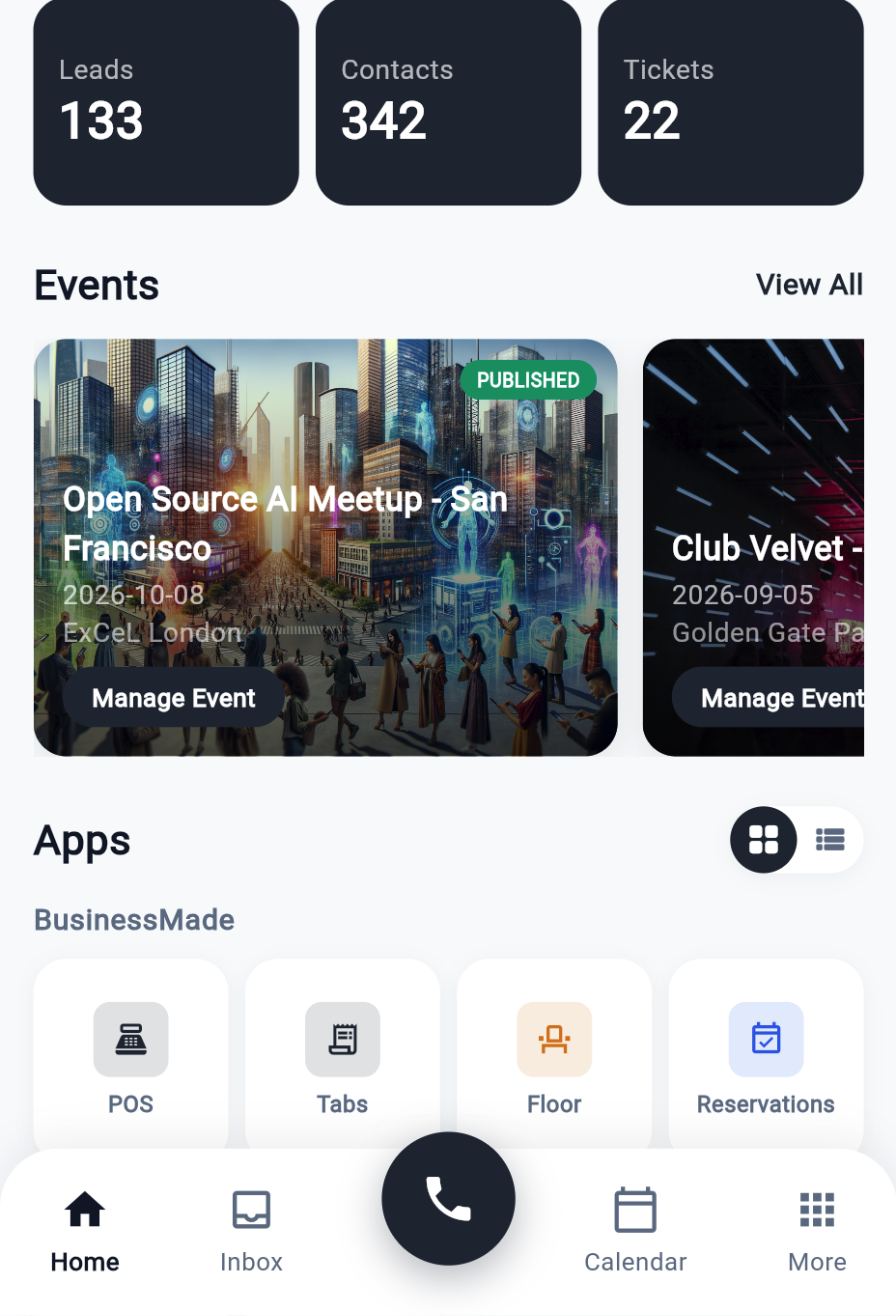
Home is a launchpad for the work available to your account. Groups bring together CRM, events, operations and devices. A focused layout makes a busy shift easier: keep the tools you use close at hand.
Walk through it
- Check the organization and selected location before opening operational screens.
- Find home layout controls and inspect grid/list or app-group options available in this build.
- Locate CRM, Live Chat, Events and Devices. Keep a note of anything hidden by the role or configuration.
Go deeper · why this matters
A wrong context can make valid records appear absent. Confirm context before adding data. The support setup highlights customer conversations; the entry setup highlights event and scanning work.
Read the detailed documentation
Recording coverage for this chapter
Record this sequence in a test workspace. Show the starting context, every meaningful action and the resulting saved state. Avoid jump cuts across steps the learner must reproduce.
3. Know the customer before you reply
CRM starts with context: who is this person, what have they asked for, and what happens next? Mobile brings leads, contacts, customer history, tasks, support tickets and meetings into the daily workflow.
Recording planned. This chapter currently uses a workflow diagram; verified footage is still to come.
Walk through it
- Search for a fictional contact and confirm you have the correct record.
- Inspect the available customer history and relevant lead or support record.
- Add or update a test follow-up task where permitted, then reopen it to verify the saved state.
Go deeper · why this matters
CRM is most useful when the next person can understand what happened and what to do next. “Call Sam about the Saturday class and record their preferred session” is clearer than “Follow up.”
Read the detailed documentation
Recording coverage for this chapter
Record this sequence in a test workspace. Show the starting context, every meaningful action and the resulting saved state. Avoid jump cuts across steps the learner must reproduce.
4. Keep the conversation moving
Inbox threads, live chat and phone calls are related tools with different controls. Find the customer context first, then choose the right channel. Availability matters: a logged-in agent is not necessarily ready to receive work.
Recording planned. This chapter currently uses a workflow diagram; verified footage is still to come.
Walk through it
- Inspect inbox channels and open a test thread. Confirm the recipient before sending a test reply.
- In Live Chat, find availability and queue controls; accept a test visitor when ready and inspect the supported handoff.
- Open the phone surface, review permissions and run an inbound/outbound test with a designated test number.
Go deeper · why this matters
The device and account must be ready to use the channel, and the destination must be the intended test recipient. Your plan includes preserving context, verifying the handoff and checking agent availability.
Read the detailed documentation
Recording coverage for this chapter
Record separate authenticated inbox, chat queue/handoff, and test phone sequences. Capture native permission prompts where required; browser footage alone does not verify native calling.
5. Welcome people through the event door
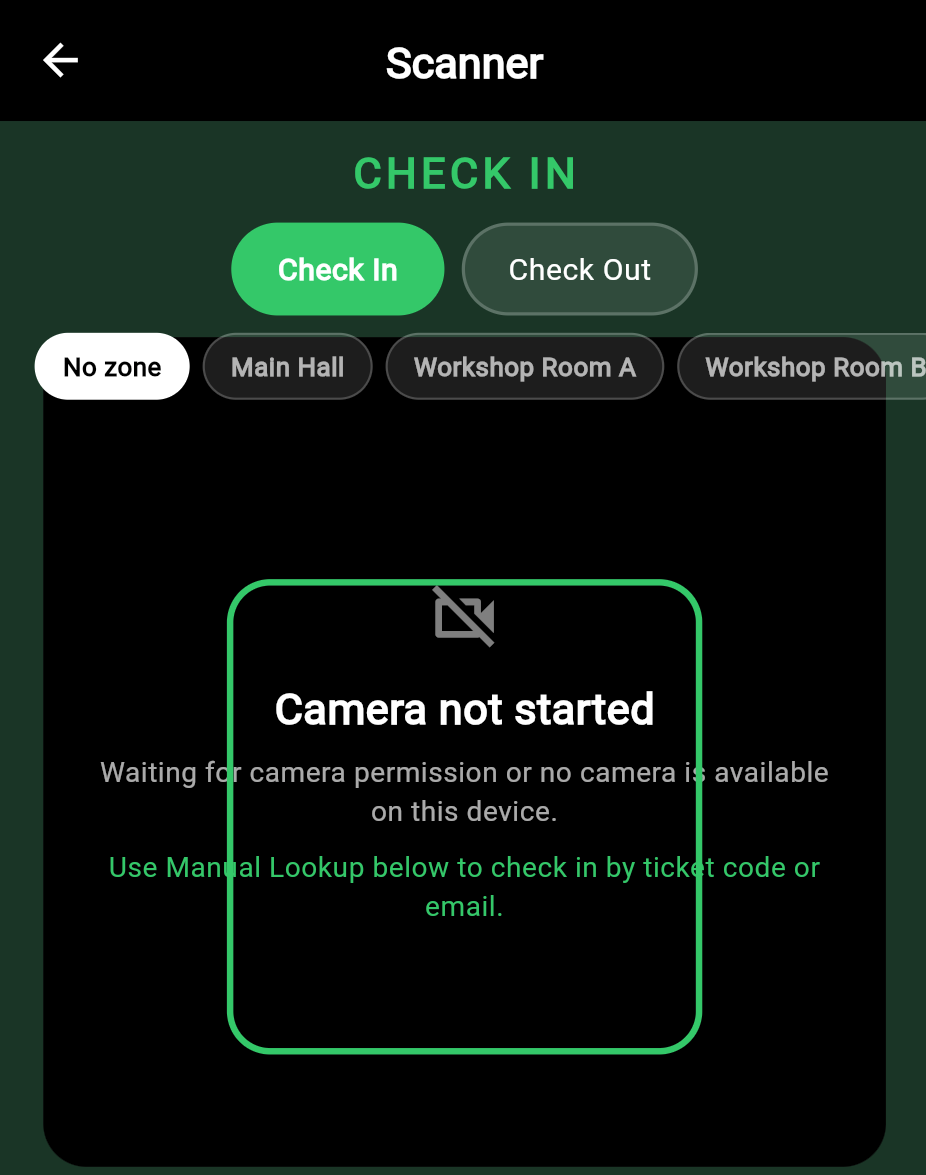
An event check-in begins before the camera opens. Select the correct event, understand the ticket response and know what to do when a guest cannot display their ticket. Event mode also exposes participant, accreditation, badge and live-stat workflows.
Walk through it
- Select the intended event and inspect its entry or accreditation context.
- Scan a valid test ticket, read the result and verify the participant/check-in record.
- Test a repeated scan and the documented lookup fallback. Do not assume every scan grants access to every zone.
Go deeper · why this matters
Validation, event scope and check-in state are distinct things to inspect. You can describe the next safe action for each case and where to verify the attendance record.
Read the detailed documentation
Recording coverage for this chapter
Record this sequence in a test workspace. Show the starting context, every meaningful action and the resulting saved state. Avoid jump cuts across steps the learner must reproduce.
6. Get ready for a real shift
The app is online-first. Your best rehearsal happens where people will actually work: the entrance, the floor or the counter. Test the connection, device permissions and any required hardware there.
Recording planned. This chapter currently uses a workflow diagram; verified footage is still to come.
Walk through it
- Confirm connectivity at the actual work area; the documented app has no offline action queue.
- Check camera access for scanning and audio permissions for calls. Distinguish directly paired hardware from shared Device Hub hardware.
- Run one representative test workflow, inspect the saved result and practice the staff handover.
Go deeper · why this matters
Offline operation is not promised by these docs. Plan connectivity and a tested fallback for the venue. The checklist covers connectivity, the correct event/account and a verified test ticket workflow.
Read the detailed documentation
Recording coverage for this chapter
Record this sequence in a test workspace. Show the starting context, every meaningful action and the resulting saved state. Avoid jump cuts across steps the learner must reproduce.
Continue your setup
- Create your custom website
- Turn on live chat
- Connect your API credentials and email
- Create a customer dashboard
- Assign phones and complete registration