

Install
Android, right now. While the Play Store listing is in review, install the APK directly:
Download Appmint Mobile for Android — or open the build page on the phone, which lists every app.
- Open that link on the Android phone and tap Download.
- Open the file from the notification or your Downloads folder.
- If Android asks, allow your browser to install unknown apps — a one-time permission, per browser.
- To update later, install the newer APK over the old one. Your data is kept.
That link always serves the current build, so it is the one to share. When the Play Store listing goes live, uninstall the direct-install copy before installing from Play — the two are signed differently and Android will refuse to update one with the other.
iOS is in App Store review. There is no direct-install route on iPhone or iPad; the listing is the only way in.
Sign in
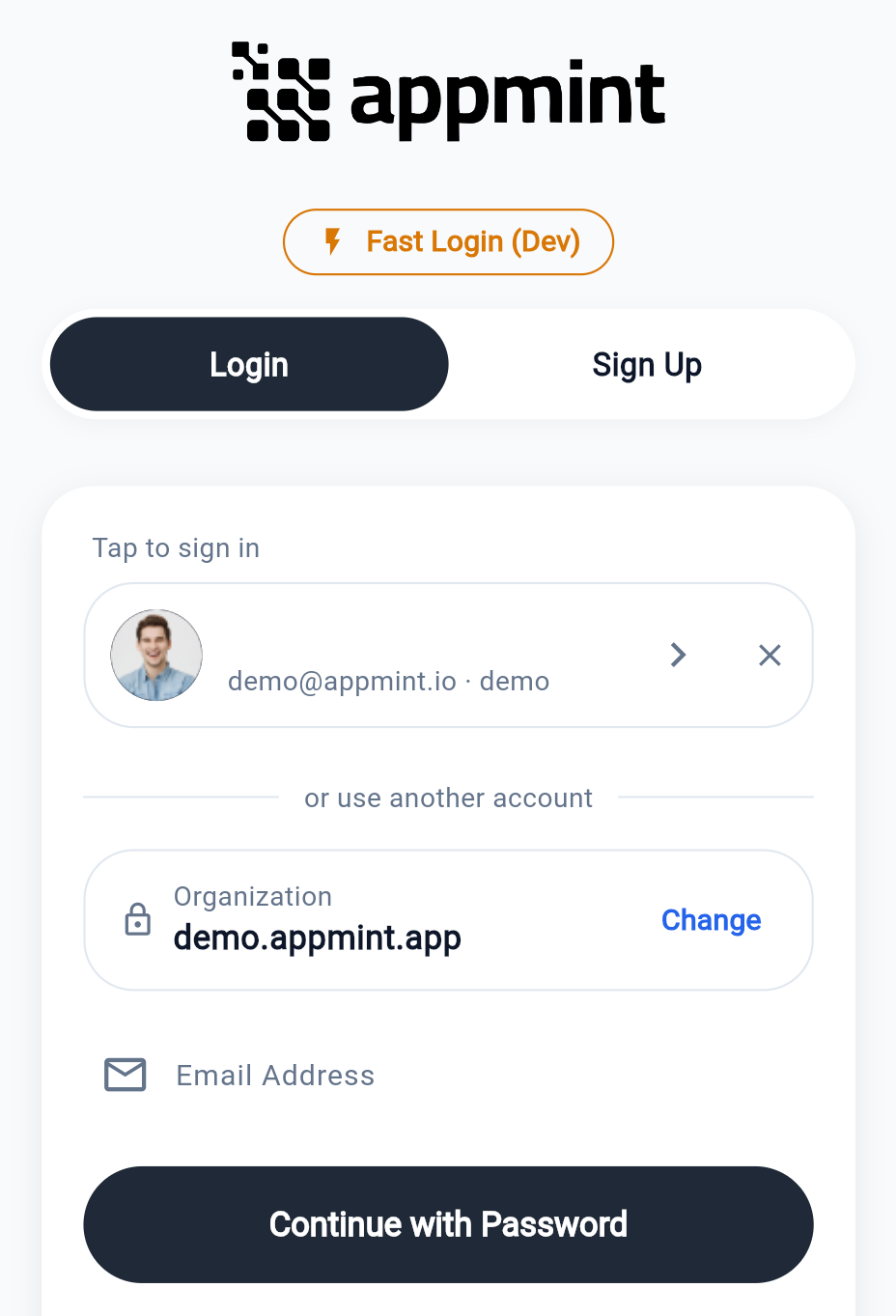
Match these instructions to your installed screen. The public Android APK checked on 18 September 2026 is 1.0.2+9 and shows Site Name with an .appmint.app suffix. Enter your organisation ID there, then your staff email and select Continue with Password. The download, fresh installation and this entry screen were verified; successful account sign-in and verification challenges on that binary still need a controlled test.
The newer email-first build uses the following flow. If your screen has no Site Name field, start with your email and the server looks up your organisations:
- Type your email address and tap Continue with Password.
- If your email belongs to one organization, you go straight to the password. Nothing about the organization is asked.
- If it belongs to several, an Organization picker appears above the password, with the one you used most recently already selected.
- Type your password and tap Sign In.
- If your organization asks for a verification code, a dialog appears — enter the six digits and tap Verify.
Then pick the method that suits the device:
Password — for personal devices, as above. Forgot Password? does not send anything in this build — reset from the web, or use the magic code below.
Quick sign-in — for shared devices at a counter. Staff sign in with an employee id and a short passcode, or by tapping an NFC staff card. It uses the organization the device last signed into, so somebody has to sign in with an email and password on that device first. Whether the card also needs a PIN is an organization setting.
Magic code — for anyone who would rather not type a password. Enter your email, receive a 6-digit code, enter it. It replaces the password rather than adding a second step; the organization is resolved from the email the same way.
Saved sessions — once signed in, the account is remembered on that device as a one-tap tile. There is no biometric unlock; the tile refreshes the session silently until its refresh token expires.
A till or a door scanner is used by many people in a shift. Quick sign-in exists so each action is still attributed to a person without anyone typing a full password on a busy floor.
Set up the home screen
The app's home layout is configurable, so a device can show the work it is actually used for. A counter device can lead with point of sale; a rep's phone can lead with leads and inbox.
Pair hardware
Devices are paired per class, each in its own settings screen:
| Hardware | Notes |
|---|---|
| Printers | Receipt and thermal printers for receipts, checks and badges |
| Scanners | Barcode and QR scanners for tickets, products and stock |
| NFC readers | For staff card sign-in and access credentials |
| Card readers | For card-present payments |
Hardware paired here belongs to this device. Shared hardware — a till printer several devices send to — is reached through the Device Hub instead, and does not need pairing on each phone.
Switching organizations
If your account belongs to more than one organization, the Organization picker on the password step is where you choose. Saved sessions mean you can move back and forth without signing in again each time. Your role in each organization decides what you see there.
Pick a location
Operations screens — the floor, the queue, open tabs, the menu — are scoped to the business location chosen in the header picker. Choose it once per device; it is remembered. A location with no service points configured shows an empty floor, which is expected for a new site.
Check the network where staff will stand
The app is online-first: screens load from the server and there is no offline queue. Card payments, ticket validation, seating and settling all need a connection. Test at the door, the patio and the storeroom before the first shift, not at reception.
Next
With the device set up, How do I…? lists every job you can do and takes you straight to the steps.