
Choose a real job, prepare its access and data, then verify its saved result. This checklist connects the full documented mobile surface to its detailed instructions. The mobile signed-in workflows still require stable browser/native recording; documentation coverage is not a claim of a successful device test.
Prepare the phone or shared station
- Install and sign in. Identify the organization and choose the supported password, magic-code or quick-sign-in flow.
- Configure shared devices. Verify the staff identity at handover rather than leaving a personal session open.
- Set Home, saved sessions and preferences. Make the important app groups visible and confirm the selected location.
- Check connectivity and failure behavior. The documented app has no offline action queue; rehearse in the actual work area.
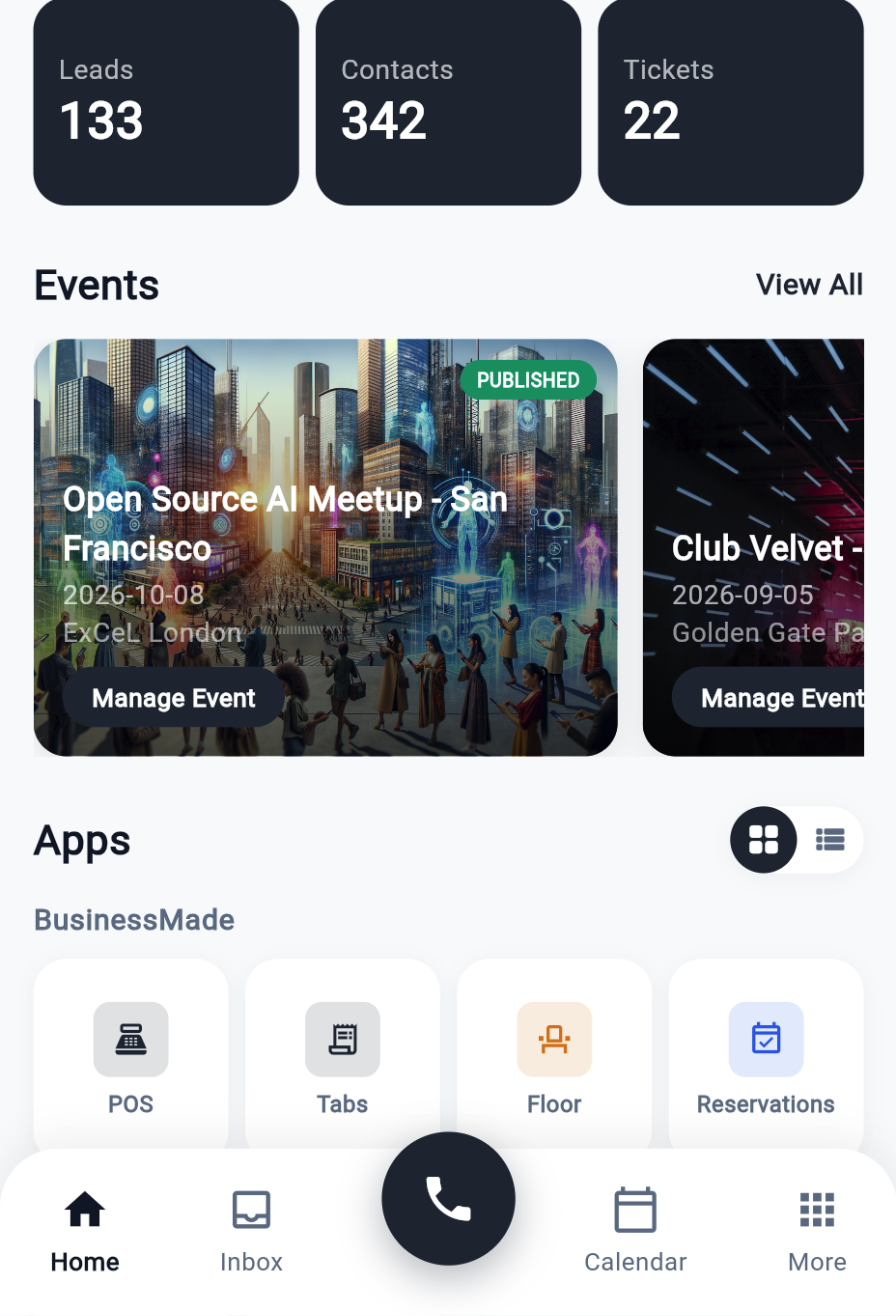
Customer and CRM work
| Task | Walkthrough | Verify the result |
|---|---|---|
| Capture and qualify a lead | Leads and customers | Reopen the lead and inspect its identity, owner and next action |
| Find contacts and customer history | Contacts and journeys | Confirm the correct person and their recorded activity |
| Track support, tasks and meetings | CRM work | Reopen the updated record and confirm assignment/state |
| Work an operational pipeline | Pipelines | Inspect the selected workflow, stage change and service target |
Conversations, live chat and phones
- Inbox, email and SMS: select a channel, open the intended thread, send only a prepared test message and verify delivery/history.
- Live chat and presence: set agent availability, accept a test visitor, reply, and verify handoff and persistence.
- Business phone setup: the employee needs a number assignment, the organization needs outbound readiness, and the device must be online with the required permissions.
- Mobile calls: test inbound and outbound audio separately, then confirm the logged result. A displayed dial pad alone is not the test.
- Notification configuration: distinguish in-app events from operating-system notification behavior and verify the device’s actual response.
Events: setup to final guest
| Stage | What to do | What to inspect |
|---|---|---|
| Prepare | Choose the event and access context; inspect the event dashboard | Correct event, role, participant data and working network |
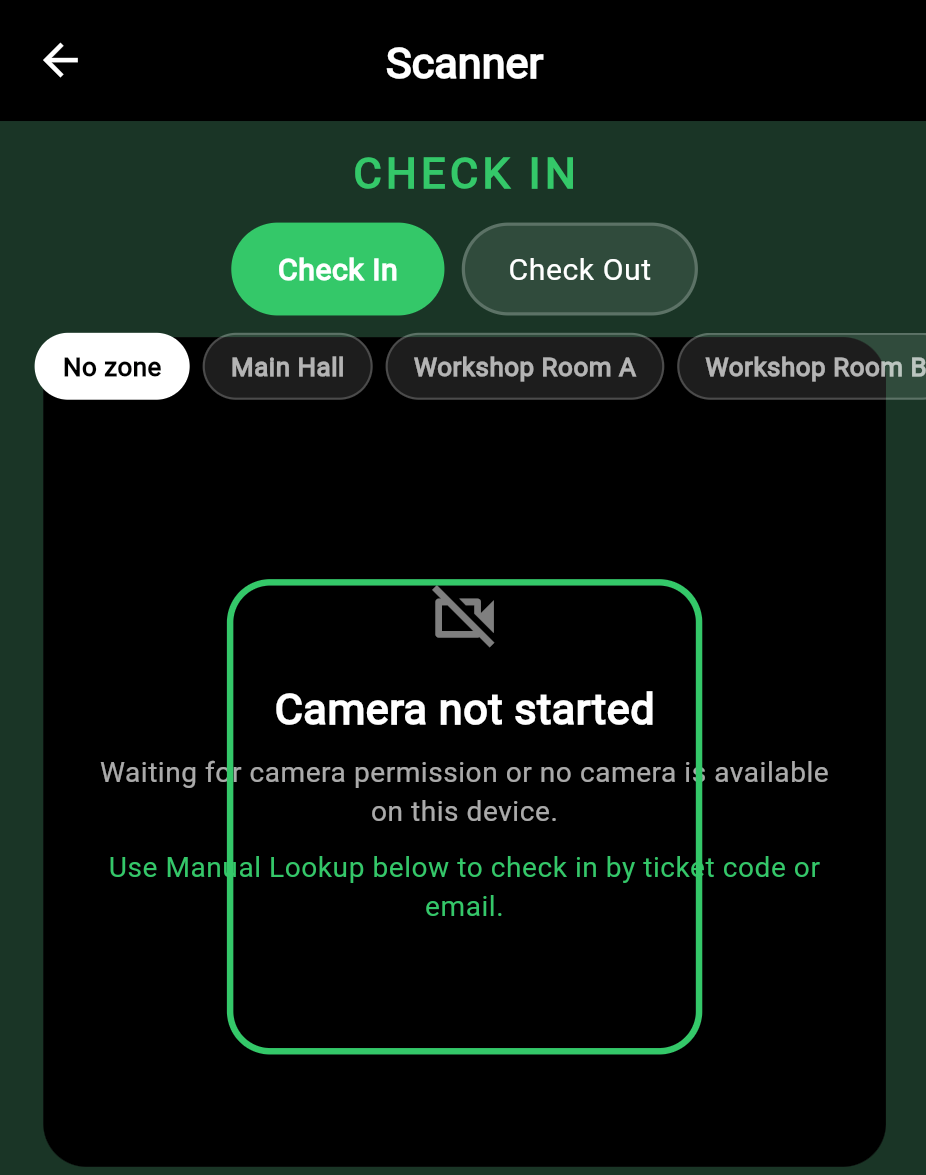
| Scan | Scan a prepared test ticket | Validity response and correct event/access outcome |
| Handle exceptions | Repeat a scan; look up a guest without a usable ticket display | Duplicate handling and the supported fallback |
| Track attendance | Check in and check out | The attendee record and live counts |
| Accreditation | Use the configured zone/credential workflow | Access to the intended zone, not every zone |
| Desk work | Hand over will-call tickets, handle a walk-in, issue or comp where permitted | Ticket/participant records and the resulting status |
| Badges and perks | Find the participant, use the badge/perk workflow | Actual printed badge or recorded redemption where supported |
Complete event workflow · Event platform setup.
Operational tools in the shared mobile app
The mobile app also exposes POS, Tabs, payments, floor, reservations and kitchen/pipeline workflows. BusinessMade uses these tools in its own learning journey. Keep the account/location and the purpose of the tutorial explicit.
- POS, modifiers, checkout and receipts
- Tabs, floor, reservations and check-in
- One-off payments
- Kitchen/operational pipelines
- A complete service-day playbook
Configure and support the app
| Area | Detailed guide |
|---|---|
| Staff access and device permissions | Staff and access |
| Locations and service points | Locations |
| Menu, stock and the 86 list | Menu and stock |
| Reservation definitions | Reservations setup |
| Guest arrival | Check-in workflow |
| Directly paired printers, scanners, NFC and readers | Devices |
| Organization settings | Organization configuration |
| App settings and environment | App settings, Environment |
| Payments and printing | Payments, Printing |
| Developer setup, testing and release | Running and testing, Release |
Log a failed mobile check and continue
Record the platform/build, organization/location/event, action, permission state, expected result, actual result and whether the record reached the server. A camera, voice, notification or hardware failure may be specific to the device; do not treat a desktop web rendering as proof of native behavior.