
Appmint Mobile is the staff side of EventOxygen. Attendees hold their ticket in the event app; your team scans and manages the door from here.
For the full event-day playbook — every screen, what the server checks on a scan, and which API features have no screen in this app yet — see Event-day operations.
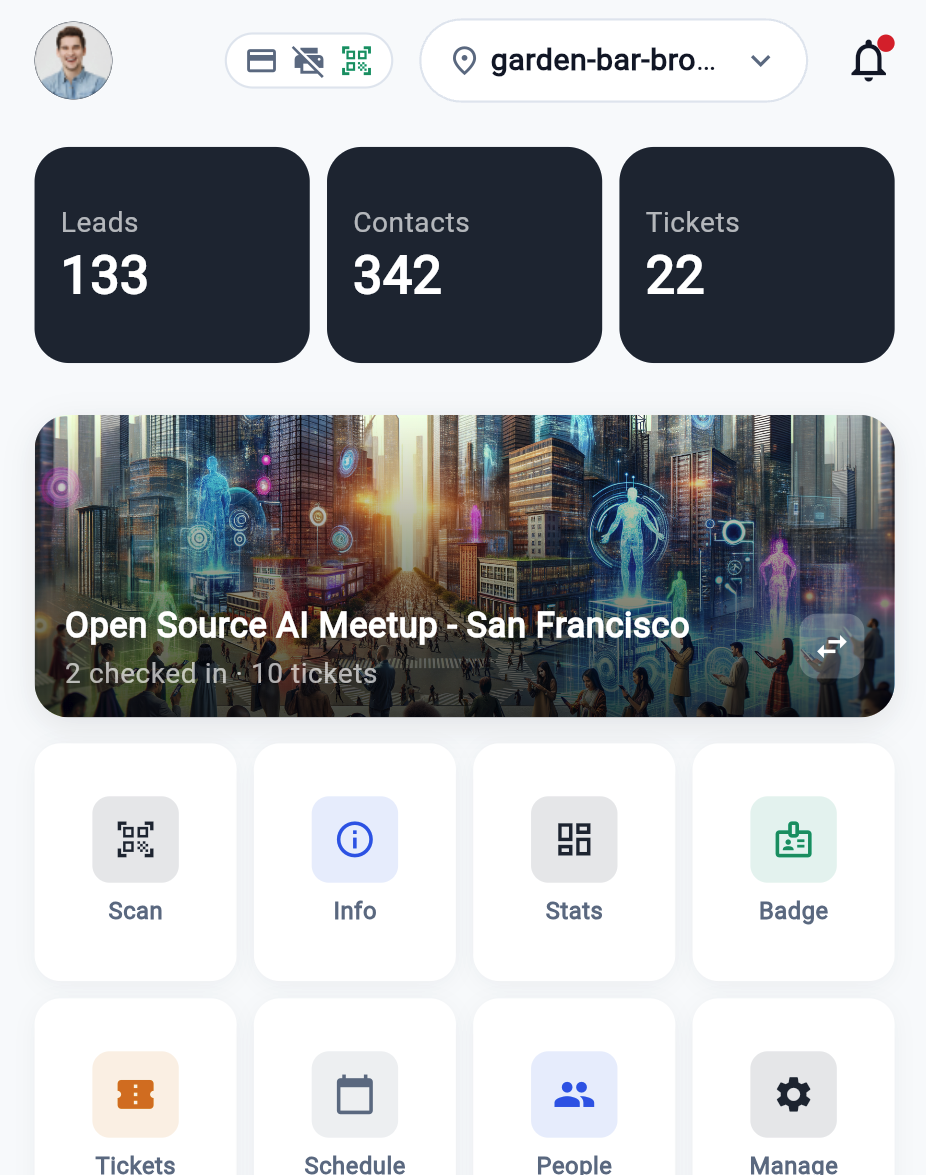
Tap Manage Event on Home before you scan or use the desk. The Scanner and Accreditation Desk work on whichever event is currently open — reach them from inside the event, not from the Home tiles, or the zone chips come up empty and lookups go out without an event to search.
Before doors open
- Open the event: Home → Manage Event.
- Tap Scan and allow the camera when the phone asks. Do this before the queue arrives, not in front of it.
- Choose the zone chip for the door you are working. It stays selected between scans, so set it once.
- Check the Tickets tab shows a sensible total. A zero there usually means the wrong event is open.
Scanning tickets
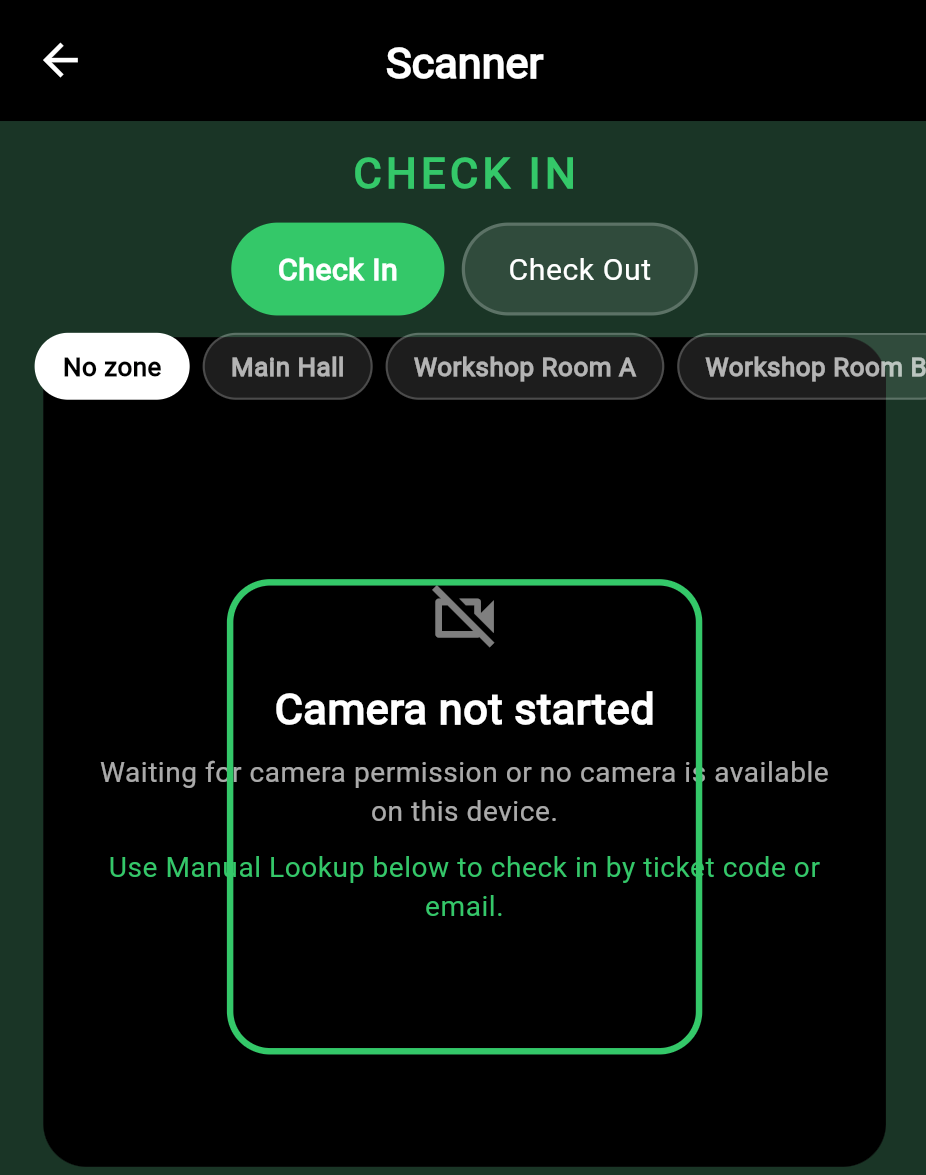
Tap Manage Event on Home to put the app in event mode, then Scan. Pick the zone chip for the door you are working (or No zone), point the scanner at an attendee's QR code, and the server confirms the ticket is genuine, has not already been used, and is valid for this event and zone. The result card shows the holder, the ticket type and, on a refusal, the server's reason.
The phone vibrates the moment a code is read, before the answer comes back — that is "I saw it", not "they are in". Wait for the card.
What the card means:
| Card | Colour | What happened |
|---|---|---|
| CHECKED IN / CHECKED OUT | Blue | Done. The holder, ticket type and zone are shown. |
| ALREADY CHECKED IN | Amber | This ticket has been scanned before. Not a fake — usually a re-scan or someone who stepped out. |
| DENIED | Red | Refused, with the server's reason underneath: wrong event, wrong zone, cancelled or refunded. |
Cards clear themselves after about three seconds, or tap to dismiss. Scanning is blocked while a card is up, so a card left on screen is the usual reason the next code "won't read".
If the phone cannot be read, Manual check-in at the bottom takes a printed ticket code, or the holder's email — one live ticket is used at once, several open a picker.
Checking that a ticket has not just been used at another door has to reach the server. It cannot be decided on the device, so scanning waits for connectivity rather than accepting a ticket optimistically.
When someone's phone won't show the ticket
A dead battery, a screen too dim to read, a ticket buried in an email. Use Manual Lookup at the bottom of the scanner — the button keeps that name in both modes, but the sheet follows whichever mode you are in.
- Tap Manual Lookup.
- Type the ticket code printed on their confirmation, or their email address. The app decides which you meant by whether it contains an
@. - Tap Check in.
By email, one live ticket is used straight away. Several, and you get a picker headed "3 tickets for [email protected] — pick one" showing the holder, code, type and status of each; choose the right one. None, and you get "No ticket found for …", which normally means they booked under a different address.
Cancelled and refunded tickets are left out of that list, so a person who was refunded looks like no match at all.
Check-in and check-out
Both are recorded from the same scanner: switch the chip to Check Out and scan (or enter) the ticket the same way. That is what makes occupancy a live count per zone rather than a running total of everyone who ever walked in — the number that matters when you have a capacity limit. A scan made with No zone selected still checks the person in but never counts toward any zone's occupancy, so agree the chip per door before opening.
Accreditation
Zone-based access decides who may enter where. Scans are logged with the staff account that made them, so you have an audit trail rather than just a headcount.
Physical credentials — wristbands and RFID cards — are assigned and revoked in the admin or through the API; the scanner accepts a credential code, but there is no screen in this app to assign one.
Handing over a ticket at the desk
Someone booked online and has come to collect. From Manage Event → More → Accreditation Desk:
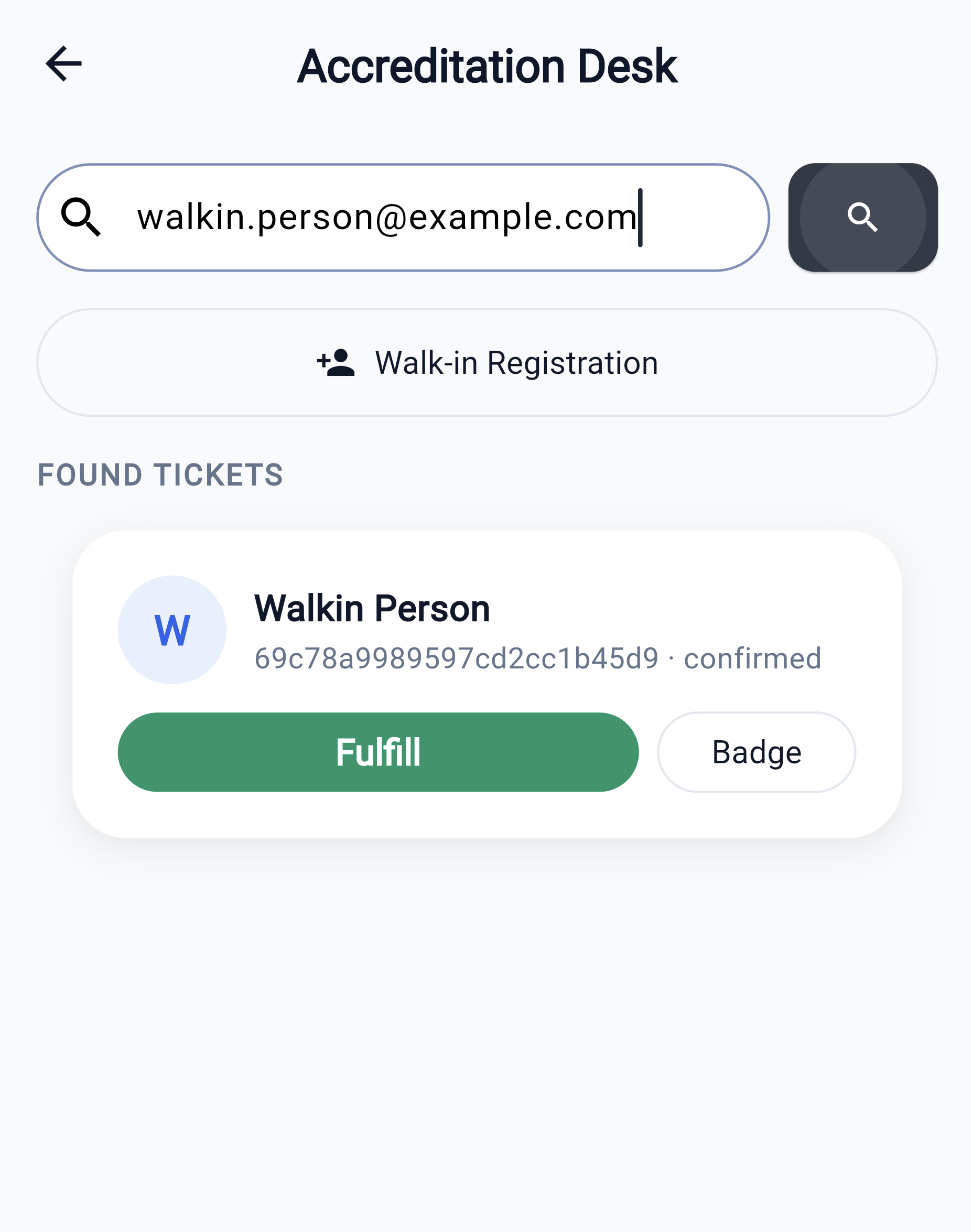
- Type their email, or any booking or confirmation reference, into the search box and submit.
- Find them under FOUND TICKETS.
- Tap Fulfill. Their QR is rotated for the hand-over and the row refreshes.
A search that finds nobody shows the heading with nothing under it rather than a "no results" message, so an empty list means no match. There is no confirmation step on Fulfill and nothing stops it being tapped twice.
Giving a walk-in a ticket
For someone who turns up without having booked, on the same desk:
- Tap Walk-in Registration.
- Choose a Ticket type. This is the only field that must be filled in — the server refuses a ticket without one.
- Add their Name and Email if you have them, then tap Register.
You will see "Walk-in registered". They do not appear in the results above, so search for them if you need their ticket straight away.
Issuing or comping a ticket
On the Tickets tab: Issue for a normal ticket, Comp for a free one with a reason recorded (speaker, VIP). Both ask for the ticket type first, pre-selected when the event has only one, then the holder's name and email.
Sell is not built yet. Tapping it says "On-site sales coming soon" and nothing else happens — take payment through the point of sale instead.
If the event has no active ticket type, Issue, Comp and Walk-in all show a red notice instead of the dropdown and refuse to submit. Add a type in the event setup first.
Participants
Speakers, exhibitors and staff are tracked separately from ticket holders. They can be confirmed or cancelled from the app, since they attend on a different basis than people who bought a ticket.
Filter the People tab by role, and use the overflow menu on a row to change someone's role or remove them. Removal happens immediately, with no confirmation and no undo.
Badges
Badge on the Accreditation Desk shows the badge payload for a ticket — holder, type, confirmation code, zone access and the template chosen. This app does not render or print it and does not mark it printed; badge printing in the venue runs through the Device Hub.
Perks
Tickets can carry perks — drink tokens, meal vouchers, merchandise. Claiming and fulfilling them is an API and admin action; a scan point configured to auto-claim a perk does so on check-in, but this app has no perk screen.
Will-call
For people who bought but never opened the app: look them up by email or booking id on the Accreditation Desk and fulfill their ticket from the app. Name search is not available. Walk-in Registration on the same desk, and Issue / Comp on the Tickets tab, each ask for a ticket type first (pre-selected when the event has only one) and then the holder's name and email.
The live picture
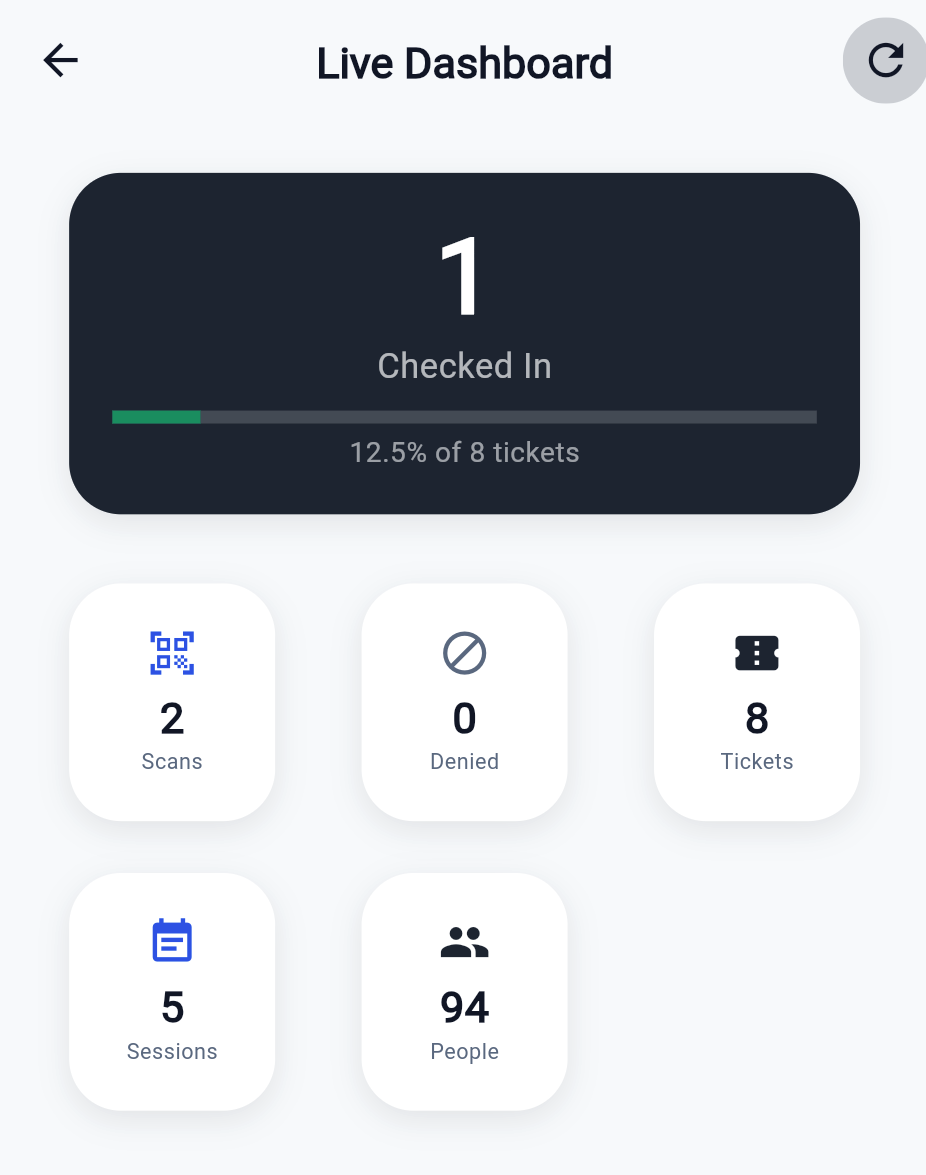
While the event runs, Stats (the Live Dashboard) shows distinct attendees checked in against the ticket total, scans and denials, sessions and people, and occupancy per zone with capacity bars — refreshed every 30 seconds — so whoever is running the door is not waiting on someone at a laptop. The same checked-in count sits on the event card on Home.
Info Center answers "what is on right now" — the sessions happening and the ones starting within the hour. Its clock rolls over every minute; pull down to pick up sessions that were added or edited since you opened it.
When something goes wrong
| What you see | What it means | What to do |
|---|---|---|
| Camera not started or Camera unavailable | Permission not granted, or no usable camera | Allow the camera in Settings and reopen the scanner. Use Manual Lookup meanwhile — it does the same job. |
| Codes stop being read | A result card is still up | Tap the card, or wait for it to clear. Scanning pauses while one is showing. |
| ALREADY CHECKED IN on a genuine guest | Scanned before, or they stepped out | Let them in. Use Check Out when people leave so the count stays true. |
| DENIED — access denied to this zone | Their ticket type does not include this zone | Send them to a door their ticket covers, or fix the ticket type in the admin. |
| No ticket found for an email | They booked under a different address, or were refunded | Try the printed ticket code, or search on the desk by booking reference. |
| Zone chips missing on the scanner | No event is open, or the event has no zones | Go back and use Manage Event. If the event genuinely has no zones, scanning still works. |
| Zone occupancy empty all day | Scans are going out with No zone | Set the zone chip at each door. Past scans cannot be reassigned. |
| Tickets tab shows zero | The wrong event is open | Reopen the correct event from Home. |