
The point of sale on mobile writes the same orders as the web POS: a tab is an sf_order in the storefront, priced by the server, posted to the ledger when settled. Nothing here is a lighter "mobile" version — the rules below are the platform's rules.
Open it from the home screen tile POS. It scopes to the location chosen in the header's location picker; products, categories and open tabs all follow that choice.
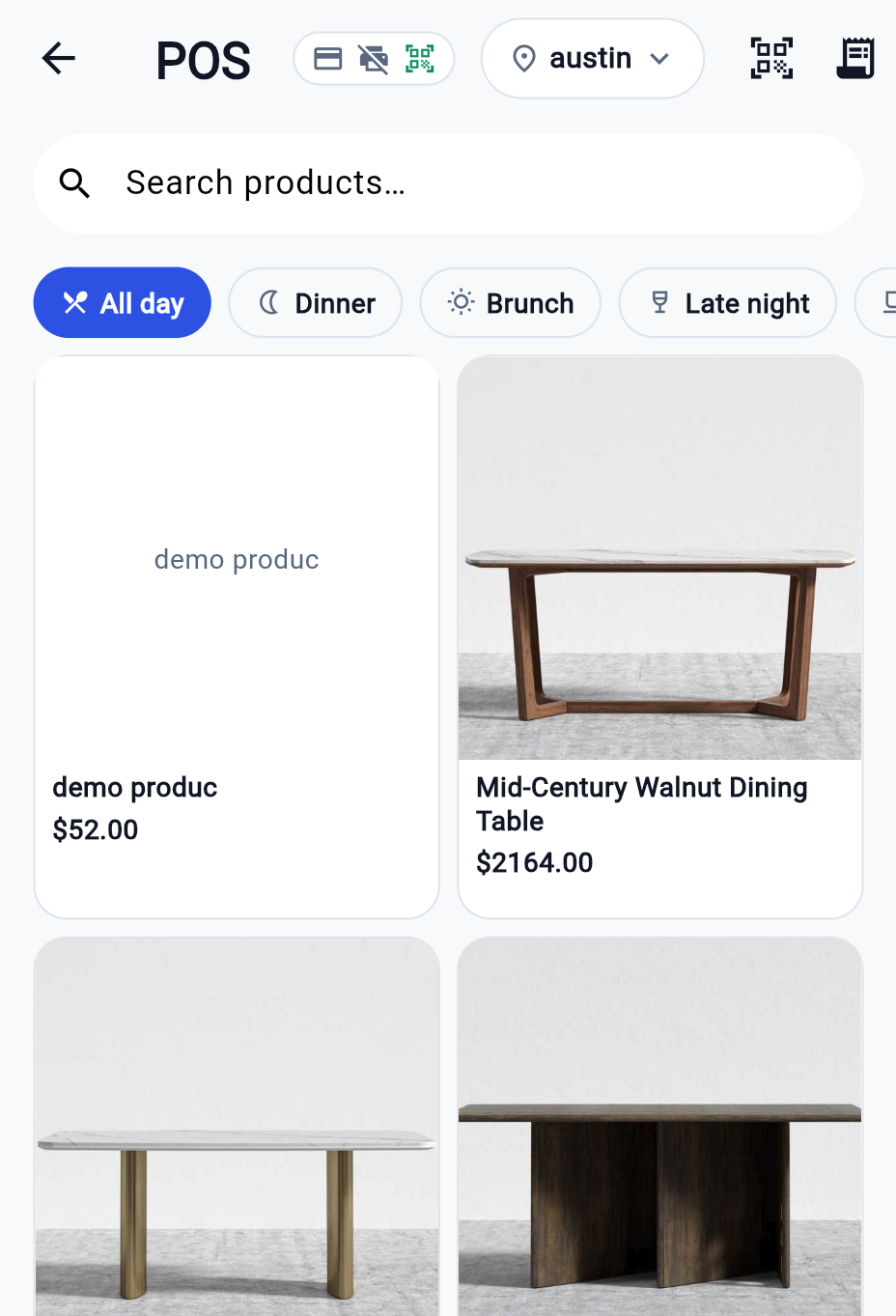
The screen
| Area | What it holds |
|---|---|
| Search | Type a name, SKU or barcode. Scanning a code with the camera or a paired scanner lands here too. |
| Chips | The first row switches between All day and the location's day-parts (Dinner, Brunch, Late night, Happy hour). Below it, the POS categories. |
| Product grid | Tap a card to add one. A product with variations or modifiers opens a sheet first. |
| Cart panel | The active tab: lines, running totals, and the action bar. On a phone it slides up; on a tablet it sits beside the grid. |
| Tab strip | Every open cart on this device, plus + for a new one. Carts you saved are the location's open tabs. |
To take something off sale without leaving the sale: long-press its tile and 86 it, with a reason if you have one. Long-press again to bring it back. It applies to every device at the location, and it is the same record the menu editor writes.
A product that is 86'd at this location is dimmed and cannot be added. Day-part membership decides which chips a product appears under. Both are set under More → Menu (day-parts & 86-list) and apply to every device at the location.
Ring up a sale, start to finish
- Open POS and check the location in the header is the one you are working. Products, tabs and stock all follow it.
- Add the items — tap a card in the grid, type into Search, or tap the scanner icon (Scan SKU) and point at the barcode.
- Answer any option sheet that opens, then Add — $0.00 with the line total on it.
- Tap Save if the order is staying open (a table, a collection), so any device can pick it up.
- Tap Send to prep if the kitchen or bar needs to start.
- Tap Settle when they pay, choose the tender, take the money, then choose how they want the receipt.
Everything below is the detail behind those six steps.
Scanning a barcode
The scanner icon in the header opens the camera with Point at a product barcode or QR code. A paired hardware scanner adds the product from wherever you are in the app without opening anything.
An unrecognised code reads No product found for "…" — the code is not a SKU or barcode on any product at this location. If the camera does not open at all you will see Camera scanner is off — turn it on in Devices → Barcode scanner.
Building an order
Variations — size, colour, any option group on the product. The sheet matches every option group before it will add the line, so a variation-only product cannot be added "plain".
Modifiers — attributes with a price delta (extra shot, no onions). They are stored on the line as options, so the kitchen ticket shows them.
Course and seat — each line can carry a course and a seat number. They print on the check and route with the item when it is fired.
Quantity and notes — tap a line to change quantity, add a special instruction, or remove it. A line that has already been fired stays on the order; remove it and the kitchen is not told, so speak to them.
Customer — attach a customer by name, email or phone. A tab opened from a seated party inherits that party's customer automatically.
Save, Send to prep, Settle
The action bar has three verbs, and they are not interchangeable.
Save. Writes the cart to the server as an open tab (the label changes to Update once it is saved). Until you save, the cart exists only on this device. Save before walking away, before a colleague needs to pick it up on another device, and before firing.
Send to prep. Fires the unfired lines into the prep pipeline as a kitchen ticket. Lines already fired are skipped, so pressing it twice does not double-cook anything — if nothing new is on the tab the server refuses with "All requested items are already fired". Tickets appear in Pipelines.
Fire a part of the tab by selecting lines first — the button then counts what you picked (Fire 3 items) and you can add Batch instructions that print on the ticket alongside each line's own note. Fired lines are badged FIRED on the tab.
Settle. Opens checkout. The server re-prices the order first, so a modifier price or a tax rule changed since the tab was opened is applied before you charge.
Once a tab is saved, three more actions appear above the bar:
| Action | What it does |
|---|---|
| Transfer | Move the tab to another service point at this location. Pick the point; the tab's table label follows. |
| Split | Divide the bill by picking lines, or into N even shares. Each share becomes its own tab. |
| Print the check to the paired printer. Uses the server's check payload, so the layout matches the web POS. |
To move a tab to another table: Transfer → pick the service point → the tab confirms Moved to To split a bill evenly: Split → pick Split 2 ways, 3 ways and so on. Each share becomes its own tab you can settle separately. To close a tab you should not have opened: open the tab's menu and choose Delete tab permanently — it is offered only while the tab has no payments and nothing fired. Once either is true the entry reads Not allowed — tab has payments or fired items. Refund or use no-show instead. Hide from this device is the softer option: the tab stays on the server and other devices still see it, it just stops cluttering your tab strip. An unsaved cart has no menu — closing it asks Discard cart? and warns that unsaved items are lost. Checkout shows the total, a tender list and the receipt choice. Tenders. Start with one tender for the full amount and change its method, or add more to split a bill across methods. Each tender charges on its own, so a card that declines does not undo the cash already taken. Tips. Pick 15, 18, 20 percent or type an amount. The tip is added to the first tender that has not been charged yet; charged tenders are locked. Receipt. Once the total is covered, choose Print, Email, SMS or None, then finish. Email and SMS work for any tender and use the organization's receipt template. A cash tender may exceed the amount due; the server records the tendered amount and the change. Any other tender that exceeds the balance is refused, and a tab that is already fully paid cannot be settled again. Tap to Pay and the M2 reader talk to Stripe. If the venue network is down the payment waits rather than completing — it is not queued. Open a settled tab (the Closed view on the Tabs screen, or the cart panel's payment list) and pick a payment. You can refund the whole payment or a partial amount. Refunded payments stay listed, dimmed, so the history reads correctly. A refund reverses one payment, not the order. Two card payments on a split bill are two refunds. Checks and receipts go to the printer paired under Settings → Printer, or to a shared printer through the Device Hub. The server renders the layout and sends the app plain lines to print, which is why a check looks the same from every device. A cash drawer wired to the printer opens on a cash settle. Stock is per location. When an item runs out, 86 it in Menu management and every device stops selling it at once. Each line's prep station (kitchen, bar, barista) travels with the fired ticket, which is what the station filter in Pipelines reads.. If the sheet says No tables/service points configured for this location, the floor has not been set up — see Floor and bookings.
Checkout
Method Notes Cash Enter the amount tendered; change due is computed and recorded. Tap to Pay / M2 reader Card present through Stripe Terminal. The label shows whichever is set up on this device. Needs a connection. Card (online) A card entered manually through the online Stripe path. Bank transfer, Other Recorded against the tab with an optional reference. Nothing is charged by the app. Refunds
Printing
Stock and stations
When something goes wrong
What you see What it means What to do No product found for "…" The scanned code is not a SKU or barcode on any product at this location Check the location in the header, then search by name. Add the barcode to the product on the web. Camera scanner is off — turn it on in Devices → Barcode scanner Camera scanning has been disabled on this device More → Devices → Barcode scanner, turn Camera scanner on. A product is dimmed and will not add It is 86'd at this location More → Menu (day-parts & 86-list) to put it back on, or sell something else. The grid is empty Wrong location, or a filter is on Check the location picker, then clear the search box and the category chip. All requested items are already fired Everything on the tab has been sent Nothing to do — the kitchen already has it. Add new lines and fire again. Delete tab permanently is greyed out The tab has payments or fired items Refund the payment, or mark it a no-show. A fired tab cannot be deleted. Cannot refund more than $… The partial amount exceeds that single payment Refund each payment separately; a split bill is several refunds. No M2 reader paired. Pair one in Devices first. Checkout picked a card-present method with no reader Tap Pair now, or take the payment another way. Stripe is not configured… at checkout The organization has no Stripe integration Take cash or record another tender; an administrator adds Stripe on the web. Print failed: … The printer is off, out of range, or unpaired More → Printer, check it is paired and run Test print. Nothing prints and there is no error No printer is set as default on this device Pair one under More → Printer. Server returned no receipt payload. The order settled but the receipt did not render The payment is taken. Re-send the receipt from the tab's payment list. A tab you saved is not on another device It is hidden there, or that device is on another location Check the location, then unhide from the tab list. Related