
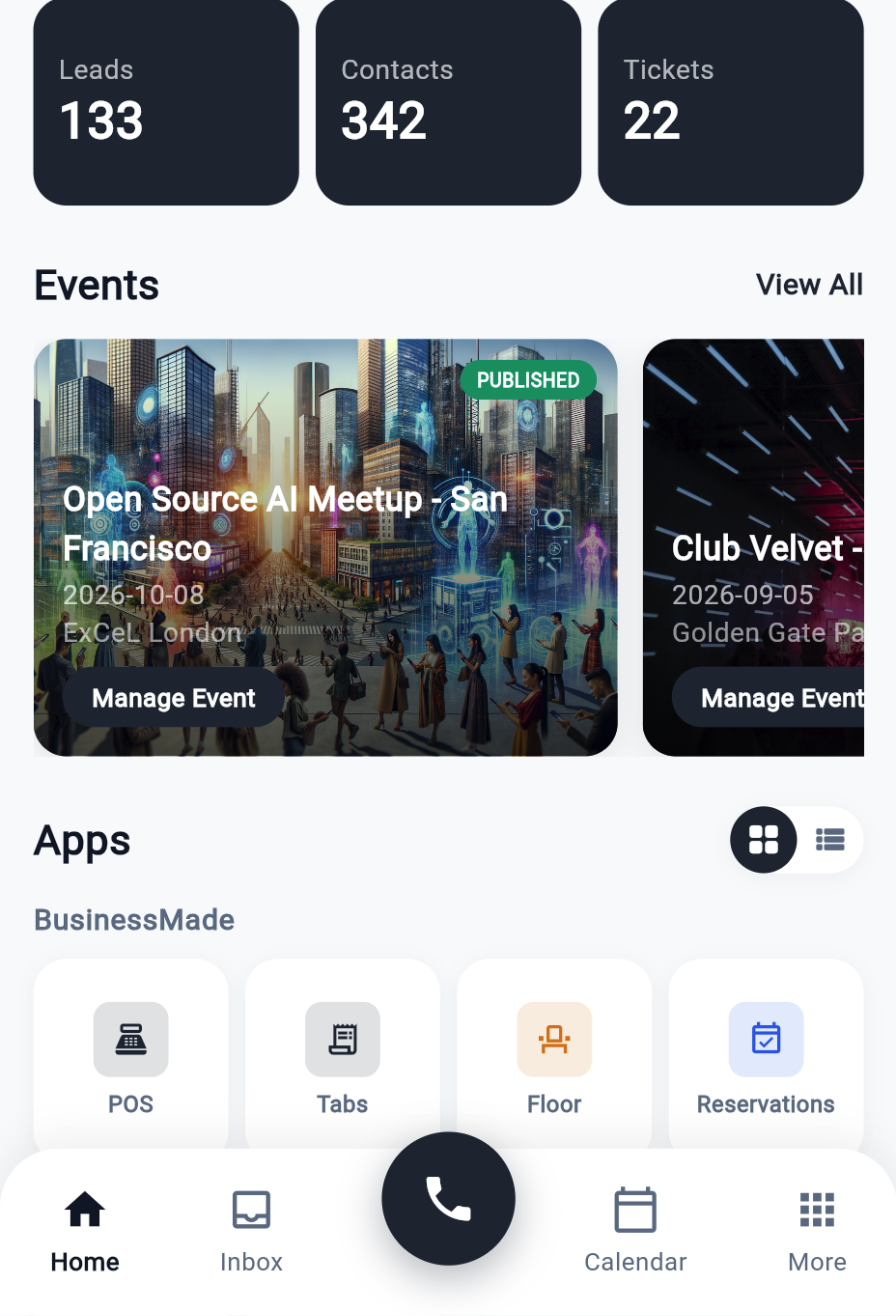
Four home tiles cover the front of house. They read and write the same records, so a party is one thing whether you see it as a booking, a queue entry, a table or a bill.
| Tile | Screen | The record |
|---|---|---|
| Tabs | Every open and closed bill at the location | sf_order |
| Floor | Service points — tables, seats, bays, rooms | service_point |
| Reservations | Bookings, today and ahead | reservation |
| Check-in | The live queue of people waiting to be seated | check-in task |
Everything scopes to the location in the header's picker. Switch location and all four screens change with it.
Tabs
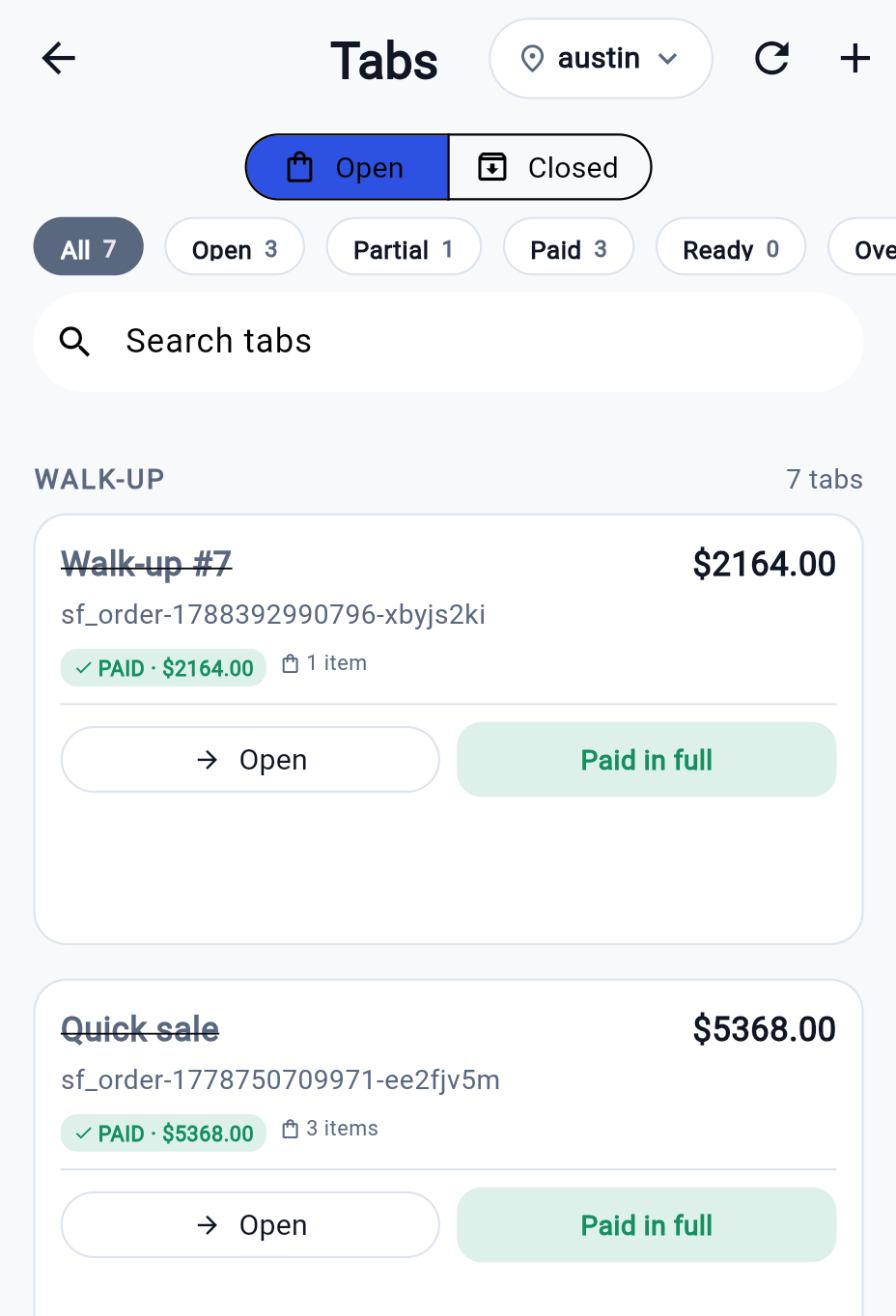
The Tabs screen lists every bill at the location, grouped by section and card. Toggle Open and Closed at the top; filter with the chips:
| Chip | Shows |
|---|---|
| All | Every tab in the current view |
| Open | Unpaid, nothing paid yet |
| Partial | Something paid, balance outstanding |
| Paid | Fully paid |
| Ready | Tabs with a fired item now marked ready |
| Overdue | Tabs with a fired item past its SLA |
A card shows the label or table, the guest, item count, the subtotal and who has it. Open jumps into the POS with that tab active; Settle goes straight to checkout. Closed tabs are where refunds start.
Tax and the final total are computed when the tab settles, so an open tab shows its running subtotal.
Floor
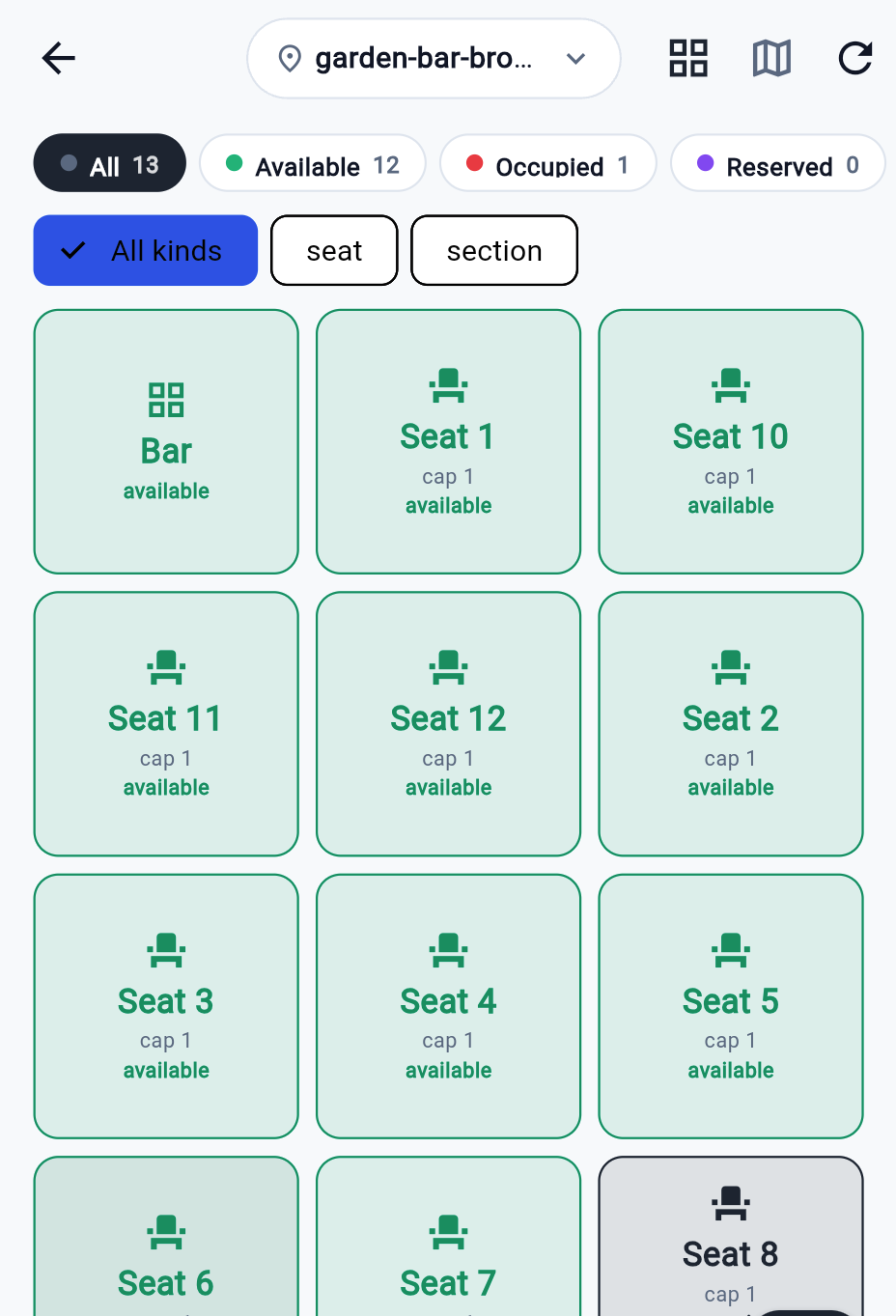
The Floor screen is the service-point map. Switch between the grid and the floor plan (an interactive canvas that places each point where an administrator positioned it; points with no position fall below the plan).
Filter by kind with the chips — seat, table, booth, bay, section, room, whatever your organization uses — and group by parent to see a section with its tables inside.
Colour is status:
| Status | Meaning |
|---|---|
| Available | Free to seat |
| Occupied | A party is seated; the card shows party size and how long |
| Reserved | Held for an upcoming booking |
| Dirty | Needs clearing before reuse |
| Blocked | Taken out of service |
Tap a point for its sheet: Open tab here starts a POS cart on that point, Block or Free up change status, Clear turns a dirty table available again. Long-press for the quick status actions. Changing status here never touches the tab or reservation linked to the point.
Reservations
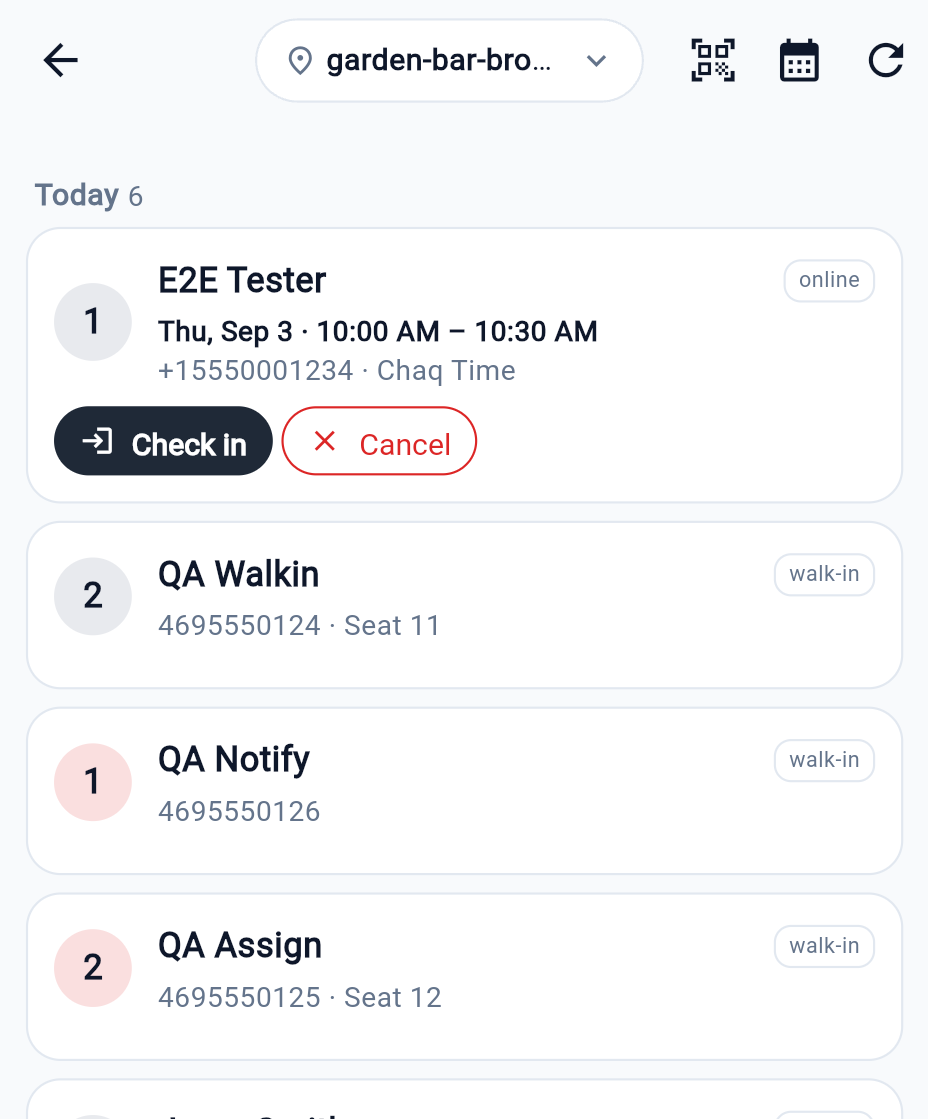
The Reservations screen is the booking book, grouped like the desktop counts them:
- Today — bookings for today, plus walk-ins that have no start time.
- Upcoming — future bookings, soonest first.
- Past — folded away; tap Show to expand.
Each row shows party size, name, phone, the service, the date and time, and — once seated — the table name. Two actions:
Check in. Hands the party to the live queue. The row then shows In check-in queue with the time, and a second tap is refused, so a double tap cannot queue a party twice. Seating, notifying and no-shows happen on the Check-in screen from here.
Cancel. Cancels the booking and sends the cancellation notice.
Booking a reservation
The calendar icon opens a four-step wizard:
1. Service type. The reservation definitions your organization published (a consultation, a table service, a class).
2. Service and date. Pick a service if the definition offers several, then a date. A definition with no services configured books against itself with its default duration — you will see a note saying so rather than a dead end.
3. Time slot. Slots come from the server for that day, honouring work days, office hours and blocked time. Fully booked slots are disabled and show what is left.
4. Customer. Name and phone are required; email, party size and notes are optional. Book creates the reservation and sends the confirmation.
Check-in
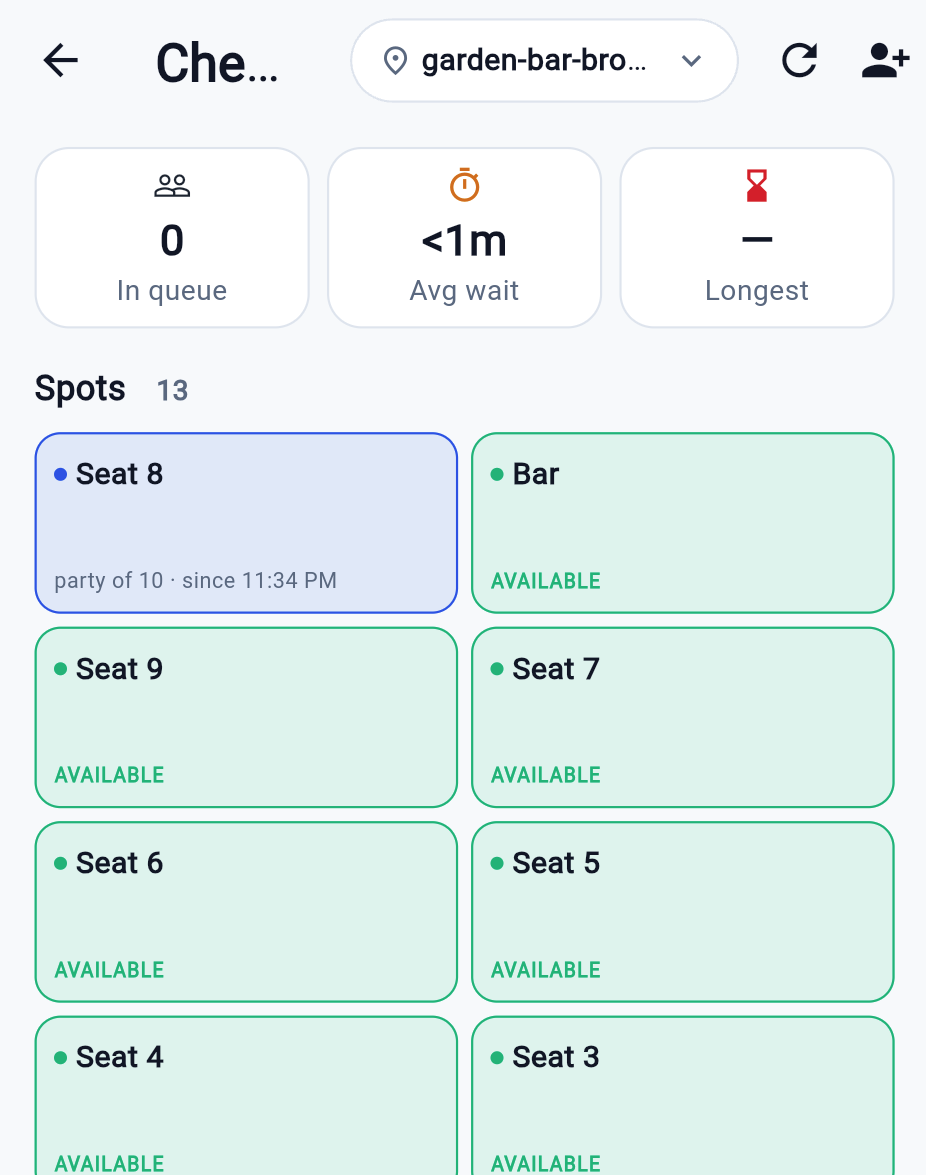
The Check-in screen is the live queue for this location. The top strip shows people in queue, average wait and the longest current wait.
Queue cards show the party, size, source (walk-in or reserved), how long they have waited, any preferences, and four actions:
| Action | What happens |
|---|---|
| Notify | Re-sends the "your table is ready" email and SMS |
| Assign | Pick a free service point. The point becomes occupied, the booking is marked used, the guest is notified, and a dialog offers Take order, which opens the POS on that table |
| Left | The party gave up; the queue entry closes, the booking is untouched |
| No-show | Closes the entry and marks the booking no-show |
Walk-in (the person icon) adds a party with name, phone or email (at least one), party size, preferences and a preferred point. The guest gets a place in the queue and a record in the CRM.
Spots shows every service point with its occupant; tap one to clear it (dirty or available). Below the queue sit today's reservations and the last 24 hours of history.
The server will not seat a party onto a point whose status is occupied or reserved. Clear it first, or pick another.
The jobs, step by step
Seat a walk-in. Check-in → the + (person) icon → New walk-in → Name (required) with a Phone if you want to be able to text them, Party size, and any preference → Add to queue. When a table frees up, Assign on their card and pick the point. The dialog then offers Take order, which drops you into the POS on that table.
Take a booking over the phone. Reservations → the calendar icon → work the four steps below → Book. You will see Reservation created and the guest gets the confirmation.
Check in a guest who booked. Reservations → find them under Today → Check in. They join the live queue; seat them from Check-in exactly like a walk-in.
Check in a guest holding a confirmation code. Reservations → Scan reservation → point at the code on their phone or printout. A code that matches nothing reads No reservation matched "…"; one that matches but cannot be checked in reads Found but check-in failed — usually because they are already in the queue.
Bus a table. Floor (or the Spots strip on Check-in) → tap the point → Bus → mark dirty when the party leaves, then Cleaned — set available once it is wiped. Free up → available does both at once when there is nothing to clear.
Take a table out of service. Floor → tap the point → Block this spot. It stays out of the seating options until you free it.
Someone gave up waiting. Check-in → their card → Left. Use No-show instead when they had a booking and never came — that marks the booking, not just the queue.
Remove someone from the queue by mistake? Removal asks first: Remove
How a party moves
Booking → Check in on the Reservations screen → queue card on Check-in → Assign to a table → Take order into the POS on that table → Settle → release the table → clear it when bussed. Each step writes to the same records, so any device at the location sees the same state.
When something goes wrong
| What you see | What it means | What to do |
|---|---|---|
| No open tabs / No closed tabs | Nothing at this location in that view | Check the location picker. Go to POS opens one — order first, settle after service. |
| No service points configured on Floor | The floor has not been set up for this location | An administrator adds service points; see reservations setup. |
| No service points configured. Add some under Floor. on Check-in | Same cause, seen from the queue | As above. You cannot assign a party until there is somewhere to seat them. |
| No coordinates (n) below the floor plan | Those points have no position on the map | They still work — tap them in the list. An administrator can place them on the plan. |
| Assign refuses a point | It is occupied, reserved, dirty or blocked | Clear or free the point first, or pick another. |
| Assign failed | The server refused the seating | Refresh, check the point is still free, and try again. |
| No bookable services configured in the wizard | The organization has no reservation definitions | An administrator publishes one before bookings can be taken. |
| No open slots for the selected date. | Fully booked, or outside working hours that day | Try another date, or add a walk-in to the queue instead. |
| No reservation matched "…" on a scan | The code is not a reservation at this location | Check the location, then search for the guest by name. |
| Found but check-in failed | The booking exists but could not be queued | They are probably already in the queue — look there before re-checking them in. |
| A tab shows less than the customer is charged | Cards show the subtotal; tax is added at settle | Read the total at checkout, not on the card. |
| A party is in the queue twice | Checked in from two places | Left on the duplicate; it closes the queue entry without touching the booking. |
| The queue looks stale | The screen loads on open | Pull to refresh, or tap Refresh. |