
Install it
Free on the App Store and Google Play. Needs iOS 13 or later; it also runs on iPadOS, Apple silicon Macs and Apple Vision.
Do you need an account?
Not to browse, and not to buy. You can look at public events and purchase a ticket as a guest.
You do need an account to hold tickets in the app, connect with people, book meetings, message or use the feed. Most people sign up at the point they buy.
Signing in
Open the app and tap My Account, then Log in or Register. If you registered when buying a ticket, use that same email — it is what links your tickets to your account. The app remembers the last email you signed in with.
Forgotten password: Log in → Forgot password. You are emailed a temporary password; signing in with it takes you to a screen where you must set a new one before continuing.
Finding your event
Two ways in, depending on how you got here.
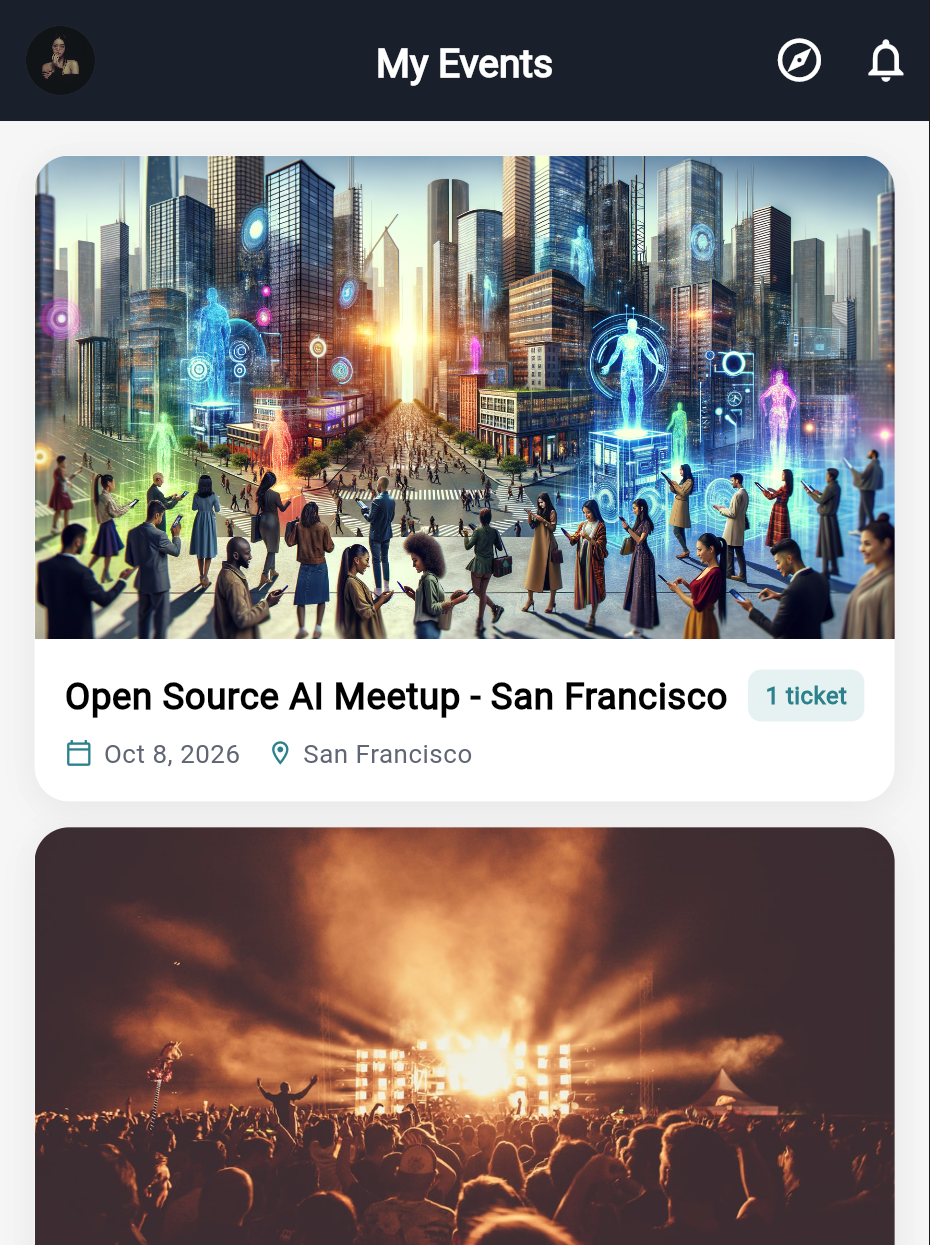
You already have a ticket. Sign in and your events are listed under My Events. Tickets bought with your email address appear automatically — there is nothing to claim or redeem.
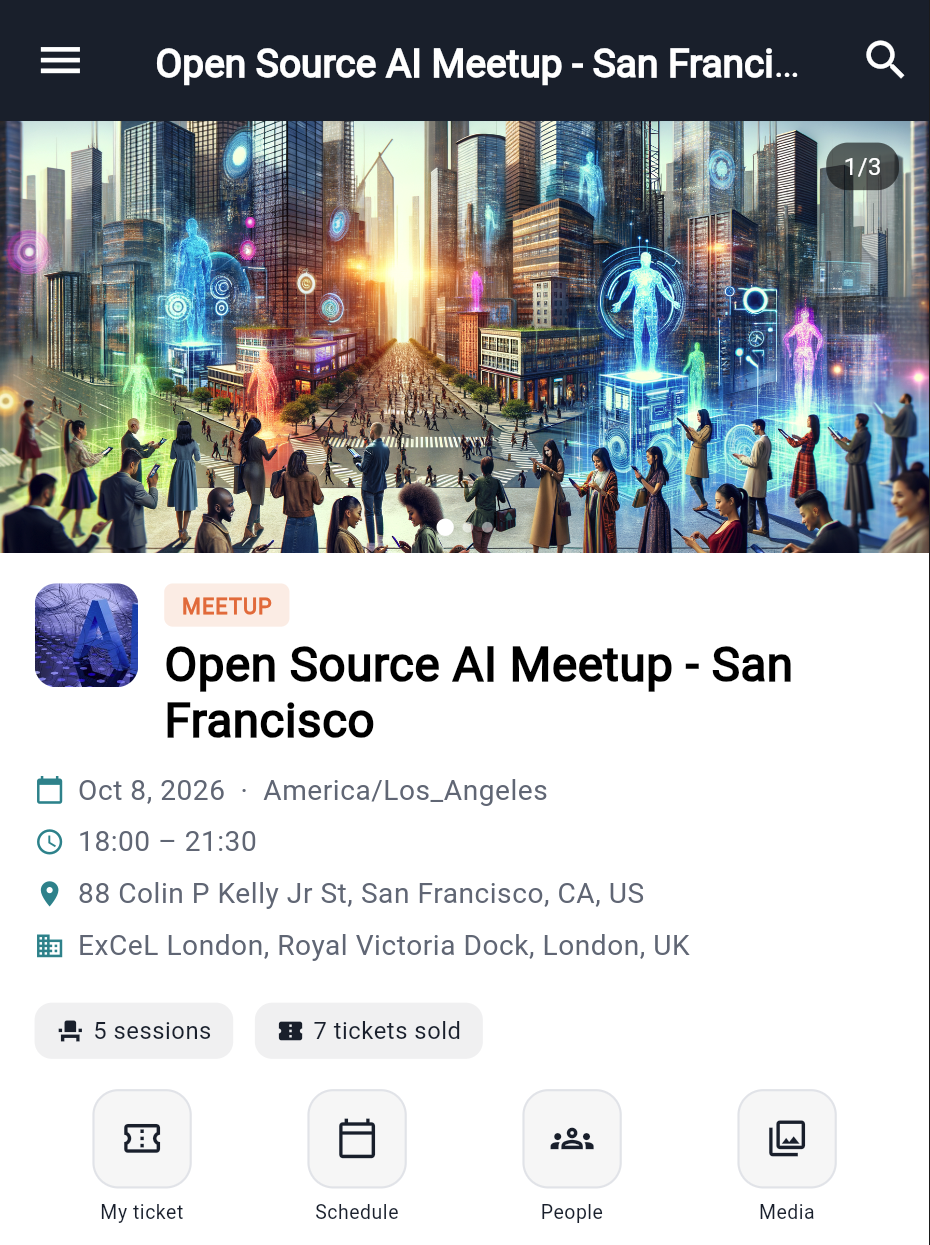
You are looking for something. The signed-out Events list shows every public event. Open one to see its detail, schedule, venue and ticket types, and buy from there.
A ticket bought with a different email will not appear in your account. If yours is missing, that mismatch is the first thing to check — see Tickets.
The two shapes of the app
The app changes shape depending on whether you are signed in and inside an event.
Signed out, you see the Events list with a My Account button. That is the whole app until you sign in.
Signed in, you start on My Events. Open an event and the tabs become Home, Explore, a + button, Inbox and Me, and everything you see is scoped to that event: its feed, its people, its sessions.
To move between events, or back out to the list, open the drawer from inside an event. It lists every event you hold a ticket for, plus Connections, Meetings, Bookmarks and My Events.
That switch catches people out — if the feed looks empty or the People list looks wrong, check which event you are in.
Getting set up for the day
Do these before you travel, not in the queue:
1. Open your ticket once while online. This fetches a fresh QR and keeps it in the app. There is no wallet pass; the ticket lives in the app.
2. Pin it if you hold tickets to more than one event, so today's sorts to the top.
3. Fill in your profile. Me → Edit profile. Your name, photo and headline are what other attendees see on your card and your QR profile.
4. Look at the schedule. It opens on the first day with sessions. Bookmark the ones you want so they are one tap away on the day.