
What the feed is
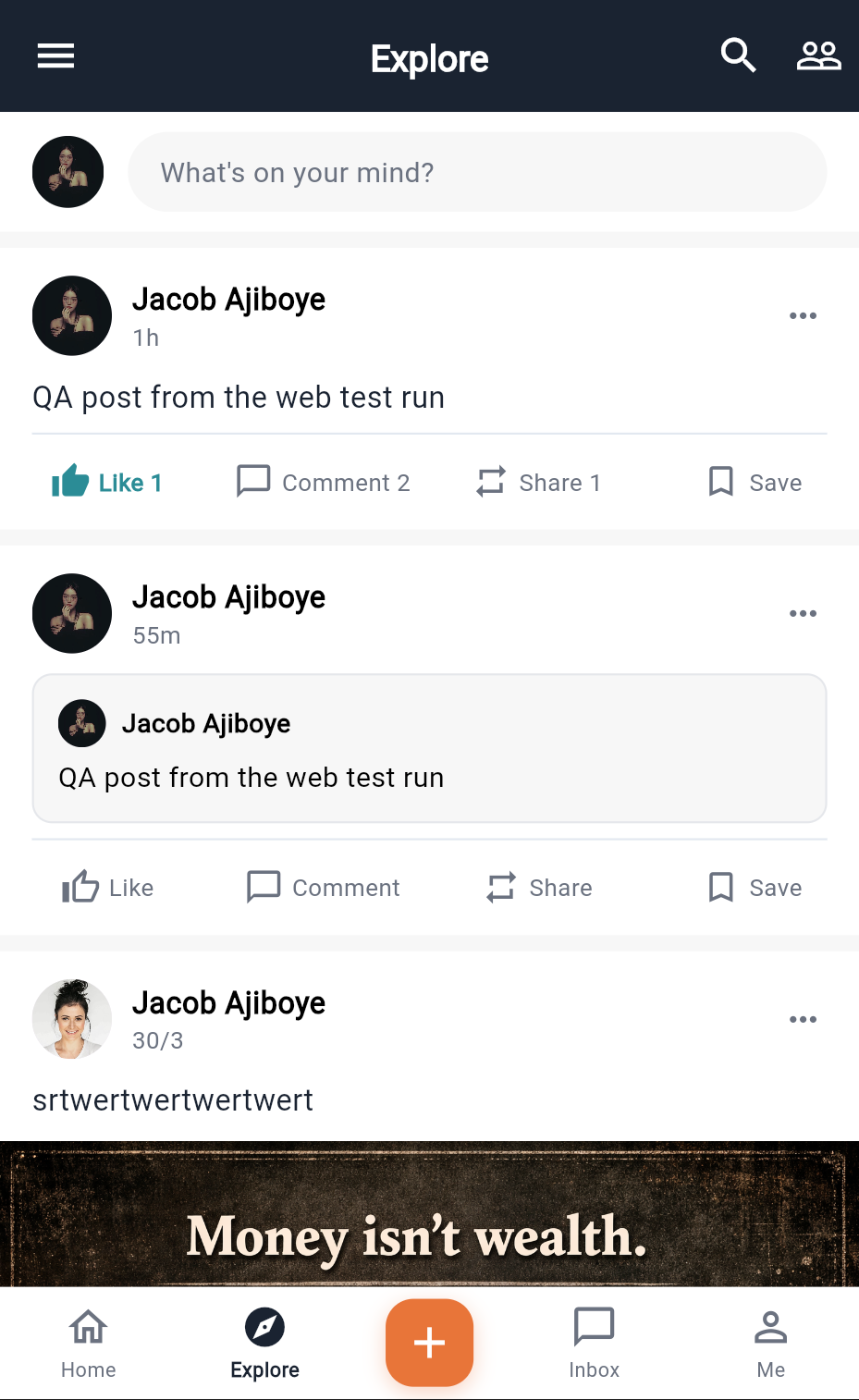
The Explore tab is the community feed for the event you are in. Each event has a community page; the feed shows posts made on that page, sorted latest first. If an event has no page, you see the global community feed instead.
At the top: a stories bar (24-hour stories from people at the event) and a composer row — tap What's on your mind? or the + button in the tab bar to write.
Posting, reacting, commenting and saving all need you to be signed in. Reading does not.
Writing a post
The composer takes text and one of:
| Type | Notes |
|---|---|
| Photo or video | From the camera or your library, uploaded to your own media space |
| Poll | Two or more options, with an allow multiple answers switch |
| Link | A URL with a preview |
Hashtags (#track) and mentions in the text are picked up automatically. Posts on the page are visible to everyone at the event.
A post card
From the top of each card:
- Author — tap the name or avatar to open their profile.
- Time, and edited if it was changed.
- Content — text, media, a link, or a poll. Polls let you vote once; if the author allowed multiple answers you can pick several, but never the same option twice. Voting closes at the poll's end time.
- Action row — Like, Comment, Share, Save.
Like toggles. Tap once to like, again to remove it. The icon fills and the count next to it moves. Your own likes are marked when the feed loads, so a post you liked yesterday still shows as liked today.
Comment opens the post detail, where comments are threaded: reply to a comment and it nests under it. Comment count on the card updates from the server.
Share opens the share sheet:
| Choice | What happens |
|---|---|
| External | The system share sheet (copies to clipboard on web) |
| Copy link | The post's link to the clipboard |
| Repost | A new post by you that embeds the original — the original's share count goes up |
| Send to a connection | Search your connections and send the post as a direct message |
Save bookmarks the post. Saved posts are under Bookmarks in the drawer, and the icon fills so you can see what you already saved.
A repost card carries a boxed preview of the original post — author, text and first image. Tap the box to open the original. If the original was removed, the box says so instead of showing an empty card.
Your own posts
The overflow menu on a post you wrote offers Edit, Delete, Share and Save. Deleting is immediate. Editing marks the post as edited.
Post detail
Tapping a post's text opens the detail page: the full post, the reaction and comment counts, an action row (Like, Share, Save) and the comment thread with a composer at the bottom. Like and Save here reflect the server's answer — the button changes and the count moves when the request succeeds, and shows the error if it does not.
Hashtags, search and trending
Tap a hashtag to filter the feed to it. The search screen has a posts tab that includes trending hashtags for the event.
Announcements
Organizers can post announcements to the event's community page. They appear in the feed and are collected under the page's announcements.
When the feed cannot load
If the request fails you get Couldn't load the feed with the reason and a Retry button. That is different from No posts yet, which means the request worked and the page is genuinely empty. If you see the error at the door, it is the venue network; retry once you have signal.