
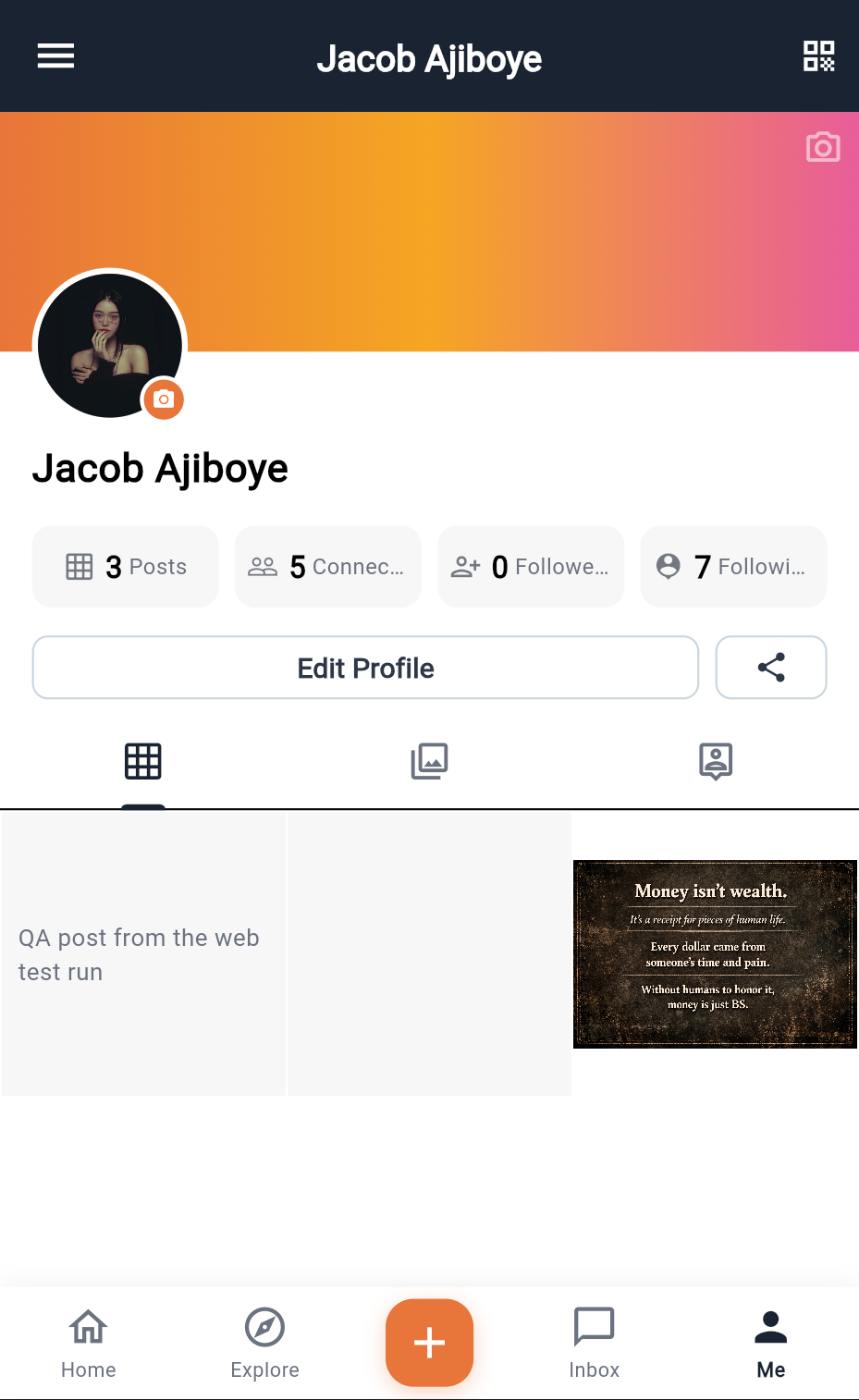
The Me tab
Me is your own profile as others see it, plus the things only you can do with it.
At the top: cover image, avatar, your name and headline, and three counts — connections, followers, following. Then Edit profile and QR, and three sticky tabs:
| Tab | Contents |
|---|---|
| Posts | A grid of everything you have posted |
| Media | Your media library — every image and video you have uploaded, with upload, crop, rename and delete |
| About | Your bio, company, title, city, country and social links |
Editing your profile
Edit profile covers first and last name, bio, company, job title, phone, city and country. Save writes straight to your customer record, so the change shows in People and on your posts immediately.
Your photo is set from the Media tab: upload or pick an image, crop it, and it becomes your avatar.
Name, photo, headline and company are what appear on your card in the directory. Everything else is behind a tap. Blank cards get skipped.
Your QR card
QR shows a code that encodes community:connect:<your email>. It is your identity for face-to-face connecting: a staff device or any reader that understands the format records a connection request to you. There is no scanner inside EventOxygen itself.
Media library
The Media tab is your own storage. Uploads go into your account's space in the platform's object storage and are referenced by URL from posts and messages.
- Upload from camera or library, with a progress indicator; videos up to five minutes.
- Rename and delete individual files.
- The list shows signed links, so images load without being public.
Deleting a file here does not edit posts that already used it; those keep the URL, which will stop resolving.
Legal and support
The profile screen carries the Privacy policy, Terms, Help and About links. Help opens a support email addressed to the support address with a pre-filled subject.
The drawer's Settings and Help entries are placeholders in this release; use the profile screen.
Signing out
Log out on the Me tab or in the drawer clears your session on this device. Your tickets, connections and messages stay on your account and are back when you sign in again.
Temporary passwords
If you used Forgot password, the email contains a temporary password. Signing in with it takes you straight to a change password screen and will not let you into the app until you set a new one. The app then signs you in with the new password automatically.
Deleting your account
Delete account on the profile screen is a two-step confirmation: read the warning, then type DELETE. It removes your customer profile from the organization and signs you out.
Deleting your account does not cancel or refund tickets, and organizers keep the records they need. Sort out refunds with the organizer first.