

Two shapes of the app
EventOxygen changes shape depending on whether you are signed in.
Signed out you see the public Events list — every published event — with a My Account button in the header that opens sign-in. Tapping an event opens its public detail page: image carousel, description, schedule, venue and zones, speakers, ticket types and Get Tickets. You can buy from here without an account.
Signed in you land on My Events: one card per event you hold a ticket for, with cover, name, date, city and ticket count. Tapping a card puts you inside that event, where the bottom bar is Home, Explore, a + button, Inbox and Me, and everything is scoped to that event — its schedule, its people, its feed.
If you hold exactly one ticket the app selects that event for you; with several, My Events is where you choose.
Event home
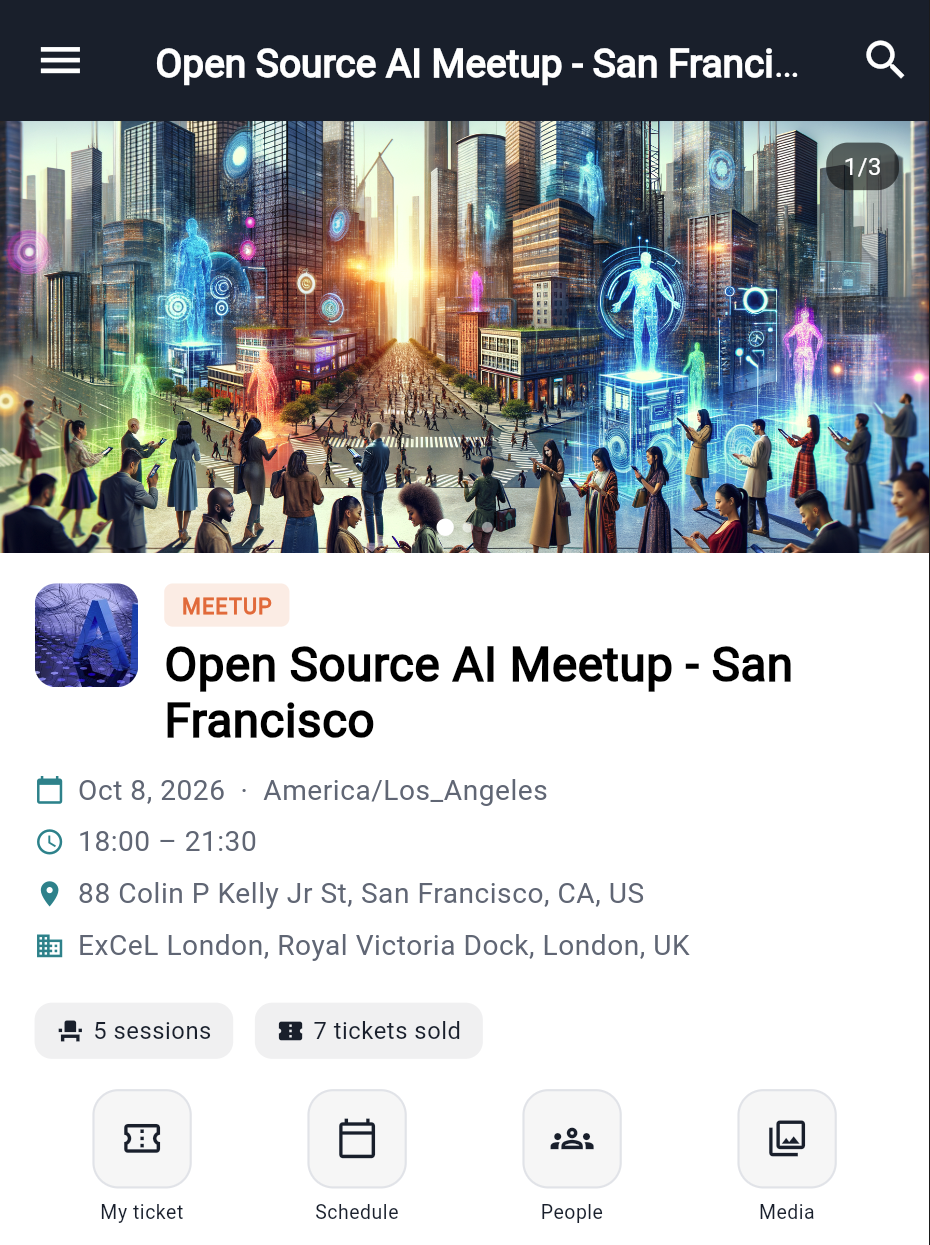
The Home tab of an event is a single scrolling page. From the top:
| Section | What it shows |
|---|---|
| Carousel | Cover image plus any extra images, with a page counter and dots |
| Header | Event logo, type badge (meetup, conference…), and the title |
| Date and time | Start date (a one-day event shows a single date; multi-day shows the range), start and end time, and the event's timezone |
| Where | The street address on one line and, if the organizer set one, the venue (name, address, city, country) on a second line |
| Stat chips | Sessions, tickets sold, attendees — whatever the event carries |
| Quick actions | My ticket, Schedule, People, Media |
| Your tickets | A strip of the tickets you hold for this event |
| About | The organizer's description, rendered as rich text |
| Organizers | Who is hosting |
| Speakers, sponsors, attendees | Rows of people by type; tap one to open their profile |
| Sessions | The programme, with track pills, or the day list for multi-day events |
| Tracks and stages, zones | Named tracks with their colours, and zones with capacity |
The header's search icon opens the People directory. The menu icon opens the drawer.
My ticket opens your tickets wallet (all events), Schedule opens the calendar, People opens the directory and Media opens the gallery. There is no separate "event-only" ticket view.
Schedule
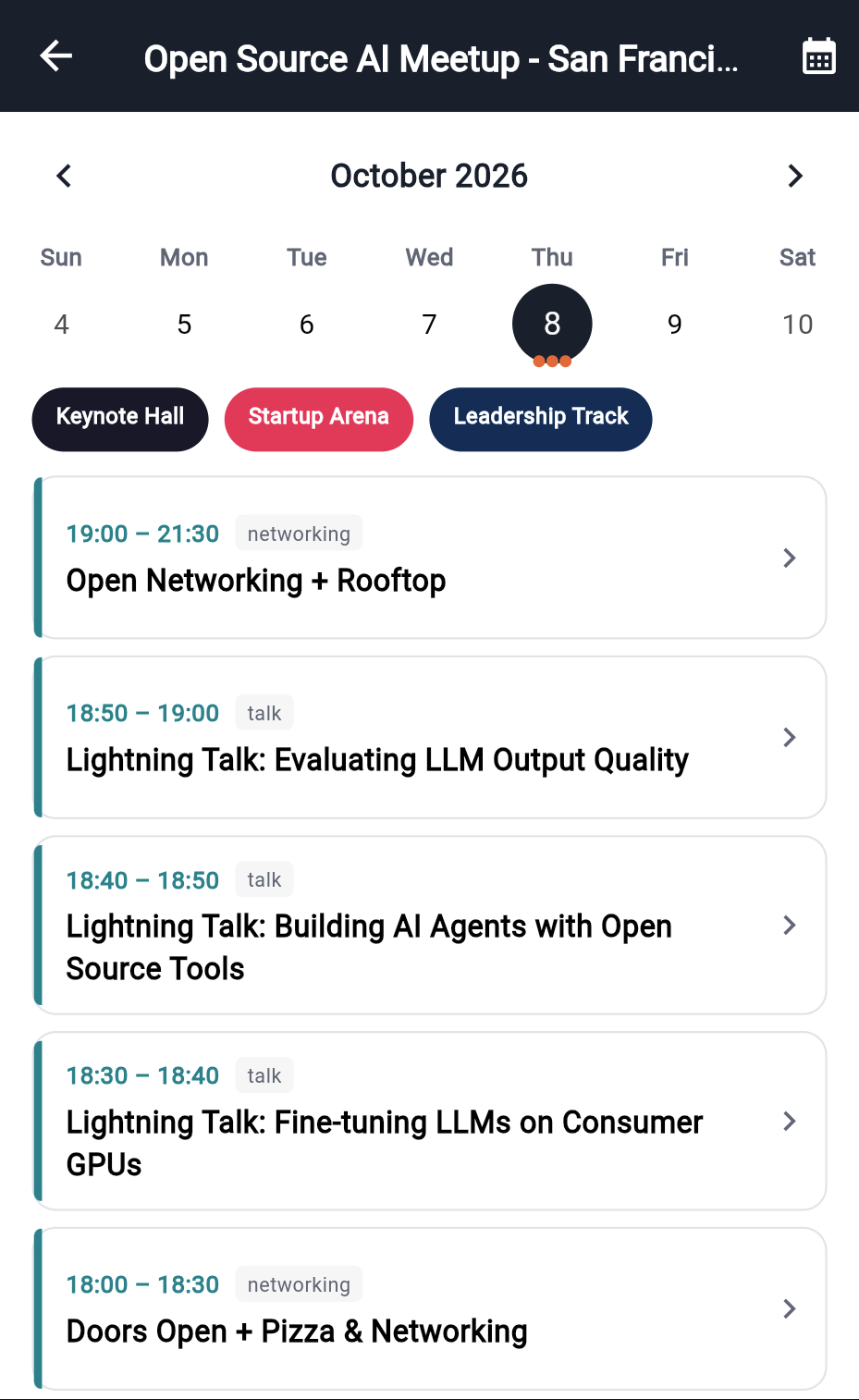
The Schedule screen is a calendar with the day's sessions underneath.
The calendar shows a week by default; the icon in the header toggles a full month. Days with sessions carry a marker. The app opens on the first day that has sessions, not on today, so a conference in October opens on its first day even if you look in September.
Track pills under the calendar let you narrow the day to one track.
Session cards show start and end time, a type chip (talk, panel, workshop, keynote, networking, break…), the title, track, room and zone, and registered against capacity when the organizer set one.
Tap a session for the session detail: description, day and times, duration, track, room, zone, capacity and attendance, and tags.
"No sessions on this day" means the selected day is empty. Tap a marked day, or switch to the month view to see where the sessions are. If every day is empty the organizer has not published sessions yet.
Media
Media on the event home opens the gallery of images the organizer has shared for the event. Tap one for a full-screen viewer. This is the event's media, separate from the personal media library on your Me tab.
The drawer
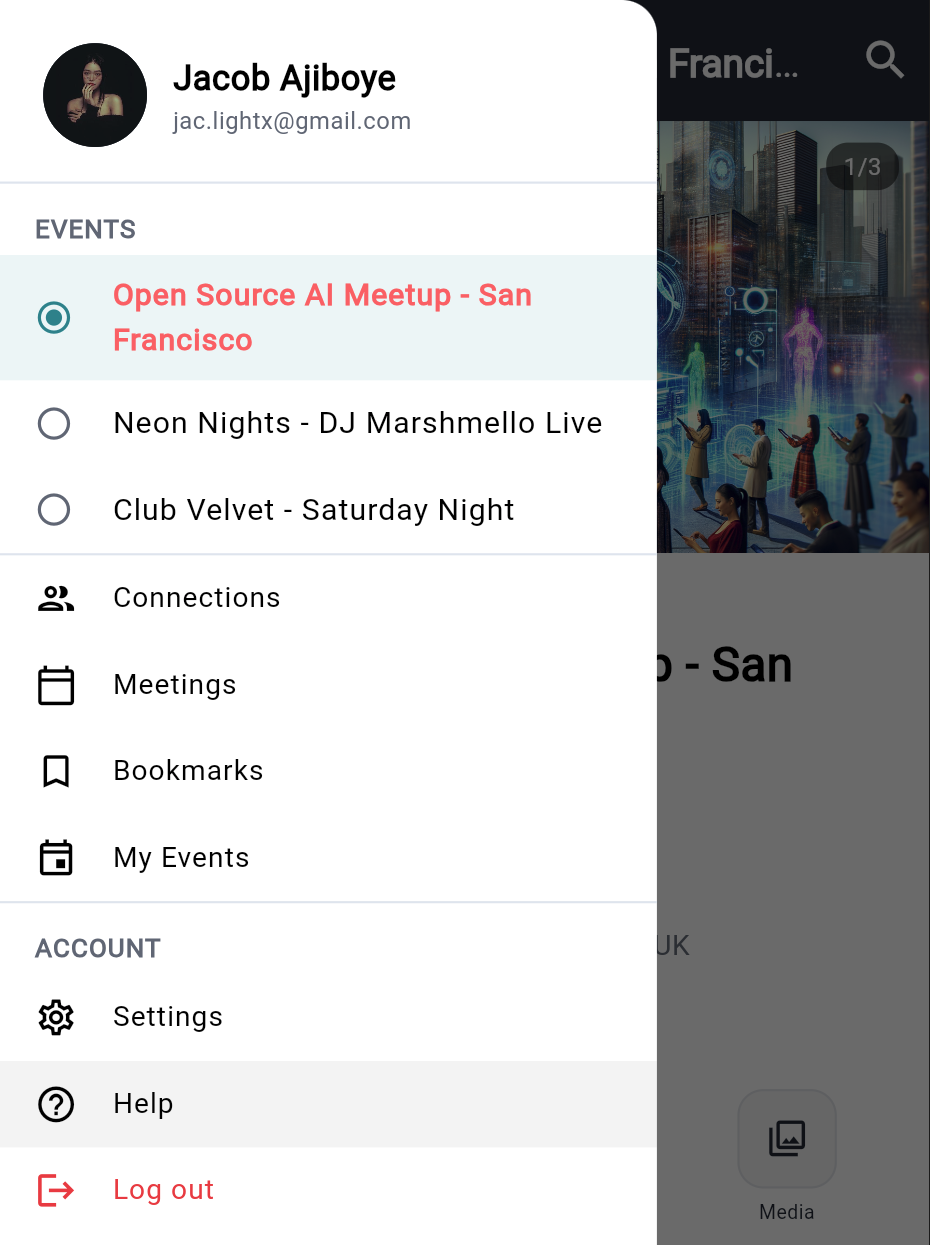
The menu icon on any event tab opens the drawer:
| Item | What it does |
|---|---|
| Your name and email | Who you are signed in as |
| Events | Only when you hold tickets to more than one event: a radio list to switch the active event |
| Connections | Requests, accepted connections and stats |
| Meetings | Upcoming and all meetings |
| Bookmarks | Everything you saved |
| My Events | Back out to the event list |
| Settings, Help | Placeholders today — they close the drawer |
| Log out | Signs out on this device |
Switching events in the drawer changes everything scoped to the event at once — feed, people, schedule. It does not change your connections, which are global.