
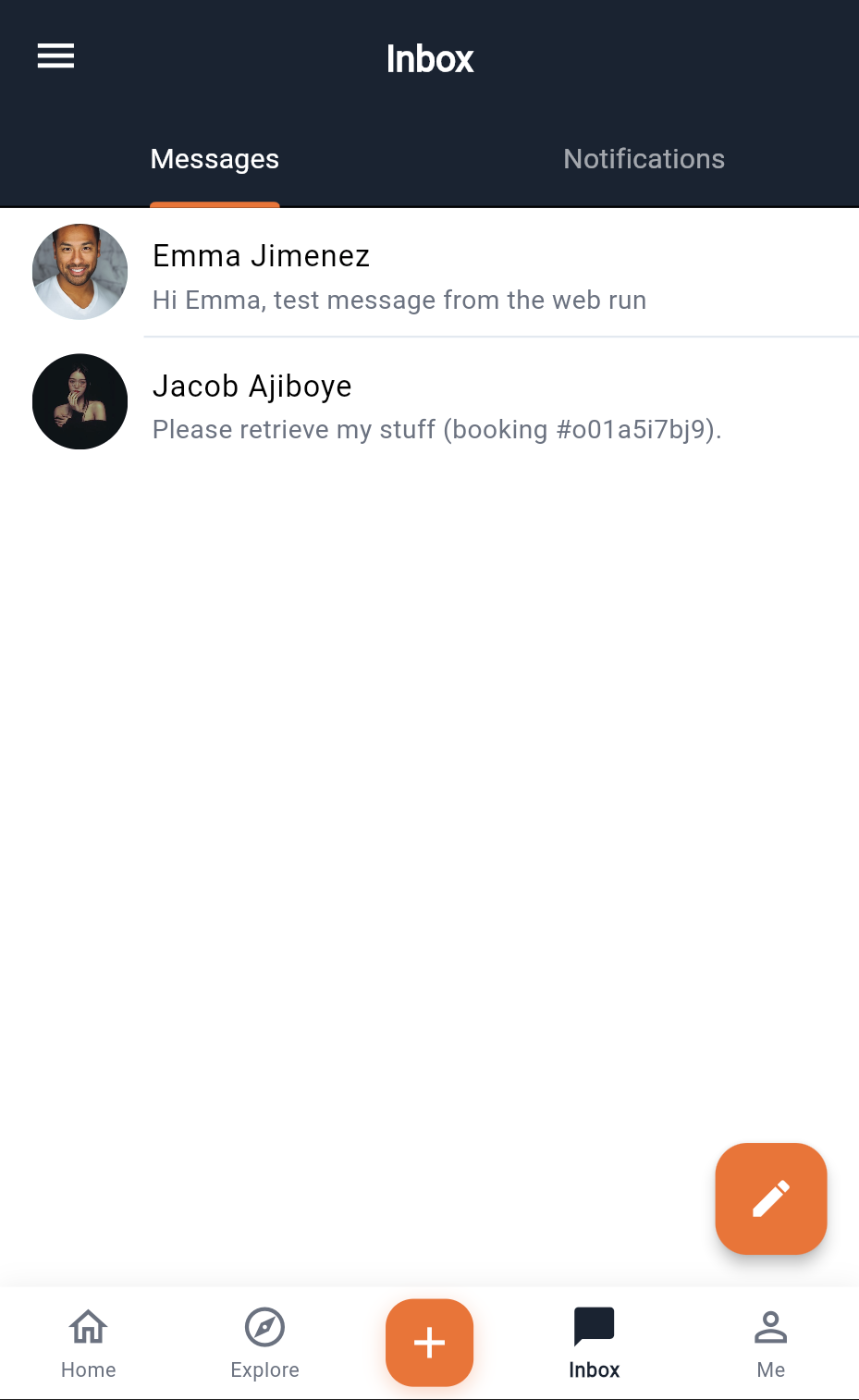
Messages
The Inbox tab opens on Messages: one row per person you have a thread with, showing their name and avatar, the last message (a photo shows as "Photo"), and an unread marker. Threads are ordered by most recent activity.
A thread is between you and one other person and it is the same thread everywhere — the conversation you started at last year's event continues at this one. The pencil button starts a new message: pick someone from your connections.
The chat screen
Open a thread and you get the conversation with the other person's name and avatar in the header, and a small dot that shows whether your live connection is up.
Sending. Type and press send. The message appears immediately marked sending, then sent with a tick once the server has it. If it fails you see failed on the bubble rather than a silent drop.
Live delivery. Messages travel over a live socket connection, so a reply appears as it is sent, and you see typing… while the other person writes (it clears after a few seconds of silence). If the socket is down, sending still works through a normal request — you lose the typing indicator and instant arrival, not the message. Reopen the app to reconnect.
Photos. The attachment button opens the media picker (camera or library). The image is uploaded to your media space and sent as an image message, which renders inline in the thread.
Read state. Opening a thread marks it read, which clears the unread marker and the badge.
Blocking works in both directions: a send to or from a blocked person is refused by the server. Blocking and reporting are done from a person's profile.
Starting a conversation
Three routes, all landing in the same chat screen:
- Message on someone's card in People or on their profile.
- The pencil in Inbox, then choose a connection.
- Send to a connection in a post's share sheet, which sends the post as a message.
Notifications
The second tab in Inbox lists notifications the platform has raised for you, newest first, with an unread count in the tab. The kinds that exist:
| Kind | When |
|---|---|
| Connection request, connection accepted | Someone asks to connect, or accepts you |
| Message | A new direct message |
| Reaction, comment, mention, share | Activity on your posts |
| Follow | Someone follows you |
| Page invite or join request | Community page membership |
| Announcement | An organizer announcement |
| Event reminder, session starting | Time-based reminders |
| Meeting invite, meeting reminder | Meetings you are part of |
Tapping a notification marks it read; the count in the tab updates.
EventOxygen does not send device push notifications. Notifications and new messages appear when the app is open — the Inbox tab badge and the bell on My Events refresh as you use the app. If you are waiting on a reply, keep the app open or check back.