
EventOxygen is the attendee's app. On the day, the organizer's team runs the door from Appmint Mobile, signed in to the organization that owns the event. This page is the operator's guide to that side: what each screen does, what the server checks when a ticket is scanned, and where the app stops and the admin or the API takes over.
The model is self-serve. Anyone can sign up for an organization, configure events in the admin, hand attendees EventOxygen (or a white-labeled build of it) and put Appmint Mobile in staff hands on the day — for their own events, or as a service to clients. See who it is for.
Where a feature exists in the events API but has no screen in Appmint Mobile yet, this page says so rather than describing it as if it worked. Those gaps are collected at the end.
Who uses what
| Person | App | Does |
|---|---|---|
| Attendee | EventOxygen | Holds the ticket, shows the QR, browses the schedule, networks |
| Organizer, before the day | Studio Manager (admin) or the API | Creates the event, sessions, ticket types, zones, scan points, badge templates; sets the event live |
| Door and desk staff | Appmint Mobile → Events | Scans tickets, looks people up, fulfils will-call, adds participants, watches the numbers |
Appmint Mobile does not create events. Its Events list shows the organization's events with status filters; tapping one opens the event shell — tabs Overview · Scanner · Tickets · Schedule · People · More, plus a menu with Publish Event, Live Dashboard, Info Center, Activity Log and Accreditation Desk. The Overview tab repeats the four operations buttons (Scan · Accredit · Dashboard · Info) so staff can reach them without hunting.
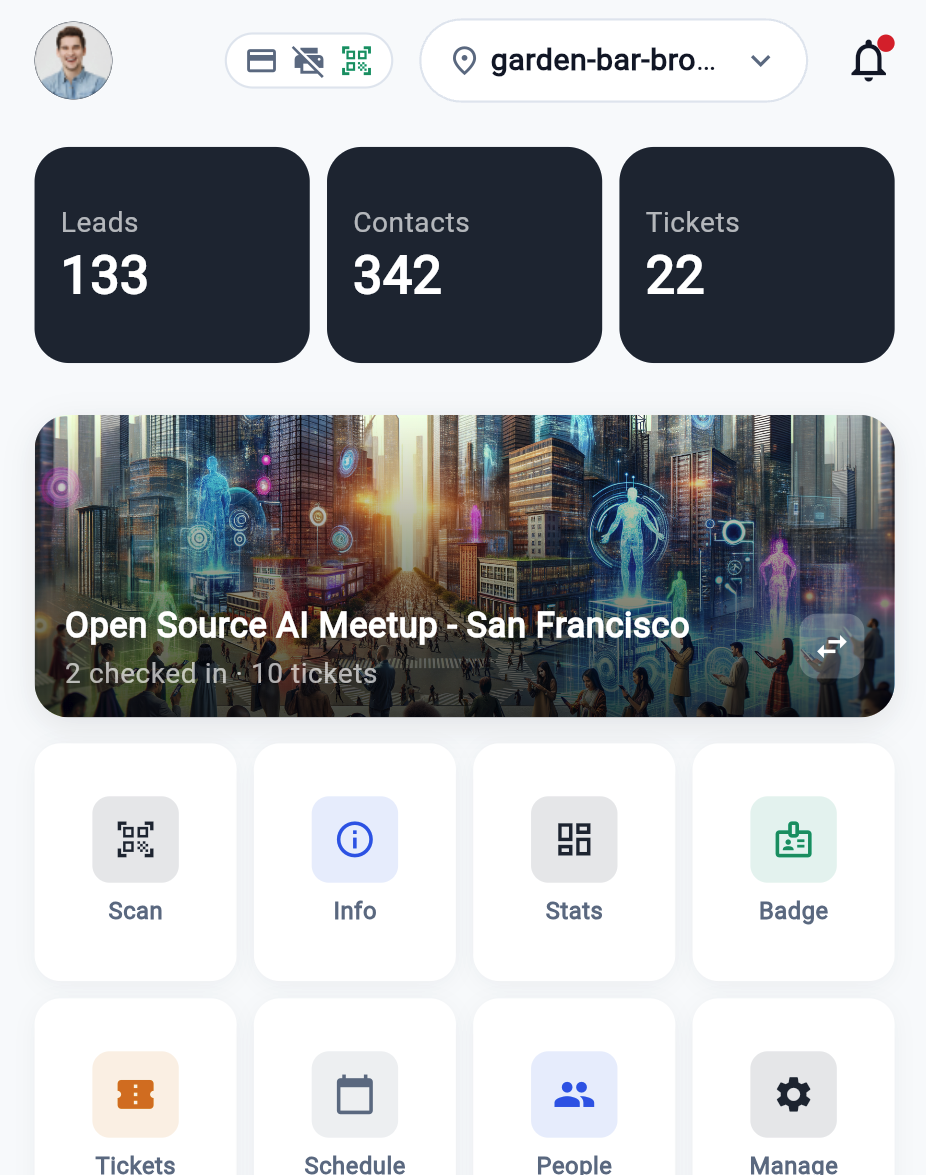
Manage Event on the Home screen switches Home into event mode: the event card shows the live checked-in count and ticket total, and eight tiles sit under it. Scan, Info, Stats and Badge open the scanner, Info Center, Live Dashboard and Accreditation Desk directly; Tickets, Schedule, People and Manage open the event shell on that tab (Manage lands on More). The swap icon on the card switches to another event.
Before doors open
1. Set the event live in the admin. Appmint Mobile's menu can publish an event (it sets the status to published); it has no go live or complete action. Those are POST /events/:id/live and POST /events/:id/complete, driven from the admin.
2. Sign staff in on each device. Any account that can sign in to the organization sees Events; there is no per-role gate inside the app. For shared devices use quick sign-in and passcodes — see Staff and access. Each scan is recorded against the signed-in person's email, so do not share one login across a whole door team.
3. Check signal where staff will stand. Every scan is a server call. There is no offline queue: with no connection the scanner shows an error and the attendee is not admitted.
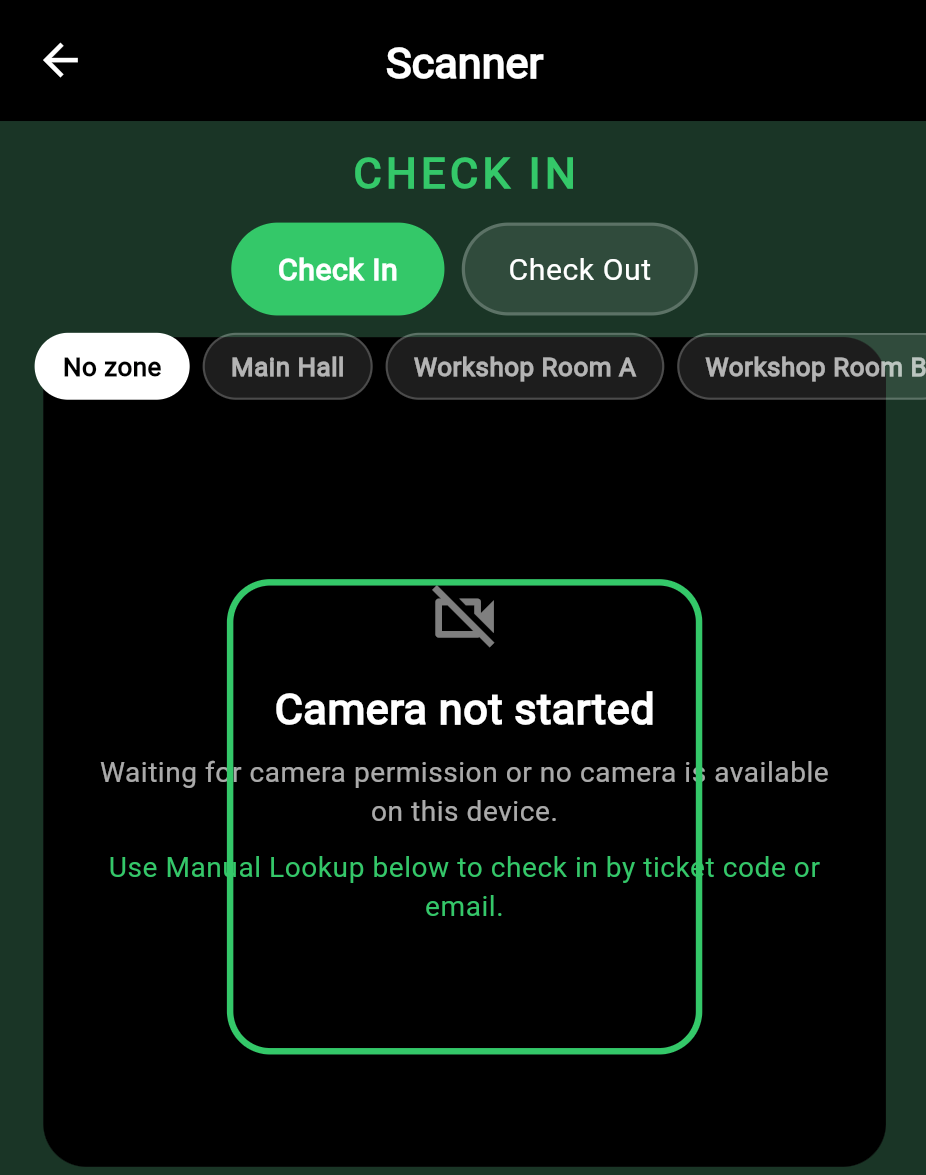
4. Decide how zones are enforced. The scanner has a row of zone chips built from the event's zones; the chosen zone is sent with every scan, so zone-access rules on ticket types apply and the zone's occupancy moves. Tell each door which chip to select. A scan made with No zone selected still succeeds but is logged against zone "unknown" and never counts toward occupancy. The phone does not select a scan point (checkpoint), so scan-point match rules, accepted ticket types and perk auto-claims at a scan point only apply to clients that send one — see Event setup → Scan points.
5. Printers. Appmint Mobile prints ESC/POS receipts to Bluetooth, USB and network printers (Printing). It does not render or print badges — see Badges below.
Ticket scanning and check-in
Open the event → Scanner tab (or Scan on Overview). The camera view has two modes: Check In (green) and Check Out (red), and under them a row of zone chips (No zone plus one per event zone). Point it at the attendee's QR; the phone vibrates when a code is read, sends it with the selected zone to the server and shows a result card that clears itself after a few seconds (tap to dismiss sooner).
/events/checkinUSER/events/checkoutUSER/events/tickets/lookup/:eventIdUSERBoth check-in and check-out send {code, zone?} plus the signed-in staff identity (check-out also accepts a ticketId from other clients). The server resolves the code in this order when no scan point is given:
- Dynamic QR from EventOxygen (
ticketId:timestamp:signature) — the signature is checked against the ticket's secret, so screenshots of an old QR fail once the code has rotated. - Static ticket code — the ticket's confirmation code, as printed on a badge or wristband. Matched regardless of case, so imported tickets with lower-case codes scan too.
- Credential code — a wristband or RFID code that was assigned to the ticket.
Then it checks, in order: the ticket is not cancelled or refunded; the ticket has not already been used (re-entry only if the ticket type allows it, and within its re-entry limit); the ticket type is accepted at the scan point and any perk there is still available; and the zone is permitted, when a zone was sent. A pass records a check-in with direction in, sets the ticket to checked_in, and returns the ticket. Every attempt, allowed or denied, is written to the check-in log with the reason.
Check Out resolves the code the same way, then refuses unless the ticket's last movement was in ("Not currently checked in" — a second check-out, or a check-out of someone who never scanned in). A pass records direction out and clears the ticket's current zone, so the zone's occupancy drops by one.
What the result card means
| Card | Colour | Meaning |
|---|---|---|
| CHECKED IN / CHECKED OUT | blue | Recorded. Shows the holder's name and ticket type (the type's name when the server sends it). |
| ALREADY CHECKED IN | amber | The server's reason contained "already": the ticket has been used and re-entry is off. |
| DENIED | red | Anything else — not found, cancelled, refunded, wrong zone, not accepted here, not currently checked in — with the server's reason underneath. |
Manual check-in / check-out (the button at the bottom of the scanner, titled after the current mode) is for a phone that cannot be read or a badge whose code is printed. Type a ticket code and it goes through exactly the same check-in or check-out call as a scan, with the selected zone. Type a holder email and the app looks the email up on this event first: one live ticket is used straight away; several open a picker listing holder, ticket code, type and status, and the one you tap is checked in or out. Cancelled and refunded tickets are left out of the picker. The result card is the same as for a camera scan. Names are not matched — use the Accreditation Desk for booking-id lookups.
Accreditation and badges
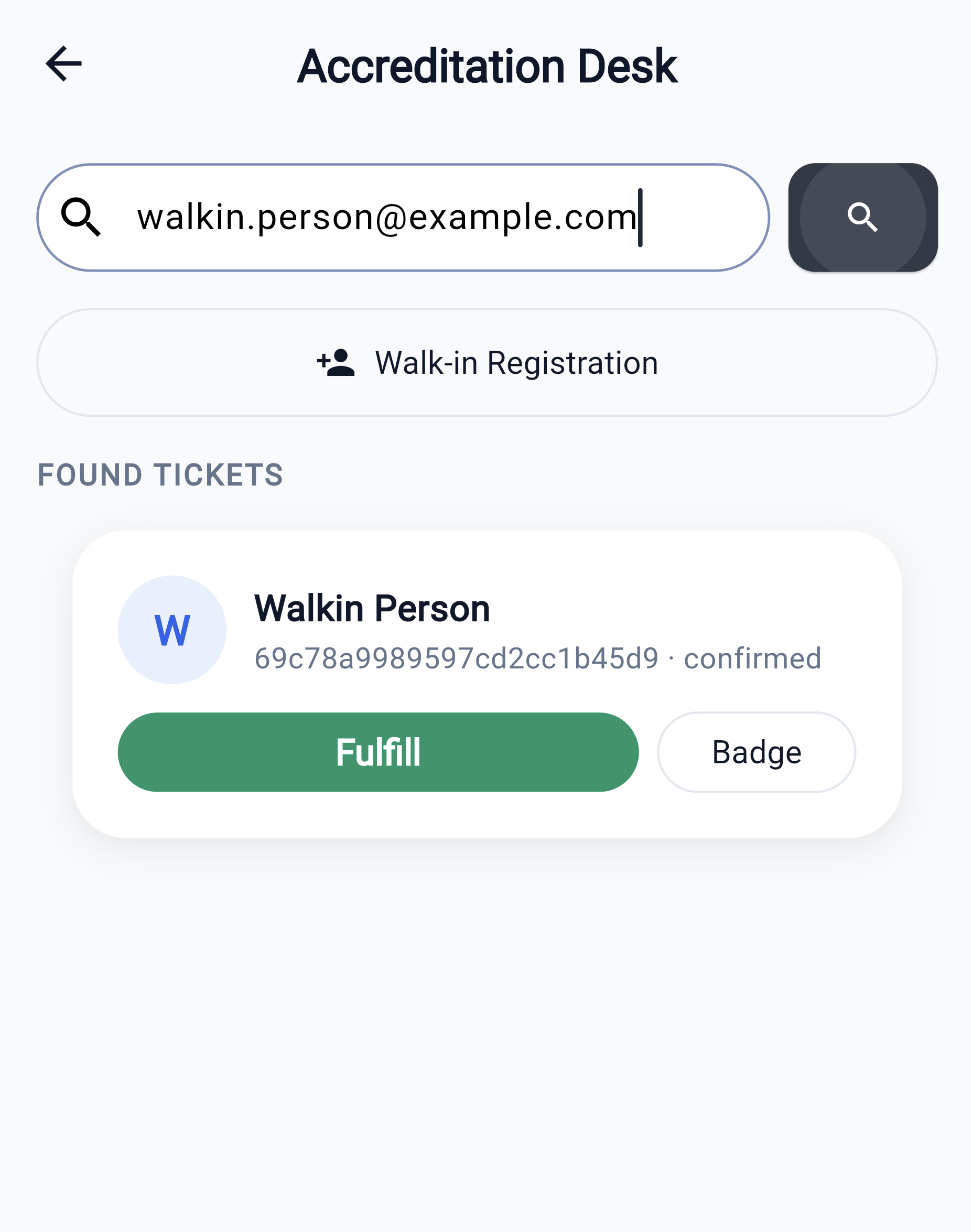
Menu → Accreditation Desk (or Accredit on Overview). This is will-call: people who bought online and need their ticket confirmed at a desk, and people who turn up without one.
Look up. Type an email or a booking id and search. Anything containing @ is sent as an email; anything else is sent as a booking id and matched against the booking on the purchase. A confirmation code typed here is not matched, although the placeholder says "code" — the lookup endpoint supports confirmationCode, but the app does not send it.
Fulfil. Each found ticket has a Fulfill button. The server rotates the QR (so the attendee's app shows a fresh code on next open), stamps who fulfilled it and when, and moves a pending ticket to confirmed. Cancelled or refunded tickets are refused.
/events/tickets/fulfillUSER/events/tickets/:ticketId/badgeUSER/events/tickets/:ticketId/badge/printedUSERBadge. The Badge button fetches the badge payload for the ticket and shows it in a dialog as raw data: ticket id, confirmation code, holder ticket type, event date, venue, zone access, and the template chosen (the ticket type's badge template, or the event's default). That is as far as the app goes. It does not render the template, does not send anything to a printer, and never calls the "mark printed" endpoint — the service method is present in the app but no screen uses it. Badge printing and the printed flag are handled outside Appmint Mobile; see Device Hub for the venue printing path.
Walk-in Registration collects a ticket type, a name and an email and calls fulfil with a walkIn block; the server issues a new ticket of that type. The ticket-type dropdown (title · price or Free · seats left) is loaded from the event's active ticket types and is pre-selected when there is only one. An event with no active ticket types shows a red notice in the form instead of the dropdown, and the button refuses with "Pick a ticket type first" — add a type in the admin before the day. The form reports "Walk-in registered" or the server's error.
Tickets tab
Counts across the top — Total, Active, In, Cancel — are computed from the ticket list on the phone. "In" counts tickets whose status is checked_in; note that a ticket keeps that status after a check-out, so the Live Dashboard is the number to watch for who is inside (see Live numbers).
Three actions:
- Issue — ticket type, name and email →
POST /events/:eventId/ticketswith{ticketTypeId, holderName, holderEmail}. Reports "Ticket issued" or the server's error; the new ticket appears at the top of the list. - Comp — ticket type, name, email and reason →
POST /events/tickets/compwith one item of quantity 1. Reports "Comp ticket issued". - Sell — shows "On-site sales coming soon". There is no on-site sale in the app.
Issue and Comp use the same ticket-type dropdown as the walk-in form: pre-selected when the event has one active type, a red notice and a refusal when it has none.
Every ticket is listed with holder (email or ticket code when there is no name), the ticket type's title and a status chip (active, checked_in, cancelled, or whatever the record carries).
People, schedule and the info center
People lists participants — speakers, sponsors, exhibitors, attendees, volunteers, staff, VIP, press — with a filter chip per type and counts. Staff can add a participant (name, email, type; created as confirmed), confirm one who is still invited, change a role, or remove them. These are participants, not ticket holders: a speaker added here does not get a ticket.
Schedule shows the event's sessions. Info Center ("What's Happening") is the staff-side now-and-next: sessions running at this minute, sessions starting within the hour, and a small stats block, refreshed every 60 seconds. Put it on a tablet at the staff desk if you want a glanceable board; there is no attendee-facing display mode (see Venue displays).
Live numbers
Three screens show numbers, and they can disagree, because they read different sources.
/events/:eventId/checkin-statsUSER/events/:eventId/occupancyUSER/events/:eventId/ticketsUSER- Tickets tab counts ticket statuses from the ticket list. Accurate as of the last refresh (pull down). "In" is tickets that have ever been checked in, not people currently inside.
- Overview, Activity Log and the Home event card show Checked In from the stats endpoint: the number of distinct attendees with a successful scan (
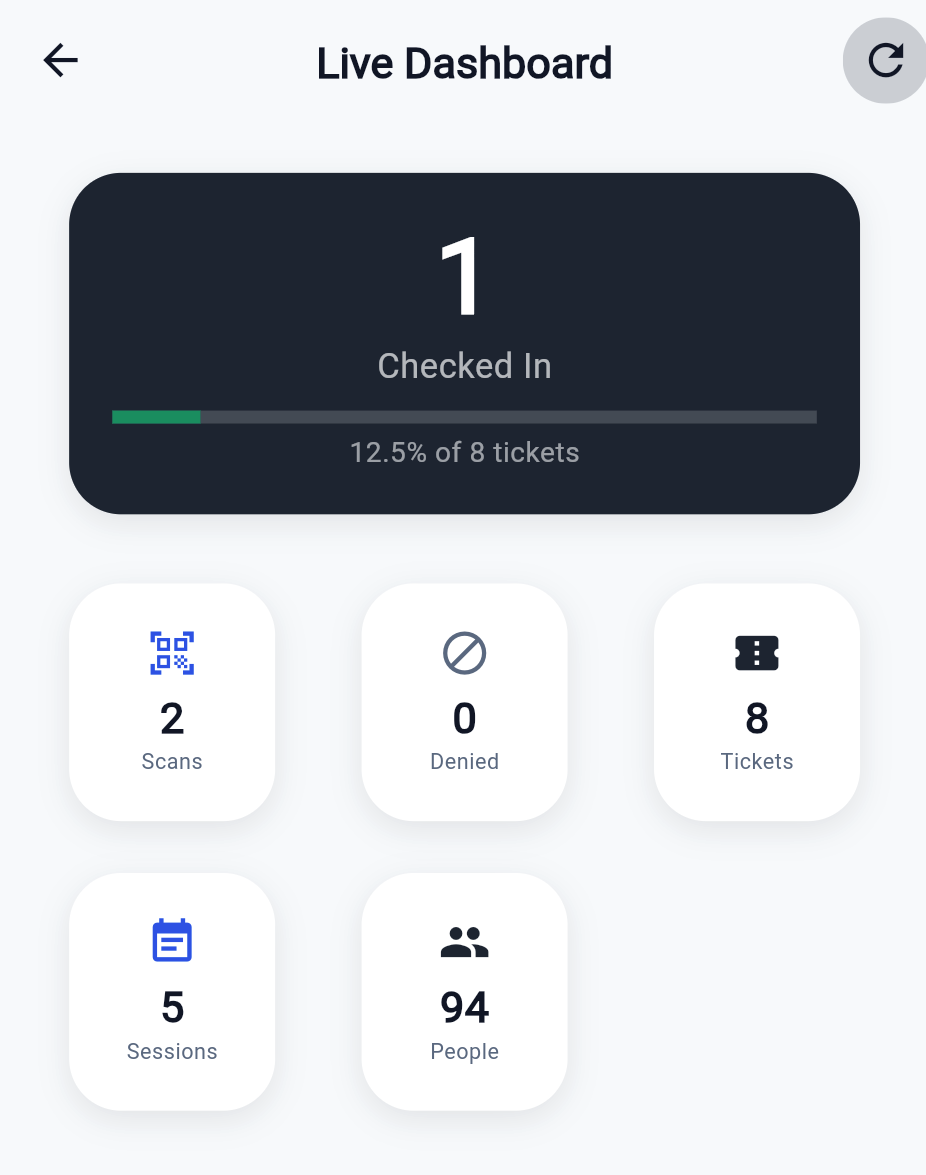
uniqueAttendees). - Live Dashboard reads the same endpoint. The hero tile is distinct attendees checked in against the ticket total; the tiles under it are Scans (every successful or denied attempt, in or out), Denied, Tickets, Sessions and People. Zone occupancy reads the occupancy endpoint, which returns one entry per event zone: name, capacity and the current count (today's entrance scans minus check-outs). A zone with a capacity shows "current / capacity" and a bar that turns amber past 70 % and red past 90 %; one without shows "n in · m scans". The dashboard refreshes every 30 seconds and on pull-down.
Two empty states mean different things: This event has no zones configured (add zones in the admin) and No scans in any zone yet today (zones exist, but every scan so far was made with No zone selected or no one has arrived). Scans made without a zone count in Checked In and Scans but never in occupancy.
Leads
Appmint Mobile's CRM has a Leads pipeline with manual entry and a source field that includes event — see CRM. There is no scan-to-lead: nothing in the events screens or the leads screens creates a lead from a badge or ticket scan, and the events API has no lead endpoint. An exhibitor who wants to keep a contact adds the lead by hand, or the attendee shares their profile QR from EventOxygen's networking screens, which creates a connection rather than a CRM lead.
Venue displays
Not available. Neither Appmint Mobile nor the events API has a signage, kiosk or display mode. What exists is the staff-facing Info Center described above; the attendee-facing equivalent is the schedule inside EventOxygen.
Handling problems on the day
"Ticket already used." Re-entry is off for that ticket type, or the same QR was shown twice. The check-in log holds every attempt with the staff email and reason; the admin can see it, the app shows only the card.
"No ticket found for this code." The QR is stale (ask the attendee to reopen the ticket — fetching it signs a fresh code, also for tickets that were imported without a signing secret), it belongs to another event, or a character is missing from a typed code (case does not matter).
"Not currently checked in." A check-out for a ticket whose last movement was already out, or that never scanned in. Nothing to fix; the occupancy count is already right.
Wrong name on the ticket. Transfer moves the ticket to a new holder and issues a new QR. There is no transfer in Appmint Mobile; the attendee does it in EventOxygen, or the organizer via the API — see Tickets and bookings → Transfers.
Refund or cancel at the door. Not in the app. Cancel and refund are admin/API actions and change ticket status so the next scan is denied — see Cancel, refund, delete.
Attendee cannot find their ticket. They signed up with a different email than they bought with. Look the booking up on the Accreditation Desk by email or booking id; if it exists, the fix is a reassignment by the organizer, not a rescan.
Not in the app yet
Present in the events API, absent from Appmint Mobile. Do not plan a door around them without another client.
| Capability | API | In Appmint Mobile |
|---|---|---|
| Scan-point aware scanning | checkpoint on check-in / check-out | Sends code and zone only; no scan-point picker |
| Verify-scan (eligibility without recording) | POST /events/verify-scan | No |
| Credentials: import, assign by scan, revoke | /events/:eventId/credentials/*, /events/credentials/* | No |
| Perks: claim and fulfil | /events/tickets/:id/perks/:perkId/claim, /fulfill | Service method for claim only; no screen |
| Badge render, print, mark printed | GET …/badge, POST …/badge/printed | Shows raw badge data only |
| On-site sale | POST /events/tickets/purchase | "Coming soon" placeholder |
| Go live / complete / cancel event | /events/:id/live, /complete, /cancel | Publish only |
| Event media | /events/:eventId/media | "Media" tile in More does nothing |
| Lead capture from a scan | — | — |
| Venue displays | — | — |