
Video chapters
- 0:00 Welcome
- 0:08 Overview: browse, edit, search and restore
- 0:43 Part 1 · Find and read records — Collections and records: explained
- 1:17 Find a collection; search, filter, sort and Grid
- 2:03 Part 2 · Edit with the form and raw JSON — Form and raw JSON: explained
- 2:30 Add a record, edit it, change it as raw JSON
- 3:29 Part 3 · Columns, search, sort and bulk actions — Columns, search, sort and bulk actions: explained
- 3:50 Pick columns, search, sort, select and delete
- 4:42 Part 4 · Trash and restore — Trash and restore: explained
- 5:02 Delete and restore a record and a collection
Written guide
Written course script · Current-source corrections 4 October 2026 · Fresh live walkthrough pending
Data Explorer is an administrative record browser. Current source includes record search, collection-specific filters, table sorting and bulk selection.
Overview
Prepare
Use a training organization and a custom design_requests collection from the Database course. Have its required field definitions available, two disposable records and a separate ordinary account for access checks. Do not edit production payment, authentication or inventory records as generic JSON exercises: their specialized modules may apply additional business operations.
1. Choose the collection and confirm context
Open Data Explorer. Use the sidebar's collection search to find Design Requests by its readable title or design_requests name. Select it and wait for records to load. On a narrow screen, open Collections, choose the collection and return to the data area.
The selected name appears in the header description and URL context. A collection load failure has a retry state; a record load failure is separate from an empty collection. The current implementation can fall back to another available collection if an incoming collection name is unknown. Read the displayed selection rather than trusting an old URL alone.
2. Compare Table and Grid without mistaking display for data
Use Table to inspect rows and Grid for record cards. Compare the same saved ID or recognizable request values. The lightweight table shows the first five schema fields plus creation/modification dates; missing columns do not mean the record lacks those fields. Open the record to inspect the complete form.
Use Load More when more records are available. The count visible before loading is not necessarily the entire collection. Refresh reloads the current collection after another part of the app changes it.
Find the records you need
- Search records… now runs the server search after typing pauses, or immediately when you press Enter. Clear the text to return to the collection’s unsearched records.
- When a collection has a choice field, a filter uses its first enumerated field. Its options come from that schema; do not expect a universal Active/Pending filter. This filter applies to the currently loaded rows.
- Click a table column to sort ascending, click again for descending, and a third time to restore stored order. Sorting applies to loaded rows; load all relevant pages before interpreting that order as a complete report.
- Checkboxes select records; Delete selected (n) appears when selection is nonempty. Read the confirmation and use disposable examples only. Changing collections clears selection, search, filtering and sorting.
- The visible view choices are Table and Grid. The former Kanban placeholder is not a current offered view.
Limitations: These statements correct the previous draft against the current data-explorer.tsx implementation. Fresh browser verification is pending after session recovery. A documented control is not itself a completed user task.
3. Create a record through its schema form
Choose Add Record or Add First Record. The form is generated from the selected collection's schema. For the Design Requests example, enter a distinct code EXPLORER-1001, name, controlled email, service room, room count 2, notes Created through Data Explorer, consent as appropriate and status new. Include any additional fields your saved schema requires.
- Choose Add Record, then complete the required fields supplied by your collection's schema. The field labels depend on that schema; they are not a fixed Data Explorer form.
- For a reference selector, choose the matching saved record. Typing a search term does not assign an owner or customer.
- Choose Save once. If validation identifies a required field, correct it in the open form and retry.
- When the form closes, find the record in Table or Grid and reopen it. Compare the entered values and record ID. A success notice alone does not check the right record.
The retained example below uses Design Projects (cf_project), a different custom schema from the Design Requests exercise. It demonstrates the same schema-generated form/save/list sequence; use the fields defined by your own selected collection.
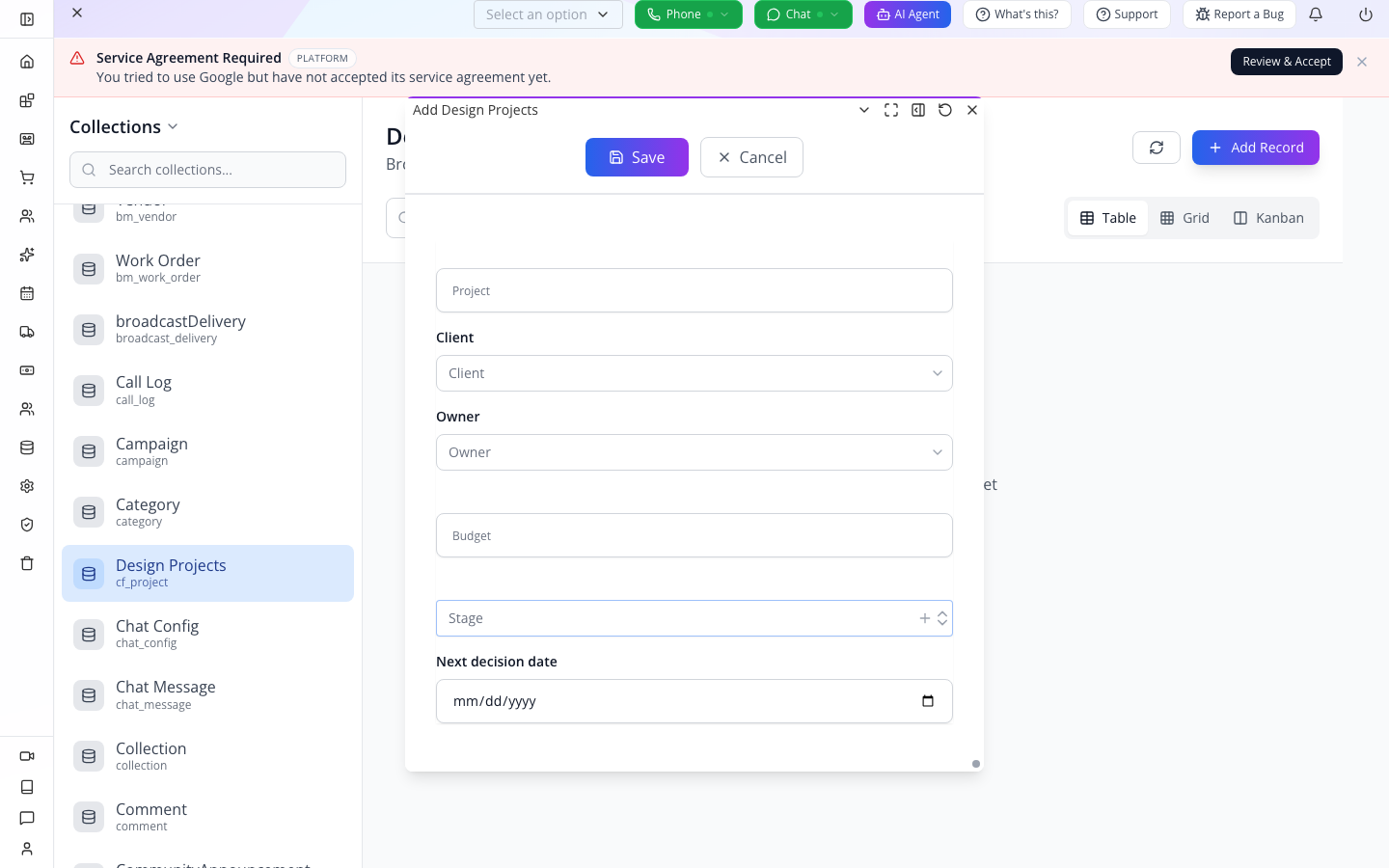

The visible label is Project, while validation names the stored field title. This is why readable labels and schema identifiers matter. The older background includes a Kanban placeholder; current Explorer offers Table and Grid only.


The row “Tutorial Bennett kitchen” has budget 18000 and stage Concept, matching the captured form. This historical save/list evidence does not prove current search/sort behavior, Raw JSON edits or a fresh access check. The Owner ID shown belongs to that fixture; select your own authorized owner.
A red validation message needs a field correction. A service error needs its actual response investigated. Neither is resolved by repeatedly clicking Save. Creating a built-in record generically is not evidence that the associated module's complete business workflow ran.
4. Edit the saved record through the form
Choose the row/card Edit action. Change notes to Updated through the schema form, save and reopen. Inspect the same ID and changed value. Open the record in its supported consuming application or Database Data view and compare.
If an expected field is absent, inspect its schema and layout before editing JSON. If the consumer still differs, verify its record ID, refreshed data and any derived fields. Do not assume a refresh problem means the save failed.
5. Inspect Raw JSON and preserve the record envelope
Choose Edit Raw JSON on the same record. The Raw Editor loads the full record, including its identity/metadata and nested data object. Locate the request notes inside data; leave identity and datatype fields unchanged.
Use View schema to inspect required fields, types, formats, enum values and constraints. Use Toggle word wrap and folding to inspect long or nested values. Download a non-sensitive training copy with Download as JSON before the demonstration change; Copy to clipboard copies the editor text and must not be used with private records in shared tools.
The recording should follow the cursor to the exact value. Do not highlight an entire document while discussing one field.
6. Validate, compare and save a JSON change
Change only data.projectNotes to Updated through Raw JSON. Choose Validate JSON. The handler parses JSON and validates the data object against the available schema. Open Toggle diff view to compare the original loaded document and current draft.
Show Format and Minify as whitespace changes, then format again for readability. Use Save, wait for the result and reopen the same record through the ordinary form. Verify the changed notes in the consumer too.
For recovery, introduce a temporary missing comma, choose Validate and show the syntax error. Correct it before saving. Separately try a wrong type or missing required field on the disposable record to show schema feedback. The server can still reject a document that passes local validation; inspect that response without claiming Raw Editor bypasses business rules.
The Edit commands menu includes Undo/Redo, Find/Replace, Go to Line, selection, folding, indentation and line operations. Demonstrate Find for the target field and Undo for a mistaken local edit. A Toggle Comment editor command does not make comments valid JSON; final validation still uses JSON parsing.
7. Discard a draft deliberately
Change the notes without saving and show the dirty state. Revert changes restores the original loaded JSON. Refresh from database fetches again and prompts before discarding unsaved edits. Cancel or closing prompts when the draft is dirty.
Demonstrate the discard confirmation on the disposable record and reopen to verify the saved value remains. Do not teach Revert as server history restoration or assume optimistic conflict protection without testing the current save contract.
8. Reopen the same context from its URL
Select the collection, switch to Grid and open a record in the schema form. Observe the URL's collection, view and openId state. Copy the actual address, reopen it in an authorized session and confirm collection, view and record ID. Closing the form removes its open-record parameter.
Test a missing or inaccessible record without treating its failure as an empty collection. Raw Editor has a separate modal state; do not promise that a copied form URL restores an unsaved raw JSON draft.
9. Delete a record versus deleting a schema
Choose Delete on a specifically disposable record, read Are you sure you want to delete this record?, and confirm only that record. Refresh and establish that its ID is absent while the collection and other records remain.
The sidebar's Delete Collection is a different operation. It deletes a custom collection's schema record; stored records under that datatype are separate data and are not described as purged by the action. The server rejects protected built-in schema deletion. Use Edit Collection Schema for changes to fields rather than deleting the schema to fix a bad value.
Demonstrate schema deletion only on an unused disposable definition with a known recovery plan. Preserve the working Design Requests collection. A generic confirmation message does not override the actual operation's data-retention behavior.
Closing and source status
Current source reviewed: components/data-view/data-explorer.tsx, data-explorer.directory.ts, data-raw-editor.tsx. Remaining proof: actual create/update/validation responses, consumer consistency, URL restoration, restricted-account behavior, delete outcomes and raw-save concurrency. The unfinished search/filter/sort/Kanban controls are application findings, not covered successes. Future screenshots must show the actual state and must not disguise these gaps.
BusinessMade Data explorer — supporting guide
BusinessMade entry: Tools → Data explorer (/data-explorer).
The explorer can expose organization collections across branches. It is an administrative inspector, not a substitute for POS payment, stock transfer or payroll posting. Those operations require their own modules.
Scope: This BusinessMade route uses the shared component whose complete procedures follow. Use the BusinessMade menu and organization throughout. Shared references are implementation evidence, not instructions to switch products. These written steps have not been replayed as a new BusinessMade live walkthrough.
Written course script · Current-source draft · Live walkthrough pending
Data Explorer is an administrative record browser. This course distinguishes server record search from filters and sorting over the rows already loaded. Current source implements search, schema-choice filtering, sorting and selected-row deletion; Table and Grid are the available view choices.
Overview
Data Explorer lets you open a collection and inspect its records directly. You can use a schema form for ordinary changes or Raw JSON when you need to see the stored structure. We'll create and reopen a request, compare both editing routes and trace the result back to the application that uses it.
Prepare
Use a training organization and a custom design_requests collection from the Database course. Have its required field definitions available, two disposable records and a separate ordinary account for access checks. Do not edit production payment, authentication or inventory records as generic JSON exercises: their specialized modules may apply additional business operations.
1. Choose the collection and confirm context
Open Tools → Data explorer. Use the sidebar's collection search to find Design Requests by its readable title or design_requests name. Select it and wait for records to load. On a narrow screen, open Collections, choose the collection and return to the data area.
The title helps people recognize the collection. The name identifies its datatype. I'll check both before editing, because the explorer can show many built-in and custom record types.
The selected name appears in the header description and URL context. A collection load failure has a retry state; a record load failure is separate from an empty collection. The current implementation can fall back to another available collection if an incoming collection name is unknown. Read the displayed selection rather than trusting an old URL alone.

*Historical BusinessMade layout reference. The selected collection here is Access Card, not the Design Requests training collection: select your own disposable collection before editing. This older capture shows Kanban and a generic filter; current source offers Table/Grid and derives choice options from the selected schema.
2. Compare Table and Grid without mistaking display for data
Use Table to inspect rows and Grid for record cards. Compare the same saved ID or recognizable request values. The lightweight table shows the first five schema fields plus creation/modification dates; missing columns do not mean the record lacks those fields. Open the record to inspect the complete form.
Use Load More when more records are available. The count visible before loading is not necessarily the entire collection. Refresh reloads the current collection after another part of the app changes it.
Find and compare the records you need
- Enter a recognizable value in Search records... and press Enter, or pause briefly after typing. This refreshes the server search for the selected collection. Clear the input to return to an unsearched list.
- If the collection has an enumerated choice field, use the adjacent dropdown. Its options come from the first such schema field; do not assume it always means Status. The filter applies to loaded rows, so an empty filtered result is not proof that no matching record exists on another page.
- Click a column's sort control once for ascending order, again for descending order and a third time to return to the loaded order. Sorting also operates on loaded rows; use Load More before comparing a larger set.
- Switch Table/Grid to compare the same record's values. Current source offers those two views. The Kanban control in older screenshots is no longer an available view to teach here.
- If no rows match, clear the search and choice filter before deciding the collection is empty. A loading failure needs its retry action, not Add First Record.
Selection checkboxes now have a working Delete selected action. Select only your disposable records, inspect their identities and the displayed count, then read the confirmation before proceeding. Selection can retain records that are no longer visible after filtering; clear unneeded selections before changing the view or search. Never interpret a filtered screen as permission to bulk-delete an unknown selection.
3. Create a record through its schema form
Choose Add Record or Add First Record. The form is generated from the selected collection's schema. For the Design Requests example, enter a distinct code EXPLORER-1001, name, controlled email, service room, room count 2, notes Created through Data Explorer, consent as appropriate and status new. Include any additional fields your saved schema requires.
Submit through the form's actual Save control and wait for the response. The Explorer closes/refreshes after the save callback. Find and reopen the created record; inspect its actual ID and the notes.
This is the selected collection's form. I'll create a recognizable test record, then reopen it to check what was stored.
A red validation message needs a field correction. A service error needs its actual response investigated. Neither is resolved by repeatedly clicking Save. Creating a built-in record generically is not evidence that the associated module's complete business workflow ran.
4. Edit the saved record through the form
Choose the row/card Edit action. Change notes to Updated through the schema form, save and reopen. Inspect the same ID and changed value. Open the record in its supported consuming application or Database Data view and compare.
We're changing this existing record, not creating another one. The form uses the schema's controls and validation; reopening the same ID confirms persistence.
If an expected field is absent, inspect its schema and layout before editing JSON. If the consumer still differs, verify its record ID, refreshed data and any derived fields. Do not assume a refresh problem means the save failed.
5. Inspect Raw JSON and preserve the record envelope
Choose Edit Raw JSON on the same record. The Raw Editor loads the full record, including its identity/metadata and nested data object. Locate the request notes inside data; leave identity and datatype fields unchanged.
Use View schema to inspect required fields, types, formats, enum values and constraints. Use Toggle word wrap and folding to inspect long or nested values. Download a non-sensitive training copy with Download as JSON before the demonstration change; Copy to clipboard copies the editor text and must not be used with private records in shared tools.
The outer record identifies what we're editing. The collection's business fields live inside data. We'll change one value there and inspect the difference before saving.
Locate the exact data.projectNotes value before editing; similarly named fields elsewhere in the record may serve another purpose.
6. Validate, compare and save a JSON change
Change only data.projectNotes to Updated through Raw JSON. Choose Validate JSON. The handler parses JSON and validates the data object against the available schema. Open Toggle diff view to compare the original loaded document and current draft.
Show Format and Minify as whitespace changes, then format again for readability. Use Save, wait for the result and reopen the same record through the ordinary form. Verify the changed notes in the consumer too.
Validation checks the JSON and available schema. The diff shows our one intended field change. I'll save and check the form that people normally use.
For recovery, introduce a temporary missing comma, choose Validate and show the syntax error. Correct it before saving. Separately try a wrong type or missing required field on the disposable record to show schema feedback. The server can still reject a document that passes local validation; inspect that response without claiming Raw Editor bypasses business rules.
The Edit commands menu includes Undo/Redo, Find/Replace, Go to Line, selection, folding, indentation and line operations. Demonstrate Find for the target field and Undo for a mistaken local edit. A Toggle Comment editor command does not make comments valid JSON; final validation still uses JSON parsing.
7. Discard a draft deliberately
Change the notes without saving and show the dirty state. Revert changes restores the original loaded JSON. Refresh from database fetches again and prompts before discarding unsaved edits. Cancel or closing prompts when the draft is dirty.
Revert returns to the version this editor loaded. Refresh asks the server for the current version. If someone else changed the record, those may not be the same document.
Demonstrate the discard confirmation on the disposable record and reopen to verify the saved value remains. Do not teach Revert as server history restoration or assume optimistic conflict protection without testing the current save contract.
8. Reopen the same context from its URL
Select the collection, switch to Grid and open a record in the schema form. Observe the URL's collection, view and openId state. Copy the actual address, reopen it in an authorized session and confirm collection, view and record ID. Closing the form removes its open-record parameter.
This link preserves the explorer context. It doesn't grant access: the account opening it still needs permission to read the record.
Test a missing or inaccessible record without treating its failure as an empty collection. Raw Editor has a separate modal state; do not promise that a copied form URL restores an unsaved raw JSON draft.
9. Delete a record versus deleting a schema
Choose Delete on a specifically disposable record, read Are you sure you want to delete this record?, and confirm only that record. Refresh and establish that its ID is absent while the collection and other records remain.
The sidebar's Delete Collection is a different operation. It deletes a custom collection's schema record; stored records under that datatype are separate data and are not described as purged by the action. The server rejects protected built-in schema deletion. Use Edit Collection Schema for changes to fields rather than deleting the schema to fix a bad value.
This row action removes a record. This sidebar action removes the custom definition. They are not interchangeable, and deleting the definition is not a bulk data cleanup.
Demonstrate schema deletion only on an unused disposable definition with a known recovery plan. Preserve the working Design Requests collection. A generic confirmation message does not override the actual operation's data-retention behavior.
Closing and source status
Data Explorer is most useful when you keep the collection, record identity and consumer in view. Use the schema form for ordinary edits, Raw JSON for precise inspection, and verify changes where the data is used.
Current source reviewed: components/data-view/data-explorer.tsx, data-explorer.directory.ts, data-raw-editor.tsx. Remaining proof: actual create/update/validation responses, consumer consistency, URL restoration, restricted-account behavior, delete outcomes and raw-save concurrency. The retained screenshot is historical context, not proof of those changed behaviors.
BusinessMade routing and outcome check
The menu and route were checked in packages/ui/src/ui/sidebars/business-made-links.ts and apps/business-made/src/shell/route-registry.ts. Open the module through the route stated at the start, perform the controlled procedure, save, reopen and inspect its actual BusinessMade consumer. Do not infer branch isolation from a header location selection when this shared screen reads organization-wide records. Record any access refusal or consumer mismatch with the exact record identity. No new provider, payment, physical-device or live-tenant action was performed for this adaptation.