
Written guide
Overview
Use Appmint’s shared catalogue across selected supported sales channels. We will preserve SKU and variant identity, inspect the external listing, and reconcile imported orders and inventory.
01. Create and reopen the product
Why this matters
A product record ties customer presentation to the SKU your team uses. A saved draft is a useful first checkpoint before making the product available.
Follow these steps
Open Storefront → Product → Products → Add Product. Enter Product Name, SKU and URL Slug. Enter Description and Price. Leave the product in Draft while preparing it. Choose Create Product, close the editor, refresh Products and reopen the same SKU. Check its name, slug, price and status. Cost per Item is an internal product value; it must not be narrated as another buyer charge.
Check the result
Use a unique SKU and slug. Inspect save errors before repeating Create Product. The list and reopened record establish persistence; the public product page establishes customer visibility.
02. Media and catalogue organization
Why this matters
Reusable catalogue references keep products consistent, while the default image controls the first visual impression.
Follow these steps
Open Media, add the intended product images and use Set as default image on the lead image. Inspect image order and remove an incorrect image. Add Brand, Categories and Tags through their selectors. Use extraInfo for titled sections, reorder them with Move up/Move down and save. Open the customer product page through the site and check its gallery, description and brand.
Check the result
A file visible in the picker is not necessarily the default product image. Reopen the product and public route after saving. Links to shared brand/category records should remain references rather than duplicate names.
03. Attributes and variants
Why this matters
An attribute describes a choice; a variant identifies a specific saleable combination. Base price, option increment and variant identity must agree in the buyer cart.
Follow these steps
Create reusable options under Storefront → Attribute first, then return to the product and attach them in Variants. Select the intended options, generate the combinations and inspect every resulting SKU, price/increment and stock value before saving. For a size choice use two explicit values and test both on the customer page. Add each to the cart separately and inspect the saved chosen option and total. Reopen an existing product before changing a variant so old combinations are visible.
Check the result
Do not infer stock isolation from a visual choice. Compare the saved variant identity and stock effect. Removing a choice can affect existing product references; test the changed choice and an unchanged one.
04. Price, stock and sales restrictions
Why this matters
Product-level rules decide how this item can be sold. Location inventory and customer eligibility add independent checks.
Follow these steps
In Pricing inspect Price, Compare at Price, Charge tax on this product and quantity tiers. Enter Min Qty, Max Qty and either Price/Unit or the intended Discount %. Use Customer Groups where the item is restricted. In Inventory review Stock Quantity, ISBN / Barcode and Track inventory for this product. Review Sale restriction, age restriction, Minimum customer age and Permission the seller needs. Save, reopen, then compare eligible and ineligible customer/quantity cases. For stock, create the corresponding location row in Inventory and inspect that row separately.
Check the result
Sold Count is reporting, not opening stock. A visible switch does not prove downstream age or permission enforcement; verify rejected and accepted buyer cases. Compare the displayed and saved totals.
05. Choose the supported channel and capabilities
Why this matters
A channel name in the menu is not proof that every integration operation is available for the current account.
Follow these steps
Open Storefront → Sales Channels → Channels. Inspect the available channel configuration and status. Current source names Amazon, eBay, Walmart Marketplace, Etsy, Google Merchant Center, Microsoft Merchant Center, Facebook/Instagram Shop, TikTok Shop, Pinterest Shopping, Shopify and WooCommerce. Choose the intended channel and inspect its enabled integration and supported feature set before configuring it.
Check the result
Google and Microsoft shopping channels declare no order-import or fulfilment feature; do not teach their order flow as identical to a marketplace checkout. Provider registration and credentials must actually resolve for the chosen channel.
Orient yourself before connecting a marketplace

This retained screen shows the module's Dashboard, Channels, Orders, Inventory, Pricing, Mappings and Optimization areas. Begin in Channels to configure an account; Dashboard is a summary, not the connection form. The captured organization has 0 connected channels and 0 orders, so it does not demonstrate an active marketplace or a successful sale. The percentage changes visible in this older capture were fixed placeholder values; current dashboard source removes those invented comparisons. Do not use them to assess your store's performance.
Keep the same channel selected as you move from connection to product mapping and order checks. A product enabled for one destination does not validate another provider's credentials or field requirements.
06. Connect and map identity
Why this matters
The provider account and product mapping must describe the same business and SKU.
Follow these steps
Use Connect on the intended channel and complete its offered credential fields; save and refresh channel status. In the product enable that Sales Channel. Open Mappings and map required category, attributes, SKU and variant fields. Validate the product before publishing. For Google inspect brand, GTIN, description, images and link; for eBay inspect condition/category; for TikTok inspect category/images.
The Channels connection drawer currently asks for API Key, Secret Key and optional Seller/Store ID. Its enable endpoint stores a channel configuration record; channel readiness separately resolves an Upstream integration. Therefore also open Configuration → Integration Config → Integration Builder and configure the provider-specific record. For eBay the schema requires accessToken and offers refreshToken. Etsy requires accessToken and shopId, with refreshToken and shippingProfileId. Google exposes accessToken/refreshToken and merchantId (customerId/adsAccountId serve other Google operations). Facebook exposes accountType, accessToken, longAccessToken and adAccountIds. TikTok exposes accessToken, advertiserId, shopId and shopCipher. Use values from the intended provider authorization/account, save and read back the masked configuration, then return to Channels and refresh readiness.
Do not paste an OAuth token into the generic API Key field and narrate a completed provider setup. If the channel enable record and resolved provider disagree, keep that mismatch visible and resolve the integration before publication. External authorization and provider account screens need their own verified recording later.
Check the result
Mapping validation checks product channel opt-in first. Do not resolve a missing GTIN by inventing one. Credentials are provider-specific; keep them out of the recording.
07. Publish and inspect the destination
Why this matters
A saved mapping does not publish a listing. A sync notice does not establish a usable customer page.
Follow these steps
Use the supported product publication/sync operation for the selected enabled channel. Inspect the returned listing identifier and open the actual destination. Compare title, images, variant, price and availability. Return to the channel to inspect errors and last-sync status.
Check the result
The Channels Sync operation in the inspected component specifically synchronizes orders; do not narrate it as publishing products. If no product publication control is exposed, retain that branch as an implementation limitation instead of misusing the order sync button.
08. Orders, inventory and pricing
Why this matters
Imported orders and stock updates travel in different directions.
Follow these steps
For a channel supporting orders, use its order sync and inspect Channel Orders against the external order reference. Open Inventory to inspect mapped SKU, quantity and reservation/sync status before updating availability. In Pricing create a scoped rule, inspect channel, SKU condition, enabled state and priority, then calculate/check the resulting listing price.
Check the result
Current pricing selects the highest-priority enabled matching rule; do not imply all rules stack. Avoid resynchronizing uncertain jobs until their destination order and stock effects are checked.
09. Optimization, analytics and failures
Why this matters
Listing suggestions are drafts; measured channel results need actual provider data.
Follow these steps
Open Optimization for the intended listing, review suggestions against product facts and apply only supported edits. Inspect Analytics with the selected channel/window. For a failed sync, open the reported error, correct missing mappings/credentials/product eligibility and retry the supported operation. Confirm the same external identifier afterward.
Check the result
No external account connection, listing publication or order import was performed for this guide. Every provider branch needs its own live confirmation; unavailable provider methods must remain unavailable in the course.
10. Create opening location stock
Why this matters
Catalogue quantity and a location inventory row are different records. The stock row connects a product to the place holding it.
Follow these steps
Open Storefront → Inventory and add the inventory row. Select Product and Business location, enter Quantity, Reorder point and Stock notes, then save. Refresh the list and reopen that product/location combination. If an Inventory row selector finds an existing row, inspect it before creating another opening balance.
Check the result
Duplicate opening entries can distort available stock. Select the saved location instead of entering a similar-looking location name.
11. Orders, returns and alerts
Why this matters
Available, reserved and physical quantities can change at different stages. The order identity connects those movements.
Follow these steps
Place a controlled catalogue order and inspect its inventory reservation/movement. Compare the same location before payment, after the sale and after a supported return/restock. Open Alerts and available reports to inspect low-stock items against the saved Reorder point. Open movement detail and cost information rather than relying on the dashboard alone.
Check the result
A money-only refund does not imply returned goods. Restock only the appropriate sellable quantity and verify damaged/nonrestocked goods separately. Record failed movement operations as unresolved outcomes.
12. Compare the same SKU across destinations
Why this matters
The connected result must be checked at both sides of this handoff. Keep the original record reference visible while moving to the destination.
Follow these steps
Choose one catalogue SKU and intended variant. After each channel’s supported publication, open its destination listing and record the external identifier. Compare price, options, stock and product facts against the Appmint product. Import a controlled order only for a channel supporting order import and inspect the matching internal order and stock movement. Change a scoped channel price rule and inspect only that destination’s calculated/published result.
Check the result
Do not treat Google shopping feeds as marketplace checkout or use the Channels order-sync button as a product-publish control. The generic Connect modal and Upstream provider setup are separate current-source paths.
Limitations and checks
External account authorization, provider-specific publication and imported orders remain unperformed. Current channel names and capability flags are not a guarantee that every provider operation completes.
Next steps
Return to the saved records and check the handoff that matters for your use of the platform. A visible result at each end makes the workflow explainable and gives you a precise place to investigate when it fails.
Appmint Sales Channels: sell on external marketplaces — supporting guide
Overview
Connect an external sales channel, map the right product identity and inspect the listing, order and inventory results separately. This is the dedicated marketplace course, beyond basic storefront setup.
01. Choose the supported channel and capabilities
Why this matters
A channel name in the menu is not proof that every integration operation is available for the current account.
Follow these steps
Open Storefront → Sales Channels → Channels. Inspect the available channel configuration and status. Current source names Amazon, eBay, Walmart Marketplace, Etsy, Google Merchant Center, Microsoft Merchant Center, Facebook/Instagram Shop, TikTok Shop, Pinterest Shopping, Shopify and WooCommerce. Choose the intended channel and inspect its enabled integration and supported feature set before configuring it.
Check the result
Google and Microsoft shopping channels declare no order-import or fulfilment feature; do not teach their order flow as identical to a marketplace checkout. Provider registration and credentials must actually resolve for the chosen channel.
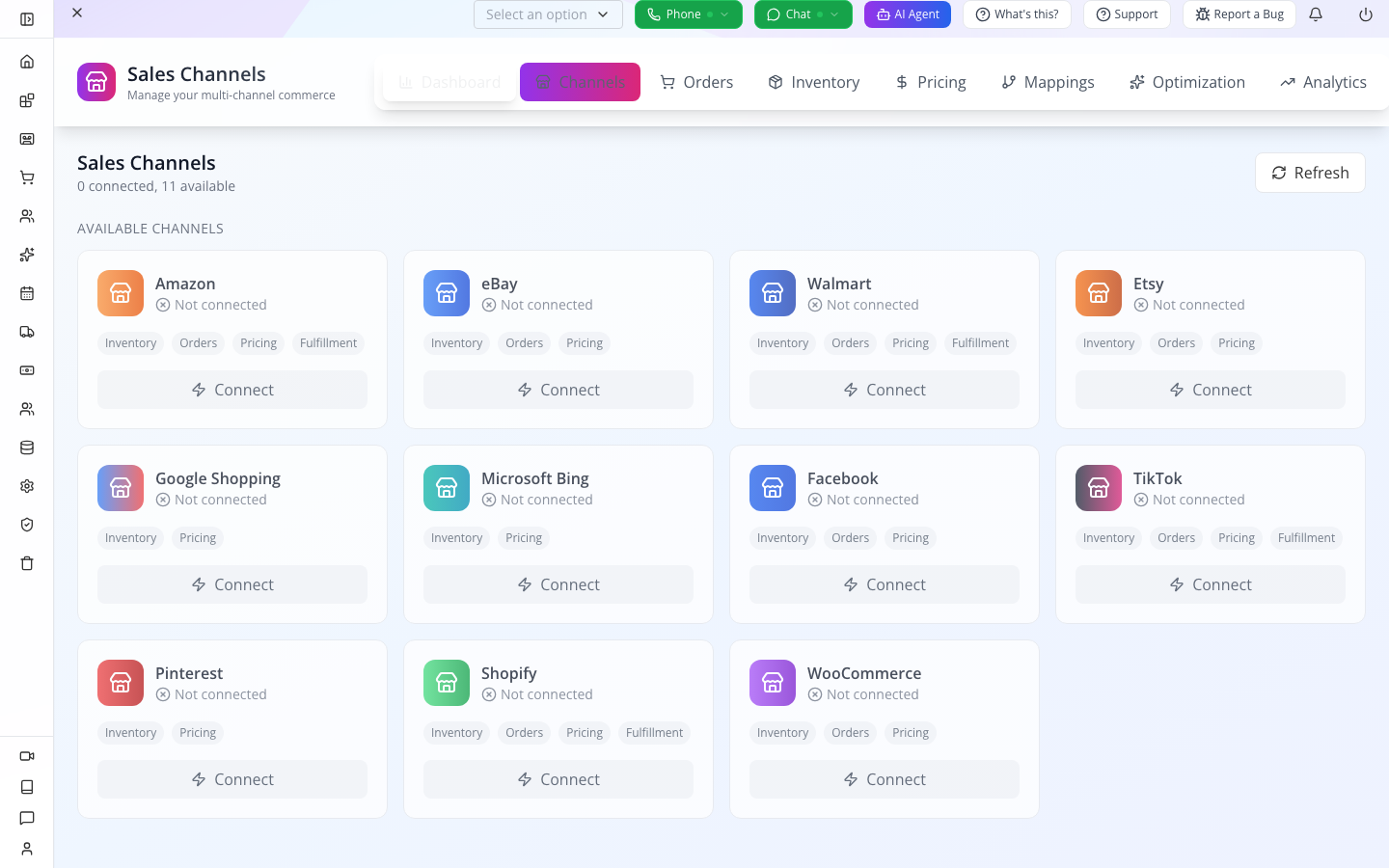
Retained actual Channels screen:0 connected,11 available. Capability badges differ between marketplaces. This catalogue is not evidence of connected accounts, published listings or imported orders.
Choose one channel for the first check
- Open Storefront → Sales Channels → Channels. Find the intended marketplace by name.
- Read its capability badges and connection state before choosing Connect. Do not plan an order-import exercise for a channel that does not declare it.
- Keep one channel and one product as the initial test scope. Add more only after you can identify the external listing and the corresponding saved mapping for the first one.
02. Connect and map identity
Why this matters
The provider account and product mapping must describe the same business and SKU.
Follow these steps
Use Connect on the intended channel and complete its offered credential fields; save and refresh channel status. In the product enable that Sales Channel. Open Mappings and map required category, attributes, SKU and variant fields. Validate the product before publishing. For Google inspect brand, GTIN, description, images and link; for eBay inspect condition/category; for TikTok inspect category/images.
The Channels connection drawer currently asks for API Key, Secret Key and optional Seller/Store ID. Its enable endpoint stores a channel configuration record; channel readiness separately resolves an Upstream integration. Therefore also open Configuration → Integration Config → Integration Builder and configure the provider-specific record. For eBay the schema requires accessToken and offers refreshToken. Etsy requires accessToken and shopId, with refreshToken and shippingProfileId. Google exposes accessToken/refreshToken and merchantId (customerId/adsAccountId serve other Google operations). Facebook exposes accountType, accessToken, longAccessToken and adAccountIds. TikTok exposes accessToken, advertiserId, shopId and shopCipher. Use values from the intended provider authorization/account, save and read back the masked configuration, then return to Channels and refresh readiness.
Do not paste an OAuth token into the generic API Key field and narrate a completed provider setup. If the channel enable record and resolved provider disagree, keep that mismatch visible and resolve the integration before publication. External authorization and provider account screens need their own verified recording later.
Check the result
Mapping validation checks product channel opt-in first. Do not resolve a missing GTIN by inventing one. Credentials are provider-specific; keep them out of the recording.
Separate account credentials from the product selection
The Channels drawer asks for generic API Key, Secret Key and optional Seller/Store ID. The provider-specific setup available through Product → Partner Sync can expose different fields. For Etsy, open Configure Etsy → Manual Configuration and inspect Access Token, Refresh Token, Shop Id and the remaining provider fields. Use authorized values for the intended shop, save, then reopen and inspect the actual connection/test response. Do not put an Etsy OAuth token into an unrelated field simply because both forms are called Connect.
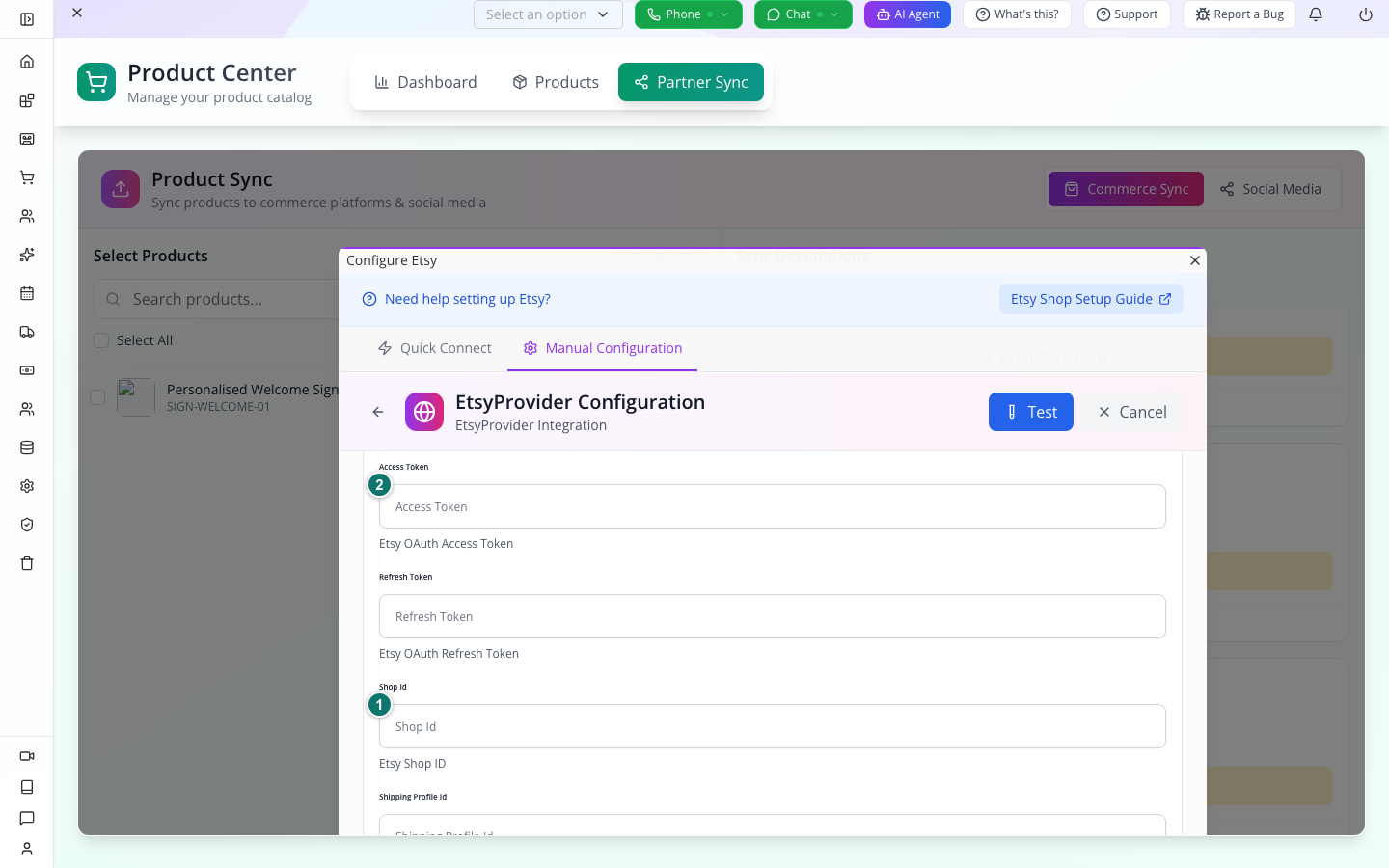
Retained actual Partner Sync configuration screen. Fields are blank and the Test action has not established success. This is the provider-specific route, not the generic Channels connection drawer.
Next open Storefront → Product, find the exact SKU, expand Sales Channels and select the intended destinations. Save Changes, reopen that product and verify the choices persisted. The helper says leaving every channel unselected allows every channel; an empty selection is not a deliberate exclusion of all marketplaces.
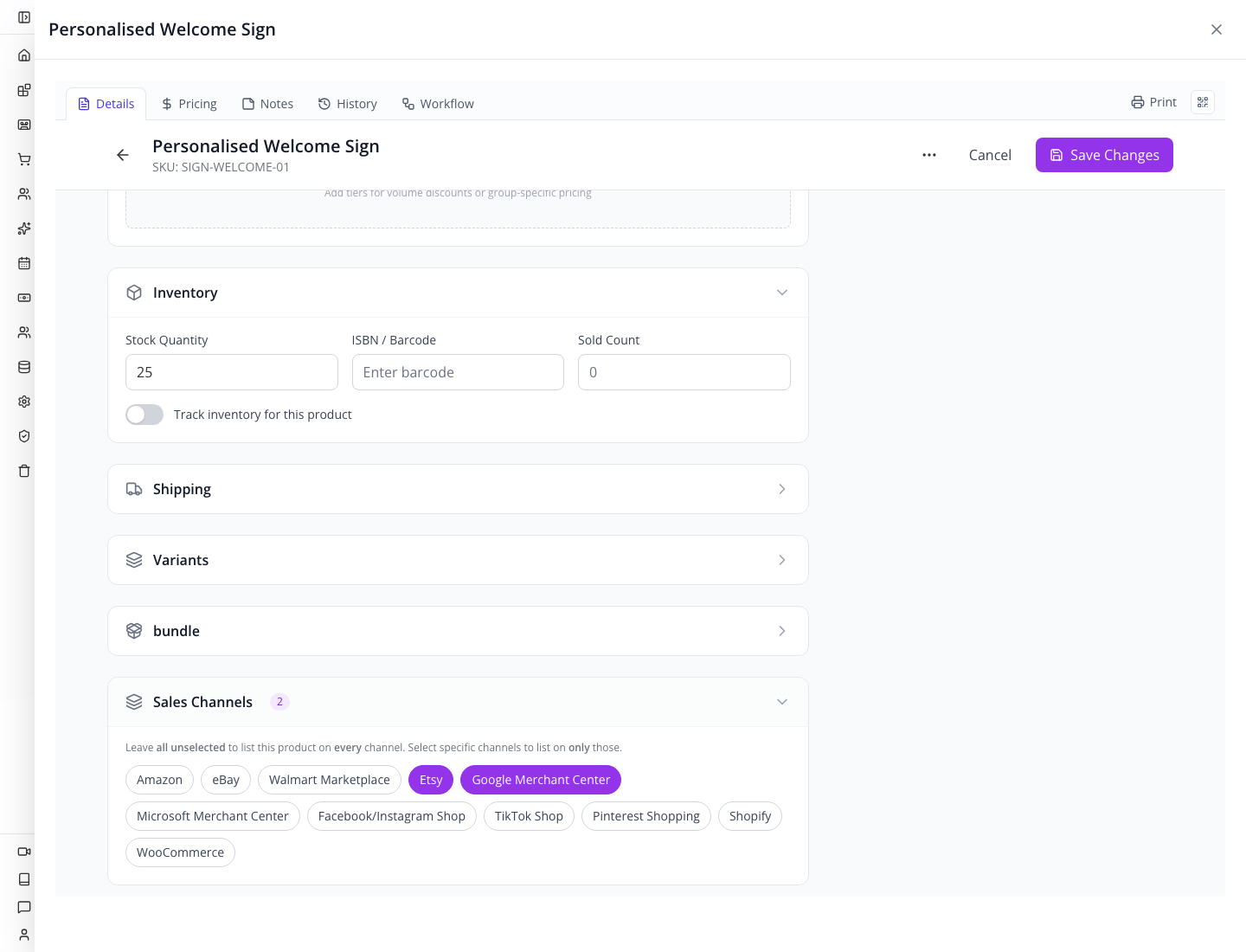
Retained actual product configuration: SIGN-WELCOME-01 has two selected channels. This establishes saved destination scope only; it does not prove either external account is connected or that the product was published.
03. Publish and inspect the destination
Why this matters
A saved mapping does not publish a listing. A sync notice does not establish a usable customer page.
Follow these steps
Use the supported product publication/sync operation for the selected enabled channel. Inspect the returned listing identifier and open the actual destination. Compare title, images, variant, price and availability. Return to the channel to inspect errors and last-sync status.
Check the result
The Channels Sync operation in the inspected component specifically synchronizes orders; do not narrate it as publishing products. If no product publication control is exposed, retain that branch as an implementation limitation instead of misusing the order sync button.
04. Orders, inventory and pricing
Why this matters
Imported orders and stock updates travel in different directions.
Follow these steps
For a channel supporting orders, use its order sync and inspect Channel Orders against the external order reference. Open Inventory to inspect mapped SKU, quantity and reservation/sync status before updating availability. In Pricing create a scoped rule, inspect channel, SKU condition, enabled state and priority, then calculate/check the resulting listing price.
Check the result
Current pricing selects the highest-priority enabled matching rule; do not imply all rules stack. Avoid resynchronizing uncertain jobs until their destination order and stock effects are checked.
05. Optimization, analytics and failures
Why this matters
Listing suggestions are drafts; measured channel results need actual provider data.
Follow these steps
Open Optimization for the intended listing, review suggestions against product facts and apply only supported edits. Inspect Analytics with the selected channel/window. For a failed sync, open the reported error, correct missing mappings/credentials/product eligibility and retry the supported operation. Confirm the same external identifier afterward.
Check the result
No external account connection, listing publication or order import was performed for this guide. Every provider branch needs its own live confirmation; unavailable provider methods must remain unavailable in the course.
Detailed instructions
The following retained material documents earlier local work. Its pending checks remain pending; historical successful outcomes are not claims of a fresh execution. Use the source-authored instructions above to prepare the new recording, and preserve these references for comparison.
T14: Sell through an external channel
Worked example
Cedar and Form’s own store is already a selling destination. Sales Channels is where we prepare to sell through another marketplace. Open Storefront, then Sales Channels and Channels. This local catalogue has eleven choices, including Etsy, eBay and Google Shopping. Their badges describe different capabilities; Google Shopping does not show the same order and fulfilment badges as Amazon. Open Etsy Connect to inspect its current fields: API Key, Secret Key and an optional Seller or Store ID. We cancel this blank form because no authorized seller connection is available in this exercise. Do not substitute Appmint login details for marketplace credentials. In Mappings, Categories joins a local category to the marketplace category; Attributes joins fields, and Templates groups a reusable mapping setup. Choose Add Category: its channel picker is empty while no channel is connected. That explains the dependency: connection first, then mappings, then a listing synchronization that must be checked in the actual marketplace. Orders and Inventory will let us inspect that channel’s business once data is imported. Their empty states are not proof of a synchronized order. Analytics currently reports that it is not available on the server. We have inspected these controls; external authentication, saved mappings, publishing and an incoming buyer order remain unverified.
Included controls: Dashboard, Channels, Orders, Inventory, Pricing, Mappings, Optimization, Analytics, Product Partner Sync, Google/Meta/Instagram/TikTok/Pinterest/Snapchat/Amazon/eBay/Etsy/Shopify/WooCommerce/Walmart/Bing.
Limitations and checks: Current runtime catalogue all provider cards and actual supported limits; each distinct authentication/configuration/sync route, Dashboard/Channels/Orders/Inventory/Pricing/Mappings/Optimization/Analytics controls, failures and refresh/retry; authorized sandbox publish/import/order/stock proof. Provider logos are candidates, not end-to-end proof.
Check the result: Every exposed provider taught with its actual capability/limitation; one full permitted channel journey and distinct alternatives demonstrated.
Implementation reference: app.tsx, app.tsx.
New actual evidence: SF33-sales-channel-controls.webm, 36-channel-catalogue-current.png, 39-category-mapping-form.png, 46-channel-analytics.png.


Limitations and checks
Current UI entry and editor: . Corresponding SDK storefront schemas and the retained AppEngine references define fields and consumer boundaries. Provider calls, external delivery, payments and financial mutations were not performed for this writing task.
Next steps
You can now follow the module from its configuration to the record that proves the result. Use the relevant chapter to revisit an alternative or troubleshoot the exact failed handoff.
BusinessMade Sales channels — supporting guide
Overview
Connect an external sales channel, map the right product identity and inspect the listing, order and inventory results separately. This is the dedicated marketplace course, beyond basic storefront setup.
BusinessMade entry and scope
Open Storefront → Sales channels at /storefront/sales-channels in BusinessMade. This route mounts the shared Sales channels module; the surrounding menus are BusinessMade’s. Use Operations → Contacts for customer details, Operations → Customers & Benefits for group eligibility, Admin → Business locations for branches, and Operations → POS / Order entry for counter sales. Keep the organization and record identity consistent across those screens.
The location selector governs the venue-specific POS, but does not establish that every shared Storefront module filters its data by that selection. Inspect the record’s own location and currency. Payments are under Storefront → Payments, while delivery rules and shipments are under Storefront → Shipping; creating this module’s record is not payment or shipping-provider configuration.
Establish one channel and one product before synchronizing
Prepare the selected provider account, its actual store/seller identity and one saved SKU. Keep the BusinessMade organization, product ID, external listing ID and imported order ID distinct. Start with one product mapping and inspect its remote listing before choosing a broad sync. A saved Channels row is configuration; a provider connection, accepted listing and imported order are different results.

Historical orientation only: there are zero connected channels and zero orders. The pictured percentage changes were old placeholder values and are removed/calculated differently in current source; do not read them as growth evidence. This capture proves no live external integration.
01. Choose the supported channel and capabilities
Why this matters
A channel name in the menu is not proof that every integration operation is available for the current account.
Follow the steps
Open Storefront → Sales channels → Channels. Inspect the available channel configuration and status. Current source names Amazon, eBay, Walmart Marketplace, Etsy, Google Merchant Center, Microsoft Merchant Center, Facebook/Instagram Shop, TikTok Shop, Pinterest Shopping, Shopify and WooCommerce. Choose the intended channel and inspect its enabled integration and supported feature set before configuring it.
Check the result
Google and Microsoft shopping channels declare no order-import or fulfilment feature; do not teach their order flow as identical to a marketplace checkout. Provider registration and credentials must actually resolve for the chosen channel.
02. Connect and map identity
Why this matters
The provider account and product mapping must describe the same business and SKU.
Follow the steps
Use Connect on the intended channel and complete its offered credential fields; save and refresh channel status. In the product enable that Sales Channel. Open Mappings and map required category, attributes, SKU and variant fields. Validate the product before publishing. For Google inspect brand, GTIN, description, images and link; for eBay inspect condition/category; for TikTok inspect category/images.
The Channels connection drawer currently asks for API Key, Secret Key and optional Seller/Store ID. Its enable endpoint stores a channel configuration record; channel readiness separately resolves an Upstream integration. For this provider setup, switch to Appmint for the same organization and open Configuration → Integration Config → Integration Builder; that separate menu is not exposed in the BusinessMade sidebar. Then configure the provider-specific record. For eBay the schema requires accessToken and offers refreshToken. Etsy requires accessToken and shopId, with refreshToken and shippingProfileId. Google exposes accessToken/refreshToken and merchantId (customerId/adsAccountId serve other Google operations). Facebook exposes accountType, accessToken, longAccessToken and adAccountIds. TikTok exposes accessToken, advertiserId, shopId and shopCipher. Use values from the intended provider authorization/account, save and read back the masked configuration, then return to Channels and refresh readiness.
Do not paste an OAuth token into the generic API Key field and narrate a completed provider setup. If the channel enable record and resolved provider disagree, keep that mismatch visible and resolve the integration before publication. External authorization and provider account screens need their own verified recording later.
Check the result
Mapping validation checks product channel opt-in first. Do not resolve a missing GTIN by inventing one. Credentials are provider-specific; keep them out of the recording.
03. Publish and inspect the destination
Why this matters
A saved mapping does not publish a listing. A sync notice does not establish a usable customer page.
Follow the steps
Use the supported product publication/sync operation for the selected enabled channel. Inspect the returned listing identifier and open the actual destination. Compare title, images, variant, price and availability. Return to the channel to inspect errors and last-sync status.
Check the result
The Channels Sync operation in the inspected component specifically synchronizes orders; do not narrate it as publishing products. If no product publication control is exposed, retain that branch as an implementation limitation instead of misusing the order sync button.
04. Orders, inventory and pricing
Why this matters
Imported orders and stock updates travel in different directions.
Follow the steps
For a channel supporting orders, use its order sync and inspect Channel Orders against the external order reference. Open Inventory to inspect mapped SKU, quantity and reservation/sync status before updating availability. In Pricing create a scoped rule, inspect channel, SKU condition, enabled state and priority, then calculate/check the resulting listing price.
Check the result
Current pricing selects the highest-priority enabled matching rule; do not imply all rules stack. Avoid resynchronizing uncertain jobs until their destination order and stock effects are checked.
05. Optimization, analytics and failures
Why this matters
Listing suggestions are drafts; measured channel results need actual provider data.
Follow the steps
Open Optimization for the intended listing, review suggestions against product facts and apply only supported edits. Inspect Analytics with the selected channel/window. For a failed sync, open the reported error, correct missing mappings/credentials/product eligibility and retry the supported operation. Confirm the same external identifier afterward.
Check the result
No external account connection, listing publication or order import was performed for this guide. Every provider branch needs its own live confirmation; unavailable provider methods must remain unavailable in the course.
BusinessMade operational handoff — Reconcile an imported channel order
Why this matters
Sales channels connects to the saved customer, product or transaction. Follow that identity through the BusinessMade operation rather than creating a second record to illustrate a result.
Follow the steps
Open Storefront → Sales channels and the intended channel. Configure provider prerequisites before enabling a controlled synchronization. Run Sync for orders only and inspect the returned result. Open Storefront → Orders and match the external order ID, customer, item mapping, currency and totals. Inspect Storefront → Inventory at the intended fulfilment location before shipping. Use Storefront → Shipping to create the shipment through a configured provider and inspect channel fulfilment capabilities separately.
Recovery and implementation boundary
The shared channel Sync control imports orders; it is not a general publish-products command. BusinessMade has no separate Integration Config sidebar entry in this menu. Provider account setup must use an actual available gateway surface or the same organization’s Appmint integration configuration; generic Connect fields alone are not complete provider readiness.
Limitations and checks
Substantive pending work: The shared channel Sync control imports orders; it is not a general publish-products command. BusinessMade has no separate Integration Config sidebar entry in this menu. Provider account setup must use an actual available gateway surface or the same organization’s Appmint integration configuration; generic Connect fields alone are not complete provider readiness. Runtime evidence for the taught handoff remains separate from authored coverage. Do not mark the course production-ready until the intended branch’s saved result, failure recovery and customer/provider outcome have been checked.
Next steps
You can return directly to the chapter for the change you need. Keep the saved record and its operational result together: the same customer, product, location and transaction should remain identifiable through each handoff.