
Video chapters
- 0:00 Welcome
- 0:19 How Appmint fits together
- 0:44 Part 1 · The account: explained
- 0:57 Part 1 · The account — Sign up and pick an unused address
- 1:26 Part 2 · The welcome page: explained
- 1:38 Part 2 · The welcome page — Sign-in details, the live holding page, Vibe Studio and Appmint Mobile
- 2:23 Part 3 · Finding your way: explained
- 2:38 Part 3 · Finding your way — The guided tour and the Storefront, CRM and DAM dashboards
- 3:37 Part 4 · Company profile: explained
- 3:47 Part 4 · Company profile — Logo, name and interests; her own profile
- 4:19 Part 5 · Setup wizard: explained
- 4:30 Part 5 · Setup wizard — Email sending and shipping labels switched on
- 5:08 Part 6 · The first page: explained
- 5:19 Part 6 · The first page — Site title, headline, Publish and the live site
- 6:01 Part 7 · Getting help: explained
- 6:11 Part 7 · Getting help — How do I, documentation, live chat, a feature request, Report a Bug
- 6:48 Wrap-up
Earlier tutorials and recordings (5)
These recordings may show an earlier interface or an older cut. Follow the current written instructions below.
Written guide
**Illustrated learner manuscript, reconciled 5 October 2026.
Overview
Create your Appmint organization, understand the tools included, save your business identity and publish a useful first page. We will start at signup and finish at the real visitor link, with the help routes you can return to later.
01. Create the account
Why this matters
Your organization is the company account. Its address identifier, business display name and your personal name are different values.
Follow these steps
- Open appmint.io and select Start free.
- In Create your account, enter your own Email and choose Continue with Email. For a fresh email, the next screen is Finish your account.
- Enter an available site-name without the displayed
.appmint.appsuffix. Leave the field and read its availability result. Choose any permitted available name; no course-specific suffix is required. - Enter the owner's First name and Last name. Enter a password of at least eight characters and repeat it in Confirm password.
- Review the identifier and owner fields, then choose Create account once. Wait for the actual welcome result; correct a specific validation error before retrying.

Retained blank signup form, showing the address suffix and owner fields. The old surrounding copy uses “workspace”; this course calls the company account an organisation to distinguish it from the collaboration Workspace module. No password is shown.
Check the result
An existing or social identity can show Name your workspace and omit new-password fields in the current source. This is organization creation, not an instruction to create the collaboration Workspace module. Existing email does not automatically send you to sign-in. Use Sign In deliberately when returning to an existing organization.
02. Retain the welcome details
Why this matters
The welcome page gives the address and identity you need to return, then introduces the different Appmint tools.
Follow these steps
Read YOUR SIGN-IN DETAILS and retain Sign in at, Organization ID, Email and the password in your password manager. Use Copy for the ID/address; keep the password concealed while recording. Read Run your business → Open Studio Manager and Building pages or apps? → Open Vibe Studio. Review the capability cards and Learn links before entering Studio Manager.
Check the result
Do not invent an email-verification step: the documented fresh flow opens welcome directly. If the current app presents another requirement, capture it accurately. A local signup belongs to the local environment and cannot be presented as a production Vibe account.

Earlier Cedar & Form onboarding capture: the organisation ID and fictional email belong to that rehearsal, with the password concealed. Use your own welcome details. Capability cards identify available areas, not proof that every provider and device is already configured.
03. Understand the tools and first tour
Why this matters
Studio Manager runs the business records and configuration. Build Studio is its visual page builder. Vibe Studio is the separate AI-assisted building environment. Appmint Mobile provides mobile workflows, while AppEngine serves the backend APIs.
| Component | What you use it for | Where to begin |
|---|---|---|
| Studio Manager | Customers, sales, content, team and configuration | Welcome → Open Studio Manager |
| Build Studio | Visually create and edit pages within Studio Manager | Build Studio sidebar group |
| Vibe Studio | AI-assisted project building in the separate production environment | Welcome → Open Vibe Studio |
| Appmint Mobile | Mobile business and communication workflows | Its own mobile setup course |
| AppEngine | Backend APIs for your applications and integrations | AppEngine API courses |
We focus on Studio Manager for the organisation's first setup. You do not need to create a Vibe project or connect a mobile device before entering company details.
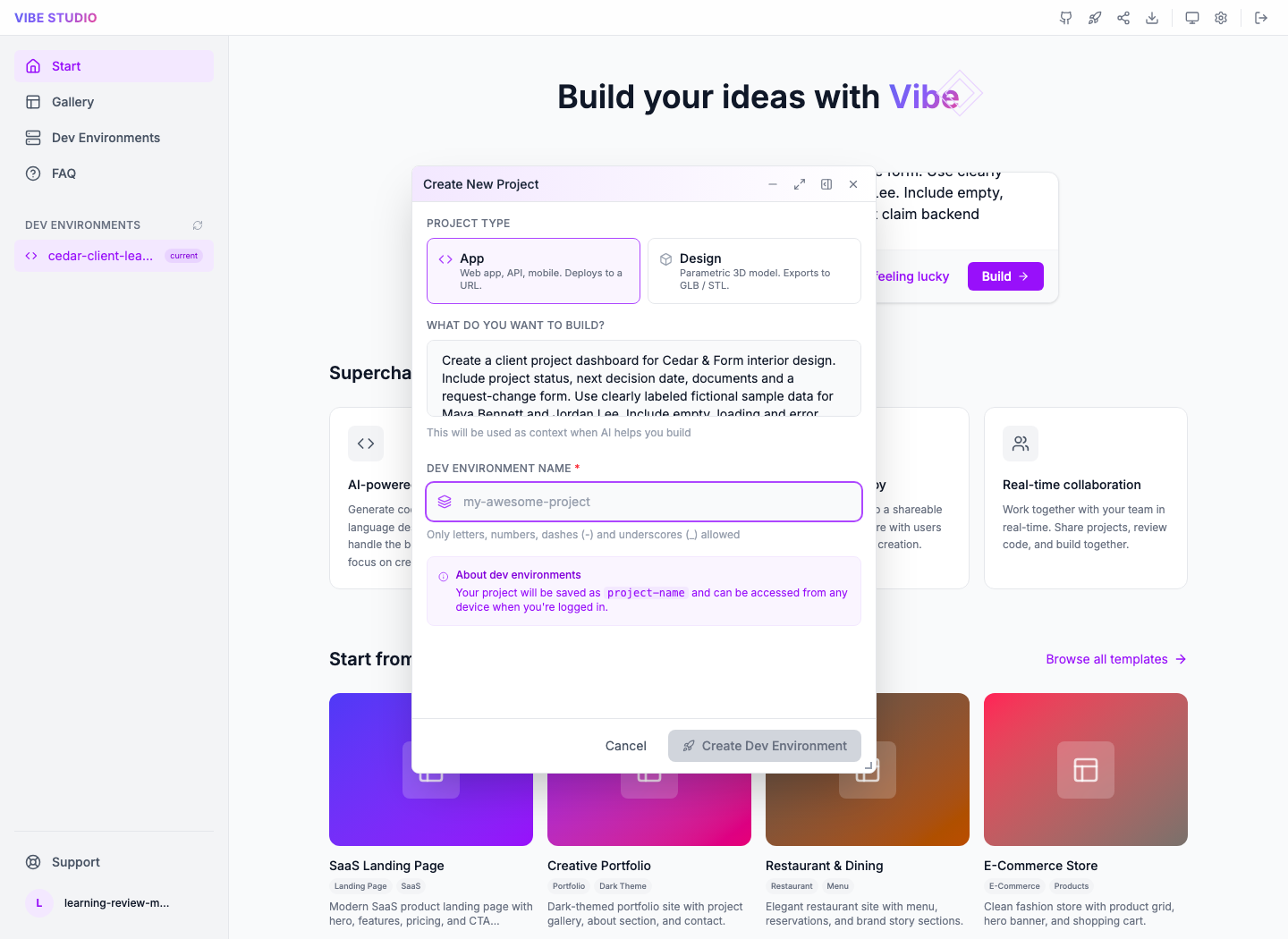
Separate retained production Vibe capture. App is selected, but Dev Environment Name is blank and Create Dev Environment is disabled. This identifies Vibe's project setup; it does not establish project creation or deployment. Your production Appmint credentials work across the production Studio tools; a local-only training account does not become a production account.
Follow these steps
Choose Open Studio Manager. Inspect the first-tour controls: Next, Back, Skip section and End. End the tour when ready to do the setup; reopen it later through Support → Interface tour or Show me around. Inspect the sidebar modules, active site selector and toolbar Phone, Chat, AI Agent, What’s this?, Support and Report a Bug.
Check the result
A tour describes features; it does not configure every service. Replay the welcome is different from the organization-level Reset onboarding operation. Do not reset the organization just to reread guidance.

Retained navigation to the tour. This screenshot shows the menu entry, not a tour stop or proof that every setup task is complete. Setup Wizard's category rows lead to the relevant module; opening one is different from completing its configuration.
04. Save business identity and select the site
Why this matters
The business display name belongs on the company profile. The organization ID remains the identifier used at sign-in.
Follow these steps
In Studio Manager, open Account → Company Profile and enter the intended business name and logo, then the relevant business interests shown by the form. Select Save Changes, wait for No Changes, reload and inspect the saved name/interests. Return to Home after checking the saved company profile. Open the active site selector and select the provisioned site; keep that same site selected for the page-building chapter. Inspect its displayed address, Site Config and Site Features. Enable only the feature needed for the first website task.

Retained Cedar & Form profile: Organization Name is the display name; the ID below remains cedar-form-0927. Verified Email is Not set in this capture, so it is not email-verification proof.

Earlier provisioned site cedsite. Use your actual Active Site card and its View public site link; do not type a training hostname. A site marked Published is not proof that a page you create later has been reviewed or released.
Check the result
Use an available identifier of your choice; no workshop suffix or example company ID is required. A site feature switch does not prove the feature’s providers and content are ready.
05. Create and save a page
Why this matters
A blank page gives you direct control over the structure. A template gives you a starting design that you adapt. Either route needs its own saved page identity. Applying HTML to the canvas and saving the page record are separate actions.
Demonstration — blank route
- Choose New Web Page. Download the Cedar & Form starter HTML, open it as text and copy the complete document. In your new blank page open HTML, replace the initial code with that document and keep all its styles. It contains navigation, a hero, three service cards, an approach section and an email contact action.
- Apply the document to the canvas. Show Page applied to canvas and the visible content.
- Use the top toolbar Save. Enter Site, Name
services, Slugservicesand TitleServices. Use a different available name if that record already exists; keep the chosen identifier consistent. - Complete the form's Save and show the resulting saved page name. Close and reopen the record.
Alternative — template
Open Build Studio → Templates, select Services or All, inspect a preview and use its create-page action. Check the resulting new page's site and identity. Replace inherited names, images, links and form destinations before saving. The categories include Home, Store, Listing, Blog, Form, Landing and About; present them in the library rather than reading them over the blank-page procedure.
Gotcha
A saved draft is not necessarily private: sites may serve drafts. Explain that policy beside the publication section; keep unfinished sensitive content out of the example.

Separate earlier page-building rehearsal on the leasite site. It demonstrates the designed starter on the canvas, not a page created by the signup account pictured above or a public visitor result.
Before sharing the page, replace [email protected] in the contact button's mailto: link with your intended business inbox. Replace the example name, service copy and any contact details throughout. This starter uses an email link, not a database form or an automatic CRM lead submission.
06. Edit content and control the hierarchy
Why this matters
The selected element determines the scope of an edit. A heading sits inside a service card, and the card sits inside the service section. Changing the parent layout can affect all its children; changing the heading's words should affect only that heading.
Visual
Use the real element tree and the matching canvas element. Reveal parent and child together, then return to the canvas. Do not use an arbitrary box around unrelated content.
Follow these steps
Double-click the heading and change its text. Exit text editing. Select the service article in the tree and use Clone element. Change the copy to an additional service and replace any copied unique HTML IDs. The supplied starter already has three service cards, so the clone creates a fourth; remove that extra practice card if you want to keep the original three-card design. In a separate short operation, use Copy element, select a target, and Paste → Paste as last child. Show where the new child appears, then remove that extra example. Explain first child/before/after/Replace while the Paste menu is visible, before performing the selected action.
Select related elements, use Container Tools → Put in Container, inspect the wrapper, and use Remove Container to show the reverse. Demonstrate Text Alignment on selected text separately from rearranging the surrounding layout. Undo an accidental deletion and confirm the restored parent and children.
07. Check responsive layouts
Why this matters
The device controls show the same page at different sizes. They don't create separate phone and desktop pages. We want the layout to adapt while preserving its content and actions.
Follow these steps
Switch desktop → phone → tablet using the toolbar controls. Change orientation. Show card columns changing, the heading wrapping and the contact action remaining accessible. If something overflows, select its container, inspect fixed/minimum widths and padding, correct the constraint and repeat that viewport test. Open external preview and test the actual links and interactive components there as well.
08. Publish and verify the visitor result
Why this matters
Publishing follows your site's review policy. A submitted approval request is not the same as a released page. Staff preview is also different from the public visitor URL.
Follow these steps
Run the visitor route in external preview first. Press Publish on the saved page. If the organization requires review, complete the authorized review and return to the actual published state. Open the public URL in a separate visitor session. Check the page title, your service cards and navigation. Activate the contact link and check that your mail application opens with the intended recipient and subject; this does not send mail automatically or prove delivery. A CRM form submission requires a separately configured and tested form, which is not included in this HTML starter. If content is stale, compare the site/page, saved version, review status and URL before retrying publication.
09. Get help and return to your company
Why this matters
Appmint’s support channel is separate from the customer-facing chat you configure for your own business. The help menu offers short task guidance as well as the full interface tour.
Follow these steps
Open Support → How do I…? and search the task you need. Inspect the guide’s route, then close or complete that guidance. Open Support → Documentation for the documentation destination. Use Support → Live Chat to contact the Appmint team, or Submit Ticket for a detailed request. Include organization ID, feature, expected outcome and relevant screenshots with credentials removed. For a software fault choose Report a Bug in the toolbar, enter Bug Title and Description with actual reproduction steps and the observed error. Submit only an intended real support request, not a scripted fake bug.
If a capability you need is missing, contact the team through Live Chat or Submit Ticket and describe who needs it, the workflow and desired result. The product offer supplied for this course is that the team is ready to build requested capabilities at no extra cost; discuss the requirements and delivery with them.
Finally open the retained Sign in at address in another session and sign in with the exact Organization ID and account credentials. Reopen the saved Company Profile and site. Confirm the page’s actual visitor URL rather than using the local capture host in learner instructions.
Check the result
If support live chat is unavailable, use the shown retry or Submit Ticket route. Do not confuse toolbar Chat, which manages your customer conversations, with Support → Live Chat. Preserve the organization identifier separately from its display name.

Retained Support menu on Company Profile. Support → Live Chat contacts the Appmint team; the separate top-toolbar Chat manages customer conversations. No support message was sent for this reader revision.
Limitations and checks
Next steps
Your next task can now start from your own organization and its saved site. Return to the relevant module course when you are ready to configure customers, sales, AI employees or communication.
Appmint Storefront Dashboard and daily setup — supporting guide
Use the Storefront Dashboard to decide what needs attention, then open the product, order, invoice or setup screen that contains the details. By the end, you should be able to find unfinished shop setup, distinguish a loading failure from an empty shop, inspect a recent order and check the customer-facing store.
This lesson covers the dashboard and its destinations. For the complete product-to-checkout setup, continue with Appmint Storefront: Shop Setup and Order Fulfilment.
About the images: these are actual captures from the existing Storefront walkthrough, visually reviewed for this lesson on 4 October 2026. They illustrate the named destinations and outcomes. The current dashboard controls below were checked against the application source on that date; a new live dashboard walkthrough and capture are still pending. The navigation screenshot shows the organization Home screen with the Storefront menu expanded, not the Storefront Dashboard itself.
1. Open the right dashboard
- Sign in to Studio Manager with an account that can open your organization's Storefront.
- Expand Storefront in the left menu.
- Select Dashboard directly underneath it. The main heading should read Storefront.
- Keep the Storefront menu available: you will return here after checking another screen.

Look at the left menu in this capture. Dashboard under Storefront is the entry for this lesson. Dashboard Builder under App Root creates custom dashboards, while Store Analytics opens the store's analytics view. Those entries have different jobs.
2. Read the dashboard before changing anything
Wait for the figures to finish loading. Use Refresh in the Storefront header if you need another read after making a change elsewhere.
| Dashboard item | What it tells you | What happens when you select it |
|---|---|---|
| Revenue, 30 days | The recent revenue figure, with an all-time summary beneath it where available | Opens Order |
| Orders, 30 days | Recent order count; the hint gives the overall count | Opens Order |
| To fulfil | Count labelled “new, paid or processing” | Opens Order |
| Products | Product count, with an active-discounts hint | Opens Product |
| Unpaid invoices | Outstanding invoice count and overdue hint | Opens Invoice |
| Subscriptions | Active subscriptions compared with all subscriptions | Opens Subscription |
Selecting To fulfil currently opens the Orders screen; the dashboard does not pass a fulfilment filter. Check the statuses there before treating every displayed order as an item to dispatch. Likewise, opening Unpaid invoices does not itself prove that the destination list is filtered to unpaid records.
Below the tiles, Orders per day, last 30 days shows order volume by date. Hover over a bar to read its date and order count. Its Store analytics action opens the more detailed analytics destination. Orders by status groups orders by status and provides All orders to inspect the underlying records.
If a panel says it failed to load, use its retry action. A loading failure does not mean revenue is zero or that no orders exist. If the error returns, keep the screen name and error text when reporting it through Support.
3. Follow unfinished setup to its actual destination
When setup is incomplete, the dashboard can show Finish setting up your store — … done. Each item is a button that opens its setup destination. Completed items have a checkmark; incomplete ones have an empty circle. The checklist comes from your organization's saved configuration, so your items and counts may differ.
Open one incomplete item, make the relevant change, save it in that destination and reopen it to verify the value. Then return to Storefront → Dashboard and select Refresh. A progress count is useful for navigation; it does not replace trying the customer journey.
Check the product customers will buy
- Select Products in the dashboard header or its Products tile.
- In Product Center, open the Products tab.
- Search for your product by name and identify the correct row using its SKU.
- Check the saved price and visibility before opening its edit action if a correction is needed.
- After saving a correction, reload the list and find the same SKU again.

In this recorded example the product is Cedar Botanical Print, SKU CF-PRINT-01. Use your own product; these names are not required setup values. The screenshot shows the product list, not proof that payment or delivery is ready.
Check stock at the location that will fulfil the order
- Open Storefront → Inventory from the left menu.
- Select the Inventory tab.
- Find the product by SKU and choose the relevant location in the location filter.
- Read Quantity, Reserved and Available on that location's row. Do not use a different branch's stock to decide whether this branch can fulfil the order.

The example has 20 available at the named location. This is a saved inventory view from the earlier walkthrough, not an instruction to enter 20 for your own business. Correct stock through the inventory workflow when necessary; creating a product and recording location stock are separate actions.
Check delivery and its provider separately
- Return to Storefront → Dashboard.
- In Manage, select Shipping.
- In Shipping Center, select Settings, then Shipping Methods.
- Open Edit on the method customers should receive. Check its rate and coverage, save any intended changes, and reopen it to confirm them.
- Select Providers when you need to inspect the carrier connection. A flat delivery rate and a connected shipping provider are different settings.

The capture shows a saved $5 flat rate, not a live carrier quote. A shipping provider such as EasyPost supplies carrier services when correctly connected; its credentials and applicable shipping configuration must also be ready if your method depends on those services. Follow the shipping section of the complete Storefront course for provider configuration and its verification limits.
Open payment setup, then check the customer result
- Return to the Storefront Dashboard.
- Under Manage, select Payment gateways.
- The current shortcut opens Setup Wizard at Stripe. Choose the payment setup appropriate to your organization there; the shortcut itself is not proof that a gateway is connected.
- Complete payment configuration using the payment instructions in the full Storefront course, then inspect the payment options in your customer checkout.
Older recordings navigate through Configuration → Integration Config. That historical route must not be confused with what the current dashboard shortcut opens.

This earlier capture demonstrates an unfinished payment setup. The visible product, cart and shipping address form do not mean the customer can pay. If your checkout reports that online payment is unavailable, return to payment configuration and check the intended provider before inviting customers to purchase. This image is not a successful payment demonstration.
4. Inspect an order rather than relying on a total
- Return to Storefront → Dashboard.
- Find Latest orders and select the specific order you want to inspect.
- The dashboard loads the full record and opens an Order drawer; when a number is available, it appears in the drawer title.
- Match that order number with the customer and items you intended to inspect. Check the record's payment and fulfilment state before taking action.
- Close the drawer to return to the dashboard. The dashboard refreshes when the drawer closes.
- Use All orders when the order you need is not among the latest entries.
An empty Latest orders section offers Add a product. It is a setup entry, not a missing-order recovery tool. If you expected an existing order, open All orders and confirm the organization and record before creating anything new.
Verification limit: this sequence is supported by the current dashboard implementation. A new screenshot sequence of opening, reading and closing a recent order has not yet been captured for this lesson.
5. Check what customers actually see
A dashboard counts saved records. The customer-facing shop shows whether those records produce the buying experience you intended.
- Open your site's customer-facing Storefront using the site's own View link.
- Search for the product you checked in Product Center.
- Open its product page and compare the name, image, price and available options with your saved settings.
- Add the intended option to the cart and inspect the quantity and totals.
- Continue to checkout far enough to check delivery and the available payment choices. Complete a payment only as part of your planned, authorized test; opening checkout alone is not proof of a paid order.
- When a test order is completed, return to Storefront Dashboard, refresh and open that exact order to compare its saved result.

This is the customer's product listing. Its purpose is to check the result of configuration, not to substitute for the administrative dashboard. If the expected item is missing, compare the selected site, product visibility and saved product details before changing unrelated settings.
6. Know the remaining Manage shortcuts
The dashboard also links directly to Discounts, Gift cards, Returns, Carts and Sales channels. Use the shortcut for the record you need, then return to the dashboard for the overall store view. Counts beside shortcuts describe records; they are not evidence that a coupon applies, a gift card has a balance, or a third-party channel has synchronized successfully.
Sales-channel setup is a separate course because each external service has its own connection and publishing requirements. It is not a prerequisite for operating your own Appmint shop.
Finish with a concrete readiness check
You are ready to move on from this dashboard lesson when you can identify the correct product and location stock, open shipping and payment setup, explain any remaining incomplete items, inspect the customer-facing product and distinguish a paid order from a checkout that has only been opened.
If you are setting up the shop for the first time, continue with Shop Setup and Order Fulfilment. If the shop is already operating, start each review with To fulfil, Unpaid invoices and Latest orders, then open the relevant record instead of making decisions from the headline figure alone.
Appmint CRM Dashboard — supporting guide
Evidence: dashboard source checked on 4 October 2026. The illustration below is an actual 2 October local dashboard capture, not a new live count or navigation test.
What you will learn
This course introduces the Appmint CRM and Communications dashboard. We will use its summaries and shortcuts to reach leads, tickets, reservations, contacts, messages and calls. You will see which actions open another module, and how to check the underlying records before interpreting a dashboard count.
01. Understand the CRM entry
The CRM & Communications dashboard is a set of entrances to customer work. Its figures come from saved records; selecting a shortcut opens the owning feature.
Steps
- In Studio Manager, expand CRM and select Dashboard.
- Confirm the CRM & Communications heading and the organization you intend to use.
- Find the shortcuts directly below the heading. Choose the operation you need from the table below.
- To check a customer, select Contacts, search their email and open the matching person. Return through CRM → Dashboard when you need another work area.

Historical local counts: four customers and sixty messages are training-organization values, not setup requirements. The visible empty lists are not a fresh claim about your organization.
| Shortcut | Destination | Next check |
|---|---|---|
| Leads | Lead management | Match the person and pipeline before changing a stage |
| New ticket | Tickets | Select New Ticket there to create an issue |
| Reservations | Reservation list | Open the intended booking or start its booking flow |
| Compose message | Communications Center composer | Check channel, sender and recipient before sending |
| Start a call | CRM dialer | Check the connected phone and intended number |
| Contacts | Customer directory | Search the existing email before adding a person |
Check the result
Selecting New ticket opens Tickets; it does not save a ticket. Likewise, Compose message opens a composer and Start a call opens the dialer—neither establishes a sent message or connected call.
02. Open the right operation
A customer, lead, reservation and ticket record serve different purposes. Choose the shortcut for the operation you need rather than creating a new person for every interaction.
Steps
Use Leads to open the lead module, Reservations to open the booking module and New ticket to reach Support Tickets. Close an exploratory creation form without saving when you only intend to inspect its fields. Use Compose message and Start a call to inspect the corresponding channel entry.
Check the result
Opening a destination is not a completed record or communication. Check readiness in the destination before starting a call or sending a message.
03. Read figures against records
Dashboard counts summarize a scope. An open-ticket count and a last-30-days submission count describe different populations.
Steps
- Read the tile label and its smaller scope hint before interpreting the value.
- Select Open tickets, then check the status filters in Tickets. The dashboard link does not automatically prove that every destination row is open.
- Select Form submissions and compare forms/submissions from the same last-30-day window.
- Return to the dashboard and select Refresh after a saved change. If a panel failed, use its retry control rather than treating a missing value as zero.
| Figure | Scope to preserve when checking records |
|---|---|
| Open leads | Open count, with new-in-30-days and total hints |
| Customers | All saved customers, with added-in-30-days hint |
| Open tickets | Open count, with total-ticket hint |
| Upcoming bookings | Upcoming total, with a separate next-seven-days hint |
| Form submissions | Last 30 days |
| Messages sent | Last 30 days, with calls shown in the hint |
Below the tiles, Latest leads, Open tickets and Upcoming bookings provide record context. Engage links to Comm Center, Broadcast, Message templates, Social media and Chat. Grow and book links to Forms, Calendar, Events, Affiliates and Merchant accounts. Use these destinations to inspect or act; a summary count is not a substitute for the underlying record.
Check the result
A failed request must not be presented as zero activity. Totals from different modules or periods should not be summed into an invented CRM performance figure.
04. Continue with customer context
The dashboard helps you reach the operation; the detailed module retains the customer and result. Finish navigation by opening the actual record you intend to work on.
Steps
From the relevant tile or list open the customer, lead or ticket. Confirm identity and existing history before acting. Return to the dashboard after the saved operation and compare its refreshed list or count.
Check the result
New setup and no activity are different from missing permissions or failed data. The deep demonstrations belong to the owning module scripts, not a prolonged dashboard tour.
Your next check
Return to the chapter for the action you need. When you change the configuration, check the matching record, customer view or destination again. A saved setting and a successful external outcome are different observations.
Verification notes
Appmint Organization Setup Wizard — supporting guide
Overview
Appmint Organization Setup organizes the next actions for your business. It brings together website creation, business basics and connected services, but each card has its own completion condition. We will use the relevant setup path and verify its real result rather than marking every card complete.
1. Start with the intended outcome

Retained Appmint capture: each row has its own Open action. The website and business-basics groups show0/1 required; these are setup indicators, not a complete audit of a working business.
Choose the next missing business capability
- Open App Root → Setup Wizard. Expand Business basics and choose Open beside Business profile to review the organization details.
- Save missing details in that destination, then return to Setup Wizard. Open Locations to maintain where the business operates; use Team & roles for people and access. These are separate records, not fields on this overview.
- Expand Your website. Build your website starts the page-building route, Add more pages continues page creation, and Put it on your domain leads to domain setup. Do not repeat organization creation to add a second page.
- Use the current Still to do area to find unfinished setup relevant to your business. A completed-looking card is a prompt to inspect its destination, not proof that a customer checkout, mail delivery or custom domain works.
The current source also provides Build my website and Show me around in the new-organization starting panel. The tour introduces controls; it does not save your profile or complete provider configuration. You can return to the relevant card after the tour.
Why this matters
Setup is a catalogue of business capabilities, not a demand to configure every service on the first visit. The current page includes a website starting point and Still to do.
Follow these steps
Open Setup. Read the website entry and the categories relevant to the organization. Open Business profile, Locations and Team & roles from Business basics to inspect existing information. Complete only the missing controlled values in those actual forms and return to Setup. Compare the card’s readiness against the saved record.
Check the result: The setup state corresponds to real saved business records.
2. Website and custom-domain path
Why this matters
Build your website, Add more pages and Put it on your domain lead to different parts of website setup. Creating a site does not finish its pages or DNS.
Follow these steps
Open Build your website and follow the displayed website-creation control. Inspect the created site and its link. Use Add more pages to reach the Build Studio path; verify an actual saved page before returning. Open Put it on your domain to reach Domains and inspect the intended domain association. Recheck Still to do rather than assuming the first created site completed all website steps.
Check the result: Each completed website step has its own observable output.
3. Platform-provided and own-provider service paths
Why this matters
Some services have an agreement and an enable action; others connect an account you already use. The terms shown in the product are the source for that service’s conditions.
Follow these steps
Choose the relevant phone/email service card and read its agreement drawer. For an authorized setup use Agree & turn on once and wait for the service result. Cancel if only reviewing. For an own-provider path choose Use your own provider and the intended provider, then complete the Connect drawer’s actual OAuth or configuration form. Return and inspect the connected provider identity. Keep phone-number assignment, sender-address readiness and message templates as their own setup items.
Check the result: A service enable/connection result is verified; a card click alone is not readiness.
4. Payments, approvals and unfinished items
Why this matters
Stripe, PayPal, Helcim and Offline/manual payments are alternative capability paths, not interchangeable proofs. Approval cards control workflow behavior.
Follow these steps
Open Get paid and choose the intended gateway. Complete its configured test connection, then verify the exact consumer you intend to use rather than declaring readiness from the provider logo. The Get paid catalogue includes Stripe, PayPal, Helcim and Offline/manual entries, but that list does not mean each is implemented in every storefront and native/browser POS checkout. Follow the Payment Gateways course for the inspected Stripe/PayPal storefront branches; use the relevant POS course for its tender controls. For approval setup inspect Access request approval and Publishing approval and their actual enabled state. Turning a workflow off stops new starts according to the current control; it does not imply cancellation of every existing task. Review Still to do, reopen incomplete cards and capture the specific missing dependency.
Check the result: Incomplete dependencies remain visible and the learner knows which real module owns them.
Troubleshooting and recovery
Read the actual error and inspect persisted state before retrying a create or other write. Keep the selected organization, record and operation visible. A saved configuration, permission, provider connection and working consumer are separate checks; verify the one the lesson claims. Reopen after saving and compare a controlled alternate/failure path where the chapter calls for it.
Next steps
You can now follow the module’s setup and check its result. Use the relevant chapter for an alternative, and verify the actual consumer before treating configuration as complete.
Limitations and checks
setup-catalog.ts and getting-started.tsx inspected. Provider-specific forms and actual agreements vary with configured services. No agreements, integrations or payments were submitted. Catalogue includes billing/service text: do not claim all third-party usage has no cost or invent plan terms.
Appmint Company Profile — supporting guide
Overview
Appmint Company Profile shows the organization account you are managing. We will change the fields this screen actually supports and distinguish them from read-only account information and from an employee’s personal profile.
1. Identify the organization
Why this matters
The organization ID identifies the account. Changing the display name is different from changing that ID, the database or account limits.
Follow these steps
Open Account → Company Profile, which loads Account Profile → Profile. Older captures label the sidebar item Profile. Read Organization ID, Database, Account Status, Active, Email and Verified Email. Confirm this is the intended organization before editing. Compare it with the personal account/profile entry without changing either.
Check the result: The learner identifies the company account rather than a personal user record.
2. Edit the available organization details
Why this matters
In the current OrgProfileForm, the editable fields include Organization Name, the organization logo and Interests. Branch addresses and legal/platform administration fields belong to their owning screens; this form does not expose every business field.
Follow these steps
- Confirm Organization ID in Organization Identity before making changes. The organization is your business account; this is not the employee's personal profile.
- Enter the desired Organization Name. This changes the display name, not the Organization ID or database identifier.
- To add the organization logo, use Select to pick an existing file or Upload for your image. The current picker accepts images and shows Change when a logo is present. Wait for its preview before saving.
- In Organization Details, select the intended Interests. These are organization selections, not permissions granted to employees.
- Choose Save Changes and wait for saving to finish. Reopen Profile and check the name, logo and interests. No Changes means the form has no unsaved edits; it is not a substitute for reopened-state verification.

Historical Appmint profile before editing: the organization image is empty, Select/Upload are visible, and Organization ID/Database are read-only. No logo upload is proved by this frame.
Check the result: The edited values persist; read-only identity fields remain observations.
3. Read account information and related sections
Why this matters
The profile includes plan/usage context and connected services. Those values are not editable profile fields.
Follow these steps
Read Current Plan, Next Renewal, Account Balance, Spend Limit, Spend Rate and Max Users. Inspect Connected Sites and Service Agreements where present, including agreement status and acceptance date. Open the Billing, Subscription and History tabs to review their data, returning to Profile afterward. Treat a failed load as unavailable information instead of interpreting a missing balance as zero.
Check the result: The intended tab and organization remain clear, and missing data is not presented as a financial value.
4. Use the right screen for other business settings
Why this matters
A branch address belongs to Business Locations; website branding belongs to Site Settings. Platform-admin company fields are another screen with different scope.
Follow these steps
When setting up a branch, open Business Locations and verify its address there. For website logo or customer-facing site identity open the intended Site Settings. Use the organization logo picker here for the organization image; do not assume that it automatically replaces every site logo. No branch-address editor is exposed in this form. Return to Profile to confirm the organization display name remains correct.
Check the result: Each change is made and verified in its actual owning module.
Reading a historical error honestly

Historical frame: Cedar & Form is visible under Organization Name, while a toast says Could not update status. This is not evidence that every profile/status operation succeeded. It is included to distinguish reading the saved fields from dismissing an error.
If an error appears, identify which operation failed and reload the profile before retrying. Do not change the organization ID or create another company to repair an unrelated status error. The current cause of that historical toast was not reproduced in this pass.
Troubleshooting and recovery
Read the actual error and inspect persisted state before retrying a create or other write. Keep the selected organization, record and operation visible. A saved configuration, permission, provider connection and working consumer are separate checks; verify the one the lesson claims. Reopen after saving and compare a controlled alternate/failure path where the chapter calls for it.
Next steps
You can now follow the module’s setup and check its result. Use the relevant chapter for an alternative, and verify the actual consumer before treating configuration as complete.
Limitations and checks
account/profile.tsx and account/org-profile-form.tsx inspected. Source correction: the current profile form is narrower than the original catalogue outline; the current form includes a logo picker but is not a full legal/contact/address editor. No billing, subscription or profile mutation performed.
Appmint DAM Dashboard: Content and Digital Asset Management — supporting guide
Written course script · documented draft · Live dashboard verification pending
Overview
Why this matters
Appmint's Digital Asset Management dashboard brings posts, files and publishing resources together. We'll use it to find recent content, open the right editor and move between organizing assets and using them on a site.
Use an organization with at least one recognizable draft post and a non-sensitive media file. An empty organization is also supported; its New post entry becomes the starting point.
1. Read the dashboard without confusing counts and destinations
Choose a tool by the task
flowchart TD
 D["DAM Dashboard"] --> P["Posts → Content Studio: edit the content"]
 D --> F["Media files → File Manager: manage files"]
 D --> O["Organize → Categories / Tags: classify records"]
 D --> N["Menus → Navigation: arrange links"]
 P --> V["Save, then verify the intended public or private reader"]
 F --> V
Navigation map based on the current dashboard handlers; not a screenshot or a publication-success claim.
Start with one concrete task: change a draft's wording. Open DAM Dashboard, find the exact title under Latest posts and open it. Confirm the title in Content Studio before typing. Save the draft there and return to the dashboard. For a different task, such as replacing an image file, use Media files instead; that opens File Manager and does not edit the post automatically. Return to the post and choose the intended image when its reference must change.
Use Organize → Tags for the shared Tag table; the Categories tile opens the hierarchy editor even though its supporting number mentions tags. Similarly, use Message templates for reusable message bodies, not the Forms tile. This avoids following a nearby count into the wrong module.
Open DAM → Dashboard. Wait for the figures and Latest posts to load. If an error appears, use its retry action. Missing values or failed requests must not be narrated as zero assets.
The six tiles lead to the corresponding tools:
| Tile | What it summarizes | Where a click takes you |
|---|---|---|
| Posts | Post count, with published and draft counts. | Content Studio. |
| Media files | File count and additions within 30 days. | File Manager. |
| Categories | Category count, with tag count as supporting information. | Categories. |
| Comments | Comments, recent comments and reported comments. | Comments. |
| Menus | Navigation records. | Navigation. |
| Forms | Forms, with message-template count as supporting information. | CRM Forms. |
Why this matters
These tiles help us choose where to work. The tag figure sits under Categories, but Tags has its own link below. Similarly, Forms opens the form manager; it doesn't open message templates.
Do not describe the count as a button that applies a matching filter unless the destination actually receives that filter. These tile handlers generally open their module, not a prefiltered list of the displayed subset.
2. Open and edit a recent post
Find the intended title in Latest posts and select that row. The dashboard passes the record's ID to Content Studio. Verify the opened title before editing.
Make a small draft change, save through the editor and reopen the post to check persistence. Keep publication separate: saving a draft is not the same as making it public.
Return to DAM Dashboard. Recent-post data may need a reload/revisit before reflecting the change. The content-type chips summarize available types; they are displayed labels rather than implemented filter buttons in this dashboard.
For a new item, choose New post in the header or empty-state action. The editor opens with a new record. Choose the intended content type and complete the actual editor fields using the Content Studio course. The dashboard does not itself author or publish the post.
Demonstration requirement
Record the row click and the correct opened document continuously. Do not replace that transition with an unrelated editor screenshot. If no recent posts exist, film the genuine empty state and creation path.
3. Organize assets from the dashboard

Concept illustration: The DAM dashboard connects tools; it does not publish every asset automatically. A library count is not proof of publication, visibility or successful visitor playback. This is not an application screenshot or evidence that the action has run.
In Organize, choose the relevant destination:
- Categories opens category organization. Create or inspect the appropriate category there and save before returning.
- Tags opens the Tag collection table. Create a shared label and apply it through a post's metadata; creating the definition alone does not tag the post.
- Navigation opens menu configuration. Save a navigation record and select it in its website consumer; creating a menu alone does not insert it into every page.
- Documents & media opens the document route.
- Upload files opens File Manager, as does the Media files tile.
For the upload demonstration, choose Upload files, select a non-sensitive local image, wait for its upload result and reopen its preview. Then use that actual stored file in the Content Studio image picker. Check the file and post separately.
The detailed File Manager, Categories, Tags and Navigation scripts cover their complete controls. These are destinations, not substitutes for configuring their consumers.
4. Open publishing and engagement resources
The Publish & engage panel provides five distinct routes:
- Comments opens recorded comments for inspection and the actions supported by that screen.
- Site notices opens notice configuration. A notice also needs the correct targeting and site behavior; its existence alone does not prove a visitor sees it.
- Message templates opens reusable message content. Saving a template does not send a broadcast.
- Scripts opens the client-apps route for custom client code. Saving code does not prove it is attached to or executed by a page.
- Translation opens translation management. Stored translations need a consumer and the correct language context.
Why this matters
The dashboard puts the resources within reach. Each tool still has its own save and use step—for example, a message template becomes useful when a message or broadcast actually selects it.
Demonstrate one meaningful handoff in full: open Message templates, inspect a named saved template, then open the relevant composition workflow and select that template. Use a draft message and inspect its resolved content without sending to real recipients. The Message Templates course supplies the detailed fields and supported channel behavior.
5. Resolve missing content and access problems
If a tile count and destination list seem different, compare their scopes first: all posts versus a saved list filter, all files versus an open folder, or recent additions versus lifetime count. Clear unintended destination filters before reporting a mismatch.
If a link opens an access refusal, keep the exact route and module name when requesting the appropriate role access. Do not advise assigning Owner merely to browse assets. Module access and record permissions are separate checks.
If a recent row opens the wrong or missing record, retain the row's title and ID and report the mismatch. Avoid recreating the asset before checking whether it already exists in Content Studio.
The dashboard has no independent bulk asset editor, publication scheduler or refresh-all-external-services action. Use the destination tool and verify its result rather than attributing those actions to the dashboard.
Closing and source status
Why this matters
Start with the asset you need, open its tool, save the change and check where it is used. DAM Dashboard shortens that navigation while keeping posts, media and publishing resources connected.
Source reviewed: components/welcome-screens/welcome-dam.tsx, use-studio-overview, shared overview components and the sidebar. The dashboard requests studio-overview/dam. Pending live proof: returned counts, recent-post identity, file upload and reuse, every destination, permissions and failed-load recovery. Required production assets are actual dashboard-to-tool captures; no generic text slides are a replacement.