
Video chapters
- 0:00 Welcome and overview: how a workflow runs
- 0:38 Part 1 · Build the definition — The definition, explained
- 0:59 Workflow Center, filters and presets
- 1:47 Name, collection and switches
- 2:37 Part 2 · Design the stages — Stages, explained
- 3:00 Add and order stages
- 3:37 Received: notice, owner and time limit
- 4:20 Inputs, the decision, and Save
- 5:52 Part 3 · Run requests on the board — A request's journey, explained
- 6:09 Sam logs three requests
- 6:48 The board and task detail
- 7:24 Overdue and escalation
- 7:46 Advance and the proof link
- 8:18 Part 4 · Decide and finish — Deciding and finishing, explained
- 8:36 Priya approves
- 9:05 Everyone must approve
- 9:32 Outcomes, history and records
- 10:02 Switch off and clone
Written guide
Workflow Concepts, Access and Test Records
Cedar & Form needs to know whether a customer proof is waiting, being checked or finished. Workflow makes those stages visible and can assign work, notify people and mirror a stage onto the originating record. The definition is the reusable process; a task is one run of that process for a particular record. A Workspace task and an Automation workflow are separate concepts, even though each helps people get work done.
Use a training organization and an account allowed to manage Workflow definitions and a custom Database collection. Prepare Maya and Alex as real active colleagues using User Management; use their actual email addresses in the assignment picker, not these example names alone.
Use a dedicated custom Design Requests collection, not a live order or support ticket. If it does not exist, follow Create the Design Requests collection, Define its fields, and Save a real request. Stop before that Database course’s Workflow chapter: this course creates the definition, so no existing workflow is required. The saved technical name is design_requests; if you choose a different unused name, use it consistently. Its status choices are new, reviewing and closed. The initial sample record is a schema/readback check, not the workflow run.
For the main run we will create CF-WORKFLOW-1001 only after the workflow is enabled. Prepare the actual controlled email you used in the Database exercise, and leave provider notifications empty for the first board test. Stage assignment and board progression can then be tested without an email provider. Notification delivery and approval decisions have separate prerequisites and remain unverified extensions.
Open AI, IVR, Automation → Workflow. The page title is Workflow Center. Use Dashboard for the board and Definitions for reusable processes. Analytics and Templates currently display coming-soon content; the form's built-in presets are a separate working configuration route. Do not expect the Templates tab to open those presets.
The first end-to-end example uses Start on create and a new Design Request. The intended UI route is: save the definition, attach it to the collection, create a request, and follow its generated task through the board. The later explicit API start is an alternative for integrations, with its own authentication setup. This Design Requests example still needs its own live walkthrough. A fresh local Lead rehearsal verified empty-mapping task completion after an application repair; that is separate evidence from this custom collection and these colleague assignments. A separately recorded Cedar enquiry example completed stage transitions and archival; it does not verify this custom collection or these colleague assignments.
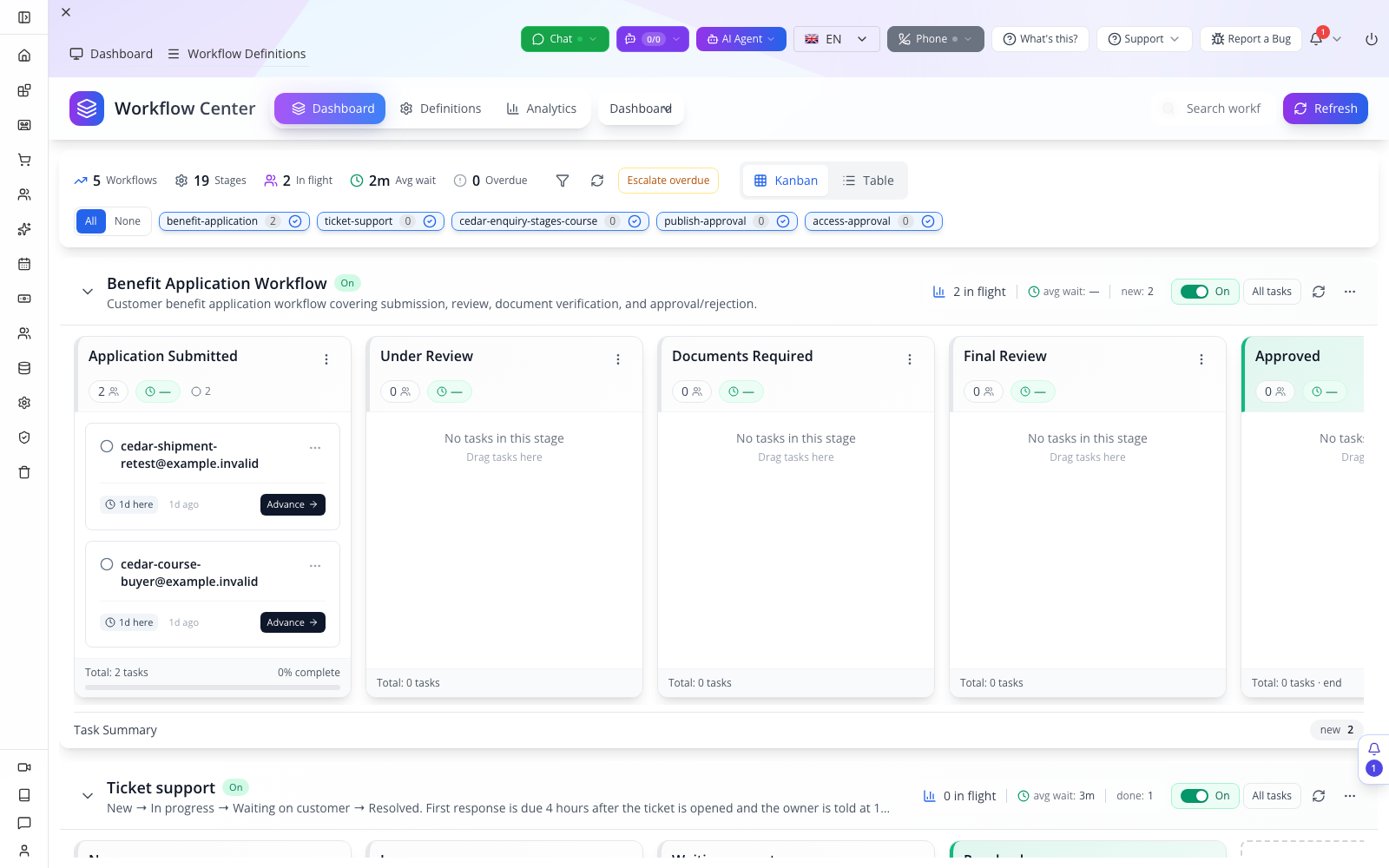
Observed locally on 1 October 2026: Workflow Center opens an existing Benefit Application board with stage columns and cards. This illustrates the board layout; it does not show the Cedar proof-review exercise or prove any new task transition.
Understand the three pieces before configuring them

Concept illustration, not an application screenshot. Received → Proof check → Finished is the reusable definition. Each saved request gets its own task; History explains what happened to that task. A source record's status changes only when the stage mappings configure it.
You can finish the definition editor practice before inviting colleagues or creating a collection. For that shorter setup checkpoint, leave Collections and notifications empty, use an existing verified role for the review stage, save the three stages and explicitly switch the definition Off on Dashboard. The end-to-end record exercise below adds the collection and colleagues; a saved definition alone does not complete that exercise.
Workflow Definitions, Presets and Cloning
In Definitions choose New Workflow, then Skip — start blank under Seed from a template. Set Name (slug) to cedar-proof-review, Title to Cedar & Form proof review, and Description to Receive, check and finish one customer proof. The slug is the stable process name used by deliberate starts; the title is what people read. Spaces in Name are normalized to dashes and lowercase. Use the slug deliberately and keep it stable after integrations reference it.
Keep this new form open and the definition disabled while configuring the stages and assignments in the next sections. Do not save yet: Save requires a name and at least two stages. If Name can only contain letters, numbers, dash, underscore appears, remove punctuation from the slug; the human-friendly Title can retain the business name.
The following are later alternatives and maintenance controls for an already saved definition. Continue to Stages now if you are following the blank first exercise; do not switch templates, leave the form or try to save the incomplete definition.
For a familiar operational shape, the form offers Reservation Check-in Pipeline, Prep Pipeline, Pickup Pipeline, Application Processing, Service Appointment and Renewal Pipeline. Choose one only when its lifecycle matches your source record. Seeding is idempotent: if that named definition already exists in the organization, the form opens it rather than producing a fresh copy. Inspect its name, collections and stages before modifying it. For independent practice, use Definitions' Clone, then change the name/title and inspect every inherited assignment and notification before enabling the copy.
Definitions supports grid and table views. Use Filters to choose All Statuses, Active, Paused, Completed or Archived, and sort by Name, Created Date, Updated Date or Status, ascending or descending. These list-status filters are not the same as the Enabled switch. Search matches definition name/description, so search cedar-proof-review if a friendly title does not find it. Edit opens the definition; View JSON inspects the record. The editor's Modern / JSON choice is a schema-driven editing alternative, while View JSON is inspection. Save and reopen the definition after edits. Do not assume switching form modes carries every unsaved local edit; save first.
Confirm that Save actually created your definition
After configuring the three stages below, choose Save, return to Definitions, and search the exact Name slug. Open Edit on the matching card and read back the title and stage names. If the drawer closes but the list still shows the previous count, reload the browser and repeat the search before clicking New Workflow again. In the current local replay, both the initial list and Refresh remained stale; a full reload displayed the saved definition. Creating it again would risk duplicates.

Actual saved local draft, 2 October: the card has three stages and zero tasks. Your name can differ. A Draft badge is the definition record's status; check the separate On/Off control on Dashboard before assuming that starts are disabled.
Workflow Stages, Transitions and Source Status
In Stages, choose Add first stage. Name it Received and set type Start. Use Add stage twice more for Proof check with Intermediate, and Finished with End. Expand each stage with its chevron to see its detailed settings. The main route is Received → Proof check → Finished; Advance moves to the next stage. Use Move up and Move down to correct the order before starting tasks. The form renumbers stages when reordering, so avoid casually reordering a definition that already has live tasks.
The stage types offered are Start, Intermediate, Wait, Error and End. Start is the initial landing point; Intermediate is normal work; Wait can represent awaiting material; Error gives an off-happy-path stage a recognizable purpose; End closes the task; an empty source mapping leaves the source record’s lifecycle unchanged. Type selection alone is not an authored conditional branch. This modern form does not expose a general transition-condition editor. If adding Wait or Error, decide how the operator will move into and out of it and demonstrate that route on the board; do not claim it automatically detects missing artwork or rejected work.
Each stage can set Model state and Model status. State writes the source record's top-level state; status writes data.status. The current Model status picker offers new, pending, inprogress, blocked, done, rejected, approved, canceled and archived. It does not offer Design Requests' reviewing or closed values. Explicitly select — none — in both mappings for every stage in this Design Requests exercise. Newly added stages default to inprogress / new; leaving them untouched does not leave them empty. The workflow can track Received → Proof check → Finished without overwriting the request with a value outside its schema.
To add source-status mirroring later, use a separate collection whose allowed status values match the current picker, then verify that record after each transition. Do not select done as a substitute for a collection's closed value or assume an unsupported value can be typed into this dropdown. Custom collection-aware status selection is a product gap in this editor. A workflow task finishing does not by itself prove that an order was delivered or a proof approved.
In Notification templates, select a stage-specific template only when its message is appropriate for that entry. Otherwise the workflow fallback can apply. Keep the form open through assignments and escalation configuration. At the final save, inspect all three names, types, positions and mappings before enabling. The observable test later is not merely the card moving: the task history must show the transitions, and the originating record must remain unchanged when both mappings are empty. A separate mapped-status test must check its source changes explicitly.
With both mappings empty, the repaired local engine was retested on 1 October: Finished produced task status done, 0 in flight and 100% complete, while the linked Lead retained its original state and status. This confirms task completion independently of source mirroring.
Read back the stage order before starting any records
Each stage starts collapsed. Select its right-facing chevron (Expand stage) to reach mappings, assignment, inputs and SLA controls. Use the stage type dropdown beside its name: Received Start, Proof check Intermediate, Finished End. The up/down arrows change order; the trash icon removes a stage. Keep the one Start first and the End last for this simple sequential exercise.

Actual readback: Received, Proof check and Finished were saved and reopened. This confirms the definition structure, not a task completing the process.
Before saving, expand every stage and set both Model state and Model status to — none — for this exercise. Reopen each after saving. Setting only the Finished mappings to none is insufficient: an earlier stage can already have changed the source record.
Stage Assignments, Decision Rules and Fallbacks
Expand Received and choose Maya in Assign to. Expand Proof check and select Alex. The picker supports users, groups, customers and customer groups; inspect the selected identity/type rather than choosing a similar display name. For a customer-facing assignment, first confirm that customer can access the task's supported surface. Selecting a customer in a configuration field does not establish that a customer portal task screen exists.
Who decides offers dynamic assignment evaluated when the stage is entered. A configured rule wins over the fixed Assign to list. For a simple role-based review, choose By → People holding a role, enter an existing role in Roles (comma separated), select Decision → First to decide decides, and choose a real fallback role under If nobody is found, fall back to roles. Use an actual role with a known active person; Owner in a placeholder is not a substitute for verifying membership. To return to fixed people, choose Use fixed list instead.
Other dynamic choices solve different routing needs. Members of a group takes the actual group name. Named people accepts comma-separated emails. Relative to the requester can use Their supervisor, Their location's manager, Their department head or Location manager; these require correctly linked requester/workforce records. An email on the record takes a real field path, for example data.owner.email only if your source actually contains that address. Open the source first and confirm the value rather than typing a plausible field name.
Everyone must approve is appropriate when the supported approval workflow requires all resolved reviewers; First to decide decides lets the first eligible decision settle it. Test both with two separate accounts on actual approval tasks. A generic proof-check task without approval semantics does not grow Approve/Decline controls merely because you changed the assignment rule. The board's detail renders its Decide panel only for supported approval-related tasks. Confirm the resolved Waiting on list after the task enters the stage; missing people point first to the rule, source data or role/group membership, not a need to create another task.
A role-based alternative when you are practising alone
If you do not have the two colleagues used in the main example, keep the fixed Assign to list empty and configure Proof check with By → People holding a role, Roles → Owner, Decision → First to decide decides, and fallback roles → Owner, but only after confirming your test account actually holds that role. The main Maya/Alex exercise and this single-reviewer alternative are different assignments; use the corresponding expectation when checking Waiting on. Merely entering the text Owner does not verify who the task resolves to.

Actual local readback: the role rule and fallback were saved; both source mappings and notification templates are empty. The optional review_note field below demonstrates saved input configuration. This draft has not run a task, so the image does not prove role resolution or approval decisions.
Stage Inputs and SLA Escalation Tiers
In Proof check, use Stage inputs → Add input. Enter proof_version, choose string and check Required. Add reviewed_at as date-time and leave it optional for this configuration exercise. The offered types are string, number, boolean, date, date-time and time. Names should be stable field names such as snake_case; a number type is suitable for a count, while a proof URL is a string. Remove a mistaken field with Remove input, Save and reopen to confirm the definition.
There is a material current limitation: the inspected generic board Advance path sends a stage change without an input payload, and the detail drawer has no general stage-input form. Source inspection did not establish required-input enforcement. Therefore this course cannot tell you to fill a nonexistent dialog or promise that Required blocks an incomplete review. Keep the missing-input test in the live checklist. If the task advances without proof_version, record a product gap and use a supported source record field/checking procedure for the real process; do not present the definition checkbox as an enforced business control.
Under SLA Escalation Tiers, choose Add tier. The UI labels the first tier Tier 0. Set After to 1 and minutes in a disposable training definition; leave Templates empty for the first board-only test and choose Maya under Escalate to. A later mail-delivery test requires a real configured MessageTemplate and provider; do not invent a template name. Add a second tier of 2 minutes and either a different fixed recipient or an existing role under …or anyone holding a role. Use realistic hours/days in the final business definition after testing. Remove a tier with Remove tier.
The engine computes due dates for escalation, adds resolved escalation recipients to task assignees, and moves through escalation tiers. At the last tier it can clear the next due date while leaving the task open; escalation does not automatically finish the work. Each next due time is recomputed as the tier proceeds, so inspect the actual Timing values rather than assuming all entered delays are measured from the original creation time. Save and reopen the tier configuration, then prove the scanner and delivery paths in the dedicated overdue exercise.
Find the delay, recipient and notification independently

Actual editor, opened without saving: Add tier initially displayed 4 hours. Change both the value and unit for your test. The Templates picker controls the message; Escalate to or the role field controls who becomes responsible. This image does not show a delivered notification.
For a first configuration-only rehearsal, save an optional string input such as review_note without adding an SLA. This lets you check that the definition retains your field while avoiding an assumption that the task drawer can collect it. Required input enforcement and delivered SLA notifications need their own operational checks described above; neither is proven by a saved field or tier.
Collection Attachment, Activation and Auto-Archive
Expand Auto-attach to data types. Collections selects which record types participate. For the first UI exercise select design_requests in Collections, turn Start on create on, and keep Enabled off until stages and assignments are ready. Start on create means every new record of a listed collection can get a task; disabling it is useful when a screen or service should start the process only at submission or publication.
The source collection has a second governing setting: Database → Collections → Enable workflow. Verify this is not disabled on the training source collection. The backend treats an explicit false value as a hard stop even for deliberate starts. Do not enable workflow on an unrelated production collection to troubleshoot a test. Keep the form open while setting the archive and notification choices below. Turning Enabled off later prevents new starts but does not stop tasks already open.
Auto-archive done tasks after controls board housekeeping, using a number and days or hours. Set 7 days for the example so the finished task remains available during review. Archiving preserves the outcome and keeps the task in All tasks. The board's task Archive action can do this sooner. For a timing test, use a cloned definition and a disposable terminal task; do not shorten the live definition merely to get a quick recording.
Expand Default notifications → Fallback templates and select the existing test template by its actual name. This applies where a stage has no notification template of its own. If you have no verified template/provider, leave it empty and still complete the board lifecycle; record notification setup and delivery as an unverified branch. To verify a selected template later, compare the intended recipient, the rendered message and the corresponding stage entry, rather than treating a selected chip as evidence of mail delivery.
Now turn this definition’s Enabled switch on and Save. Reopen it and verify the three stages, assignments, Collections, Start on create, archive interval and notification selections.
Attach the saved definition explicitly: open Database → Collections, open Design Requests and its Workflow tab. Turn on Workflows run for this collection, select Cedar & Form proof review (or its cedar-proof-review name) in Workflow and Save. Read In effect now, which reports the server’s actual resolved definition. If it reports a different process, correct the dropdown before creating the test request. If the definition is disabled, use Turn it on in the Workflow Center, enable/save it, and return to recheck. Whichever workflow lists this collection is an alternative resolution route; use explicit selection for this exercise.
Check the actual On/Off state, not just the initial checkbox

Actual local editor. Collections is empty, Enabled appears unchecked and Start on create is checked. These are three separate controls. Do not select a business collection until its workflow is ready.
Current issue and recovery: a newly created definition whose Enabled checkbox was never changed appeared unchecked in the form but On on Dashboard. After saving a practice definition, open Dashboard and inspect its own On/Off control. If it says On before you are ready, click it once and confirm Off · nothing starts. For an initial save that must remain disabled, explicitly check then uncheck Enabled before saving, and still verify the board afterward. The unchecked default alone is not reliable proof that nothing can start.

Actual local result after using this workflow's own toggle: Off · nothing starts, three empty stage columns and zero tasks. Other workflows retain their existing settings. Turning this one off does not cancel tasks belonging to another process.
Process Starts, Board Operations and Task History
Open Database → Data Explorer, search collections for design_requests, select Design Requests and choose Add Record. Enter Request code CF-WORKFLOW-1001, Your name Jordan Morgan, your controlled training Email, Service room, Number of rooms 2, Project notes Check the autumn proof before delivery, consent selected and Request status new; retain any other required fields established in your schema. Save once. Creating this new record is the start action; there is no general New task button to press on the Workflow board.
In Table view find CF-WORKFLOW-1001. Open Edit Raw JSON, record the top-level sk, confirm datatype is design_requests, then Cancel without changing it. This is the source ID. If the record predates activation, editing it is not the same as creating a fresh record; use a new request code for a new test.
Return to Workflow Dashboard, find the Cedar definition and expand its board. Use Refresh data if needed. The task should be under Received for the new Design Request. Open its title, or Actions → Details. Confirm About identifies Design Requests and its source name/reference, Waiting on contains Maya, Timing shows opening/escalation times as configured and History identifies the current stage. Copy id copies the task ID. For an exact source-ID check, open Database → Data Explorer → Task, find this task, choose Edit Raw JSON and match owner.id to the source sk captured above; Cancel without editing.
Close the drawer and choose Advance once. Reopen Details and check Proof check, Alex's assignment, the recorded stage exit and the new due time. Open the original source record in its owning module and confirm its status is still new, because this example leaves source mappings empty. A card's temporary drag position is not readback proof. The board also supports moving a card to another stage by drag; demonstrate that on a disposable task and verify history after refresh. Advance the main task to Finished, then inspect the task’s status and confirm the source record still has its original status. For this ordinary End stage, verify done, 0 in flight and 100% complete; a Closed timestamp alone is not enough. Task completion and the source lifecycle are separate in this unmapped example.
Explicit API start for an existing source
Use this alternative only for a separate saved source, such as CF-WORKFLOW-API-1001, to avoid starting the same review twice. First turn Start on create off and save the definition; keep Enabled on. Create the second source through Data Explorer as above and copy its actual sk. The first task remains independent of this switch.
Open the Design Requests collection’s API & Endpoints tab. Under Authentication Settings → Auth Method, choose Auth Token; this uses your current Studio session. In Find Page, choose the generated cURL example. The URL supplies this deployment’s actual API base, and its orgid/Authorization headers supply the current organization/session. Keep the example private because it includes credentials. Verify its read request succeeds before attempting a write. API Key is an alternative using an existing permitted key; do not invent a key or reuse another organization’s credentials.
In your HTTP client, import that cURL request, retain the same base URL and headers, change the method to POST and replace the repository path with /workflow/fire. Set Content-Type: application/json and the JSON body below. In Workflow → Definitions → View JSON copy the definition’s actual top-level sk into workflowId, and use the new source record’s sk for id.
{
  "datatype": "design_requests",
  "id": "REPLACE_WITH_SECOND_SOURCE_SK",
  "workflowId": "REPLACE_WITH_DEFINITION_SK",
  "title": "Cedar & Form — API proof review",
  "summary": "Check the separate integration practice request."
}
Send once. Check returned task.sk, source.id and workflowId; compare that task’s About reference and board stage with the new source. A refusal can mean the collection switch is off, the definition is disabled, the credentials do not allow the operation, or the source/definition ID is wrong. Inspect the actual response and these saved values before retrying. The explicit /workflow/fire endpoint was exercised locally on 1 October using a separate fictional Lead and a new unbound three-stage definition. It returned a real task, and the UI advanced it through all three stages with history. That run did not exercise the Design Requests collection or the generated-cURL authentication route; those remain separate proof gaps. The first run exposed an empty-mapping completion defect. After a local application repair, a fresh Lead and fresh bound definition passed: task done, both stage-history entries present, source state/status unchanged and archive retained done.

Actual local Lead-based regression replay, 1 October 2026. This is the explicit-start variant; it does not show automatic Design Requests creation or Maya/Alex assignments.
Read the evidence inside History

Historical local replay, 1 October, using a Lead. History lists Left Received, Left Proof check and Now at Finished; About identifies the source and the task carries done. Use these same areas to check your new Design Request, but do not copy this historical record ID or treat this screenshot as its result.
If Data Explorer does not show your task immediately, inspect the loaded rows and use Load More where available, then match the actual raw sk and owner.id. Its collection search chooses a collection; Search records now searches records on the server after typing pauses. The choice-field filter narrows loaded rows, so check the selected collection, search and pagination when a task is missing. Clear unrelated filters and match the actual ID before concluding the task was not created.
Approvals, Cancellation and Task Archival
When a task is tied to an access request or supported approval payload, opening Details shows Decide. Read the requester, screen/operation and reason before deciding. For an access request, Grant through must select an offered role or group that actually includes the requested access. Select the appropriate narrow grant, enter an optional note and choose Approve. In the requester account, refresh the relevant application and test the requested access. The task's approved label and effective access are separate checks.
If the work should be rejected, enter a specific reason such as The requested screen is outside this review task and choose Decline. Verify the requester sees the decision and the task's final status/history. If no role or group includes the screen, the panel tells you to configure it in Role & Permission first or decline; an empty selector is not permission to invent a grant. For a handoff, fill Hand to someone else (email) with the real colleague and choose Reassign. Escalate runs the stage's escalation now; test it on a disposable approval and inspect both recipient and task state.
A generic Advance is not an approval shortcut. The server can refuse that movement with an instruction to decide through approvals, and the board opens the detail panel. Use Decide and its appropriate grant instead of dragging directly to an Approved-looking column. If another reviewer decides first, refresh and inspect the existing decision; the panel handles the conflict rather than requiring a second approval.
For an accidentally started ordinary task, Actions → Cancel ticket is the current label. Check its canceled state in All tasks and verify the original source's actual state; do not equate canceling a process task with deleting the business record. For a finished task, choose Archive. It leaves the board but retains its outcome in All tasks. Archive is housekeeping; Cancel ticket is a different lifecycle action. Preserve the task ID so disappearance from the default board cannot be mistaken for lost data.
Creating an actual access-request test
The Cedar proof task above is not an access request and will not show Decide. A controlled approval test needs a separate requester whose saved role lacks one chosen screen, plus an approval policy that permits requesting that screen and resolves a reviewer. Use a separate requester session to open that exact denied screen. Its Ask for access panel accepts a reason; enter Training request for the Cedar proof review, choose Request access, and wait for Request sent. or You already asked for this. Record the returned waiting-on reviewer. This cannot be requested means the policy denied creation; it is not a pending approval.
Switch to that actual reviewer, open the request in the approvals tray and use the decision steps above. After approval, return to the requester session, refresh and test the originally denied screen. To prove Decline or everyone-must-approve, create separate requests under the matching policy with distinct reviewers; do not reuse a settled request.
The request form and decision controls are documented. This manuscript does not yet provide a fully rehearsed policy/role fixture that guarantees the denied-screen request reaches the intended reviewer. Approval-policy setup and its two-account outcome remain an explicit incomplete branch; do not treat the ordinary proof task as evidence that approvals are covered end to end.
Recognize the completed-task action

Historical local terminal replay: Archive is shown on a completed ordinary task. It is not an approval button. Approval controls require the separate supported request and reviewer context described above; no fresh two-account approval result is claimed here.
Workflow Diagnostics and Automatic Starts
For a second UI test, keep Start on create enabled, create CF-WORKFLOW-1002 through the same Data Explorer form with valid values, and leave its generated task in Proof check. If you practised the API alternative, restore Start on create and Save before creating this new record. Before the first tier is due, open Timing and record Escalates. After the due time and a scanner pass, refresh and inspect the tier, added assignees and next due time. The drawer can say Overdue — the next scan escalates it: being past due is not yet evidence the job ran. Check the actual recipient's tray and rendered notification. At the last tier, confirm that the task remains open unless someone deliberately completes it.
If the task stays overdue, inspect the definition's tier recipients and units, then ask the administrator to check the escalation job's health for this organization. Do not repeatedly recreate tasks to trigger a notification. If assignment is empty, inspect the rule's real role/group membership or record email and fallback; correct the definition, start a fresh disposable task and compare the resolved recipients. Changes to a definition should not be assumed to rewrite all existing assignments automatically.
For the missing-input test, attempt to advance the disposable task without proof_version. Record exactly what occurs. If there is no prompt or refusal, preserve that gap prominently rather than claiming a successful required-field test. For rejected work, use a real approval task and Decline, or explicitly move a disposable ordinary task to an Error stage if that is the supported operational design. Those are different mechanisms and must have separate source/task checks.
To try automatic attachment, use a cloned test definition and a dedicated disposable source collection. Set Collections to that collection, Enabled on and Start on create on, Save, then create one new record through that collection's owning form. Do not resave arbitrary production records. Return to the board, locate the new task and match its About reference to the newly created ID. Set Enabled off and create another test record; confirm no new task starts while the earlier task remains operable. This proves the distinction between stopping future starts and handling current tasks.
Use the board's definition controls to Edit workflow, Add stage or Rearrange stages only after deciding how existing tasks will be handled. Done rearranging exits the rearrange mode. Record the before/after stage order and read the saved definition again. Definition deletion is available in Definitions with confirmation; reserve it for unused disposable copies and inspect the message rather than treating it as a task-cancellation operation. Complete the exercise by reconciling one finished task, one canceled test, one declined approval where available, and one overdue escalation with their originating records and history.
Separate configuration proof from operation proof
A useful setup checkpoint is a saved definition that reopens with the intended three stages, mappings, decision rule and On/Off state. A useful operation checkpoint adds a real source record, its matching task ID, resolved assignee, transition history and final source readback. If the first checkpoint passes and the second fails, keep the existing IDs and diagnose the missing start or transition; do not repeatedly recreate the definition. The older terminal screenshots demonstrate a different recorded task, not automatic creation for the Design Requests example.
BusinessMade Pipelines — supporting guide
Introduction
BusinessMade Pipelines tracks work through saved stages. We will configure a definition, connect its source and follow one task through assignment, decisions and completion.
BusinessMade wrapper and primary operational branch
Open Operations → Pipelines. The current wrapper mounts the shared Workflow Center and remembers Dashboard, Definitions, Analytics and Templates in the view URL. The latter two may show coming-soon content; the definition form’s presets are a separate capability. Start with the appropriate operational preset such as Prep Pipeline, Pickup Pipeline, Reservation Check-in Pipeline or Service Appointment, inspect its source and stages, and keep a new definition disabled until reviewed. Do not replace an active business process merely to practice. The full blank/custom-record alternative below explicitly switches to Appmint only for schema creation.
Limitations: the historical BusinessMade board below establishes the Pipelines entry and stage layout. It does not prove a new Design Requests run.

Historical BusinessMade demo organization: the visible process is Time off approval, not the custom Design Requests example below. Do not use the displayed counts as a result of this lesson.
01. Workflow Concepts, Access and Test Records
Understand the relationship
Workflow tracks a business record through stages and assignments. A definition describes the process; a task is one running instance. Automation handles event-driven actions separately.
Start here
Open Workflow and Definitions. Identify the definition and prepare the disposable source record for the walkthrough.
Follow these steps
Use a training organization and an account allowed to manage Workflow definitions and a custom Database collection. Prepare Maya and Alex as real active colleagues using User Management; use their actual email addresses in the assignment picker, not these example names alone.
For this optional custom-record branch, prepare the schema in Appmint for the same organization; BusinessMade does not expose the full Database schema builder. Then return to BusinessMade Pipelines. Use a dedicated custom Design Requests collection, not a live order or support ticket. If it does not exist, follow Create the Design Requests collection, Define its fields, and Save a real request. Stop before that Database course’s Workflow chapter: this course creates the definition, so no existing workflow is required. The saved technical name is design_requests; if you choose a different unused name, use it consistently. Its status choices are new, reviewing and closed. The initial sample record is a schema/readback check, not the workflow run.
For the main run we will create CF-WORKFLOW-1001 only after the workflow is enabled. Prepare the actual controlled email you used in the Database exercise, and leave provider notifications empty for the first board test. Stage assignment and board progression can then be tested without an email provider. Notification delivery and approval decisions have separate prerequisites and remain unverified extensions.
Open Operations → Pipelines. The page title is Workflow Center. Use Dashboard for the board and Definitions for reusable processes. Analytics and Templates currently display coming-soon content; the form's built-in presets are a separate working configuration route. Do not expect the Templates tab to open those presets.
The first end-to-end example uses Start on create and a new Design Request. The intended UI route is: save the definition, attach it to the collection, create a request, and follow its generated task through the board. The later explicit API start is an alternative for integrations, with its own authentication setup. This Design Requests example still needs its own live walkthrough. A fresh local Lead rehearsal verified empty-mapping task completion after an application repair; that is separate evidence from this custom collection and these colleague assignments. A separately recorded Cedar enquiry example completed stage transitions and archival; it does not verify this custom collection or these colleague assignments.
Observed locally on 1 October 2026: Workflow Center opens an existing Benefit Application board with stage columns and cards. This illustrates the board layout; it does not show the Cedar proof-review exercise or prove any new task transition.
02. Workflow Definitions, Presets and Cloning
Understand the relationship
Presets and cloning provide a starting definition. The saved name, title and description should identify what this process tracks, without changing an existing live definition.
Start here
Choose a preset or create a definition. Enter its name, title and description, review the copied settings and save.
Follow these steps
In Definitions choose New Workflow, then Skip — start blank under Seed from a template. Set Name (slug) to cedar-proof-review, Title to Cedar & Form proof review, and Description to Receive, check and finish one customer proof. The slug is the stable process name used by deliberate starts; the title is what people read. Spaces in Name are normalized to dashes and lowercase. Use the slug deliberately and keep it stable after integrations reference it.
Keep this new form open and the definition disabled while configuring the stages and assignments in the next sections. Do not save yet: Save requires a name and at least two stages. If Name can only contain letters, numbers, dash, underscore appears, remove punctuation from the slug; the human-friendly Title can retain the business name.
The following are later alternatives and maintenance controls for an already saved definition. Continue to Stages now if you are following the blank first exercise; do not switch templates, leave the form or try to save the incomplete definition.
For a familiar operational shape, the form offers Reservation Check-in Pipeline, Prep Pipeline, Pickup Pipeline, Application Processing, Service Appointment and Renewal Pipeline. Choose one only when its lifecycle matches your source record. Seeding is idempotent: if that named definition already exists in the organization, the form opens it rather than producing a fresh copy. Inspect its name, collections and stages before modifying it. For independent practice, use Definitions' Clone, then change the name/title and inspect every inherited assignment and notification before enabling the copy.
Definitions supports grid and table views. Use Filters to choose All Statuses, Active, Paused, Completed or Archived, and sort by Name, Created Date, Updated Date or Status, ascending or descending. These list-status filters are not the same as the Enabled switch. Search matches definition name/description, so search cedar-proof-review if a friendly title does not find it. Edit opens the definition; View JSON inspects the record. The editor's Modern / JSON choice is a schema-driven editing alternative, while View JSON is inspection. Save and reopen the definition after edits. Do not assume switching form modes carries every unsaved local edit; save first.
03. Workflow Stages, Transitions and Source Status
Understand the relationship
Stages describe progress and transitions define where work can move. Source state or status mapping changes the underlying record and must match that record’s actual fields.
Start here
Add the start, intermediate and end stages. Configure each allowed transition and source mapping, reorder the stages as needed, then save.
Follow these steps
In Stages, choose Add first stage. Name it Received and set type Start. Use Add stage twice more for Proof check with Intermediate, and Finished with End. Expand each stage with its chevron to see its detailed settings. The main route is Received → Proof check → Finished; Advance moves to the next stage. Use Move up and Move down to correct the order before starting tasks. The form renumbers stages when reordering, so avoid casually reordering a definition that already has live tasks.
The stage types offered are Start, Intermediate, Wait, Error and End. Start is the initial landing point; Intermediate is normal work; Wait can represent awaiting material; Error gives an off-happy-path stage a recognizable purpose; End closes the task; an empty source mapping leaves the source record’s lifecycle unchanged. Type selection alone is not an authored conditional branch. This modern form does not expose a general transition-condition editor. If adding Wait or Error, decide how the operator will move into and out of it and demonstrate that route on the board; do not claim it automatically detects missing artwork or rejected work.
Each stage can set Model state and Model status. State writes the source record's top-level state; status writes data.status. The current Model status picker offers new, pending, inprogress, blocked, done, rejected, approved, canceled and archived. It does not offer Design Requests' reviewing or closed values. Explicitly select — none — in both mappings for every stage in this Design Requests exercise. Newly added stages default to inprogress / new; leaving them untouched does not leave them empty. The workflow can track Received → Proof check → Finished without overwriting the request with a value outside its schema.
To add source-status mirroring later, use a separate collection whose allowed status values match the current picker, then verify that record after each transition. Do not select done as a substitute for a collection's closed value or assume an unsupported value can be typed into this dropdown. Custom collection-aware status selection is a product gap in this editor. A workflow task finishing does not by itself prove that an order was delivered or a proof approved.
In Notification templates, select a stage-specific template only when its message is appropriate for that entry. Otherwise the workflow fallback can apply. Keep the form open through assignments and escalation configuration. At the final save, inspect all three names, types, positions and mappings before enabling. The observable test later is not merely the card moving: the task history must show the transitions, and the originating record must remain unchanged when both mappings are empty. A separate mapped-status test must check its source changes explicitly.
With both mappings empty, the repaired local engine was retested on 1 October: Finished produced task status done, 0 in flight and 100% complete, while the linked Lead retained its original state and status. This confirms task completion independently of source mirroring.
04. Stage Assignments, Decision Rules and Fallbacks
Understand the relationship
Assignments choose who receives a stage. Decision rules choose whose response completes it. Fallback assignees matter when the intended person or group cannot be resolved.
Start here
Open a stage’s assignment settings, select its users or groups and notification template, then set the decision rule and fallback. Save the definition.
Follow these steps
Expand Received and choose Maya in Assign to. Expand Proof check and select Alex. The picker supports users, groups, customers and customer groups; inspect the selected identity/type rather than choosing a similar display name. For a customer-facing assignment, first confirm that customer can access the task's supported surface. Selecting a customer in a configuration field does not establish that a customer portal task screen exists.
Who decides offers dynamic assignment evaluated when the stage is entered. A configured rule wins over the fixed Assign to list. For a simple role-based review, choose By → People holding a role, enter an existing role in Roles (comma separated), select Decision → First to decide decides, and choose a real fallback role under If nobody is found, fall back to roles. Use an actual role with a known active person; Owner in a placeholder is not a substitute for verifying membership. To return to fixed people, choose Use fixed list instead.
Other dynamic choices solve different routing needs. Members of a group takes the actual group name. Named people accepts comma-separated emails. Relative to the requester can use Their supervisor, Their location's manager, Their department head or Location manager; these require correctly linked requester/workforce records. An email on the record takes a real field path, for example data.owner.email only if your source actually contains that address. Open the source first and confirm the value rather than typing a plausible field name.
Everyone must approve is appropriate when the supported approval workflow requires all resolved reviewers; First to decide decides lets the first eligible decision settle it. Test both with two separate accounts on actual approval tasks. A generic proof-check task without approval semantics does not grow Approve/Decline controls merely because you changed the assignment rule. The board's detail renders its Decide panel only for supported approval-related tasks. Confirm the resolved Waiting on list after the task enters the stage; missing people point first to the rule, source data or role/group membership, not a need to create another task.
05. Stage Inputs and SLA Escalation Tiers
Understand the relationship
Required stage inputs collect the information needed to continue. SLA tiers describe when delayed work escalates and who should receive it.
Start here
Add the stage input and required flag. Configure the escalation duration, unit, template and recipients. Save, then use a disposable task to test missing input and overdue behavior.
Follow these steps
In Proof check, use Stage inputs → Add input. Enter proof_version, choose string and check Required. Add reviewed_at as date-time and leave it optional for this configuration exercise. The offered types are string, number, boolean, date, date-time and time. Names should be stable field names such as snake_case; a number type is suitable for a count, while a proof URL is a string. Remove a mistaken field with Remove input, Save and reopen to confirm the definition.
There is a material current limitation: the inspected generic board Advance path sends a stage change without an input payload, and the detail drawer has no general stage-input form. Source inspection did not establish required-input enforcement. Therefore this course cannot tell you to fill a nonexistent dialog or promise that Required blocks an incomplete review. Keep the missing-input test in the live checklist. If the task advances without proof_version, record a product gap and use a supported source record field/checking procedure for the real process; do not present the definition checkbox as an enforced business control.
Under SLA Escalation Tiers, choose Add tier. The UI labels the first tier Tier 0. Set After to 1 and minutes in a disposable training definition; leave Templates empty for the first board-only test and choose Maya under Escalate to. A later mail-delivery test requires a real configured MessageTemplate and provider; do not invent a template name. Add a second tier of 2 minutes and either a different fixed recipient or an existing role under …or anyone holding a role. Use realistic hours/days in the final business definition after testing. Remove a tier with Remove tier.
The engine computes due dates for escalation, adds resolved escalation recipients to task assignees, and moves through escalation tiers. At the last tier it can clear the next due date while leaving the task open; escalation does not automatically finish the work. Each next due time is recomputed as the tier proceeds, so inspect the actual Timing values rather than assuming all entered delays are measured from the original creation time. Save and reopen the tier configuration, then prove the scanner and delivery paths in the dedicated overdue exercise.
06. Collection Attachment, Activation and Auto-Archive
Understand the relationship
Collection attachment determines where the definition can apply. Enabling the definition does not by itself prove an existing record has started a process. Auto-archive concerns completed tasks.
Start here
Choose the collections, review Enabled and auto-archive settings, then save. Inspect the intended source record and its attached process before expecting a task on the board.
Follow these steps
Expand Auto-attach to data types. Collections selects which record types participate. For the first UI exercise select design_requests in Collections, turn Start on create on, and keep Enabled off until stages and assignments are ready. Start on create means every new record of a listed collection can get a task; disabling it is useful when a screen or service should start the process only at submission or publication.
The source collection has a second governing setting: Database → Collections → Enable workflow. Verify this is not disabled on the training source collection. The backend treats an explicit false value as a hard stop even for deliberate starts. Do not enable workflow on an unrelated production collection to troubleshoot a test. Keep the form open while setting the archive and notification choices below. Turning Enabled off later prevents new starts but does not stop tasks already open.
Auto-archive done tasks after controls board housekeeping, using a number and days or hours. Set 7 days for the example so the finished task remains available during review. Archiving preserves the outcome and keeps the task in All tasks. The board's task Archive action can do this sooner. For a timing test, use a cloned definition and a disposable terminal task; do not shorten the live definition merely to get a quick recording.
Expand Default notifications → Fallback templates and select the existing test template by its actual name. This applies where a stage has no notification template of its own. If you have no verified template/provider, leave it empty and still complete the board lifecycle; record notification setup and delivery as an unverified branch. To verify a selected template later, compare the intended recipient, the rendered message and the corresponding stage entry, rather than treating a selected chip as evidence of mail delivery.
Now turn this definition’s Enabled switch on and Save. Reopen it and verify the three stages, assignments, Collections, Start on create, archive interval and notification selections.
Attach the saved definition explicitly: open Database → Collections, open Design Requests and its Workflow tab. Turn on Workflows run for this collection, select Cedar & Form proof review (or its cedar-proof-review name) in Workflow and Save. Read In effect now, which reports the server’s actual resolved definition. If it reports a different process, correct the dropdown before creating the test request. If the definition is disabled, use Turn it on in the Workflow Center, enable/save it, and return to recheck. Whichever workflow lists this collection is an alternative resolution route; use explicit selection for this exercise.
07. Process Starts, Board Operations and Task History
Understand the relationship
The board is the running process view. Task detail connects its current stage to the original record, owner and history.
Start here
Open the matching board task. Read its source reference, stage and assignment. Enter required values, advance through the supported transition and inspect the updated source record.
Follow these steps
Open Tools → Data explorer, search collections for design_requests, select Design Requests and choose Add Record. Enter Request code CF-WORKFLOW-1001, Your name Jordan Morgan, your controlled training Email, Service room, Number of rooms 2, Project notes Check the autumn proof before delivery, consent selected and Request status new; retain any other required fields established in your schema. Save once. Creating this new record is the start action; there is no general New task button to press on the Workflow board.
In Table view find CF-WORKFLOW-1001. Open Edit Raw JSON, record the top-level sk, confirm datatype is design_requests, then Cancel without changing it. This is the source ID. If the record predates activation, editing it is not the same as creating a fresh record; use a new request code for a new test.
Return to Workflow Dashboard, find the Cedar definition and expand its board. Use Refresh data if needed. The task should be under Received for the new Design Request. Open its title, or Actions → Details. Confirm About identifies Design Requests and its source name/reference, Waiting on contains Maya, Timing shows opening/escalation times as configured and History identifies the current stage. Copy id copies the task ID. For an exact source-ID check, open Database → Data Explorer → Task, find this task, choose Edit Raw JSON and match owner.id to the source sk captured above; Cancel without editing.
Close the drawer and choose Advance once. Reopen Details and check Proof check, Alex's assignment, the recorded stage exit and the new due time. Open the original source record in its owning module and confirm its status is still new, because this example leaves source mappings empty. A card's temporary drag position is not readback proof. The board also supports moving a card to another stage by drag; demonstrate that on a disposable task and verify history after refresh. Advance the main task to Finished, then inspect the task’s status and confirm the source record still has its original status. For this ordinary End stage, verify done, 0 in flight and 100% complete; a Closed timestamp alone is not enough. Task completion and the source lifecycle are separate in this unmapped example.
Explicit API start for an existing source
Use this alternative only for a separate saved source, such as CF-WORKFLOW-API-1001, to avoid starting the same review twice. First turn Start on create off and save the definition; keep Enabled on. Create the second source through Data Explorer as above and copy its actual sk. The first task remains independent of this switch.
Open the Design Requests collection’s API & Endpoints tab. Under Authentication Settings → Auth Method, choose Auth Token; this uses your current Studio session. In Find Page, choose the generated cURL example. The URL supplies this deployment’s actual API base, and its orgid/Authorization headers supply the current organization/session. Keep the example private because it includes credentials. Verify its read request succeeds before attempting a write. API Key is an alternative using an existing permitted key; do not invent a key or reuse another organization’s credentials.
In your HTTP client, import that cURL request, retain the same base URL and headers, change the method to POST and replace the repository path with /workflow/fire. Set Content-Type: application/json and the JSON body below. In Workflow → Definitions → View JSON copy the definition’s actual top-level sk into workflowId, and use the new source record’s sk for id.
{
  "datatype": "design_requests",
  "id": "REPLACE_WITH_SECOND_SOURCE_SK",
  "workflowId": "REPLACE_WITH_DEFINITION_SK",
  "title": "Cedar & Form — API proof review",
  "summary": "Check the separate integration practice request."
}
Send once. Check returned task.sk, source.id and workflowId; compare that task’s About reference and board stage with the new source. A refusal can mean the collection switch is off, the definition is disabled, the credentials do not allow the operation, or the source/definition ID is wrong. Inspect the actual response and these saved values before retrying. The explicit /workflow/fire endpoint was exercised locally on 1 October using a separate fictional Lead and a new unbound three-stage definition. It returned a real task, and the UI advanced it through all three stages with history. That run did not exercise the Design Requests collection or the generated-cURL authentication route; those remain separate proof gaps. The first run exposed an empty-mapping completion defect. After a local application repair, a fresh Lead and fresh bound definition passed: task done, both stage-history entries present, source state/status unchanged and archive retained done.
Actual local Lead-based regression replay, 1 October 2026. This is the explicit-start variant; it does not show automatic Design Requests creation or Maya/Alex assignments.
08. Approvals, Cancellation and Task Archival
Understand the relationship
An approval decision belongs to its specific request. Cancelling or archiving a task does not undo changes already made to the source record.
Start here
Open the prepared approval or process task, inspect its request and choose the appropriate decision. Review history and final source state before using Cancel or Archive on a disposable task.
Follow these steps
When a task is tied to an access request or supported approval payload, opening Details shows Decide. Read the requester, screen/operation and reason before deciding. For an access request, Grant through must select an offered role or group that actually includes the requested access. Select the appropriate narrow grant, enter an optional note and choose Approve. In the requester account, refresh the relevant application and test the requested access. The task's approved label and effective access are separate checks.
If the work should be rejected, enter a specific reason such as The requested screen is outside this review task and choose Decline. Verify the requester sees the decision and the task's final status/history. If no role or group includes the screen, the panel tells you to configure it in Role & Permission first or decline; an empty selector is not permission to invent a grant. For a handoff, fill Hand to someone else (email) with the real colleague and choose Reassign. Escalate runs the stage's escalation now; test it on a disposable approval and inspect both recipient and task state.
A generic Advance is not an approval shortcut. The server can refuse that movement with an instruction to decide through approvals, and the board opens the detail panel. Use Decide and its appropriate grant instead of dragging directly to an Approved-looking column. If another reviewer decides first, refresh and inspect the existing decision; the panel handles the conflict rather than requiring a second approval.
For an accidentally started ordinary task, Actions → Cancel ticket is the current label. Check its canceled state in All tasks and verify the original source's actual state; do not equate canceling a process task with deleting the business record. For a finished task, choose Archive. It leaves the board but retains its outcome in All tasks. Archive is housekeeping; Cancel ticket is a different lifecycle action. Preserve the task ID so disappearance from the default board cannot be mistaken for lost data.
Creating an actual access-request test
The Cedar proof task above is not an access request and will not show Decide. A controlled approval test needs a separate requester whose saved role lacks one chosen screen, plus an approval policy that permits requesting that screen and resolves a reviewer. Use a separate requester session to open that exact denied screen. Its Ask for access panel accepts a reason; enter Training request for the Cedar proof review, choose Request access, and wait for Request sent. or You already asked for this. Record the returned waiting-on reviewer. This cannot be requested means the policy denied creation; it is not a pending approval.
Switch to that actual reviewer, open the request in the approvals tray and use the decision steps above. After approval, return to the requester session, refresh and test the originally denied screen. To prove Decline or everyone-must-approve, create separate requests under the matching policy with distinct reviewers; do not reuse a settled request.
The request form and decision controls are documented. This manuscript does not yet provide a fully rehearsed policy/role fixture that guarantees the denied-screen request reaches the intended reviewer. Approval-policy setup and its two-account outcome remain an explicit incomplete branch; do not treat the ordinary proof task as evidence that approvals are covered end to end.
09. Workflow Diagnostics and Automatic Starts
Understand the relationship
A missing task can result from attachment, trigger or access problems. Diagnose the expected start separately from a stalled stage or missing assignee.
Start here
Read the definition’s collection and enabled state, inspect the source record and available diagnostics, then compare task history with the expected start. Correct the actual cause before repeating it.
Follow these steps
For a second UI test, keep Start on create enabled, create CF-WORKFLOW-1002 through the same Data Explorer form with valid values, and leave its generated task in Proof check. If you practised the API alternative, restore Start on create and Save before creating this new record. Before the first tier is due, open Timing and record Escalates. After the due time and a scanner pass, refresh and inspect the tier, added assignees and next due time. The drawer can say Overdue — the next scan escalates it: being past due is not yet evidence the job ran. Check the actual recipient's tray and rendered notification. At the last tier, confirm that the task remains open unless someone deliberately completes it.
If the task stays overdue, inspect the definition's tier recipients and units, then ask the administrator to check the escalation job's health for this organization. Do not repeatedly recreate tasks to trigger a notification. If assignment is empty, inspect the rule's real role/group membership or record email and fallback; correct the definition, start a fresh disposable task and compare the resolved recipients. Changes to a definition should not be assumed to rewrite all existing assignments automatically.
For the missing-input test, attempt to advance the disposable task without proof_version. Record exactly what occurs. If there is no prompt or refusal, preserve that gap prominently rather than claiming a successful required-field test. For rejected work, use a real approval task and Decline, or explicitly move a disposable ordinary task to an Error stage if that is the supported operational design. Those are different mechanisms and must have separate source/task checks.
To try automatic attachment, use a cloned test definition and a dedicated disposable source collection. Set Collections to that collection, Enabled on and Start on create on, Save, then create one new record through that collection's owning form. Do not resave arbitrary production records. Return to the board, locate the new task and match its About reference to the newly created ID. Set Enabled off and create another test record; confirm no new task starts while the earlier task remains operable. This proves the distinction between stopping future starts and handling current tasks.
Use the board's definition controls to Edit workflow, Add stage or Rearrange stages only after deciding how existing tasks will be handled. Done rearranging exits the rearrange mode. Record the before/after stage order and read the saved definition again. Definition deletion is available in Definitions with confirmation; reserve it for unused disposable copies and inspect the message rather than treating it as a task-cancellation operation. Complete the exercise by reconciling one finished task, one canceled test, one declined approval where available, and one overdue escalation with their originating records and history.
Finish the connected result
Open the selected pipeline board in BusinessMade, identify the source record and task ID, complete an allowed transition and inspect history plus mapped source status. For POS preparation use the actual Send action in POS and Stations routing; do not manually create a second task when a send already created one.
Limitations and checks
No new BusinessMade task or transition executed. Operational preset/source attachment, permissions, assignments, SLA and notification delivery require separate verification. Existing Workflow references retain their explicit pending outcome notes.
Source: BusinessMade route registry, current Operations wrappers and the referenced module manuscripts. AppEngine/provider execution is not inferred from source.