
Written guide
Overview
Reconcile a known Appmint purchase through payment records, wallet transactions and a supported payout. We will keep requests, provider outcomes and settled records distinct.
01. Find existing configurations before adding another
Open Integration Config to reach Gateway Manager → Configurations. Find the organization's existing payment configuration and inspect its provider, name, status and intended use. Do not create duplicate active configurations just because you are repeating the course.
Open Integration Builder, choose the Payment category and select Stripe for the first example. The builder creates a new configuration draft initially marked inactive. The provider schema is merged into the common configuration form, so inspect both the identity/status controls and the provider-specific keys.
Why this matters
The configuration belongs to this organization. We'll reuse its intended provider entry or create one clearly named test configuration, then verify the saved state before opening checkout.
The Organization Setup payment cards offer another route through Connect Stripe or Connect PayPal. They open provider configuration. Use one route consistently in the main demonstration, then show the other as an alternative—not a second required setup.
Read the configuration before testing
- In Configurations, find the existing record by provider and name. Open it instead of starting a duplicate.
- Check Type, Use Cases, Priority, Provider and Status. An inactive draft is not an enabled checkout method.
- Keep the configuration inactive while entering incomplete test details. Record its non-secret name so you can find this exact configuration again.
- After saving, reopen the same record. Only then proceed to a provider test and a separate customer checkout.
The October captures below show empty credentials on inactive drafts. They document where setup happens, not successful authentication or a payment.
02. Configure Stripe with matching test credentials
Enter a recognizable configuration name/title and verify StripeProvider, Payment type and the relevant Payment use case. Enter publishableKey and secretKey from the same authorized Stripe test environment. The publishable key initializes the customer interface; the secret key belongs in the server-managed provider configuration.
Save through the configuration form, reopen it and verify the stored non-secret settings. Inspect Status and activate the intended training configuration only when ready to exercise it. Keep any competing configuration's role explicit instead of assuming selection order.
Use the provider-key help link in the setup form to find the provider’s instructions. Obtain the keys from your own provider account, and keep the public and secret keys in the same test or live environment.

Inspected October4 capture: StripeProvider, Inactive, Publishable Key and Secret Key, followed by separate webhook fields. The blank form is not connected. Webhook Secret is not a replacement for Secret Key.
03. Understand and run the connection test
Select Test in Gateway Manager and wait for its returned result. Read the actual message/data, not just the color of the panel. Correct a mismatched or rejected key in the configuration, save and retry once.
Important behavior
The inspected Stripe test lists customers and creates an unconfirmed USD payment intent for 2,000 minor units. It is not a purely read-only test and it is not a completed customer charge. Run it in the verified test environment, and identify its result separately from the later storefront transaction.
Why this matters
This verifies the integration can talk to Stripe and creates a test payment intent. It hasn't completed a customer's payment. We'll prove checkout with a separate order.
The Setup Stripe success panel checks for a configured publishable key. That panel alone does not prove the secret key works or that a payment completed. Reopening saved configuration and exercising provider/checkout outcomes remain necessary.
04. Configure PayPal and its environment
Return to Integration Builder → Payment and choose PayPalProvider. Enter the intended configuration name, clientId, appSecret and sandbox setting. For the rehearsal keep sandbox true and use credentials for that environment. The server uses live endpoints only when sandbox is explicitly false.
Save, reopen and test. The PayPal test checks for both credentials and attempts provider authentication; inspect the actual returned success/error. Keep the client ID and secret tied to the same application/environment.
The current local Setup PayPal connector checks both clientId and appSecret and says PayPal configuration saved, with Environment and Status. This replaces the older incorrect publishableKey check. “Saved” intentionally does not mean authenticated or paid: test the configuration, then verify checkout.

Inspected October4 capture: PayPalProvider remains Inactive, the credential fields are blank and Sandbox is on. Use matching sandbox credentials; this frame proves no provider authentication.
05. Check gateway availability in the storefront
Open the actual customer storefront, select the training product and complete the real cart/customer/delivery steps from the Basic Shop Setup course. Show how to reach the payment screen; do not jump from a filled integration form directly to a paid order.
Read the order's item, amount and currency. At Choose your payment method, inspect the methods returned for this checkout. Select the intended Stripe or PayPal entry and verify the provider shown. The method list is retrieved from Appmint's payment-gateways endpoint; a provider row existing in configuration is not proof that it is available in this customer's current flow.
Why this matters
This is the customer's checkout. The provider configured for this flow now appears as a payment choice. Before continuing, check the order and total we're about to pay.
If a provider is missing, inspect the organization, provider/type/use case, active configuration, checkout's payment-enabled state and gateway-list response. Start a fresh checkout view after changes so cached gateway state is not mistaken for current configuration. Do not remove another working provider to force a demonstration without understanding the selection rules.
06. Complete the Stripe customer branch
Choose Stripe and show the actual card form. Use the provider's current authorized test payment details. Keep the customer interaction, processing state and resulting confirmation visible in their natural sequence. Do not spend a long explanation over a frozen form; explain the purpose first, then let the payment proceed.
Record the order identifier, amount, currency, payment status and provider reference. In the operator's order/payment view, reopen the matching transaction and compare those fields. Where provider access is available, confirm the corresponding provider object is successful and remains in test mode.
An unconfirmed PaymentIntent, a loading spinner or an order created before payment is not a paid result. The payment status and provider outcome must agree.
07. Complete the PayPal customer branch
Use a new clearly labeled unpaid training order. Choose PayPal, continue through its actual sandbox approval experience using the controlled test buyer, and return to Appmint. Show the resulting capture/confirmation state, then inspect the matching operator order/payment record and provider reference.
Why this matters
The customer approves through PayPal. We'll follow the return to Appmint and check that this order records the matching completed payment.
Also demonstrate cancellation on a separate pending attempt. Return without approving and inspect the unpaid/failed/pending result actually displayed. Do not describe closing a popup as a successful payment or assume a browser return proves capture.
08. Verify a pending result without charging again
Open the payment record and inspect its gateway and reference. In the payment tools, Verify Payment asks the provider about the given transaction reference. Select the matching provider and enter that reference—not the unrelated order number. Run verification, inspect the response and reopen the saved record.
Why this matters
A slow return doesn't tell us whether money moved. We'll check the existing provider reference before creating another payment attempt.
If the provider reports success but the order still appears unpaid, inspect Appmint's transaction association and notification/webhook processing. Keep the original reference and response as evidence. Do not mark the order paid manually to disguise a broken reconciliation path.
09. Inspect provider callbacks and saved webhook configuration
Stripe's configuration schema exposes read-only webhook ID, secret and URL; PayPal exposes webhook ID and URL. These fields are populated by integration behavior rather than ordinary editable text boxes. Inspect the saved non-secret identifier/URL and the provider-side registration appropriate to the current deployment.
Why this matters
Provider callbacks let Appmint receive later payment events. A saved configuration and a customer return are separate from the provider delivering that event.
For the advanced administrator branch, the current authenticated integration controller exposes these operations. Substitute the exact saved configuration ID so the request targets the intended provider entry:
<configuredAPPENGINEUse the authorized API client's existing authentication. Read the response's configured endpoint, URL and subscribed-event checks. The corresponding setupWebhook operation accepts {"data":{}} to create/reuse the registration and {"data":{"forceRecreate":true}} for deliberate recreation. Start with inspection, not recreation. A forced change can replace an existing provider endpoint; it is not a harmless retry button. Keep returned Stripe webhook secrets private.
Implementation finding: provider postSave methods attempt setup and return updatedConfig, but the inspected upstream save path calls config.provider rather than config.data.provider, passes a single payload into provider methods expecting two arguments, and does not persist the returned updatedConfig. Therefore automatic setup/persistence after Save is not established by this path. A successful direct setup response is also not proof that its returned IDs/secrets reached the saved Appmint configuration. Reopen and verify; keep the callback branch blocked if that persistence is missing. Do not instruct a novice to paste secrets into read-only fields or describe the setup banner as a repair.
Do not invent an Enable Webhook button in Gateway Manager.
10. Separate offline records, refunds and other payment uses
The shared method UI also exposes Save as Pending and Save as Paid for Cash/Check/Offline. These do not collect through Stripe or PayPal. In the inspected component both buttons currently call a handler that does not forward the chosen status, so their distinct persisted results need verification before this branch can be taught as working. Use the supported Payment Center Already received route for an actual recorded offline receipt, and identify that as a separate operation.
For a controlled provider refund, open the original successful payment, choose its Refund action, inspect amount and reason, and submit once. Compare provider refund, Appmint payment and related order state. A merchandise return or stock adjustment is not automatically a provider refund; the Returns and Refunds course teaches the full workflow.
The same configured providers may support invoices or subscriptions through their dedicated modules. Show those actual customer entry points in the corresponding courses rather than claiming that a storefront card payment proves recurring billing, invoice updates or card-present devices. Third-party marketplace selling remains its own course.
11. Find the same order
Why this matters
A buyer purchase, staff order and converted invoice can originate differently while arriving in Order Management.
Follow these steps
Open Storefront → Order → Order Management. Find the intended order by its saved number/customer, open it and compare its line items with the buyer confirmation or source invoice. Use Overview, Items, Pricing, Shipping and Payments to inspect the same record.
Check the result
A manual free-text line is not automatically a stock-backed catalogue item. Preserve SKU and variant identity when stock matters.
12. Take payment and reconcile
Why this matters
A payment record needs a result and reference, not just a new order badge.
Follow these steps
Open Payments and inspect existing payments first. Choose Take Payment, select the configured method and amount, complete the controlled payment, then refresh. Compare total paid, remaining balance, currency and payment reference. For partial payment repeat only for the remaining intended amount and inspect both payment records.
Check the result
If the operation times out, refresh before retrying. Never mark an order Paid manually as a substitute for provider confirmation.
13. Payment, partial balance and order conversion
Why this matters
Payment creates financial evidence; conversion creates the working order. Neither is implied by a printable invoice.
Follow these steps
Use Take Payment with the configured method and intended amount, complete the controlled payment and inspect transaction/reference, total paid and remaining balance. For a partial payment compare both the payment record and updated customer document. Use the supported Create Order conversion and follow the linked order. Confirm catalogue SKU and quantities survive; distinguish manual service lines from inventory-backed lines.
Check the result
Refresh before retrying an unclear collection. Mark Paid is not provider collection. The invoice can show its converted order link; use that link to avoid duplicate conversion.
14. Follow-up and correction
Why this matters
Overdue, duplicate, cancel/void and refund actions have different effects.
Follow these steps
Find the invoice by its saved due date/status, inspect the existing payment history and use Send Invoice for the intended follow-up. For a new document, prefer New Invoice and deliberately select the customer and lines. The current Duplicate handler deep-copies invoice data and clears number/status/date/send/paymentRef fields, but does not explicitly clear payments, refunds, amountPaid or orderNumber. Do not duplicate a paid, refunded or converted invoice and present it as a clean unpaid document. A controlled untransacted draft can be inspected after duplication; verify every financial field before use. For cancellation/refund, inspect the original invoice payment evidence and the actual resulting customer balance.
Check the result
Do not void an unrelated payment or refund twice because a preview is stale. Payment-provider execution, recipient delivery and customer refresh behavior remain live checks.
Invoice refund routing limitation: The invoice transaction-row Void action sends transactionId, but the current InvoiceService.refund implementation selects the last gateway-backed payment and does not use transactionId. Do not teach choosing a row as proof that its exact payment is refunded. For a multi-payment invoice, stop and resolve original-payment selection through a verified payment-specific path before refunding; the combined refundable invoice amount can exceed the selected last payment. Manual-only invoices record refunds without a provider transfer. The interface word Void currently invokes an invoice refund endpoint, not a demonstrated authorization void.
Conversion boundary: Create Order is a one-time snapshot of the invoice’s current payment state and cross-links both records. Later invoice payment changes are not established live synchronization to that order. Pay before conversion when that is the intended workflow, or explicitly reconcile later changes in both records.
15. Record the monetary outcome
Why this matters
The return completion form records an actual refund reference; it does not silently call an external gateway.
Follow these steps
Process the supported refund through the original payment workflow first when required. In return completion enter Refund amount, Refund method and the saved refund-record IDs or external reference. Methods include Original payment, Store credit, Exchange and Gift card. For cash, first record the handout in POS and copy the saved Refunds record ID; separate multiple IDs with commas. Confirm and inspect the Completion record and original payment/refund records.
Check the result
Positive amounts require a reference. External references are recorded without provider verification. Store credit and Gift card can issue stored value, so selecting them is a financial action, not a harmless label.
16. Reconcile full, partial and failed outcomes
Why this matters
A full refund, partial refund and stock-only decision leave different evidence.
Follow these steps
Compare the original paid amount, cumulative refunds, remaining refundable amount and customer evidence. Inspect returned quantity and stock movement separately. Reopen the RMA, payment and inventory records after a reload. For money-only cases leave physical stock unchanged; for damaged returns record the damage without sellable stock.
Check the result
Do not duplicate a refund to make a dashboard agree. Verify the original operation and report discrepancies with its order, RMA and refund references.
17. Trace finance records and the payout lifecycle
Why this matters
The connected result must be checked at both sides of this handoff. Keep the original record reference visible while moving to the destination.
Follow these steps
Open Finance → Payments and find the known order/invoice payment by its reference, amount and currency. Compare Gateway results with that payment. Open Wallet Transactions and Wallets to inspect the related wallet entry and available balance; do not assume every external payment credits a customer wallet. In Payouts create the intended request, select Customer and wait for its wallet to resolve. Inspect available balance and configured payout methods. Enter Amount, Fees, Currency and Payout Method, review net amount and save the request. Open Payout Details: Pending can be Approved, Approved can be Processed, and Approved or Processing can be Completed when the actual payment is made. Inspect recipient/provider reference and resulting wallet transaction before completion. Cancel is offered for Pending/Approved; Fail is offered for Approved/Processing. Use those states to record the actual outcome rather than forcing Completed.
Check the result
The current Finance module has Dashboard, Wallets, Payouts, ACH Runs, Payout Rules, Wallet Transactions, Payments and Gateway. The older storefront/finance placeholder is not the teaching route. A payout status is not bank settlement; inspect the linked actual transfer evidence. ACH Runs and automated Payout Rules are separate advanced operations, not required clicks for every payout.
Limitations and checks
External payment, payout and settlement were not performed. Finance source inspected: components/finance/app.tsx, payout-form.tsx and payout-list.tsx. Completion can record an out-of-band transfer; never narrate it as proof the button itself sent funds.
Next steps
Return to the saved records and check the handoff that matters for your use of the platform. A visible result at each end makes the workflow explainable and gives you a precise place to investigate when it fails.
Appmint Payment Gateways: Stripe, PayPal and checkout — supporting guide
Written course script · documented draft · Provider demonstrations pending
This course connects payment-provider configuration to the customer's checkout and the operator's payment result. It does not stop at entering credentials. Stripe and PayPal are the two implemented customer gateway branches inspected here; a provider appearing elsewhere in the registry is not proof that this checkout renders its payment interface.
Overview
Why this matters
Appmint connects your storefront's checkout to a configured payment provider. We'll configure Stripe and PayPal, show where the customer chooses a payment method, and match the completed checkout to its saved order and payment reference. We'll also cover cancellations, verification and what to check before repeating a payment.
Prepare
Use a training organization, a storefront product, an eligible delivery/pickup option and controlled customer account. Obtain the organization's authorized provider test credentials. Confirm test mode through the actual provider environment rather than the configuration's name. New payment and refund demonstrations must use controlled test transactions; do not reuse an old successful result as if it proves today's configuration.
1. Find existing configurations before adding another
Open Integration Config to reach Gateway Manager → Configurations. Find the organization's existing payment configuration and inspect its provider, name, status and intended use. Do not create duplicate active configurations just because you are repeating the course.
Open Integration Builder, choose the Payment category and select Stripe for the first example. The builder creates a new configuration draft initially marked inactive. The provider schema is merged into the common configuration form, so inspect both the identity/status controls and the provider-specific keys.
Why this matters
The configuration belongs to this organization. We'll reuse its intended provider entry or create one clearly named test configuration, then verify the saved state before opening checkout.
The Organization Setup payment cards offer another route through Connect Stripe or Connect PayPal. They open provider configuration. Use one route consistently in the main demonstration, then show the other as an alternative—not a second required setup.
2. Configure Stripe with matching test credentials
Enter a recognizable configuration name/title and verify StripeProvider, Payment type and the relevant Payment use case. Enter publishableKey and secretKey from the same authorized Stripe test environment. The publishable key initializes the customer interface; the secret key belongs in the server-managed provider configuration.
In the current form the visible labels are Name, Type, Use Cases, Priority, Provider, Status, Publishable Key and Secret Key. The builder initially supplies StripeProvider Configuration, Payment, StripeProvider and Inactive. Replace the generic name with a recognizable organizational name. Leave provider/type aligned with the selected integration. The priority help says higher values are tried first when multiple gateways can do the same job; do not raise it merely to hide another provider.
Captured 4 October 2026 in the actual Appmint Studio form. Fields are blank and the draft was cancelled: this picture proves the setup controls, not a saved connection or payment.
With authorized matching test keys entered, use Save in the configuration form, reopen it and verify the stored non-secret settings. Inspect Status and activate the intended training configuration only when ready to exercise it. Keep any competing configuration's role explicit instead of assuming selection order.
Use the provider-key help link in the setup form to find the provider’s instructions. Obtain the keys from your own provider account, and keep the public and secret keys in the same test or live environment.
3. Understand and run the connection test
Select Test in Gateway Manager and wait for its returned result. Read the actual message/data, not just the color of the panel. Correct a mismatched or rejected key in the configuration, save and retry once.
Important behavior
The inspected Stripe test lists customers and creates an unconfirmed USD payment intent for 2,000 minor units. It is not a purely read-only test and it is not a completed customer charge. Run it in the verified test environment, and identify its result separately from the later storefront transaction.
Why this matters
This verifies the integration can talk to Stripe and creates a test payment intent. It hasn't completed a customer's payment. We'll prove checkout with a separate order.
The Setup Stripe success panel checks for a configured publishable key. That panel alone does not prove the secret key works or that a payment completed. Reopening saved configuration and exercising provider/checkout outcomes remain necessary.
What each connection test proves
| Action | Current Appmint provider behavior | Still not proven |
|---|---|---|
| Stripe Test | Lists customers and creates an unconfirmed USD payment intent for 2,000 minor units | Customer authorization, completed charge, saved paid order or callback delivery |
| PayPal Test | Authenticates the configured client ID/app secret and returns a success message without returning its token | A customer's approval/capture or order reconciliation |
| Reopen configuration | Displays saved non-secret settings | Credential validity or provider reachability |
Explain this before clicking Test; the word test does not mean every provider performs the same harmless read. In this enrichment pass no external provider test or charge was executed.
4. Configure PayPal and its environment
Return to Integration Builder → Payment and choose PayPalProvider. Enter the intended configuration name, clientId, appSecret and sandbox setting. For the rehearsal keep sandbox true and use credentials for that environment. The server uses live endpoints only when sandbox is explicitly false.
The current visible credential labels are Client Id and App Secret. Sandbox is a switch, enabled in the new form. Do not enter a Stripe publishable key here; it belongs to the other provider. Keep Status Inactive until this is the intended configuration for your controlled checkout.
Actual unsaved form captured 4 October 2026, with no credentials entered. Sandbox selection is visible; provider authentication and customer checkout remain separate verification steps.
Save, reopen and test with your authorized sandbox credentials. The PayPal test checks for both credentials and attempts provider authentication; inspect the actual returned success/error. Keep the client ID and secret tied to the same application/environment.
The Setup Wizard → Connect PayPal summary now checks for both saved PayPal fields, Client Id and App Secret, and says PayPal configuration saved. It shows Sandbox or Live and the saved status. This summary is not an authentication test or proof that payments are enabled; use Gateway Manager and a controlled checkout to verify those outcomes.
Before the customer checkout chapters
Prepare the same site, a customer-visible product, a controlled customer account and an eligible shipping or pickup option before testing a gateway. If the product was created as Draft in the Product course, finish it and deliberately save Available before expecting it in the storefront. Keep the order currency aligned with the provider configuration. Preserve one order/reference for a payment attempt; use a separate new unpaid order for the second provider branch rather than paying the already paid order again.
The provider screenshots earlier in this course establish configuration fields and saved state only. They do not supply test credentials. Obtain those privately from the authorized provider account; do not copy screenshot placeholders into the checkout.
5. Check gateway availability in the storefront
Open the actual customer storefront, select the training product and complete the real cart/customer/delivery steps from the Basic Shop Setup course. Show how to reach the payment screen; do not jump from a filled integration form directly to a paid order.
Read the order's item, amount and currency. At Choose your payment method, inspect the methods returned for this checkout. Select the intended Stripe or PayPal entry and verify the provider shown. The method list is retrieved from Appmint's payment-gateways endpoint; a provider row existing in configuration is not proof that it is available in this customer's current flow.
Why this matters
This is the customer's checkout. The provider configured for this flow now appears as a payment choice. Before continuing, check the order and total we're about to pay.
If a provider is missing, inspect the organization, provider/type/use case, active configuration, checkout's payment-enabled state and gateway-list response. Start a fresh checkout view after changes so cached gateway state is not mistaken for current configuration. Do not remove another working provider to force a demonstration without understanding the selection rules.
6. Complete the Stripe customer branch
Choose Stripe and show the actual card form. Use the provider's current authorized test payment details. Keep the customer interaction, processing state and resulting confirmation visible in their natural sequence. Do not spend a long explanation over a frozen form; explain the purpose first, then let the payment proceed.
Record the order identifier, amount, currency, payment status and provider reference. In the operator's order/payment view, reopen the matching transaction and compare those fields. Where provider access is available, confirm the corresponding provider object is successful and remains in test mode.
An unconfirmed PaymentIntent, a loading spinner or an order created before payment is not a paid result. The payment status and provider outcome must agree.
7. Complete the PayPal customer branch
Use a new clearly labeled unpaid training order. Choose PayPal, continue through its actual sandbox approval experience using the controlled test buyer, and return to Appmint. Show the resulting capture/confirmation state, then inspect the matching operator order/payment record and provider reference.
Why this matters
The customer approves through PayPal. We'll follow the return to Appmint and check that this order records the matching completed payment.
Also demonstrate cancellation on a separate pending attempt. Return without approving and inspect the unpaid/failed/pending result actually displayed. Do not describe closing a popup as a successful payment or assume a browser return proves capture.
8. Verify a pending result without charging again
Open the payment record and inspect its gateway and reference. In the payment tools, Verify Payment asks the provider about the given transaction reference. Select the matching provider and enter that reference—not the unrelated order number. Run verification, inspect the response and reopen the saved record.
Why this matters
A slow return doesn't tell us whether money moved. We'll check the existing provider reference before creating another payment attempt.
If the provider reports success but the order still appears unpaid, inspect Appmint's transaction association and notification/webhook processing. Keep the original reference and response as evidence. Do not mark the order paid manually to disguise a broken reconciliation path.
9. Inspect provider callbacks and saved webhook configuration
Stripe's configuration schema exposes read-only webhook ID, secret and URL; PayPal exposes webhook ID and URL. These fields are populated by integration behavior rather than ordinary editable text boxes. Inspect the saved non-secret identifier/URL and the provider-side registration appropriate to the current deployment.
Why this matters
Provider callbacks let Appmint receive later payment events. A saved configuration and a customer return are separate from the provider delivering that event.
For the advanced administrator branch, the current authenticated integration controller exposes these operations. Substitute the exact saved configuration ID so the request targets the intended provider entry:
<configuredAPPENGINEUse the authorized API client's existing authentication. Read the response's configured endpoint, URL and subscribed-event checks. The corresponding setupWebhook operation accepts {"data":{}} to create/reuse the registration and {"data":{"forceRecreate":true}} for deliberate recreation. Start with inspection, not recreation. A forced change can replace an existing provider endpoint; it is not a harmless retry button. Keep returned Stripe webhook secrets private.
Implementation finding: provider postSave methods attempt setup and return updatedConfig, but the inspected upstream save path calls config.provider rather than config.data.provider, passes a single payload into provider methods expecting two arguments, and does not persist the returned updatedConfig. Therefore automatic setup/persistence after Save is not established by this path. A successful direct setup response is also not proof that its returned IDs/secrets reached the saved Appmint configuration. Reopen and verify; keep the callback branch blocked if that persistence is missing. Do not instruct a novice to paste secrets into read-only fields or describe the setup banner as a repair.
Do not invent an Enable Webhook button in Gateway Manager.
10. Separate offline records, refunds and other payment uses
The shared method UI also exposes Save as Pending and Save as Paid for Cash/Check/Offline. These do not collect through Stripe or PayPal. In the inspected component both buttons currently call a handler that does not forward the chosen status, so their distinct persisted results need verification before this branch can be taught as working. Use the supported Payment Center Already received route for an actual recorded offline receipt, and identify that as a separate operation.
For a controlled provider refund, open the original successful payment, choose its Refund action, inspect amount and reason, and submit once. Compare provider refund, Appmint payment and related order state. A merchandise return or stock adjustment is not automatically a provider refund; the Returns and Refunds course teaches the full workflow.
The same configured providers may support invoices or subscriptions through their dedicated modules. Show those actual customer entry points in the corresponding courses rather than claiming that a storefront card payment proves recurring billing, invoice updates or card-present devices. Third-party marketplace selling remains its own course.
Limitations and checks
Why this matters
Your gateway setup is ready to rely on when the customer can use it and the provider result matches the saved Appmint transaction. Keep configuration, connection tests, customer approval and payment reconciliation distinct, and use the existing reference before repeating an uncertain attempt.
Required production evidence: expanded Stripe and PayPal forms with secrets excluded; saved environment/status; meaningful connection-test response; customer method selection; full controlled payment and cancellation branches; operator/provider matching; verification and callback outcome. Current source reviewed under configuration/gateway, setup-wizard provider connectors, Checkout/payment.tsx, storefront/payment, and AppEngine integrations/stripe and integrations/paypal.
Remaining dependency: repair/verify the webhook save-path mismatch and rehearse provider-side screens and callback delivery before this advanced branch is complete. The current inspection/setup API is documented above; it is not claimed as an end-to-end fix. No new provider test, charge, refund or live setup is claimed by this draft. Existing historical Stripe sandbox proof is reference evidence, not a substitute for the current course's capture.
Appmint Finance: payments, wallets and payouts — supporting guide
Overview
Appmint Finance connects payments, wallets, payout requests and bank-run records. We will trace those records without confusing a saved form, an approved payout or a downloaded bank file with money actually moving.
Find the record you need
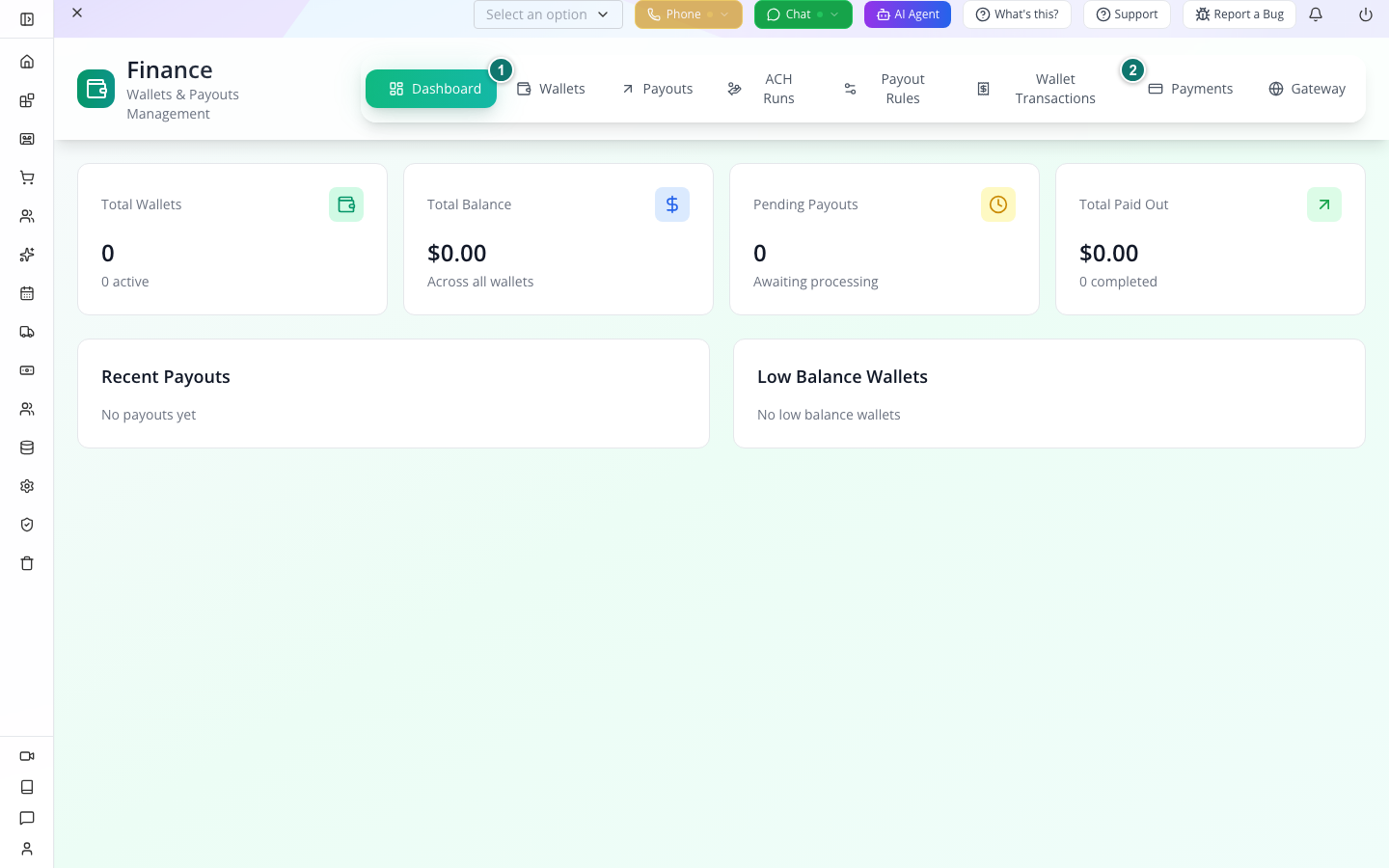
Retained actual Finance capture: Dashboard, Wallets, Payouts, ACH Runs, Payout Rules, Wallet Transactions, Payments and Gateway are distinct tabs. This training dashboard is empty; it demonstrates navigation, not a reconciled business balance.
Use Payments for the payment reference, Wallets for the owner and balance, Wallet Transactions for movements, and Payouts for outgoing requests. Keep the original reference while changing tabs. A matching amount alone is not enough to identify a transaction.
1. Read payments and wallet ownership
Why this matters
A customer payment, a wallet balance and a payout represent different parts of the same money flow. Start with identity and currency.
Follow these steps
Open Finance and inspect Dashboard, then Payments. Locate a controlled payment by its reference and compare amount, status and related business record. Open Wallets and the related wallet. Inspect Wallet Number, Wallet Type, Currency, Owner Type, Owner ID and Owner Name. Read Current Balance and Hold Amount separately. Open Wallet Transactions and trace the related entry. A form exposing balance fields does not mean typing a balance constitutes a real payment.
Follow one record through the tabs
- Open Finance → Payments. Find the controlled payment reference and note its amount, currency, status and related order/customer identifier. If no matching payment exists, stop the reconciliation here; do not create one simply to fill the screen.
- Open Wallets and locate the relevant Owner ID and Currency. Compare Current Balance and Hold Amount separately; a held amount is not automatically spendable.
- Open Wallet Transactions. Match the wallet and source/reference to the payment under inspection. Read the movement direction, amount and status rather than assuming a positive balance proves this particular payment arrived.
- If the identifiers or amounts disagree, retain both references and inspect the original action result before another payment or payout attempt.
Check the result: The owner, currency, payment reference and ledger entry agree.
2. Inspect and process a payout request
Why this matters
Requested, approved, processed and completed are not interchangeable. The request needs a valid recipient and destination before a payout mechanism can execute.
Follow these steps
Open Payouts and inspect the controlled request. Read Payout Number, Recipient Type/Name/Customer, Amount, Currency, Fees, Payment Method and Reference Number. Compare Requested At, Approved By/At, Processed At, Completed At and Failure Reason. Use the payout action appropriate to its current state, not a raw status edit to manufacture success. Refresh the request and inspect the wallet and transaction changes. For a failed attempt retain its reference and failure reason before deciding whether a retry is safe.
Check the result: Request status and the actual transaction outcome are reconciled.
3. Configure approval and cycle rules
Why this matters
The rules decide who approves and when a cycle is requested. The current screen explicitly says no timer runs yet: a cycle happens when Run a cycle now is pressed.
Follow these steps
Open Payout Rules. Under Who approves a payout choose Somebody approves every payout or Approve everything automatically as intended. In manual mode, leave the exception threshold empty for full manual review, or enter the small-payout threshold deliberately; amounts at or above it wait for a person. Under When payouts are raised choose the displayed schedule. Save and reload the rules. Do not claim the chosen schedule activates a timer. For a controlled run choose Run a cycle now and read the confirmation: it raises requests for eligible hosts with money available, a working destination and nothing already in flight; bank requests still wait for an ACH run. Inspect the returned cycle result.
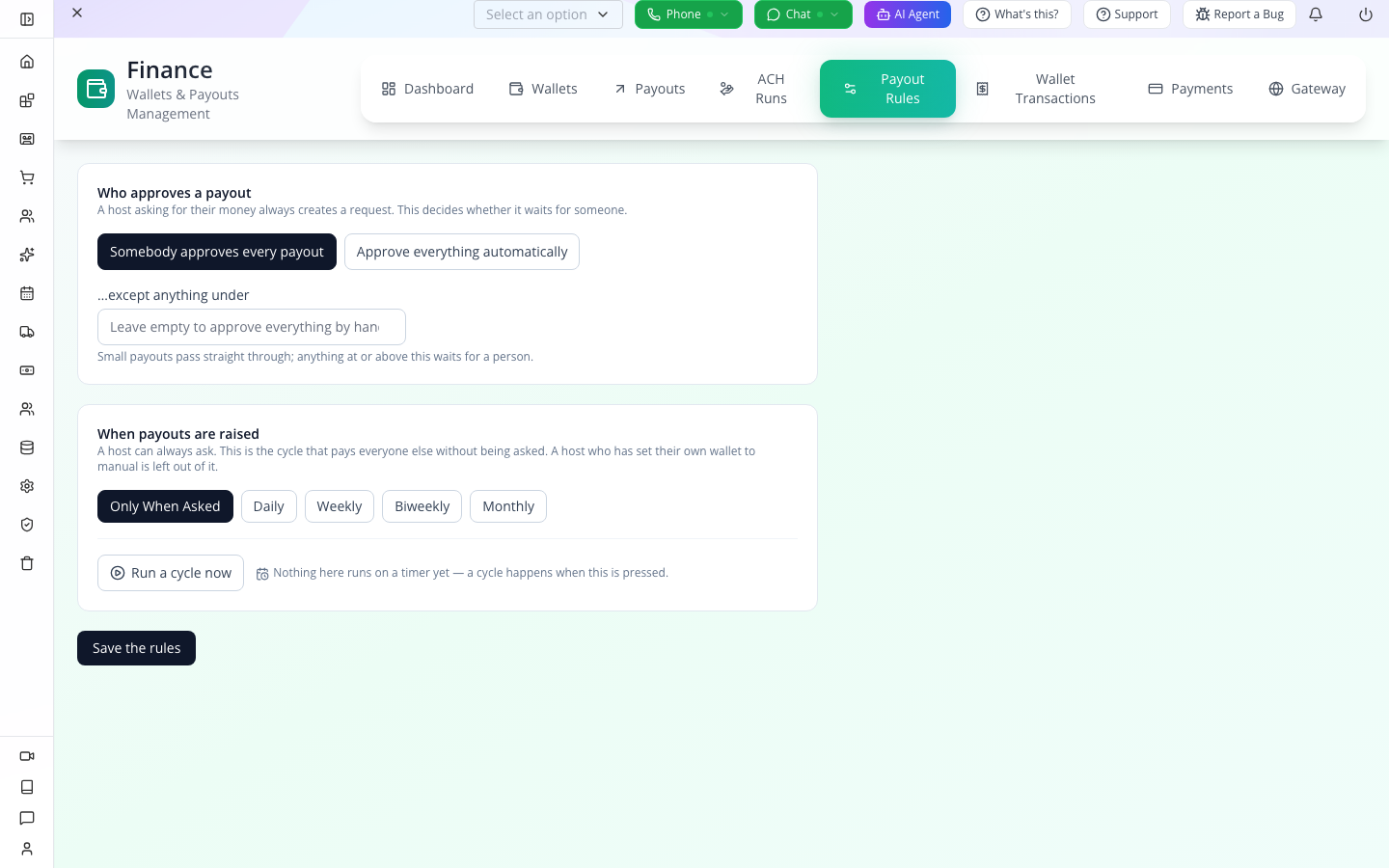
Retained actual screen: Somebody approves every payout is selected, the exception threshold is blank, and Only When Asked is selected. The visible note explicitly says no timer runs yet. Choosing Daily does not by itself start scheduled execution.
To preserve manual review, choose Somebody approves every payout, leave the exception threshold blank, then Save the rules. Reopen this tab to confirm the selection. If you intentionally use a threshold, read the helper carefully: amounts under it pass through; amounts at or above it wait for a person. Run a cycle now is a separate operational action that may raise requests, not a save/test button.
Check the result: Saved rules and actually raised requests are visible; scheduled automation is not falsely claimed.
4. Build and inspect an ACH run
Why this matters
Building a NACHA file prepares instructions for a bank. It does not send that file or settle the money.
Follow these steps
Open ACH Runs. Inspect Waiting for the next run and verify every eligible payout and total. Choose the build action and read Build a file for the displayed count. Confirm only for the reviewed controlled set. Expand the new run and download its file. Inspect the returned file as sensitive bank data outside public capture. The run begins Waiting to go to the bank. Record The bank confirmed it only after actual confirmation. Never click through these states just to finish a demonstration.
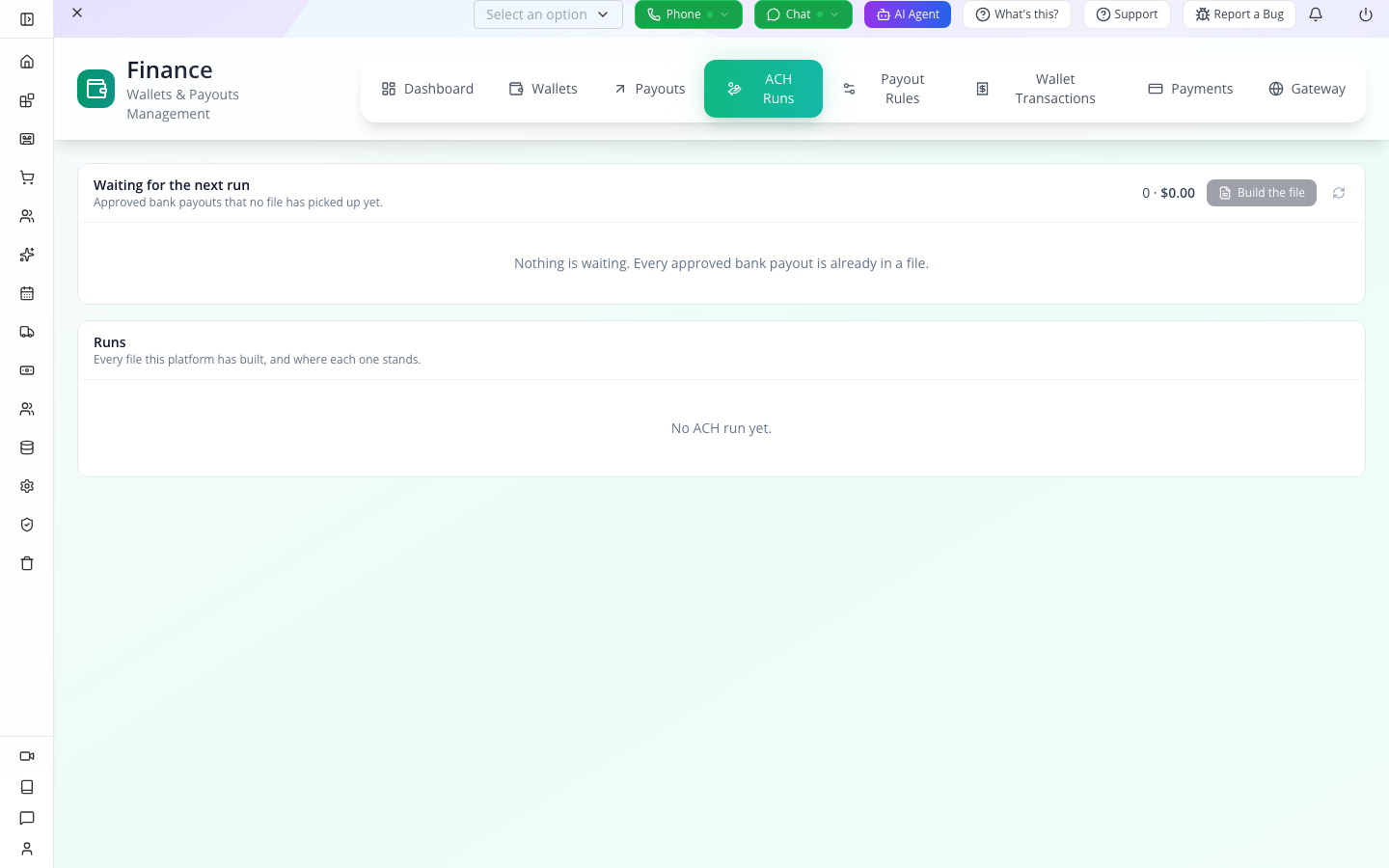
Retained empty training state: Waiting for the next run has0 payouts/$0 and Build the file is disabled. No ACH file or bank submission exists in this image.
If your screen looks like this, open Payouts and check whether an approved bank payout is actually eligible and not already assigned to a run. Do not change a payout to completed to enable the button. When eligible rows exist, compare the displayed count and total with the individual requests before Build the file. The subsequent file and bank states need their own evidence; this course does not claim the empty-state capture proves them.
Check the result: The run’s stored state matches evidence from the bank process.
5. Handle returns and reconcile
Why this matters
A return can affect one payout in a batch. Marking the entire run successful would conceal that exception.
Follow these steps
Expand the relevant run and identify the exact recipient/payout that was returned. Use the return action, read its confirmation and retain the bank’s reason/reference. Reopen the run and affected payout; compare partly returned status, wallet transactions and remaining settled items. Inspect Gateway settings separately when payment-provider configuration is implicated. Use the original payment/payout identifiers when escalating a mismatch, and avoid creating a second payout until the first outcome is known.
Check the result: A return is attached to the right payout and the surrounding ledger is checked.
Troubleshooting and recovery
Keep the exact record and operation visible when reading an error. Inspect persisted state before retrying a write; a timeout does not prove nothing happened. Correct the specific cause and verify the resulting record and consumer independently. An enabled feature, successful configuration save or administrative status is not proof of an external delivery, access boundary or money movement. Preserve unsupported behavior rather than simulating success.
Next steps
You can now use the module’s records and controls in context, and check the result at the point where it matters. Return to the relevant chapter for the advanced path and its verification.
Limitations and checks
Current Finance app, wallet/payout forms, ACH Runs and Payout Rules inspected. No financial action executed. Source explicitly states payout cycles have no timer yet. Provider settlement, refunds, bank file acceptance and ledger invariants require controlled live proof; UI state edits do not supply that proof.
BusinessMade Payments: transaction records and reconciliation — supporting guide
Introduction and outcome
Spoken: “Welcome to BusinessMade Payments. We will find a transaction, take or record a payment, check a provider reference and handle a refund against the original payment. You will know which records show money received and which are still requests.”
Prerequisites: A rehearsal organisation, a known order or invoice and its unpaid amount. Provider branches require configured test Stripe or PayPal credentials and a controlled recipient. Receiving a real customer payment or issuing a real refund is not part of writing this guide.
1. Find the transaction and its related record
Explain first: “Payments tracks transactions. The related order or invoice tells you what the payment was for. A payment request is not proof that money was received.”
Demonstrate: Open Storefront → Payments. On Payments, use the table search for the known reference or customer. Use All Statuses to inspect Pending, Processing, Completed, Succeeded, Failed, Refunded or Cancelled. Use All Types for Order, Subscription, Invoice, Manual or Other. Open the matching transaction. Read Transaction ID, customer, amount, currency, gateway, status and gateway reference. Open its related entity when present and verify it is the intended order or invoice.
Result: The visible transaction and business record match. The detail view distinguishes related record identity from a free-text description. Keep the transaction identifier consistent in the recording.
Follow the saved obligation, not a matching amount
Start with the invoice or order number you intend to collect. A list can contain several payments of the same amount for the same person. Match related document, customer, currency, method, status and transaction/reference before taking further action. Search/filter changes can hide an existing record, so clear a filter and reload before assuming the payment is missing.
The illustrated deposit in this course starts inside Invoices → Take Payment, not from a standalone Payment Center request. Both routes concern payments, but the screenshots do not demonstrate the Payment Center’s attach-record picker.
2. Prepare a payment request
Explain first: “Take Payment can attach an existing order or invoice, or describe a standalone payment. Attaching the record uses its outstanding amount and customer context; inspect that before choosing a method.”
Demonstrate: Select Take Payment. Enter the amount or use the order/invoice picker to choose a known unpaid record. Select the customer through the picker, or enter Name, Email and Phone when creating a standalone request. Check the For, customer and Amount due summary. For an unattached payment enter its description. Use the actual attach buttons shown by the current form; record the picker opening and selection rather than jumping to the filled result.
Result: The request describes the intended obligation. Use the order or invoice picker, then check the linked-record summary.
3. Card, PayPal and customer payment links
Explain first: “The available online methods come from configured gateways. Card and PayPal collect through their provider. QR code and Payment link let the customer pay on their own device while BusinessMade waits for the result.”
Demonstrate — Card/PayPal: Choose Card or PayPal only where the configured method is shown. Complete the controlled provider test flow. Keep the customer/provider interaction visible and then return to the BusinessMade receipt. Read Payment received and its reference. Show cancellation or failure honestly; do not replace it with a fabricated success screen.
Demonstrate — QR/link: Prepare a new unpaid rehearsal request. Choose QR code or Payment link. Show the generated code/link and Waiting for amount. For a link choose Copy link, or Send to [email] only to an authorised controlled address. Open the link as the customer in a separate browser, complete its test payment and return to the waiting BusinessMade view. Confirm the receipt appears and the payment list contains the same transaction.
Result and recovery: The request becomes a receipt only after confirmation. No email means the send action is unavailable; the source instructs withdrawing the request before changing those details. A copied link is not a sent email. A provider page opening is not a successful payment. External execution remains unverified this pass.
4. Record money already received
Explain first: “Already received records money collected outside this online checkout. Cash, Check, Bank transfer and Other are records of receipt; selecting them does not run a bank transfer.”
Demonstrate: Prepare a controlled request and choose the correct method under Already received. Enter Reference — check #, receipt #, transfer ID and Notes as appropriate. Confirm amount and linked record, then select Record [amount] received once. Read the resulting receipt and reopen the transaction from Payments.
Result: A saved payment records the amount and method. Do not present a recorded transfer as a bank-confirmed transfer unless separately verified.
Worked manual deposit: amount entered versus money recorded
- Open the intended unpaid invoice and select Take Payment. Check the invoice number and customer before changing the amount. The historical form below shows INV-V2NPJ0, amount due 480.00.
- Enter 200.00 as the amount already received. Choose Cash, enter the actual receipt/reference and any relevant note. The form should show 280.00 will remain due before you commit.

The current Payment Center calls these methods Already received; this is the earlier invoice-specific form, not a screenshot of its attach-record picker.*
- Select the record-payment button once. Close the form, reopen the invoice and inspect its payment history. Confirm the method and reference as well as total/paid/remaining.

Historical result for the same INV-V2NPJ0: 200.00 paid and 280.00 remaining. No card gateway or bank transfer was executed.
- When the remaining amount has actually arrived through another route, record only that outstanding amount using its real method. The separate Payment Center example below records a 280.00 Bank transfer against CAT-20260921-01. It is a different rehearsal invoice, not the continuation of INV-V2NPJ0.

Historical Payment Center result with document, customer, Bank transfer method and MANUAL reference. Payment received is the application record; it does not prove a bank API moved funds. The Receipt emailed wording was not verified against a delivered inbox.
Keep the reference from this result, then return to Transactions and locate it. If a provider reference is absent on a manual record, do not invent one or attempt provider verification with the invoice number.
5. Verify a provider reference
Explain first: “Verification asks the selected provider about its transaction reference. Use the provider's payment intent or transaction reference, not an unrelated order number.”
Demonstrate: Open Verify Payment. Select the configured gateway. Enter the reference in the field whose example is a payment intent ID. Select Verify Payment and inspect the response. For a saved Pending or Processing transaction, its detail view also exposes Verify. Refresh the saved record and compare the new status with the verification response.
Result: The response relates to the exact gateway/reference pair. If either is missing, the UI requests both. Do not try random provider references to force a successful example.
6. Refund and reconcile
Explain first: “A refund belongs to the original payment. Its outcome must be checked independently from the return of goods or a stock adjustment.”
Demonstrate: Open a controlled Completed or Succeeded transaction. Select Refund. In Process Refund, check Refund Amount, enter the reason and select Process Refund once. Inspect the updated payment and refund fields. Return to the related order/invoice and compare its remaining financial state. For cash POS refunds, use the POS-specific Record cash returned workflow and its physical cash handling rather than claiming a generic provider call dispenses cash.
Troubleshooting: A slow response is not proof the charge or refund failed. Inspect the original reference and saved state before repeating. A transaction-status filter can hide the updated row after it changes state. Failed-load screens must not be narrated as zero transactions. Gateway configuration is a separate setup dependency and belongs in the dedicated configuration course.
Check what the customer sees after a correction
Open the invoice’s actual configured customer link in an independent customer session and compare net paid and remaining balance to the staff record. In the preserved corrected example, a 480.00 invoice has 460.00 already paid and 20.00 due after a manual refund. The page also explicitly says no payment method is enabled.

Historical corrected CAT-20260921-01 customer view: 20.00 remains due. This proves a displayed balance readback, not online collection, delivery of a link or a real-time pushed update.
A functioning customer page and an enabled gateway are separate prerequisites. If no method is enabled, configure the intended gateway before offering online collection; recording Bank transfer does not activate one. Refresh the customer page explicitly when needed and show that step rather than claiming instantaneous updates.
Next steps
Spoken: “BusinessMade keeps the request, the transaction and its related order or invoice connected. Use those saved references to check what happened before taking another payment or refund.”
Limitations and checks
This draft records exact documented screens and separates receipt recording from external payment processing.
BusinessMade Finance — supporting guide
Reader update: BusinessMade route and current mounted source reviewed 5 October 2026.
Begin with one wallet owner
Open Storefront → Finance → Wallets and search for the intended owner or wallet reference. Read currency before comparing balances. The same person may have records serving different purposes; owner name alone is not a unique payment reference. Inspect Wallet Transactions to trace an entry and Payouts to read a request’s lifecycle.

Personally inspected retained BusinessMade view. These historical wallet amounts and recipient records are not a new payout or settlement proof. Newer Finance tabs, including ACH Runs and Payout Rules, require separate captures.
The illustrated Reserved, Pending / Held, lifetime credits/debits and payout state are not interchangeable amounts. Follow the matching record rather than summing columns by appearance. Do not edit Current Balance to simulate incoming money or turn an approved payout into a completed one by changing a raw status field.
For Payout Rules, a saved rule is preparation. Run a cycle now is a separate action that can raise payout requests; inspect its created/skipped result before going to Payouts. No automatic scheduled execution is established by merely saving the rule. ACH run preparation, processing and external bank outcomes remain separate verification gates.
Overview
Open Storefront → Finance in BusinessMade. Follow the payment, wallet entry and payout without treating a record update as bank settlement.
BusinessMade navigation and scope
BusinessMade /storefront/finance mounts components/finance, not the older storefront finance placeholder. It is distinct from Run the business → Books and from payroll ACH. Wallet payout rules currently describe manual cycle execution; no scheduler should be claimed from a saved rule alone.
1. Read payments and wallet ownership
Context
A customer payment, a wallet balance and a payout represent different parts of the same money flow. Start with identity and currency.
Follow the steps
Open Storefront → Finance and inspect Dashboard, then Payments. Locate a controlled payment by its reference and compare amount, status and related business record. Open Wallets and the related wallet. Inspect Wallet Number, Wallet Type, Currency, Owner Type, Owner ID and Owner Name. Read Current Balance and Hold Amount separately. Open Wallet Transactions and trace the related entry. A form exposing balance fields does not mean typing a balance constitutes a real payment.
Check the result: The owner, currency, payment reference and ledger entry agree.
2. Inspect and process a payout request
Context
Requested, approved, processed and completed are not interchangeable. The request needs a valid recipient and destination before a payout mechanism can execute.
Follow the steps
Open Payouts and inspect the controlled request. Read Payout Number, Recipient Type/Name/Customer, Amount, Currency, Fees, Payment Method and Reference Number. Compare Requested At, Approved By/At, Processed At, Completed At and Failure Reason. Use the payout action appropriate to its current state, not a raw status edit to manufacture success. Refresh the request and inspect the wallet and transaction changes. For a failed attempt retain its reference and failure reason before deciding whether a retry is safe.
Check the result: Request status and the actual transaction outcome are reconciled.
3. Configure approval and cycle rules
Context
The rules decide who approves and when a cycle is requested. The current screen explicitly says no timer runs yet: a cycle happens when Run a cycle now is pressed.
Follow the steps
Open Payout Rules. Under Who approves a payout choose Somebody approves every payout or Approve everything automatically as intended. In manual mode, leave the exception threshold empty for full manual review, or enter the small-payout threshold deliberately; amounts at or above it wait for a person. Under When payouts are raised choose the displayed schedule. Save and reload the rules. Do not claim the chosen schedule activates a timer. For a controlled run choose Run a cycle now and read the confirmation: it raises requests for eligible hosts with money available, a working destination and nothing already in flight; bank requests still wait for an ACH run. Inspect the returned cycle result.
Check the result: Saved rules and actually raised requests are visible; scheduled automation is not falsely claimed.
4. Build and inspect an ACH run
Context
Building a NACHA file prepares instructions for a bank. It does not send that file or settle the money.
Follow the steps
Open ACH Runs. Inspect Waiting for the next run and verify every eligible payout and total. Choose the build action and read Build a file for the displayed count. Confirm only for the reviewed controlled set. Expand the new run and download its file. Inspect the returned file as sensitive bank data outside public capture. The run begins Waiting to go to the bank. Record The bank confirmed it only after actual confirmation. Never click through these states just to finish a demonstration.
Check the result: The run’s stored state matches evidence from the bank process.
5. Handle returns and reconcile
Context
A return can affect one payout in a batch. Marking the entire run successful would conceal that exception.
Follow the steps
Expand the relevant run and identify the exact recipient/payout that was returned. Use the return action, read its confirmation and retain the bank’s reason/reference. Reopen the run and affected payout; compare partly returned status, wallet transactions and remaining settled items. Inspect Gateway settings separately when payment-provider configuration is implicated. Use the original payment/payout identifiers when escalating a mismatch, and avoid creating a second payout until the first outcome is known.
Check the result: A return is attached to the right payout and the surrounding ledger is checked.
Verification notes
BusinessMade /storefront/finance mounts components/finance, not the older storefront finance placeholder. It is distinct from Run the business → Books and from payroll ACH. Wallet payout rules currently describe manual cycle execution; no scheduler should be claimed from a saved rule alone.
Shared UI procedures are authored from the actual component mounted by the BusinessMade route registry. The changed wrapper/navigation has been source-inspected; new BusinessMade session, customer/provider outcomes and permission tests remain unperformed.