
Written guide
Overview
Appmint Scripts adds custom JavaScript to the hosted site using the Appmint client API. We will create a draft, use the built-in API reference and activate a small visible example, keeping server credentials out of browser code.
1. Create and save the script
Why this matters
The script name identifies the record and is disabled after creation in this editor. Draft lets you prepare the source before making it active.
Follow these steps
Open DAM → Scripts, then New Script. The menu requires admin access; if it is absent, confirm your role rather than looking under website content. Enter Name course-notice and a description identifying the temporary test. The name must begin with a lowercase letter and then use lowercase letters, digits, hyphens or underscores; leave Status as Draft. Inspect the starter source, which checks customer sign-in, reads the current customer, displays a welcome notification and stores the cart count in app state. Replace the source for the controlled test with appmint.ui.notify("Script test", { kind: "success" });. Save and reopen the record to check its code, metadata and entry-point link.
Check the result: The draft source persists; no runtime effect is claimed merely from saving.
2. Use the API reference and source-import alternatives
Why this matters
The searchable reference supplies client-side methods and attributes. A snippet must still fit the surrounding code and its asynchronous behavior.
Follow these steps
Open Toggle API reference and use Filter API to find the relevant namespace/method. Insert one snippet at the editor cursor and inspect the resulting code. For a source-file alternative use the editor’s local import or File Manager action, choose the intended JavaScript file and inspect the imported text before saving. Open the entry-point link after save to confirm it returns the intended script, not an error page. The local import handler now shows Linked hosted file only after the selected file has been read successfully. A missing URL, failed request or failed body read displays an error and preserves the previous code and file link. Compare the imported text and entry point before saving. Save uploads nonempty editor code to hosted file storage; do not proceed after an import error as though the selected file replaced the editor.
Check the result: The script contains syntactically coherent code and its stored source matches the selected input.
Keep JavaScript and markup examples separate
The reference includes both JavaScript methods and HTML attributes. A method such as the following belongs in this JavaScript editor:
appmint.ui.notify("Script test", { kind: "success" });An attribute example such as data-on-success="notify:Done | navigate:/x" belongs on the appropriate HTML element, not as a standalone JavaScript statement. Clicking a reference item inserts text at the cursor; inspect the surrounding syntax before saving. The example notification does not require a customer lookup, so it isolates script loading from customer-session problems.
No matching Scripts editor or running-site screenshot was retained for this pass. The notification example matches the shipped API reference; actual hosted execution and status eligibility still need runtime verification.
3. Activate and verify the hosted runtime
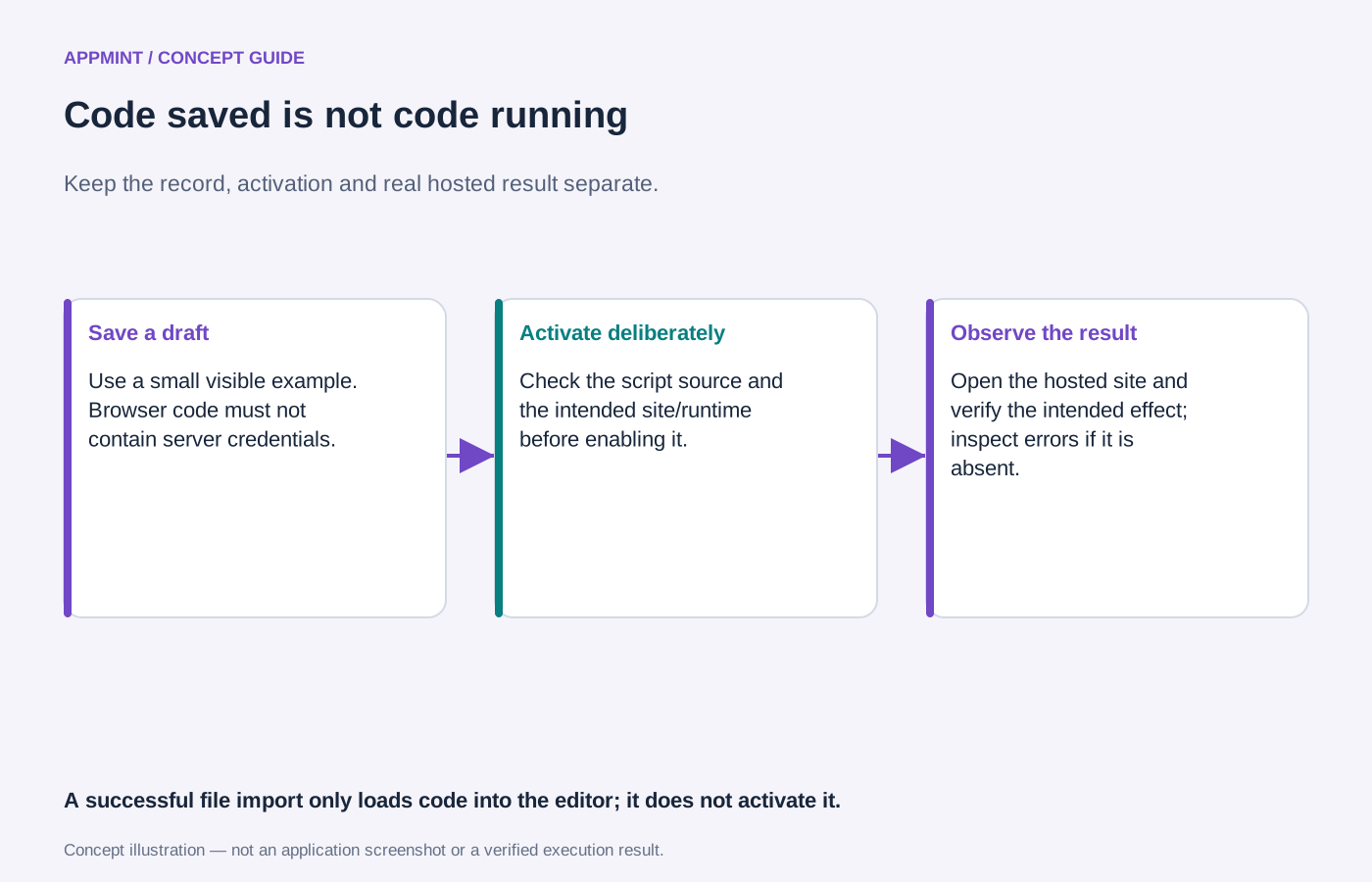
Concept illustration: Keep the record, activation and real hosted result separate. A successful file import only loads code into the editor; it does not activate it. This is not an application screenshot or evidence that the action has run.
Why this matters
Active and Disabled change runtime eligibility. The hosted page must actually load the script; an editor preview is not the same environment.
Follow these steps
Set Status to Active and Save. Reload the intended hosted test site and observe the Script test notification. Check the browser runtime error state if nothing appears, and confirm the entry point loaded. Change to Disabled, save and reload to compare. Restore Draft or the intended final state. For customer/cart APIs use the appropriate customer session and real site cart.
Check the result: The runtime effect follows the saved status and actual site loading; failures are diagnosed rather than replaced with simulated output.
4. Recover and extend carefully
Why this matters
Browser code can be read by visitors. Custom API secrets belong behind an authenticated server route, not in the client script.
Follow these steps
Keep the last known working source before a larger edit. On a controlled syntax/runtime error read its source location, restore that source, save and reload. Test a signed-out visitor and the intended signed-in customer separately for code that reads customer state. Remove temporary notifications before using the script on a public site.
Check the result: Recovery restores a real working behavior without exposing a server credential.
Troubleshooting and recovery
Read the actual error and inspect persisted state before retrying a create or other write. Keep the selected organization, record and operation visible. A saved configuration, permission, provider connection and working consumer are separate checks; verify the one the lesson claims. Reopen after saving and compare a controlled alternate/failure path where the chapter calls for it.
Next steps
You can now follow the module’s setup and check its result. Use the relevant chapter for an alternative, and verify the actual consumer before treating configuration as complete.
Limitations and checks
Current editor and API-reference starter inspected. Exact hosted loading, source upload and client API runtime require live site verification. File Manager import can retain the prior editor source when fetching the selected URL fails; compare the editor contents with the intended file before saving, even when an entry-point link was selected.