
Written guide
What you will learn
This Appmint Community course launches a member space from its first page to its first moderated conversation. We will connect page rules, real member identity and content decisions so the result is a working community experience, not just an administrator dashboard.
1. Create the member space
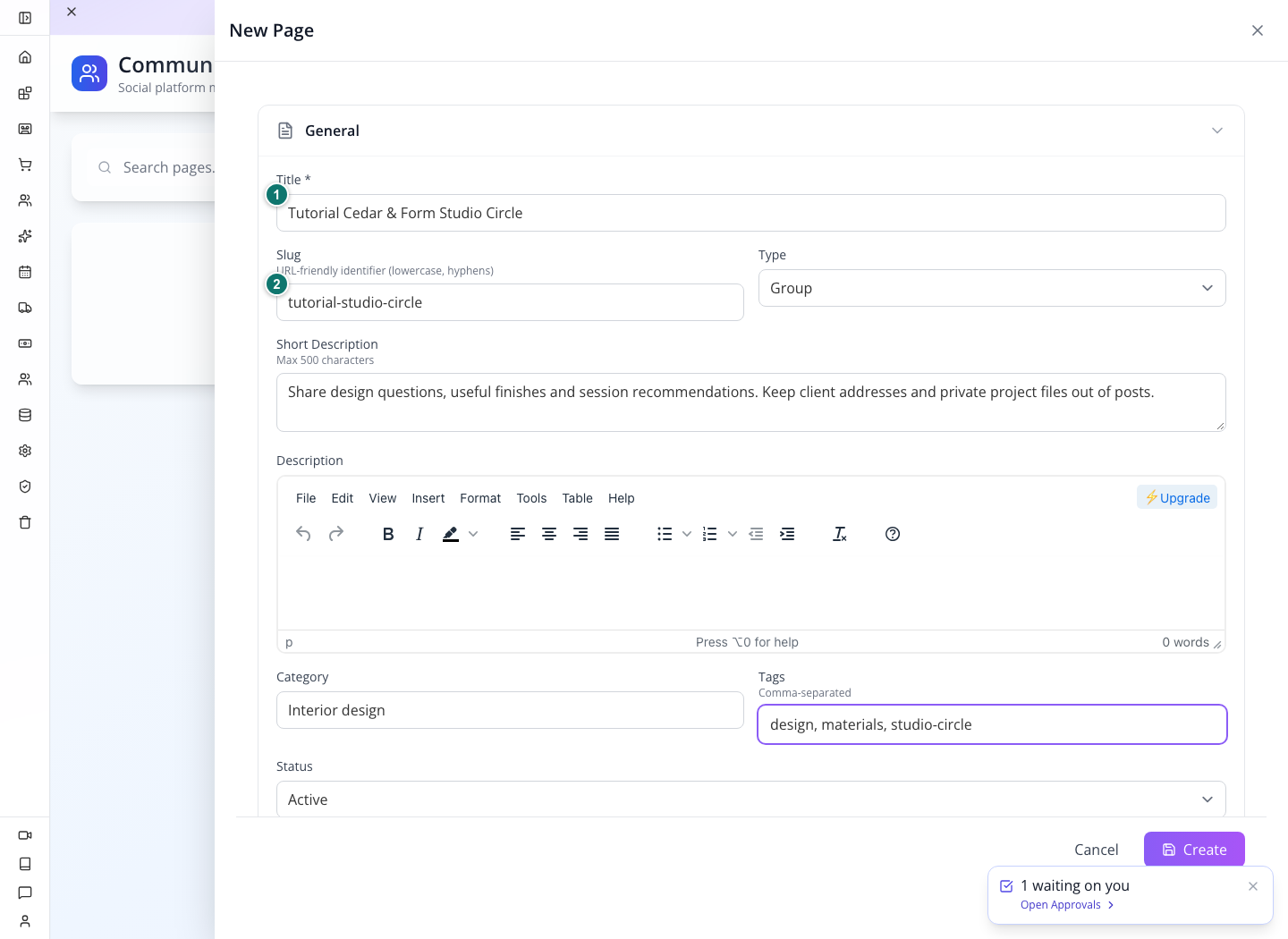
Retained administrative form: Title, Slug, Type, descriptions, category, tags and Status. This does not establish joining, publication or member access.
Page visibility, joining and posting are separate decisions. Choose the policy before inviting members.
Steps
Open Community → Pages → Add Page. Enter the community Title, unique Slug, Type, short/full descriptions, Category, Tags, Status and media. Set Visibility, Join Policy, Posting Policy and Moderation to the intended combination. Enable Feed, Stories, Announcements, Media Gallery and Chat only as needed. Save and reopen to check the values. Keep the page record ID from View JSON for the connected client; the slug is not that ID.
Check the result: The space persists with explicit member rules.
2. Connect the first members
Organization staff accounts and customer/member identities are different. The page creator is not automatically a member.
Steps
Prepare the actual member-facing website or app for this organization before inviting anyone. The Studio Community admin page is not that member client. If your installation has no connected member interface, launch is incomplete; a successful admin save does not supply it automatically. Use two controlled customer/member identities in that interface. Join the page as A and inspect the result. For approval joining inspect the pending membership before approval and the active membership afterward. Repeat as B. For a developer-controlled client use the authenticated POST /client/community/pages/PAGE_ID/join operation, then GET /client/community/pages/PAGE_ID/members to verify membership. Do not expose an owner token in a browser application. Test an unrelated identity against a private page and preserve its actual refusal.
Check the result: Both intended members and the unrelated-user boundary are checked.
3. Start a meaningful interaction
A first conversation establishes whether posting, media, replies and notifications are connected for members.
Steps
As A create one relevant text/media post on the page. As B open that post, add a comment and reaction. In Studio → Community → Feed select the page and inspect the exact author, content and engagement. Compare the member thread with the administrator detail; a comment count is not the thread itself. Open Notifications for the intended recipient and verify the actual notification/client result. Add a controlled Story and compare its expiry/highlight behavior.
Check the result: The interaction is attributed to the correct people and community.
4. Introduce a group and meeting
Group conversation and event-like meetings give members a way to continue the interaction. They need their own participants and timing.
Steps
Open Community → Group Chats, create a group with Name, Description, Creator and Community Page; verify it in the intended participants’ client before sending a message. Open Community → Meetings and create a meeting with Title, Description, Type, Start/End, Duration, Timezone and the appropriate in-person, virtual or phone details. Add organizer and attendees with their response statuses, then save. Inspect the meeting as a participant. Verify any invitation delivery separately rather than assuming saved attendance sends an email.
Check the result: The participant sees the intended conversation and meeting details.
5. Publish an announcement and handle the first report
Member guidance and moderation need visible outcomes. A recorded decision is not necessarily an enforced account action.
Steps
Create an Announcement for the page with Title, content and audience/target roles. Pin it and inspect member visibility; archive the rehearsal version and verify its disappearance. Submit a controlled report through the member client against the known test post. Open Moderation → View Details and check Reporter, Reported, reason and post context. Compare the linked post ID and author with the reported test item before choosing Remove Content. This changes member-visible content; a recorded warning/ban is a different action. Choose removal only for that intended item, then verify it is removed from Feed and the member view. Use Restore on the same disposable post to rehearse correction. Record Warning/Record Ban Decision do not themselves send a warning or suspend an account; do not describe them as doing so.
Check the result: Announcement targeting and moderation effects are both demonstrated.
6. Check launch readiness without hiding gaps
A community is ready when the member journey works under its intended rules. Administrator access alone proves very little about that journey.
Steps
Repeat sign-in, join, read, post, reply and report as the intended member on a narrow screen. Verify private-page access with an unrelated identity. Inspect broken media, failed notification delivery and unresolved reports as separate issues. In Badges define a criterion and threshold only when its actual award path can be tested. Keep unsupported client controls recorded, and link the available member interface from the intended website or application without inventing an automatic site page.
Check the result: The launch decision is based on member outcomes and stated limitations.
Troubleshooting and recovery
A successful configuration save does not prove the customer workflow. Reopen the exact record, inspect the actual consumer and preserve any error. Check stored state before repeating a create, purchase, message or refund. Keep organization, site, customer and record identifiers aligned across screens. Correct the failing dependency and repeat that verification without disguising an unsupported action.
Your next check
Follow the record through both sides of the workflow. When the intended person can complete the task and the saved result agrees, the setup has evidence behind it.
Limitations and checks
Community module source and historical member-community manuscript used. Authentication, member UI availability, badges and notifications require the actual connected client.
Appmint Community: Membership, Content, Communication and Moderation — supporting guide
Overview
Appmint Community manages member spaces, conversations, meetings and moderation. We will establish a page and its membership rules, publish a controlled interaction and verify what members can actually see. Administrative counts do not replace the member experience.
1. Create a community page
Retained Appmint capture: a new Group page is being prepared. Create is still visible, so this is not a saved member space.
Prepare the space before inviting members
- Open Community → Pages → Add Page. Enter the readable Title and a distinct lowercase, hyphenated Slug. The slug is not the database record ID.
- Choose the page Type that fits the space. The example is a Group. Add a Short Description explaining what belongs there and use Description for fuller guidance.
- Set Category and Tags for discovery. These fields do not grant membership or make the page private.
- Expand Settings and set visibility, joining and posting policies before creating the page. A private group and an approval-required group solve different problems: one limits viewing; the other controls admission.
- Choose Create, find the page in the list, reopen Edit and compare its settings. Only then test it in the member-facing client as described next.
Why this matters
A page is the community space that posts and membership belong to. The slug is a public-friendly name; the record ID is a different value used by linked records and APIs.
Follow these steps
Open Community → Pages → Add Page. Enter Title, Slug, Type, Short Description, Category, Tags and Status, then the full Description and media. In Settings choose Visibility, Join Policy, Posting Policy and Moderation deliberately. Enable the required Feed, Stories, Announcements, Media Gallery and Chat features. Save, reopen Edit and compare the stored values. Use View JSON to identify the record ID when testing a linked client; do not substitute the slug for that ID.
Check the result: The page persists with deliberate access and content rules.
2. Join and verify the member boundary
Why this matters
Creating a page does not automatically make its creator a member. Membership and visibility need an actual member identity.
Follow these steps
Open the connected member application as controlled member A and join the saved page through that client’s supported join flow. For Open joining inspect the resulting membership; for Approval Required verify the pending state before approval, then the allowed state afterward. Repeat read and post attempts as unrelated member B against a private page. Verify the page and posts are inaccessible where intended. If the current front end does not expose a join control, use the developer procedure below; do not invent an administration Join button.
Check the result: Actual membership and access behavior match the configured page policy.
3. Publish content and inspect engagement
Why this matters
Feed is the administrative view of posts. A post detail’s comment count is not necessarily the complete member discussion.
Follow these steps
Create a controlled text or media post through the connected member client, attached to the intended page. As another eligible member add a comment and reaction. Open Community → Feed, select the page and inspect the exact author, content, type, status and engagement. Open the post detail, then compare it with the full thread in the member client. For a poll cast one controlled vote and inspect repeated-vote behavior. Open Stories and inspect the related author/page, caption and expiry or highlight state; verify expired versus highlighted content in the member client.
Check the result: Post, comment, reaction and story state are attributed to the correct identities and page.
4. Manage connections, messages and groups
Why this matters
Following a person, establishing a connection and joining a group are different relationships. A group chat needs its intended creator and page context.
Follow these steps
Open Connections and Follows and find the controlled member pair; compare relationship status with the member client. Open Messages and inspect the actual sender/recipient thread. In Groups create a group chat with Name, Description, Creator ID or email and Community Page. Save and reopen the group, then verify it appears to the intended participants in the connected client. Send a controlled message from that client and inspect its corresponding record. Do not assume an administrator-entered creator email establishes every member’s access.
Check the result: Relationship and message records match the participant experience.
5. Schedule community meetings
Why this matters
A meeting includes timing, organizer and attendee responses. A confirmed record is not evidence that invitations were delivered.
Follow these steps
Open Meetings and create a meeting. Enter Title, Description, Type, Status, Start Time, End Time, Duration and Timezone. Choose In Person, Virtual or Phone and enter the corresponding Location, Meeting Link or Phone Number. Fill Organizer information and add attendees with their actual identities and Response Status. Save and reopen. Inspect the meeting in the intended participant’s client and verify any invitation through a controlled inbox separately. Use the meeting cancellation action with a reason when cancelling a controlled rehearsal, and inspect its saved status.
Check the result: The meeting and participant view agree; delivery remains separately verified.
6. Announcements, badges and discovery
Why this matters
Announcements target an audience; badges express a criterion. A configured rule is not proof that a reward was automatically issued.
Follow these steps
Create an Announcement with its Page, Title, content and audience/target roles. Save and inspect it as an eligible and ineligible member. Use Pin, Unpin and Archive on a controlled announcement and compare its client display. Create a Badge with Name, Description, requirement description, criterion and threshold. The criteria include connections, posts, events, comments, reactions, pages, stories, messages, meetings and custom. Save and inspect the rule, then exercise the actual supported award path before claiming issuance. Open Hashtags and Notifications to inspect the controlled content’s tags and recipient-specific events, checking the member result rather than merely a count.
Check the result: Audience and reward configuration are separated from demonstrated delivery/issuance.
7. Moderate the right person and content
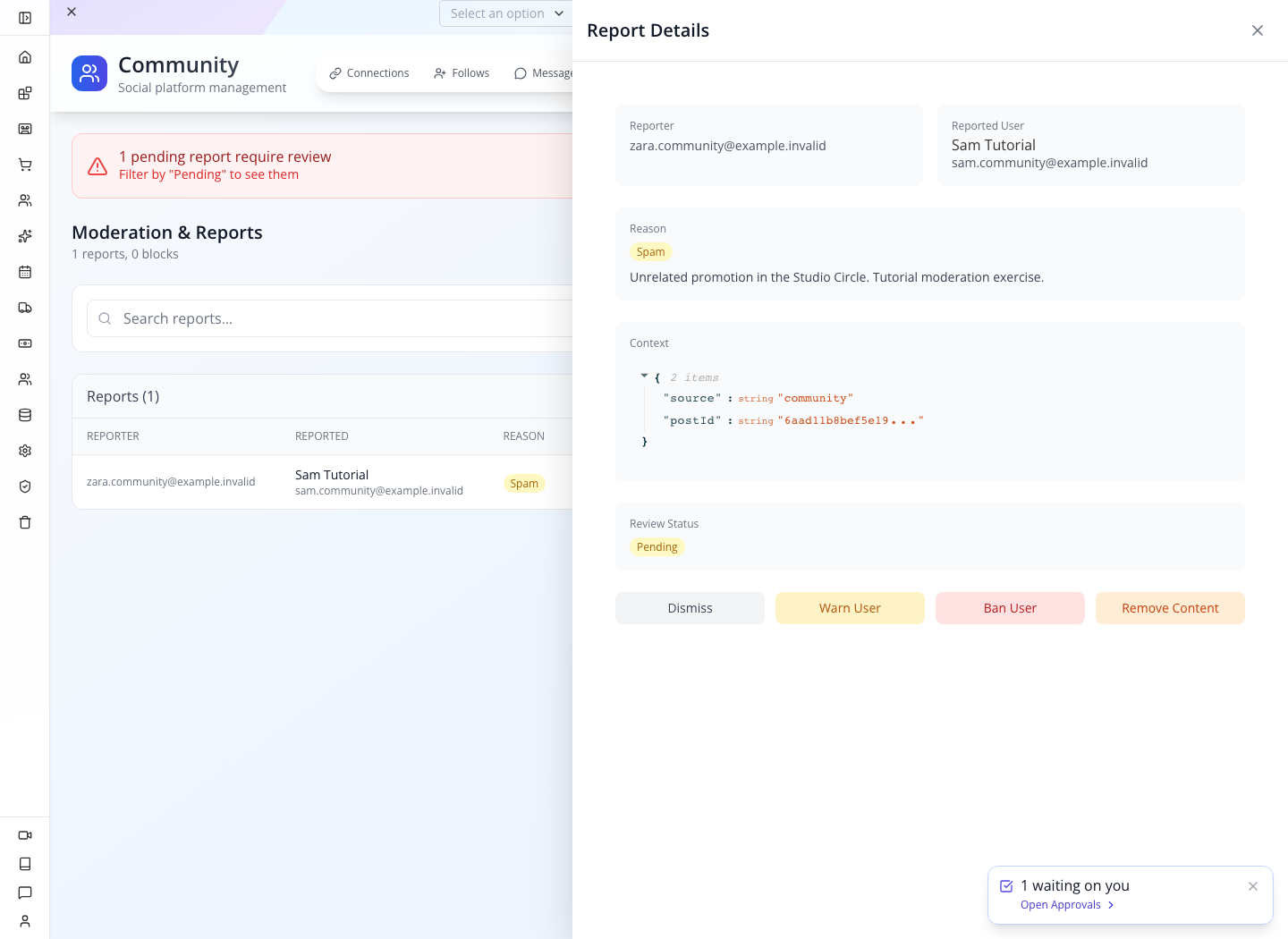
Retained report: Spam is the stated reason, Context contains the linked post reference, and Review Status is Pending. No decision has been applied in this screen.
Open Community → Moderation, filter pending reports and open the intended report. Compare Reporter, Reported User, Reason and Context before acting: a report about a post is not automatically a reason to ban its author. Read the referenced content, then use the action appropriate to the decision. Dismiss, Warn User, Ban User and Remove Content are different actions. After the response, reopen the report and verify its review state; separately inspect the post or member state affected. A decision toast alone does not show whether the member can still see the content.
Why this matters
Reports, blocks and content removal have distinct effects. Recording a warning or ban decision does not itself send a warning or suspend an account.
Follow these steps
Open Moderation and read Reporter, Reported, Reason, Details and Status. Open View Details and identify the exact post context before selecting Dismiss, Record Warning, Record Ban Decision or Remove Content. For a controlled content removal verify the referenced post and author, then inspect the removed post in Feed and its absence from the member client. Flag marks a post for attention; it does not hide it. Use Remove and Restore on the same disposable post to verify the change. Keep an invalid post reference as an unresolved report rather than claiming removal. Test messaging restrictions separately for the reported/blocked member pair.
Check the result: The recorded decision and its actual content or messaging effect are not conflated.
8. Developer alternative for a connected client
Why this matters
The administration UI and member API are separate surfaces. Use a private test client with the organization’s supported authentication instead of embedding an administrator token in a website.
Follow these steps
Obtain the page record ID from Pages → View JSON. In the private client use the configured AppEngine origin and organization/client authentication. POST /client/community/pages/PAGE_ID/join with an empty JSON object and inspect the membership; GET /client/community/pages/PAGE_ID/members reads it back. POST /client/community/posts with page, content and contentType creates the controlled member post. For media, POST /client/community/media/upload as multipart with file, then attach the returned path/signedUrl through the post update operation. Inspect the returned author and page on every write. Keep authentication values private and follow the connected-client course’s supported application identity rather than copying a historical lab owner token into production.
Check the result: The API result is attributed to the intended member and supports the same checked community behavior.
Troubleshooting and recovery
Keep the exact record and operation visible when reading an error. Inspect persisted state before retrying a write; a timeout does not prove nothing happened. Correct the specific cause and verify the resulting record and consumer independently. An enabled feature, successful configuration save or administrative status is not proof of an external delivery, access boundary or money movement. Preserve unsupported behavior rather than simulating success.
Next steps
You can now use the module’s records and controls in context, and check the result at the point where it matters. Return to the relevant chapter for the advanced path and its verification.
Limitations and checks
Current community forms and historical detailed member-community manuscript inspected. Historical moderation and membership tests are not new verification. Group participants, badge auto-award, notifications and delivery require live proof. Preserve configured feature toggles versus actual member capabilities. Warning/ban decisions are records, not automatically enforced suspensions.