
Video chapters
- 0:00 Welcome
- 0:08 Overview: from enquiry to customer
- 0:36 Part 1 · Set up a pipeline — Pipelines and probability: explained
- 1:00 Create the Sales pipeline
- 1:31 Stages and the board
- 1:55 Part 2 · Capture leads — Leads and imports: explained
- 2:16 Add a lead by hand
- 3:04 Import a spreadsheet
- 3:34 Part 3 · Work the pipeline — Moves and history: explained
- 3:50 Move, log a call, qualify
- 4:26 A lost deal, and a proposal
- 4:52 Part 4 · Assign, qualify, convert — Lead Manager: explained
- 5:09 Assign and qualify
- 5:36 Convert to a customer
- 5:52 Part 5 · Analytics and forecast — Analytics and forecast: explained
- 6:08 Analytics
- 6:22 The forecast
- 6:37 A missing close date
- 7:02 Wrap-up
Written guide
Evidence: current lead form, detail and CSV-import source checked on 4 October 2026. Images below are inspected historical local captures, not a new lead/import/provider test. Research, enrichment, external communications and conversion outcomes remain pending where noted.
What you will learn
This course covers Appmint CRM Leads. We will add and import leads, work with pipeline stages, record follow-up and inspect qualification and conversion. We will also locate research, enrichment and prospecting, so you can distinguish information you have verified from information returned by a provider.
01. Navigate leads and pipeline context
Lead Manager is the record list; Pipeline shows progression. Analytics and Forecast interpret that data. Research & Enrich, AI Prospector and LinkedIn bring separate data and provider requirements.
Steps
Open CRM → Leads. Inspect Pipeline, Analytics, Forecast and Lead Manager. Select the intended pipeline before creating or importing records. Use Search leads to check whether the person’s email already exists.
Check the result
An empty filtered pipeline is not proof there are no leads; clear filters and check Unassigned before recreating a record.
02. Create a lead and read it back
A lead records the person, source and next sales context. Preserve the actual source rather than using a convenient default for every import.
Steps
- Open CRM → Leads → Lead Manager. Search the email first to avoid creating a second lead for the same person.
- Choose Create Lead; its drawer may be labelled New Lead. The Pipeline view also has Add Lead, which opens a pipeline-oriented form. Keep track of which entry you use.
- Enter First Name, Last Name and Email, then known phone, company and job-title details. Choose the actual Lead Source and appropriate priority rather than treating the source as a default.
- Add useful Notes, such as the request and agreed next contact. Do not invent contact or company details merely to fill optional fields.
- Complete the create action once. Return to Lead Manager, search the same email and reopen the result. Check identity, source and the intended pipeline/stage.

This is the Pipeline Add Lead form, not the Lead Manager quick-create drawer. The Stage field is unselected: a chosen pipeline does not prove a stage was saved.
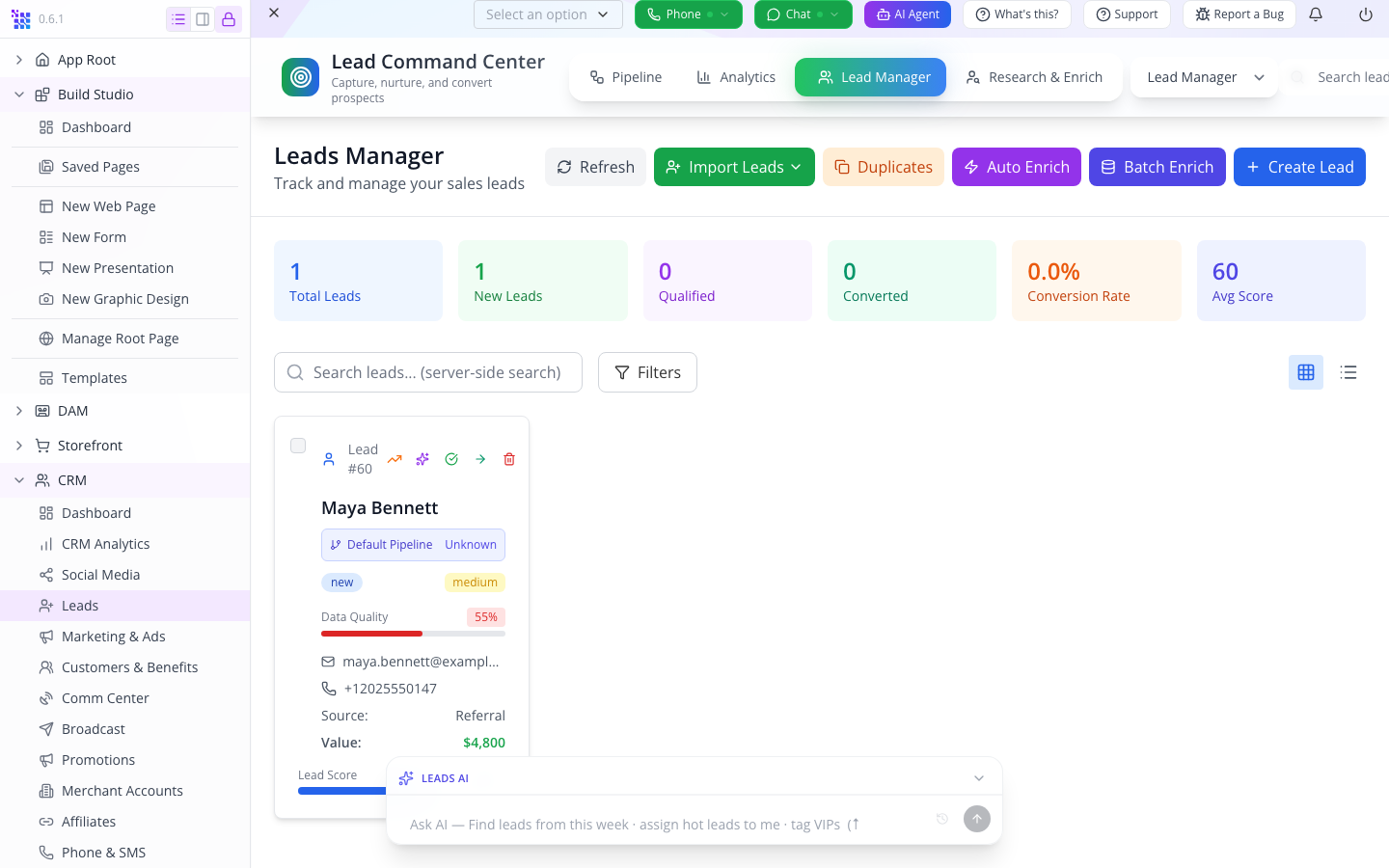
The card identifies the saved person, but its pipeline badge says Default Pipeline / Unknown. Check and correct the intended assignment; this screenshot is not proof that the earlier selected pipeline persisted.
Check the result
Website, Social Media, Email Campaign, Referral, Cold Call, Trade Show and Other are source choices in the current form. Creating a record does not verify its email or phone.
03. Import from CSV and existing records
CSV import maps recognized headers and retains other columns as extra details. Existing lead emails are skipped by the server path. Review created, skipped and failed rows separately.
Steps
- Open Import leads from CSV from the import controls and choose a small CSV file with a header row.
- Use recognizable headers such as First Name, Last Name, Email, Company, Phone and Lead Source. The importer recognizes headers; it does not require a drag-and-drop mapping screen.
- Review Columns: recognized fields appear green and extra details grey. Check that Email is recognized before continuing.
- Under Add them to, explicitly choose your intended pipeline or No pipeline (Unassigned). Do not assume the default matches the pipeline you last viewed.
- Select Import once and inspect created, skipped and failed results separately.
- Return to Lead Manager, search one imported email and check the fields and pipeline. A target pipeline uses its first ordered stage; verify that stage on the resulting record.
Use the separate Contacts, Reservations or Facebook import entry for those sources. Those flows choose existing records or provider data rather than parsing the same CSV file.
Check the result
The CSV path selects the target pipeline’s first ordered stage. It does not ask you to drag columns into an invented mapping screen. Repeat a tiny controlled import to verify duplicate handling before a large import.
Import a booking without treating it as a qualified opportunity
For reservation import, first search Lead Manager by the customer's email. If a lead exists, continue that record. Otherwise choose Import Leads → From Reservations, wait for records to load, match the email and booking time, select only the intended row and inspect the count before Import. Check Only confirmed when an expected booking is missing; an unconfirmed booking can be hidden by that filter. Read any load error before retrying rather than importing from an incomplete list.

Separate local rehearsal: Daniel's imported record has $0 potential revenue, Unknown stage, Other source and no owner. Import brought a person into Leads; it did not finish opportunity qualification. The warning banners also show SMS was not configured, not that a message reached the customer.
Open Edit, choose the intended pipeline and its starting stage, enter the supported deal value and preserve the booking reference in Notes. Reload and compare the resulting lead with the booking; do not replace the booking with a second invented reservation.
04. Edit ownership, stage and follow-up
The lead detail brings Overview, Activities, Notes, Tasks and Enrichment together. Some fields save on blur; complete the edit and inspect its persistence before moving away.
Steps
Open the lead. Enable Edit mode, update the intended owner or field and leave the field to trigger its save. Read the persisted value. Select the intended pipeline stage through the pipeline controls, add a follow-up task or note in its appropriate tab, and inspect Activities.
Check the result
The current Edit mode control says changes auto-save on blur. Leave the field, wait for the result, then close and reopen the lead to check persistence. The separate older Edit Lead form below is another editing surface; its appearance must not be used to infer how inline editing saves. Task ownership and lead ownership are separate records.

The correct assignment is visible in this older full form. A displayed selection alone does not prove a new save in this pass.
Keep follow-up evidence on the lead
In the pipeline lead drawer, open Activity, choose the activity type, enter what occurred and select Add Activity. Reopen the same lead and read the recorded entry before moving its stage. Writing a Note records context; it does not prove a phone call happened or send the note to the customer.

Historical Maya rehearsal: the saved note is visible while her stage is still New. This is not a sent email or an assigned follow-up task.

Later historical board readback: Maya is Contacted and Daniel is New, totaling $17,300 in potential value. These amounts are opportunity estimates, not sales collected. SMS configuration warnings remain visible; stage movement is not communication-delivery evidence.
05. Research, enrich and review provenance
Enrichment supplies candidate data; it should not silently replace known customer facts. Research & Enrich and AI Prospector have their own search and review surfaces.
Steps
Open Research & Enrich or AI Prospector, enter the intended search criteria and run a controlled search with the configured provider. Open the candidate’s review and compare returned information with its source. Save only the selected candidate, then open its Enrichment tab and verify the stored result.
Check the result
Exact provider credentials, search filters and enrichment provenance display need live rehearsal. LinkedIn connection and provider access are not established merely by its navigation tab. This branch is incomplete until those controls and saved provenance are recorded.
06. Email, call and convert
Email and Call use the contact details on the selected lead. Conversion must be checked against the resulting customer or opportunity, not just the button feedback.
Steps
From the same lead use Email to open the composer, choose the configured sender and controlled recipient, then inspect the delivered result. For Call use the assigned From line. Select Qualify or Convert only for the intended record, then reopen it and inspect its linked customer/opportunity and history.
Check the result
Email and Call are disabled when the relevant address or number is missing. The manager calls convertLead; the exact conversion result and customer association must be verified before claiming a completed customer conversion.
07. Interpret and recover
Forecast is an interpretation of saved lead data. Missing values, stale stage changes and failed enrichment require record-level inspection before changing the pipeline again.
Steps
Open Analytics and Forecast for the same pipeline and period. Compare a displayed lead with its saved value and stage. For a failed operation, reopen the original record, inspect its error or activity, correct the specific field or provider issue and retry once.
Check the result
Do not infer revenue collected from a lead forecast. Duplicate prevention and provider failures remain live verification requirements.
08. Research prospects and companies
Research & Enrich is a provider search, not a second name for your saved Lead Manager. Its results can supply a new lead, but the provider's confidence and the actual available contact information still need review. Saving a result creates a separate CRM record.
Steps
Open Leads → Research & Enrich. Select People Data Labs or Diffbot before searching. In the prospects view, enter a targeted search and use Job Title, Company, location, Country and Domain to narrow it. For example, use the role in Job Title and the actual business domain in Domain rather than mixing everything into an ambiguous sentence. Select Search and wait for the returned result or error before changing providers.
Open a matching person's details. Inspect the name, company, title, contact information, Experience and Education that were actually returned. Choose Add Lead only for the person you intend to keep. Open Lead Manager, find that person and reopen the saved record. The reviewed code marks the source as research and records the selected provider and confidence in notes/tags. Check that those details survived; a search result alone does not add the person to your pipeline.
For company research, select the companies view and provide a company name or domain, then Search. Inspect the company information separately from a person's identity. In an existing lead, open Enrichment. Read its status: Not enriched, Enriching, Enriched or Failed. Inspect available personal, company, email-validation and intent information; Valid, Deliverable, Disposable and Role-based describe different properties of an email address.
Check the result
An empty result is not a failed API call: the interface distinguishes the two. Broaden one filter at a time for an empty search; preserve and investigate the returned provider error for a failed search. Saved Searches currently displays a coming-soon message; there is no completed saved-search workflow to demonstrate. Missing email or phone values must remain missing rather than being inferred. Provider credit/configuration and returned facts require a live controlled test later.
09. AI Prospector and the review queue
AI Prospector separates discovery from acceptance. Search candidates appear in the current session; staging saves them for review. Approval is a deliberate later action. This lets you review a batch before treating it as qualified pipeline work.
Steps
Open AI Prospector. In Lead Prospector AI, request businesses of a defined type and location, such as “Find bicycle repair businesses in Austin.” Send the request and wait for the candidate cards and map. Review business names, addresses, ratings and the external Maps link. Use Filter by name or address and Minimum rating to narrow the current results.
Select the intended candidates and ask the AI to save or stage that selection. Check the staged count and the In queue indicator. A candidate that has not been staged cannot be approved; the card's tooltip explicitly asks you to stage it first. Open Review Queue. In Pending Review, inspect the saved rows, then approve one suitable candidate. Switch to Approved and confirm it is listed. Return to Pending Review, reject an unsuitable entry and supply a useful reason; inspect Rejected afterward.
For a batch, select the intended rows or Select all on this page, then Approve selected or Reject selected. Read the succeeded and failed counts. Refresh the queue and inspect both the current status and destination records before retrying a failed subset. Selection is page-specific and is cleared when changing status or page.
Check the result
The current bulk UI removes selected rows locally after the response even if some failed. Refresh is therefore essential to reveal records that still need work. Stop generating stops the AI response; it is not proof that already staged records were undone. Keep discovery, persisted review and approved pipeline results as three separate checkpoints.
10. Capture with the Lead Search extension
The LinkedIn section supplies the Lead Search browser extension. It can capture LinkedIn profiles and Google Maps businesses into Lead Manager using the signed-in Appmint session. The extension's page is also the installation guide, so the viewer can return to the same instructions later.
Steps
Open Leads → LinkedIn. Select Download extension and extract leadsearch-extension.zip. Copy the Chrome extensions address shown in the page into Chrome's address bar. Turn on Developer mode, choose Load unpacked, and select the extracted extension folder. Confirm the Lead Search card appears; optionally pin its toolbar icon.
Return to Appmint in that browser and sign in to the intended organization. The page states that the extension reads this session automatically; do not invent an API-key entry. Open the controlled LinkedIn profile or Google Maps business, use the capture control and return to Lead Manager. Filter source linkedin or google_maps, then open the captured record and inspect its fields.
Check the result
Selecting the ZIP instead of the extracted folder will not install an unpacked extension. Capture in another browser profile may not share the intended Appmint session. Confirm the organization before capture and the saved source afterward. The current source describes this integration; external-page capture and extension compatibility still need live verification.
Your next check
Return to the chapter for the action you need. When you change the configuration, check the matching record, customer view or destination again. A saved setting and a successful external outcome are different observations.