
Video chapters
- 0:00 Welcome and overview
- 0:29 Part 1 · Your numbers and how they answer: Your numbers
- 1:19 Two wires and a switch
- 1:39 How the main line answers
- 2:08 A call rings the browser
- 2:26 Part 2 · A phone menu callers can press: Start a phone menu
- 2:45 A forwarding group
- 3:18 Greeting, keypad and actions
- 3:38 Build the menus
- 4:53 Business hours and missed calls
- 5:54 A test call after hours
- 6:09 The voicemail and the lead
- 6:33 Part 3 · AI answers while you listen in: Live calls, Listen, Whisper and Take over
- 6:52 Listen, whisper and take over
- 7:37 The call in Call Logs
- 8:00 Part 4 · Texts that answer themselves: Start an SMS rule
- 8:17 How texts are sorted
- 8:34 Welcome, keywords and opt-out
- 9:21 A test conversation
- 9:37 The conversation in Comm Center and Messages
Written guide
Phone Service and Business Number Setup
Before choosing a route, separate the business number from the way it answers. Direct handling can ring a phone, forward the call or use an AI assistant. A keypad IVR instead asks the caller to choose a configured branch. These are alternative designs; the number does not run every branch at once. A no-answer fallback happens only when that fallback has been configured.

Concept illustration, not an application screenshot. Choose a configured answering path; the arrows do not imply simultaneous ringing or an automatic AI fallback.
Cedar & Form wants one business number that customers can call or text. During staffed hours, callers should reach the right person. When nobody answers, the business should retain the request. A customer who texts a known keyword should receive the appropriate response. We will build that operation from the number outward so that a saved menu is never mistaken for a working telephone service.
Use the organisation that will own the line, an administrator permitted to configure it, an actual receiving phone or staff device, and controlled participants for call and SMS tests. Have the business's real registration details ready if its SMS use requires registration. The example names and wording in this course are training drafts. Enter real owned numbers for operational tests; do not call a number copied from a placeholder or an older course screenshot.
Open Configuration → Phone & SMS. In Studio Manager, the full page path is /app/phone-system—for example, https://studio.appmint.io/app/phone-system. The app directory calls this module /phone-system; that is an internal app route, not a complete browser URL. Its current tabs are Numbers, Live, Call Logs and Messages. On Numbers, inspect Phone service or Outbound calling. Not set up, Off and On identify different conditions. If service is not configured, Set up calling opens the phone-service terms and provisioning flow. Review the displayed terms and complete that setup when the organisation intends to enable service. If setup exists but calling is off, use Turn on calling. Inspect the returned status and any error before moving on.

Current training organization: the service has not been set up and no number is connected. This is the starting state, not a completed calling setup.
Selecting Set up calling opens Accept phone service terms & turn on calling. Read the service scope before choosing Accept & turn on calling; choose Cancel if you are only inspecting the setup. The dialog concerns provider phone-number, call and SMS usage charges. Appmint and Appmint Mobile are free applications; these provider charges are separate from using the apps. Review the current displayed terms and rates instead of treating an example screenshot as a price quote.

The actual confirmation was opened and cancelled. No terms were accepted, provider account provisioned or calling service enabled for this capture.
Rebuild is a repair for an existing voice app, such as after a host or credential change. Do not use it as a general refresh for every failed call. The displayed On state establishes service readiness reported by the server; the later two-way call is the operation check.
Choose Buy Phone to search available numbers. Select Number Type: Local, Toll-Free or Mobile where available. Choose Search By using Area Code, City, ZIP code, State or Browse, enter the relevant search value and click Search. Inspect the candidate's actual number, location and capabilities. A number suitable for voice is not automatically suitable for every SMS operation.

This is the current number-search form. No search, available-number result or purchase was performed in this capture.
Select the intended result and review Selected Phone Number and the configuration summary. Also make calls from this number enables outbound calling during purchase when selected. Complete the purchase only for the number the business intends to acquire, then return to Numbers and inspect its record. The availability search is read-only; the purchase confirmation acquires a real service. Use the actual current purchase information rather than a price quoted from this manuscript.
For an already owned number, use the available add-existing-number flow and enter its complete international number and Friendly Name, such as “Cedar main line.” After adding, open Configure and inspect Provider Registration, including provider, provider SID, account SID, status and Verified. Adding a record is not the same as transferring a number between carriers or proving the provider has connected it. A manually added unverified record can appear in a picker without receiving calls.

Add Phone opens this existing-number dialog. Check Set as default phone deliberately; the dialog was cancelled without adding a number. A saved number record still needs provider ownership and routing verification.
In Webhook Configuration, inspect Voice URL, SMS URL and Status Callback URL. Direct Voice and IVR Menu select different incoming-call routes, and switching mode updates the provider's voice webhook. Keep Direct Voice while testing the simple staff line; switch to IVR Menu when you are ready to test the IVR configuration. Use the URLs generated for the current installation. An old documentation endpoint or a URL from a different organisation will not route this number correctly.
Before leaving, search the Numbers list by the friendly name and reopen the same record. Confirm that identity, capabilities and configuration are retained. If the list failed to load, retry it rather than interpreting missing figures as no numbers. Release Number is for deliberately giving up a line; it is not a troubleshooting reset or the ordinary way to end a training call.
Number Defaults, Staff Assignments and Direct Call Handling
A business line has several distinct relationships. Its default status influences outbound sender selection. Its assignment identifies the staff or groups who use it. Its incoming route decides what a caller hears and where the call goes. We will configure those relationships explicitly for the Cedar main line.
In Numbers, open the line's three-dot menu and choose Set as Default (calls) if it should be the organisation's default calling number. Choose Set as Default SMS separately when it is the intended eligible SMS sender. The list marks the selected defaults; each choice also has an Unset action. A voice default is not a substitute for an explicitly checked SMS default or SMS registration. Where a default is inherited, inspect what the interface actually says rather than assuming this record owns it.
Choose Assign to User/Group, or click the Assigned To badge. Use the Users or Groups selection, search for the intended staff member or team and save the assignment. Reopen the drawer and confirm the selection remains. Then sign in as the assigned employee and check that the line appears among their phone numbers. This second view verifies the relationship from the person who will use it, not only from the administrator's form.

Inspected earlier Android capture: the employee can open Phone but has no assigned line. This is the failure state the assignment step resolves, not proof of a successful assignment. Return to the administrator’s Users/Groups assignment and verify the same organization. The current local organization has zero numbers, so the configured assignment drawer and successful employee read-back remain uncaptured.
An AI Employee may also have a phone identity and Phone & Voice configuration. Assign the intended employee/user record and inspect its own Phone & Voice page when that is the chosen operator. Keep that identity distinct from selecting an AI assistant as the line's answering route: one links a number to an employee/user, while the other chooses the conversational handler for incoming calls. Check both when the employee should answer by voice.
Open Configure → Call Handling. The number supports Ring my phone, AI assistant and Forward without requiring an IVR menu. Choose Ring my phone for the first test. Inspect the ring/failover controls shown for that choice and select the appropriate fallback, such as an actual forwarding destination or voicemail. The fallback is needed when a browser is offline or the staff member does not answer; it is a different result from a successfully connected call.
To configure that optional fallback, enable Do something if no one answers — or while its AI employee is off. Set Ring time first (s), then choose Then…: forward to a number, hand to the AI assistant, send to voicemail, or say a message and end the call. Complete the destination/message required by that choice and select Save Changes. Leaving this checkbox off does not configure an automatic AI fallback. These current documented controls require a connected number; they were not available for a saved local example in this review.
For a direct forwarding alternative, choose Forward, enter the actual controlled destination in international format and save. Have a participant call the business line and confirm the receiving phone rings, displays the intended caller identity and carries audio in both directions after answer. Forwarding does not require the participant to know the recipient's direct number, but the receiving device still needs to be reachable.
Inspect the caller-ID choice where available: the caller's own number, the business line or a configured alternative affects what the receiving phone displays. Test that display on the real receiving phone. A label in the configuration does not establish that the provider permits every chosen caller ID.
For AI assistant, select the intended assistant and provide line-specific context or greeting where offered. The assistant still needs the correct knowledge and capabilities in its own editor. We will tune and test its voice later. For now, keep a simple staff route as the baseline so that a provider or device problem can be diagnosed without also changing an AI configuration.
If a staff member sees no number, inspect the saved user/group assignment and the organisation they are signed into. If a default appears but incoming calls do not ring them, inspect the assignment and Direct Voice route rather than repeatedly changing the default. The finish for this chapter is the correct number in the correct employee's phone view, followed by a controlled incoming call that reaches the configured handler or fallback.
Browser and Mobile Softphone Operation
With the line assigned and calling enabled, open the top-header Phone menu. Use Connect phone to register this browser; an error state may offer Reconnect, Reconnect now or Reset phone. Wait for the reported connection state and inspect the assigned numbers. Open dialer opens the calling interface. If the menu instead says no phone number is set up or calling is unavailable, return to the number and service setup rather than attempting calls from an empty identity.

Open the header Phone control to see readiness before opening a dialer. Retry does not create the service or assign a number; complete those prerequisites first.
The browser softphone is shared by the logged-in application, so the dialer does not need to remain open just to maintain a device registration. The browser still needs a valid session and audio permissions. Check the browser microphone permission when prompted. Verify your selected input and output with the controlled call rather than assuming a registration dot proves audible calling.
In the dialer's From selector, choose the Cedar main line. In the Phone tab, enter the controlled recipient's full international number and click Call. The From selection is the business identity requested for this call, while the number you typed is the destination. At the receiving device, inspect the displayed caller number, answer and exchange a short phrase in both directions. End the call with the call control and inspect its recorded result.
Use Recent to find the call just completed; refresh if needed. Use Contacts, search the known customer or colleague and inspect their actual stored number before initiating another call. A missing contact result may reflect absent phone data or a failed load rather than no customer record. Use the view's retry when loading failed. For a first test, manually checking the destination avoids mistaking an old contact number for a telephony failure.
For incoming calling, keep the assigned staff browser connected and have the participant call the business line. The dialer presents Incoming Call, From/To and Accept or Reject. Accept and verify two-way audio. In a separate controlled test, reject or let the call reach its configured fallback and observe that outcome. An incoming ringing indicator alone does not establish that the caller can hear the agent after answer.
At the end of a shift, Phone → Go offline stops receiving calls on this browser. The saved preference can persist across refreshes, so use Connect phone when returning rather than assuming reopening the application restores availability. Other assigned devices may remain registered; test the routing you actually intend.
Appmint Mobile is an alternative staff endpoint. Sign in as the same intended staff member in the correct organisation and open Comms & phone → Phone. Check the assigned business numbers and select From as appropriate for your own or team line. Use Keypad, Recent and Contacts for the corresponding tasks. During a connected call, use the actual mobile Mute or Speaker controls and verify the audible change at the other phone. Go offline and online using the device's available controls to test shift availability.
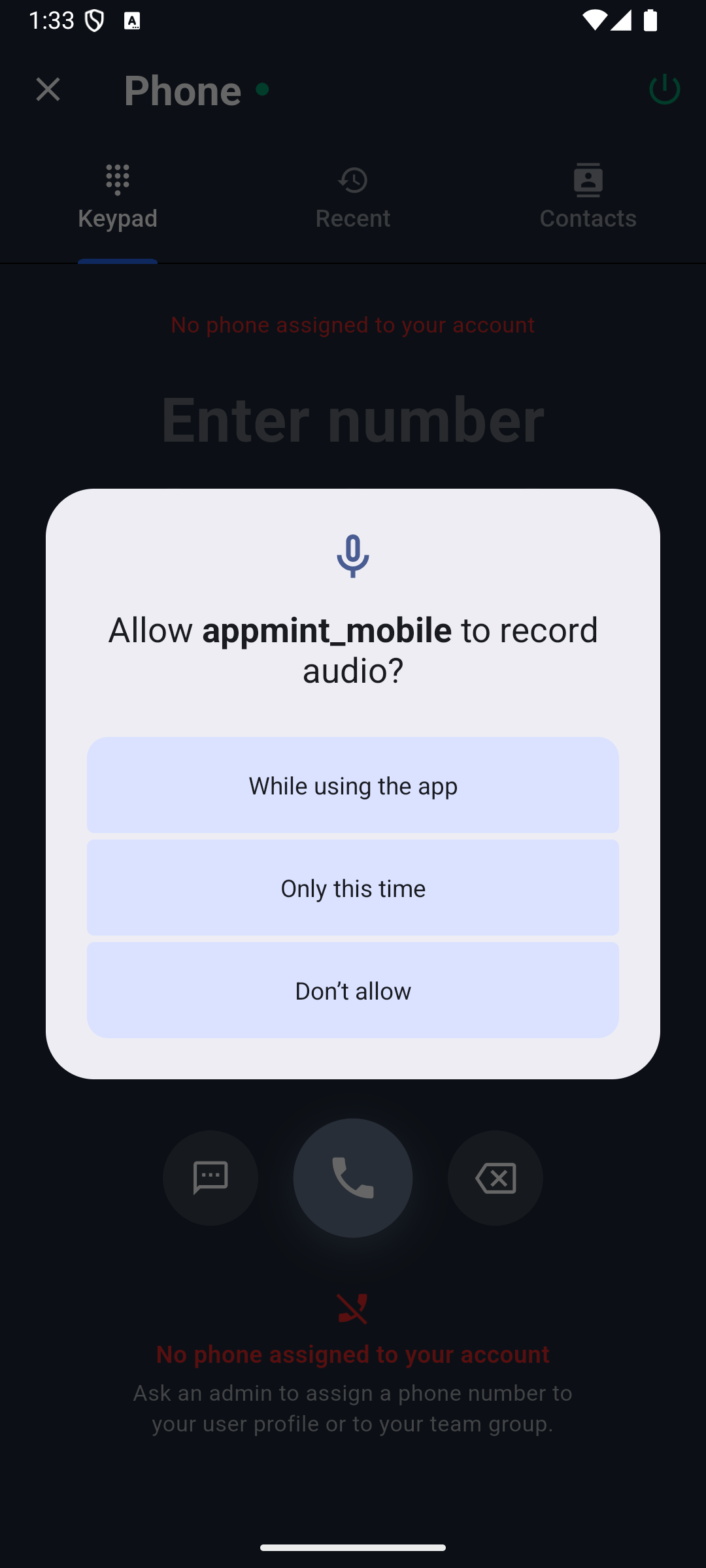
Inspected Android capture: the operating system asks permission to record audio for calling. Choose the permission appropriate to using the app, then return to Phone. The background also reports no assigned number, so accepting microphone permission alone cannot make this account ready to call. This is an earlier mobile capture, not a fresh connected-call test.
On Android, a registered calling account can still be disabled. If the app says the phone account is registered but not enabled, choose its Open Settings action and enable Appmint Mobile under Calling accounts, then return to Phone and retry once. If the displayed error instead identifies a denied Phone/phone-number permission, use Android Settings → Apps → Appmint Mobile → Permissions, enable the named permission and return. A “Phone account not registered” error calls for reopening the app's Phone screen to retry registration. Follow the actual error rather than toggling unrelated permissions. These Android controls are not the iOS setup route.
Device registration and native calling support are separate. The current mobile service deliberately skips native voice binding on iPad, so a backend registration indicator there cannot prove native calling works. Test supported device/build permissions, incoming notification behavior and audio on the actual phone before promising background calling. If the browser works and mobile does not, inspect the mobile registration, assigned organisation, permissions and native/push state rather than replacing the business number.
SMS Registration, Preflight and Status Review
Before testing text-message replies, inspect the line's SMS capability and registration state. In the number's menu, use Register for SMS where it is offered, or open the registration section in Configure. The drawer is SMS Registration (A2P 10DLC). The exact path available depends on the number type and existing registration; do not force a local-number registration form onto a different number type merely to follow this example.
Actual prerequisite state: there is no number row on which to open Register for SMS. Complete number/service setup first. The A2P form instructions below are checked against source; this organization could not demonstrate their populated editor or a successful submission, and this image is not an A2P preflight result.
If the organisation already has a registered business brand, inspect that identity before creating another. Otherwise complete Business information with the real legal business name, business type, industry, tax identifier where requested, contact email and business website. Complete Business address and the authorised representative's first and last name, email, Phone (E.164), job position and business title. These are organisation identity fields, not fictional lesson data to submit.
For our draft example, the campaign description could be “Cedar & Form customer support responses and requested order updates.” Choose the matching Use case from the actual form. In Opt-in / message flow, describe the real mechanism by which the customer agrees to receive these messages, including the actual page or form if used. Do not copy a sample claim about a booking checkbox if that checkbox does not exist on the business's site.
Provide two realistic Sample message values. A draft support sample is “Cedar & Form: we have received your lamp question and will reply here. Reply STOP to opt out.” A second could describe the actual order-update message the business will send. Samples should reflect the planned traffic, sender and response path. They are registration examples, not messages automatically delivered to a customer by typing them into this form.
Set Messages contain links and Messages contain phone numbers to match the actual traffic described by the samples. A product-page link in our draft means the links declaration must agree with it.
Review Opt-in keywords and Opt-in reply, Opt-out keywords and Opt-out reply, and Help keywords and Help reply. The form offers defaults such as START/YES and STOP/UNSUBSCRIBE. Make the replies identify the real business and a usable help route. These registration declarations should agree with the SMS response flow we configure later; contradictory descriptions make the operation difficult to review and diagnose.
Click Check before submitting. Inspect both blocking problems and warnings, including messages attached to particular fields. Correct the underlying detail and recheck. A website or message-flow problem is not repaired by merely dismissing its banner. If the form offers to create required site pages, review the resulting pages and their content on the actual site before claiming that they describe your operation accurately.
When the organisation's real information and intended use are ready, click Submit A2P Registration. Read the result carefully: a submitted brand or campaign can still be waiting for another stage. Use the status refresh control and SMS Registration timeline to inspect progress. Fix and resubmit is the recovery route when a correctable registration issue is returned. Keep the rejection detail connected to the field you change so the next submission has a clear reason to differ.
Saving a form, passing preflight and submitting a request are separate from provider/carrier approval. Registration status is also separate from a particular message's delivery result. Once the line is eligible in Appmint, perform one controlled, consented exchange and inspect both the Messages log and the receiving device. If a message fails, retain its actual status/error and inspect sender eligibility before editing the SMS routing logic.
The product lesson ends with a truthful state: registration information prepared, problems corrected, submitted/pending/approved status read accurately, and delivery checked independently when service is ready. Do not label a pending submission as an active texting service simply because the form closed successfully.
IVR Routing and Keypad Menus
Open AI, IVR, Automation → IVR & Phone System. The full Studio page path is /app/ivr—for example, https://studio.appmint.io/app/ivr. The page heading is IVR & SMS System. Start with Dashboard, Phone Routing or SMS Routing. Open More to reach Route Logs, Call Logs and Active Calls when those views are not visible in the top navigation. We will build a keypad menu for Cedar & Form, then compare the other route types.
Choose Phone Routing → New Phone Routing. In Basic Info, use Name (Identifier) cedar-reception and Display Name “Cedar & Form reception.” Select the actual Phone Numbers when a controlled line is ready. While preparing the configuration, expand Advanced Settings below Phone Numbers and clear Enable this routing explicitly. Save Draft does not itself guarantee a disabled route; it preserves the enabled field. Save and reopen to verify the intended state.

Basic Info → Advanced Settings exposes the enable switch. This local example is unsaved, has no selected number and is disabled; it is not a running phone route.
On Call Routing, inspect the four Routing Type options. Forward rings a forwarding group with an optional greeting. AI Assistant lets a configured assistant answer, with context and fallback controls. Simple Menu lets the caller select a keypad option. Automation Flow runs a selected workflow containing IVR actions and logic. Choose Simple Menu for this example because callers can choose product questions or leave a message without relying on an AI interpretation.

Call Routing exposes four alternative designs. Forward is selected in this comparison capture; select Simple Menu for the keypad walkthrough that follows.
In Menu Builder, add a menu with Menu ID main, Menu Name “Main menu” and Greeting (what callers hear): “Thank you for calling Cedar & Form. Press 1 for product questions, or press 2 to leave a message.” The identifier is used by route links; the name is a human label. Use letters, numbers, underscores or hyphens in the identifier. Greeting Audio URL (optional) supplies an alternative approved recording when available. Verify that the provider can retrieve that audio and that its spoken options match the configured menu.
Choose Add Option for the first row. Set digit 1 with label “Product questions” and Action → Forward (to Forwarding Group). We will create and select the actual group in the next chapter. Choose Add Option again, then change the new row’s digit from its initial 1 to 2, with label “Leave a message” and Action → Voicemail. The greeting and the actions must agree: speaking “Press 2 for support” while digit 2 hangs up would be a product defect in this configuration even if it saves successfully.

The real editor shows two different digits. Digit 1 still has an empty Forwarding Group, so this is an incomplete draft. Resolve that destination in the next chapter before enabling the route. Each new option initially uses digit 1; change it to avoid duplicate choices.
Create an after-hours menu with a clear closed-hours greeting and voicemail action. Use Go to Menu when a branch needs to enter another existing submenu, and select the target menu from its list. Do not type a friendly name where the route expects an ID. When renaming or removing menus, revisit every assignment and branch that referred to them before saving.
Set the menu's timeout and Max Retries, then supply the invalid-selection message and final fallback behavior. For a controlled example, choose a short readable greeting, a reasonable response timeout and two retries. During testing, press a valid digit, an invalid digit and no digit on separate calls. Listen for the actual retry and final fallback sequence. Do not infer no-input behavior solely from the configured number of retries.
The action list also offers Transfer to Phone, User, Group or Queue; AI Assistant; Hang Up; SMS, automation and webhook operations; payment/verification; and recording controls. These are not equally established by the reviewed runtime. The core menu runtime has explicit forwarding, phone/user/group/queue transfer, AI, voicemail and hangup handling. Several additional wizard action labels have no corresponding action case in that handler. Keep Send SMS, custom webhook, payment, verification and recording-control branches out of the working keypad example until their complete installed execution path is proven. For advanced IVR work, use a verified Automation Flow and demonstrate its specific action output; a dropdown label is insufficient.
On Business Hours → Menu Assignments, select main for Normal Hours and the closed menu for After Hours and Holidays. Keep Enable this routing cleared and use Save Draft at this point: digit 1 still needs its forwarding group. Continue to the next chapter, create that group, then return to digit 1 and select it. Do not enable or test an unresolved branch. Final Create/Update Routing requires at least one phone number; a disabled draft can remain while the controlled line is being provisioned.
Forwarding Groups, Screening and Route Alternatives
In the routing wizard, open Forwarding Groups, choose Add Group, then click the new Unnamed Group header to expand its fields. Use a stable group ID such as product-team and a name such as “Product questions.” Add a Phone target with the real controlled recipient number and a recognisable label. The group is edited inside this routing draft; there is no separate group Save button. Return to Menu Builder, expand the main menu and select this group for digit 1. Save the whole route using the wizard footer once its remaining fields are ready. This links the caller's choice to an actual receiving destination.

Add Target creates a recipient row. The faint +15551234567 text is a placeholder, not a configured number; enter your controlled recipient before saving. Ring strategy, duration and fallback belong to this group. This draft was discarded without calling anyone.
Choose the Strategy deliberately. Simultaneous (ring all at once) is suitable when any available member can answer. Sequential (ring in order) now has a source implementation that rings one target, then uses the forward-next callback to try the next after no answer, busy or failure, finally reaching the group fallback. The callback needs the organization and group context. Current forwarding and IVR-menu regression sources cover the first-target/callback behavior; that is not a connected-call proof. Set an intentional member order and verify unanswered-first, answered-second and nobody-answers cases with controlled receivers before relying on it. Round Robin (rotate per call) aims to vary the starting recipient; the direct Forward route persists its counter, while menu/transfer paths need separate rotation proof. Set Ring Duration (seconds) and inspect the group's fallback. Use two controlled receiving endpoints to verify each strategy you intend to rely on; a single target cannot prove sequential ordering or rotation.
The target-type picker also offers Agent, SIP and Queue. SIP has a distinct dial path, while the reviewed forwarding-group target function treats every non-SIP value as a telephone number. Do not put an agent ID or queue name into that group and claim a working staff/queue route. The menu's separate Transfer to User, Transfer to Group and Transfer to Queue actions have their own handling. Use those appropriate controls for those targets and verify their actual receiver behavior independently.
Whisper Message is intended to tell the receiving person why the call is arriving; screening is intended to require their acceptance before connecting the caller. The wizard stores these options, but the current simple forwarding-group executor does not read them or attach a screening step. Treat them as unavailable in this demonstrated route, not as controls that become operational merely by saving. Literal substitutions such as {{caller}} are also not established here.
The separate Automation forwarding action is not a verified workaround: its callback currently ignores the configured message/screening parameters. Keep both settings off in the working baseline and record the application gap. After a product correction, the necessary proof is a caller/recipient recording showing the private announcement, acceptance, rejected/no-answer case and final connection; a screenshot of the checkbox cannot establish any of those results.
For the baseline group, choose Voicemail and confirm the route's voicemail option is enabled. Alternatively, AI Assistant requires the configured assistant, while Hang Up ends the call. Test the chosen no-answer outcome separately from an answered call. The group picker also offers Trigger Automation and an automation identifier, but the inspected group executor has no corresponding automation branch: it falls back to a generic goodbye. Do not select it as a working fallback until the product path is fixed and a call produces an identifiable automation run. A completed dial attempt is not necessarily a completed customer request.
For the simpler alternative, Call Routing → Forward selects a forwarding group directly and offers an optional greeting. Leave the greeting empty only when immediate ringing is intended. For AI Assistant, select the assistant, add Context / System Prompt, inspect Max Duration (sec) and choose a Fallback Forwarding Group when the AI should escalate. Use actual business context and supported destinations; a claim in the prompt that it can transfer is not a substitute for a configured target.
For Automation Flow, choose the required Automation. Where business hours are enabled, inspect After Hours Automation and Holiday Automation. The screen explains the fallback relationship when those are empty. Open the chosen workflow and review its IVR steps and failure path before assigning it to the line. Then test one actual call through it and inspect the run. This route is for conditional or multi-action call behavior that requires more than the simple menu, but its extra power also creates more configuration dependencies.
The comparison is practical: direct forwarding chooses a destination immediately, a keypad menu lets the caller choose, AI interprets a request, and Automation executes a designed action sequence. Choose based on the required caller experience and the configuration you can verify, then keep one known working route available while testing an alternative.
Finish and test the keypad route
Return to the Cedar reception draft. Confirm digit 1 → Forward → product-team, digit 2 → Voicemail, the correct Normal/After Hours/Holiday menu assignments and the controlled phone number. In Review & Save, inspect the configuration, enable only this intended route, and choose Create Routing or Update Routing, as applicable. Reopen it and read back the enabled state and destinations. In Phone & SMS → Numbers → Configure → Webhook Configuration, set that line to IVR Menu and inspect the saved callback. Now call the line: press 1 and verify the selected recipient and two-way audio; place a separate call for digit 2 and inspect the voicemail outcome. Retain the different invalid-digit/no-input and closed-hours tests for the following chapter. If a required branch is still unresolved, leave the route disabled rather than publishing a broken choice.
Business Hours, Missed Calls and Recording
Open Business Hours and enable business hours routing. For our example, add an office-hours row for Monday through Friday, Start Time 09:00 and End Time 17:00. Check the timezone stored with the row. Newly added IVR hours take the browser's timezone, and the reviewed form does not offer a clear editable timezone in that row. If the business operates elsewhere, have the saved timezone corrected through a supported configuration route and retest; do not assume the browser's local clock is the shop's clock.
Select Normal Hours Menu, After Hours Menu and Holiday Menu for Simple Menu routing. A saved schedule without those assignments does not specify which greeting the caller hears. Add a Holiday with the actual Date, Name and Closed state, and add an Off Day with Date and Reason for a one-off closure. Save, reopen and inspect both the schedule and assignments together.

Enabling business-hours routing reveals the schedule controls. This inspected draft has empty menu assignments and no hours; select the existing menus and add the actual schedule before treating it as configured.
Company calendar closures and phone routing
A company closure can also affect the phone menu without duplicating that date in the IVR holiday list. The current call-routing code reads organization-wide closure entries from the company calendar when business hours routing is enabled. If an entry covers today's date, it is treated as a closed holiday for that incoming routing decision. For a Simple Menu route, the Holiday Menu assignment therefore matters even when the closure was entered elsewhere. If it is empty, the current selector falls back to After Hours Menu, then Normal Hours Menu; leaving Holiday Menu blank does not guarantee a closed greeting.
The scope is specific: the entry must be a closure, have no business location selected, belong to the calendar year being queried, and cover today between its start date and end date. A single-day entry uses its start date. A location-specific closure is excluded; closing one branch does not automatically close every organization phone route through this integration. This applies to the incoming IVR-routing path; it does not establish the same behavior for Direct Voice, SMS or every forwarding alternative.
Before relying on a shared closure, inspect the closure's scope and dates with the person managing the company calendar. In IVR, check Business Hours, the saved timezone and Holiday Menu, then reopen those settings to verify them. Test the intended closed-day call and compare its route log with the greeting the caller actually hears. Do not add a duplicate IVR holiday just to explain away an unexpected route: first check whether an organization-wide calendar closure already covers that date.
Limitations: the company-calendar integration is confirmed in current source, but its calendar-entry creation and incoming-call outcome have not yet been demonstrated in this course. The code checks the current calendar year and uses the saved routing timezone; a closure spanning New Year and a date near midnight need separate boundary tests. Keep the disabled practice route as a configuration example until these outcomes are verified on the intended line.
There is a current behavior that matters when teaching weekends: the reviewed routing function falls back to normalHours if no office-hours row matches the day. Leaving Saturday unchecked is therefore not established as a closed Saturday. Test an unlisted weekday as well as a matched day's after-hours interval. Do not launch an unattended weekend closure based only on the weekday checkboxes. Retain the known limitation and use an explicitly verified configuration or product correction before relying on it.
Open Missed Calls and choose Add Action. Each action has an enabled state and a type-specific configuration. For the worked example, prepare a lead/contact follow-up action if the organisation wants an owned record after an unanswered call. Inspect its available tags and assignee fields and use a distinctive training tag such as cedar-missed-call. Do not enable every action merely because it is offered.

Add Action initially shows an enabled Send SMS row. Choose the intended action type, supply its fields and deliberately review its enabled checkbox. The screenshot contains no entered SMS message and No Recording; no action was saved or triggered.
An SMS action needs actual message text and an eligible sender; an email action needs actual recipients and subject; an automation action needs the selected workflow; a webhook action needs its intended URL and HTTP method. These actions create external or business-record effects. Test one controlled missed call and inspect the actual message, record or execution before adding further side effects. If a call was answered by voicemail, confirm which missed-call condition the product actually treats as the trigger rather than assuming all non-human outcomes are identical.
Review Recording Mode: No Recording, Record All Calls, Record Inbound Only, Record Outbound Only or Menu Triggered. Configure recording only for the operation the business intends. If recording notifications are enabled, enter the real Recording Notification Message and listen for it on the test call. Inspect the retention setting, then locate an actual recording through the call record. The form's retention text is a configured intention; deletion over time still needs operational verification before a retention promise is made.
Menu-triggered recording and pause/resume options require their own working action route. Their presence in the menu builder does not resolve the missing action-handler cases noted earlier. Where recording is needed for a particular automated call sequence, verify its actual Automation implementation and captured recording behavior, including segments that should be excluded.
Test the hours/failure design with separate calls: one valid staffed-hours branch, one closed-hours greeting, one intended holiday or off-day condition, one invalid/no-input fallback and one unanswered forwarding attempt. Inspect the route and call logs for each. Change only the relevant cause when a test fails; changing greetings, assignments and provider callbacks at once makes the result harder to explain and reproduce.
SMS Response Flows, Forms and Opt-Out Handling
Open IVR & SMS System → SMS Routing → New SMS Routing. In Basic Info, name the route “Cedar support texts,” select the intended SMS-capable number and inspect Priority. Higher-priority routes are checked first, so duplicate routes on the same number can change which one handles a message. Clear Enable this routing while drafting and verify the saved state explicitly.
Open Response Flows. A new routing already contains the expanded Main Flow with ID main-flow; edit its Flow Name instead of creating a second main flow. Use Add Flow for a genuinely additional branch. Enable its auto-reply only if every applicable incoming message should receive that introduction, and set Cooldown (minutes) to avoid repeating it unnecessarily. A draft introduction could say, “Cedar & Form: text DIMENSIONS for the product-page link or SUPPORT for help.” Use a real approved link in the later reply. The displayed routing name can supply {{business_name}}; preview any template-dependent wording through a real controlled exchange.
Add a keyword DIMENSIONS, choose Match Type → Exact Match, Action → Send Auto-Reply, and enter the Reply Message with the actual product-page URL. Exact match is suitable when the visitor sends only that keyword. Contains finds a keyword anywhere in the message, Starts With checks its beginning, and Regex supports a pattern. Compare “DIMENSIONS” with “What are the DIMENSIONS?” on the chosen rule. Do not broaden to Contains merely to make one failing test pass without considering other messages it will also match.

Add Keyword creates a rule inside the main flow. DIMENSIONS and Exact Match are entered here, but Reply Message is still empty; fill it with the actual response before saving. Auto-Reply is initially checked, so turn it off when you do not want the flow-level introduction as well.
Create a separate support flow, then add keyword SUPPORT to the main flow with Action → Go to Flow, select Target Flow and enter a Transition Message if helpful. Subsequent messages can use the stored flow state. Test the transition and a following message; the first transition reply alone does not show which flow handles the next input.
For structured collection, choose Fill Form/Survey, select the actual Form/Schema, and write Welcome Message and Completion Message. Use a small existing form whose fields make sense over SMS. Send the triggering keyword from the controlled phone, answer each prompt and inspect the resulting saved record. A completion message is not sufficient if the record lacks the submitted values. Test an invalid field response and the available navigation/cancellation behavior in the actual exchange before teaching the form as ready for customers.
Other keyword actions include Forward SMS, AI Assistant, Trigger Automation, Create Lead, Add Tag, Opt Out and Opt In. For Forward SMS, enter the actual Forward To number and verify the secondary recipient gets the original sender context. For AI Assistant, select the assistant with the appropriate SMS scope, knowledge and permissions, then inspect the generated reply at the receiving phone. For Trigger Automation, select the intended automation and inspect a real execution, because the reviewed handler routes this through an assistant trigger rather than establishing a direct workflow run by itself.
For messages that match no keyword, inspect Default AI Assistant (for non-keyword messages) in the flow. Enable it only when a selected assistant should handle that remainder, and test an ordinary sentence that does not contain a configured keyword. The flow also has a forwarding section with Forward To targets for its configured forwarding behavior. Distinguish these flow-level settings from one keyword's Forward SMS action; test which recipients receive an unmatched message before enabling both paths.
Create Lead checks for an existing lead with the sender's phone and can create a new SMS inquiry. Inspect the actual lead before claiming conversion or assignment. Add Tag needs an existing matching lead and configured tags; the reviewed visual keyword editor does not clearly expose all tag payload fields. A selected Add Tag action alone does not demonstrate a tag change. Keep this operation pending until the required values and result are visible through a supported configuration path.
In Flow Assignments, choose Normal Hours, After Hours and Holidays. An empty After Hours selection uses normal hours; an empty holiday selection uses after hours. Use Business Hours to enable the schedule and set its actual days, times and holidays. Test a matched normal-period flow and a different after-hours flow independently. A previous stored flow state may affect a returning sender, so include both a fresh sender/session case and a continuing conversation when validating time-based behavior.
Open Opt-Out and enable Opt-Out Handling. Review Opt-Out Keywords, Opt-Out Confirmation Message, Opt-In Keywords and Opt-In Confirmation Message. Keep the intended STOP and START behavior aligned with the registration description.

Opt-Out shows comma-separated keyword lists and separate confirmation messages. This is configuration evidence only; it does not establish delivery or suppression in an active form session. The unsaved SMS routing was cancelled after capture. In a controlled consented exchange, send STOP, inspect the response and suppression behavior, then use the intended opt-in keyword only if that participant is deliberately resubscribing. Test this while no form is active and during an active form; the handler processes an existing form session before its route-level opt-out check, so identical behavior is not established by a single idle-flow test.
Finish in Review & Save, inspecting number, status, flows, assignments, hours and opt-out configuration. Enable only the reviewed route for the controlled test. Open Phone & SMS → Messages to compare From, To, body, status and time with the actual phone. A keyword match statistic, a saved route or an opt-out confirmation is not proof that every future outbound message path enforces suppression. Verify the intended outbound path as well before relying on it.
AI Voice, Greeting, Turn-Taking and Transcripts
An AI receptionist's voice is part of its configuration, but a pleasant sample does not establish a working telephone conversation. Open the selected assistant or AI Employee's Phone & Voice configuration, or the voice controls shown in the number's AI route. Confirm which assistant the line actually references before changing its voice. Otherwise you can carefully tune an assistant that never receives this number's calls.

Inspected 1 October capture from AI Employees: Phone & Voice has separate voice and Numbers controls. Takes phone calls is on, but there is no available number and the employee is paused. Neither that toggle nor a voice choice proves that an incoming call can reach this employee.
In Voice, browse or search the available voices and use their sample-play control where a preview is available. A voice without a sample cannot be evaluated by clicking an unavailable preview. Select the intended voice and inspect its provider/platform association; the available engine affects the features the call path can use.
In Greeting, enter “Thank you for calling Cedar & Form. I can help with product information or connect you with the team.” Use Hear it to preview the greeting. Inspect the language selection where offered. Keep product promises out of a greeting until the assistant's knowledge and transfer tools can support them.
Set Talking Speed to Natural for a baseline, then compare Slower, Relaxed or Brisk using the same greeting. This is speaking pace. Patient, Balanced and Quick control how readily the assistant responds to a pause: they concern turn-taking rather than the speed of the spoken words. A caller who pauses while finding an order number may benefit from a different response timing than one asking a short product question.

Inspected 1 October capture: the saved toast confirms configuration was stored. The right panel separates Greeting, Answer speed and Talking speed; Balanced and Natural are selected. This screenshot proves a saved configuration, not connected audio, pronunciation quality or delivery of a transcript.
Save, place a controlled call to the configured number and test both concepts. Ask a short question, pause mid-sentence, then continue. Listen for interruptions, long silence or premature answers. If the assistant repeatedly cuts in, adjust turn-taking and retest without simultaneously replacing the voice and prompt. If its facts are wrong, repair its source knowledge; a voice change does not fix information quality.
For an AI route with fallback, ask a question that should require a person. Confirm the receiving group or staff endpoint is the configured one and that the caller can continue after transfer. Do not label a spoken “I will transfer you” as a completed handoff. Also test what happens if the AI reaches its configured maximum duration or the fallback does not answer.
In Call transcript, choose Send after each call: Off — send nothing, Summary — call summary + captured details, or Full — summary plus the word-for-word conversation. If enabled, enter the actual intended recipients in Send transcript to (email); the control describes email recipients as required. The optional Send transcript to (SMS) uses international phone numbers, and SMS receives the short summary even when Full is selected.
These transcript controls are shared by number configuration and IVR routing, with different storage locations. Inspect the setting on the route that actually handled the call. Make one controlled call with distinctive, non-sensitive details, end it, and inspect the resulting transcript or summary at the configured recipient and in the relevant record. Check that the content belongs to this call and that the expected details are included. Choosing Full does not guarantee a correct transcript, and a saved email address does not prove successful delivery.
If no transcript arrives, inspect the completed call and any available transcript-generation or delivery errors before adding more recipients. If the SMS summary arrives but the full text does not, remember that full conversation text is not sent by SMS in this control. The result to verify is the selected post-call content at the intended destination, tied to the correct call.
Active Calls, Call and SMS Logs, and Failure Recovery
Phone & SMS → Live lists calls currently handled by AI assistants or AI employees. It is not a general indicator that every staff softphone call appears here. Use a controlled call to the configured AI line for this chapter; retain IVR Active Calls and Call Logs for their separate views of activity/history.

The current organization has no active AI call. This screen establishes where supervision starts; it does not demonstrate Listen, Whisper or Take over.
Listen to and supervise an AI call
Find the known caller and the intended AI identity in Live, then select Listen. The Listening in drawer shows the conversation as it is spoken. Compare a distinctive phrase from the caller with its transcript line. Sound on/Sound off controls the supervisor's listening audio; muting this view does not mute the caller or stop the transcript. Closing the drawer stops this listening session rather than ending the customer call.
Under Whisper to the AI — the caller does not hear it, type “Ask whether the consultation is for a living room or another space” and select Send. Observe the supervisor instruction and the assistant's subsequent response. Check from the caller's device that the instruction itself was not spoken as a separate supervisor voice. This supervisor whisper is a different feature from the currently unwired IVR forwarding-group whisper checkbox.
To take responsibility for the conversation, choose Take over, read the confirmation and choose Yes, take it. Appmint first brings this browser's phone online; the AI then leaves the call and the browser phone rings. Answer that incoming call and confirm caller and supervisor can hear each other. If Your phone could not come online appears, return to the browser softphone setup, correct the displayed connection/permission issue and retry. An AI message saying it will transfer is not the takeover result.
End call → Yes, end it hangs up the caller. It is different from closing the listening drawer or selecting Sound off. Use it only to finish the controlled call deliberately, then confirm the ended state at both ends. Listening, whisper, takeover and hangup require the actual permitted supervisor and an operational AI call; none has been demonstrated by this source review.
Match the completed call to its history
After the call, open Call Logs, select the relevant number filter and inspect direction, caller, destination, status, duration and time. Open its available details and recordings. A log row with a duration does not by itself establish two-way audio; the controlled participants supply that check.

Call Logs loaded with no rows in this training organization. A completed test must produce its own matching call record; this empty view is not call-success evidence.
Use Messages for SMS From, To, body, status and time. Match the log to the actual sending and receiving phone. Queued, sent or delivered states represent different stages, and a provider status does not by itself confirm that the recipient read the message. If status reporting itself failed, retain that uncertainty while checking the receiver.
If Messages displays “Phone service is not configured for this organisation (403)”, message history did not load. Return to Numbers and inspect Phone service, then have the organization administrator complete the intended provider setup. Return to Messages and use its refresh control after the setup is confirmed. Do not interpret this error as “no messages,” change SMS keywords to repair it, or assume a particular message was delivered.

Actual service-configuration error captured on October 1. Unlike the empty Call Logs view above, this is a failed history request, not a successful empty result.
In IVR & SMS System, use Route Logs to investigate the path through a call. Search by phone number or session ID, open Call Session Detail and inspect the recorded stages and final state. View raw JSON is useful when an administrator needs the exact event fields. Use Call Logs for the call history and Active Calls for calls currently in progress. The Dashboard is a summary; an empty IVR Flow count need not mean that a Phone Routing configuration is absent.
For a number that never rings, inspect provider ownership/verification, the generated Voice URL and Direct Voice / IVR Menu mode first. Then inspect the number's assignment or matching enabled routing, the staff device state and the actual fallback. A saved routing with no selected phone cannot receive this call. A provider callback pointed at the wrong host cannot be repaired by changing the menu greeting.
For a menu that answers but chooses the wrong destination, compare the spoken digit with the saved option action and target. Check menu assignments and business-hour period, including the unlisted-weekday limitation. For a forwarding group that fails only on one target, inspect its type and value; agent IDs and queue names must not be treated as ordinary phone targets. For an advanced action that simply ends the call, check whether the selected wizard action has an implemented execution route before treating it as a user-input problem.
For outgoing call failure, inspect the selected From number, calling On state, authenticated device and microphone permissions. Use Reconnect or Reset phone when the device itself is stale. Use Rebuild only when the voice app configuration needs repair. For SMS failure, inspect eligibility/registration, the sender number, message status and receiver before changing a matching keyword. A routing keyword is irrelevant if the provider never delivered the incoming message to Appmint.
For missed-call work that never appears, confirm the actual unanswered condition occurred, the action was enabled and its configured recipient/record mapping is valid. Find the corresponding automation or delivery result. For duplicate work, compare enabled routes and triggers before placing another test call. Diagnose the smallest failing link and repeat one controlled test after the correction.
Finish with a complete operating check: the business owns a usable line; the correct staff or AI identity uses it; the controlled recipient sees the intended outbound caller number; an incoming call follows the right route and carries audio; closed-hours/no-answer cases produce the configured fallback; the SMS exchange follows its flow and observed opt-out behavior; and the final logs and records explain what happened. A disabled draft, an empty log screen or an old test screenshot remains preparation evidence rather than that completed result.