
Written guide
What you will learn
This course connects Appmint event administration with an EventOxygen attendee app and Appmint Mobile staff admission. We will prepare an event, configure a separate attendee build and follow one registration through its ticket and entry result.
Before you begin
| Person or system | Tool and responsibility |
|---|---|
| Organizer | Appmint Studio Manager: event, ticket types, sessions and administration |
| Attendee | EventOxygen: registration, programme, personal ticket and networking |
| Door staff | Appmint Mobile: event scanner, manual lookup and admission results |
These apps must point to the same organization and event. An attendee login does not grant staff admission permissions. Use the EventOxygen attendee course and staff event-door course for their full interface procedures.
1. Choose the distribution for your organization
The stock EventOxygen app uses its configured organization. Installing it does not automatically connect it to any Appmint organization you own.
Steps
For the existing stock distribution use the published Android package at https://web.appmint.space/apps/event_app/android/latest/event_app.apk and verify its organization/event before inviting attendees. For your own branded organization build, use the authorized event_app source distribution. The local source inspected is appmint_go/event_app. A public source-download location and redistribution license were not established in this research; do not invent a repository URL or claim that an arbitrary fork is the official source. Inspect the approved distribution and license before shipping your customized build.
Check the result: Distribution identity and target organization are explicit.
2. Register the dedicated client application
The attendee build uses an application identity plus the attendee’s identity. It must not contain an organization owner’s login token.
Steps
From a trusted development environment authenticate the authorized organization staff account through POST /profile/signin, not the customer sign-in endpoint used in the connected-client course. The application-registration route requires ConfigAdmin, RootAdmin or RootPowerUser access; an ordinary attendee account cannot register the build. Register the attendee application with POST /profile/app/register, orgid and the staff Authorization bearer, using appId and contact email in the JSON body. Save the response privately. Use data.username as the application ID and data.secret as its secret; use data.key when provided, with the documented registration contract determining fallback. Reuse this application on rebuilds instead of registering one per attendee. Prepare the existing site record name for customer-facing links.
Check the result: The build has its own application identity in the intended organization.
3. Configure and build the attendee package
Current source accepts build-time overrides for API origin, organization, application identity and site. Branding and signing are separate concerns.
Steps
Create a private JSON file outside the source repository with APPENGINE_URL, EVENT_ORG_ID, EVENT_APP_ID, EVENT_APP_KEY, EVENT_APP_SECRET and EVENT_SITE_NAME set to your actual values. EVENT_SITE_NAME is the site record name, not the event title or API hostname. From event_app run flutter pub get, then flutter build apk --debug --dart-define-from-file=/absolute/path/to/eventoxygen-defines.json. Install the resulting build/app/outputs/flutter-apk/app-debug.apk on the controlled Android device. Inspect app_colors.dart and haho_theme.dart for branding and the native app identity/icons before preparing a separately signed distributable release. This debug APK is not an iPhone build or a store-ready signed release. Open the attendee catalogue and check that it connects without an authentication or configuration error. If this organization has no published event yet, an empty catalogue is expected at this step. Create and publish the event in chapter 4, then return to verify that exact event appears. Do not use a stock app listing for a different organization as proof that your customized build is connected.
Check the result: The installed test app reaches the intended organization; distribution/signing remains its own release step.
4. Create the event and programme
Event identity, timezone and admission rules must agree with the attendee programme.
Steps
In Appmint Events create the event with Title, Slug, descriptions, category, media, host/organizers, dates/timezone and venue. Configure networking, leads, check-in, zones and scan points as intended. Save. Create the actual participant/speaker records and sessions for the event, including title, day/start/end, track, room, capacity, participants, visibility and required ticket types/accreditation. Save and inspect the programme in EventOxygen as a customer. Do not call an admin-only record a published attendee item until it appears there.
Check the result: The attendee schedule and event details reflect the intended saved records.
5. Configure ticket sale and verify a purchase
Ticket types define price, limits, access and perks. Payment selection alone does not establish a working provider.
Steps
Create the event’s Ticket Type with price/currency, capacity, per-order/customer limits, sale dates, re-entry and transfer policy. Set zone/session access and any perks with quantities and scan-point restrictions. Connect the actual payment gateway for a paid checkout and use its controlled test mode; for the first identity rehearsal a free ticket avoids pretending an unconfigured payment succeeded. In EventOxygen register/sign in as the controlled attendee and open the event. Choose Get Tickets, select the intended ticket type and quantity, and confirm the attendee name/email. A free ticket uses Register; a paid ticket continues to its payment flow. Wait for the saved result before trying again. Inspect the confirmation and ticket under My Events, then compare the admin Booking, payment reference and issued Ticket. Close/reopen the app and verify the ticket remains.
Check the result: The attendee and administrator see the same issued ticket, with payment outcome verified separately.
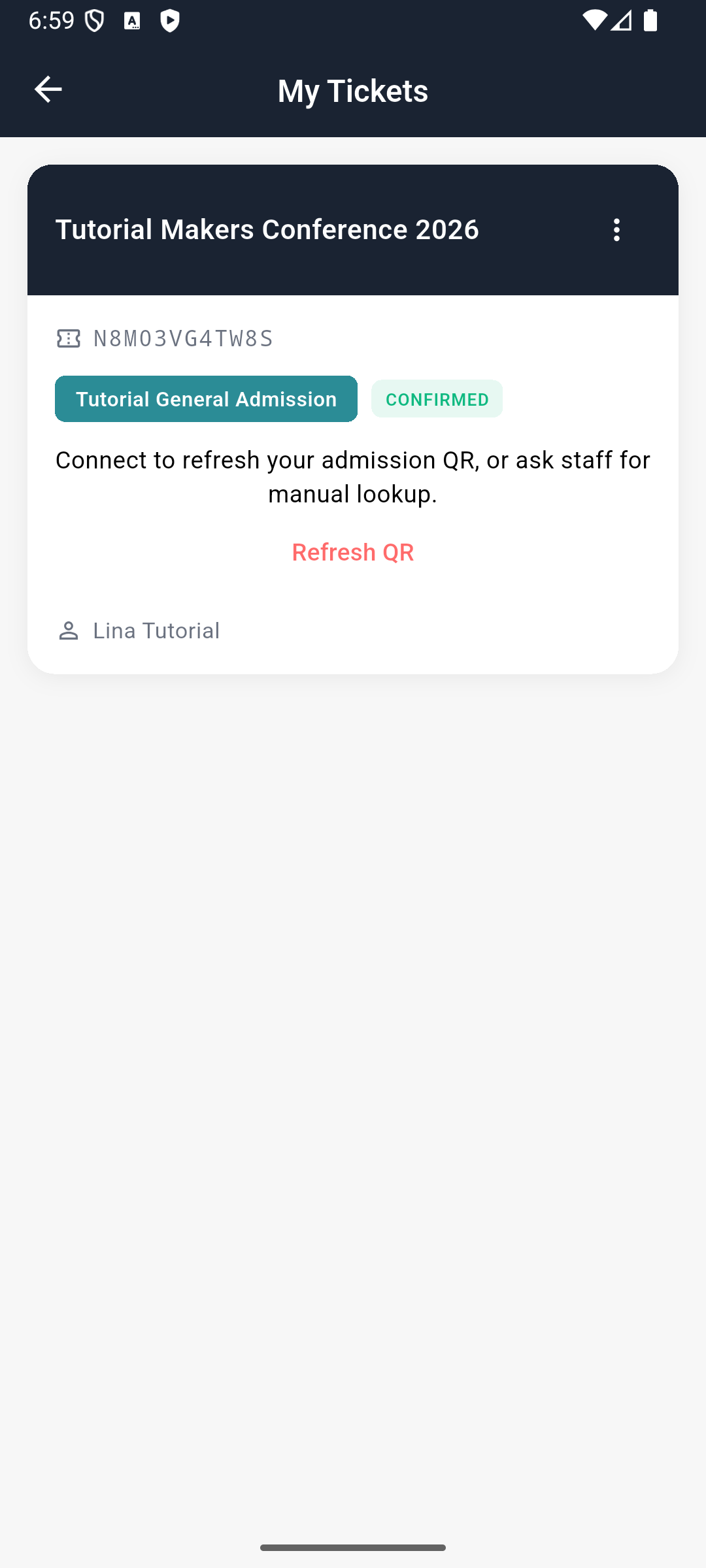
EventOxygen attendee view: the ticket is CONFIRMED, but an admission QR is unavailable until refreshed online. Use staff manual lookup when appropriate; an old image is not proof of a valid live code.
6. Admit the attendee and prepare badges
Appmint Mobile is the staff tool in this path; EventOxygen displays the attendee ticket. A badge printer needs its own verified connection.
Steps
Sign into Appmint Mobile as staff authorized for the event. Open Events → the intended event → Scan. Check Check In versus Check Out and the selected Zone before any scan. Use only controls exposed in this scanner; do not invent a scan-point picker if this build does not offer one. Scan the attendee’s live ticket QR and inspect the returned admission result. Return to EventOxygen and verify the updated ticket state, then inspect the admin check-in record. If the camera cannot read a current code, use Manual Lookup → Ticket code or holder email. For multiple matches, select the correct holder/type. This is an admission/check-out operation, not a harmless search. Repeat a duplicate or disallowed scan only on a controlled rehearsal ticket and read the actual result. For badges use the supported administration Accreditation Desk: look up the attendee, inspect the ticket, generate and print through the configured template/device path. Do not claim native badge printing or on-site mobile sales where those controls remain unfinished.
Check the result: Ticket, check-in record and attendee state agree; hardware proof is separate.
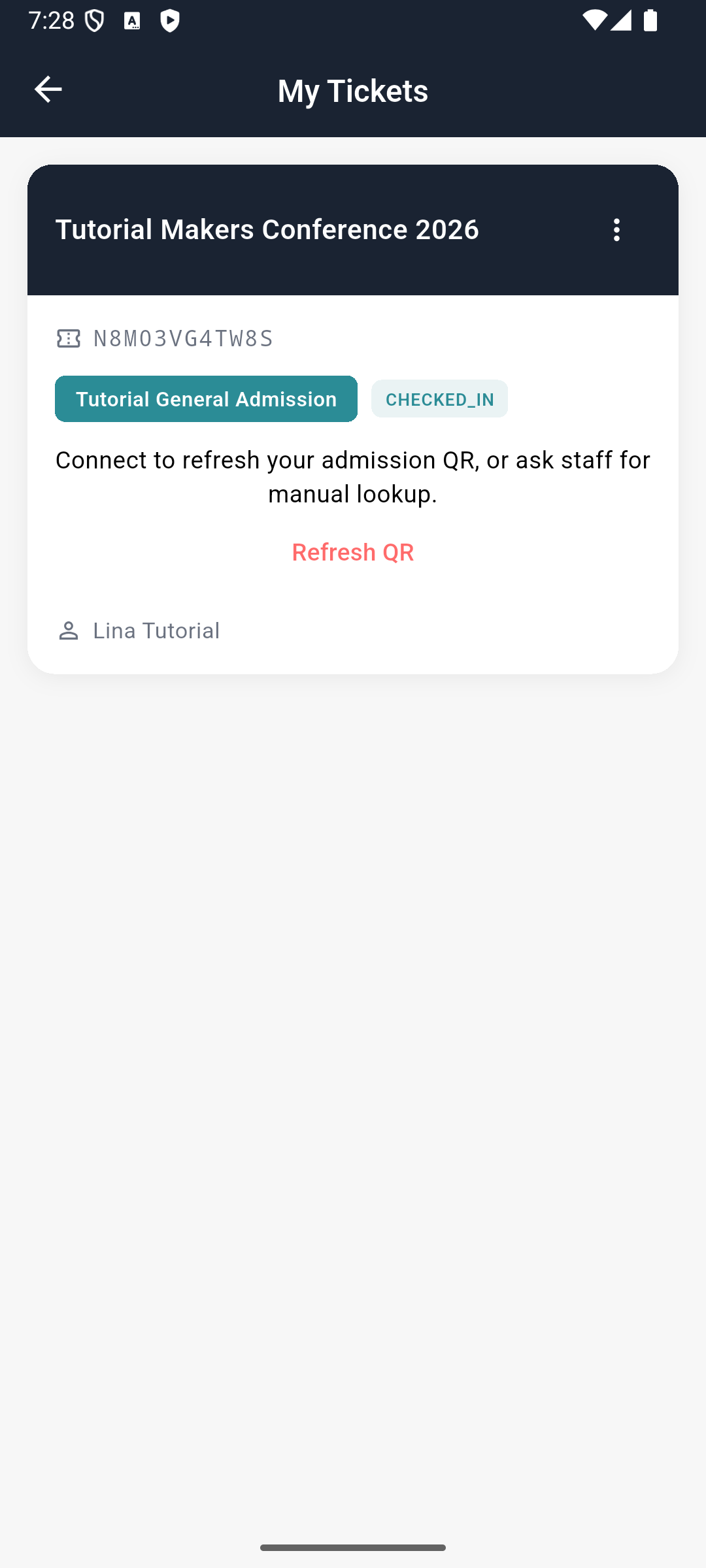
The same retained attendee ticket shows CHECKED_IN. Historical staff manual admission was exercised separately; these images do not prove a new camera scan, badge print or paid transaction.
7. Communicate, handle changes and close the event
Attendee communication, transfers and refunds have different outcomes to verify. A cancelled booking does not prove a returned card payment.
Steps
Use the event’s supported inbox/community communication with a controlled recipient and inspect delivery. For a ticket transfer use the admin ticket Transfer action with recipient email and verify the new holder/old-ticket behavior. For a cancellation or refund use the matching Booking action and reconcile the actual payment provider result. Compare attendance/check-in reporting with the controlled admitted ticket. Review session access, lead/perk consumption and attendee experience using the dedicated module chapters before distributing the event widely.
Check the result: Operational changes and reporting are tied to observed attendee and transaction results.
Troubleshooting and recovery
A successful configuration save does not prove the customer workflow. Reopen the exact record, inspect the actual consumer and preserve any error. Check stored state before repeating a create, purchase, message or refund. Keep organization, site, customer and record identifiers aligned across screens. Correct the failing dependency and repeat that verification without disguising an unsupported action.
Your next check
Follow the record through both sides of the workflow. When the intended person can complete the task and the saved result agrees, the setup has evidence behind it.
Limitations and checks
Current event_app environment/app config/main and historical EventOxygen connected-build manuscript used alongside Events and Appmint Mobile source. Build, registration, payment and scanning were not re-executed here. Public source-distribution URL/license still unestablished; no fabricated download link. Production branding/signing/iOS release and actual provider gateway setup remain deployment-specific. Existing published stock APK link is distinct from a custom-organization build.
Appmint Events Management: tickets, sessions and admission — supporting guide
Overview
Appmint Events connects event details, ticket rules, sessions, bookings and admission. We will configure an event, inspect a ticket purchase and follow it through accreditation and entry, with EventOxygen as the attendee and staff mobile companion.
1. Create the event identity and schedule
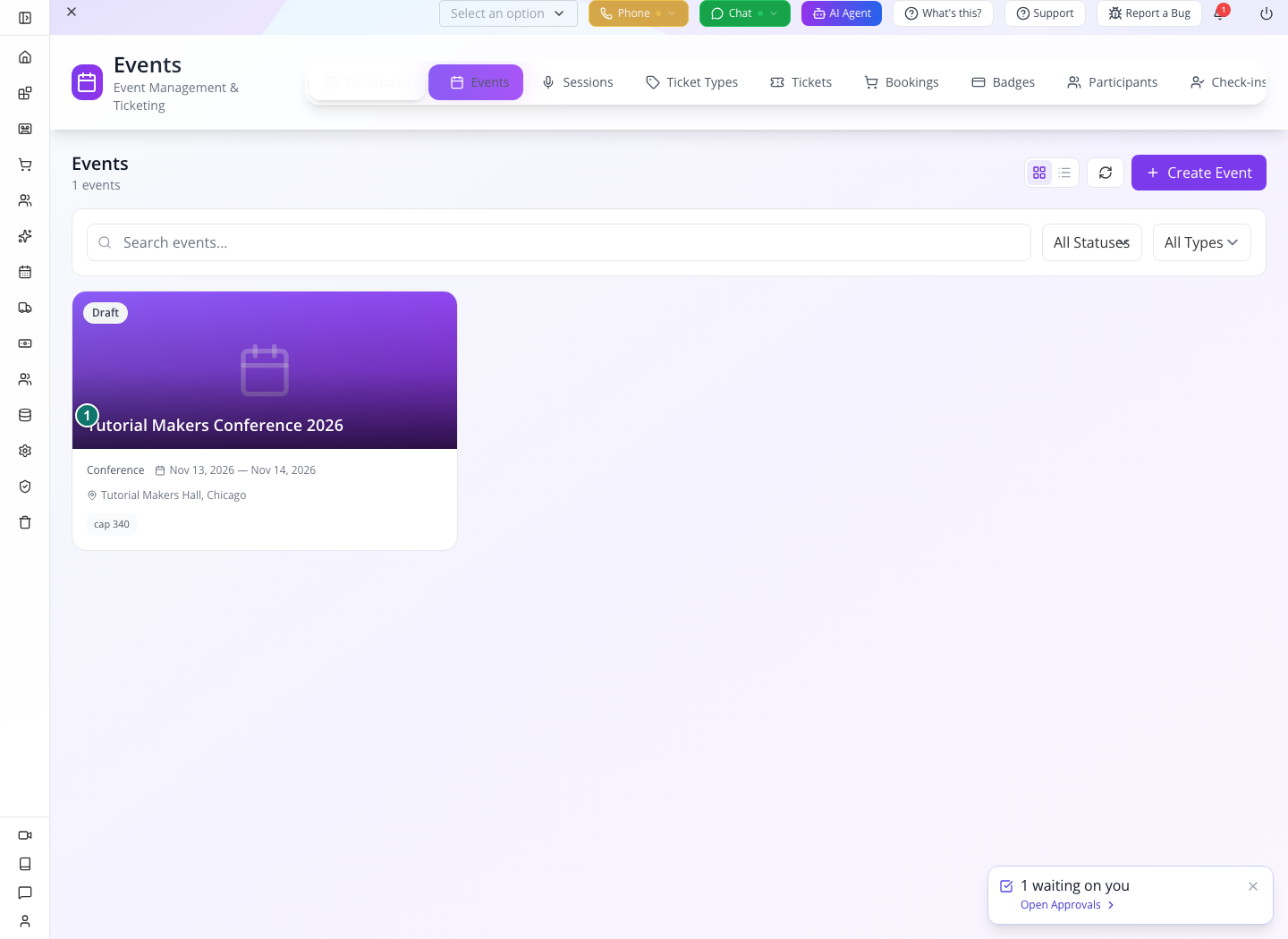
Retained capture: one Draft event is visible. Its card is not evidence that registration is publicly available.
Start in Events → Events → Create Event. Prepare the event's identity and time zone first, save, then reopen the same title before making ticket types. The top tabs represent different records: Ticket Types are the offers you define; Tickets are the individual admissions issued; Bookings group the purchase. Sessions holds the agenda. Creating one does not automatically complete the others.
Use your actual venue and future dates. Do not copy the sample conference date: a past event can make the attendee experience look unavailable even when its form saved correctly. Compare the reopened date/time fields and attendee view, rather than relying only on the condensed list card.
Why this matters
The event record sets the schedule and operating rules that its tickets and sessions use. Keep timezone explicit before creating the agenda.
Follow these steps
Open Events and create the controlled event. Enter Event Name, Title, Slug, Description, Short Description, Category, Tags and Status. Select Host and Organizers. Enter Start/End Date and Time, Timezone, Days and Tracks. Set Venue Type and its street, city, state, postal code and country; use the actual virtual location details when applicable. Enter Registration URL and Website only when those destinations exist. Save and reopen; compare the displayed event dates with the intended timezone.
Check the result: The event record persists with the intended schedule and venue.
2. Set admission and event capabilities
Why this matters
Walk-ins, check-in, approvals, networking and lead collection are deliberate choices. Zones and scan points give admission a location and purpose.
Follow these steps
Open the event settings. Set Allow Walk-ins, Check-in Required, Require Approval, Networking Enabled, Leads Enabled and Max Attendees Per Session as appropriate. Define Zones and Scan Points using stable identifiers, and configure Accreditation Points, Walk-in Purchase, Online Ticket Pickup and Auto Claim on Scan deliberately. If rotating QR is intended, set QR Rotation Enabled and its interval. Save and reopen. Keep the same zone and scan-point identifiers available for ticket access and perk setup.
Check the result: The event has explicit admission locations and enabled capabilities.
3. Create ticket types with limits and entitlements
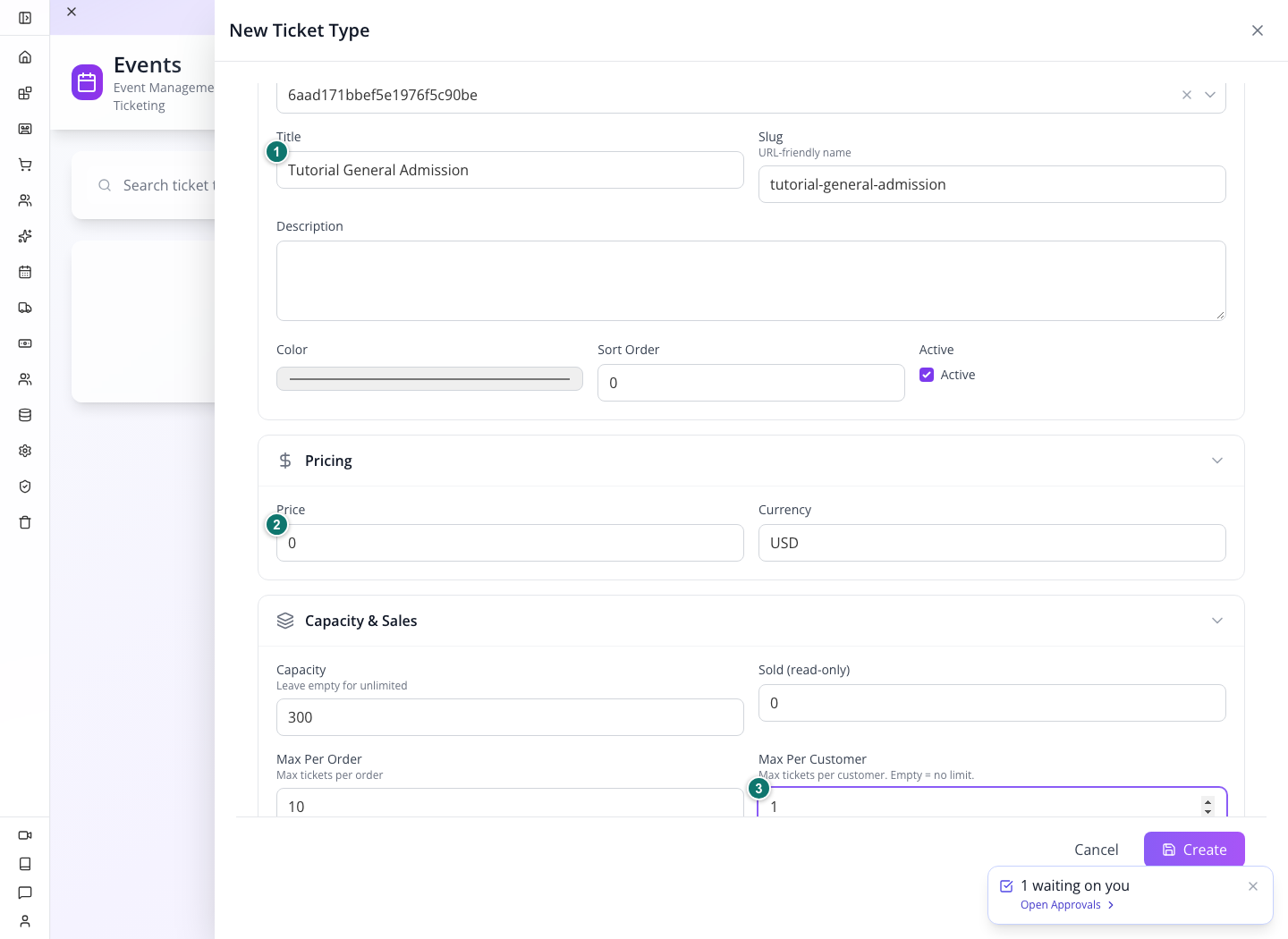
Retained capture: new General Admission ticket type, price0 USD, capacity300, Max Per Order10 and Max Per Customer1. Create is still visible; this is an unsaved setup screen.
- Open Ticket Types and its new-record action. Select the event you just saved before entering the ticket title.
- Name the offer, set its price and currency, then expand Capacity & Sales. For a controlled free practice admission use zero price; this does not test a paid payment gateway.
- Set total capacity separately from per-order and per-customer limits. Sold is read-only; do not edit it to simulate purchases. The example's customer limit1 is deliberately stricter than its order limit10.
- Complete the sale dates and entitlement controls described below, then Create. Reopen the saved ticket type and verify the event, price and limits before allowing a customer to register.
Why this matters
A ticket type defines what is sold, when it can be sold and what it grants. Price alone does not configure access.
Follow these steps
Open Ticket Types and create one for the saved event. Enter Title, Slug, Description, Color, Sort Order and Active. Set Price, Currency, Capacity, Max Per Order, Max Per Customer, Sale Opens and Sale Closes. Empty capacity is described as unlimited. Set Allow Re-entry and Re-entry Limit, Allow Transfer and Transfer Deadline, and Preserve Perks on Transfer. Enter Zone Access identifiers and Session Access identifiers; empty Session Access means all public sessions in this form. Add each perk’s ID, Name, Type, Quantity, Description, Auto-issue on Purchase, Valid Scan Points and badge template where used. Select the main Badge Template. Save and reopen all entitlement fields.
Check the result: The ticket type grants the intended event access and perks with explicit limits.
4. Build sessions and participant details
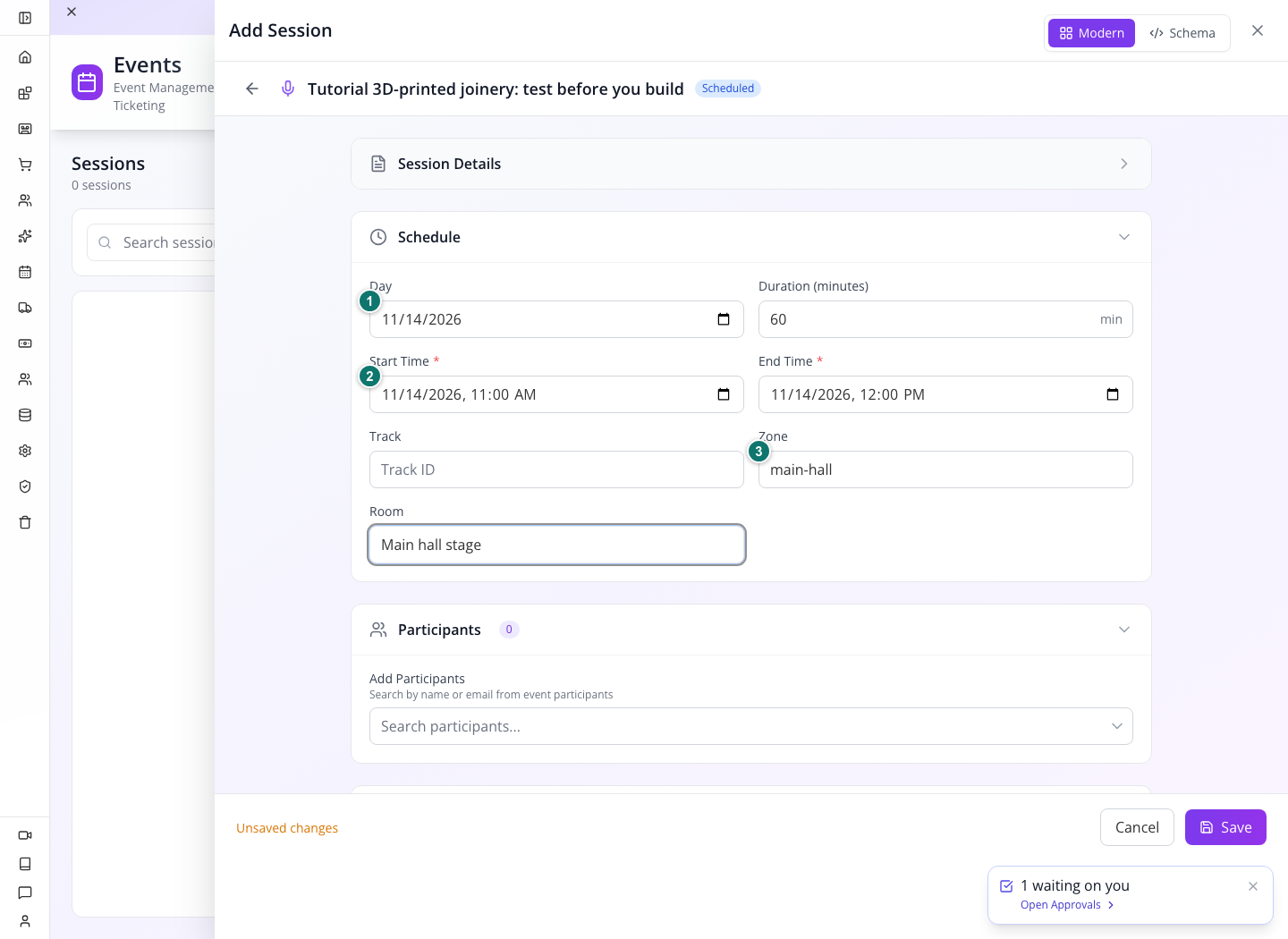
Retained capture: Schedule contains an11am–noon session and main-hall zone. Unsaved changes is visible; the picture does not establish persistence.
Open Sessions, create the session and select the same event. Expand Schedule after entering Session Details. Keep Day, start/end timestamps and duration consistent; the room's readable label is separate from the Zone identifier used for access. Copy the zone identifier from your own event configuration, not the sample main-hall text unless you created that zone. Choose Save, reopen the session and compare the saved schedule before adding the next session. Then check its attendee view; the administrator seeing a session does not establish that every ticket holder is eligible.
Why this matters
Sessions connect the event timetable to people, rooms and entitlement rules. Visibility and eligibility are different settings.
Follow these steps
Create a Session for the event. Enter Title, Short Description, Description, Type, Status, Day, Start/End Time, Duration, Track, Room, Zone and Capacity. Select Participants, Public/Visible to Attendees, Required Ticket Types and Required Accreditation. Enable Feedback only when intended. For live content configure Live Streaming, Platform, Stream URL and Recording URL; add Cover Image, Images and Resources. Save and inspect the session in the event agenda. Verify the actual attendee view using an eligible and an ineligible ticket; an admin list alone does not prove session restrictions.
Check the result: The session schedule and eligibility match the ticket rules.
5. Inspect a booking and its issued tickets
Why this matters
A booking can contain multiple ticket quantities and payment state. Editing a ticket’s status is not a substitute for completing checkout.
Follow these steps
Use the event’s actual registration/customer checkout with a controlled free or sandbox ticket purchase. Return to Bookings, filter the event and find the email or reference. Inspect holder details, item quantities, discounts/promo code, total, payment method/status/reference and confirmation/expiry times. Open the resulting Tickets and verify holder, event, ticket type and purchase references. Use Validate and Get QR for the intended ticket. For a controlled transfer use Transfer with recipient email and optional name and verify the resulting holder and old-ticket behavior. Inspect Cancel and Refund as separate booking actions and verify payment outcome through its provider when applicable.
Check the result: The customer purchase, booking and issued ticket correspond to one another.
6. Run the accreditation desk and scan admission
Why this matters
Accreditation prepares the attendee’s physical or digital credential. Admission scanning applies the event and ticket rules at a named point.
Follow these steps
Open Accreditation Desk for the event and set its desk/point identifier. Look up the attendee by Email, Booking Reference or Confirmation Code. Inspect the matched ticket before Fulfill, Generate Badge or Print Badge. To assign an existing credential, scan/type its code and identify the ticket or holder email. For walk-in sales select the ticket type, holder details and actual payment method; verify the resulting booking instead of assuming a selection collected money. Open the check-in flow with the appropriate zone/scan point and scan the controlled valid ticket. Repeat for a duplicate or disallowed zone and preserve its actual response. Inspect Check-ins and the affected ticket state.
Check the result: Credential, admission record and access result refer to the same attendee.
7. Pre-generated tickets and EventOxygen alternatives
Why this matters
Pre-generated inventory must be activated for the actual holder. The mobile application complements the administration screens; its unfinished actions must stay visible as limitations.
Follow these steps
Open Pre-generate Tickets, choose Ticket Type and Quantity and generate a small controlled batch. Inspect its inactive inventory, then activate one with Holder Email, Holder Name, Amount, Payment Method and Payment Ref as applicable. Verify the activated ticket and print output before distributing it. In EventOxygen connect the same organization/event, inspect agenda and ticket visibility, and use the authorized staff scan flow. Do not claim mobile on-site sales or badge printing where the current native implementation is incomplete. Keep the dedicated EventOxygen course for installation/customization and complete mobile workflows.
Check the result: Pre-generated inventory and actual holder access are distinguished.
Troubleshooting and recovery
Keep the exact record and operation visible when reading an error. Inspect persisted state before retrying a write; a timeout does not prove nothing happened. Correct the specific cause and verify the resulting record and consumer independently. An enabled feature, successful configuration save or administrative status is not proof of an external delivery, access boundary or money movement. Preserve unsupported behavior rather than simulating success.
Next steps
You can now use the module’s records and controls in context, and check the result at the point where it matters. Return to the relevant chapter for the advanced path and its verification.
Limitations and checks
Current event form, ticket-type form, booking list, ticket form, accreditation desk, pregeneration and session form inspected alongside native-course source findings. No paid booking, refund, badge print or entry scan performed in this pass. Customer checkout, provider operations, entitlement enforcement and scanner hardware remain live proof requirements. Native on-site sales/badge-print limitations are not assumed to be solved by the admin feature.