
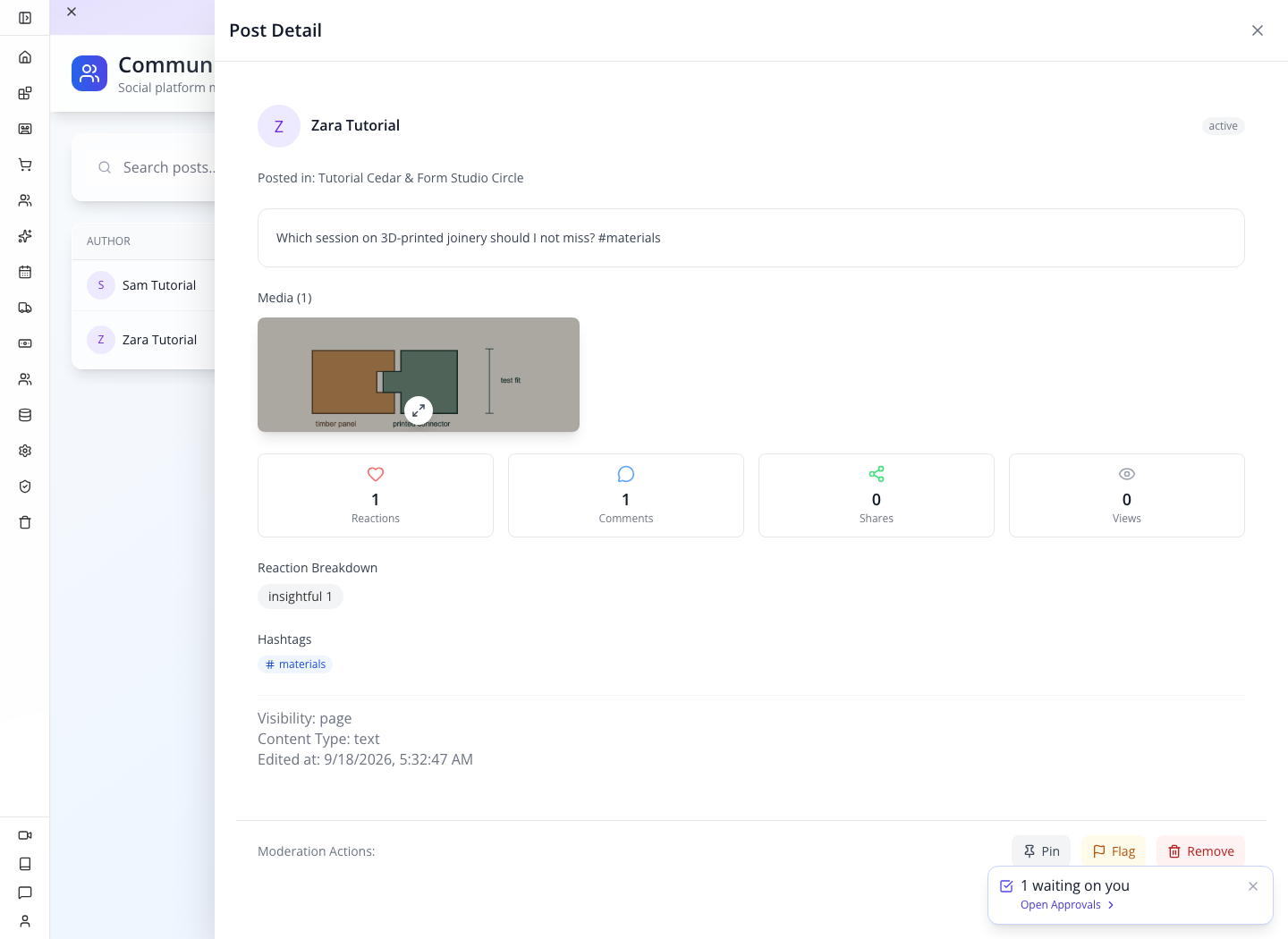
The result: a conversation attached to the right community page, with enough context for the owner to understand and moderate it.
Who this is for: business owners, community managers and developers connecting a member app. Time: 35 minutes for Studio setup and moderation; allow another 45 minutes for the developer lab. Level: beginner administration, then PRO integration. Product: Appmint Studio Manager → Community and AppEngine’s community APIs. Build checked: Studio 0.6.2; public workflow rehearsed 21 September 2026; privacy and hashtag acceptance 24 September 2026. Example business: Cedar & Form, an interior-design studio.
What you will have at the end
You will create Tutorial Cedar & Form Studio Circle, define what belongs there, inspect a member conversation, and handle an unrelated promotional post without losing the useful discussion. You will understand the difference between a community page, a connection, a direct message and a moderation report.
The developer lab supplies the actual requests for joining, posting an image, commenting, reacting, connecting, arranging a meeting and reporting a member. Its results appear in the same Studio screens used in the beginner lessons.
Choose your starting point. If you manage an existing member app, work through Parts 1–3 with your training members. If you are creating the member experience, complete Part 1, then the PRO lab in Part 4, then return to Parts 2–3. Creating a page in Studio creates its community record; it does not automatically add a member-facing website or a navigation link to your site.
What you need
- Your organization and Studio sign-in from Welcome to Appmint.
- Access to Community. For staff access, use roles and groups.
- A training community containing fictional information. The policy limitations beside the setup steps matter before you use real project details.
- For member participation: a connected member app, or a developer completing Part 4. Customer accounts and staff accounts have different purposes; clients do not need Studio access to participate.
- For the image exercise: download the joinery sketch. It is an original illustration for this lesson, not a construction specification.
The screenshots use an organization created for these tutorials. Your organization name and record IDs will differ. Keep your own IDs when following the API examples.
The story
Cedar & Form’s clients often ask similar questions about materials and suppliers. Zara wants advice before attending a joinery session. Kofi has a recommendation. Their discussion should be easy for another client to find next week.
The studio also needs a calm way to handle irrelevant promotion. Sam is a fictional training member who posts one deliberately unrelated message. We will review that report, remove the message from the member feed, and practice restoring it if the moderator makes a mistake.
The useful outcome is a place where a good answer stays available and a poor contribution can be handled deliberately.
The route
flowchart LR
    P[Create Studio Circle] --> M[Members join]
    M --> C[Question + sketch + reply]
    C --> F[Owner inspects Feed]
    R[Member reports a person] --> Q[Review in Moderation]
    Q --> A[Change post status in Feed]
    A --> V[Check the member result]
Page means a community space here. It is different from a website page built in Build Studio. Groups is another separate tab: it manages group chats. Choosing the community page type Group does not itself create a group chat.
Part 1 — Give the community a clear purpose
1. Open Community and find the working tabs
Choose Community in Studio’s sidebar. If its submenu opens, choose Dashboard. The top strip contains Dashboard, Pages, Feed, Stories, Connections, Follows, Messages, Groups, Meetings, Announcements, Badges, Moderation, Hashtags and Notifications. On narrower screens, move along the strip to reach the later tabs.
The dashboard summarizes activity. Pages manages the spaces; Feed manages posts; Moderation manages member reports. You will move between these three rather than trying to do everything from the dashboard counters.
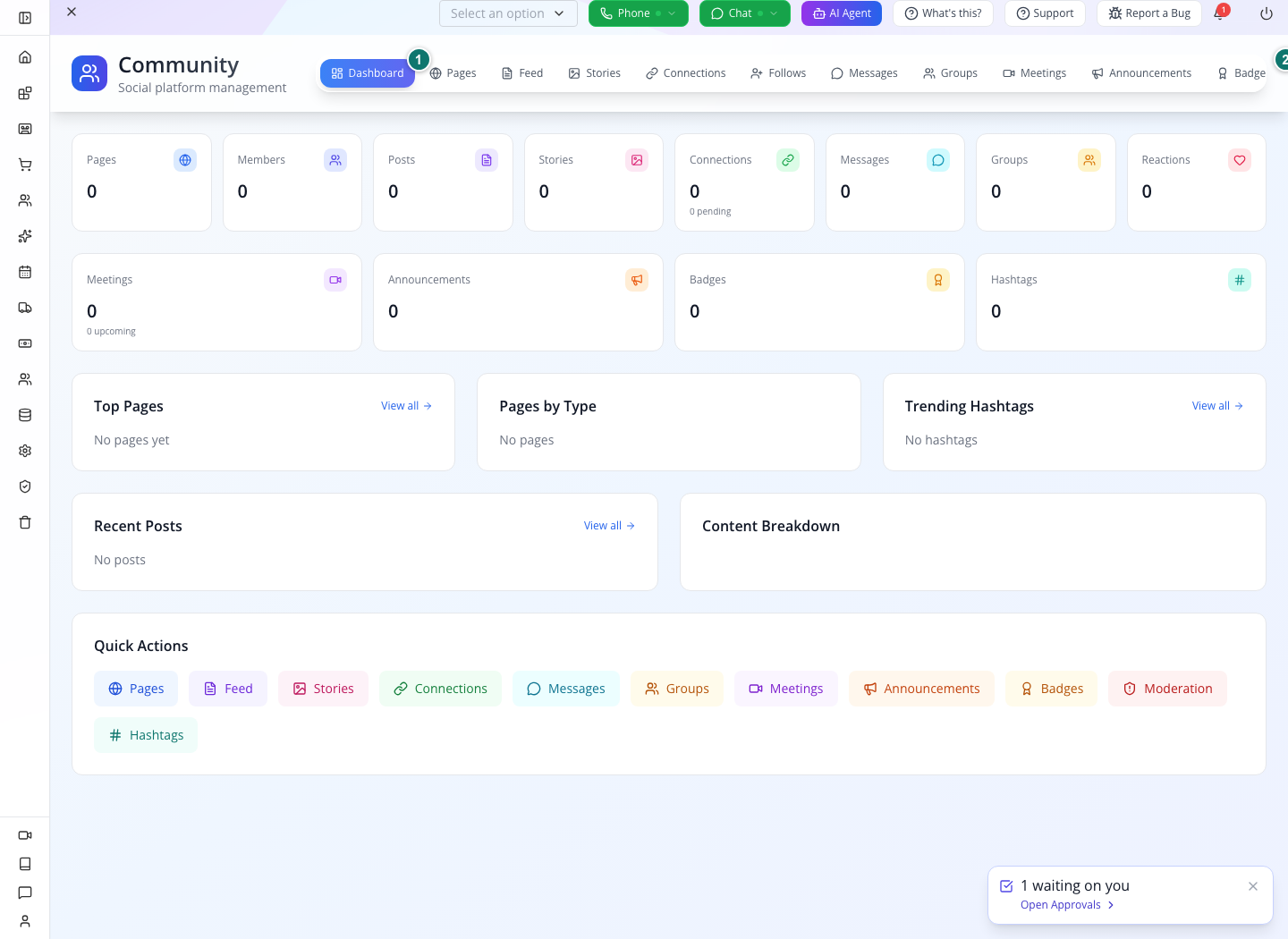
1 — Pages starts the setup. 2 — Moderation is the report queue you will use later.
You should see: a dashboard appropriate to your organization. An empty training organization shows zero pages and posts. Existing organizations may already have event pages.
2. Add the page’s identity
Open Pages → Add Page. In the General section, enter:
| Field | Example | Why it matters |
|---|---|---|
| Title * | Tutorial Cedar & Form Studio Circle | The name members and moderators recognize. |
| Slug | tutorial-studio-circle | A short identifier without spaces. It is not, by itself, a finished website URL. |
| Type | Group | Describes a shared interest space. |
| Short Description | Share design questions, useful finishes and session recommendations. Keep client addresses and private project files out of posts. | Gives newcomers a useful boundary in two sentences. |
| Category | Interior design | Describes the subject. |
| Tags | design, materials, studio-circle | Adds useful organizing terms. |
| Status | Active | Keeps this page in the active set. |
The longer Description is a rich-text area. Use it for community guidance when you need more than the short description: what to ask, how to make a question useful and where private project discussions belong. You can leave it empty for this first exercise.
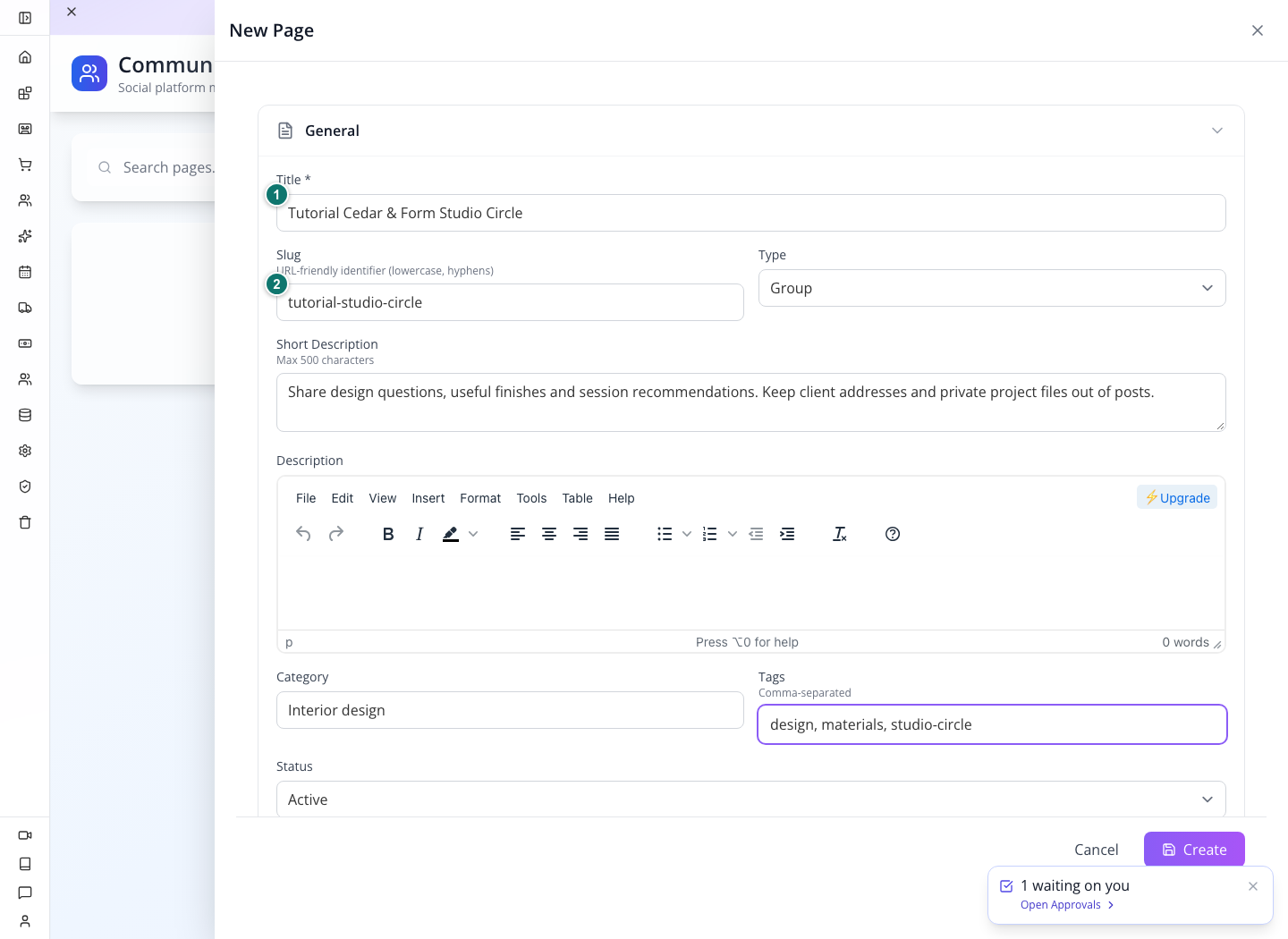
1 — A recognizable title. 2 — A separate, URL-friendly slug. The screenshot shows the actual creation drawer.
You should see: your values still in the drawer. The page is not saved yet.
3. Choose the settings deliberately
Collapse General and Media if necessary to bring Settings into view. Choose:
| Control | Exercise value | Meaning to communicate to members |
|---|---|---|
| Visibility | Public | Use this space for information suitable for public discussion. |
| Join Policy | Open | Members are intended to join without an approval round. |
| Posting Policy | Members | Join before contributing. |
| Moderation Level | Flagged Only | The community’s intended review process focuses on flagged contributions. |
Leave Feed, Stories, Announcements and Media Gallery checked and Chat unchecked for this exercise. These feature settings do not establish that your member app renders every feature; its interface must support them.
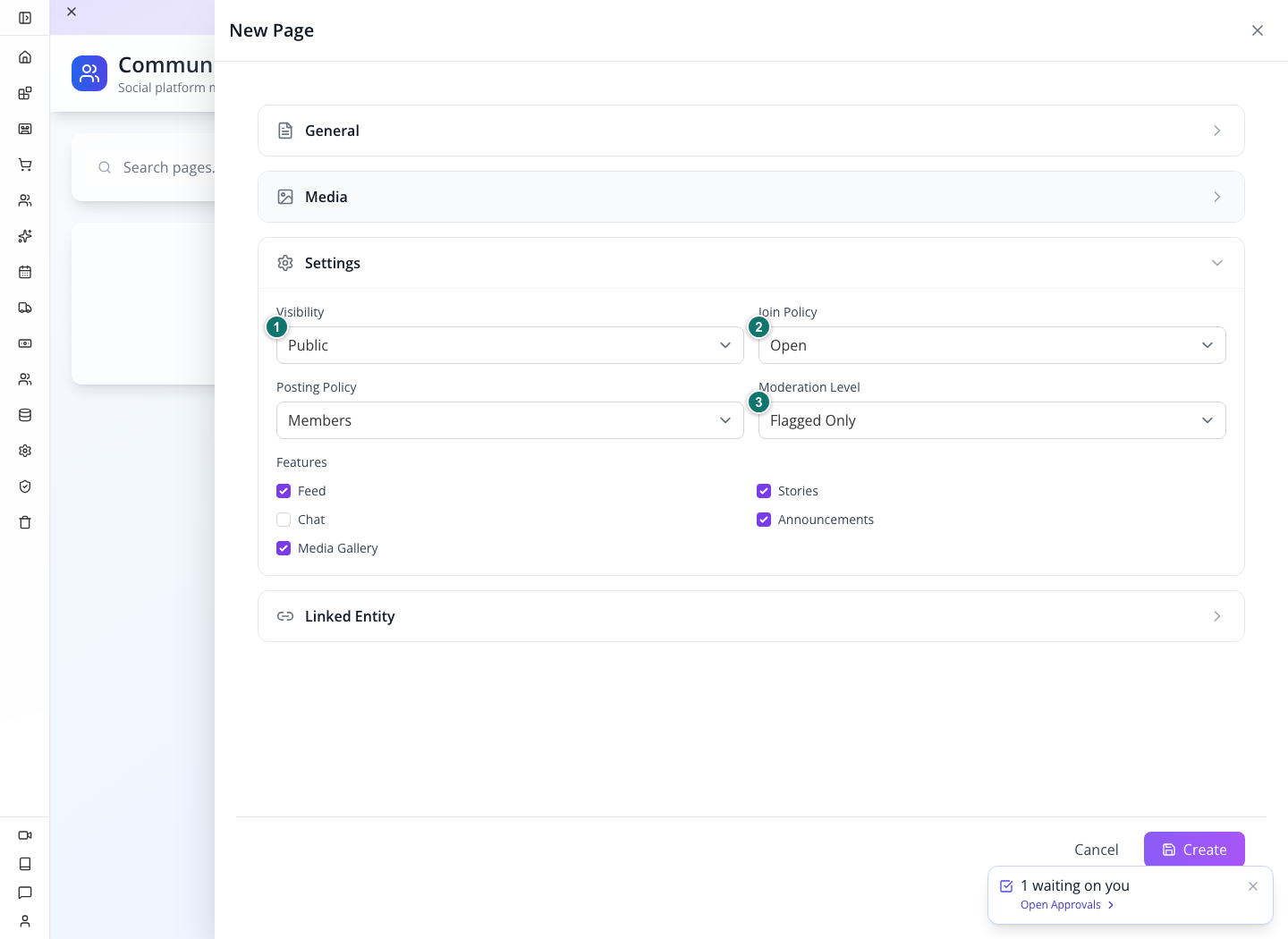
1 — Visibility. 2 — Join policy. 3 — Moderation level.
Policies now have verified effects on the member endpoints. Private pages are hidden from anonymous, outside and pending members. Approval Required saves a pending membership; Admins Only refuses an ordinary member's post; Pre-Approve saves that member's post as pending. The author can see their pending submission, while other member-facing reads do not expose it. Staff moderation is a separate administrative view. These were checked with separate identities after saving the settings in Studio; keep the same boundary tests when connecting your own member app.
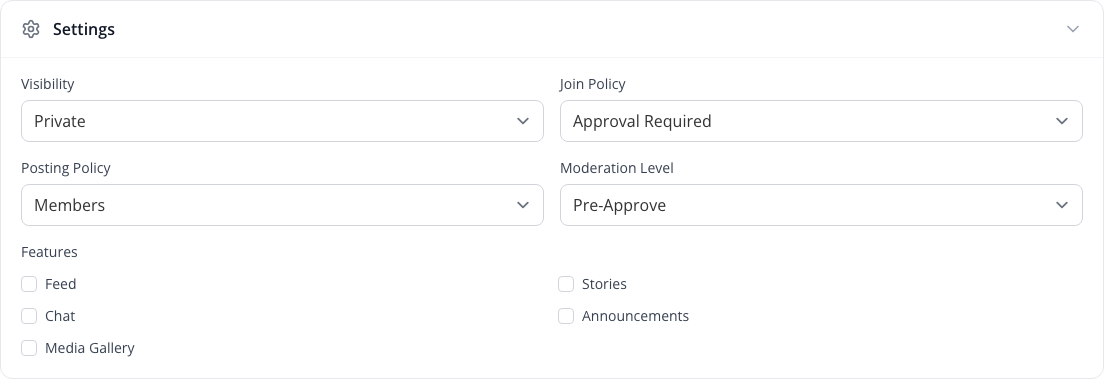
The tested page-post endpoint does require page membership. That check is useful, but it does not make the other selectors effective access controls.
4. Save, reload and read the row back
Choose Create at the bottom of the drawer. Wait for the page to appear, then reload Studio, open Community → Pages, and find its title again.
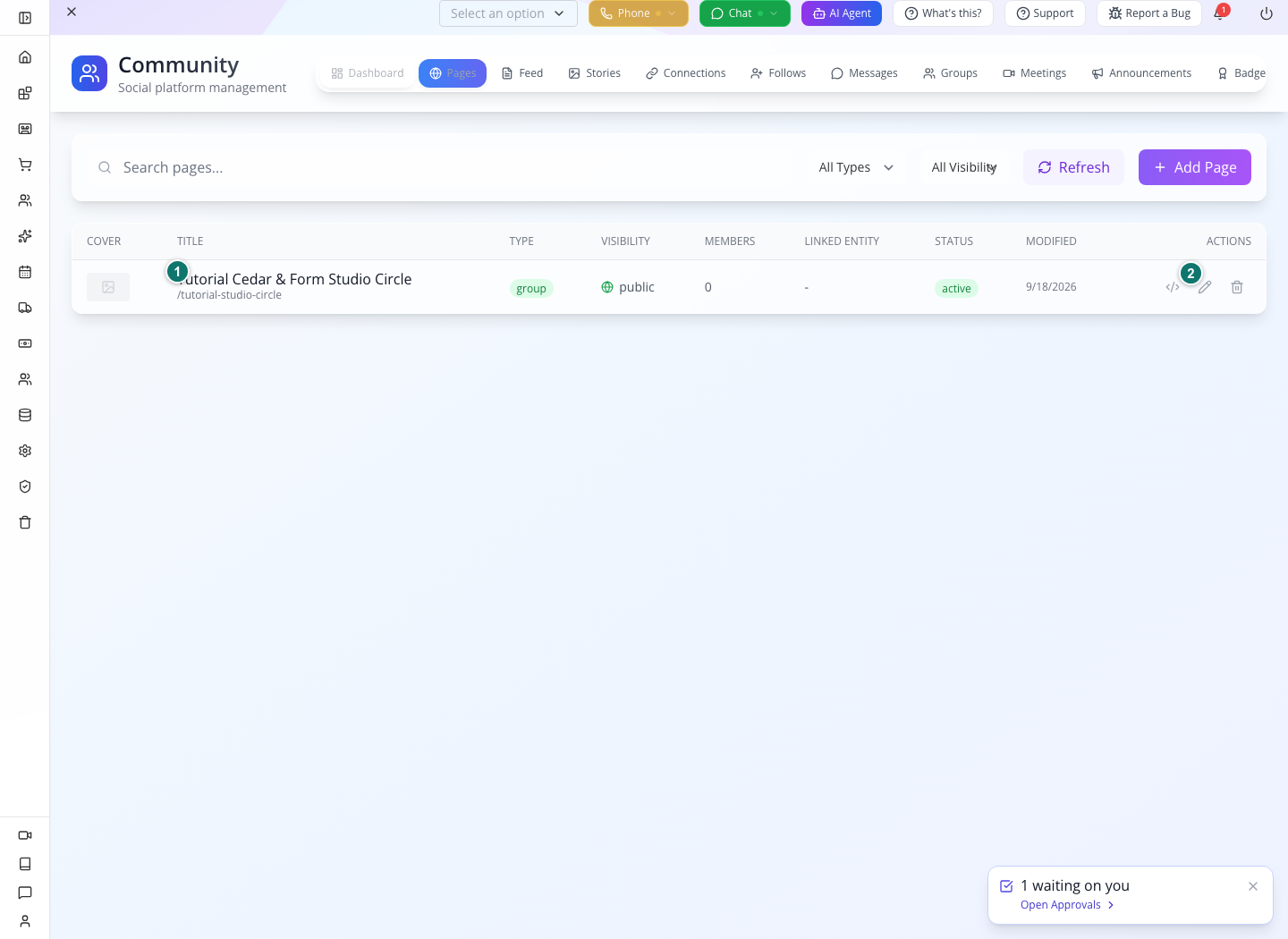
1 — The persisted page. 2 — Edit opens its settings again.
You should see: group, public, active, and initially 0 members. Studio’s page creation did not automatically add the signed-in owner as a community member.
Use the pencil Edit action to revise the description later. View JSON shows the record, including its sk ID for a developer. Do not copy the page’s slug into an API field expecting that record ID.
Try it. Explain the community in one sentence that names both its subject and its audience. “Ask other Cedar & Form clients about materials and design sessions” is more useful than “Welcome to our community.”
Check yourself. Does seeing the page in Studio mean your website now has a working Join button? No. The member app is a separate part of the setup. Use its verified community screen or Part 4’s integration lab.
Part 2 — Read a real conversation without losing its context
1. Confirm that members actually joined
Have your training members join through your connected app, or perform the join requests in Part 4. In Studio, return to Pages and choose Refresh.
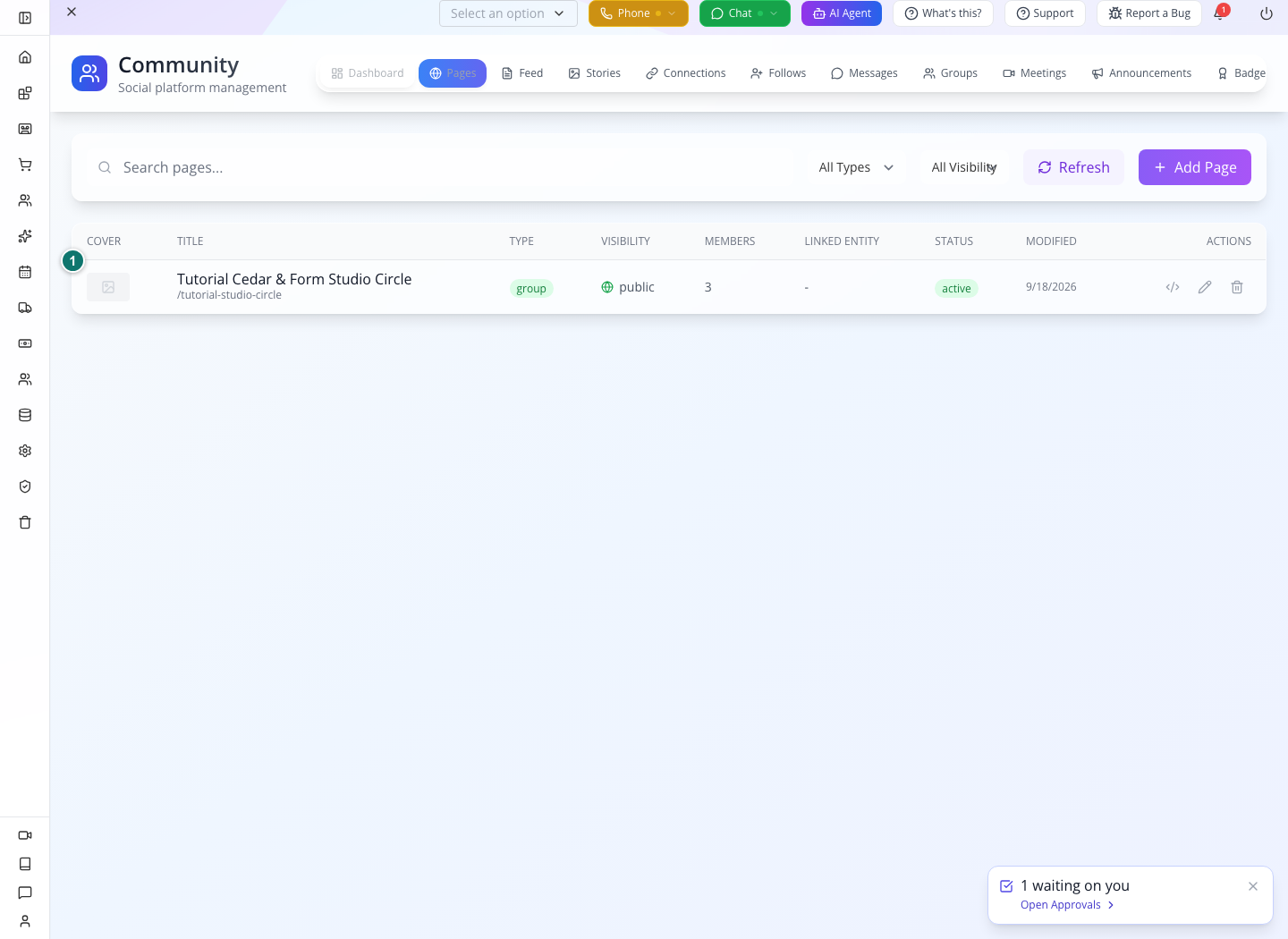
The three members in this exercise are Zara, Kofi and Sam. These are customer accounts used only for practice.
You should see: the Studio Circle member count has changed to 3. Creating a customer account alone did not produce that count; each member joined this specific page.
Joining a second page: reuse the same customer identity and join each page separately. The repaired local build supports this; creating another customer is unnecessary. If an older installation returns a duplicate membership-name error, ask its administrator to update it before continuing.
2. Find the question in Feed
Open Feed. Use the All Pages selector to choose Tutorial Cedar & Form Studio Circle. Keep All Statuses and All Types while learning the screen.
The exercise post reads:
Which session on 3D-printed joinery should I not miss? #materials
Kofi’s answer is:
The Friday 11:00 one — bring the sketch.
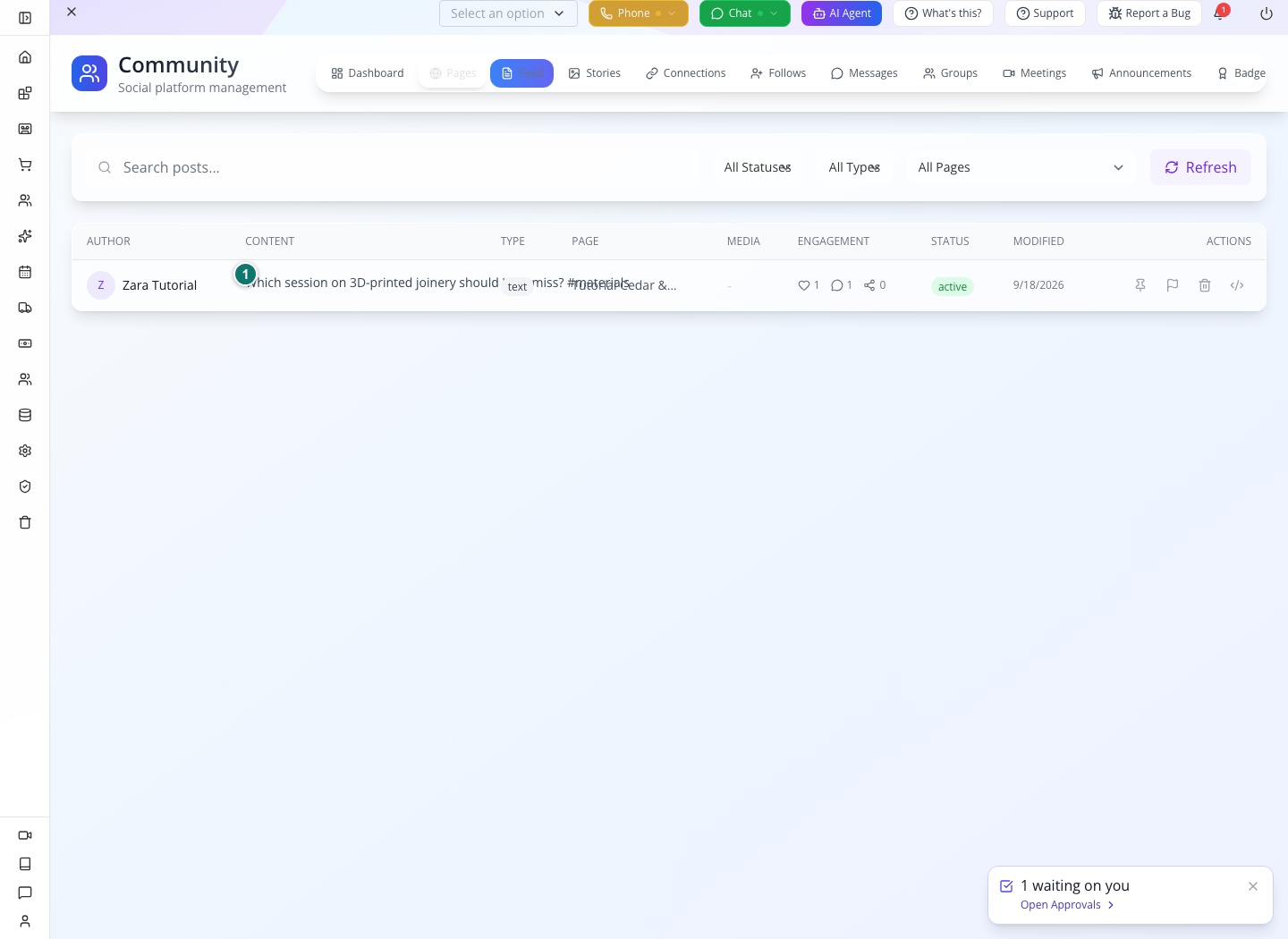
The row tells you the Author, Content, Type, Page, Media, Engagement and Status. Under Engagement, the heart is reactions, the speech bubble is comments and the share icon is shares. Our first conversation has one reaction, one comment and no shares.
You should see: Zara’s name, the correct community page, and the saved counts. A post made without a page ID is a global post; do not assume every post belongs to the page you happened to be viewing elsewhere.
3. Open the post to inspect the details
Select the post’s text. The Post Detail drawer shows the full question, Posted in, the attachment, engagement totals, Reaction Breakdown, hashtags and visibility.
Our image is a discussion prompt, not decoration. It gives Kofi something specific to answer:
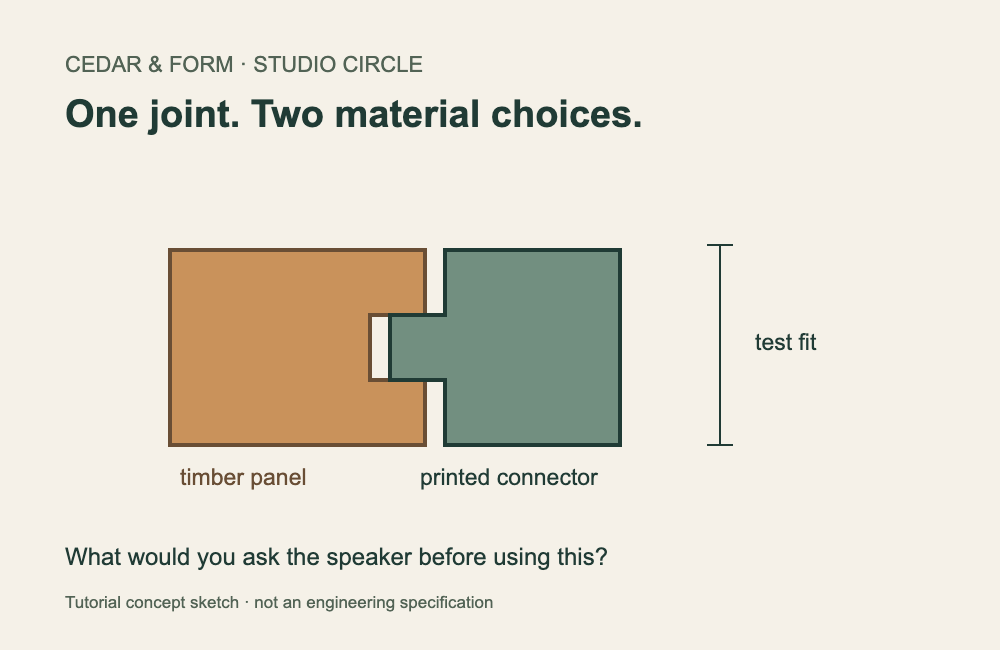
You should see: Media (1), 1 Reactions, 1 Comments, and insightful 1. The current admin drawer shows the comment count; it does not display the full conversation thread. Read the comment through your member app or the comments request in Part 4.
Image loading: wait for the thumbnail to load before judging the attachment or capturing a tutorial. The first capture showed an empty media tile while the image was still loading; the later capture contains the actual sketch.
4. Use a poll when the answer should be a choice
The developer exercise creates a second post: Tutorial: Which material should we compare next? Its two options are Timber and Recycled composite. Open that post in Feed to inspect the result.
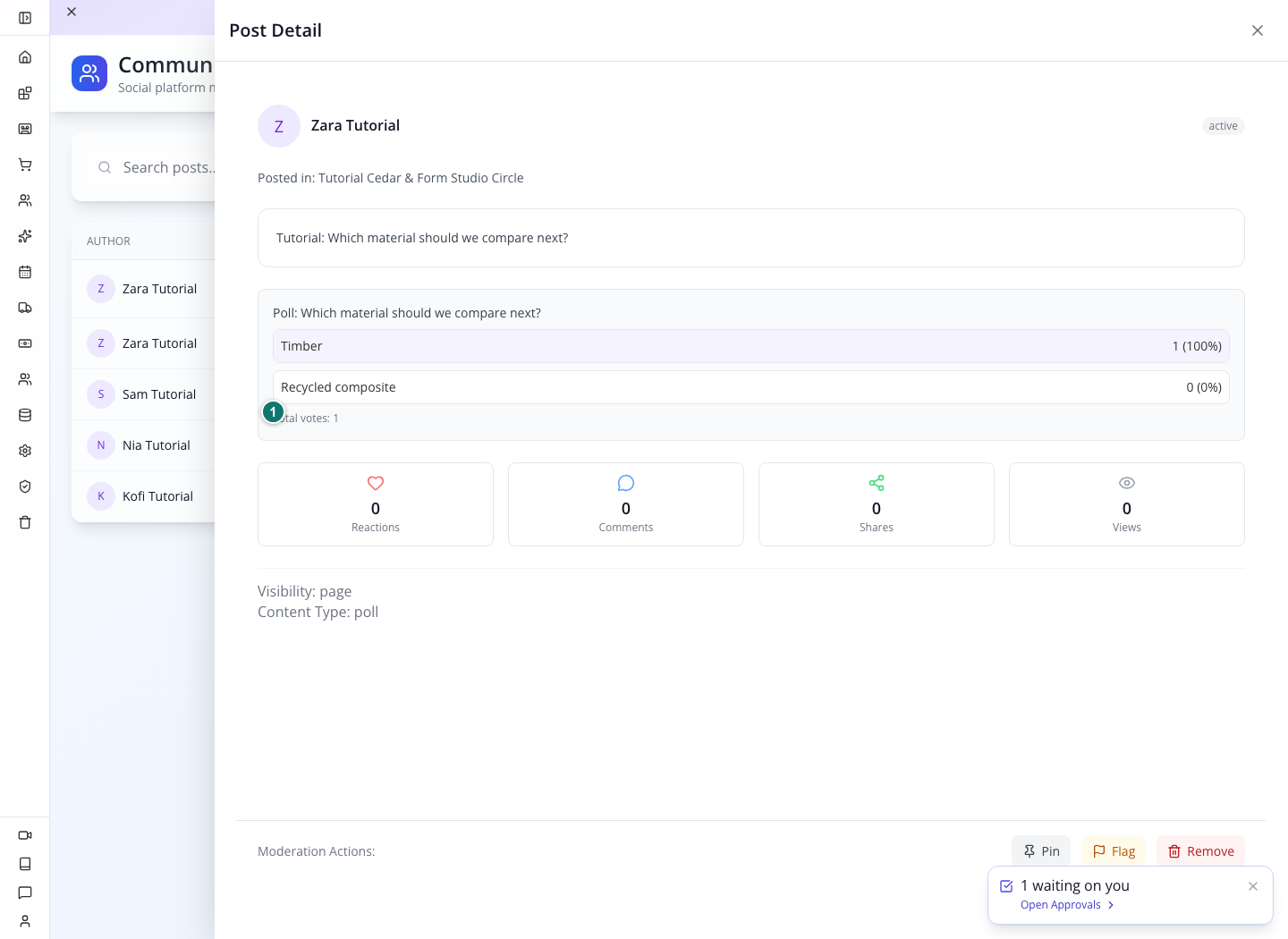
You should see: one vote, with Timber at 100%. The poll allows one choice. Kofi’s second vote returned Already voted rather than adding another vote.
A poll helps choose a subject; a comment explains a reason. Use both when you need a decision and the context behind it.
Try it. Ask one specific question about the sketch, then compare it with “Any thoughts?” Which would help a new member write a useful reply?
Check yourself. Does a reaction count of one mean one new reaction for every tap? No. Repeating the same reaction toggles it off; the next tap adds it again. The API exercise verifies that behavior.
Part 3 — Review the person, then moderate the post
1. Open the pending report
Sam’s practice post says:
Tutorial moderation sample: unrelated promotion. This is a fictional practice post.
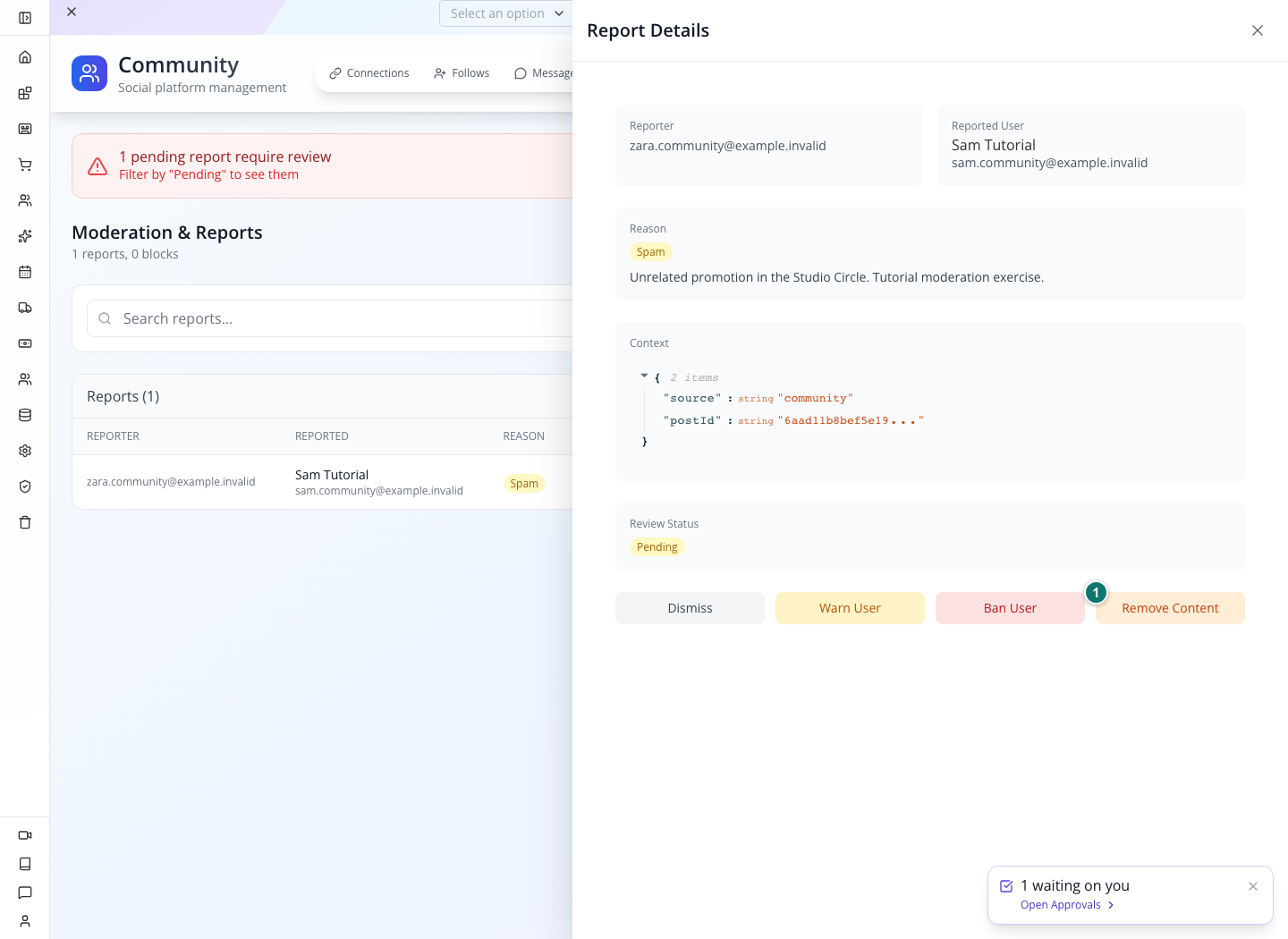
Zara reports Sam with reason spam and includes the post ID as context. Open Moderation. A pending-report notice appears above Moderation & Reports.
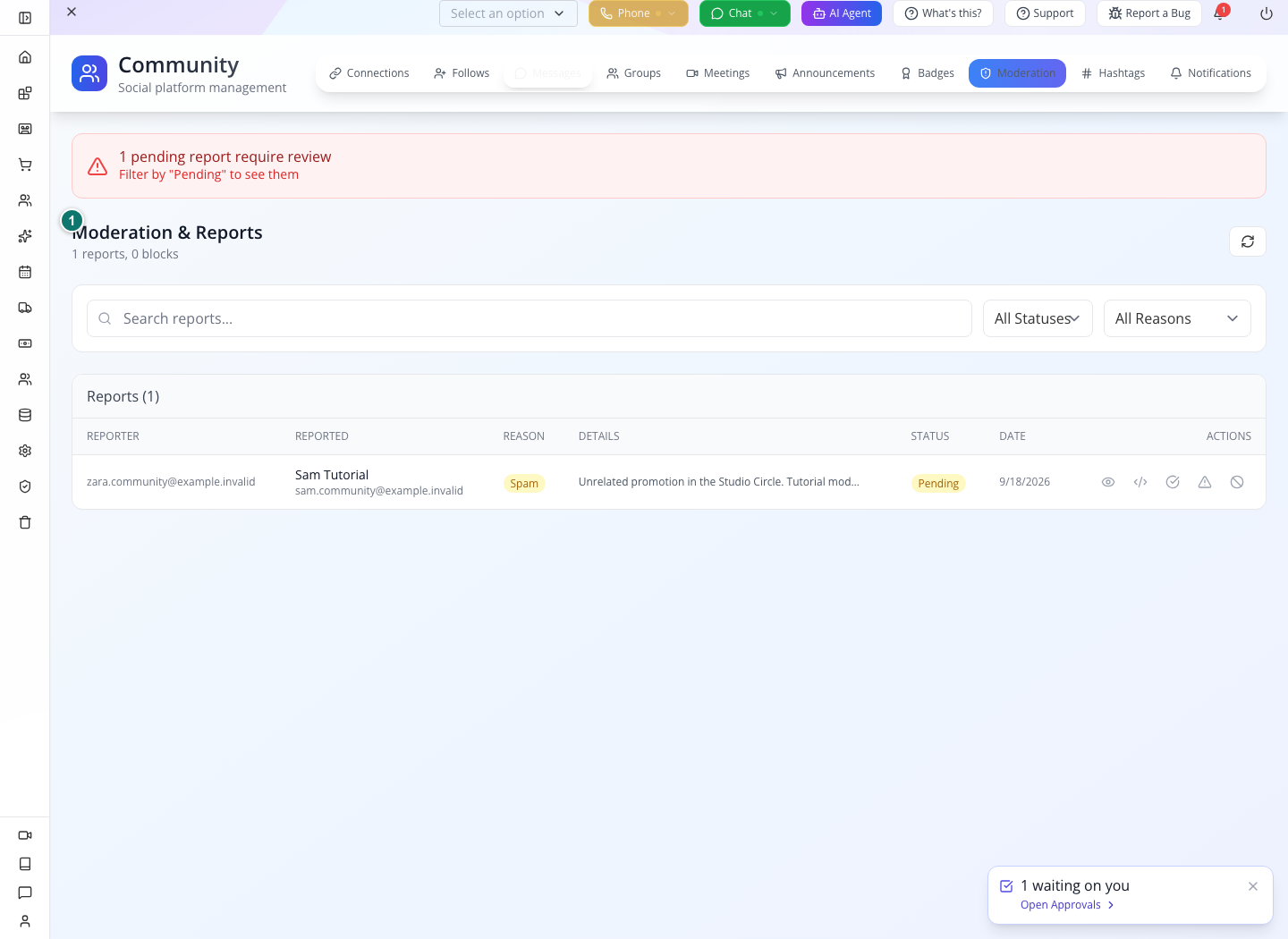
Read the Reporter, Reported, Reason, Details and Status columns. This report concerns a person. The offending post is separate content that you must identify before acting.
Select the row’s eye icon, View Details.
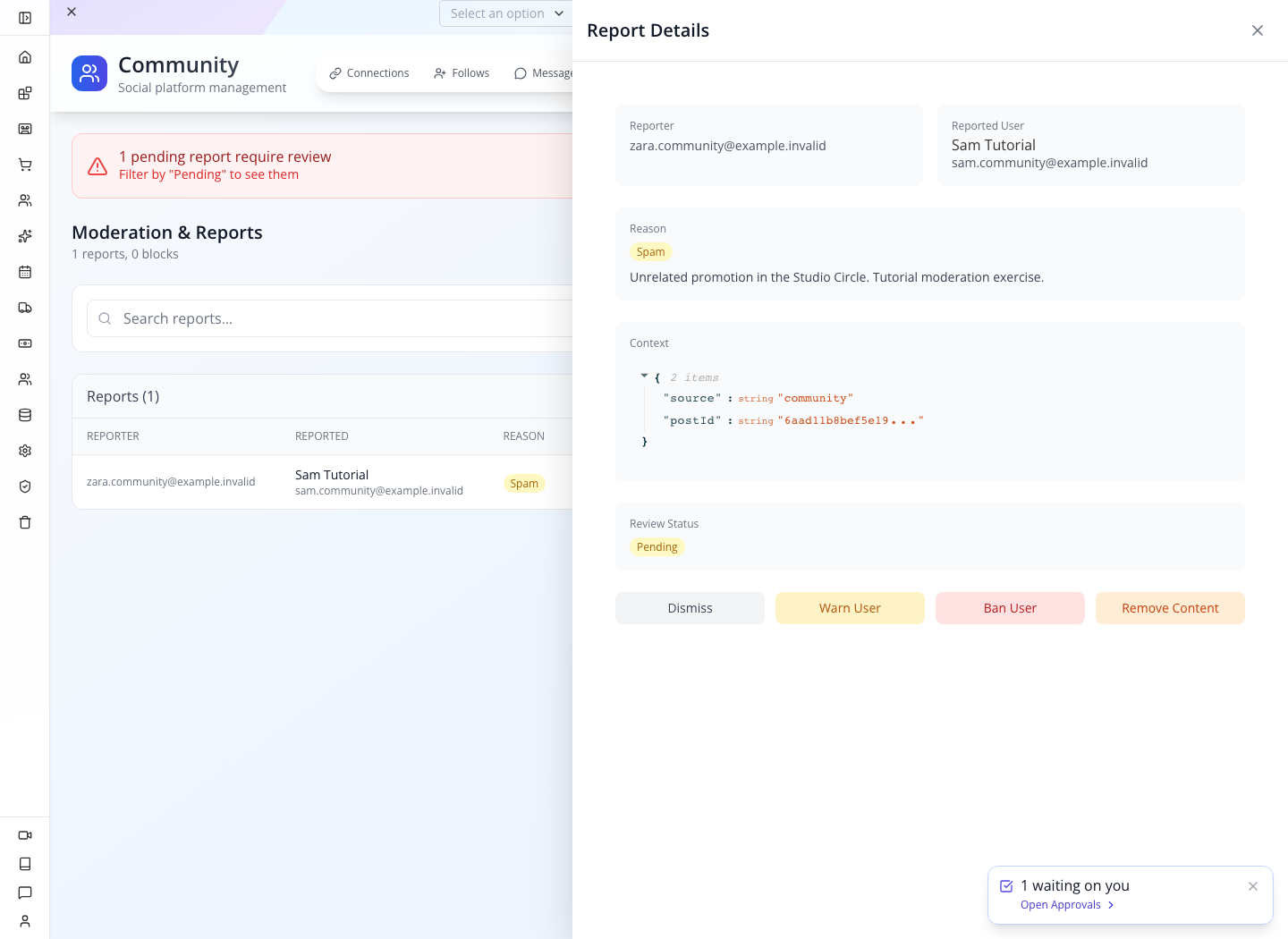
You should see: Zara as reporter, Sam as the reported member, the unrelated-promotion explanation and the saved context. The reporter’s display name may be blank while their email is visible; use that email to identify them.
2. Understand the review choices before selecting one
The drawer offers Dismiss, Record Warning, Record Ban Decision and Remove Content. Warning and ban choices record decisions; they do not send a warning or suspend an account. For this exercise, select Remove Content, then close the drawer, reload Studio and return to Moderation.
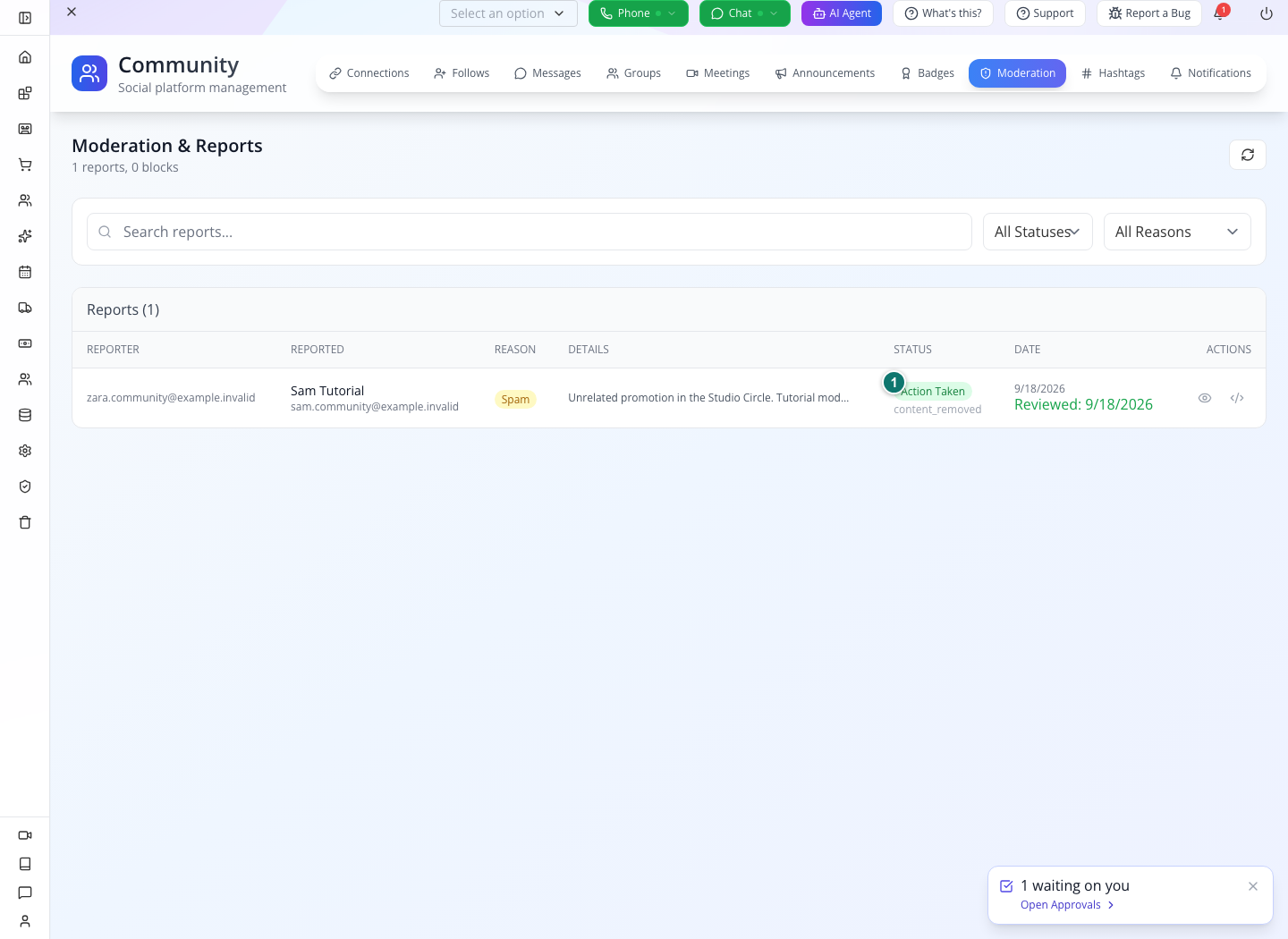
You should see: Action Taken, with content_removed beneath it.
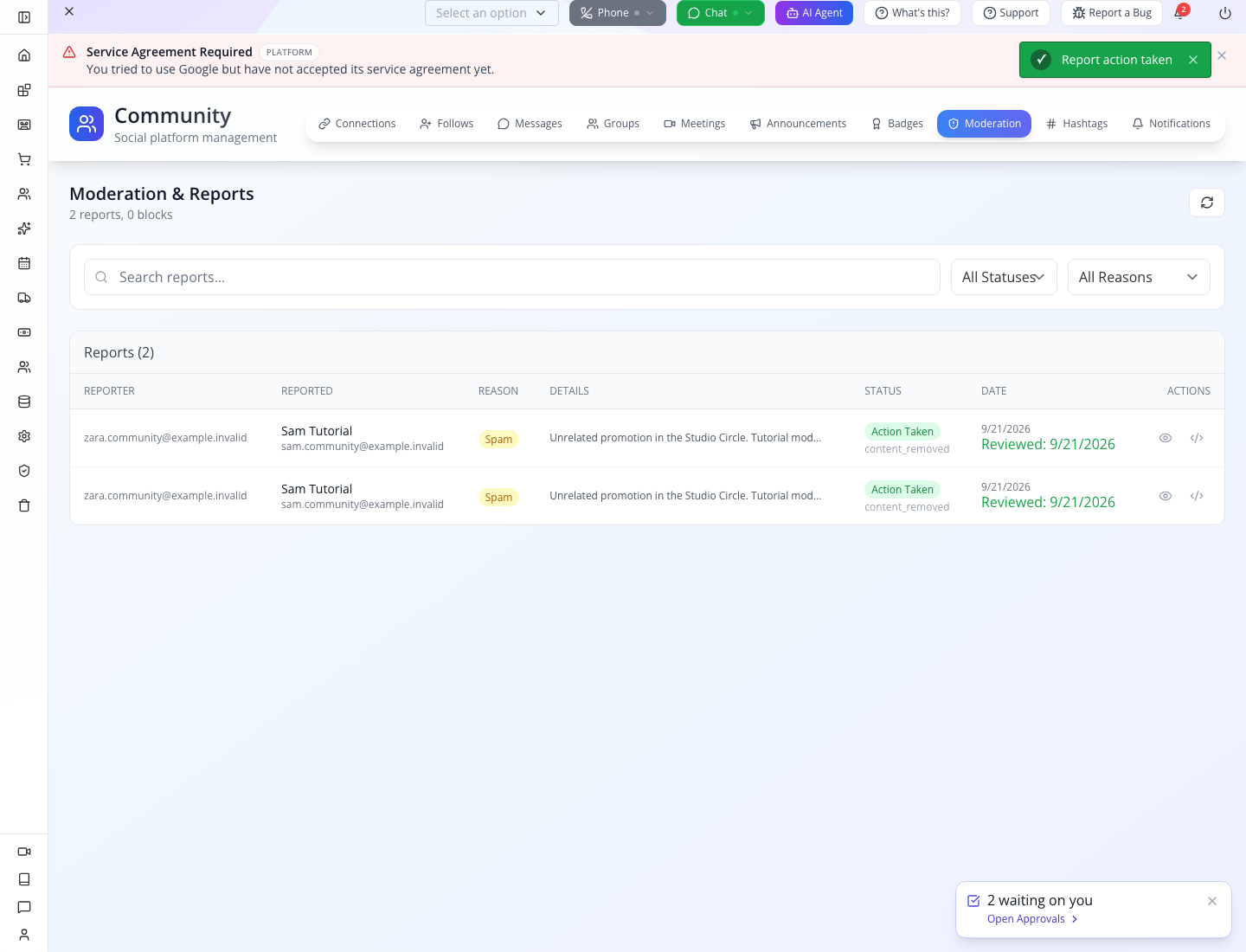
Verify the effect: the repaired Remove Content action checks the report’s post ID and author, removes that post, then saves the review. Its member link should return 404 — Post not found and the page feed should exclude it. If the report has no valid post reference, correct the context or locate the post in Feed; the report stays open when removal fails. The screenshot above is historical; the current result is shown below.
3. Find the post in Feed and mark it for review
Open Feed, choose Studio Circle in the page filter and find Sam’s exact practice text. After the repaired report action it should be removed. For this fictional rehearsal only, select Restore once so you can practice the separate Flag and Remove controls below. The older screenshot below shows the pre-repair behavior.

1 — The reported post. 2 — The Feed action that changes the post itself.
Select the row’s flag icon, Flag. The status becomes flagged.
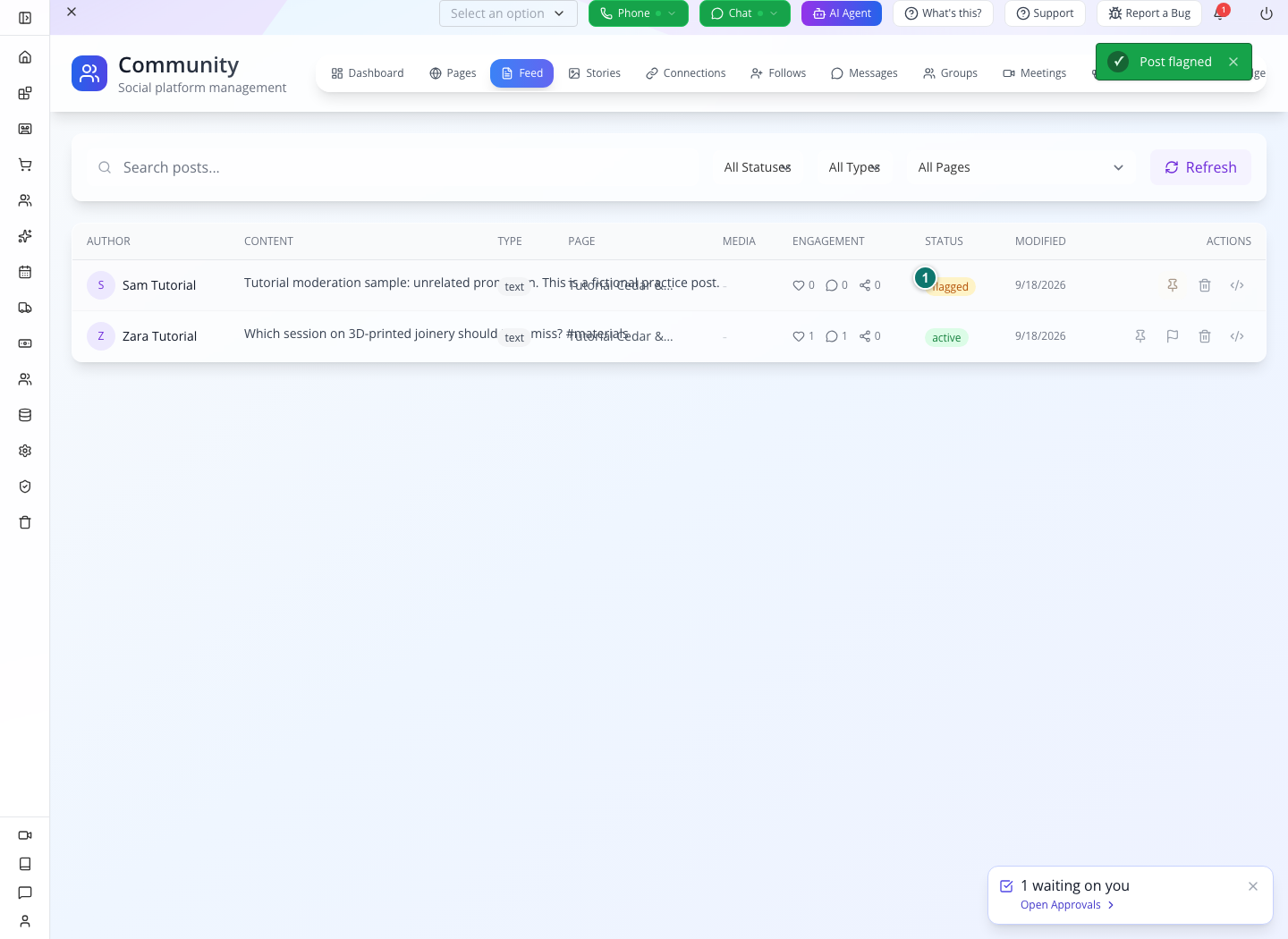
You should see: the flagged status. Members can still retrieve a flagged post. Use Flag to draw moderation attention, not to hide content.
4. Remove the post from the member feed
On that same row, select Remove, the trash-shaped icon. This action changes the post status to removed; the row offers Restore afterwards.
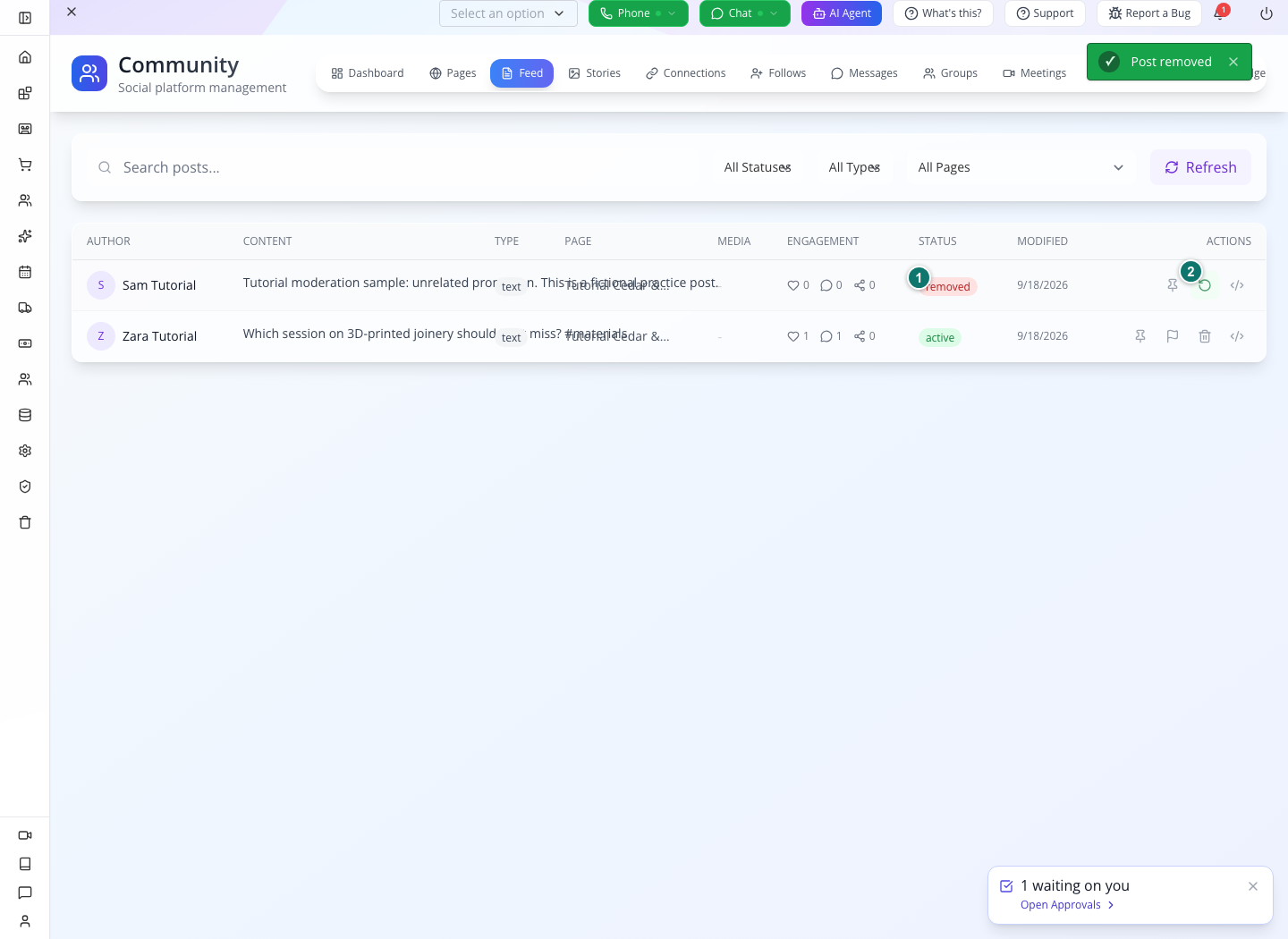
1 — Removed status. 2 — Restore is available if the decision was wrong.
You should see: the row remains available to the moderator under All Statuses, while the member feed no longer includes it. In the integration test, fetching its direct post endpoint returned 404 — Post not found. This is the member-visible result that the report’s review status alone did not achieve.
5. Practice undoing a mistake
Select Restore on the practice post. Its status returns to active. The member API can retrieve it again. Then select Remove once more to leave the exercise in its moderated state.
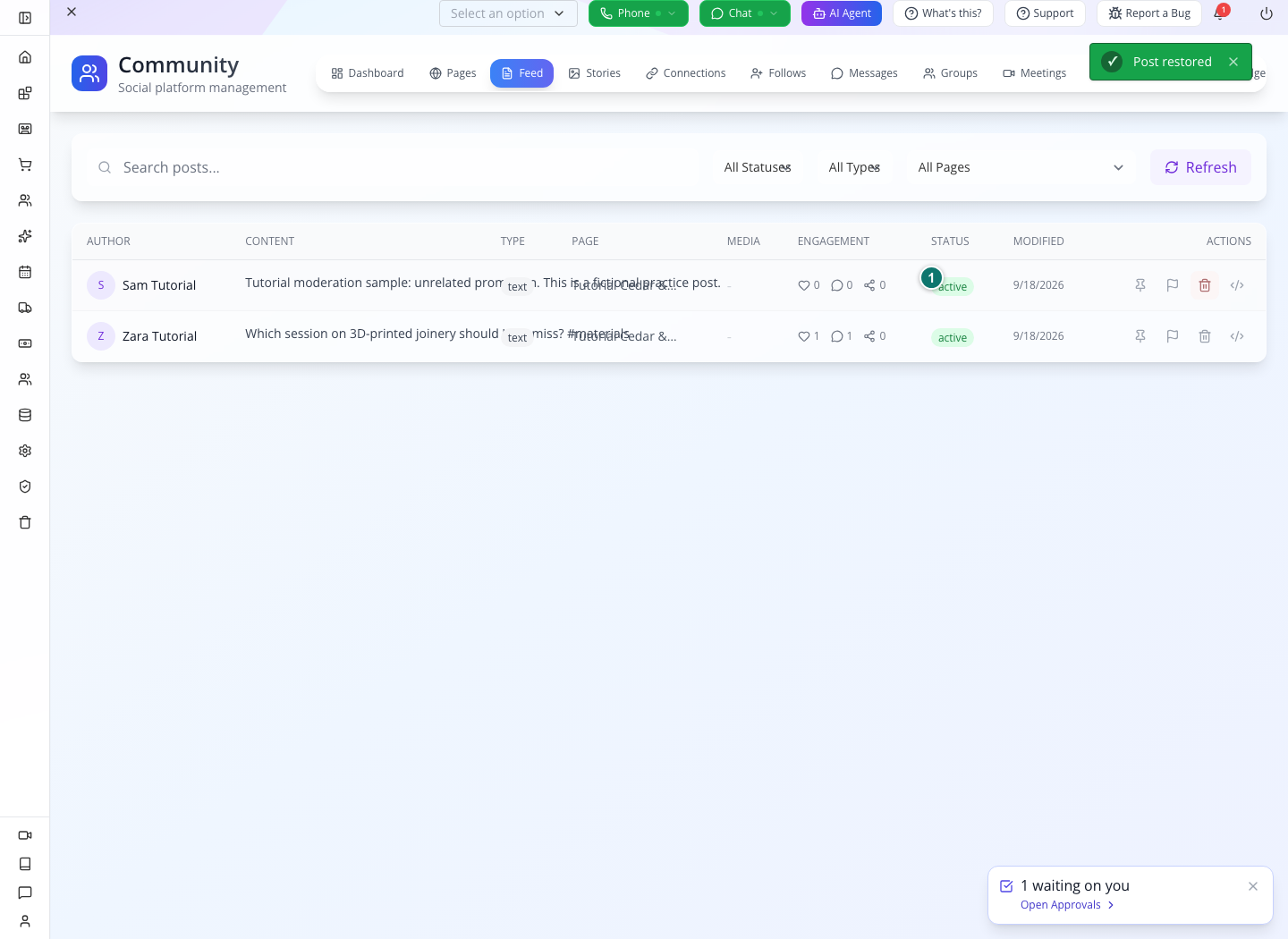
Restoration is useful when a moderator selects the wrong row. It is not a reason to skip reading the author, content and page first.
6. Keep reports, blocks and content removal distinct
| Action | Result observed in this exercise |
|---|---|
| Zara reports Sam | A pending report is created; Sam can no longer send Zara a direct message. |
| Remove Content in the report | The linked post is removed before the successful review is recorded. |
| Flag Sam’s post | Post is marked flagged and remains readable. |
| Remove Sam’s post in Feed | Member feed excludes it; direct post request returns 404. |
| Restore Sam’s post | Member access to the post returns. |
A block or report does not hide all of that person’s posts from the feed. Content removal is a separate moderation action.
Another report: an unresolved duplicate is rejected as Report already pending. After the earlier report is reviewed, a new report can be submitted; this was verified after the local status repair. Do not repeatedly submit an unresolved report.
Try it. Tell another moderator what you checked before removing the post: the author, page, text, report reason and member-visible result.
Check yourself. The report says content_removed, but the Feed row says active. Which one determines whether members can still read the post? The post status. Complete the Feed action and verify the member result.
Part 4 — PRO: connect the member experience with AppEngine
This lab uses real endpoints exercised against the tutorial organization. It is for developers using a private API client. It does not describe buttons that are missing from your website.
Keep the API base URL in an environment variable in your API client. Use the AppEngine origin configured for your organization’s deployment. In Studio’s browser developer tools, Network shows that origin on its API requests. Do not substitute the Studio website URL for the API URL.
1. Prepare identities and authorization
For this private training lab, sign in as the organization owner with:
/profile/user/signin{"email":"YOUR_OWNER_EMAIL","password":"YOUR_OWNER_PASSWORD"}Keep the returned token in the API client’s private environment. Do not put an owner token in a member website, a mobile app, screenshots or this Markdown file. A deployed client needs the application-authentication setup covered in the connected-client course.
Register three fictional customers in the training organization using POST /profile/customer/signup, the same orgid header and JSON bodies in this shape:
{
  "firstName": "Zara",
  "lastName": "Tutorial",
  "email": "[email protected]",
  "password": "YOUR_UNIQUE_TRAINING_PASSWORD"
}
Repeat for Kofi and Sam. Use unique passwords. These .invalid addresses are deliberate training identities, not addresses for invitation delivery. Registration can invoke the organization’s welcome-notification setup; use your isolated training organization.
For an existing account, use POST /profile/customer/signin with email and password. Save each returned customer.sk and token privately. Do not sign up repeatedly when an account already exists.
For the member requests below, the private lab sends:
Content-Type: application/json
orgid: YOUR_ORGANIZATION_ID
Authorization: Bearer YOUR_PRIVATE_LAB_OWNER_TOKEN
x-client-authorization: CURRENT_MEMBER_TOKEN
The current member changes between Zara, Kofi and Sam. Keeping Zara’s token selected while testing “as Kofi” would attribute the action to the wrong person. In the practiced responses, the post author was Zara and the comment author was Kofi; inspect those identities in your own results too.
2. Join the page before posting
Obtain the Studio Circle record’s sk through Pages → View JSON. Call it PAGE_ID below. For Zara, send:
/client/community/pages/PAGE_ID/joinSend {} as the JSON body. Repeat with Kofi’s and Sam’s member tokens. The response contains the membership’s page, email, role and active status.
Read the memberships back with GET /client/community/pages/PAGE_ID/members. Return to Studio and refresh Pages. This is the join operation that produces the count shown in Part 2.
Before joining, Zara’s attempted page post returned 403 — You must be a member of this page to post. If you see it, check both the page ID and the member token before retrying.
3. Create the question and upload its sketch
As Zara, send POST /client/community/posts:
{
  "page": "PAGE_ID",
  "content": "Which session on 3D-printed joinery should I not miss? #materials",
  "contentType": "text"
}
Replace PAGE_ID with the actual record ID. Save the returned post sk as POST_ID. Confirm data.author, data.page and data.pageName before moving on.
Upload the PNG sketch using POST /client/community/media/upload. Change this request’s body to multipart form-data, add a file field named file, and select the PNG. Let your client set the multipart boundary rather than retaining the JSON Content-Type header.
The successful response supplies path and signedUrl. Attach those returned values with PUT /client/community/posts/POST_ID:
{
  "media": [
    {"type":"image","path":"RETURNED_PATH","url":"RETURNED_SIGNED_URL"}
  ]
}
Use the returned media values in the request, but keep signed URLs out of public logs and video captions. The course screenshot displays the image itself. Refresh Studio’s Feed and reopen the post to check the attachment after it loads.
4. Add a reply and a reaction as Kofi
Switch x-client-authorization to Kofi’s token. Send POST /client/community/posts/POST_ID/comments:
{"content":"The Friday 11:00 one — bring the sketch."}Then send POST /client/community/react:
{"target":"POST_ID","targetType":"post","type":"insightful"}The response is {"action":"added","type":"insightful"}. Repeat the same request once and it returns removed; repeat again to leave the reaction present.
Read GET /client/community/posts/POST_ID/comments. The stored comment includes Kofi’s author identity and the complete reply. Read GET /client/community/feed?page=PAGE_ID to confirm the page-scoped post and counts. Studio’s Feed reflects those same saved records after Refresh.
5. Connect two people before arranging their meeting
As Kofi, first attempt POST /community/meetings with:
{
  "title":"Tutorial Coffee at the atrium",
  "participantIds":["ZARA_CUSTOMER_ID"],
  "startTime":"2026-10-02T15:30:00.000Z",
  "duration":30,
  "timezone":"America/Chicago",
  "locationType":"in_person",
  "location":"Atrium"
}
Use a suitable future date for your own exercise. The example instant is 10:30 a.m. in Chicago on that date. A timestamp ending in Z is UTC; do not type a local time and append Z without converting it.
Before the connection exists, the response is 403 — You must be connected with all participants. Create it with POST /community/connections/request as Kofi:
{"targetId":"ZARA_CUSTOMER_ID","message":"Tutorial: let us compare session notes."}Save the connection sk. Switch to Zara and send PUT /community/connections/CONNECTION_ID/respond:
{"action":"accept"}Switch back to Kofi and repeat the meeting request. It now succeeds. In Studio, Connections shows the accepted relationship; Meetings shows the proposed meeting.
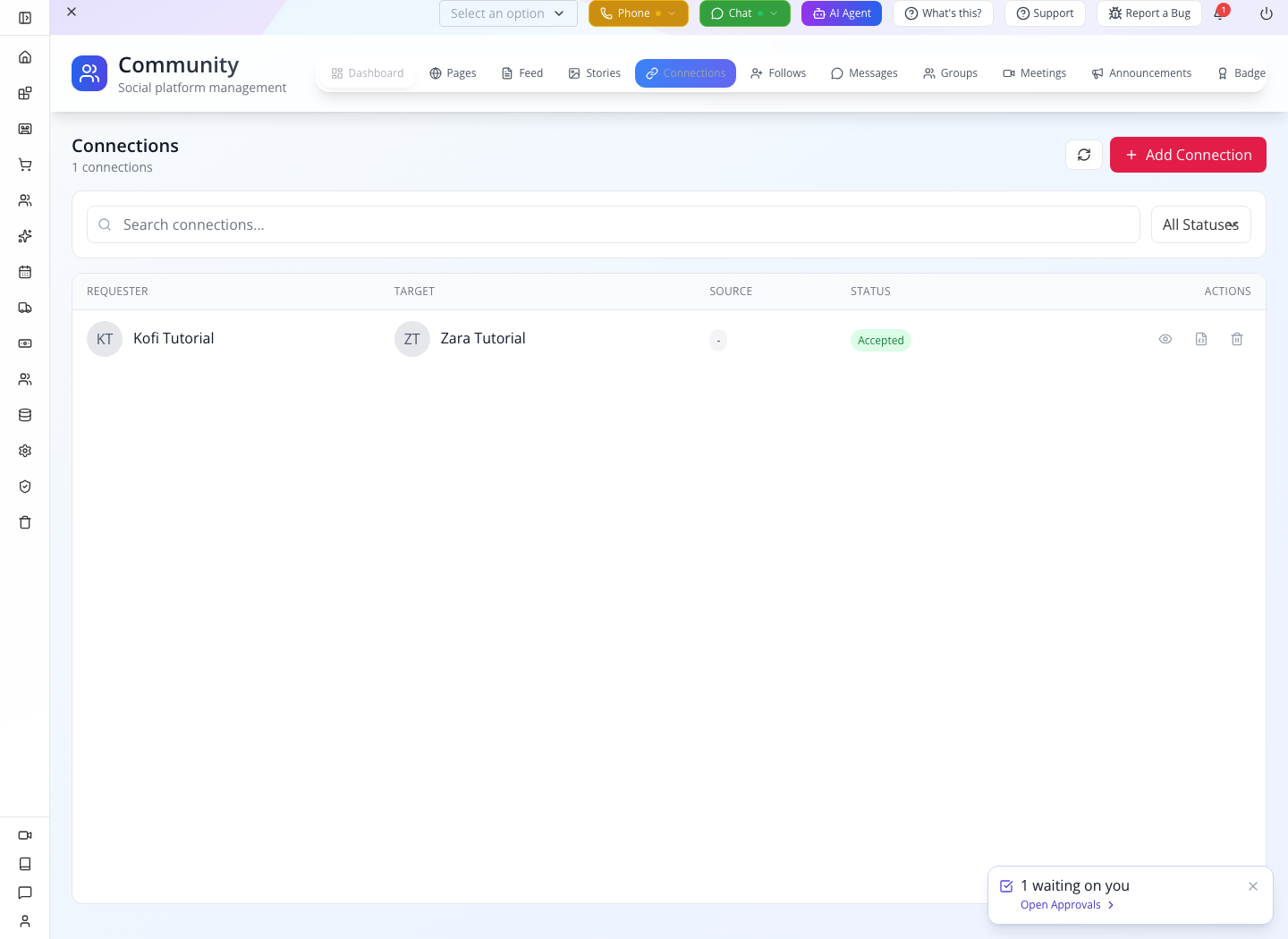
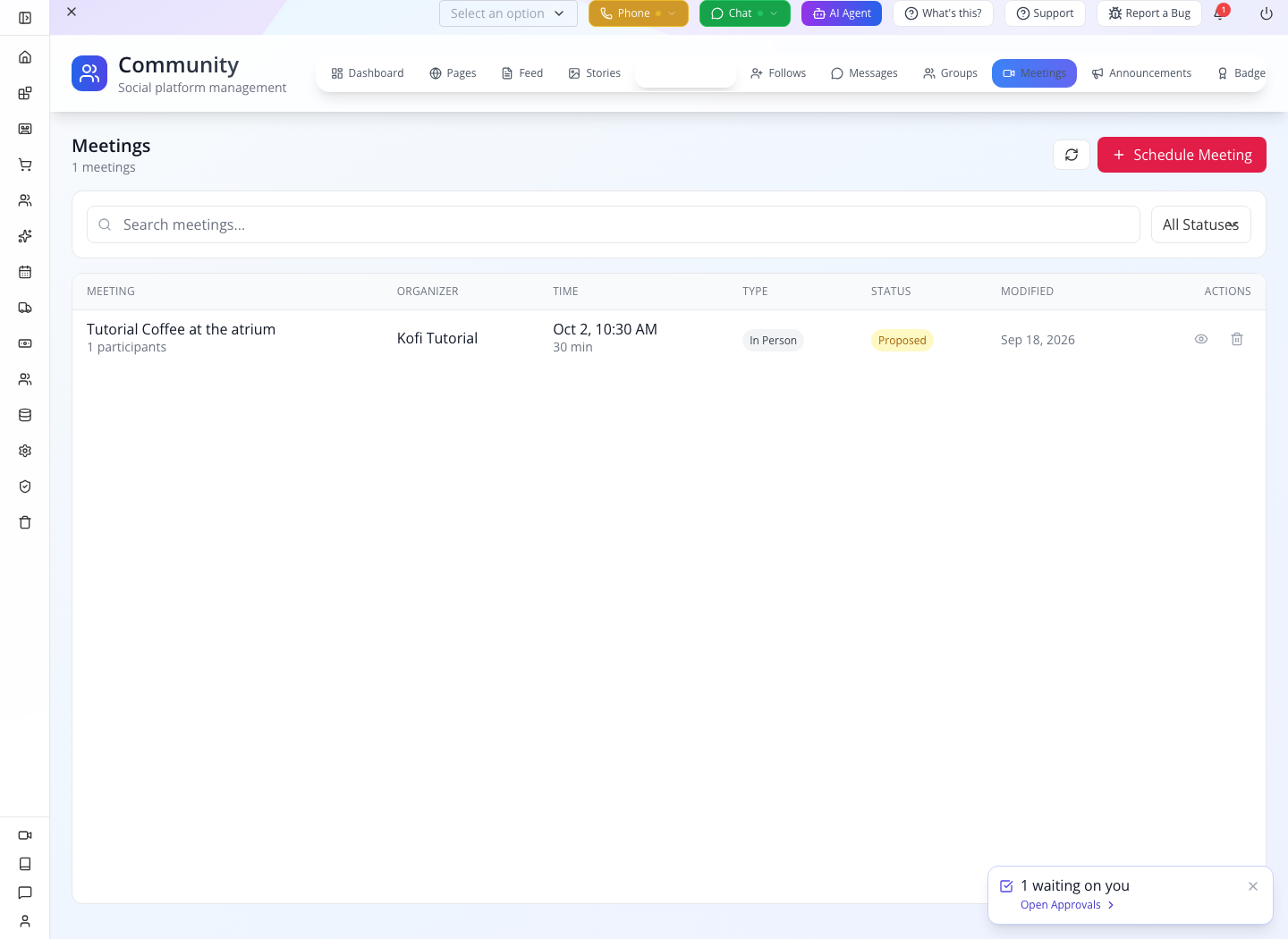
A created meeting is not the same as every participant having accepted it. Inspect its status and participant responses before treating it as a confirmed appointment.
6. Send a direct message and understand its boundary
As Zara, send POST /community/messages:
{
  "recipientId":"KOFI_CUSTOMER_ID",
  "content":"Tutorial: Shall we compare joinery sketches before the session?"
}
This message also succeeded before the connection existed in our exercise. Direct messages and meetings have different prerequisites.
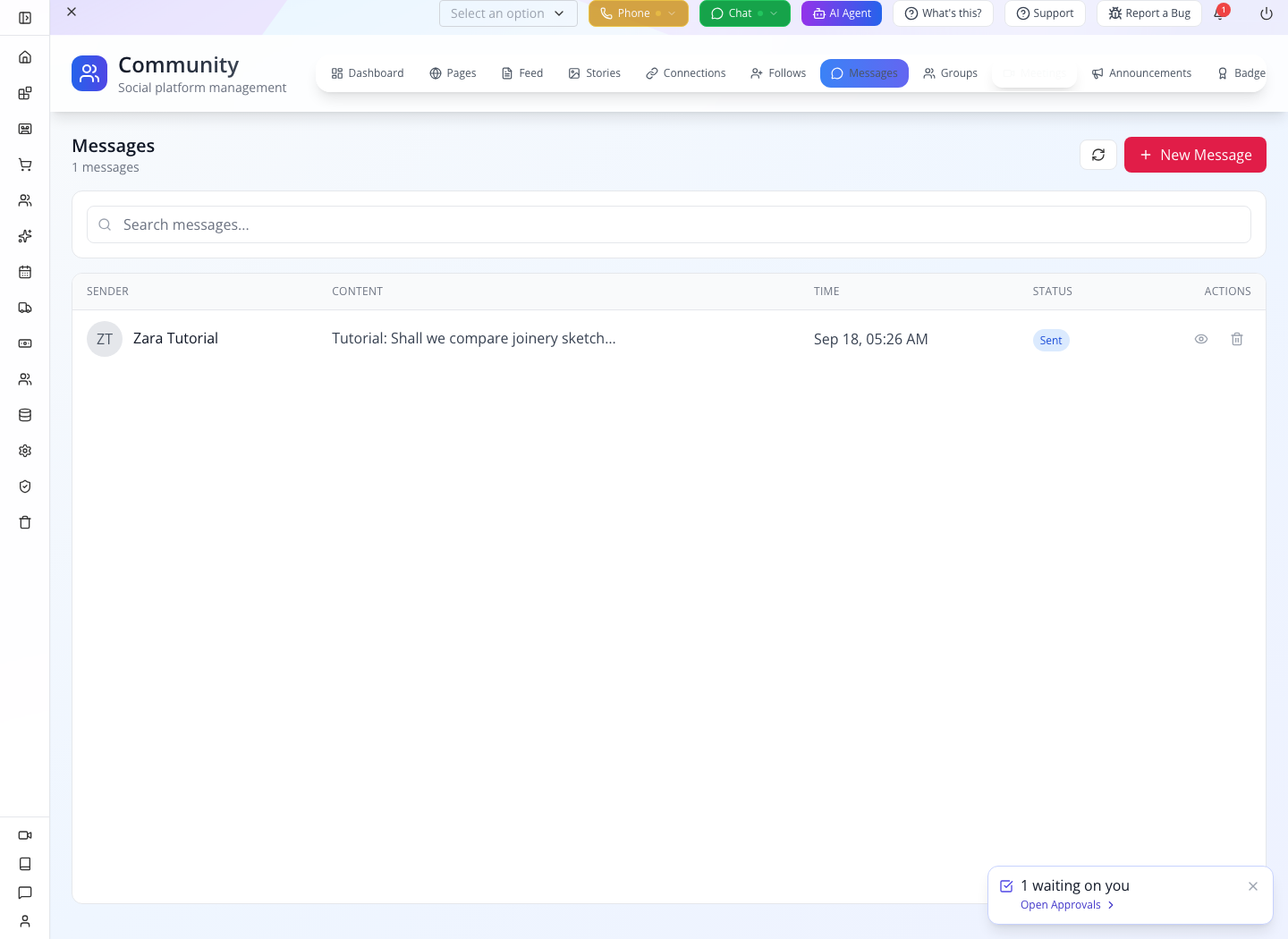
Open Community → Messages to inspect the resulting conversation. This is separate from CRM → Chat, which handles customer-facing support, and from staff collaboration in Workspace.
7. Create the moderation exercise
As Sam, send POST /client/community/posts with Studio Circle’s page ID and the fictional promotional text from Part 3. Save its post ID.
As Zara, send POST /community/reports:
{
  "reportedId":"SAM_CUSTOMER_ID",
  "reason":"spam",
  "details":"Unrelated promotion in the Studio Circle. Tutorial moderation exercise.",
  "context":{"source":"community","postId":"SAM_POST_ID"}
}
The report targets Sam’s customer ID; the post ID is supporting context. A repeated report returns Report already pending. As Sam, a message to Zara now returns 403 — Cannot send message to this user. Zara’s feed still includes Sam’s post until the moderator removes it.
Complete Part 3 in Studio, then check:
| Request | After Flag | After Remove | After Restore |
|---|---|---|---|
GET /client/community/posts/SAM_POST_ID | 200; post readable | 404; Post not found | 200; post readable |
GET /client/community/feed?page=PAGE_ID | Includes Sam’s post | Excludes Sam’s post | Includes Sam’s post |
8. Add the single-choice poll
As Zara, send POST /client/community/posts:
{
  "page":"PAGE_ID",
  "content":"Tutorial: Which material should we compare next?",
  "contentType":"poll",
  "poll":{
    "question":"Which material should we compare next?",
    "allowMultiple":false,
    "totalVotes":0,
    "options":[
      {"id":"timber","text":"Timber","votes":0,"voters":[]},
      {"id":"composite","text":"Recycled composite","votes":0,"voters":[]}
    ]
  }
}
Save the new post’s ID. As Kofi, send POST /client/community/posts/POLL_POST_ID/vote with {"optionId":"timber"}. Repeat with composite: the single-choice poll returns Already voted. Reopen the poll in Studio to see the saved total.
Try it. Follow Zara as Kofi with POST /client/community/follow, body {"following":"ZARA_EMAIL","followingType":"user"}. Inspect Follows in Studio. A one-way follow does not replace the accepted connection required for meetings.
Check yourself. Can you explain which token selects the acting member, which ID selects the page and which ID selects the post? Keep these three decisions explicit in your client code. Stop a dependent request if the preceding response failed or returned no ID; omitting a page can accidentally create a global post.
Part 5 — Grow the community deliberately
Announcements: prepare a clear instruction
Open Announcements → New Announcement. The drawer contains Page, Title, Content, Media, Priority, Target Audience, Target Roles, Pinned, Expires At and Status.
A useful first announcement would be:
- Title:
Tutorial Bring one material question - Content:
Bring one material question and a sketch. We will compare practical options before the session. - Priority: Normal
- Target Audience: All
- Status: Draft while preparing it.
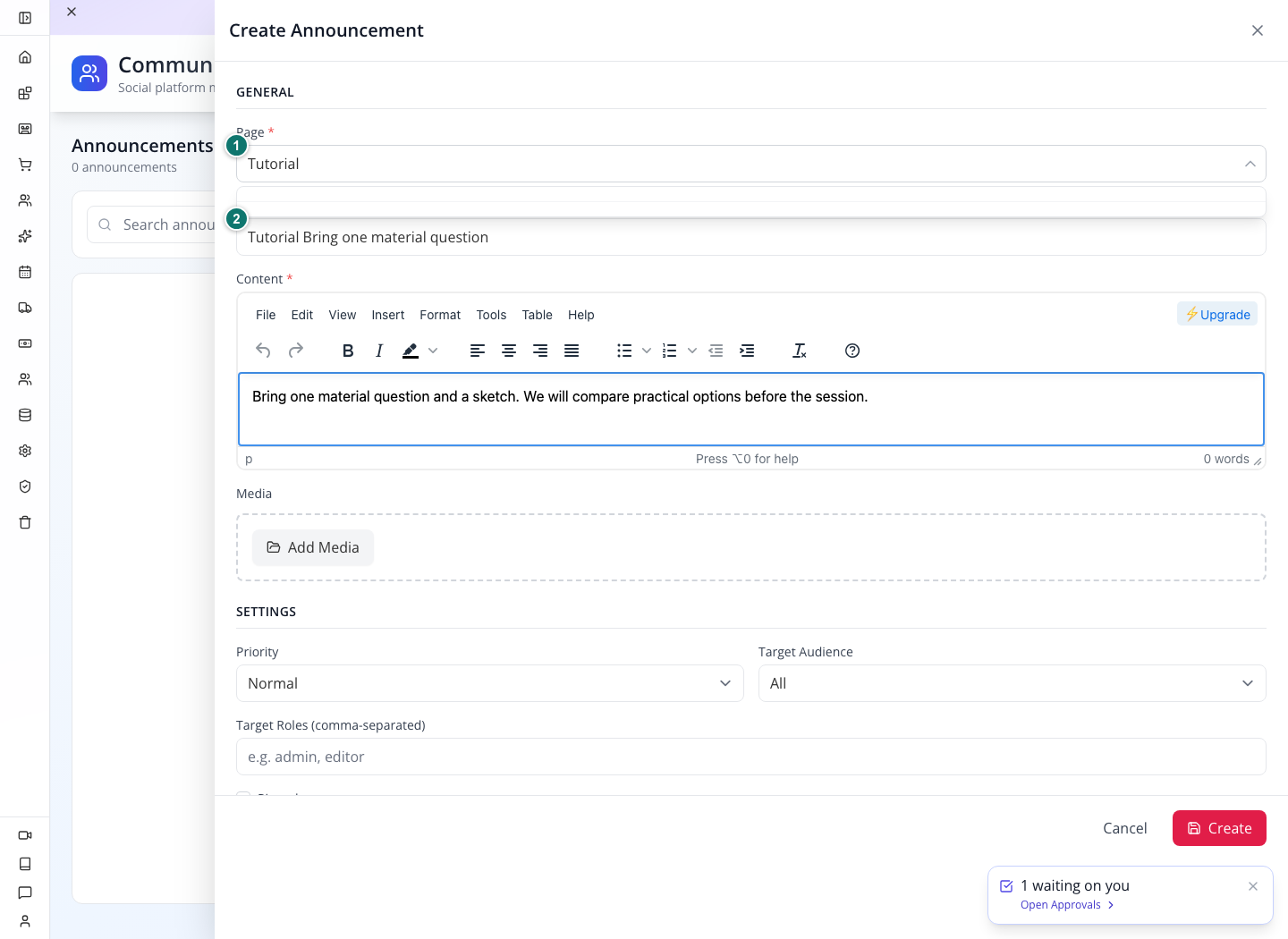
Click Page, type Cedar, and select Tutorial Cedar & Form Studio Circle from the results. Confirm the selected title stays in the field; typing a search term alone does not select a page. Enter the title and content above, keep Normal, All and Draft, then choose Create.
Reopen the saved row with Edit. Check the page title, announcement title, content and Draft status. The repaired picker and draft readback passed locally. Leave it as a draft in this training exercise; saving is not evidence of member publication or push delivery.

Use the other tabs for a specific purpose
| Tab | What to use it for | Current lesson boundary |
|---|---|---|
| Stories | Short-lived member updates. The empty state says Stories are created by users. | Source defines 24-hour expiry; creation and expiry were not timed in this walkthrough. |
| Groups | Group-chat records, with New Group Chat and types such as group, page chat and session chat. | This is separate from a page of type Group. A working member chat screen still needs verification. |
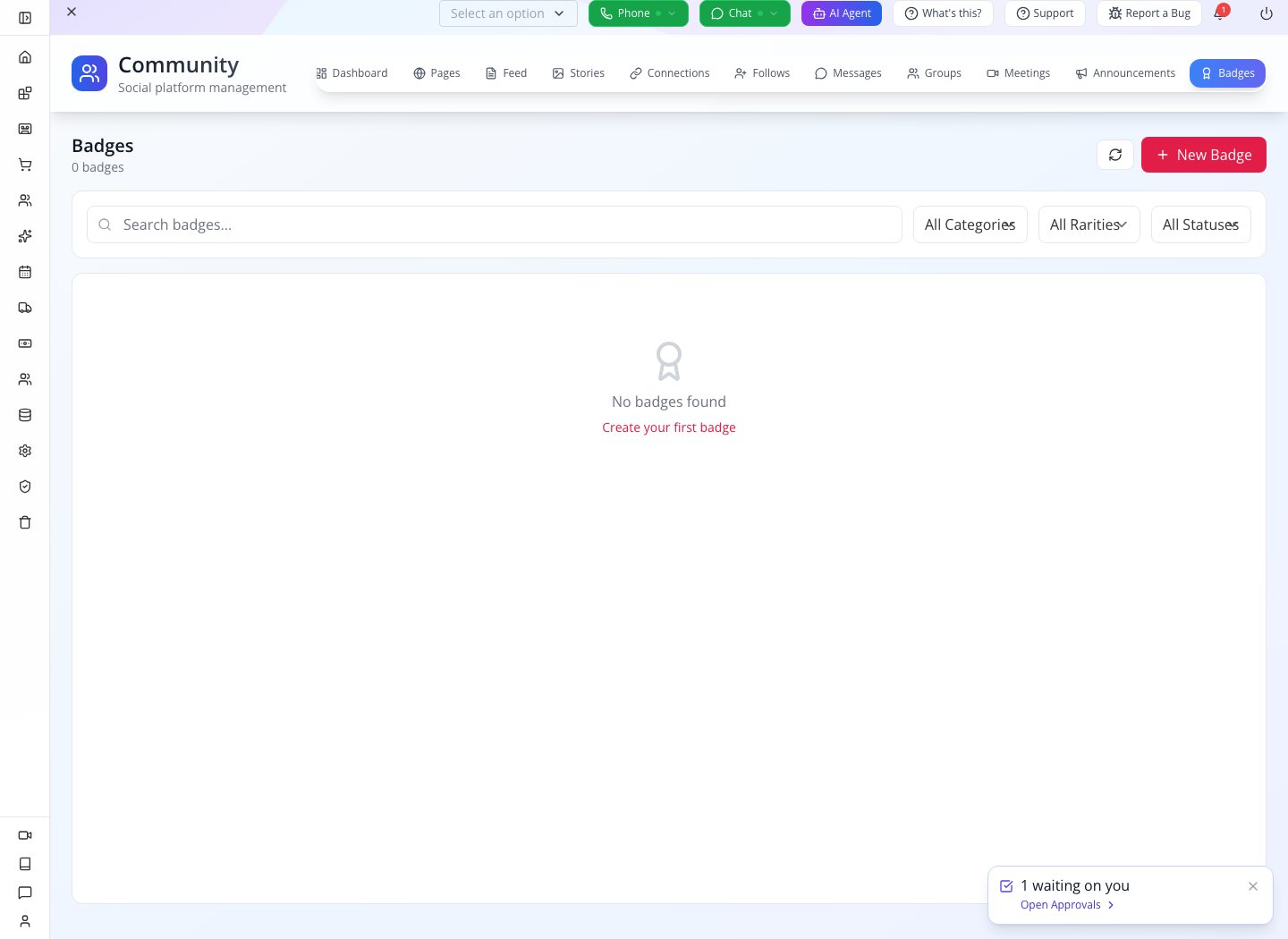
| Badges | Recognition; New Badge, categories, rarity and active/retired filters. | Creating a badge definition and awarding it to a member are separate operations. No award was made here. |
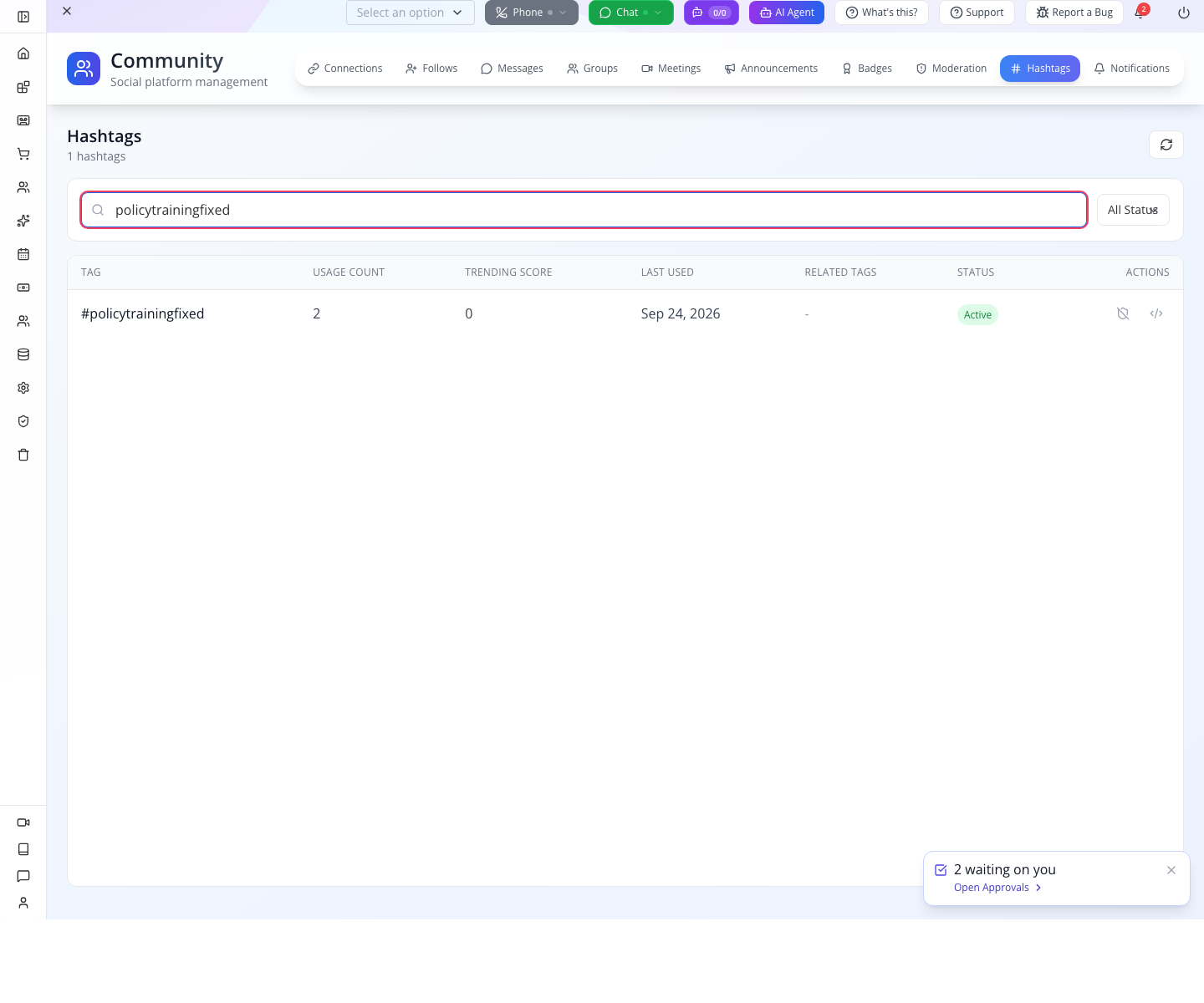
| Hashtags | Inspect tags extracted from posts. | New tags now display their normalized text. The local two-post check displayed policytrainingfixed with usage count 2; search the tag text to find it. Older generated-name records may remain from before the repair. |
| Notifications | Inspect notification records, read/unread counts and push totals. | The test screen showed zero despite the preceding interactions. Saved community actions are not evidence that push alerts were delivered. |
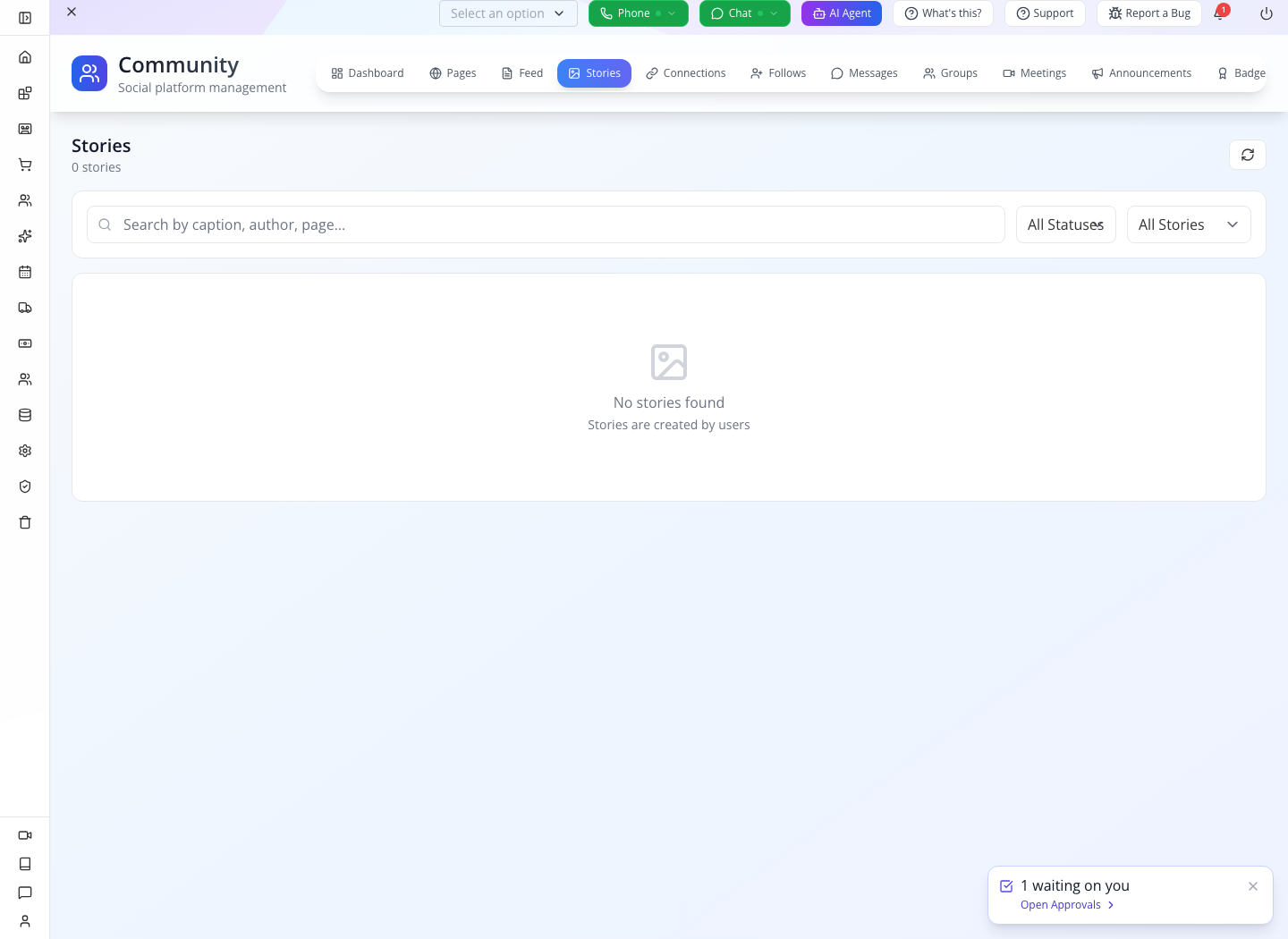
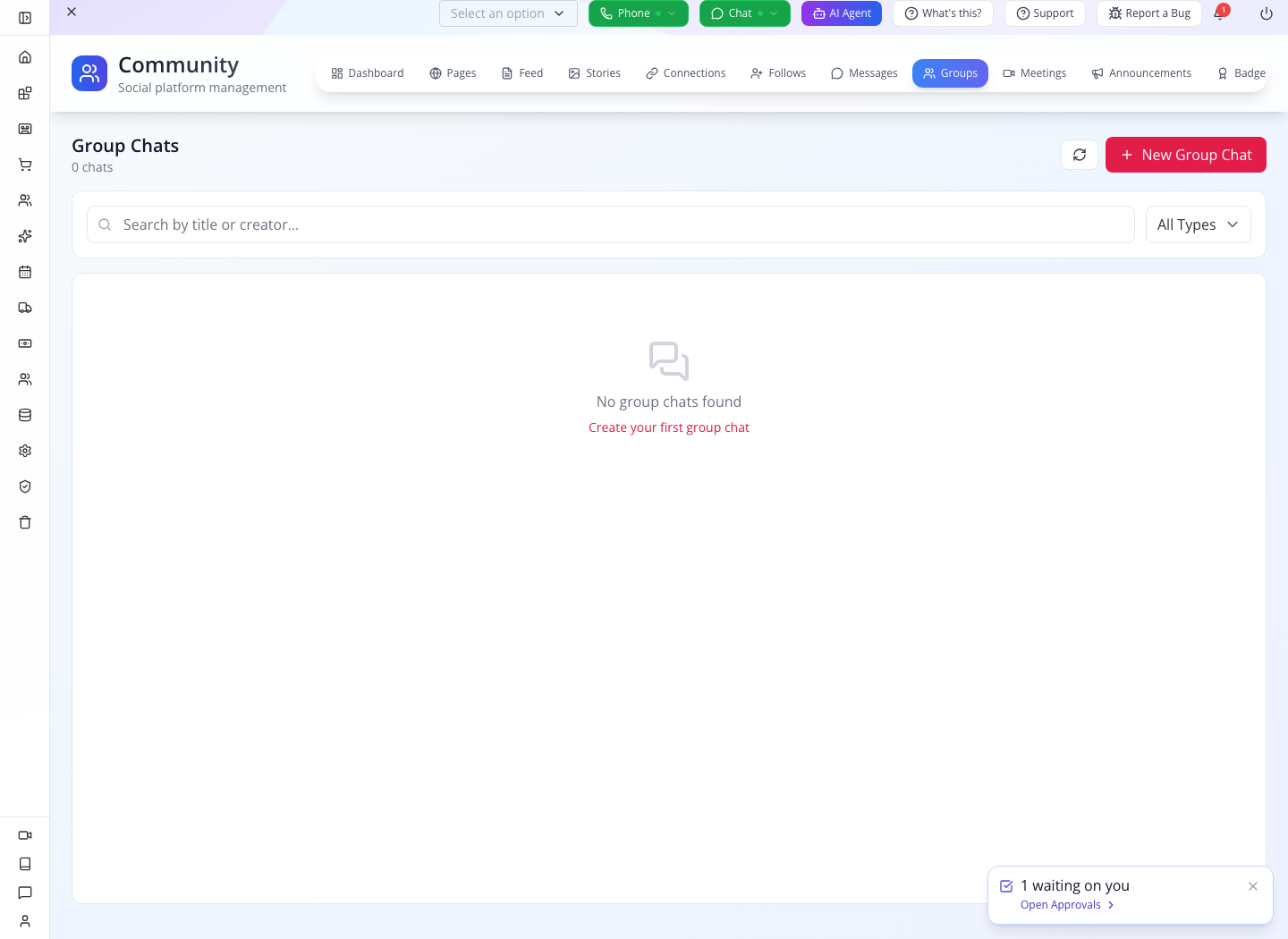
For an event community, continue with running an event. AppEngine contains hooks for creating event pages and adding ticket holders. Check the resulting page and membership. The earlier event rehearsal hit a duplicate membership-name defect. Explicit membership in a second page now passes after the local repair; automatic ticket-to-membership still needs its event rehearsal. A ticket did not guarantee membership in that second page.
For the member phone experience, use EventOxygen. The stock app serves its configured organization; creating a Studio Circle in your own organization does not redirect that stock app to your data. A branded build needs the organization and application configuration described in the event courses.
Try it. Choose one next feature based on a member need: an announcement for instructions, a poll for a choice or a discussion for explanation. Avoid adding all the surfaces before you can support the first one.
Check yourself. Does the presence of a management tab mean your phone app has the matching member screen? No. Verify the client screen and its result before advertising it to members.
If something goes wrong
| Symptom | First check | Next action |
|---|---|---|
| Post creation says membership is required | Acting member token and page ID | Join that page with that member, then retry once. |
| The page exists in Studio but nobody can find a website link | Whether a member-facing app was actually configured | Connect the member surface; a community record alone does not build one. |
Second-page join returns E11000 ... data.name_1 | Whether the installation includes the membership-name repair | Keep the same customer; ask the administrator to update the older build. |
| Page creation reports a membership error | Whether the page itself was already saved | Search Pages before retrying creation. Our API-created policy page remained saved even though owner membership failed. |
| A supposedly private page is readable | Acting identity, saved visibility and installed build | Retest signed out and as a nonmember; report any unexpected 200 before adding private material. |
| Meeting creation returns a connection error | Connection is accepted, not merely pending or followed | Send and accept the connection, then create the meeting. |
| Report says Action Taken but content remains | Post status in Feed | Remove the specific post in Feed and verify the member result. |
| Report still says already pending after review | Whether another pending report exists and whether the installation includes the status repair | Resolve the existing pending report; avoid repeated submissions. |
| Reporting stops DMs but posts remain | Separate messaging and feed behavior | Moderate the offending content separately. |
| Image tile appears blank | Whether the attachment finished loading | Wait, reload the post, then verify its media URL and attachment data privately. |
| Announcement Page field has no options | Page exists and is saved | Cancel the unsaved draft and report the picker failure. |
| Admin Feed text overlaps adjacent columns | Current table layout | Open Post Detail to read the complete text. |
What happened behind the scenes
For developers: records, defects and source locations
Source paths below are relative to /Users/imzee/projects in the reviewed checkout.
websitemint/packages/ui/src/components/community/pages-list.tsx: real page form, generic save and member-count display. Page defaults include active status; the member API does not apply the same defaults.appengine/src/community/community-page.service.ts: join requires a page/email membership lookup; creation may save a page before adding its owner. The practiced second membership collided with the collection’s uniquedata.nameindex. Public page details do not enforce visibility. Page list filters active status and does not use the supplied text query in the checked implementation.appengine/src/community/community-post.service.ts: page-membership check before posting; page/global feed filtering; comments, reaction toggling, polls and soft removal. A missing page produces a public/global post. A removed post returns 404 through the member single-post method.websitemint/packages/ui/src/components/community/posts-list.tsx: the Feed actions writedata.status, with Restore returning it to active. The detail drawer shows counts and reaction breakdown, not the comment thread.appengine/src/community/community-connection.service.ts,community-meeting.service.ts,community-messaging.service.ts: connections, meeting prerequisites and messaging block checks.appengine/src/community/community-block.service.ts: reports are stored as block records with flatreportedandreportStatusfields. Messaging checks those block records. The pending-report check still reads the flat status.websitemint/packages/ui/src/components/community/block-list.tsx: review writes nesteddata.report.statusand action labels. This explains both the status mismatch and why Remove Content in the report drawer did not remove the post.community-client.controller.tsandcommunity.controller.ts: the two endpoint prefixes used in the private lab. Member identity is supplied throughCurrentCustomerOrUser.websitemint/packages/ui/src/components/community/announcements-list.tsx: the inspected announcement editor and Page DataSelector.appengine/src/community/community-announcement.service.tsrequires further access-control review before relying on audience labels as restrictions.appmint_go/event_app/lib/services/api_service.dartand the customer screens: member-app integration source. This course does not present its API exercises as native-app footage.
Where next
- Run an event: connect the community to sessions, tickets and entry operations.
- EventOxygen attendee experience: the member-facing phone journey.
- Roles and permissions: staff access to management tools.
- Customer inbox: customer support conversations, separate from member DMs.
- Companion-video production guide: narration, shots, demonstrations and retest requirements.
Evidence and current coverage
Practiced 18 September 2026 on local Studio 0.6.2 with the tutorial organization learnmu4qn1ha. Browser interaction created and reloaded Studio Circle, inspected members and posts, reviewed a report, flagged/removed/restored the fictional promotional post, and opened the remaining management screens. Real customer API sessions performed joins, post creation, original-image upload and attachment, commenting, reaction toggling, following, a poll and duplicate-vote rejection, messaging before connection, connection acceptance, meeting prerequisite failure and success, reporting and duplicate-report rejection. No real customers were contacted.
Historical pre-fix policy test: a separate fictional private page was readable anonymously; a fresh member joined despite approval-required and posted despite admins-only/pre-approve. An existing member’s second-page join failed with a unique-name error. API page creation saved the page before its owner-membership operation failed. A test script then continued with a missing ID and created one global practice post; that is a harness error, not a successful page-policy test. The corrected test used the persisted page ID and a fresh member. Both traces are retained so the failure is not hidden.
Captures and timestamped screen evidence: assets/appmint-community/evidence.json. API results: member-api-evidence.json, member-relations-evidence.json, moderation-readback-flagged.json, moderation-readback-removed.json, moderation-readback-restored.json, policy-final-evidence.json, poll-follow-evidence.json, and the media result files. Signed media URLs were removed from the public evidence. Record IDs are in fixture-ids.json; passwords and tokens are not in these assets.
Member actions in this course were exercised through API requests, not a verified member website or native EventOxygen screen. Announcement submission was blocked in the original 18 September run. The 21 September repair and independent rehearsal successfully saved and reopened a draft. Group-chat creation, badge awards, push delivery, story creation/expiry and event auto-joining were not completed here. These limits are reflected in the instructions and the video guide rather than filled with assumed clicks.
Independent local rehearsal — 21 September 2026
Current repair report and live evidence supersede the historical defects where explicitly stated. The current run used a separate isolated organization and three new training identities. Public conversation, the developer lab, moderation and announcement draft readback were exercised. The 24 September continuation verifies privacy, approval and posting enforcement and fixes canonical hashtag storage. Current policy and hashtag acceptance. Older images remain labeled as historical, not proof of repaired behavior.