
For: business owners and marketers. Time: 35 minutes for the draft and review; 20 minutes for the optional referral-program setup. Level: beginner, followed by advanced branches. Product: Appmint Studio Manager. Build checked: local Studio Manager, 19 September 2026.
A useful campaign gives a particular person a reason to do one thing. Here, Cedar & Form invites previous enquirers to a free design consultation. You will write that invitation, check the audience, save it, reopen it and prepare a separate reminder. The screenshots show actual saved drafts. Sending to inboxes and measuring delivery require a configured sender and a separate controlled test.
What you will have at the end
- An email draft with an offer, a subject and a clear reply action.
- Three deliberately fictional practice addresses, with an explanation of why the recipient total needs checking.
- An original and a reminder that retain different subjects and categories after reopening.
- A saved internal name that helps you identify and reopen the right draft.
- An optional draft referral program with 10% commission, a 14-day hold and automatic credit disabled.
You will also know which screens prepare messages, which describe delivery and which are unfinished in this build. A saved draft does not contact anyone.
What you need
Use an isolated practice organisation for this exercise and sign in to its Studio Manager account. Keep the named tutorial drafts separate from any real customer campaign. The welcome course explains how to get there. Open the CRM sidebar group; this course uses Broadcast, Affiliates and Marketing & Ads.
For the draft exercise, you do not need an email provider. Use the three .invalid addresses printed below; they are practice text, not real inboxes. For an actual send, replace every practice address with an address you control and configure a working sending account first. Do not use customers as your initial delivery test.
Have one offer you can fulfil. In our example, Jordan Morgan runs Cedar & Form, has ten consultation slots and will personally confirm each appointment. Maya, Daniel and Priya are potential clients. Maya is not the company's owner.
The story and route
Jordan wants to invite a small group before announcing the consultations more widely. Rather than promise an online booking flow that has not been set up, the invitation asks people to reply with a preferred time. Jordan will check availability and enter the confirmed reservation.
flowchart LR
  A[Choose offer and audience] --> B[Save and reopen draft]
  B --> C[Check sender and test inboxes]
  C --> D[Send and inspect results]
  D --> E[Handle reply and confirm reservation]
This walkthrough completes the first two stages and shows the preparation for the third. The later send and booking handoff have their own acceptance checks below. Do not count a campaign as a sale merely because a message was sent.
Part 1 — Write and save the invitation
1. Find Broadcast and understand its four tabs
Open CRM → Broadcast. The heading explains the channels: email, SMS, WhatsApp, voice and notifications. The in-page tabs are Dashboard, Broadcasts, Channels and Analytics.
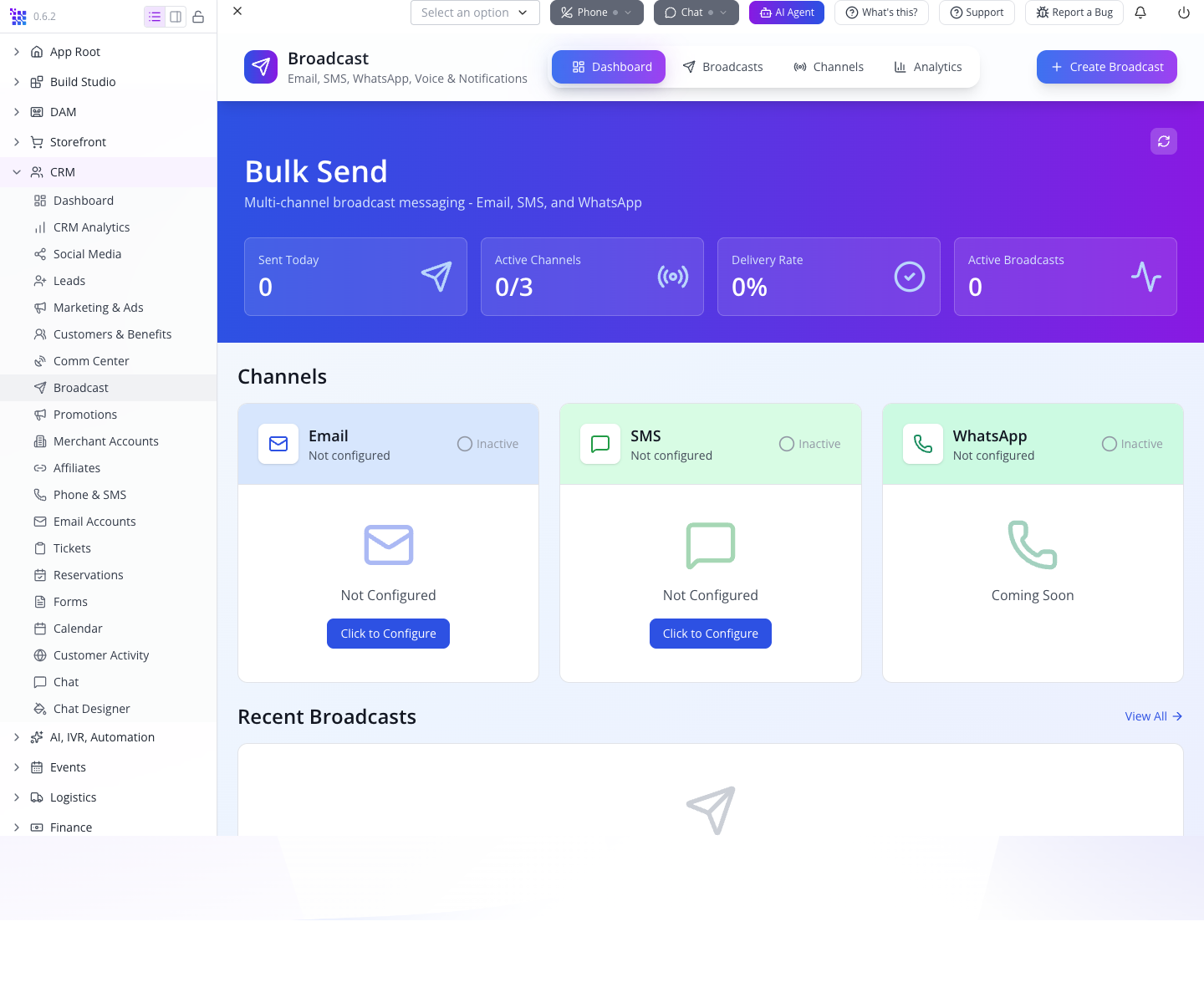
Use Broadcasts to find individual messages. Channels shows configuration. Dashboard summarises activity. Analytics currently displays a coming-soon message; it is not where you will find a completed campaign report in this build.
The captured training company had no sender and no previous broadcasts. If your practice company already contains earlier exercises, record its starting totals and verify your two named drafts individually; company-wide totals also include those earlier records.
2. Open the creator and check the sender area
Press Create Broadcast. The drawer opens on Sending Accounts. Its four tabs are the sequence you will use: Sending Accounts → Recipients → Message → Settings & Send.
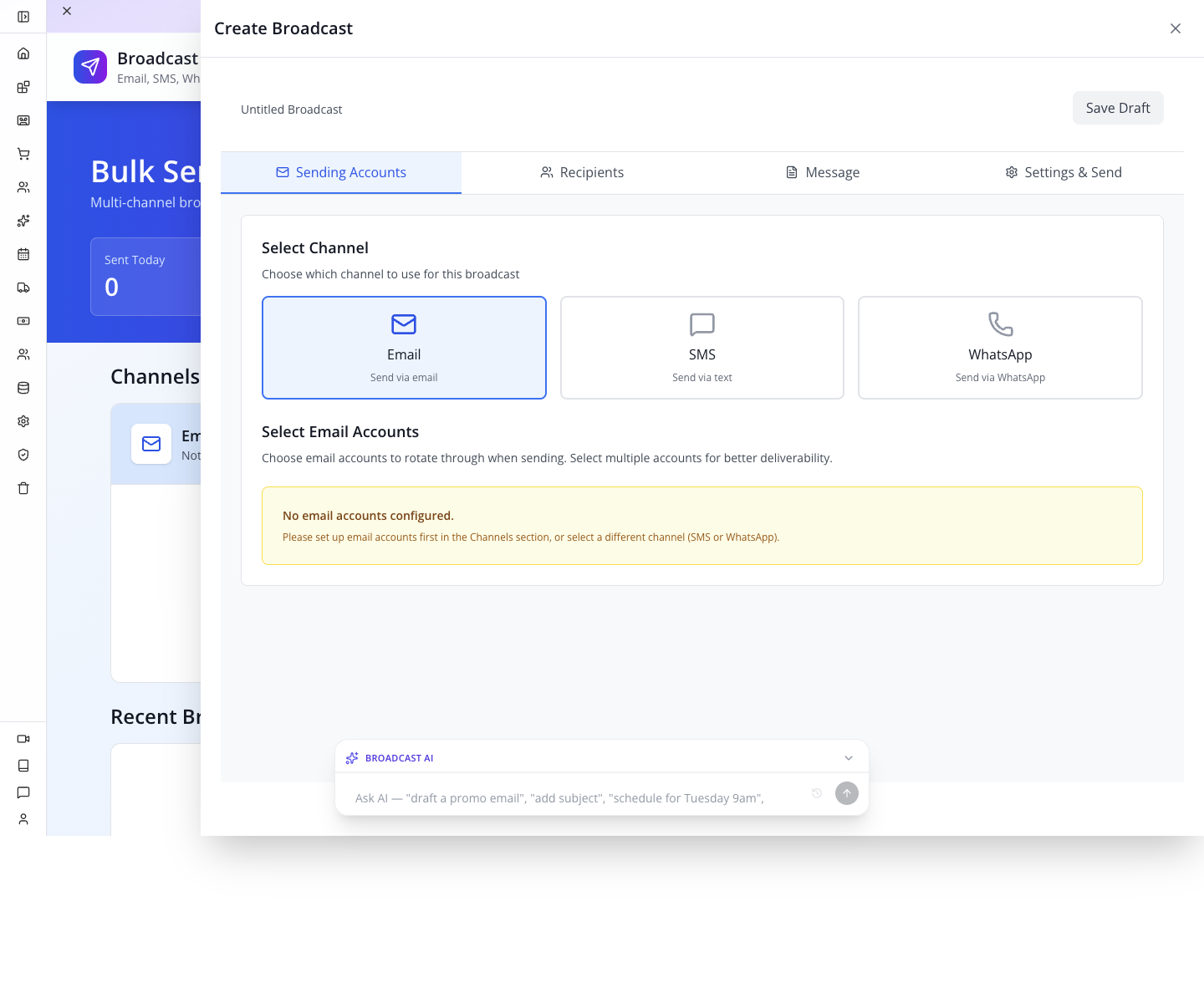
Select Email. If no account exists, the panel says No email accounts configured and directs you to channel setup. You can still prepare and save a draft. You cannot turn that draft into a working email campaign until an actual sending account is available.
If your company already has an account, confirm its address belongs to your business and that replies reach a monitored inbox. Do not select an unfamiliar address just to clear the form. Sender rotation is unnecessary for this first exercise: use one known sender for the eventual test.
3. Enter three practice recipients
Select Recipients, then Manual Entry. Paste these addresses, one per line:
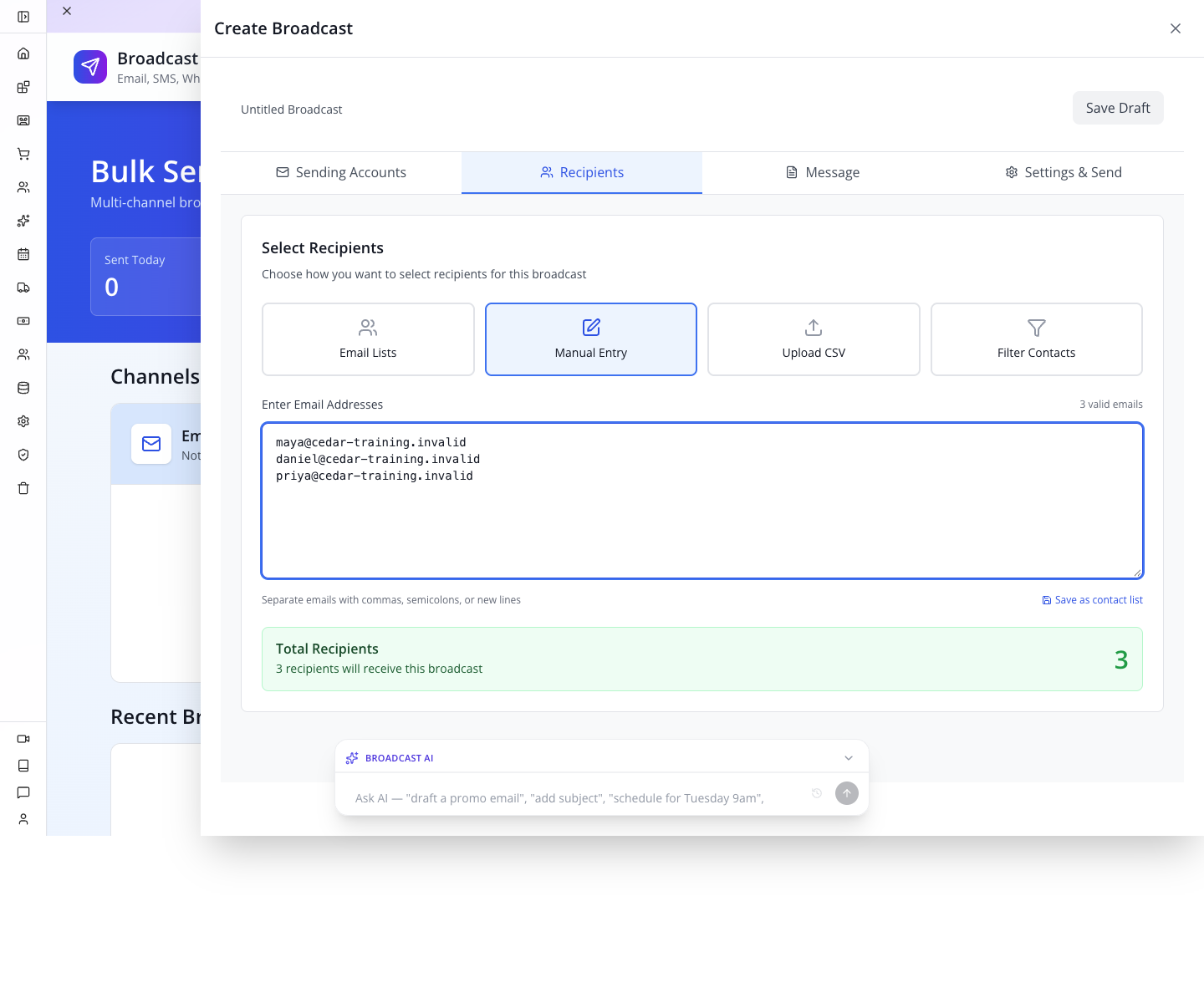
The small label should say 3 valid emails and the green panel should say 3 recipients will receive this broadcast. Here, “valid” means the text fits an email pattern. It does not mean the mailbox exists, accepts mail or has agreed to receive your offer.
There are no first-name fields in Manual Entry. Enter addresses alone. Do not paste Maya Bennett <maya@…> or append a name after an address.
4. Understand the counting trap before using a real list
The form has two counters that do different work. We tested four lines: Maya, Daniel, not-an-email, then Maya again. It displayed 2 valid emails but 4 recipients will receive this broadcast.
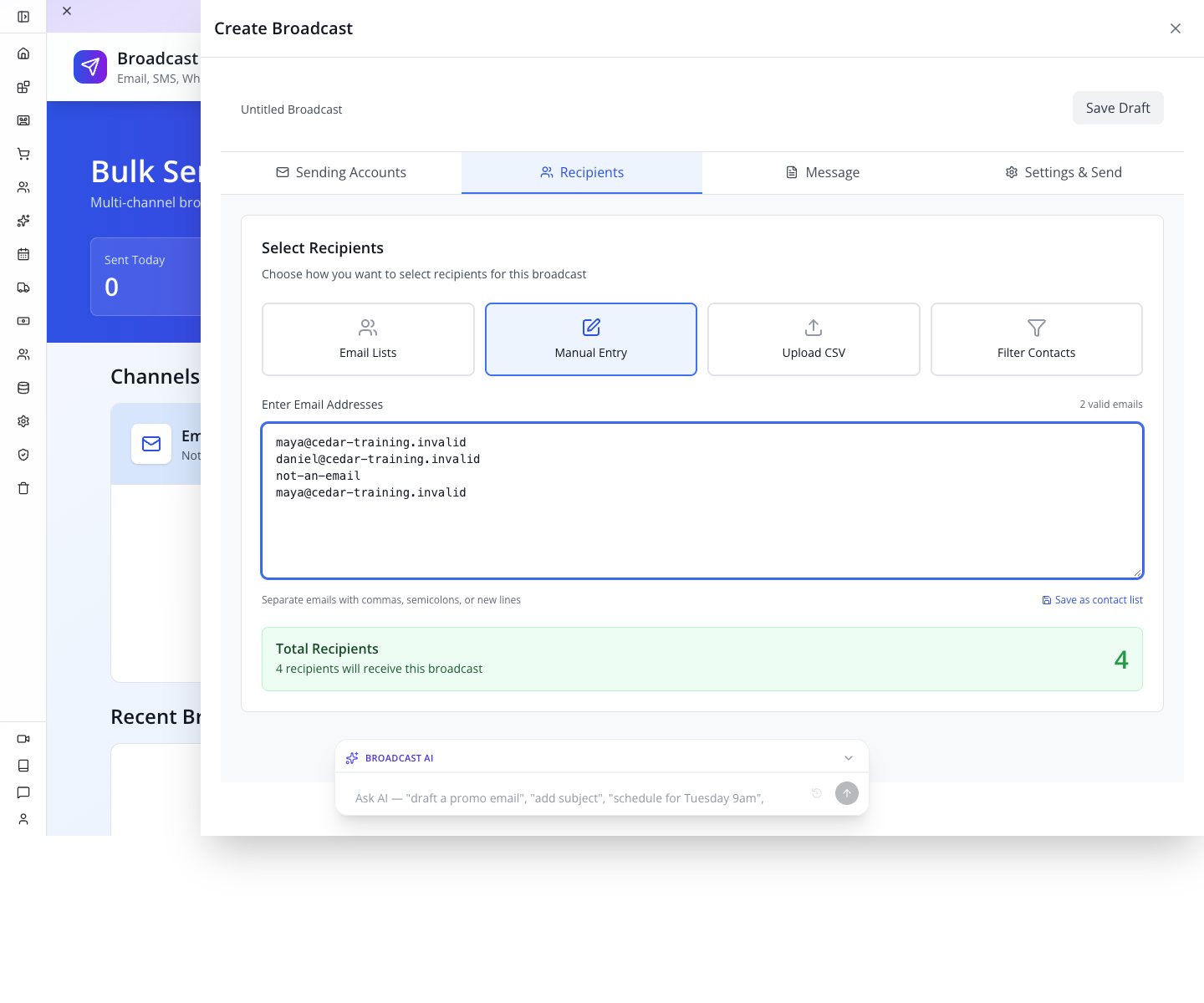
The syntax counter now excludes the repeated address and invalid line. The green total still counts all four entries. Check the actual addresses; the total does not establish a clean mailing list.
Before a real send, remove invalid entries and duplicate addresses yourself, then read the list line by line. Keep one address per line so the count is easy to audit. For this exercise, leave only the three .invalid addresses from step 3.
Check yourself: the form says “4 recipients,” but there are only two unique, syntactically valid entries. How many usable practice inboxes does this provide? Zero: .invalid addresses cannot receive mail. Remove malformed/duplicate entries for this draft exercise. Before a separate delivery test, replace them with controlled inboxes and verify each recipient; the displayed count proves neither identity nor deliverability.
5. Give the campaign a useful name and subject
Select Message. At the top, complete Broadcast Details:
| Field | Enter | Purpose |
|---|---|---|
| Broadcast Name | Tutorial Consultation slots — October | Internal label so your team can find this run |
| Email Subject | Plan your room with a free 30-minute consultation | What the recipient sees before opening |
| Category | Promotional | Describes the purpose of this invitation |
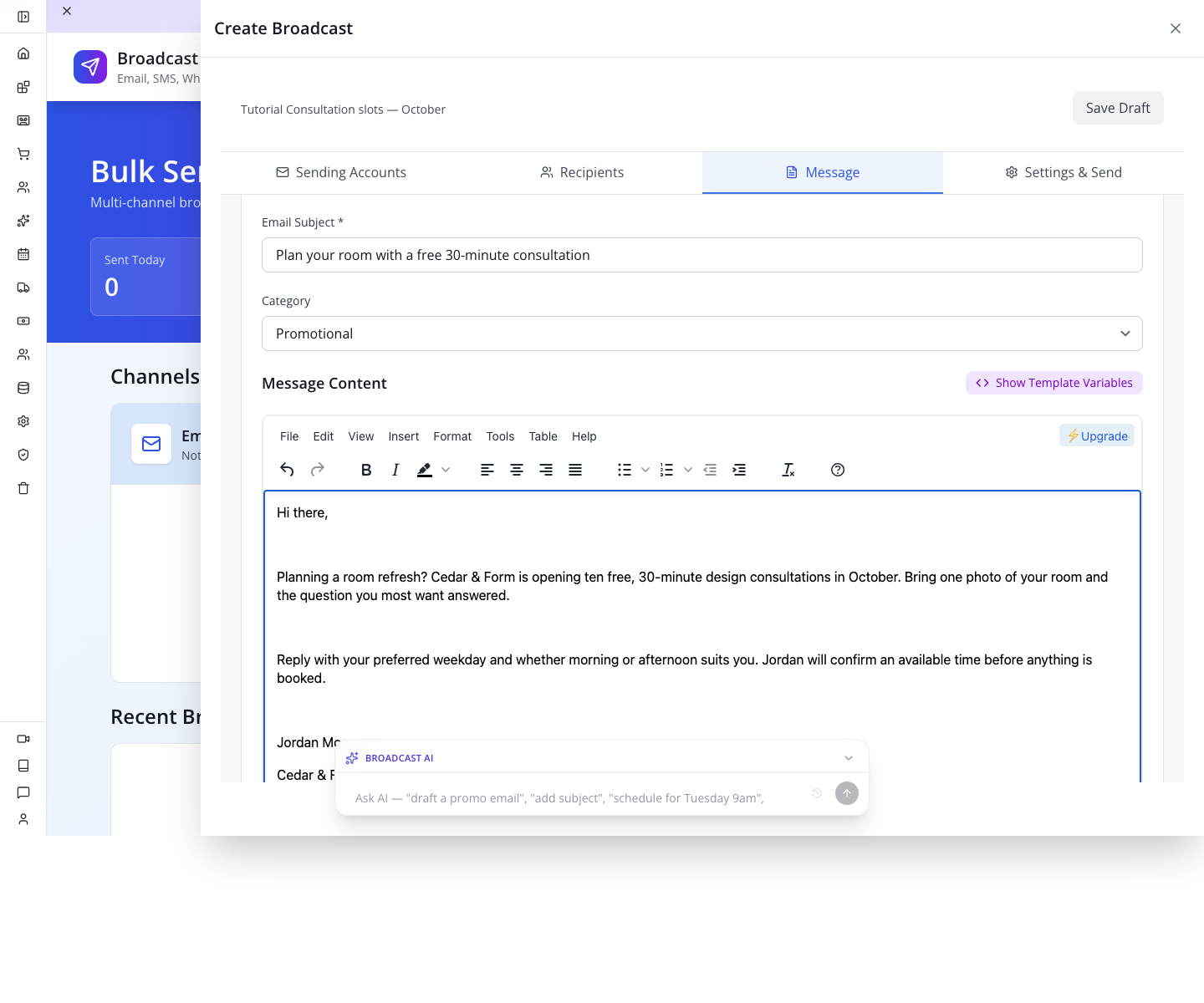
The name and subject have different audiences. “October batch 1” may help a colleague, but it gives a customer little reason to open an email. State the useful offer in the subject; keep internal tracking words in the campaign name.
6. Write the message around one action
Scroll to Message Content. Click inside the editor and enter:
Hi there,
Planning a room refresh? Cedar & Form is opening ten free, 30-minute design consultations in October. Bring one photo of your room and the question you most want answered.
Reply with your preferred weekday and whether morning or afternoon suits you. Jordan will confirm an available time before anything is booked.
Jordan Morgan
Cedar & Form
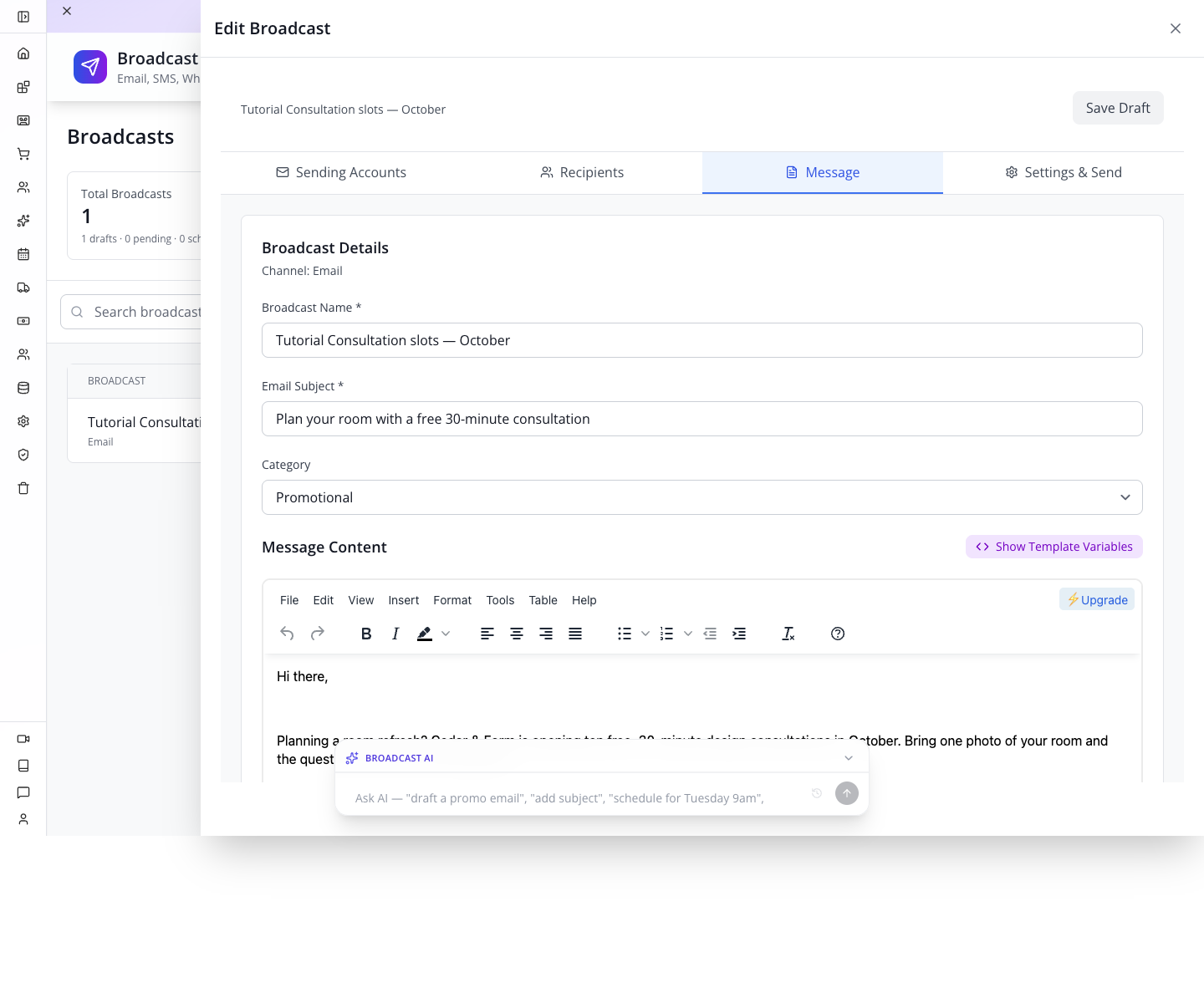
This message answers four practical questions: what is offered, how long it takes, what to bring and how to respond. The final sentence prevents “I replied” from being mistaken for “my appointment is confirmed.”
Use the editor's formatting controls for readable paragraphs and emphasis. Keep the message short enough that the action is easy to find. If the BROADCAST AI bar covers the lower part of the editor, collapse it; you do not need it to write or save the draft.
Personalisation gotcha: do not use
Hi {{firstName}}with the Manual Entry list. The current delivery code does not look up a first name for each manually entered address. When a name is absent, the token can remain literal. “Hi there” is a complete greeting for every recipient.
Show Template Variables exposes a broader variable browser. Its presence does not mean every variable is supported by Broadcast delivery. The advanced section explains that difference.
The Attachments area below the editor offers Choose Files. Our invitation needs no attachment: asking for one room photo is sufficient preparation. An attachment selected in the editor should be checked in a controlled delivered message before you rely on it for customer instructions.
7. Review the draft without activating it
Select Settings & Send. Read the Broadcast Summary: name, channel, subject, recipient count and selected sender count.
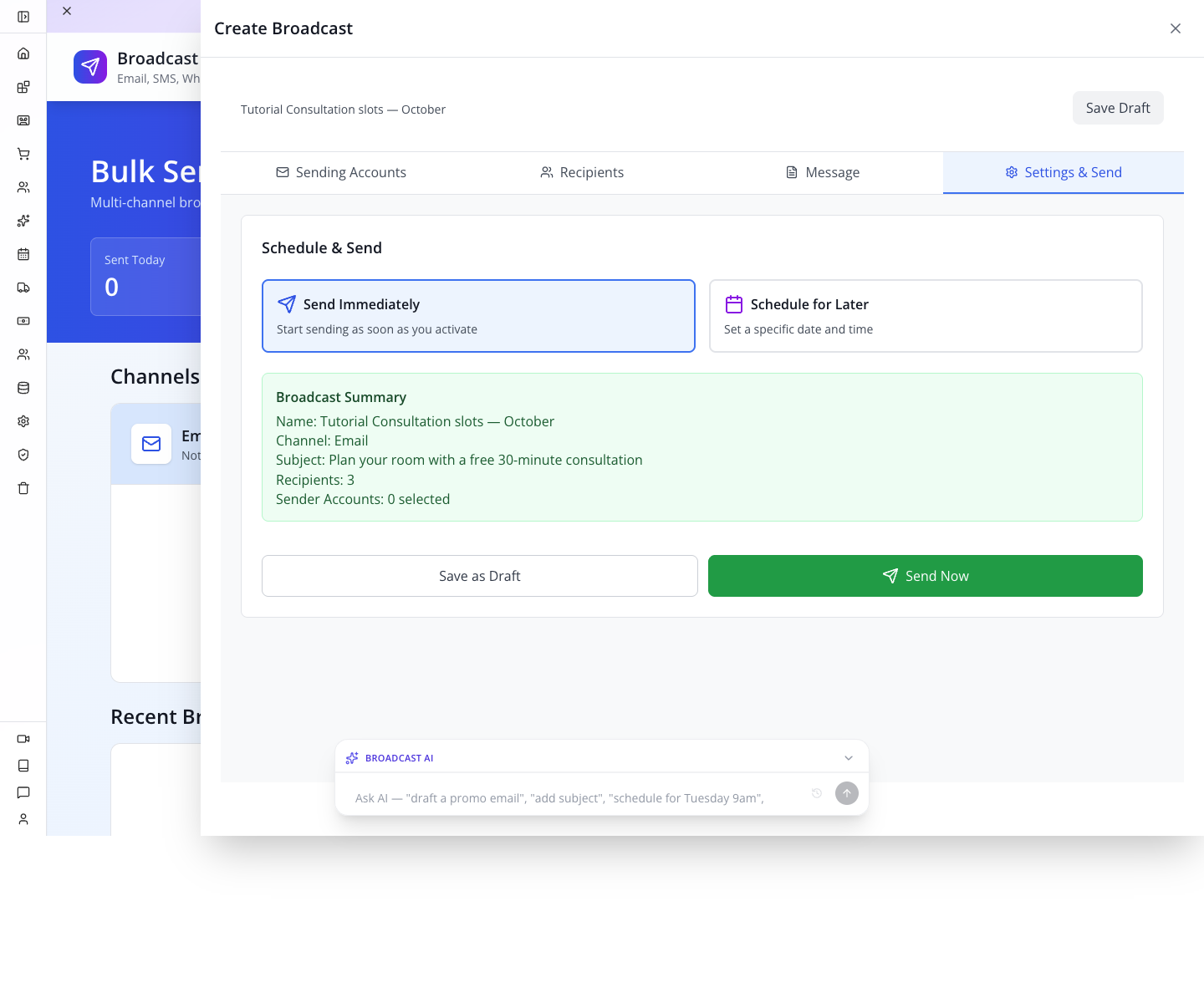
The practice summary shows Recipients: 3 and Sender Accounts: 0 selected. That is a usable drafting state, not a sending state.
Press Save as Draft. The Save Draft button at the top also saves. Wait for the save to finish; the observed first save displayed Data inserted. Do not press Send Now: our addresses are fictional and there is no configured sender.
Send Immediately is a timing choice, not a confirmation that anything has already been sent. Schedule for Later reveals date and time fields. The scheduling limitation is covered below; leave the practice campaign as a draft.
8. Close, refresh and reopen the saved record
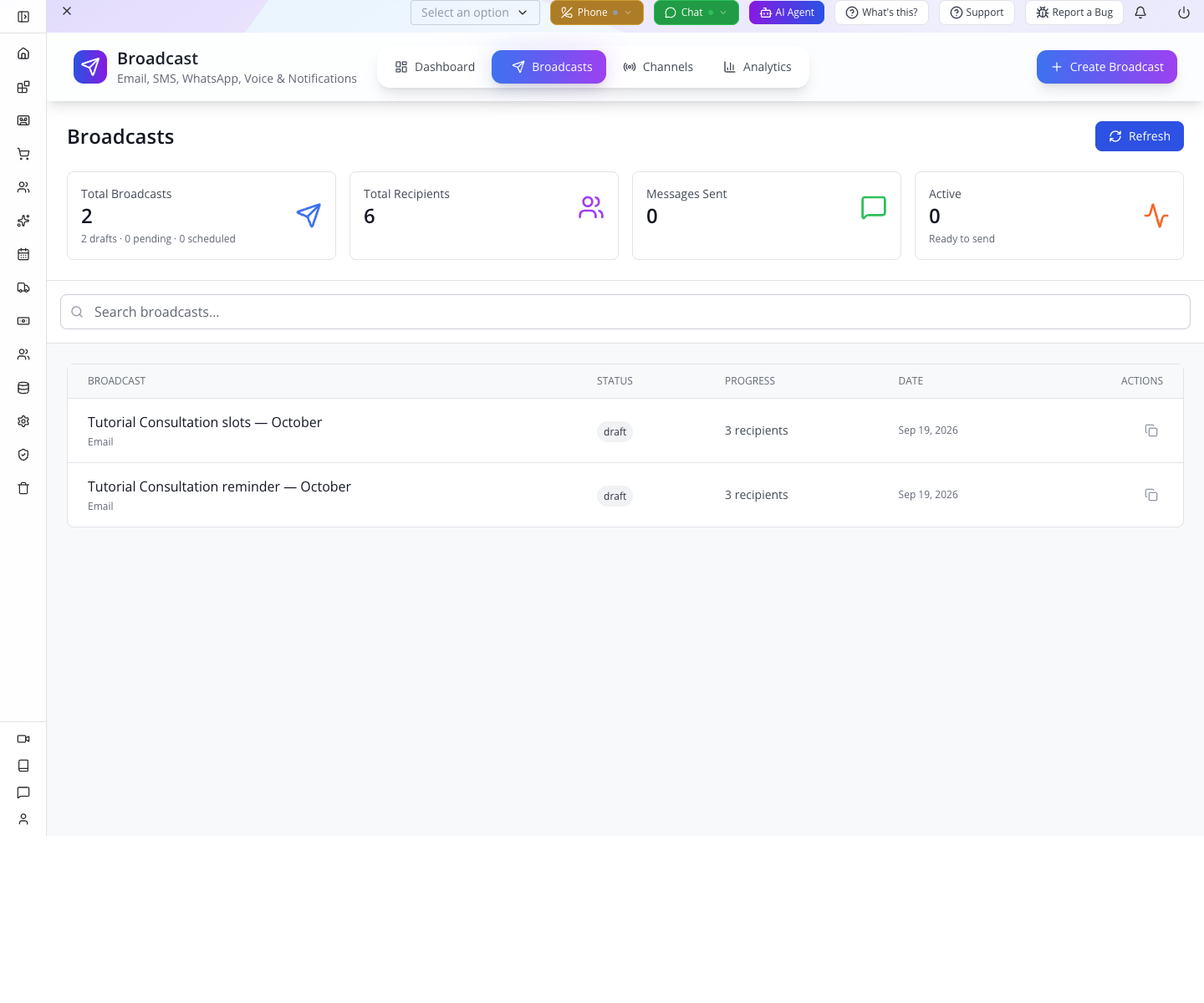
Close the drawer with the top-right ×, then press Refresh in Broadcasts. Find Tutorial Consultation slots — October with draft status and 3 recipients, then open it. Note the creation time before duplicating so you can distinguish the original from its copy.
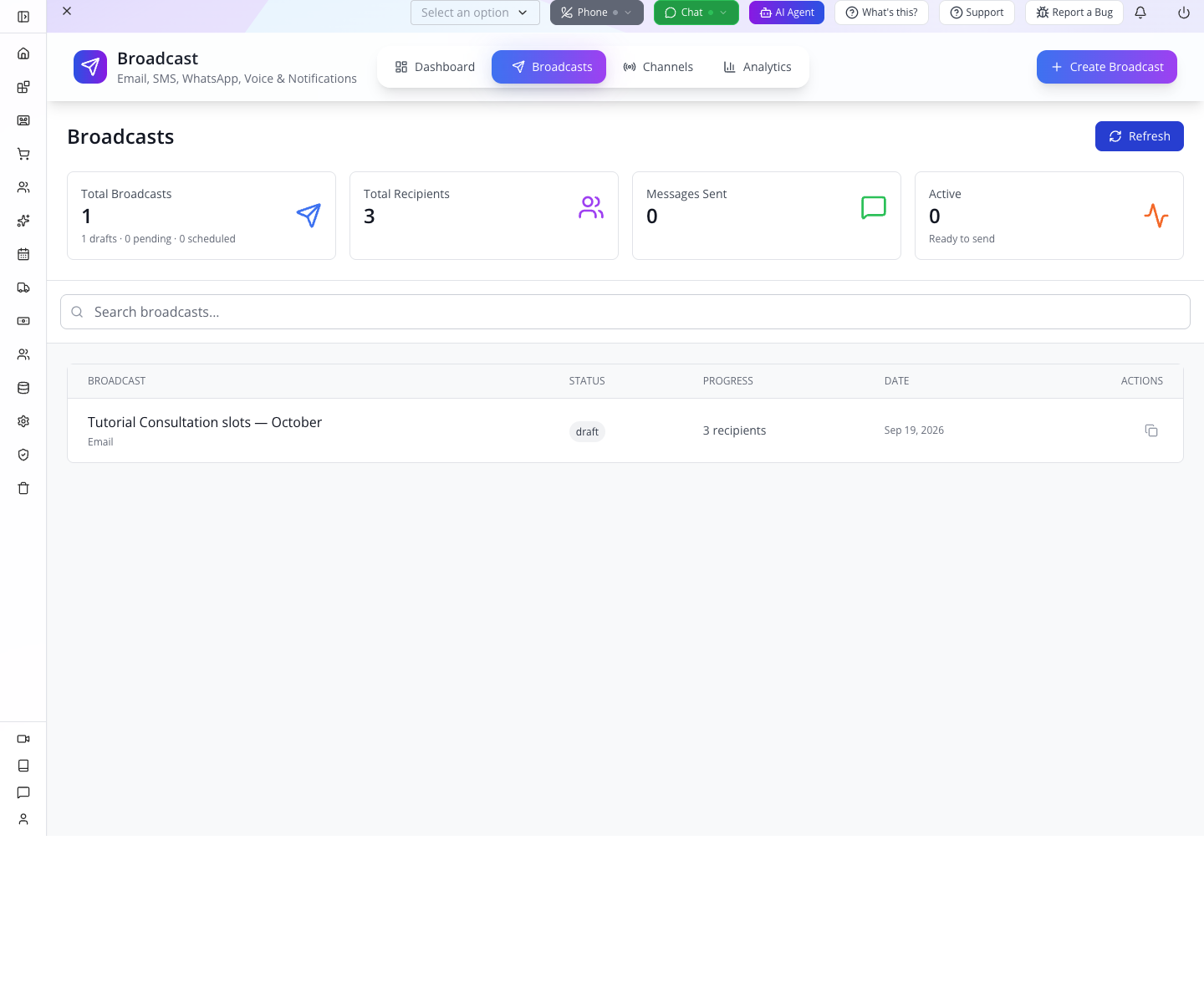
Return to Message. Check the subject, category and body. Return to Recipients and check the three addresses. These checks establish that the useful content survived a fresh read.
The internal name now survives the first save and reopening. If an older record is untitled, check its subject before editing it; re-enter the name on the existing record, save and reopen instead of creating a duplicate.
Try it: change “one photo” to “one or two photos,” save, reopen and check that sentence. Then restore the original wording, press Save Draft, close, refresh and reopen again to confirm the restoration before duplicating. You now know how to distinguish editing from merely leaving text in an open drawer.
Part 2 — Prepare a reminder and save a contact list
1. Duplicate the original
Close the drawer. In Broadcasts, use the copy-shaped action at the right of the original row; its tooltip is Duplicate. Wait for Broadcast duplicated and a second draft row.
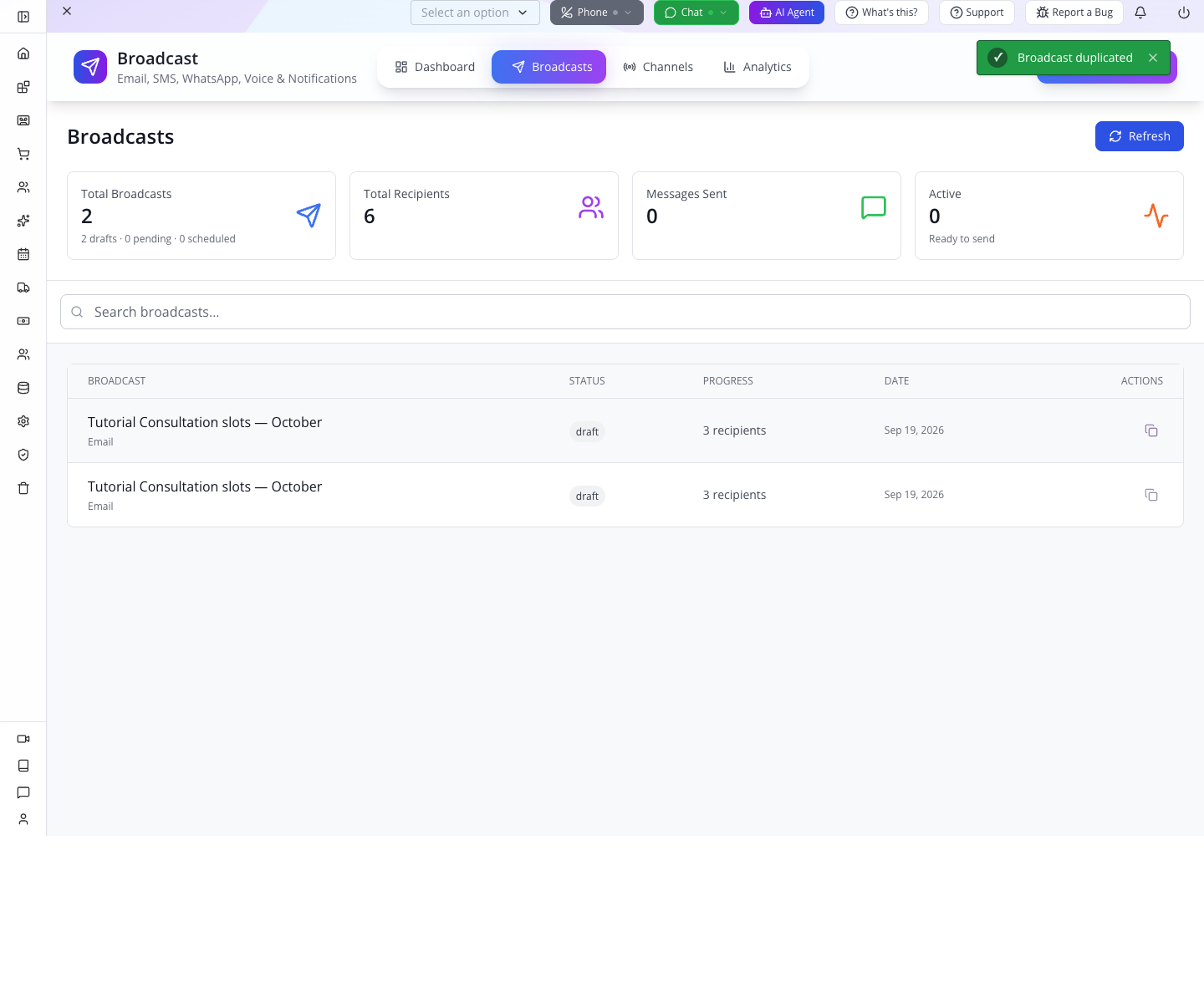
Open the new row and inspect the subject and body before changing anything. Duplication retained the content and the three addresses. On this build, the new row initially keeps the original name. Identify the newly created row by its creation time, then rename it in the next step. Do not depend on a “(copy)” suffix.
2. Make the reminder distinct and save it
In the copy's Message tab, set:
| Field | Value |
|---|---|
| Broadcast Name | Tutorial Consultation reminder — October |
| Email Subject | Tutorial reminder — choose a consultation time |
| Category | Newsletter for this category-change exercise |
Press Save Draft, close, refresh and reopen the copy.
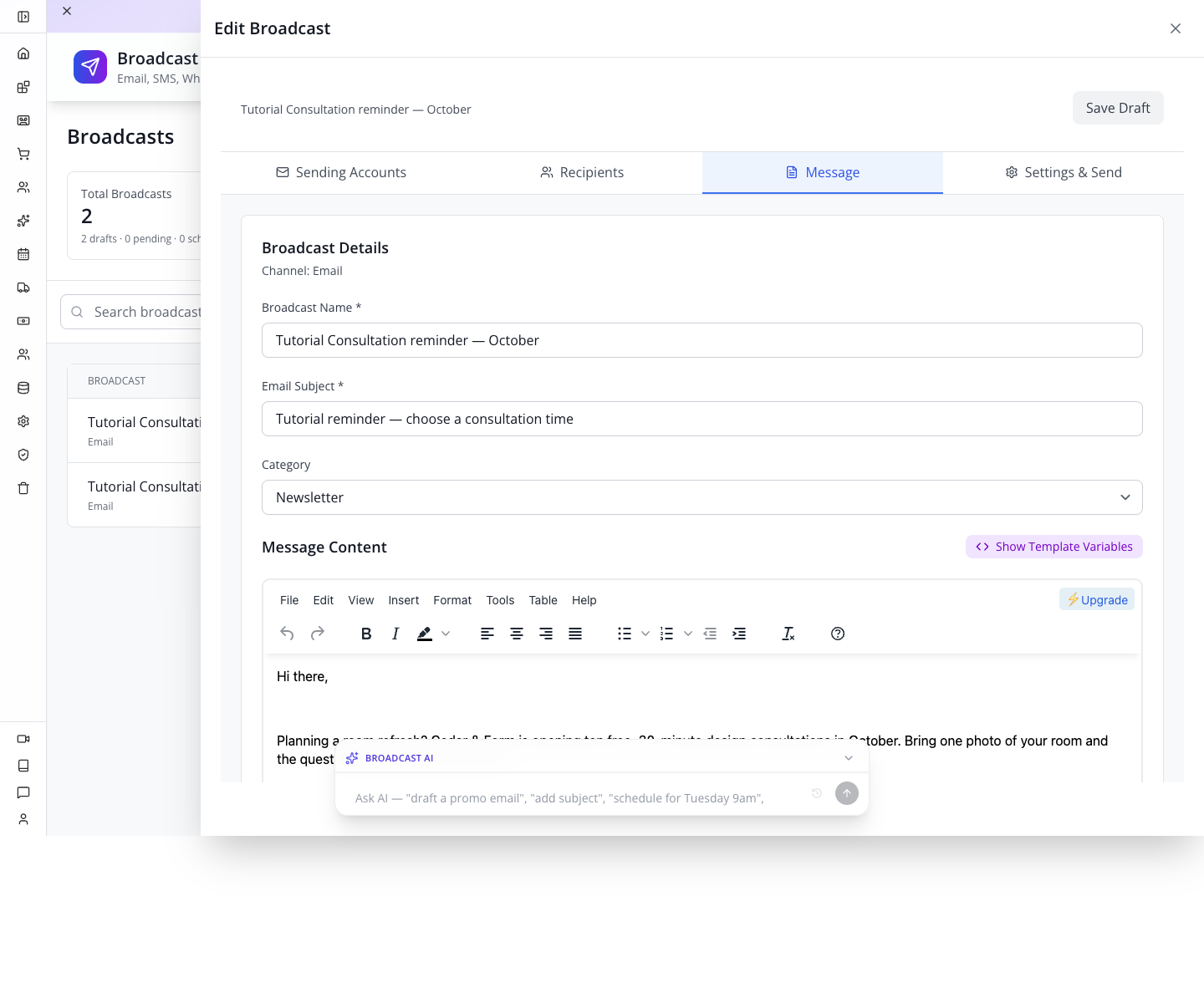
For a real reminder promoting the same offer, choose the category that accurately describes that message; changing a category is not an unsubscribe mechanism or delivery setting. We use Newsletter here only to make the saved difference visible.
Reopen the original too. Its subject should remain Plan your room with a free 30-minute consultation, and its category should remain Promotional. Check that each of your two named tutorial records is still a draft with three recipients and no sends. In the initially empty captured company, the totals were two drafts, Messages Sent: 0 and six recipients summed across both records. Existing company-wide totals are not the acceptance check for your exercise.
3. Save and verify a contact list
In Recipients → Manual Entry, confirm the three unique practice addresses. Select Save as contact list, enter Tutorial October list, then select Save once and wait for completion. This saves contact records and a group containing their identifiers; it does not send the campaign.
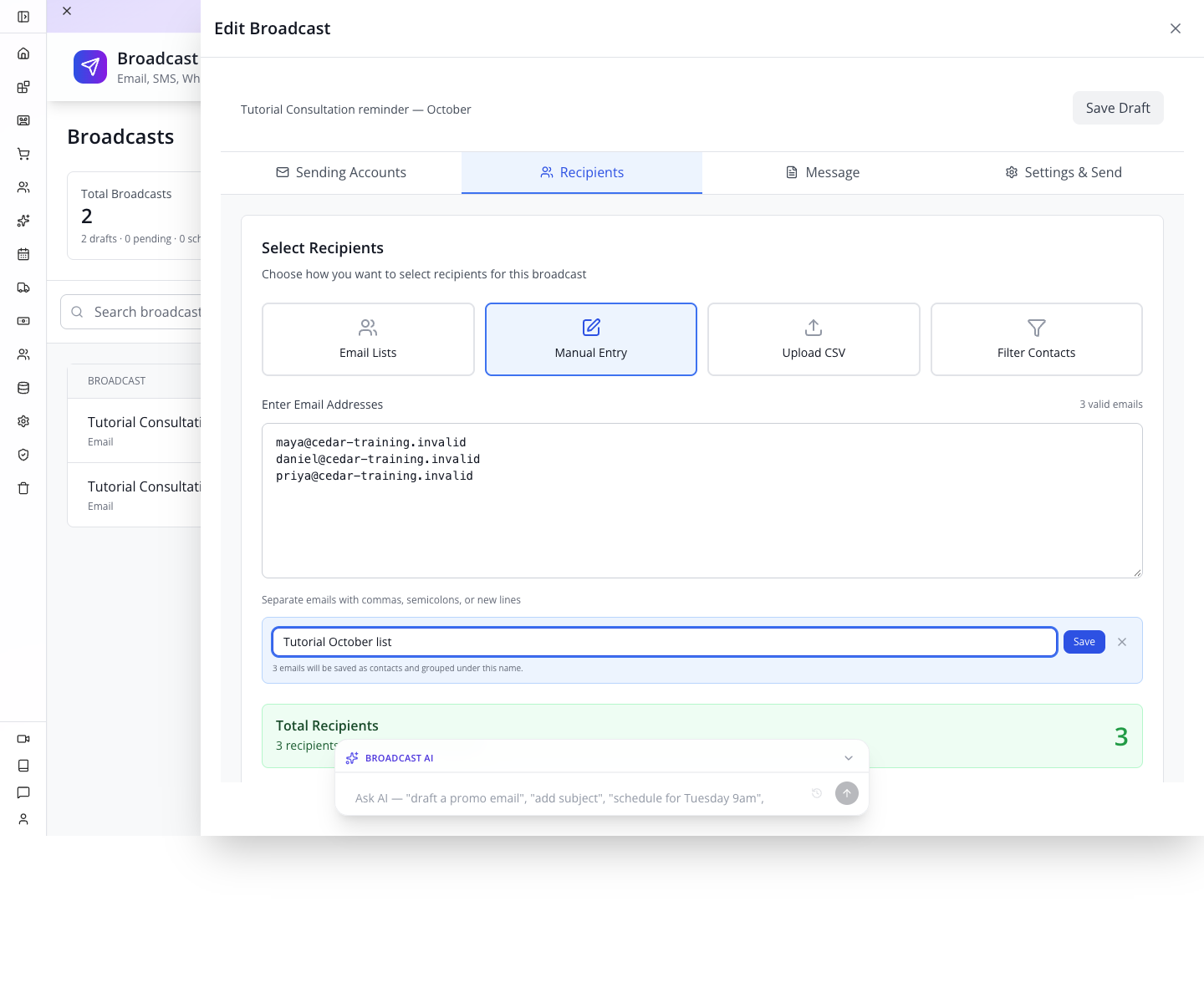
After saving, close and reopen the creator, open Recipients → Email Lists and find your named group. Check for 3 members. A list name alone does not prove that its contacts were saved. Return to Manual Entry for the campaign exercise: the separate delivery integration limitation in the next section still applies.
If saving fails, read the error and keep the entered addresses and list name. Restore the connection before retrying. Existing exact-email contacts are reused; do not delete them to retry. If the result of a group save is uncertain, check for the group before submitting again.
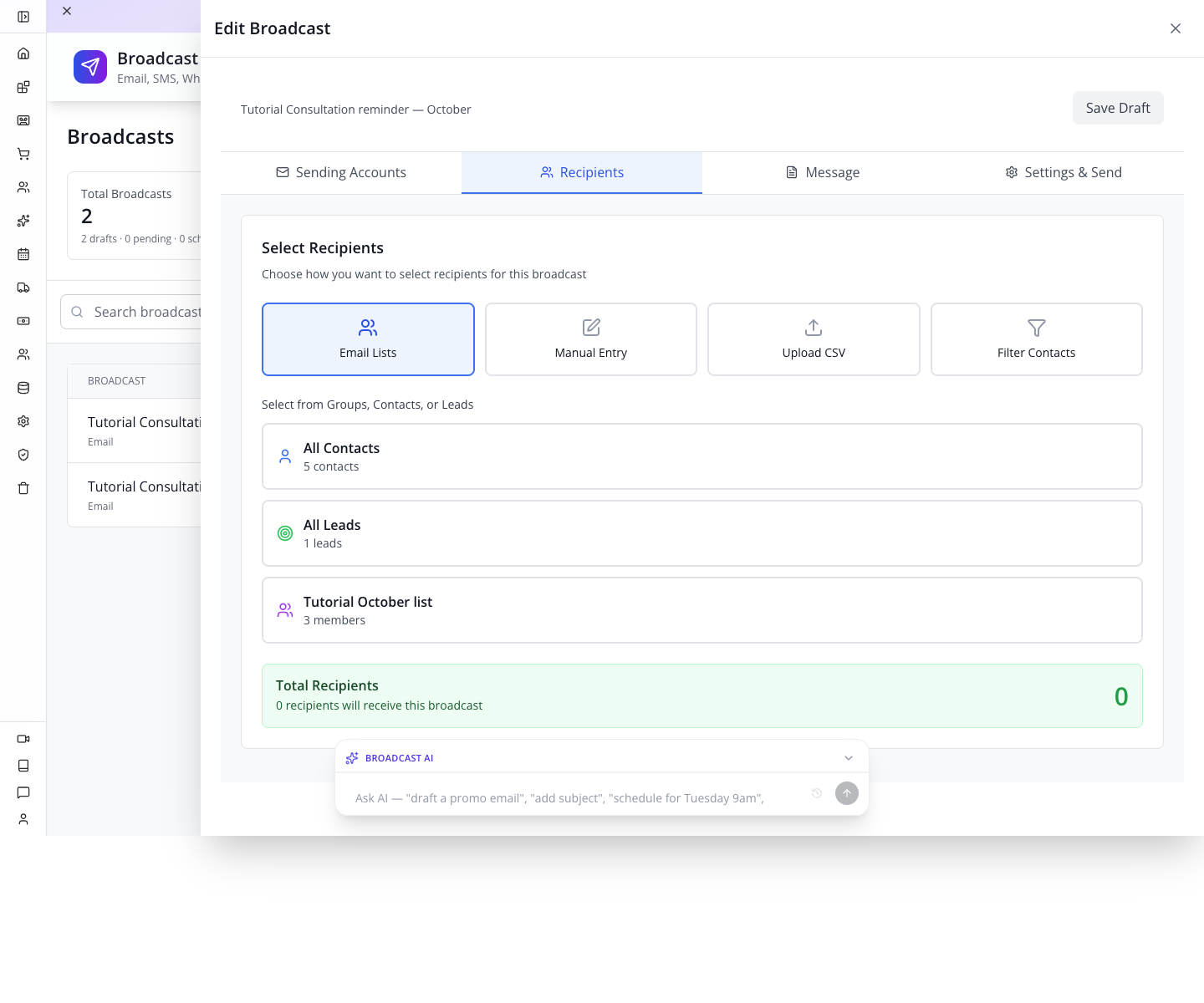
The fresh browser walkthrough on 19 September created the three contacts and reopened the group with 3 members, including after a full page reload. The earlier empty-group failure is fixed. Local repair and component/backend checks document the underlying change.
4. Keep the other recipient methods in perspective
Email Lists displays All Contacts, All Leads and customer groups. The current UI sends these selections as list IDs, while the delivery service's list path expects subscriber-list associations. A displayed count is not sufficient confirmation that the chosen CRM group will resolve into recipients.
Upload CSV lets you choose a file, but the inspected creator stores the chosen file without parsing its rows into the delivery payload. Filter Contacts displays Advanced filtering coming soon. For this first small campaign, Manual Entry is the path we actually saved and reopened.
After inspecting another audience mode, return to Recipients → Manual Entry, confirm the three practice addresses, press Save Draft, close, refresh and reopen to verify the saved mode and addresses on each tutorial draft.
For a larger campaign, validate the chosen audience path with controlled inboxes before using the full customer list. The developer notes below distinguish the server's supported recipient types from what this particular screen sends.
Part 3 — Readiness checklist for a later delivery rehearsal
The practical outcome of this lesson is two persisted, unsent drafts. This section explains the next dependencies; it is not an executable first-time sender-setup lesson. Complete a supported provider-specific sender setup and controlled send/read/reply test before using these drafts for delivery. Neither this course nor the linked conversations course supplies that complete setup yet. Keep both exercise records as drafts.
Connect a sender before promising delivery
Open Broadcast → Channels to inspect channel configuration.
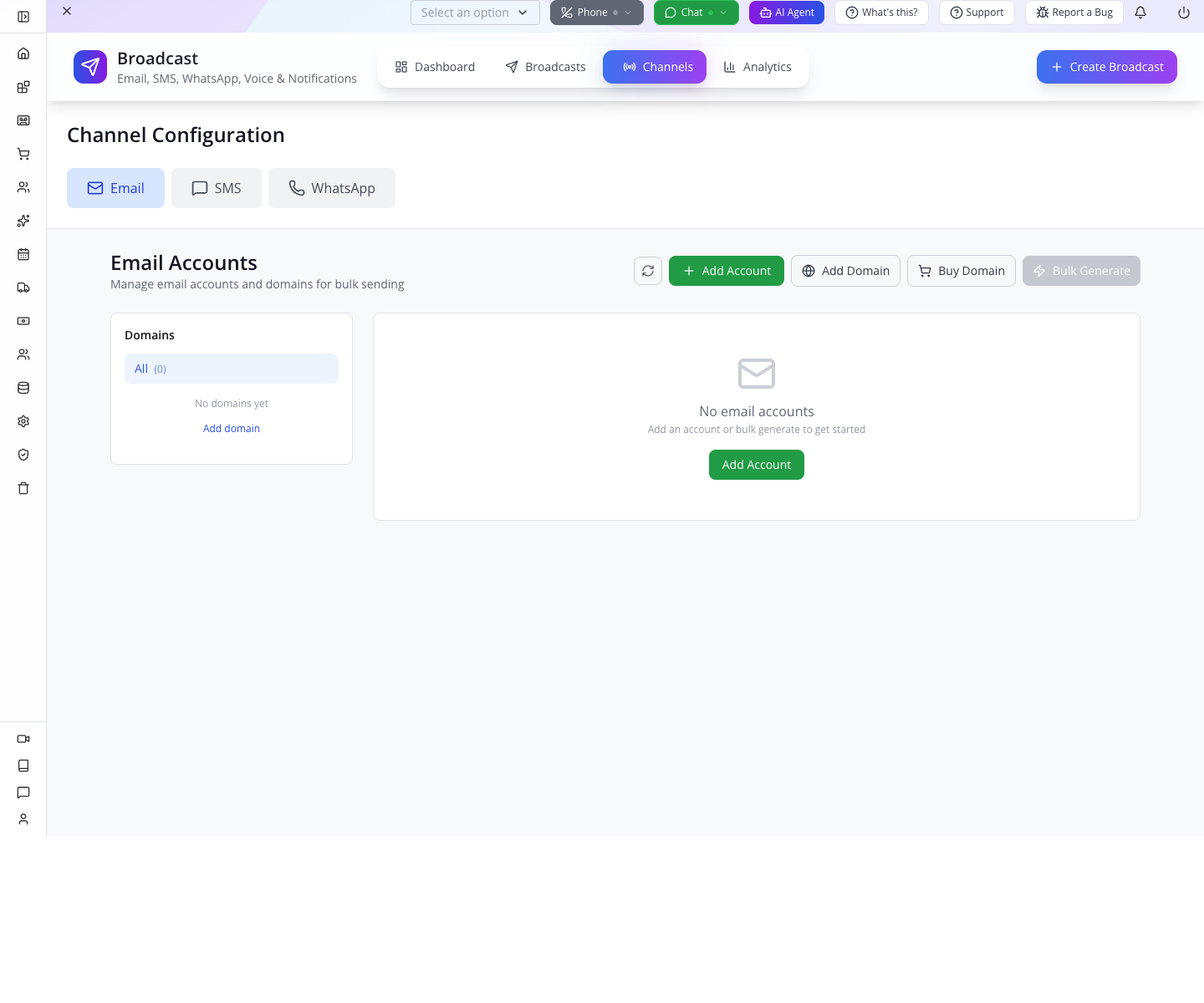
The settled panel shows No domains yet and No email accounts. Wait for loading to finish before evaluating your own configuration; this exercise does not demonstrate external delivery.
Use CRM → Email Accounts for your company's email-account setup. You need the actual sending identity and its provider configuration, not simply an address typed into a From field. Reopen Sending Accounts afterward and select the intended account. Check where replies arrive before using our reply-based invitation. The customer conversations course covers the service inbox workflow; it does not configure email delivery for you.
For a controlled delivery rehearsal, replace the three .invalid addresses with inboxes you control. Keep the audience small. Review the exact saved subject and body, confirm the selected sender and remove any practice wording that should not reach recipients. The real sender and inbox test were not performed in the captured training company.
Know what the send controls mean
Under Settings & Send, Send Now activates immediate sending; it is not the same action as Save as Draft. The current implementation moves a broadcast through a pending queue and records sending results afterward. The time it takes depends on the running worker and provider, so do not promise recipients a particular minute based on the button click alone.
Schedule for Later exposes date/time controls, but the reviewed queue job picks up pending broadcasts, not scheduled ones. Do not depend on that scheduling option for an important announcement on this build. Keep the draft ready and perform your reviewed send at the appropriate time after your provider test succeeds.
A cancellation endpoint exists in the backend. The captured list exposes Duplicate, not a dependable stop-sending action. Check the audience before activation; cancellation cannot recall messages already handed to a provider.
Separate message status from business results
For broadcasts in sending or terminal states, the creator includes a Summary tab with statistics, Delivery Report and Email Activity. Drafts do not have that tab, which is why it does not appear in our screenshots.
Use three separate checks after your controlled send:
- Application result: find the correct broadcast and inspect its status, errors and available delivery records.
- Inbox result: open each controlled inbox, read the actual subject and body, test the reply destination and any link or attachment.
- Business result: confirm the customer's reply, reservation or lead in the appropriate CRM screen.
A provider accepting a send request, a mailbox delivery event, an email open and an appointment booking are different events. Do not substitute one for another. The inspected report UI and API use different shapes for delivery rows; an empty report should be investigated against provider and server records rather than treated as an empty audience.

For our offer, Jordan checks the reply, agrees a time, then uses CRM → Reservations. Follow Turn an enquiry into a project to create the service definition, save the appointment and import a reservation into Leads when appropriate. Sending this invitation does not itself create a reservation or lead.
Check yourself: three inboxes received the message and two people replied. How many appointments are confirmed? Only the appointments Jordan has actually agreed and recorded. A reply is a conversation to handle, not automatic capacity allocation.
Part 4 — Advanced: prepare a referral program
A broadcast reaches an audience directly. A referral program defines how partners introduce business and earn credit. They can support the same offer, but saving a broadcast does not create an affiliate or calculate commission.
1. Open the program editor
Open CRM → Affiliates, select Programs, then New Program.
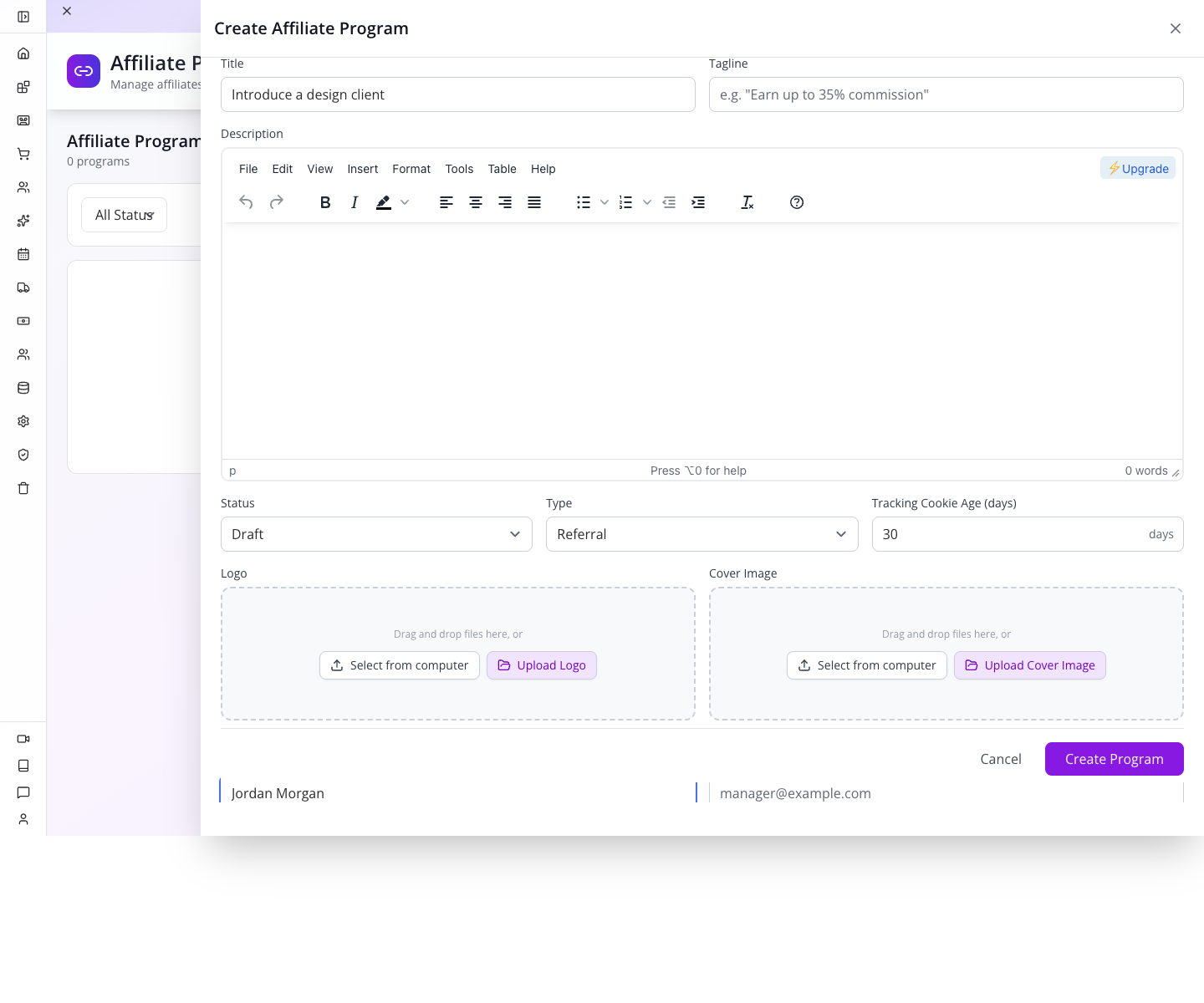
Under General, enter:
| Field | Value |
|---|---|
| Program Name (ID) | tutorial-design-partners |
| Display Name | Tutorial Design Partners |
| Title | Introduce a design client |
| Status | Draft |
| Type | Referral |
| Tracking Cookie Age (days) | 30 |
| Contact Name | Jordan Morgan |
The ID identifies the program in the system. The title describes it to the person reading its card. In our saved result, the card displayed the Title; do not search only for Display Name if you cannot find it.
Leave contact email blank for this private exercise. A production program should have a real monitored contact, agreed terms and rules appropriate to your business before activation.
2. Define commission and hold settings
In Commission, select Percentage and enter 10 in Percentage. Leave Max Commission blank for this draft.
Expand Payout. Set Hold Period (days) to 14, Min Payout to 0 and Auto Credit to No.
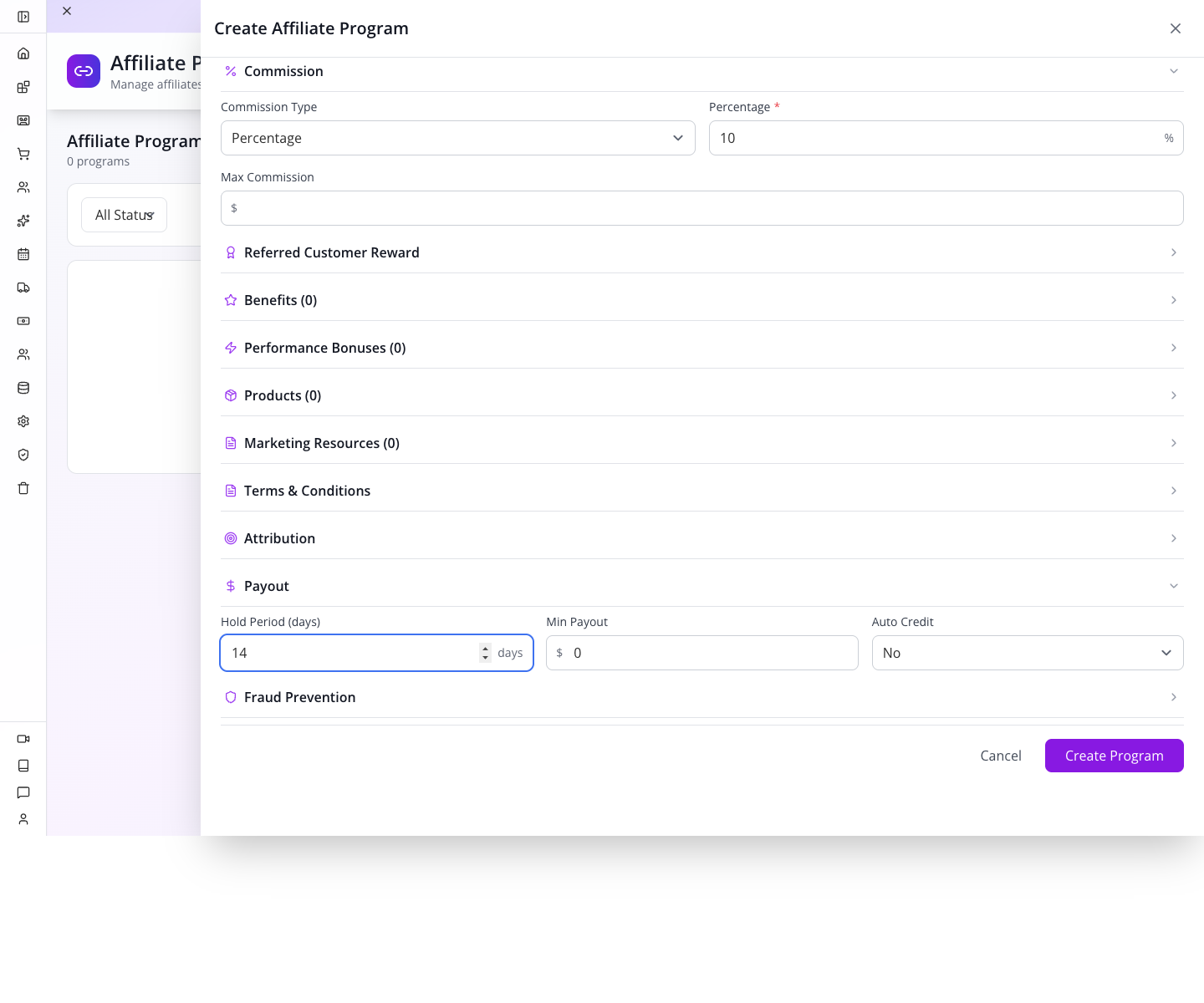
The percentage describes how commission is calculated on a qualifying base. The hold delays eligibility for release. Auto Credit concerns wallet credit; it is not permission to transfer funds to a bank. We disable it while learning the program structure.
A 10% rule does not mean every order automatically produces a 10% payment. Referral attribution, qualification, exclusions and the eligible amount still matter. Do not assume shipping, tax or every order line belongs in the commission base.
3. Create, reopen and read the saved settings
Press Create Program, wait for the editor to close and reopen the card titled Introduce a design client.

The observed details show draft, Percentage, 10%, Cookie Age: 30 days, Hold Period: 14 days and Auto Credit: No. They also show Last Click attribution, a 30-day window, self-referral blocked, unique email required and paid order required.
Read those conditions before activating a real program. A person viewing a link is not automatically a qualified paid referral. Keep this training program as Draft; Activate is a separate action on the details screen.
4. Plan the remaining partner test accurately
The module's Affiliates and Referrals tabs are where you inspect actual partners and attributed business. This exercise did not enrol a partner, generate a working referral link, place a paid order or release commission. The previous claim that this practice produced a 5.40 affiliate credit has been removed: the separate finance exercise used an explicitly labelled manual ledger adjustment.
Before taking a referral program live, rehearse an enrolled test partner, a real generated link, attribution, an eligible order, the hold and the final wallet entry. Match each record to the same partner and order. Continue with Payments and payouts to understand wallet credit versus external payment. Do not use Process Held Commissions merely to make a dashboard show money.
Part 5 — Advanced: use the advertising builder as a planning tool
Open CRM → Marketing & Ads, then New Campaign.
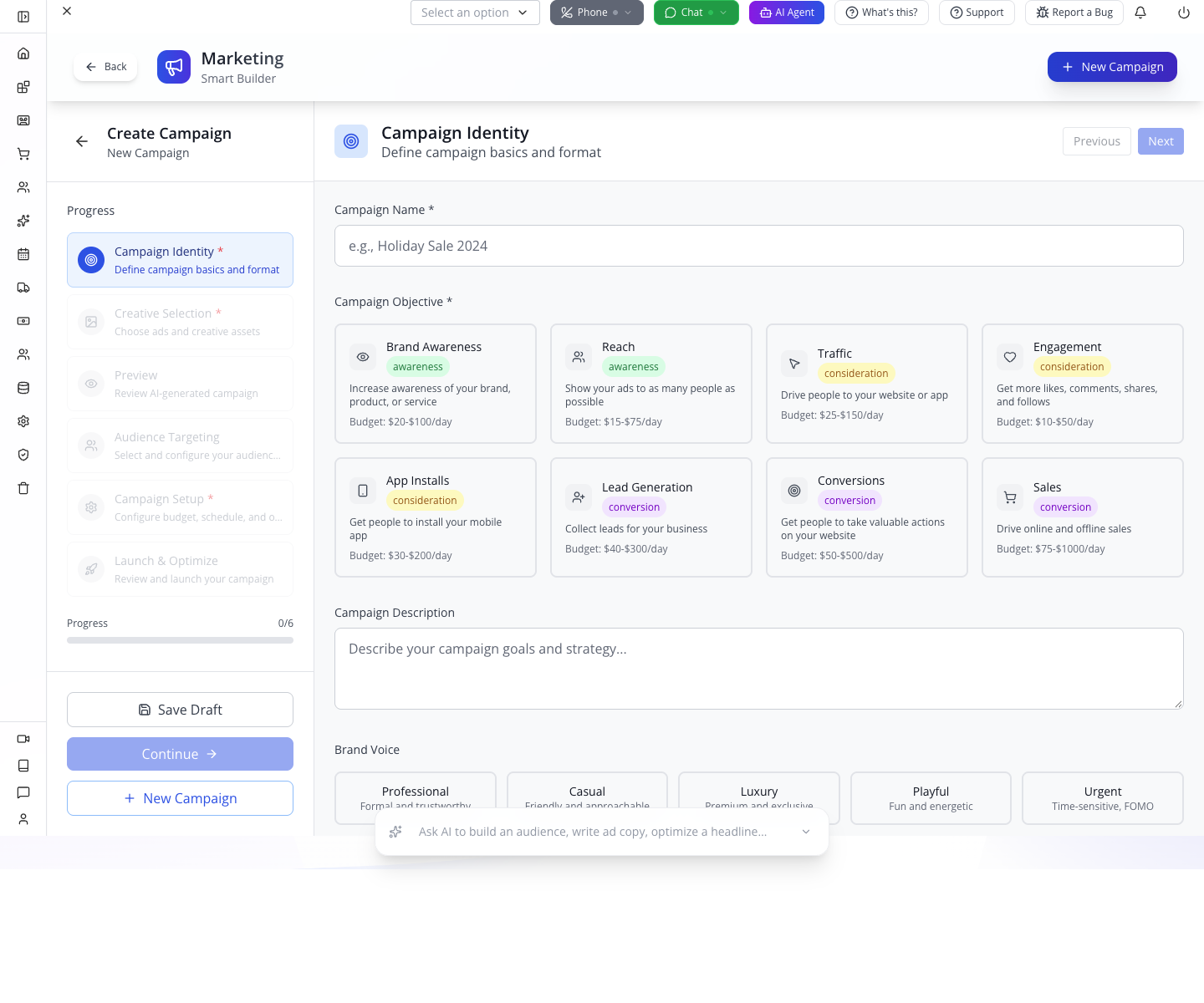
The stages are Campaign Identity, Creative Selection, Preview, Audience Targeting, Campaign Setup and Launch & Optimize. They answer different questions from the Broadcast creator:
| Stage | Decision to make |
|---|---|
| Campaign Identity | What is the objective, message and voice? |
| Creative Selection | Which image or other creative explains the offer? |
| Preview | Does the assembled campaign communicate the intended offer? |
| Audience Targeting | Who should discover it through advertising? |
| Campaign Setup | What budget, timing and optimisation are intended? |
| Launch & Optimize | What remains to review before an actual platform launch? |
The first screen offers objectives such as awareness, traffic, lead generation and sales. Demographic advertising audiences are not the same thing as your three manually entered email recipients.
The inspected launch step simulates a wait and the builder saves a campaign record as active; this path does not establish that an ad platform accepted or ran an advertisement. Treat its budget and reach displays as planning information until you have a real platform campaign and delivery evidence. No ad was launched and no spend occurred in this walkthrough.
If something goes wrong
| Symptom | Check and next action |
|---|---|
| No email accounts configured | Save the draft; configure the intended sender, then reopen Sending Accounts. |
| “Valid emails” and total differ | Remove invalid lines and duplicates. One address per line makes review easier. |
| Blank name after first save | Reopen the existing row, check its subject, re-enter the name, save and refresh. |
| Duplicate has a generated name | Open the new draft, check copied content, give it a useful name and save. |
| Contact-list save fails | Read the error, retain the inputs and check existing group membership before retrying. A zero-member group is not a completed list. |
| Email Lists count looks right but sending resolves no recipients | Investigate the CRM-group/subscriber-list mapping; test with a small controlled audience. |
| CSV selected but no usable recipients | The inspected upload path does not parse recipients. Enter the small test list manually. |
| Literal personalisation token | Use a complete plain greeting; test supported tokens on the actual delivery path. |
| Broadcast stays scheduled | Current pickup job handles pending records. Do not rely on this scheduling path. |
| Analytics says coming soon | Inspect the individual sent broadcast and provider records instead. |
| Reply received but no booking exists | Agree a time and record the reservation. A campaign reply does not create one automatically. |
| Network error during a save | Restore the connection and inspect the list before retrying; the first request may have saved. |
What happens behind the screens
Developer notes, record paths and verification boundaries
The creator saves email_broadcast records through the generic repository. It writes the name at the top level and message data under data. The original capture lost the name on creation. The corrected payload also supplies data.name, which the repository uses for the persisted name; local component/backend checks now cover first creation and reopening.
The server's recipient resolver supports subscriber associations through selectedLists and direct types such as leads/contacts/customers through recipientType. The captured creator instead offers synthetic IDs all-contacts/all-leads and customer-group IDs without setting that direct recipient type. This mismatch is narrower than saying “the backend supports Manual Entry only.”
Manual recipient resolution splits commas, semicolons and newlines and deduplicates by lowercased address. Its syntax checks are not the same as the editor's count. Names are not supplied in that path. The personaliser replaces exact {{firstName}} and {{name}} only when recipient.name is present, and uses that whole value for both; it does not split a full name. Email and phone tokens also depend on their values being present. {{data.…}} variables inserted by the general browser are outside those replacements. Provider bulk paths need their own delivered-message test.
The broadcast queue selects pending records. A five-second minimum record age in that query is not a five-second delivery promise. Worker dispatch, queue state and provider response are separate concerns.
Source reviewed on 18 September; repaired draft and contact-list paths exercised in the browser on 19 September 2026:
websitemint/packages/ui/src/components/crm/broadcast/broadcast-creator.tsx: tabs, counters, save payload, contact-list shortcut and personalisation browser.websitemint/packages/ui/src/components/crm/broadcast/broadcast-list.tsx,services.ts: list, refresh and Duplicate.appengine/src/broadcast/broadcast.service.ts: duplicate, recipient resolution, personalisation, sender sorting and delivery records.appengine/src/sync/jobs/broadcast.queue.job.ts: pending pickup query.appengine/src/repositories/repository.crud.service.ts: customer-creation guard.websitemint/packages/ui/src/components/crm/affiliates/affiliate-manager.tsxandappengine/src/affiliate/affiliate.service.ts: program fields and saved conditions.websitemint/packages/ui/src/components/crm/marketing/campaign-builder/steps/launch-optimization-step.tsx: simulated launch step.
Where next
Use Social media automation to prepare the same offer for social channels. Use Turn an enquiry into a project for the reply-to-reservation-to-lead handoff. Use Business handoffs and automation to organise internal review before customer-facing work.
Evidence: fresh local walkthrough in isolated learner organisation ck-local-mu83iwh3, 19 September 2026. Completed every executable section, including the edit-and-restore exercise, both independently reopened drafts, three-member contact list, return to Manual Entry, referral draft and advertising-builder inspection. A full reload preserved both names, distinct subjects/categories, original message and three manual addresses each; the list showed two drafts and zero messages sent. The referral remained Draft with 10% commission, 30-day cookie, 14-day hold and Auto Credit No after reload. No email/SMS, external post, ad launch, partner enrolment, qualifying order, commission release or payout occurred. Part 3 remains future delivery guidance outside this draft-preparation exercise. Browser execution record. Historical capture ledger. Companion-video guide.