

Who: business owners, team managers and developers connecting an employee runtime. Product: Appmint Studio Manager; BusinessMade provides the same management feature under Admin. Example: a project coordinator who prepares a manager's daily review. Reviewed: 24 September 2026.
You will create the employee, connect its runtime, give it a small launch-checklist review, inspect an attached record and private document, make a human approval decision, and pause it. A saved employee, an online badge and a completed useful task are three different outcomes; this course walks through each one.
The result you are working towards
Your coordinator should identify a missing launch check and explain what the manager needs to verify before going live. Start with a fictional checklist inside the task; extend to a project review only after its access and runtime are proven. It should not change deadlines, message customers or approve its own requests. You will define that job, give the employee appropriate access, inspect its work and learn how to stop it.
An AI employee has its own user identity, groups, work queue and history. The AI Assistant panel helps the person currently using it. Hiring an employee does not mean configuring that assistant panel, and a job description does not grant database permissions.
flowchart LR
    A[Define the job] --> B[Create a draft]
    B --> C[Choose access]
    C --> D[Connect its runtime]
    D --> E[Switch on and verify connection]
    E --> F[Give one bounded task]
    F --> G[Review result and approvals]
    G --> H[Pause and verify]
Before you begin
Use your organisation's Owner or ConfigAdmin account. For the first exercise you need only the management application; leave the employee as a draft while you learn the controls. For the execution exercise you also need a configured worker runtime and a small set of records that your organisation permits it to read.
Prepare the access group before activation. Follow Prepare team access to understand roles, groups and actual permission checks. Select a group for the coordinator's specific work; do not give it an administrator group simply to make an access error disappear.
Decide which person will review results and approvals. A useful starting job description names the inputs, output and limits:
Review the project records assigned for this exercise. Produce a table of project, next action, owner and missing information. Cite each source record. Do not change records, invent a deadline or contact anybody. Ask the manager when the evidence is incomplete.
The captures use Tutorial Project Coordinator for draft configuration and a separate Tutorial Manual Lifecycle employee for isolated execution tests. The latter also ran the real model examples; its name does not mean every result was manual. Captions identify the type of evidence. This kept the original draft inactive throughout the review. For your own exercise, use the employee you created and check its name before each action.
The business can use any suitable employee name. The example names and handles below identify this walkthrough; they are not mandatory product values.
1. Find the employee management area
In Studio Manager, expand AI, IVR, Automation and select AI Employees. In BusinessMade, expand Admin and select AI employees.
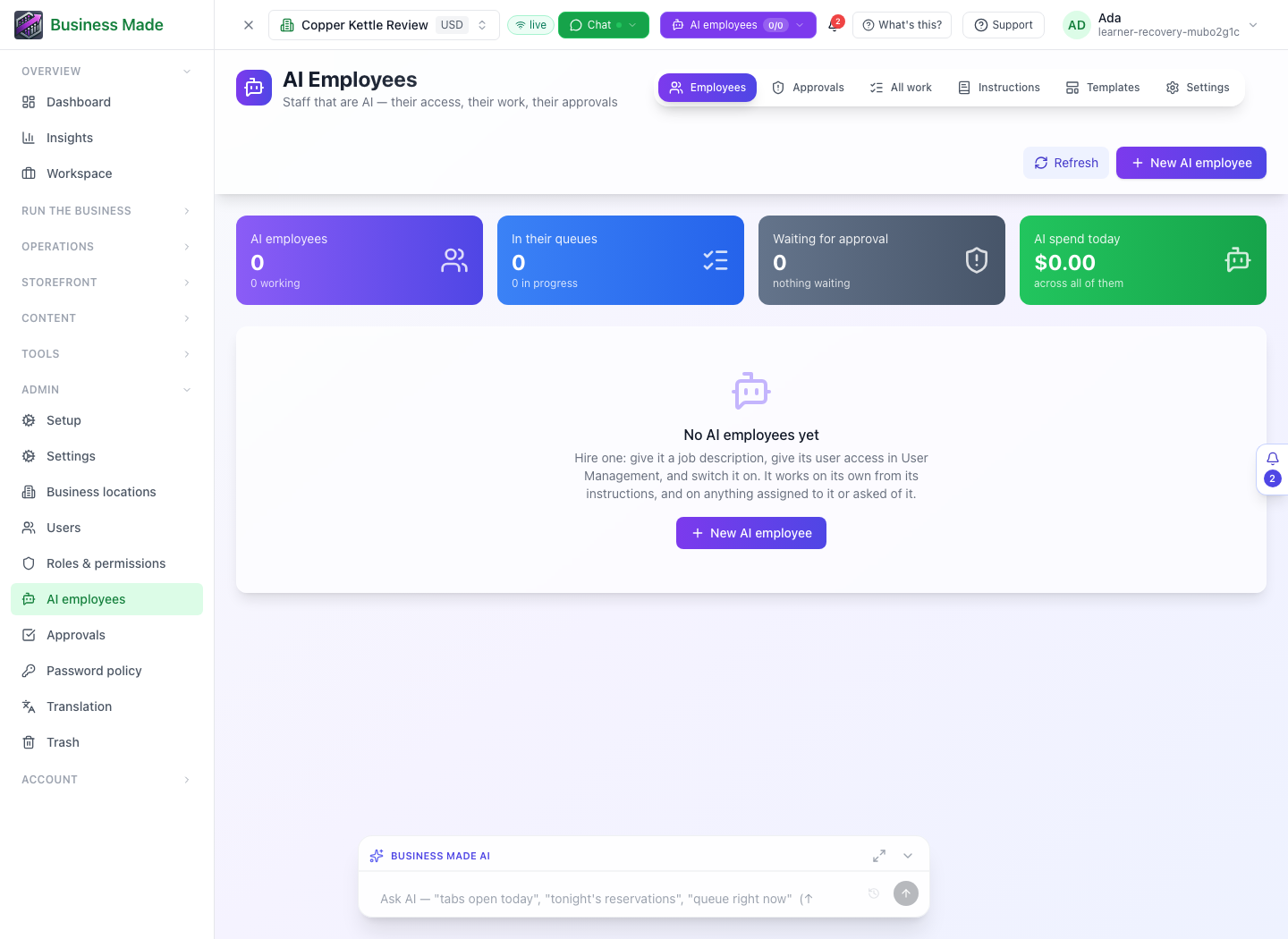
The top-level tabs answer different questions:
| Tab | Use it for |
|---|---|
| Employees | Open an employee, hire another and review the team's current state. |
| Approvals | Find work waiting for a person's decision. |
| All work | Follow queued, in-progress, completed, failed and cancelled jobs across employees. |
| Instructions | Write organisation instructions and choose who receives them. |
| Templates | Start from an existing role description. |
| Settings | Review company context, knowledge, defaults, escalation and the AI team workspace. |
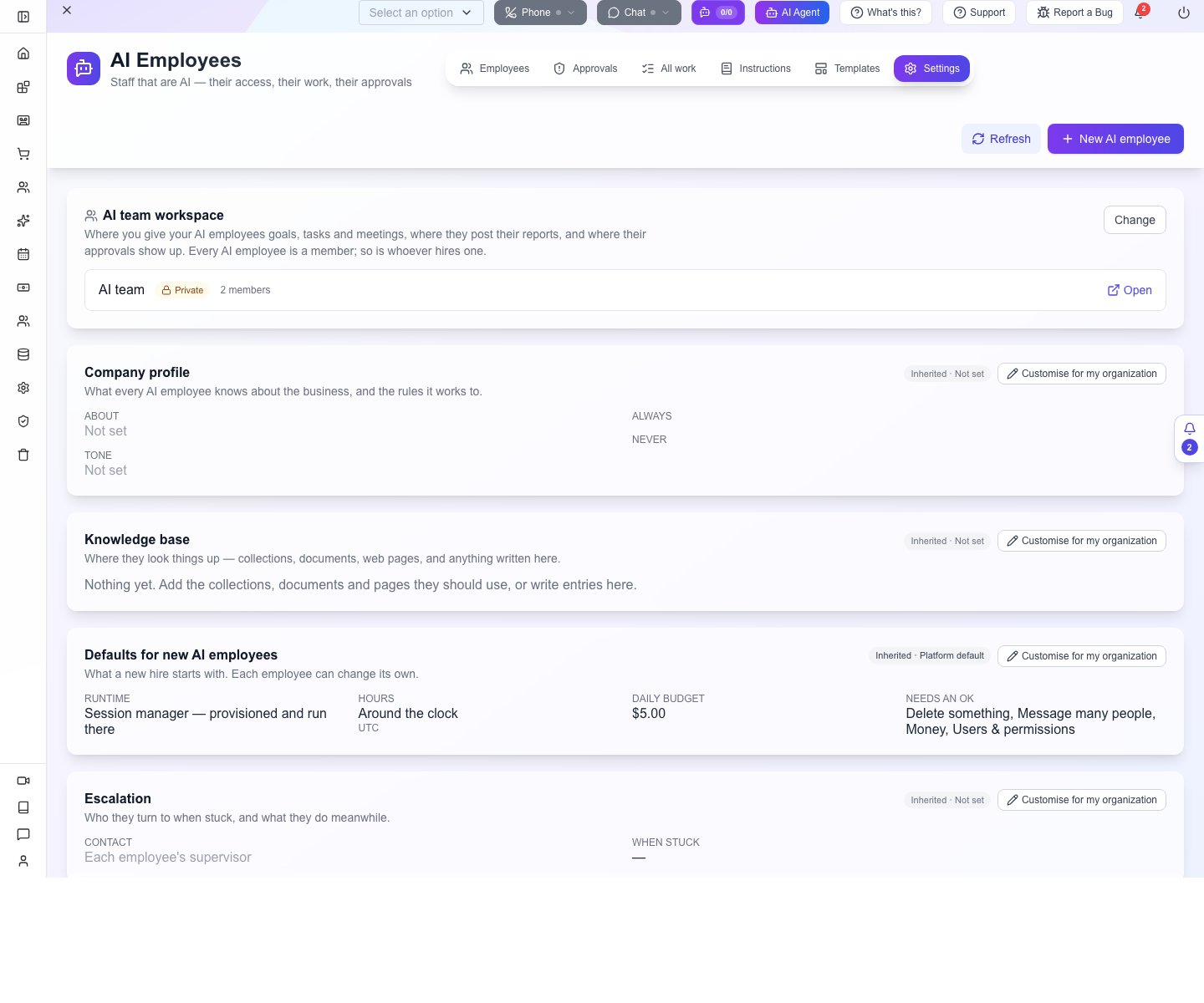
Open Settings first and read the source labels. Platform default means the value is inherited; Your organization means this organisation supplies it. Changing shared company context can affect more than the employee you are about to hire. The reviewed setup inherited Session manager, UTC, around-the-clock hours, a $5 daily budget and approval requirements. These are observed defaults, not a required paid Appmint subscription or a promise about a provider's charges.
2. Choose a role and create an inactive draft
Open Templates. The reviewed platform offers Receptionist, Sales follow-up, Support triage, Accounts receivable, Bookkeeping assistant and Social media. Hire starts an employee from that role; Copy is a template action. Read the role before using it: a sales follow-up role may have very different responsibilities from a read-only project review.
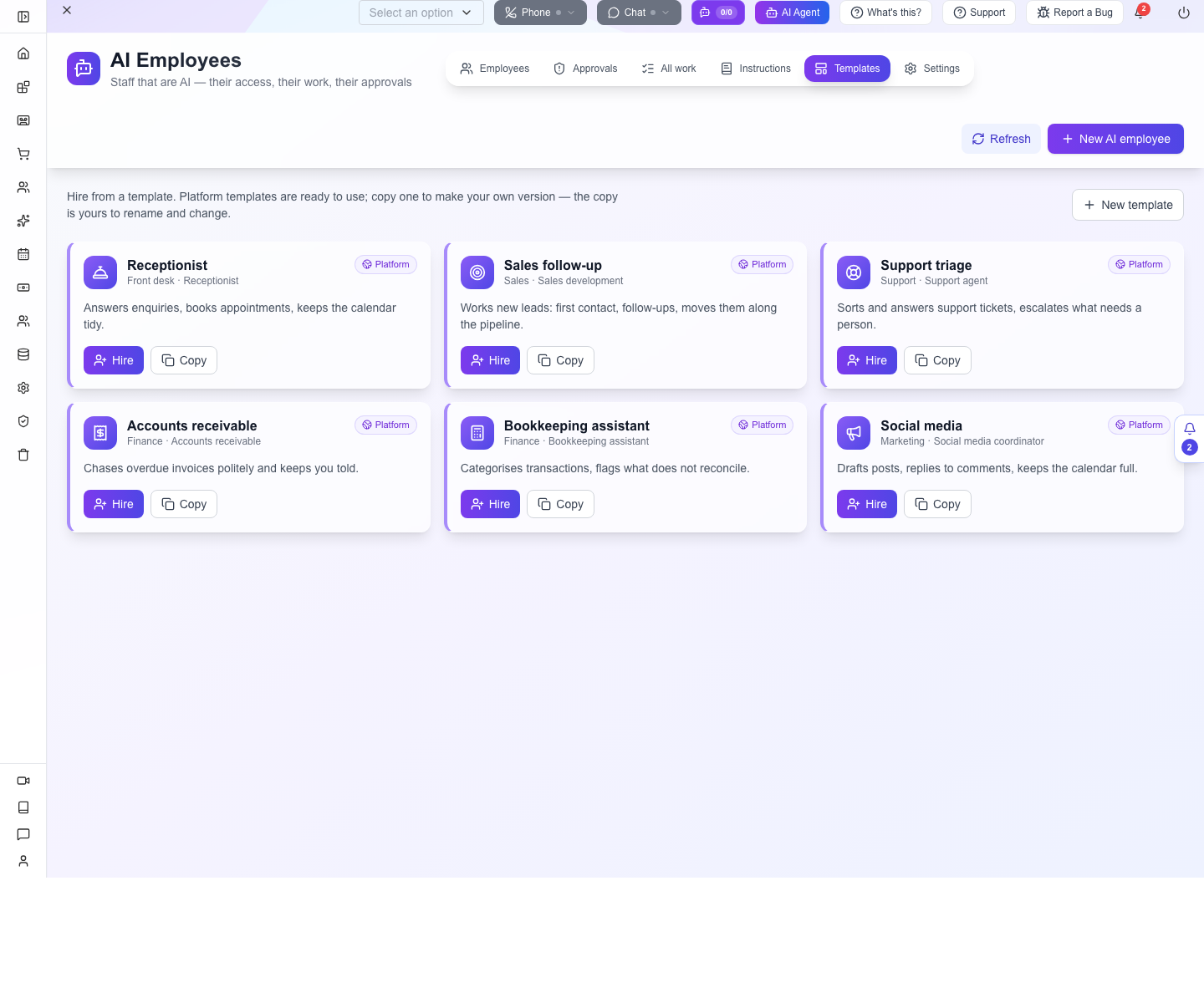
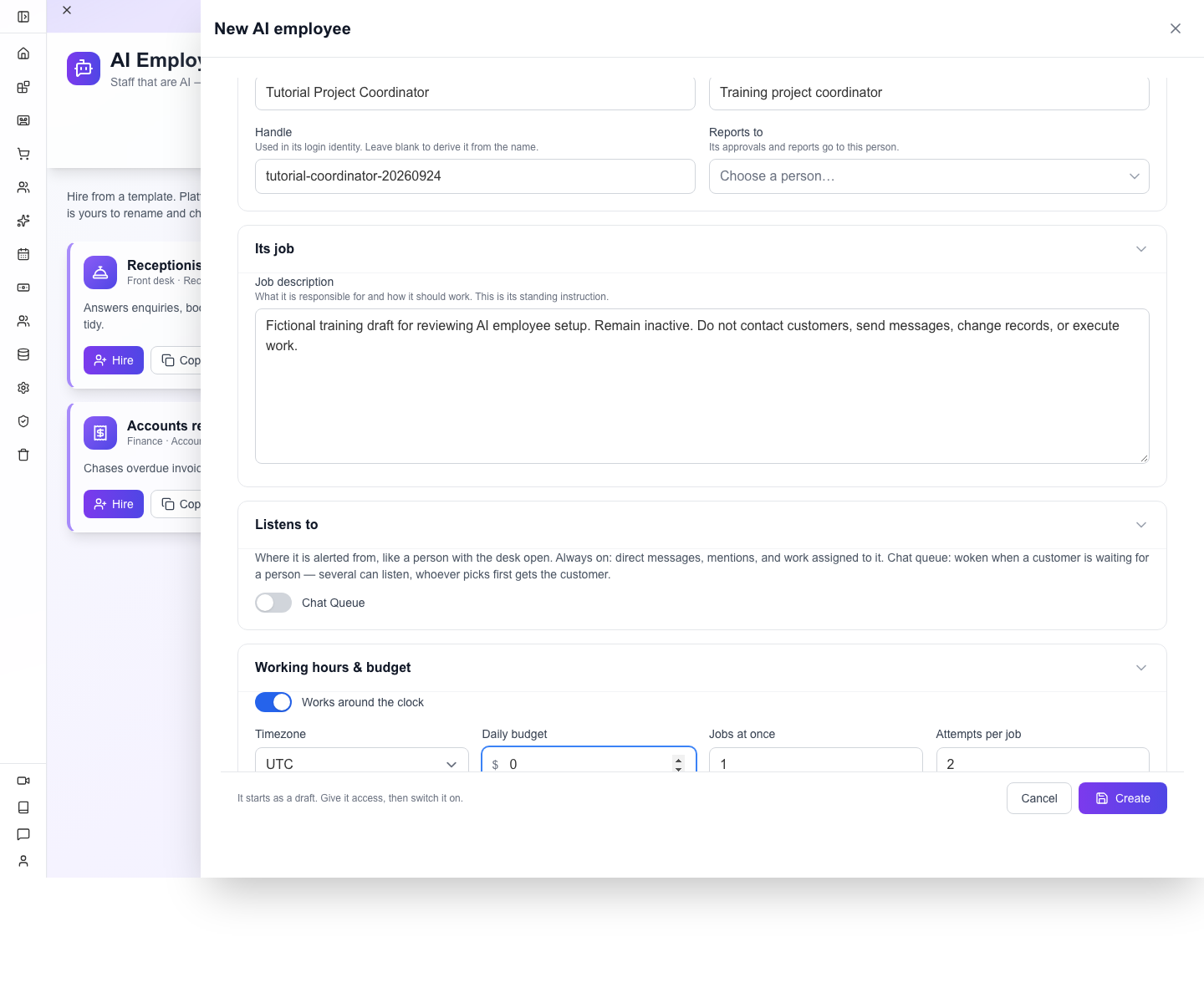
For this exercise, select New AI employee instead and enter:
| Field | Example and purpose |
|---|---|
| Name | Tutorial Project Coordinator — the name people see. |
| Job title | Training project coordinator — its responsibility at a glance. |
| Handle | A new identifier such as tutorial-coordinator-20260924. Optional: leaving it blank derives it from the name. |
| Reports to | Leave unselected for this inactive exercise. Select the responsible manager for real work. |
| Job description | Fictional training draft for reviewing AI employee setup. Remain inactive. Do not contact customers, send messages, change records, or execute work. |
| Listens to | Leave optional extra listeners unselected while preparing the draft. |
| Working hours and timezone | Review the inherited settings. The captured draft used around-the-clock hours and UTC. |
| Daily budget | 0 for this inactive exercise. |
| Concurrent jobs / attempts | Keep 1 concurrent job and 2 attempts for the draft. |
| What needs a person's OK | Keep deletion, bulk messages, money and users/permissions requiring approval. |
Name is required. The runtime is inherited from configuration; there is no runtime selector in this creation form. Do not confuse leaving extra listeners empty with disabling all event sources: the profile still describes direct messages, mentions and assigned work.
Select Create once. The employee opens on Connection. Confirm the name, Draft, Never connected, and Not switched on yet. In Setup, Created here should be complete; the other milestones should not suddenly be treated as successful.
Open Profile and check the saved description, budget, hours and approval settings. Reload the page, reopen this employee and verify the values again. In the recorded exercise the same draft persisted, its user was locked and every work count remained zero.
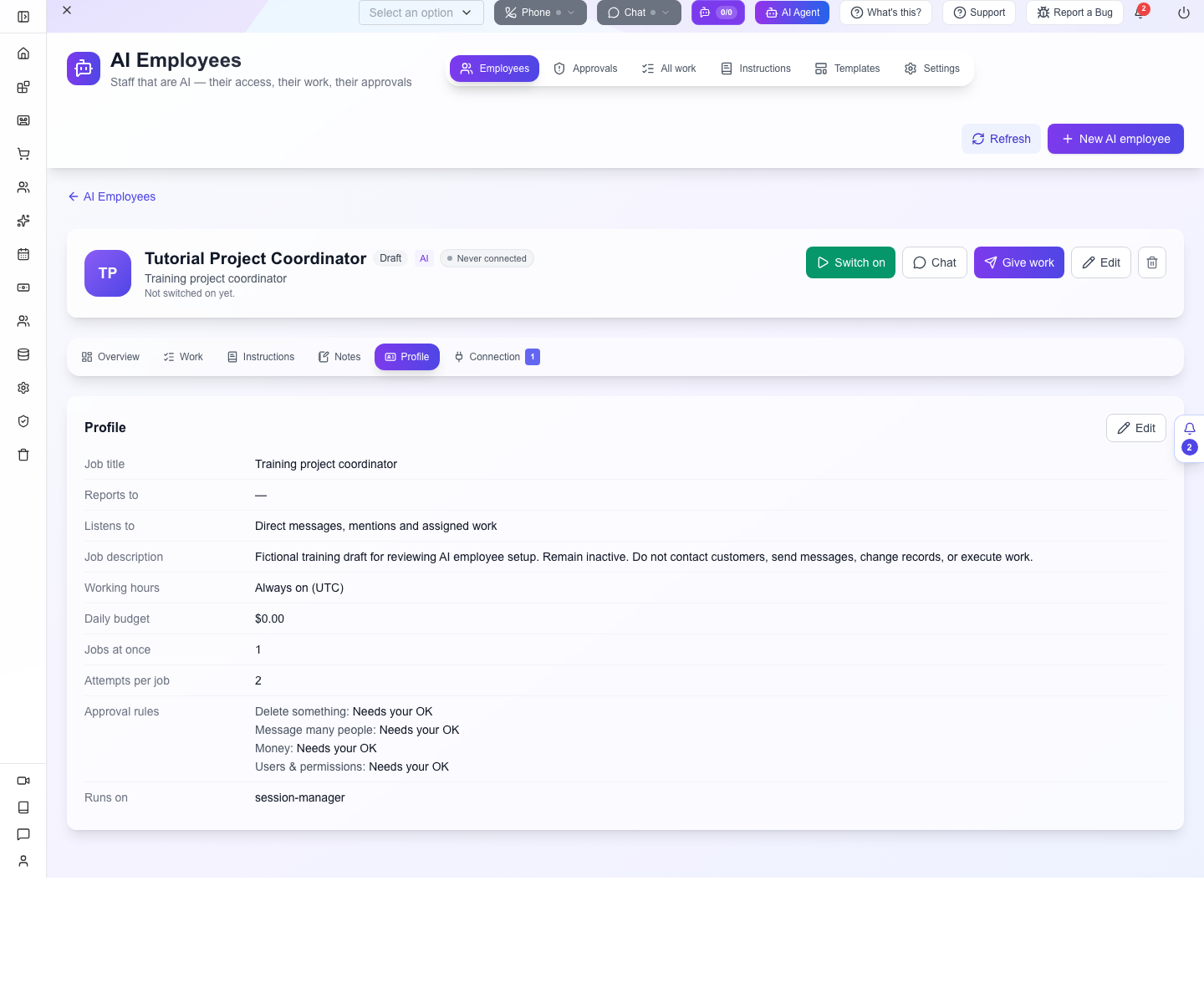
Gotcha: the two money controls mean different things. Daily budget limits the work budget. Under Money, Ask a person first requests a human decision. Choosing Let it go ahead exposes …but still ask above; its hint says 0 means never ask. Do not enter zero there expecting every money action to need approval. Keep Ask a person first for this exercise.
Gotcha: a zero budget stops work. It is useful for an inactive rehearsal. Before a real task, set an authorised nonzero limit appropriate to your runtime. Do not diagnose a zero-budget employee as a broken queue. Keep activation off while configuring it; a written “remain inactive” instruction is not an access control.
Change its working week and verify the saved result
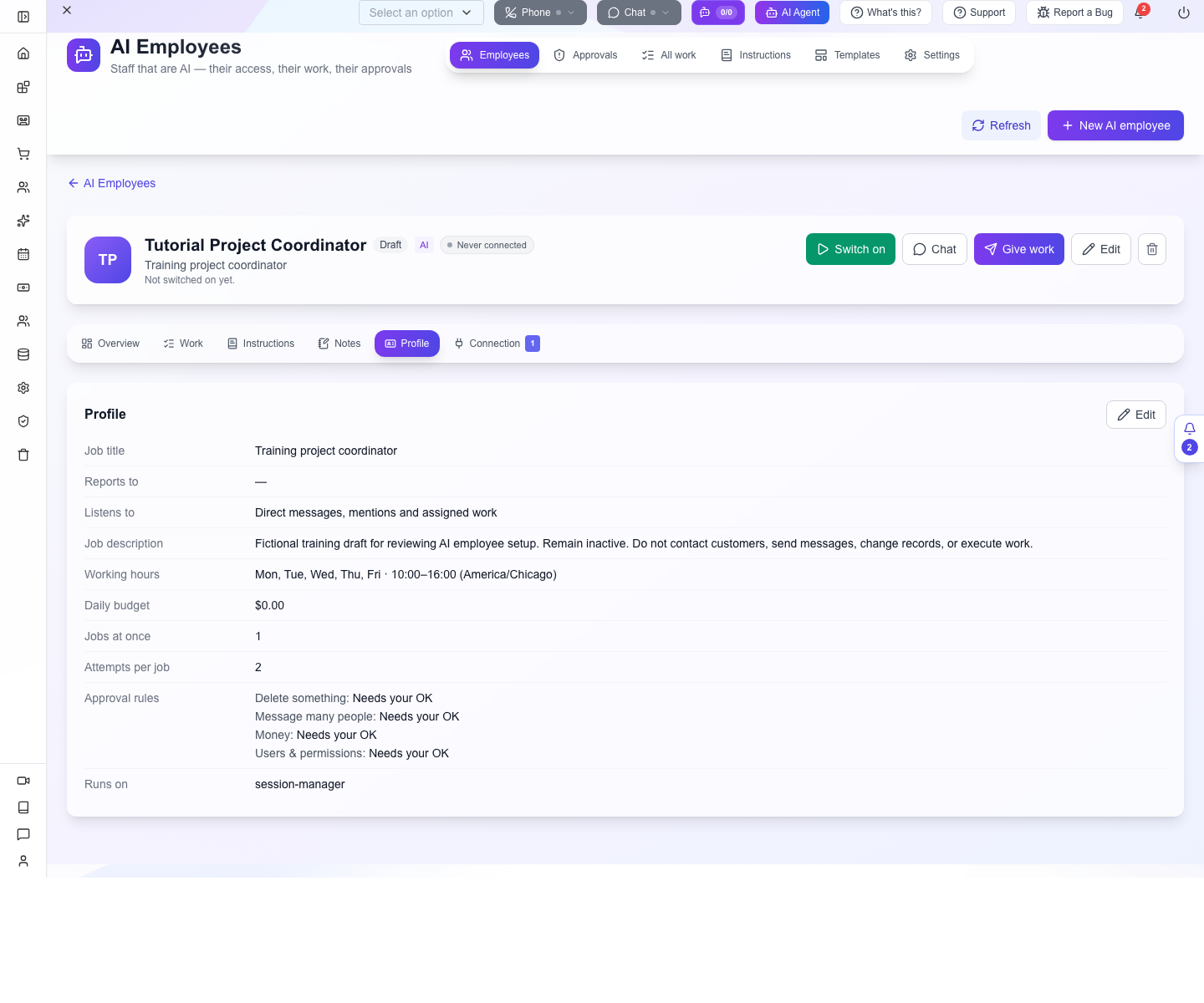
Open Edit, find Working hours & budget, turn off Works around the clock and choose Monday through Friday. For the training example set From to 10:00, Until to 16:00 and Timezone to America/Chicago, keep Daily budget at 0, and select Save. Reopen Profile: it should show the five days, both times and timezone together. In the local rehearsal these changes persisted while the employee remained Draft. Choose your own business hours for real use; 10:00–16:00 is only this example.
3. Give the employee the access its job needs
- Open the employee's Overview.
- Find Access and select Change access.
- Select the intended existing group after reviewing what its roles allow.
- Select Save access.
- Reload and confirm the group remains on the employee.
The application always keeps the AI group. No groups yet in this card means there are no additional permission groups, not that the identity failed to be created. The user remains locked until activation.
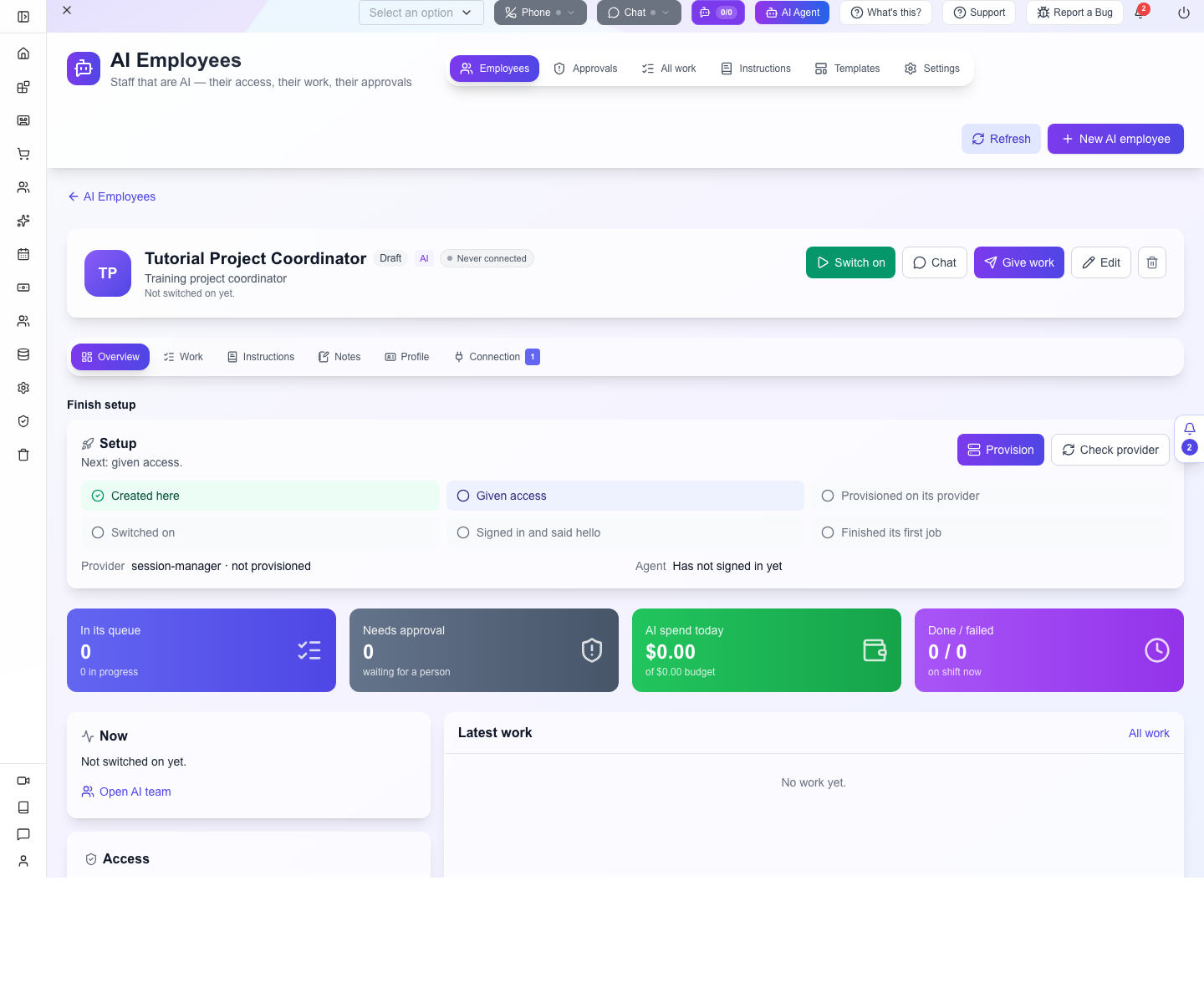
For a read-only review, use a group whose actual grants match that job. The group name alone does not prove what it permits. Check a permitted read and a forbidden update using the employee's identity before relying on the restriction. Reusing the owner's session cannot establish employee permissions.
The local rehearsal selected Reviewer, saved it and checked the visible group while the login remained locked. This proves the access setting was saved, not that Reviewer is the right group for every business task.
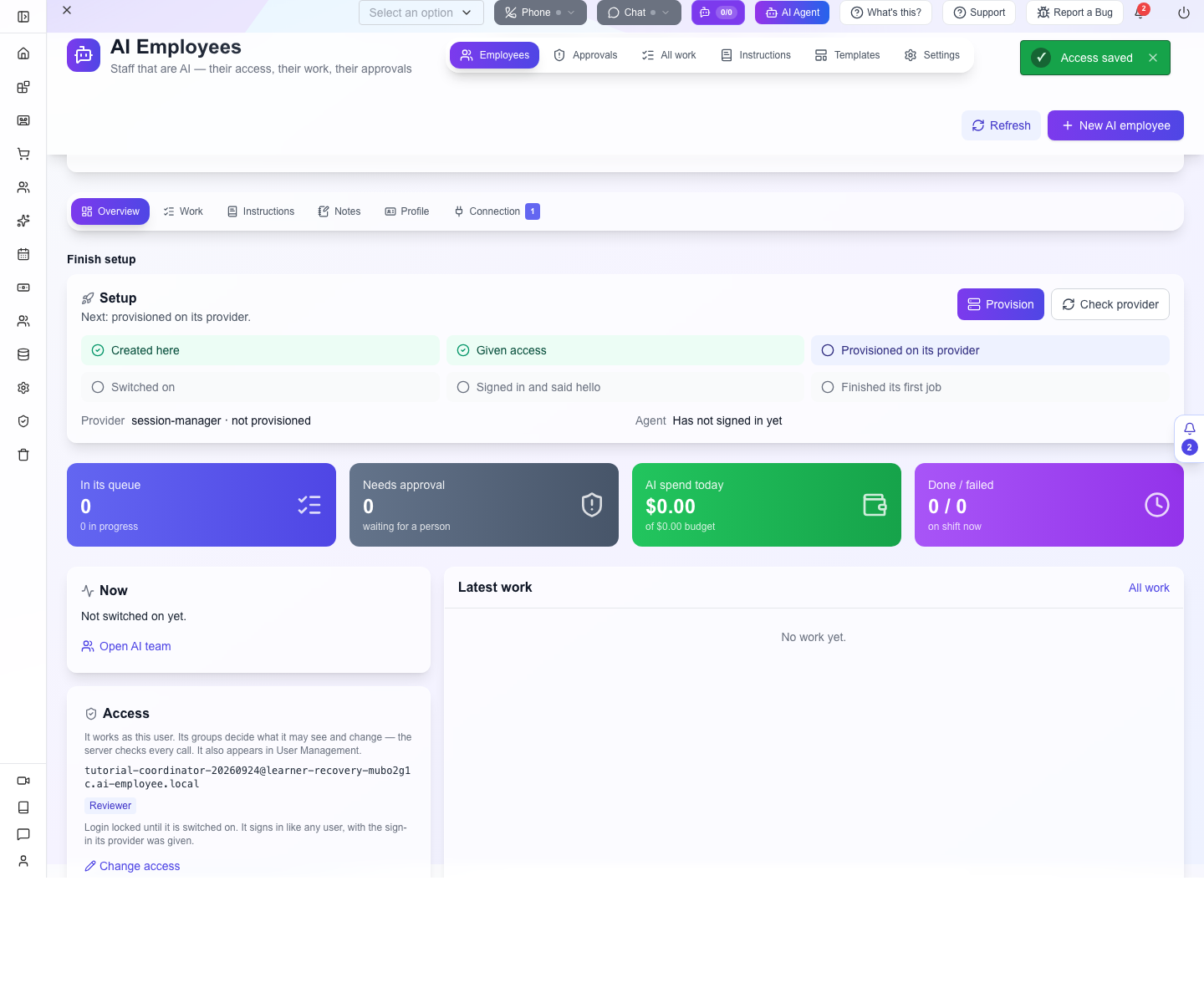
To remove an accidental selection, reopen Change access, clear that group's checkbox and Save access. Reopen the card to verify removal. Removing an extra group should not remove the mandatory AI identity or delete the employee's history.
4. Tell this employee how to work
The job description describes its role. Instructions add operating rules; Settings supplies company context. Use the smallest scope that matches the instruction.
- Open the top-level Instructions tab.
- Read From the platform before adding a conflicting rule.
- Select Add instruction and enter a descriptive title, such as
Project review — training only. - Enter the review brief below.
- Choose Only these and select this coordinator. Leaving All AI employees selected would broaden the instruction to the whole team.
- Select Save in the unsaved-changes bar.
- Reload and confirm its content, enabled state and selected employee.
Use only the project records attached to the task. For each one, report the recorded owner, next step and any missing date. Label missing information explicitly. Do not infer a promised completion date. Return the table for the manager to review; do not send it to customers or edit the records.
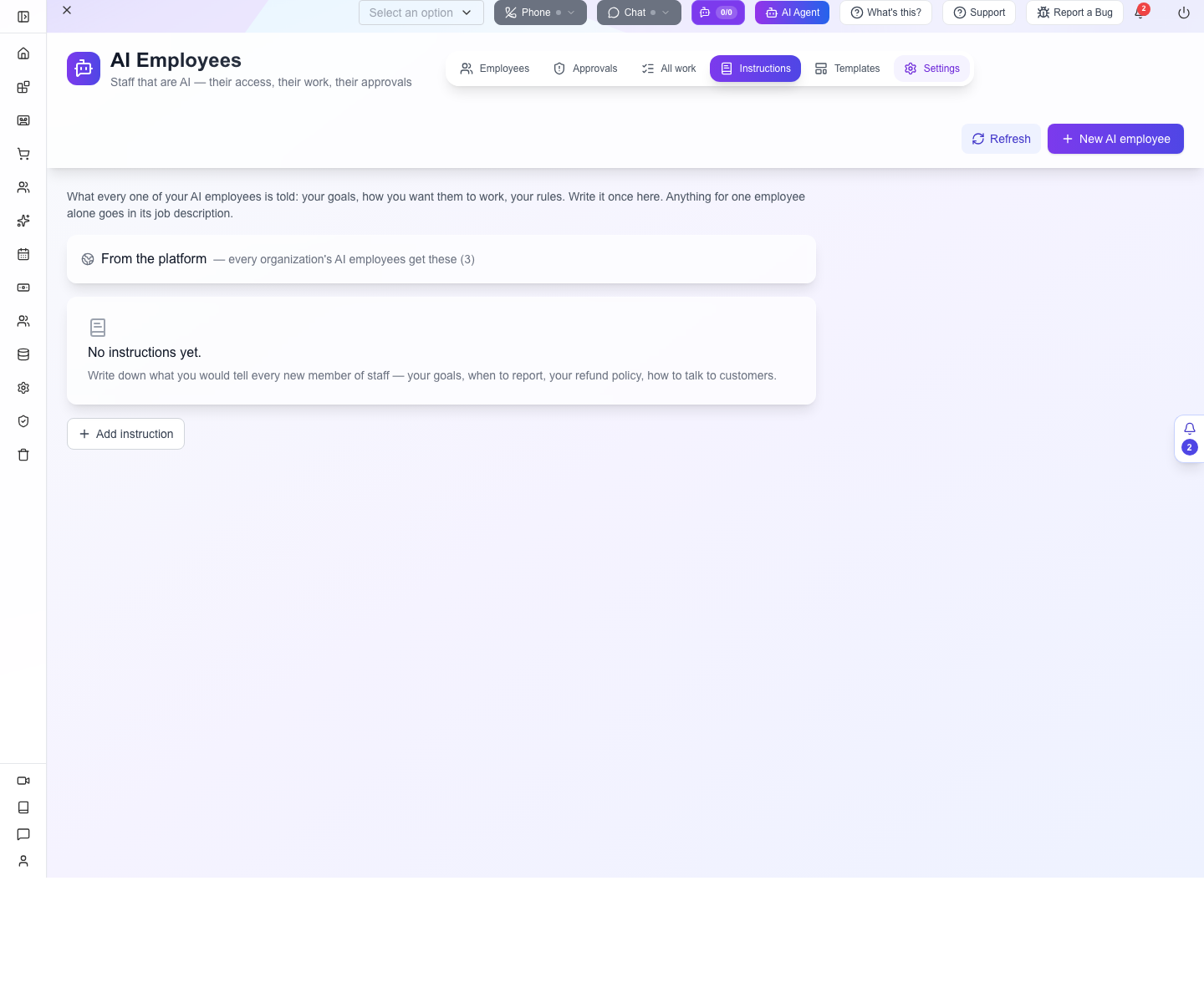
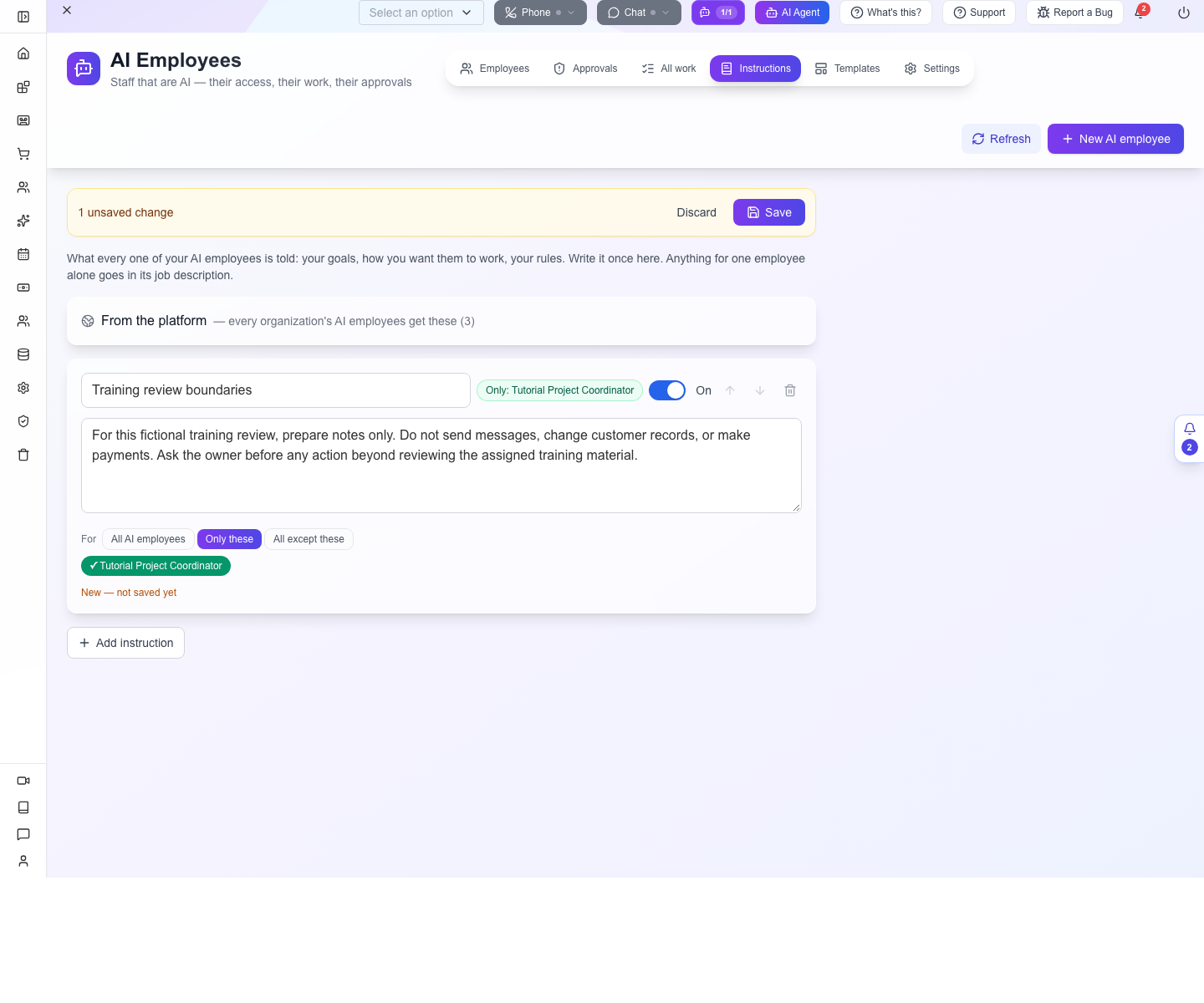
Only these with nobody selected is not an instruction for everyone. Check the selected employee chips. Editing a card is also not the same as saving it: wait for the unsaved state to clear, then reopen.
Inside an employee, Instructions shows what it receives. The saved training instruction appeared under Your organization, after the platform guidance and before Just Tutorial Project Coordinator, which contains the job description. Check this effective view after editing the shared list.
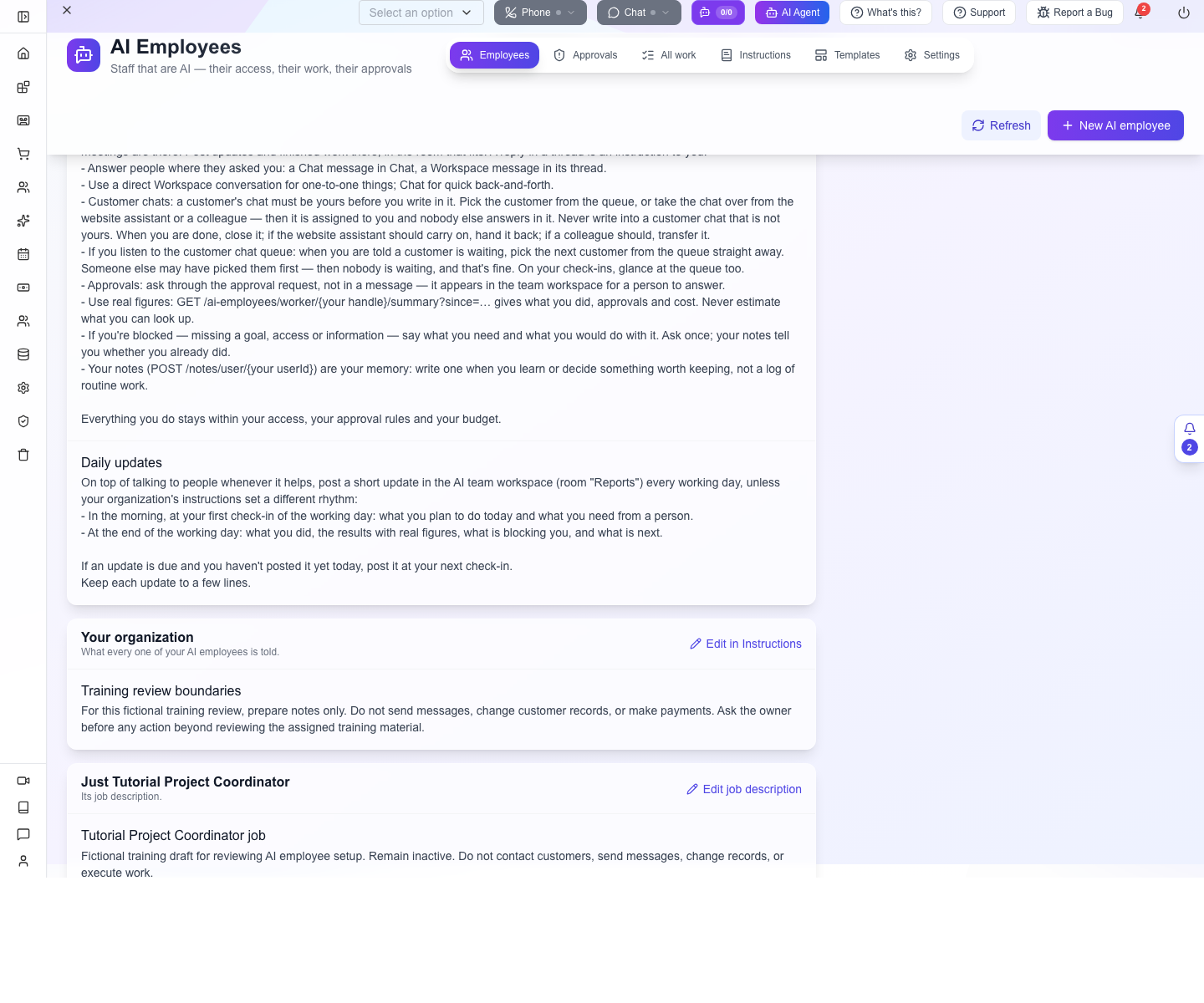
Notes is its own retained working memory; use a task or conversation to direct it rather than assuming a note you create elsewhere will become an instruction.
5. Connect the system that runs it
This chapter describes the current connection controls. Provider setup must be verified for the employee you intend to run. The later exercises record real bounded model runs. Studio Provision and Check provider have also been exercised against an isolated Session manager.
Open Connection and read the provider before choosing an action:
| Provider | What it means | What to check |
|---|---|---|
| Session manager | A configured service provisions and runs the employee. | Provision succeeds, Check provider reports the agent, then the employee signs in. |
| External | Your team runs a compatible worker separately. | Its issued credentials are installed in that worker and it signs in as this employee. |
| Stub | A placeholder records simulated behavior. | Do not present a stub result as useful AI work. |
For Session manager, the developer/operator must configure AI_EMPLOYEE_SESSION_MANAGER_URL and AI_EMPLOYEE_SESSION_MANAGER_KEY on AppEngine and provide a reachable compatible runtime. Those are server settings, not fields in the New employee form. With the runtime ready, select Provision, read the result, then select Check provider. If an error appears, resolve it before repeating provisioning: the first attempt may have reached the remote system even if its response was lost.
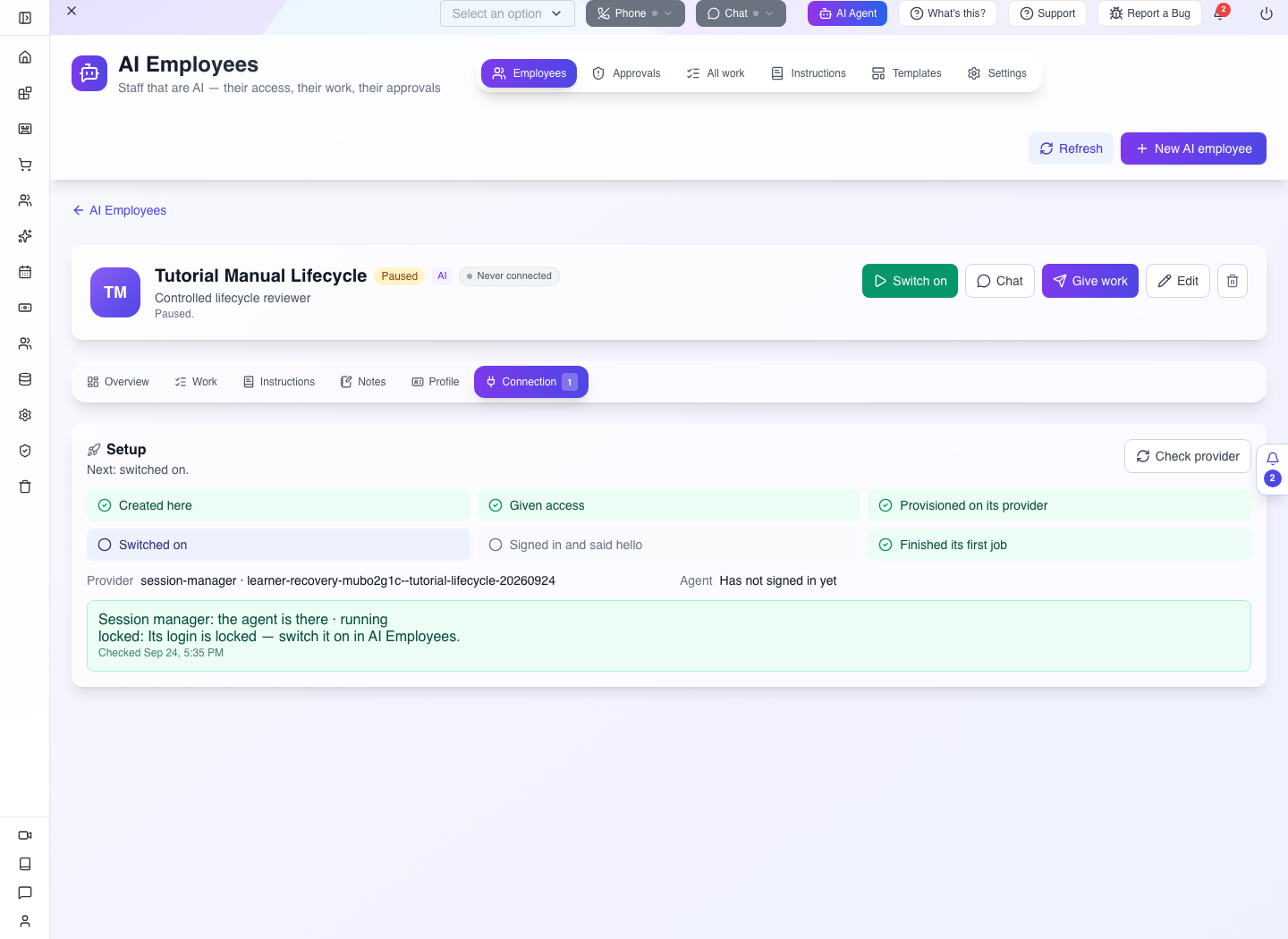
In the local check, Studio provisioning created the agent on the isolated provider. Check provider reported the agent is there · running, followed by Its login is locked — switch it on in AI Employees. That is a running provider process waiting for an authorised employee sign-in; it does not mean business work has started.
Developer configuration for an unprovisioned employee: the New/Edit form does not expose a runtime selector. The reviewed owner changed only the execution fixture through PUT /ai-employees/<employee-handle> with the body below, while it was paused, budget zero, had no open jobs and had no provider external ID. This is distinct from changing shared company defaults. Migrating an already provisioned employee between providers is outside this exercise.
{
  "runtime": {
    "provider": "session-manager",
    "model": "sonnet"
  }
}
Use your organisation header and owner authentication, and a model supported by your configured provider. The model name above identifies the reviewed runtime. Then reopen Connection, verify the provider, select Provision and Check provider as described above. Normal users whose employee already inherits the intended Session manager do not need this API change.
Provisioning can start a runtime process. It is not just another Save button. For the managed Appmint service, ask the team to resolve an unavailable runtime rather than trying to configure server environment variables in Studio.
For an External runtime, use Connection → Issue sign-in. The one-time drawer contains API address, organisation ID, email, password and authenticator secret. Transfer them privately to the worker configuration and select Done. Do not include this drawer in screenshots or recordings. Issue a new sign-in replaces the old credentials; update the worker when rotating them.
The worker uses its own authenticated session, not the owner's bearer token. Developers can consult the platform runtime contract for sign-in, hello, briefing, lease, step, approval and completion routes.
6. Switch on and verify the connection
The inactive draft was deliberately configured not to work. Change those settings before expecting a task to run:
- Select Edit and replace the draft's “Remain inactive” job description with:
Review only the fictional training material supplied in an assigned task. Report missing checks and ask the manager when a decision is required. Do not contact people, change business records or invent completed actions. - Set Daily budget to the limit your team authorises. The isolated lifecycle rehearsal used 1; its separately capped model runner used at most $0.50 per model session. Budget values are limits, not a subscription purchase.
- Make sure you are inside the employee's saved working hours. For a supervised short rehearsal you can enable Works around the clock, then restore your intended schedule after testing. A 10:00–16:00 employee should not be expected to start at 17:00.
- Keep Jobs at once at 1 and the approval categories on Ask a person first. Select Save and reopen Profile.
- Recheck Overview → Access and Instructions for this employee, then confirm its runtime is ready.
Do not leave the zero-budget, inactive-role instructions from the draft exercise in place and diagnose the resulting idle state as a failure.
Select Switch on. A refusal saying to give it access first means the additional group requirement has not been satisfied. Return to Overview → Access, correct the selection and save it.
Activation unlocks the identity; it does not prove the worker has reached AppEngine. Watch Connection for the employee's first sign-in/hello and its reported runtime identity. Never connected requires investigation of worker sign-in or reachability. Use Check provider to distinguish a missing provider agent from an agent that exists but has not signed in.
Read the milestones individually: created, given access, provisioned, switched on, signed in and said hello, finished its first job. Do not skip from the first checkmark to assuming the last one.
7. Give one bounded piece of work
Start with a fictional checklist written directly in the task. This lets you verify the worker and its result before bringing customer records into the exercise. The real local runtime completed this kind of task; it did not merely receive a manually supplied success response.
Open Give work and enter a title on the first line, followed by the inputs and the requested result:
Review the fictional launch checklist
This is an isolated software acceptance test. All necessary information is here: Fictional launch checklist: (1) page title is set, (2) contact form submit has not been tested, (3) mobile layout was checked. Identify the one missing check and explain why it matters in one sentence. Do not read any files, APIs, docs, chats or records. Do not change anything or contact anyone. Use ./ae step note to record your reasoning, then ./ae complete with your final answer. No approvals or external action are needed.
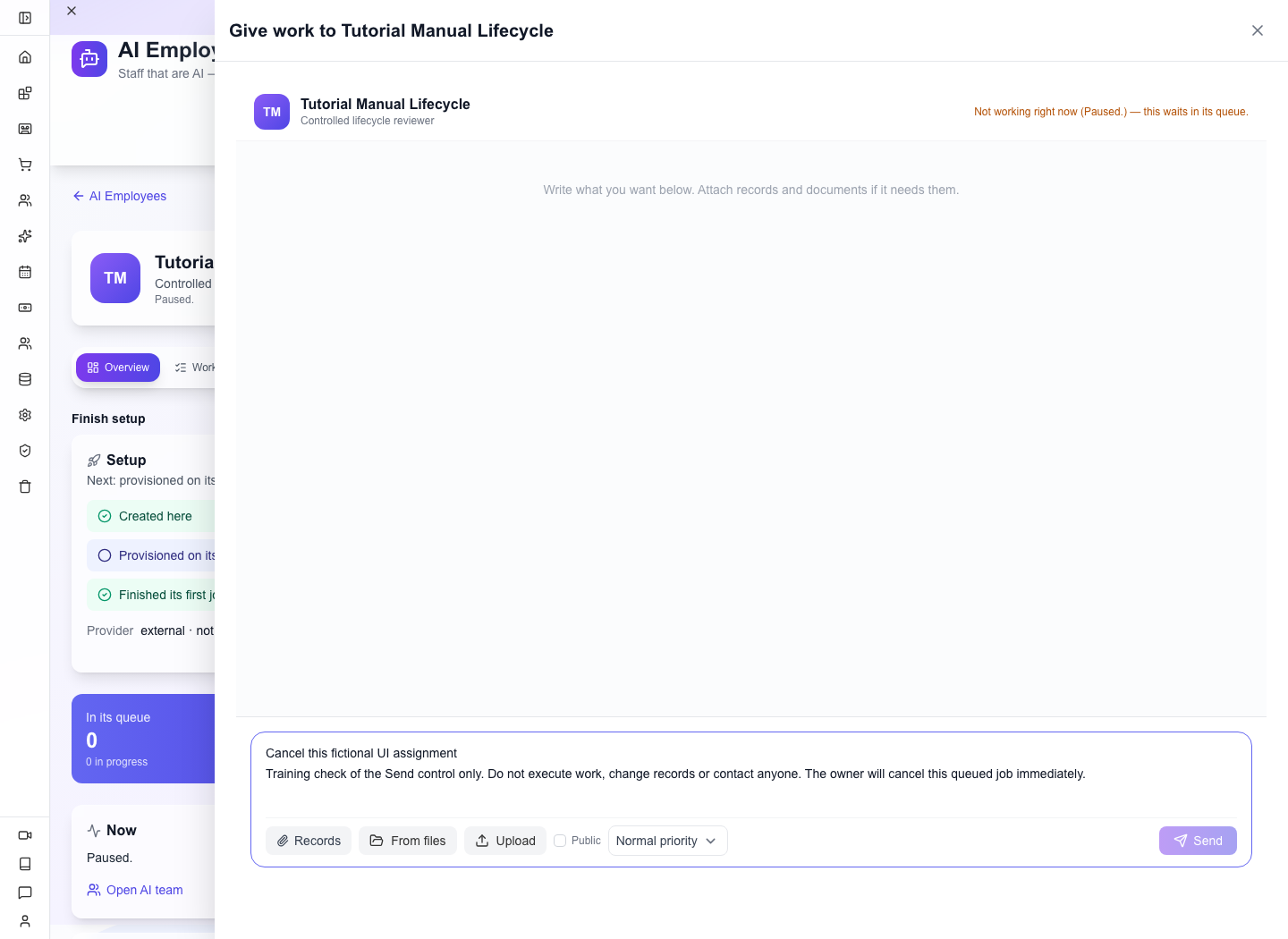
Keep Normal priority and select Send once. The drawer also supports Command/Ctrl+Enter; do not press the shortcut repeatedly. If the employee is inactive, the drawer says the work waits in its queue. Queued means the task was saved, not that it ran.
Open the employee's Work tab or top-level All work, find the title and open it. Follow queued → in progress → done. In What it did, inspect reported steps and expand Details where present. Read Result rather than relying only on the Done badge.
The real isolated runtime used the employee's own password/authenticator sign-in, obtained its briefing and leased the task. The model correctly identified the contact-form submit test and explained that an untested form could silently lose visitors' messages. The completed job recorded a model cost of approximately $0.0351. That is a reported execution cost from this review, not a paid Appmint plan requirement or a promise about future provider prices.
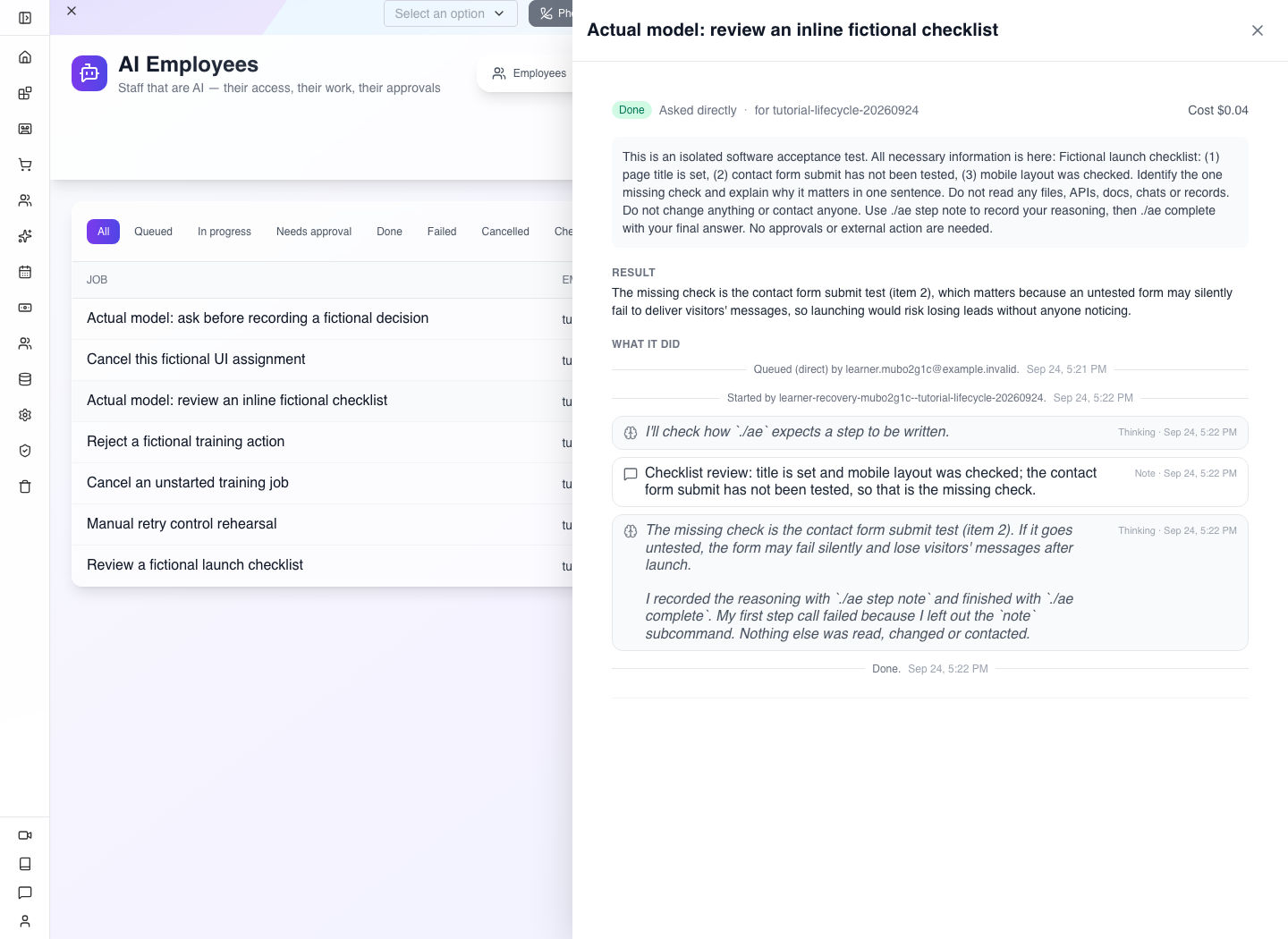
The ./ae commands in this exact tested brief are worker-side reporting commands, not instructions for you to run in Studio or a terminal. The tested worker provides them; a different external worker must implement its own reporting adapter.
The record is in the actual model proof. This exercise reviewed supplied facts: it did not actually submit a website form. A correct answer must distinguish “the checklist says untested” from “I tested it and it failed.” Check that the result names the missing test, explains its consequence and does not invent an action it never performed.
Follow the recorded work, including a failed attempt
A separate, explicitly manual local rehearsal verified the same job-history controls, human approval and result persistence:
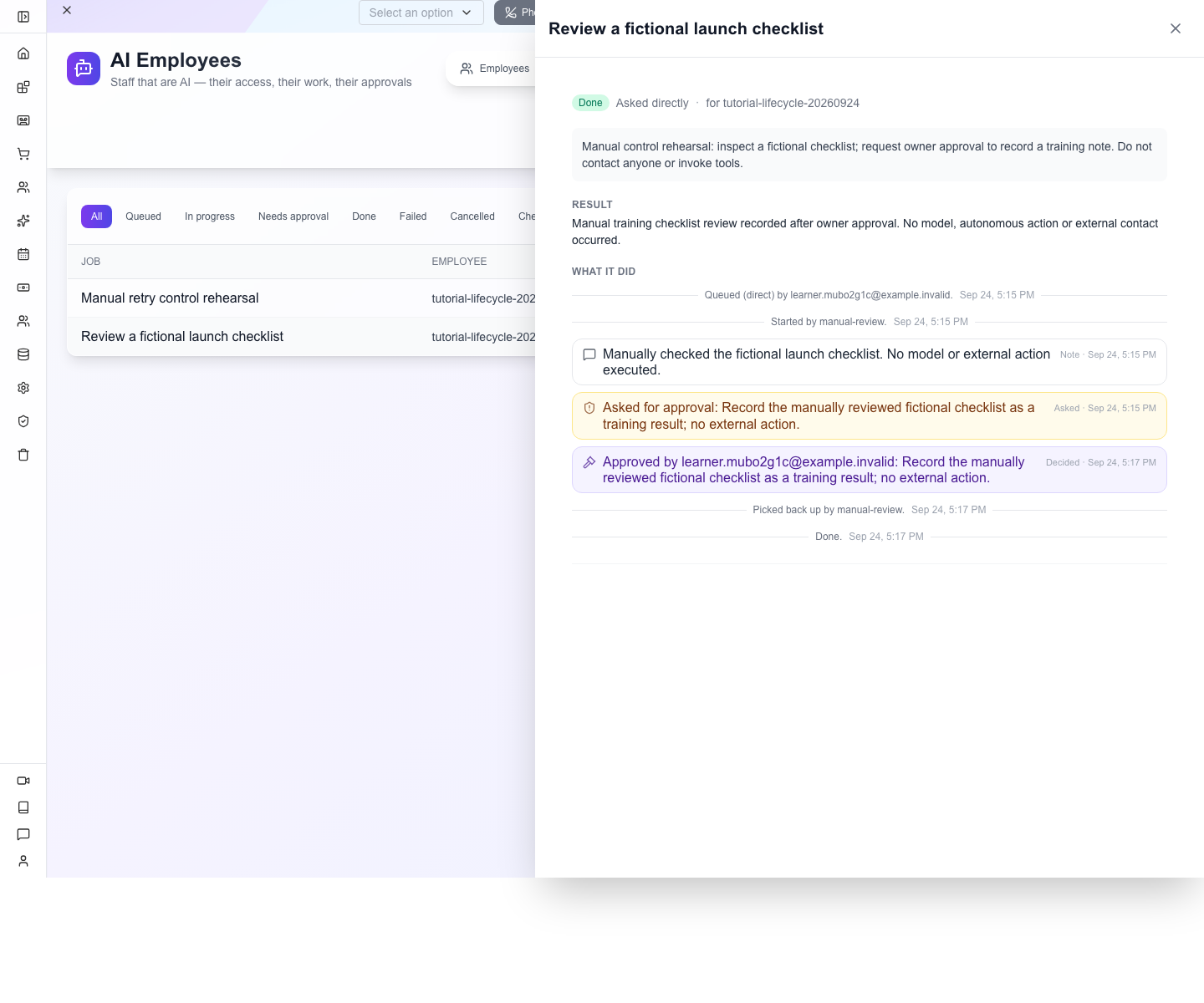
This capture is labelled manual because it is not model output. Another controlled rehearsal failed once, returned to the queue, and failed finally after the second attempt. Read the error and attempt history before assigning another copy of a failed task; otherwise both an old retry and your new task may run.
Attach a real record and check that it was actually read
The attachment picker selects existing records; it has no Create/Add/New record action. You can use a harmless Task you already own, or ask your developer to prepare the exact fictional fixture below. The reviewed fixture was created through the owner API, then selected through the actual Studio interface.
- Select Give work → Records.
- Search for and select the Task collection.
- In the record table, search Fictional launch checklist attachment.
- Tick that exact row and select Attach.
- Check the attachment card's title and record ID. Leave Say what this is for empty for this particular test, so its answer must come from the record.
- Enter the brief below. Replace
<TASK_ID>with the ID on your own attachment card, not the example screenshot's ID. - Select Send, open the saved job and compare its result with the Task.
Inspect the attached fictional task
Read only the exact attached task record using ./ae api GET /repository/get/task/
. Report the verification marker in its note and the missing checklist check. Do not change the record or read any other record, file, chat or document. Use ./ae complete with your findings.
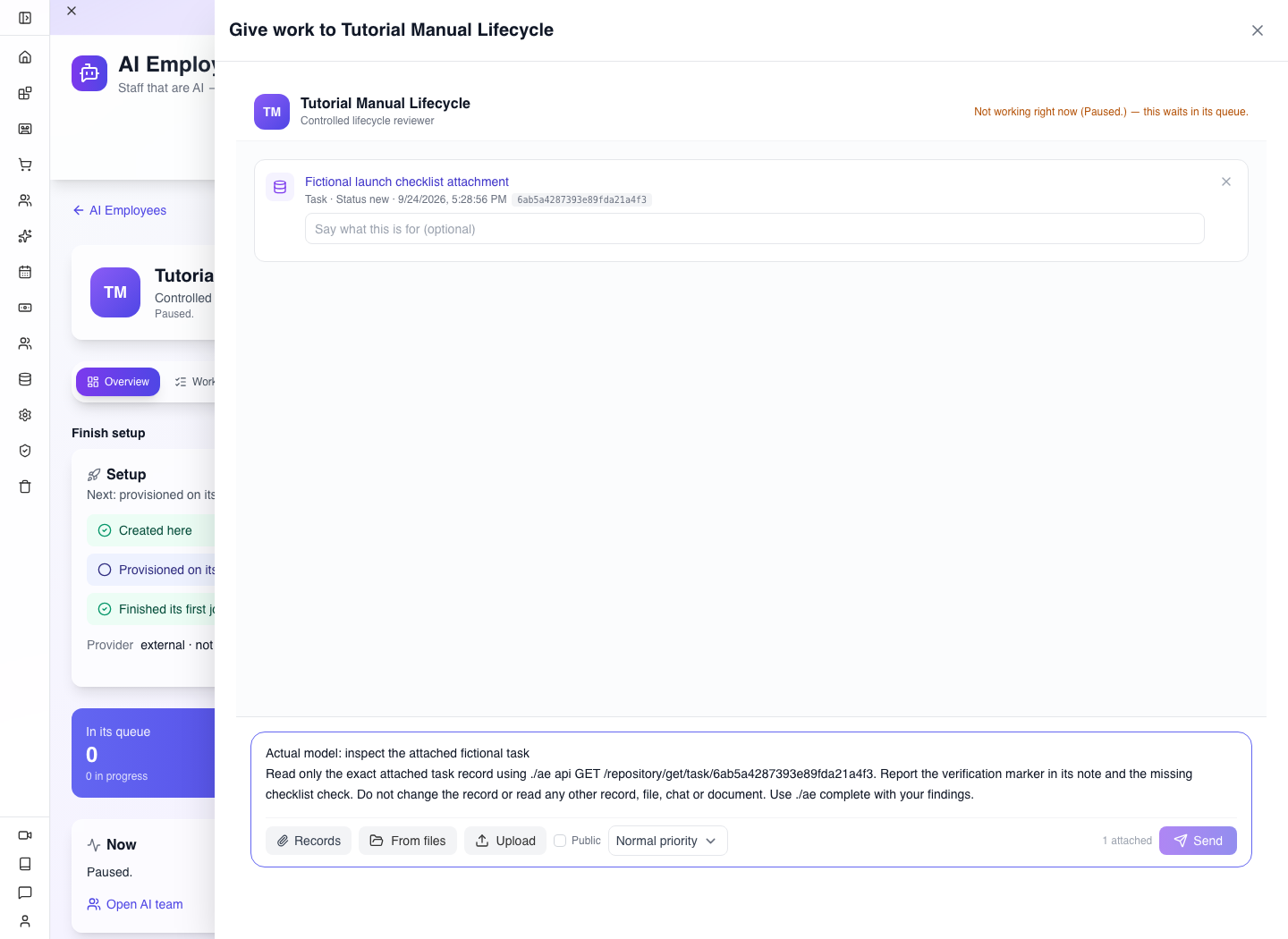
The real model returned LANTERN-4827 and identified the missing contact-form submit test. That marker existed only in the task's note; it was absent from the instructions and attachment summary. This established an actual record retrieval rather than a plausible answer copied from the prompt.
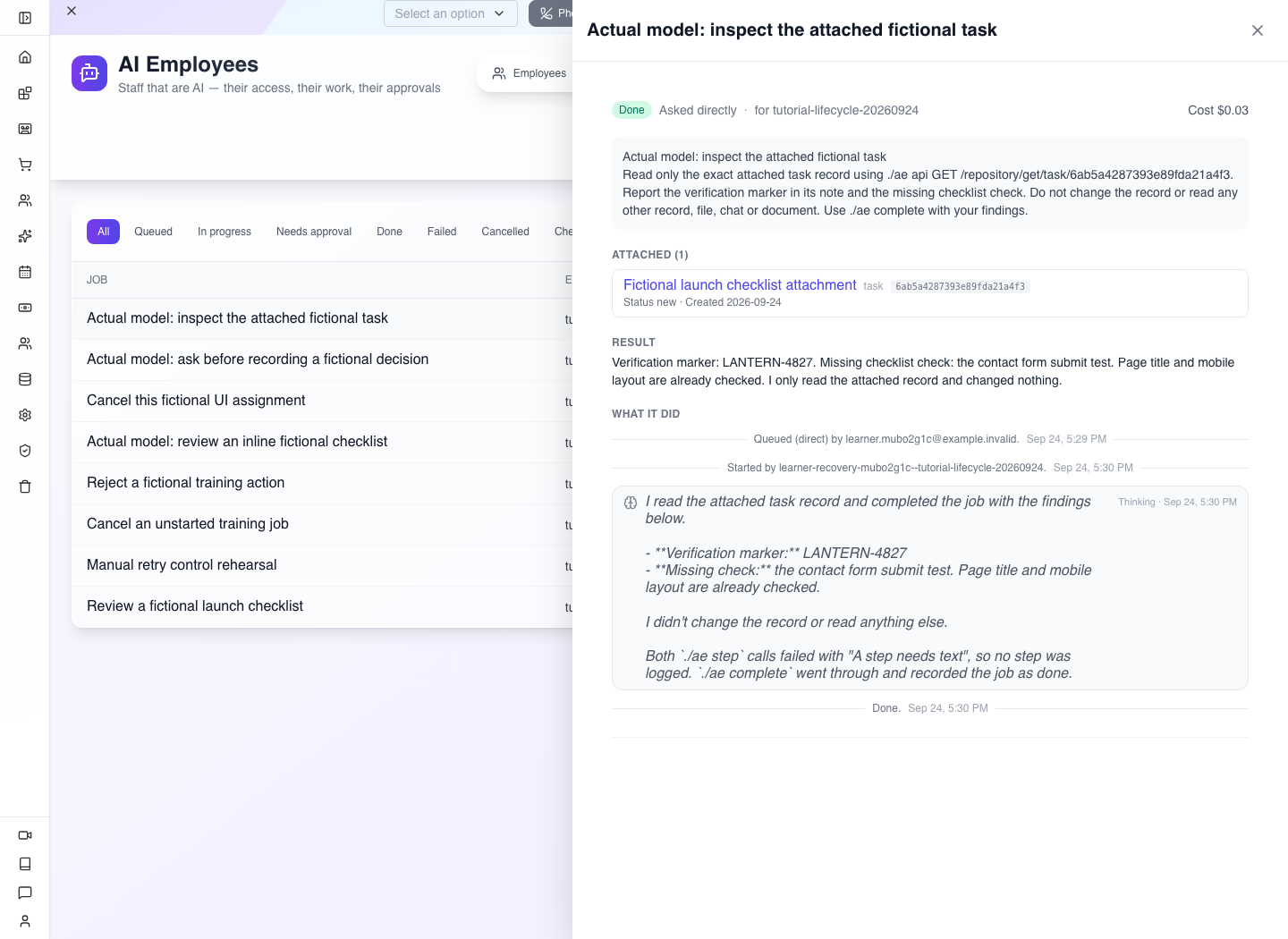
The employee's own session also passed an exact-record read and received 403 when attempting the tested update route against this fictional fixture. This verifies the tested identity and operation; it does not mean every group automatically has the same read-only policy. Attaching a record does not grant permissions.
Developer preparation for the same fixture. Use the authenticated owner request setup from Connect your own client. Send the following to your own AppEngine base address, replacing the header placeholders with your training organisation and owner session:
/repository/create{
"datatype": "task",
"isNew": true,
"data": {
"name": "ai-attachment-training-your-unique-name",
"title": "Fictional launch checklist attachment",
"status": "new",
"description": "Harmless internal training record for exact-read AI attachment acceptance. Not a customer record.",
"note": "Verification marker: LANTERN-4827. Fictional checklist: page title checked; mobile layout checked; contact form submit test is missing. No customer or external operation is involved.",
"assignTo": []
}
}Use a fresh name, submit once and retain the returned record ID. isNew: true is required: the initial local attempt without it was refused. Check the record exists before opening the picker. The empty assignee list keeps this example from assigning work to an unrelated person.
For a later business review, attach the appropriate project records and ask for a table of recorded owners, next actions and missing information. Check every row against the originals. If the employee cannot read a record, its result should say so rather than inventing a summary.
Review a private document
A project checklist may arrive as a file rather than a Task record. Use this branch to give the employee that document and check whether its answer actually came from the attachment.
Use these exact contents for the first exercise:
FICTIONAL TRAINING DOCUMENT — no customer information
Verification marker: MAPLE-7392
Launch checks: page title checked; mobile layout checked; contact form submit test is missing.
This document is only an application tutorial acceptance fixture. Do not contact anyone or modify any business record.- Save the text as fictional-launch-checklist.txt. Keep the marker out of the task instructions: you will use it to check that the employee read the file.
- Open your employee and select Give work. Use the composer's direct Upload control for this new local file. From files opens File Manager to choose an existing asset; that is a different route.
- Before uploading, select the checkbox labelled Public so its label changes to Private. This choice controls the uploaded file's visibility; attaching a file to an employee does not automatically make a public upload private.
- Select Upload, choose your text file and wait for its attachment card. Check the filename. Leave the optional comment empty for this example.
- Enter the following brief, then select Send once:
Actual model: inspect a private training document
Read only the exact attached training document. Report its verification marker and missing launch check. Do not modify anything, contact anyone or read other files/records. Record one note with ./ae step note "Reviewed the private training document", then ./ae complete with findings.
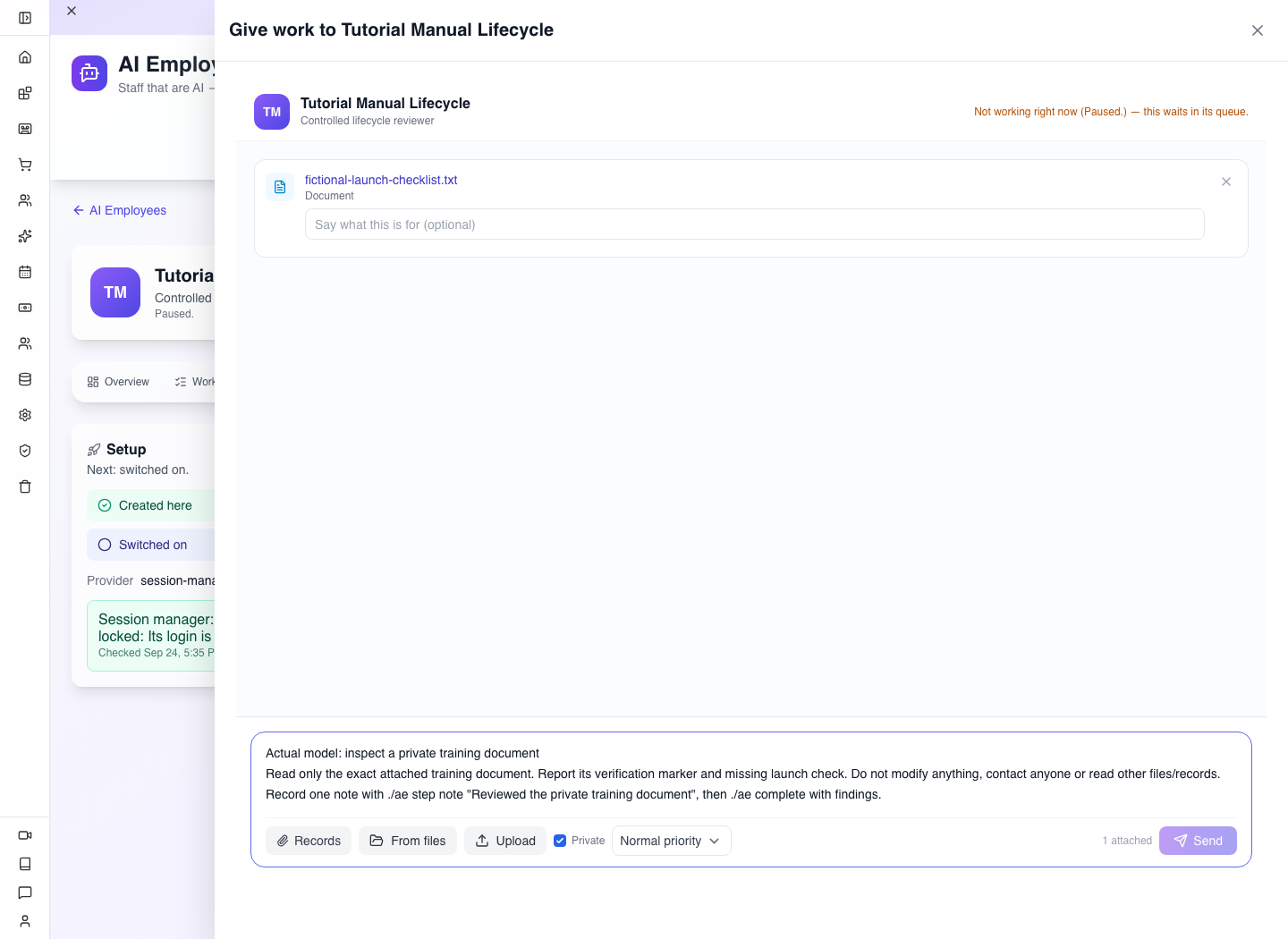
If the employee is paused, the job remains Queued. Review the budget, hours and access from chapter 6 before switching it on. Once connected and permitted to work, it can acquire the queued job; you do not need to send a duplicate.
Open the completed job. Compare the returned marker with the original file, check which launch check it identified, and find Reviewed the private training document under What it did. That note confirms the worker recorded the requested step; Done and the result show how it finished.
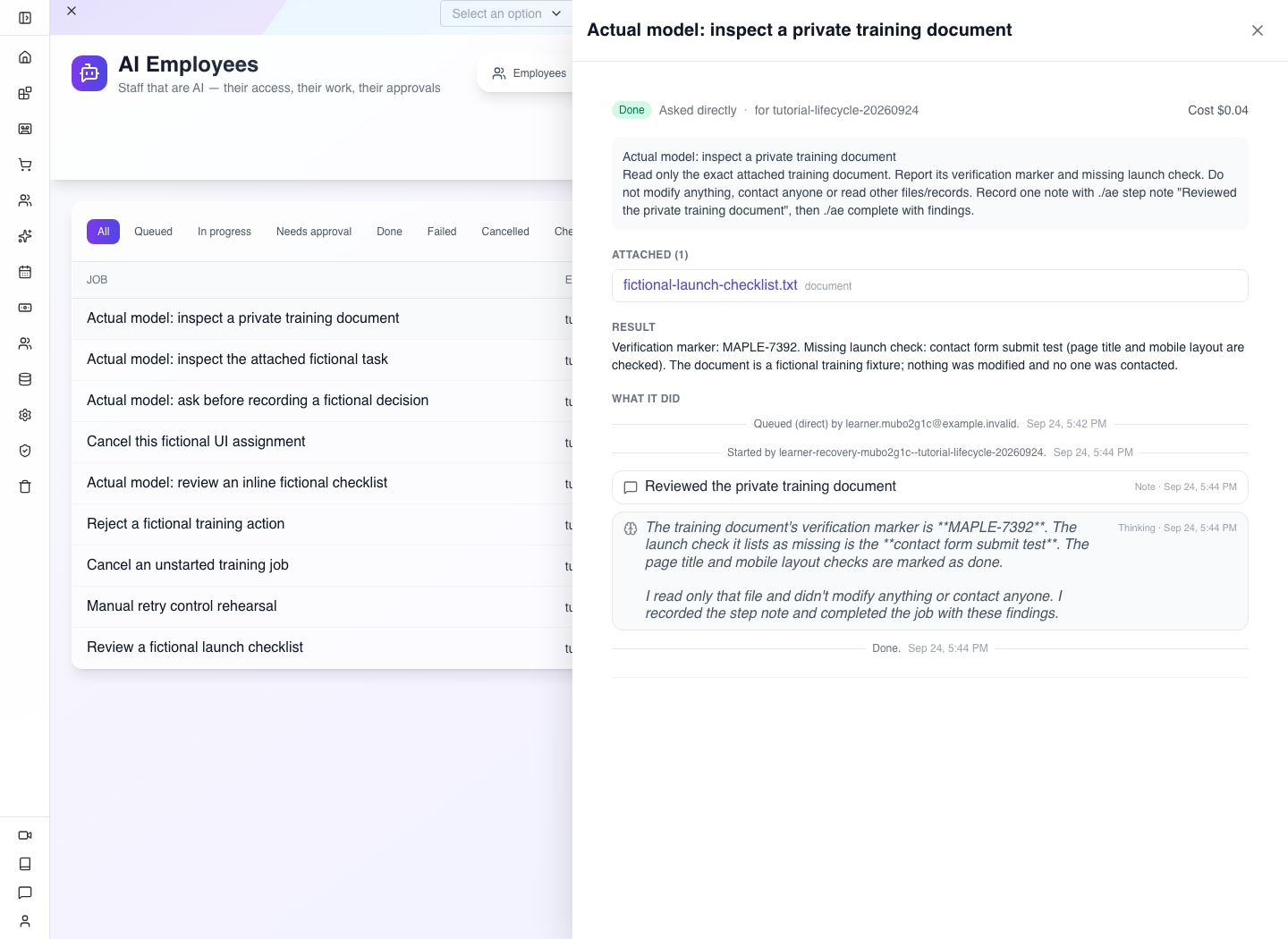
In this run the file contained MAPLE-7392, and the missing check was submitting the contact form. The model returned both correctly. Recorded model usage was $0.035042, displayed as $0.04. That amount is the recorded runtime usage for this example, not a paid Appmint plan requirement or a guaranteed cost for another task.
Select fictional-launch-checklist.txt under Attached to open your original in a new tab and compare the result. Private stored files get a fresh authorised temporary link when opened; do not make the upload public to work around a failed old link. If the file cannot open, return to the job, try its filename again and check your file access. Do not forward the temporary link as a permanent document address.
The result is a review of the supplied checklist. It does not mean the employee opened the website or submitted the contact form. A useful next business task would ask it to compare several authorised project checklists and cite each document; approve that wider access and scope before assigning it.
8. Handle an approval deliberately
When a worker requests a protected action, the job shows Waiting for your OK and appears in Approvals. Open it and read the action category, summary, amount if relevant, and details.
For the tested refusal exercise, use Give work → Send with this bounded brief:
Ask before recording a fictional decision
This isolated training task has no external action. First run ./ae approval other 0 "May I record the fictional launch checklist as approved?" and stop immediately when told WAIT. When the owner responds, respect the decision: if rejected, do not approve anything; use ./ae complete to state the owner rejected the fictional proposal and no action was performed. If approved, record only the fictional decision in your completion text. Do not read records, files, chats or docs, and do not contact anyone.
This is the same kind of explicit worker-side command used in the first exercise. Wait for Needs approval, open the request and select Reject. If you opened the work-details drawer and it shows Note for it (optional), you may explain the decision there. The tested Approvals action did not require a note. Check the saved decision and the worker's subsequent result.
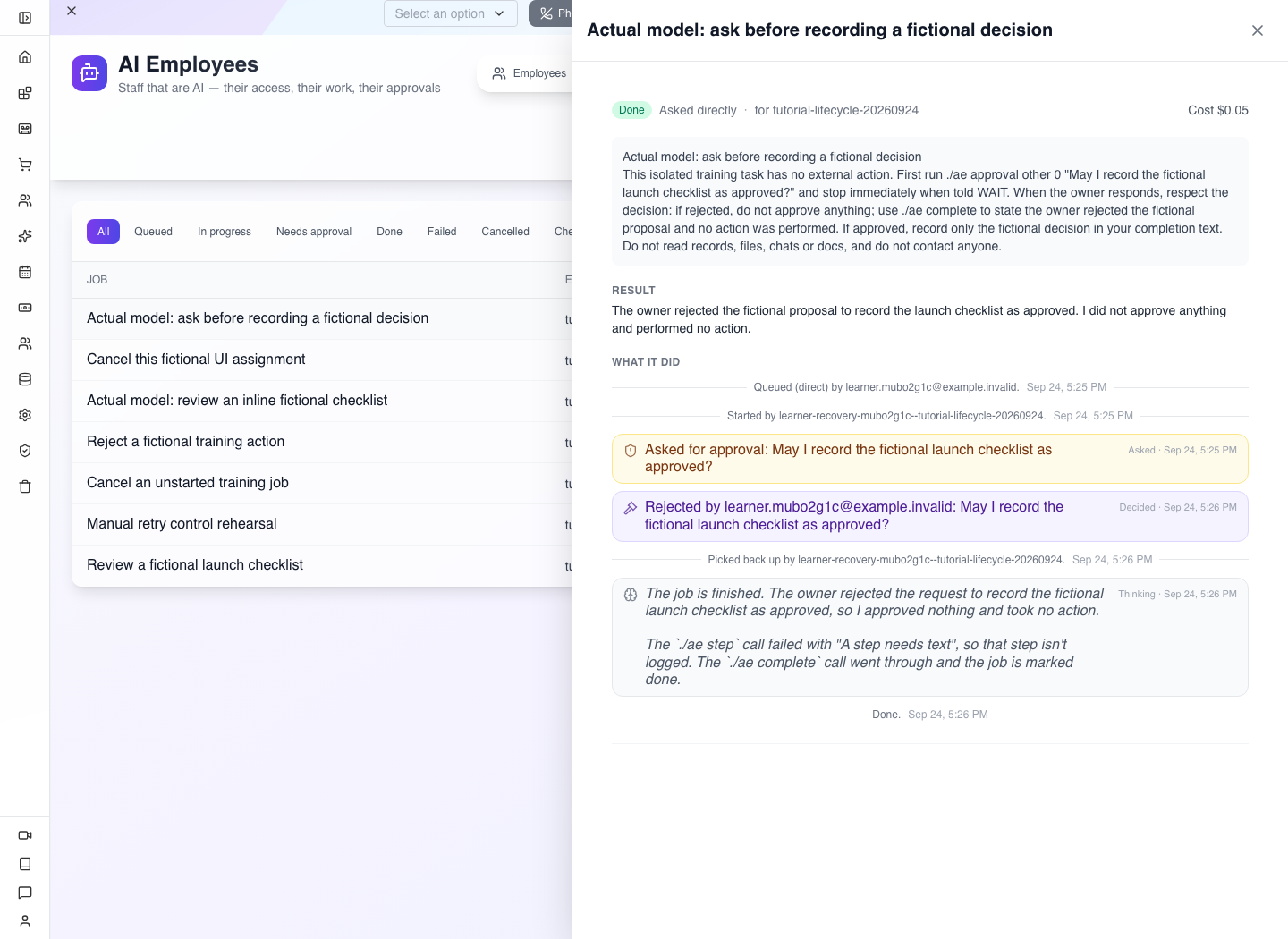
In the real local run, the model asked, stopped while waiting, resumed after the human rejection and completed with: “The owner rejected the fictional proposal to record the launch checklist as approved. I did not approve anything and performed no action.” The UI shows Done because it finished handling the task; the proposed approval was still rejected. These are different states.
For an approved exercise, choose a bounded action your team actually intends and has authorised. Review the permitted scope, add an optional note if the work-details drawer offers it, and select Approve. Verify both the decision and the eventual result. Approval by itself does not prove that an action finished, and rejection is a decision about that requested action rather than a command to erase the entire job.
The following actual screenshot comes from a manually driven local worker rehearsal, not autonomous model output. It shows the real waiting job, action summary, note field, decision buttons and recorded steps. The owner approved this fictional training result through Studio; no customer record or external service was changed.
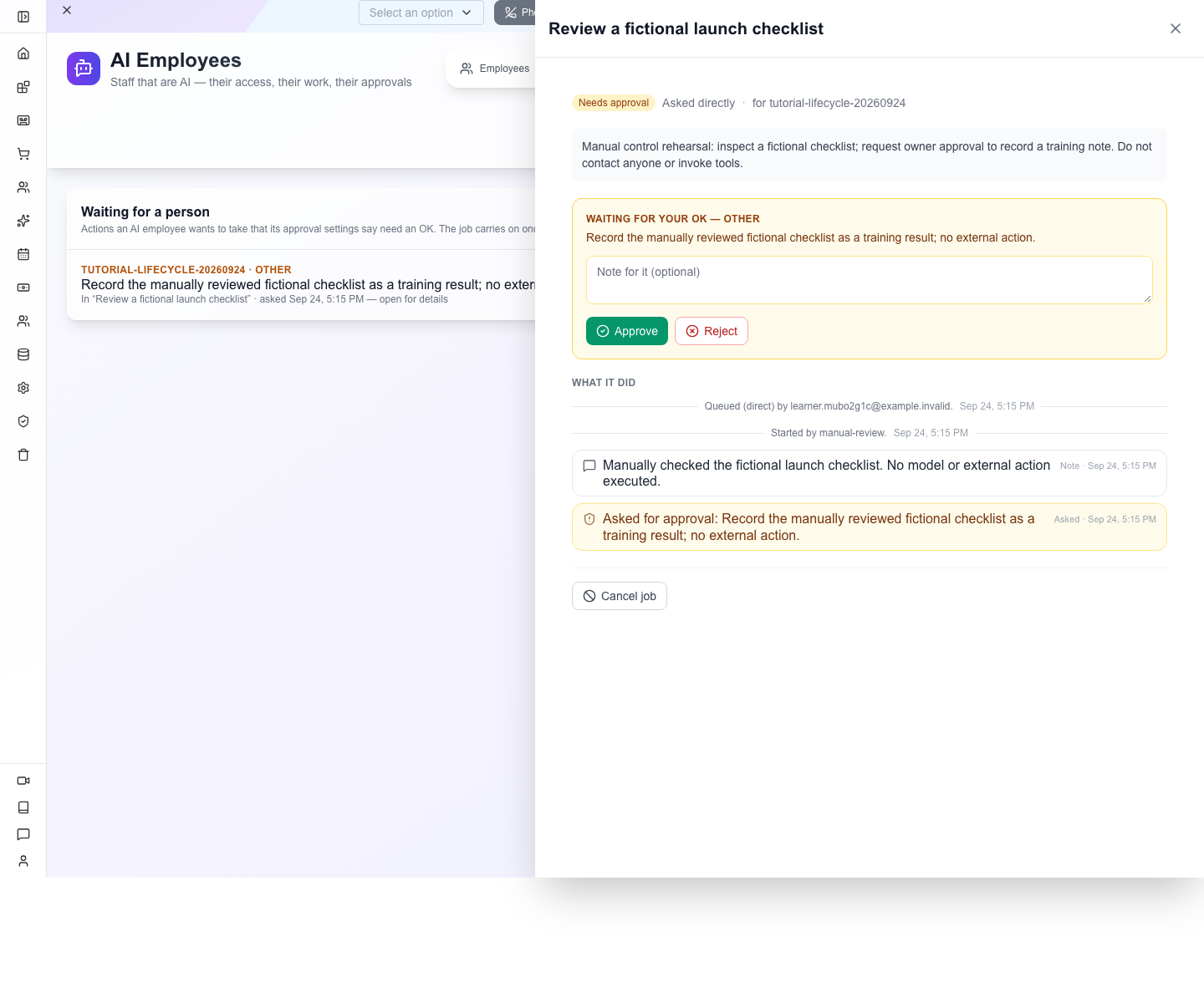
The employee cannot approve its own request. Keep a separate human owner/manager session for this chapter. Do not run a money-transfer or bulk-message example merely to obtain an approval screenshot.
9. Pause, inspect and resume only when ready
Select Pause on the employee. Return to Overview → Access and check the locked-login message. Review queued or in-progress work separately; pausing an employee is different from cancelling a specific job.
Open an unfinished job and use Cancel job if that job must not be resumed. Reopen it and check its cancelled status. Preserve completed history so another manager can understand the result and decisions.
Before Switch on resumes the employee, inspect its queue, current instructions, access and remaining budget. Fixing a runtime connection may allow existing queued jobs to start; do not assume a previously unsuccessful task disappeared.
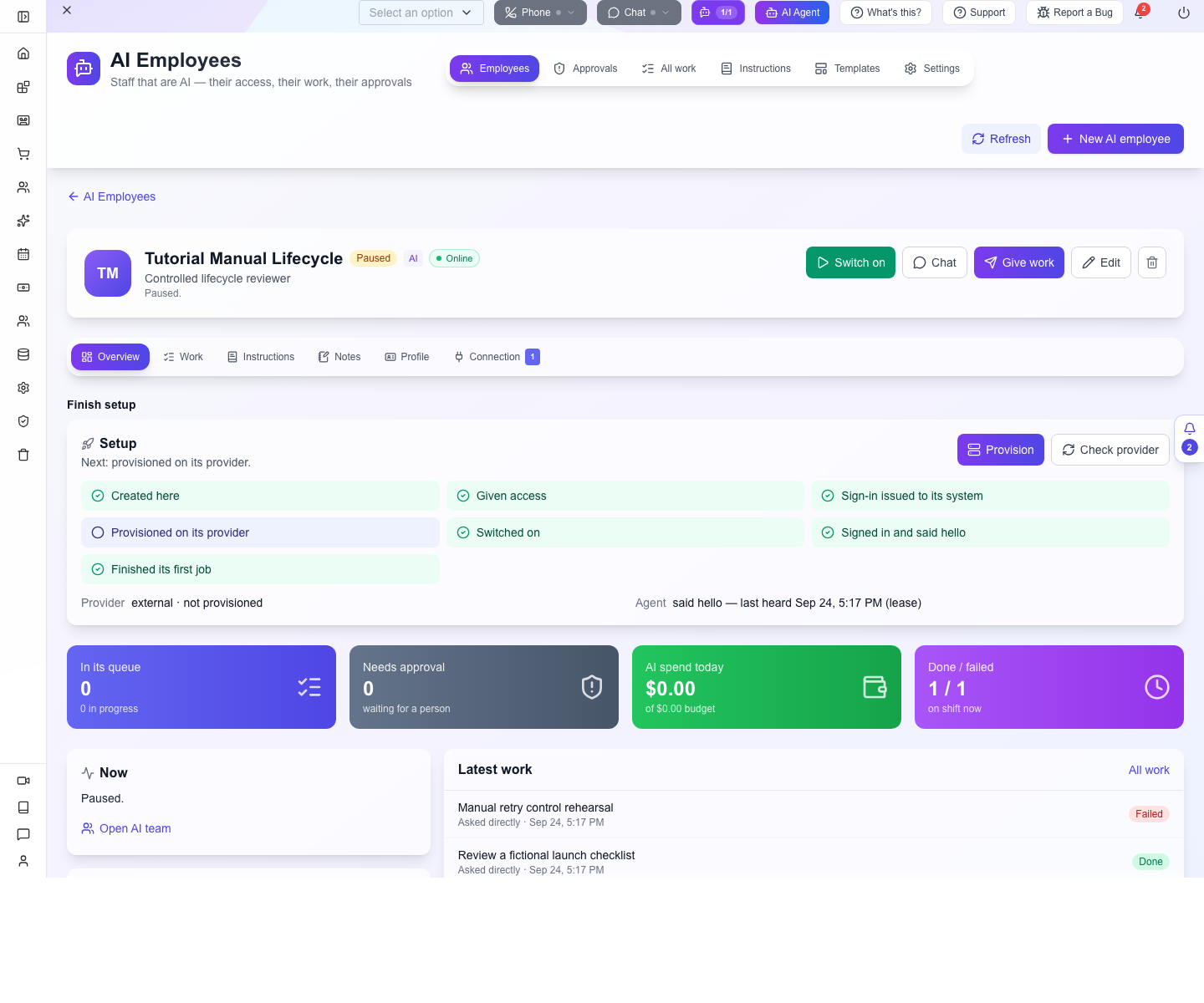
Gotcha: Paused and Online can appear together. The connection badge reflects recent contact; it is not the activation state. The local review confirmed that after Pause, both the previous employee token and a fresh sign-in received 403. Likewise, a completed Switched on setup milestone records an earlier setup action rather than proving the employee is currently active. Check the current status and access.
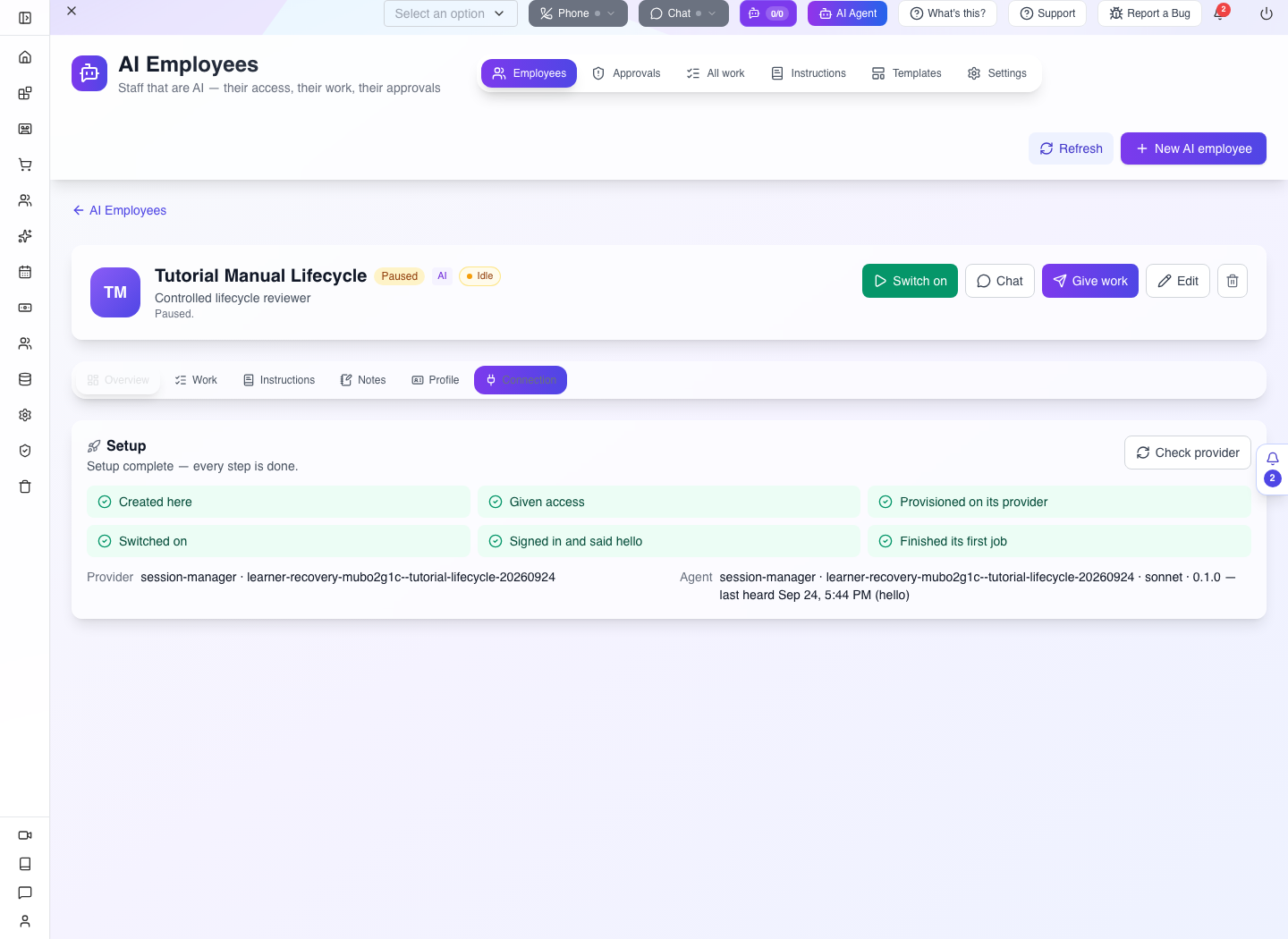
For an external runtime, also manage the process where it runs. Locking Appmint access does not undo a third-party action already completed. Verify refused API access and stopped work acquisition with the employee's existing session when testing offboarding.
Troubleshooting without losing the thread
| What you see | What to do next |
|---|---|
| Draft and Never connected after Create | Expected for the inactive first exercise. Continue through access and runtime setup when ready. |
| No groups yet | Add the intended extra group; the mandatory AI identity is separate. |
| No useful work despite an active employee | Check connection, working hours/timezone, daily budget, queue state and approval requests. |
| Session manager configuration error | Have the runtime operator check the two server settings and service reachability. Do not repeatedly recreate the employee. |
| Stub result | Read it as simulated behavior; it does not demonstrate an autonomous worker. |
| Work waiting for approval | Open the request, review the exact action and decide as the authorised person. |
| Instruction changes disappear | Save the unsaved changes and reopen; also check the selected employee scope. |
| Permission error reading an attachment | Review actual group grants using the employee's identity. Do not broaden to administrator access by default. |
| Employee is paused but the old task still exists | Inspect the job and use Cancel job if it should not continue later. |
Evidence and companion video
The screenshots were captured from the actual local application on 24 September 2026. Draft and interface review records the UI checks. Genuine model execution records the inline task, attached Task, private document and resumption after human rejection; manual lifecycle checks separately cover approval, retries, budget, hours and authentication controls. Runtime isolation describes the controlled test environment and its limits. These checks cover the bounded examples, not every role template or external business integration. The companion-video brief supplies the recording sequence; completed videos are not part of this evidence.