
For: owners and dispatchers introducing local delivery. Time: 45–60 minutes for the planning exercise. Level: beginner, with integration notes for developers. Product: Appmint Studio Manager → Logistics Center. Build checked: local Studio Manager 0.6.2, 21 September 2026.
Cedar & Form needs to move a sample board across Lekki. Before calling a driver, the dispatcher should be able to answer four questions: are both addresses in our service area, what will the customer pay, what is allocated to the driver, and where is the saved job?
This lesson answers those questions with a real zone, an actual quote and a saved training job. It also tries an address outside the zone. You will see how the refusal clears the earlier quote and prevents saving until you correct the route and obtain a fresh price.
What you will have at the end
- An active four-mile zone named
tutorial_lekki_phase1, with its boundary reopened and checked. - A pickup and drop-off draft with contacts, instructions and one sample-board item.
- A successful route quote and an outside-area refusal.
- A saved job, its creation timeline, and a cancellation that leaves the record available for review.
- A clear view of the additional customer, agent and mobile-app setup required before dispatch.
The practical exercise ends with the training job Cancelled. It does not send a driver to either address, charge a customer, create a proof-of-delivery photo or pay driver earnings.
What you need
Complete Create your Appmint organisation first. Sign in to Studio Manager with your training organisation owner account. Before continuing, check the organisation ID in the account area and open Logistics. If that entry is unavailable or access is denied, have the organisation administrator enable the relevant module/access before creating records; use the roles and permissions course to prepare a colleague rather than borrowing another person's session. No existing paid order is needed. The example contacts are fictional, and the job will have no customer email or linked driver.
Use an isolated training organisation with no other active service areas covering the airport test address. Inspect the existing zones before beginning. If a previous run already created your exact tutorial_lekki_phase1 / TUT-LEKKI zone, reopen and verify its boundary and active state instead of creating a duplicate. If the name belongs to another exercise, use a unique suffix for your own zone and keep that same name throughout; do not change unrelated zones.
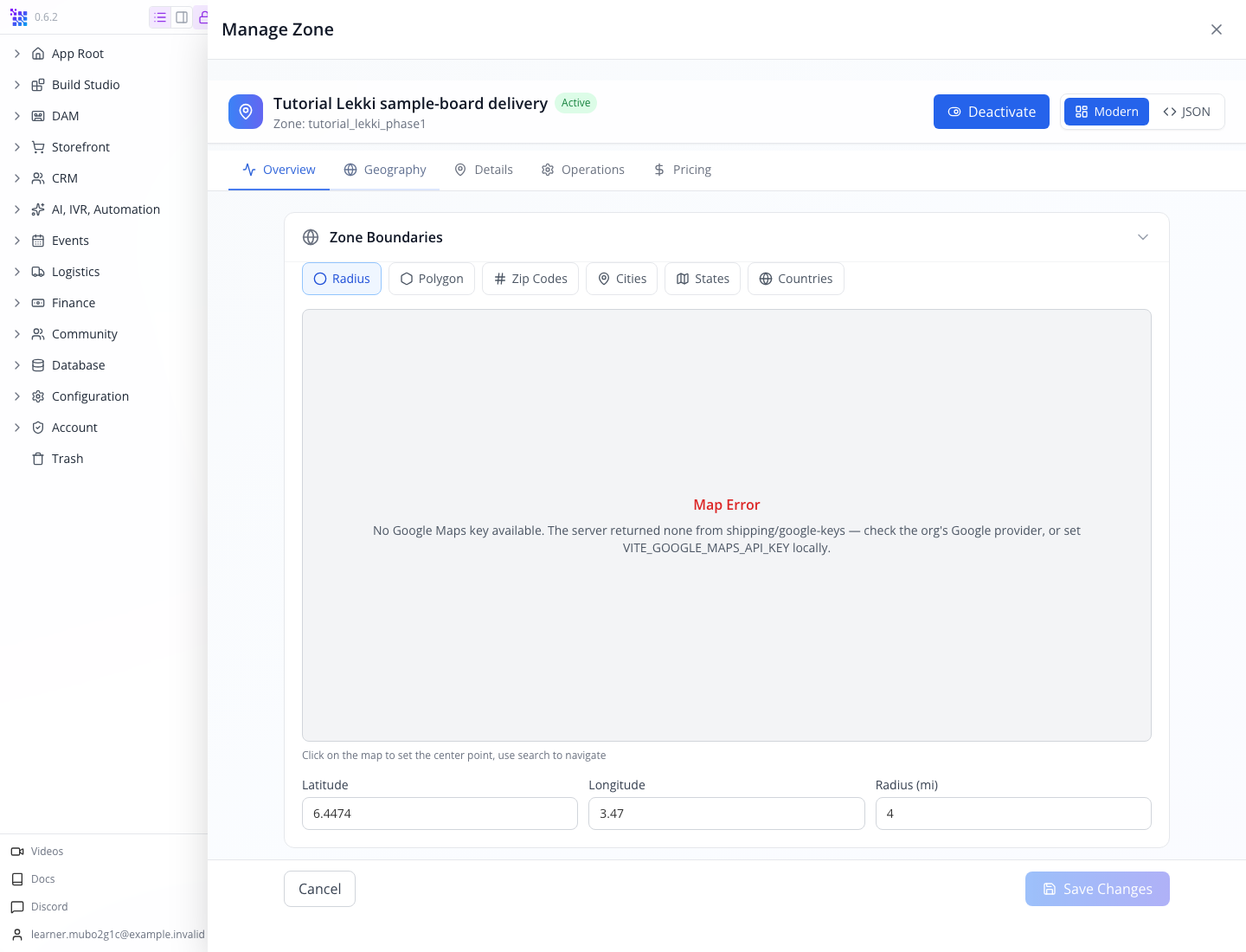
The map preview and the server's address/route calculation are separate services. In the captured organisation, the preview had no available Google Maps key and displayed a service-agreement notice. The server still returned a valid geocoded quote. The numeric zone exercise can proceed without pretending the preview map loaded.
The story
Ife dispatches sample boards for Cedar & Form. Today's practice pickup is 12 Admiralty Way, Lekki, Lagos, Nigeria; the drop-off is 4 Freedom Way, Lekki, Lagos, Nigeria. She will compare that local trip with a deliberately unsuitable airport drop-off, then leave an explained training record for the next dispatcher.
Use the supplied addresses for this non-dispatched exercise. Replace the fictional contacts and instructions before using a similar job for an actual delivery.
The route
flowchart LR
    A[Save and activate service area] --> B[Add pickup and drop-off]
    B --> C[Get System Price]
    C --> D{Both stops serviceable?}
    D -- Yes --> E[Save job and inspect timeline]
    D -- No --> F[Correct address or decline the job]
    E --> G[Cancel this training job]
    E -. real dispatch requires more setup .-> H[Linked agent, availability, assignment and proof]
Part 1 — Define where the business delivers
1. Open Logistics
In Studio Manager's sidebar, open Logistics, then its dashboard entry. The in-page heading is Logistics Center — Manage deliveries, agents, and zones.

Use the in-page tabs for the rest of the lesson:
| Tab | Its role |
|---|---|
| Dashboard | Overview of currently loaded zones, agents and jobs |
| Live Map | Operational map and job/agent view |
| Zones | Service-area definitions |
| Agents | Delivery-agent records and their customer identity |
| Jobs | Pickup/drop-off work, prices, assignment and history |
| Merchants | Entry point to merchant billing accounts in CRM |
| Config | Delivery pricing, driver allocation and operating configuration |
A new organisation shows no jobs or agents. An empty map is expected before there are operational records to place on it.
2. Open a new zone
Select Zones, then Add Zone. The Create Zone drawer opens in Modern view on Details. Other tabs include Geography, Operations and Pricing.
Enter these identity fields:
| Field | Value | Why |
|---|---|---|
| Name | tutorial_lekki_phase1 | Stable internal identifier; no spaces |
| Title | Tutorial Lekki sample-board delivery | Recognisable label in the list |
| Code | TUT-LEKKI | Short reference for the exercise |
| Description | Training zone for a four-mile sample-board delivery exercise. | Makes the record's purpose explicit |
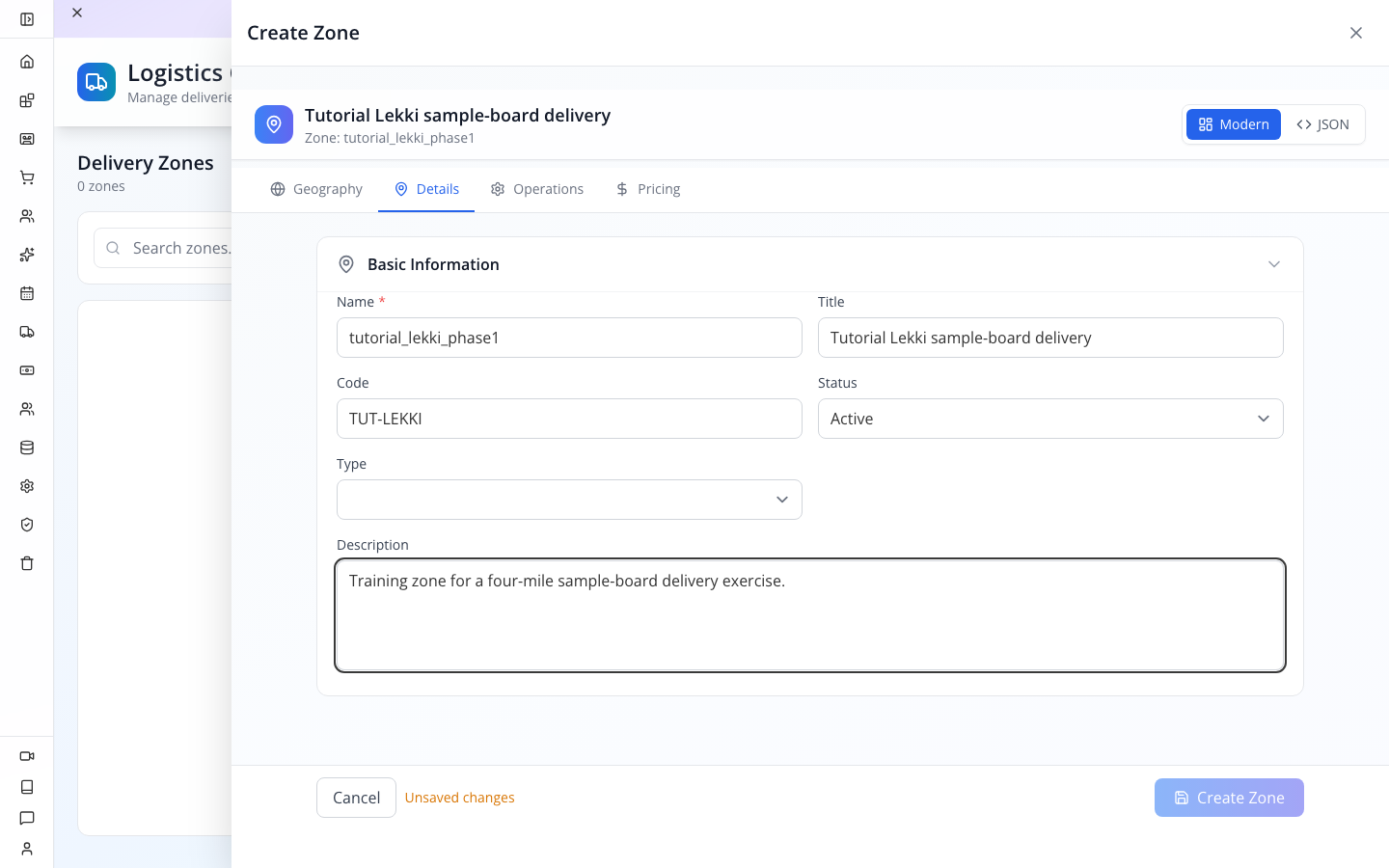
Set Type to Custom for this deliberately defined training area. The selector also offers City, Region and Postal; the actual service boundary is configured separately in Geography. The title “Lekki” alone does not create a geographic area.
Watch for: new zones start Inactive. Keep that status while entering the boundary, then explicitly activate the saved zone. An inactive zone is not an operational service area.
3. Define the radius
Select Geography inside the zone drawer. Choose Radius from the shape choices. The screen also offers Polygon, Zip Codes, Cities, States and Countries; this exercise uses a circle so the boundary is easy to test.
Enter:
| Control | Value |
|---|---|
| Latitude | 6.4474 |
| Longitude | 3.4700 |
| Radius (mi) | 4 |
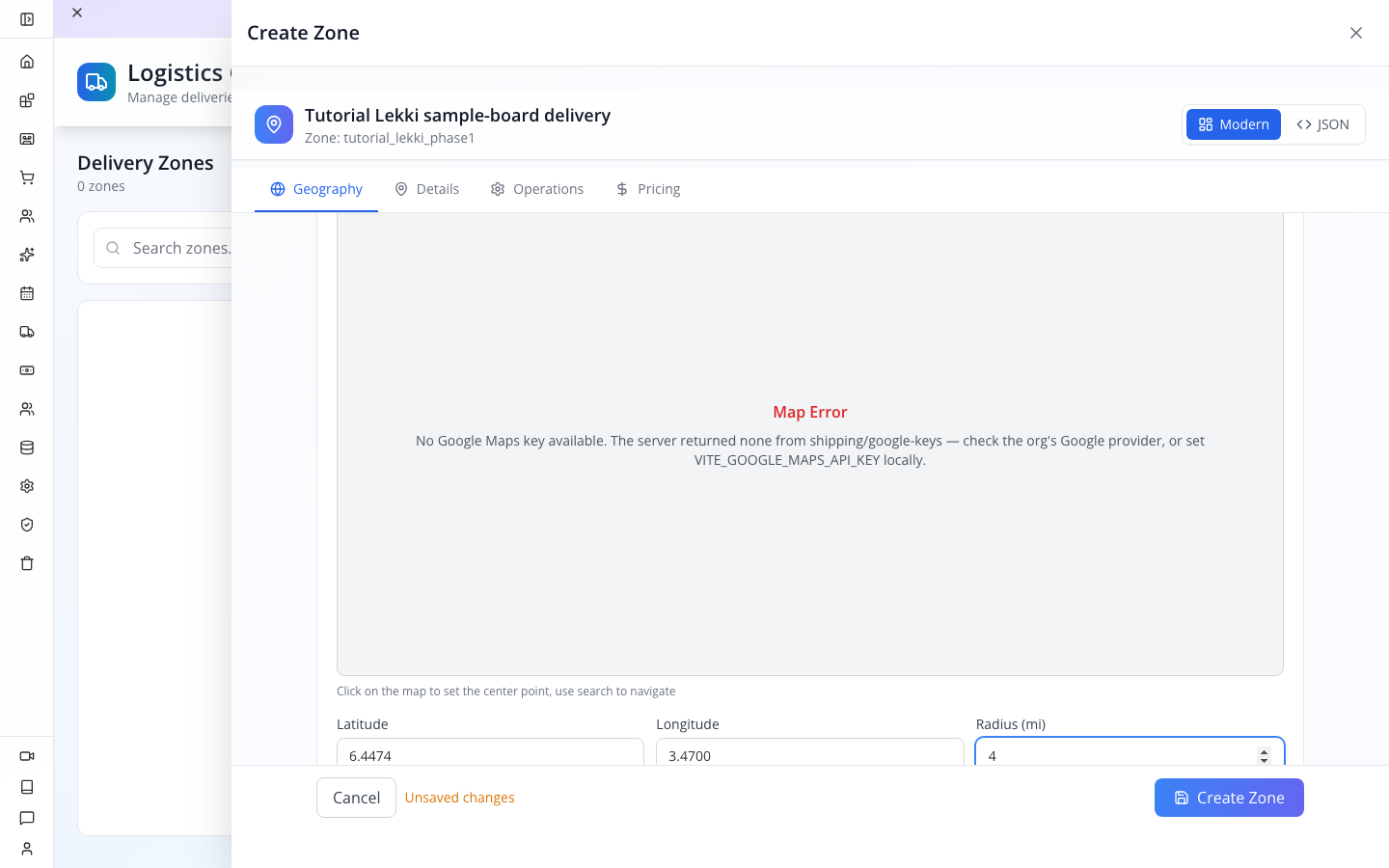
The unit is miles, as stated by the control. The radius measures distance from the centre; it is not the length of a driving route. A road trip between two points inside the circle can take a longer route around the streets.
If the preview shows Map Error, keep the distinction clear: the numeric boundary can be saved while the map display still needs configuration. Do not describe a visible circle if the map did not render. An authorised business administrator should review the actual service agreement and integration setup before enabling that provider for the organisation.
4. Set the zone's time zone
Select Operations in the zone drawer. Enter Africa/Lagos in Timezone.
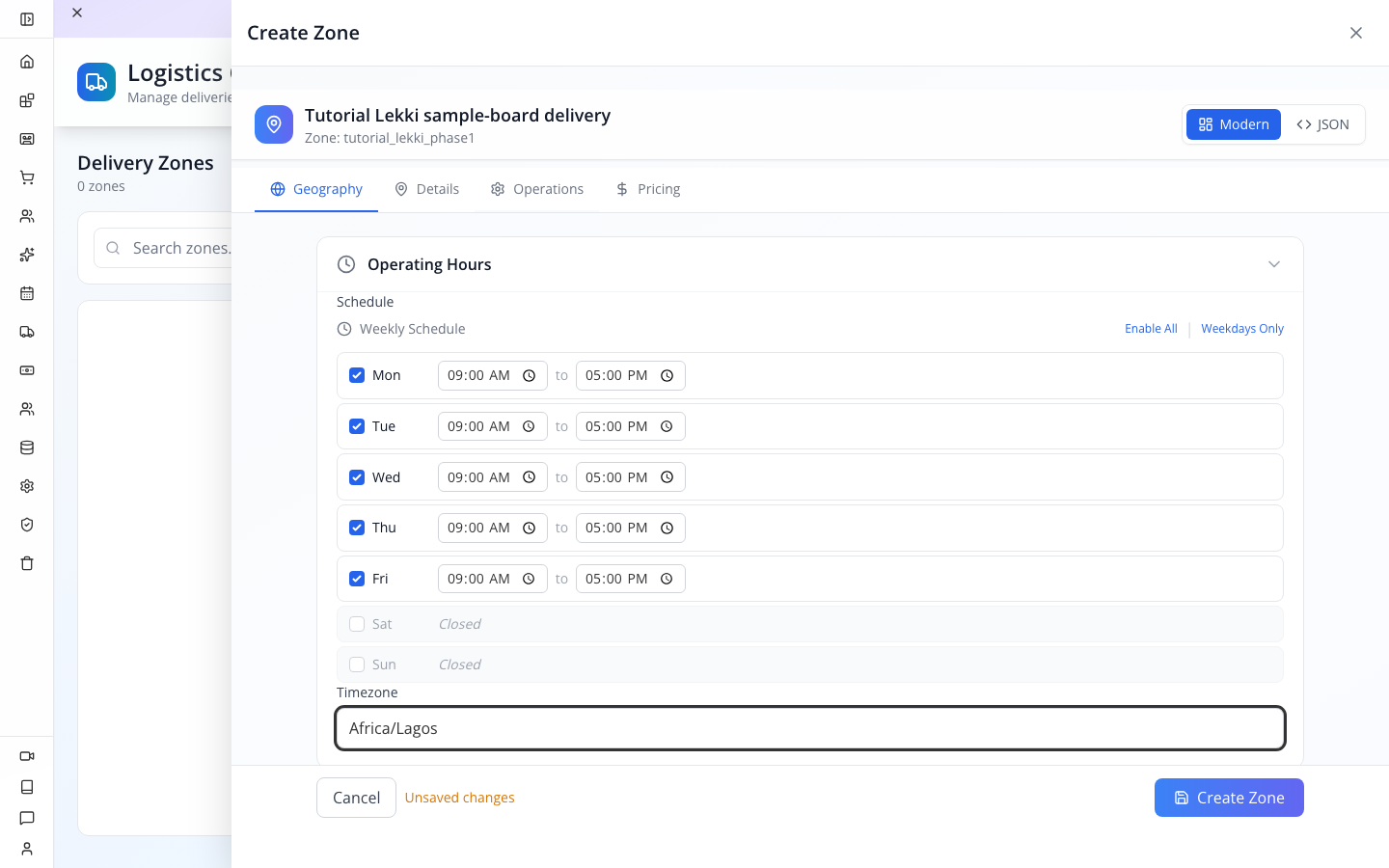
The screen also has a weekly schedule, holidays and restrictions. We do not change them in this exercise. The inspected quote-validation path uses the geographic boundary; do not rely on a saved holiday or schedule alone to refuse an out-of-hours booking.
5. Save the inactive zone
Press Create Zone. The application shows Zone created successfully. The saved record remains Inactive. You can activate it in this same drawer; its saved identity is now available to the action.
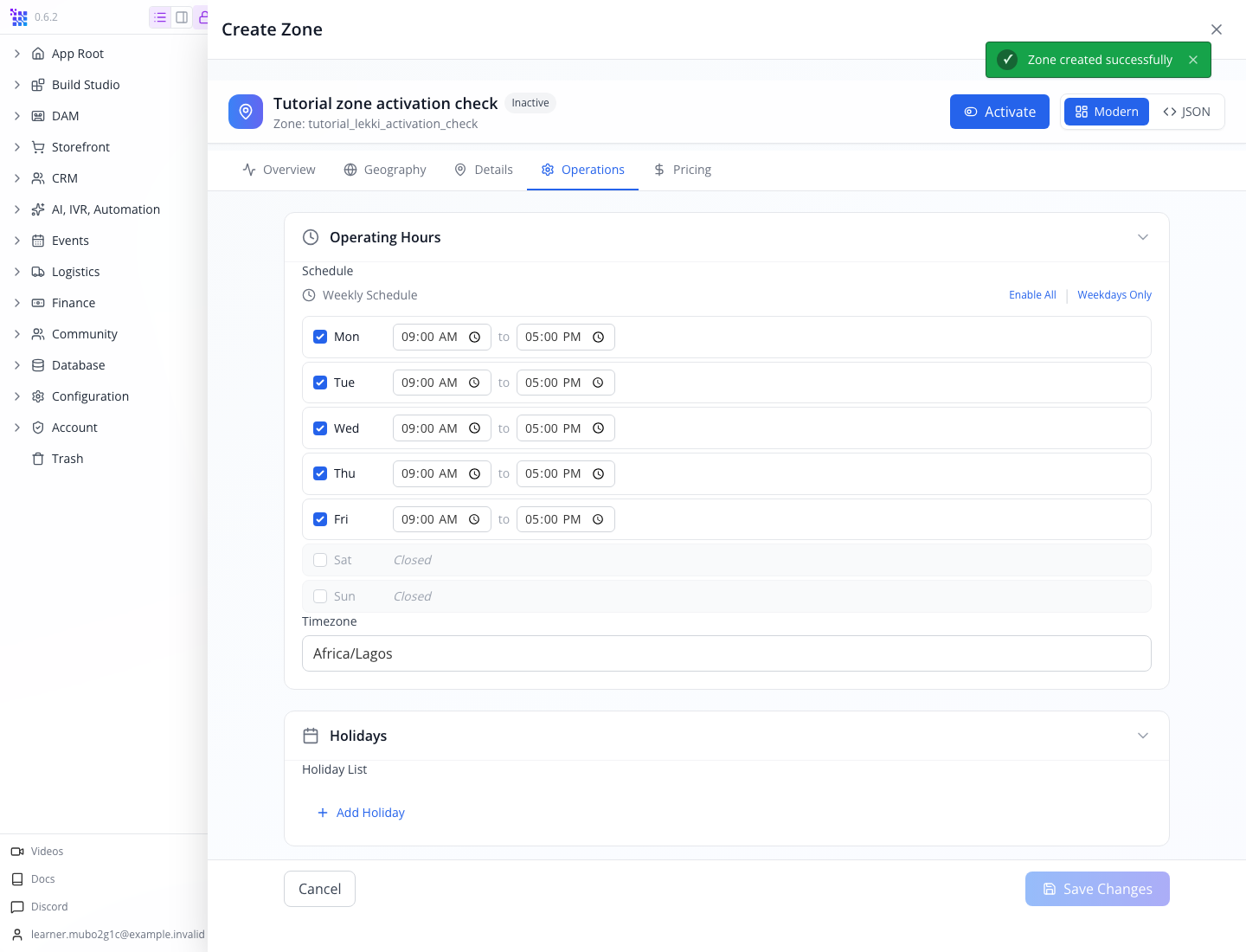
This verification still uses the separate tutorial_lekki_activation_check record to test a new save without duplicating the main zone. Use your own saved zone throughout your exercise.
6. Activate the saved zone
In the saved zone drawer, press Activate. You should see Zone activated successfully, an Active badge and a Deactivate button.
Close the drawer with the upper-right ×, reopen your saved zone, then select Geography. Check that the saved centre and radius still read 6.4474, 3.47 and 4.
Close the drawer. Press the circular-arrow refresh button beside Add Zone if the list still shows the old status. The row should now read Active.
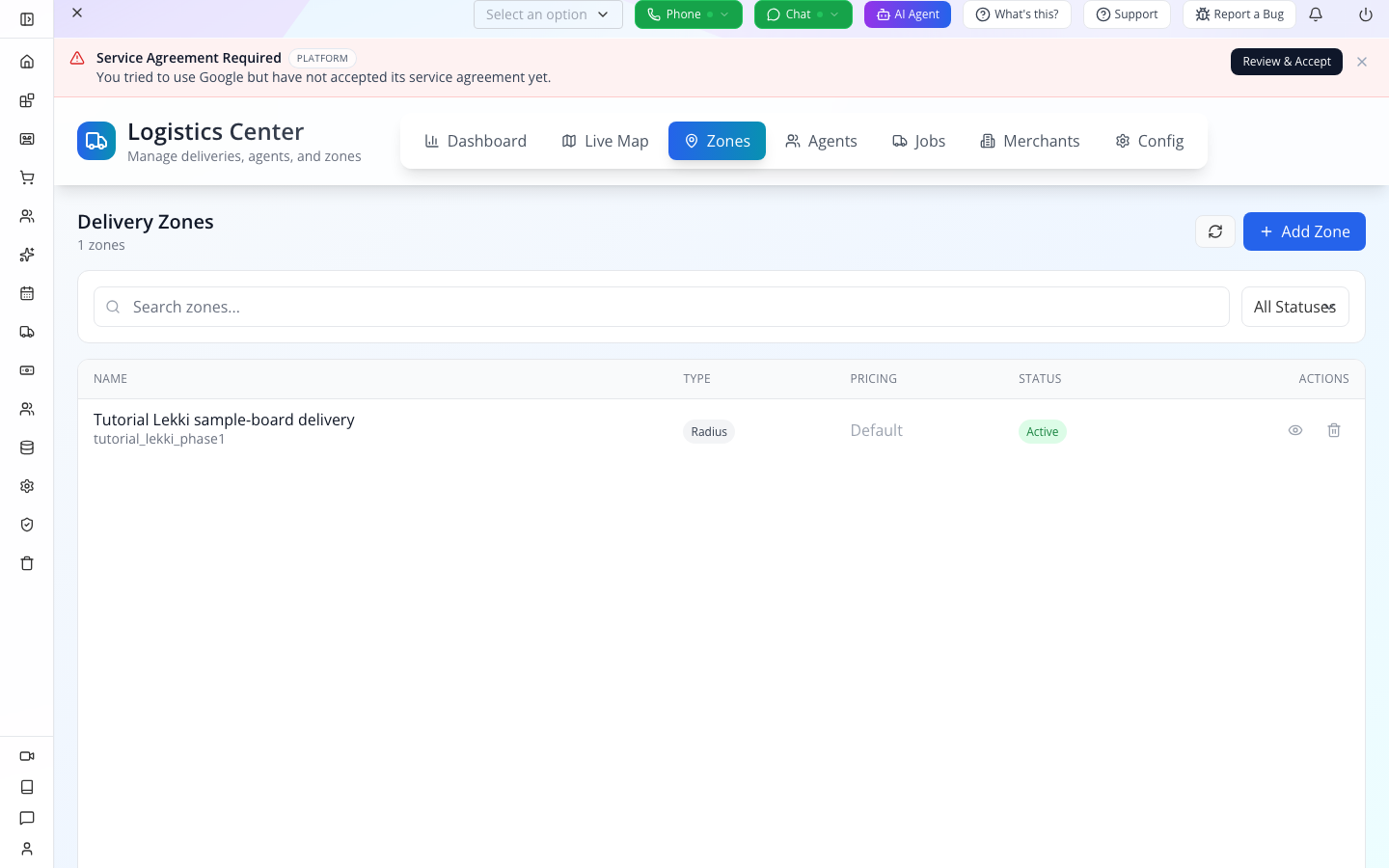
Activation now refreshes the list as well as the drawer. If a request fails, keep the existing record and retry after resolving the displayed error; do not create a duplicate.
Try it: close the zone, reopen it, and read the radius without changing it. Can you point to the saved value rather than the draft you remember typing?
Check yourself: does a saved title or a map pin prove the destination is inside the service area? No. The boundary and the quote's serviceability check decide that. The next part tests the actual addresses.
Part 2 — Build a useful delivery draft
1. Create a job and add both stops
Select Jobs in the Logistics tab strip, then Create Job.
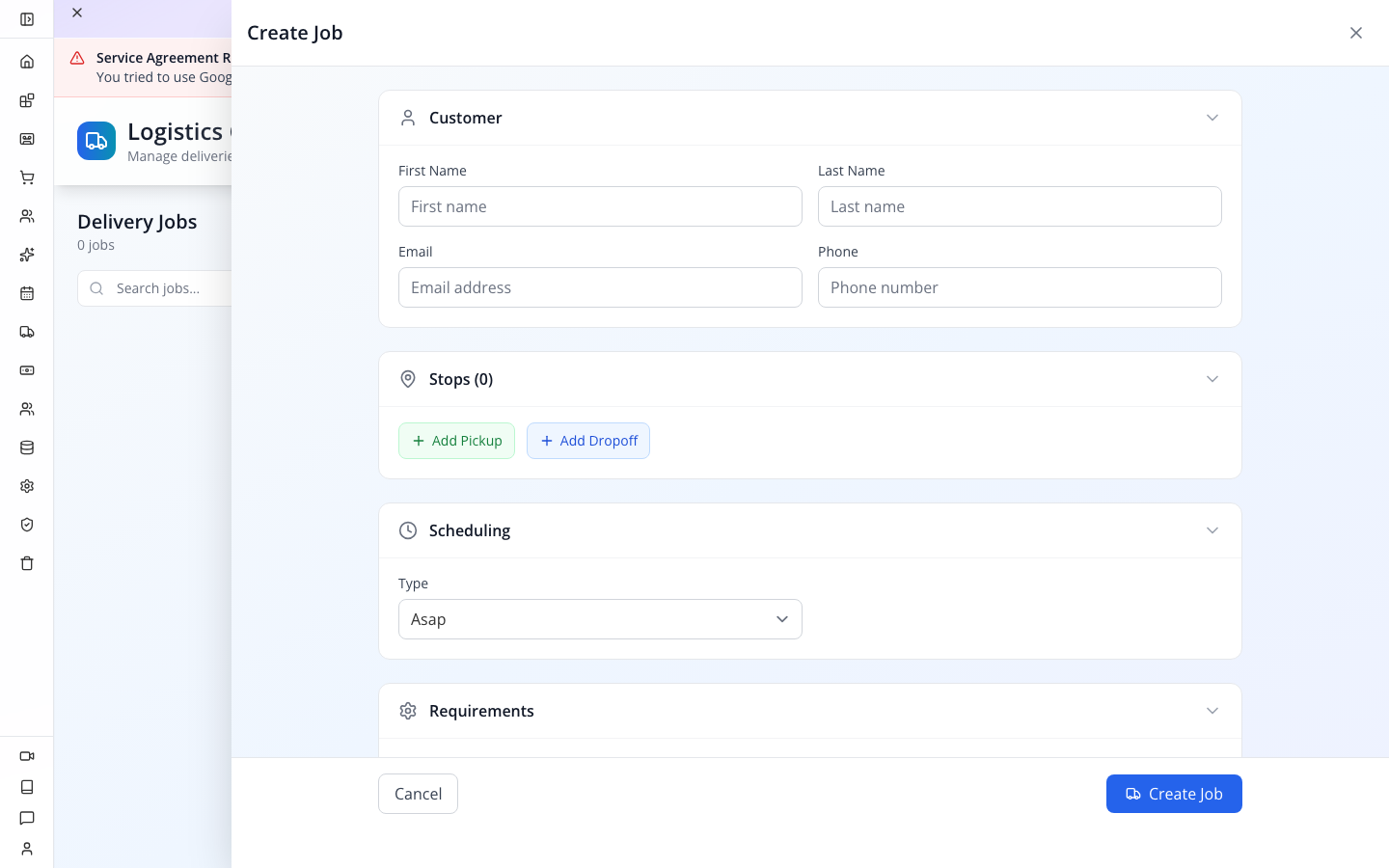
The captured form begins with Stops (0). Press Add Pickup, then Add Dropoff. The heading becomes Stops (2), with separate Pickup and Dropoff panels.
Leave the top Customer section blank for this internal training job. In an actual customer job, those fields identify the person requesting delivery; the stop contacts identify the people at the doors. They are not necessarily the same person. This exercise supplies no customer email, so it cannot serve as a customer-notification or tracking-login test.
2. Enter the pickup
In Pickup, fill:
| Field | Training value |
|---|---|
| Address | 12 Admiralty Way, Lekki, Lagos, Nigeria |
| Contact Name | Tutorial Ife |
| Contact Phone | +12025550144 |
| Contact Email | Leave blank |
| Time Window | Leave Asap selected |
| Instructions | Training pickup only. Sample board in reception; do not dispatch. |
The phone is a fictional example for the training form. Use a reachable, agreed pickup contact for real work. Typing a phone into this job is not an instruction to call or message it.
Under the pickup's Items (0), press Add Item. Set Description to Tutorial oak sample board and leave Qty at 1.
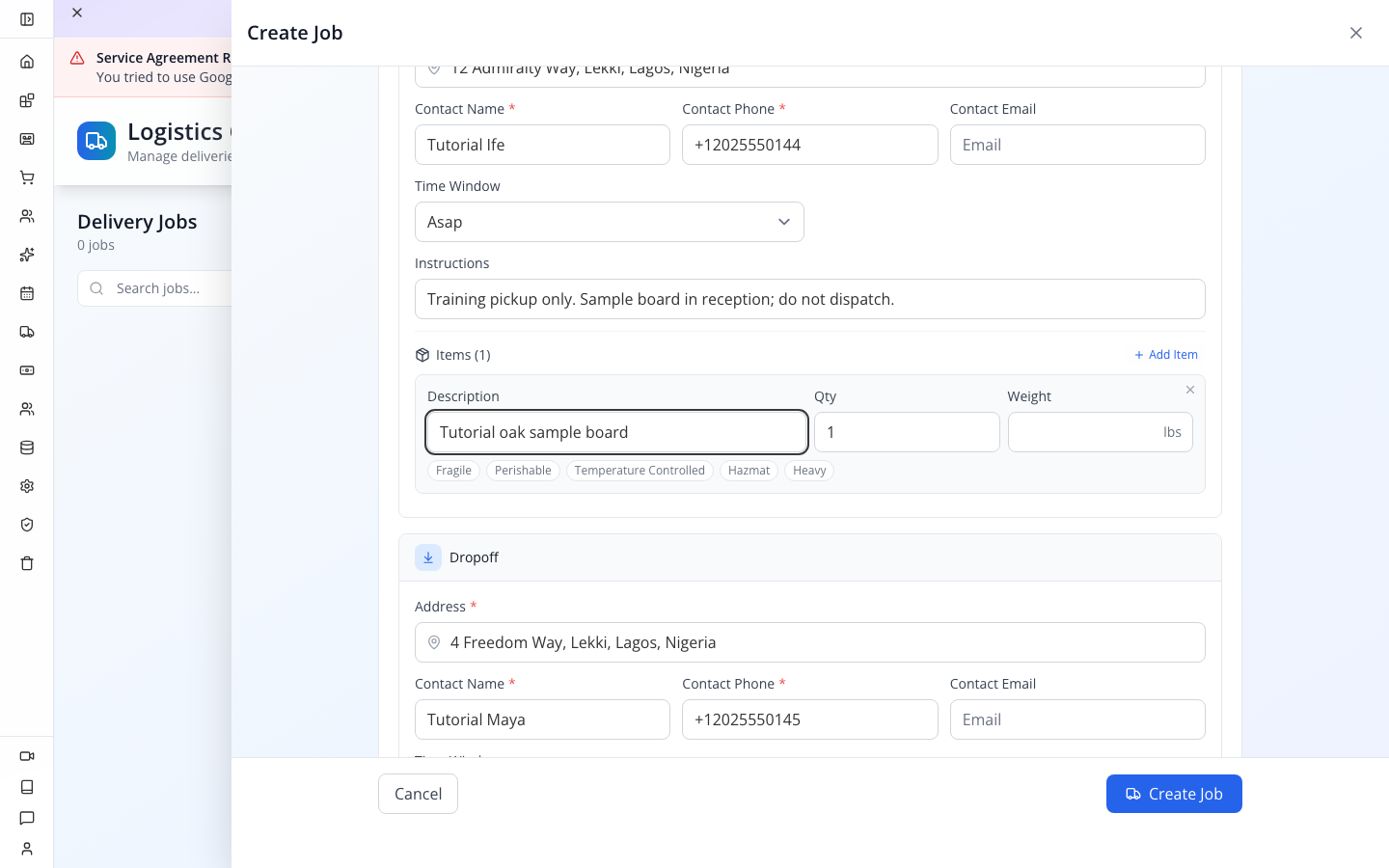
The item fields include weight and handling options such as Fragile and Heavy. Add actual handling requirements when you know them. Do not invent a weight to make the form look complete.
3. Enter the drop-off
In Dropoff, fill:
| Field | Training value |
|---|---|
| Address | 4 Freedom Way, Lekki, Lagos, Nigeria |
| Contact Name | Tutorial Maya |
| Contact Phone | +12025550145 |
| Contact Email | Leave blank |
| Time Window | Leave Asap selected |
| Instructions | Training drop-off only. Confirm the recipient before handover. |
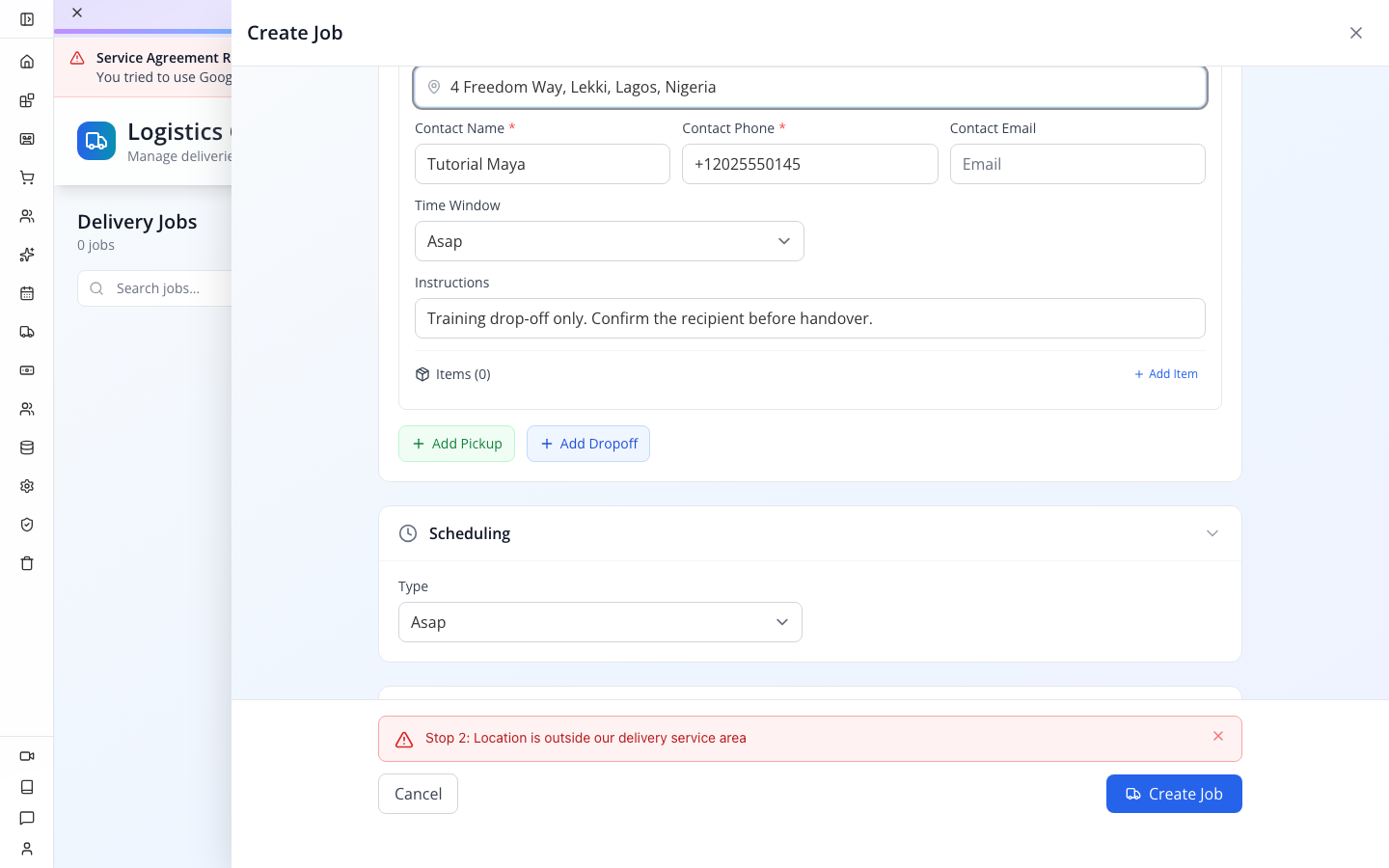
Each stop owns its own contact and instructions. Avoid putting the recipient's directions only in an internal note where a driver may not see them.
The new-job form inspected here did not expose the old topic's proposed Delivery Type: photo_required or Source reference controls. Do not search indefinitely for those fields in this screen; the developer section explains the difference between the model and the actual form.
4. Add an internal reference
Expand Notes near the bottom. In Internal Notes, enter:
TUTORIAL-SAMPLE-01 — route-planning practice only; no customer order, charge or dispatch.Leave Customer Notes blank. The first is for your operators; the second is described as visible to the customer. Use a real order reference in the appropriate operational record when connecting a real sale, and verify that connection instead of assuming the job was created by checkout.
Part 3 — Quote the route, then test the boundary
1. Open Pricing
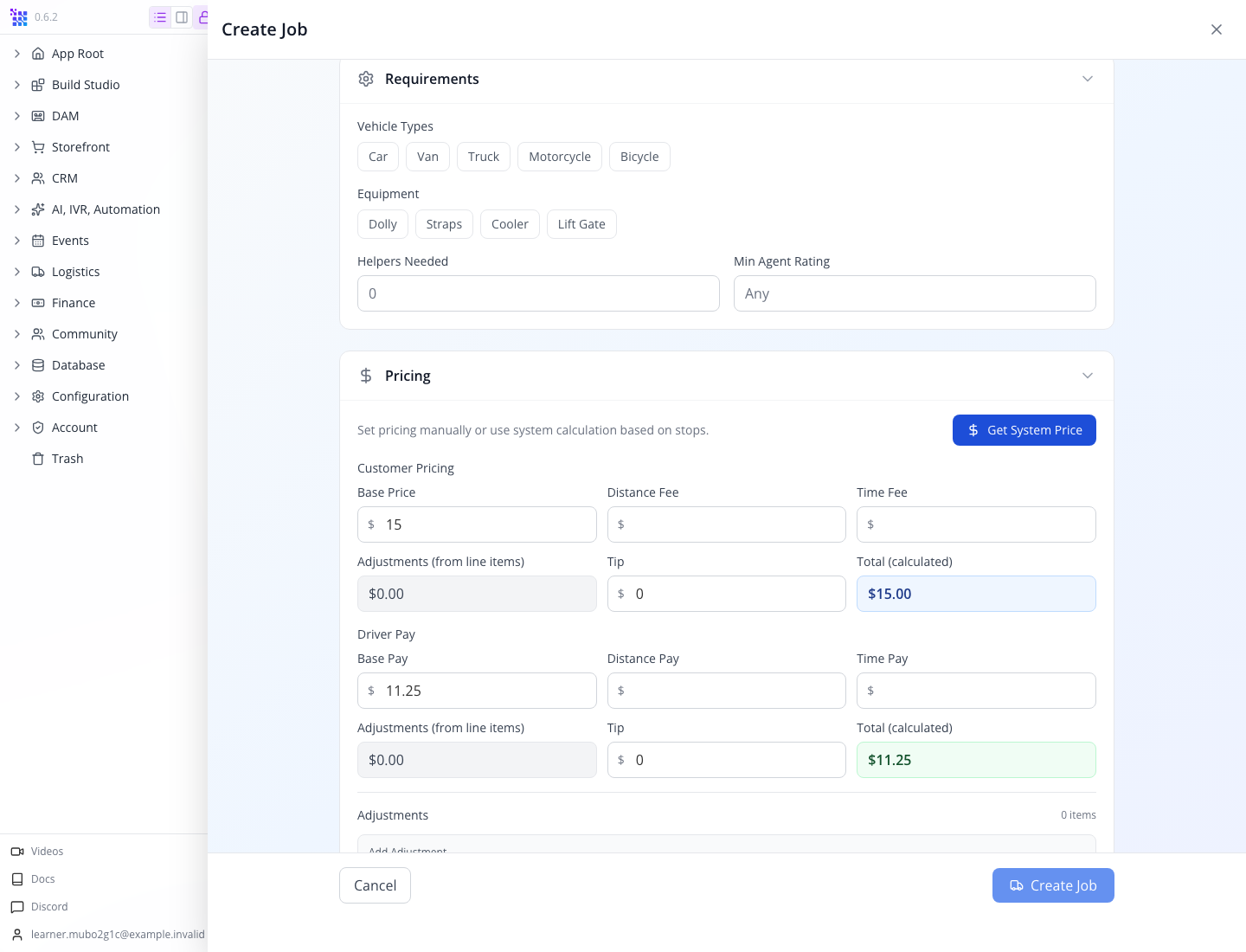
Expand Pricing. The text says Set pricing manually or use system calculation based on stops.
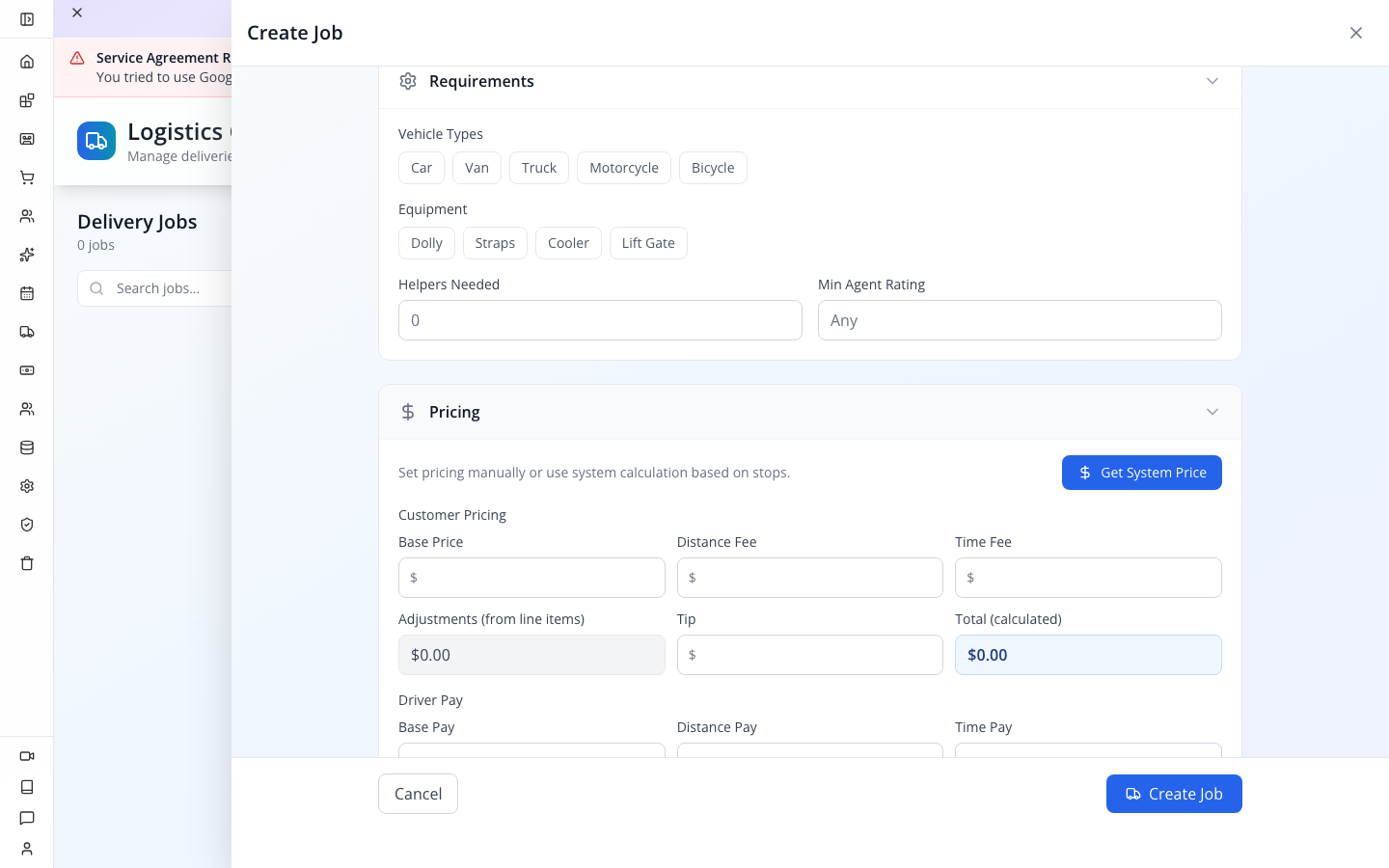
There are two groups: Customer Pricing and Driver Pay. The first is the amount calculated for the customer; the second is the driver's allocation. Neither group shows that money has been collected or paid.
2. Get the system price
Press Get System Price. Wait for Calculating… to finish and the button label to return.
If the request fails: a permission error, provider configuration/service-agreement error, timeout or network error is not an outside-area result. Do not save the job or manually enter the example $15 to continue. Record the exact error and ask your organisation administrator to check the configured geocoding/routing integration through Gateway Manager. Retry the unchanged practice addresses after that problem is corrected and require a fresh successful quote. The pictured author's successful quote does not establish provider readiness for your company.
For the captured route, the actual response was:
| Result | Observed value |
|---|---|
| Address validation | Both stops serviceable in tutorial_lekki_phase1 |
| Customer Pricing → Total (calculated) | $15.00 |
| Driver Pay → Total (calculated) | $11.25 |
| Route distance in the quote response | 3.03 miles |
| Route duration in the quote response | 11.12 minutes |
| Route source in the quote response | google |
The UI displays the pricing groups; the distance, duration and route-source values above come from the captured quote response, not from a distance label on this form. Route providers and pricing configuration can change your result. Read your returned result rather than typing these totals over it.
Watch for: the map preview still reported a missing key while the server returned this quote. A failed preview and a failed quote are different problems. Check the result of the action you actually requested.
3. Try an outside-area drop-off
Replace only the drop-off Address with:
Murtala Muhammed International Airport, Ikeja, Lagos, NigeriaPress Get System Price again. The captured response is Stop 2: Location is outside our delivery service area. If your quote instead succeeds, inspect your active zones: a different, broader zone can legitimately cover that address. Repeat this boundary test in an isolated practice configuration, without disabling someone else's operational zone.

The pickup remains serviceable; the airport drop-off does not. The response has valid: false and identifies stop index 1, displayed as Stop 2 to the operator.
The earlier base prices are cleared and Create Job is disabled. In this exercise, with no tips or adjustments, the displayed totals return to $0.00. That zero is an empty calculation, not a free airport delivery. The error means this route cannot be saved as a system-quoted job.
Watch for: changing an address also invalidates the quote immediately. Even if you restore the earlier text, press Get System Price again. Dismissing an error message does not make the route valid.
4. Restore and re-quote the local route
Replace the drop-off Address with 4 Freedom Way, Lekki, Lagos, Nigeria again. Press Get System Price and wait for it to finish.
The outside-area error disappears, customer pricing returns to $15.00, driver pay returns to $11.25, and Create Job becomes available. Your organisation’s configured rates may differ. Restoring the address alone keeps creation disabled until the fresh quote succeeds.
Try it: identify which stop failed without changing the pickup. Use the error's stop number and the two stop headings.
Check yourself: the map can find the airport, but the quote refuses it. Can Ife promise this delivery? No. Geocoding found an address; the zone check rejected it. The refusal is the decision that matters.
Part 4 — Save, reopen and close out the training job
1. Create the job
With the restored route successfully quoted, press Create Job at the bottom of the drawer. Job created successfully appears.
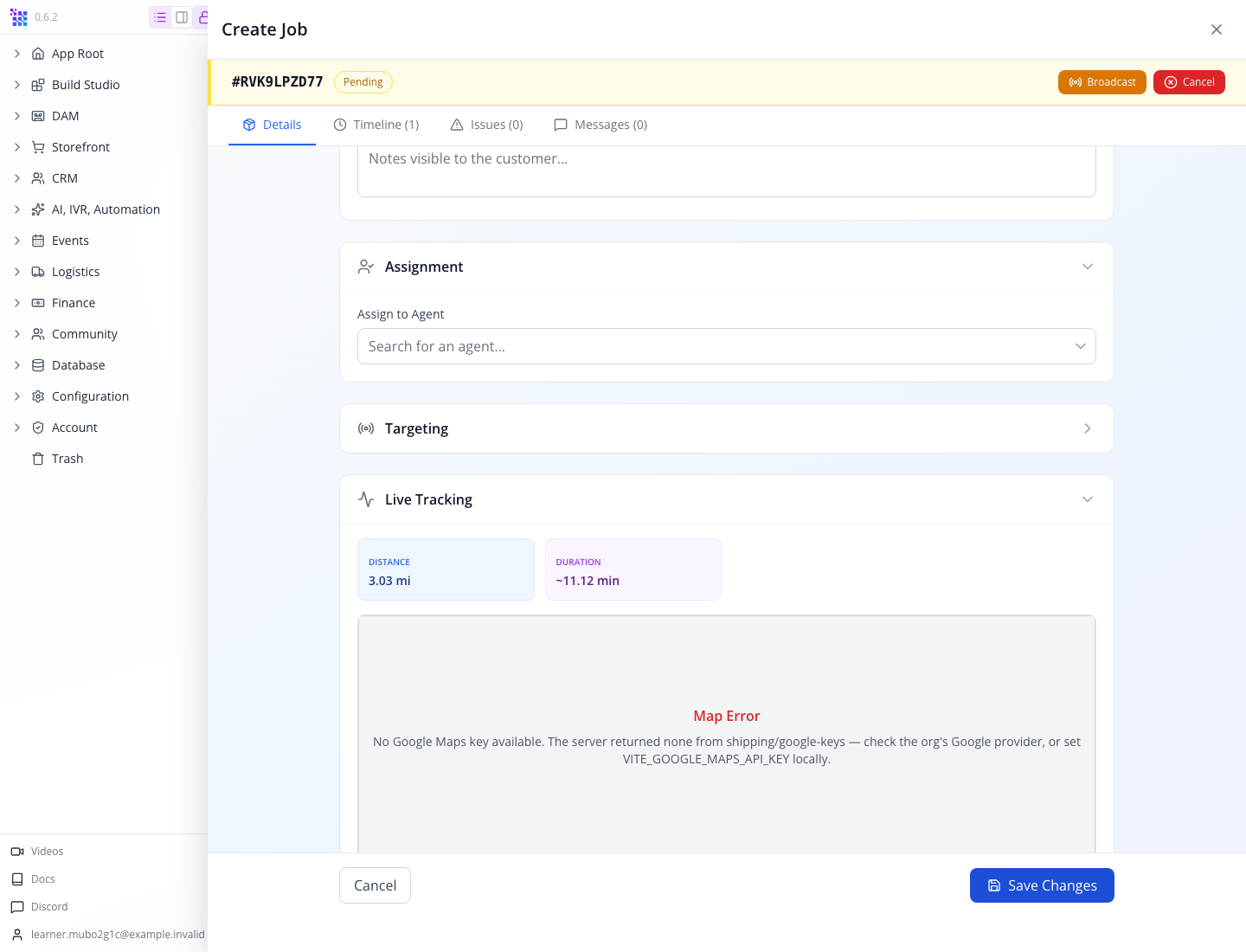
The locally verified job number is RVK9LPZD77; yours will be generated separately. The job is Pending and Unassigned. Its customer price is $15.00, and its driver amount is $11.25 with earnings pending.
Save the generated number in your exercise notes. TUTORIAL-SAMPLE-01 is your internal reference; it does not replace the generated job number.
2. Read the history before dispatching
Close the drawer and reopen the saved job from Jobs. Select Timeline (1).
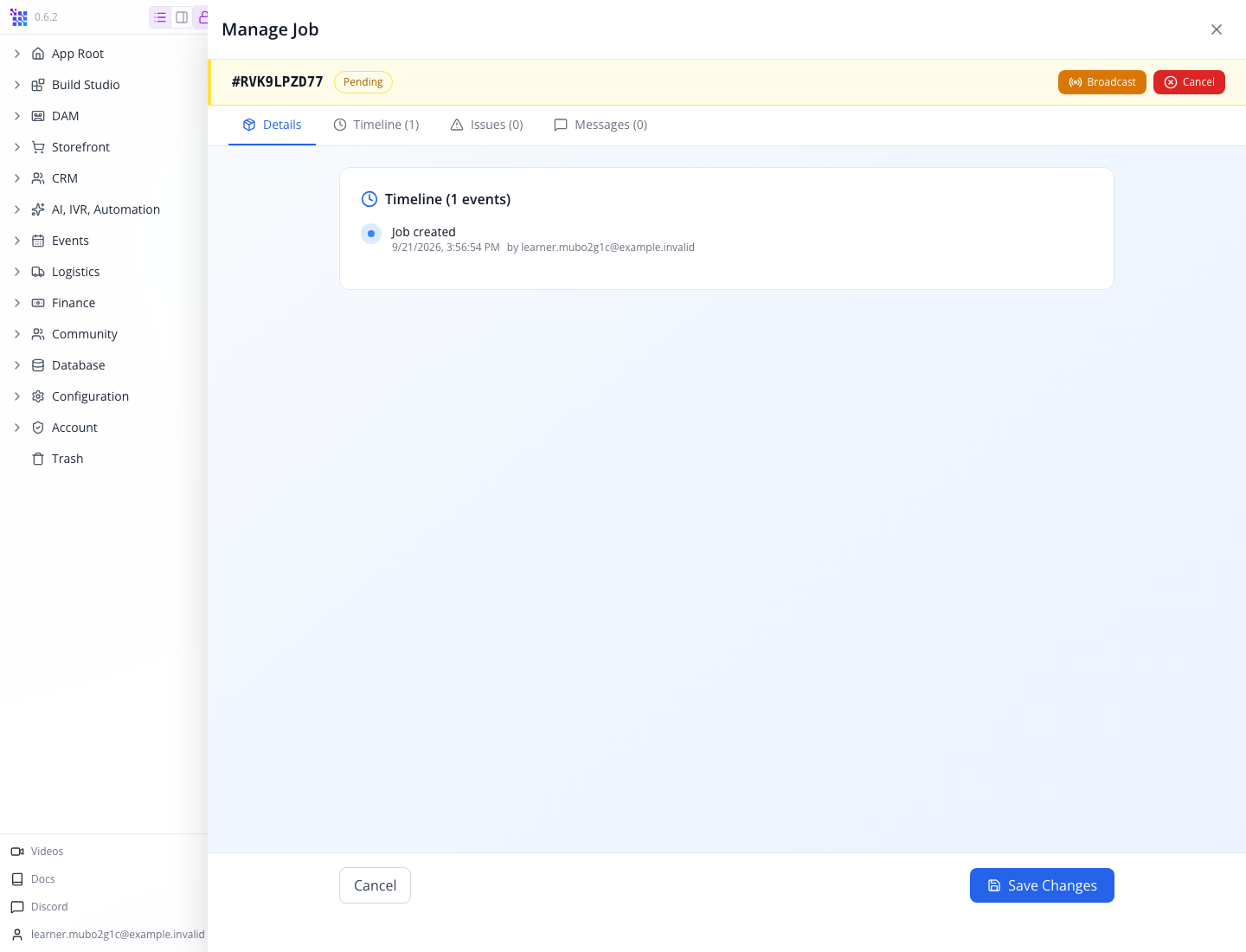
The timeline contains Job created, with a timestamp and the creating training account. This is the beginning of an operational history, not evidence of acceptance, pickup or delivery.
Return to Details. Check both addresses, Ife and Maya’s contact details, the sample-board item and its quantity. Expand Notes and read your internal reference. Under Live Tracking, the verified job shows 3.03 mi and ~11.12 min, matching the successful quote. The saved record also retains both stop coordinates and the service zone. These are planned route estimates; no driver location or actual journey has been recorded.
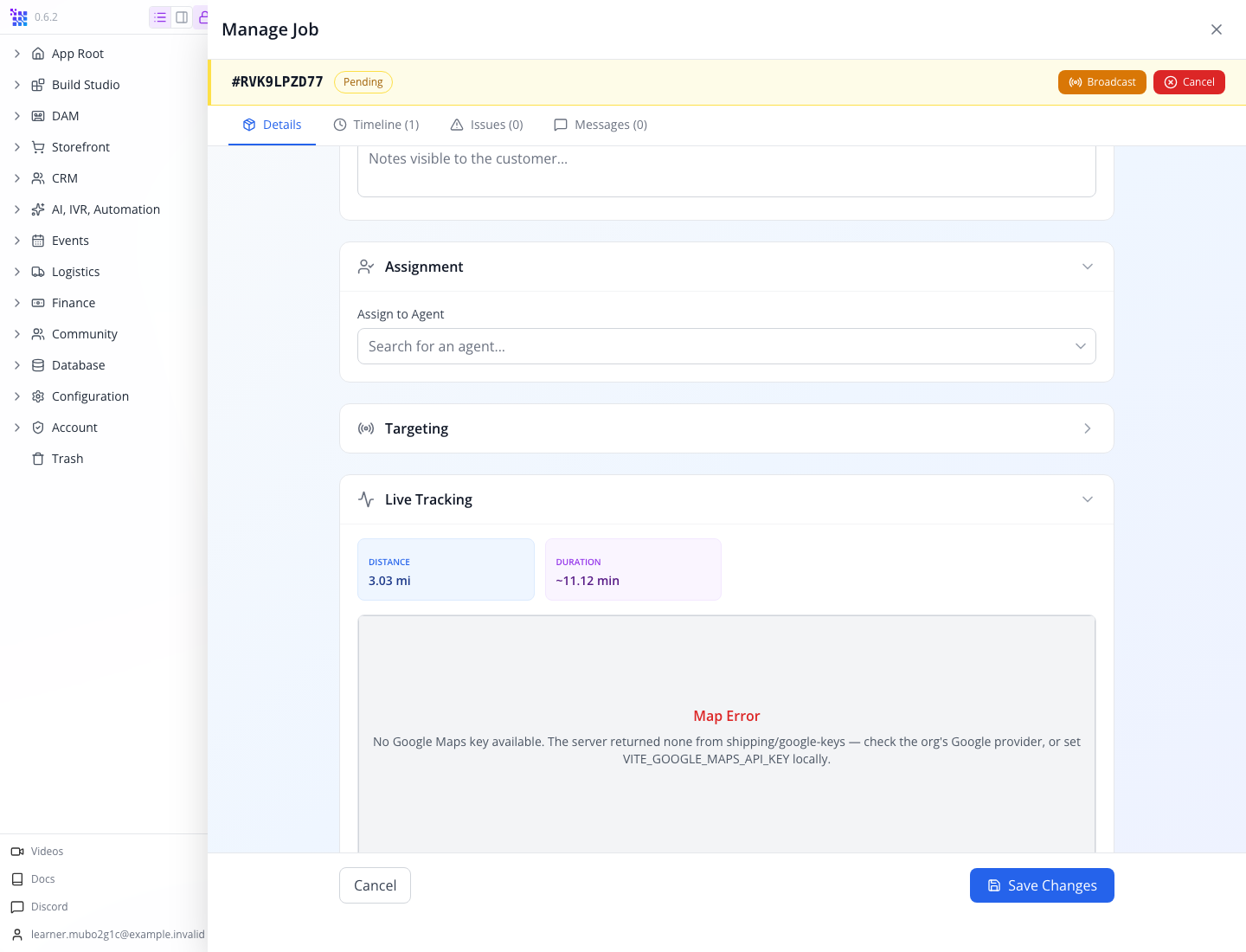
Watch for: a successful quote does not mean every geocoded coordinate or tracking field was persisted. Reopen the job and check the fields your dispatch process depends on.
3. Cancel the training job
Use Cancel beside Broadcast in the job's upper action area. This is the job action, not a footer button that merely closes a draft.
In the observed build, this action cancelled the job without asking for a custom reason. The screen changed to Cancelled. The source submits the reason Cancelled by admin.
Close the drawer and check the row in Jobs.
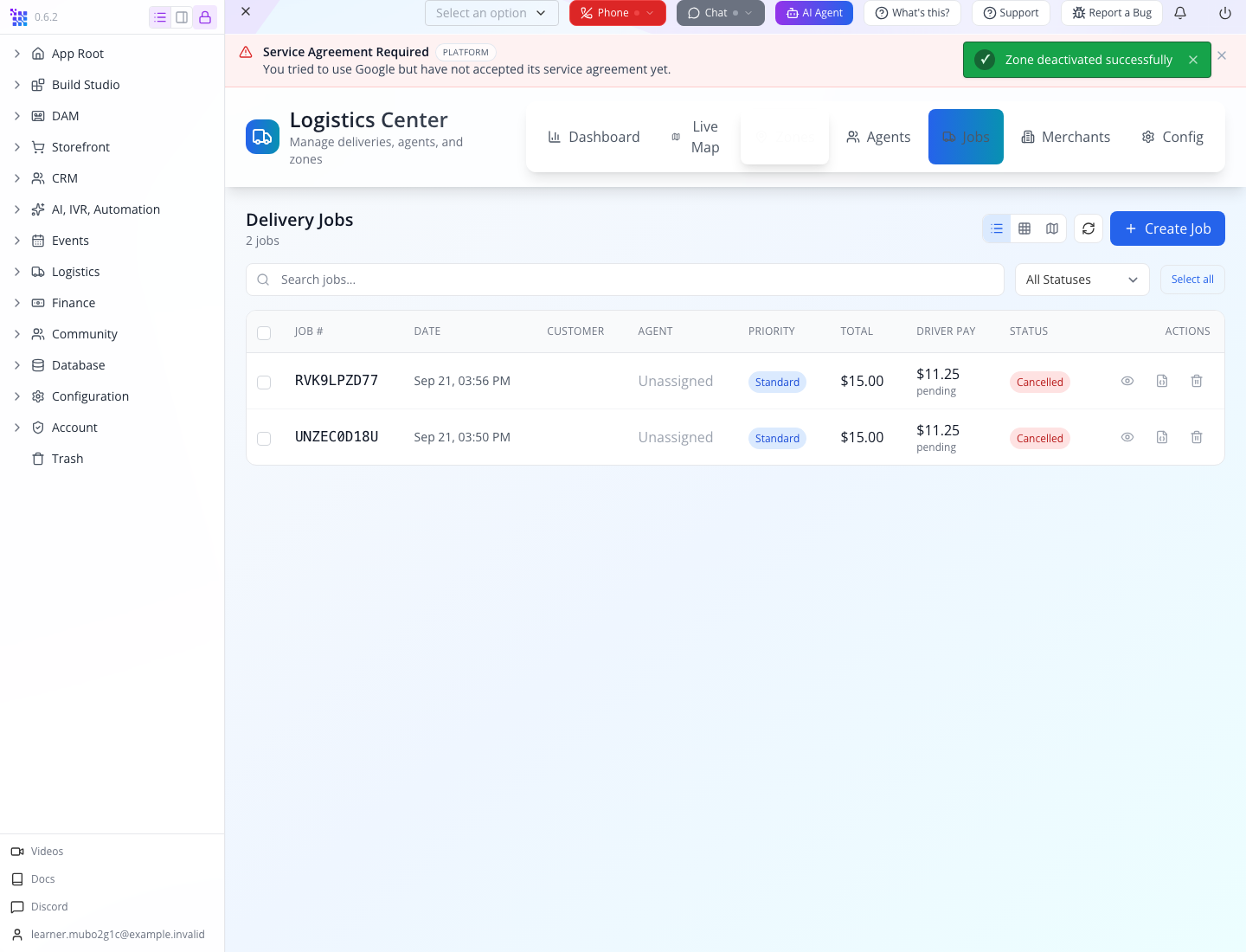
Cancelling the job does not remove the active training zone or any delivery configuration created during setup. Record those retained settings in your practice notes and reuse/verify your own zone on the next run; do not assume the whole exercise was reset. The cancelled job keeps its quote and history. Its driver amount can still show pending because that is a separate earnings field; it does not mean a driver earned or received that amount.
4. Check the cancellation timeline
Reopen the same job and select Timeline (2). You should now see creation and cancellation events.
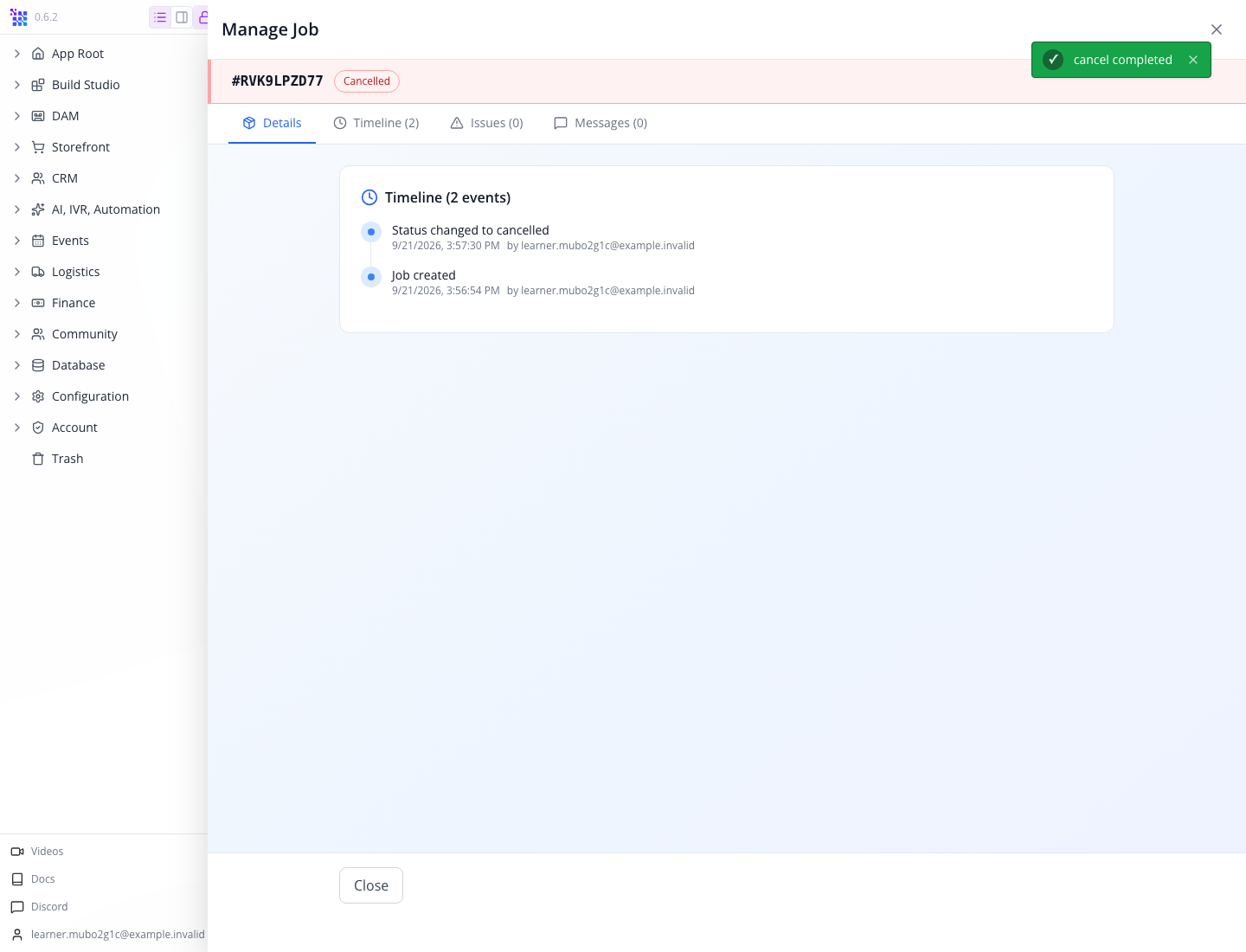
This is the completed planning exercise: a service-area check, a saved route job and an explained end state. No driver was contacted, no customer payment was taken and no wallet was credited.
Try it: find the job again from its generated number. Explain why deleting the row would lose a useful record of the exercise.
Check yourself: does the saved $11.25 mean a driver should receive a payout? No. There was no assigned driver, completed delivery or earned wallet credit. Follow the actual earning record before creating a payout.
Part 5 — Prepare real dispatch: identity, availability and the driver app
Inspect the agent entry point
Select Agents, then Add Agent. The new human-agent form starts on Details.
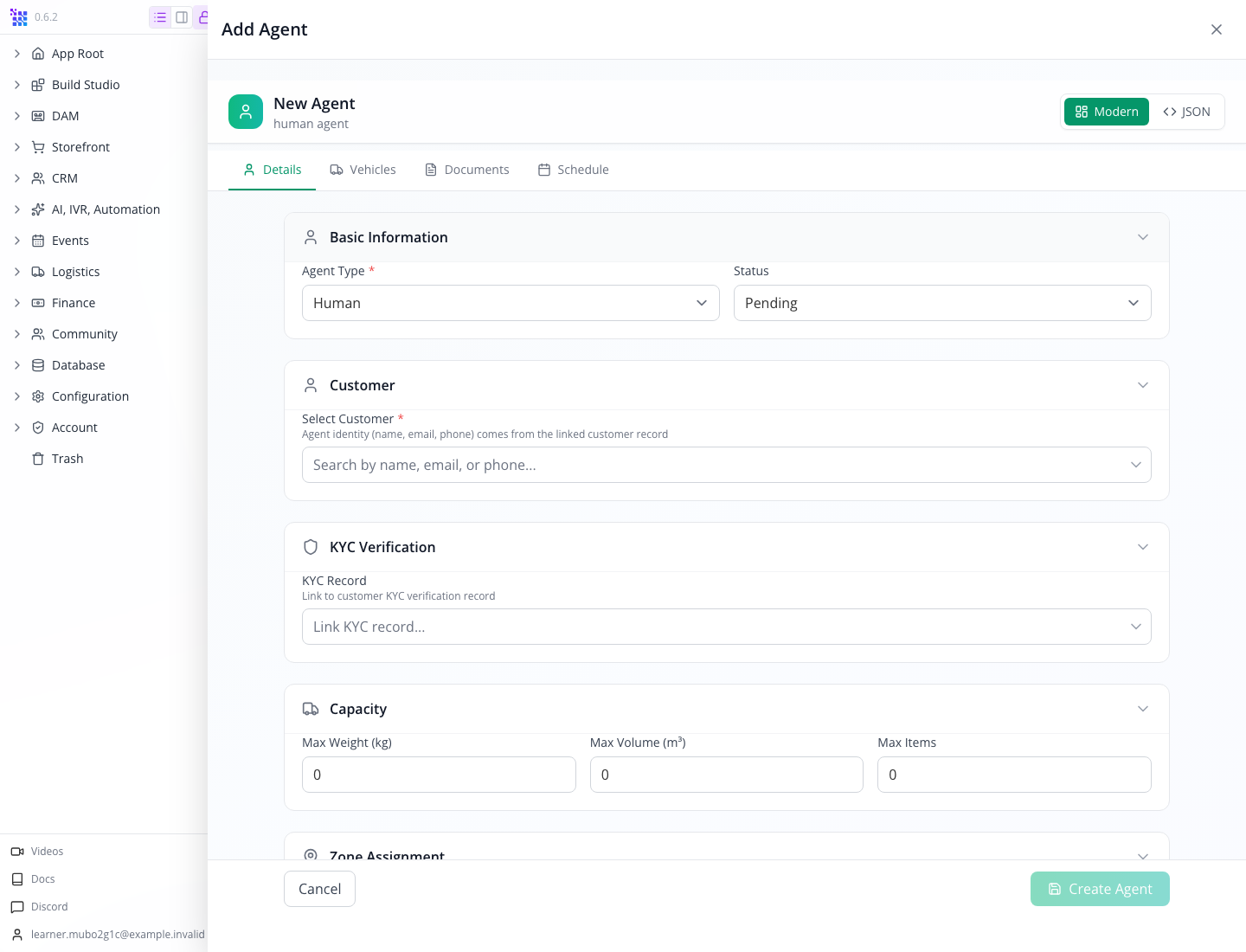
The form's Select Customer field says Agent identity (name, email, phone) comes from the linked customer record. The agent is not an unrelated name typed into a driver list. Its customer identity is what the driver-side sign-in must represent.
The visible tabs are Details, Vehicles, Documents and Schedule. Details also has KYC Verification, capacity fields and Assigned Zone. This capture stops before selecting a real customer or creating an agent; it does not show an approved driver.
For a real fleet, prepare the actual driver account and complete the required identity/document review. Verify the saved agent, the linked customer, status, availability, vehicle and service zone before offering work. Do not enter a fabricated customer ID or mark documents verified merely to finish a tutorial.
Keep the dispatch stages separate
The operational sequence to verify with your linked test driver is:
| Stage | What the dispatcher needs to establish |
|---|---|
| Agent approved | The review is complete for the correct customer identity |
| Agent online | The driver is available in the intended zone |
| Offer or assignment | The job is offered to or assigned to the intended agent |
| Acceptance | The agent has accepted the work and has capacity |
| Pickup progression | Arrival and collection are recorded against the pickup stop |
| Drop-off progression | Arrival, recipient handover and required proof belong to the drop-off stop |
| Job completion | The job outcome and driver earning agree |
| Payout | The separate Finance workflow transfers an eligible wallet balance |
The saved job UI shows actions and progression labels, but clicking an administrative status is not a substitute for the real driver-side confirmation. The training exercise did not execute this dispatch sequence.
Use the correct mobile software
The driver implementation reviewed for this workflow is the Flutter project appmint_go/dfw_errand. It is separate from Appmint Mobile, which the other courses use for CRM, softphone and business operations. Installing Appmint Mobile does not demonstrate this driver's accept/pickup/drop-off screens.
No verified public dfw_errand download link was established for this course. Do not distribute an Appmint Mobile or EventOxygen link as if it installs the delivery driver app. A developer distributing a company driver build must confirm its AppEngine endpoint, organisation, customer sign-in, permissions and notification setup, then test the full route with a controlled driver account. The source references below identify the implementation; the companion guide identifies the missing mobile footage.
Part 6 — PRO: pricing, merchant accounts and integration gaps
Read the configuration that produced the quote
Select Config. After the first successful quote, the captured organisation had one configuration named Default.
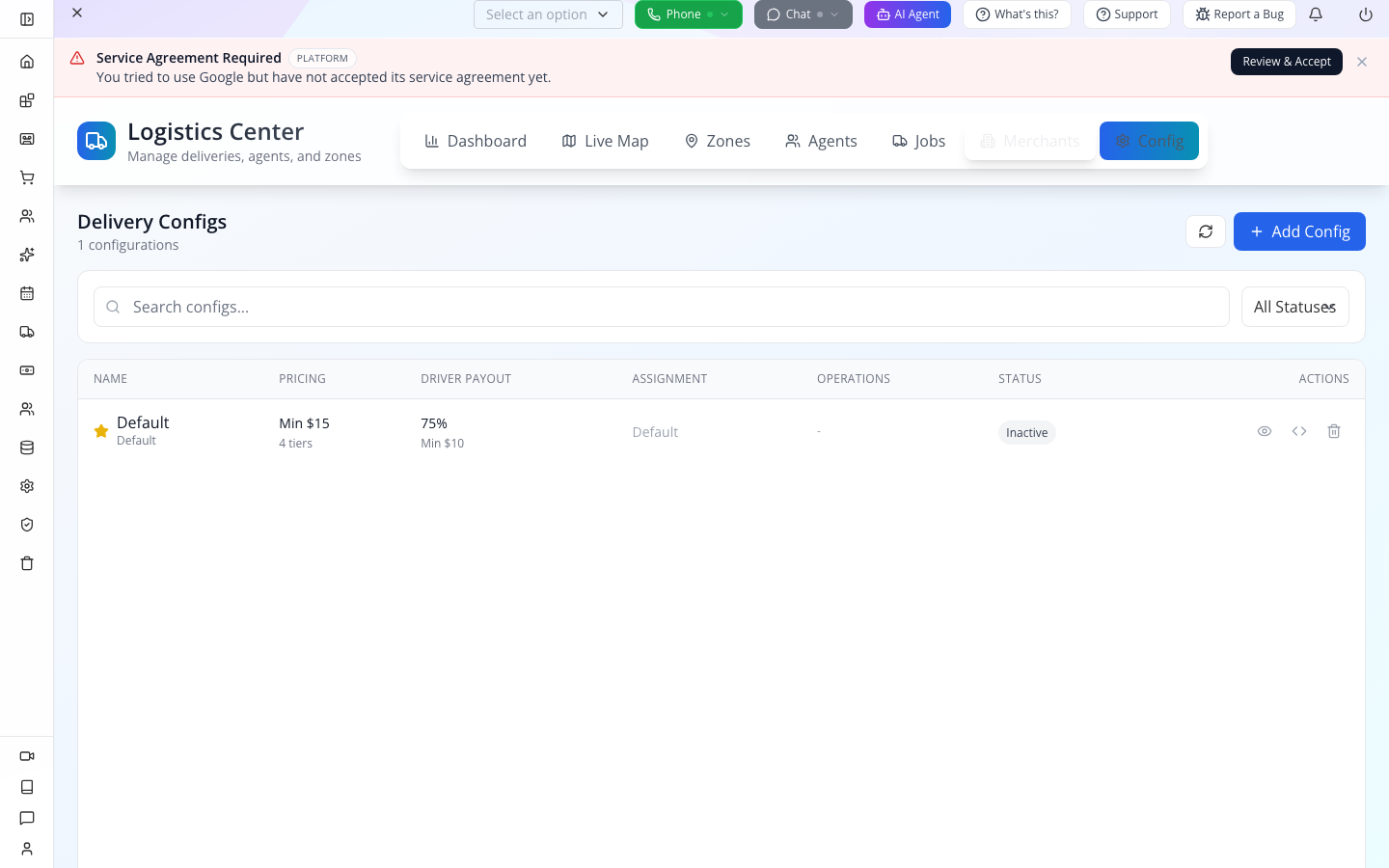
Its row shows Min $15, 4 tiers, 75% and Min $10. The source creates a default configuration on first use when none exists. The row displayed Inactive while that configuration was still used for the quote; its missing status and its use as the default are separate in the inspected implementation.
Open Default and expand Pricing.
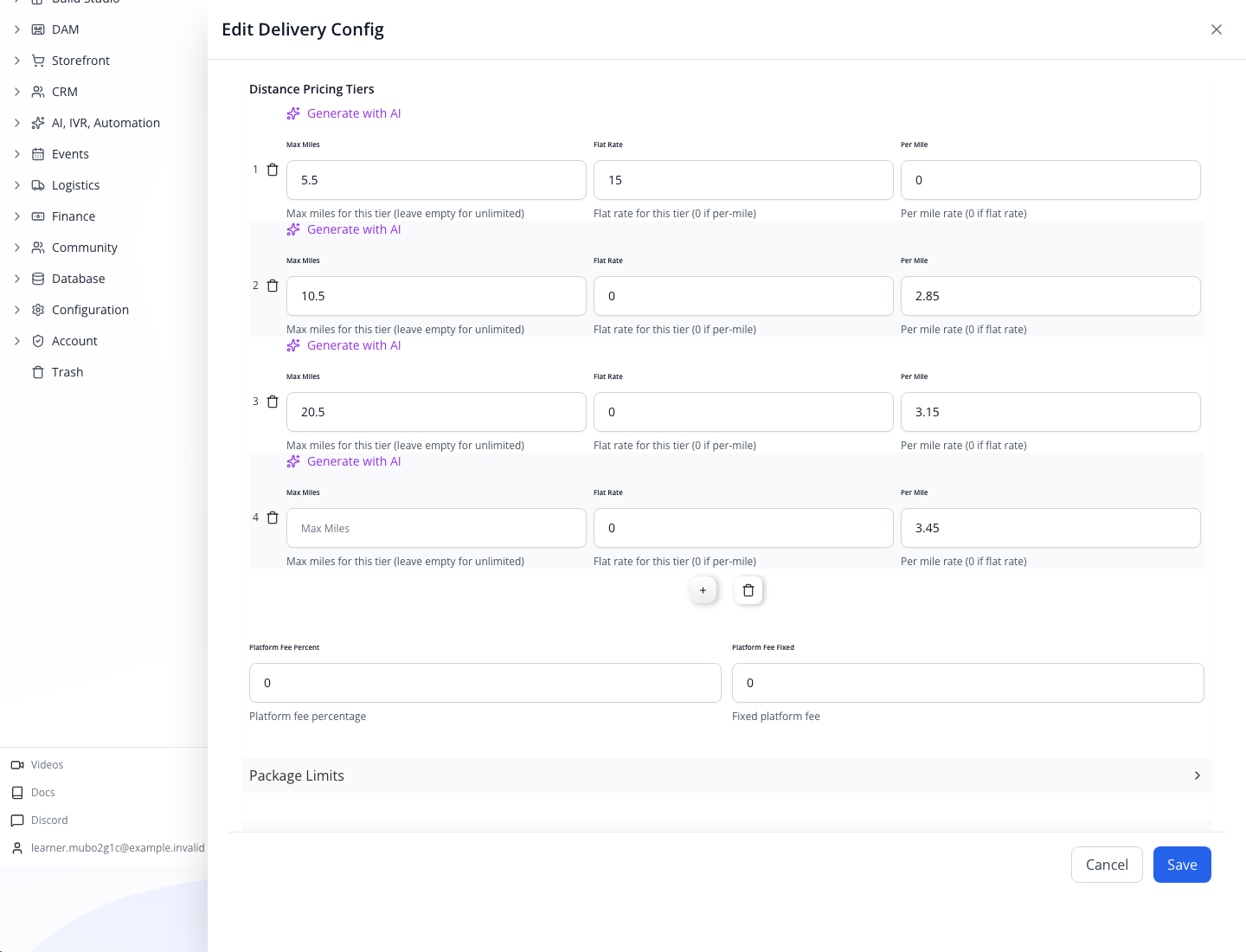
The initial source defaults, matching the captured 3.03-mile quote, are:
| Maximum distance | Flat rate | Per-mile rate |
|---|---|---|
| 5.5 miles | 15 | 0 |
| 10.5 miles | 0 | 2.85 |
| 20.5 miles | 0 | 3.15 |
| No maximum | 0 | 3.45 |
Currency is USD and minimum delivery fee is 15. These are software defaults, not a recommendation for your business's prices. Re-quote known short and long routes after changing your configuration.
Expand Driver Payout. The fields are Percentage, Minimum Pay and Tip Share.
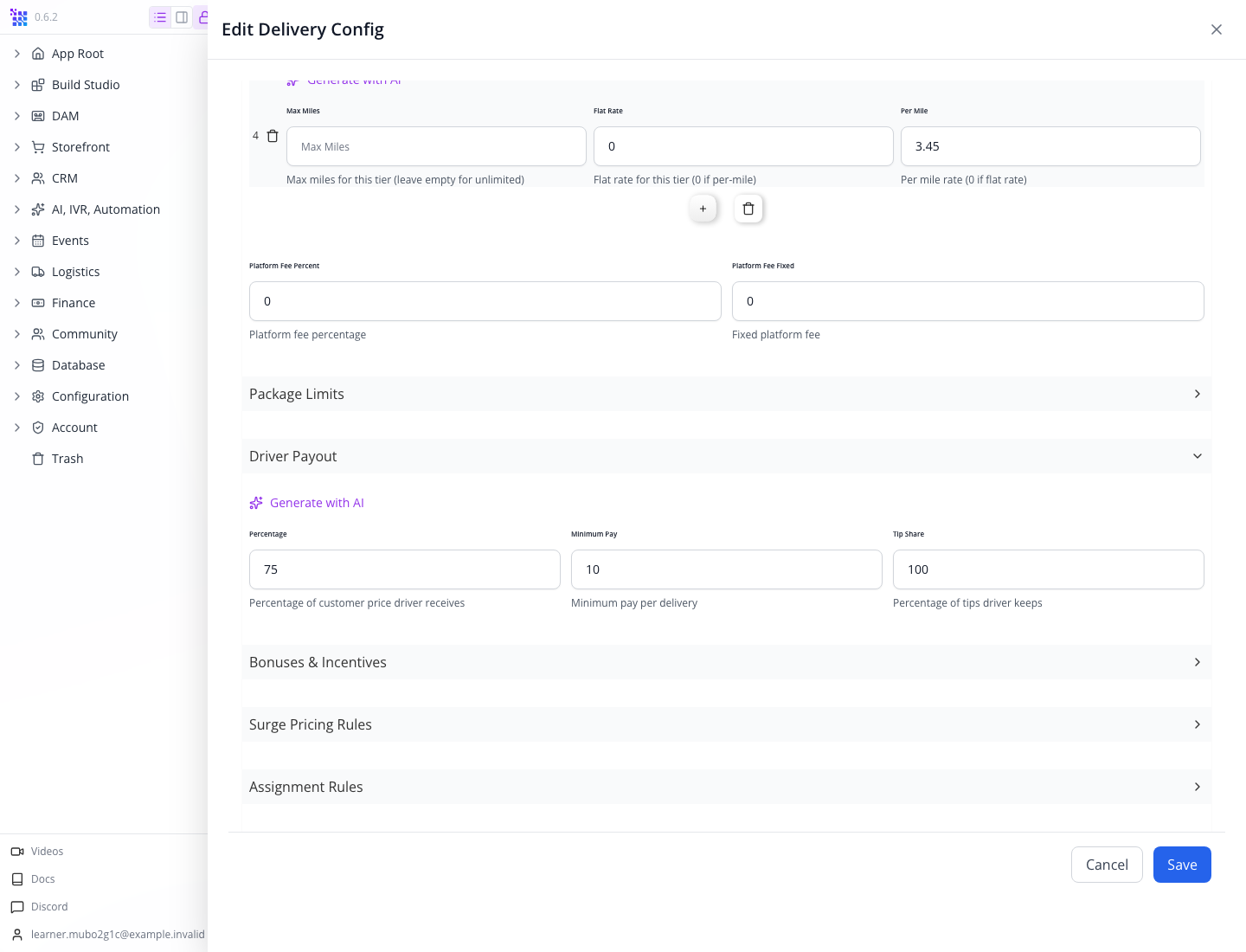
The default percentage is 75, minimum pay 10, and tip share 100. For this short route, 15 × 75% = 11.25, above the minimum. The amount is an allocation in the quote. It only becomes an earning through the appropriate completed-job workflow, and a payout remains a separate operation.
Close this editor without saving changes. The lesson inspected the defaults rather than choosing commercial rates for the business.
Watch for: the zone editor has its own Pricing and Operations fields. The inspected quote path uses the delivery configuration and its supported zone overrides; do not assume every field visible in the separate zone form changes the quote. Verify a before/after quote when adjusting pricing.
Merchant accounts live in CRM
Select Merchants in Logistics.
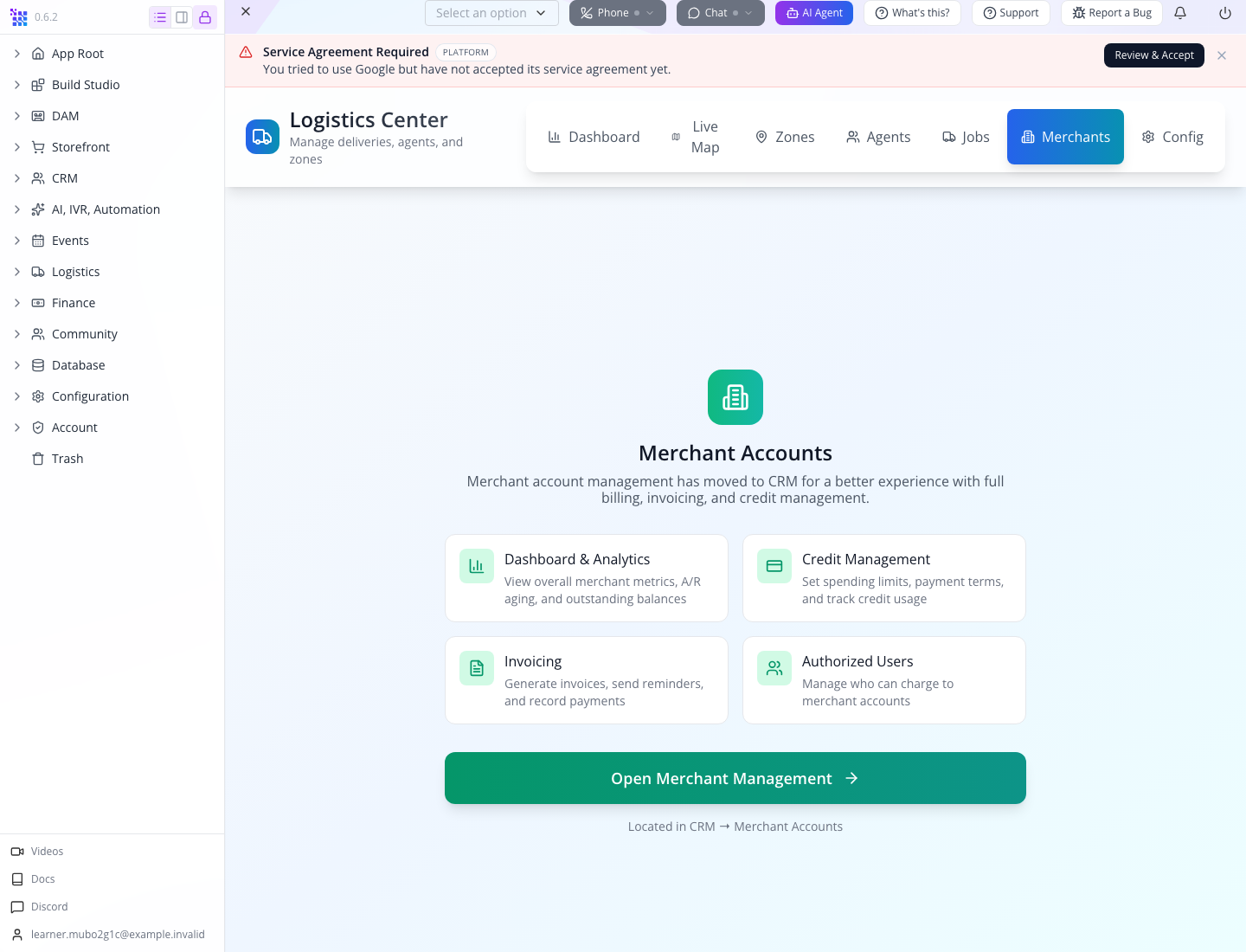
The screen says merchant account management has moved to CRM and offers Open Merchant Management. The destination is CRM → Merchant Accounts, covering credit, invoicing and authorised users. A merchant billing account is different from the driver identity in Agents.
Do not confuse a model field with a shipped form control
The previous topic proposed putting ORD-1042 in Source reference, selecting photo_required, then completing a job with proof. The current create form did not expose those controls. Its submitted job payload contains customer, stops, requirements, scheduling, pricing, driver pay and notes; the backend initially writes source.type: api.
A delivery integration that needs a source order or a mandatory proof policy must write and verify the fields through the appropriate supported path. Merely naming an order in Internal Notes is a human correlation, not an automatic order relationship. The training job's source and stop-proof requirements were not manufactured through hidden state.
Match the endpoint to the job you are doing
The administrative route prefix is logistics/delivery. The UI's quote uses POST /logistics/delivery/quote, which validates and geocodes stops before returning a result. A valid result includes serviceable stops, pricing and route information; an invalid one identifies the failed stop.
The captured outside-area response was:
{
  "valid": false,
  "errors": [
    {
      "stopIndex": 1,
      "type": "dropoff",
      "errors": ["Location is outside our delivery service area"]
    }
  ]
}
When integrating, stop on valid: false, clear any previous quote, and require a fresh valid result after an address changes. Do not infer success from HTTP success alone. The verified UI clears its earlier derived prices and prevents creating a system-quoted job after an invalid response or route edit.
The verified Studio create request sends requireSystemQuote: true after using Get System Price. AppEngine revalidates those stops before saving and preserves server-derived distance, duration and route source. Explicit manually priced API jobs remain a separate supported path; callers should not omit this flag when relying on system validation. Treat the quote-to-create handoff as an integration check: confirm final stop coordinates, zone, quote freshness, route fields, source reference and pricing readback on the saved record. Never rely on a previously valid quote for a changed address.
Customer and driver operations use the customer-authenticated client/logistics controllers. Verify that a customer can see and act only on the intended job. The inspected tracking path and driver-app cancellation path have known mismatches recorded in research; no customer tracking link or driver cancellation was validated in this lesson.
Developer rehearsal: complete a fictional job and trace its earning
The earlier quoted job was cancelled before dispatch. This separate local exercise follows a normally registered driver through completion and verifies the wallet credit. Use a training organisation and clearly fictional pickup/dropoff records; these actions do not represent a physical delivery. Keep notification delivery directed to your controlled test inbox during the exercise.
Prepare two separate sessions: an owner and a normal customer who will register as the driver. The connected-client course explains customer signup and sign-in. Send orgid: <your organisation ID> and Content-Type: application/json on these requests. Use Authorization: Bearer <driver customer token> for driver actions and the owner's bearer for owner actions. Never substitute the owner token for a driver test.
Driver: call
POST /client/logistics/registerwith:{"vehicleType":"car","vehicleMake":"Training","vehicleModel":"Local Fixture","licensePlate":"TRAINING-NO-ROAD"}Save the returned agent
sk. Registration and approval are separate steps.Owner: approve that agent through
PUT /logistics/delivery/agents/<agent id>/approve, with{"notes":"Local fictional workflow review only; no real driver onboarding asserted"}. Keep the generated identifier; do not invent an agent ID or change its status through a generic record editor.Owner: create one manual-price training job through
POST /logistics/delivery/jobs:{ "requireSystemQuote": false, "customer": {"firstName":"Fictional","lastName":"Training Sender"}, "stops": [ {"type":"pickup","location":{"address":"TRAINING PICKUP — no physical collection"},"instructions":"Local application lifecycle test; no actual goods"}, {"type":"dropoff","location":{"address":"TRAINING DROPOFF — no physical delivery"},"instructions":"Local application lifecycle test; no actual recipient"} ], "pricing": {"customerPays":9,"driverPays":6,"distance":0}, "notes":"Fictional local delivery rehearsal — no physical delivery or customer charge" }This intentionally bypasses the system quote for a controlled software rehearsal. It does not test route pricing or charge the named customer. Retain both the returned job
skand its readable job number.Owner: assign this job through
PUT /logistics/delivery/jobs/<job id>/assign, with{"agentId":"<registered agent id>"}.Driver: work through these requests in order. Each uses
PUT /client/logistics/jobs/<job id>/<action>. Read the response before proceeding so you know which stage completed.Action JSON body Expected saved status start-pickup{}en_route_pickuparrive-pickup{"stopIndex":0}arrived_pickupcomplete-pickup{"stopIndex":0,"proof":{"notes":"Fictional local rehearsal; no physical pickup"}}picked_upstart-dropoff{}en_route_dropoffarrive-dropoff{"stopIndex":1}arrived_dropoffcomplete-dropoff{"stopIndex":1,"proof":{"notes":"Fictional local rehearsal; no physical delivery"}}deliveredcomplete{}completed, with persisted earningscreditedDriver: read
GET /client/finance/wallet. Confirm the wallet owner is the signed-in customer and find anearningcredit referencing this job number for 6.00. Completing the job without finding its earning is an incomplete reconciliation.Owner: open Finance → Wallets, find the linked driver customer and open Wallet Details. Expand Earnings Breakdown, then Transactions. Compare Base Earnings and the individual job references. The actual repeated rehearsal below shows two distinct jobs at 6.00 each, 12.00 Base Earnings, 0.00 Adjustments, and two transactions—not a manually credited balance.
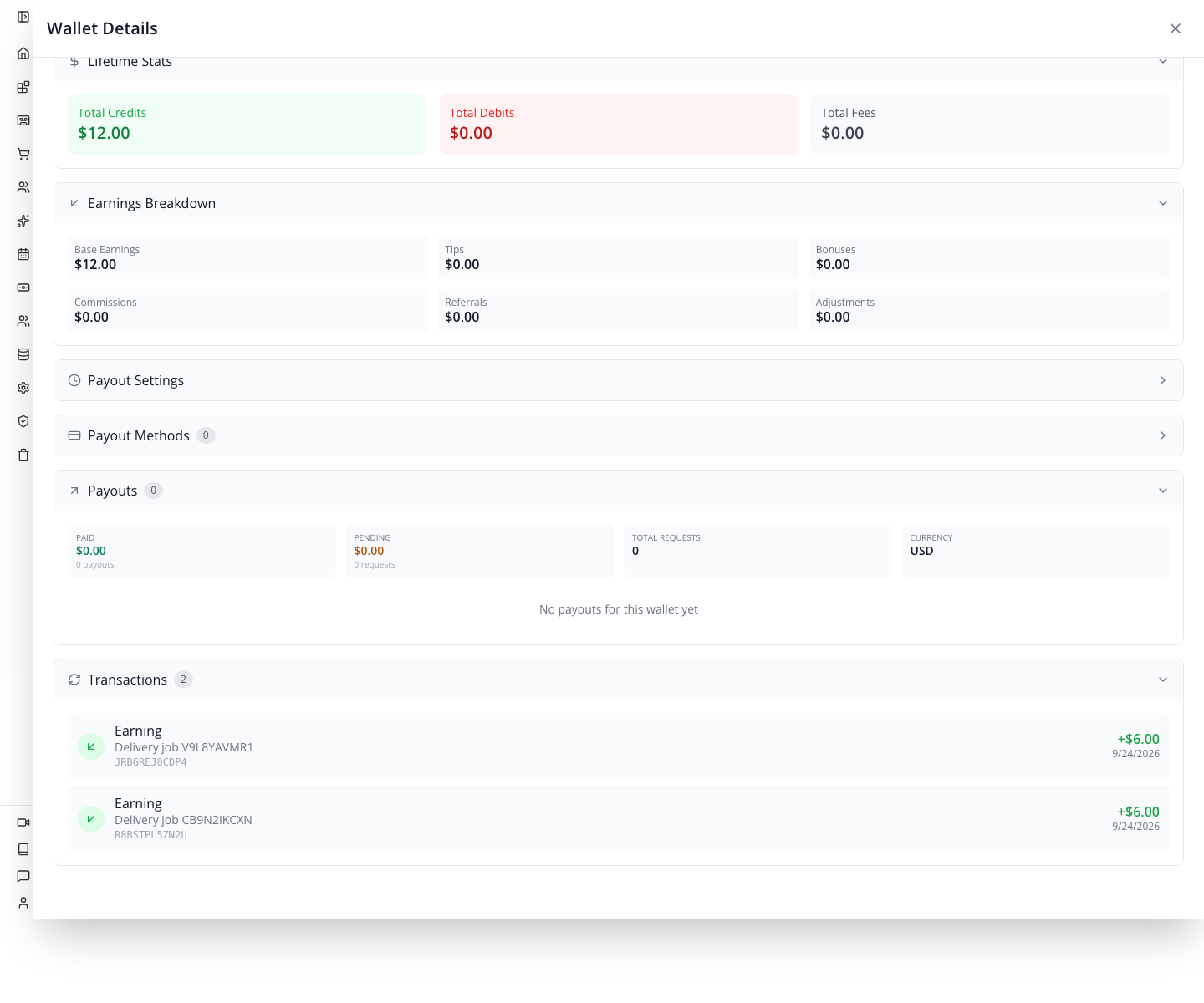
Watch for: repeating a completion after a timeout must not create another earning. In the local acceptance, repeating the first job kept its wallet at 6.00 with one credit; completing a second distinct job raised it to 12.00. Check the saved job and transaction before retrying a write. A payment to the driver still needs a separate payout request, destination and outcome; follow customer payments, earnings and payouts.
Shipping and local delivery remain different workflows
Carrier shipping lives under Storefront → Shipping. A shipping method or carrier label is not the same record as a Logistics delivery job. A paid order does not automatically create and assign a local job in the paths inspected here. If your business wants that handoff, verify the integration that creates it and preserves the order reference.
If something goes wrong
| Symptom | First check | Practical response |
|---|---|---|
| Saved zone is Inactive | Has it been explicitly activated? | Check the saved boundary, then Activate and reopen to verify |
| Save reports Network Error | Is the application server reachable? | Wait for recovery, check whether the record exists, then retry the failed action without creating a duplicate |
| Map preview fails | Is a map key available and the provider setup complete? | Continue numeric setup; handle provider setup separately and verify the quote result |
| New job has no pickup/drop-off panels | Does the heading say Stops (0)? | Add Pickup and Add Dropoff explicitly |
| Quote refuses Stop 2 and Create Job is disabled | Is the dropoff inside an active zone? | Correct the address and request a fresh valid quote; zero is not a free delivery |
| Created job shows 0 mi after a successful quote | Did the create flow retain coordinates and route data? | Inspect the saved job and fix the integration before relying on tracking |
| Job did not appear after a store order | Was a delivery-job handoff actually configured? | Create or integrate the job explicitly; keep the order reference traceable |
| Cancelled row still has driver earnings pending | Are you reading earnings rather than job status? | No driver was paid in this exercise; inspect actual earned wallet entries separately |
| Agent form cannot identify the driver | Is a real customer record linked? | Complete identity setup before creating or approving the agent |
| Appmint Mobile does not show this driver flow | Are you using the driver application? | Use the verified company delivery build; do not substitute unrelated apps |
What happened behind the scenes
Source paths for developers and maintainers
websitemint/packages/ui/src/components/logistics/app.tsxdefines the seven module tabs.zone-form.tsxseparates identity, geography, operations and pricing. New zones persist an explicit inactive status. Type/status options have schema fallbacks; activation uses the saved record ID and refreshes the list.components/common/map/map-boundary-editor.tsxdefines radius/polygon and regional boundary controls. Radius is in miles. Its numeric fields remain editable when the map preview cannot load.logistics/job-create-wizard.tsxowns stop entry, Get System Price, job creation, timeline and cancellation. On quote success it retains prices and geocoded stops. Route edits invalidate that quote, late responses for earlier routes are ignored, and failed quotes cannot enable creation. The create response retains its saved record identity so subsequent actions target the actual job. Source-reference and delivery-type controls proposed in the old topic were not present in the captured create UI.appengine/src/logistics/delivery.service.ts:getConfigcreates/promotes a default;findZoneForLocationandvalidateAndGeocodeStopscheck active-zone geometry;getValidatedPriceQuotereturns validation and pricing;createJobsaves the job and initial timeline. No active zones means all coordinates are serviceable in the validation path; that is not a carefully configured service area.- The same service separates job state, payment and driver earning. Ordinary creation does not dispatch a driver. Customer notifications read the job's customer email; this training job supplied none and had no assigned agent.
delivery.controller.ts,delivery-client.controller.tsanddelivery-client.service.tsseparate administrative and customer/driver routes. Track the current ownership and state checks before exposing them in a company app.appmint_go/dfw_errand/lib/config/app_config.dartdelegates environment settings; the project's delivery service implements accept/start/arrive/complete calls underclient/logistics. This source inspection is not a native-device walkthrough.
Where next
- Follow wallet entries and payouts: distinguish a driver allocation, earned balance and actual payment.
- Automate a business handoff: plan the order-to-dispatch responsibility and failure handling.
- Build a connected web or mobile client: develop customer-authenticated integrations.
The video production guide contains the recording sequence, actual asset list and the separate driver session still to capture.
Evidence and scope — 21 September 2026
Verified in local Studio Manager0.6.2 with a newly created training owner, organisation learner-recovery-mubo2g1c. The original active zone tutorial_lekki_phase1 persisted centre6.4474/3.47, radius4mi and Africa/Lagos. A separate zone tutorial_lekki_activation_check verified the repaired new-record flow: Inactive save → Activate in the same drawer → close/reopen active/custom readback → Deactivate. That extra check zone remains inactive; the original training zone remains active.
The pre-fix job UNZEC0D18U reproduced missing route metadata and was cancelled. After application repairs, job RVK9LPZD77 passed fresh local quote15USD/11.25USD, airport refusal, restore/re-quote, creation, reopen, stop/item/note checks and cancellation with two timeline events. Its internal note uses TUTORIAL-SAMPLE-02 to distinguish the repeat verification. The route persisted3.03mi/11.12min/google, geocoded stops and the intended zone. Both jobs remain cancelled.
The repair report records source changes, four passing backend regression tests, successful API build and actual browser evidence. Historical screenshots are retained where their controls still match; current refusal, route and cancellation stills replace the earlier defective behavior.
No provider agreement was accepted. The preview map failed with missing-key text while server quote succeeded. No agent was created, approved, notified or dispatched; no native driver build was installed. Physical pickup/dropoff, proof photos, earned wallet credits, charges, payouts, customer tracking and refunds are outside this planning exercise and were not claimed.
Completed-job earning continuation — 24 September 2026
A normally registered and owner-approved driver completed the software lifecycle on fictional jobs V9L8YAVMR1 and CB9N2IKCXN. The first run exposed missing wallet credits; the application repair and repeat/recovery checks passed. Exactly two job-referenced 6.00 earnings persisted, with zero adjustments and no payout. Actual Studio wallet inspection matched the API. This supersedes the earlier planning-only evidence for driver registration, approval, assignment, API stage transitions and wallet earnings, while physical delivery, native driver operation and external transfers remain outside these captures. Repair and acceptance.