
For: owners and the people managing their company's social accounts. Time: 40 minutes for drafts and a listening rule. Level: beginner, with scheduling and integration notes for experienced operators. Product: Appmint Studio Manager → CRM → Social Media. Build checked: local Studio Manager, 19 September 2026.
Prepare a useful offer once, adapt it for two networks and decide which incoming questions deserve attention. You will save a Facebook draft, upload original practice artwork, save a separate Instagram draft and build a listening topic that recognises consultation enquiries.
The walkthrough uses an organisation without connected social accounts. Both drafts and the listening topic were saved and reopened. External publishing, provider authentication and replies are a separate handoff; the screenshots do not claim that a post went live.
What you will have at the end
- Two saved drafts with distinct captions, one each for Facebook and Instagram.
- A consultation graphic uploaded through File Manager and attached to the Instagram draft.
- A listening topic with an include phrase, an exclusion and a defined platform/activity scope.
- A positive sample match and an excluded sample, so you understand what the rule actually recognises.
- A clear distinction between saved content, a schedule, provider publication and a customer enquiry.
What you need
Sign in to your own company in Studio Manager. Use the welcome course if you have not created the organisation yet. For this exercise, you need access to CRM → Social Media and permission to upload the practice artwork.
Download the practice consultation card as PNG. Its editable SVG source is also included. This original graphic was made for the course; it is not a product screenshot or a photograph of a real client's home.
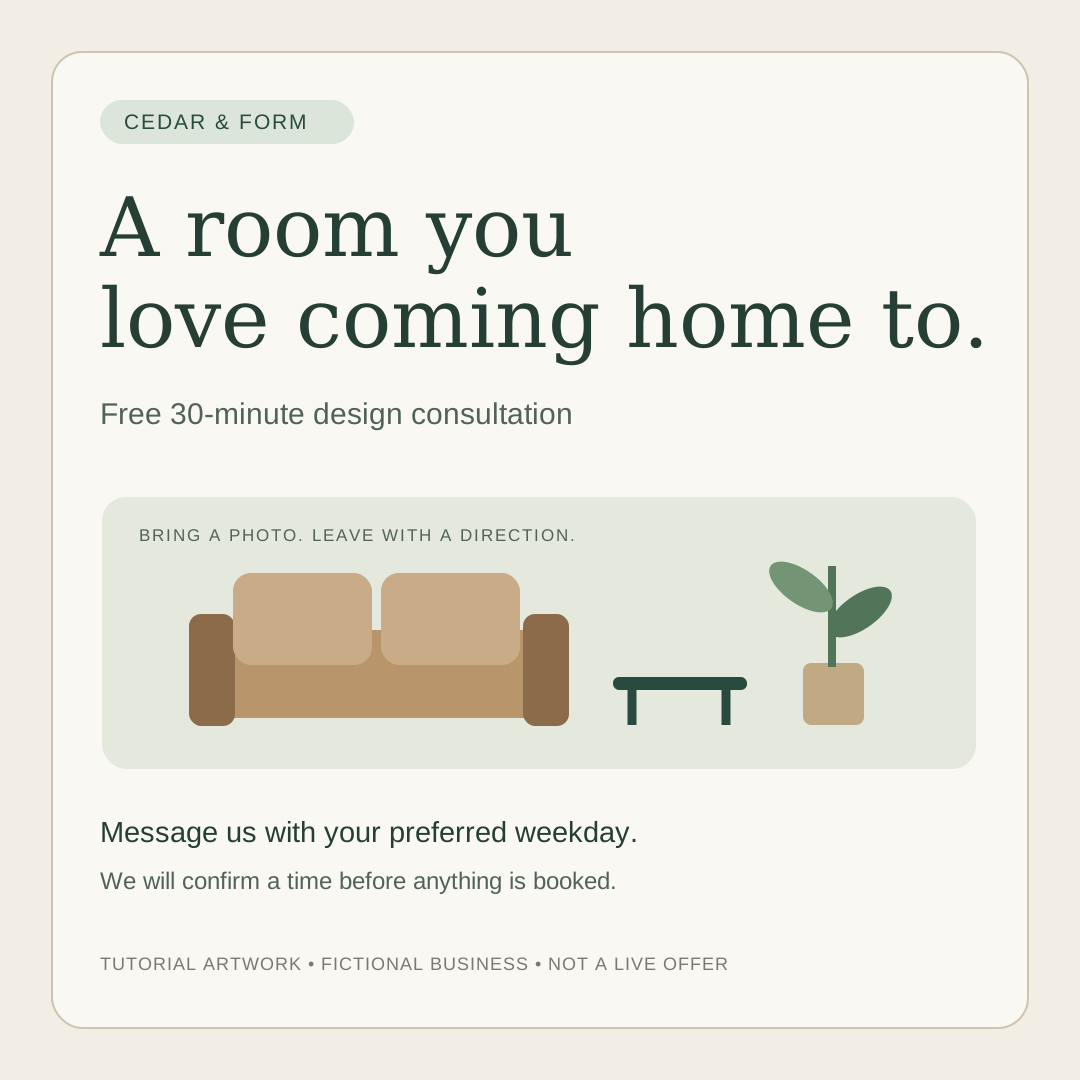
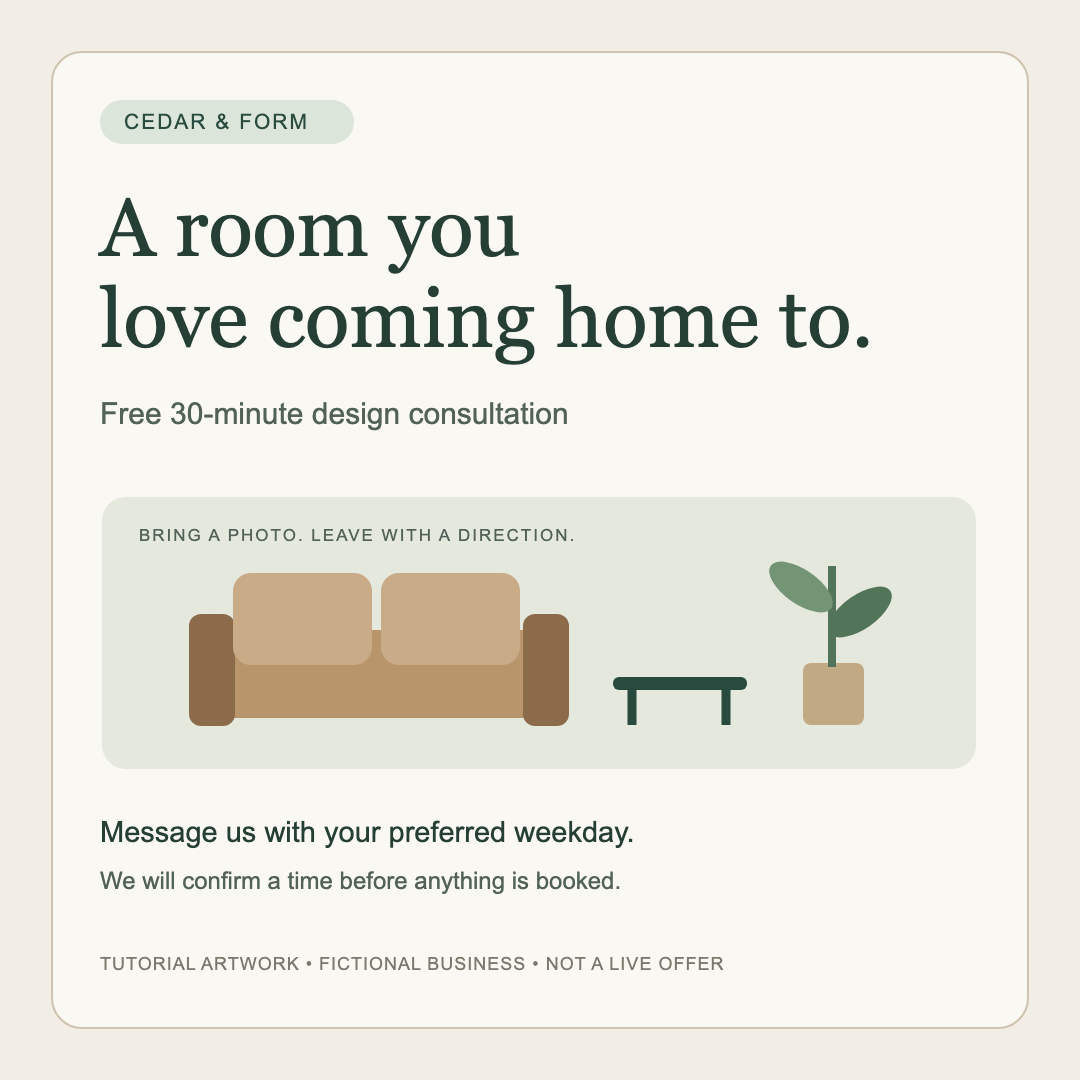
The graphic is labelled as a fictional tutorial offer. Use it for practice, then replace it with your own accurate offer before publishing for your business. Do not upload private room photos as public marketing material without the appropriate permission.
You can complete the draft and listening exercises without a social account connection. Actual publication requires a connected account you control, appropriate provider permissions and a working delivery service. No paid Appmint plan is required for this course.
The story
Jordan runs Cedar & Form and wants to offer ten free 30-minute design consultations. The Facebook post explains the offer directly. The Instagram version pairs a shorter invitation with an image. Both ask people to message the business with a preferred weekday; Jordan will confirm the time afterward.
There is no invented booking URL in either caption. If you already have a working public booking page, test its full reservation flow before replacing the message-based action with a link.
flowchart LR
  A[Offer and artwork] --> B[One draft per network]
  B --> C[Connect account and review]
  C --> D[Schedule or send]
  D --> E[Check the real platform post]
  E --> F[Read replies and record the enquiry]
  F --> G[Confirm the reservation]
The saved message is the content. A schedule is a separate timing record. A provider post is the external result. A reservation is a separate business commitment.
Part 1 — Find your way around Social Media
1. Open the command centre
Open CRM → Social Media. The page heading is Social Media Command Center. Across the top are Dashboard, Conversations, Posts and Feed, followed by More….
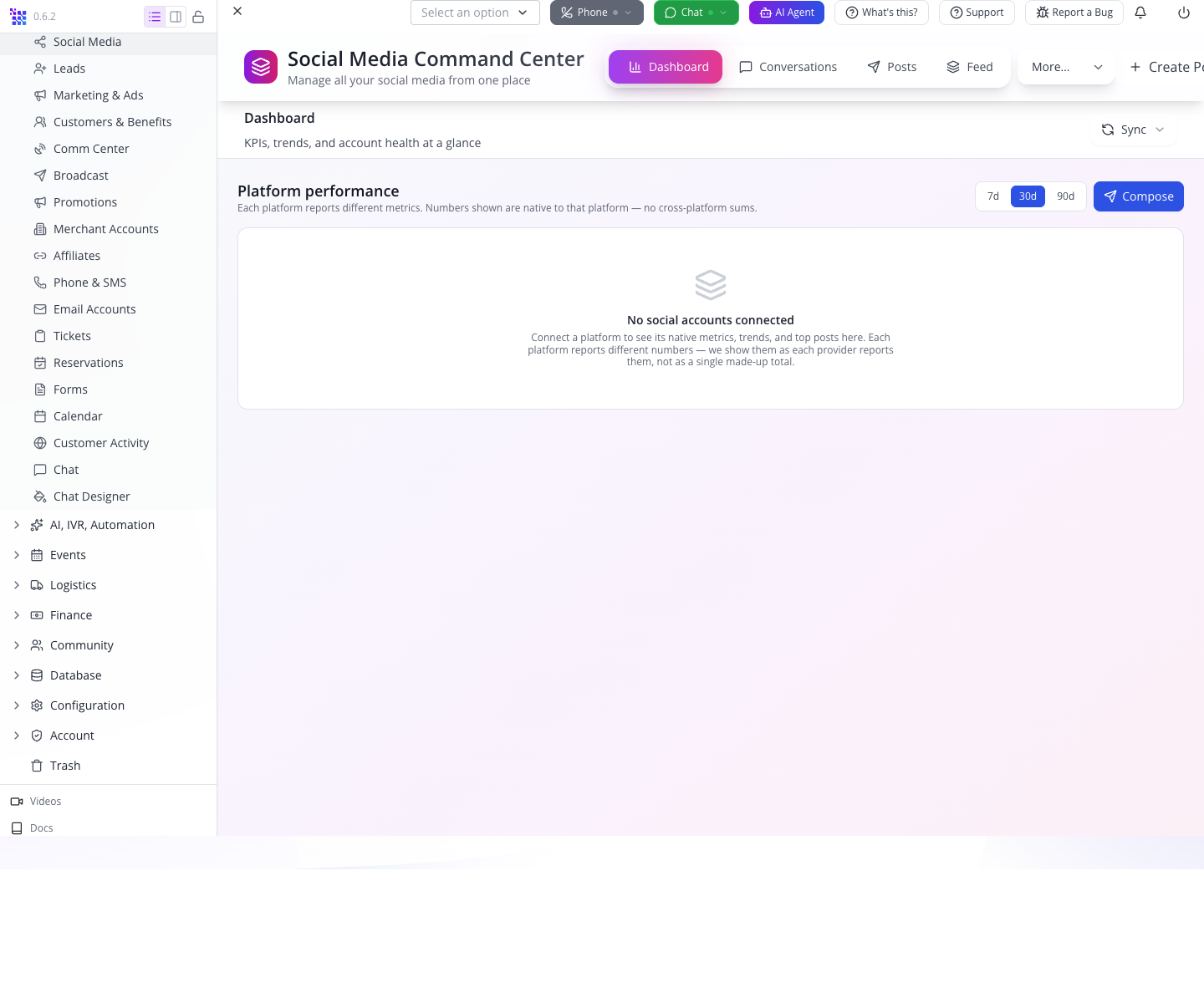
At a narrower window width, some navigation labels collapse. Widen the window if you cannot see the labels used here.
The Dashboard starts with No social accounts connected. Its description explains that platforms report different metrics. Do not interpret this empty state as zero public interest in your business; Appmint has no provider activity to analyse yet.
2. Locate account setup
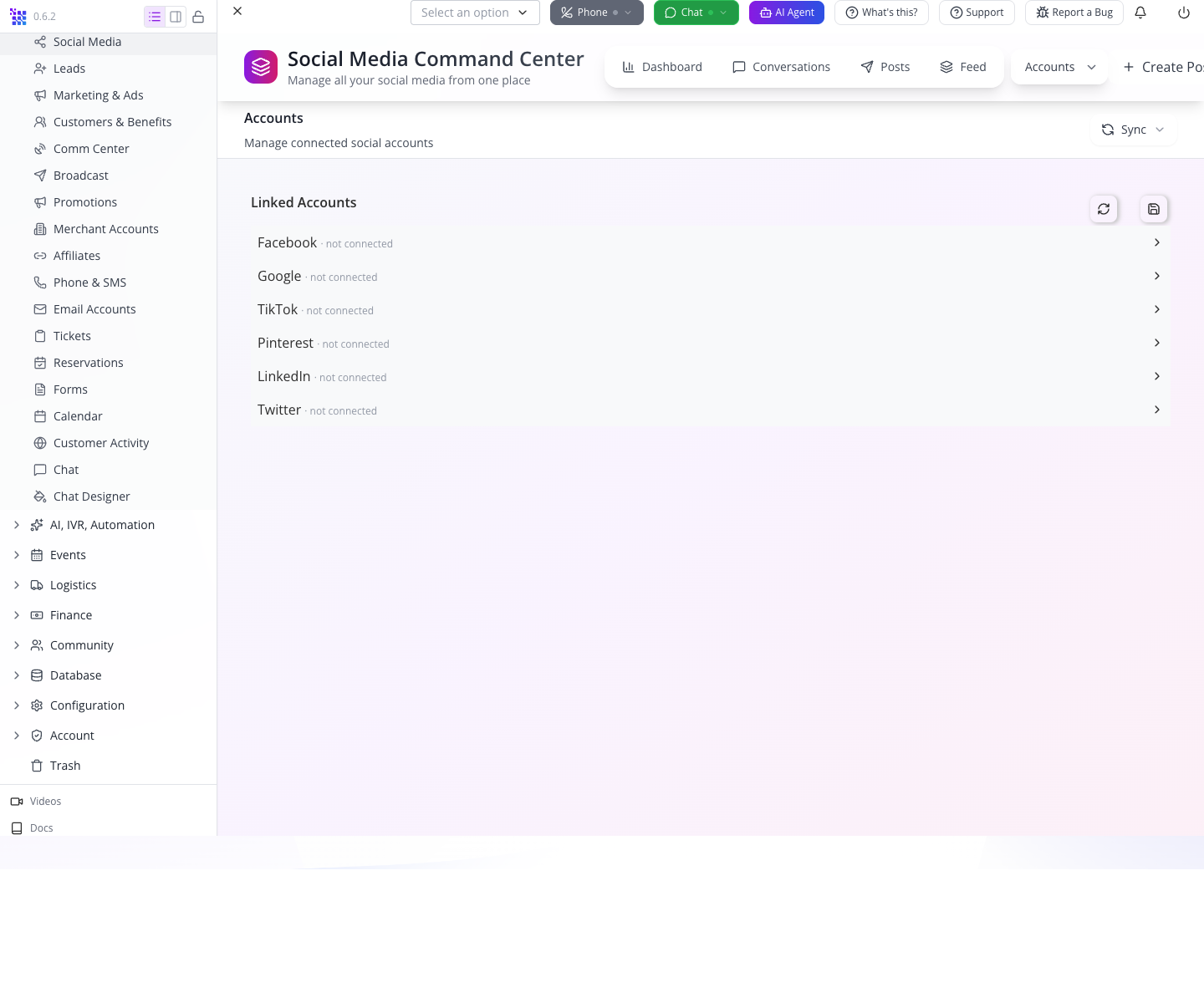
Choose More… → Accounts. The panel is titled Linked Accounts and lists connection states by provider.
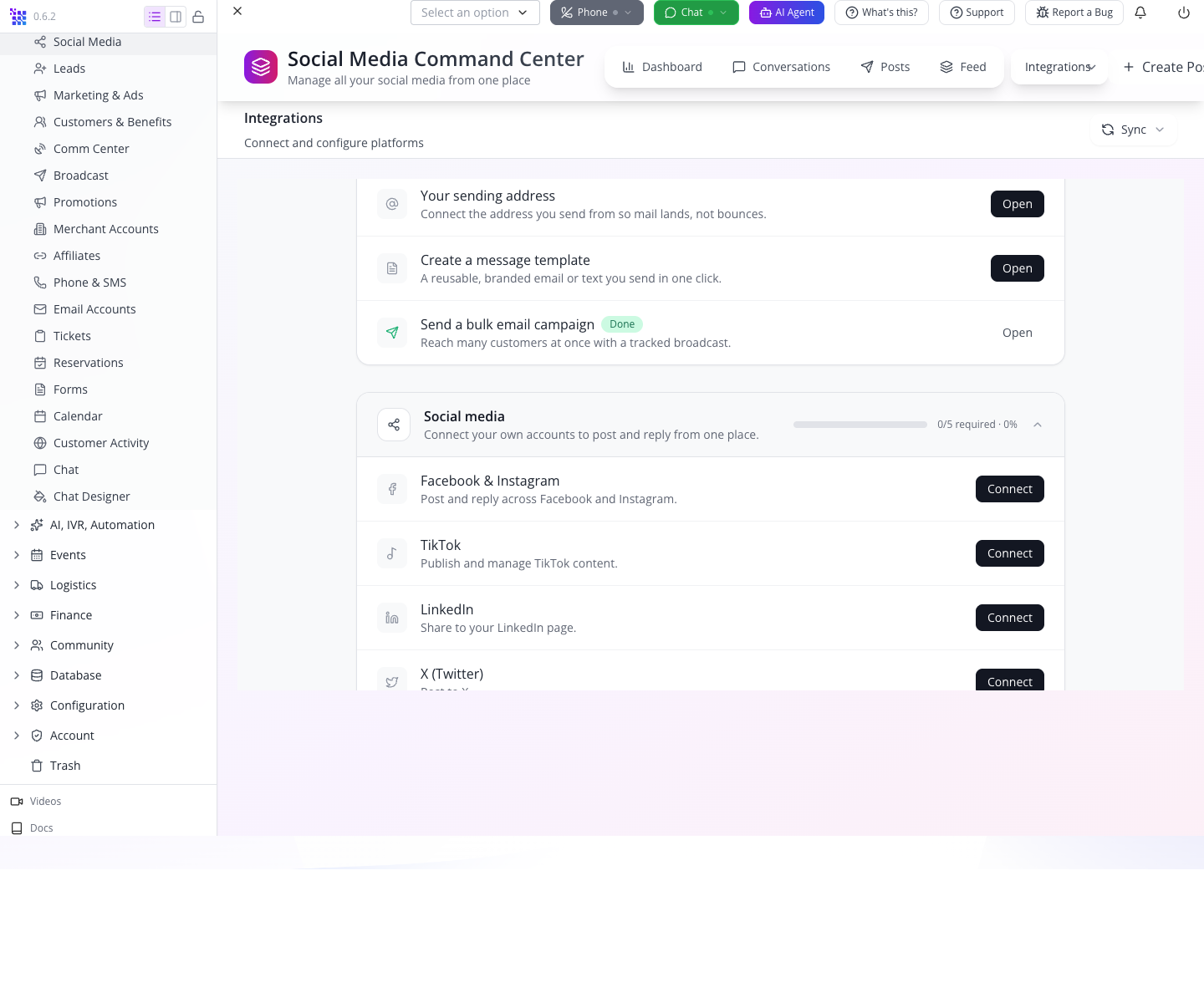
Choose More… → Integrations. This opens the setup screen. Scroll to Social media to find Facebook & Instagram, TikTok, LinkedIn, X (Twitter), Pinterest, YouTube and Google Business, each with its connection action.
Account setup and content creation are different jobs. You can return to Posts and write while the person who manages the company's provider accounts completes the connection. Do not select Reset onboarding as a way to refresh social accounts; it is unrelated to drafting a post.
Part 2 — Save the Facebook version
1. Start a new post and explicitly choose Facebook
Press Create Post in the Social Media header. The drawer title is New social post. In Channel, click Facebook, even if it already looks selected.
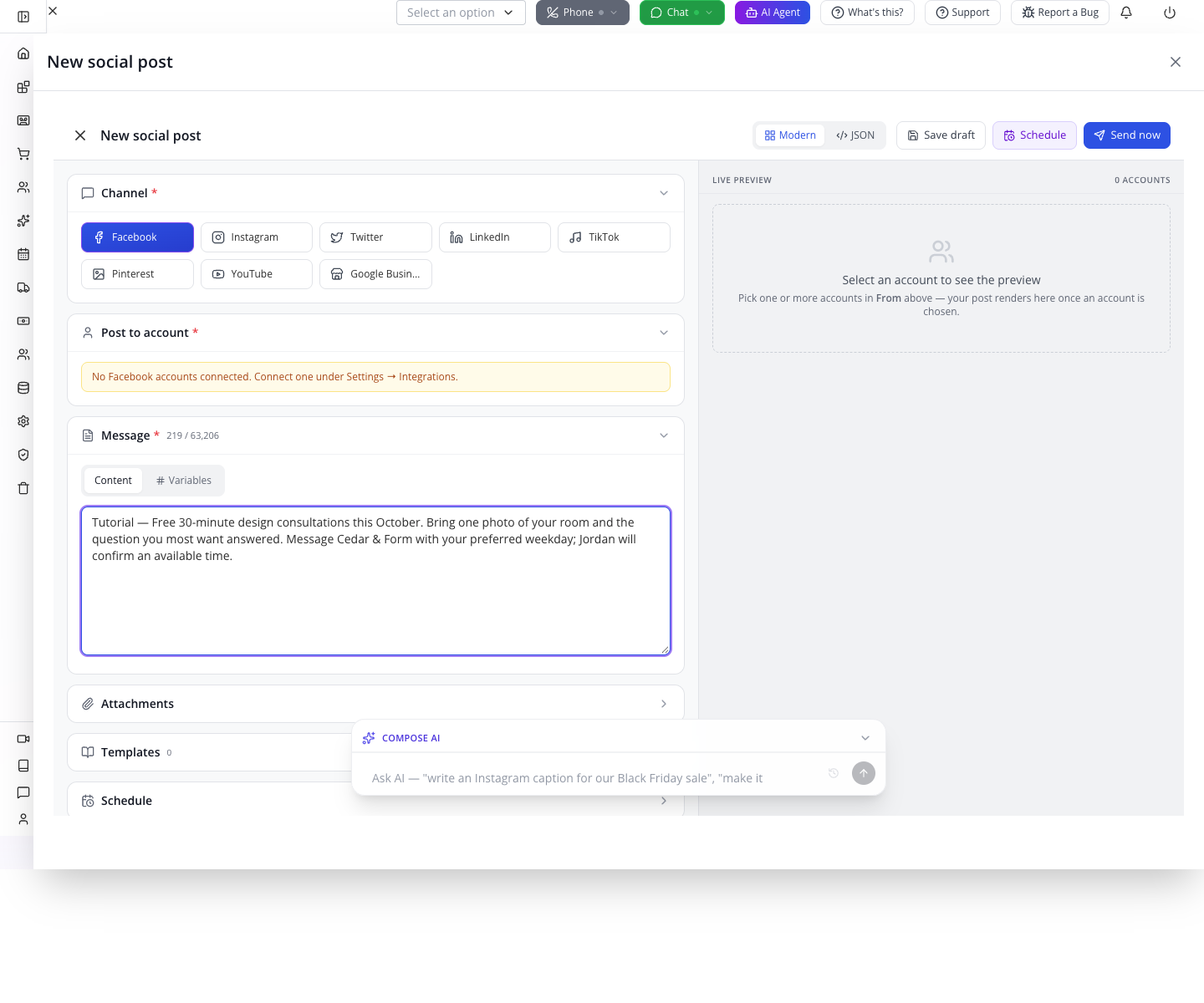
This explicit click matters on the captured build. The first trial appeared to default to Facebook, but its saved message had no channel and did not appear under Social Media → Posts. Choosing Facebook explicitly before saving produced a correctly classified draft.
The composer has two columns. The left holds the channel, account, message and optional sections. LIVE PREVIEW on the right needs a selected account. With no connection, it says Select an account to see the preview. That blank preview does not erase the text you write.
2. Write the offer in Message
Click the Message text area and enter:
Tutorial — Free 30-minute design consultations this October. Bring one photo of your room and the question you most want answered. Message Cedar & Form with your preferred weekday; Jordan will confirm an available time.
The character counter appears beside Message. The captured Facebook counter uses a 63,206-character limit; that is the form's displayed allowance, not a reason to write a long post.
The caption has an offer, preparation and one response action. “Jordan will confirm” makes the availability boundary clear. A request for Tuesday is not a reserved Tuesday appointment.
Post to account identifies where the message will be published. It is not a list of individual customers. In our training company, it says No Facebook accounts connected. Leave it empty for this draft exercise.
3. Save without publishing
Press Save draft at the top of the composer. Wait for Message saved.
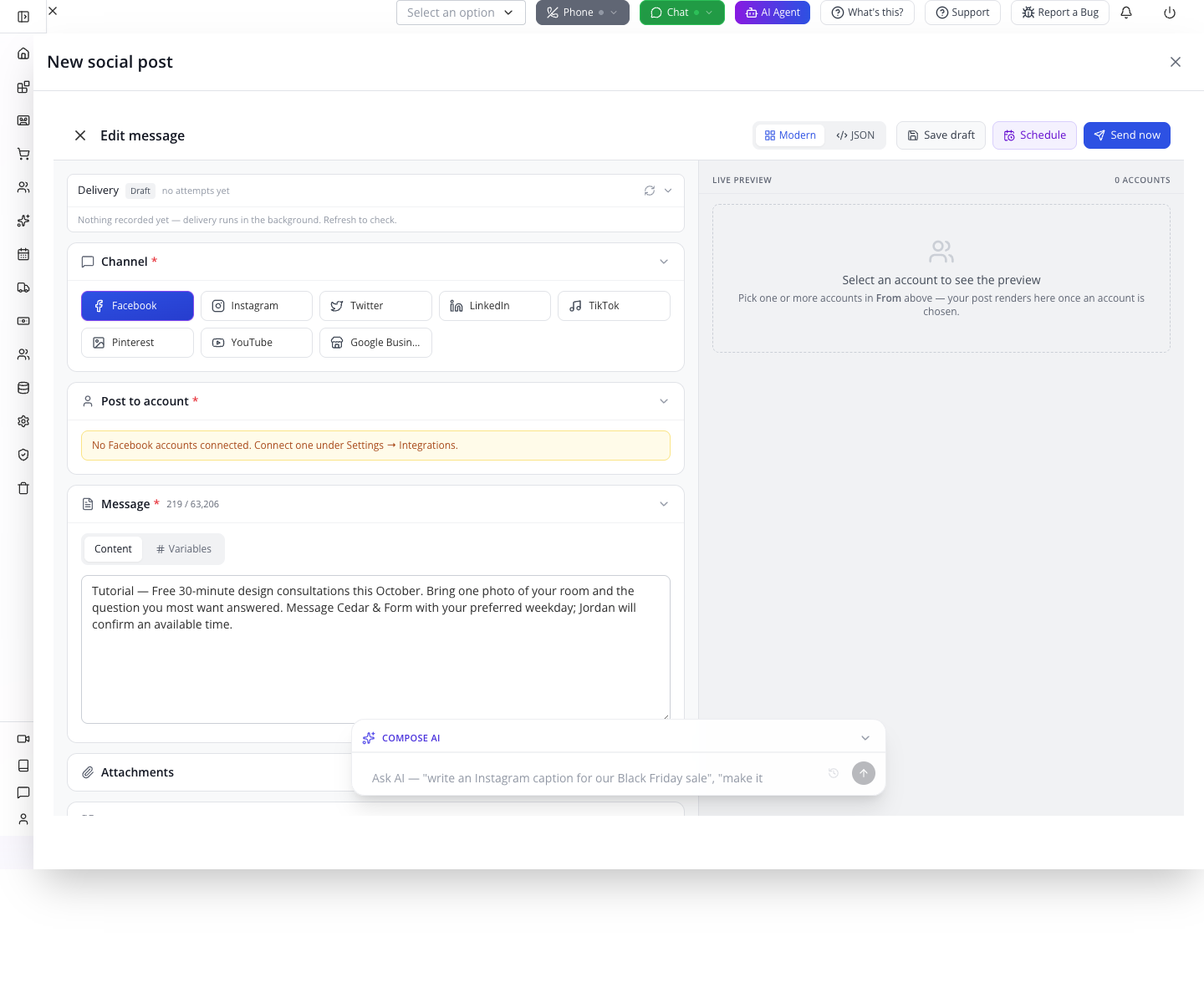
Do not use Send now or the top Schedule button for this step. Save draft stores incomplete work; sending and scheduling have additional requirements.
Close the drawer with its top-right ×. Select Posts, then use the Refresh control inside that view if needed. Wait for the list to load.
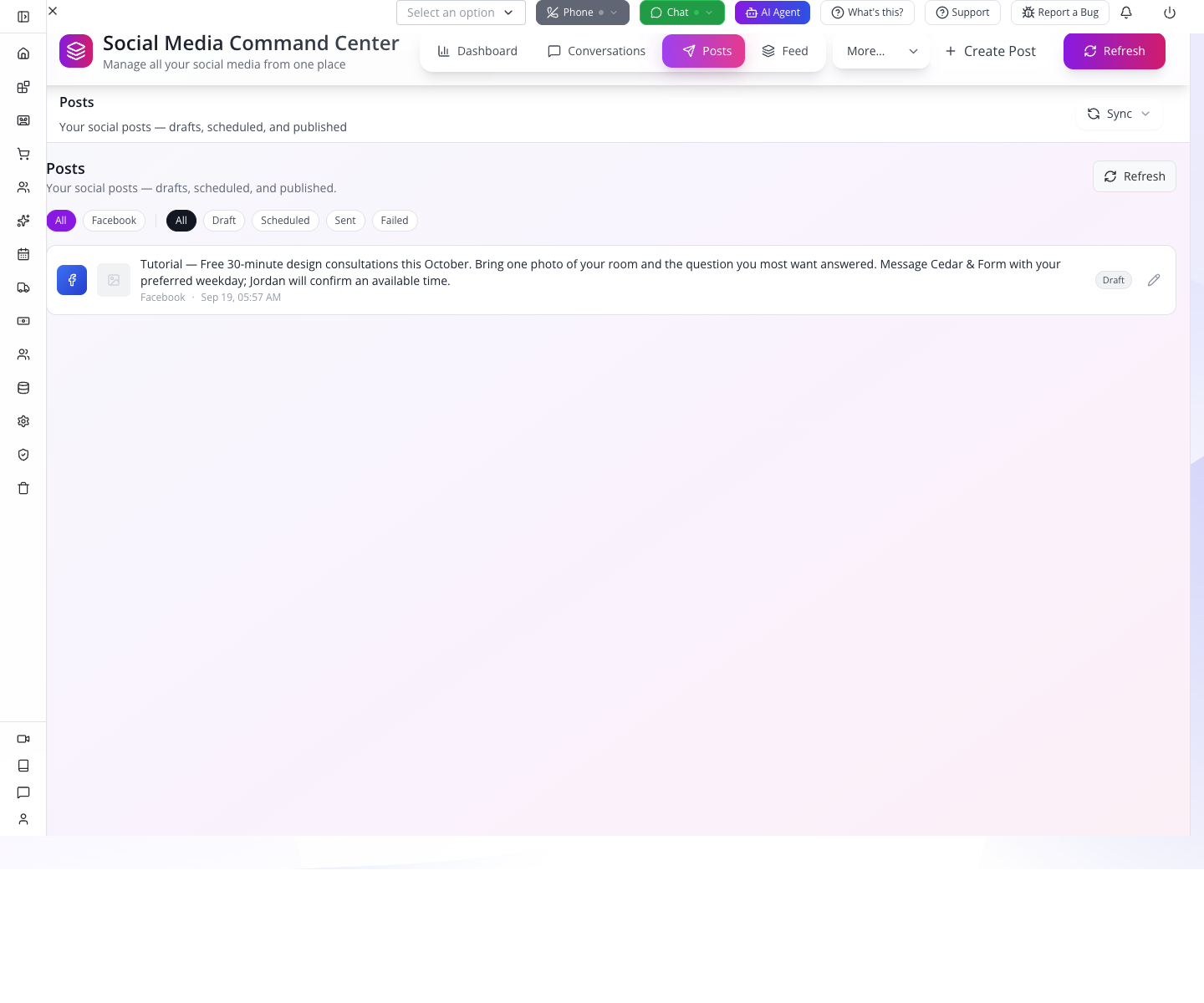
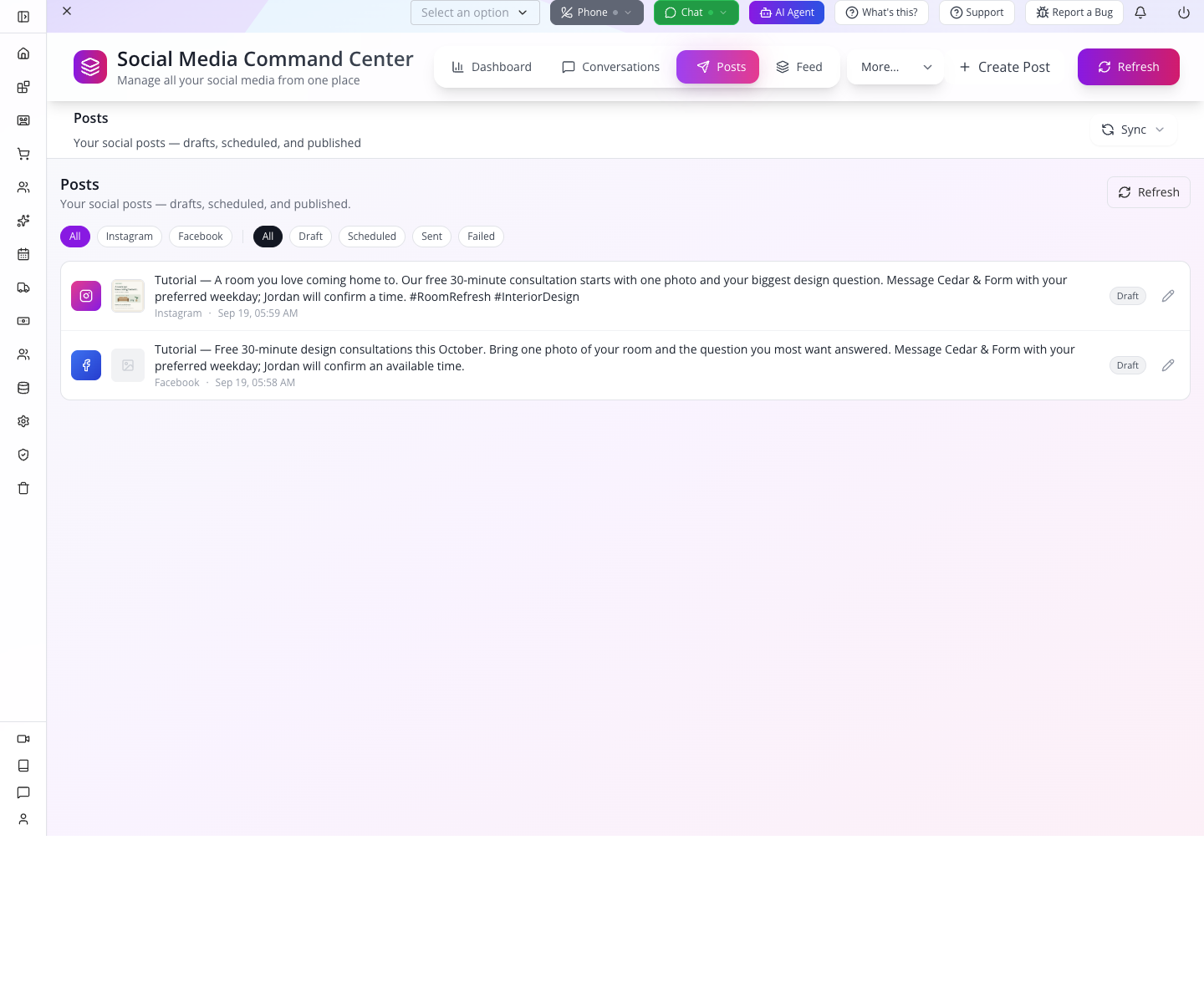
You should see your caption, Facebook and Draft. The row's pencil action has the tooltip Open.
4. Reopen the saved caption
Click the row or its Open action. Read the caption and channel again.
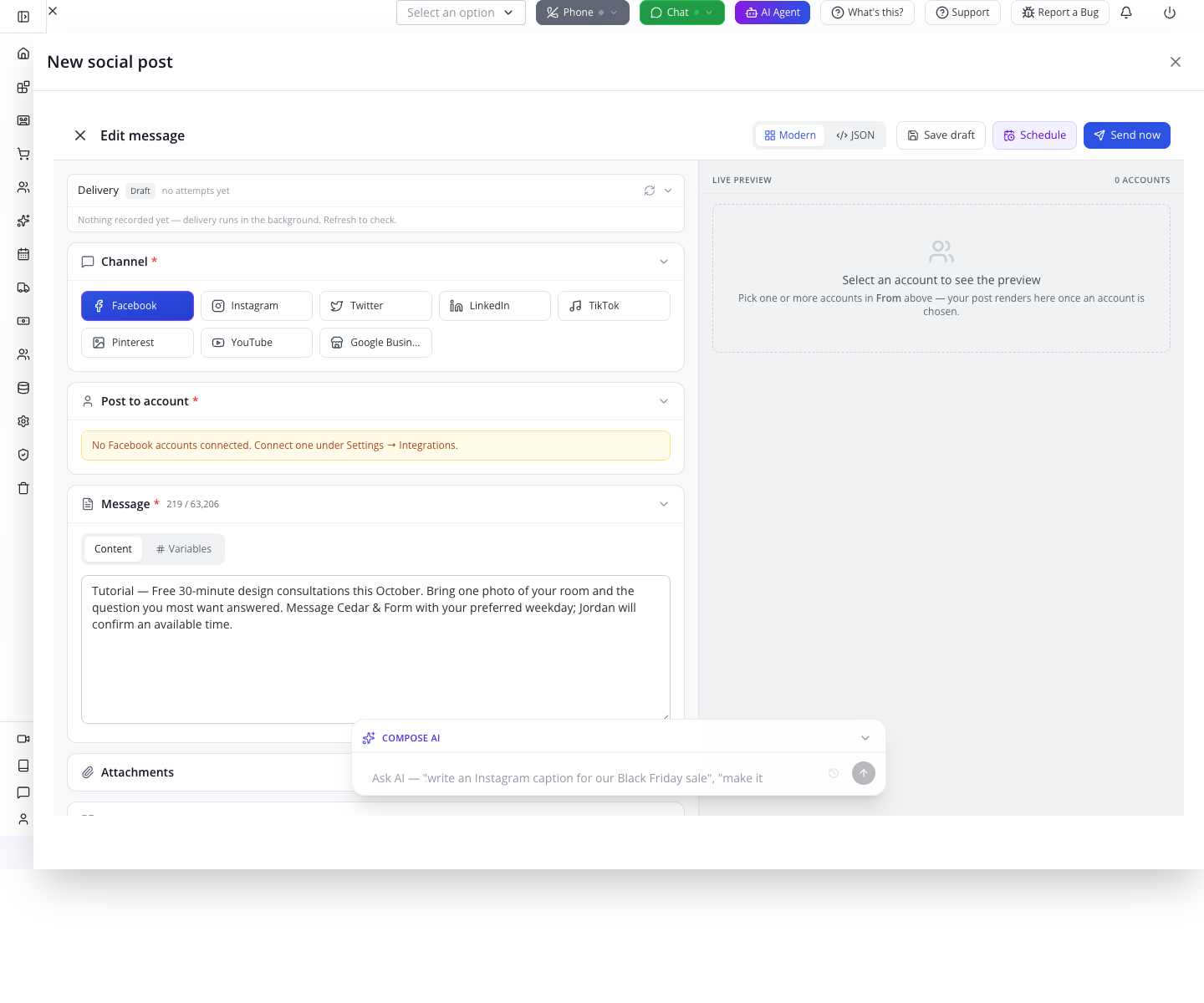
For an existing message, the inner heading becomes Edit message, even though the surrounding Social drawer can still say New social post. Use the actual record contents and delivery state to identify what you opened.
If the first saved message is missing from Posts, open CRM → Comm Center → Messages and locate its text. In our first trial, the Channel column was —. Reopen that message, choose the intended social channel explicitly, save and return to Posts. Avoid creating repeated copies before checking the existing record.
Try it: add a final sentence, save, close and reopen. Verify the exact sentence, then remove it and save again. This small edit tests persistence without contacting anyone.
Part 3 — Build an Instagram version with artwork
1. Start a separate post
Close the Facebook draft. Press Create Post, then explicitly select Instagram. Enter:
Tutorial — A room you love coming home to. Our free 30-minute consultation starts with one photo and your biggest design question. Message Cedar & Form with your preferred weekday; Jordan will confirm a time. #RoomRefresh #InteriorDesign
The captured text is 237 characters against the form's displayed 2,200-character allowance. The panel also says Media required for Instagram.
One message record has one channel. Creating this second record lets you change the Instagram caption without replacing the Facebook version. Within a supported channel, the account selector can accept multiple connected accounts; review those destinations separately before publishing.
2. Open Media and File Manager
Expand Media. Click the folder-shaped Choose files button. A floating File Manager window opens above the composer.
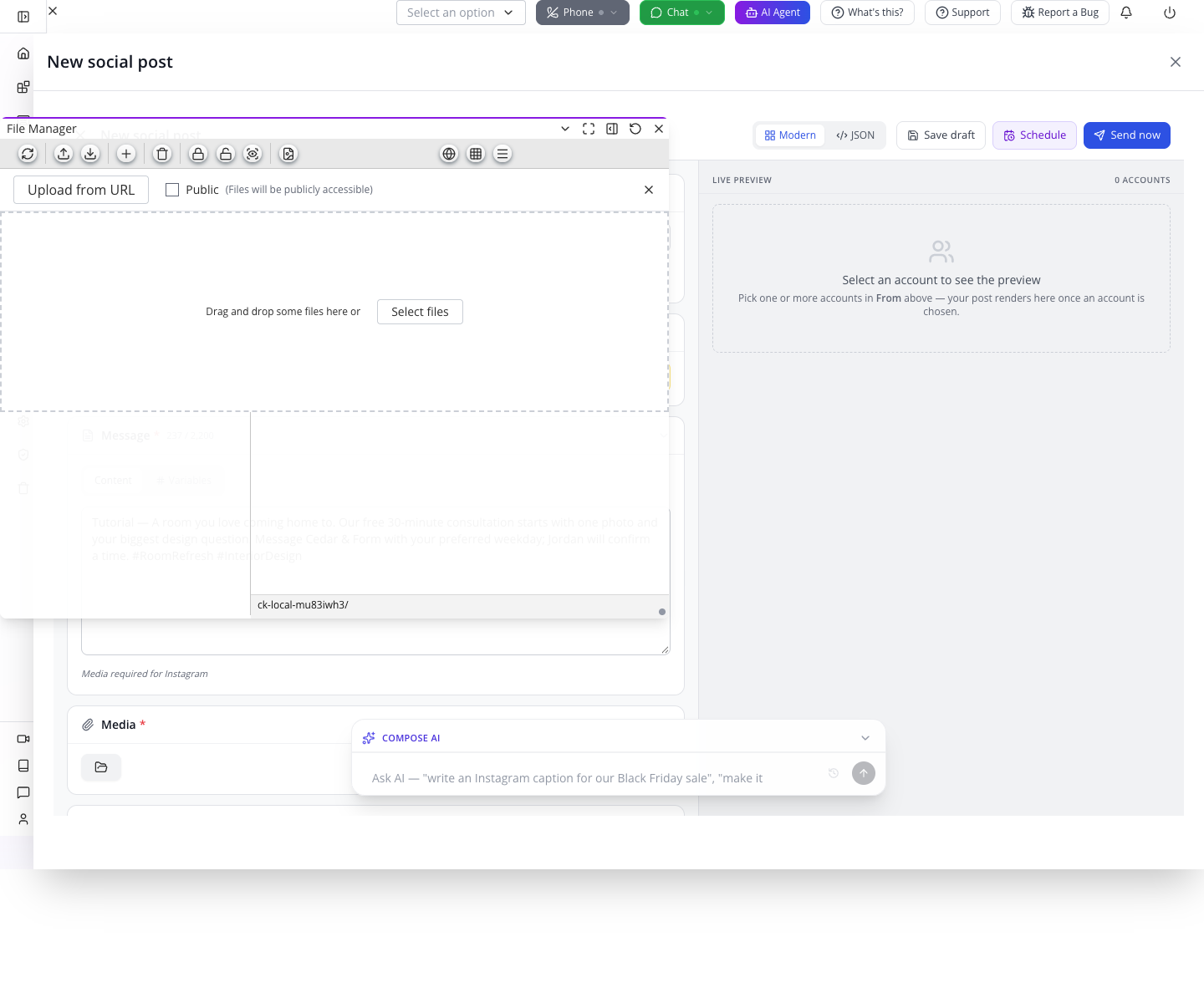
The left side shows folders. The main area shows files for the selected location. The toolbar's upward-arrow button has the tooltip Upload. Click it.
3. Upload the course card
The upload panel offers Select files and a visibility checkbox. In the captured panel, an unchecked checkbox displays Public and Files will be publicly accessible.
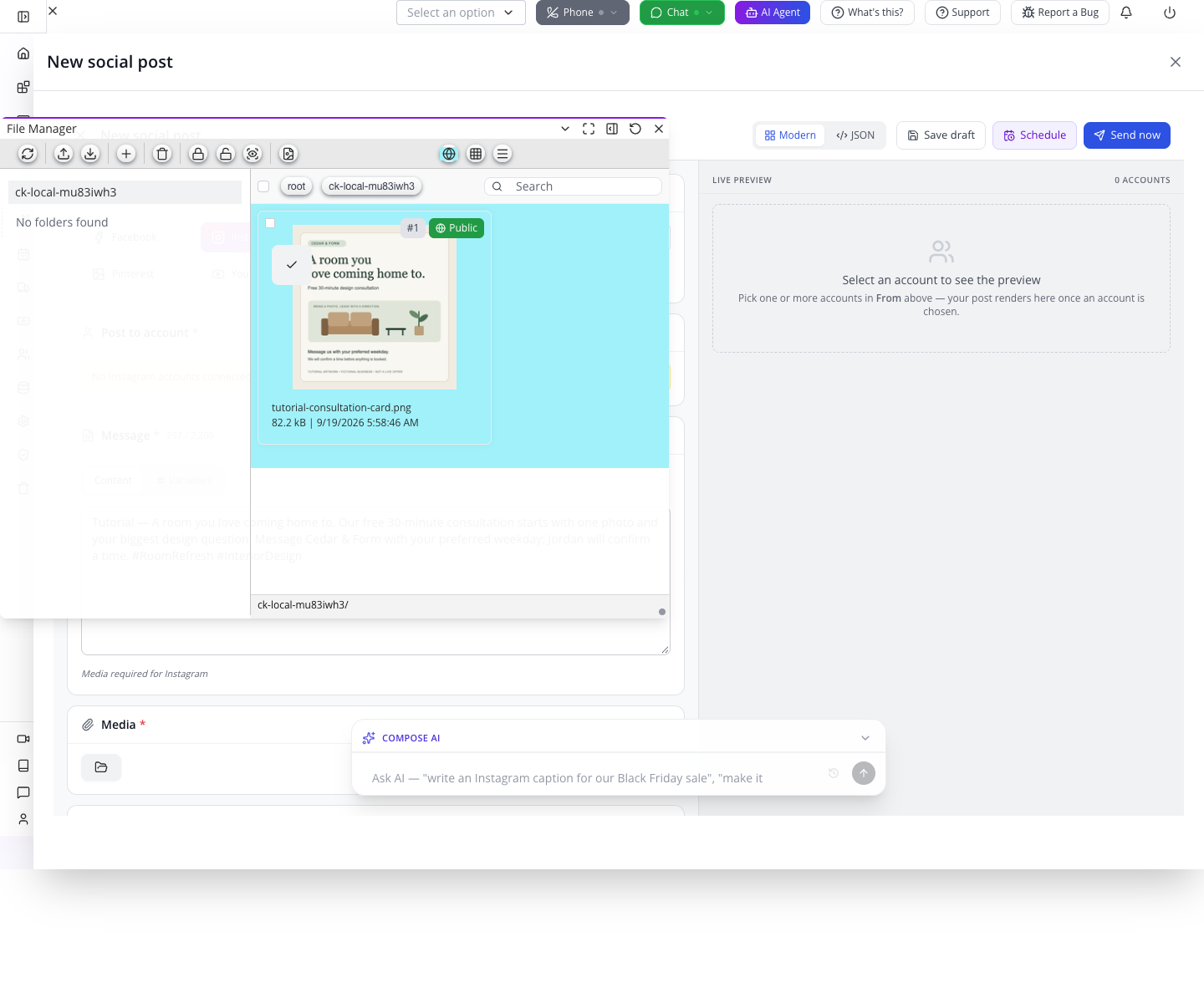
For this deliberately public, fictional practice card, keep the checkbox in the captured unchecked state; do not toggle it merely because the label says Public. After upload, verify the saved file card has the Public badge before selecting it for the draft. If the badge differs, stop and check the file visibility instead of assuming the label described the saved state. Press Select files and choose tutorial-consultation-card.png from your computer. Wait for upload progress to finish.
The progress bar measures the upload transfer. Confirm the resulting file appears in File Manager too. In our session, closing the upload panel, using Show new files and refreshing made the new card visible.
Do not use Make Public on an unrelated customer file to get through the lesson. The downloadable practice card is already designed to be shared.
4. Attach the file to the message
On the card's image area, click the checkmark button used to choose that file. File Manager closes and the selected file returns to the composer. Uploading and choosing are separate actions: a file in your library is not automatically attached to the draft.
Wait for the thumbnail to load. The Clear control appears in Media when a selection is present. Do not treat a blank area during image loading as proof that no file was selected.
5. Save and reopen the Instagram draft
Press Save draft, close the drawer and return to Posts. You should now see an Instagram draft and a Facebook draft with their different captions. Reload the page and open the Instagram row again.
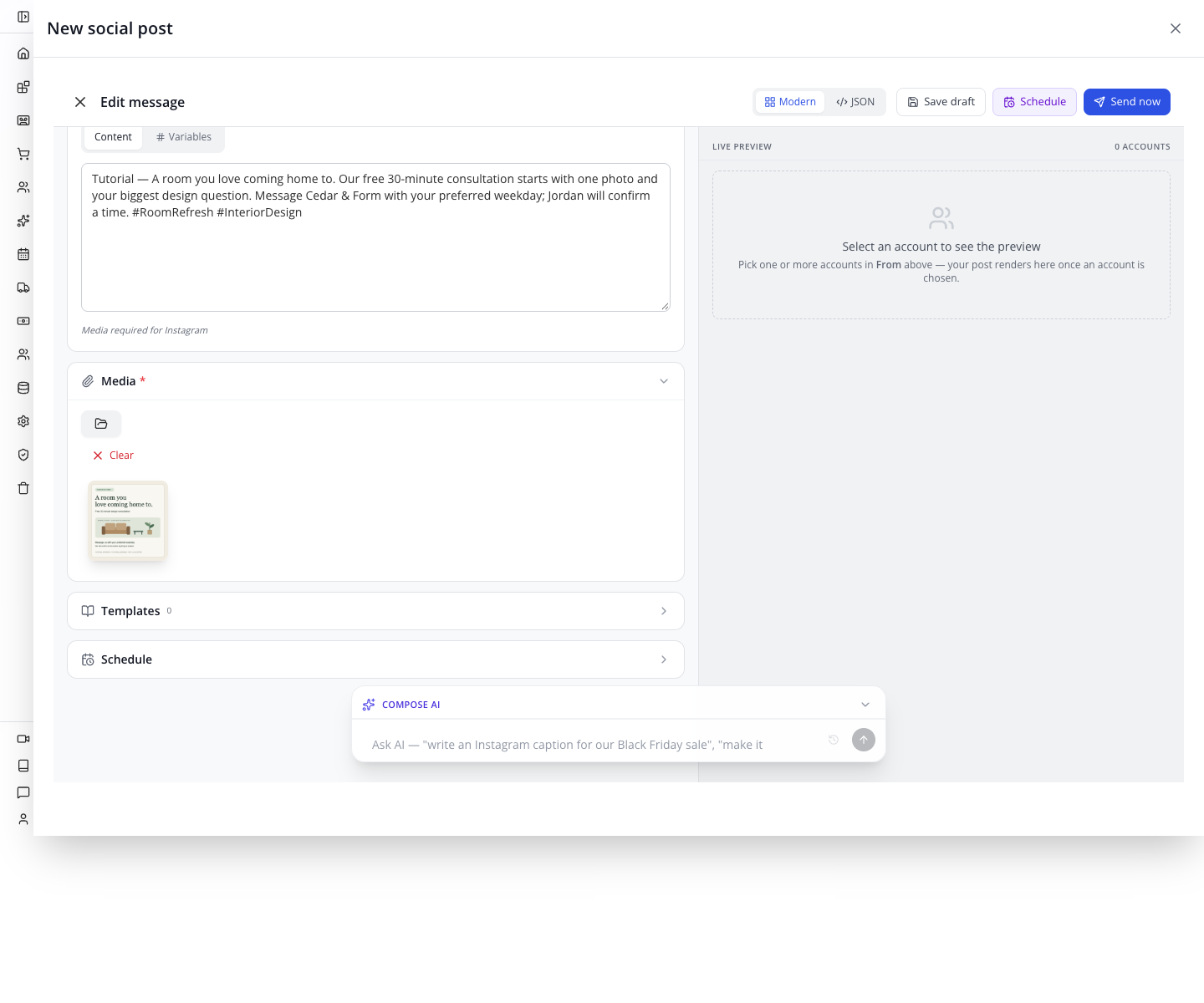
Expand Media and confirm the image is still attached. The right-side live preview remains unavailable while no Instagram account is connected. The saved thumbnail and a simulated platform preview are different things.
Check yourself: the image exists in File Manager, but the reopened draft has no image selected. Is the post ready? No. Choose the uploaded file in the draft's Media section, save and reopen again.
Part 4 — Understand scheduling before relying on it
1. Inspect the saved message's Schedule section
Open the saved Instagram draft. Expand the lower Schedule section. This is separate from the action button named Schedule at the top of the composer.
The section shows Total, Active, Done, Next run, tabs for Upcoming, Past, All and Runs, plus Add schedule. With no schedule attached, the counts are zero.
Inspection only: do not press Create schedule in this draft exercise, even with Status set to stop. This lesson only inspects the editor. A real scheduling rehearsal needs a separately controlled account, a future test fixture and cancellation checks. Press Add schedule to inspect the editor, then use Cancel without saving. It includes a title, Action, Run at, Repeat, Ends on and Status.
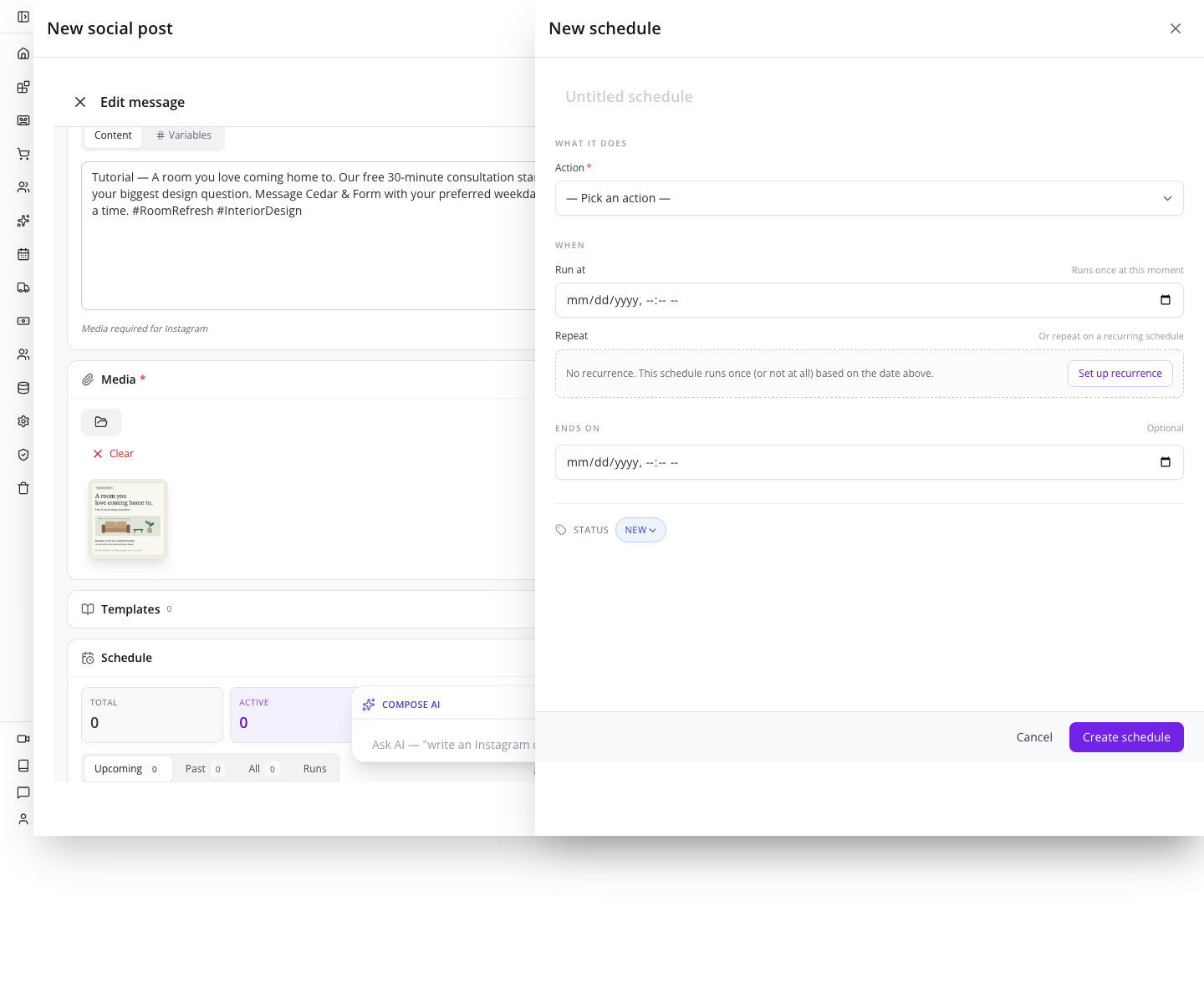
The fresh walkthrough opened this editor and chose Cancel without entering or saving a publication time. The message remained a draft, with zero attached schedules.
2. Understand the earlier save failure
In the earlier author rehearsal, pressing Create schedule returned the error below. This records that earlier result; it is not an instruction to repeat the click:
create => Not a new metrics, please use update or set the new property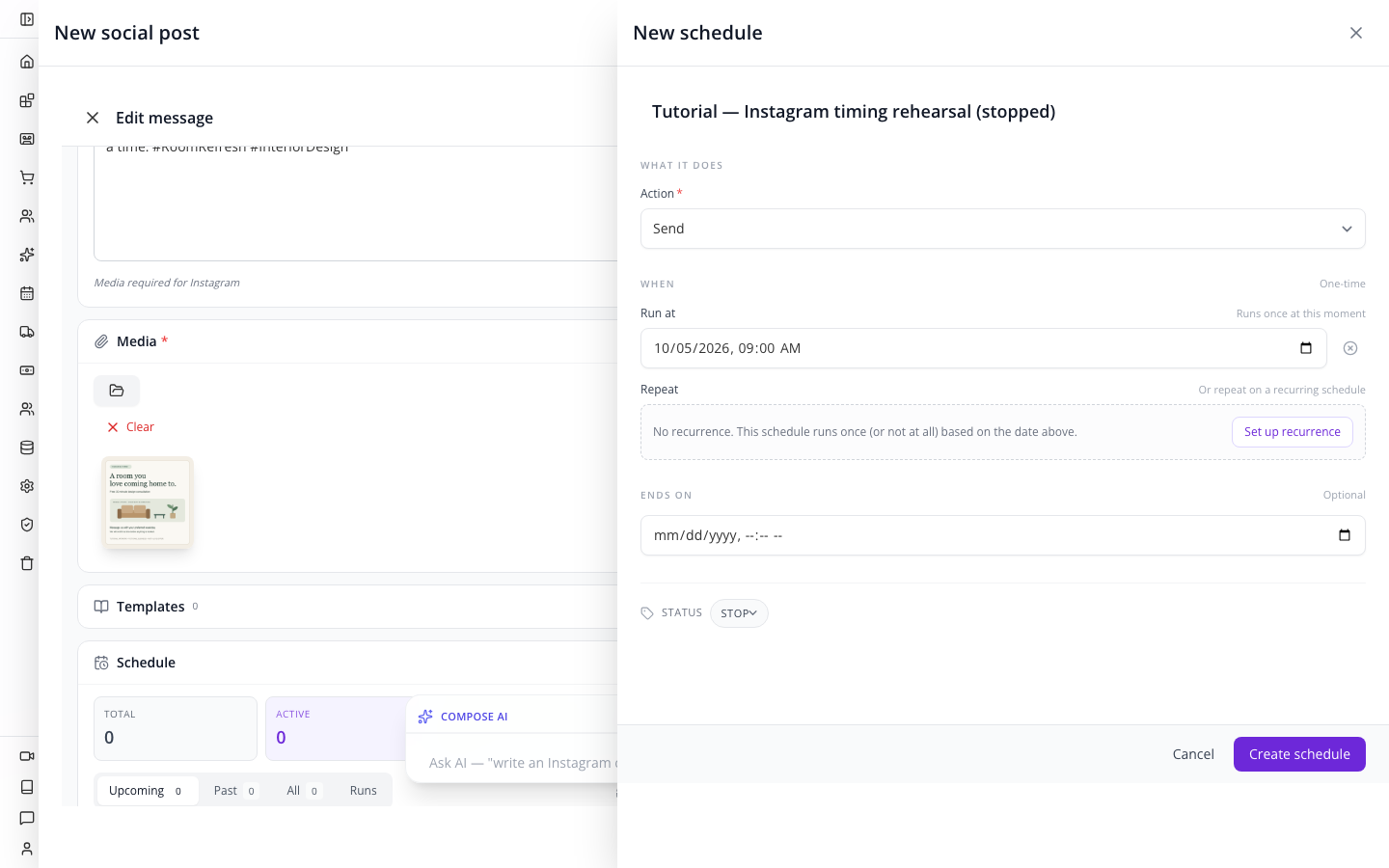
No schedule was created. Close the schedule editor with Cancel, close the composer, then select More… → Scheduled. The training organisation still showed No scheduled posts yet.
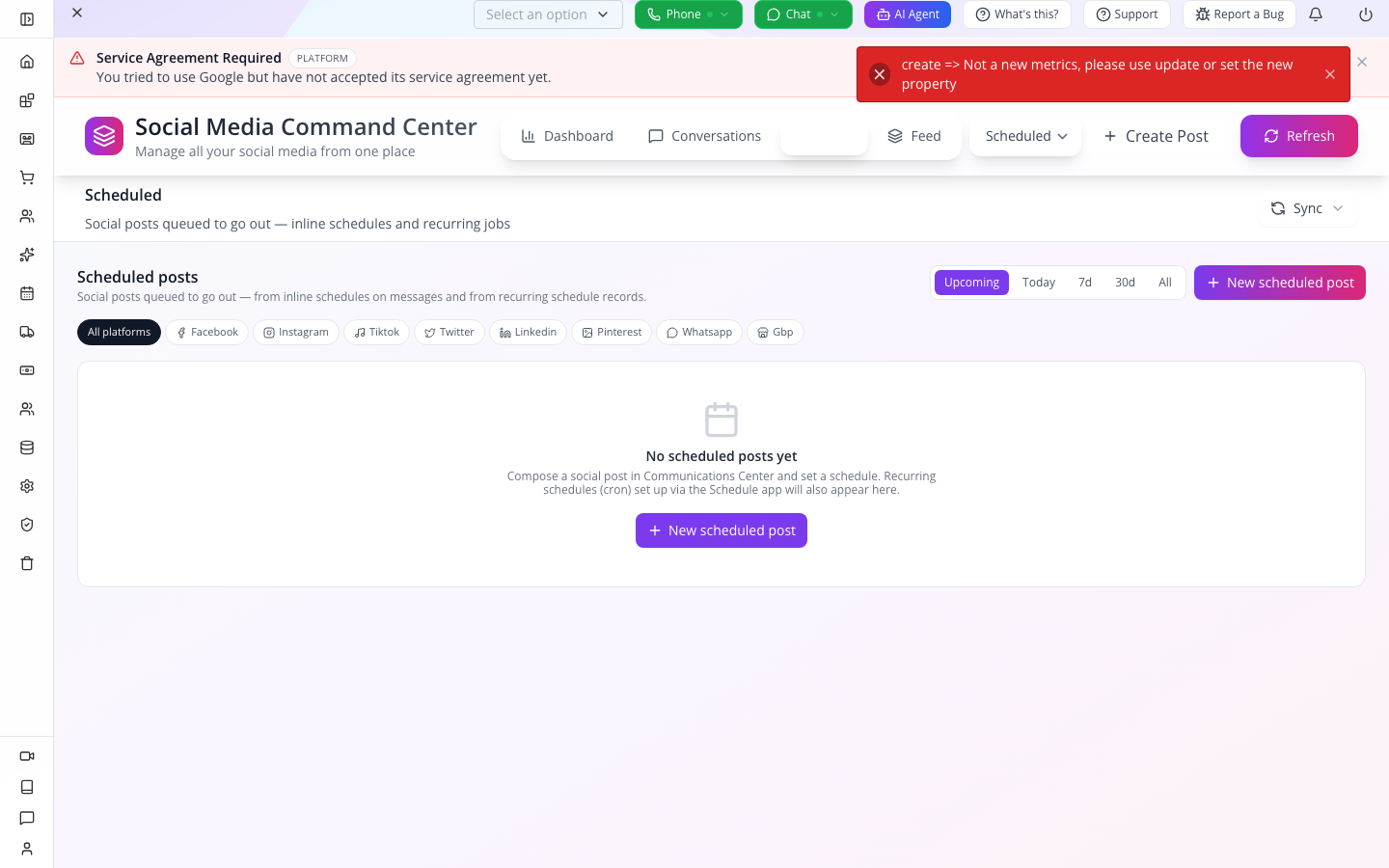
If you encounter this error, keep your saved message draft and report the failing control with the error text. Repeatedly pressing Create schedule does not turn it into a working schedule. Do not put a time-critical campaign behind this path until it works on your deployed build.
The local schedule repair now supplies the creation marker and checks suspended statuses before queuing and execution. Its regression checks cover those contracts. This browser exercise remains inspection-only: no timing record was created, no job ran and no cancellation of a running action was tested. For an unwanted existing schedule, inspect its cancellation/deletion result and owning message; stopping cannot recall an already delivered post.
3. Read scheduled results as two separate records
Once a working scheduling path and account are available, check both the message and the timing record. The Scheduled view offers Upcoming, Today, 7d, 30d and All filters, plus a platform filter.
A date shown in that list establishes a stored plan. It does not establish that a provider published the post. The delivery path must still run, call the provider and record its result. Check the actual post on the intended account before telling the team that the campaign is live.
The reviewed Scheduled list omits YouTube even though the composer offers a YouTube channel. Absence from that one list is not a reliable test for every possible scheduled message. Inspect the owning message and its schedule as well.
4. Use recurrence deliberately
The schedule editor offers Set up recurrence under Repeat. Recurrence repeats an action against the same message; it does not write a fresh caption every week. A month-long consultation campaign needs an end-of-campaign cleanup decision so an old offer does not keep resurfacing.
Do not paste a weekly cron expression without deciding which timezone governs it. The date/time input uses browser-local time before converting to an instant; the inspected recurring scheduler defaults to UTC where no timezone is supplied. A displayed 09:00 and a cron 09:00 are not automatically the same local time.
Use the background-jobs course for worker, timezone and queue checks. Do not change a deployment's sync settings merely to make a tutorial timer appear to work.
Part 5 — Create a listening topic for consultation questions
Listening helps find patterns in activity that has been synced into your organisation. It is not a search of every public post on the internet. You can prepare and test its matching rules before connecting a provider.
1. Create the topic
Choose More… → Listening, then New. Complete:
| Field | Value |
|---|---|
| Name | Tutorial Consultation enquiries |
| Description | Find design consultation questions in synced comments and direct messages. |
| Include patterns | Type design consultation, then press Enter |
| Exclude patterns | Type job application, then press Enter |
Each phrase becomes a pill marked P. Pressing Enter commits the pattern; leaving words in the input is not the same as adding the rule. You can click a pill to inspect its matching mode and case options.
Leave Platforms and Activity types unselected while testing the text. Their labels explain empty = all. Keep Enabled — match during sync checked.
2. Test a question that should match
In Test against a sample, enter:
Can I book a design consultation next Friday?Press Test. You should see Matched: "design consultation" in content.
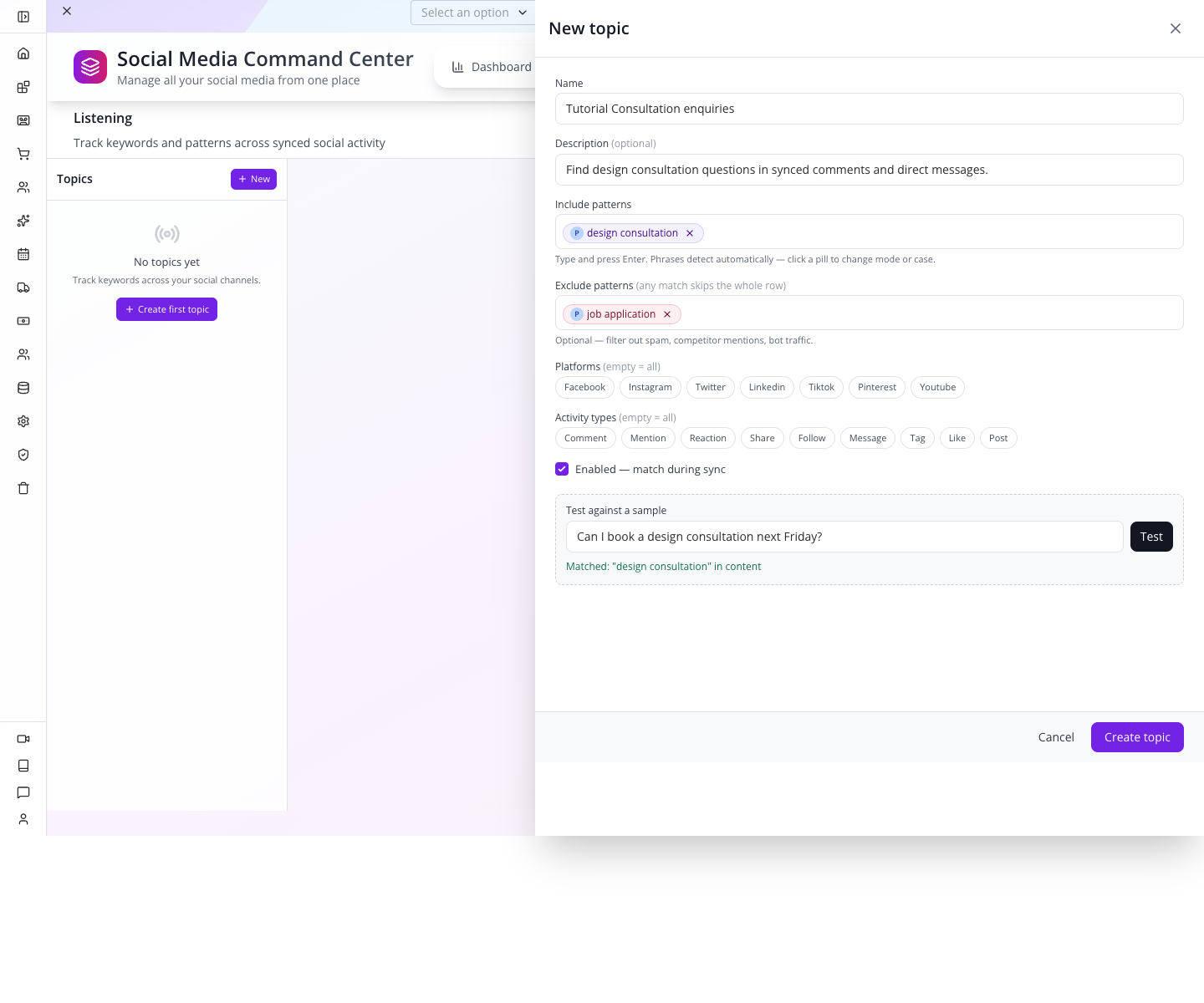
The match identifies a phrase in the sample. It has not created a customer message, sent a reply or booked a time.
3. Test an exclusion
Replace the sample with:
My job application mentions a design consultation.Press Test again. The result should be No match.
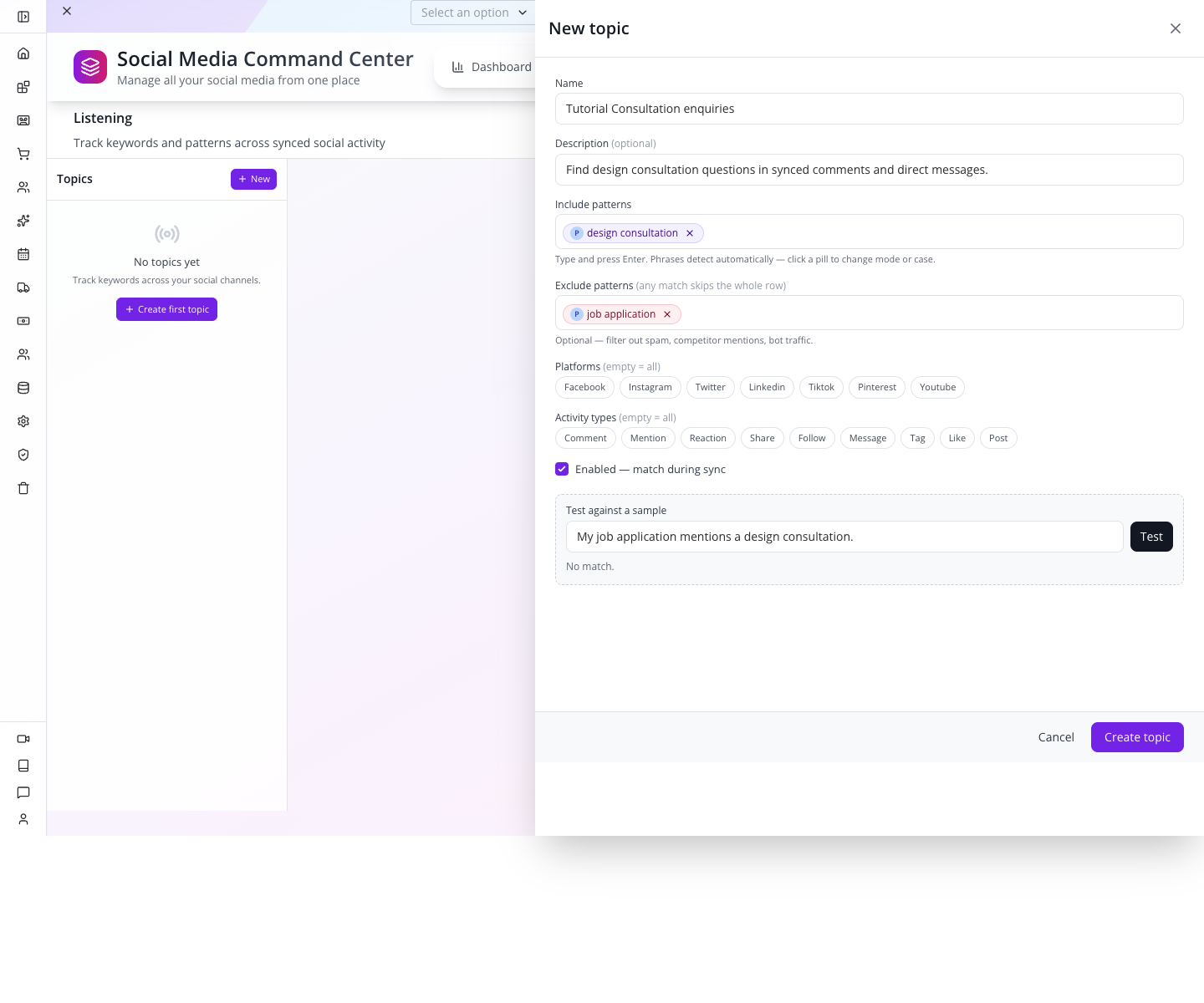
An exclusion skips the whole activity row, not just the unwanted words. Use exclusions sparingly: a real customer who says “this is not a job application; I want a design consultation” would also be excluded by this simple phrase rule.
4. Set the real scope after the text test
Select Facebook and Instagram under Platforms. Select Comment and Message under Activity types. Leave other pills unselected.
This scope matches the channels and kinds of conversation Jordan wants to review. A reaction or like alone does not ask for an appointment, so it is outside this particular rule.
Tester gotcha: with those filters selected, the same positive text returned No match in our rehearsal. The tester sends content without a sample platform or activity type, so it fails the selected filters. To test phrase behaviour, temporarily clear the scope pills, test, then restore them before saving. Do not remove the intended production filters just because the text-only tester cannot supply that context.
5. Save, reload and inspect the topic
Press Create topic. If editing an existing topic, the button is Save changes. Reload the page, return to Listening and select Tutorial Consultation enquiries.
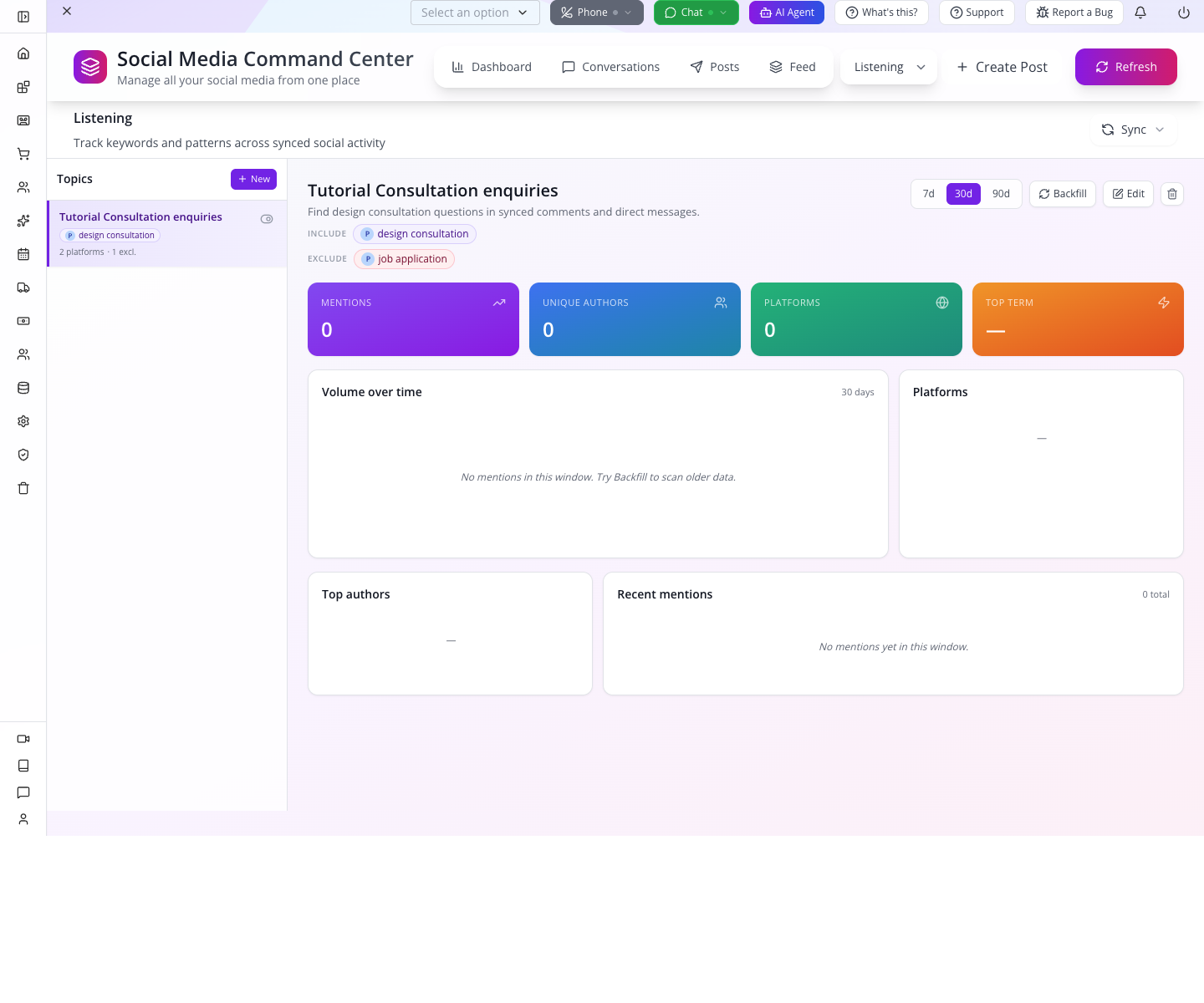
The topic shows its include and exclude phrases and 2 platforms. Open Edit after reloading: check Facebook and Instagram, Comment and Message, and Enabled are selected, with all other platform/activity pills unselected. The summary count alone cannot verify those specific choices. With no synced provider activity, Mentions, Unique authors and Platforms are zero. That is expected; the sample tester does not manufacture activity for the dashboard.
Backfill scans existing synced activity against the rule. It is useful after changing rules when historical activity exists. It does not connect a social account or fetch the whole public web.
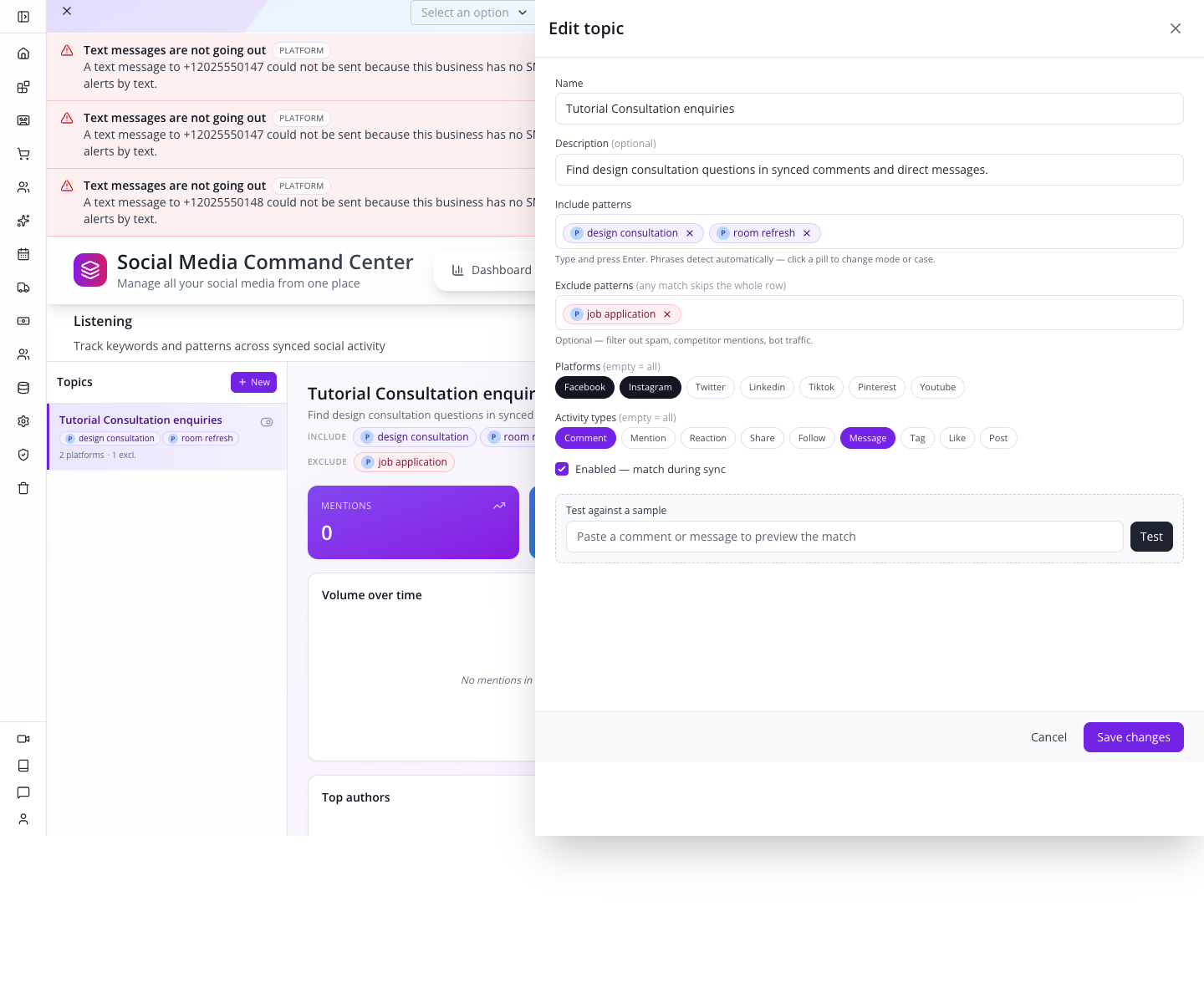
Try it: add an include phrase for room refresh. Test a matching sentence and an excluded sentence. If you cleared scope for the text-only test, restore Facebook, Instagram, Comment and Message and check Enabled before saving. Reload and reopen Edit to confirm those exact selections survived. Avoid broad keywords such as design until you have checked the irrelevant matches they produce.
Part 6 — Connect accounts, handle replies and measure the right thing
Connection handoff
The remaining connection and publication steps require a provider account you control. They are a separate future handoff; the local draft/listening exercise is complete without connecting or publishing.
Return to More… → Integrations, scroll to Social media and select Connect for the provider you intend to use. Complete provider authentication with the company's authorised account, then return to Accounts and verify the intended business identity appears. The external consent sequence was not completed in this rehearsal; provider screens and requested permissions need to be checked during that connection.
The previously inspected Facebook connection implementation imports Pages returned for that login and associated Instagram accounts. Do not assume Appmint will offer a second page-selection screen after authentication. Review the provider-side scope carefully, then inspect which identities actually appear in Appmint.
Reopen your draft and select the intended Post to account destination. Read every selected account pill. A correct caption on the wrong Page is still an incorrect publication.
Before the first real post, replace tutorial copy/artwork, verify public media access, confirm the account and rehearse a controlled publication on an account you own. Open the provider's resulting post to inspect caption, image and destination. No provider connection or publication is shown as complete in this course.
Where incoming work appears
| View | What to do there |
|---|---|
| Conversations | Open a synced DM/comment thread and read the conversation before responding |
| Activity | Filter incoming comments, mentions, reactions, shares, follows and messages |
| Engagement | Review top engagers, needs-reply items and hashtag information for a chosen time range |
| Listening | Review activity that matches your saved topic rules |
| Feed | Inspect provider feeds for connected accounts; distinguish actual data from examples |
| Dashboard | Read each provider's own available metrics and account health |
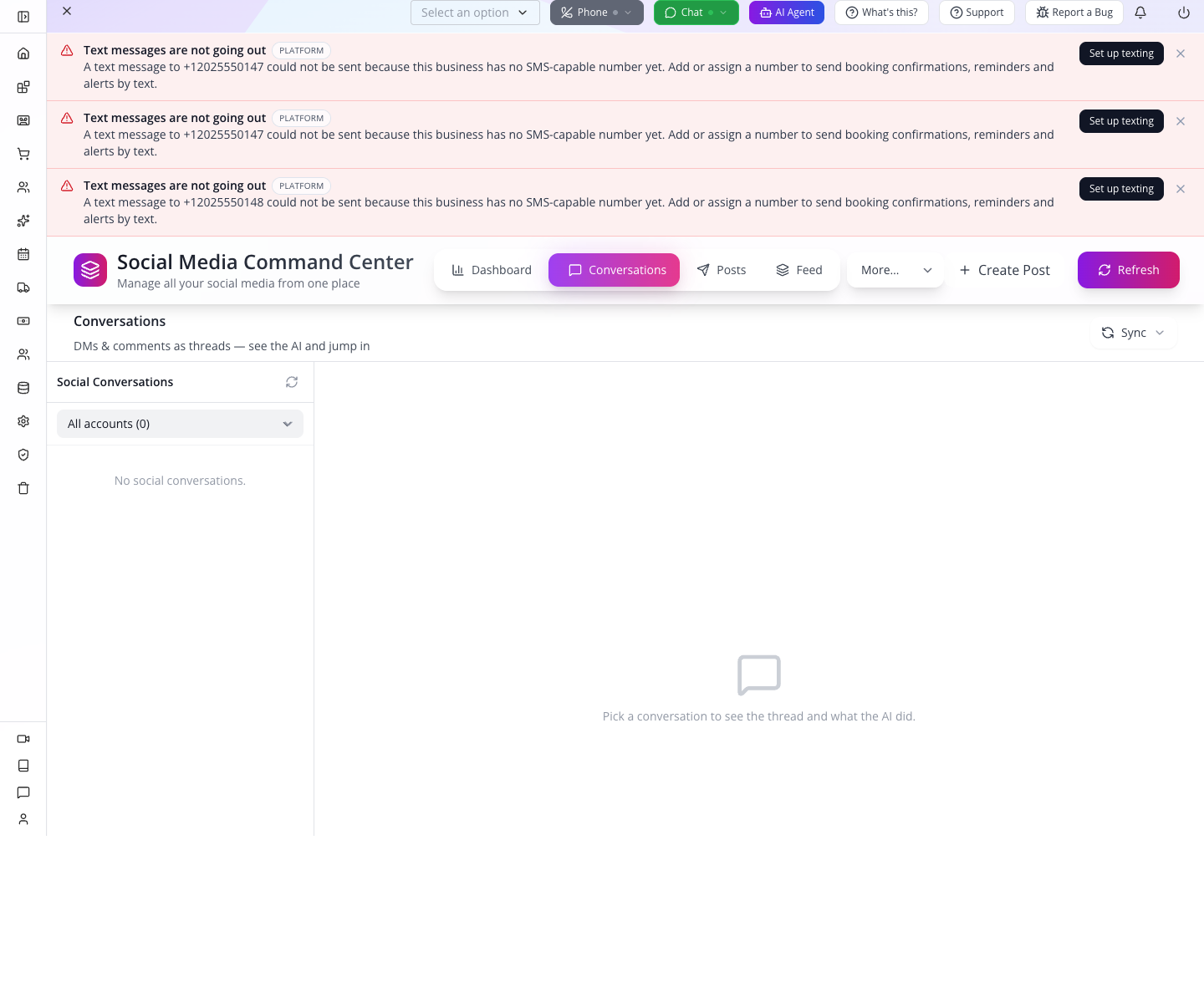
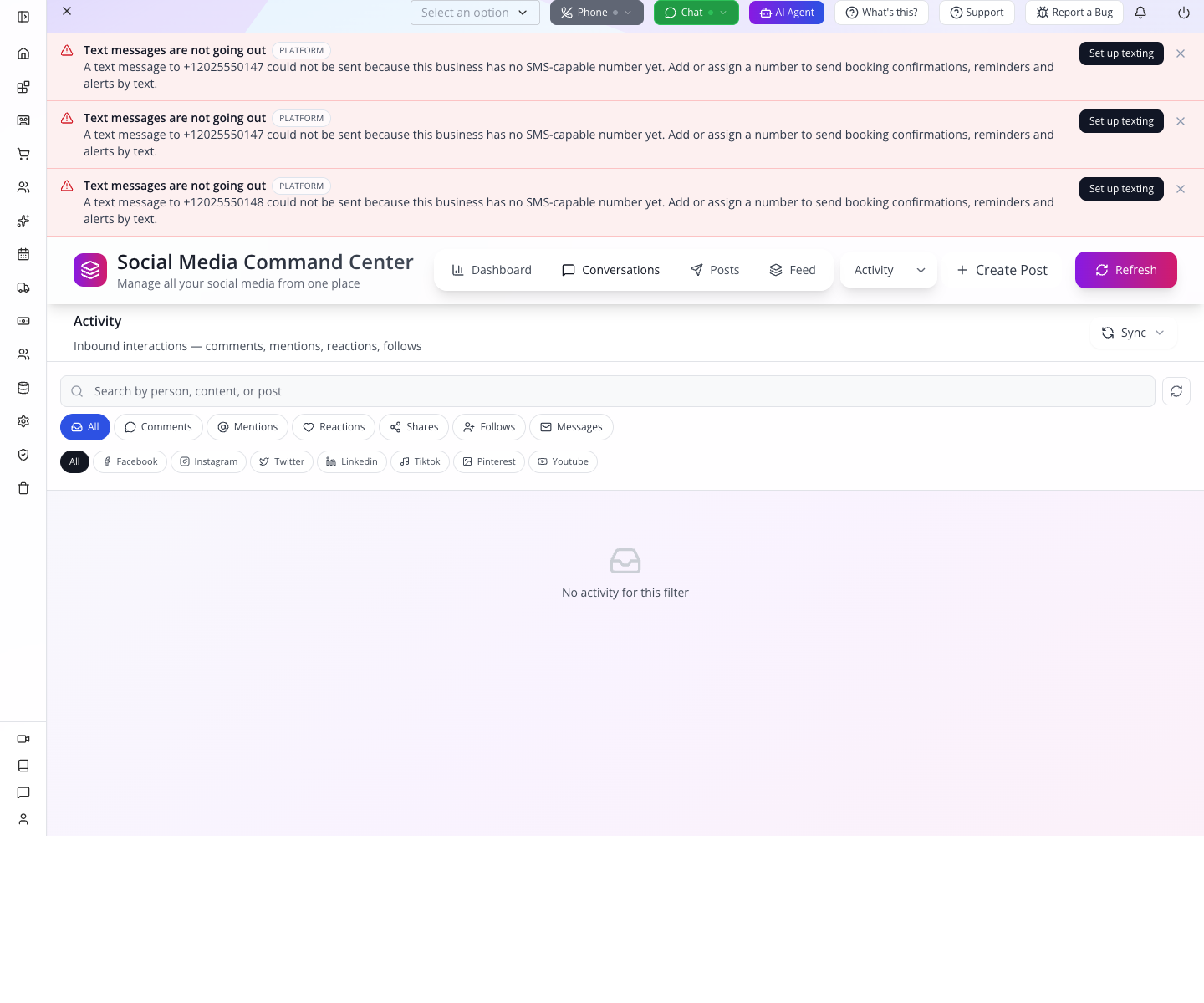
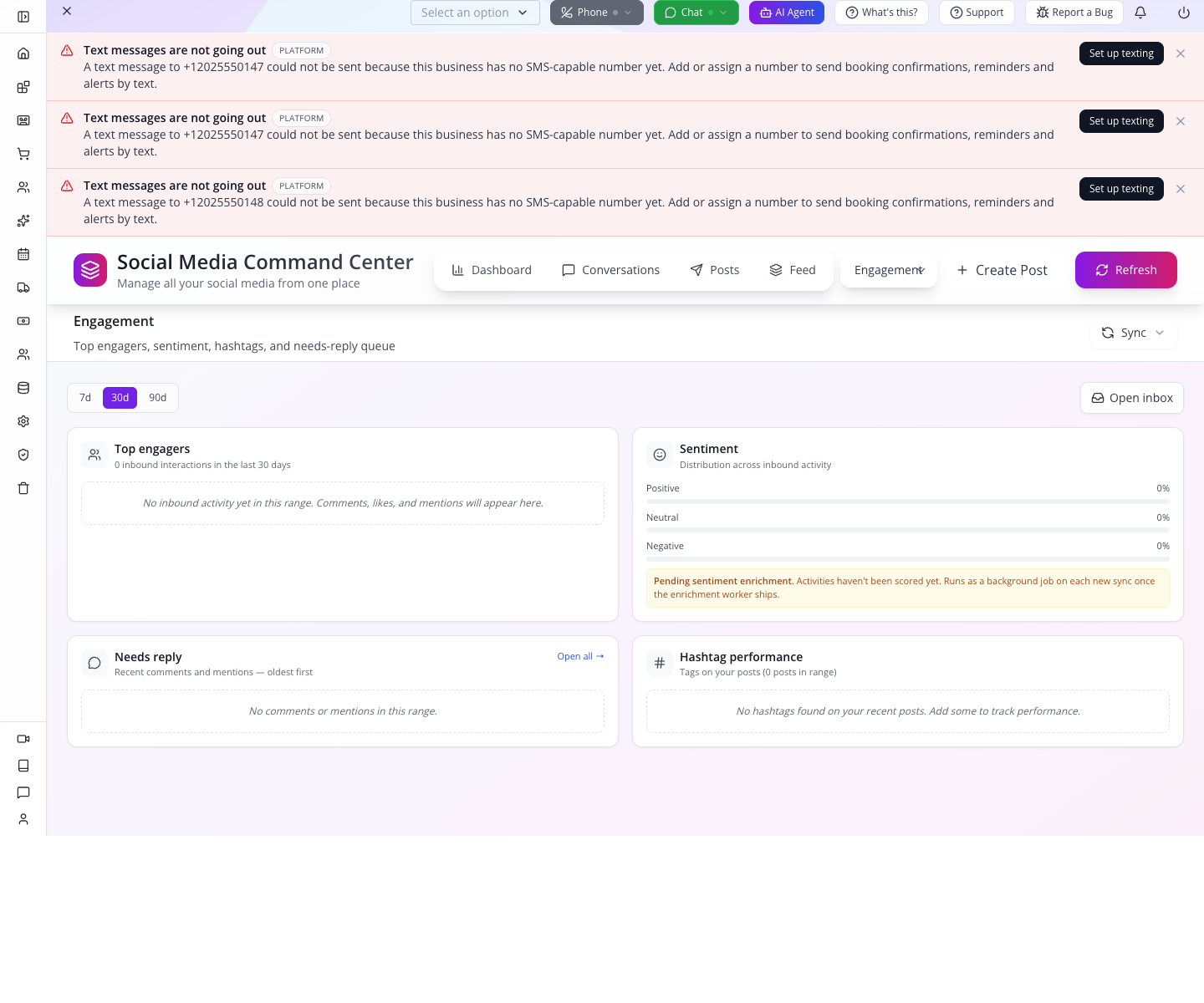
In the captured build, Engagement says Pending sentiment enrichment. Zero positive/neutral/negative percentages here do not establish that customers have no sentiment. That enrichment work has not populated those results.
Feed also displayed example Twitter cards such as Tech Updates despite no account being connected. Those cards are sample content in the source, not Cedar & Form's audience or campaign results. Do not use their likes, replies or poll votes as evidence of your own performance.
Turn an enquiry into business work
When a real person asks for a consultation, read the full thread and check availability before confirming. Capture enough context for the next colleague: person, requested room/project, preferred time and the source post or conversation reference.
There is no verified one-click conversion from these Social views into a lead in this walkthrough. Follow Turn an enquiry into a project to create the lead or reservation and preserve the source context. The listening topic helps you find the enquiry; it does not complete that CRM handoff.
If something goes wrong
| Symptom | First check and useful next action |
|---|---|
| Message saved but Posts is empty | In Comm Center → Messages, check the row's Channel. Explicitly select the intended channel and save. |
| No account preview | Check Post to account and the linked-account connection. Draft saving does not require a preview. |
| Upload finished but no attachment | Find the uploaded file, choose its checkmark, save the message and reopen it. |
| Artwork appears blank briefly | Wait for the actual thumbnail to load before deciding the file is missing. |
| No Instagram media | Expand Media and attach an image; do not treat a text-only draft as publication-ready. |
| Schedule create says “Not a new metrics” | Keep the draft, cancel the failed editor and report the error. Verify Scheduled remains empty. |
| Schedule says stop | Do not rely on that label alone to cancel a queued action. Use actual deletion/cancellation and verify removal. |
| Positive listening sample says No match | Temporarily clear platform/activity scope for the text-only test, then restore the intended scope. |
| Topic dashboard has zero mentions | Check linked accounts, synced activity, topic filters and time range. Sample tests do not create mentions. |
| Feed contains unfamiliar popular posts | Check whether they are built-in sample cards rather than connected-provider records. |
| Schedule completed but post is absent | Inspect the message delivery result and provider response; timing completion and publication are separate. |
Behind the screens
Developer notes and source pointers
Social drafts are message records, distinguished by data.deliveryType; media is stored in data.files and selected social destinations in data.to. The composer parent and child both initialise message state. The parent's unspecified default channel can overwrite the apparent social default. Explicit channel selection fixes the saved classification. That unclassified message belongs to the historical rehearsal. The fresh learner run explicitly selected each channel and saved only the two classified drafts.
The social compose form permits Save draft without full account/media validation. This is intentional drafting behaviour, not evidence that an incomplete post can be delivered. The uploaded practice asset and its selection survived a fresh read. Its thumbnail loaded asynchronously, so final readback captures waited for actual image completion. The local backend stored this public, fictional tutorial card in its configured development object storage under the learner organisation prefix.
The historical ScheduleManager creation failure and missing suspension guards were repaired locally; 98 regression checks cover creation and stopped/paused/cancelled dispatch suppression. The fresh browser run only opened and cancelled the editor, then confirmed Scheduled remained empty. It does not establish a provider publication, recurring run or cancellation of an action already underway.
The saved-topic update originally constructed a double-slash URL and returned Not Found. The local request-path repair now lets Save changes reach the actual update route; the final extra phrase and exact scope survived browser reload.
The listening tester submits {sample:{content}}. Server matching also checks topic platform and activity-type filters, explaining why scoped text samples return no match. Clearing scope for a dry-run phrase test and restoring it before saving worked. No social_activity rows were fabricated to inflate the dashboard.
Source reviewed:
websitemint/packages/ui/src/components/crm/social/modern-social-app.tsx,modern-social-posts.tsx,modern-social-scheduled.tsx: navigation, saved-post query and schedule view.websitemint/packages/ui/src/components/crm/communications-center/compose-content.tsx,modern-compose-form.tsx,comm-center-helpers.ts: initial state, account selection, draft/send differences and media handling.websitemint/packages/ui/src/components/content/file-manager/fm-control.tsx,views/card-view.tsx: upload and select controls.websitemint/packages/ui/src/components/schedule-management/schedule-manager.tsx: actual timing editor and creation payload.appengine/src/sync/commands/schedule-updated-handler.ts,sync/queue-consumer/schedule.consumer.ts: queue materialisation and actions.websitemint/packages/ui/src/components/crm/social/modern-social-listening.tsx;appengine/src/community/topics/social-topic.service.ts,social-topic.matcher.ts: rule persistence and sample scope.websitemint/packages/ui/src/components/crm/social/feeds/twitter-feed.tsx: example cards displayed without a connected account.
Where next
Use Build a consultation campaign for an email invitation. Use Turn an enquiry into a project for reservations and leads. Use Reliable background jobs to diagnose scheduling and provider-sync operations.
Evidence: fresh learner organisation ck-local-mu83iwh3, 19 September 2026, local Studio3100/AppEngine3300. Both channel-specific drafts, the Facebook edit/restore exercise, artwork upload/Public-badge/selection/reload, schedule inspection/cancel, original and extra listening phrase tests, and exact saved listening scope were exercised through the actual browser. The final topic includes design consultation and room refresh, excludes job application, and retains only Facebook/Instagram and Comment/Message with Enabled checked after reload. Conversations/Activity/Engagement/Feed were inspected without creating inbound activity. No social account connection, external post, reply, running schedule, commission or payment was made. The public fictional PNG used the local backend's configured development object storage. Fresh browser execution record. Historical capture ledger. Companion-video guide.